
EU Withdrawal Button – Return and Cancel Contract – Automated EU-compliant returns, contract withdrawals, order cancellations, and warranty complaints for WooCommerce. Fulfills EU Directive 2011/83/EU and Directive (EU) 2023/2673 requirements with 1-click customer modal workflows, automated PDF withdrawal certificates, two-way customer messaging, and centralized request management.
Installation
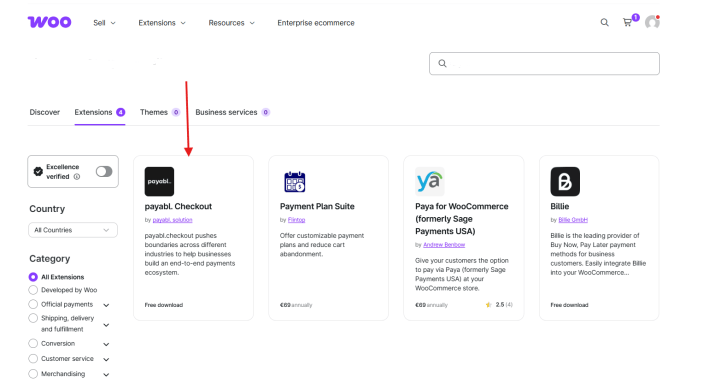
↑ Back to topTo start using a product from WooCommerce.com, you can use the “Add to store” functionality on the order confirmation page or the My subscriptions section in your account.
- Navigate to My subscriptions.
- Find the Add to store button next to the product you’re planning to install.
- Follow the on-screen instructions, and the product will be added to your store automatically.
Alternative options and more information at:
Managing WooCommerce.com subscriptions.
Getting started
↑ Back to topAfter installing and activating the extension, you can access the configuration and management screens directly from your WordPress dashboard:
- Configuration Settings: Navigate to “WooCommerce > Settings > Returns”. This is where you configure return time windows, warehouse addresses, order state permissions, and return reasons.
- Returns and Complaints Dashboard: Navigate to “WooCommerce > Returns and Complaints”. Here, store managers review incoming return requests, chat with customers, inspect uploaded damage photos, and update request statuses.
- Shortcode: The extension automatically creates a dedicated return page at
/returns-withdrawal/containing the[teamwantreturn_form]shortcode. You can embed this shortcode on any custom page or footer link to give guest shoppers a self-service return lookup form.
Description of the various functions
↑ Back to topConfiguration > Main
- Enable returns module: Master toggle to turn the entire return and withdrawal system on or off.
- Show buttons on order detail page: Displays the active action buttons (“Withdraw from Contract”, “Return Products”, “Cancel Order”, “File a Complaint”) directly inside the customer “My Account > Orders > View Order” page.
- Show buttons in order emails: Automatically appends action links to eligible WooCommerce order confirmation emails.
- Embed withdrawal link in footer: Automatically adds a direct link to your return portal in your website footer.
- Embed withdrawal link in header: Places a quick link to the return portal in your store navigation bar or top header.
- Show info on checkout page: Displays a statutory legal notice informing consumers of their 14-day right of withdrawal before placing an order.
- Show info on order confirmation: Displays a statutory confirmation notice on the “Order Received” (Thank You) page.
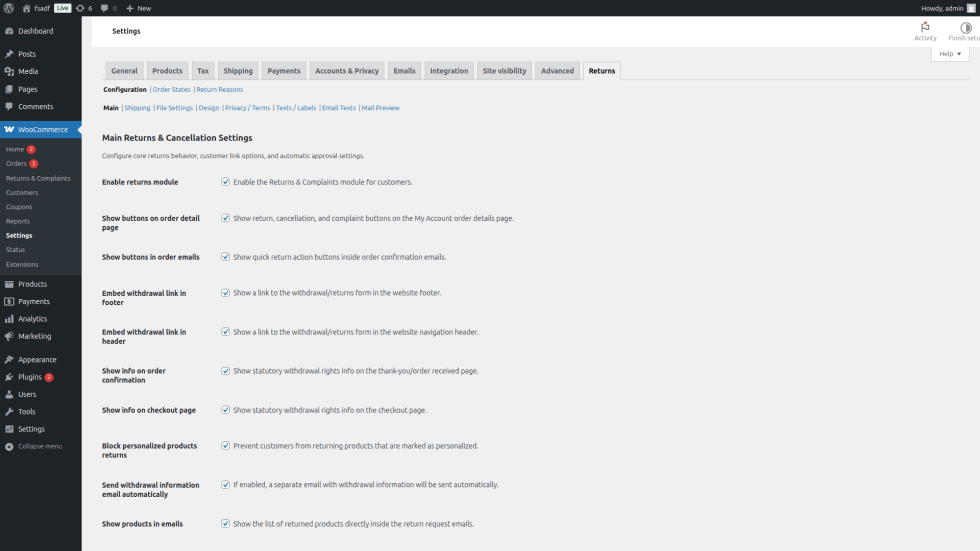
- Block personalized products returns: Automatically detects and prevents returns on custom-made or personalized items exempted under EU consumer law.
- Exclude virtual products: Excludes digital downloads, services, and virtual items from return options.
- Excluded product categories: Select specific WooCommerce product categories that are legally exempt from returns (e.g., perishable goods, hygiene items, opened cosmetics).
- Excluded customer groups/roles: Exclude specific user roles (such as B2B wholesale buyers) from consumer withdrawal workflows.
- Return address: The physical warehouse address where returned packages must be shipped. This address appears on customer receipts, emails, and generated PDF protocols.
- Admin email recipients: Comma-separated list of staff email addresses that receive instant alerts when a new return, complaint, or cancellation is filed.
- Withdrawal period calculation method: Choose when the statutory withdrawal clock starts:
- Based on Order creation date
- Based on Order completion date (delivery date)
- Based on Status change date
- Withdrawal PDF certificate: Automatically compiles and attaches an official PDF Declaration of Withdrawal to confirmation emails.
Configuration > Shipping
↑ Back to top- Enable shipping buffer: Adds grace days to the return window to account for courier delivery transit time.
- Shipping buffer days: Number of days added to the statutory window (e.g., 2-5 days) before calculating return expiration.
- Shipping refund method: Controls whether delivery fees are refunded when an entire order is returned:
- Do not refund shipping
- Refund cheapest standard shipping method (EU statutory default)
- Refund full shipping amount
- Refund up to a maximum amount
Configuration > File Settings (Complaint Attachments)
↑ Back to top- Max upload size per file (bytes): Sets the maximum file size for customer photo uploads (e.g. 5242880 for 5 MB).
- Max files per complaint: Limits how many photo attachments a customer can submit per complaint request.
- Allowed file types: Comma-separated list of allowed MIME types (e.g., image/jpeg, image/png, application/pdf).
Configuration > Design and Styling
- Notice box style: Choose the visual style (Warning, Info, Modern, or Custom) for statutory notices displayed on Checkout and Thank You pages.
- Custom colors: Define custom background, text, and border colors to match your store theme.
- Show expired withdrawal message: Displays a disabled button with an explanatory tooltip instead of hiding the action button entirely once the return timeframe expires.
Configuration > Privacy / Terms
↑ Back to top- Enable privacy policy checkbox: Requires customers to check a mandatory consent box before submitting a return or withdrawal request.
- Store regulations and privacy policy pages: Link your store legal pages directly within the consent text.
- Consent text template: Customize the legal consent text using dynamic link placeholders.
Configuration > Email Texts and Mail Preview
- Custom email notifications: Customize HTML message bodies for “Request Received”, “Approved Return”, and “Rejected Return” emails.
- Mail preview: Send test emails to verify email formatting and branding before launching live.
Order States Mapping
↑ Back to topNavigate to “WooCommerce > Settings > Returns > Order States” to precisely configure which WooCommerce order statuses allow customer actions.
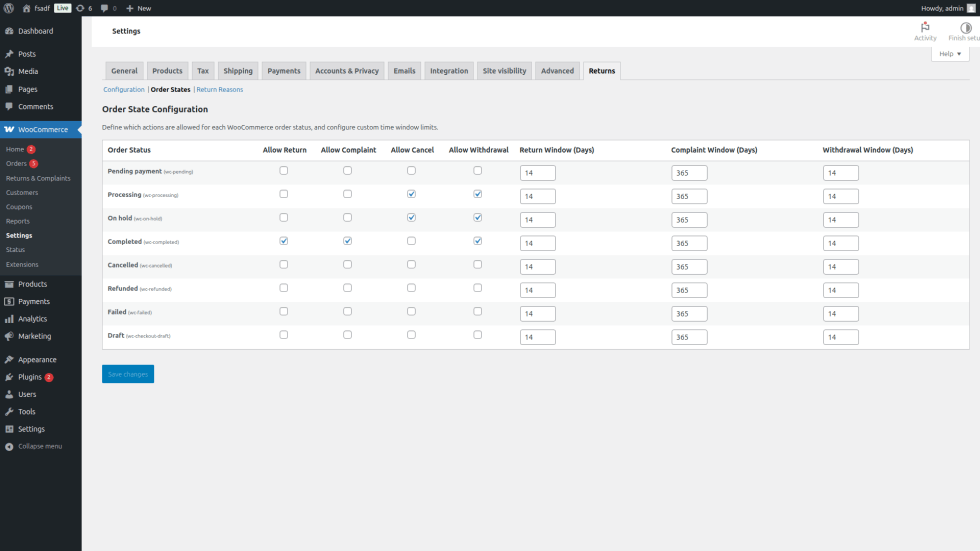
For every order status (such as Processing, On hold, Completed, Pending), you can independently configure:
- Allow Return: Enable physical item returns (typically restricted to Completed orders).
- Allow Withdrawal: Enable statutory contract withdrawal (typically enabled for Processing, On hold, and Completed).
- Allow Cancel: Enable instant cancellation (typically enabled for Processing or On hold prior to shipment).
- Allow Complaint: Enable warranty and defect claims (typically enabled for Completed orders).
- Time Windows (Days): Define unique timeframes for each status (e.g., 14 days for withdrawal, 30 days for returns, 365, or 730 days for warranty complaints).
Store Manager Dashboard (Admin Processing)
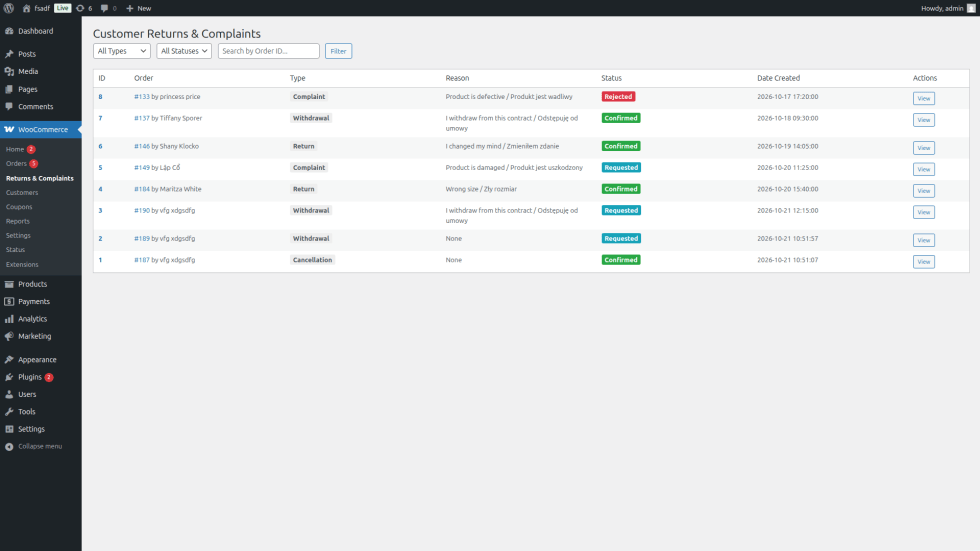
↑ Back to topNavigate to “WooCommerce > Returns and Complaints” to manage all incoming requests:
Returns List
↑ Back to top- Filter and search requests by order ID, customer name, request type, or status.
- View colored status indicators (Requested, Confirmed, Rejected) and request timestamps.
Request Inspection and Management View
↑ Back to topClicking “View” on any request opens the detailed processing screen:
- Order and Customer Details: Customer contact information, billing address, and order total.
- Returned Products Table: Inspect returned SKUs, requested quantities, and unit prices.
- Customer Notes and Attachments: Review reasons for return, customer comments, and full-resolution damage photos.
- Two-Way Messaging Timeline: Send direct messages to the customer. WooCommerce logs all messages, and the customer receives automated email notifications.
- Status Updates: Update status to Confirmed or Rejected. When configured in settings, accepting a withdrawal or return automatically transitions the WooCommerce order to your designated status (such as Refunded or Cancelled).
- Official PDF Document: Download or print the legal PDF Declaration of Withdrawal matching EU Directive standards.
Uninstallation
↑ Back to topTo uninstall the plugin:
- Navigate to “Plugins > Installed Plugins” in your WordPress dashboard.
- Locate “EU Withdrawal Button – Return and Cancel Contract” and click “Deactivate”.
- Click “Delete” to remove the plugin files from your server.

