
Smart Force Sell is a powerful WooCommerce force-sell plugin that automatically adds required products and complementary add-ons to the cart when customers purchase specific products. Increase average order value with synchronized quantities, flexible pricing, discounts, and customizable product displays.
Installation
↑ Back to topTo start using a product from WooCommerce.com, you can use the “Add to store” functionality on the order confirmation page or the My subscriptions section in your account.
- Navigate to My subscriptions.
- Find the Add to store button next to the product you’re planning to install.
- Follow the instructions on the screen, and the product will be automatically added to your store.
Alternative options and more information at:
Managing WooCommerce.com subscriptions.

Setup and Configuration
↑ Back to topOption 1:
Once the plugin is activated, you will see a Settings link on the Plugins page (as shown in the image below). Click this link to access the configuration panel.

Option 2:
- Go to your WordPress Admin Sidebar.
- Navigate to WooCommerce → Settings → Force Sells, to configure the global display options.
General Setting
↑ Back to top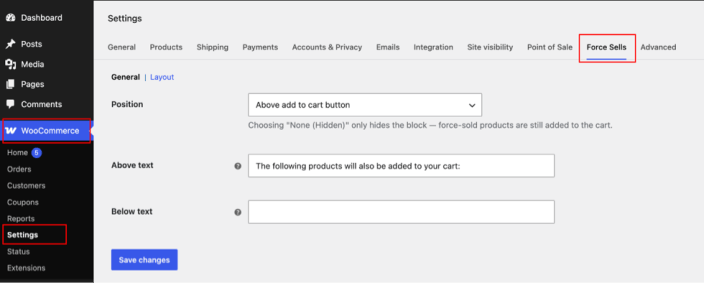
| Setting | Description | Default |
|---|---|---|
| Position | Where the force-sell block appears on the product page: above or below the Add to Cart button, or None (Hidden). Hiding the block doesn’t stop products from being added to the cart. | Above add to cart button |
| Above text | Text shown above the list of force-sell products. | The following products will also be added to your cart: |
| Below text | Text shown below the list of force-sell products. | (empty) |
Layout Setting
↑ Back to top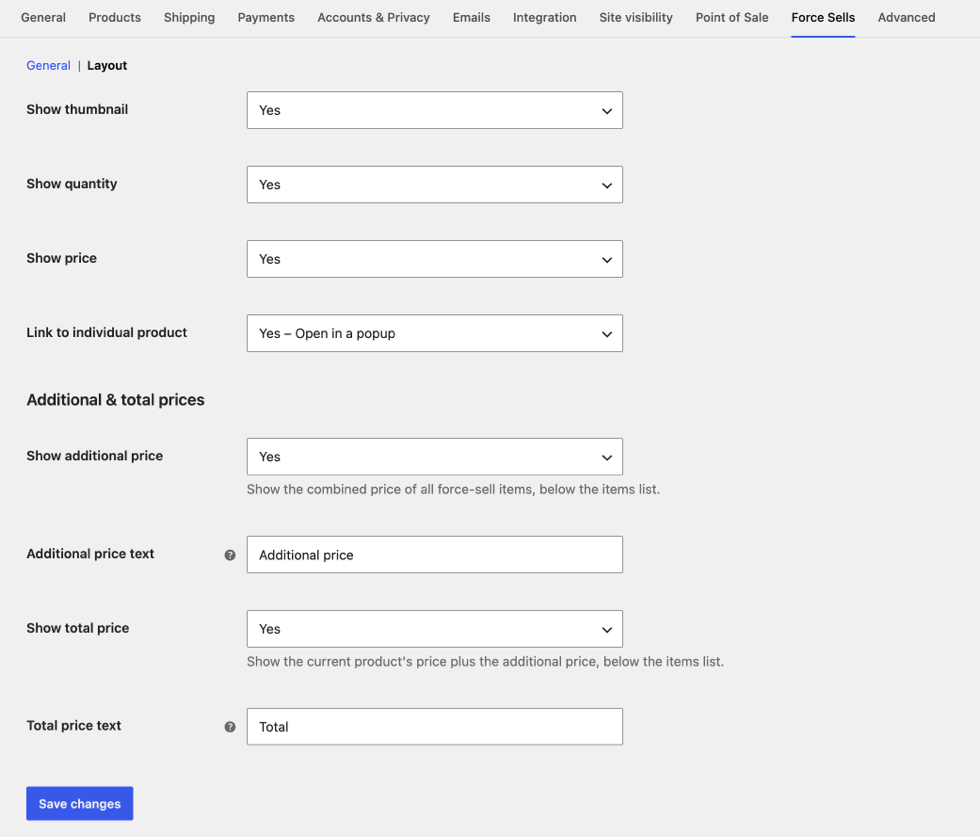
| Setting | Description | Default |
|---|---|---|
| Show thumbnail | Show each add-on’s product image. | Yes |
| Show quantity | Show the quantity before each add-on’s name, for example “1 ×”. | Yes |
| Show price | Show each add-on’s price, including strike-through pricing for discounts. | Yes |
| Link to individual product | Open in the same tab, Open in a new tab, Open in a popup (Quick View), or No link. | Same tab |
| Show additional price | Show the combined price of all add-ons below the list. | Yes |
| Additional price text | Label shown before the additional price. | Additional price |
| Show total price | Show the main product’s price plus the add-ons’ price below the list. | Yes |
| Total price text | Label shown before the total price. | Total |
Adding Force Sells to a Product
↑ Back to top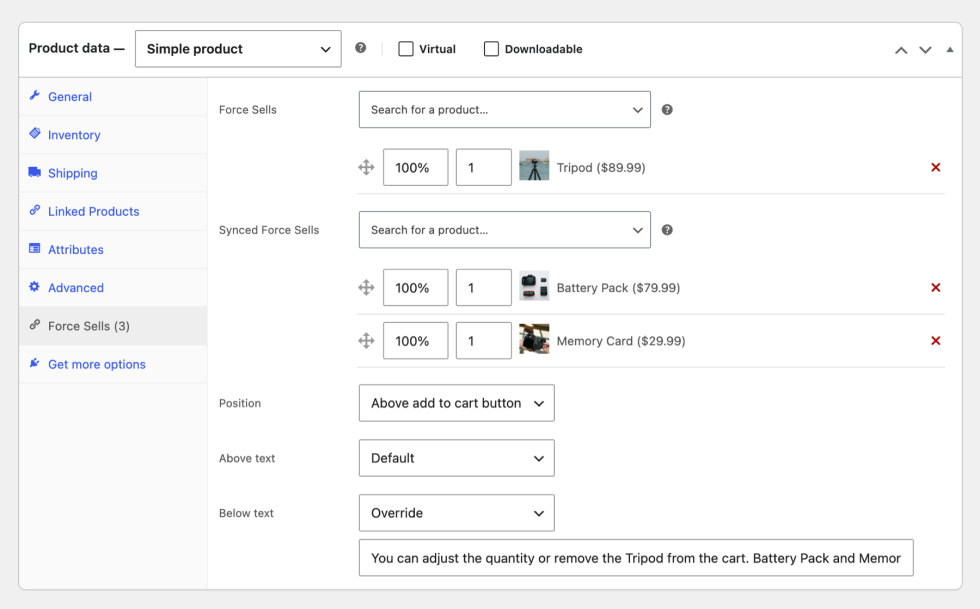
- Go to Products and edit the product that should trigger the force sell (the main product).
- In the Product data panel, open the Force Sells tab.
- Use the Force Sells or Synced Force Sells search box to find a product and select it. It’s added as a row in that list.
- For each row, optionally set a price and a quantity (default 1).
- Drag rows by the move handle to change the order they appear in on the product page. Click the × icon to remove a row.
- Click Update to save the product.
Once saved, the tab label shows how many force-sell products are linked, for example, Force Sells (3).
- Force-sell items must be simple-type products. Variable and grouped products can’t be selected as force-sell items.
- The main product can be simple or variable. Force-sell items are added for whichever variation the customer chooses.
- A product can’t be linked to itself.
Custom Pricing
↑ Back to topEach force-sell row has a price field that overrides the add-on’s price when it’s sold with this main product. The override only applies to items added through the force sell. If the same product is bought on its own, it keeps its normal price.
| You enter | Result |
|---|---|
| (leave blank) | The product’s normal price is used. |
55 | Fixed price of 55 in your store currency. |
0 | The add-on is free. |
80% | 80% of the product’s regular price, which is a 20% discount. |
When the new price is lower than the product’s regular price, it’s shown on the product page with the regular price struck through. The override is applied to cart and checkout totals, and changes you make apply to carts that already contain the item.
The percentage is the price the customer pays, not the discount. To give 25% off, enter 75%.
Force Sell Types
↑ Back to topEach product can have two lists of linked products. You can use either list, or both at once.
| Force Sells | Synced Force Sells | |
|---|---|---|
| Added to cart automatically | Yes | Yes |
| Quantity | Added at the quantity you set. Customers can change it. | The quantity you set × the main product’s quantity. Updates whenever the main product’s quantity changes. |
| Customer can remove it | Yes | No. The remove link is hidden and the quantity is locked. |
| When the main product is removed | Stays in the cart | Removed with it, and restored if the customer clicks Undo |
| Good for | Recommended products, optional services, etc | Mandatory parts, per-unit fees, warranties, etc |
Example: A camera has a memory card as a synced force sell with quantity 1. A customer who adds 2 cameras gets 2 memory cards. If they change the cameras to 3, the memory cards change to 3.
Storefront Experience
↑ Back to top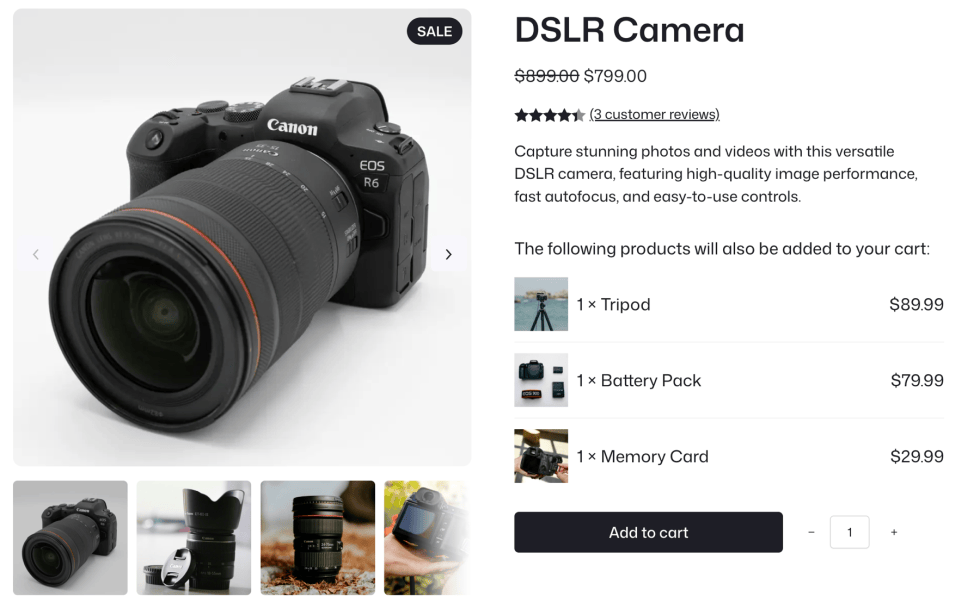
On the product page, customers see a block listing the products that will be added with their purchase. Depending on your settings, each row shows a thumbnail, quantity, name and price. Below the list, the additional price and the total price give a clear summary of what the customer will pay.
Quick View Popup
↑ Back to top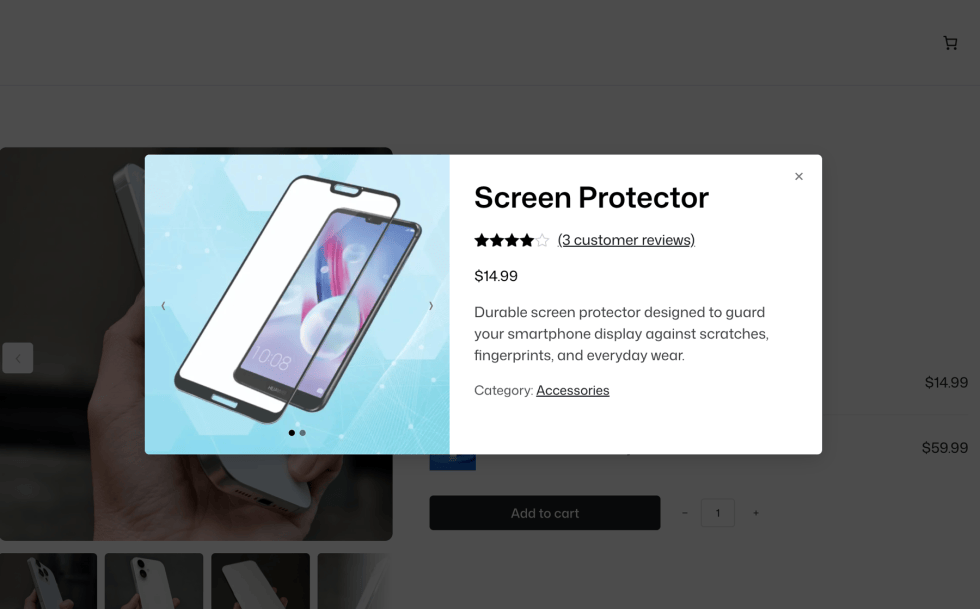
When Link to individual product is set to Open in a popup, clicking an add-on’s image or name opens a Quick View popup instead of a new page. The popup shows the product’s image gallery and details, so customers can learn about the add-on without leaving the product they’re buying.
Cart Behavior
↑ Back to top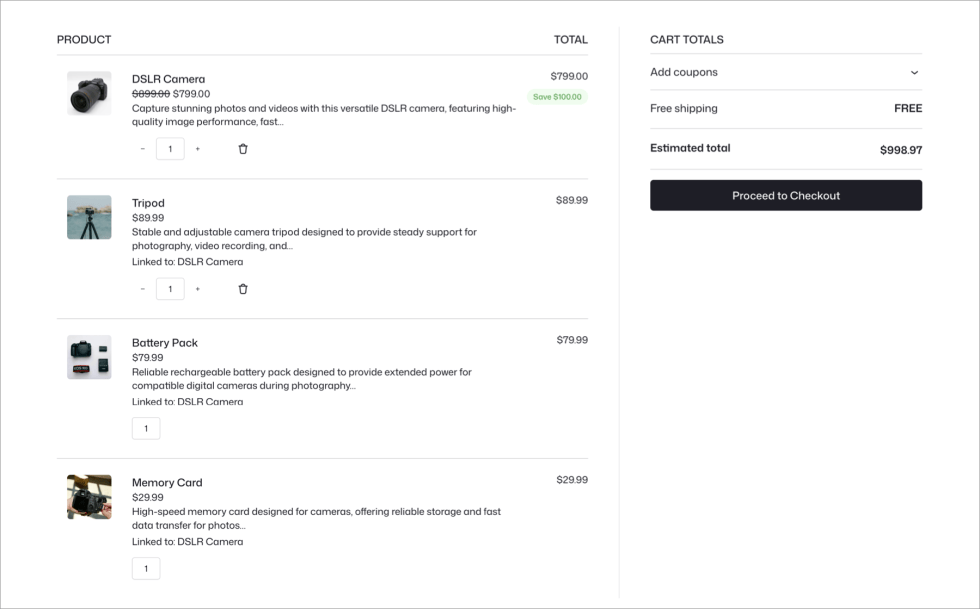
- Every force-sell item in the cart shows a Linked to: line naming its main product.
- Synced items have no remove link, and their quantity is shown as fixed text rather than an editable field.
- Adding the main product again increases synced items to match. Standard items keep their quantity and aren’t duplicated.
- Removing the main product removes its synced items.
- These rules apply in the classic cart and in the Cart, Checkout and Mini Cart blocks.
Products List
↑ Back to top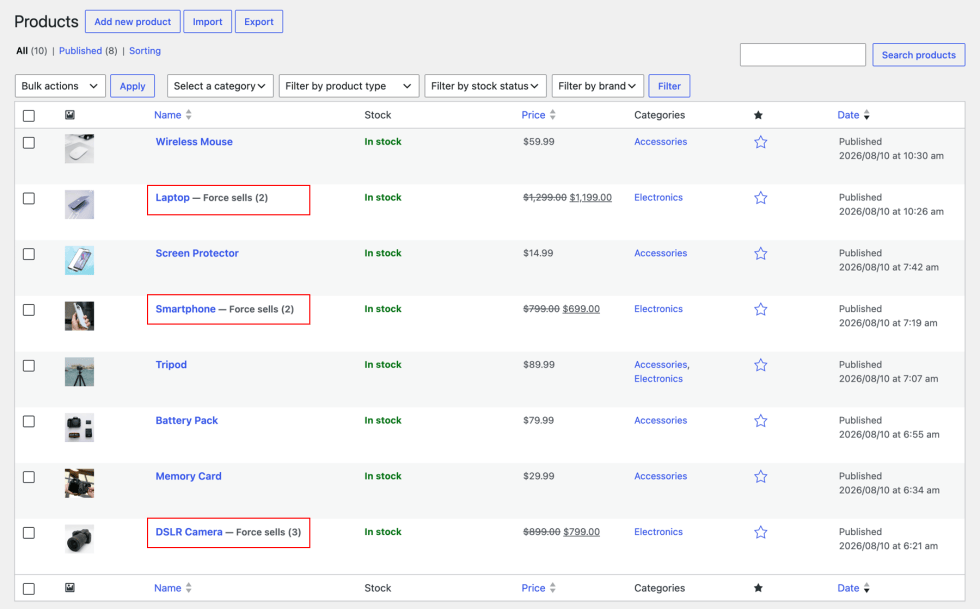
In Products > All Products, any product with linked force sells shows a label next to its name. For Example: Force sells (2).
This lets you see at a glance which products have force sells set up.
Overriding the Template
↑ Back to topThe product page block is rendered from a WooCommerce template. To customize it, copy:
wp-content/plugins/smart-force-sell/templates/single-product/force-sells.phpto:
wp-content/themes/your-theme/smart-force-sell/single-product/force-sells.phpThe template receives these variables:
| Variable | Description |
|---|---|
$items | Array of items, each with product (WC_Product), price (overridden price or null) and qty. |
$above_text, $below_text | Resolved text for this product. An empty string means hidden. |
$show_thumbnail, $show_quantity, $show_price | Booleans from the Layout settings. |
$link | same_tab, new_tab, popup or none. |
$show_additional_price, $additional_price_text, $additional_price_html | Additional price summary. |
$show_total_price, $total_price_text, $total_price_html | Total price summary. |
FAQs
↑ Back to top
Can I hide the force-sell block but still add products to the cart?
Yes. Set Position to None (Hidden), either globally or for a single product. Products are still added to the cart automatically.
Does the custom price change the product's price everywhere?
No. The override only applies when the product is added as a force sell of that main product. Bought on its own, it keeps its normal price.
Can the same product be a force sell for many products?
Yes. You can link the same add-on to as many main products as you like, with a different price and quantity on each.
Why can't I select a variable product as a force sell?
Force-sell items are added automatically with no option for the customer to choose a variation, so only simple-type products can be used. To offer a specific variation, create it as a separate simple product.
What happens to standard force sells when the main product is removed?
They stay in the cart because customers are free to keep or remove them. Synced force sells are always removed with the main product.
Does it work with the block-based Cart and Checkout?
Yes. Smart Force Sell supports the classic cart as well as the Cart, Checkout and Mini Cart blocks.
Is it compatible with HPOS?
Yes. Smart Force Sell is compatible with WooCommerce High-Performance Order Storage.

