
Use WordPress.com Transport to route ShipStation requests through WordPress.com instead of having ShipStation contact your store directly. Consider this optional route when a firewall, CDN, or host interferes with direct requests; you still need to verify that orders and shipment updates synchronize.
Before you begin
↑ Back to top- Install the current ShipStation for WooCommerce extension and generate credentials using the connection guide. You can use Transport for a new connection or switch an existing store.
- Have access to WooCommerce settings, your ShipStation store connection, and the WordPress.com account used to connect the site. A paid Jetpack plan isn’t required.
- Keep your working credentials available in a password manager. Switching routes doesn’t require a new REST API key pair.
WordPress.com Transport is off by default. If direct synchronization already works, you don’t need to change routes. Enabling this option changes ShipStation’s route; it doesn’t disconnect other plugins that share the WordPress.com connection.
Enable the WordPress.com route
↑ Back to top- Go to WooCommerce > Settings > Integration > ShipStation.
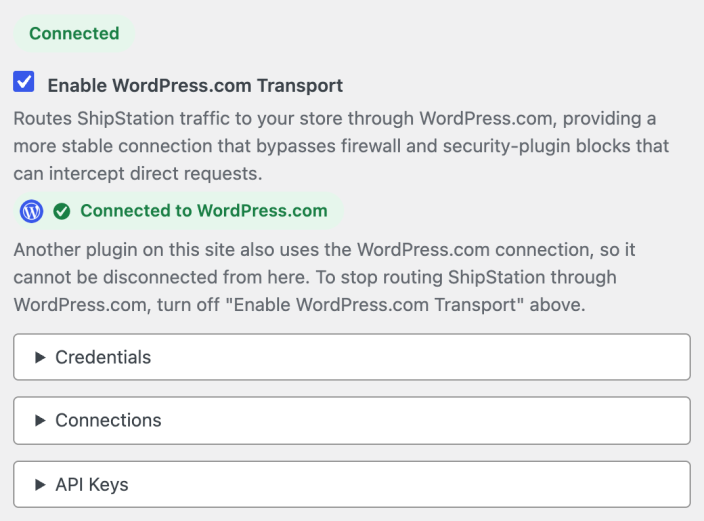
- In ShipStation Connection, select Enable WordPress.com Transport and then Save changes.
- If your site isn’t already connected, select Connect to WordPress.com and approve the connection. Return to the settings page and confirm Connected to WordPress.com appears.
- Expand Credentials and copy the displayed Store URL. With the transport enabled and connected, it’s a WordPress.com address.
- In ShipStation, open Settings > Selling Channels > Store Setup. For an existing store, select Edit Connection from its actions menu. For a new connection, select Connect a Store or Marketplace and choose WooCommerce. Enter the copied Store URL and current credentials, test the connection, and save. If the URL field is labeled URL to Custom XML Page, use it for the Store URL.
If credentials are missing, select Generate REST API keys and update the key pair in ShipStation too. Save the Consumer Key when it’s shown: it can’t be retrieved later. Don’t delete an older key until you’ve verified the new connection.
Verify the route and synchronization
↑ Back to top- Trigger an order refresh in ShipStation.
- In WooCommerce, expand Connections. Look for a WordPress.com route with a recent Last sync and an Active status.
- Confirm an eligible test order imports into ShipStation, then confirm a shipment update returns to the WooCommerce order with Notify Marketplace? enabled.
Connected to WordPress.com confirms the site connection, not the complete order workflow. The route’s status reflects connection activity; verify the actual order and shipment results before relying on it.
The Connections list isn’t a log of every request attempt. Failed direct authentication doesn’t create a route entry, so an empty list doesn’t prove that ShipStation made no request. Rejected refers to a known WordPress.com route when its transport is turned off. Check host logs and the returned error when a direct request fails.
Resolve a route that needs attention
↑ Back to topRead the message banner in ShipStation Connection first. It identifies the action needed, such as generating credentials or repairing the site connection. Use Active only or All above the Connections list to change which routes you see.
- Inactive: No recent sync was recorded. Refresh orders in ShipStation and check Last sync before treating an idle route as a failure.
- Rejected: A known WordPress.com route is blocked because the transport is off. Enable it and save, or update ShipStation to use a direct route.
- Disconnected: The WordPress.com connection isn’t available. Reconnect it before testing the route again.
- Mismatch: The site address and saved connection no longer match. Follow the site-address repair steps below.
- Deleted: The route’s API key was deleted. Generate a replacement in Credentials, update ShipStation, and test again.
If orders stop importing immediately after switching routes, check that ShipStation actually saved the WordPress.com Store URL. If the checkbox is selected but unavailable, the site configuration controls it; contact whoever manages the site rather than trying to override it.
For the key-list columns and safe removal steps, see Manage API keys. For an amber HTTPS warning on a direct connection, see Resolve the HTTPS warning.
Repair the connection after a site address change
↑ Back to top- If the banner says the WordPress.com connection needs repair, select Reconnect to WordPress.com.
- Expand Credentials and copy the current Store URL.
- Update the store connection in ShipStation, then repeat the order and shipment checks.
Switch back to a direct connection
↑ Back to top- Clear Enable WordPress.com Transport and select Save changes.
- Expand Credentials and copy its Store URL, which now uses your site address.
- Update the Store URL in ShipStation and confirm the current credentials are entered.
- Test the connection, refresh orders, and verify both order import and shipment updates.
A direct route can remain marked Active for up to a day after its last request. Check the saved URL in ShipStation and a fresh synchronization result rather than relying on that status alone.
Disconnect WordPress.com if it’s no longer needed
↑ Back to topIf another plugin shares the WordPress.com connection, the Disconnect control isn’t offered here. Leave that shared connection in place and turn off only Enable WordPress.com Transport to stop using it for ShipStation.
Otherwise, select Disconnect. The section shows Disconnect pending. After a fresh direct synchronization, select Safe disconnect from WordPress.com when offered. If it isn’t, first configure ShipStation with the direct Store URL and let it synchronize, then return to finish. Select Cancel to leave the connection in place.
Questions and support
↑ Back to topDo you still have questions and need assistance?
- Get in touch with a Happiness Engineer via our Help Desk. We provide support for extensions developed by and/or sold on WooCommerce.com, and Jetpack/WordPress.com customers.
- If you are not a customer, we recommend finding help in the WooCommerce support forum or hiring a Woo Agency Partner. These are trusted agencies with a proven track record of building highly customized, scalable online stores. Learn more about Woo Agency Partners.

