
Floating Product Video for WooCommerce lets you add a floating video to your product pages that remains accessible while customers browse and scroll.
Installation
↑ Back to topTo start using a product from WooCommerce.com, you can use the “Add to store” functionality on the order confirmation page or the My subscriptions section in your account.
- Navigate to My subscriptions.
- Find the Add to store button next to the product you’re planning to install.
- Follow the instructions on the screen, and the product will be automatically added to your store.
Alternative options and more information at:
Managing WooCommerce.com subscriptions.
Setup and Configuration
↑ Back to topOption 1:
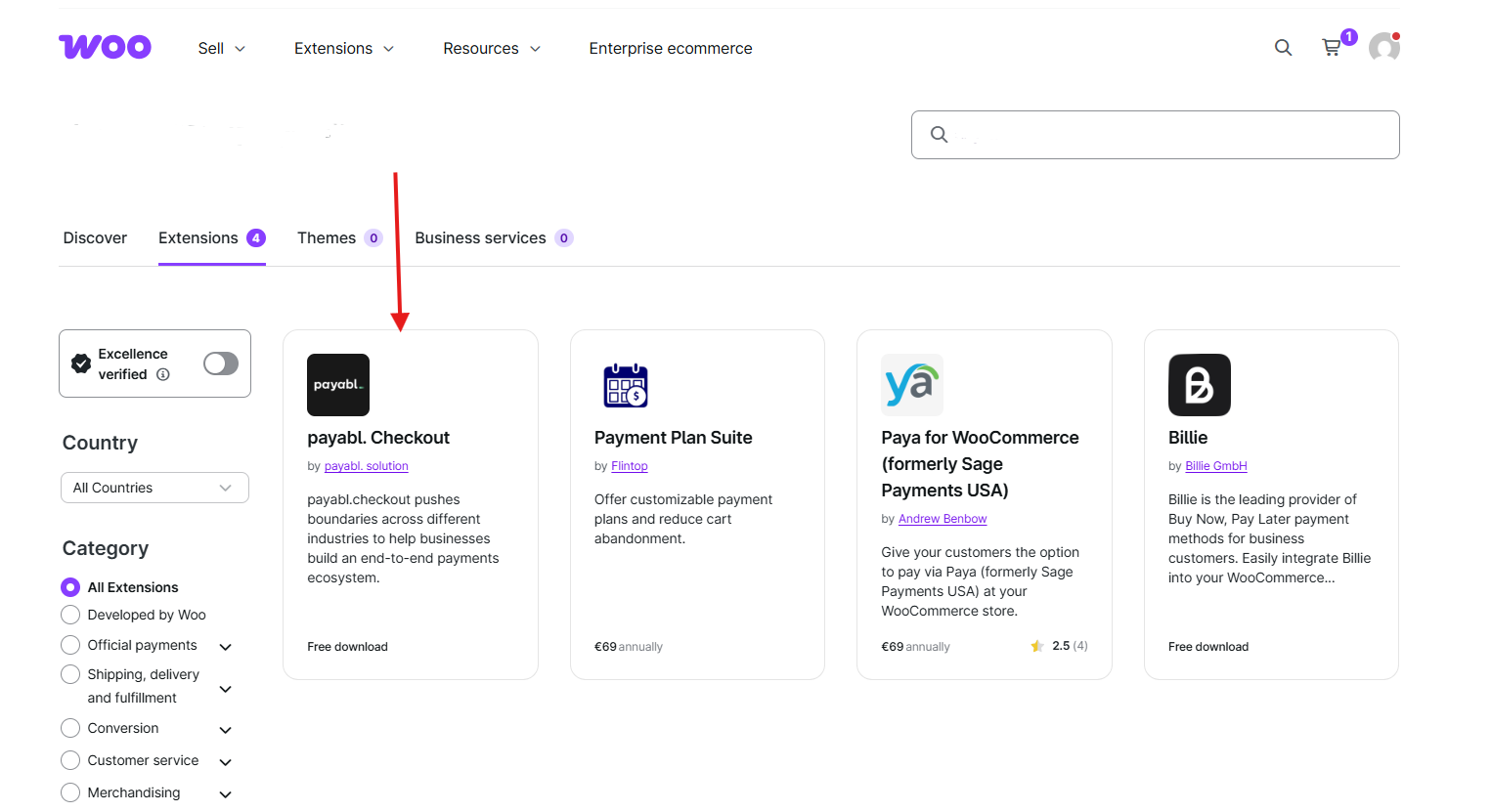
Once the plugin is activated, you will see a Settings link on the Plugins page (as shown in the image below). Click this link to access the configuration panel.

Option 2:
- Go to your WordPress Admin Sidebar.
- Navigate to WooCommerce → Settings → Floating Video to configure the global display options.
General Setting
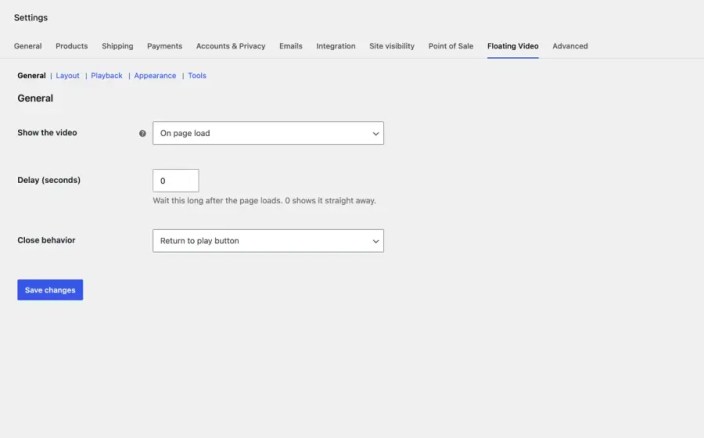
↑ Back to topFind these under WooCommerce → Settings → Floating Video → General.
| Setting | Options | Default | What it does |
|---|---|---|---|
| Show the video | On page load, After scrolling | On page load | When the play button or open player first appears. |
| Delay (seconds) | 0–60 | 0 | Wait after the page loads. Applies to On page load. |
| Scroll distance (%) | 1–100 | 25 | How far down the page the customer must scroll. Applies to After scrolling. Pages too short to scroll that far show the video straight away. |
| Close behavior | Return to play button, Hide the video completely | Return to play button | What the player’s close button does. A hidden video comes back when the page is next loaded. |
Layout Setting
↑ Back to top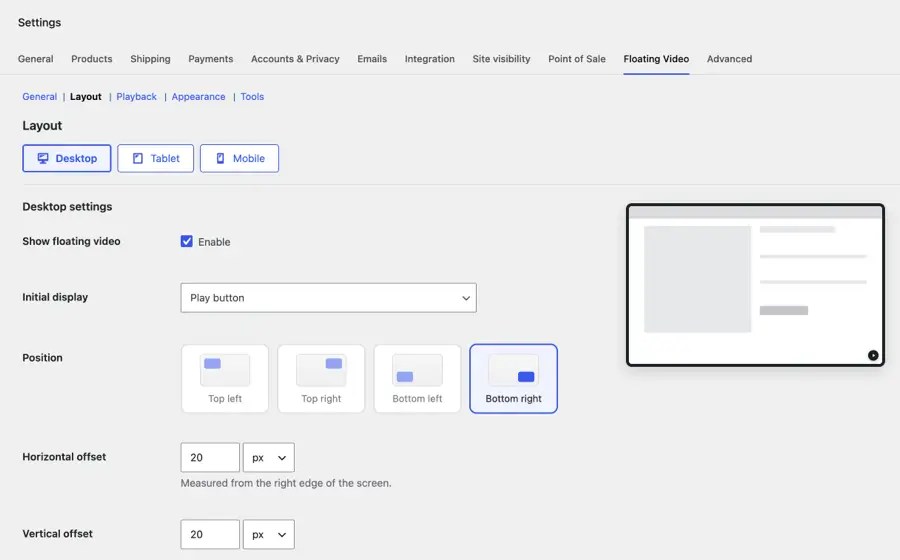
The Layout section has a separate editor for desktop, tablet, and mobile, with a live preview of each screen as you change values.
Per-device settings
↑ Back to top| Setting | Desktop | Tablet | Mobile | Allowed values |
|---|---|---|---|---|
| Show floating video | Yes | Yes | Yes | Yes or No |
| Initial display | Play button | Play button | Play button | Play button or Expanded video |
| Position | Bottom right | Bottom right | Bottom right | Any corner |
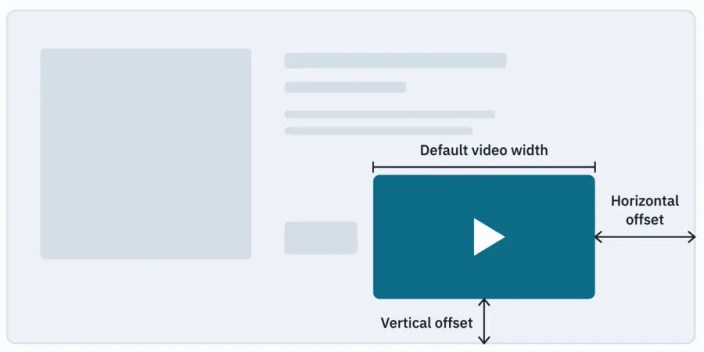
| Horizontal offset | 20px | 20px | 12px | 0–500 in px, or up to 50% |
| Vertical offset | 20px | 20px | 12px | 0–500 in px, or up to 50% |
| Default video width | 410px | 340px | 280px | At least 120px, or up to 100% |
| Play button size | Medium | Medium | Small | Small 48px, Medium 60px, Large 76px |
| Customers can move the player | No | No | No | Yes or No |
| Customers can resize the player | No | No | No | Yes or No |
Device inheritance
↑ Back to topYou don’t have to configure every device. Tablet settings can be Same as desktop, Same as mobile, or Custom, and defaults to Same as desktop. Mobile settings can be Same as desktop or Custom, and defaults to Custom. The tablet column above only applies once tablet is set to Custom.
Screen size breakpoints
↑ Back to top| Setting | Default |
|---|---|
| Tablet (px) | 1024 |
| Mobile (px) | 767 |
Playback settings
↑ Back to top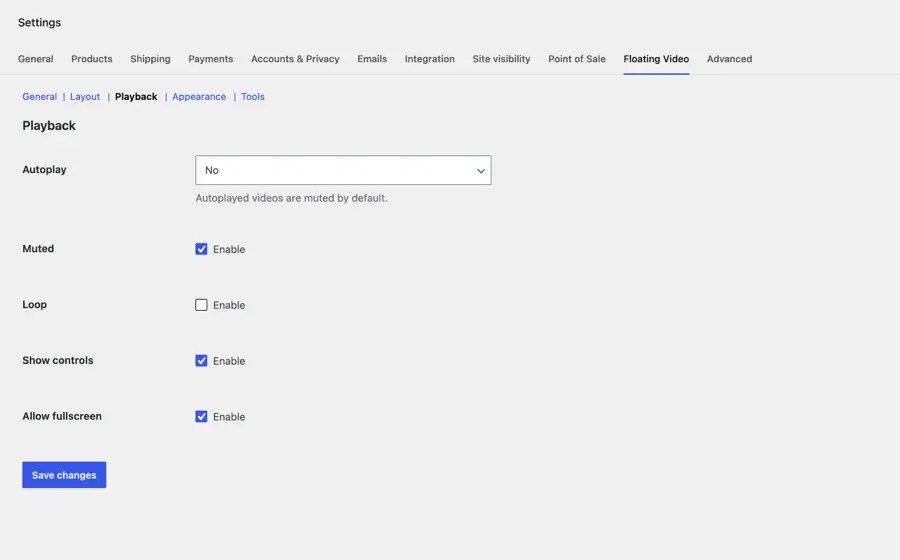
| Setting | Default | What it does |
|---|---|---|
| Autoplay | No | Starts the video without a click, on devices where Initial display is Expanded video. It is always muted, and is skipped for visitors whose device asks for reduced motion. |
| Muted | Yes | Starts the video with sound off, including when a customer presses play. |
| Loop | No | Restarts the video when it ends. |
| Show controls | Yes | Shows the player controls. For uploaded and external videos with controls off, clicking the video plays and pauses it. |
| Allow fullscreen | Yes | Lets customers watch in fullscreen. |
- Want sound when customers press play? Turn Muted off. It is on by default, so videos start silent until the customer unmutes them.
How the first view works
↑ Back to top| Initial display | Autoplay | What the customer sees |
|---|---|---|
| Play button | On or off | The play button. The video starts when they click it. |
| Expanded video | On | The open player, playing muted. |
| Expanded video | Off | The open player, paused. YouTube and Vimeo show the poster until the customer presses play. |
Appearance settings
↑ Back to top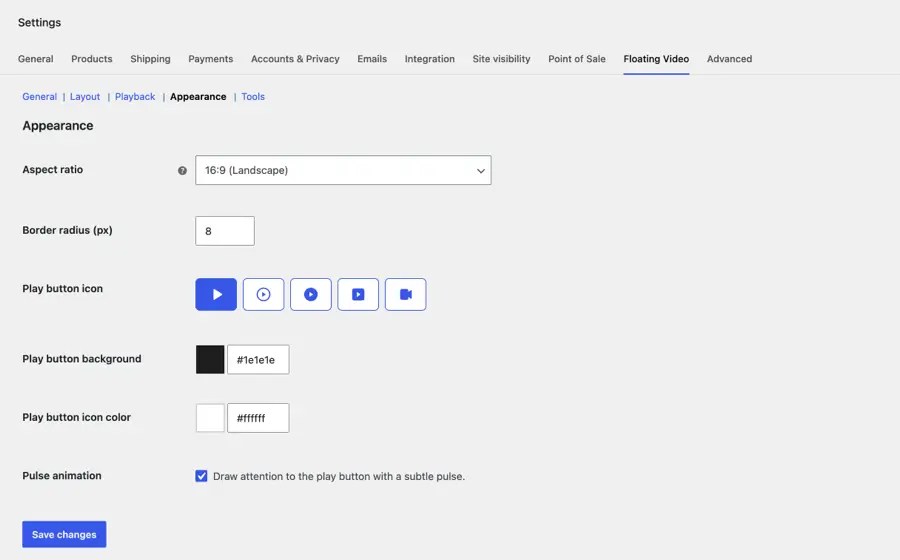
| Setting | Default | Options |
|---|---|---|
| Aspect ratio | 16:9 | 16:9 (Landscape), 4:3, 1:1 (Square), 9:16 (Vertical). The height follows the width at this ratio. |
| Border radius (px) | 8 | 0–40 |
| Play button icon | Play | Play, Play in a circle, Play in a filled circle, Play in a rounded square, Video camera |
| Play button background | #1e1e1e | Any color |
| Play button icon color | #ffffff | Any color |
| Pulse animation | Yes | Draws attention to the play button with a subtle pulse. |
Per-product overrides
↑ Back to top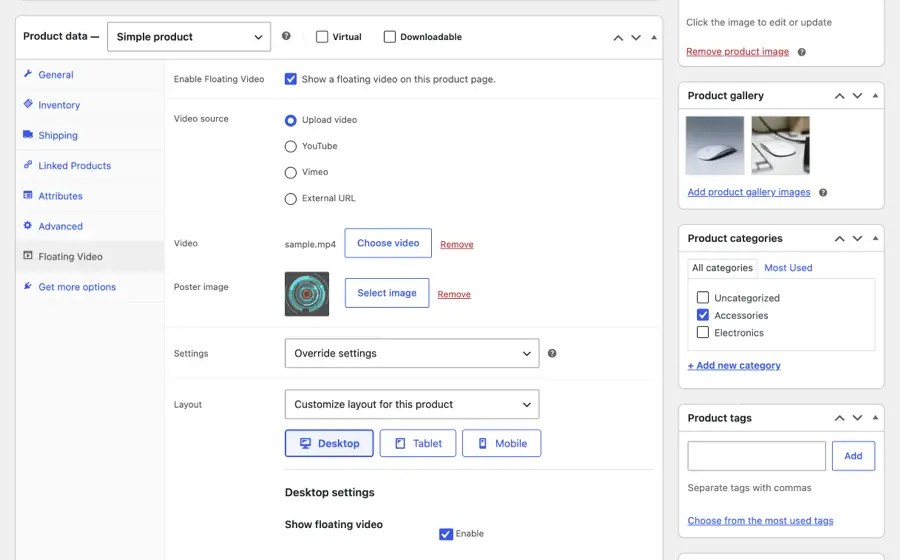
By default a product uses the global settings. To change them for one product, open its Floating Video tab and set Settings to Override settings. Two groups of options appear.
Layout
↑ Back to topSet Layout to Customize layout for this product to open the same per-device editor and preview used in the global settings.
Advanced settings
↑ Back to topClick Advanced settings to override individual General, Playback, and Appearance options. Each field shows the current global value as its default, such as Default (Yes). Leave a field on its default and it keeps following the global setting.
What customers can do
↑ Back to top| Action | Result |
|---|---|
| Press the play button | Opens the player and starts the video. |
| Minimize, or press Esc | Pauses the video and returns to the play button. Reopening continues from the same point. |
| Close | Stops the video. It then returns to the play button or hides, depending on Close behavior. Opening it again starts from the beginning. |
| Drag the toolbar | Moves the open player, if Customers can move the player is on. Minimizing or closing returns it to its configured corner. Double-click the toolbar to reset. |
| Drag the resize handle | Changes the width, if Customers can resize the player is on, down to 180px. The browser remembers the width for each device type. Double-click the handle to reset. |
| Arrow keys on the move or resize handle | Moves or resizes by 10px, or 50px with Shift. |
Add a video to a product
↑ Back to top- Go to Products and edit a product.
- In the Product data box, open the Floating Video tab.
- Tick Enable Floating Video.
- Choose a Video source, then choose a file or paste the URL.
- Optional: choose a Poster image.
- Update the product and view it on your store.
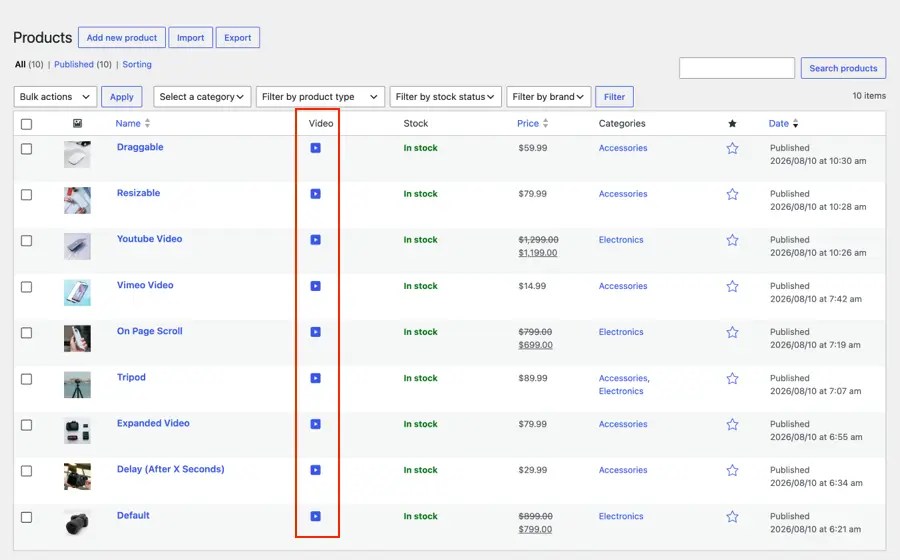
On the Products list, the Video column shows an icon for every product whose video is ready to display, and a dash for the rest.
Video sources
↑ Back to top| Source | What to provide |
|---|---|
| Upload video | A video from your Media Library. |
| YouTube | A watch?v=, youtu.be/, /shorts/, /embed/, /live/, or /v/ URL. Videos play from the privacy-enhanced youtube-nocookie.com domain. |
| Vimeo | A vimeo.com or player.vimeo.com URL. For an unlisted video, paste the full link including its privacy hash. Videos play with Vimeo’s Do Not Track option on. |
| External URL | A direct link to a file ending in .mp4, .m4v, .webm, .ogv, or .mov. If your store uses HTTPS, the link must too. |
Poster images
↑ Back to topThe poster appears before the video plays. If you don’t choose one, YouTube and Vimeo videos use the thumbnail from their provider. Uploaded and external videos have no fallback poster.
Override the template
↑ Back to topCopy the plugin’s
templates/single-product/floating-product-video.phpto:
wp-content/themes/yourtheme/floating-product-video/single-product/floating-product-video.phpKeep the .fpv-floating__frame element and the data-fpv-* and .fpv-floating__* hooks. The script creates the player inside the frame and adds the move and resize handles to .fpv-floating__toolbar. Without the toolbar, the player can’t be moved or resized.
Filter the frontend configuration
↑ Back to topfpv_floating_product_video_config receives the configuration array, the WC_Product, and the product’s effective settings. Return null to show no video on that product.
add_filter(
	'fpv_floating_product_video_config',
	function ( $config, $product, $settings ) {
		if ( $product->is_on_sale() ) {
			$config['show'] = [
				'trigger' => 'scroll',
				'delay'   => 0,
				'scroll'  => 50,
			];
		}

		return $config;
	},
	10,
	3
);| Key | Contents |
|---|---|
provider | youtube, vimeo, or empty for a file |
embedUrl | The YouTube or Vimeo iframe URL |
src | The file URL for uploaded and external videos |
poster, title | Poster URL and the video’s accessible name |
devices, breakpoints | Resolved layout per device, and the tablet and mobile widths |
autoplay, muted, loop, controls, fullscreen | Booleans |
closeBehavior | minimize or hide |
show | trigger (load or scroll), delay, scroll |
i18n | Labels for the move and resize handles |
YouTube and Vimeo parameters live in embedUrl. Changing muted, loop, or controls in the filter only affects uploaded and external videos. For embeds, edit the query string in embedUrl.
Stored data
↑ Back to top| Where | Key | Contents |
|---|---|---|
| wp_options | fpv_{setting} | One row per global setting. Layout keys use {device}_{setting}, such as fpv_mobile_width. |
| Post meta | _fpv_floating_product_video | One array per product: enabled state, source, attachment or URL, poster, override modes, and overrides. |
| Browser localStorage | fpv-floating-product-video-width | The widths a customer resized the player to, per device. |
Reset and uninstall
↑ Back to topReset global settings
↑ Back to topGo to WooCommerce → Settings → Floating Video → Tools, click Reset, and confirm. Every global setting returns to its default. This can’t be undone. Each product keeps its video and its overrides.
Uninstall
↑ Back to topDeleting the plugin removes its data. Deleting it from the Plugins screen erases all global settings and every product’s floating video configuration. Deactivating it keeps everything. Your Media Library files are not deleted.
FAQs
↑ Back to top
Can each product have its own video?
Yes. Videos are added per product. Variations of a product share that product’s video.
Does the video show on shop or category pages?
No. It only appears on single product pages.
Can I hide the video on mobile?
Yes. Under Layout, make sure mobile is set to Custom, then turn off Show floating video.
Will it slow down my store?
The plugin’s scripts and styles load only on product pages with a floating video. YouTube and Vimeo players load only when the video is opened by the customer or autoplays. Uploaded videos with a poster don’t download until played.
Can I use a vertical video?
Yes. Set Aspect ratio to 9:16 under Appearance, globally or for one product.

