
Data Privacy Manager for WooCommerce lets your customers request and download a copy of their personal data from My Account → Data Privacy. Shop managers with access manage download availability under WooCommerce → Data Privacy → General Settings → Export Requests and check requests through the linked WordPress privacy tools.
How personal data export works
↑ Back to topYour customers submit a request and confirm it using a link sent to the email address on their account. Confirmation starts archive preparation automatically. When the ZIP is ready, the store sends a second email with its download link. Customers can also download from My Account while the archive remains available.
The archive contains information supplied by your store’s registered WordPress, WooCommerce, and compatible plugin exporters. Its contents depend on the records held for that customer; it does not necessarily include information in every external service your store uses. Requesting or downloading an export leaves the original store data in place.
Personal data export area
↑ Back to topFrom My Account, your customers follow these steps:
- Select Data Privacy in the account menu.
- Select Export my personal data. This is the example store’s label; the default card label is Download my data.
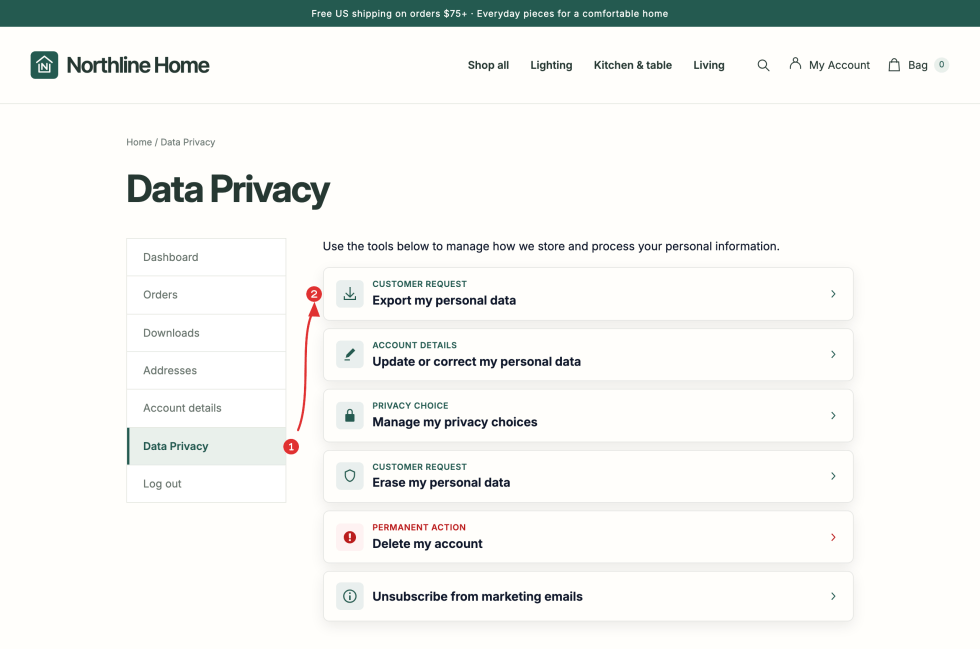
Request and confirm an export
↑ Back to topRequest the archive
Select Request archive. The store creates the request and sends a confirmation email to the address on the customer’s account.
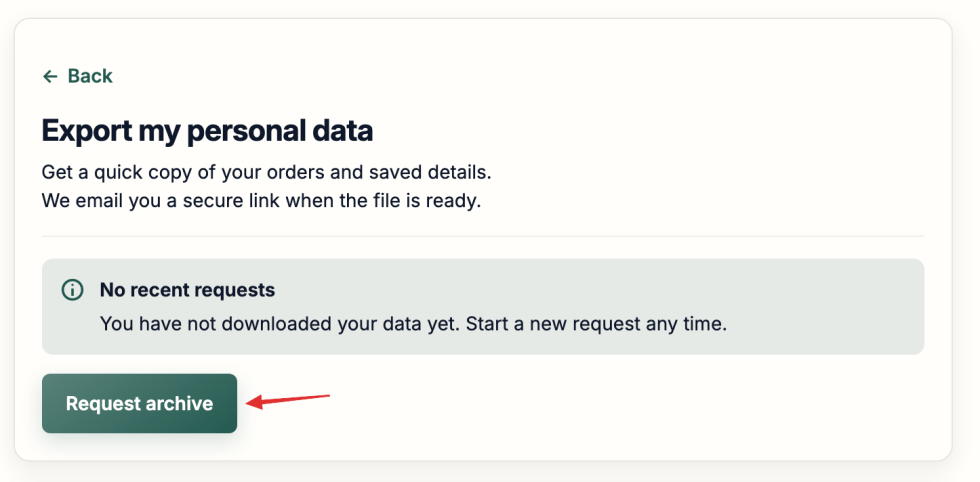
When Please confirm your email appears, open the inbox for that account address. The request is waiting for confirmation; archive preparation has not started yet.
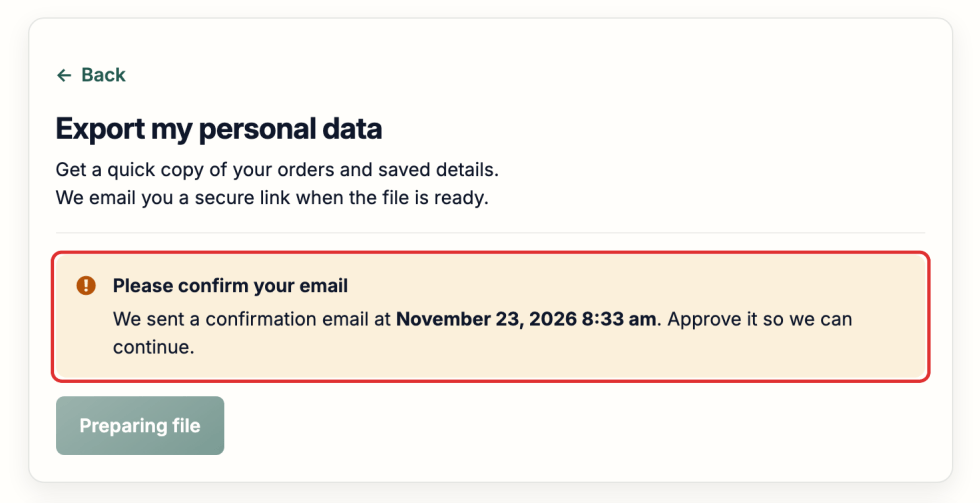
Confirmation Email
↑ Back to topOpen the message with Confirm Action: Export Personal Data in the subject. Follow its confirmation link, then sign in if prompted.
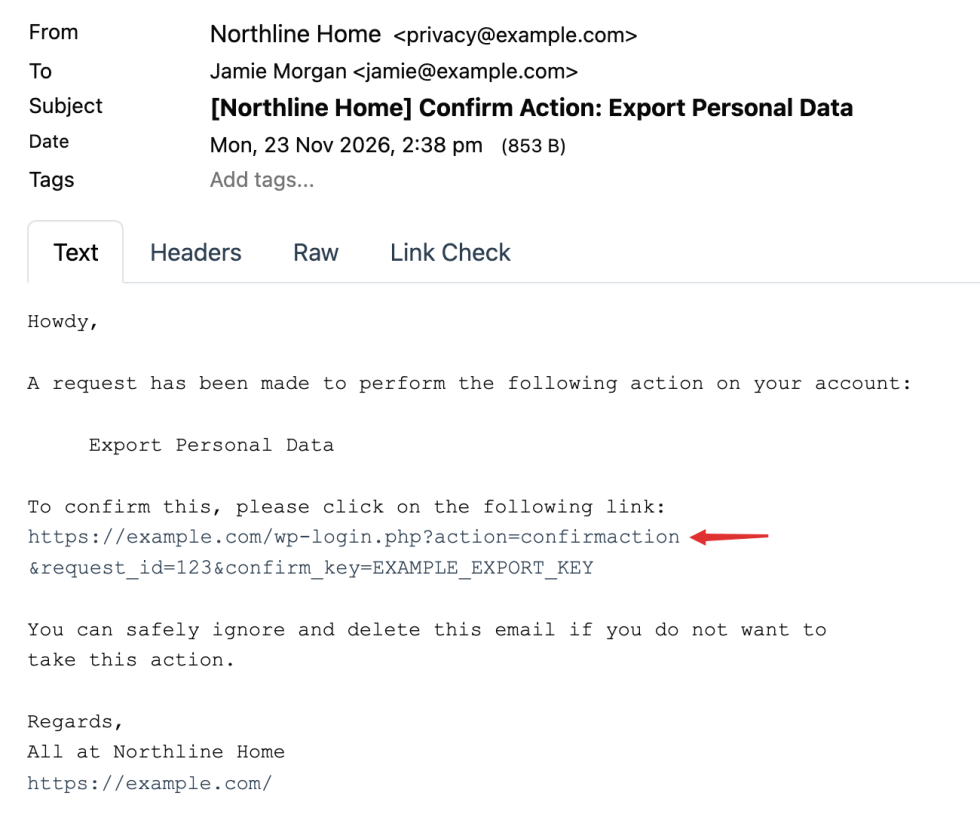
Wait while the store prepares the archive
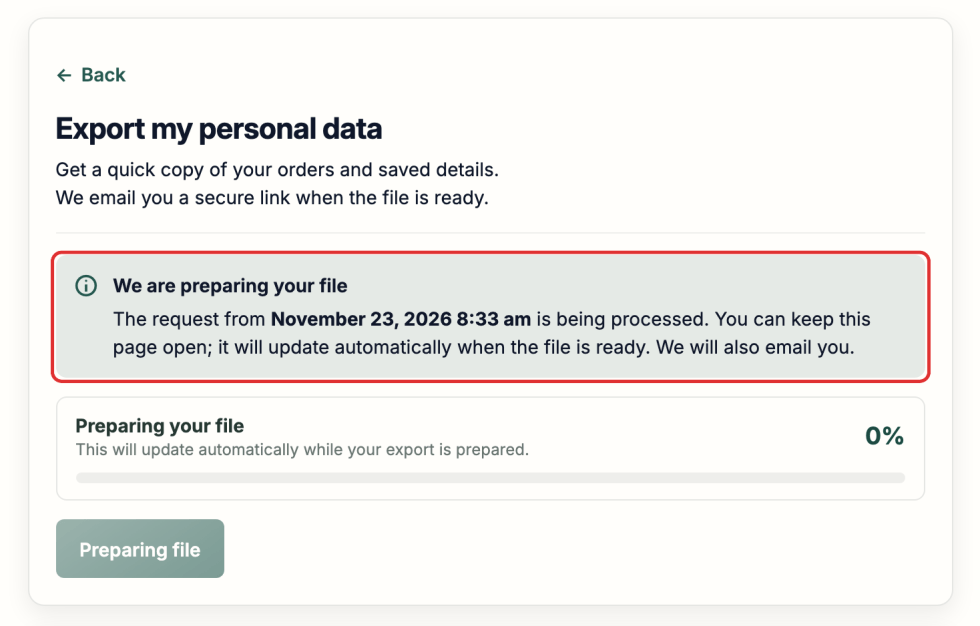
Return to the export area in My Account. We are preparing your file means the confirmed request is being processed. The page updates automatically while left open. Customers can also leave the page and wait for the download email.
Download the personal data archive
↑ Back to topDownload from the email
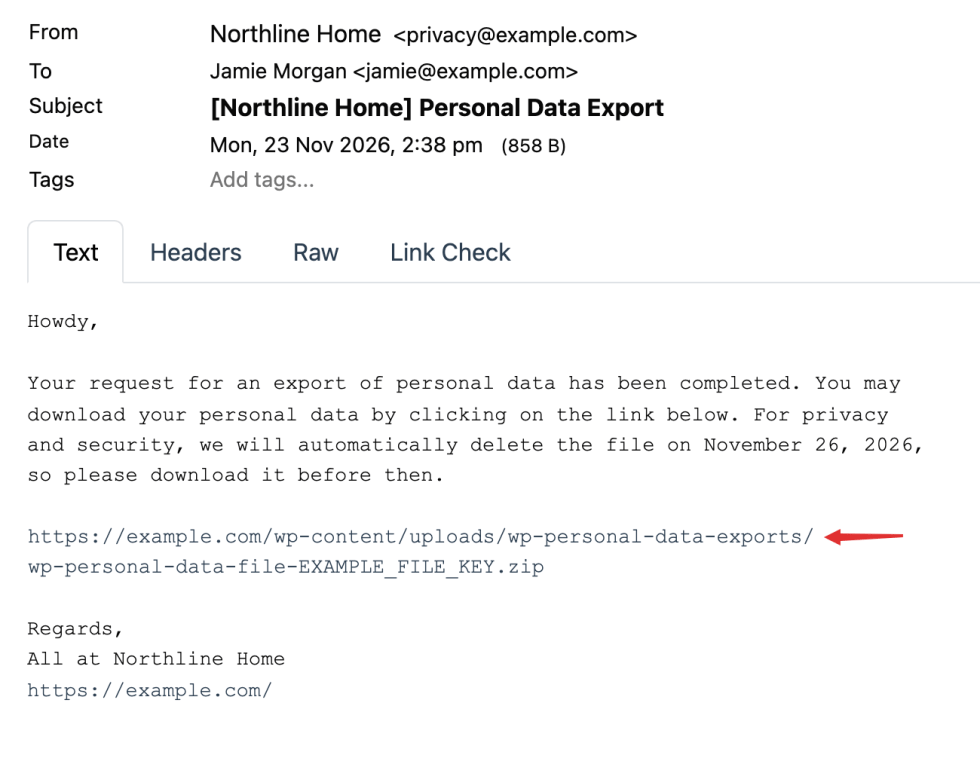
↑ Back to topWhen the archive is ready, open the email with Personal Data Export as the subject. Select its download link to save the ZIP. The message tells the customer when the store will remove the file.
Download from My Account
↑ Back to topIn the export area, Your file is ready to download shows the archive’s remaining availability. Select Download my data, or in Request history, select the download icon labeled Download your personal data in the Next steps column.
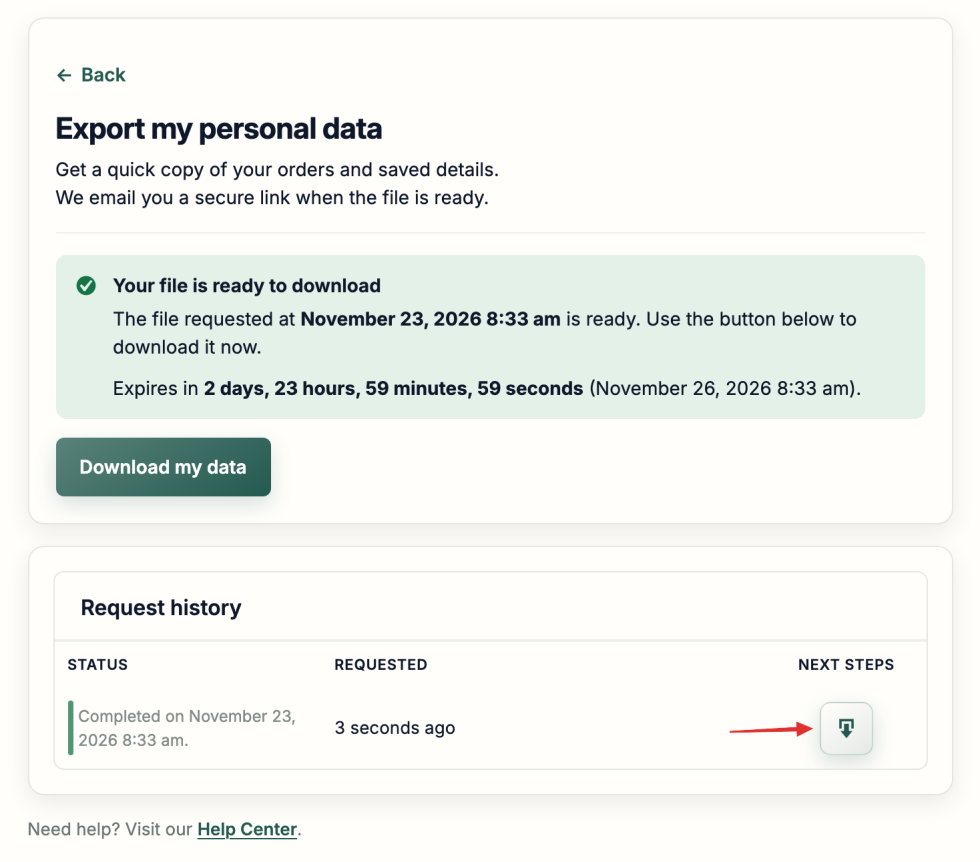
After a successful download using the history icon, Your personal data export file was downloaded. appears. The icon’s label changes to Download completed – click to download again. Find the ZIP where the browser saves downloads.
Settings and admin control
↑ Back to topData Privacy Manager for WooCommerce extends WordPress’s built-in Personal Data Export feature. Shop managers with the appropriate permissions can set how long customers can download completed exports. Administrators and staff with export request access can review requests and use the standard WordPress actions on the Export Personal Data screen.
Set download availability
↑ Back to topShop managers with access can choose how many days a completed archive remains available:
- Open WooCommerce → Data Privacy → General Settings.
- Under Export Requests, set Keep download links available for. The default is 3 days and the minimum is 1 day.
- Select Save changes.

The window starts when the archive is generated and applies to both download paths. Changing the period can also change availability for existing archives; it cannot restore a removed file. Use the availability shown for the customer’s current request. This setting does not change the confirmation-link lifetime.
Check export requests
↑ Back to topShop managers with access can open WooCommerce → Data Privacy → Requests. Under WordPress privacy tools, select Export Personal Data. The shortcut opens the native WordPress export list in a new tab.

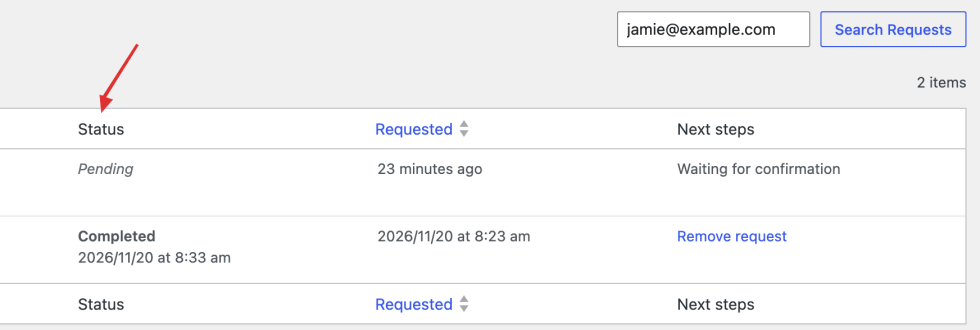
On the Export Personal Data page, enter the customer’s account email in the search box above the table and select Search Requests. Check Status and Next steps for the matching request.
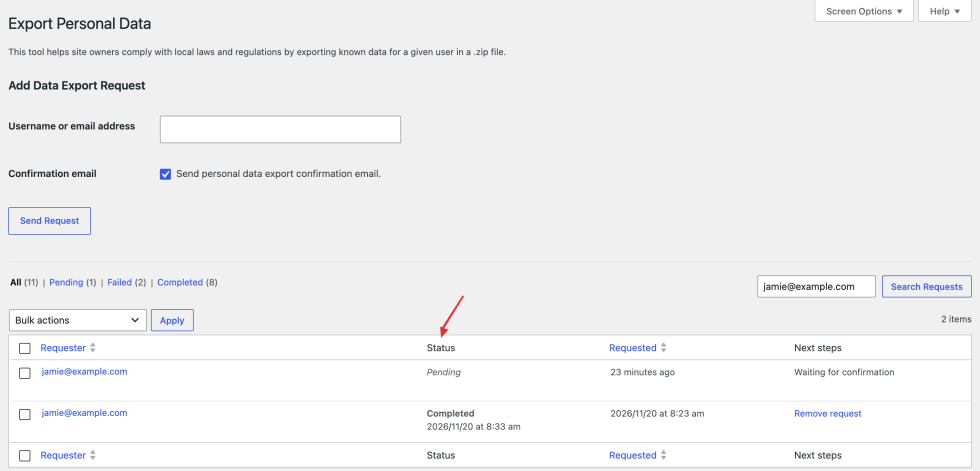
Pending means the request is waiting for the customer’s email confirmation. Confirmed means the customer confirmed it; preparation may still be underway. Completed means the export finished, although its download can expire later. Customers do not need a separate staff approval step for the normal export workflow.
Troubleshooting
↑ Back to top| Situation | What to do |
|---|---|
| The export card is missing. | Check that the export section is visible under WooCommerce → Data Privacy → Customization. Your store may use a different card label. |
| The confirmation link expired. | Sign in, return to the export page, and start a new request when offered. Follow the fresh confirmation email. Changing download availability does not extend the confirmation link. |
| The archive is still preparing. | Reopen the export page to check progress. If it remains stalled, check the WordPress export list, scheduled tasks, and any exporter errors. |
| The download email is missing. | Check My Account for the ready archive and download there while it is available. |
| The download failed. | Check the displayed error and the browser’s download behavior, then retry while the archive remains available. If it has expired or been removed, request a new export when offered. |
| Request history will not load. | Refresh the page or use Try again if offered. Contact the store if the problem continues. |
Use Case
↑ Back to topA customer wants a copy of the information your WooCommerce store has about their account and purchases. They can request an export from My Account → Data Privacy and review records such as saved addresses and order details in the downloaded report. The archive can also include data from plugins that register a personal data exporter with WordPress.
Offering the export in My Account helps your store respond to right of access requests under GDPR Article 15.