
Data Privacy Manager for WooCommerce helps stores manage customer data protection and privacy workflows with tools that support GDPR and CCPA/CPRA compliance efforts. It brings customer privacy requests, permission management, and staff follow-up into WooCommerce.
Customers can use a dedicated My Account → Data Privacy area to request personal data exports, request erasure of eligible information, submit account or order correction requests, manage their privacy choices, and request account closure.
The Data Permission Manager lets store teams create and publish consent requests, acknowledgements, and information notices. Versioned responses, response history, and recorded evidence help staff understand what customers chose and which information they received.
From WooCommerce Admin, staff can review correction and account closure requests, communicate with customers, keep private notes, and manage approvals and closure hold periods. Customizable privacy sections, email templates, reminders, and staff access help organize everyday privacy administration.
The plugin supports privacy compliance work; compliance also depends on your store’s practices, integrations, and applicable requirements. GDPR guidance CCPA/CPRA rights
Installation
↑ Back to topTo start using a product from WooCommerce.com, you can use the “Add to store” functionality on the order confirmation page or the My subscriptions section in your account.
- Navigate to My subscriptions.
- Find the Add to store button next to the product you’re planning to install.
- Follow the instructions on the screen, and the product will be automatically added to your store.
Alternative options and more information at:
Managing WooCommerce.com subscriptions.

Setup and Configuration
↑ Back to topSetup wizard
↑ Back to topThe setup wizard brings the main configuration into twelve steps across General settings, Data permissions, and Customer panel. It uses the same saved settings as the main workspace. Creating a permission in setup saves a private draft; finishing setup does not publish it.
Open WooCommerce → Data Privacy → General Settings → Run setup wizard as an eligible administrator. Save pending edits first. Select Review setup if the completion screen is already shown.
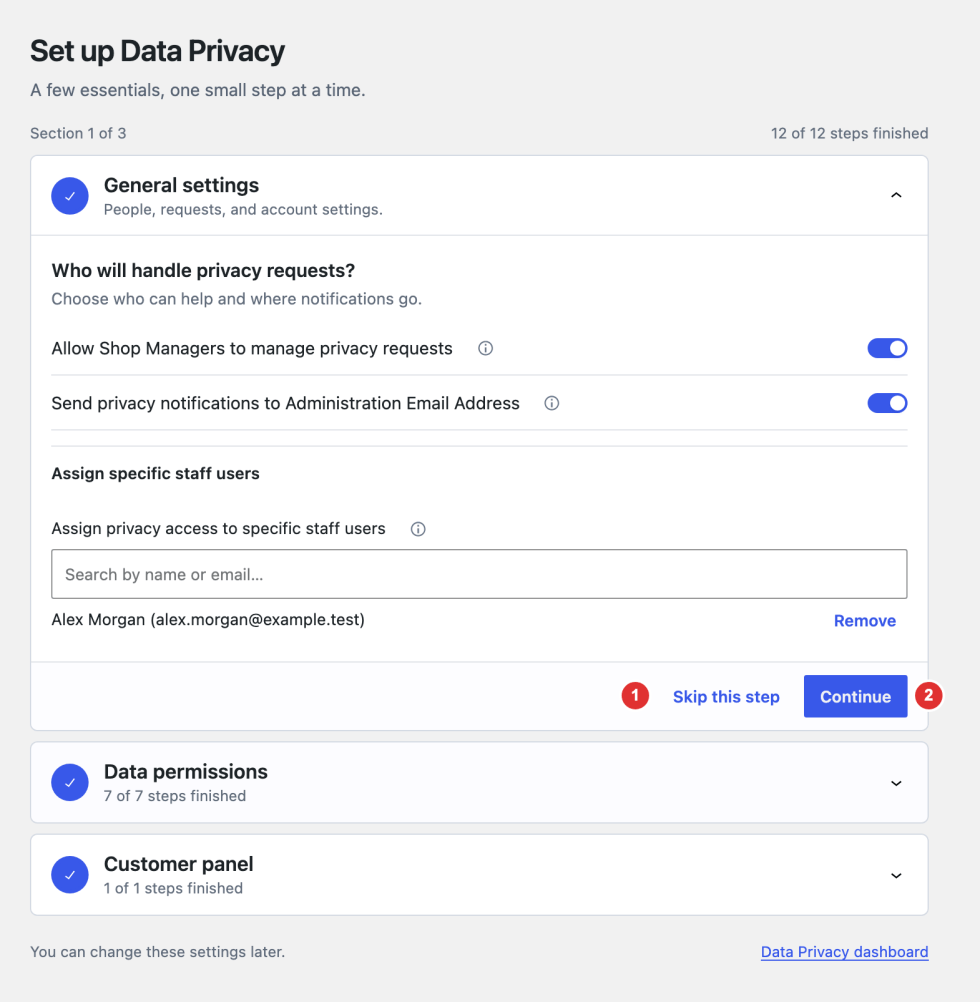
General Setting
↑ Back to topGo to WooCommerce → Data Privacy → General Settings. After making changes, select Save changes.
General Settings controls how your store handles customer privacy requests. Use this area to choose which staff can manage requests, how long exported files remain available, and whether erasure or account closure requires approval.
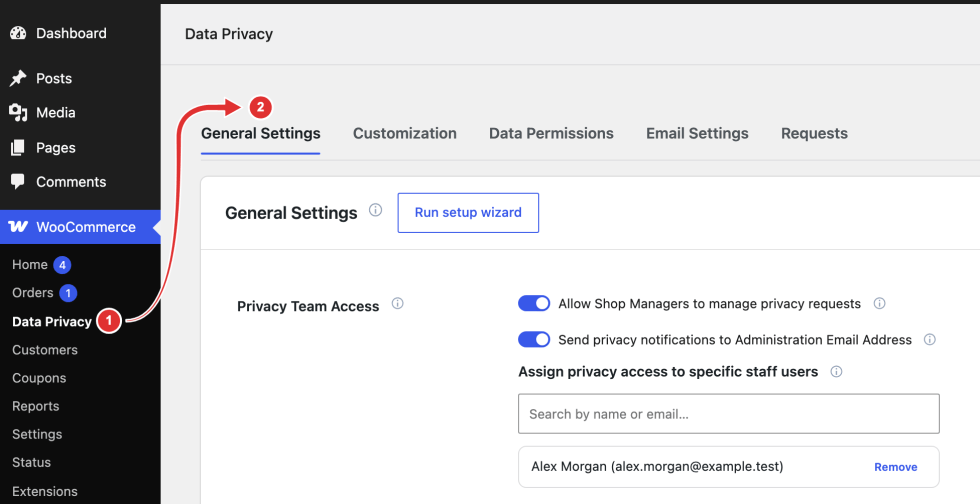
Privacy Team Access
↑ Back to topPrivacy requests may involve several people in your store. This section lets administrators choose who can manage those requests and who receives internal notification emails. You can allow Shop Managers to help, assign specific staff members, and include the store’s Administration Email Address in alerts.
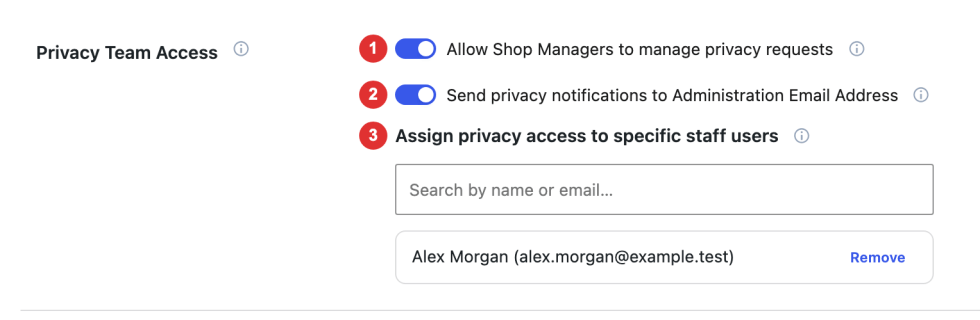
Available settings:
- Allow Shop Managers to manage privacy requests: Lets Shop Managers use the privacy workspace and connected WordPress export and erasure tools. Enabled by default; turn it off if only individually assigned staff should handle privacy work. Existing individual access can still apply.
- Send privacy notifications to the Administration Email Address: ncludes the address saved under WordPress Settings → General in internal alerts. Enabled by default; turn it off to leave that inbox out while selected staff continue receiving alerts. Shop Manager access alone does not subscribe every Shop Manager.
- Assign privacy access to specific staff users: Use this field to grant privacy-management access to selected staff members without changing their main WordPress role. The user picker only includes users who already have WooCommerce admin-level access: administrators, shop managers, or custom staff roles with `manage_options`, `manage_woocommerce`, or `edit_others_shop_orders` capability. Search by name or email and select an eligible staff user. Assigned users can help manage privacy workflows and receive related privacy notification emails.
Use these settings to give authorized administrators and privacy staff access to the relevant privacy workflow tools. Assigned users should already have access to the WooCommerce admin area.
Export request settings
↑ Back to topGo to WooCommerce > Data Privacy > General Settings and review the Export Requests section.
Export request settings control whether customers can request a personal data export and how long completed export download links remain available.

- Enable export requests: Shows the Download my data option in My Account so logged-in customers can ask for a copy of their stored personal information. Default: enabled.
- Keep download links available for a selected number of days: Sets how long a completed export file can be downloaded after it is ready. After the link expires, the customer must submit a new export request if they still need the file. Default: 3 days.
When a customer requests an export, WordPress sends a confirmation email before the export request can be processed. Completed export links are available from My Account when the export archive is ready.
Export contents depend on the privacy exporters registered by WordPress, WooCommerce, and compatible extensions.
Export request settings
↑ Back to topExport requests give customers a downloadable copy of their personal information. Use Keep download links available for to choose how long completed archives remain available. The default is 3 days, with a minimum of 1 day.

Customers request an export from My Account → Data Privacy and confirm it by email. The extension then processes the export in the background. Once ready, the archive can be downloaded until it expires. While it remains available, the customer interface directs customers to use that archive before requesting another.
Export contents depend on the exporters registered by WordPress, WooCommerce, and compatible extensions. Changing the availability period can affect existing files, but cannot restore deleted archives.
Erase request settings
↑ Back to topErase settings define how your store reviews requests to remove personal information and which eligible records can be removed. Customers confirm requests by email, wait for approval when required, then run eligible erasures from My Account.
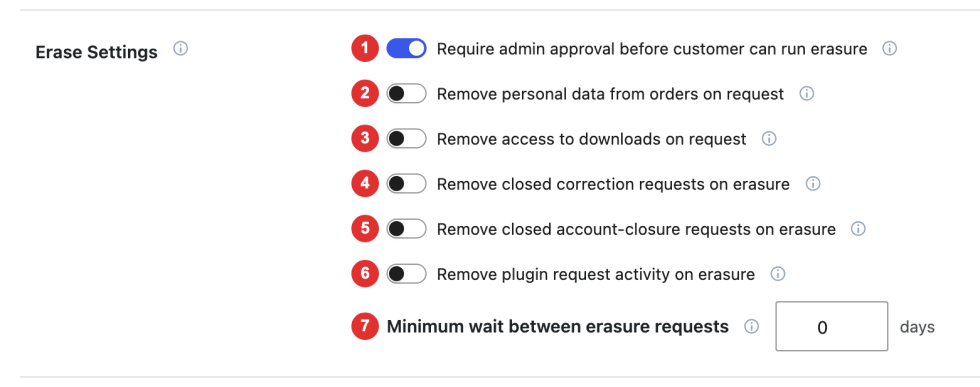
- Require admin approval before customer can run erasure: Enabled by default. Staff select Approve and email customer in Tools → Erase Personal Data before the customer can continue. Turning this off lets customers run erasure after email confirmation; confirmation itself does not erase data.
- Remove personal data from orders on request: Allows WooCommerce to remove eligible personal information when erasure runs, while keeping the order records. This is the shared option under WooCommerce → Settings → Accounts & Privacy → Account erasure requests, so saving in either location updates the same value. Enabling it alone does not alter existing orders.
- Remove access to downloads on request: Allows WooCommerce to revoke purchased-file access and clear download logs when erasure runs. It shares the matching Accounts & Privacy option; saving in either location updates the same value. Product downloads are separate from the personal data archive created by an export request.
- Remove closed correction requests on erasure: Deletes eligible completed, declined, or cancelled correction records and their conversations. Active requests remain available, and only records older than the erasure request are considered.
- Remove closed account-closure requests on erasure: Deletes eligible completed or cancelled account-closure records older than the erasure request. Active closure requests remain available; this option does not start account closure or delete the account.
- Remove plugin request activity on erasure: Removes processing details from older completed privacy requests, including stored progress or erasure summaries where present. WordPress request records remain, and this option does not clear all permission evidence.
- Minimum wait between erasure requests: Sets how many days must pass from the previous erasure request’s creation before another can be submitted. The default is 0 days, meaning no additional wait; existing active-request checks still apply.
The two order/download options share their values with WooCommerce’s Accounts & Privacy settings. They default to disabled on an unconfigured store; existing stores retain their values. The three plugin record-removal options default to disabled and preserve active requests. Erasure results depend on registered erasers and store settings; account deletion is a separate workflow.
Close account
↑ Back to topClose account settings define the steps between a customer requesting account deletion and the account being deleted. You can require staff review, give customers time to change their mind, and restrict self-service closure for selected roles. Customers start from My Account and confirm the request using an emailed verification code.
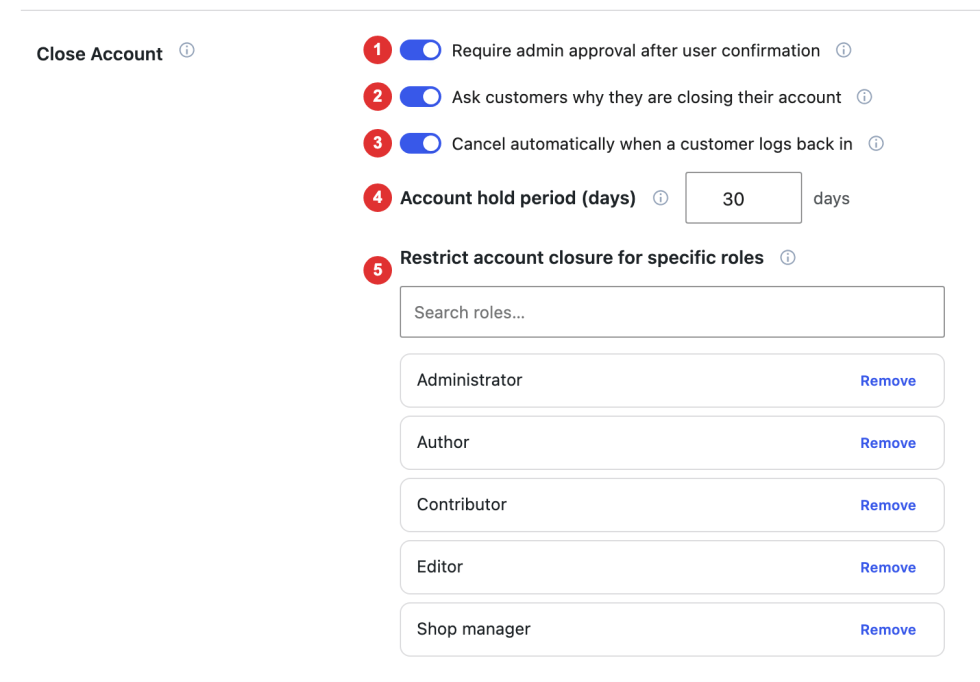
- Require admin approval after user confirmation: After the customer confirms the emailed code, the request waits for staff review. Approval starts the configured hold period before deletion. Enabled by default; when disabled, code confirmation starts the hold directly. Neither confirmation nor approval immediately deletes the account.
- Ask customers why they are closing their account: Shows a reason field and requires the customer to complete it before starting closure. Enabled by default; turn it off if your process does not need a reason. Email-code confirmation still applies.
- Cancel automatically when a customer logs back in: Cancels requests awaiting staff approval or on hold when the customer logs in again. Enabled by default. Manual cancellation remains available when disabled.
- Account hold period (days): Sets the time customers have to change their mind before account deletion is processed. Defaults to 30 days, with a minimum of 1 day; the hold starts at staff approval, or customer confirmation when approval is disabled. Existing hold deadlines are not recalculated.
- Restrict account closure for specific roles: Select the roles that must contact an administrator instead of using self-service closure. A user with any selected role is blocked, even if they also have the Customer role. Administrator, Shop Manager, Editor, Author, and Contributor are restricted by default.
After the hold expires, background tasks process account deletion. Working scheduled tasks and email delivery are needed for these workflows.
Save your changes
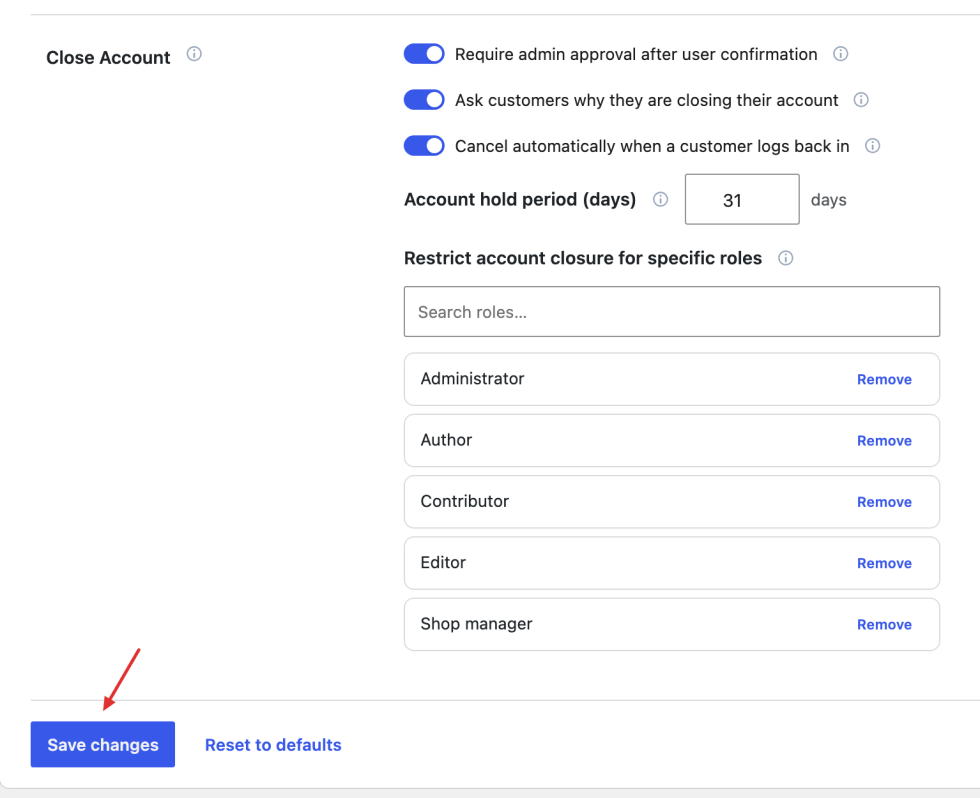
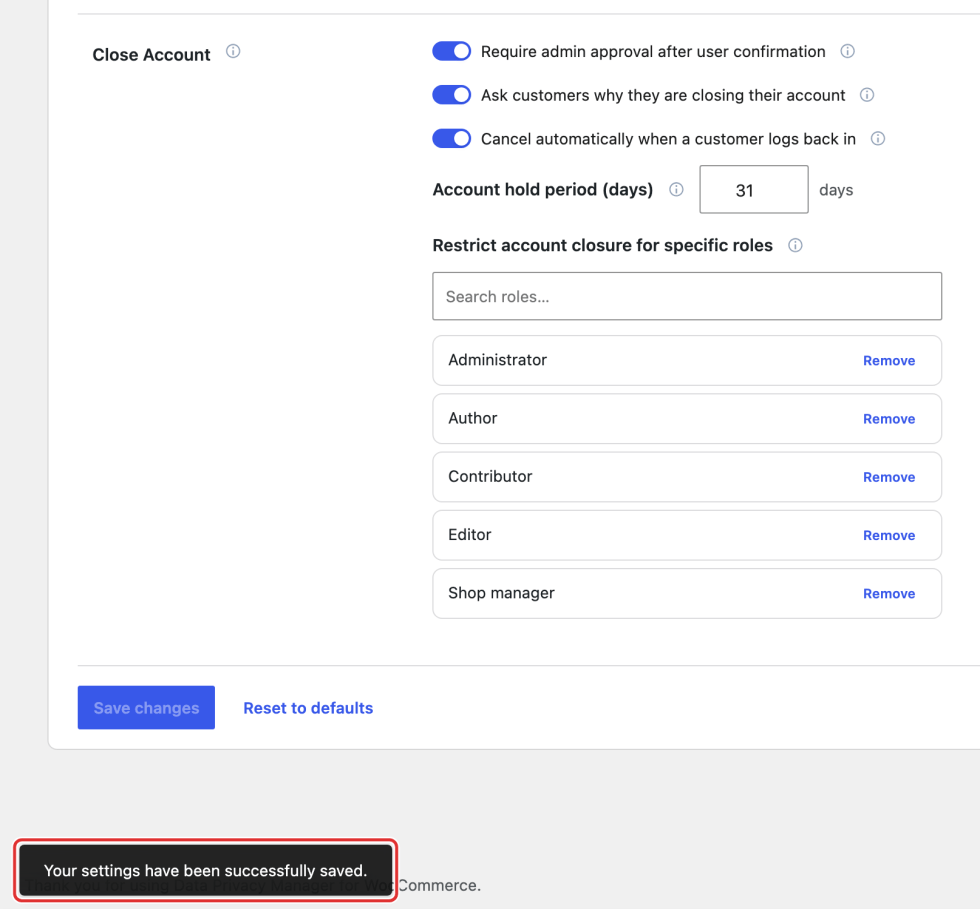
↑ Back to topReview your edits, then select Save changes at the bottom of General Settings. Wait for Your settings have been successfully saved. before leaving. A disabled Save changes button means there are no pending changes or a save is in progress.
Reset General settings
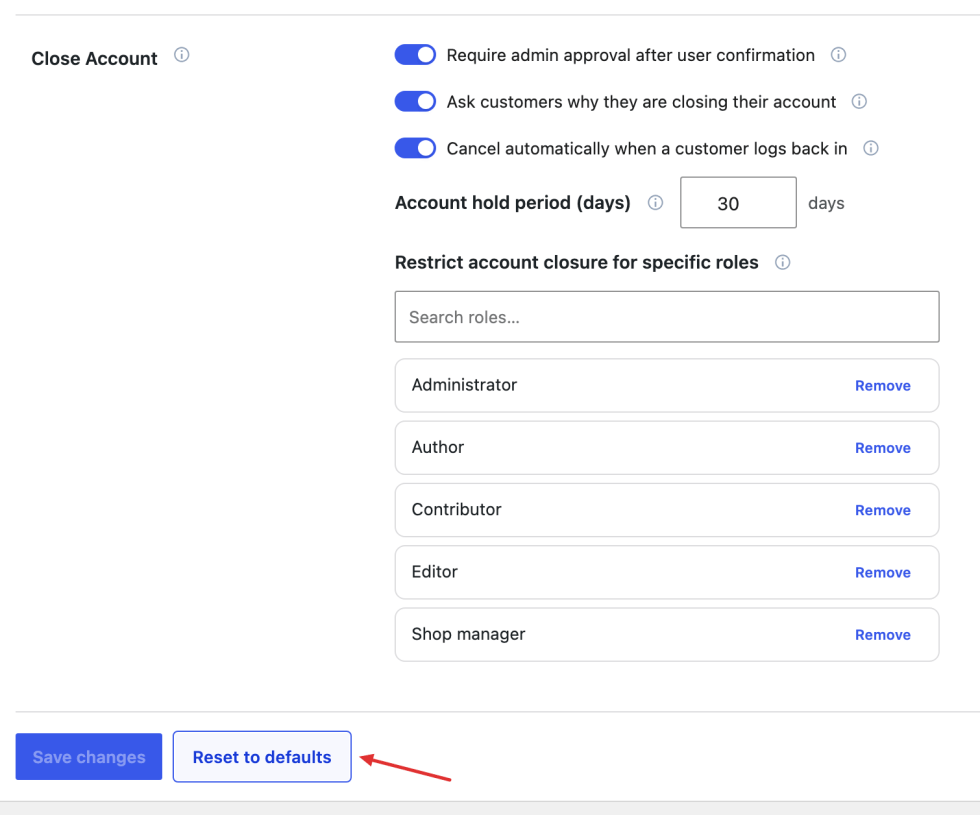
↑ Back to topUse a reset when you want to return the plugin’s configuration to its defaults. Administrators can select Reset to defaults, which also resets settings beyond General Settings, including customer action cards, copy overrides, and explicit staff assignments. Review those settings before confirming.
Customization Data Privacy Sections
↑ Back to topCustomization lets you shape the privacy area customers see in My Account. Choose the available sections, explain each action in your store’s words, and connect customers with any other settings or workflows your store already provides.
- Open WooCommerce → Data Privacy.
- Choose Customization.
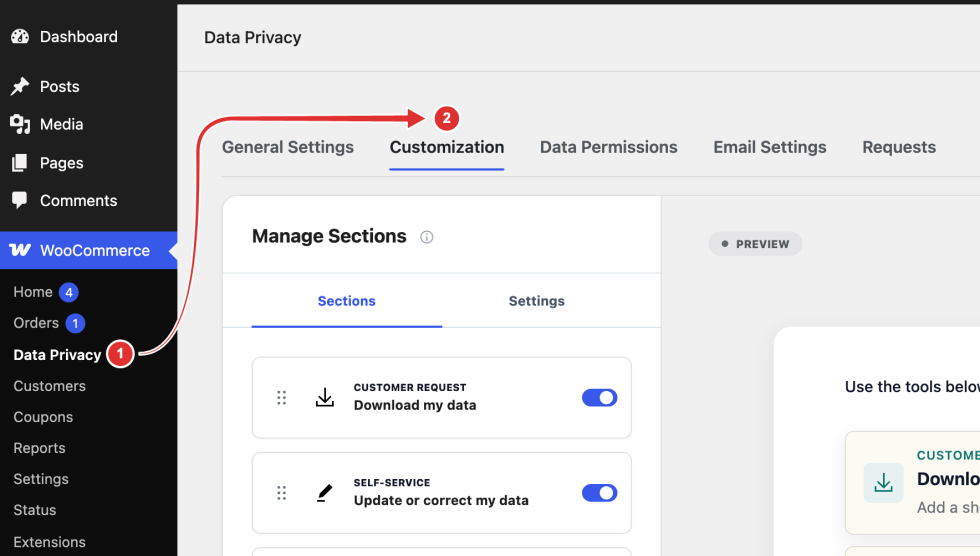
Understand the customization
↑ Back to topThe workspace keeps Manage Sections on the left and a Preview on the right. Use them together: choose what to edit on the left, then inspect how it will appear to customers on the right.
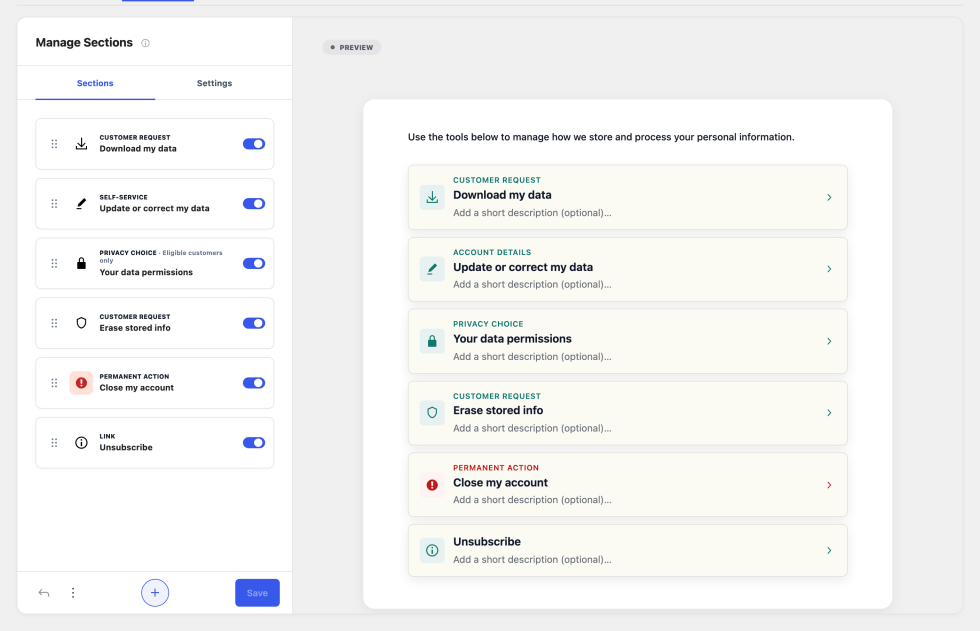
- Sections: Manage the customer actions and links. Open a section to edit its content, messages, and appearance.
- Settings: Change the shared page introduction, menu name, help destinations, and overall theme.
- Preview: Shows pending content and example request situations. It does not submit requests, approve changes, or publish your edits.
An Unsaved preview label means the pending changes are not yet applied. Each procedure below ends with saving and checking the customer result.
Default Data Privacy area
↑ Back to topThe privacy area includes five built-in customer tools and a supplied Unsubscribe link. Understand their purpose first, then configure the page-wide settings and customize the sections you want to offer. Your saved labels and visibility choices may differ.
| Section | What customers can do |
|---|---|
| Download my data | Request a copy of the personal information available through the store’s privacy export process and download it when ready. |
| Update or correct my data | Open existing account-update pages or propose corrections for staff review, including supported details on eligible orders. |
| Your data permissions | View and respond to published permissions available to their account. A published permission is required before this section can be enabled. |
| Erase stored info | Request eligible personal-data erasure. Confirmation, approval, and the store’s erasure rules determine what happens next. |
| Close my account | Request account closure, with confirmation and any configured review or hold period before deletion. |
| Unsubscribe | Follow a link to your existing unsubscribe or email-preference workflow. Set its destination before enabling it; the linked service performs the actual update. |
The editing controls are shared where possible. The section-specific instructions later in this guide explain the additional options and dependencies.
Global Privacy area settings
↑ Back to top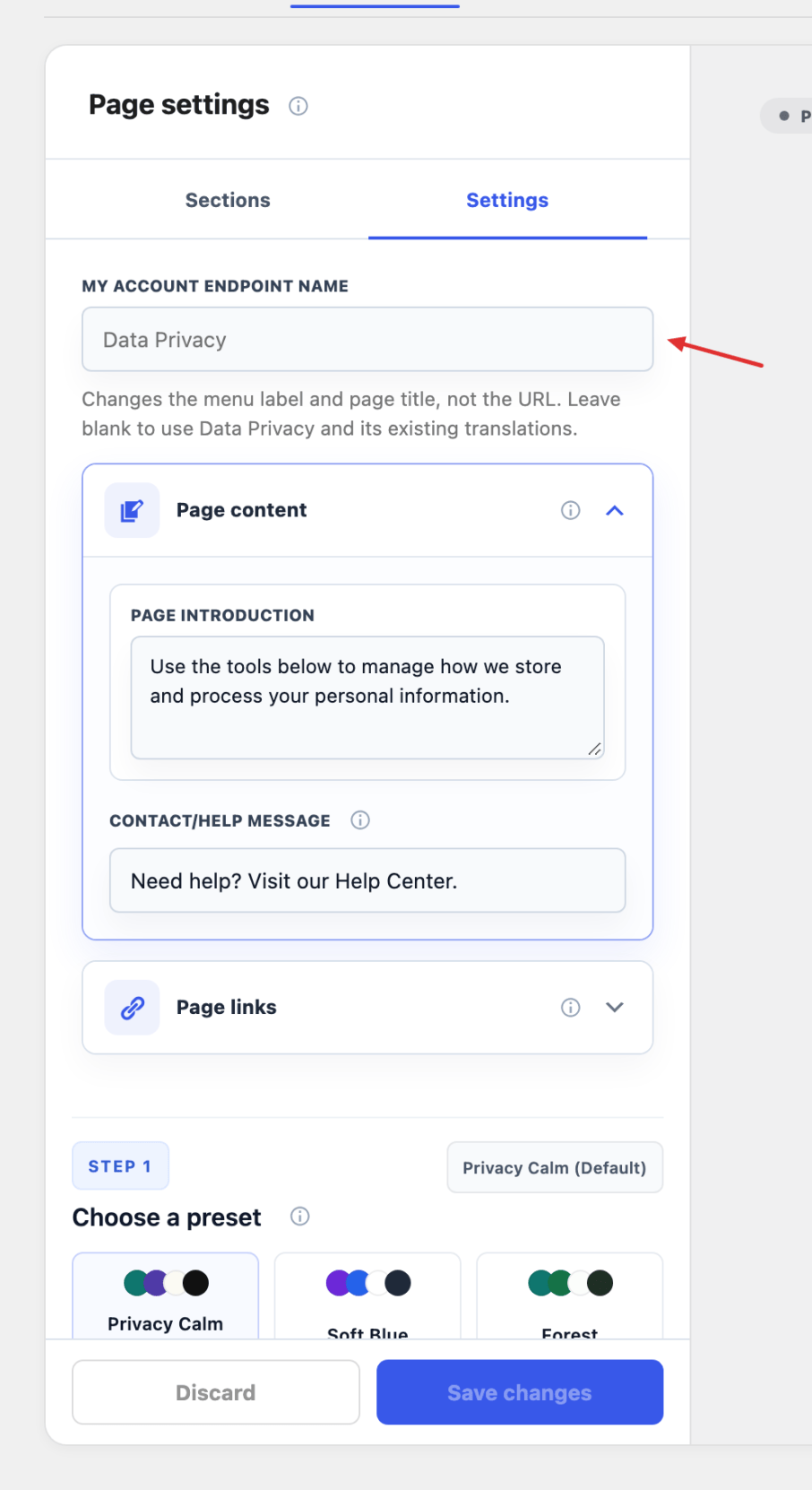
Choose Settings in the Manage Sections panel. These controls apply across the customer privacy area, while section-specific overrides remain available in each section’s Appearance panel.
My Account endpoint name
Change My Account endpoint name to rename the customer menu item and page title, for example to “Privacy center”. This changes the displayed name, not the URL. Leave it blank to use the translated Data Privacy default, then save.
General content
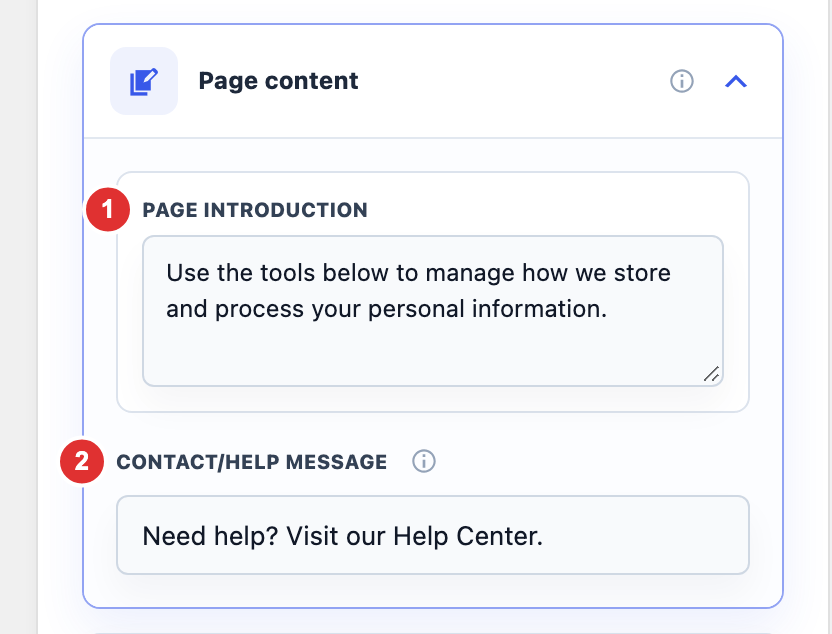
Expand Page content to introduce the tools and provide a shared route to help.
- Page introduction: Appears above the customer privacy tools. Explain the available actions briefly; keep action-specific instructions in their own sections.
- Contact/help message: Appears on supported privacy detail screens and uses the selected Support page. Leave it blank to hide it.
Support & Policy Page links
Expand Page links and select existing pages or use custom url. These selectors link to pages; they do not create or publish their content.
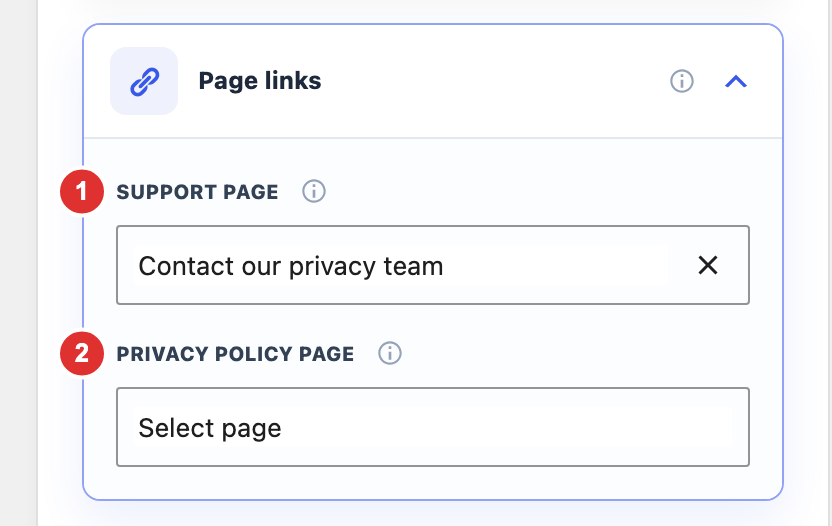
- Support page: The destination for privacy help and the shared contact message.
- Privacy policy page: The policy destination used in the privacy experience.
Select Save changes, then open both destinations as a customer to check access and content.
Frontend Color Scheme
Choose a Theme preset, then adjust the page-wide colors if needed.
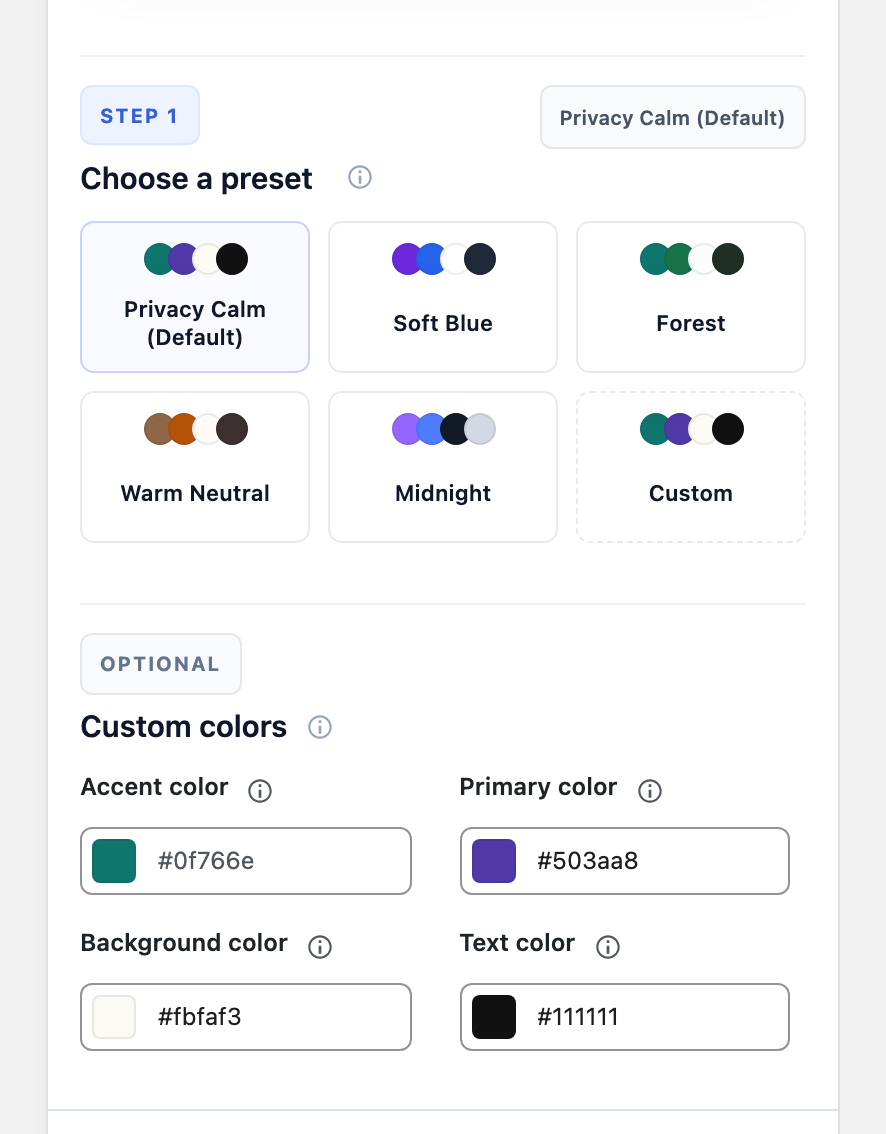
| Color | Use |
|---|---|
| Primary color | Buttons, links, progress accents, and key actions. |
| Accent color | Icons, category labels, and arrows unless a section overrides it. When blank, uses your custom primary color if set; otherwise the selected preset’s accent. |
| Background color | Sections, tables, and soft background areas within the privacy interface. |
| Text color | Headings and body text. Check contrast against your selected backgrounds. |
Section overrides take precedence. If one section does not follow the new colors, check its Appearance controls; Close my account keeps its default red accent unless changed. Save and inspect the customer list and detail screens.
Manage your privacy sections
↑ Back to topChoose Sections to return to the customer-action list. Sections are the actions and destinations listed in My Account → Data Privacy. Arrange them around the tasks customers need most, and keep their names clear.
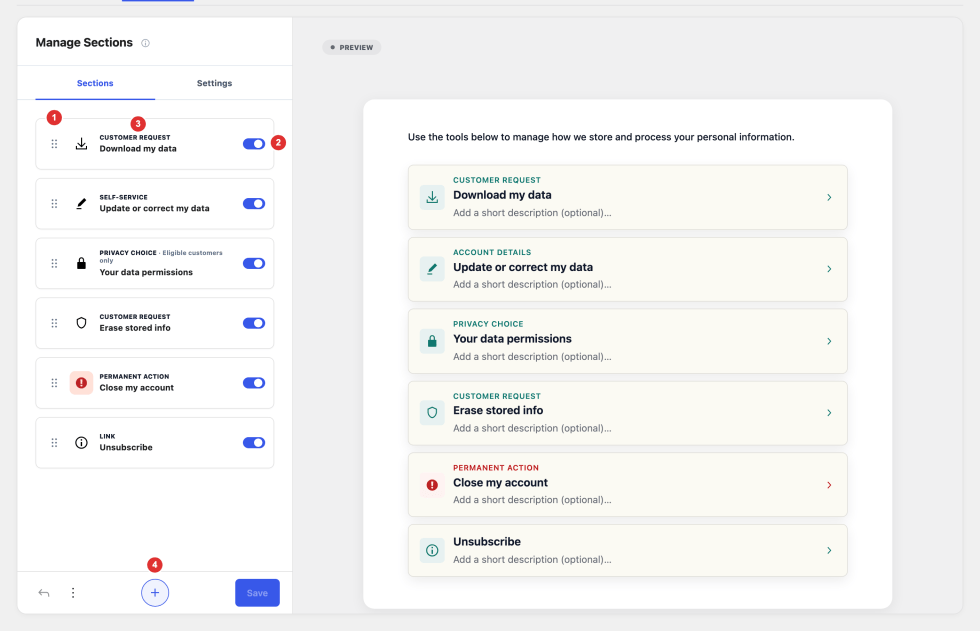
- Reorder handle: Drag a section to move it in the customer list. This changes navigation order, not the processing order of existing requests.
- Visibility switch: Show or hide that section. Hiding an action does not cancel requests already submitted or remove their history.
- Section name: Select the section to open its editor. This is where you customize its wording and section-specific options.
- Add section (+): Create a link to an existing page or another customer-facing workflow. The new link starts hidden until it has a valid destination and you enable it.
Select Save after changing the list. The built-in actions are downloading data, correcting information, managing permissions, erasing stored information, and closing an account; your saved labels may differ.
Your data permissions needs at least one published permission before it can be enabled. Once enabled, the section remains visible even when no permissions match a customer; that customer sees an empty-state message instead of an eligible permission list. Manage permission wording and audiences under
Common section editing
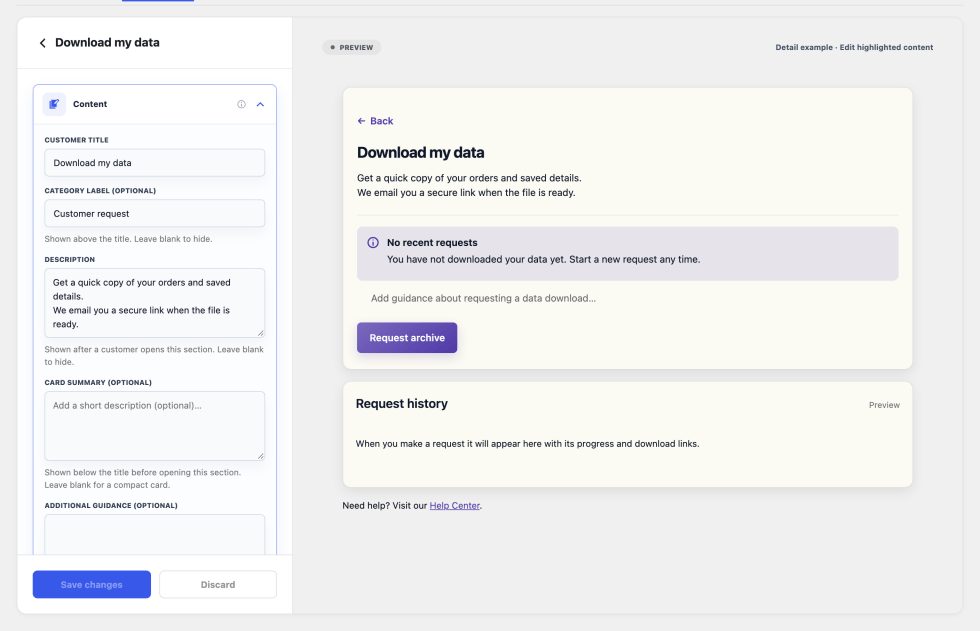
↑ Back to topThe following controls are shared across sections where supported. Open a section from the list. Its editor appears on the left while the preview shows the relevant customer screen on the right. Use Back to sections to return to the section list.
Content and where it appears
↑ Back to topExpand Content to edit the customer-facing wording. Start with the title and description, then add any optional context customers need.
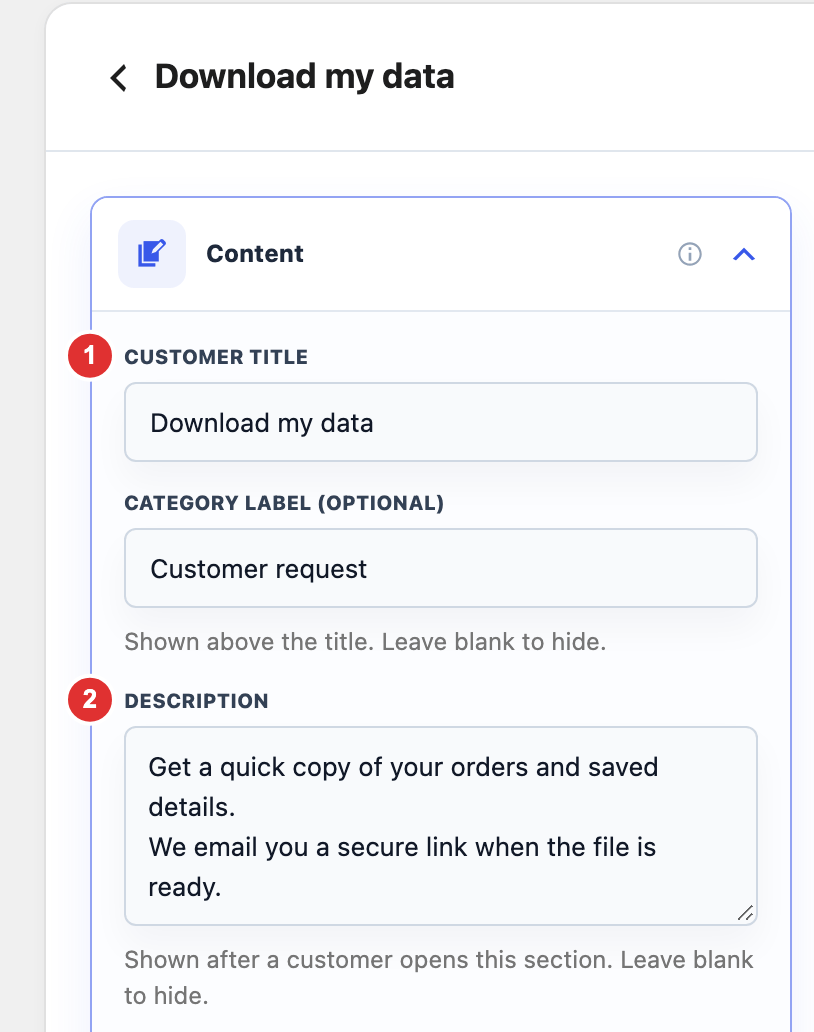
- Section title: Names the action in the customer list and its detail heading. Renaming it does not change the underlying workflow.
- Description: Introduces the action after a customer opens it. Explain what they can do or expect next; leave it blank to hide that introduction.
| Other content field | What it does |
|---|---|
| Category label (optional) | Shows a small label above the title. Leave it blank when no extra label is needed. |
| Card summary (optional) | Shows a short explanation below the title before the customer opens the section. Leave it blank for a compact card. |
| Additional guidance (optional) | Adds supporting instructions to download and erasure detail screens. Enter one point per line; an empty value hides the guidance. |
| Button label | Available in Content for a custom link with a description. Names the button that opens its destination. Built-in action labels are edited in the relevant Scenario messages situation. |
| Reason guidance | Available for Close my account when General Settings requires a closure reason. Changes the guidance, not whether the reason is required. |
The shared help/footer wording is under Settings → Page content → Contact/help message. Choose its destination under Page links.
Content and where it appears
↑ Back to top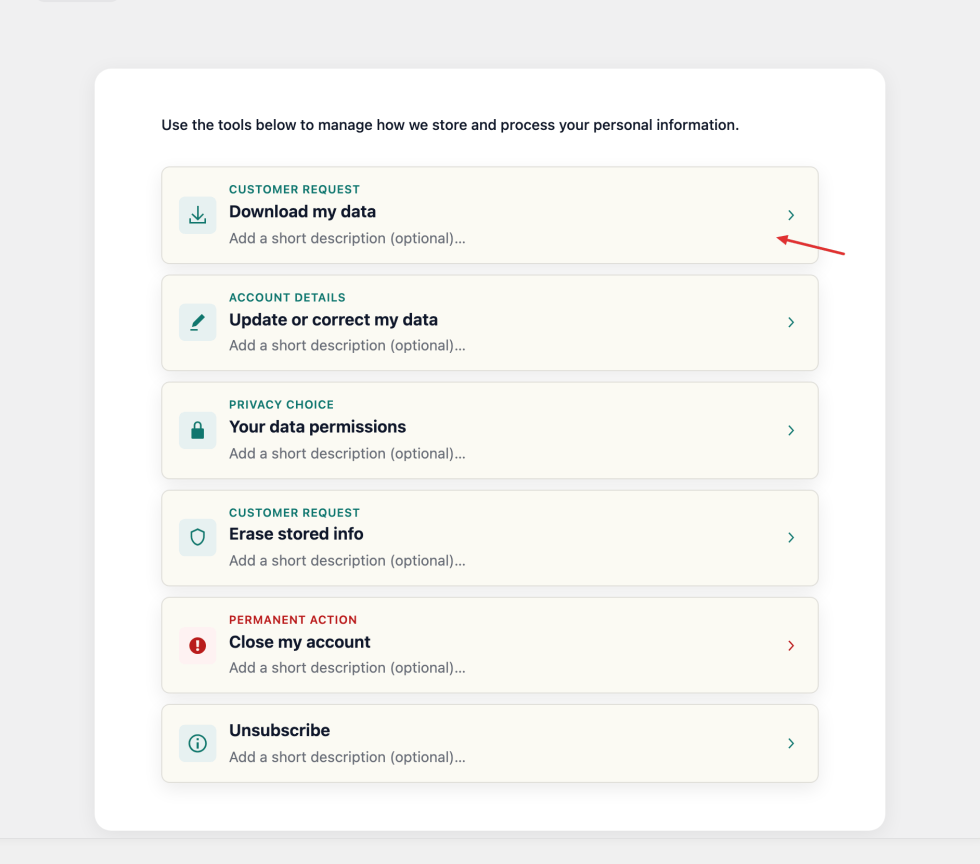
You can edit supported text in the preview instead of finding the matching sidebar field. Both update the same pending content.
Click a title, summary, description, or other supported text and enter your wording. Gray hints such as Add a short description (optional)… are editor prompts; customers never see them. Leave an optional field blank to hide its content.
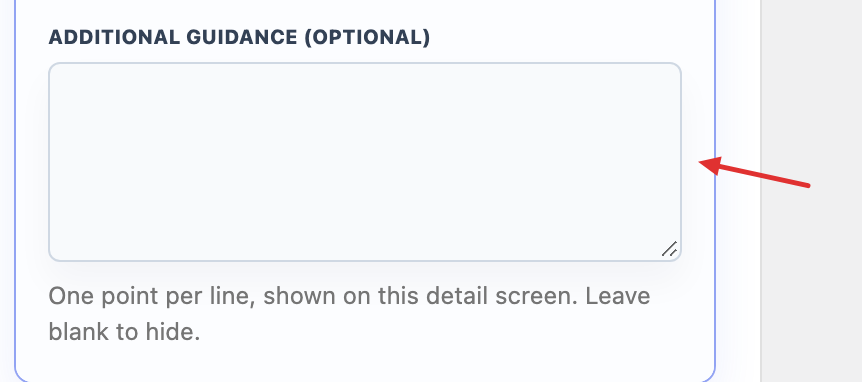
For download and erasure guidance, use the sidebar for several points, one per line. Press Escape to leave an inline field; this does not save. Review the complete preview, then select Save changes.
Scenario messages and action wording
↑ Back to topScenario messages explain what customers see at different stages of a privacy task. For example, the download section has different wording before a request, while preparing an archive, and when a download is ready or expired.
- Open the relevant section and expand Scenario messages.
- Choose the situation in Scenario.
- Edit the offered heading, message, or button fields.
- Keep required placeholders exactly as shown so live dates, counts, or remaining time can be inserted.
- Check the example preview, then select Save changes.
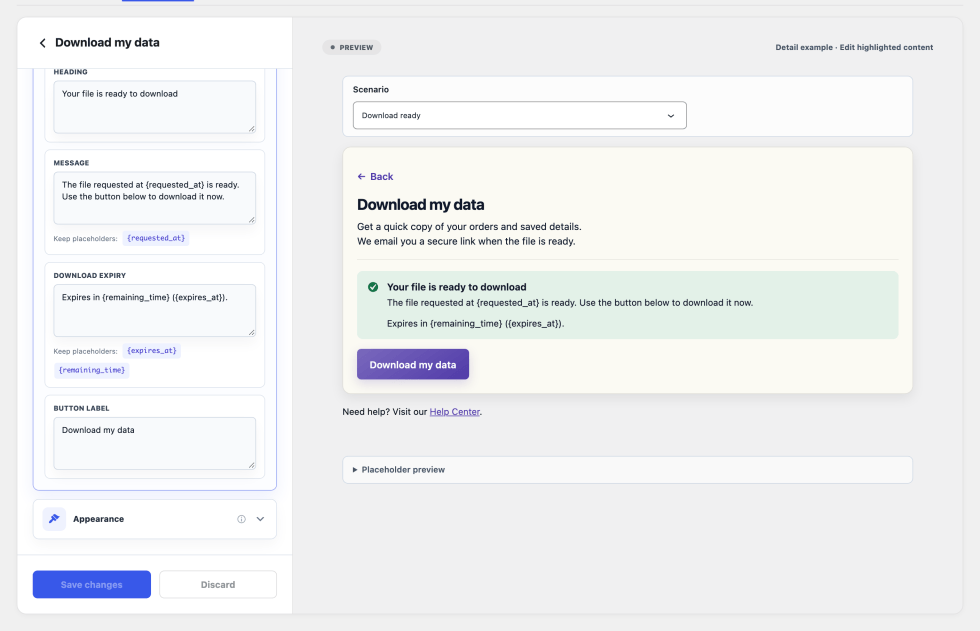
Changing a message does not move a real request into that state. Download availability remains configured under General Settings → Export Requests; erasure approval and account-closure timing remain in their corresponding General Settings groups.
Section icon and colors
↑ Back to top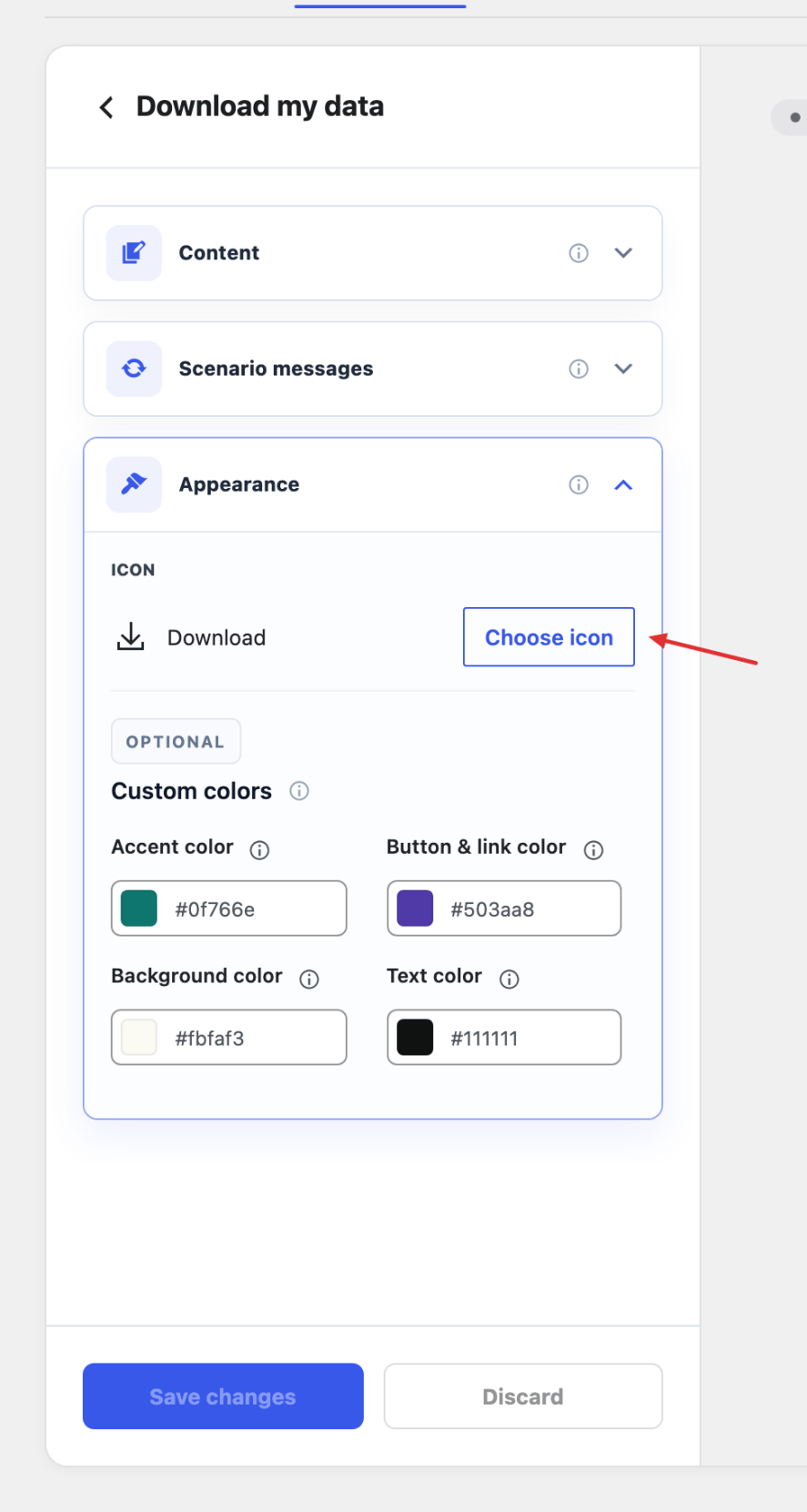
Expand Appearance to change the section’s icon and individual colors. These controls change presentation, not the action the section performs.
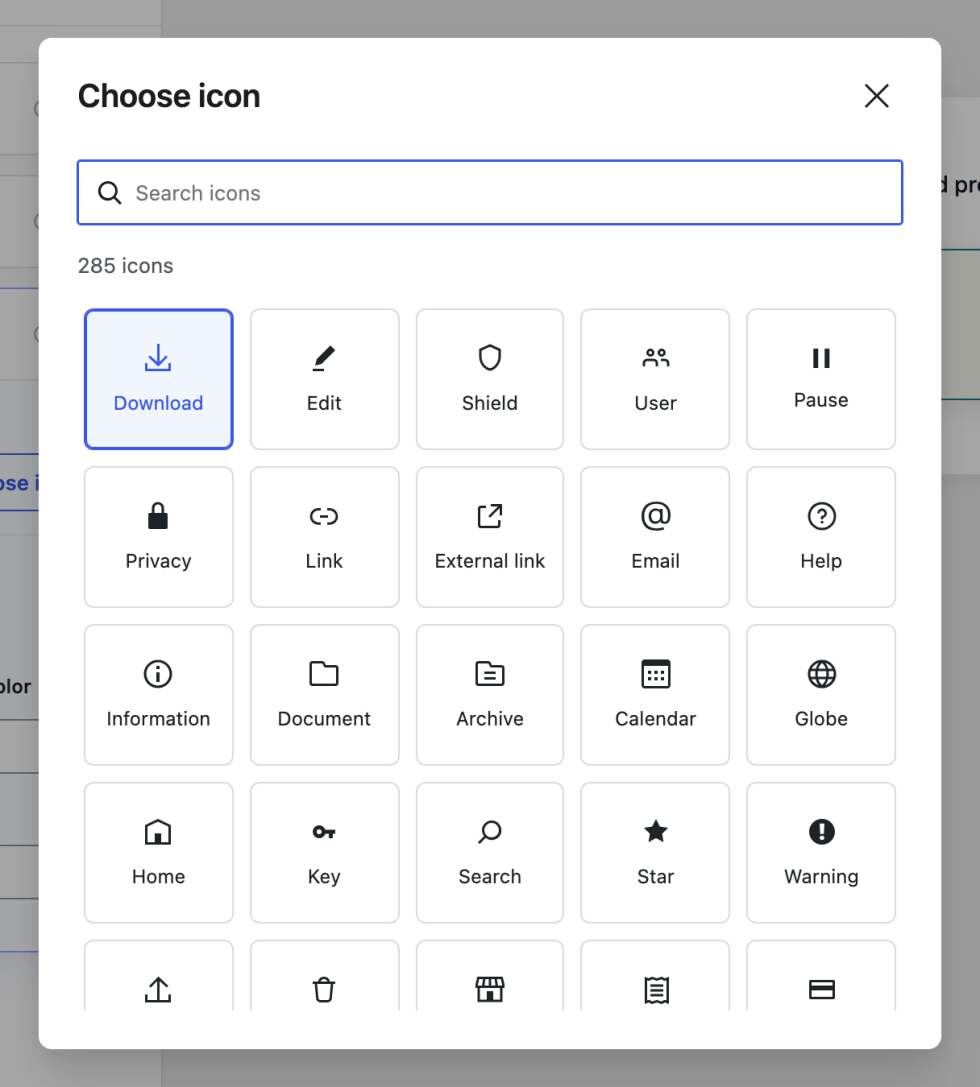
Select Choose icon, find a suitable icon, and select it in the chooser.
| Control | Effect |
|---|---|
| Accent color | Colors the icon, category label, arrow, and their supporting accent. Its opacity can make those elements less visible. |
| Button & link color | Overrides the section’s action and link color. |
| Background color | Overrides the section background. Check it with the text color. |
| Text color | Overrides headings and body text in that section. |
Clear a color override to return to its default or inherited value from Customization → Settings. Close my account has a red accent by default. Save and check the customer list and detail screen for readable text and controls.
Options specific to each section
↑ Back to topThe shared editing steps apply across sections, but the available controls follow each action’s purpose.
| Section | What to customize here |
|---|---|
| Download my data | Explain the archive in Content, add optional guidance, and edit the confirmation, preparing, download-ready, and expiry messages under Scenario messages. |
| Erase stored info | Explain the request and add optional guidance. Use Scenario messages for confirmation, staff-approval, processing, and completion wording. Configure actual erasure rules in General Settings. |
| Update or correct my data | Configure customer update links, correction request types, and which orders accept correction requests. The complete flow is explained below. |
| Your data permissions | Customize the section’s title, introduction, appearance, and available state messages. Edit individual permission wording, audiences, and publication in Data Permissions. |
| Close my account | Customize the introduction, conditional Reason guidance, and confirmation/review/hold messages. Configure approval, hold duration, and eligible roles in General Settings. |
| Custom link / Unsubscribe | Choose an existing page or custom URL, with an optional introduction and destination button. The destination handles the actual task. |
Configure corrections and order eligibility
↑ Back to topOpen Customization → Sections → Update or correct my data → Correction settings.
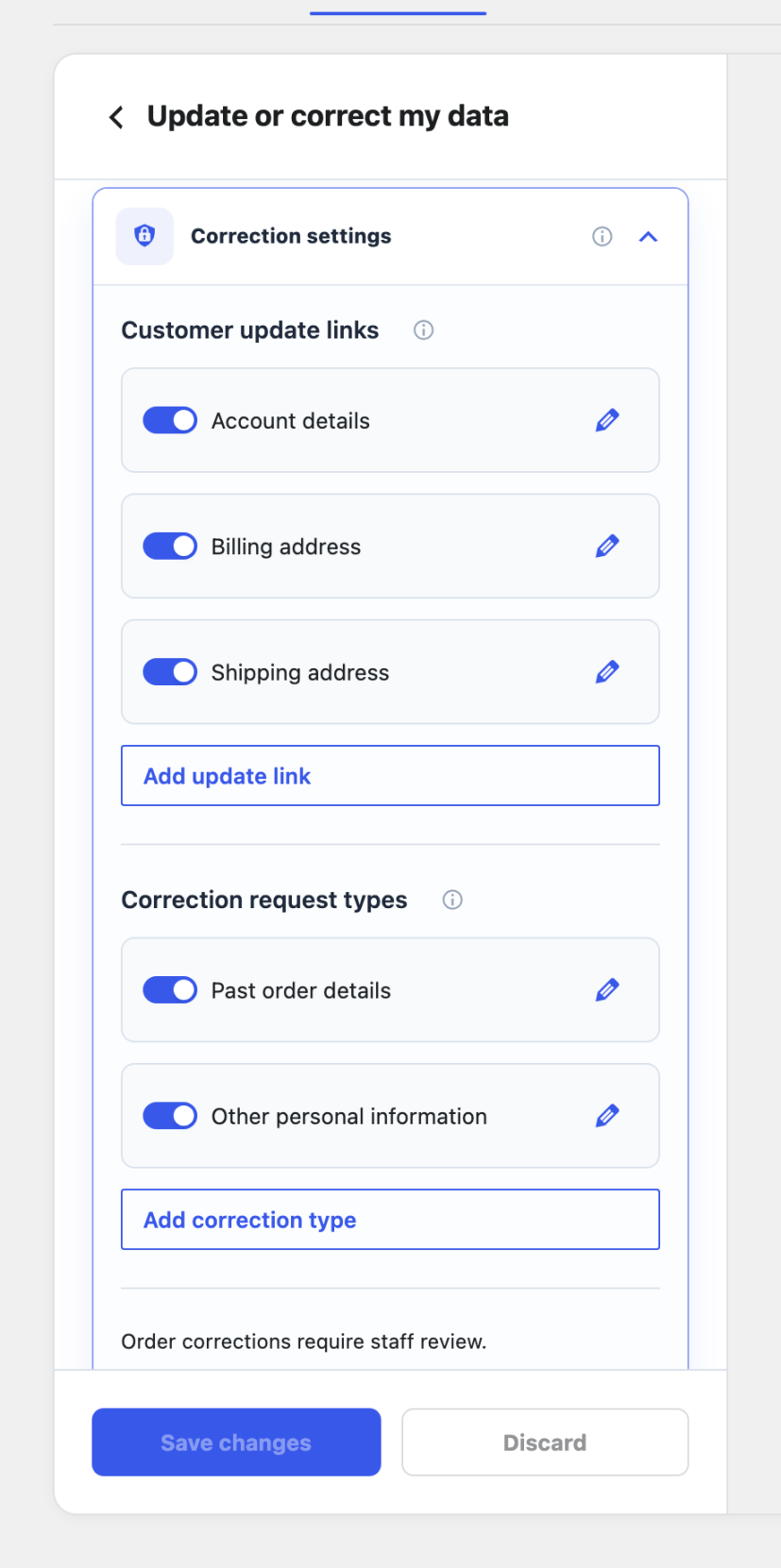
Correction settings give customers two paths: update current account information themselves, or ask your team to correct a record that needs review. For example, changing a saved billing address is different from correcting the address already stored on an order.
Customer update links
Use these links for details customers can edit on an existing page. Account details, Billing address, and Shipping address are enabled by default and open the corresponding WooCommerce account pages.
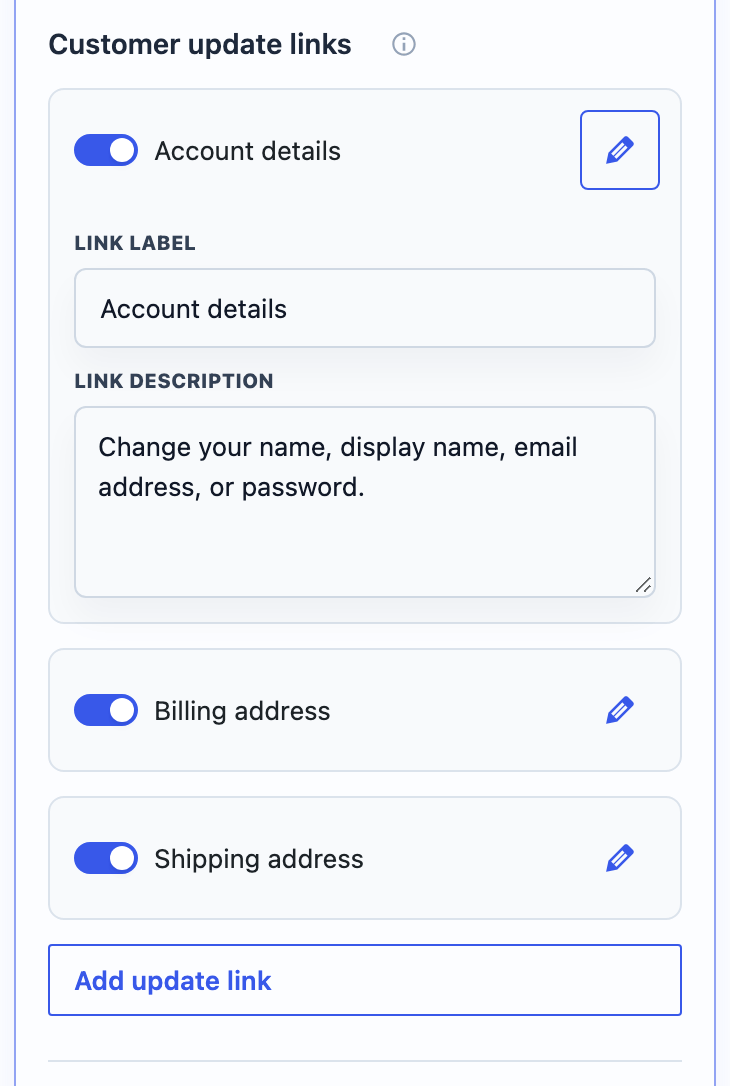
- Select the link’s Edit control to expand it.
- Set Link label and Link description so customers know which information the destination changes.
- To connect another customer-editable settings page, select Add update link, open the new row’s Edit control, enter those fields, and provide its Destination URL. Built-in links resolve their WooCommerce destinations automatically.
- Use the switch to show or hide the link, then select Save changes.
Remove custom link removes an added link from the pending configuration. It does not delete its destination page. The destination must already provide the editing workflow; adding a link does not create one.
Correction types and allowed order statuses
Use correction requests when changes need staff review. Past order details provides a structured order form. Other personal information collects an explanation for a correction your team handles in the appropriate system.
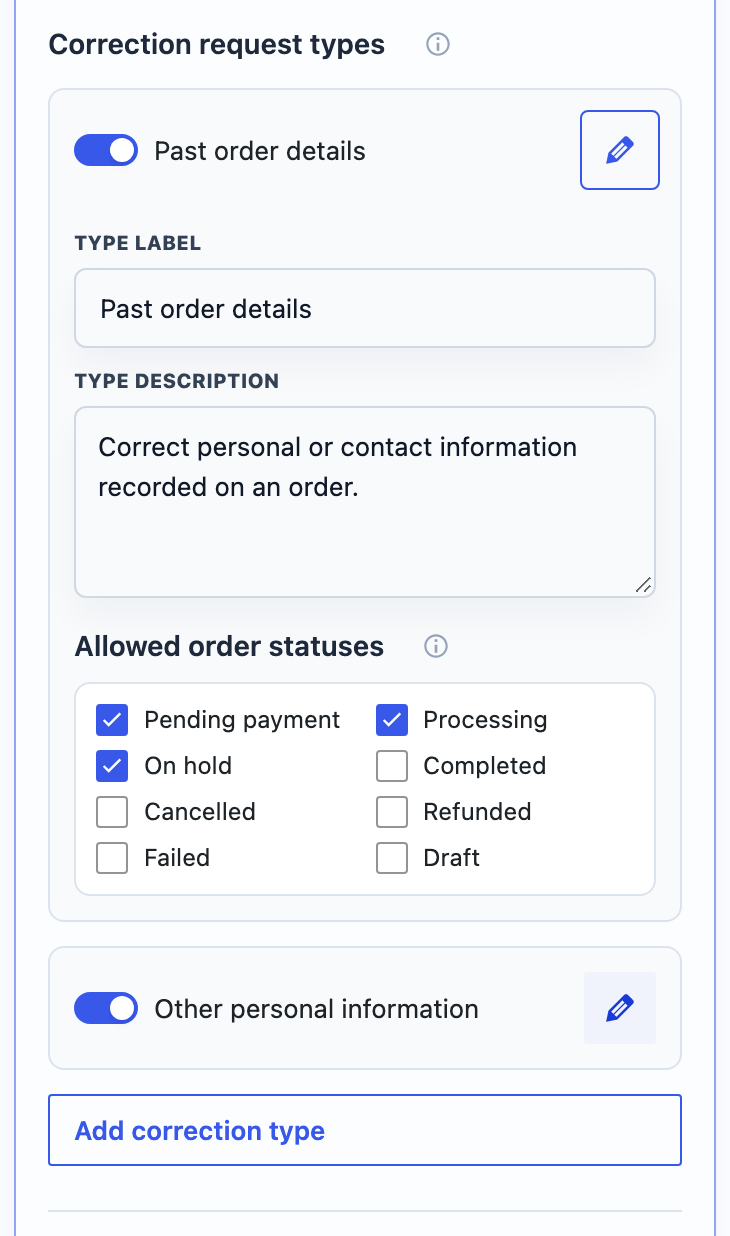
- Expand Edit Past order details.
- Review Type label and Type description. These explain the request type; they do not change the supported order fields.
- Choose Allowed order statuses. Defaults are Pending payment, On hold, and Processing.
- Keep the request type enabled and select Save changes.
These settings control which customer-owned orders accept new correction requests. Selecting no statuses blocks new past-order requests; existing requests remain available for review. Order eligibility is configured here, rather than by changing a customer’s saved address or an order’s status just to make it selectable.
Use Add correction type for another explanation-based request, such as an inaccurate detail stored in another extension. Open the new row’s Edit control, enter its label and description, enable it, and save. It collects a request for your team; it does not create a new automatic editor. Remove an added request type through its remove control when it is no longer needed.
How a customer requests an order correction
A customer opens My Account → Data Privacy → Update or correct my data, chooses Past order details, and selects an eligible order belonging to their account.
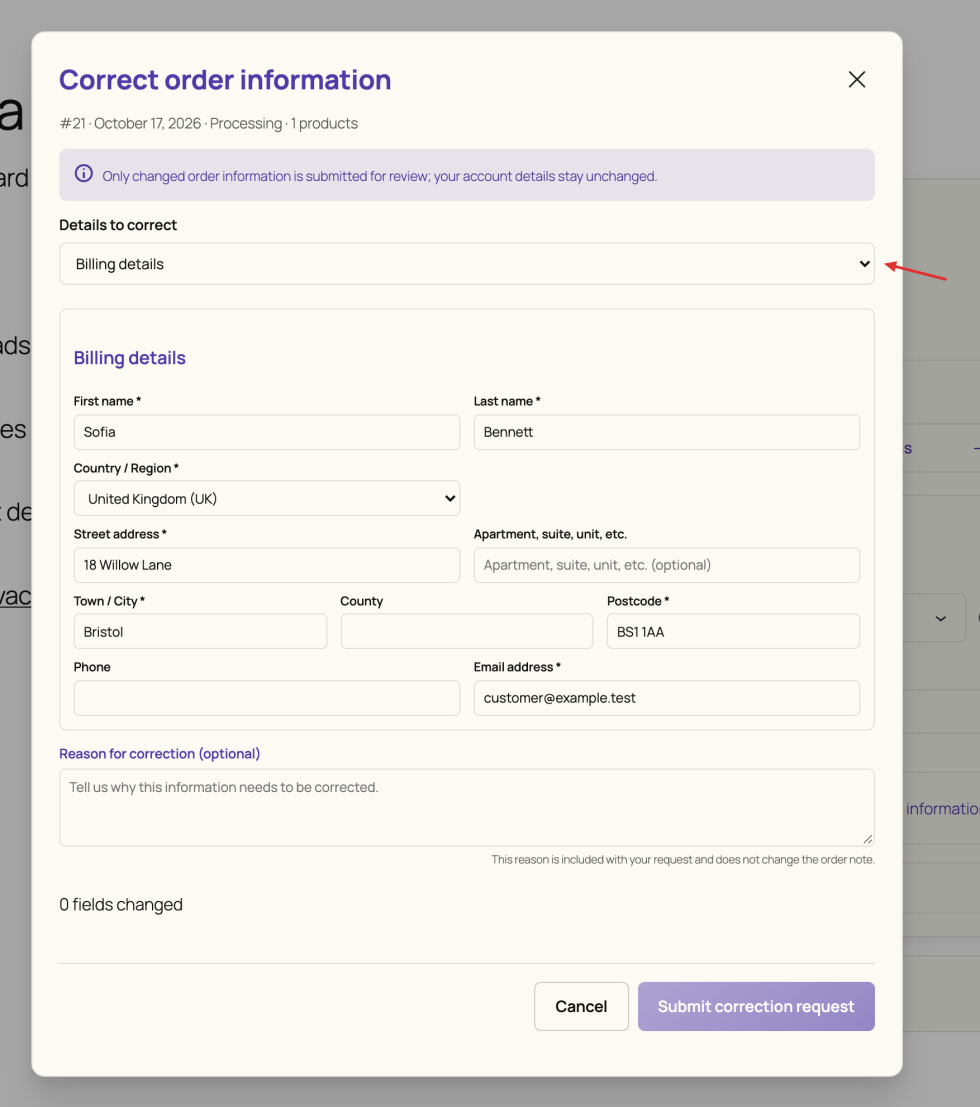
The customer selects Details to correct, proposes supported billing, shipping, or customer-order-note changes, optionally gives a reason, and selects Submit correction request. Only changed information is submitted. The request does not immediately update the order or the customer’s saved address book.
Address fields follow the selected country and WooCommerce configuration. Billing email concerns that order’s contact information, not the account sign-in email. The optional correction reason explains the request; it is separate from the order note. See the customer correction steps for the field guide and request history.
Where staff review and apply order changes
Go to WooCommerce → Data Privacy → Requests → Data corrections and select Review for the request. Compare Before and Requested, read the reason, and use Open order in WooCommerce for additional context.

Choose Approve selected changes, select the pending fields to apply, and review the selected count. Apply N selected changes opens a confirmation; Confirm and apply selected changes writes those fields to the WooCommerce order and attempts the customer notification. Unselected fields remain pending. Staff need order-editing access as well as privacy access.
If more information is needed, ask the customer from the review. For other personal information, update or verify the original record in the appropriate system before marking the request completed. Changing a general request’s status alone does not change that information. See the staff correction review guide for approvals, confirmations, replies, and email results.
Where staff review and apply order changes
↑ Back to topYour store may already have a subscription preference center, membership settings, an account support form, or another customer-facing workflow. Add a section to make that destination easier to find from the privacy area.
- Select Add section (+). A hidden New link opens in the editor.
- Enter a useful Customer title, such as “Privacy preferences”.
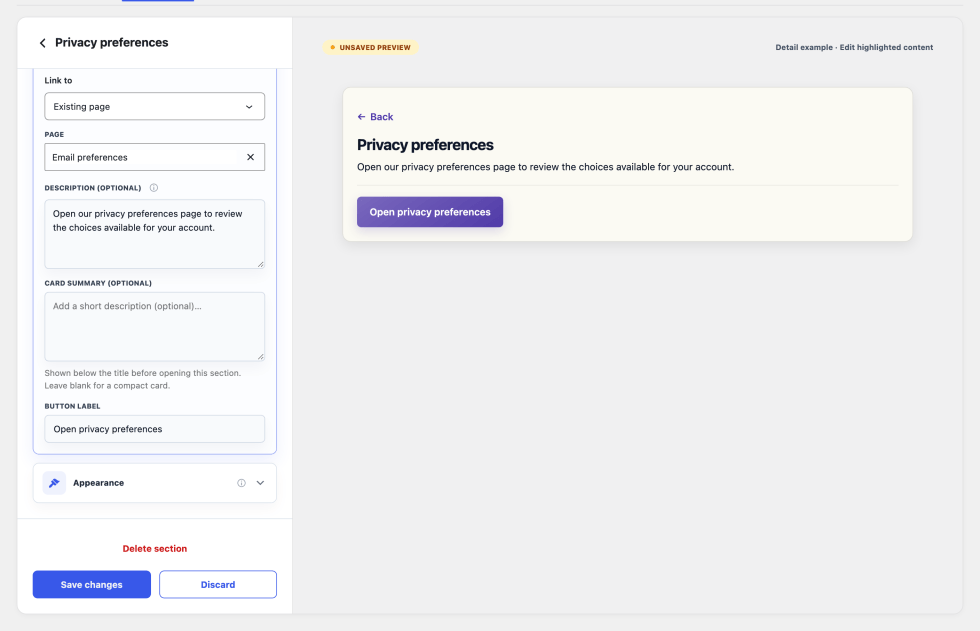
- Under Link to, choose Existing page for a WordPress page or Custom URL for another destination.
- Select the page or enter a valid Destination URL for a workflow your customers can access.
- Optionally enter a Description and Button label. With a description, customers first see an introduction and destination button. Without one, the section opens the destination directly.
- Return to the section list, enable its visibility switch, select Save, and test its destination as a customer.
Choose an existing WordPress page when it already provides the intended customer destination.
Use Custom URL for another route or service your customers already use.
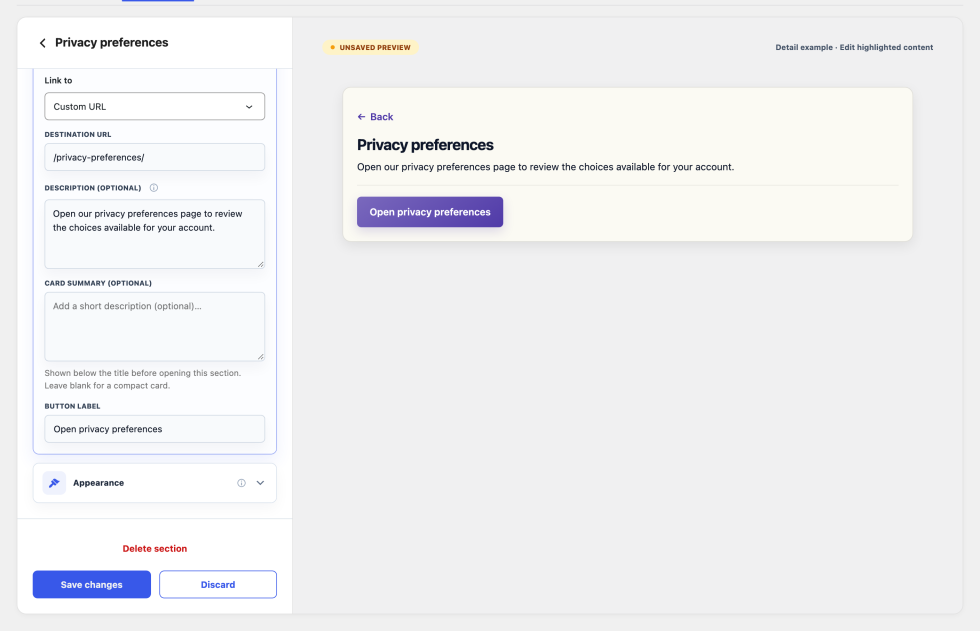
The screenshot is an unsaved configuration example; supply your own working destination. Linking a page does not implement its settings, save preferences there, or connect an external service. The destination remains responsible for authentication and the actual action.
The supplied Unsubscribe link follows the same approach. Set your existing email preference or unsubscribe destination, review its wording, enable it, and save. Opening the link alone does not unsubscribe a customer; the linked service handles that process.
Save, verify, and restore
↑ Back to topSelect Save in the section list or Save changes in an editor/settings panel. Wait for the result before leaving. After a save error, check the remaining unsaved changes and keep a copy of important text before reloading.
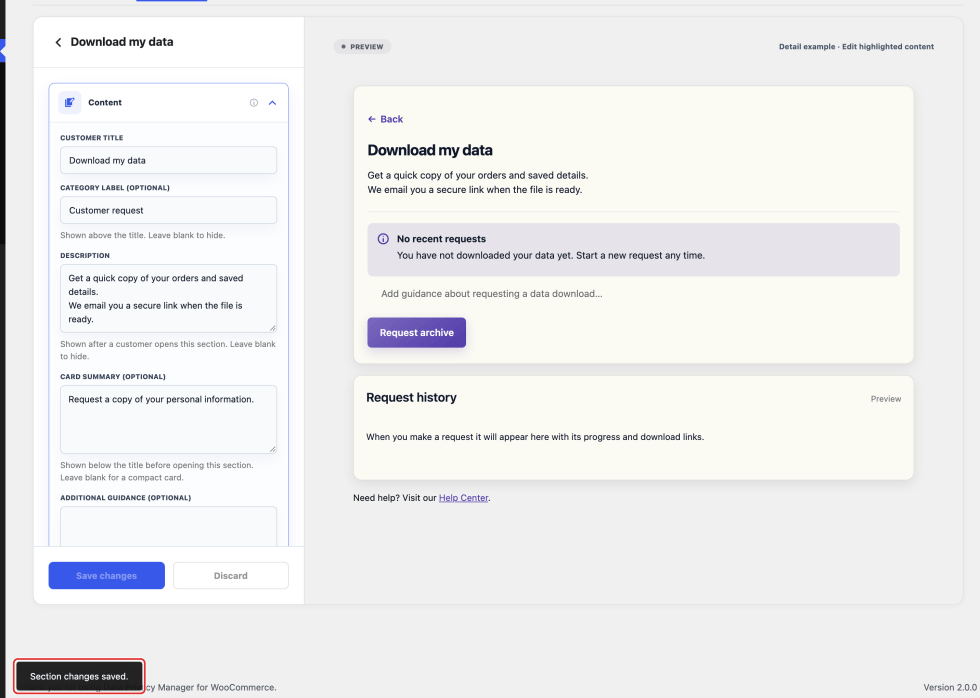
Open My Account → Data Privacy with a customer account. Check section order and visibility, open the changed section, test help/custom links, and inspect the colors. Example preview states do not prove the customer has reached that real request state.
- Discard: Returns pending edits to their saved content.
- Delete section: Available for custom sections. Confirming removes it from pending edits; Save changes applies the deletion, or Discard undoes it before saving.
- More section actions (⋮) → Reset to defaults: After confirmation, immediately restores default section order, visibility, content, and appearance, and removes added custom sections. Scenario messages are unchanged. Discard does not undo an applied reset; record custom content and destinations before resetting.
Data permissions & User Privacy Choices
↑ Back to topData Permissions helps you explain specific uses of customer information and record the response each permission needs. Prepare your own wording or use templates, review complete changes, and publish only when the customer experience is ready.
- Open WooCommerce → Data Privacy.
- Choose Data Permissions.
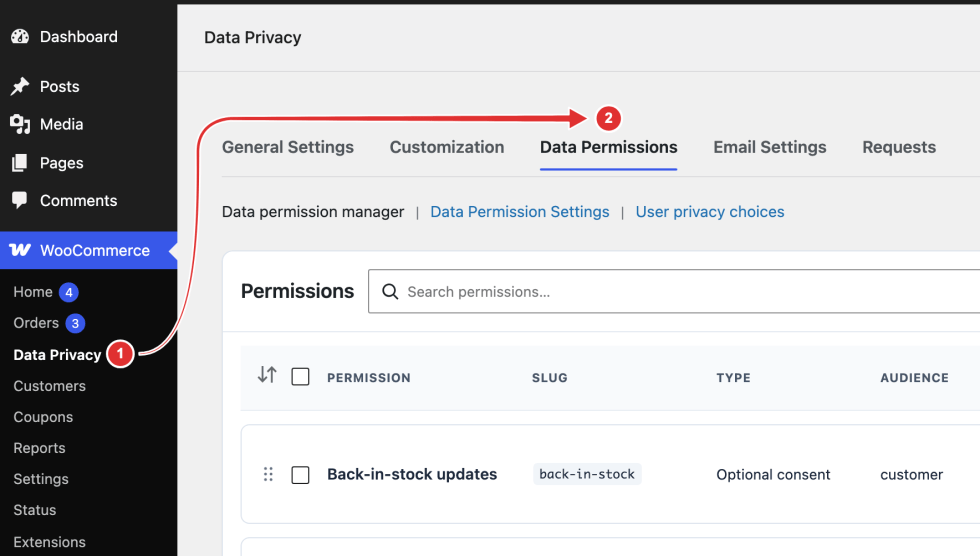
The four areas work together:
| Area | Use it to |
|---|---|
| Data permission manager | Create permissions, edit their content and audience, and organize drafts and published versions. |
| Review & publish | Compare ready changes, select the customer experience, preview, and publish. |
| Data Permission Settings | Choose collection locations, reminders, internal notifications, and evidence settings. |
| User privacy choices | Inspect recorded current choices and history without changing them for the customer. |
Publishing wording does not configure a mailing platform, recommendation tool, or other processing service to honor choices. Connect the recorded preferences to those services through an appropriate integration.
Create or edit a permission
↑ Back to topOpen Data permission manager. Select an existing permission’s title or Edit permission to change it. The editor groups are Content, Response settings, and Audience & settings; expand each group as needed.
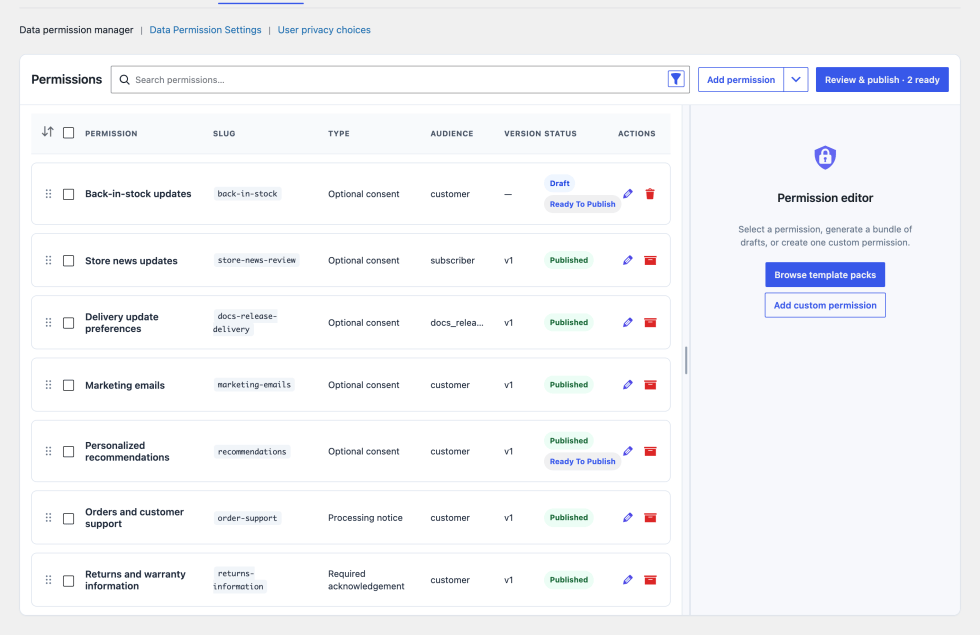
To start your own permission, select Add permission, enter a title, choose a type, and complete the fields below. Opening the new editor alone does not create or publish a record. For starting wording, use the template-pack route.
Choose the type
Open the Permission type dropdown. It contains these three options:
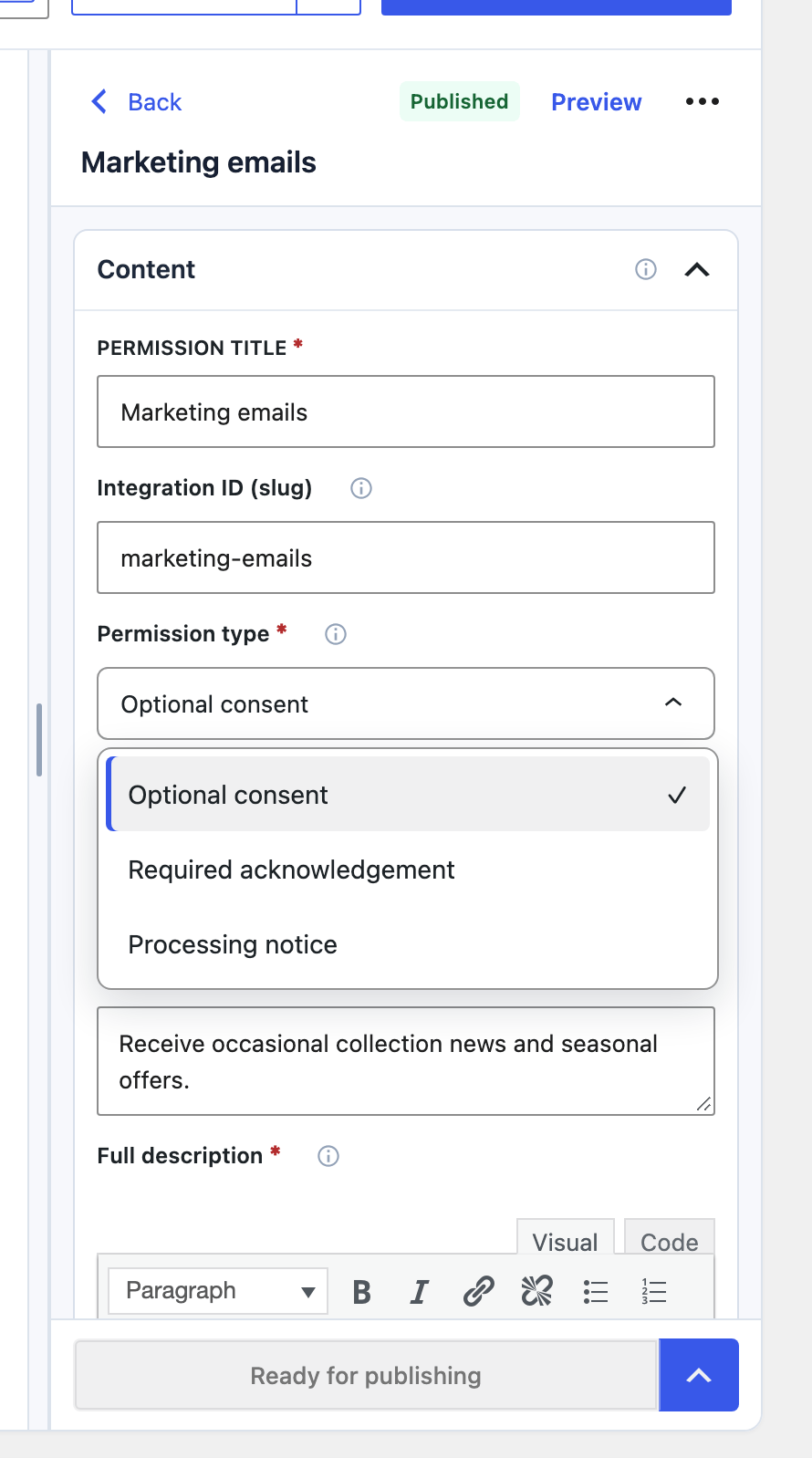
| Type | What it records | Example |
|---|---|---|
| Optional consent | A choice customers can grant, decline, or later withdraw. | Optional product recommendations based on order history. |
| Required acknowledgement | Acknowledgement or refusal of a notice, not consent. | An important updated membership notice. |
| Processing notice | Information only, explicit acknowledgement, or Viewed, depending on its mode. | An explanation of delivery details shared with couriers. |
Use examples that match your actual store policy, law or compliance . The type changes the response controls; it does not implement the processing or consequences described in the text.
Write the content and supporting link
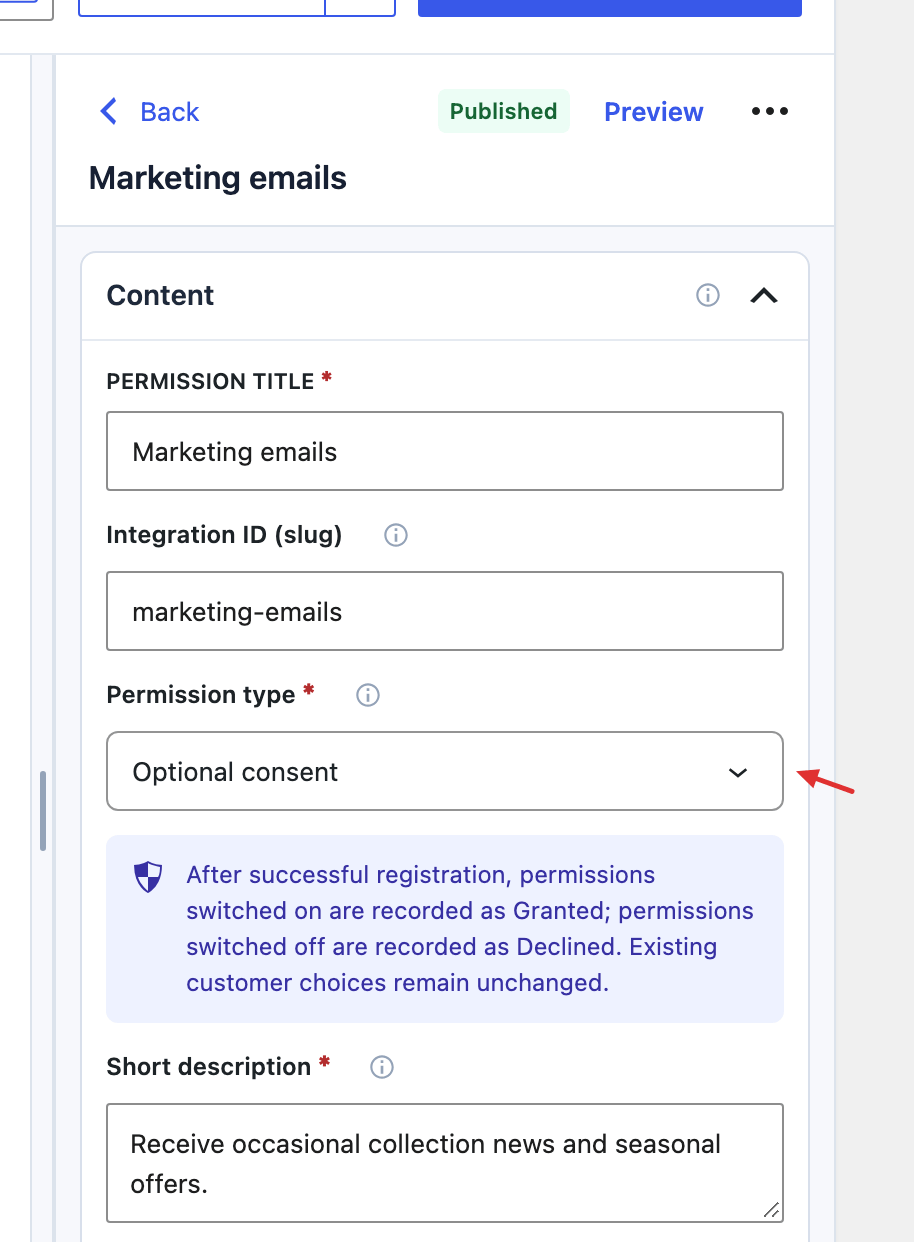
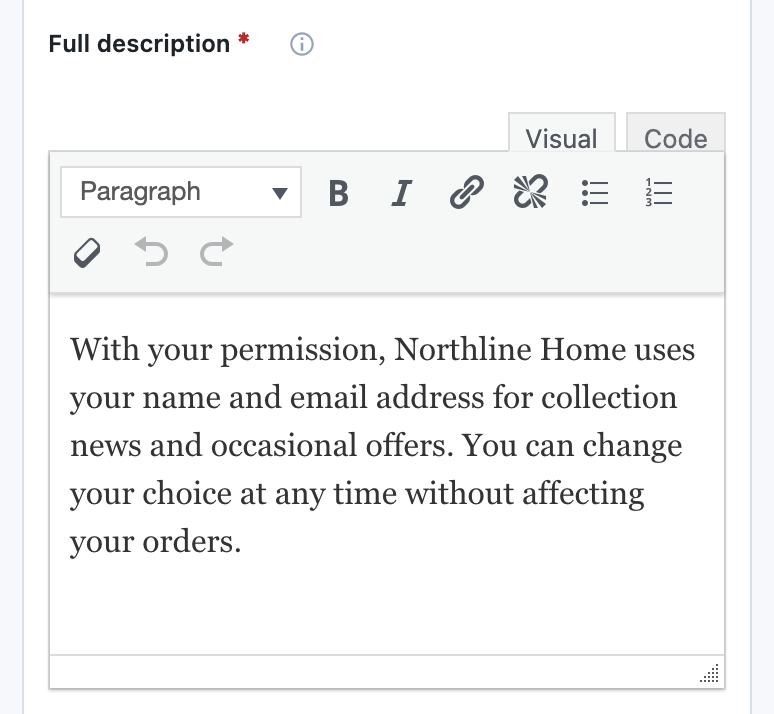
| Field | What customers or staff use it for |
|---|---|
| Permission title | A recognizable name in the customer list and details. |
| Integration ID (slug) | An identifier for integrations. Leave blank to generate it; it locks after first publication. |
| Short description | A brief explanation in the list before customers open details. |
| Full description | The complete explanation in the details popup. Use the offered headings, lists, and links to organize it. |
| Change summary (optional) | Appears after a published version exists and explains what changed. It does not replace either description. |
The type, title, both descriptions, and valid audience are needed before making changes ready. Title, integration ID, and policy link label are limited to 191 characters.
Under Policy or terms link (optional), choose Link source → No link, Existing page, or Custom URL. Select the published WordPress page or enter an HTTP/HTTPS Custom URL, then set a clear Link label. Changing the source clears the previous destination; relative paths are not accepted here.
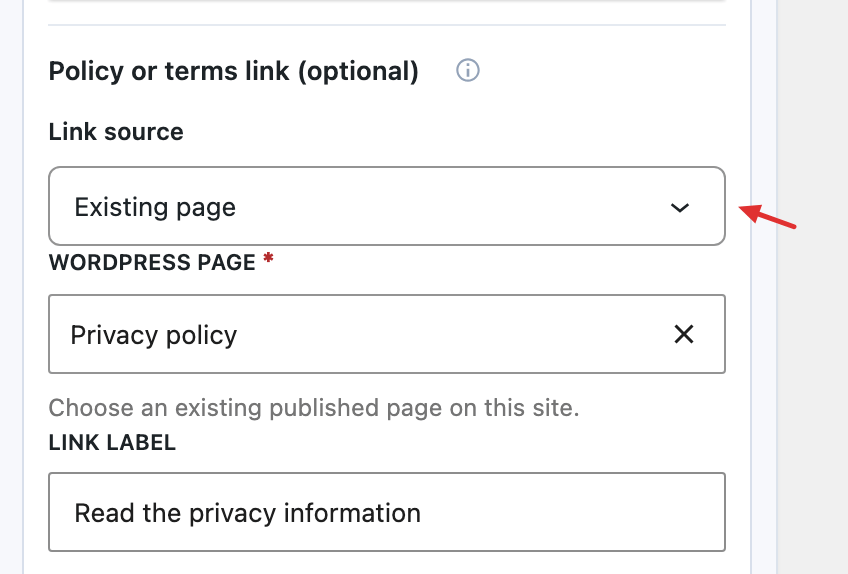
The link supplies supporting information. It does not create its destination or replace the required full description.
Optional consent response settings
Select Optional consent, then expand Response settings.
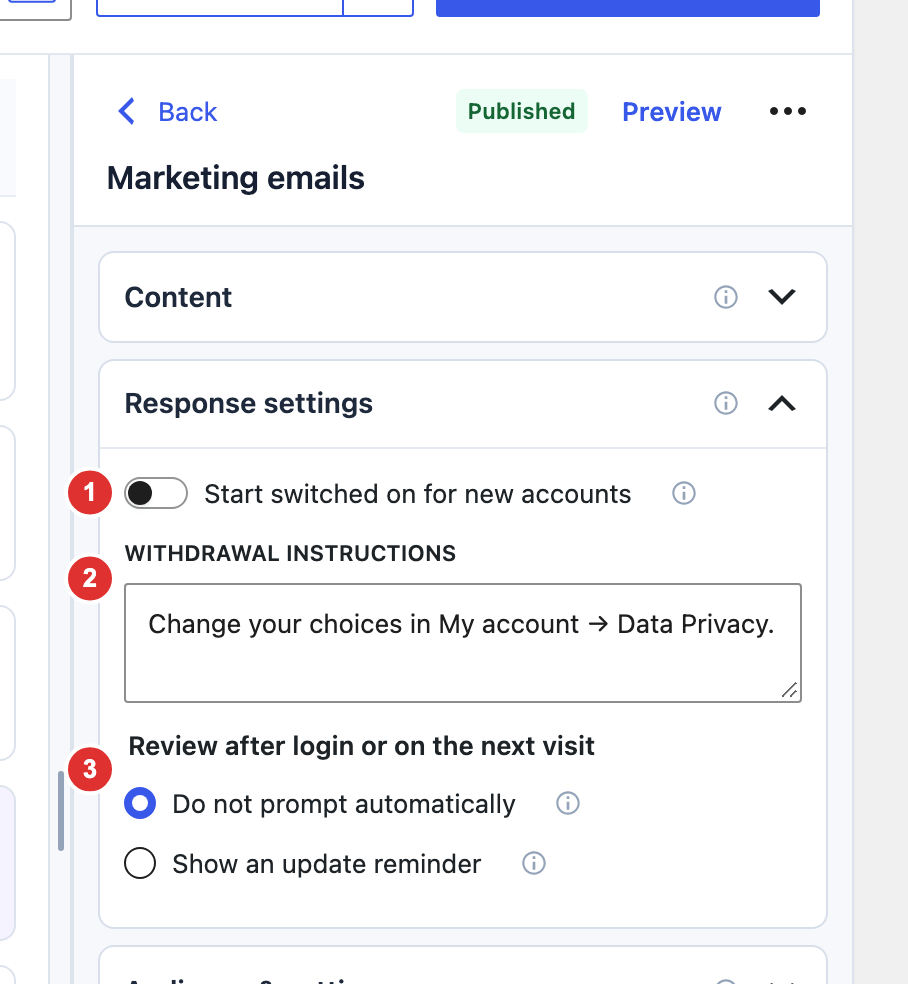
- Start switched on for new accounts: Sets the initial switch in account-creation forms. New custom permissions start on; templates can differ. Customers can switch it off before submission. Recording happens after successful account creation, and existing choices are preserved.
- Withdrawal instructions: Explain how customers withdraw and what the store actually does afterward. The text does not configure the connected service.
- Review after login or on the next visit: Choose Do not prompt automatically or Show an update reminder for this permission. Optional consent cannot require agreement before browsing; publication delivery is configured separately.
For example, explain withdrawal from optional recommendations and connect that preference to the recommendation service.
Required acknowledgement response settings
Required acknowledgement response settings
Select Required acknowledgement, then expand Response settings.
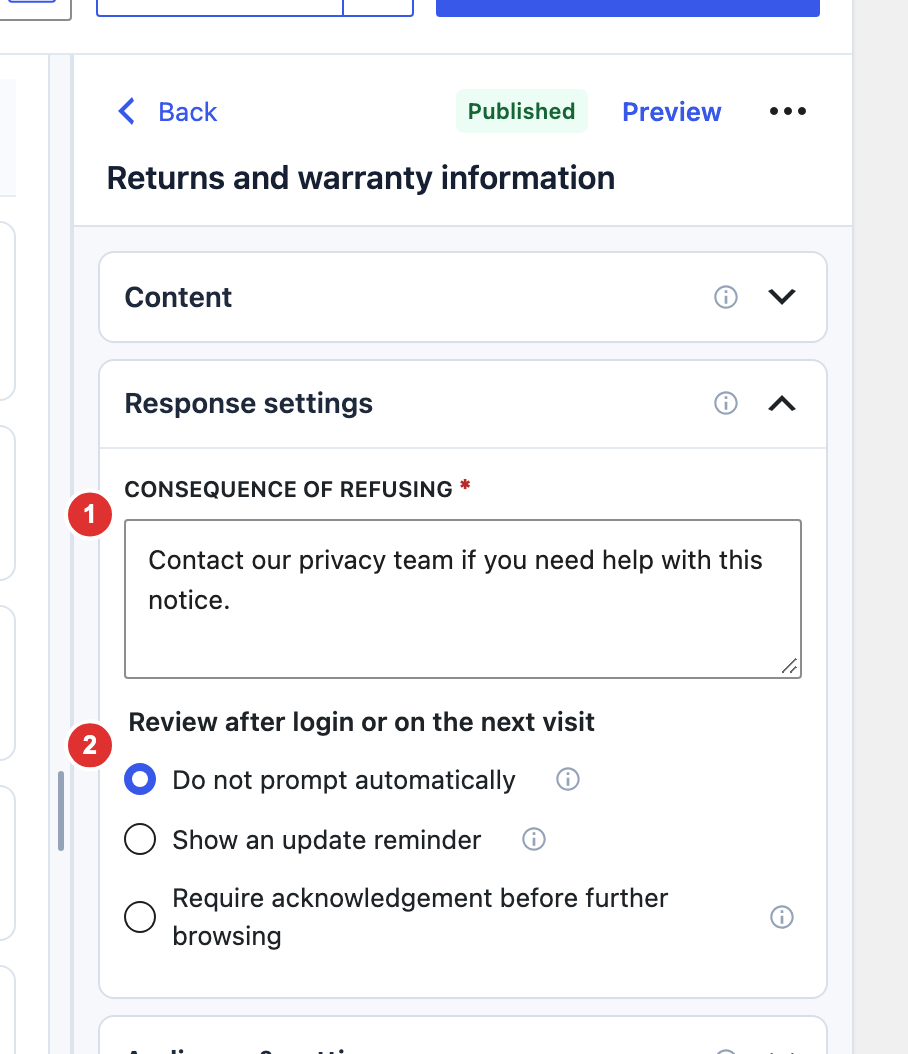
- Consequence of refusing: Complete this required explanation with the store’s actual outcome. The wording does not enforce that consequence or restrict browsing.
- Review after login or on the next visit: Choose no automatic prompt, an update reminder, or Require acknowledgement before further browsing. This separate rule controls the required overlay; essential routes remain accessible.
Customers can acknowledge or refuse before acknowledgement is saved. Saved acknowledgements are read-only until an update requires review; they are not optional consent that can be withdrawn at any time. For example, a membership notice can explain the support route if a member refuses.
Processing notice response settings
Select Processing notice and expand Response settings. How should customers review this notice? is a radio group:
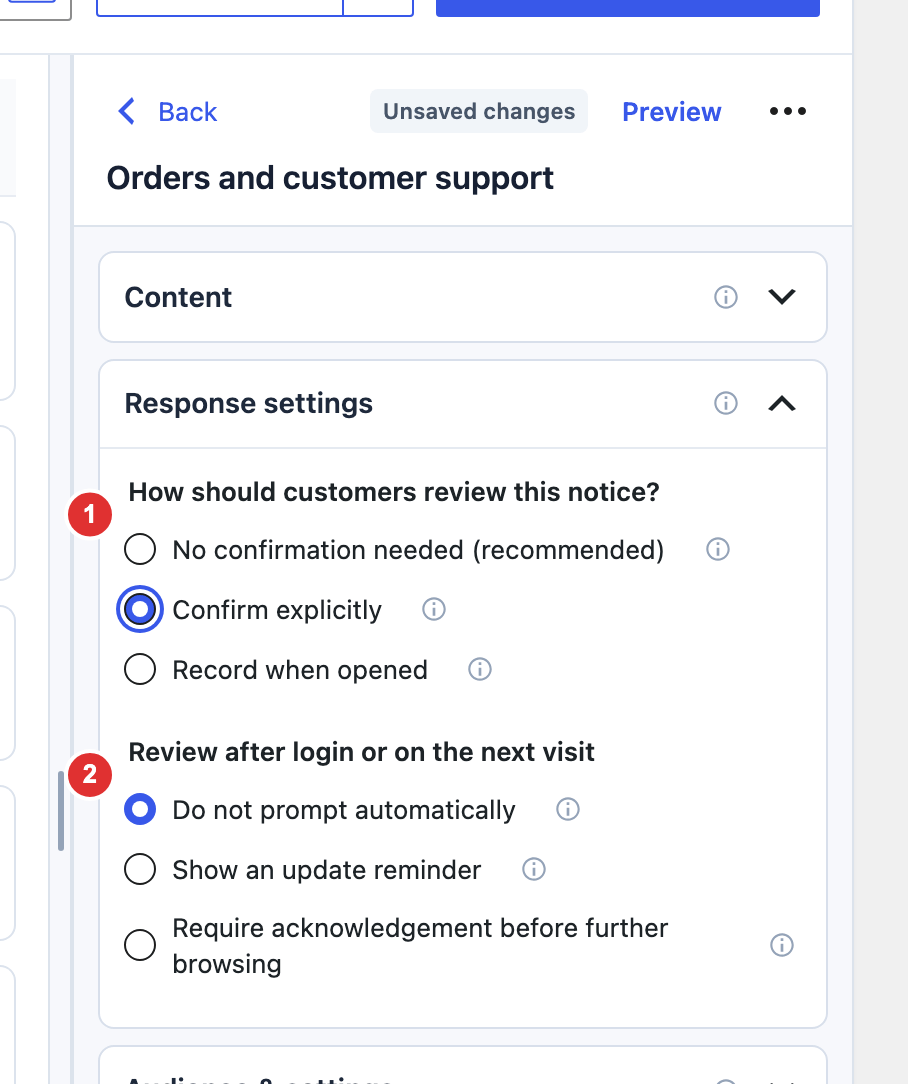
- How should customers review this notice?: Choose the recording mode. It determines whether the notice records nothing, an explicit acknowledgement, or Viewed when opened.
- Review after login or on the next visit: Choose automatic review where available. No confirmation needed disables this group; only Confirm explicitly permits required acknowledgement before browsing. Publication delivery remains separate.
| Option | Customer outcome |
|---|---|
| No confirmation needed (recommended) | Displays information with Close. Records no view or acknowledgement; automatic review options are disabled. |
| Confirm explicitly | Asks for I acknowledge. Records acknowledgement, not consent, and reuses it until an update requires review. |
| Record when opened | Records Viewed when details open. A single update can open automatically; Viewed proves neither reading nor consent. Checkout/registration recording waits for successful submission. |
An informational courier-processing explanation may need only the first mode. Use explicit acknowledgement when your workflow needs that response, or record-on-open when the opening event is the intended record.
Choose automatic review behavior
Review after login or on the next visit uses radio options, not a dropdown:
| Option | Availability and effect |
|---|---|
| Do not prompt automatically | Keeps eligible review available in My Account without a per-permission update popup. |
| Show an update reminder | Introduces outstanding updates on an eligible visit; reminder timing applies separately. |
| Require acknowledgement before further browsing | Available for Required acknowledgement and Processing notice set to Confirm explicitly. Keeps the required overlay open. |
Processing notices set to Record when opened offer only no prompt or a reminder. No confirmation needed disables this group. Essential account, checkout/payment, privacy, policy, support, and sign-out routes remain accessible. The overlay restricts interaction, not protection of page content. Publication delivery is configured separately below.
Set the audience and internal alerts
Expand Audience & settings and choose Eligible users → All registered users or Selected roles. Selected roles reveals checkboxes and needs at least one role; those permissions appear after sign-in, not to an unidentified registration visitor.
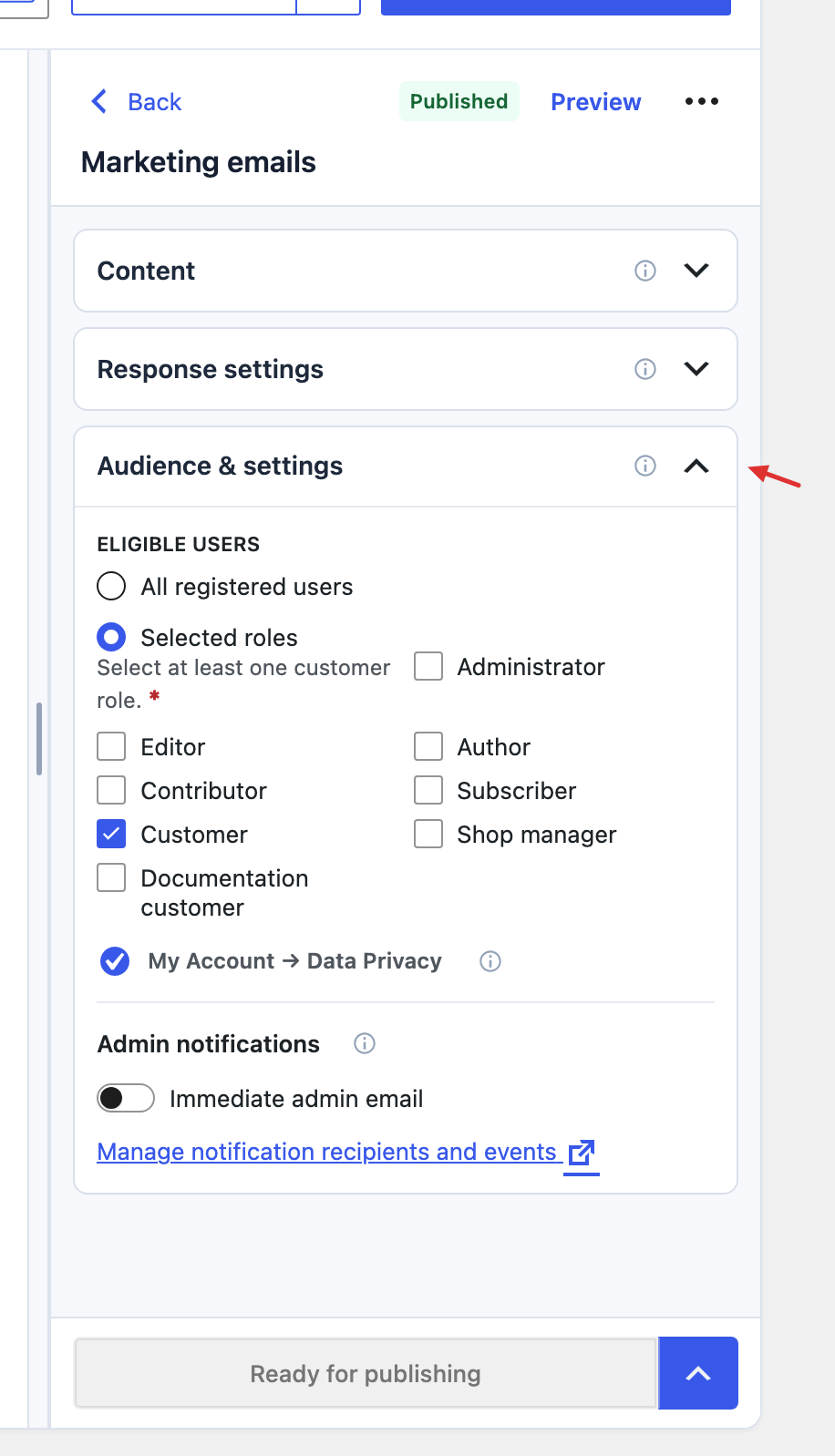
Immediate admin email is available after the permission record is saved. Its switch saves independently and does not save pending wording or publish a version. Delivery also needs matching events in Data Permission Settings → Admin notifications, recipients in General Settings → Privacy Team Access, and working scheduled tasks/email. Viewed notices do not send these alerts.
Preview, save privately, or make ready
Use Preview to read the customer summary/details and try the offered response. Close preview discards demonstration interactions; it records no real customer choice.
Choose the save action that matches your progress:
| Action | What it saves |
|---|---|
| More save options → Keep changes as draft | Saves unfinished work privately and removes a ready item from the queue. The type and valid field lengths are needed; give the draft a useful title. |
| Ready for publishing | Saves complete changed content to the review queue. Required acknowledgements also need Consequence of refusing; any selected policy destination must be valid. |
Draft changes remain private while customers continue seeing the published wording. Ready for publishing places complete edits in the review queue; it does not publish them.
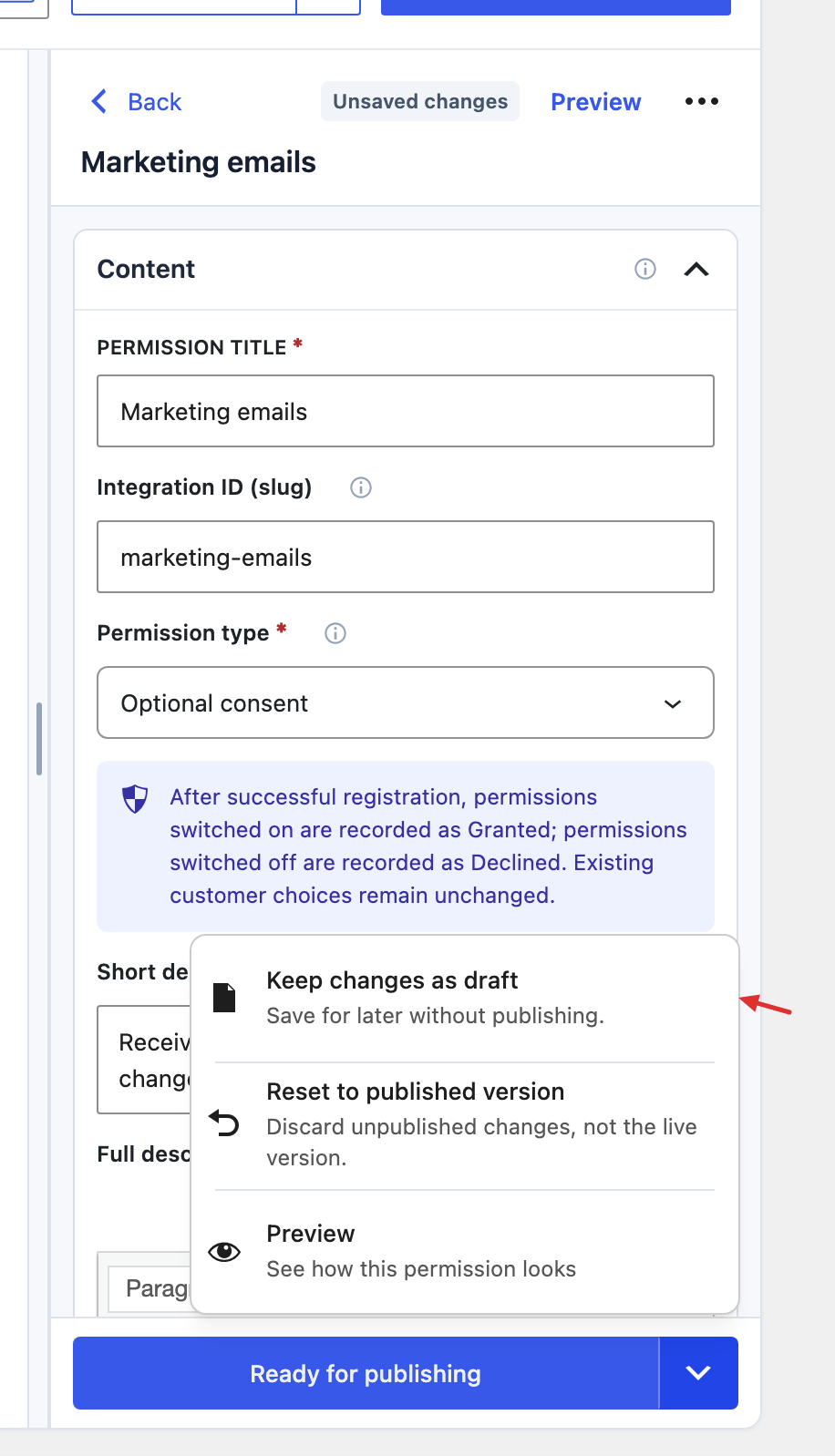
Check Draft saved or Saved for publishing and the ready count. Create draft is the setup wizard’s separate action, not the manager’s main save label. A complete new permission can go directly to ready. An unchanged published version has no new content to queue.
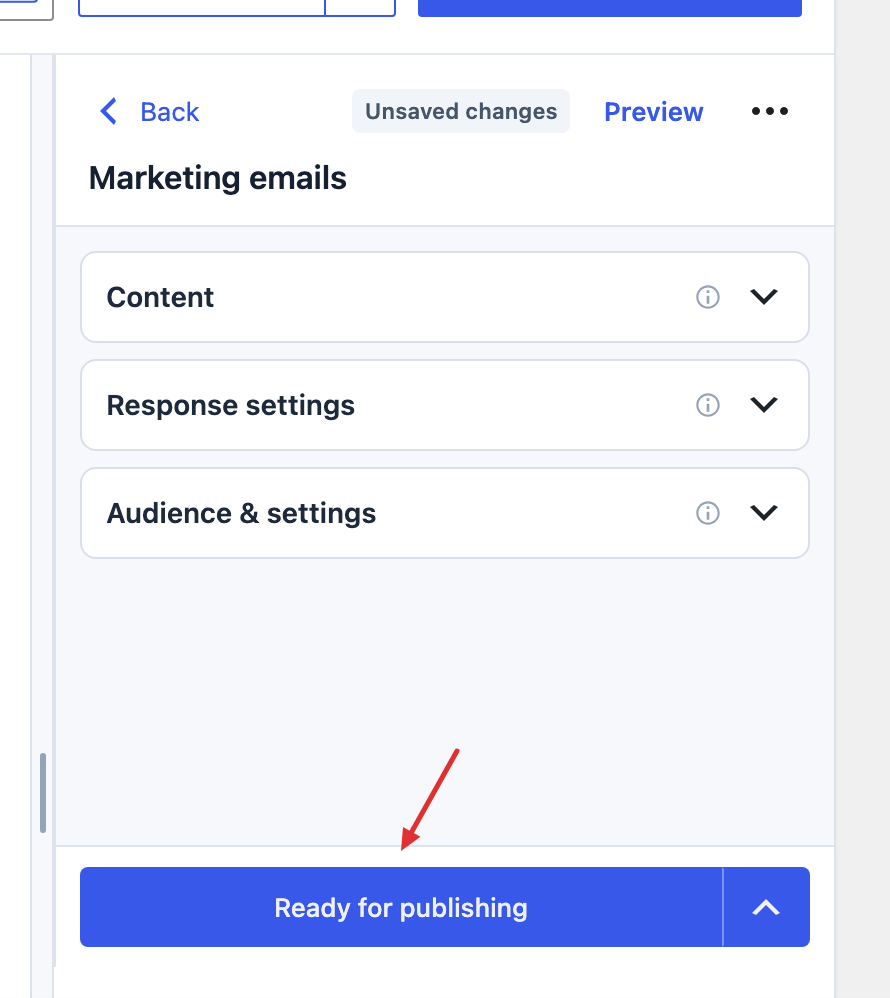
Neither save action publishes. Existing published wording stays live while its replacement is draft or ready. Continue through Review & publish to make changes available. See the manager guide for validation and editing details.
Start from template packs
Templates are starting points that still need store-specific review. They do not replace existing permissions or publish themselves.
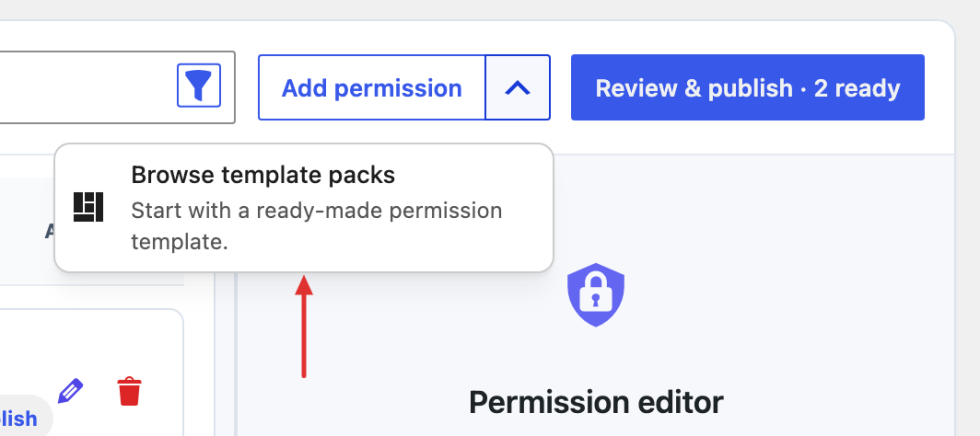
- Open More add options → Browse template packs.
- Choose a pack, then use Add or individual checkboxes. Add becomes Added and only changes the selection; the pack checkbox selects or clears the whole pack. You can select across packs.
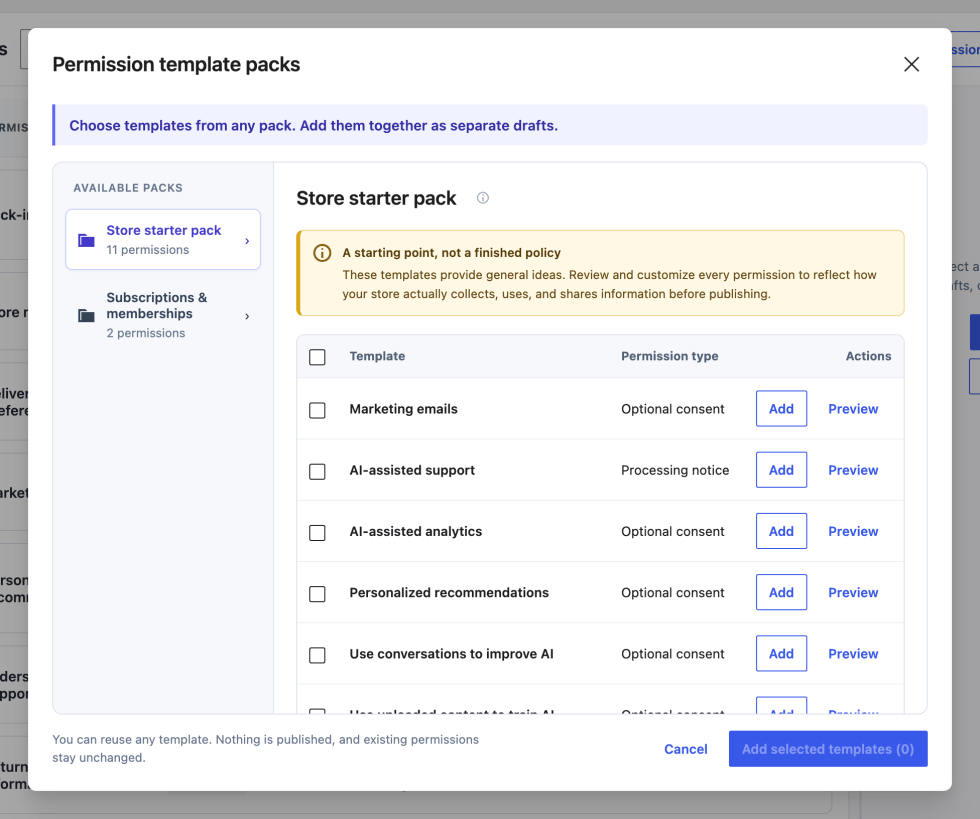
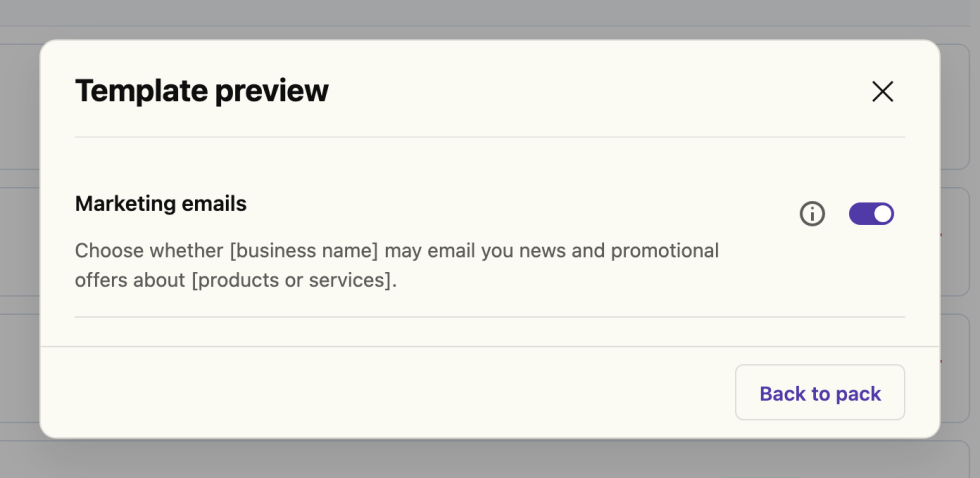
Templates are starting points that still need store-specific review. They doSelect Preview beside a template to inspect its wording and controls. Back to pack returns to your selection; preview responses are not recorded.not replace existing permissions or publish themselves.
Check Add selected templates (N) and select it to create separate private drafts. Read the created/failed counts before retrying any failed import.
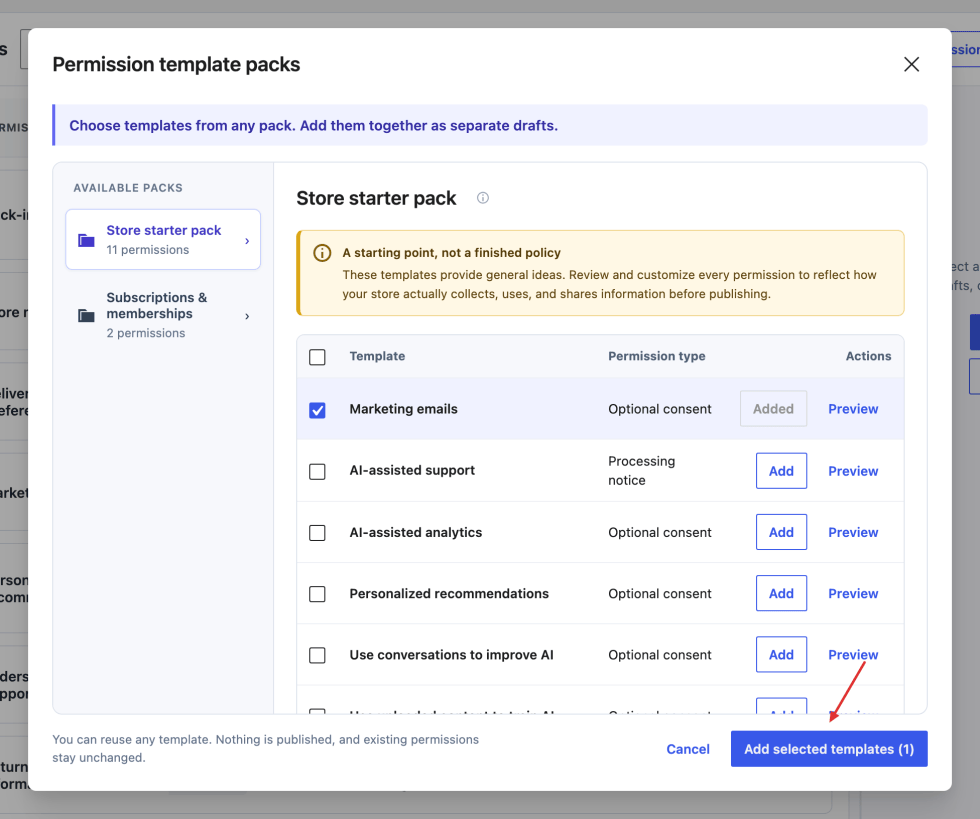
Review and publish
Open each draft, replace placeholders, and review its type, both descriptions, audience, response settings, and link. Make complete changes Ready for publishing, then continue to review. Nothing is automatically connected to the service described by a template.
Open Review & publish · N ready after saving or discarding pending editor changes. The dialog separates Review permissions from Customer experience.
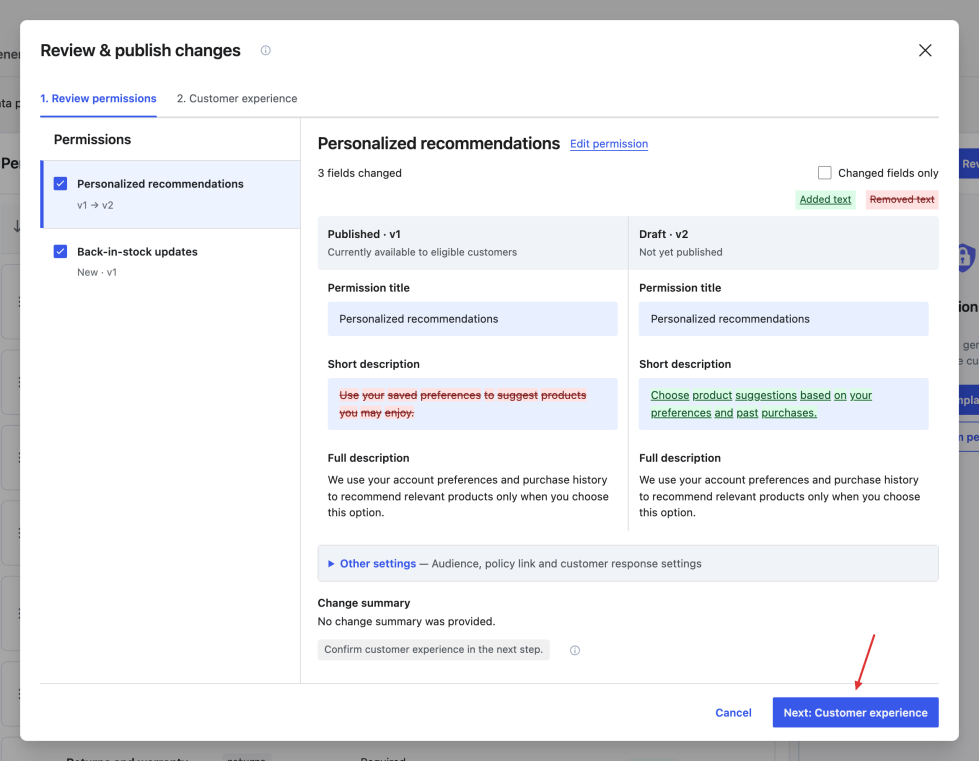
- Use checkboxes to include the ready changes you want. Select a name to inspect its comparison; this does not change the checkbox selection.
- Compare published and proposed wording. For updates, use Changed fields only as needed. Replace highlighted template placeholders even when the warning does not prevent publication.
- Correct issues through Edit permission → Save & return to review. Recheck the refreshed comparison and selection.
- Select Next: Customer experience. Unselected items stay ready for later.
Choose the customer experience
Under Notify existing customers, choose No additional popup, One combined popup on the next eligible visit, or One combined popup after the next login. These are radio options for this publication, not changes to individual response rules.
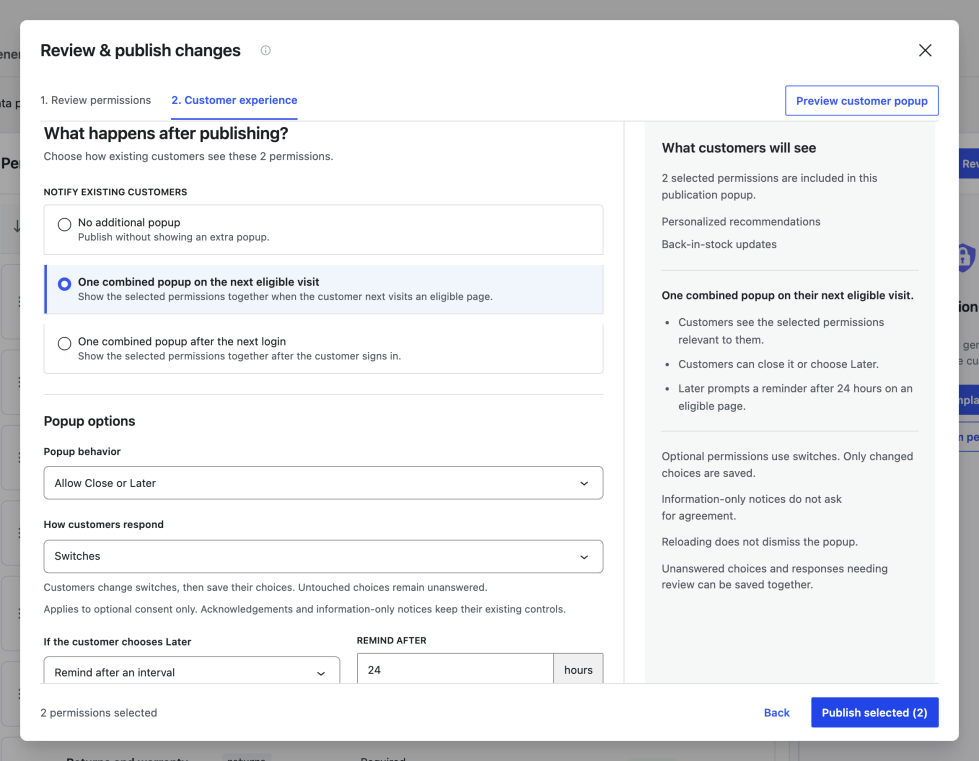
When an additional popup is enabled, these dropdowns appear where applicable:
| Field | Options and effect |
|---|---|
| Popup behavior | Allow Close or Later lets eligible review be postponed. Block browsing until choices are saved requires responses, but optional consent can still be declined. Information-only notices do not force agreement. |
| How customers respond | Appears when optional consent is selected: Accept / Decline buttons or Switches. Acknowledgements keep their own controls. |
| If the customer chooses Later | When postponement is available: Remind after an interval, Remind at the next login, or Do not remind again for this version. An interval reveals Remind after, accepting 1–8,760 whole hours. |
Buttons require a chosen answer. Dismissible switches save changed choices and leave untouched ones unanswered. Blocking switches confirm every displayed optional switch when saved: on is Accept and off is Decline, including switches left off. Account-creation defaults do not grant consent in a publication review.
No additional popup preserves existing automatic and required-review rules. A permission’s required-browsing-review rule cannot be postponed by publication settings; essential routes remain accessible. Close or Later starts a postponement interval; merely opening or reloading the popup does not.
Preview and publish separately
Select Preview customer popup, read details, and try the responses. Reset preview starts again; Close preview returns to Customer experience.
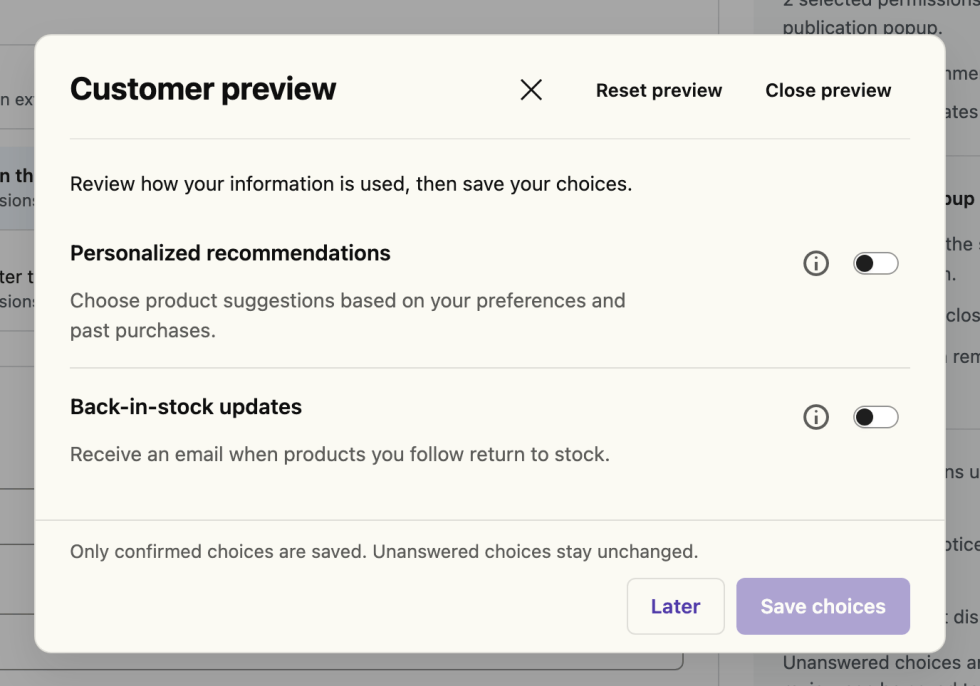
Saving there shows Preview complete. No customer choices were saved. It neither publishes nor records customer decisions. Real customers save popup responses through Save choices, or Acknowledge & save choices when acknowledgements are included.
Review What customers will see, then select Publish selected (N) and wait for the outcome. Inspect Published and the version in the manager, then check with an eligible customer account.
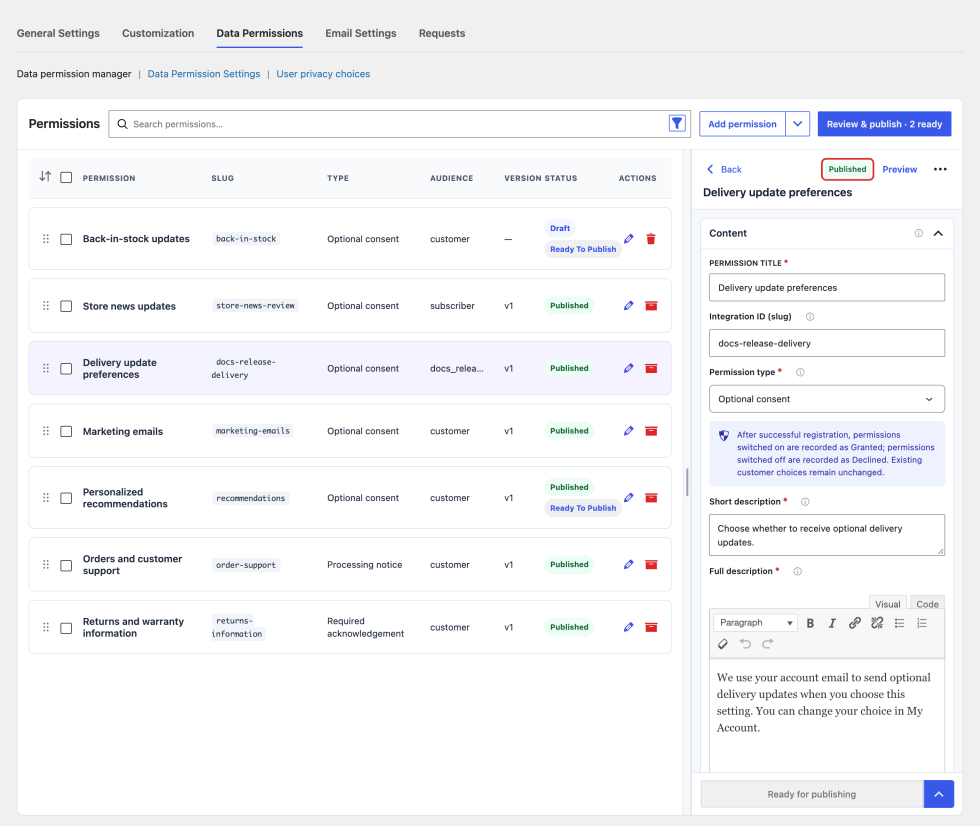
A ready label or successful preview is not publication. If the result cannot be confirmed, reload the review and check the saved state before retrying. See Review and publish for the complete controls and examples.
Organize, reset, archive, or delete
Search/filter the manager list. Clear filters before reordering, and use Load permissions for reordering when offered. Dragging a handle saves automatically; wait for Permission order saved.
| Action | How it affects availability and records |
|---|---|
| Reset to published version | Under More save options when a published version exists. Confirm Reset changes to discard unpublished content and readiness; live wording and responses remain. |
| Archive | Published row’s Archive permission action or editor’s More permission actions → Archive. Confirmation hides it from customers and removes readiness while preserving records. |
| Restore permission | Archived item with a published version only. Confirmation restores the last published version, not its working drafts. |
| Delete permanently | Available for archived items and never-published drafts; archive a published permission first. Type the displayed name exactly and confirm removal of versions, choices, and history. Customer accounts and other permissions remain. |
Confirmed lifecycle actions apply without a later draft save. Deletion shows affected-record counts and becomes Deleting… while background work completes. Selection checkboxes also offer Archive selected (N); only published items are archived. See the manager lifecycle guide.
Data Permission Settings
↑ Back to topThese shared settings control where customers encounter permissions, the wording used at checkout, when review popups can return, and which activity your privacy team receives by email. They work alongside each permission’s audience, response rules, and publication choices.
Open Data Permissions → Data Permission Settings. Edit the groups below, then select Save changes. A settings save does not publish a permission or record a customer response.
Where permissions appear
Enable the locations your store uses. All three switches default to enabled, but their availability depends on account-creation options under WooCommerce → Settings → Accounts & Privacy.
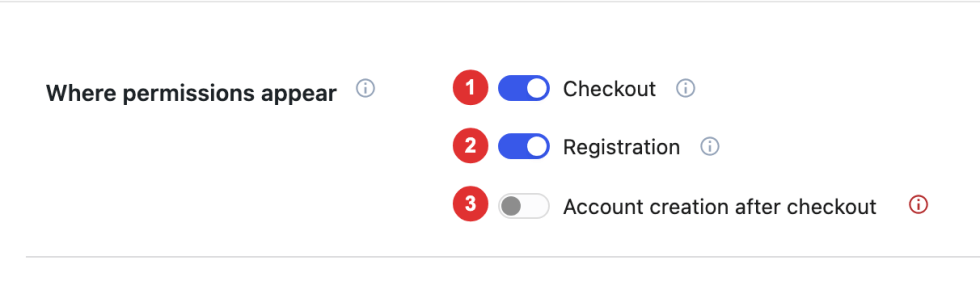
- Checkout: Allows permissions at checkout when Allow customers to create an account → During checkout is enabled in WooCommerce. Block checkout also requires the Permissions option in its Terms block.
- Registration: Allows permissions on My Account registration when Allow customers to create an account → On My account page is enabled. The responses are recorded only after account creation succeeds.
- Account creation after checkout: Allows permissions when a guest creates an account after placing an order. WooCommerce must enable both Allow customers to create an account → After checkout and Enable guest checkout.
If a switch is unavailable, read its explanation and use the WooCommerce settings link to enable the required account flow. These switches do not enable account creation themselves. Turning a location off preserves existing decisions and My Account permission controls. Published audiences still apply; role-restricted permissions require a signed-in customer with an eligible role.
Checkout wording
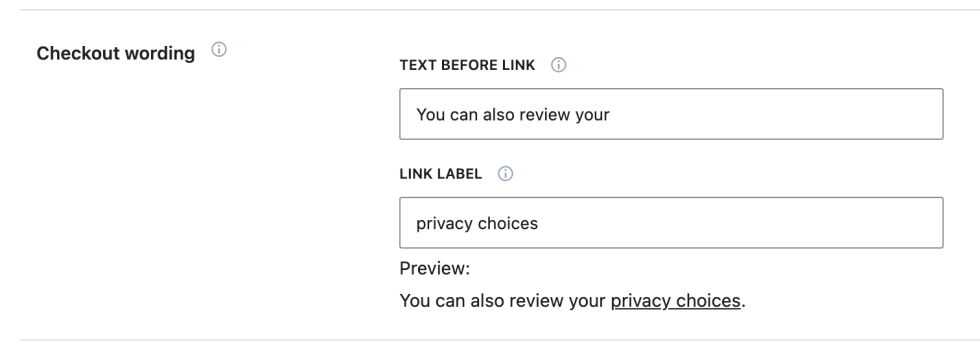
Use these fields to introduce the link customers select to review privacy choices. Change the introduction or label when your store needs clearer wording in the surrounding checkout text.
| Field | What it does |
|---|---|
| Text before link | The introduction before the link. Defaults to “You can also review your”; clear it to show only the link. |
| Link label | The clickable text that opens privacy choices. Defaults to “privacy choices”; leaving it empty uses that default. |
The Preview line below the fields updates as you edit and underlines the link label. For example, “Review your” with “data permissions” lets you check the combined wording before saving. This is a text demonstration, not a customer permission submission.
These values supply classic checkout text and the default for block checkout. The Terms block can override them. They do not change registration wording, the store’s Terms or Privacy Policy, or the meaning of a recorded response.
Automatic permission popup
Set the starting behavior for future publications and select additional pages where an automatic popup should not appear. These settings do not replace the delivery choices made in Review & publish.
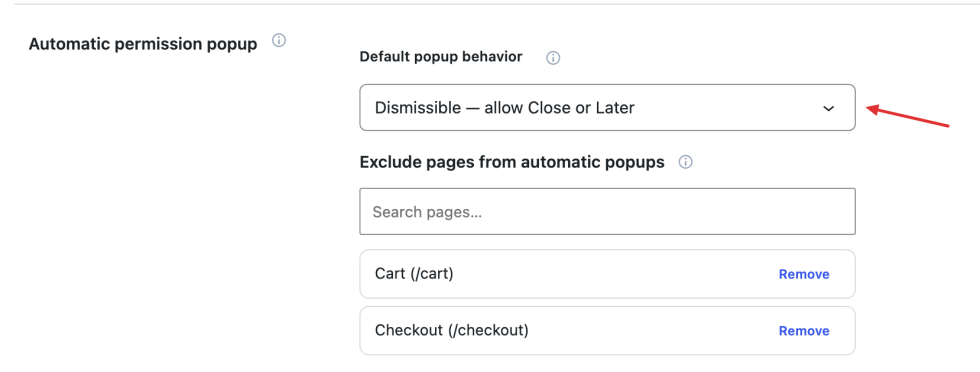
Default popup behavior has two options:
- Dismissible — allow Close or Later: The default. Customers can postpone eligible review and return later.
- Block browsing until choices are saved: Requires responses before continuing through pages subject to the popup. Customers can still decline optional consent; blocking does not require agreement. Information-only notices do not require a response.
This is the initial selection when publishing. You can override it for that publication; changing the shared default does not alter existing publications.
Under Exclude pages from automatic popups, search for and select a published public page. Remove clears an additional exclusion. Cart and checkout are selected by their default slugs when those pages exist. Select your actual pages if the store uses different slugs, and select a page again after changing its slug. Excluded pages can appear as links in blocking popups.
Essential WooCommerce cart, checkout, account, privacy, and support routes remain accessible independently of this list. Popup exclusions do not disable permission controls embedded in registration forms.
Customer review reminders
Choose when a postponed automatic popup can return under the general reminder rules. These are popup reminders, not customer reminder emails; a publication can use its own timing instead.

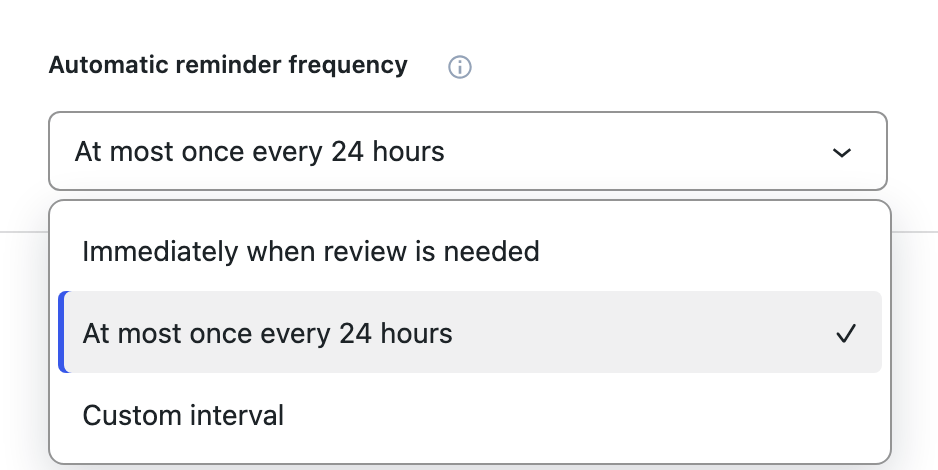
Open Automatic reminder frequency to compare the three choices.
| Choice | Effect |
|---|---|
| Immediately when review is needed | Adds no general postponement delay when an eligible review is needed. |
| At most once every 24 hours | Waits at least 24 hours after explicit postponement before the general reminder can return. This is the default. |
| Custom interval | Reveals the hours field so you can use a different postponement interval. |
For a longer interval, select Custom interval and enter the number of hours.
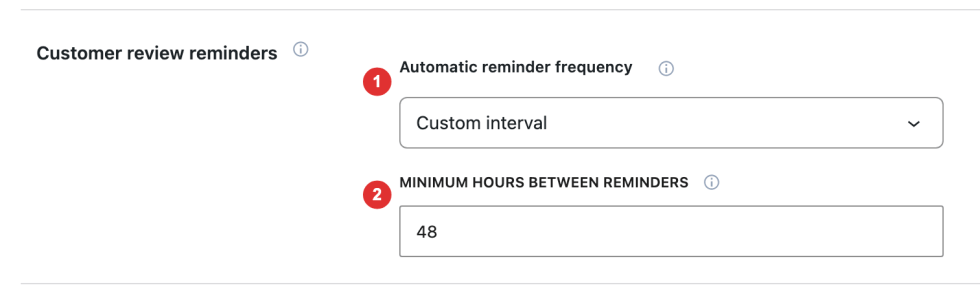
- Automatic reminder frequency: Select Custom interval to reveal its delay field.
- Minimum hours between reminders: Enter 1–8,760 whole hours. The field starts at 24 on a new configuration; 48 in the example makes a postponed general reminder eligible again after 48 hours.
The interval starts only when the customer selects Close or Later. Displaying the popup or reloading the page does not start or restart it. Changing the interval uses the last explicit postponement; another publication does not restart that timestamp.
Required reviews bypass this general interval, and excluded pages can still prevent a popup from opening. New versions remain available immediately in My Account. Postponing a popup does not grant consent or record acknowledgement.
Admin notifications
Immediate alerts and summary emails have independent activity filters. Recipients come from General Settings → Privacy Team Access: individually assigned staff are included, and the Administration Email Address is included only when its notification switch is enabled. Shop Manager access alone does not subscribe every Shop Manager. Use Manage Privacy Team Access to review recipients.
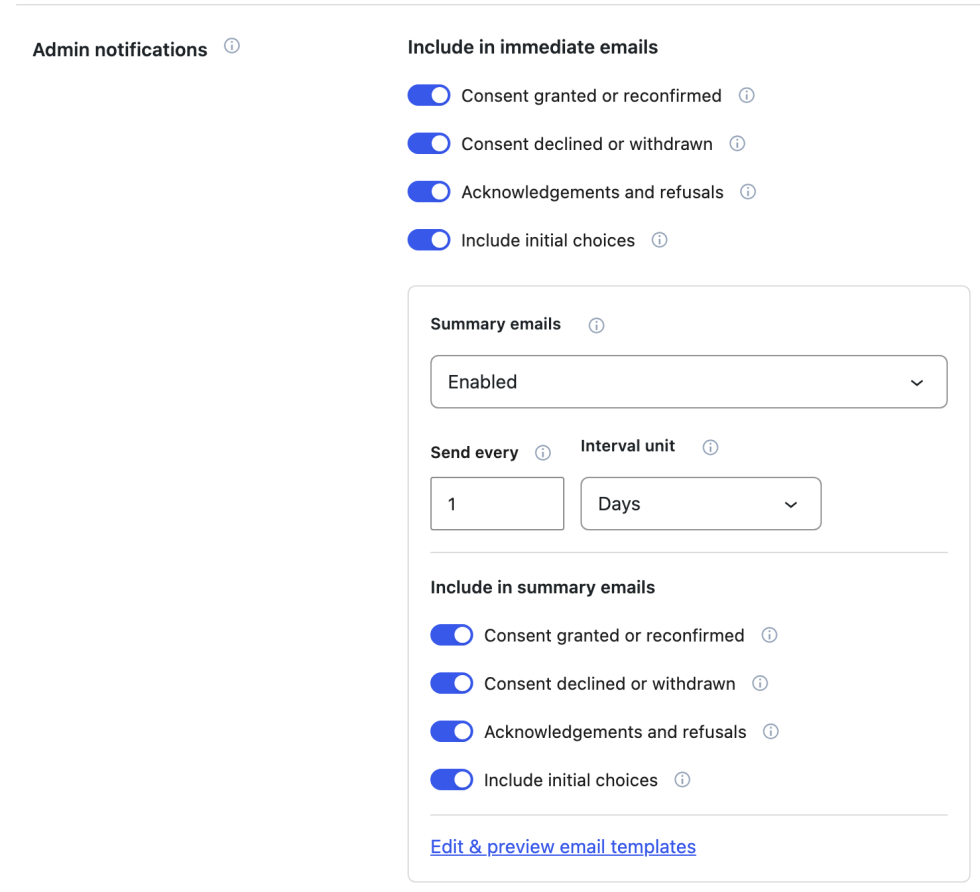
he example has immediate filters enabled. On a new configuration, all four immediate filters default to off. Summary emails default to enabled every 1 Day, with all four summary filters on; upgraded stores can retain earlier settings.
Immediate emails
Under Include in immediate emails, select the activity your team needs promptly:
| Filter | What it reports |
|---|---|
| Consent granted or reconfirmed | Customers accepting or renewing optional consent. |
| Consent declined or withdrawn | Customers declining optional consent or withdrawing a previous grant. |
| Acknowledgements and refusals | Customers acknowledging or refusing a notice. Acknowledgement is not consent. |
| Include initial choices | First responses, including registration choices, when their activity category is also enabled. It does not select a category by itself. |
Immediate alerts also require Immediate admin email on the individual permission. For example, reporting a first-time grant needs that permission’s email switch, Consent granted or reconfirmed, and Include initial choices. Matching changes can be combined for up to one minute before scheduled delivery; “immediate” does not mean the same second.
Summary emails
Use summaries when your team wants grouped activity rather than an alert for each matching change.
| Field | What it does |
|---|---|
| Summary emails | Enabled shows its event filters; Off stops summary delivery without disabling immediate alerts. Defaults to Enabled. |
| Send every | The interval length: a whole number from 1 to 365. Defaults to 1. |
| Interval unit | Choose Hours, Days, Weeks, or Months. Defaults to Days. |
Under Include in summary emails, choose Consent granted or reconfirmed, Consent declined or withdrawn, Acknowledgements and refusals, and Include initial choices independently of the immediate filters. Their meanings are the same as in the table above, and all four summary switches default to on. First responses need both Include initial choices and their activity category enabled. Summaries do not require the individual permission’s Immediate admin email switch.
For example, Send every: 2 with Interval unit: Days starts a two-day window with the first matching activity. Changing the interval does not move an already pending summary; the new interval applies to the next window. Days, weeks, and calendar months use the WordPress site timezone; a shorter target month uses its last day.
A summary groups pending activity by customer and permission, using the latest response rather than every history event. It includes only responses matching the summary filters; a later excluded response can replace an earlier matching one. Empty summaries and Viewed notices do not generate these emails. Check Response history when you need individual events.
Templates, delivery, and upgraded settings
Use Edit & preview email templates to change the internal email wording. This does not change the activity filters or recipients. Both email types need working scheduled tasks and site email delivery.
If an upgraded store shows an old custom-recipient warning, the retained addresses are reference only: they are no longer used for delivery and have not been granted staff access automatically. Select the intended recipients in Privacy Team Access and review both saved filter groups.
Permission Or Customer Choices Evidence
↑ Back to topChoose whether new permission decisions should include the customer’s IP address alongside the response and version evidence.
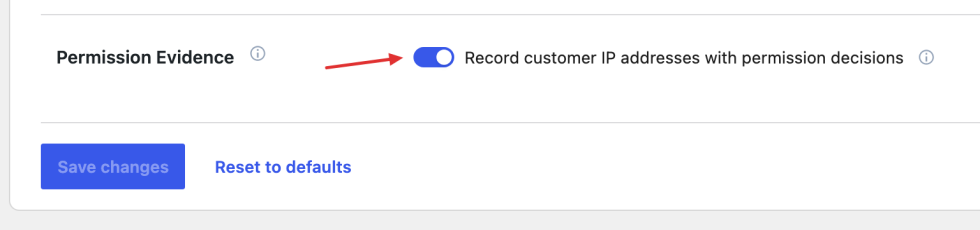
Record customer IP addresses with permission decisions defaults to on. Turn it off to omit the address from new decisions. It does not delete old addresses or stop other response evidence from being recorded. For example, yesterday’s response can still show an IP address after you disable collection today. Inspect available evidence under User privacy choices.
Save, reset, and check
Select Save changes to keep the shared values. Then check the relevant customer location with an eligible account; checkout and registration need the corresponding account-creation flow, not just a popup preview.
Reset to defaults stages defaults for the shared fields in this subsection; select Save changes to persist them. It does not reset individual permission content, publication choices, recorded customer responses, or email-template wording. This is separate from the broader reset in General Settings.
User privacy choices
↑ Back to topUse Data Permissions → User privacy choices to check a customer’s latest recorded responses and investigate earlier activity. Start with User records for one customer, or choose the workspace’s Response history to search events across customers. Both views are read-only: staff cannot grant consent or acknowledge a notice for someone else.
Find a customer and read the summary
User records lists accounts with recorded permission state, rather than every registered customer. Search by name, username, or email, confirm the matching account, then select View choices.
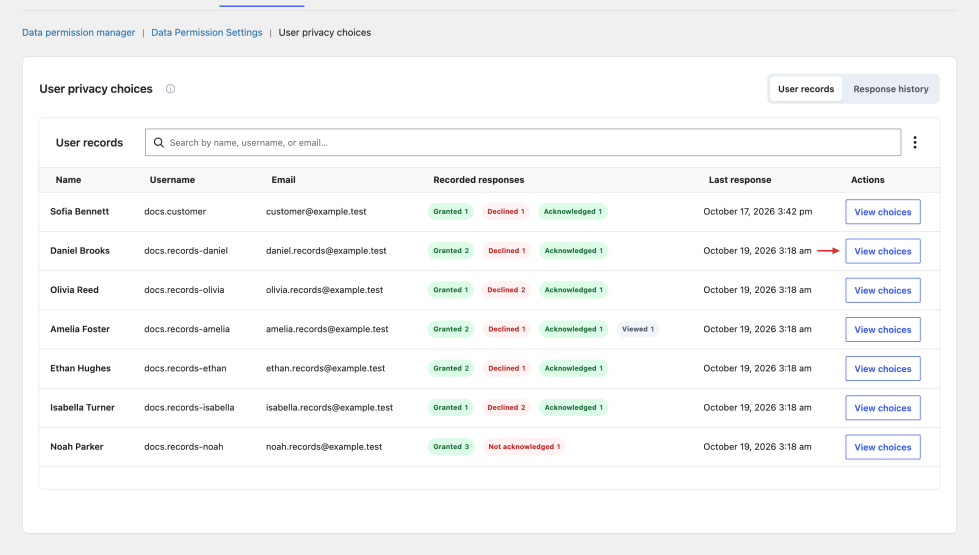
Recorded responses groups the latest state for each permission into badges such as Granted, Withdrawn, or Acknowledged. These counts are not the number of history events. Someone who grants, withdraws, then grants one permission has one latest Granted response and several recorded events. Last response shows the account’s latest recorded response time.
Check Current choices and version review
View choices opens the customer’s Current choices. Each row shows a permission, its latest recorded response, the version answered, and when that response was updated. Use Search permissions or the response filter, then select the arrow in Details to inspect a response.
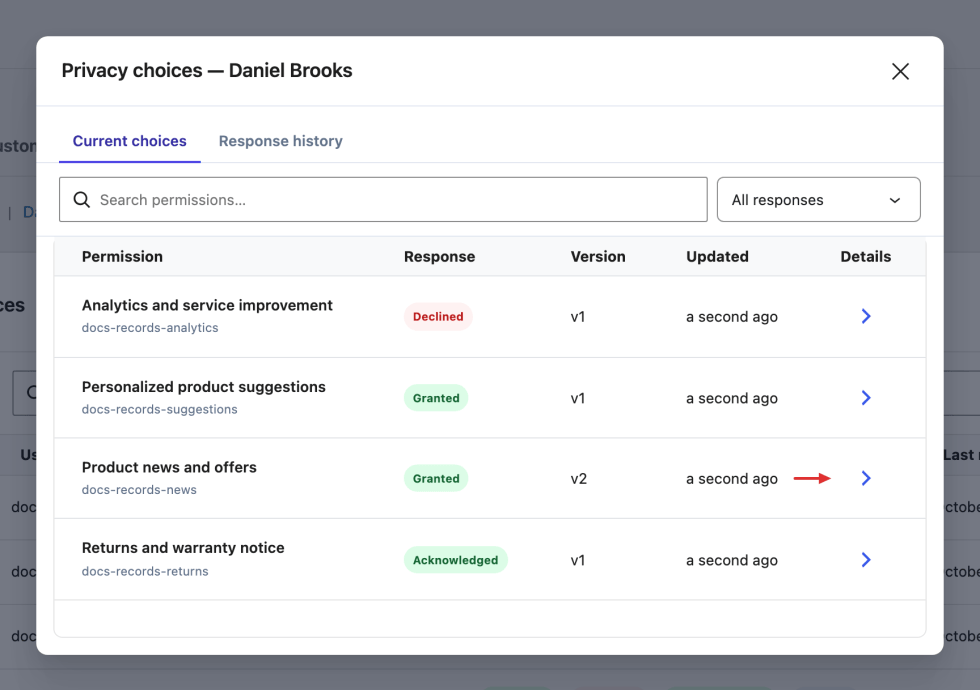
Four permission rows can have a much longer history if the customer has changed earlier responses. Current choices does not list every permission the customer could answer. Back to current choices returns from an event to this list.
A row showing v1 and Review for v2 needs particular attention: the customer responded to v1, and a newer publication asks for another review.
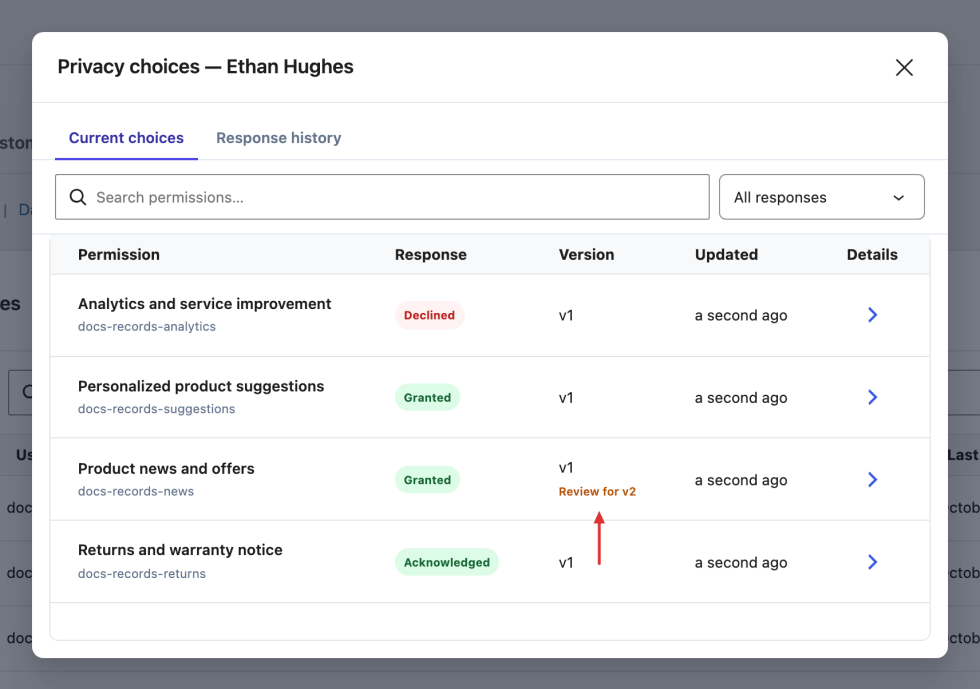
For example, Granted · v1 · Review for v2 preserves the recorded v1 grant; it does not mean v2 has been accepted. Publishing a new version does not create the customer’s response to it. The marker appears when the publication calls for renewed review, rather than for every version change.
Follow one customer’s response history
Choose Response history inside the customer’s dialog to see their recorded events. Compare the recorded time, permission, action, response, and version; several rows can belong to one permission. Use Search permissions to focus on one permission, as shown below.
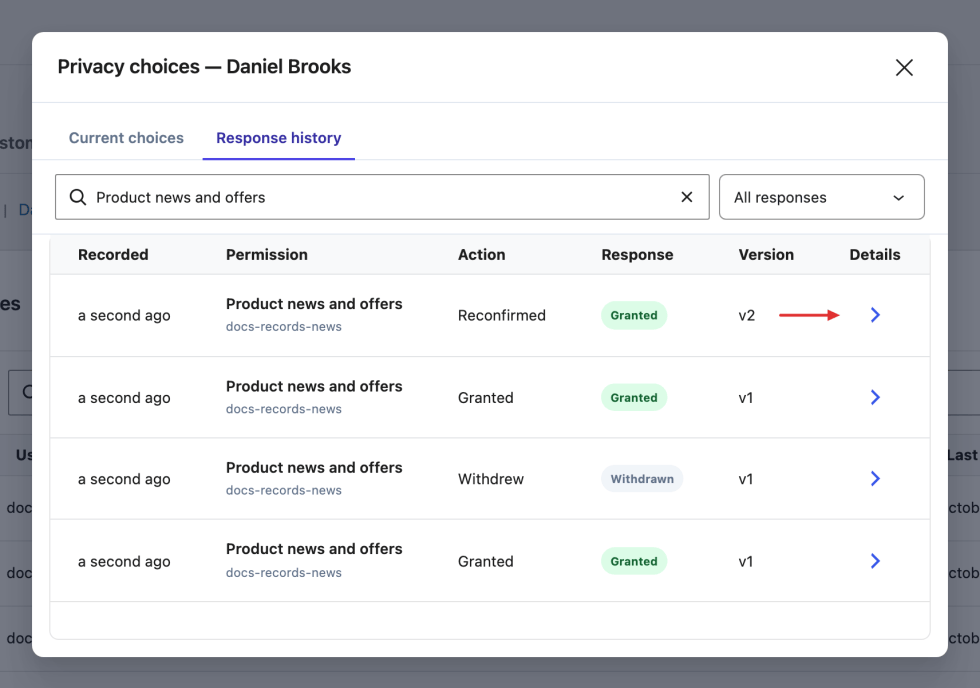
Action describes what happened, while Response is the resulting state. Reconfirmed can leave the response Granted for a newer version; Withdrew results in Withdrawn. Use the response filter for Granted when looking for a reconfirmation, then inspect its Action. Select an event’s Details arrow and use Back to response history to return.
Events opened from history display “This is a historical response. The user’s current choice may differ.”
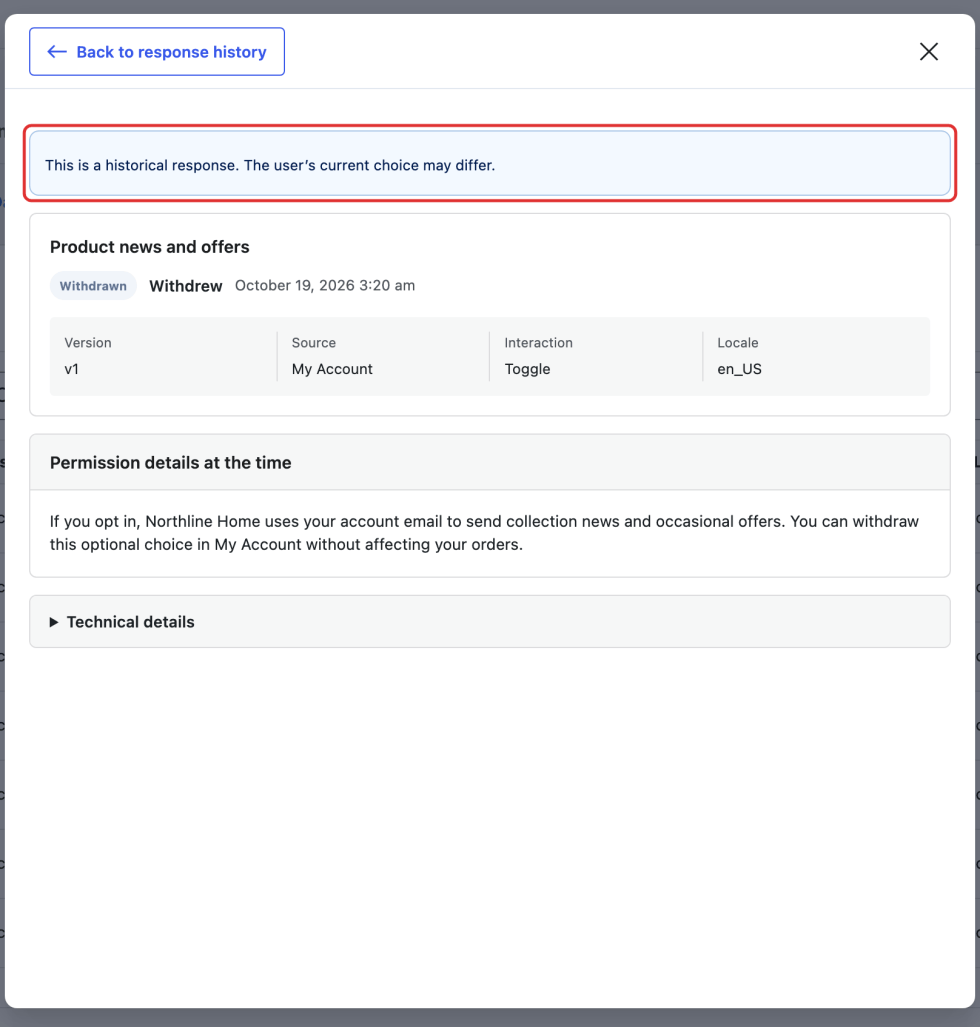
Check Current choices before acting on an earlier event or notification. The warning does not prove that a later response exists, but a historical grant may have been followed by withdrawal. The earlier event remains a record of that moment.
Read the recorded response and wording
In a response’s details, read its response badge, action if different, and recorded time together with the version and origin.
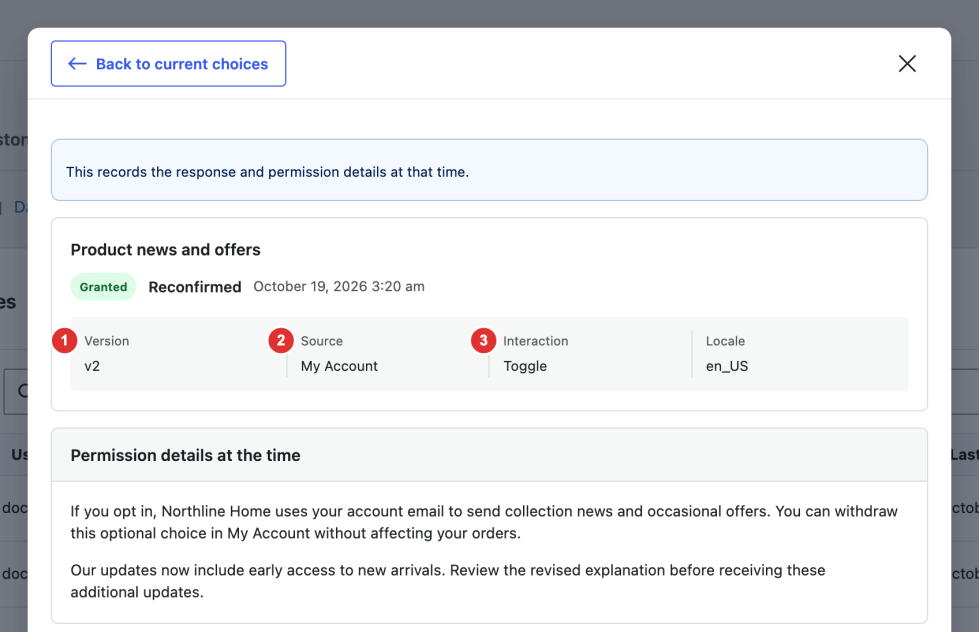
- Version: The published wording version associated with this response, even if a newer version is now live.
- Source: Where the response originated, such as My Account, registration, or checkout.
- Interaction: The category recorded by the plugin, such as Toggle, Button, Popup open, or Store default. It does not establish that wording was read.
Locale identifies the recorded language/locale. Permission details at the time shows the available saved description for that version. If Recorded wording is unavailable appears, do not assume current editor wording is the historical text. Details opened from Current choices say “This records the response and permission details at that time.”
Search history across customers
Close the customer’s dialog and select Response history beside User records. This workspace view searches activity across customers and can contain repeated rows for one customer or permission.
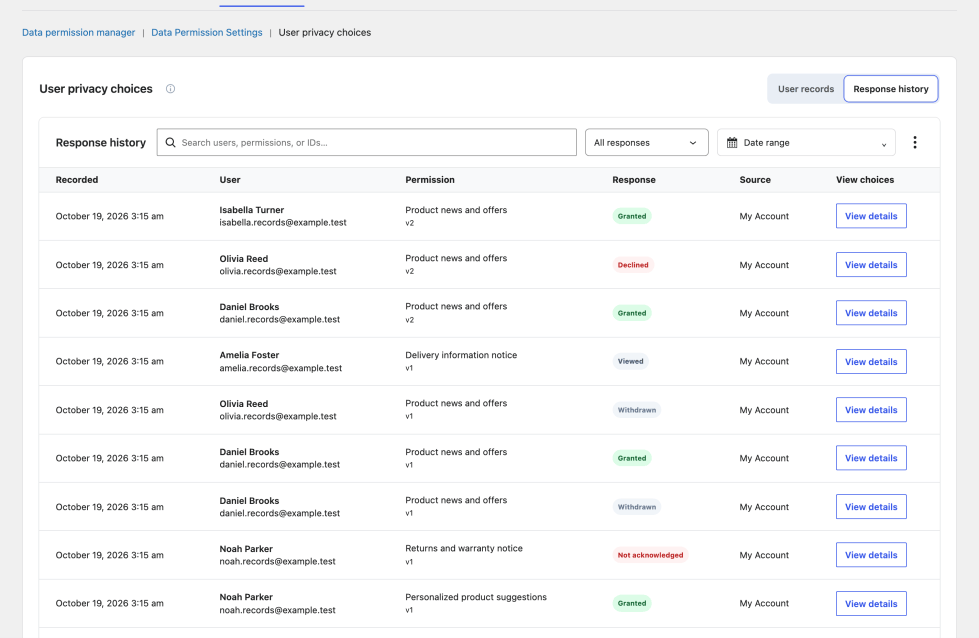
Search by customer, permission, a full Evidence ID, or a full Request ID. Use the Response filter, then compare Recorded, User, Permission and version, Response, and Source. This table has no separate Action column; select View details to inspect the chosen event.
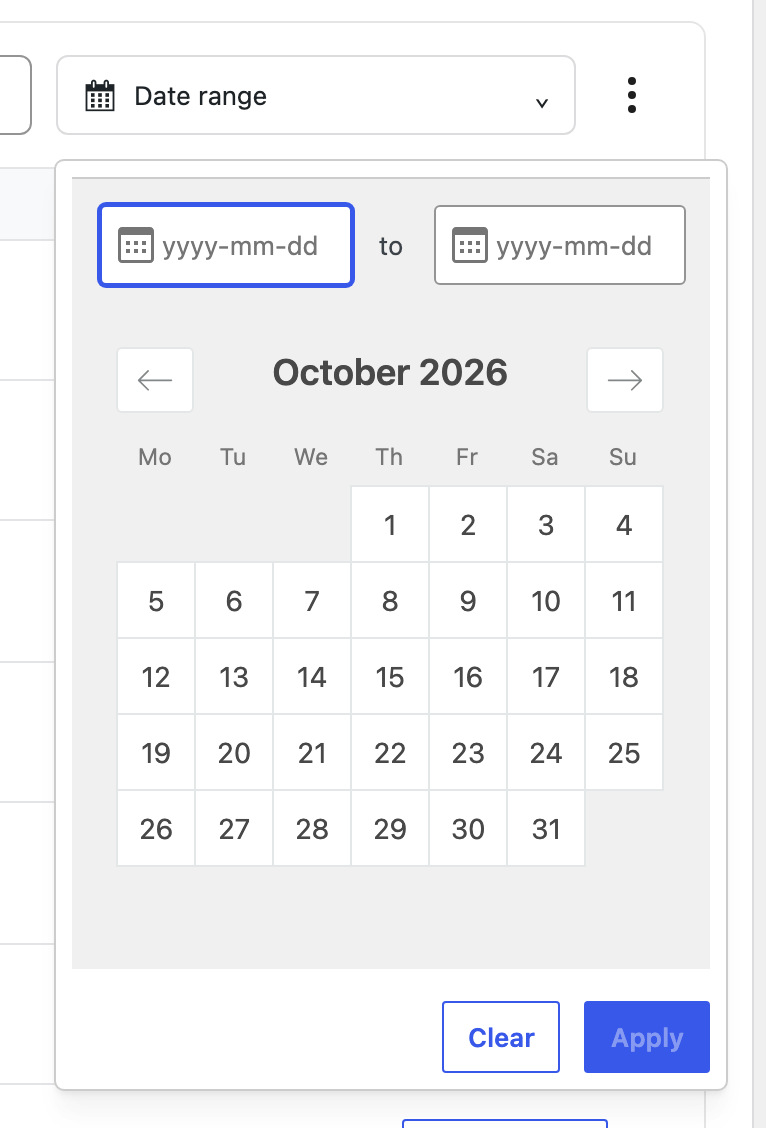
Open Date range to limit the search to a period.
Select a start and end date, then Apply. Both dates are required and the end cannot precede the start. New selections use the WordPress site timezone. Clear removes the date filter; clear search and select All responses separately to remove those filters too.
Inspect the event opened by View details
↑ Back to topView details opens Recorded response directly for that event, rather than opening the customer’s current list first.
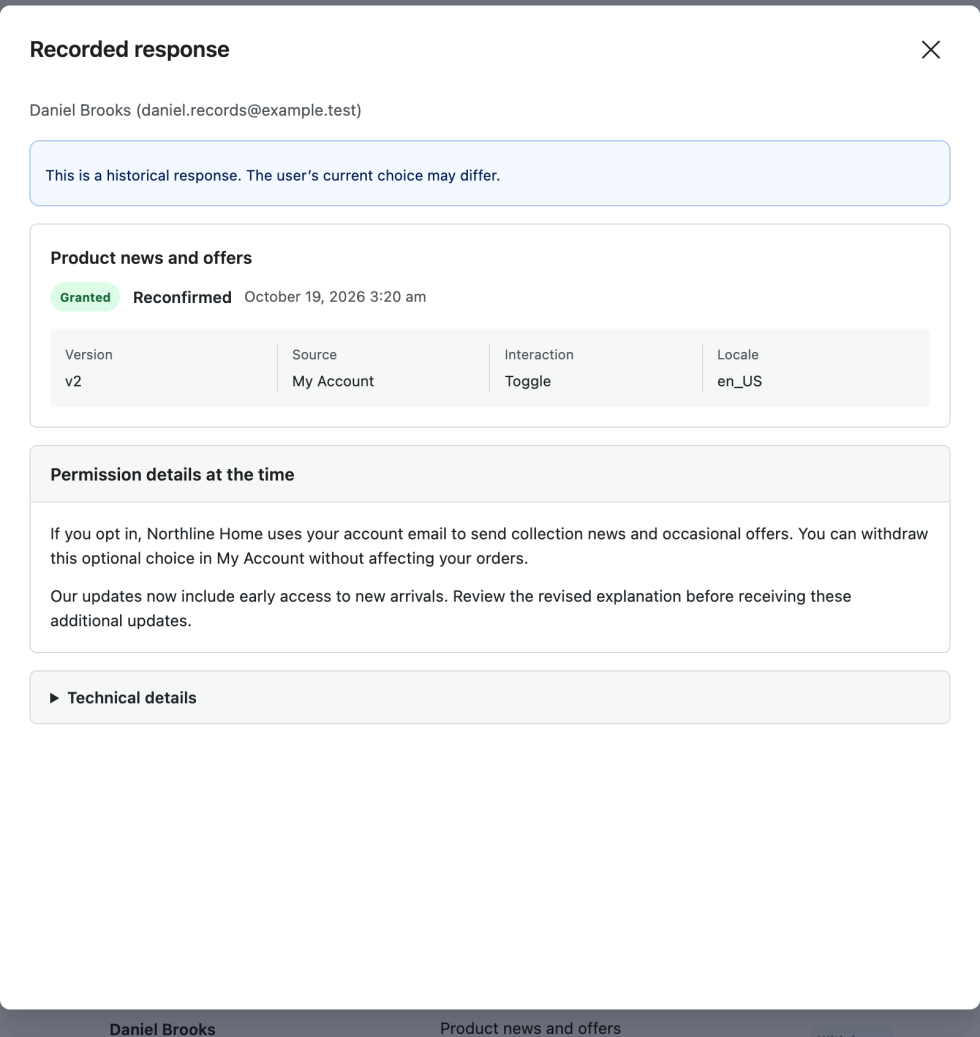
Check the customer, response, version, time, and saved wording. This dialog carries the historical-response warning too. Close it to return to workspace history; return to User records → View choices → Current choices when you need the latest recorded state.
Copy technical identifiers when needed
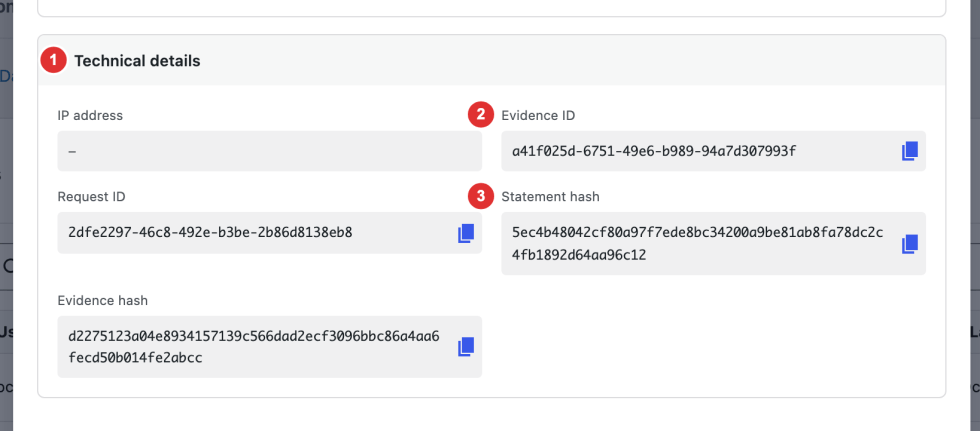
- Technical details shows the available values. IP address can be absent, including when collection was disabled; a dash means no value is available.
- Evidence ID identifies the event; Request ID identifies its permission submission, not a privacy export, erasure, or closure request. Copy the full value to search workspace history.
- Statement hash identifies the published permission version’s technical fingerprint; Evidence hash is a fingerprint generated from the response evidence. They support technical comparison, not proof that wording was read.
Use the copy icon beside a value to copy that field separately. If copying fails, select and copy it manually. Viewing or copying records does not change a customer’s choice.
Granted, Declined, and Withdrawn describe optional consent. Acknowledged and Not acknowledged describe a notice response. Viewed records a notice opening under its recording rule; it is not consent or proof of reading. See the User privacy choices guide for response labels, pagination, WordPress Users entry points, and troubleshooting.
Enable Your data permissions under Customization after publishing permissions so customers can review them in their privacy area. An appropriate integration is needed to connect recorded preferences with external marketing or processing services; publishing wording alone does not configure those services.
Data Privacy Request Email settings
↑ Back to topGo to WooCommerce → Data Privacy → Email Settings. Choose Customer Emails or Admin Alerts, then open a template.
Email Settings lets you customize the available privacy notification templates for customers and your team. Use clear wording to explain what happened, what the recipient needs to do next, and how to get help.
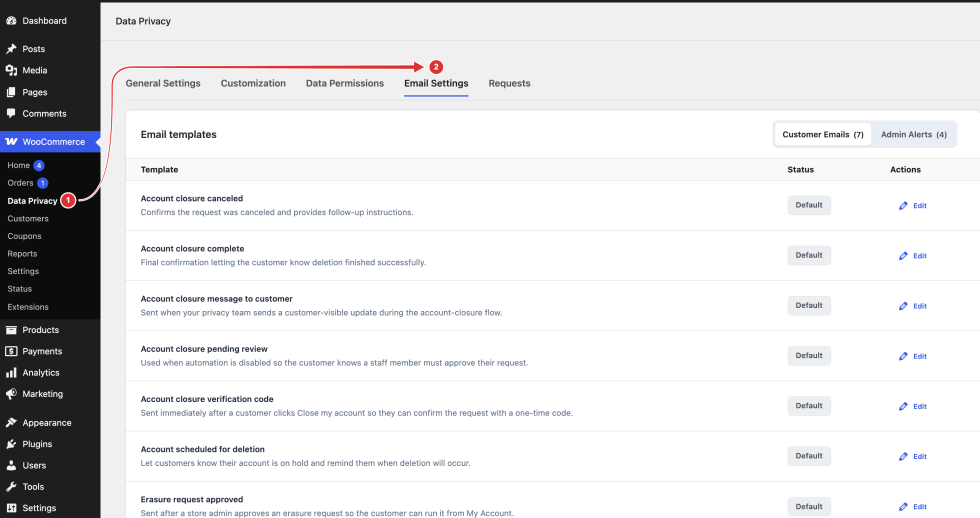
Customer emails
↑ Back to topCustomer emails explain progress and next steps during supported erasure and account-closure workflows. Choose the template for the event you want to explain so its instructions match the customer’s current stage.
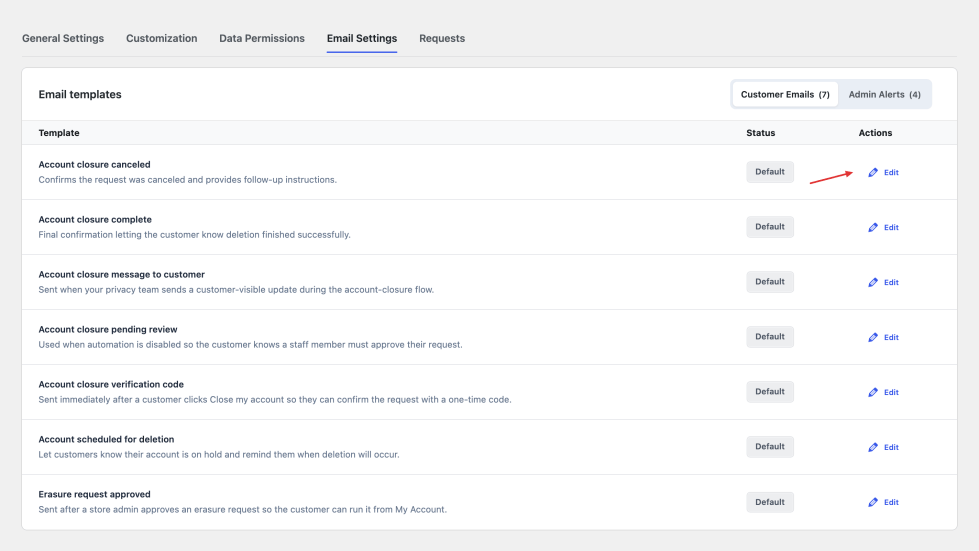
Available templates cover erasure approval and account closure: verification code, pending review, scheduled deletion, cancellation, completion, and messages from the privacy team.
Each template is sent at its corresponding workflow stage. Editing a template does not trigger the event or change the request state. WordPress export/erasure confirmation and core completion emails are separate. Correction notifications are also outside this editor.
Admin alerts
↑ Back to topAdmin alerts keep your privacy team informed about supported request updates and permission activity. Customize their wording here, then use the access and notification settings to choose recipients and reported events.
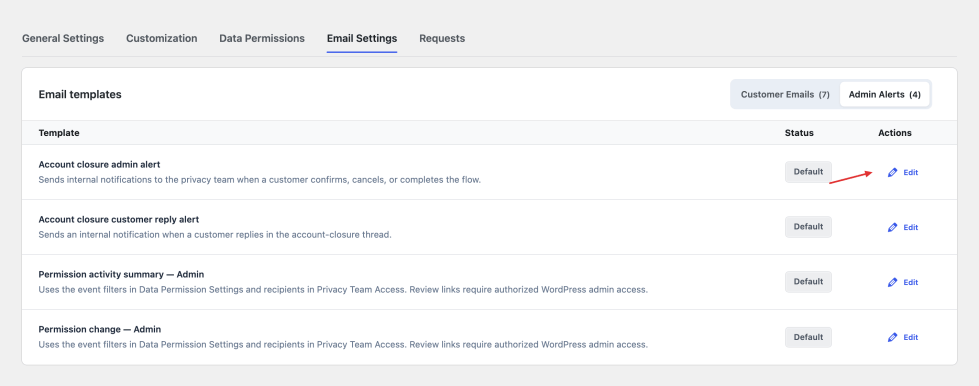
Admin templates cover closure updates, customer replies, immediate permission changes, and permission activity summaries.
Recipients come from General Settings → Privacy Team Access. Selected staff receive these alerts; the WordPress Administration Email Address is included when its switch is enabled. Shop Manager access alone does not subscribe every Shop Manager.
An old custom permission-recipient list is no longer used after upgrading. Review Privacy Team Access rather than relying on the retained reference list.
Set permission event filters and summary intervals in Data Permission Settings. Immediate alerts also require the individual permission’s Immediate admin email switch. Summaries group pending activity by customer and permission, using the latest response. Only responses matching the summary filters are included; a later excluded response can replace an earlier matching response. Viewed notices and empty summary windows do not generate emails.
Correction notification exception
New correction-request alerts currently go to the site’s Administration Email Address when its privacy-notification setting is enabled. They do not use these editable templates or the selected-staff recipient list. Customer correction updates also use a separate plain-text message.
Edit a template
↑ Back to topThe template editor brings together the subject, message body, customer-specific placeholders, and branding. Preview the result before saving so the message stays clear when example values are inserted..
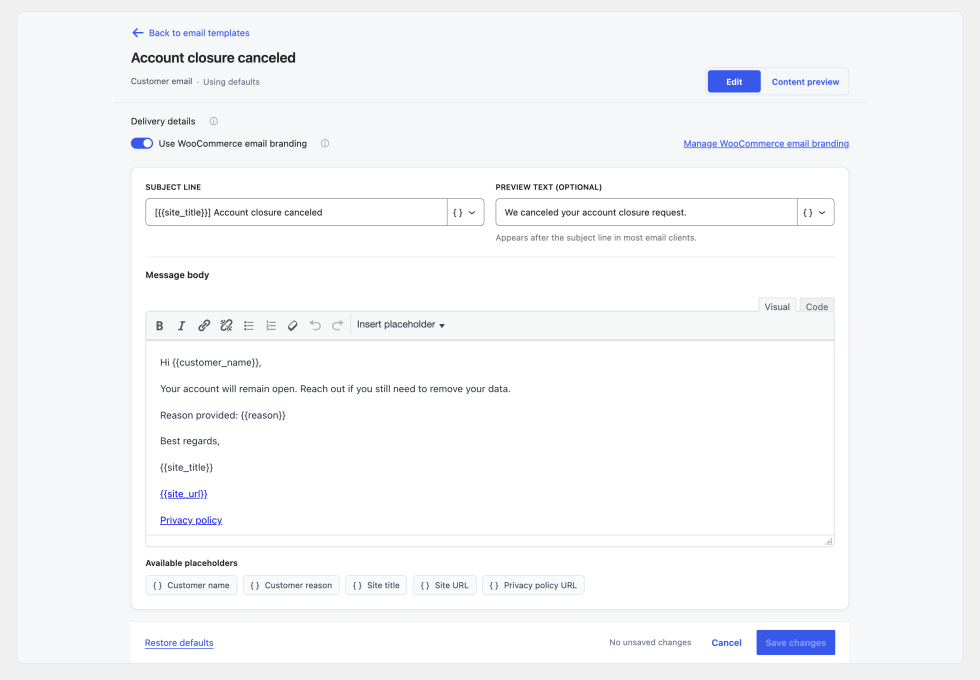
- Open the template and review Delivery details to confirm which event uses it.
- Edit the fields below and preserve the required placeholders.
- Open Content preview, inspect the example, and select Save changes.
| Control | What it does |
|---|---|
| Subject line | Sets the title the recipient sees in their inbox. Use the supported placeholders when it needs a customer or request-specific value. |
| Preview text | Adds the optional inbox snippet used by the two permission admin emails. For other templates, make the opening body sentence carry the key information; see the preview notes below. |
| Message body | Contains the main instructions and information sent to the recipient. Edit its wording and formatting while keeping the template’s required placeholders. |
| Placeholders | Insert live values such as a customer name, verification code, or hold deadline. Use only the tokens offered for that template; closure cancellation guidance follows the cancel-on-login setting. |
| Use WooCommerce email branding | Wraps the edited content with your store’s email header, footer, logo, and colors. Disable it to send only the edited HTML content. |
| Content preview | Displays the message with example data so you can check the wording and layout. It does not send an email or test actual delivery. |
Use Save changes to keep the edited template. Cancel returns to the list and asks before discarding unsaved edits; it preserves the last saved version. Restore defaults replaces the selected template’s saved wording and settings after confirmation. Verify actual email delivery through a test workflow after reviewing the preview.
Use email placeholders
↑ Back to topA placeholder is a reusable token such as {{customer_name}}. When the workflow sends the email, it replaces that token with the value for that customer, request, or notification. Keep the double braces and spelling exactly as shown. The examples below are fictional; do not save a fixed customer name, code, or deadline in their place.
Only use placeholders offered for the selected template. A token listed here is not automatically available in every email. For example, {{otp_code}} belongs to Account closure verification code; it is not a general request-number token.
- Open the correct template and put the cursor where the value should appear.
- Use the placeholder control beside Subject line, or choose Insert placeholder in the message editor. The offered list depends on the selected template.
- For a clickable link, select readable text such as Review your request, open the editor’s link control, and use the supported URL token as its destination. A URL token supplies the address; it does not supply the link label.
- Keep codes, customer messages, review links, and generated summary blocks in the message body where recipients can use them. Preview the result, resolve Missing required placeholders, then save.
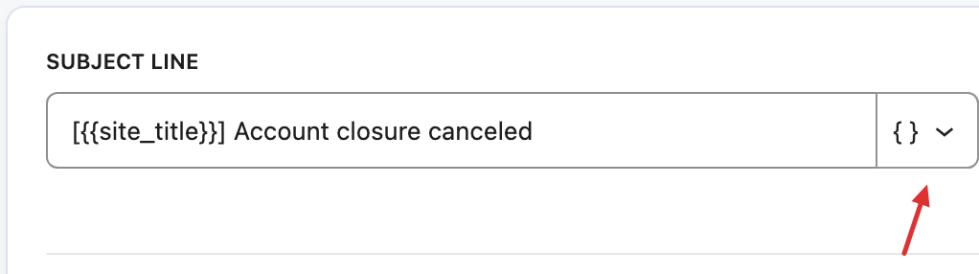
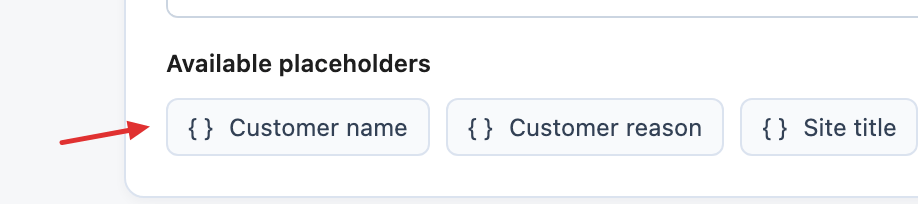
On narrow screens, scroll a table sideways to see all columns. Placeholder names stay on one line so they are easy to copy.
Store, customer, and customer links placeholder
↑ Back to top| Placeholder | What it does and where it is available | Example value |
|---|---|---|
{{customer_name}} | The customer’s display name, with username fallback. Available in every supplied template except the permission activity summary. Permission alerts can show Customer unavailable if the original account can no longer be matched. | Alex Morgan |
{{site_title}} | The store name from WordPress Settings → General. Available in all supplied templates; useful in greetings, signatures, and subjects. | Northline Home |
{{site_url}} | The store homepage address. Available in customer emails and the two account-closure admin alerts. | https://store.example/ |
{{privacy_policy_url}} | The privacy-policy page selected in General Settings. Available in customer emails and Account closure admin alert; absent from the customer-reply alert. It can be empty if no page is selected. | https://store.example/privacy-policy/ |
{{support_url}} | The support/contact page selected in General Settings. Offered in Erasure request approved and Account closure message to customer. It can be empty if no page is selected. | https://store.example/contact/ |
{{privacy_request_url}} | The customer’s My Account → Data Privacy address. Offered in Erasure request approved and Account closure message to customer. The customer may need to sign in. | https://store.example/my-account/data-privacy/ |
Account-closure values and messages
| Placeholder | What it does and where it is available | Example value |
|---|---|---|
{{otp_code}} | The generated one-time verification code for Account closure verification code. Keep it in the message body so the customer can find and enter it. | 123456 — example only |
{{hold_until}} | The scheduled deletion date/time, formatted for the store. Offered in Account scheduled for deletion and Account closure admin alert. An alert sent before the hold starts can have no deadline yet. | 21 October 2026, 10:00 |
{{cancellation_guidance}} | Instructions for Account scheduled for deletion that follow Cancel automatically when a customer logs back in. Keep this wording dynamic rather than promising login cancellation in every store. | Login cancellation on: log in before the hold expires. Off: use the cancellation button in My Account → Data Privacy. |
{{reason}} | The recorded reason in Account closure canceled or Account closure admin alert. A cancellation can use its cancellation reason, otherwise the original request reason. The value can be empty. | I no longer use this account. |
{{status_label}} | The readable event status in Account closure admin alert. It describes that notification’s stage rather than changing the request. | Pending admin review; Scheduled for deletion; Canceled; Deleted |
{{message_body}} | The actual conversation message: a staff message in Account closure message to customer, or a customer reply in Account closure customer reply alert. Put it in the body; the message keeps line breaks. | Please confirm which account you want us to close. |
{{dashboard_url}} | An authorized staff link to Requests → Account closures in the two closure admin alerts. It can identify the related closure request. In the permission summary, the same token instead opens User privacy choices → Response history. | Staff link to the closure request, or to permission history, depending on the template |
Immediate permission-change values
| Placeholder | What it does and where it is available | Example value |
|---|---|---|
{{customer_email}} | The matching customer account’s email address in Permission change — Admin. It can be empty when the original account is unavailable. | alex@example.test |
{{permission_title}} | The permission title saved with the recorded event/version in Permission change — Admin. | Marketing emails |
{{previous_response}} | The recorded state before this event in Permission change — Admin. A first response can show No response recorded. | Granted |
{{response_label}} | The new event label in Permission change — Admin, such as Granted, Reconfirmed, Declined, Withdrawn, Acknowledged, or Not acknowledged. | Withdrawn |
{{changed_at}} | The recorded event time in Permission change — Admin, formatted for the store. | 19 October 2026, 14:30 |
{{review_url}} | An authorized staff link from Permission change — Admin to the customer’s recorded historical response. This is not a customer self-service link; the current choice may differ. | Staff link opening the response described by the email |
{{action_guidance}} | Generated review instructions in both permission admin templates. They remind staff to check the response and connected services; the email does not itself stop processing in another plugin. | Review the recorded response and any connected services. |
Permission activity summary values
| Placeholder | What it does and where it is available | Example value |
|---|---|---|
{{reporting_period}} | The start and end of the reporting window in Permission activity summary — Admin. | 18 October 2026, 14:30 – 19 October 2026, 14:30 |
{{activity_counts}} | A generated formatted block of totals by response action. Put it once in the summary message body, outside a link destination. | Withdrawn: 1; Reconfirmed: 2 |
{{activity_details}} | A generated formatted block for up to 20 customer/permission entries, including previous → new response, time, and staff review link. Keep it once in the body. Totals can include more entries than the displayed details. | Alex Morgan — Marketing emails; Granted → Withdrawn; time and review link |
{{dashboard_url}} | The summary’s authorized staff link to User privacy choices → Response history, where staff can investigate further activity. It has a different destination in closure alerts. | Staff link to permission response history |
Keep required placeholders usable
The editor checks for these exact tokens before saving. Keep them in a useful location in the message body, even if the editor also finds a token in another field. None enforced does not mean every supplied greeting, link, or instruction should be removed; for example, cancellation guidance is still useful in the scheduled-deletion email.
| Template | Required placeholders |
|---|---|
| Erasure request approved | {{privacy_request_url}} |
| Account closure verification code | {{otp_code}} |
| Account scheduled for deletion | {{hold_until}} |
| Account closure pending review | None enforced by the editor |
| Account closure canceled | None enforced by the editor |
| Account closure complete | None enforced by the editor |
| Account closure message to customer | {{message_body}} |
| Permission change — Admin | {{response_label}}, {{review_url}} |
| Permission activity summary — Admin | {{activity_counts}}, {{activity_details}}, {{dashboard_url}} |
| Account closure admin alert | {{customer_name}}, {{status_label}} |
| Account closure customer reply alert | {{customer_name}}, {{message_body}} |
Available admin templates include:
- Account closure admin alert: Sent to the privacy team when an account closure request changes status or needs staff attention.
- Account closure customer reply alert: Sent to the privacy team when a customer replies in the account closure conversation.
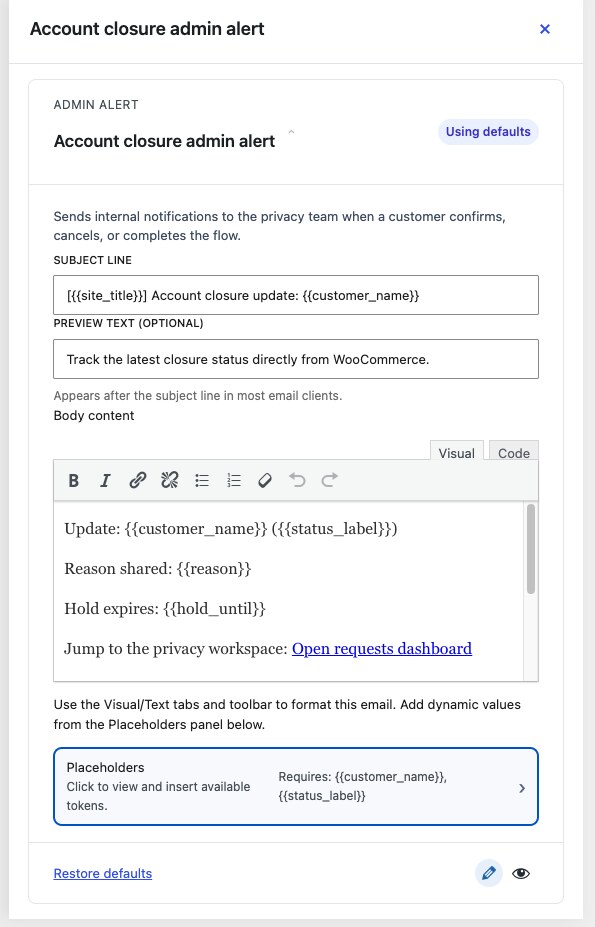
The admin alert editor lets you adjust the internal email your privacy team receives when an account closure request needs attention. You can change the subject, preview text, and message body so staff know which customer request changed, what the current status is, and where to open the requests workspace. Keep the dashboard link and status details in the message so staff can review the request quickly.
Use these templates to keep your privacy team informed when customer action or staff review is needed.
Two examples
↑ Back to topIn Account closure verification code, a subject such as Your {{site_title}} verification code can become Your Northline Home verification code. In the body, Hi {{customer_name}}, your verification code is {{otp_code}}. can become Hi Alex Morgan, your verification code is 123456. The real code is generated for that request; the example code is not a reusable value.
In Permission change — Admin, {{previous_response}} → {{response_label}} can become Granted → Withdrawn. Use {{review_url}} as the destination of a staff review link, then check the customer’s current choices. A Reconfirmed email label describes the event; the corresponding current consent state can still be Granted.
Preview, empty values, and delivery
↑ Back to topContent preview uses example values and does not send mail. Some supported links or conversation values can remain as tokens in the preview because that example has no real request or message. Check a real test workflow for the delivered values before relying on the final wording. Do not replace a valid token with a fixed private URL just to make the preview look complete.
Optional values can be empty: a reason may not have been supplied, a hold may not have started, or a privacy/support page may not be selected. Write the surrounding sentence so it still makes sense and check the connected setting when a link is missing.
Preview text supplies the inbox snippet for the two permission admin templates. For the customer and account-closure admin templates, put the key information in the opening sentence of the message body; their senders currently do not add the saved Preview text as a separate inbox snippet. Email clients can also choose how much preview text to display.
Permission summaries first keep the latest response for each customer and permission within the reporting window, then apply the summary filters. The generated blocks are not a list of every historical event. Keep {{activity_counts}} and {{activity_details}} in the body as formatted blocks, rather than using them as a subject or link destination.
Use only placeholders shown in the template editor. Different templates may support different placeholders.
Mange Requests & History
↑ Back to topRequests brings together the tools your team uses to review customer privacy work. Use it to assess corrections, follow account closures, communicate with customers, and open the WordPress tools for exports and erasure.
Go to WooCommerce → Data Privacy → Requests. Use Data corrections or Account closures, or follow the links to WordPress’s Export Personal Data and Erase Personal Data tools.
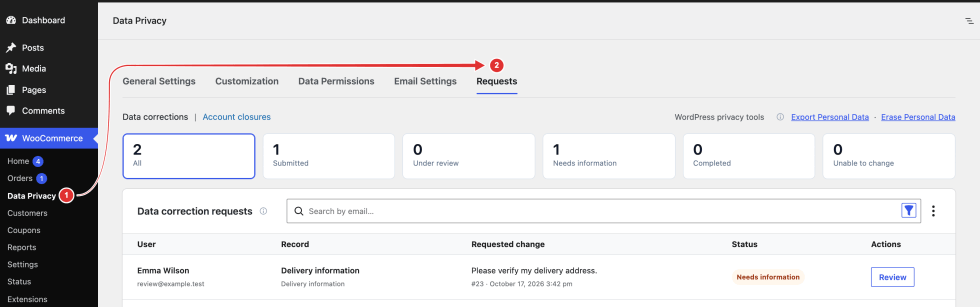
Data corrections
↑ Back to topData corrections lets your team review information a customer believes is inaccurate. Compare the proposed changes with the existing record, ask for clarification when needed, and explain the outcome to the customer.
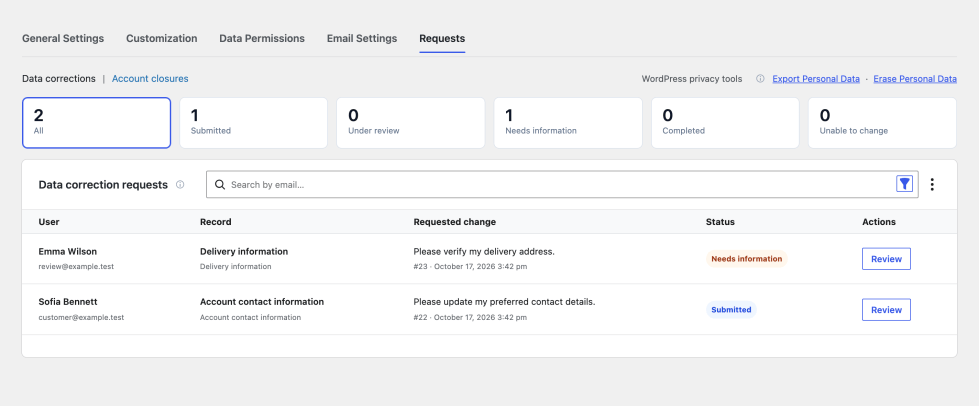
Search by email, filter by status, and select Review. Read the conversation alongside the original and proposed values.
- Approve selected changes: Choose this under Action, select the intended fields, then review Apply N selected changes and its final confirmation. It writes those selected supported fields to the WooCommerce order. Check the original and proposed values first; unselected changes remain pending. This action requires WooCommerce order-editing access.
- Ask for information: Sends the customer a question and marks the request as needing information. They can reply from My Account correction history; their reply returns it to Under review so staff can continue.
- Decline remaining changes: Records and shares the reason pending order changes cannot be made. Explain the outcome in the response so the customer understands which changes the store cannot apply.
- General corrections: Update or verify the original record in its own system, then mark the request completed and explain the outcome. Changing the request status alone does not update that record.
Completed and declined requests are read-only. If another staff member or process changed the request, reload and review before saving again. Read the outcome notice: a request update can succeed even if its notification email fails.
Account closures
↑ Back to topAccount closures helps your team follow a customer’s request to delete their store account. The process starts with an emailed confirmation code, may require staff approval, and then uses a hold period before deletion. Review the current stage, communicate with the customer when needed, and check the recorded outcome.
1. Find the request and check its stage
↑ Back to topOpen Requests → Account closures. Search by name or email, open Filter status to select one or more stages, and choose View details using the eye icon on the matching row. All statuses clears the status filter; clear search separately. Read the customer’s reason and available dates before choosing an action.
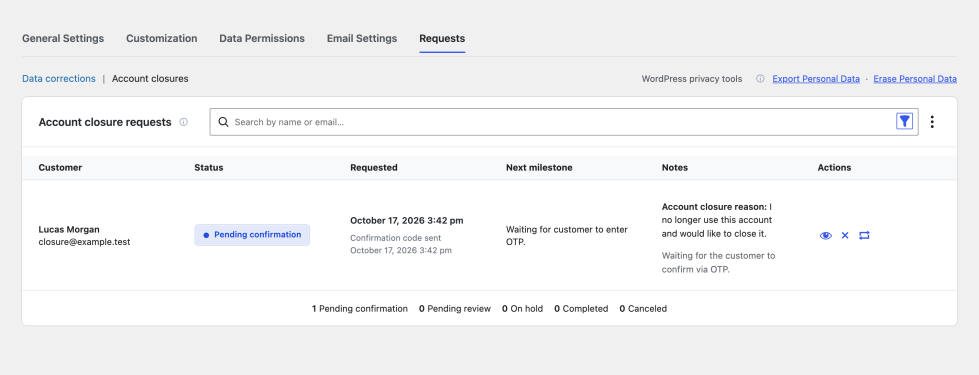
| Status | What it means |
|---|---|
| Pending confirmation | The customer still needs to confirm the latest emailed code. The hold has not started. |
| Pending review | The customer confirmed their code, and the request is waiting for staff approval. |
| On hold | The request has a saved deletion deadline. It can still be cancelled before deletion. |
| Completed | The deletion workflow completed. The record remains available for review. |
| Canceled | The request was cancelled. Read the recorded reason and history to understand why. |
Next milestone explains what the request is waiting for. In Account closure details, read Requested, and, when present, OTP expires, Hold expires, Time remaining when loaded, or Approved by. The remaining time is a snapshot: close and reopen the details or reload Requests to see fresh information.
Use the active request’s available actions. An older record can be useful for context, but its historical status does not make it an open request.
2. Confirm what needs to happen next
For Pending confirmation, the customer must enter their code in My Account → Data Privacy → Close my account. If they need a replacement, use Resend code in the list or Resend OTP in the details. OTP means one-time passcode. A new code replaces the previous one; resend waits and attempt limits still apply.
For Pending review, read the reason and conversation, then select Approve deletion when the request is ready. Approval starts the hold configured under General Settings → Close Account. It does not delete the account immediately. If staff approval is disabled, the hold begins after successful code confirmation without this review step.
If the customer no longer wants to close the account, select Cancel request. In Cancel account closure, enter Reason (optional) if needed, then select Confirm cancel. That reason appears in customer and admin cancellation emails; use an internal note for information that should stay private. Back leaves the request unchanged.
3. Communicate and keep staff notes
Scroll to Communication in the request details, read earlier entries, and type in Add a message. Choose the action according to who needs to read the message. Each saved entry shows its author, date, and Customer-visible or Internal note label.
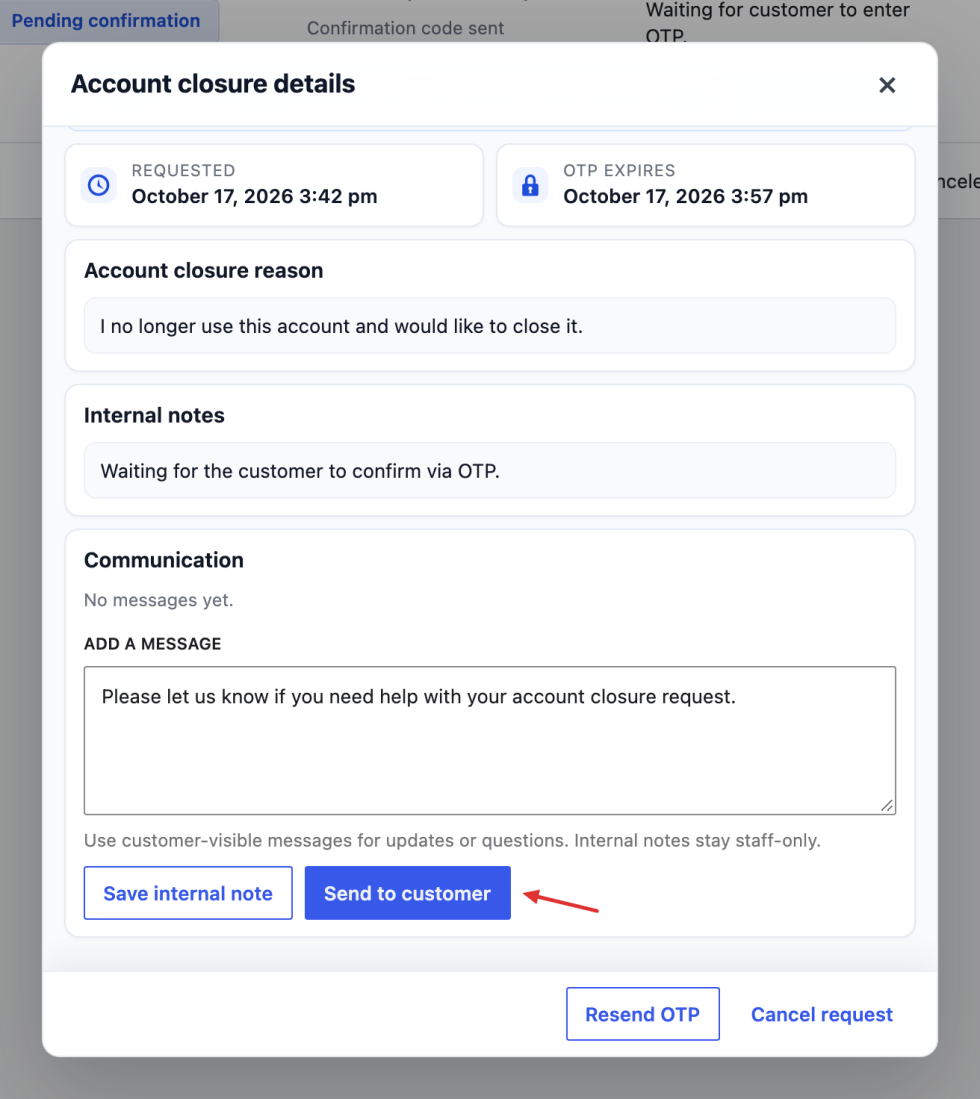
| Action | How to use it |
|---|---|
| Send to customer | Posts a customer-visible update and triggers the customer-message email. For example, explain the scheduled deletion date or ask the customer to clarify their request. |
| Save internal note | Records information for staff reviewing the request. The customer cannot see the note, and it sends no customer email. Use it for handover information or checks your team completed. |
After staff send the first customer-visible message on an open request, the follow-up is:
- The customer opens My Account → Data Privacy → Close my account.
- Under Conversation with the privacy team, they select View, enter their message under Send a reply, then select Send reply.
- Their reply appears in the same staff Communication thread and triggers the customer-reply alert for the configured privacy team. Return to the request, read the reply, then respond or choose the separate approval/cancellation action when appropriate.
Customers reply in My Account, rather than by replying to the notification email. An internal note alone does not start their conversation. The team’s email recipients are configured under General Settings → Privacy Team Access, and the message wording is managed in Email Settings.
A message or question does not pause the hold, change the request’s status, approve deletion, or cancel it. Unlike Ask for information in Data corrections, it does not move the closure into a needs-information stage. Check the login-cancellation setting before asking the customer to sign in, as explained in the next step. Completed, canceled, and historical requests no longer accept messages.
4. Follow the hold and check the outcome
For an On hold request, check the saved deletion deadline and remaining time. Changing the general hold duration does not rewrite a deadline already saved on a request. Background tasks process eligible requests after the deadline; approval and the end of the countdown are not promises of deletion at an exact second. Close and reopen View details, or reload Requests, before deciding that a request is overdue; the inspector is not a live countdown.
Staff and customers can cancel an active request before deletion. If General Settings → Close Account enables automatic cancellation on login, a new login also cancels a request waiting for review or on hold. Browsing while already signed in is not a new login.
When the request closes, review its Completed or Canceled record and communication for the outcome. Cancellation stops the active closure schedule; it cannot restore an account after deletion. A closed request cannot be reopened through its conversation. Account closure is separate from running all personal-data erasers: WooCommerce order records and data in other systems may follow their own retention rules. Use the linked WordPress erasure tools when a separate erasure request needs attention.
Export and erasure
↑ Back to topExports and erasure use WordPress’s existing privacy request records and screens. Open those tools from Requests to check progress or carry out the staff approval needed by your store’s erasure workflow.

- Export Personal Data: Opens the WordPress export list in a new tab. Confirmed exports are processed in the background; a confirmed request may still be preparing its archive.
- Erase Personal Data: Opens the WordPress erasure list in a new tab. When approval is required, select Approve and email customer on the matching confirmed request. The customer then returns to My Account to run it; approval alone does not erase data.
Order-data and purchased-download removal use the shared WooCommerce → Settings → Accounts & Privacy options. Inspect the result for retained data as well as removed data.
Staff access is configured under General Settings → Privacy Team Access. Permission response records are reviewed separately under Data Permissions → User privacy choices.
Review data corrections
↑ Back to topData corrections lets your team review information a customer believes is inaccurate and record how the store resolves it. Compare the proposed changes with the original record, ask for clarification when needed, and explain the outcome.
Go to Requests → Data corrections. Search by customer email, filter by status, and select Review for a request.

The request shows the customer, record, proposed change, status, and conversation. For order corrections, compare the values recorded at submission with the requested values. Use Open order in WooCommerce when you need more context.
Request statuses
A correction request’s status shows where it stands in the review process. Use it to decide whether to review new information, wait for a reply, or inspect a closed outcome.
| Status | Meaning |
|---|---|
| Submitted | The customer has sent a new request. |
| Under review | Staff are reviewing it, or the customer has replied with requested information. |
| Needs information | Staff have asked the customer to provide more detail. |
| Completed | The changes have been applied or the original record has been updated/verified. |
| Unable to change | Staff declined the request or remaining changes. |
Completed and declined requests are closed and read-only. A new correction needs a new request.
Approve supported order changes
Supported order corrections can be applied through the request review. Check each proposed field before approving so the saved order reflects the changes you intend to make.
- Read the original and proposed values and the customer’s reason.
- Under Action, choose Approve selected changes.
- Select the pending fields you intend to apply. Check the selected-field count; unselected fields remain pending.
- Add a customer-visible response explaining the outcome where helpful.
- Select Apply N selected changes, where N is the selected count.
- Read the confirmation, then select Confirm and apply selected changes to write those fields and notify the customer.
This action writes the selected supported fields to the WooCommerce order. It is different from simply changing a request status. Unselected fields remain pending, and a partially handled request can remain Under review.
Confirm selected fields
The first Apply button opens a confirmation without writing to the order. Check the selected fields and count before using Confirm and apply selected changes. Cancel leaves those proposed changes unapplied
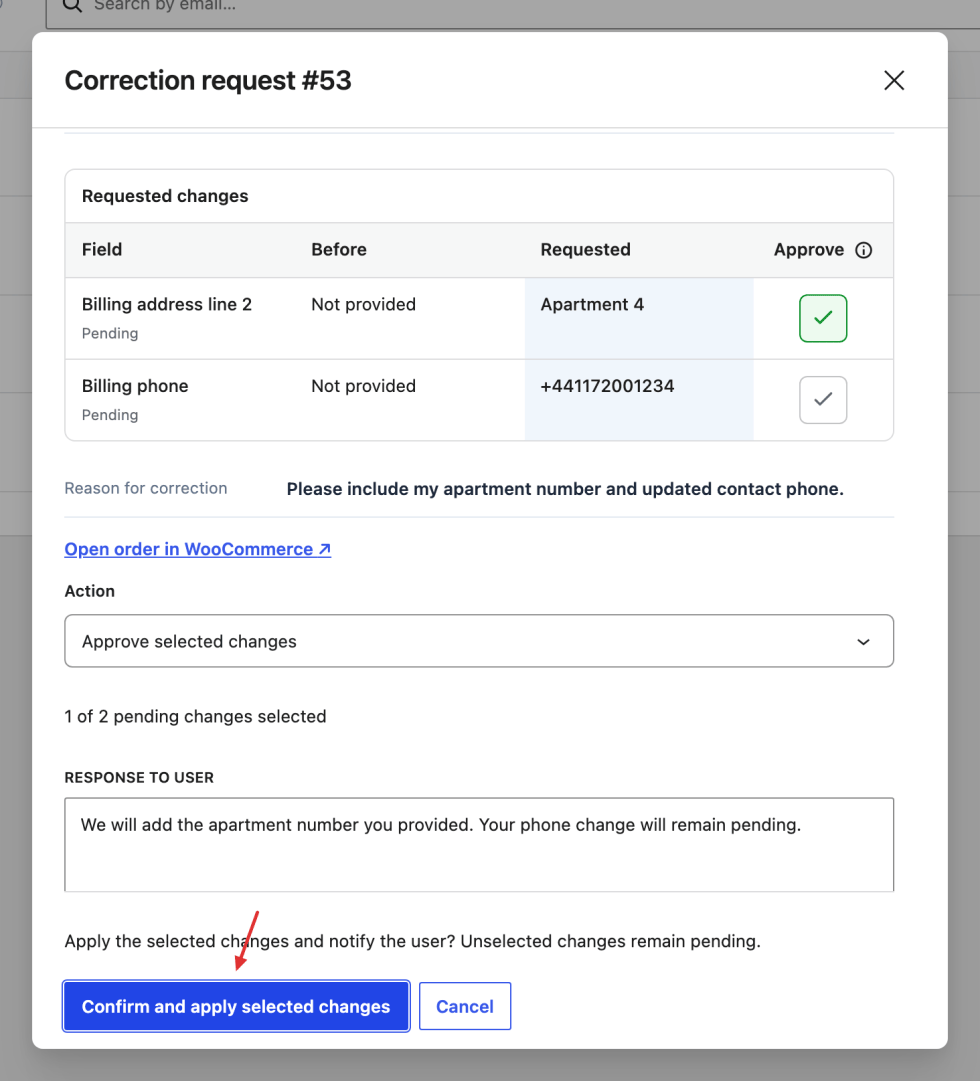
Before writing, the service checks that the original fields still match their submitted values and validates the proposed data. If another person has changed the order, review the conflict instead of overwriting newer values blindly.
Approval requires WooCommerce order-editing access in addition to privacy access. After applying selected fields, inspect their recorded outcomes and the saved WooCommerce order. Completing one field does not prove the remaining proposed changes were approved.
Supported fields concern order billing/shipping names, addresses, available contact details, and the customer order note. They do not change products, prices, payment details, account login information, or the customer’s saved address book. See the customer field guide when explaining what a requested change affects.
Ask for information or decline changes
Choose Ask for information and explain what the customer needs to provide. Send the information request. The customer can reply from correction history in My Account; a reply returns the request to Under review.
For an order request that cannot be fulfilled, use Decline remaining changes and explain why. Already-applied changes are not undone by declining the remainder.
Handle a general correction
For a request without supported automatic order updates, inspect and update the original information in WooCommerce or the appropriate system yourself.
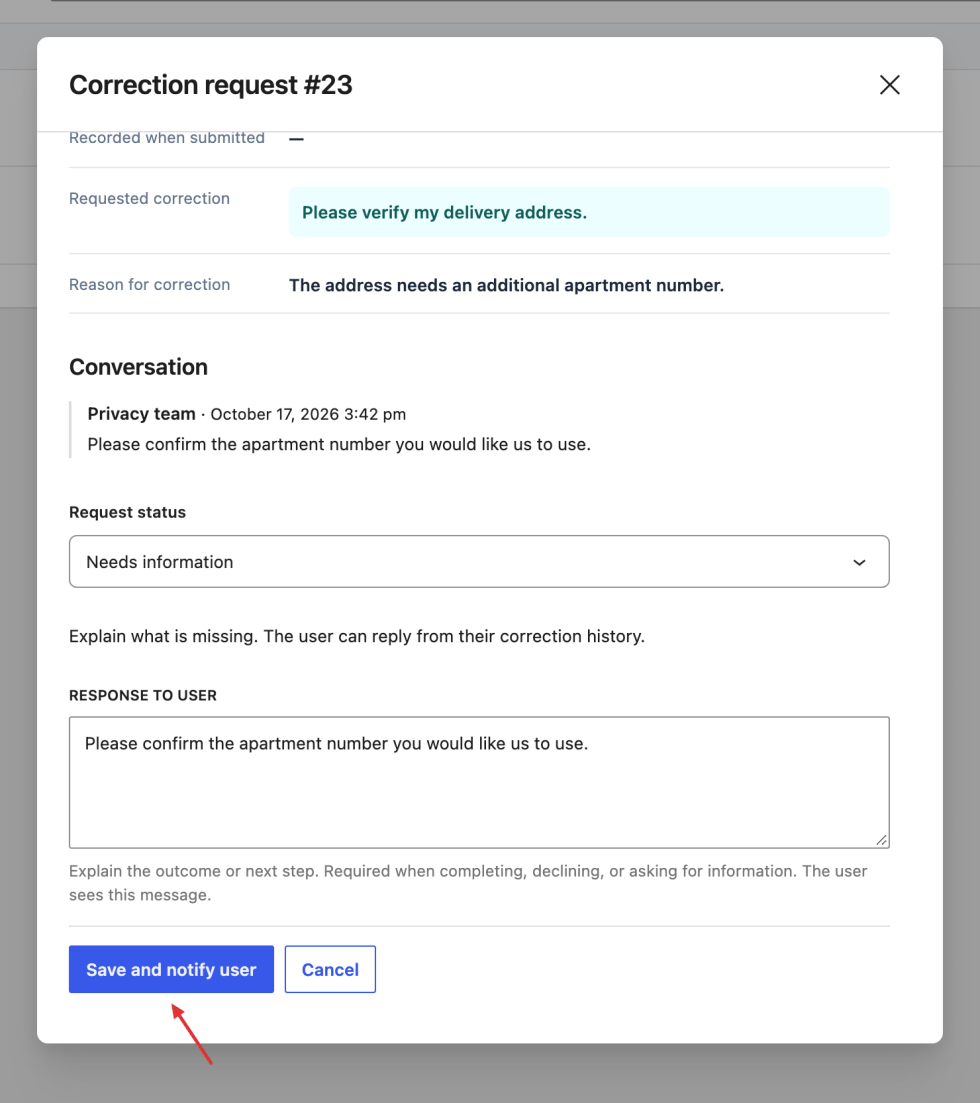
hen choose the request status and write the response.
| Review control | Meaning |
|---|---|
| Status | Records the stage of the request. Choose the stage that matches work actually done; selecting Completed does not update the source information. |
| Response | Explains the outcome or asks the customer for the missing details. It is customer-visible, rather than a private staff note. |
| I have updated or verified the original record | Required when marking a general correction completed. Confirm this only after doing that work in the appropriate system. |
| Save and notify user | Stores the review and attempts the customer notification. Check the result, because the review can save even when email delivery fails. |
Saving this review does not perform the original data change. To ask for more information, explain what is needed so the customer can reply from My Account.
For example, a correction to information stored by another extension must be performed in that extension before you mark the request completed here.
Customer responses and email
Responses are required when completing, declining, or asking for information. The customer sees the response in their correction history. These messages are customer-visible, not private staff notes.
The save result distinguishes a saved request with email sent from a saved request whose email could not be sent. A mail failure does not erase the saved response.
Requests Troubleshooting
| Problem | Next step |
|---|---|
| The request changed while you were reviewing | Select Reload request, inspect the latest state, and review your retained draft response before saving again. |
| An original order value no longer matches | Open the order and compare the newer information with the submitted request. |
| Completion asks for confirmation | Update or verify the original record, then confirm that work in the review form. |
| A request is read-only | It may be closed or a historical direct-update record. Use a new request for a new correction. |
| The customer cannot reply | Replies are available when the request needs information, not after it is closed. |
Woocommerce Customer privacy area
↑ Back to topCustomers can manage their privacy through My Account → Data Privacy. Depending on your store’s configuration, they can download personal data, request corrections or erasure, review permissions, and request account closure. Each action opens a dedicated screen with the relevant instructions and request status.
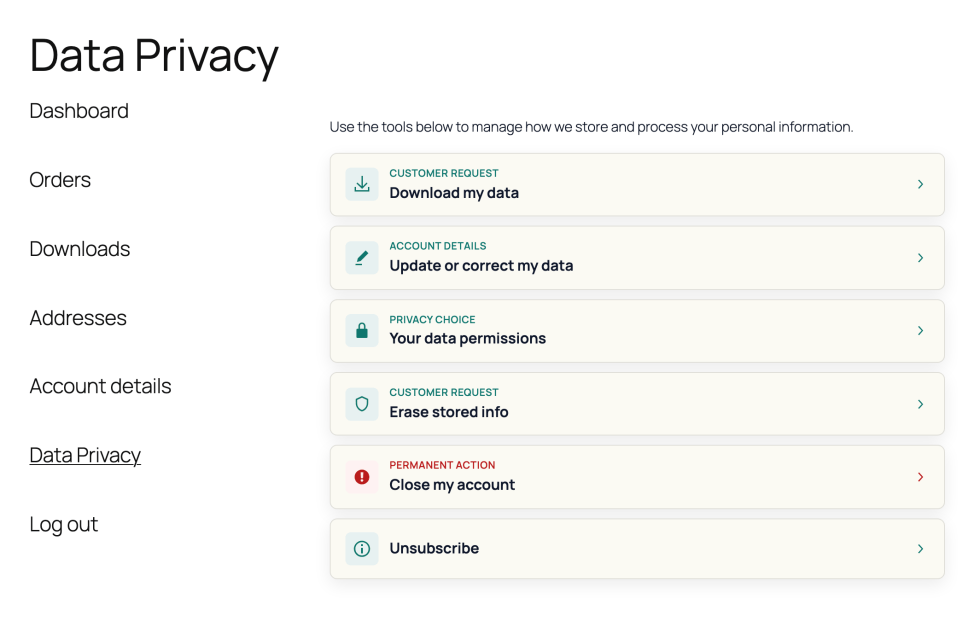
Customers sign in and select an available section. Use Back to return to the list. The store can customize the menu name, section wording, visibility, and appearance.
Your data permissions
↑ Back to topThis section explains the store’s published uses of customer information and provides the response controls available to each account. Customers can review new wording, manage optional choices, and inspect their recorded decisions.
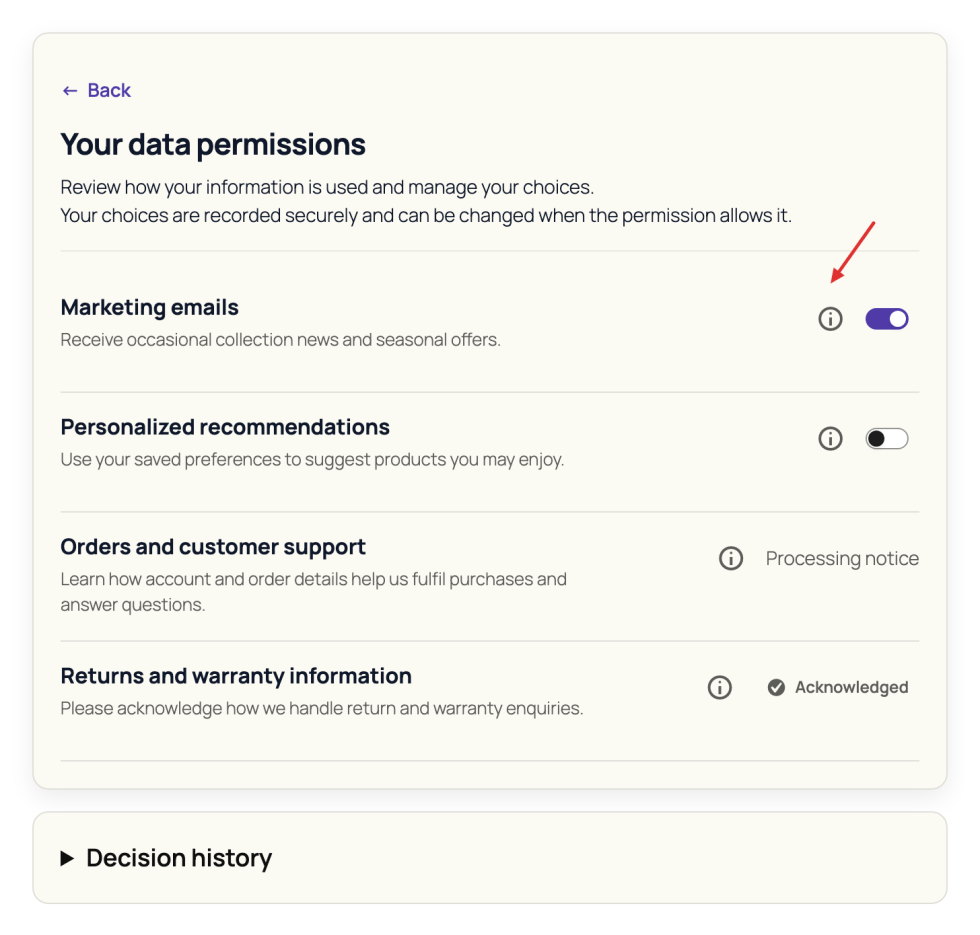
Customers read each permission’s short description and full details, then use the available choice or acknowledgement controls. Optional consent can be declined or withdrawn. Acknowledgement and Viewed are separate from consent.
Published updates may appear in a combined review popup. Customers read the changes, select responses, and confirm them together. Close or Later postpones optional reviews without changing saved choices. Required reviews follow the store’s settings while essential account and checkout routes remain accessible.
Optional consent uses Accept / Decline buttons or Switches. Opening the popup or changing a selection does not save it; customers select Save choices. The save button includes acknowledgement wording when applicable.
- Accept / Decline buttons: Customers select the response they want to give, then save. Neither response is automatically selected for them.
- Switches: Untouched switches in a popup with Close or Later remain unanswered. In a blocking popup, saving confirms all displayed optional-consent switches, including off as Decline; customers must reach the end of the list first.
An enabled permissions section remains visible even when no permissions match the account; it then shows an empty-state message.
Where enabled, permissions also appear during checkout and account creation. Account-creation choices are saved after successful submission. Customers can inspect recorded decisions and versions in Decision history.
Download my data
↑ Back to topDownload my data gives customers a copy of the personal information included by the site’s exporters. It is useful when they want to inspect that information or keep a copy for their own records.
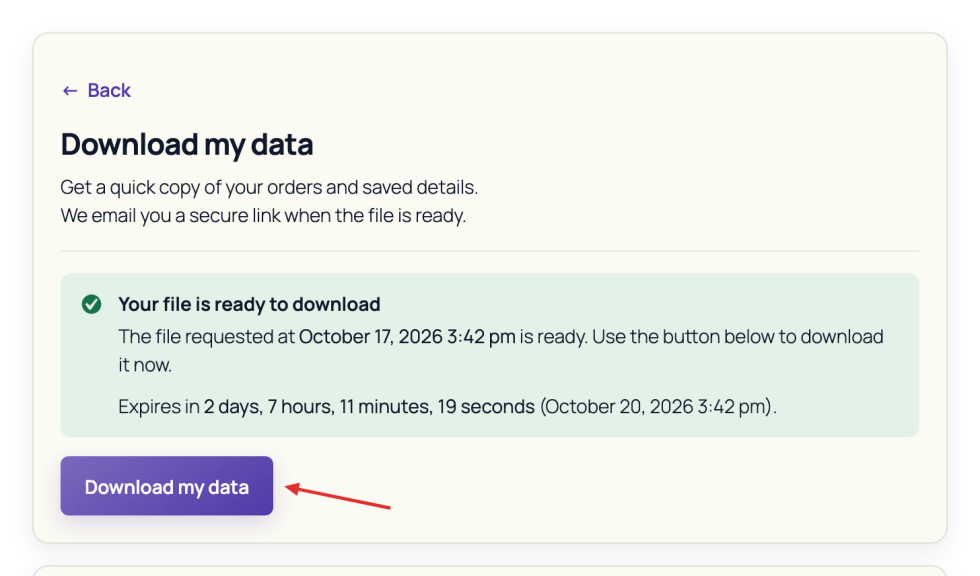
Customers submit an export request and confirm it through an email link. The archive is prepared in the background. Once ready, Download archive appears in the request history with availability information.
Download links default to three days unless the store changes that setting. Customers use the available archive before requesting another. Export contents depend on the site’s registered exporters; downloading does not erase the original data.
Erase stored info
↑ Back to topErase stored info lets customers request removal of eligible personal information. The store’s settings determine whether staff must approve the request and which data can be removed.
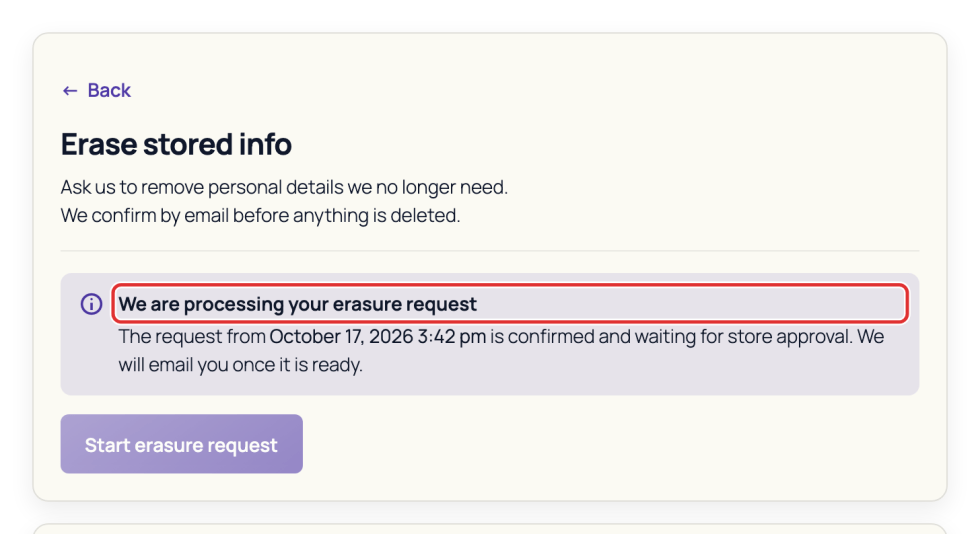
Customers start a request and confirm by email. If approval is required, they wait for staff to approve it. They then return to My Account and run the ready erasure.
Email confirmation or staff approval alone does not erase data. When the customer runs it, shared WooCommerce Accounts & Privacy options determine order-personal-data and purchased-download removal; other erasers handle their own records. Customers should read the final summary for removed and retained information. Erasure is separate from account closure.
Update or correct my data
↑ Back to topThis section helps customers correct inaccurate information in the right place. They can follow links to edit their current account details and saved addresses, or ask the store to review changes to other records.
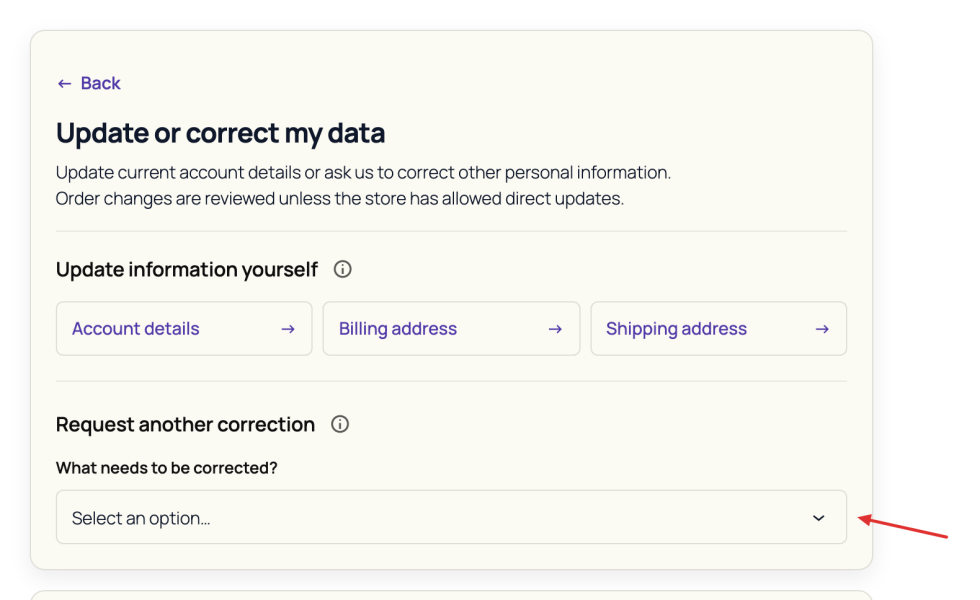
Past-order corrections use an eligible order associated with the account. Customers edit the offered information and submit the changes. General correction types collect an explanation. Correction history shows progress, outcomes, and staff responses. Customers can reply when the request needs more information.
Updating a saved address does not automatically change an address already recorded on an order.
In an order correction, billing and shipping changes apply to that order’s recorded details after staff approval. The same-as-billing control copies address fields while selected; the reason for correction is separate from the order’s customer note. General requests use a required corrected-information field and an optional explanatory note.
Close my account
Close my account lets customers request deletion of their store account. Confirmation, any required staff review, and a hold period give the request clear stages before deletion is processed.
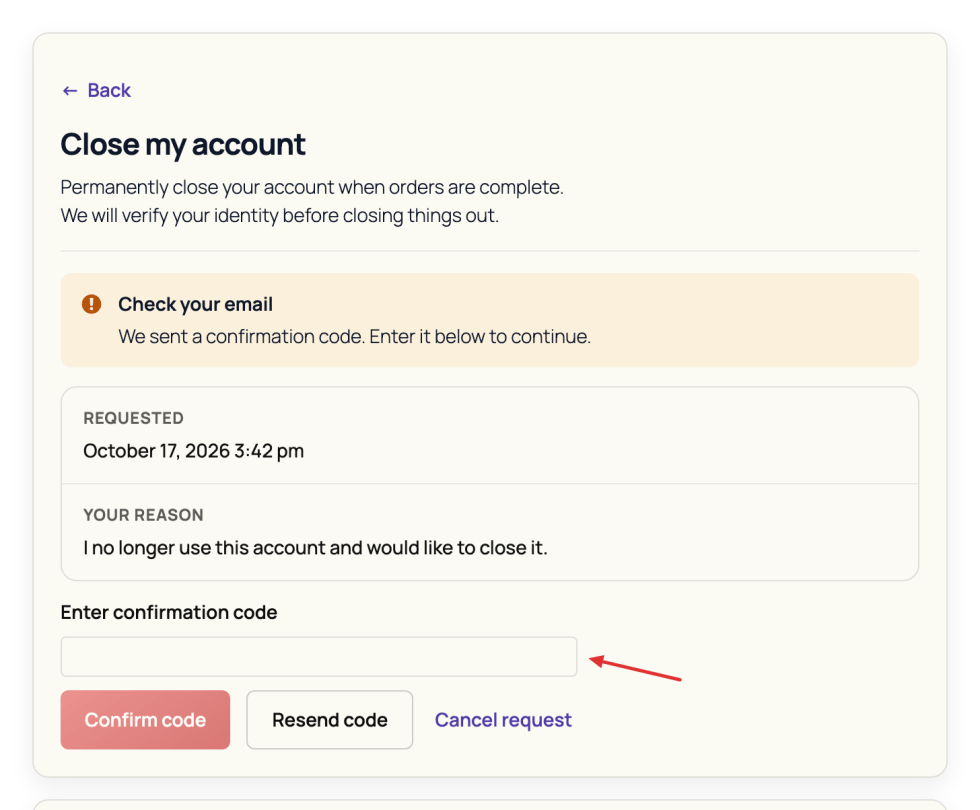
Customers enter a reason if required, start closure, and confirm an emailed code. Staff approval starts the hold when review is enabled; otherwise confirmation starts it.
The customer can inspect the deadline, cancel an active request, and reply to staff after a customer-visible conversation has begun. A new login cancels pending review or on-hold requests only when that policy is enabled. The default hold is 30 days; use the deadline shown for the specific request.
Background tasks process account deletion after the hold. Historical details remain available while the customer can access their account. Restricted staff accounts must contact an administrator.
Custom links and help
↑ Back to topCustom links connect the privacy area with other pages the store provides, such as support or email preferences. Customers follow the destination’s own instructions to complete the relevant task.
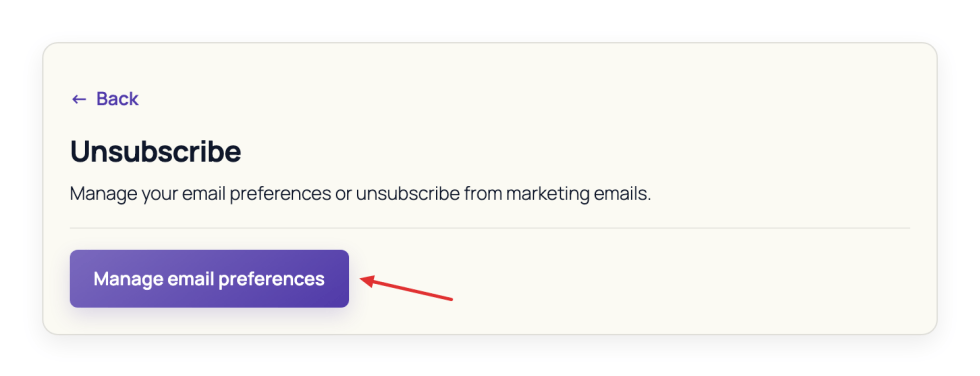
A custom section with an introduction shows a destination button; without an introduction, it can open the linked page directly. An Unsubscribe link sends customers to the configured preference page, which handles the subscription change. Opening the section alone does not unsubscribe them.
If an action is missing or a request cannot continue, customers should check the displayed message and contact the store through its help link.
Update or correct my data
↑ Back to topUpdate or correct my data helps you fix inaccurate information in the right place. Use an update link for details you can change yourself, or submit a correction for information the store needs to review.
Open My Account → Data Privacy → Update or correct my data.
Update current account details
↑ Back to topOpen the relevant link, edit the information, and save on that destination page. Updating a saved account address does not automatically change the same address on a past order.
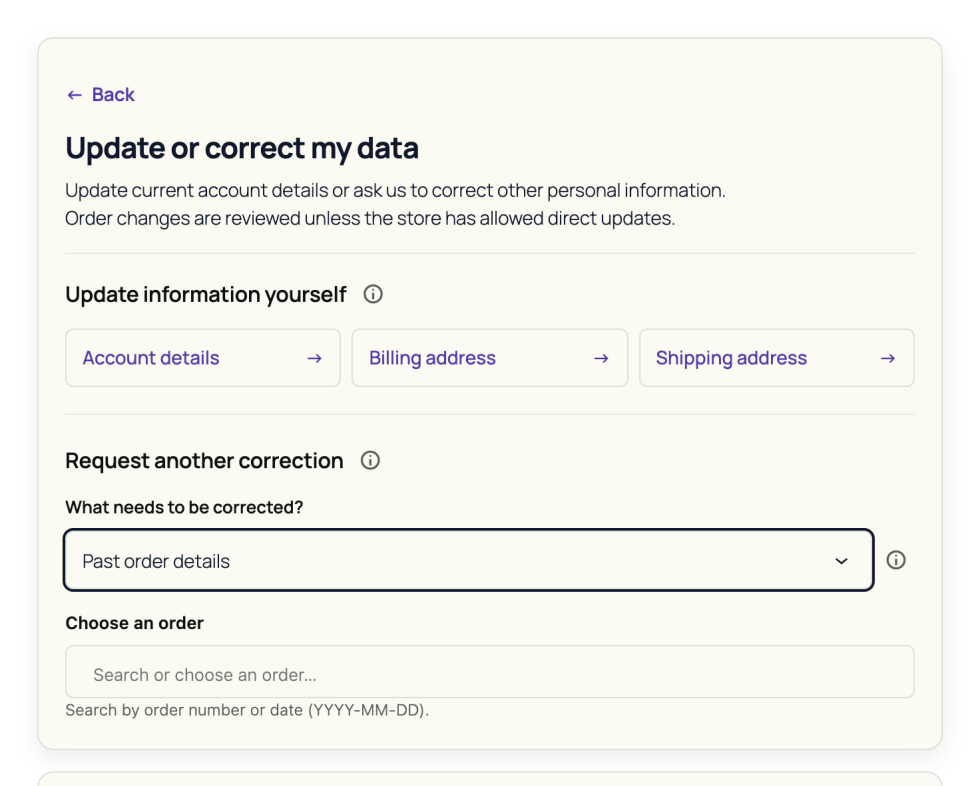
The store may show links for:
- Account details: Your name, display name, email, or password.
- Billing address: The saved address used for future checkouts.
- Shipping address: Your saved shipping address.
- Other store-provided update pages.
Request a past-order correction
↑ Back to topUse a past-order correction when information already recorded on an order needs review. The form lets you propose changes for the store to assess before they are applied.
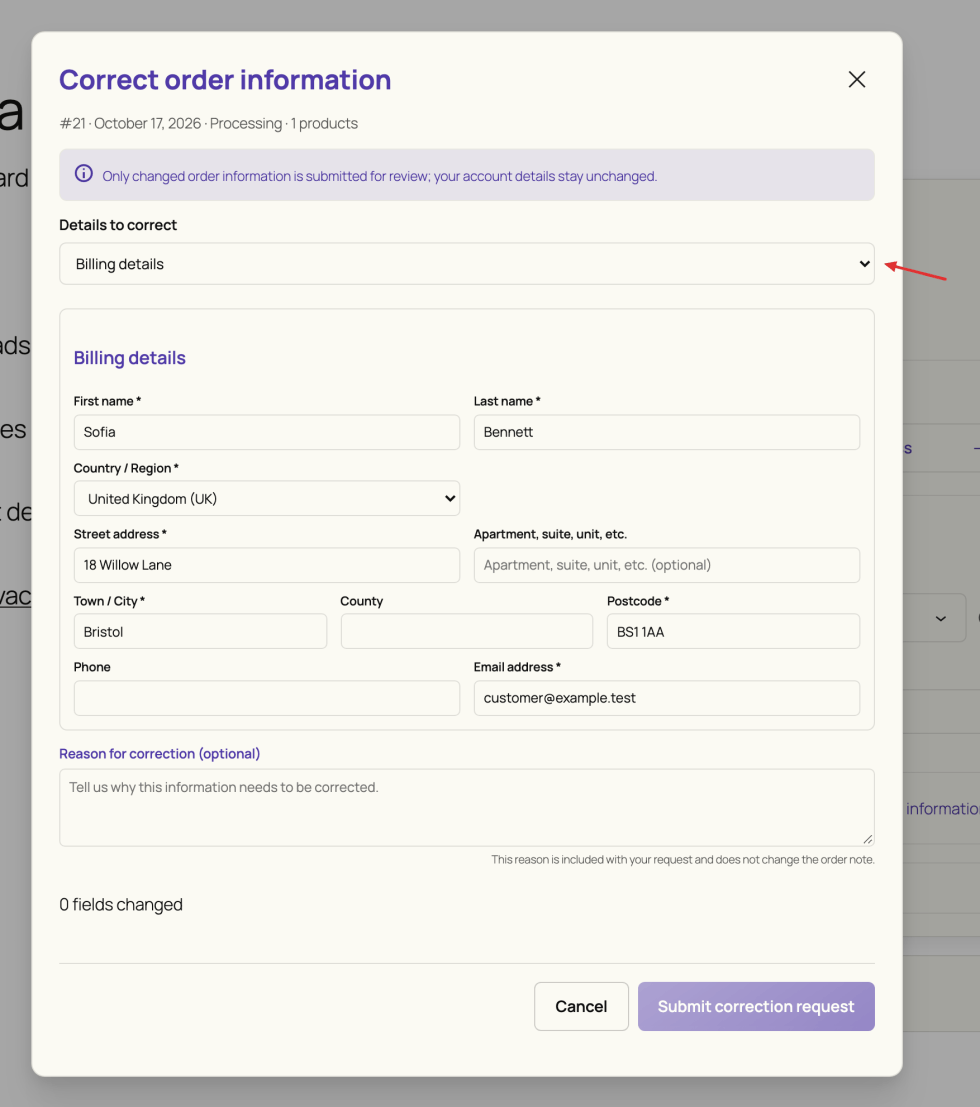
- Choose Past order details, or the store’s equivalent request type.
- Choose an eligible order connected to your account. Use order search or further pages if needed.
- Open the order information and select the details to correct.
- Edit the available billing details, shipping details, or customer order note.
- Optionally explain the reason for correction.
- Select Submit correction request and wait for the confirmation.
The Details to correct selection determines which supported order information you edit. Billing and shipping fields propose changes to that order’s recorded addresses; the Customer order note is the note saved with the order. The optional reason explains why you are requesting a correction and does not replace the order note.
Understand the order fields
↑ Back to topThe available address fields and required entries follow the selected country and the store’s WooCommerce configuration. Review the fields offered for your order rather than assuming every country uses the same address format.
| Field or control | What it does |
|---|---|
| First name / Last name | Proposes the name recorded for the selected billing or shipping address. |
| Company | Proposes the company associated with that order address, where offered. |
| Address lines 1 and 2 / City / Postcode | Proposes the street, additional address details, locality, and postal code. Follow the form’s required-field indicators. |
| Country / State | Determines the address format and available state choices. Changing the country clears the previous state; choose the appropriate state again where required. |
| Billing email / Phone | Proposes the contact details stored on the order. Changing billing email here does not change your account’s sign-in email. Shipping phone is separate when offered. |
| Shipping address is the same as billing | Copies matching billing name/address fields and keeps them aligned while selected. Phone remains separate. Clear it to edit shipping independently; clearing it does not restore the previous address. |
| Order note (optional) | Proposes a change to the customer note stored on the order. It does not edit private staff order notes. |
| Reason for correction (optional) | Adds context for staff reviewing the request. It does not replace the order note. |
Changed fields show Previously: for comparison, and the form displays a changed-field count. Review that count before submitting. If nothing has changed, there is nothing to send for review.
Only changed information is submitted for staff review. Your current account details and saved addresses remain separate from the order’s recorded details. Submission does not apply the proposed changes immediately.
The store chooses which order statuses are eligible. If an order is unavailable, contact the store. Do not choose a different order just to submit the correction.
Request another correction
↑ Back to topChoose Other personal information, or another request type supplied by the store. Describe what is inaccurate and what it should be changed to, then submit it for review.
Enter the accurate value or explanation in Correct information (required). Use Add a note (optional) for context that helps staff verify the request. Each accepts up to 5,000 characters. Select Submit correction and check the result; the store can customize these labels.
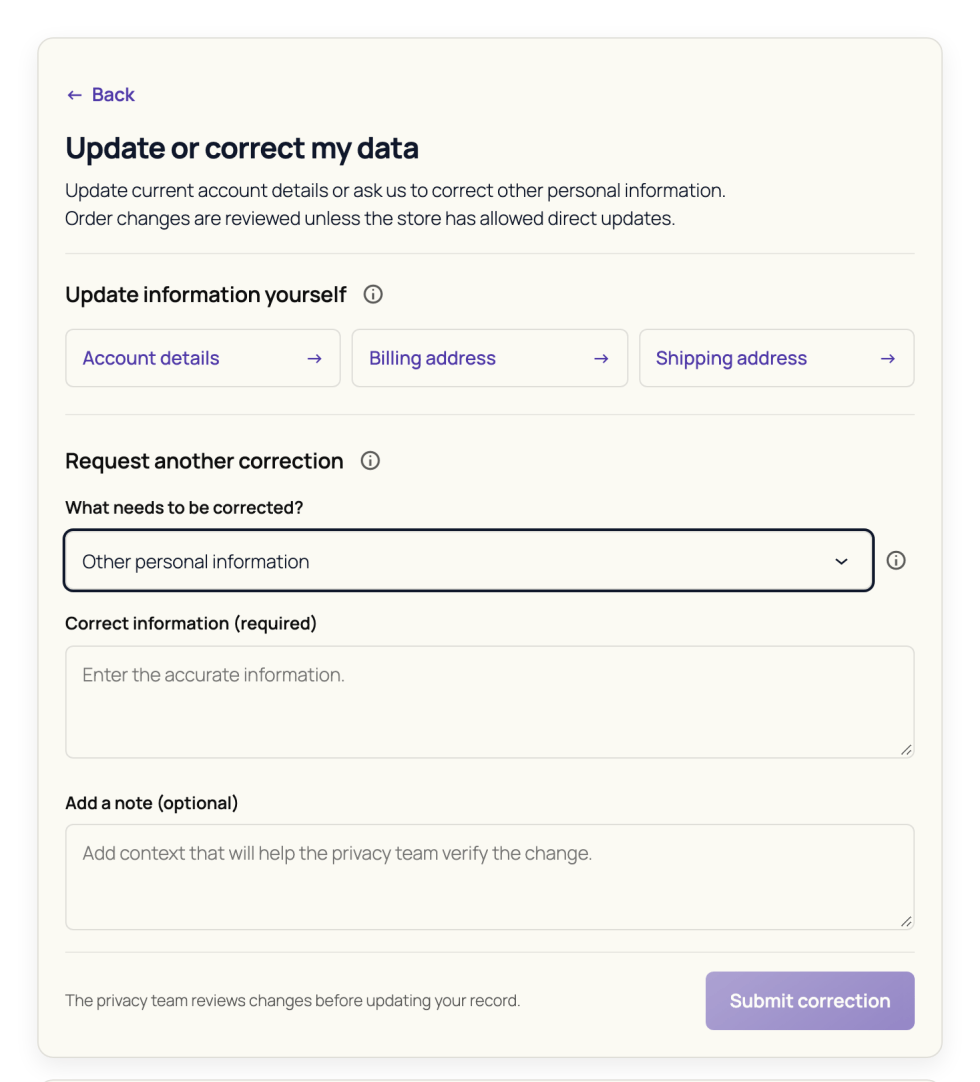
Track and reply
↑ Back to topUse Correction history to inspect the request status, record, and requested change. Open Details to see the conversation and outcomes.
When the status is Needs information, select Reply, enter the information requested by staff, and send it. Your reply moves the request back to review. Replies support up to 5,000 characters.
Staff may apply only some requested order changes first. Read the field outcomes and response instead of assuming that every proposed field was approved together.
Completed and declined requests are closed. Submit a new request for a further correction. Older direct-update records, if your store used that feature, can also appear in history as completed and read-only.
If the form has no correction types, contact the store. If an address field reports an error, check that its country, state, postcode, and other required information are consistent. If a reply control is absent, the request may not be waiting for more information or may already be closed.
Request submission is not proof that the original record changed. Check the completion response and, where possible, the updated record.
Testing checklist
↑ Back to topAfter setup, test the main workflows before using the extension on a live store.
Recommended tests:
- Confirm My Account > Data Privacy appears for a logged-in customer.
- Submit a Download my data request.
- Confirm the WordPress privacy confirmation email is delivered.
- Confirm a completed export can be downloaded when ready.
- Submit an Erase stored info request.
- Confirm admin approval behavior matches your settings.
- Start a Close my account request.
- Confirm the verification code email is delivered.
- Confirm staff can review requests in WooCommerce > Data Privacy > Requests.
- Confirm customer-visible messages appear in My Account.
- Confirm email templates render correctly.
- Confirm privacy team access settings work as expected.
FAQs
↑ Back to topHelp customers by answering commonly asked questions.
Does Data Privacy Manager for WooCommerce support GDPR, CCPA/CPRA, and LGPD-style privacy workflows?
Data Privacy Manager for WooCommerce helps stores support privacy request workflows commonly associated with GDPR, CCPA/CPRA, LGPD, and similar privacy laws. It gives customers self-service tools for data export, erasure, and account deletion from My Account, while giving store teams workflow controls in WooCommerce Admin.
The plugin should be treated as a workflow support tool rather than a legal compliance guarantee. Overall compliance still depends on your store policies, retention rules, third-party services, legal obligations, and actual data handling practices.
How does the plugin work with WordPress privacy tools?
Data export and erasure requests use the WordPress privacy request system. WordPress tracks those requests, sends the core confirmation emails, and uses registered exporters and erasers from WordPress, WooCommerce, and compatible extensions.
Data Privacy Manager for WooCommerce adds the customer-facing My Account privacy area, WooCommerce Admin settings, privacy team access controls, email template management, request history, account deletion workflow, and account-closure review tools.
Can customers request a copy of their personal data from My Account?
Yes. When export requests are enabled, logged-in customers can submit a Download my data request from My Account > Data Privacy.
WordPress sends a confirmation email before the export is processed. When the export file is ready, the customer can download it from the request history table in My Account until the download link expires.
Can customers request erasure of stored information?
Yes. When erasure requests are enabled, logged-in customers can submit an Erase stored info request from My Account > Data Privacy.
WordPress sends a confirmation email first. Depending on your settings, staff approval may also be required before the customer can complete the erasure step. The actual erasure result depends on WordPress, WooCommerce, compatible extension erasers, and your store retention settings.
How does the delete account workflow work?
The delete account workflow is provided by Data Privacy Manager for WooCommerce. When account closure is enabled, customers can start the Close my account flow from My Account > Data Privacy.
The workflow can ask for a reason, send a one-time verification code, wait for optional staff approval, place the request on hold, allow cancellation when available, and then complete deletion after the hold period expires.
What happens to past WooCommerce orders during erasure or account deletion?
WooCommerce order and customer data handling depends on your WooCommerce privacy settings, store retention rules, and legal or accounting requirements.
Some order, tax, payment, invoice, or recordkeeping data may need to remain even when customer-facing account data is erased or deleted. Review your WooCommerce privacy settings before enabling customer erasure or account closure on a live store.
Does the plugin work with custom checkout fields and third-party plugin data?
Data from custom checkout fields or third-party plugins can be included when those plugins follow the WordPress privacy exporter and eraser hooks. If a third-party plugin is already compatible with WordPress GDPR/privacy tools, Data Privacy Manager for WooCommerce can process that registered data through the same export and erasure workflows automatically.
If a plugin stores personal data but does not register it with WordPress privacy tools, that data may need separate handling.
Can store owners control which staff users manage privacy requests?
Yes. Privacy Team Access settings let store owners decide who can manage plugin privacy workflows. You can allow Shop Managers, assign specific eligible staff users, and decide whether the WordPress Administration Email Address receives internal privacy notifications.
Assigned users should already have access to the WooCommerce admin area.
Can staff review and manage delete account requests?
Yes. Authorized staff can review delete account requests in WooCommerce > Data Privacy > Requests.
The Requests tab shows request status, next milestones, customer details, messages, internal notes, and available actions such as approve deletion, resend verification code, or cancel the request.
Can store owners customize privacy emails?
Yes. Use WooCommerce > Data Privacy > Email Settings to customize plugin-managed customer emails and admin alerts. WordPress core privacy confirmation emails for export and erasure remain managed by WordPress privacy tools.
Plugin-managed emails include account closure verification codes, account closure status updates, erasure approval messages, customer-visible account closure messages, and staff alert emails.
Does the plugin keep request history for customers and staff?
Yes. Customers can view privacy request history and status updates from My Account > Data Privacy. Depending on the request type and status, they may see confirmation status, completed exports, download links, erasure progress, account closure status, or messages from the privacy team.
Staff can review account closure request activity from WooCommerce > Data Privacy > Requests, including status, milestones, notes, and customer-visible communication.

