Affiliate for WooCommerce plugin helps you to add, manage affiliates, and track performance from a single place – commissions, sales, payouts, leaderboard, etc. Earn money without hard work. Increase your brand outreach, and get potential customers.
The plugin supports multiple payout methods (e.g., PayPal, Stripe, Fixed cart discount coupons, Store Credit Coupons, Manual Payout).
This document will focus on how to process commission payouts using PayPal.
Important: API changes & requirements
↑ Back to topPayPal has deprecated the old PayPal Mass Payout API in favor of the newer PayPal Payouts API.
WooCommerce has also hidden its PayPal Standard plugin (from version 5.5 and above) for new installations, and they strongly recommend using the WooCommerce PayPal Payments plugin (upgrade guide from WooCommerce).
- New Installations: We strongly recommend using the WooCommerce PayPal Payments plugin, which utilizes the modern Payouts API.
- Legacy Users: If you are still using the deprecated PayPal Standard plugin, please see the Legacy Section or the Migration Guide below.
Method 1: using the WooCommerce PayPal Payments plugin (Recommended)
↑ Back to topThis is the modern method recommended by WooCommerce and PayPal.
Prerequisites
↑ Back to topBefore sending commissions, ensure the following:
- PayPal Payouts enabled: The plugin uses PayPal Payouts API, so PayPal Payouts must be enabled on your PayPal account.
- Plugin is activated: The WooCommerce PayPal Payments plugin must be installed and active.
- PayPal account connected: Your account must be connected and set up in the plugin as guided in this doc.
- PayPal email input for affiliates enabled: Enable the PayPal email address setting so affiliates can set their default payout method as PayPal, and input their PayPal email address to receive payout.
- Affiliate setup: Affiliates need to go to My Account > Affiliate > Profile > Payout Settings to select PayPal as their payout method and enter their valid PayPal email address.
How to check if PayPal Payouts is enabled on your PayPal account?
↑ Back to top- Log in to the PayPal account.
- Go to Dashboard > My Account > API Permission name table.
- Check if Payouts enabled for the Live API.
- If not, click on the Enable link.
Note: The above-mentioned steps may vary in your account. If you face any issues while enabling it, please contact PayPal support.
How to check if the commission payout via PayPal is enabled?
↑ Back to topIf the configuration is correct, the Payout via PayPal settings will be automatically enabled on the WordPress admin > WooCommerce > Settings > Affiliate > Payouts.
That’s it. You can now make payouts via PayPal using the PayPal: Pay & Record option, as explained here.
How can you integrate other PayPal plugins for commission payout?
↑ Back to topThe plugin’s PayPal payout system is extensible and allows developers to integrate other PayPal plugins. Read the developer integration guide to learn more.
Note: If you are using any other PayPal plugin and need support for it, please submit a feature request.
Method 2: using PayPal Standard (Legacy)
↑ Back to topNote: This method relies on the PayPal Mass Payout API, which is deprecated for new integrations. We recommend migrating to Method 1.
Prerequisites
↑ Back to top- API: The PayPal Mass Payout API must be enabled on your PayPal account.
- Plugin: The PayPal Standard payment method must be enabled in WooCommerce.
- PayPal API credentials configured: The credentials are configured on WordPress admin > WooCommerce > Settings > Payments > PayPal Standard.
- PayPal email input for affiliates enabled: Enable the PayPal email address setting so affiliates can set their default payout method as PayPal, and input their PayPal email address to receive payout.
- Affiliate setup: Affiliates must go to My Account > Affiliate > Profile > Payout Settings to select PayPal as their payout method and enter their valid PayPal email address.
How to check the configuration status for commission payout via PayPal?
↑ Back to topIf the configuration is correct, the Payout via PayPal settings will be automatically enabled on the WordPress admin > WooCommerce > Settings > Affiliate > Payouts.
That’s it. You can now make payouts via PayPal using the PayPal: Pay & Record option, as explained here.
Migrating from PayPal Standard or PayPal MassPay API for commission payout
↑ Back to topAs mentioned at the start of the doc, the PayPal MassPay API is deprecated by PayPal, and they have introduced the PayPal Payouts API.
If you want to migrate from PayPal MassPay API to PayPal Payouts API, or from PayPal Standard to WooCommerce PayPal Payments, please follow this:
- Ensure you meet all the requirements in this documentation.
- Then, go to WordPress admin > WooCommerce > Affiliates Dashboard page and click on the run migration link in the PayPal Payout migration notice to complete the migration.
Steps to payout commission via PayPal (PayPal: Pay & Record)
↑ Back to topThe PayPal: Pay & Record method will be available only when you have configured PayPal on your store, and all the above-mentioned requirements are fulfilled; otherwise, it will be shown as disabled.
Once you have configured, please follow the steps mentioned here to send the payout:
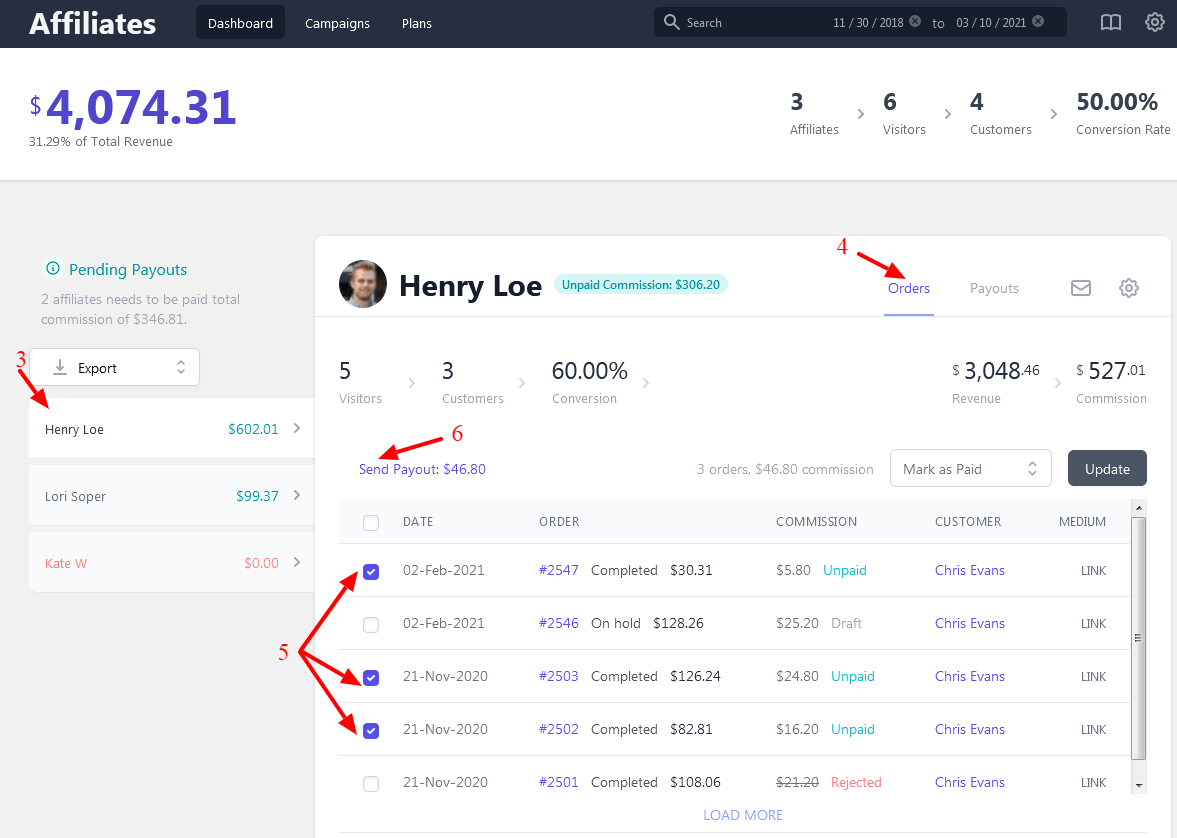
- Go to WordPress admin > WooCommerce > Affiliates Dashboard.
- Select an affiliate to send a payout.
- Click on the Referrals tab.
- Select the commission records from the list for which you would like to process the payouts, and it will keep adding the commission amount to be paid.
- The amount will add up only for those orders for which the commission status is Unpaid.
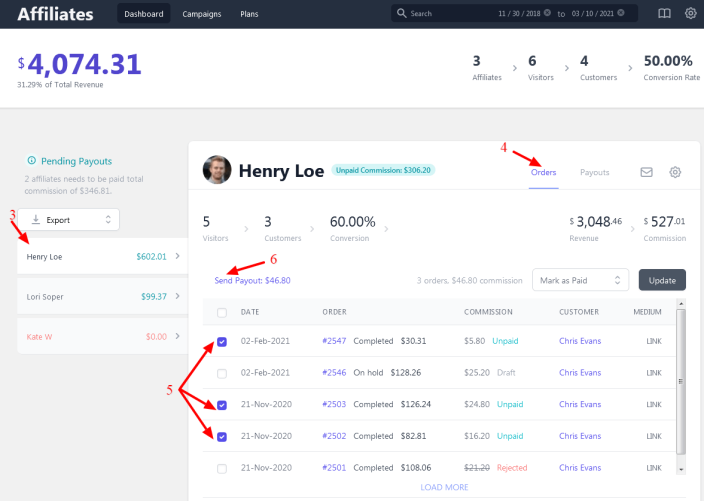
- Once done, select the Send Payout option (which also shows the total commission to be paid) above the Referrals list table header.
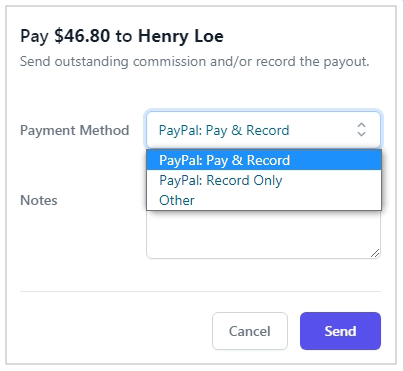
- It will open up a pop-up. Under Payout Method, select PayPal: Pay & Record.
- Add Notes if you want, which can be used for your reference.
- Click on Send.
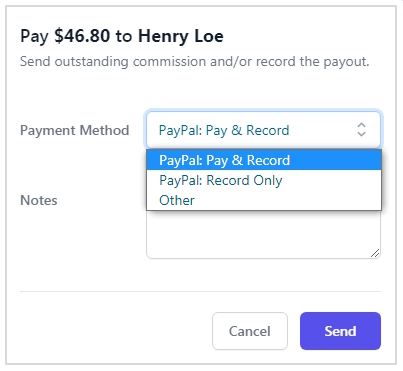
The affiliate will receive the commission directly in their PayPal account, and the system will mark their selected orders’ commission as Paid.
You can also do a mass payout via PayPal by exporting a list of affiliates as CSV. Here’s how.
How does automatic payout work?
↑ Back to topAutomatic payouts work on predefined schedules, which ensures timely, accurate payments for your affiliates without any manual effort from your end.
If you have automatic payouts enabled for an affiliate and if the affiliate has set PayPal as their default payout method, and set their PayPal email address, they will be getting payout via PayPal automatically.
Troubleshooting & Error Logs
↑ Back to topIf you see a PayPal payout failed message while sending a payout, you can diagnose the specific issue via the logs.
How to locate an error message
↑ Back to top- Go to WordPress admin > WooCommerce > Status > Logs.
- Under the log file browser, you will see a list of available log files.
- Select the log file named affiliate-for-woocommerce based on the date mentioned in the Date created column.
- Look for the Error PayPal payout failed line and the message for details of the error code and details.
Common PayPal Payout error codes
↑ Back to topError: 403 Forbidden
There could be two possible causes for this error:
- Incorrect PayPal Live API account credentials – You can confirm this under WordPress admin > WooCommerce > Settings > Payments > PayPal.
- If API credentials are correct, then you’ll need to contact PayPal support to know if your PayPal account has been fully approved to process payouts via the API.
Error: 422 Unprocessable Entity
There could be two possible causes for this error:
- PayPal sends commission payout from your PayPal balance and not from the bank or credit card source balance. So it’s important to have a sufficient PayPal balance to cover the payout; otherwise, you will receive this error.
And if you’re using a sandbox account, it has a separate balance from your live account. So please make sure there are sufficient funds for testing in the sandbox account. (More in FAQ) - If the currency in which you are sending the commission payout is not receivable by the affiliate recipient due to country or account regulations.
Error: 429 Too Many Requests
This error occurs due to PayPal when their systems are under an abnormal load. So we recommend you wait for half an hour and then retry.
FAQ’s
↑ Back to top1. The “PayPal: Pay & Record” option is disabled/greyed out.
↑ Back to topThis means your configuration is incomplete. Ensure you have met all the prerequisites.
2. Can I payout the commission via PayPal using my attached card or bank account?
↑ Back to topPayPal sends a payout from your PayPal balance and not from the bank or credit card source balance. So you must have a sufficient PayPal balance to cover the commission payout (plus any fees).
Feature request
↑ Back to topHave a feature request or enhancement suggestion for Affiliate For WooCommerce? Submit a request or send it to us from here.