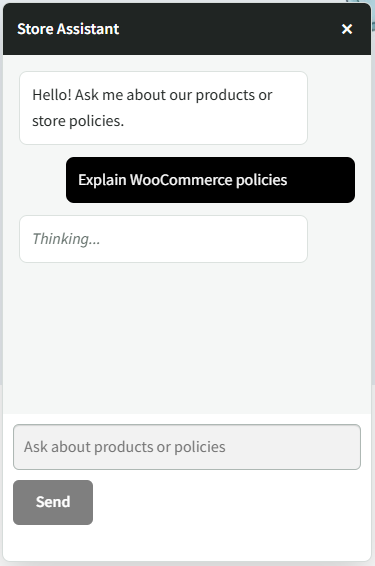
AI Support Assistant allows your WooCommerce store to automate customer support using AI trained on your store’s own knowledge. Add product documentation, FAQs, store policies, shipping and return information, warranty details, and other custom content to provide context-aware answers directly to your customers.
Installation
↑ Back to topTo start using a product from WooCommerce.com, you can use the “Add to store” functionality on the order confirmation page or the My subscriptions section in your account.
- Navigate to My subscriptions.
- Find the Add to store button next to the product you’re planning to install.
- Follow the instructions on the screen, and the product will be automatically added to your store.
Alternative options and more information at:
Managing WooCommerce.com subscriptions.

General Settings
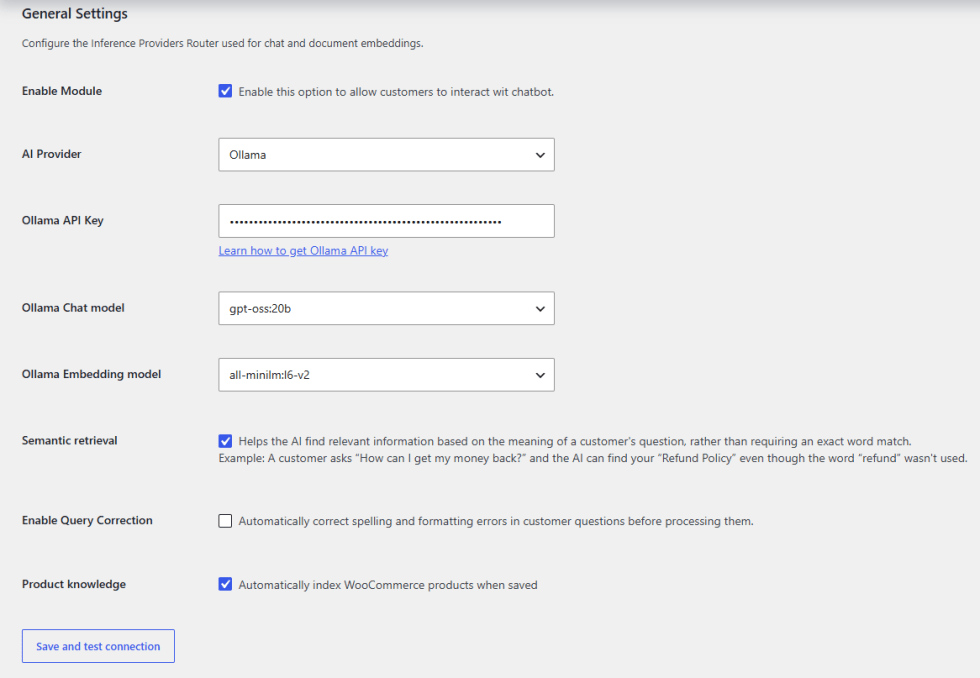
↑ Back to topConfigure the Inference Providers Router used for chat and document embeddings.
- Enable Module — Enable this option to allow customers to interact with the chatbot.
- AI Provider — Select an AI provider, either Hugging Face or Ollama. For setup instructions, see the Hugging Face guide or Ollama guide.
- Chat Model — Select a predefined chat model or enter a custom chat model.
- Embedding Model — Select a predefined embedding model or enter a custom embedding model.
- Semantic retrieval – Helps the AI find relevant information based on the meaning of a customer’s question, rather than requiring an exact word match.
Example: A customer asks “How can I get my money back?” and the AI can find your “Refund Policy” even though the word “refund” wasn’t used. - Enable Query Correction – Automatically correct spelling and formatting errors in customer questions before processing them.
- Product knowledge – Automatically index WooCommerce products when saved.
Display Settings
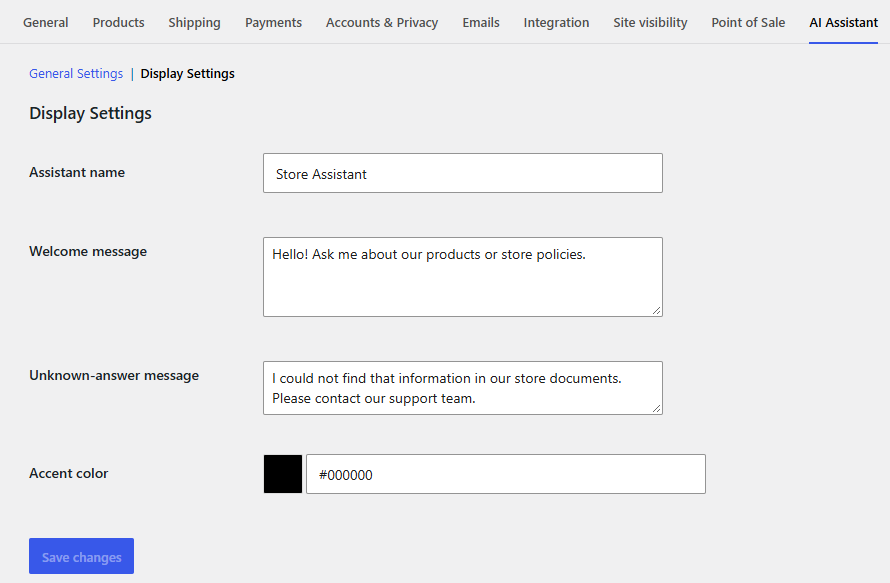
↑ Back to topCustomize the AI chatbot window and its appearance for your customers.
- Assistant Name — Set the name displayed for the AI assistant.
- Welcome Message — Add a welcome message that is displayed when customers open the chatbot.
- Unknown Answer Message — Set the message displayed when the chatbot cannot find relevant information to answer a customer’s query.
- Accent Color — Choose the color used for the chatbot interface.
Knowledge Base Rules
↑ Back to top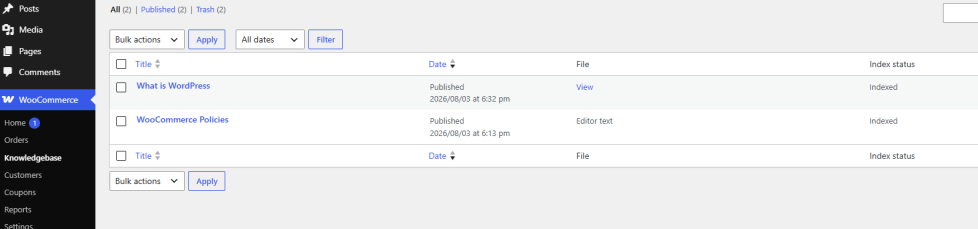
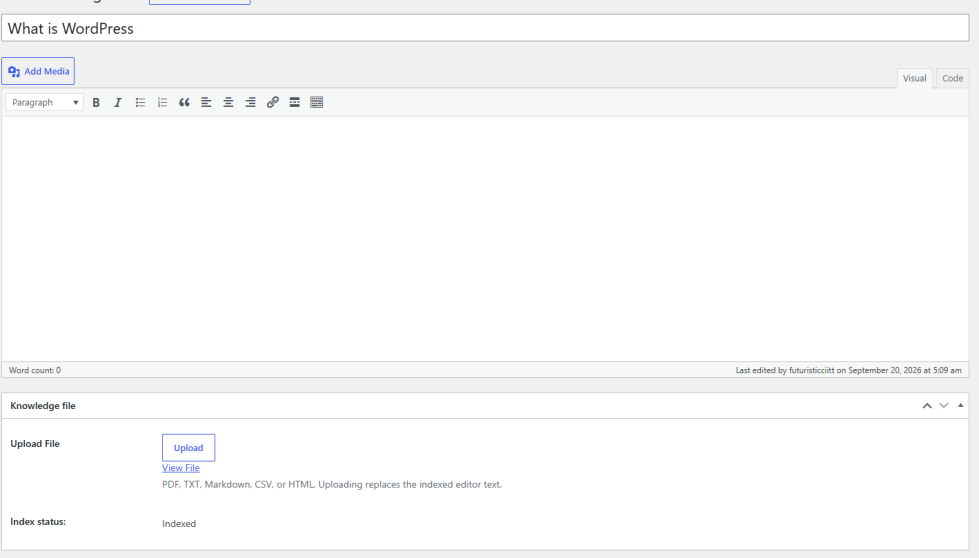
- Add Title — Enter a title for the knowledge base.
- Add Content — If your knowledge is not available in a file, such as a PDF, enter the information in the content field. The content will be indexed and used by the AI assistant to answer customer queries.
- Upload File — If you have store-related information in a file, upload it to add the information to the knowledge base.
- Index Status — View the indexing status of the uploaded information.
Storefront
↑ Back to topClick the chatbot icon in the bottom-right corner of the storefront to open the chatbot window.