
AmaSync allows your WooCommerce store to import, manage, and automatically synchronize Amazon affiliate products using the Amazon Creators API. The plugin streamlines product discovery, importing, synchronization, and catalogue management, helping affiliate marketers build and maintain Amazon-powered WooCommerce stores more efficiently.
Installation
↑ Back to topTo start using a product from WooCommerce.com, you can use the “Add to store” functionality on the order confirmation page or the My subscriptions section in your account.
- Navigate to My subscriptions.
- Find the Add to store button next to the product you’re planning to install.
- Follow the instructions on the screen, and the product will be automatically added to your store.
Alternative options and more information at:
Managing WooCommerce.com subscriptions.

Setup and Configuration
↑ Back to topGetting started
↑ Back to topBefore importing products, you must connect AmaSync to the Amazon Creators API.
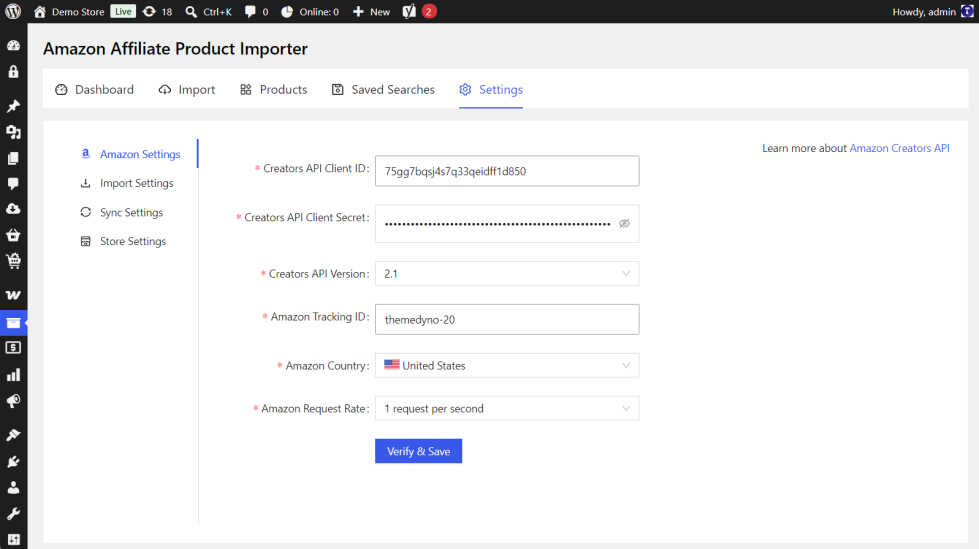
- Go to: Products > Amazon Affiliate Product Importer.
- Open the Settings > Amazon Settings tab.
- Select your preferred Amazon Marketplace Country (e.g. United States, United Kingdom, Germany, Canada, etc.).
- Choose the appropriate Amazon Creators API Version.
- Enter your Amazon Creators API credentials:
- Client ID
- Client Secret
- Tracking ID
- Click Verify & Save.
Once saved, AmaSync will establish a connection with the Amazon Creators API and enable product importing functionality.
Import Settings
↑ Back to topAmaSync provides flexible import settings that allow you to control exactly what information is imported from Amazon and how imported products are created within WooCommerce.
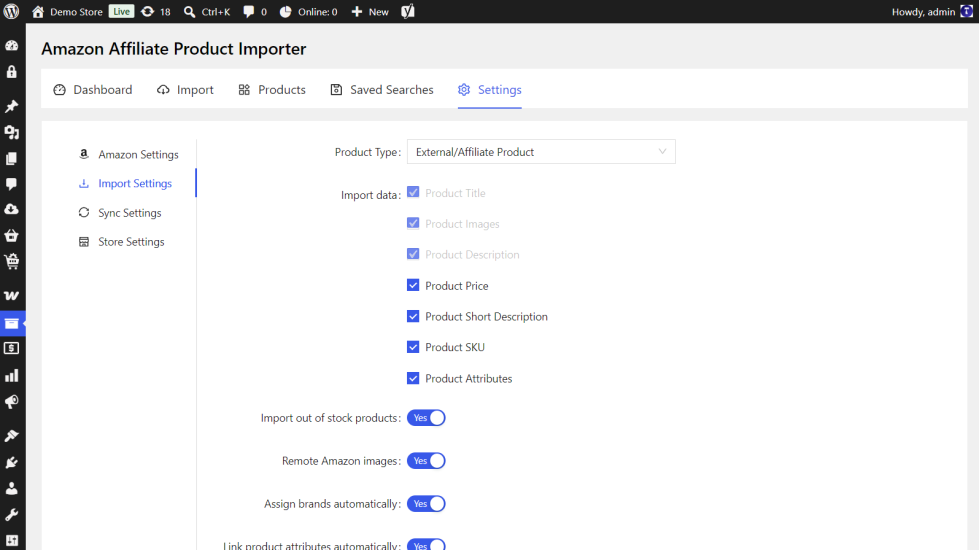
Navigate to:
Products → Amazon Affiliate Product Importer → Settings→ Import Settings
Product Type
Choose how imported products should be created:
- External / Affiliate Product
- Simple Product
Import Data Options
Select which product information should be imported:
Product Title
Imports the Amazon product title.
Product Images
Imports product images from Amazon.
Product Description
Imports the full product description.
Product Price
Imports the current Amazon product price.
Product Short Description
Imports a short product summary when available.
Product SKU
Imports the product SKU or identifier.
Product Attributes
Imports available product attributes such as size, colour, material, and other specifications.
Import Out of Stock Products
Enable this option to import products even when they are currently unavailable on Amazon.
Disable this option to import only products that are currently in stock.
Remote Amazon Images
Use Amazon-hosted images instead of downloading images into your WordPress Media Library.
This option can reduce server storage requirements and helps maintain image compliance.
Assign Brands Automatically
Automatically creates and assigns product brands during import when brand information is available.
This helps organise your catalogue and enables brand-based filtering.
Link Product Attributes Automatically
Automatically links imported attributes to existing WooCommerce global attributes where possible.
This helps maintain consistency across your product catalogue.
Tag Products Automatically
Automatically generates and assigns product tags based on imported Amazon product data.
This can improve product organisation and store navigation.
Product Status
Choose the status assigned to newly imported products:
- Publish
- Draft
Using Draft status is recommended when reviewing imported products before making them visible to customers.
Synchronization Settings
↑ Back to topAmaSync can automatically synchronize imported Amazon products to keep your WooCommerce catalogue up to date.
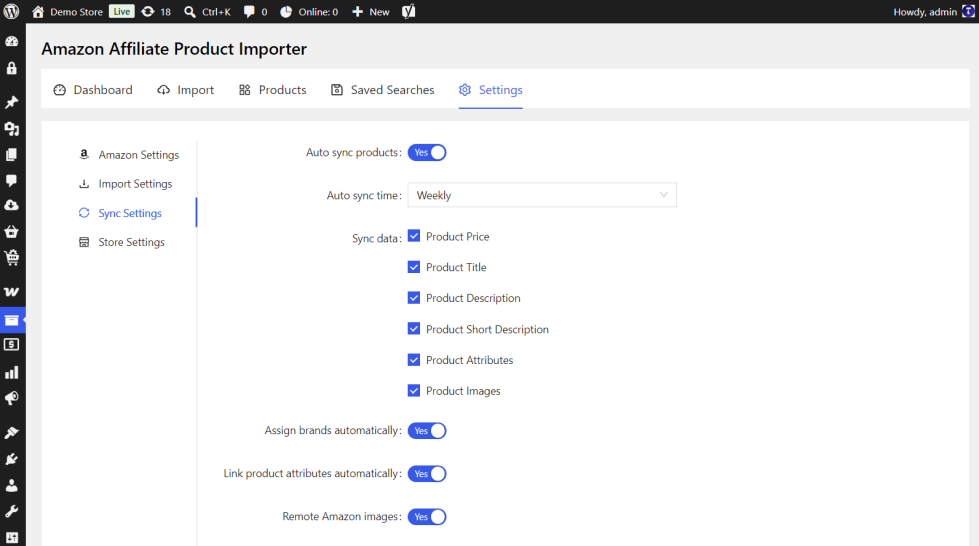
Navigate to:
Products → Amazon Affiliate Product Importer → Settings → Sync Settings
Auto Sync Products
Enable this option to allow AmaSync to automatically update imported products using data retrieved from Amazon.
When disabled, products can still be updated manually.
Auto Sync Time
Choose how frequently synchronization should run.
Available options may include:
- Daily
- Weekly
- Monthly
The selected schedule determines how often imported products are checked for updates.
Sync Data Options
Select which product information should be synchronized.
Product Price
Updates product pricing when changes occur on Amazon.
Product Title
Updates product titles to reflect the latest Amazon listing information.
Product Description
Updates the full product description.
Product Short Description
Updates the short description when available.
Product Attributes
Updates product specifications and attributes such as colour, size, material, and other available data.
Product Images
Updates product images whenever image changes are detected on Amazon.
Assign Brands Automatically
Automatically updates and assigns brand information during synchronization when brand data is available.
This helps maintain accurate product categorisation and brand-based filtering.
Link Product Attributes Automatically
Automatically links synchronized attributes with existing WooCommerce global attributes whenever possible.
This helps keep product data organised and consistent throughout your catalogue.
Remote Amazon Images
Use Amazon-hosted images instead of downloading and storing images within your WordPress Media Library.
This option can reduce server storage requirements while ensuring the latest Amazon images are displayed.
Important: Scheduled Synchronization and WP-Cron
AmaSync uses WordPress’s built-in scheduling system (WP-Cron) to perform automatic product synchronization.
For websites with regular visitor traffic, synchronization tasks will typically run as scheduled.
However, websites with very low traffic may experience delays because WP-Cron only runs when visitors access the site.
For improved reliability, especially on production websites, a server-level cron job is recommended instead of relying solely on WP-Cron.
Please consult your hosting provider or server administrator if you require assistance configuring a real cron job.
Store Settings
↑ Back to topAmaSync includes store-level settings that allow you to control how imported Amazon products are displayed to visitors and how customers interact with affiliate links.
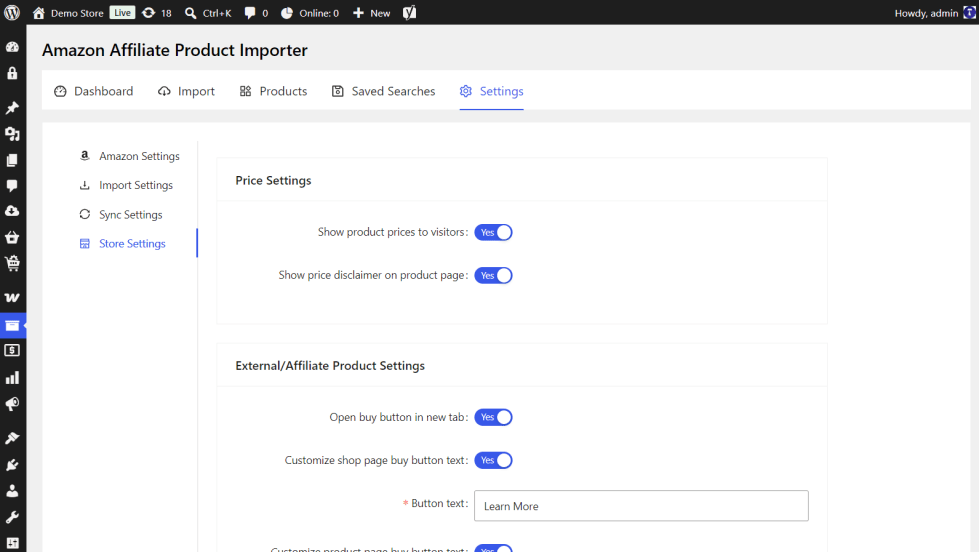
Navigate to:
Products → Amazon Affiliate Product Importer → Settings → Store Settings
Price Settings
These settings control how product pricing is displayed throughout your WooCommerce store.
Show Product Prices to Visitors
Enable this option to display imported Amazon product prices on your website.
Disable this option if you prefer not to display pricing information.
Show Price Disclaimer on Product Page
Displays a disclaimer informing visitors that prices may change and that the latest price can be viewed on Amazon.
This can help set customer expectations and reduce confusion when Amazon pricing changes.
External / Affiliate Product Settings
These settings apply when products are imported as External / Affiliate Products.
Open Buy Button in New Tab
Enable this option to open Amazon product links in a new browser tab when customers click the buy button.
This allows visitors to remain on your website while viewing the product on Amazon.
Customize Shop Page Buy Button Text
Customize the button text displayed on shop, category, archive, and search pages.
Examples:
- Buy on Amazon
- View on Amazon
- Check Price
- View Deal
Customize Product Page Buy Button Text
Customize the button text displayed on individual product pages.
Examples:
- Buy on Amazon
- View Product
- Check Latest Price
- Shop on Amazon
Default value:
Buy product
Simple Product Settings
These settings apply when products are imported as Simple Products.
Complete Checkout On
Choose where customers should complete the purchasing process.
Available options may include:
- Amazon
- My Store
This setting determines whether customers are redirected to Amazon or complete checkout directly through your WooCommerce store.
Customize Shop Page “Add to Cart” Text
Customize the Add to Cart button text displayed on shop and category pages.
Examples:
- Add to Cart
- Buy Now
- View Product
- Order Now
Default value:
Add to cart
Customize Product Page “Add to Cart” Text
Customize the Add to Cart button text displayed on individual product pages.
Examples:
- Add to Cart
- Buy Now
- Order Today
- Purchase Now
Default value:
Add to cart
Usage
↑ Back to topImporting Products
↑ Back to top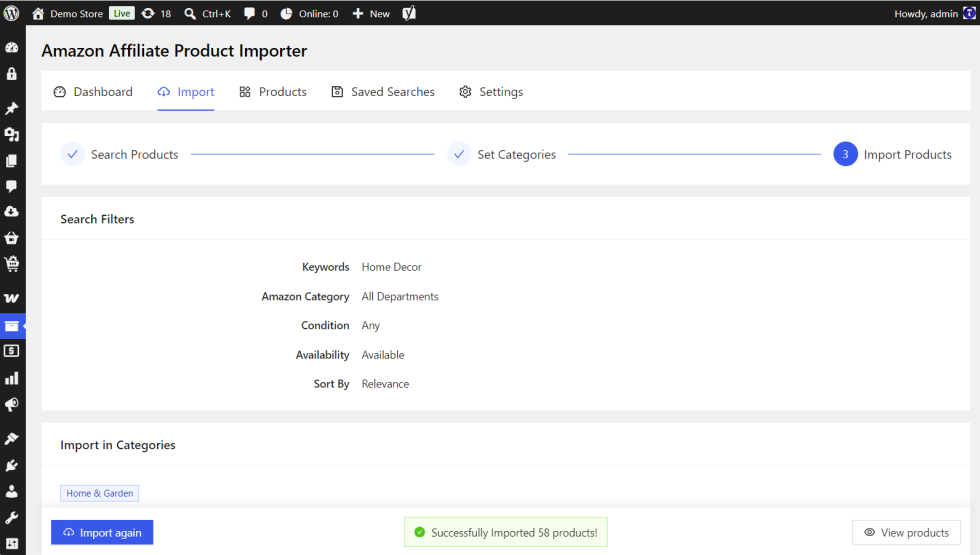
- Navigate to: Products → Amazon Affiliate Product Importer
- Open the Import tab.
- Search for products using keywords.
- Apply filters if desired.
- Select the products you wish to import.
- Choose the WooCommerce categories.
- Click Import Products.
AmaSync will automatically import the selected products in WooCommerce.
Troubleshooting
↑ Back to topUnable to Connect to Amazon Creators API
Possible Causes
↑ Back to top- Incorrect Client ID
- Incorrect Client Secret
- Invalid Tracking ID
- Expired API credentials
Solution
↑ Back to top- Verify all API credentials.
- Re-save the settings.
- Test the connection again.
- Contact support if the issue persists.
FAQs
↑ Back to top
Does AmaSync require WooCommerce?
Yes. WooCommerce must be installed and activated before AmaSync can be used.
Do I need Amazon Creators API access?
Yes, API access is required to use automated importing and synchronization features.
Can I use AmaSync without API access?
Yes. AmaSync includes a Manual Import feature that allows products to be created without API credentials.
Can AmaSync automatically update imported products?
Yes. AmaSync supports automatic synchronization of product data including prices, titles, descriptions, images, and brands.

