
Auction Engine adds auction products, bidding, winner checkout, auction fees, watchlists, customer auction history, lifecycle emails, and auction management tools to WooCommerce.
What Auction Engine provides
↑ Back to top- A dedicated `Auction` product type in WooCommerce.
- Six auction modes: Normal, Reverse, Sealed, Proxy, Unique, and Reverse Unique.
- Starting bids, reserve prices, Buy Now, estimates, item condition, and bid increments.
- Optional registration fees, bid fees, buyer’s premium, role restrictions, and payment deadlines.
- Anti-sniping extensions for bids placed near the auction end.
- Watchlists and a My Account > Auctions dashboard.
- Winner checkout, Pay All Won Auctions, Buy Now checkout, and optional saved-token auto-charge.
- Relisting for failed auctions.
- WooCommerce email notifications and payment reminders.
- An admin auction list, CSV exports, and cron health monitoring.
- Compatibility declarations for High-Performance Order Storage (HPOS) and Cart/Checkout Blocks.
Requirements
↑ Back to top| Requirement | Minimum version |
|---|---|
| WordPress | 6.5+ |
| WooCommerce | 8.2+ |
| PHP | 8.1+ |
| Required plugin | WooCommerce |
Installation
↑ Back to top- Download the plugin zip file from your WooCommerce Marketplace account.
- Go to Plugins > Add New > Upload Plugin in your WordPress admin.
- Choose the downloaded zip file and click Install Now.
- Click Activate once installation completes.
- Go to WooCommerce > Auctions to begin configuration.
Create your first auction
↑ Back to top1. Create the product
↑ Back to top- Go to Products > Add New.
- Enter the product title, description, images, and catalog settings.
- In Product data, select Auction product.
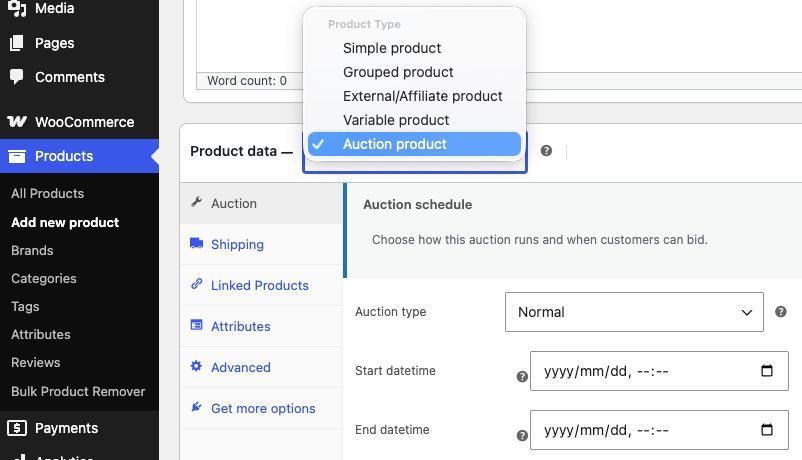
- Configure the auction.
- Open the WooCommerce tab > Auction.
2. Configure the auction
↑ Back to topAuction schedule
| Field | Description |
|---|---|
| Auction type | Select the bidding model. See Auction modes. |
| Start datetime | The time at which bidding becomes available. |
| End datetime | The scheduled auction closing time. It must be later than the start time. |
The date and time are entered in the site timezone and displayed using the timezone and date format selected in the plugin settings.
Pricing
| Field | Description |
|---|---|
| Starting bid | The opening bid. It must be zero or higher. |
| Reserve price | Optional minimum acceptable result. The reserve amount is not displayed to customers. |
| Buy Now price | Optional price that lets a logged-in customer end the auction and proceed directly to checkout. |
| Estimate price | Optional guide price shown for information only. It does not validate bids. |
| Item condition | New, Used, Refurbished, or For parts. |
For Normal, Sealed, Proxy, and Unique auctions, the reserve is met when the winning amount is at least the reserve price. For Reverse and Reverse Unique auctions, the winning amount must be at or below the reserve price.
Bidding rules
- Fixed amount uses the configured increment for every bid.
- Variable ladder uses the first matching
from,incrementrule from the saved list. For example:100,5 500,10 1000,25 - Extend on late bid adds time when a bid is placed within the configured late-bid window.
Access and fees
- Require registration requires customers to register before bidding.
- Registration fee creates a WooCommerce fee order before registration is confirmed.
- Bid fee requires a paid bid-fee order before bidding is allowed.
- Buyer’s premium adds either a fixed amount or a percentage to the winner’s checkout.
- Payment deadline hours controls how long the winner has to pay.
Advanced settings
- Variable increment rules.
- Allowed user roles. An empty selection allows all logged-in users.
- Automatic relisting for failed auctions.
- Relist duration in hours.
Save and publish the product when the configuration is complete.
Auction modes
↑ Back to top| Mode | How the winner is selected |
|---|---|
| Normal | The highest valid bid wins. |
| Reverse | The lowest valid bid wins. Each new bid must improve the current lowest bid. |
| Sealed | Customers can place bids, but bid amounts and bid history are hidden while the auction is active. The highest valid bid wins after closing. |
| Proxy | Customers submit a bid and a private maximum amount. Auction Engine automatically maintains the leading bid up to the highest maximum amount. |
| Unique | The highest amount submitted exactly once wins. An amount submitted by more than one bidder is not unique. |
| Reverse Unique | The lowest amount submitted exactly once wins. |
In a Proxy auction, the winner pays the final public current bid, not the private maximum amount. If two maximum amounts are equal, the earlier bid remains ahead.
Customer bidding workflow
↑ Back to top- The customer opens an active auction and signs in.
- If registration is required, the customer registers or pays the registration fee.
- If a bid fee is configured, the customer pays it before placing a bid.
- The customer submits a bid. The server validates the auction status, user role, registration, fees, amount, increment, reserve rules, and Buy Now limit.
- The auction page refreshes its status, current bid, countdown, and bid history through AJAX polling.
- Customers can add or remove the auction from their watchlist.
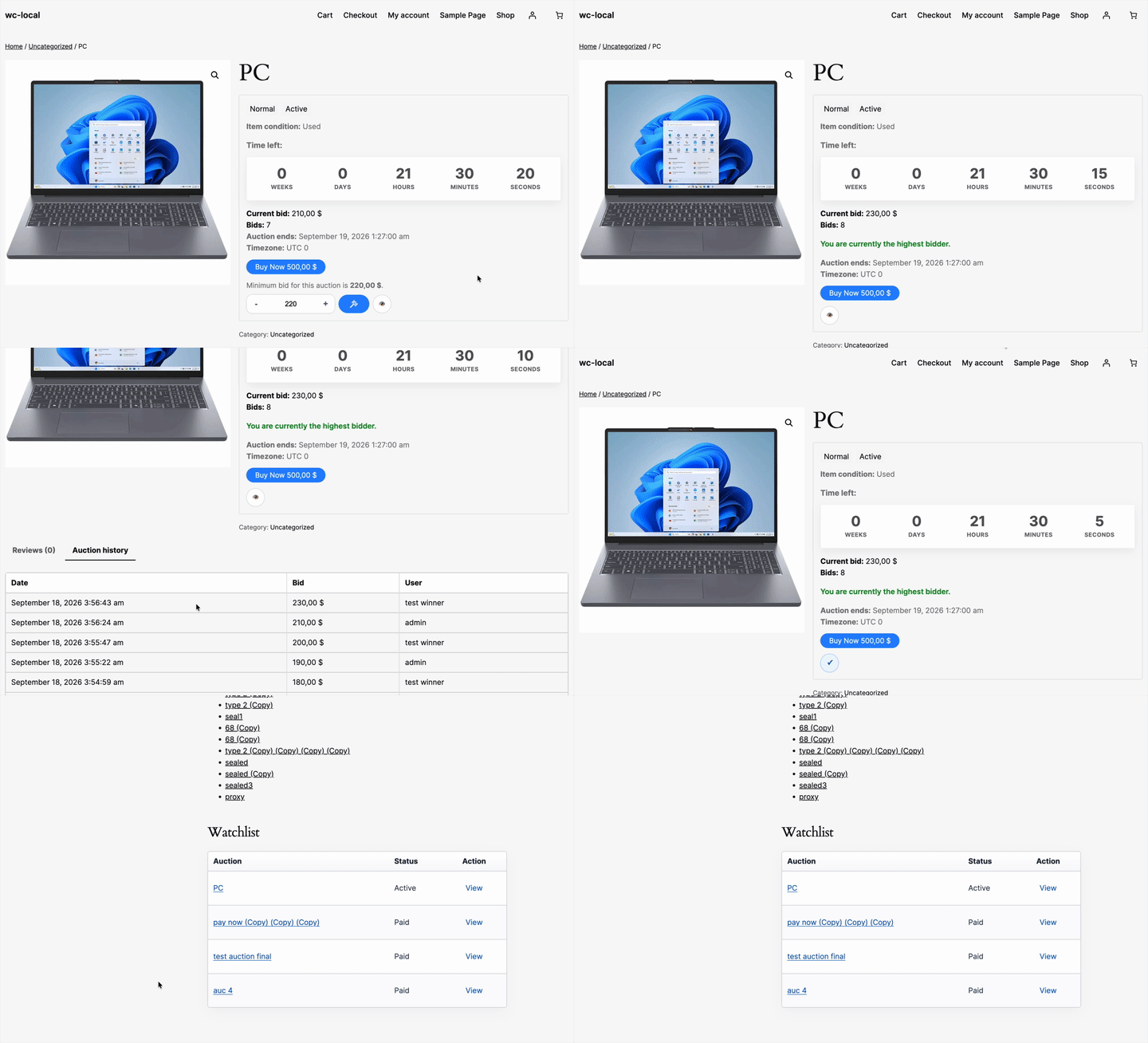
Auction products cannot be added to the normal WooCommerce cart. They can only be purchased through Buy Now or the winner payment flow.
Auction lifecycle
↑ Back to top| Status | Meaning |
|---|---|
scheduled | The start time is in the future. |
active | Customers can bid. |
ended | The end time has passed and the result is being finalized. |
awaiting_payment | A winner has been resolved and a payment is due. |
paid | The winner’s WooCommerce order has reached a paid-compatible status. |
failed | There is no eligible winner, the reserve was not met, or payment expired. |
relisted | The auction is being prepared for another run. |
The update cron starts scheduled auctions, ends expired auctions, resolves winners, and sends the corresponding notifications.
Winner payment and Buy Now
↑ Back to topWinner payment
↑ Back to topWhen an auction ends with an eligible winner:
- The auction changes to
awaiting_payment. - The winner receives an Auction Won email.
- The winner can select Pay Now from the auction page or My Account > Auctions.
- Auction Engine creates a WooCommerce order using the winning amount.
- Any buyer’s premium is added as a WooCommerce fee item.
- The customer is redirected to the WooCommerce payment page.
- When the order is paid, the auction changes to
paid.
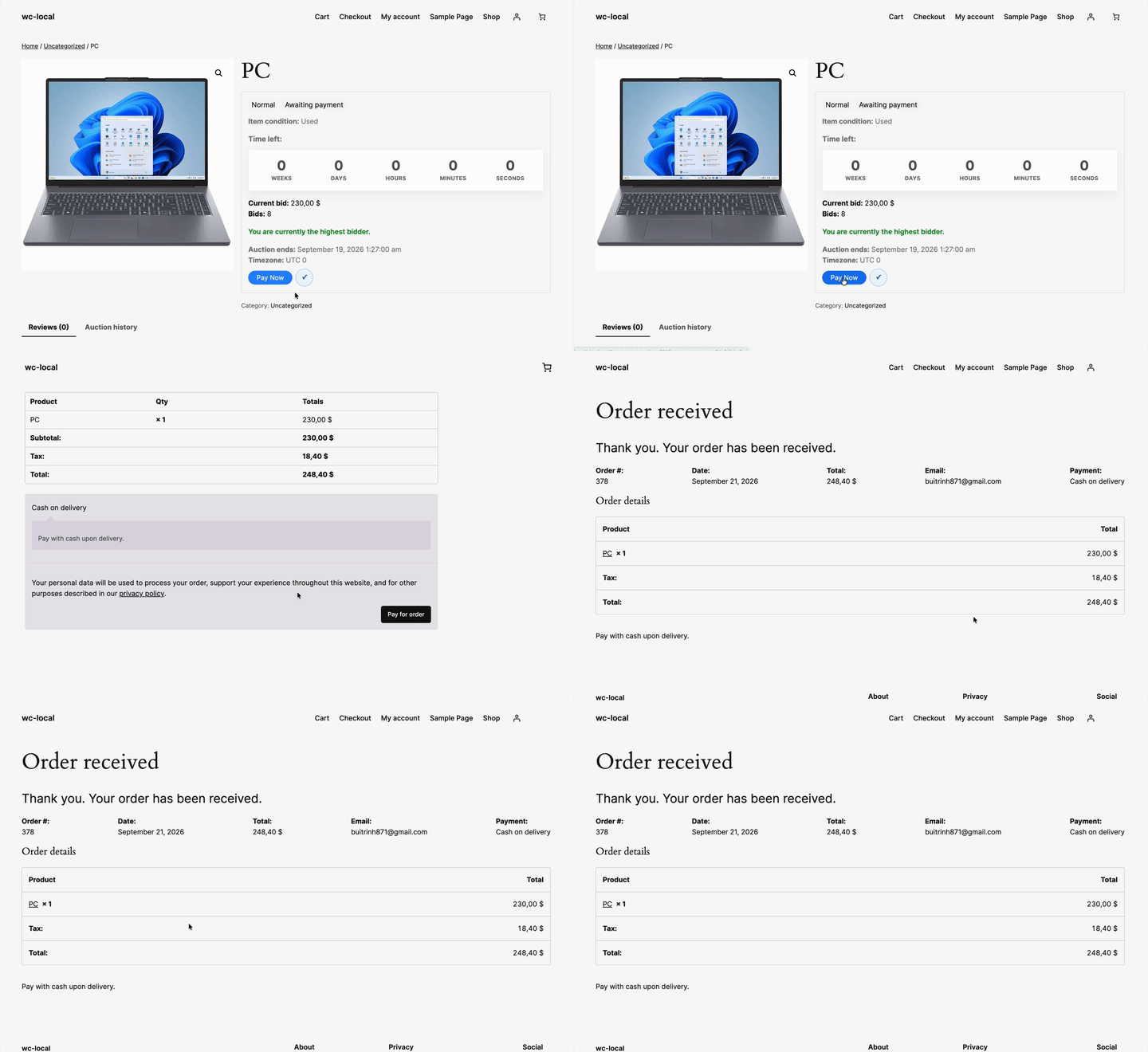
My Account > Auctions also provides Pay All Won Auctions, which creates one order for all unpaid won auctions belonging to the customer.
Buy Now
↑ Back to topBuy Now is available while the auction is active and a Buy Now price is configured. Selecting Buy Now:
- Ends further bidding.
- Records the Buy Now purchase.
- Creates a WooCommerce order.
- Redirects the customer to payment.
Payment expiry
↑ Back to topIf the winner does not pay before the deadline, Auction Engine can either promote the next eligible bidder or mark the auction as failed, depending on the Second-highest fallback setting.
Administrators can cancel an auction payment order. Customers cannot cancel auction payment orders through the standard My Account cancellation flow.
Admin interface
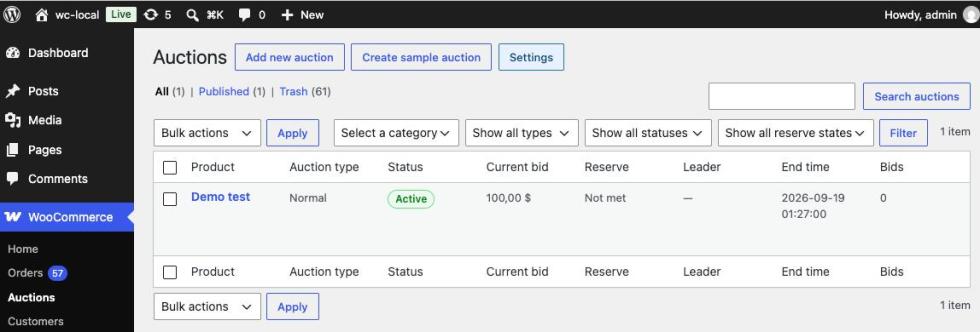
↑ Back to topWooCommerce > Auctions
↑ Back to top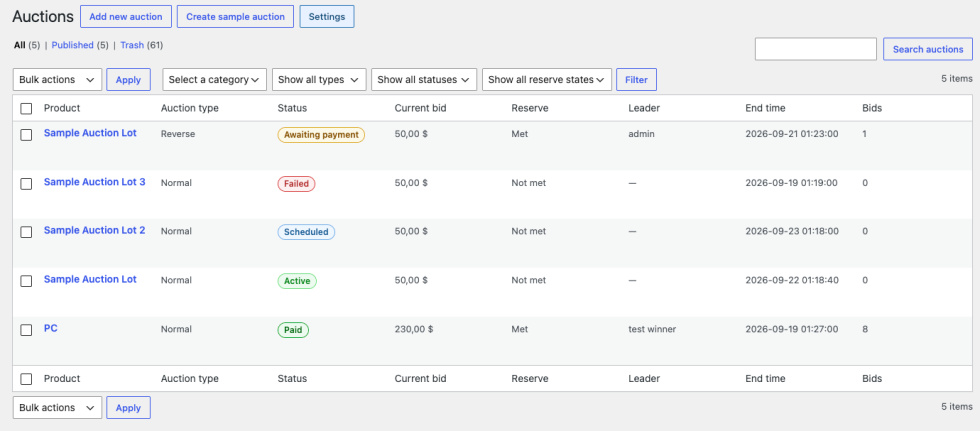
The auction list includes:
- Product, auction type, status, current bid, reserve state, leader, end time, and bid count.
- Filters for product category, auction type, auction status, and reserve state.
- Search by product title.
- Bulk actions to publish, move to draft, end, relist, mark failed, or move auctions to the Trash.
- A shortcut to create a new auction product.
- A sample auction action for testing.
WooCommerce > Settings > Auctions
↑ Back to topThe settings are divided into:
- Settings — enable auctions, sandbox mode, polling, payment deadline, auto-charge, and second-highest fallback.
- Fees — global registration fee, bid fee mode, bid fee, and buyer’s premium defaults.
- Notifications — lifecycle emails, ending-soon reminders, payment reminders, and cron alerts.
- Advanced — uninstall data retention, CSV exports, and system health.
WooCommerce > Auctions > Advanced
↑ Back to topThe Advanced screen provides:
- Bid log CSV export, up to 5,000 rows.
- Fee log CSV export, up to 5,000 rows.
- Last-run and status information for each auction cron job.
- A warning when the auction update cron is overdue.
Cron and scheduled jobs
↑ Back to topAuction Engine registers these scheduled jobs:
| Job | Default schedule | Purpose |
|---|---|---|
| Update auctions | Every minute | Starts and ends auctions and resolves winners. |
| Relist auctions | Every five minutes | Relists eligible failed auctions. |
| Ending soon | Every five minutes | Sends reminders to bidders and watchlist users. |
| Payment reminder | Every five minutes | Reminds winners and handles expired payment deadlines. |
If WordPress cron is disabled, configure a server scheduler to request these URLs:
https://example.com/?aewc_cron=update
https://example.com/?aewc_cron=relist
https://example.com/?aewc_cron=ending_soon
https://example.com/?aewc_cron=payment_reminder
Use the real site URL and configure the requests through the site’s firewall or hosting scheduler as appropriate. Review WooCommerce > Auctions > Advanced after setup to confirm that jobs are completing.
Emails and notifications
↑ Back to topAuction Engine registers these WooCommerce email notifications:
- Auction outbid
- Auction ending soon
- Auction won
- Auction lost
- Auction payment reminder
- Auction payment received
- Auction failed
- Auction registration confirmed
- Auction started
- Auction Buy Now sold
- Auction relisted
- Auction cron failure alert
Enable or disable auction email delivery under WooCommerce > Settings > Auctions > Notifications. Individual email templates remain available through WooCommerce’s email settings, where subjects, headings, recipients, and email status can be managed.
Customer pages and shortcodes
↑ Back to topMy Account > Auctions
↑ Back to topThe customer dashboard shows:
- Won auctions and payment links.
- Lost auctions.
- Watchlist auctions.
- Payment deadlines and auction status.
Supported shortcodes
↑ Back to top[aewc_auctions limit="12" ids="123,456"][aewc_ending_soon limit=”12″]
[aewc_future limit=”12″]
[aewc_past limit=”12″]
[aewc_featured limit=”12″]
[aewc_my_auctions]
[aewc_watchlist]
[aewc_part template=”bid-form” id=”123″]
[aewc_part template=”history” id=”123″]
limit controls the number of auction products displayed. ids optionally limits the list to comma-separated product IDs.
The aewc_part shortcode currently supports bid-form and history. The auction list output includes the auction card, image, title, and bid box. In version 1.0.0, aewc_ending_soon, aewc_future, aewc_past, and aewc_featured use the same auction-list renderer as aewc_auctions; they do not apply additional status or featured filtering. aewc_watchlist uses the same customer dashboard renderer as aewc_my_auctions.
Data, compatibility, and uninstall behavior
↑ Back to top- Bids, auction snapshots, registrations, watchlists, fee logs, and cron logs are stored in dedicated tables using the WordPress table prefix.
- WooCommerce CRUD APIs are used for auction orders and fee orders.
- IP addresses and user-agent values are stored as hashes rather than raw values.
- Auction products are identified by
_aewc_*product metadata. - Delete data on uninstall is disabled by default.
- If Delete data on uninstall is enabled, Auction Engine removes its custom tables and plugin options when uninstalled. Product metadata is not automatically removed.
Security and access rules
↑ Back to top- Bidding, registration, watchlist actions, and payments require a logged-in customer.
- AJAX requests use WordPress nonce verification.
- Admin actions require the
manage_woocommercecapability and nonce verification. - Bid amounts are validated on the server; browser-side minimum and maximum values are not trusted.
- Auction products are blocked from the standard cart flow.
Developer hooks
↑ Back to topThe following hooks are available in the current implementation:
Actions
↑ Back to topdo_action( 'aewc_before_place_bid', $auction_id, $user_id, $amount );
do_action( 'aewc_after_place_bid', $bid_id, $auction_id, $user_id );
do_action( 'aewc_auction_status_changed', $auction_id, $old_status, $new_status );
do_action( 'aewc_winner_resolved', $auction_id, $winner_user_id, $bid_id );
do_action( 'aewc_payment_order_created', $order_id, $auction_id, $user_id );Filters
↑ Back to topapply_filters( 'aewc_validate_bid', $result, $auction_id, $user_id, $payload );
apply_filters( 'aewc_bid_response', $response, $auction_id, $bid_id );
apply_filters( 'aewc_item_conditions', $conditions );Troubleshooting
↑ Back to topKnown errors or issues and how to solve them.
FAQs
↑ Back to topHelp customers by answering commonly asked questions.
The auction is not visible
Confirm that:
The product type is Auction product.
The product is published.
The auction feature is enabled.
The start and end dates are valid.
The customer is viewing the product through a WooCommerce page.
Bidding is unavailable
Check that the auction is active, the customer is logged in, any required registration is complete, the bid fee has been paid, and the customer’s role is allowed.
The auction remains active after its end time
Open WooCommerce > Auctions > Advanced and review the Auction lifecycle cron status. If the job is overdue, check WP-Cron or configure the server cron URLs above.
The winner cannot see Pay Now
The auction must be in
awaiting_payment, the current customer must be the stored winner, and the auction update must have completed successfully.
Dates appear incorrect
Check the WordPress site timezone and the Auction Engine timezone setting. Auction dates are stored and displayed using UTC/site-timezone conversions, so the site timezone should be configured before creating production auctions.

