
The Bulk Category Creator plugin allows WooCommerce store owners to create, edit, and manage product categories efficiently — all from a single screen. It supports manual entry, CSV import, an AI-powered category generator, AI auto-categorization of products, inline bulk editing, find & replace, and CSV export.
Installation
↑ Back to top- Download the .zip file from your WooCommerce account.
- Go to: WordPress Admin > Plugins > Add New > Upload and select the ZIP file you just downloaded.
- Install Now and Activate the extension.
More information at: Install and Activate Plugins/Extensions.
Setup
↑ Back to topOnce you have successfully installed the plugin, you will see a new sub-menu called “Bulk Category Creator” under the Products menu in your WordPress admin panel.
Navigation Path: WordPress Admin > Products > Bulk Category Creator
The plugin page features a tabbed interface with the following sections:
- Create — Create categories manually or assign them to products
- Edit — Bulk edit existing categories inline
- Import — Import categories from a CSV file
- AI Category Generator — Generate a category structure from a store description
- AI Auto-Categorize — Automatically assign categories to products using AI
Tab 1: Create
↑ Back to topThe Create tab allows you to create categories by entering them directly into the form.
Available Fields:
↑ Back to top- 1. Categories (Required)
- Description: Enter category names separated by commas
- Format:
Category1, Category2, Category3 - Hierarchy Support: Use
>>to create parent-child relationships - Example:
Electronics, Clothing, Home>>Living Room, Home>>Bedroom
- 2. Parent Category (Optional)
- Description: Select an existing category to be the parent of all new categories
- Options: Dropdown list of all existing categories
- Default: None (creates top-level categories)
- 3. Description (Optional)
- Description: Add a description that applies to all categories being created
- Note: The same description will be applied to all categories in the batch
- 4. Display Type (Optional)
- Options: Default, Products, Subcategories, Both
- Note: Applies to all categories being created
- 5. Assign to Products (Optional)
- Options: All Products, or specific products via searchable multi-select
- Behaviour: Preserves existing category assignments; new categories are appended, not replaced
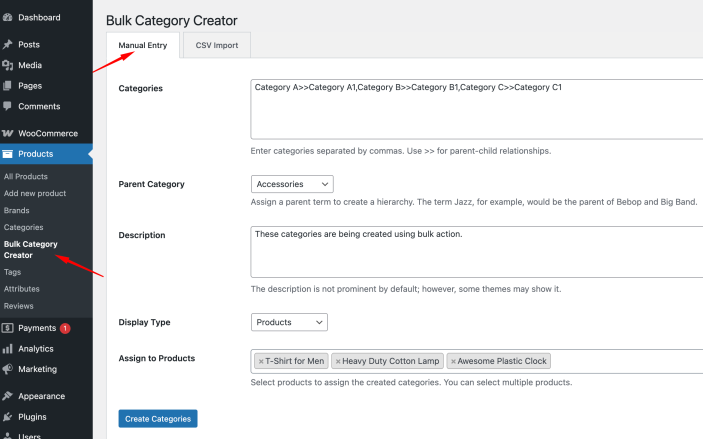
Create Examples:
↑ Back to topExample 1: Simple Categories
Categories: Electronics, Clothing, Home Decor, Sports
Parent Category: None
Creates 4 top-level categories.
Example 2: Hierarchical Categories
Categories: Smartphones>>Android, Smartphones>>iOS, Laptops>>Gaming, Laptops>>Business
Parent Category: Electronics
Creates categories under the “Electronics” parent with further subcategories.
Example 3: Mixed Hierarchy
Categories: Men>>Shirts>>Casual, Men>>Shirts>>Formal, Women>>Dresses
Parent Category: None
Creates nested categories up to 3 levels deep.
Tab 2: Edit
↑ Back to topThe Edit tab lets you manage all existing categories from one inline-editable table. Click Load Categories to fetch every product category.
Inline Editing
↑ Back to topEach row exposes the following fields, editable directly in the table:
- Name — the category name
- Slug — the URL slug
- Description — the category description
- Display Type — Default, Products, Subcategories, or Both
- Parent — reassign the category to any other parent
- Image — upload, change, or remove the category thumbnail via the WordPress media library
Saving Changes
↑ Back to top- Save — saves the individual row
- Save All Changes — applies every edited row in a single operation
Bulk Delete
↑ Back to topUse the checkboxes to select one or more categories, then click Delete Selected. A confirmation prompt appears before anything is removed.
Find & Replace
↑ Back to topClick Find & Replace to open the search panel. You can search and replace text across:
- Category names
- Slugs
- Descriptions
- Display types
Options include case-sensitive matching and whole-word matching. Always click Preview changes first, review the highlighted matches, uncheck any you don’t want, then click Apply changes.
Export to CSV
↑ Back to topClick Export Categories to CSV to download your entire category structure. The export includes: Category ID, Name, Slug, Description, Parent ID, Parent Name, Display Type, Image ID, and Product Count.
Tab 3: Import
↑ Back to topThe Import tab allows you to bulk import hundreds or thousands of categories from a spreadsheet file.
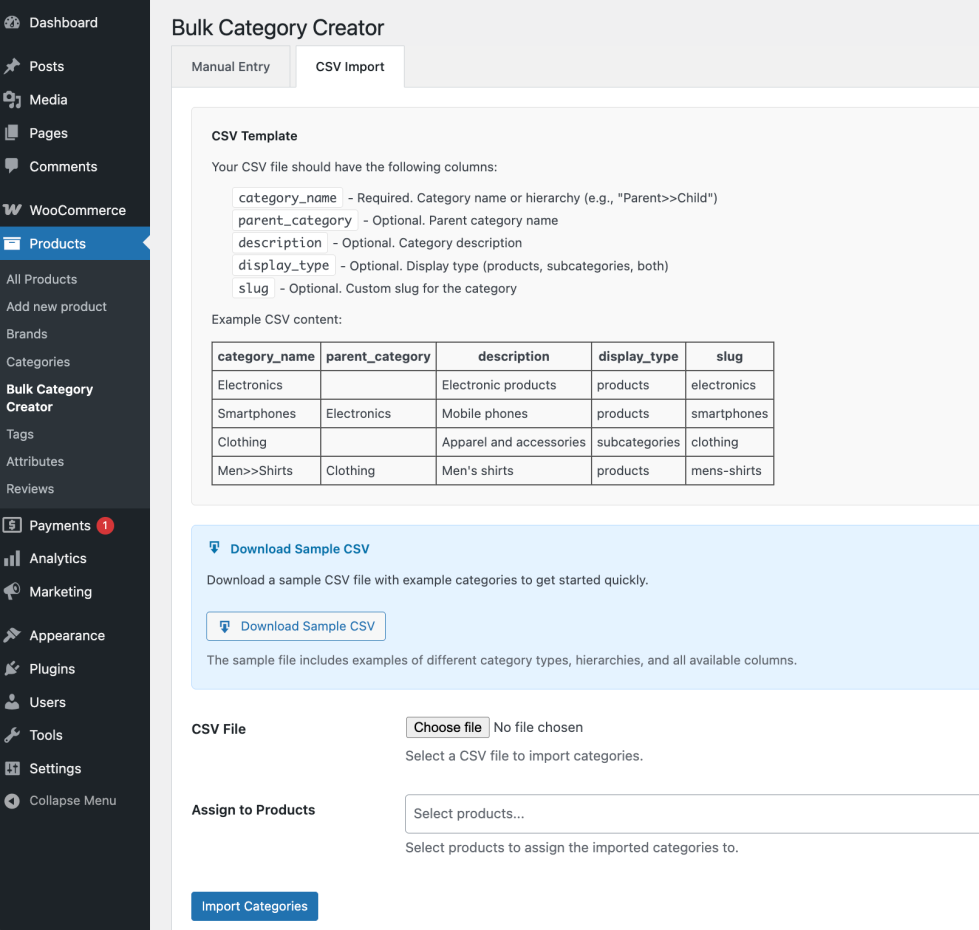
CSV File Format
↑ Back to topYour CSV file must include a header row with column names. Only the category_name column is required.
Required Column
- category_name — the category name. Supports hierarchy using the
>>separator (e.g.Clothing>>Men>>Shirts).
Optional Columns
- parent_category — the name of the parent category. An alternative to the
>>separator. - description — category description text; HTML is allowed.
- display_type —
products,subcategories, orboth. Leave empty for default. - slug — a custom URL slug. Auto-generated if omitted.
Sample CSV Structure:
↑ Back to topcategory_name,parent_category,description,display_type,slug
Electronics,,Electronic products and devices,products,electronics
Smartphones,Electronics,Mobile phones and accessories,products,smartphones
iPhone,Smartphones,Apple iPhone devices,products,iphone
Android,Smartphones,Android smartphones,products,android-phones
Clothing,,Fashion and apparel items,subcategories,clothing
Men>>Shirts,Clothing,Men's shirts and tops,products,mens-shirts
Women>>Dresses,Clothing,Women's dresses and gowns,products,womens-dresses
Home & Garden,,Home and garden products,both,home-garden
Furniture>>Living Room,Home & Garden,Living room furniture and decor,products,living-room-furnitureDownload Sample CSV
↑ Back to topA blue Download Sample CSV panel is available at the top of the Import tab. Use it to grab a ready-made template with every supported column and a few example rows.
CSV Import Process:
↑ Back to top- Prepare your CSV file with the required format
- Click “Choose File” and select your CSV
- (Optional) Select products to assign the imported categories to
- Click “Import Categories”
- Review the results — the plugin reports categories created, skipped (already existed), and failed
Tab 4: AI Category Generator
↑ Back to topThe AI Category Generator tab builds a complete category structure from a plain-language description of your store. This is the fastest way to bootstrap a new store or a new product line.
Connecting to an AI Provider
↑ Back to topThe plugin can use AI in two ways:
- WordPress AI Client (recommended) — available on WordPress 7.0+. Configure a provider once under Settings > Connectors, then approve Bulk Category Creator under Settings > Connector Approvals. No separate API key is needed.
- Direct API key — works on any WordPress version. Open the API key panel inside the AI tab, choose Anthropic Claude or OpenAI GPT, paste your key, and click Save Key.
If your site has the WordPress AI Client configured but you want to test with a specific direct key, tick Use direct API key instead of WordPress AI Client. To fall back to the WordPress AI Client, click Remove Key.
Generating Categories
↑ Back to top- Describe your store — e.g. “I sell handmade leather bags, wallets, belts and accessories for men and women. I also have a seasonal gift range.” (max 1000 characters)
- Approximate count — ~6 (small store), ~10 (medium), ~20 (large), ~40 (enterprise)
- Hierarchy depth — top-level only, up to 2 levels, or up to 3 levels
- Click “Generate Categories”
Reviewing and Editing Results
↑ Back to topGenerated categories appear in an editable list. Before inserting them:
- Edit any category name inline
- Remove a category with the × button
- Reorder with the up/down arrows
- Add your own category with the input at the bottom (use
>>for hierarchy) - Regenerate for a fresh set of suggestions
- Copy the final list to your clipboard
When you’re happy with the list, click Insert into Manual Entry — the categories are loaded into the Create tab so you can review them one final time and create them in one click.
Tab 5: AI Auto-Categorize
↑ Back to topThe AI Auto-Categorize tab analyses product titles and descriptions and assigns the most relevant existing categories to each product.
Options
↑ Back to top- Product Scope — Only uncategorized products (recommended) or All products
- Confidence Threshold — only keep suggestions above this confidence (0–100%)
- Max Categories per Product — 1 to 10 categories per product
The Workflow
↑ Back to top- Click Preview Suggestions. The plugin first scans your catalogue (no AI calls), then shows a confirmation telling you exactly how many products will be sent and to which provider — one AI request per product, billed by your AI provider.
- Progress updates as products are processed. You can click Stop at any time; no further AI requests are sent after the current product.
- Review the suggestions table. For each product you can:
- Remove a suggested category with ×
- Add categories via Add Categories (checkbox modal, multi-select)
- Click Apply Changes to assign the curated list to the products.
Safety Behaviour
↑ Back to top- Small batches — products are processed one at a time by default (configurable via the
bwcc_auto_cat_batch_sizefilter, max 10) so requests never outlive the server timeout - Stops on fatal errors — a bad API key, rate limit (429/529), or provider outage halts the run instead of repeating the same paid request
- Rate-limit detection — the run halts cleanly and reports exactly how many products were processed
- Uncategorized cleanup — once a product has real categories, WooCommerce’s default “Uncategorized” placeholder is removed
AI Abilities (for External AI Agents)
↑ Back to topOn WordPress 7.0+, the plugin registers a set of WordPress Abilities under the bwcc category. These allow external AI agents (via an MCP adapter) to manage your categories conversationally.
bwcc/create-category— create a new product categorybwcc/get-category— retrieve a category by ID or namebwcc/list-categories— list categories with filtering, search, and paginationbwcc/update-category— update name, slug, description, parent, or display typebwcc/delete-category— delete a category with optional product reassignment
All abilities require the manage_product_terms capability. To connect an AI agent, install a WordPress MCP adapter plugin and configure it with an Application Password.
Use Cases
↑ Back to topFor New Stores:
↑ Back to top- Quickly set up your entire category structure (manually, via CSV, or with AI)
- Import categories from supplier catalogs
- Migrate categories from other platforms
- Let AI generate a professional structure from a single sentence
For Existing Stores:
↑ Back to top- Add seasonal categories in bulk
- Expand product lines efficiently
- Reorganize category structures with inline Bulk Edit
- Rename or fix typos across many categories with Find & Replace
- Auto-categorize hundreds of uncategorized products with AI
- Assign category images in bulk
For Marketplace Owners:
↑ Back to top- Create vendor categories
- Set up location-based categories
- Organize multi-vendor products
For Dropshippers:
↑ Back to top- Import supplier categories
- Match product categories to suppliers
- Quickly add new product lines
FAQ
↑ Back to topDoes AI Auto-Categorize cost money?
↑ Back to topIt depends on your AI provider. The plugin sends one AI request per product; your provider bills you for those requests. Before any run starts, the plugin tells you exactly how many products will be processed and which provider will be billed. You can stop the run at any time.
What happens if I hit a rate limit?
↑ Back to topThe run halts immediately and reports how many products were processed so far. No further AI requests are sent. You can resume later once the rate limit resets.
Will Auto-Categorize overwrite existing categories?
↑ Back to topNo. New categories are appended to the product’s existing categories. If you use the Only uncategorized products scope, products that already have real categories are skipped entirely.
Can I delete the default “Uncategorized” category?
↑ Back to topWooCommerce requires a default product category, so it cannot be deleted. However, the plugin removes it from individual products once they have real categories assigned.
Do I need an API key to use the AI features?
↑ Back to topNot necessarily. On WordPress 7.0 or later, the plugin automatically uses your site’s existing AI connection configured under Settings > Connectors — no separate API key is needed inside the plugin. On older WordPress versions, or if you prefer to use a specific key, you can enter an Anthropic Claude or OpenAI API key directly in the AI Category Generator tab.
Which AI providers are supported?
↑ Back to topThe plugin supports Anthropic Claude and OpenAI GPT via direct API key. On WordPress 7.0+, it also works with any provider configured through the WordPress AI Client, including Google Gemini. Any OpenAI-compatible endpoint (such as Groq or OpenRouter) also works when the appropriate endpoint is used.
Why does the AI return an error when I generate categories?
↑ Back to topThe most common causes are:
- Invalid or expired API key — check the key at your provider’s dashboard
- No credits remaining — free trial credits may have expired
- Wrong provider selected — a Groq or OpenRouter key will be rejected if “OpenAI” is selected with the default OpenAI endpoint
- Rate limit reached — wait a few seconds and try again
- Outbound HTTPS blocked — ask your host to allow requests to your AI provider’s API
Open the Troubleshooting AI connection panel inside the AI tab for guided help, or check the Raw AI Response link next to any error in the Auto-Categorize results.
How many products can AI Auto-Categorize process at once?
↑ Back to topProducts are processed one at a time by default so requests never outlive your server’s timeout and you can stop the run between any two products. The number of products sent per request can be increased up to 10 using the bwcc_auto_cat_batch_size filter. There is no limit on the total number of products you can process — the run continues until it finishes, you stop it, or an error occurs.
Can I stop a run halfway through?
↑ Back to topYes. A Stop button appears while a run is in progress. Clicking it stops the run after the current product finishes — no further AI requests are sent, so no further costs are incurred. Products processed before you stopped are kept in the results table and can still be reviewed and applied.
What happens to products the AI could not categorize?
↑ Back to topIf the AI returns an unparseable answer or no valid suggestion for a product, that product is listed in the results with an error message and a Raw AI Response link for debugging. It is not applied and can be retried later. Products with no suggestions above your confidence threshold are shown with No suggestions above threshold and are also left unchanged.
How accurate is AI Auto-Categorize?
↑ Back to topAccuracy depends heavily on the quality of your product data and your category structure. Products with clear titles and descriptions produce good suggestions; test products with no meaningful data (e.g. “Product #96”) will produce random or irrelevant results. For best results, make sure your products have descriptive titles and real descriptions, and that your category names match the kind of products you sell.
Why is the AI suggesting the wrong category?
↑ Back to topUsually because one of the following is true:
- Your products have no descriptions, so the AI has nothing meaningful to work with
- Your category names don’t match your product types (e.g. a headphones product when the only categories are Topwear and Bottomwear)
- Your category list contains test or placeholder names
Review and edit every suggestion before clicking Apply Changes — the AI is designed as an assistant, not an authority.
Can I edit AI suggestions before applying them?
↑ Back to topYes — that’s the intended workflow. Every product row in the results table lets you remove any suggested category with the × button, or add extra categories using the Add Categories button (which opens a checkbox modal for multi-selection). Nothing is written to your products until you click Apply Changes.
Does the plugin work on WordPress 6.x?
↑ Back to topYes. All category creation, editing, CSV import/export and Find & Replace features work on any supported WordPress version. The AI features also work on WordPress 6.x via a direct API key. Only the native WordPress AI Client integration and the AI Abilities for external agents require WordPress 7.0 or later.
Are there any server requirements?
↑ Back to topThe plugin requires PHP 7.3 or later, WooCommerce 7.0 or later, and outbound HTTPS access from your server to your AI provider’s API (for the AI features only). No special extensions or libraries are required.
Why did my site crash when using the AI features?
↑ Back to topEarlier versions of the plugin could try to process an entire product catalogue in a single request, which could exhaust PHP memory or exceed the server timeout on large stores. This has been addressed: products are now processed one at a time by default, with a hard maximum of 10 per request, and the run halts on any fatal error. If you still see issues, reduce your scope to Only uncategorized products and process in smaller batches.
Does the plugin send my data anywhere?
↑ Back to topOnly when you explicitly use an AI feature. The product title, short description and description (plus your category list) are sent to your chosen AI provider for that single request. Nothing else leaves your site, no analytics are collected, and no data is sent to the plugin author.
Where are API keys stored?
↑ Back to topAPI keys are stored in your WordPress options table, obfuscated with a simple encoding (not encryption). Only users with administrative access to your database can read them. For maximum security on shared hosting, consider using the WordPress AI Client with your key stored under Settings > Connectors instead of a direct key.
Can I remove a saved API key?
↑ Back to topYes. Open the API key panel in the AI Category Generator tab and click Remove Key. If a WordPress AI Client connection is available, the plugin will fall back to it automatically.
Can I use AI features and manual category creation together?
↑ Back to topYes. The AI Category Generator is designed to hand its output straight to the Create tab: after editing the suggestions you click Insert into Manual Entry, and the list appears in the category textarea where you can make further adjustments before creating them. There is no conflict between AI and manual workflows.
Does CSV import require a specific column order?
↑ Back to topNo. Columns are matched by their header names, so they can appear in any order. Only category_name is mandatory. Accepted optional headers are parent_category, description, display_type and slug.
What happens if a category in my CSV already exists?
↑ Back to topThe plugin checks for an existing category with the same name under the same parent. If found, it reuses that category instead of creating a duplicate, and reports it as skipped in the results. This means you can safely re-run the same CSV without creating duplicates.
Can I create 3-level nested categories?
↑ Back to topYes. Use the >> separator for each level — for example Clothing>>Men>>Shirts>>Casual. The same notation works in the Create tab, the CSV category_name column, and the AI Category Generator depth setting (up to 3 levels).
Will Bulk Edit changes affect my products?
↑ Back to topRenaming a category, changing its slug, description, parent or image does not change which products are assigned to it — products keep their category relationship through the category ID. Only deleting a category removes it from products, and the plugin asks for confirmation before doing so.
Is Find & Replace safe to use?
↑ Back to topYes, because nothing is changed until you confirm. You always see a preview first, and you can uncheck any individual match you don’t want to apply. Changes are applied only to the checked rows, and only to the fields you selected in the Search in options.
Can I undo a Bulk Edit change?
↑ Back to topThere is no built-in undo, so it’s worth exporting your categories to CSV before making large structural changes. That export can be used as a reference for restoring names, slugs and descriptions if needed.
What does the CSV export include?
↑ Back to topThe export includes Category ID, Name, Slug, Description, Parent ID, Parent Name, Display Type, Image ID and Product Count for every product category. It’s useful for backups, migrations, and offline analysis in a spreadsheet.
Can I assign categories to products automatically during creation?
↑ Back to topYes. Both the Create tab and the Import tab include an Assign to Products selector. You can choose All Products or specific products. New categories are appended to each product’s existing categories — nothing is removed.
Can I use the plugin with a large catalogue (1000+ products)?
↑ Back to topYes, with a few practical notes. Category creation, CSV import and export all scale well. For AI Auto-Categorize, use the Only uncategorized products scope and process in multiple sessions if needed — the plugin always halts cleanly, so you can simply re-run later to pick up where you left off. For very large category trees, prefer the CSV export > edit > re-import workflow over inline editing for bulk structural changes.
Is the plugin compatible with HPOS?
↑ Back to topYes. The plugin declares compatibility with WooCommerce High-Performance Order Storage (custom order tables). It operates entirely on product categories and products, so order storage has no bearing on its behaviour.
Does the plugin work with page builders and themes?
↑ Back to topYes. The plugin uses the standard WooCommerce product_cat taxonomy, so any theme or page builder that supports WooCommerce categories will display them correctly. It does not modify your theme or front-end output.
Does the plugin slow down my store?
↑ Back to topNo. All plugin assets and code run only inside the WordPress admin on the plugin’s own page. Nothing is loaded on the front end, so there is no impact on page speed or customer experience.
What are the AI Abilities?
↑ Back to topOn WordPress 7.0+, the plugin registers five WordPress Abilities under the bwcc category: create, get, list, update and delete category. These allow external AI agents — connected through a WordPress MCP adapter — to manage your categories conversationally (for example, “create a category called Smartphones under Electronics”). All abilities require the manage_product_terms capability.
Who can use the plugin?
↑ Back to topAccess is controlled by WordPress capabilities. The plugin page requires the manage_product_terms capability, which is granted to Administrators and Shop Managers by default. Users without that capability will not see the menu or be able to call the plugin’s endpoints.
Does the plugin support translations?
↑ Back to topYes. All user-facing strings use the bulk-category-creator text domain and can be translated. Translation files can be placed in the plugin’s i18n/languages/ folder or in wp-content/languages/.
What happens to my categories if I deactivate the plugin?
↑ Back to topNothing. Categories are stored in WooCommerce’s standard product_cat taxonomy, so they remain fully intact and accessible through WooCommerce whether or not the plugin is active. Only the plugin’s own settings (such as a saved API key) remain in the database.
How do I get support?
↑ Back to topIf you run into a problem not covered here, open the Troubleshooting AI connection panel inside the AI tab for AI-specific help, then reach out through the support channel listed on your WooCommerce account page. Including your WordPress version, WooCommerce version, PHP version, and any error messages (especially the Raw AI Response text) will help resolve issues much faster.

