
Your B2B customers already know what they want. Let them type, scan, paste from Excel, upload or reorder. Checked & priced before the cart.
Installation
↑ Back to topTo start using a product from WooCommerce.com, you can use the “Add to store” functionality on the order confirmation page or the My subscriptions section in your account.
- Navigate to My subscriptions.
- Find the Add to store button next to the product you’re planning to install.
- Follow the instructions on the screen, and the product will be automatically added to your store.
Alternative options and more information at:
Managing WooCommerce.com subscriptions.

Upgrading from 1.0.x
↑ Back to topNothing to do. Update the plugin and everything you had set carries over.
1.1.0 renames what the plugin stores, because the plugin itself was renamed. Your settings, your per-language wording and every product you have excluded from the form are moved to the new names automatically, once, the first time the updated plugin loads. This also covers shops coming from the version sold directly before this listing existed.
Two things worth knowing:
↑ Back to top- The settings tab is now WooCommerce › Settings › Bulk order entry. It was Order by spreadsheet.
- The product-level exclusion checkbox now stores
_lsdboe_exclude_from_order_form. If you set that meta key from an import or a snippet, point it at the new name.
What your customers see
↑ Back to top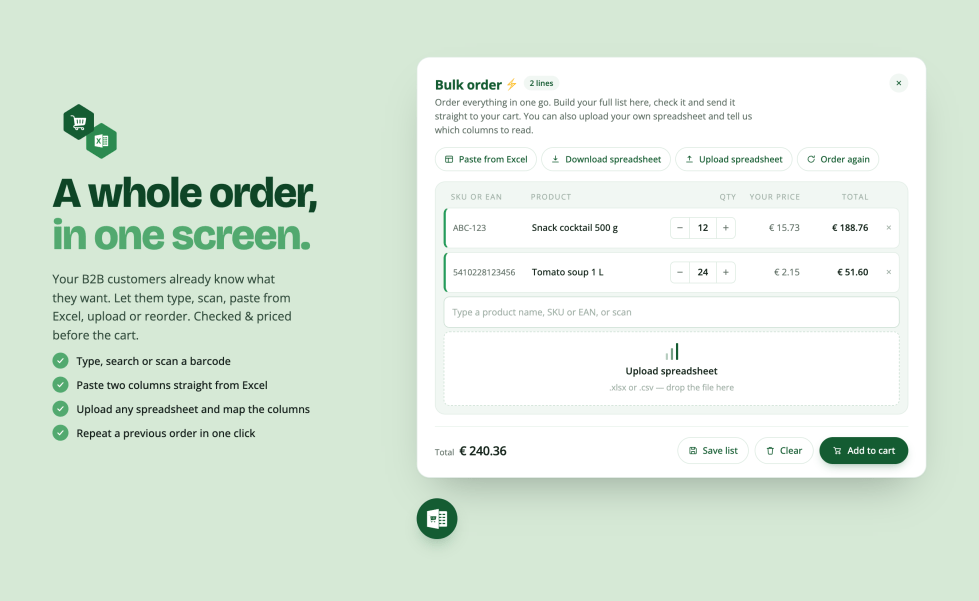
One table, and five ways to fill it. A customer types, scans, pastes from a spreadsheet, uploads a file, or reloads a list they ordered before. Whichever they use, lines land in the same table.
Each line resolves as it arrives and shows the product it matched, the price that customer pays and the line total, with a running total at the foot. A line that matched nothing stays on screen, marked, with its quantity intact, so it can be corrected rather than quietly lost. Out of stock is flagged, and so is a line asking for more than you have.
A list holds up to 500 lines. A longer paste or upload adds the first 500 and says so, rather than dropping the rest quietly.
Where a product is on sale, the price it was reduced from is shown struck through beside the price being charged, in the table and in the suggestions while a customer types. This comes from your own sale prices and needs no setting.
The total says whether it includes tax, in the same words your shop uses elsewhere, so a customer checking it against an invoice knows which figure they are looking at. Shops that charge no tax see nothing there.
When they are happy, one button sends the whole table to the cart.
Where the form appears
↑ Back to topThree placements, the same form in all of them.
The floating widget
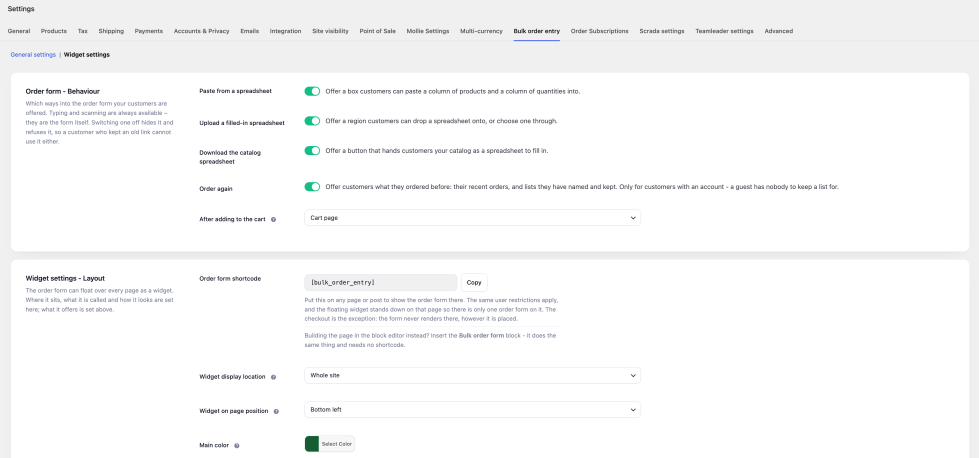
↑ Back to topA button that opens the form over the page. Configured under WooCommerce › Settings › Bulk order entry › Widget settings. Choose whether it shows on every page or only where you place it, and whether it sits bottom left, bottom right, or as a tab down either side.
The block
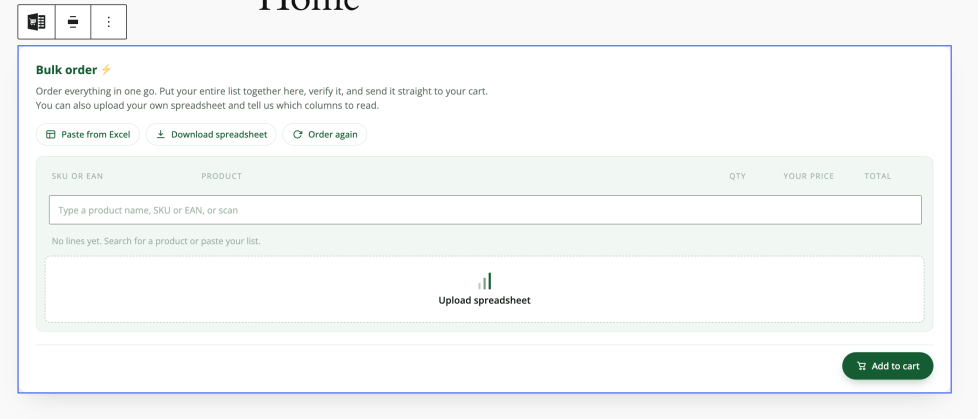
↑ Back to topIn the editor, add the Bulk order form block to any page or template. Nothing to configure on the block itself; it takes its wording and colours from your settings.
The shortcode
↑ Back to top[bulk_order_entry]
Use it for a dedicated Quick order page linked from your menu. It renders the form inline, at the width of whatever column you put it in.
The form lays itself out for the room it is given rather than for the width of the screen, so the full table appears on a wide page and one card per line in a narrow column or on a phone. A form in a sidebar on a desktop gets the narrow layout, because that is what fits.
General settings
↑ Back to topUnder WooCommerce › Settings › Bulk order entry › General settings.
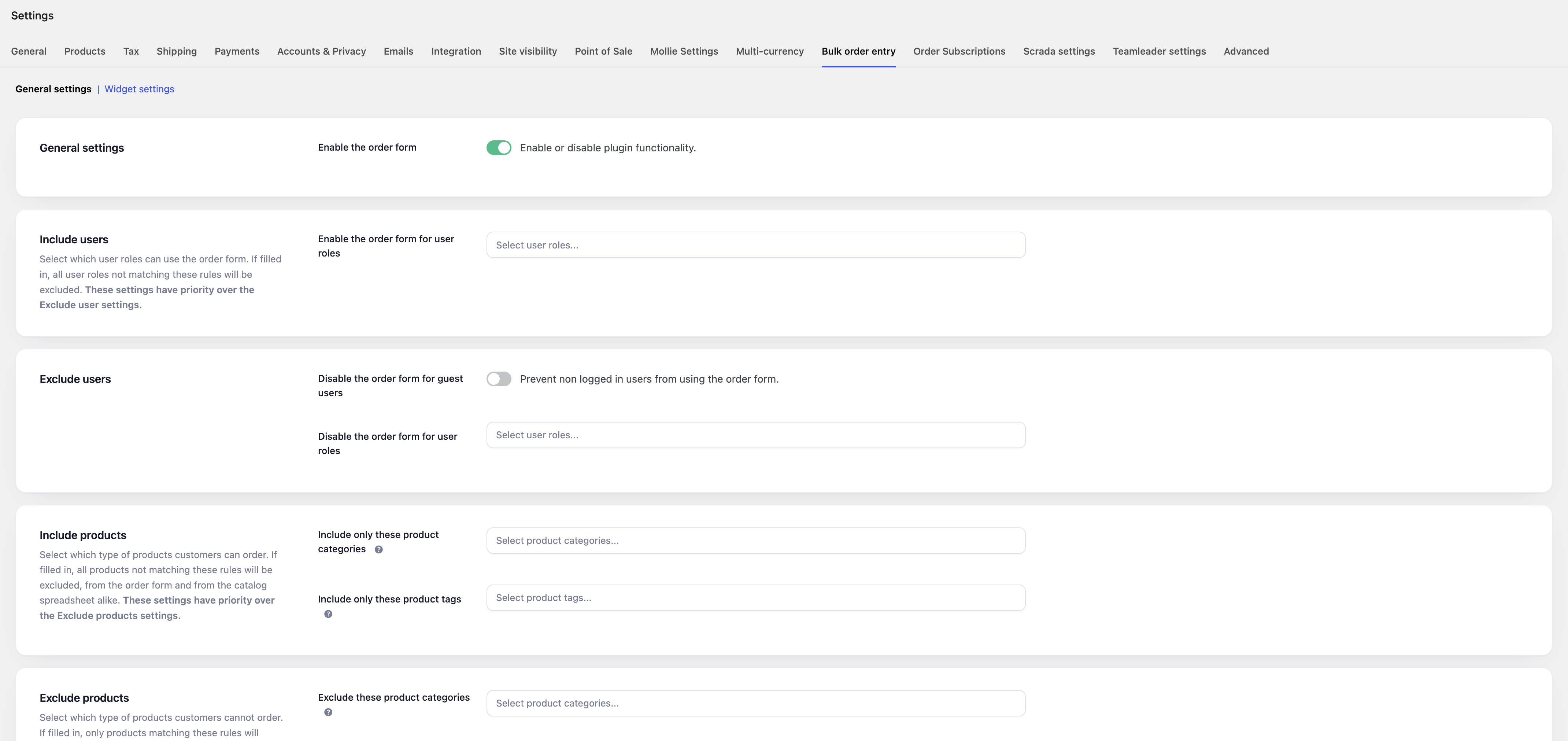
- Enable bulk order entry: the master switch. Off, and the form appears nowhere.
- Enable for user roles: which signed-in roles see the form. Leave empty for all of them.
- Disable for guest users: hide the form from anyone not signed in.
- Disable for user roles: roles that never see the form, whatever the setting above says.
- Include products by category / by tag: when either is set, only products in those categories or tags can be ordered through the form, and only they appear in the downloadable catalogue.
- Exclude products by category / by tag: the reverse, used when you would rather name the exceptions. Ignored if the include lists are set.
- Enable exclusion at product level: adds a checkbox to each product and each variation, so you can keep individual items out. Stored as
_lsdboe_exclude_from_order_form. - Product EAN field: the meta key your barcodes are stored under, if they are not in WooCommerce’s own GTIN/UPC/EAN field. Named here, it is searched alongside it.
- Allow custom spreadsheet templates: lets customers upload a file of their own rather than the one you provide, and choose which columns hold the product and the quantity.
- Enable logging: writes failures to WooCommerce › Status › Logs under lsdboe-cart and lsdboe-csv. Off by default.
- Remove plugin data: deletes your settings when the plugin is uninstalled. Off by default.
- Remove saved lists: deletes the lists your customers have saved, for every customer, when the plugin is uninstalled. Off by default, and asked separately from your settings because those lists are your customers’ own data rather than your configuration. Leave it off and they survive an uninstall.
Which ways in are offered
↑ Back to topUnder WooCommerce › Settings › Bulk order entry › Widget settings, four switches decide what a customer is offered. Turn off what your shop does not need; typing and scanning are always available:

- Paste from a spreadsheet
- Upload a filled-in spreadsheet
- Download the catalog spreadsheet
- Order again: saved lists and past orders
Widget settings
↑ Back to topUnder WooCommerce › Settings › Bulk order entry › Widget settings.
Widget settings – Layout
↑ Back to top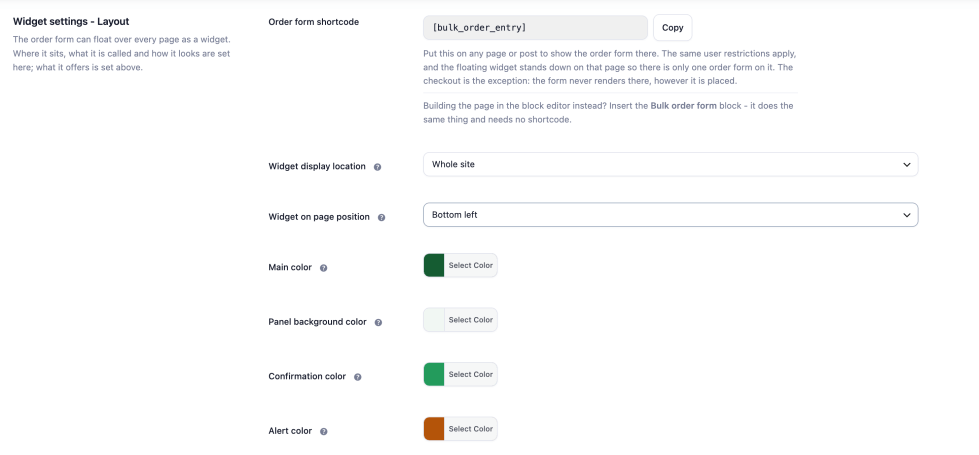
- Widget display location: every page, or only where you place the block or shortcode.
- Widget on page position: bottom left, bottom right, or a tab down the left or right edge.
- Main color: the colour the whole form is built from. Set this one first. It fills the order button and colours headings.
- Panel background color: the tint behind the order lines and around the form. Rows, fields and cards stay white on top of it, unless you choose a dark colour here, in which case the form turns itself the right way up and writes light text on lifted cards.
- Confirmation color: the message that confirms what just happened, such as a list saved or products added to the cart.
- Alert color: something the customer should see before ordering without it being wrong, fewer in stock than they asked for.
- Error color: a line that cannot be ordered, such as a code that matched nothing or a product out of stock.
- Corner style: rounded or square. Applies to the widget and to the form wherever it is placed.
- Z-index widget toggle and Z-index widget body: raise these if a sticky header or a cookie bar covers the form.
Widget settings – Wording
↑ Back to topEvery visible string on the form can be replaced, and there is one set of fields per language your site runs. Leave a field empty to use the plugin’s own translation.
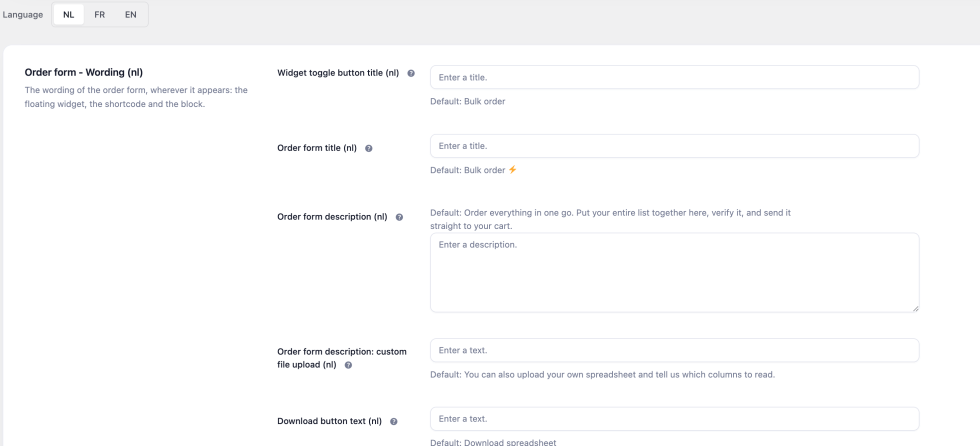
- Toggle title: the label on the floating button.
- Form title and Form description: the heading and the line under it.
- Extra description for custom uploads: appended to the description when custom spreadsheet templates are switched on, so you only promise that when you offer it.
- Download button and Downloading button: the catalogue download, resting and working.
- Upload region and Uploading region: the upload button and drop zone, resting and working.
- Identifier column heading: the first column of the table. “SKU or EAN” by default, change it to whatever your customers call their codes.
- Add to cart button: the button that sends the table to the cart.
- No match text: what a line says when the code matched nothing.
Widget settings – Behaviour
↑ Back to top- After adding to the cart: where the customer goes once the form has added everything, stay where they are, go to the cart, or go to the checkout.
- Items already in the cart: Replace items already in the cart with the bulk order or merge your order into your cart.
If any line could not be added, the customer is kept on the form whatever this is set to, so the rows that need attention are still in front of them.
How a code is matched
↑ Back to topWhatever a customer types, scans, pastes or uploads is looked up in four places, in this order, and the first match wins:
- The SKU, exactly as WooCommerce stores it.
- WooCommerce’s own GTIN, UPC, EAN or ISBN field, on WooCommerce 9.1 and newer.
- The meta key you named in Product EAN field, if you set one.
- The product ID.
Variations are matched the same way as products and can be ordered directly.
Typing a partial name or code searches the same four fields and offers suggestions, so a customer who half-remembers an article number still finds it.
On a multilingual shop the match is then mapped into the language your customer is reading. Every translation of a product shares its SKU and its barcode, so a code identifies the product rather than one translation of it, and the line shows the one your customer would see anywhere else on your shop.
If a code is not found, check in this order: is the product published, is it in a category the form allows, and is it excluded at product level.
Barcode scanning
↑ Back to topAny USB or Bluetooth scanner works. Scanners type, so there is nothing to install and nothing to configure: put the cursor in the form’s search field and scan.
The form tells a scan from typing by how quickly the characters arrive, and behaves accordingly:
- Scanning the same item again adds one to that line rather than starting a second line for it.
- Scanning something, then typing a number, sets that line’s quantity, for when you want forty rather than forty scans. The offer stays open for a minute after a scan, and is cancelled the moment anything that is not a number is typed.
- The line that just took a scan flashes briefly, so it is clear which one moved.
- The field clears itself and stays focused, ready for the next scan without anybody touching the screen.
Scanners configured to send a Tab instead of an Enter work too.
Spreadsheets
↑ Back to topThe catalogue download
↑ Back to topCustomers download a file of everything they are allowed to order, fill in the last column and upload it back. It holds the product ID, SKU, EAN, description, brand, price, available quantity, and an empty column for the quantity they want.
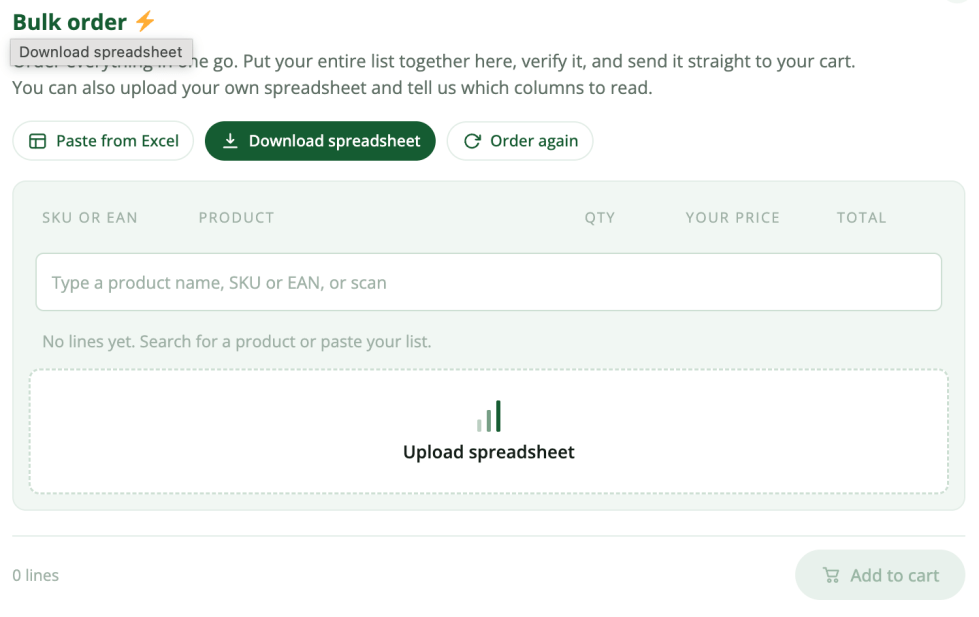
Only products the form allows appear in it, so your category, tag and product-level rules apply to the file as well as to the form.
Prices in the file are the ones your shop shows, with or without tax, so the file agrees with the order form rather than disagreeing with it. Product variations are named the way your shop names them and carry their product’s brand.
The separator follows your shop. If your prices are written with a comma, the file is separated with semicolons so it opens straight into columns in Excel instead of one long line per row. Prices in the file are written with your shop’s own decimal separator for the same reason.
Uploading a spreadsheet
↑ Back to topCSV, XLS and XLSX all read, and the separator is detected on the way in. A file saved by a Dutch, German or French copy of Excel works as well as an English one.
The plugin’s own template is matched on its SKU column first, falling back to the product ID where a product has no SKU. Shops whose article numbers are plain numbers are the reason: a product ID and somebody else’s SKU can look identical.

Customers’ own spreadsheets
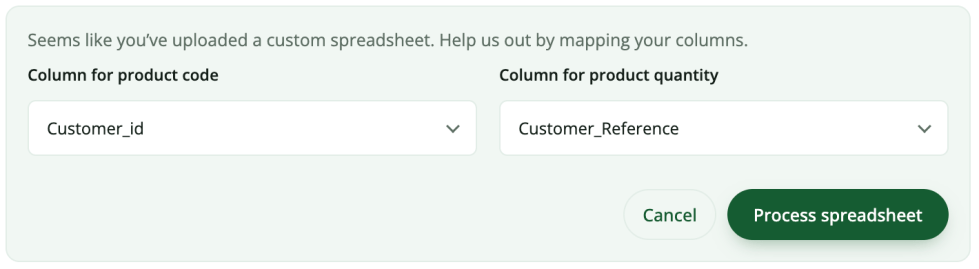
↑ Back to topWith Allow custom spreadsheet templates switched on, a customer can upload any file with a product column and a quantity column. The form shows them the columns it found and asks which is which. Nothing is remembered between uploads, so a supplier’s export works as well as yours.
Saved lists & reordering
↑ Back to topSigned-in customers can save the table as a named list and load it back later, and can load any of their recent orders straight into the form. Both live behind Order again, which can be switched off under General settings.
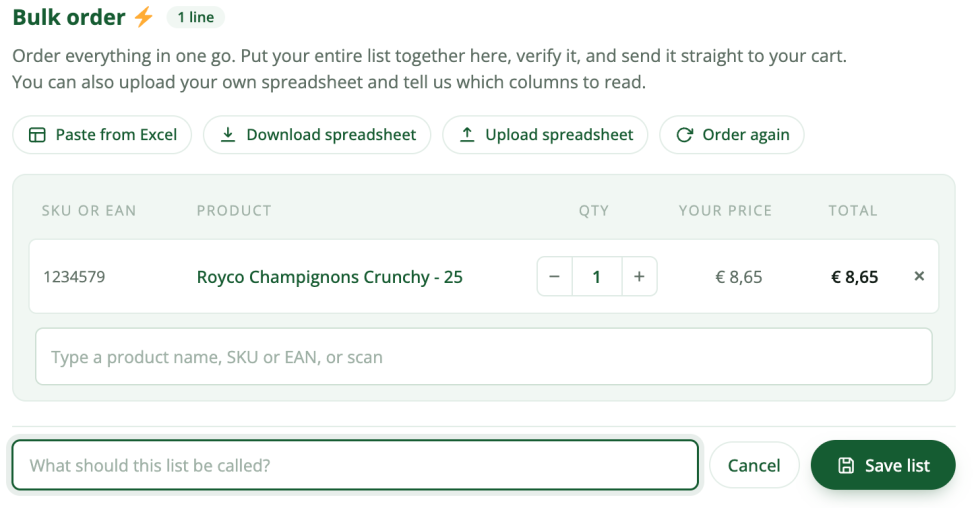
A customer keeps up to twenty saved lists and sees their ten most recent orders. Both limits can be changed with a filter, see the developer reference.
The orders offered are the ones your shop counts as paid, plus orders on hold. A payment plugin that adds a status of its own is included without your having to ask.
Lists store what the customer entered, not what it resolved to. A product renamed, re-priced or withdrawn since is re-checked when the list is loaded and reported honestly, rather than the list quietly ordering something else.
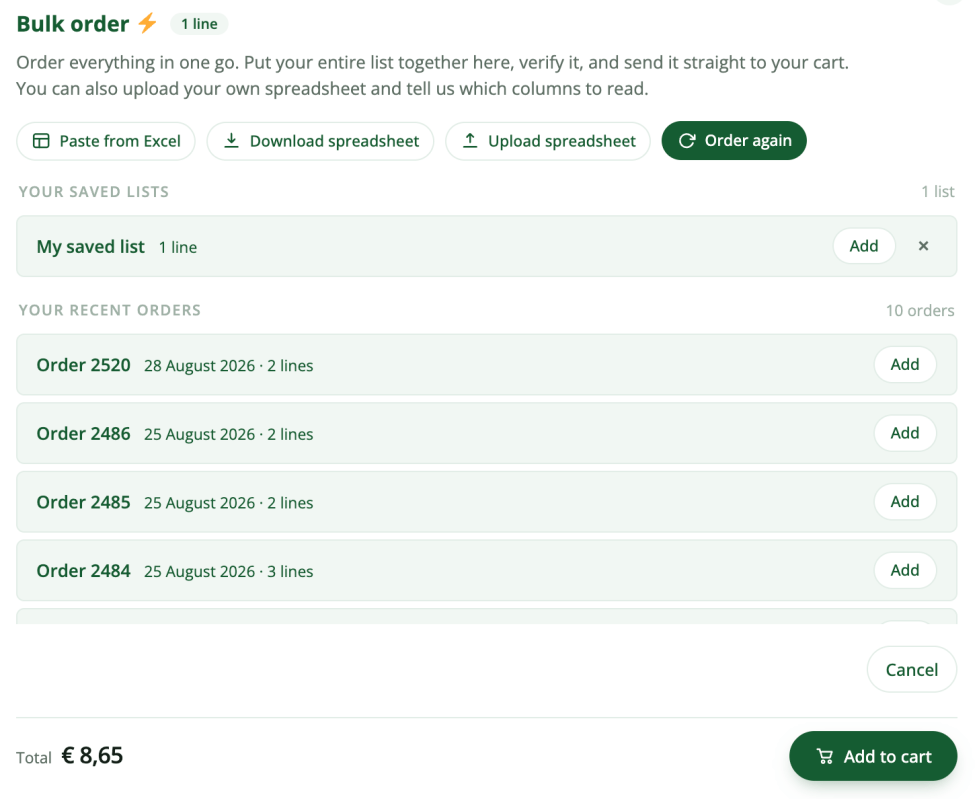
Where a past order contains a bundle or a composite product, the bundle is loaded once rather than once for itself and again for each of its parts.
Guests do not have saved lists; there is nowhere to save them to. The panel invites them to sign in.
Multilingual support
↑ Back to topThe plugin ships translations for eighteen locales across Dutch, French, German, Spanish and English.
WPML, Polylang and Weglot are supported. When one of them is active, the Wording settings show one set of fields per language your site runs, so you can word the form differently in each without touching a translation file.
Your category and tag rules apply in every language. You pick those categories once, in your admin, and a translated category is a different category as far as WordPress is concerned, so the rules are matched against both, and a rule set in one language is not quietly empty in the others. Codes resolve to the product in the language your customer is reading, as described under How a code is matched.
The form tells the server which language it was drawn in, with every request it makes. You do not need WPML’s “language cookie for AJAX” setting turned on for it to resolve codes and apply your rules in the right language.
HPOS compatibility
↑ Back to topThe plugin declares compatibility with High-Performance Order Storage and reads past orders through WooCommerce’s own order API, so reordering works whether your shop stores orders in posts or in the HPOS tables.
Logging
↑ Back to topSwitch on Enable logging under the plugin’s General settings and the plugin writes to WooCommerce › Status › Logs under two sources:
- lsdboe-cart: rows the cart refused and why, lists that could not be saved or deleted, and codes that matched nothing.
- lsdboe-csv: reading an uploaded file and building the catalogue download.
Leave it off in normal running. It is there for when something needs explaining.
Template overrides
↑ Back to topBoth templates can be overridden from your theme the ordinary WooCommerce way. Copy the file into your theme, keeping the folder name:
your-theme/order-by-spreadsheet-for-woocommerce/widget.php
your-theme/order-by-spreadsheet-for-woocommerce/order-table.php
widget.php is the floating widget’s shell. order-table.php is the form itself, used by the widget, the block and the shortcode alike.
Each carries a @version line. When the plugin changes a template, its version goes up, and WooCommerce tells you under WooCommerce › Status that your copy has fallen behind. Compare it and bring your copy forward.
Developer reference
↑ Back to topTwenty-eight hooks for developers.
Resolving what a customer entered
↑ Back to toplsdboe_resolve_identifier – filter – $product_id, $identifier – @since 1.1.0
Return a product ID for a code the plugin could not match, or override one it did. The place to reach an ERP or a supplier’s own numbering.
lsdboe_search_results – filter – $found, $term – @since 1.1.0
The suggestions offered as a customer types, before they are drawn.
lsdboe_catalogue_rules – filter – $rules – @since 1.1.0
The category, tag and product rules deciding what may be ordered, as the plugin has resolved them from settings.
lsdboe_products_resolved – action – $product_ids, $context – @since 1.1.4.
The products a list resolved to, before any is checked or priced: variations by their own id, each once. For loading per-product data, such as a price list, for the whole list at once instead of a query per row. $context is resolve for the order table and the cart, and catalogue for the spreadsheet download, where it fires once per batch of 200 products.
The order table
↑ Back to toplsdboe_table_row – filter – $row, $product – @since 1.1.0
One line as the browser will receive it: the product it matched, its price, the line total, stock state and whether it resolved. The hook for a pricing plugin the form does not otherwise know about.
lsdboe_suggestion – filter – $suggestion, $product – @since 1.1.1.
One suggestion offered while a customer types, with the same price fields. Return false to drop it.
Both carry regular_price, filled from your own sale price before the filter runs. If you replace price from a different source, set regular_price to match it or null it — otherwise the struck-through figure and the price beside it come from two different schemes. badge is an empty string unless you fill it.
lsdboe_money – filter – $formatted, $amount – @since 1.1.2. Every money string the form shows: row prices, line totals, the price before a reduction, the suggestions and the grand total. One place to write prices differently here than on the rest of the site, no symbol, no space, a bare number. WooCommerce’s own wc_price filters are the alternative and they change the whole shop.
lsdboe_display_prices_including_tax – filter – $including – @since 1.1.2. Whether the prices on the form include tax, for this customer. Defaults to your shop’s cart setting. Return a different answer where tax display depends on who is looking, and make it the same answer your row filters price with, or the label under the total and the figures above it disagree.
Going to the cart
↑ Back to toplsdboe_cart_line – filter – $line, $row – @since 1.1.1.
The whole line on its way to the cart: product_id, variation_id, variation, quantity and cart_item_data. Return false to refuse it, and it stays on the form with everything else that could not be added. This is the hook for changing what is added rather than only watching it.
lsdboe_empty_cart_before_add – filter – $replace, $rows – @since 1.1.0
Whether this order replaces the items already in the cart. Changed in 1.1.4: the default comes from the Items already in the cart setting, true for Replace and false for Keep, and replacing no longer empties the cart beforehand. The items that were in the cart are removed once the first line of the order has gone in, so an order that cannot be added leaves the cart as it was. Coupons stay.
lsdboe_held_cart_listeners – filter – $listeners – @since 1.1.5.
Other plugins’ cart listeners that rework the whole cart for every line added, held while an order goes in and run once when it is in. Each entry gives hooks, class and method as registered, and run: after_totals, once the cart is worked out and before it is saved, or after_save. By default ActiveCampaign for WooCommerce’s cart update and Smart Coupons’ auto-apply. A plugin that is not installed is simply not found. Add only listeners that care about the finished cart, not each line.
lsdboe_cart_batch_start – action – $rows – @since 1.1.5.
Fires before an order’s lines go into the cart, with the cart’s recalculation and the held listeners off.
lsdboe_cart_batch_end – action – $added @since 1.1.5.
Fires once the lines are in, the cart worked out and saved, and the held listeners run. With lsdboe_cart_batch_start, for custom code that would rather do its own cart work once per order than once per line.
lsdboe_before_add_to_cart – action – $product_id, $quantity – @since 1.1.0
Fires for each row immediately before it is added.
lsdboe_after_add_to_cart – action – $product_id, $quantity – @since 1.1.0
Fires for each row that was added.
lsdboe_order_created_via – filter – $order – @since 1.1.0
Empty by default, which leaves WooCommerce’s own created_via alone. Other plugins read that field to decide whether they have work to do. Orders built on the form carry _lsdboe_built_here instead; return a string here if you would rather have the field written.
The catalogue spreadsheet
↑ Back to toplsdboe_catalogue_query_args – filter – $args – @since 1.1.0
The whole get_posts() query behind the download, for a catalogue decided by something a category cannot express, such as a customer price list.
lsdboe_catalogue_variations – filter – $variations, $product – @since 1.1.0
Which variations of one product belong in the file.
lsdboe_catalogue_row – filter – $row, $product, $parent – @since 1.1.1.
One row before it is formatted: id, sku, ean, title, brands, price, regular_price and stock. Return false to leave the row out.
lsdboe_csv_columns – filter – $columns – @since 1.1.0
Internal key to translated heading, in the order they are written. Remove a key to remove the column and its data; reorder to reorder the file.
lsdboe_csv_delimiter – filter – $delimiter – @since 1.1.0
One character. Defaults to a semicolon where your shop writes prices with a comma, and a comma otherwise.
lsdboe_max_upload_bytes – filter – $bytes – @since 1.1.0
The size limit on an uploaded spreadsheet.
Saved lists and past orders
↑ Back to toplsdboe_saved_lists_max – filter – $max, $user_id – @since 1.1.0
How many lists one customer may keep. Twenty by default.
lsdboe_recent_orders_limit – filter – $limit, $user_id – @since 1.1.0
How many past orders are offered. Ten by default.
lsdboe_recent_order_statuses – filter – $statuses – @since 1.1.1.
Which order statuses may be reordered. Defaults to whatever your shop counts as paid, plus on-hold.
lsdboe_reorder_row – filter – $row, $item, $order – @since 1.1.1.
One line of a past order on its way back into the form. Return false to leave it out: a gift, a promotion, a fee charged as a product. Lines belonging to a bundle or composite are already skipped.

