
Key Features
↑ Back to top✅ Fraud Shield OTP: Verify COD customers with secure SMS OTP before order placement
✅ Fake Order Prevention: Reduce fake orders and Return-to-Origin (RTO) shipping losses
✅ Anti Fraud Blacklist: Blacklist fraudulent customers by phone number, email address, or IP address
✅ Dynamic COD Fees: Charge additional COD handling fees to recover logistics costs
✅ Fraud Protection Rules: Control COD availability with intelligent cart restrictions and rules
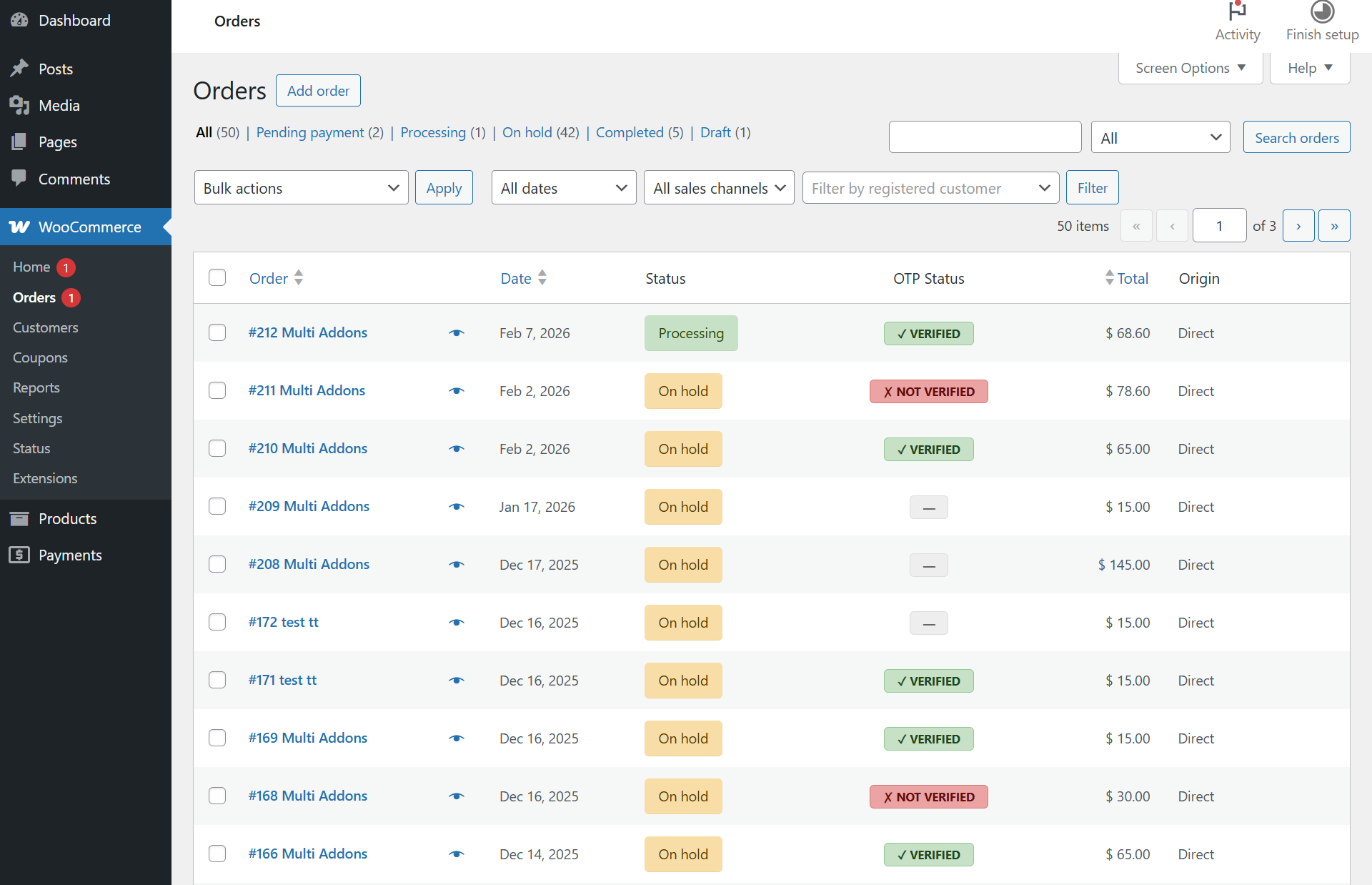
✅ Order Verification Status: View OTP verification status badges directly from the WooCommerce order screen
✅ Seamless Compatibility: Fully compatible with both WooCommerce Block Checkout and Classic Checkout
Installation and Activation
↑ Back to topHow to get started with the leading WooCommerce Pre-Order plugin.
- Navigate to Plugins → Add New → Upload Plugin.
- Choose the
cod-guard.zipfile. - Click Install Now and then Activate.

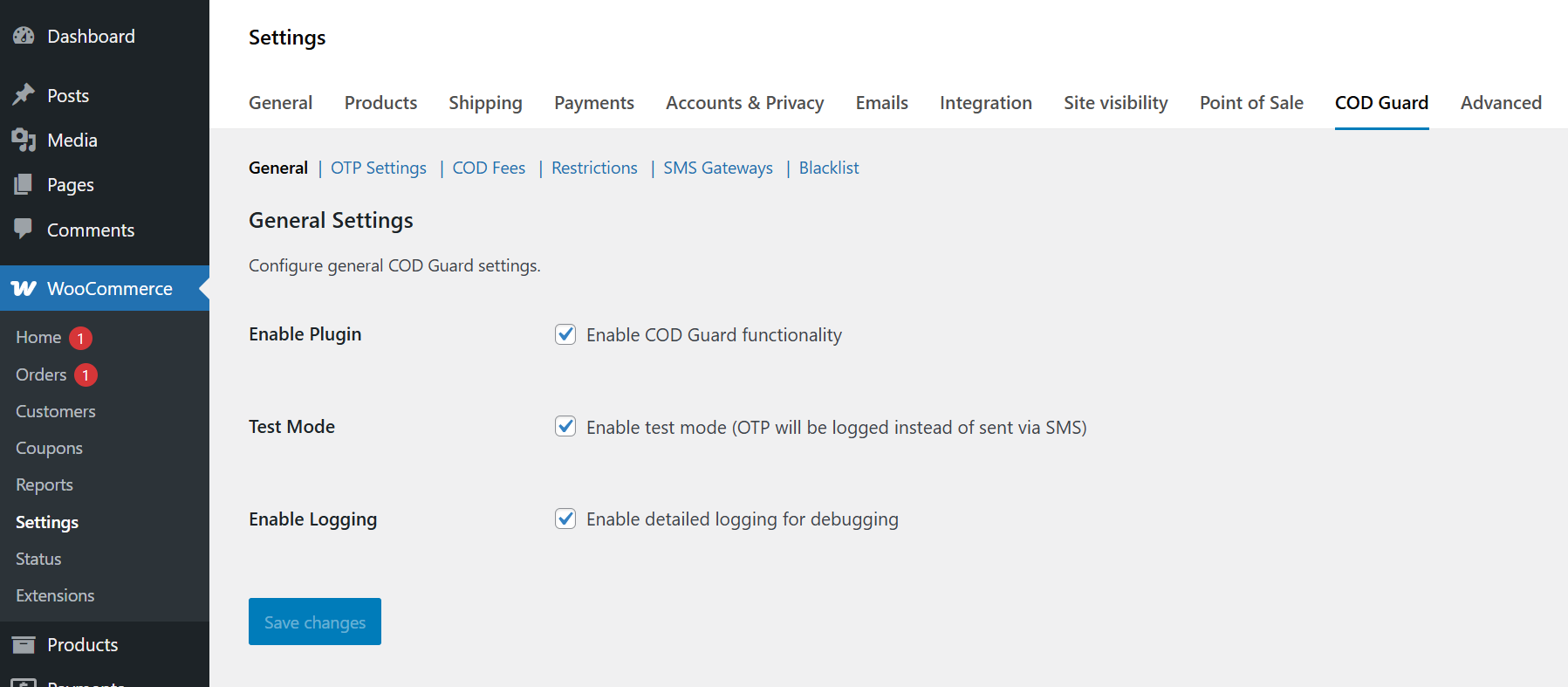
Navigate to Settings: Once activated, go to WooCommerce > Settings > COD Guard to begin configuration.
Connecting Your SMS Gateway
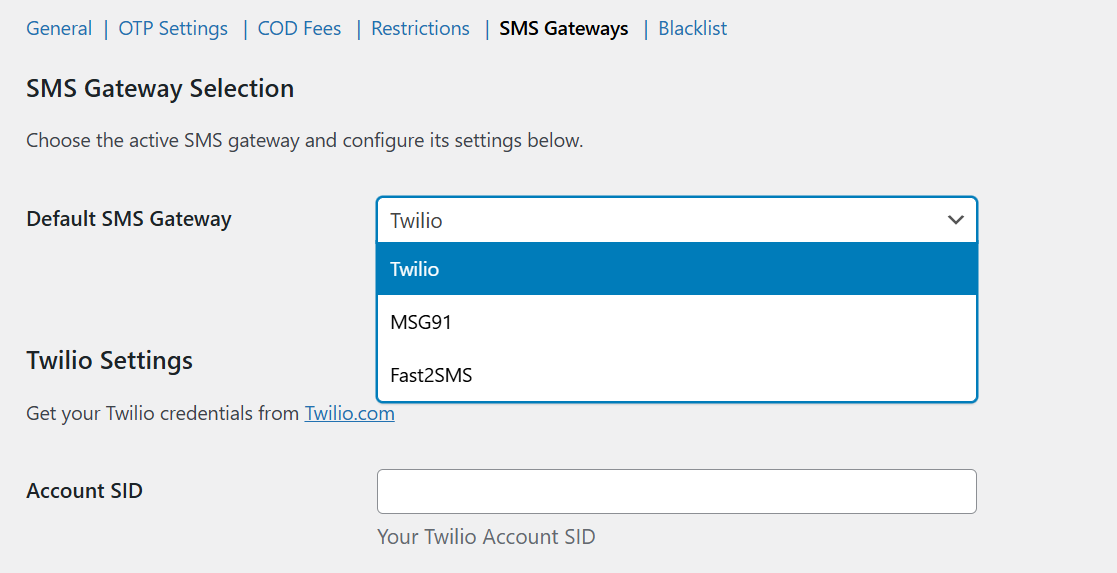
↑ Back to topTo send OTP codes, you must connect a supported SMS provider.
- Go to the SMS Gateway tab in COD Guard settings.
- Select Your Provider: Choose from Twilio, MSG91, or Fast2SMS.
- Enter Credentials:
- Twilio: Enter your Account SID, Auth Token, and From Number.
- MSG91: Enter your Auth Key and Template ID.
- Fast2SMS: Enter your API Key.
- Save Settings: Click “Save Changes” and use the Test Gateway button to ensure your connection is active.
Configuring OTP Verification
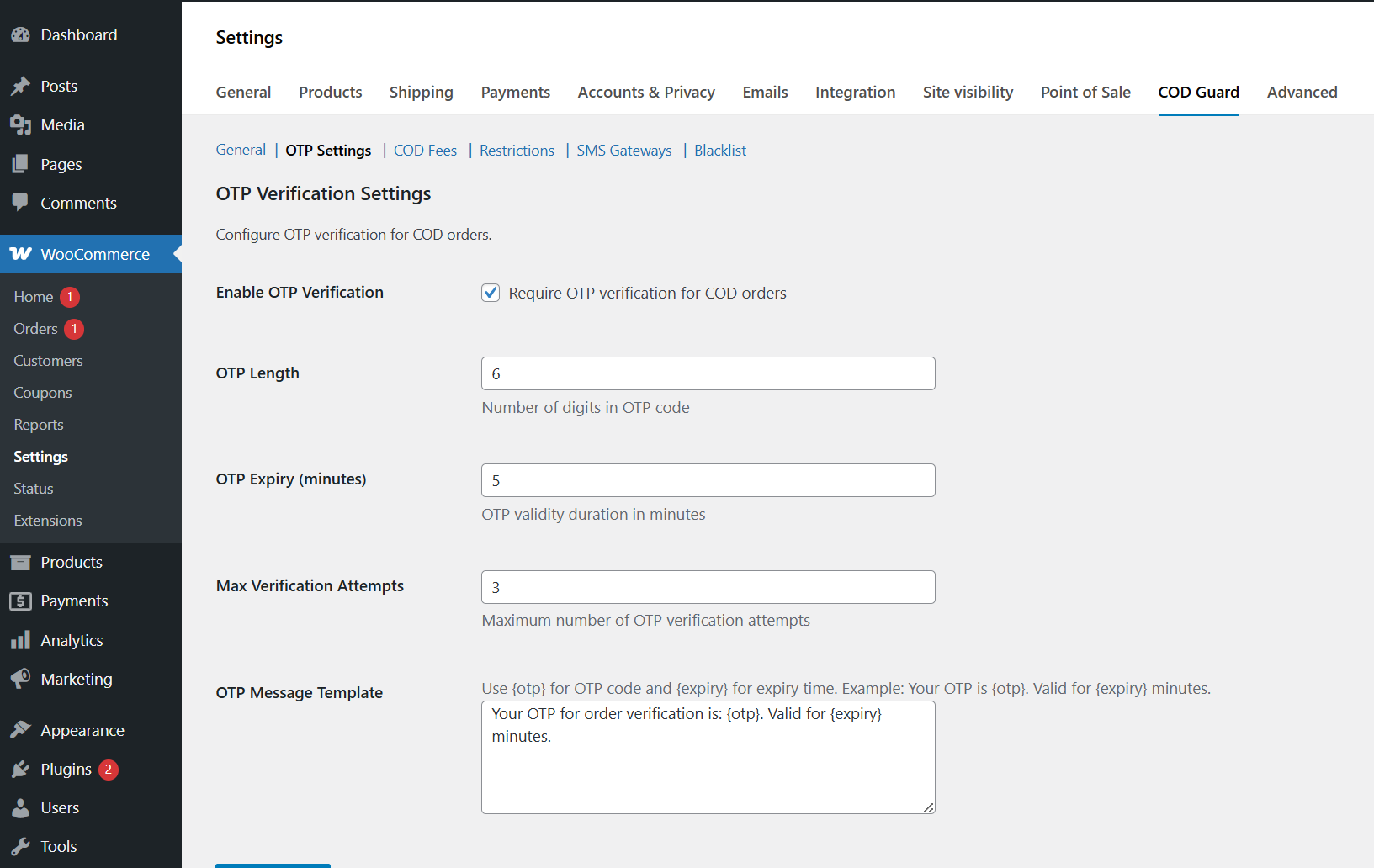
↑ Back to topThis is the core security feature that stops fake orders in their tracks.
- Go to the General Settings tab and toggle Enable OTP Verification to “Yes.”
- Set OTP Length: Choose between 4 or 6-digit codes.
- Expiry & Attempts: We recommend a 5-minute expiry and 3 maximum attempts for the best balance of security and user experience.
- Customize Modal: Use the Styling section to change the colors of the OTP popup so it matches your store’s branding perfectly.
Setting Up Dynamic COD Fees
↑ Back to topOffset your logistics risks by adding a custom charge for Cash on Delivery orders.
- Navigate to the COD Fees tab.
- Enable Fees: Toggle the feature on.
- Choose Fee Type:
- Fixed: Add a standard amount (e.g., $5.00) to every COD order.
- Percentage: Add a percentage of the cart total (e.g., 2%).
- Label: Enter the name (e.g., “COD Handling Fee”) that customers will see at the checkout totals.

Managing the Global Blacklist
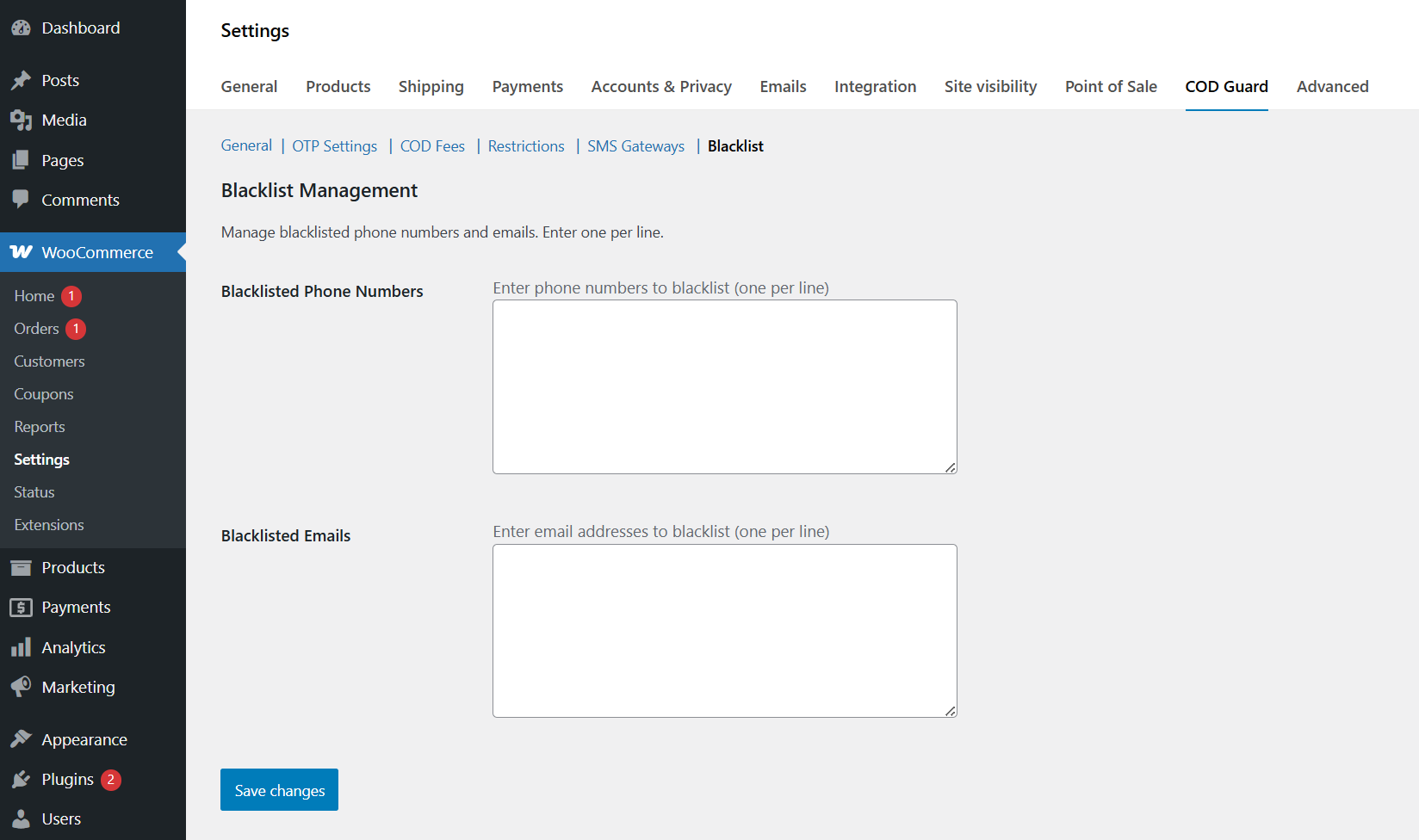
↑ Back to topProactively block fraudulent customers based on past behavior.
- Go to the Blacklist tab.
- Manual Entry: Add phone numbers or email addresses of known “bad” customers.
- One-Click Ban: You can also blacklist a customer directly from their Order Details page by clicking the “Add to Blacklist” button in the COD Guard meta box.
- Auto-Block: Once blacklisted, these users will be prevented from selecting the COD payment method entirely.
Testing the Integration
↑ Back to topBefore going live, it is critical to test the workflow.
- Enable Test Mode: Go to General Settings and turn on Test Mode. This allows you to test the OTP modal without consuming SMS credits.
- Place a Test Order: Open your store in an Incognito/Private window.
- Verify: Select COD at checkout, wait for the modal to appear, and enter the test code.
- Check Admin: Go to WooCommerce > Orders and ensure the order shows the Green “Verified” Badge.
FAQs
↑ Back to top
Can I disable Cash on Delivery for specific products to increase fraud prevention?
Absolutely. The best fraud prevention strategy is controlling exactly when COD is available. Under the Restrictions tab, you can set minimum and maximum cart value thresholds to stop a massive fake order from slipping through.
You can also use this anti fraud feature to blacklist specific high-risk product categories or individual items, ensuring that your most expensive products are prepaid only, giving you ultimate fraud protection.
How do I test the fake order prevention OTP without spending real SMS credits?
We built a dedicated Test Mode so you can safely test your anti fraud setup. When you enable Test Mode in the General Settings, the plugin will simulate the entire fraud protection verification process without actually pinging the SMS gateway API.
Instead of sending a real text message, the generated OTP code is written directly to your WooCommerce logs (WooCommerce > Status > Logs). This allows you to fully test your fraud shield checkout flow and restriction rules for free.
How can I automatically reduce RTO (Return to Origin) rates for my WooCommerce store?
The most effective way to reduce RTO (Return to Origin) in WooCommerce is to verify customer intent before the order is shipped. Here’s how COD Guard helps:
SMS OTP Verification — Every Cash on Delivery order requires a one-time password sent to the customer’s phone, confirming they are a real, serious buyer
Blacklist Repeat Offenders — Automatically block known fraudulent customers by phone number or email so they can never place fake COD orders again
Smart Cart Restrictions — Limit COD availability based on cart value or product type to reduce high-risk orders
COD Fee Deterrent — Add a small handling fee to COD orders to discourage non-serious shoppers
Together, these features help WooCommerce store owners significantly reduce fake orders, delivery failures, and RTO shipping losses without affecting genuine customers.
How do I stop fake Cash on Delivery (COD) orders and fraud in WooCommerce?
Stopping fake COD orders in WooCommerce requires a multi-layered approach. COD Guard provides these automated protection layers:
Step 1 — SMS OTP Verification Require every COD customer to verify their phone number with a one-time password at checkout. Fake buyers with invalid numbers are blocked before the order is placed.
Step 2 — Customer Blacklisting Automatically block known fraudulent customers by their phone number or email address. Once blacklisted, they cannot place any COD order on your store again.
Step 3 — Dynamic COD Fee Add a small handling fee to all COD orders. This simple step discourages low-intent and impulsive buyers while keeping the experience smooth for genuine customers.
Step 4 — Smart Cart Restrictions Disable COD for high-risk product categories or orders below/above a specific cart value to minimize exposure to fraud.
Using all four layers together gives WooCommerce store owners the most effective defense against fake COD orders, delivery fraud, and RTO losses.
Which SMS Gateways are compatible with WooCommerce OTP Verification?
COD Guard for WooCommerce natively supports three industry-leading SMS providers for OTP delivery:
Twilio — The world’s most reliable SMS gateway with global reach. Best for international WooCommerce stores that need guaranteed delivery across all countries.
MSG91 — A high-performance SMS API optimized for fast OTP delivery. Ideal for Indian WooCommerce stores handling large order volumes.
Fast2SMS — A cost-effective solution offering both domestic and international SMS delivery. Perfect for growing stores looking to minimize SMS costs while maintaining reliable OTP verification.
All three gateways are configured directly from your WooCommerce → COD Guard → SMS Settings panel. Simply select your preferred provider and enter your API credentials to get started.
Not sure which gateway to choose? Each provider offers a free trial so you can test delivery rates for your region before committing.
Does COD Guard work with the new WooCommerce Block Checkout?
Yes — COD Guard is fully compatible with both WooCommerce Block Checkout and Classic Checkout out of the box.
Many older WooCommerce security plugins only work with the legacy Classic Checkout, breaking entirely when store owners switch to the modern Block-based checkout. COD Guard was built to support both:
Block Checkout (Gutenberg-based) — OTP verification, COD fee display, and cart restrictions all work seamlessly with the WooCommerce Checkout Block used by modern themes
Classic Checkout — Full feature support for stores still using the traditional WooCommerce checkout page
No configuration needed — COD Guard automatically detects which checkout type your store is using and adapts accordingly
This makes COD Guard future-proof and compatible with the latest WordPress 6.x and WooCommerce updates without requiring any additional setup.
How do I add a Cash on Delivery fee in WooCommerce?
By default, WooCommerce does not have a built-in option to charge customers extra for choosing Cash on Delivery. COD Guard adds this feature with full flexibility:
Step 1 — Go to COD Fee Settings Navigate to WooCommerce → COD Guard → COD Fee in your WordPress admin panel.
Step 2 — Choose Your Fee Type Select one of two fee models:
Flat Fee — Charge a fixed amount (e.g., ₹20 or $2.00) on every COD order
Percentage Fee — Charge a percentage of the cart total (e.g., 2% of ₹1,500 = ₹30)
Step 3 — Save and Go Live The fee is automatically calculated and displayed in the cart and checkout totals whenever a customer selects Cash on Delivery as their payment method.
This helps WooCommerce store owners recover logistics and handling costs while discouraging low-intent buyers from choosing COD.

