
Custom Hide Shipping Methods is a powerful WooCommerce extension that lets you control which shipping methods customers see during checkout. Instead of showing all available options, you create conditional rules that automatically hide specific shipping methods when certain conditions are met. The rules are managed from a single interface and give you complete control over checkout shipping visibility.
Requirements
↑ Back to top- WordPress: 5.0 or higher (tested up to 6.9)
- WooCommerce: 3.0 or higher (tested up to 10.4)
- Extensions Required:
- WooCommerce
- WC Hide Shipping Methods – must be installed and activated before activating Custom Hide Shipping
- PHP Version Requirements
- PHP: 7.4 or higher
- Recommended: PHP 8.0 or higher for best performance
- Server Requirements
- Memory: Minimum 256MB PHP memory (512MB recommended for
- large catalogs)
- Execution Time: 60 seconds or higher for bulk operations
- Compatible With:
- All standard WordPress themes
- All standard WooCommerce themes
- High-Performance Order Storage (HPOS)
- WooCommerce Blocks
Installation
↑ Back to top- Log in to your WordPress admin dashboard.
- Go to WooCommerce → Extensions → My Subscriptions.
- Find Custom Hide Shipping and click Install.
- Click Activate.
Manual installation
↑ Back to top- Download the ZIP file from your WooCommerce.com account.
- Go to Plugins → Add New → Upload Plugin.
- Select the Custom-Hide-Shipping.zip file and click Install Now.
- Click Activate Plugin.
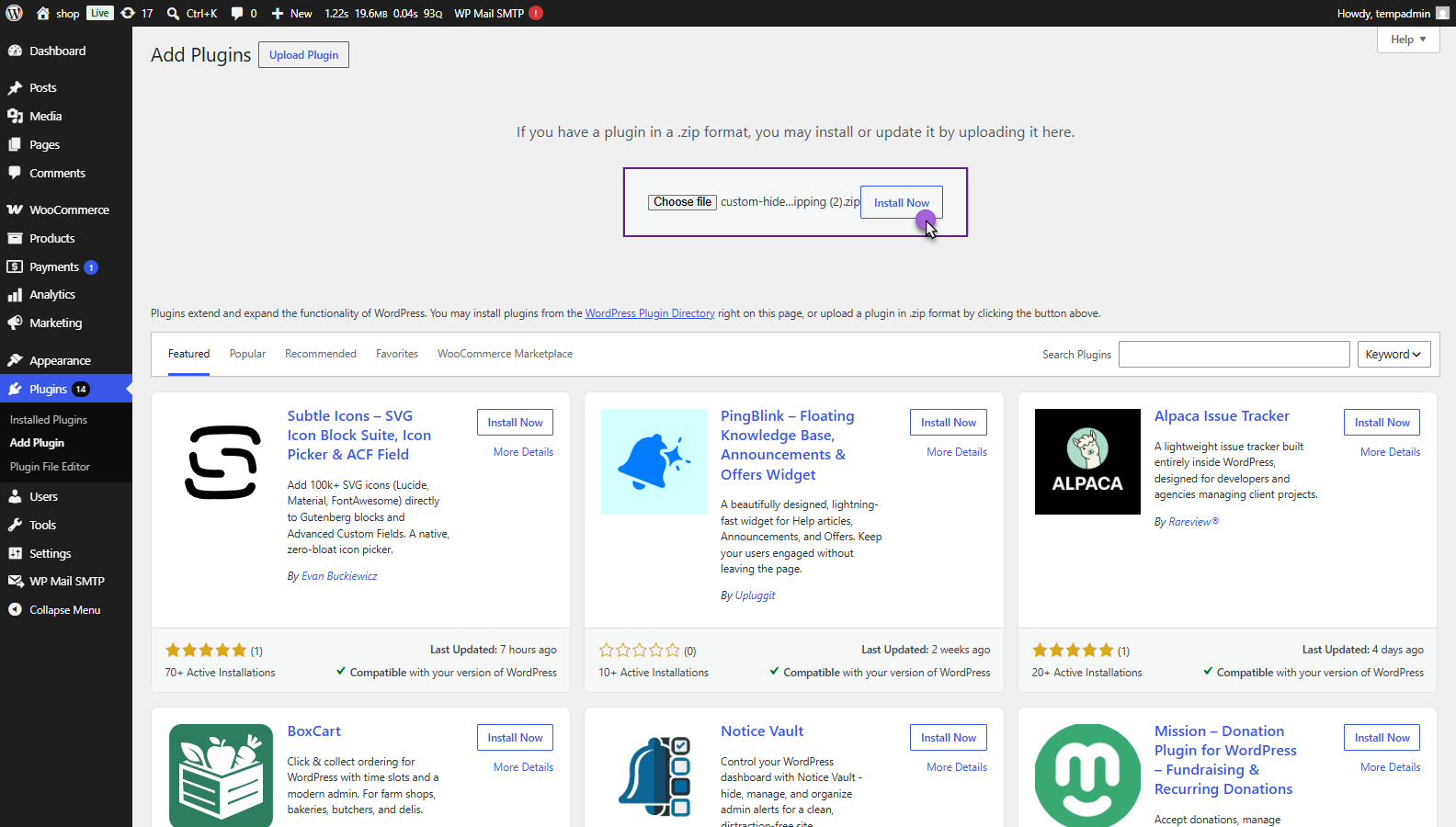
Note: If a dependency warning appears (e.g., WooCommerce or WC Hide Shipping Methods is required), install and activate the required extension first, then reactivate this extension.
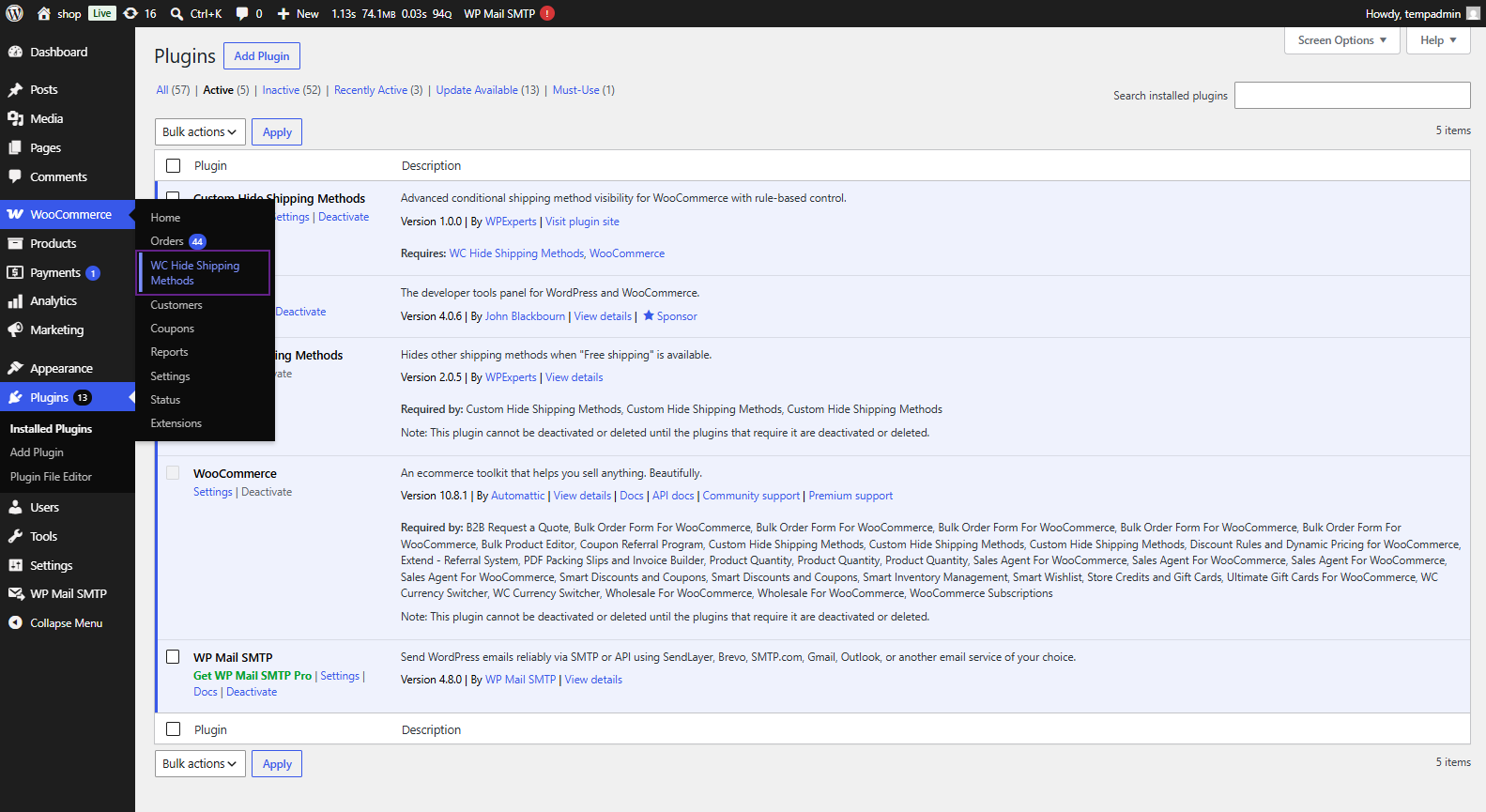
After activation, you should see:
- A success message: Plugin activated successfully!
- A new WC Hide Shipping Method menu item under WooCommerce in the left sidebar.
- A Manage Rules link under the extension name on the Plugins page.
Initial setup
↑ Back to topGo to WooCommerce → WC Hide Shipping Method, and you’ll see the rule management interface with all your rules (initially empty).
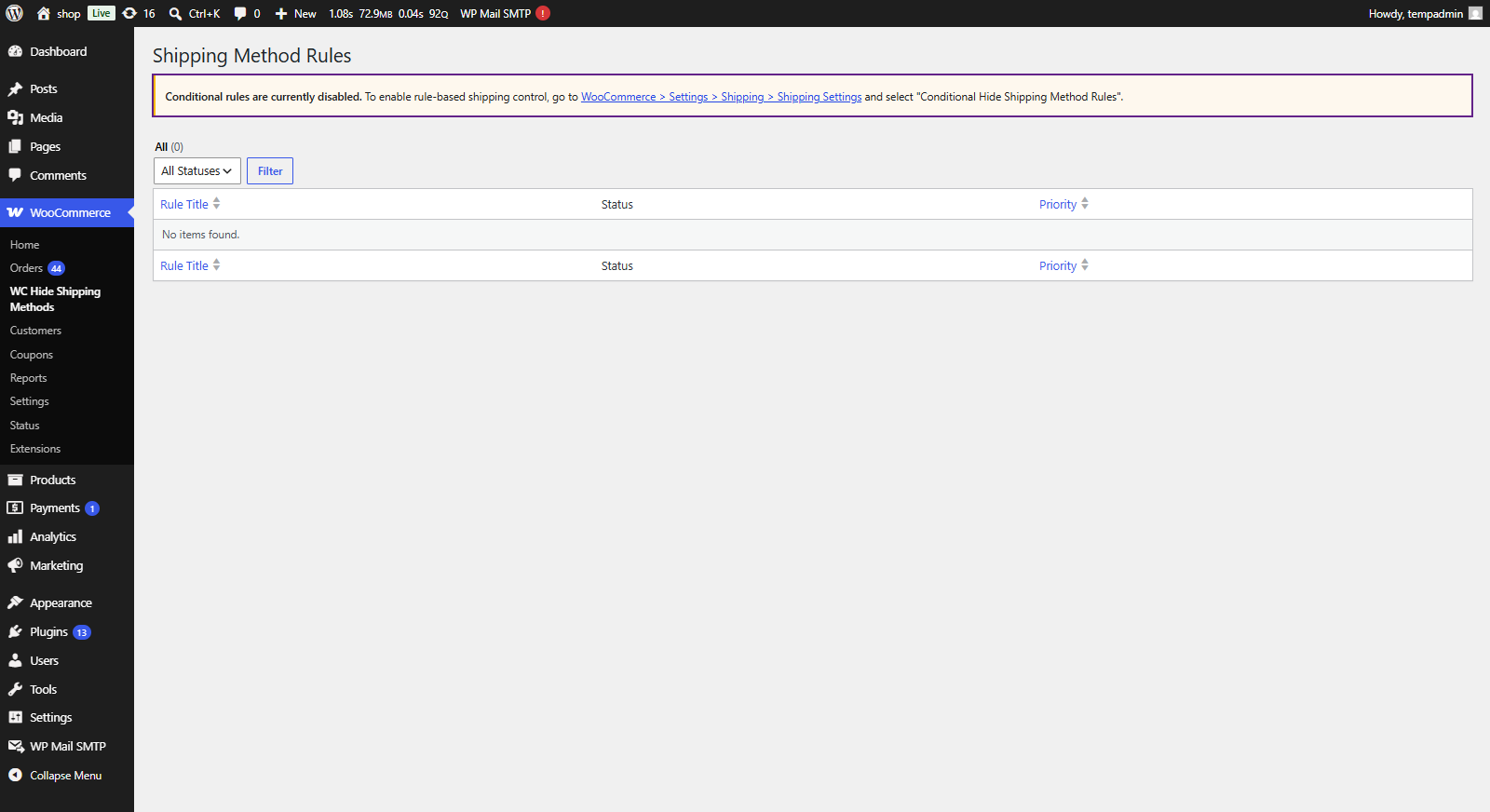
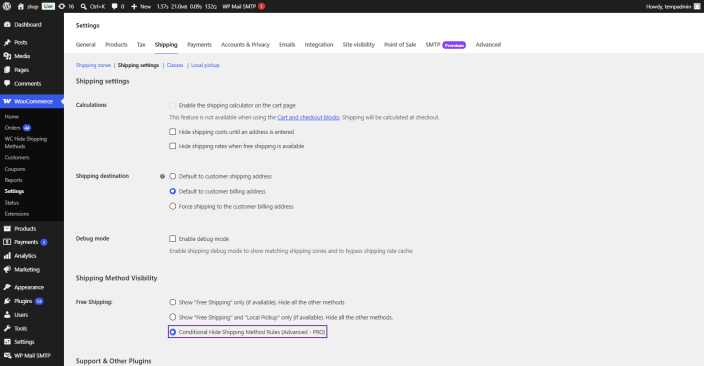
Note: Before creating rules, first enable the feature in WooCommerce → Settings → Shipping → Shipping Settings and select “Conditional Hide Shipping Method Rules” under Shipping Method Visibility.
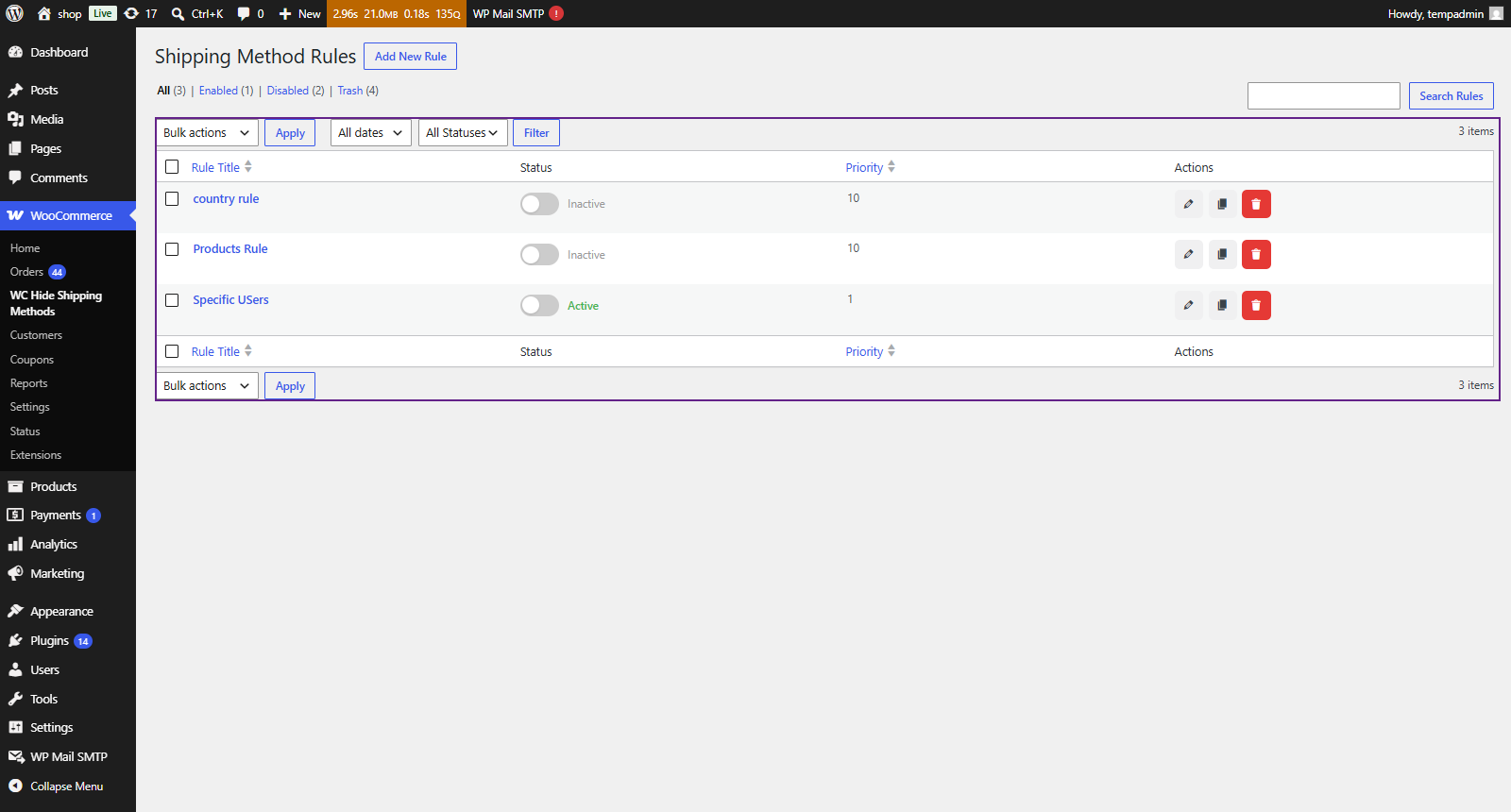
When you first open the extension, you’ll see:
- Header Bar: “WC Hide Shipping Rules” with Add New Rule button
- View Filters: All, Enabled, Disabled, Trash — to filter which rules appear
- Search Bar: Search rules by title
- Bulk Actions Dropdown: Enable, Disable, Move to Trash
- Rule Table: Columns for Rule Title, Status (toggle switch), Priority, and Actions (Edit,
- Duplicate, Delete)
- Pagination: Navigate through pages of rules
The extension comes with sensible defaults:
- Conditional Hide Feature: Enabled by default on fresh installations
- Rule Priority Default: 10 for new rules
- Match Logic: Match all conditions (AND) by default
- Rule Status: Draft (Inactive) until explicitly published
No configuration required: you can start creating rules immediately after activation!
Settings
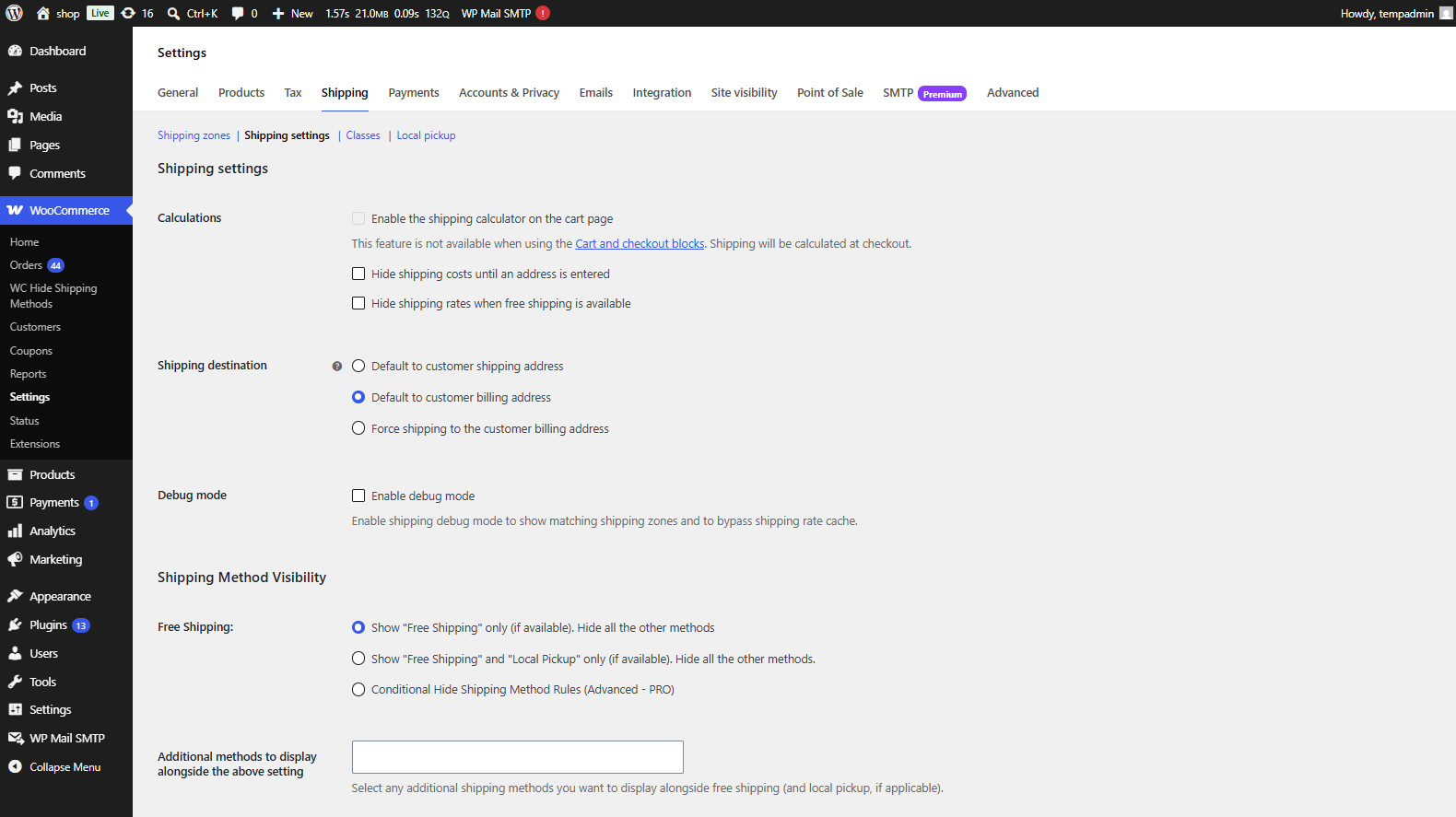
↑ Back to topThe settings are located in the WooCommerce Shipping Settings area, in WooCommerce → Settings → Shipping → Shipping Settings:
Shipping method visibility
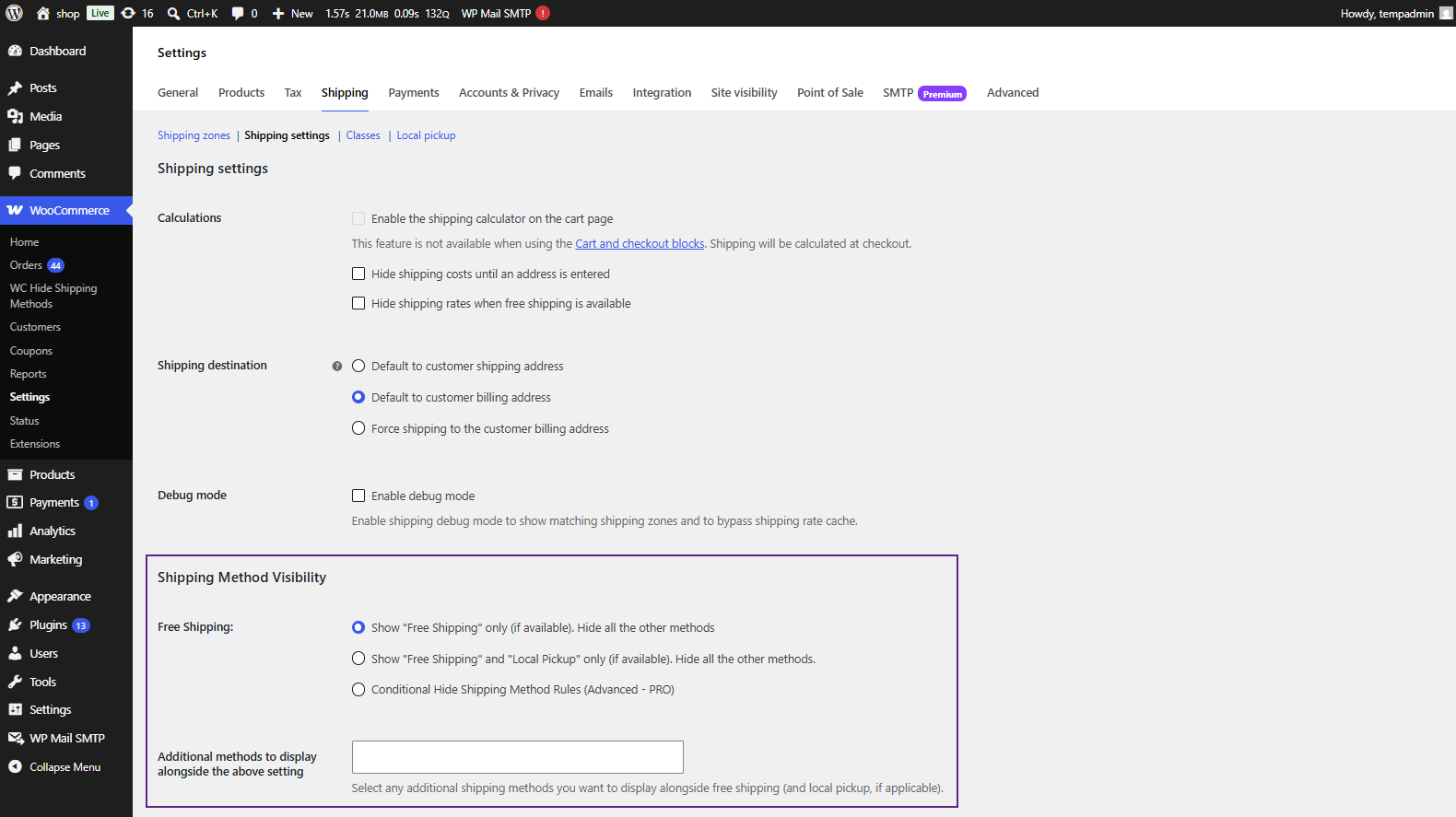
↑ Back to topUnder Shipping Method Visibility, you’ll see radio buttons:
| Option | Description |
| Show “Free Shipping” only (if available) | Hides all methods except Free Shipping |
| Show “Free Shipping” and “Local Pickup” only (if available) | Shows only these two methods when applicable |
| Conditional Hide Shipping Method Rules (Pro) | Enables rule-based conditional hiding. All rules are evaluated at checkout |
The rule engine only runs when Conditional Hide Shipping Method Rules is selected. If you switch back to a different option, rules are preserved but won’t execute.
Creating a new rule
↑ Back to topDefine a condition-based rule that hides specific shipping methods at checkout.
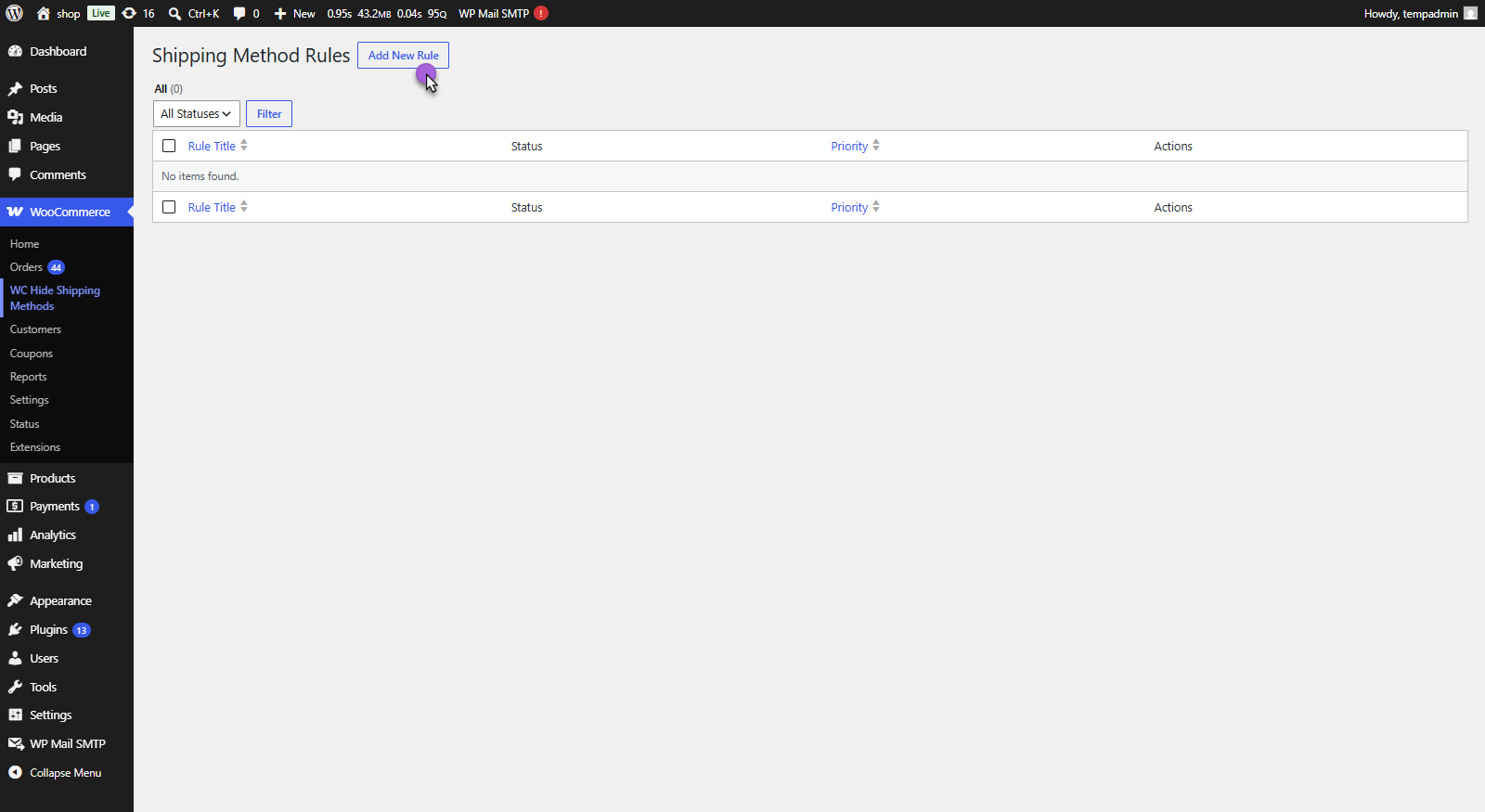
- Go to WooCommerce → WC Hide Shipping Method
- Click the Add New Rule button in the top-right corner
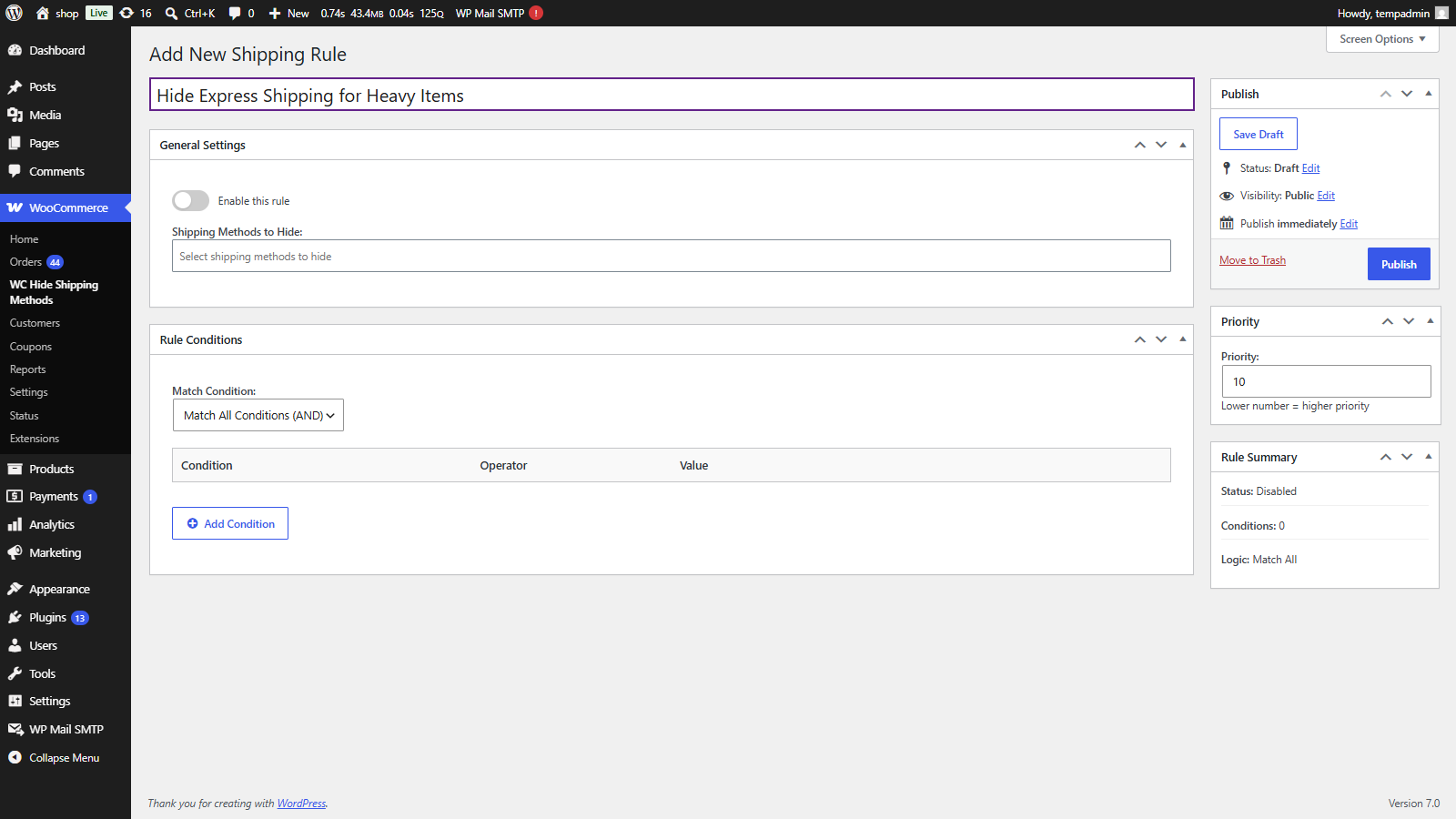
- The rule creation screen opens with the following sections
- Find the Rule Title field at the top
- Enter a descriptive name (e.g., “Hide Express Shipping for Heavy Items“)
- Make it specific enough to identify later
Configure general settings
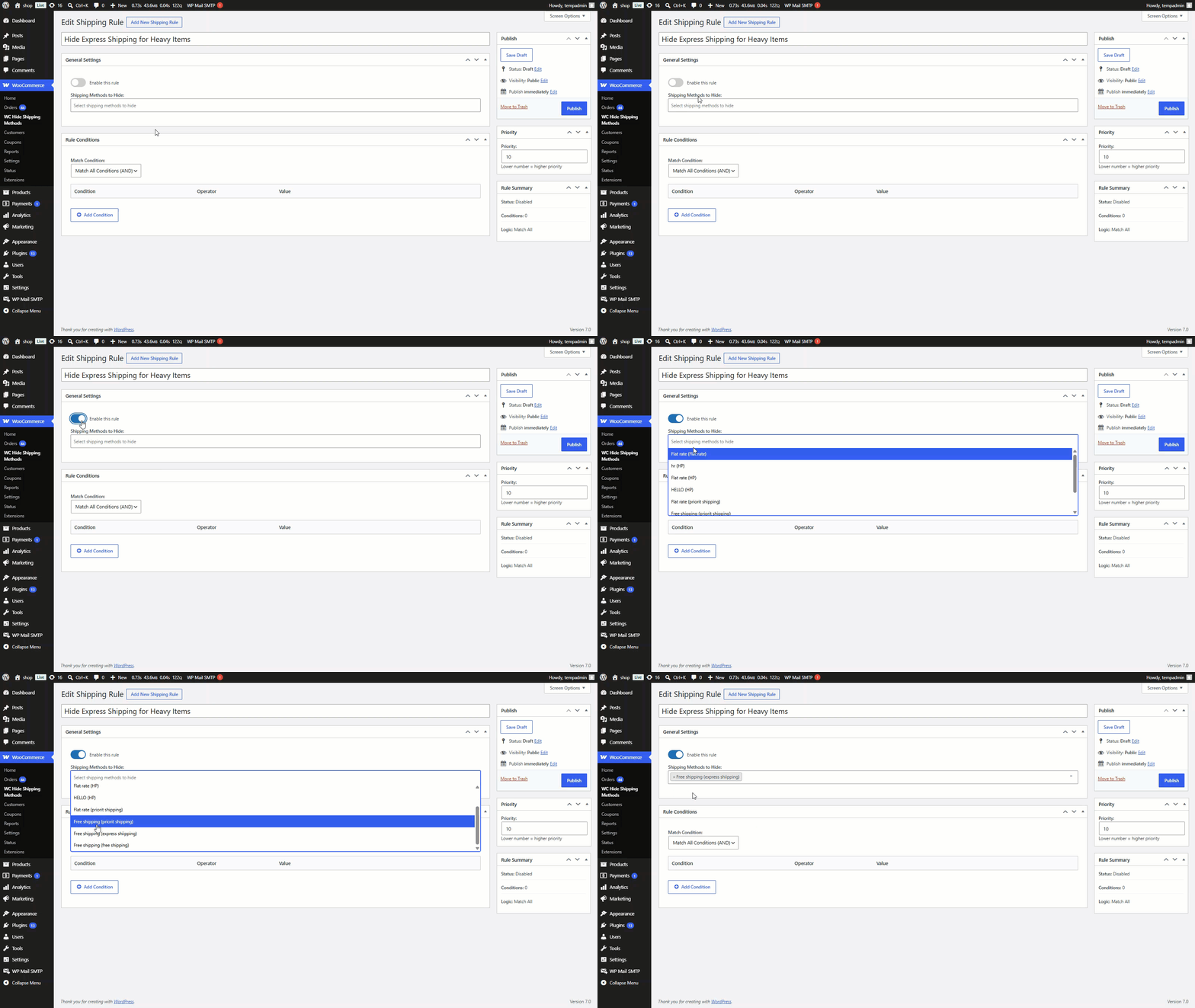
↑ Back to top- Enable Rule: Toggle the switch to Active for the rule to take effect
- Shipping Methods to Hide: Click the multi-select field and choose one or more shipping methods (e.g., “Express Shipping“). Selected methods appear as removable tags
Set match conditions
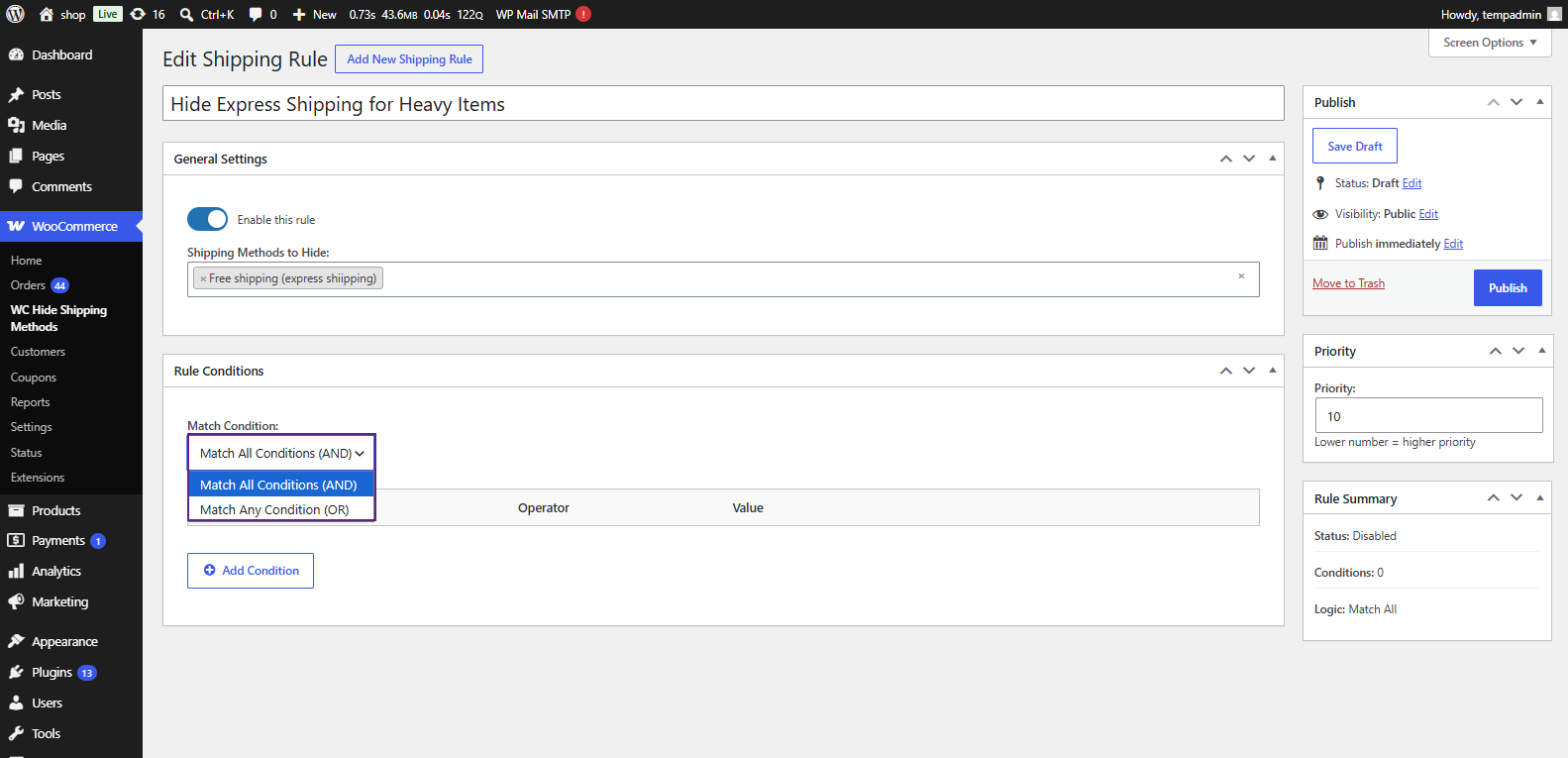
↑ Back to top- Choose Match all conditions (AND) or Match any condition (OR)
- AND: When ALL conditions must be true for the rule to trigger (stricter)
- OR: When ANY condition being true should trigger the rule (broader)
Example: AND vs OR Behavior
| Scenario | MatchLogic | Condition 1 | Condition 2 | Rule Triggers? |
| US Customer, HeavyCart | AND | Country = US✓ | Weight > 10kg ✓ | ✅ Yes — All conditions met |
| US Customer, LightCart | AND | Country = US✓ | Weight > 10kg ✗ | ❌ No — Weight condition fails |
| Non-US Customer, Heavy Cart | AND | Country = US✗ | Weight > 10kg ✓ | ❌ No — Country condition fails |
| US Customer, Light Cart | OR | Country = US✓ | Weight > 10kg ✗ | ✅ Yes — Country condition matches |
| Non-US Customer,Heavy Cart | OR | Country = US✗ | Weight > 10kg ✓ | ✅ Yes — Weight condition matches |
| Non-US Customer,Light Cart | OR | Country = US✗ | Weight > 10kg ✗ | ❌ No — Neither condition matches |
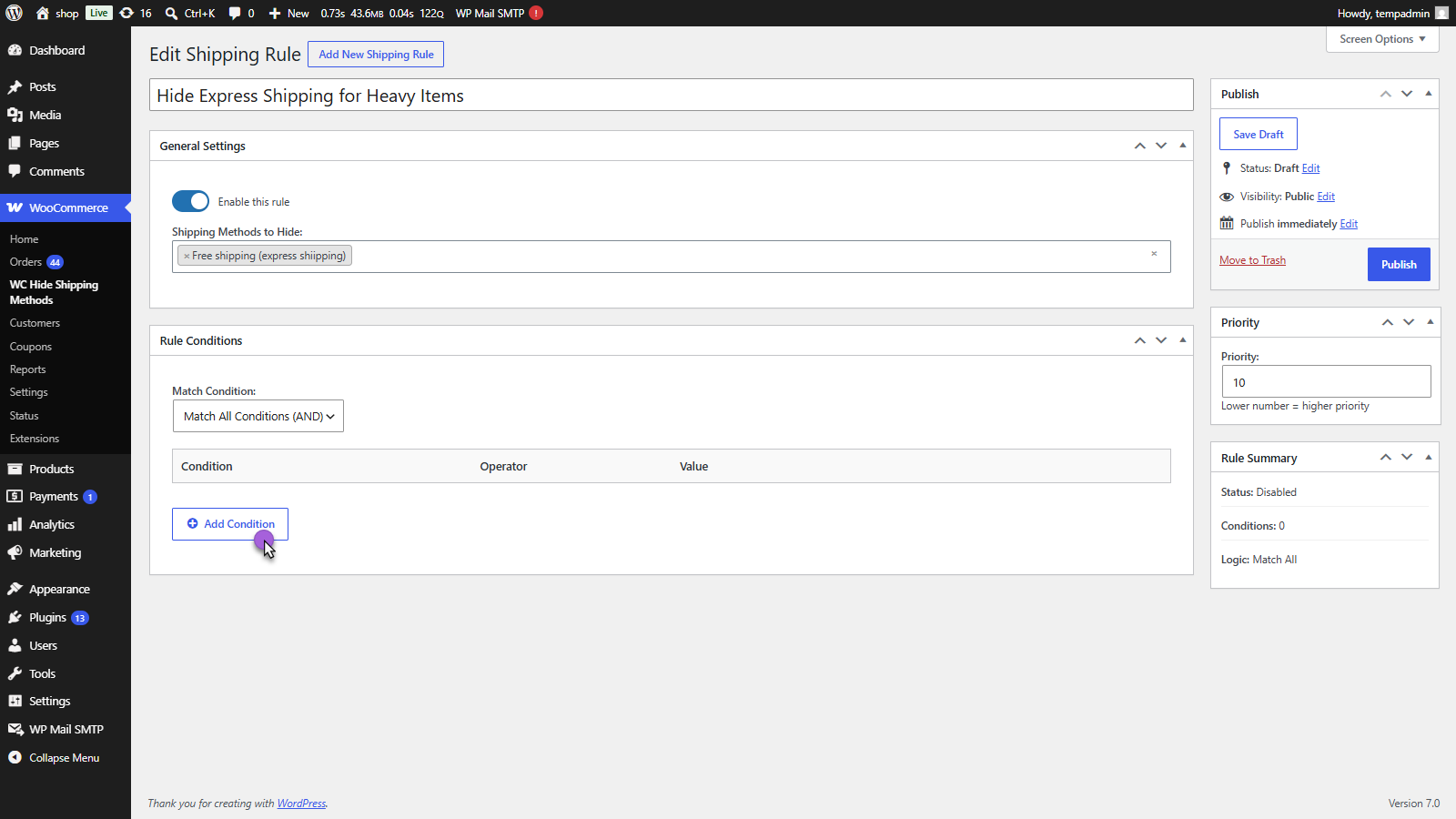
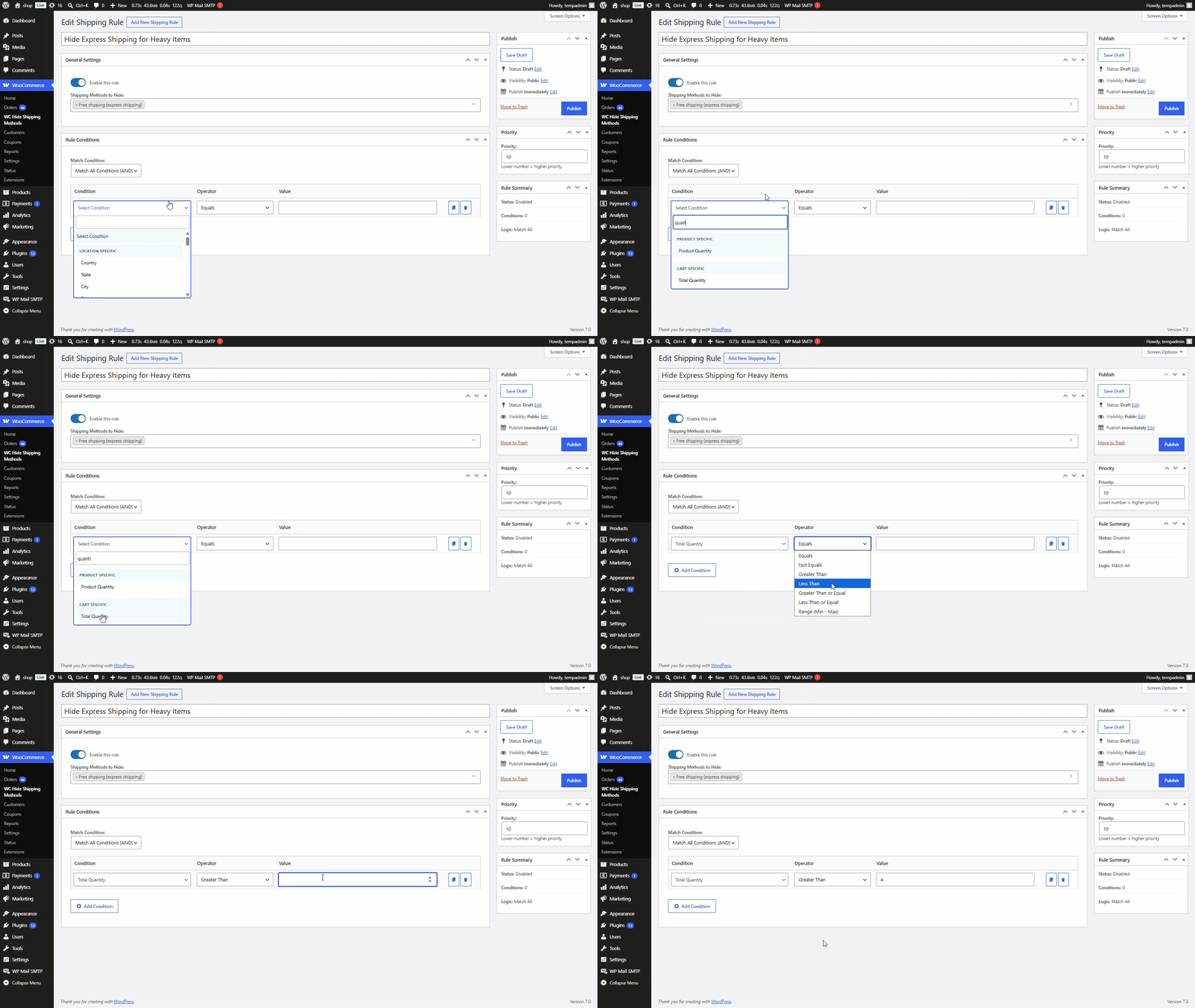
- Click + Add Condition to add your first condition row
Configure each row:
- Condition: Select from the dropdown (e.g., “Total Quantity”)
- Operator: Select the comparison operator (e.g., “Greater Than”)
- Value: Enter the threshold (e.g., “4”)
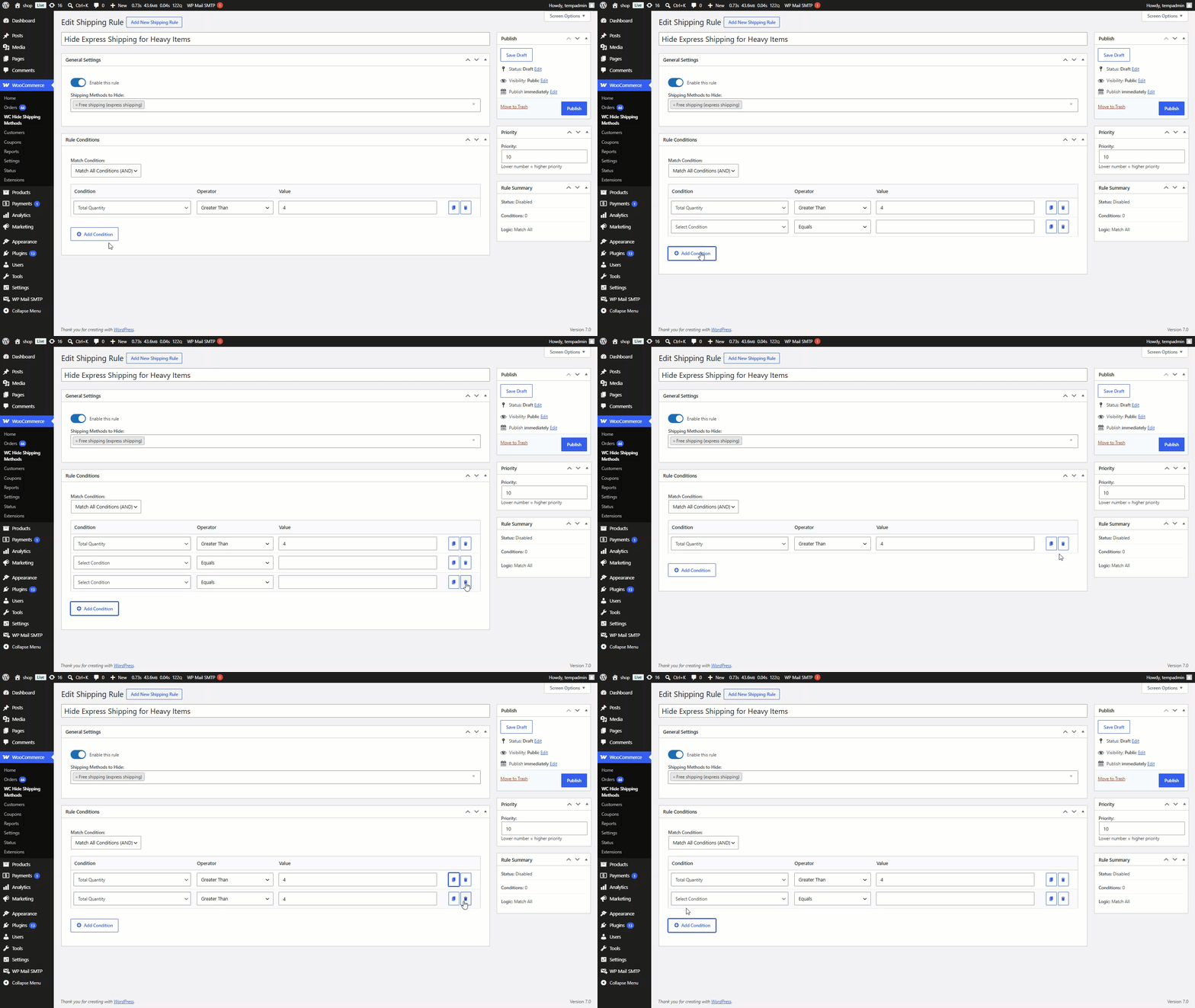
- Add more conditions by clicking + Add Condition again
Understanding condition types
↑ Back to topWhen you open the Condition dropdown, conditions are grouped:
| Group | Available Conditions |
| Location Specific | Specific Country, City, State, Postcode, Zone |
| Product Specific | Product, Product Variation, Product Category, Product Tag, Product SKU, Product Quantity |
| Attribute Specific | Specific Color, Size (and other global attributes) |
| User Specific | User, User Role |
| Cart Specific | Cart Subtotal (Before Discount), Cart Subtotal (After Discount), Quantity, Weight, Dimensions, Coupon Applied, Shipping Class |
| Checkout Specific | Payment Method |
Understanding operators
↑ Back to topFor Location, Product, Attribute, User, Cart (Basic), and Checkout conditions:
- Equals To: Triggers when the value matches exactly
- Not Equals To: Triggers when the value does NOT match
For Cart (Advanced / Numerical) conditions:
- Equals To (=)
- Not Equals To (≠)
- Greater Than (>)
- Less Than (<)
- Greater Than or Equal To (≥)
- Less Than or Equal To (≤)
- Range: Shows Min and Max fields — triggers when value falls between them
Set priority
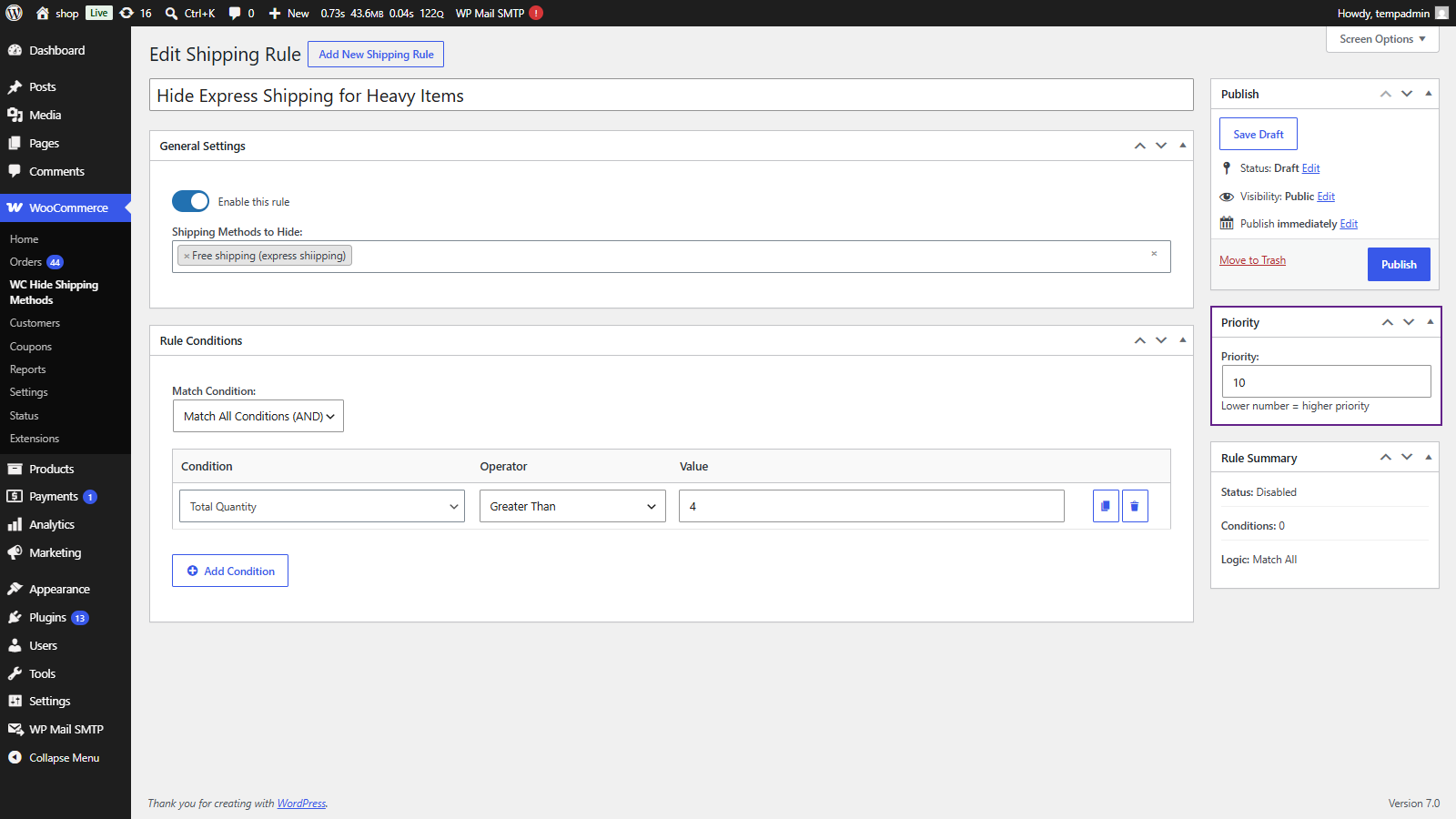
↑ Back to topFind the Priority box on the right side and set a number (lower = higher priority). The default number is 10.
- Click the Publish Rule button at the top-right
- The rule is now saved and active
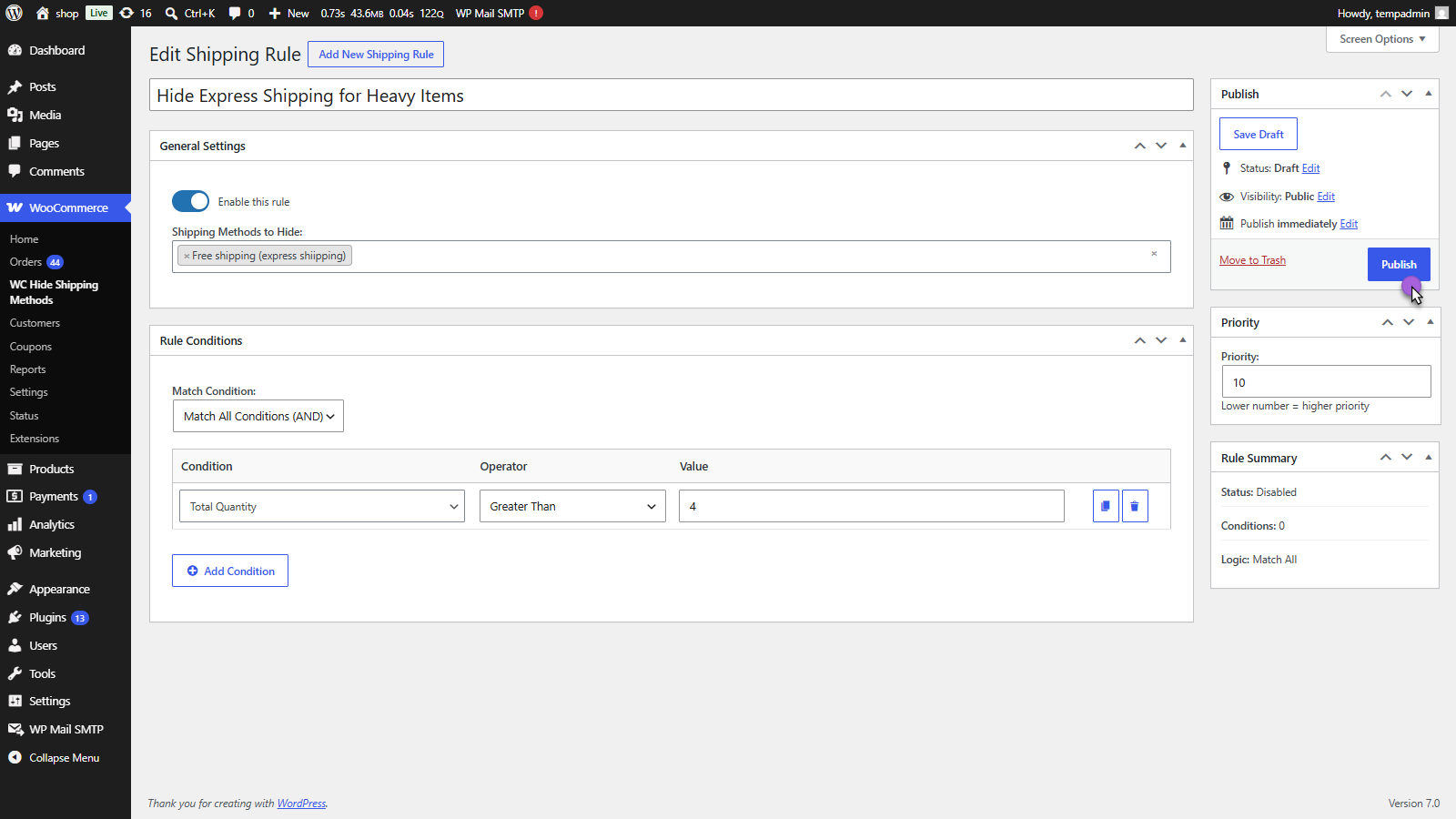
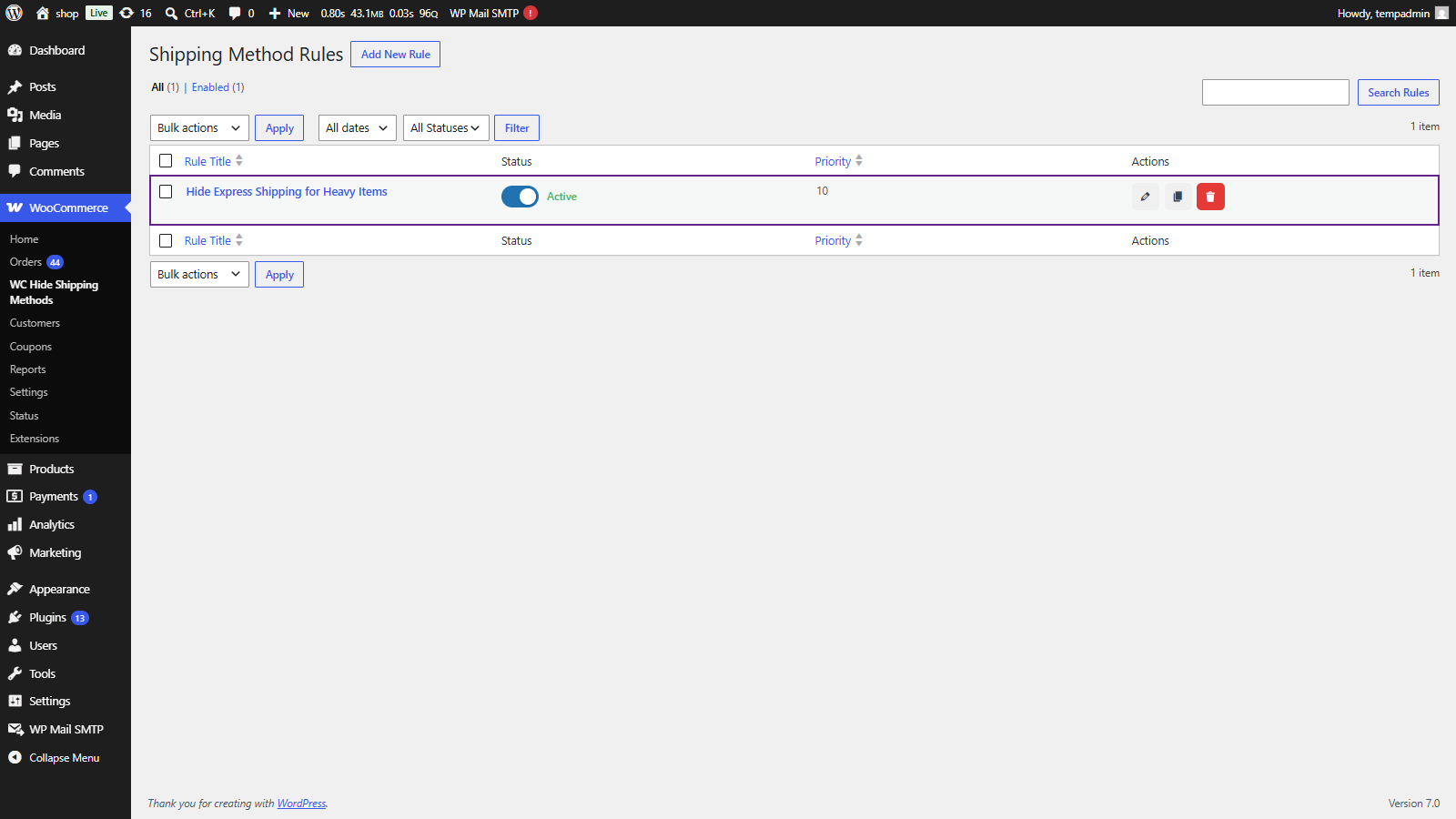
- The rule appears on the listing page with “Active” status and will hide the selected shipping methods when conditions are met at checkout.
Duplicating rules
↑ Back to topCreate a copy of an existing rule to use as a template:
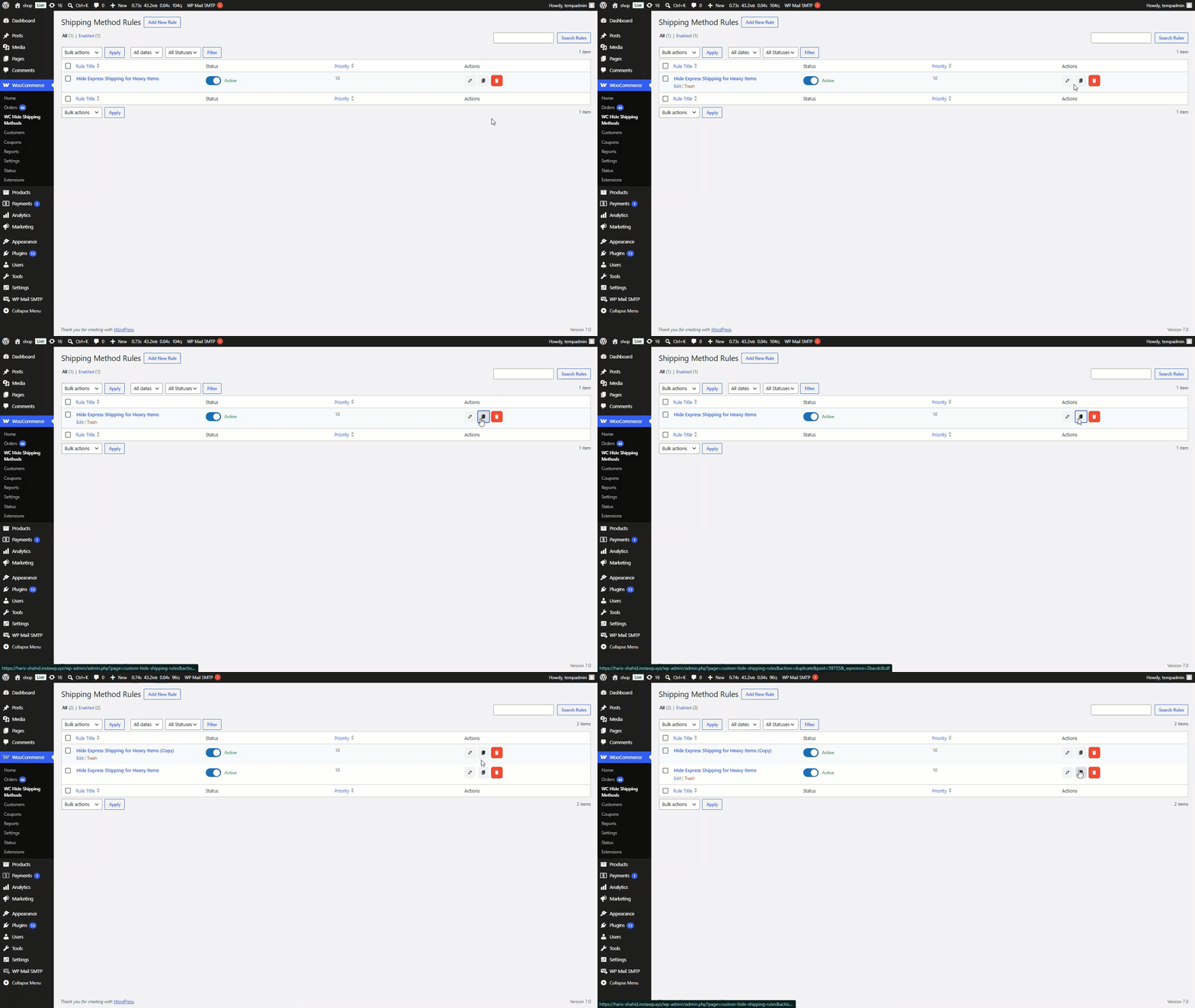
- Find the rule you want to duplicate
- Click the Duplicate button (copy icon) in the Actions column
- The duplicated rule appears in the listing with the same title (the copy will be in Draft status)
- Click the Edit button on the duplicated rule
- Modify the title and any settings as needed
- Click Update to save.
Front-end impact
↑ Back to topThe shipping methods displayed during checkout will automatically change based on the rules configured on the back end.
Checkout page
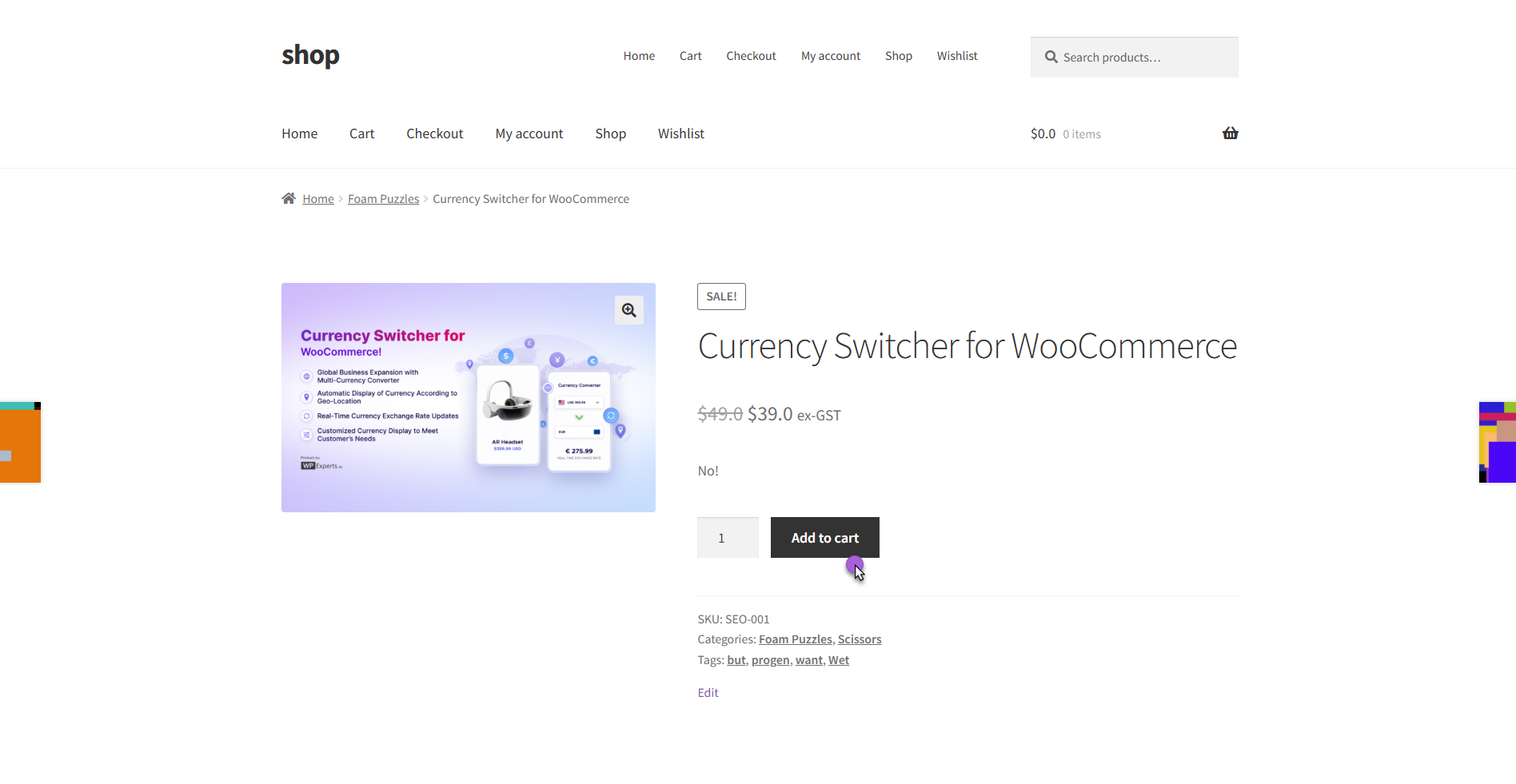
↑ Back to top- Add products to the cart and proceed to checkout.
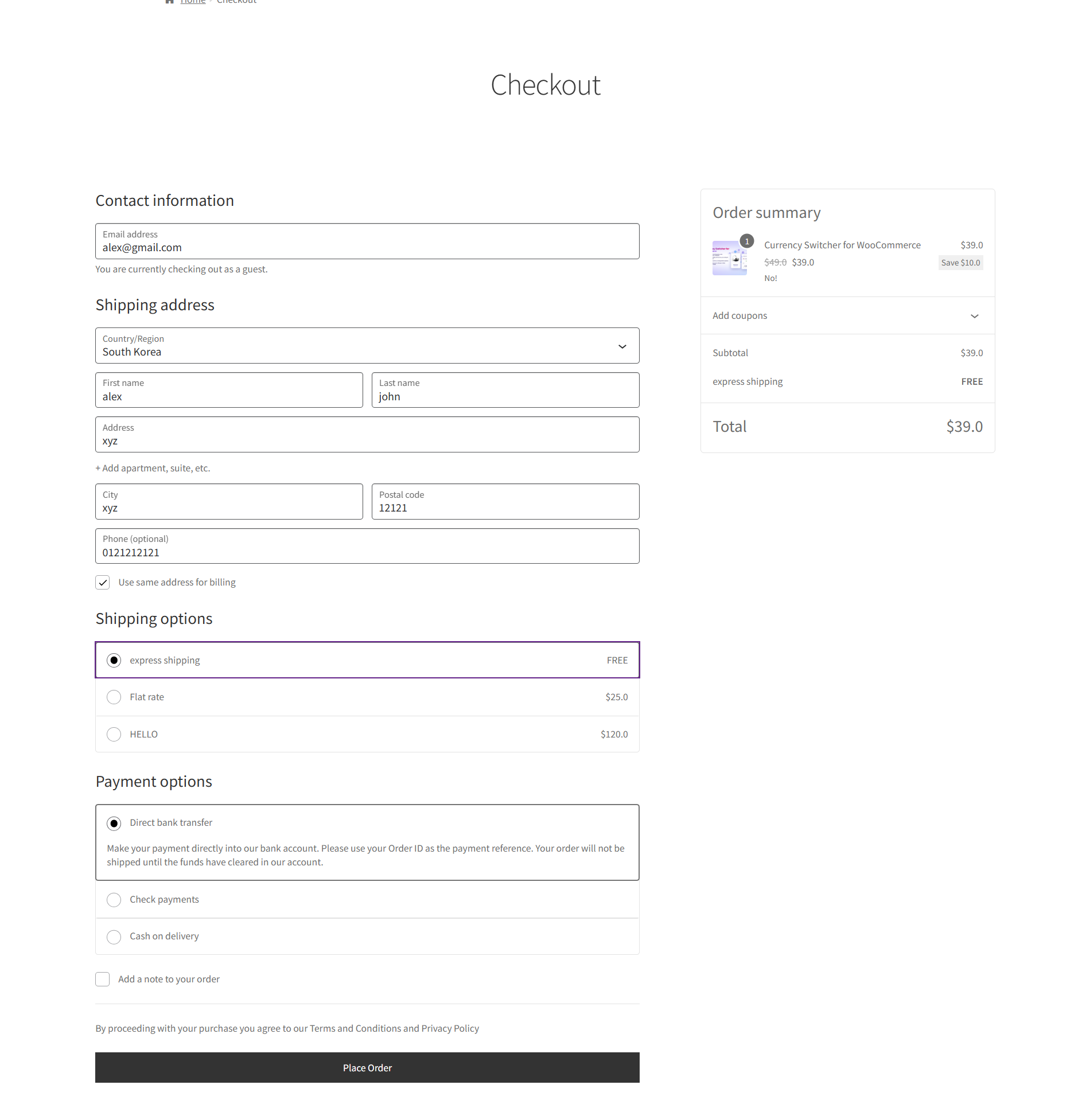
- The available shipping methods will be displayed based on the conditions defined in the rule.
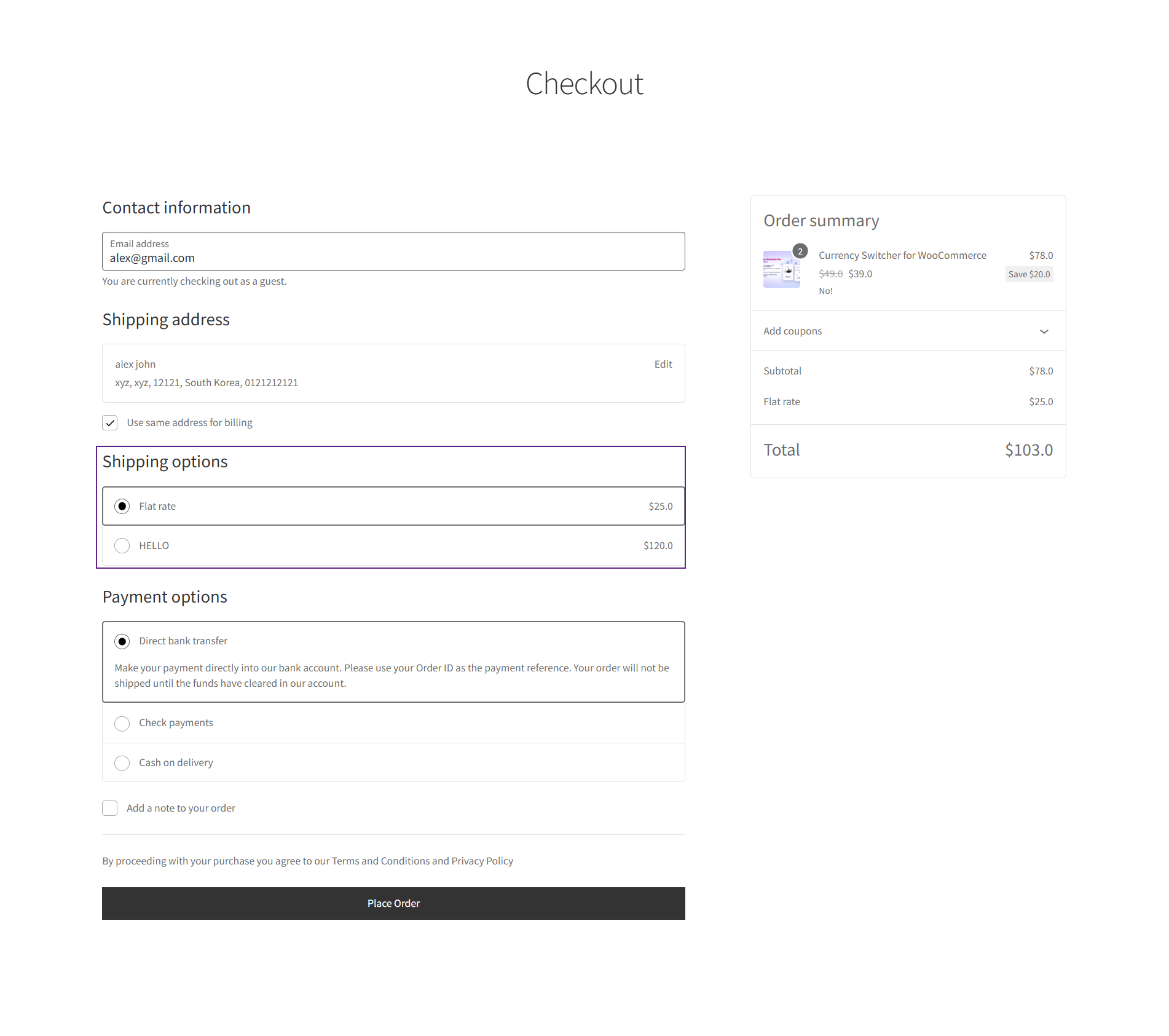
Cart weight rule
↑ Back to topIf a rule is configured to hide Express Shipping when the cart weight exceeds 10 kg:
Before rule applied
- Express Shipping is visible.
After rule applied
- Express Shipping is automatically hidden when the cart weight exceeds 10 kg.
Cart subtotal rule
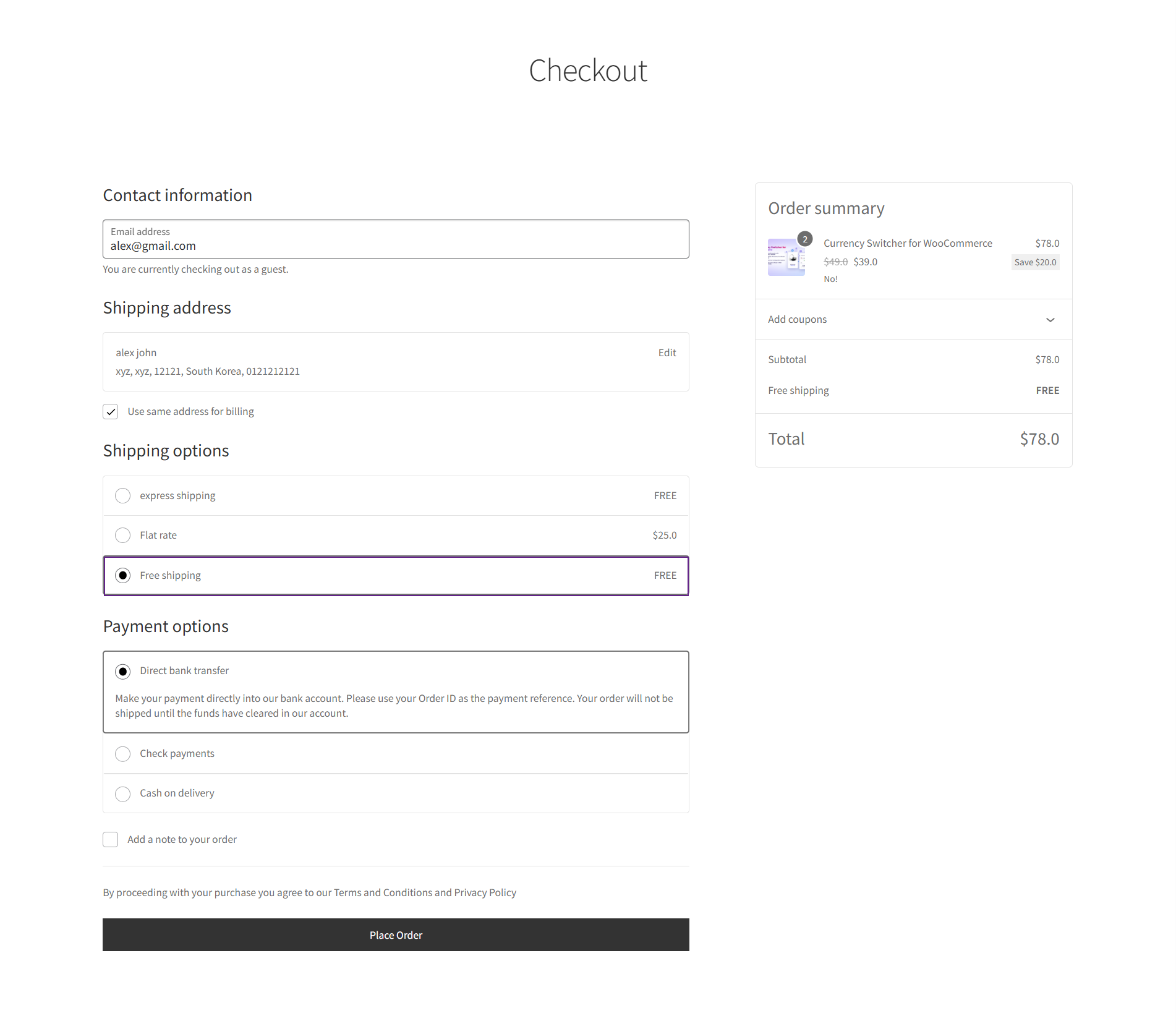
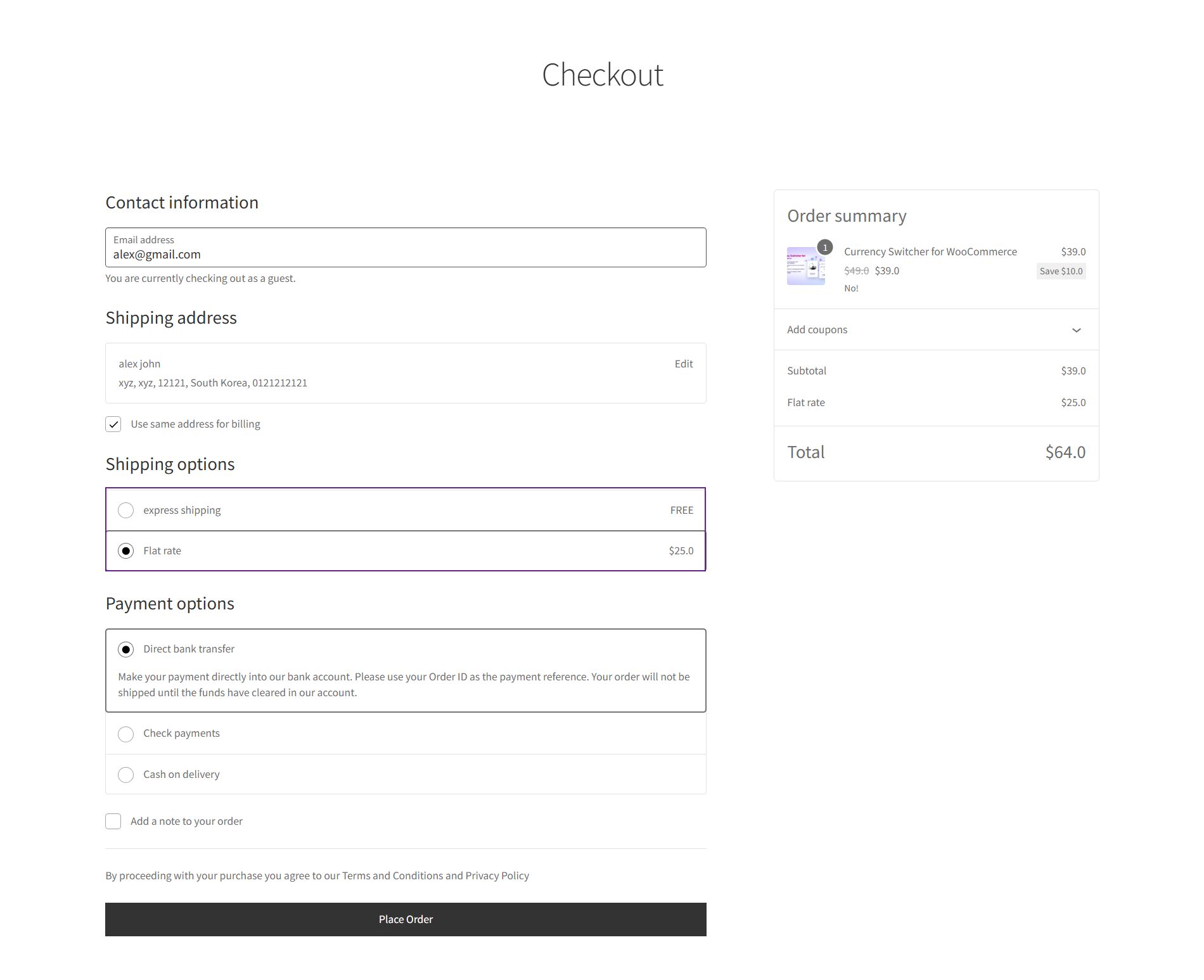
↑ Back to topIf a rule is configured to hide Free Shipping when the cart subtotal is below the specified amount:
Before Rule Applied
- Free Shipping is available.
After Rule Applied
- Free Shipping is hidden because the minimum subtotal requirement is not met.
Frequently Asked Questions (FAQs)
↑ Back to topHow many rules can I create?
There’s no hard limit. You can create as many rules as needed, though performance may be affected with hundreds of complex rules.
Can I hide multiple shipping methods in one rule?
Yes. Use the multi-select field under “Shipping Methods to Hide” to choose as many methods as needed.
What happens if no rules match a checkout scenario?
All shipping methods appear normally (default WooCommerce behavior). The extension only hides methods, never shows methods that weren’t available.
How do rules interact with shipping zones?
Rules are global, but you can use Location conditions (Zone, Country, State, City, Postcode) to restrict rules to specific zones or areas .
Does this work with custom shipping methods?
No. It only hides existing ones based on your rules. Shipping methods must be configured in WooCommerce normally.
Can I reorder rules by priority?
The listing page doesn’t support drag-and-drop reordering. Edit each rule’s priority number directly in the Priority box.
Will the extension slow down my checkout page?
No. Rules are evaluated efficiently with minimal performance impact. Rule conditions are simple comparisons executed in milliseconds.
What happens to deleted rules?
Deleted rules go to Trash. You can restore them from the Trash view. Permanently deleted rules cannot be recovered.
Can I temporarily disable all rules?
Yes. Go to WooCommerce → Settings →Shipping → Shipping Settings and switch from “Conditional Hide Shipping Method Rules” to any other option. Rules are preserved but won’t execute.
Does this work with Block-based checkout?
Yes. The extension is compatible with WooCommerce Blocks and the standard checkout shortcode.

