
Data Privacy Manager for WooCommerce lets your customers request account deletion from My Account → Data Privacy. Shop managers with access can review and manage those requests under WooCommerce → Data Privacy → Requests → Account closures.
How account deletion works
↑ Back to topYour customers can request account deletion from My Account → Data Privacy → Delete my account. Data Privacy Manager for WooCommerce sends a six-digit code to the email address on the customer’s account. The customer enters the code to verify the request. What happens next depends on your store’s approval setting.
- When approval is required, the customer sees Waiting for review. A shop manager reviews the request under WooCommerce → Data Privacy → Requests → Account closures and selects Approve deletion to start the hold period.
- When approval is disabled, the hold period starts as soon as the customer confirms the code. Shop managers can still track the request under Account closures and contact the customer while the request is active.
The hold period gives customers time to change their minds. When it begins, the customer receives an email with the scheduled deletion date and instructions for canceling. If the customer cancels while the request is active, their account stays open. If the request remains active when the hold ends, Data Privacy Manager processes the deletion. Once it comple
Before you start. Customers need to sign in and have access to the email address on their account. Customers who want to remove eligible personal data while keeping their account can use Erase my personal data.
Customer Account Delete Workflow
↑ Back to topAccount Delation Section
↑ Back to topFrom My Account in your store, customers follow these steps.
- Select Data Privacy in the account menu.
- Select Delete my account. The label may vary according to your store’s settings.
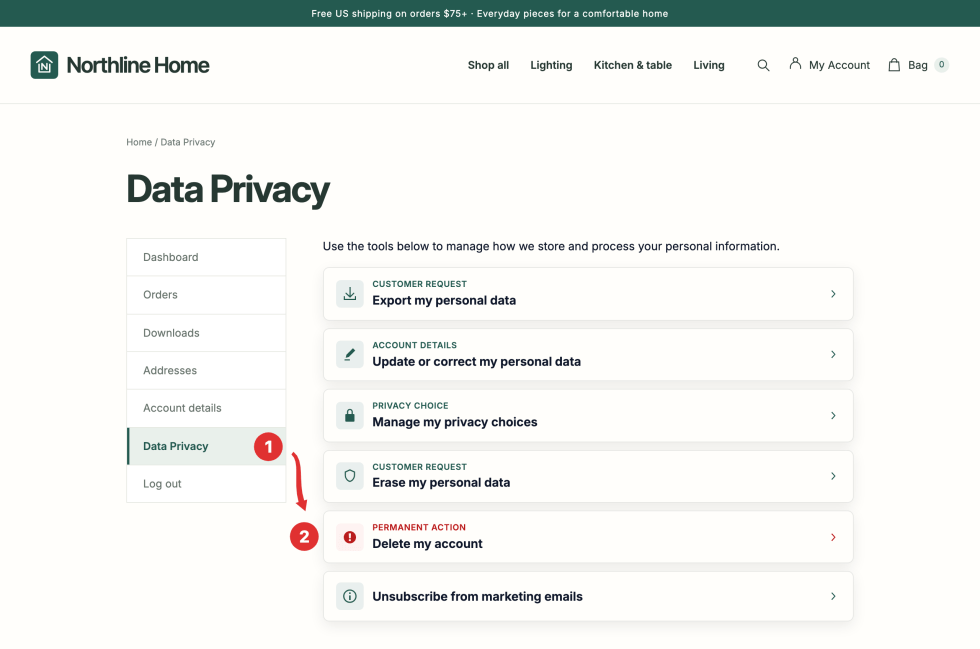
Request account deletion
↑ Back to topCustomers read the account deletion information, enter a reason if your store requires one, and select Request account closure. Data Privacy Manager sends a verification code to the email address on the account.
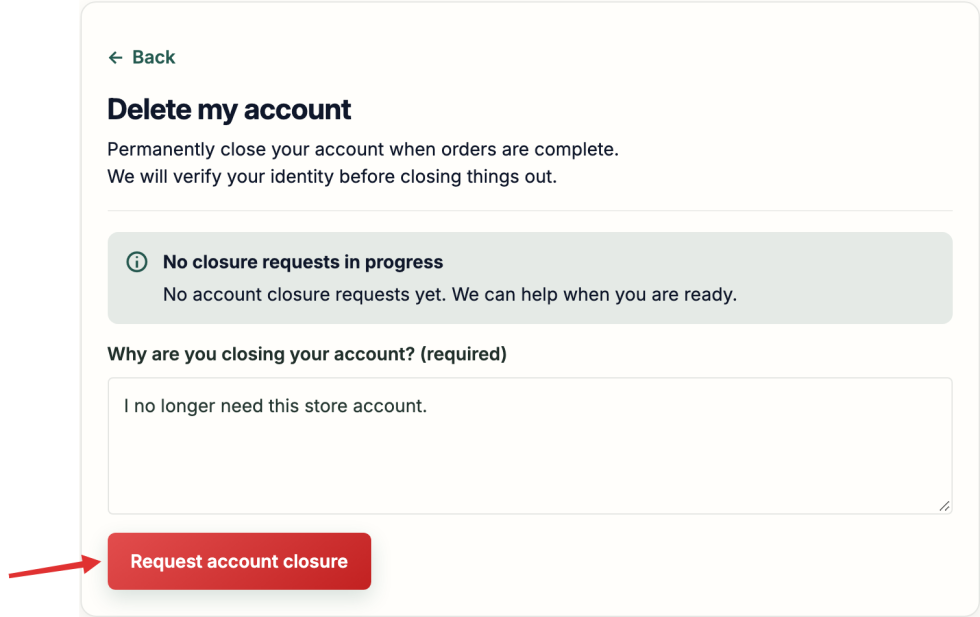
Confirmation Email With OTP
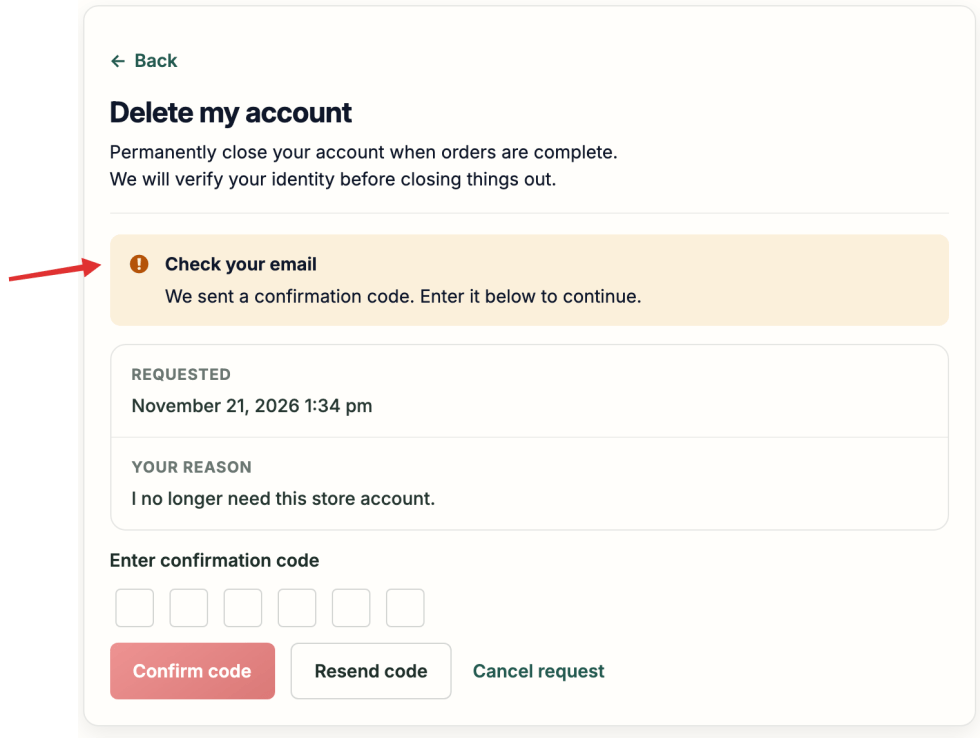
↑ Back to topCheck for the confirmation prompt
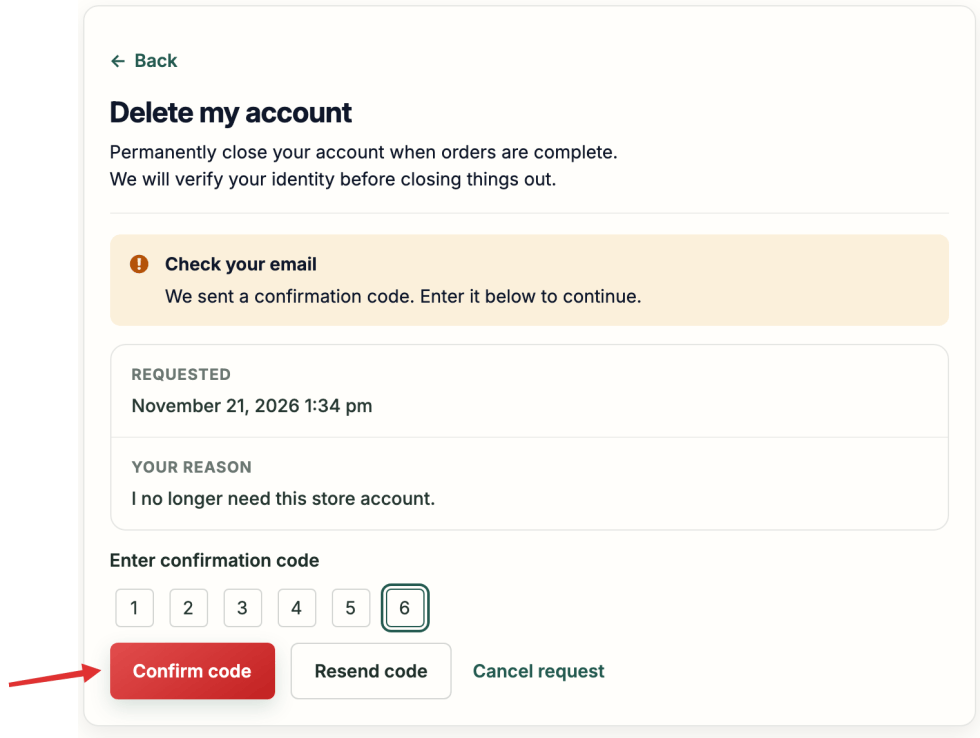
After submitting the request, the customer sees Check your email and six empty boxes under Enter confirmation code. The customer can leave this page open while checking their inbox.
Open the verification email
↑ Back to topCustomers open the email titled Confirm your account closure request to find the six-digit code. If the email is missing, they can check their spam or junk folder.
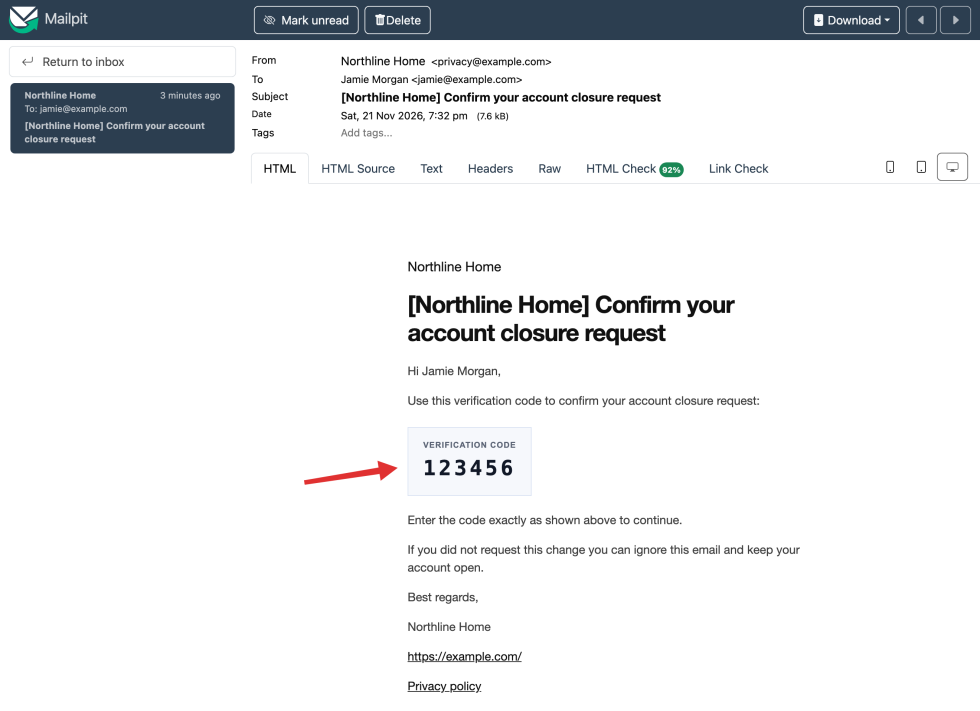
Open the verification email
↑ Back to topCustomers return to the confirmation screen, enter the six digits, and select Confirm code. If the code expires, they can select Resend code when available and use the code from the latest email.
Review and approve account deletion requests
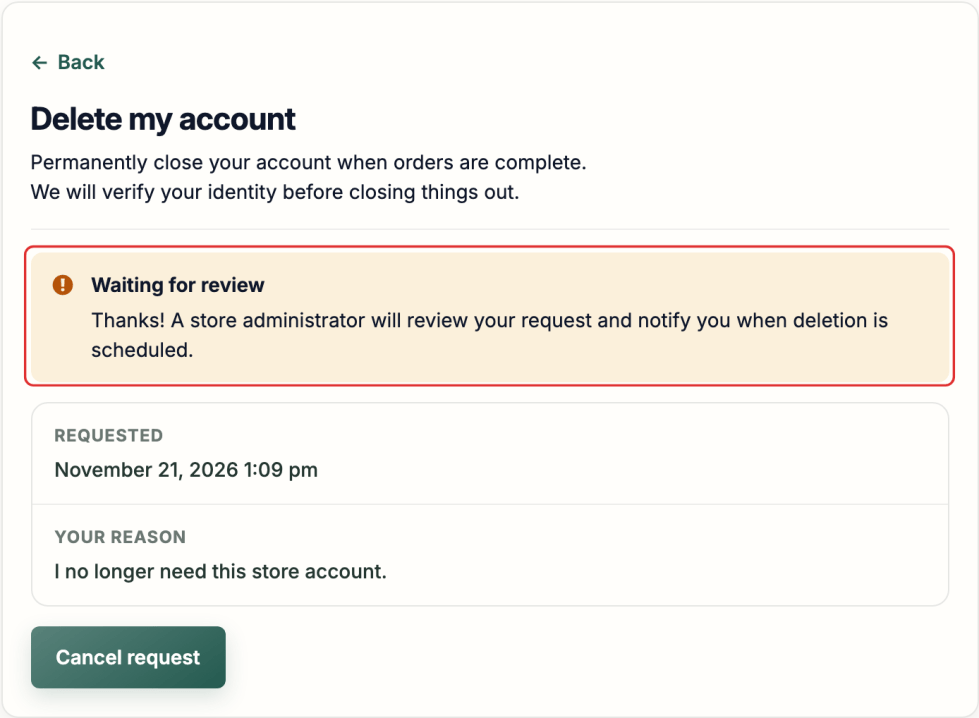
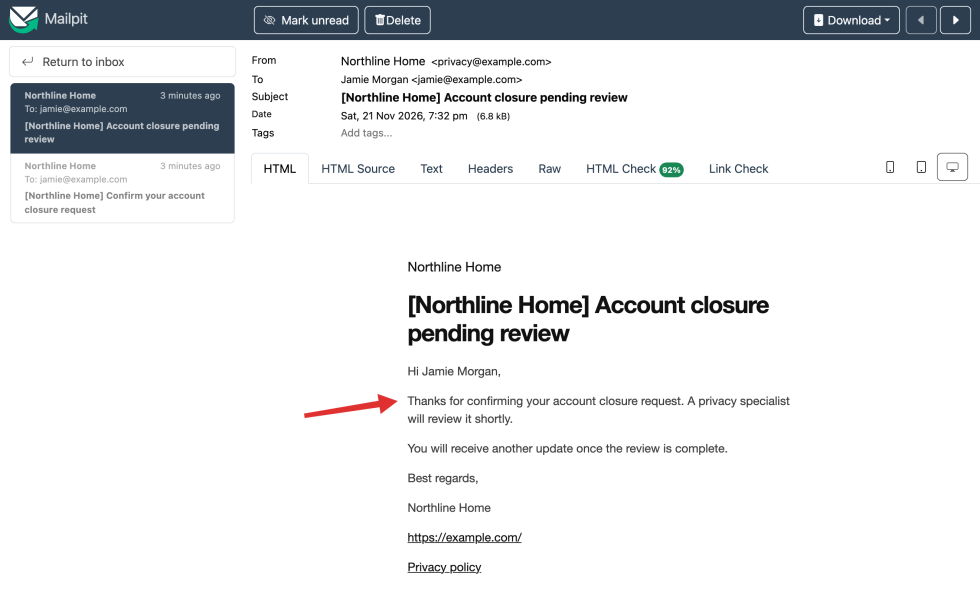
↑ Back to topIf your store requires approval, a shop manager with access to privacy requests must approve the customer’s request before the hold period begins. After confirming the verification code, the customer sees Waiting for review. When approval is disabled, the hold begins as soon as the customer confirms the code.
Approve a request in the store admin
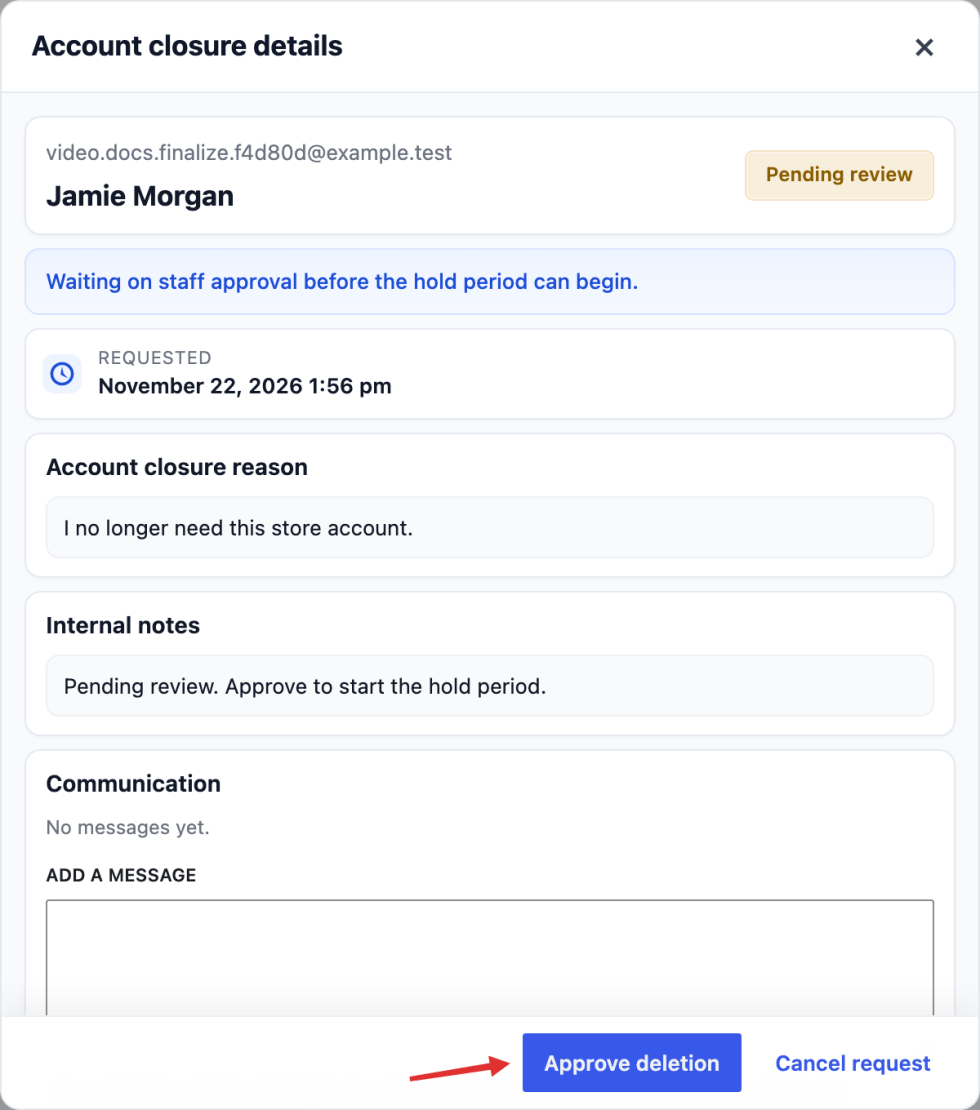
↑ Back to topShop managers with access to privacy requests go to WooCommerce → Data Privacy → Requests → Account closures. They select View details to open the request and Approve deletion to start the hold period.
Talk to the privacy team
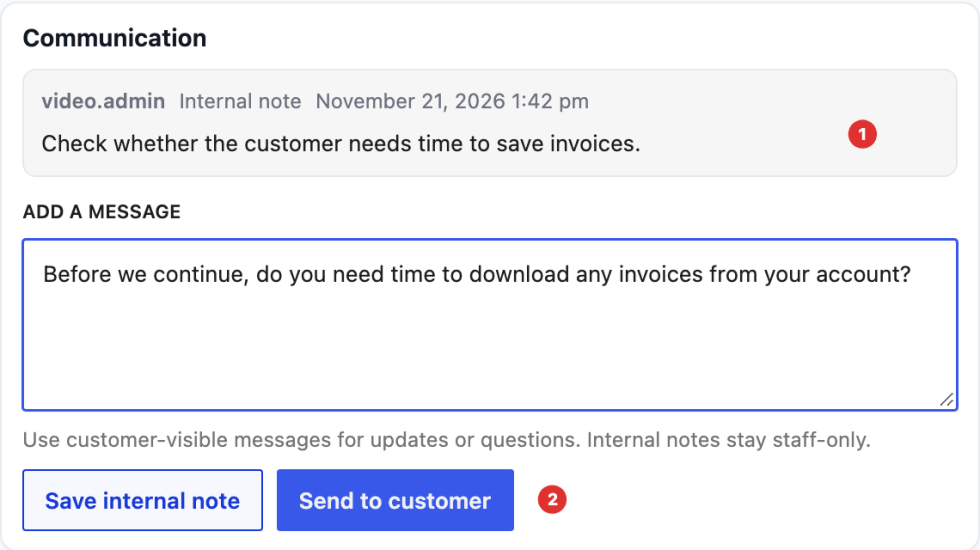
↑ Back to topShop managers with access can ask a question or send an update while an account deletion request is active. Data Privacy Manager keeps customer-visible messages and replies with the request. For example, a shop manager can ask whether a customer needs time to download invoices before their account is deleted.
Send the first message
↑ Back to topThe shop manager opens the request under Account closures and writes a message using Add a message in the Communication section.
- Internal note. Save internal note keeps the note visible only to store staff.
- Send to customer. This button sends the message and opens the conversation for the customer.
How customers receive the update
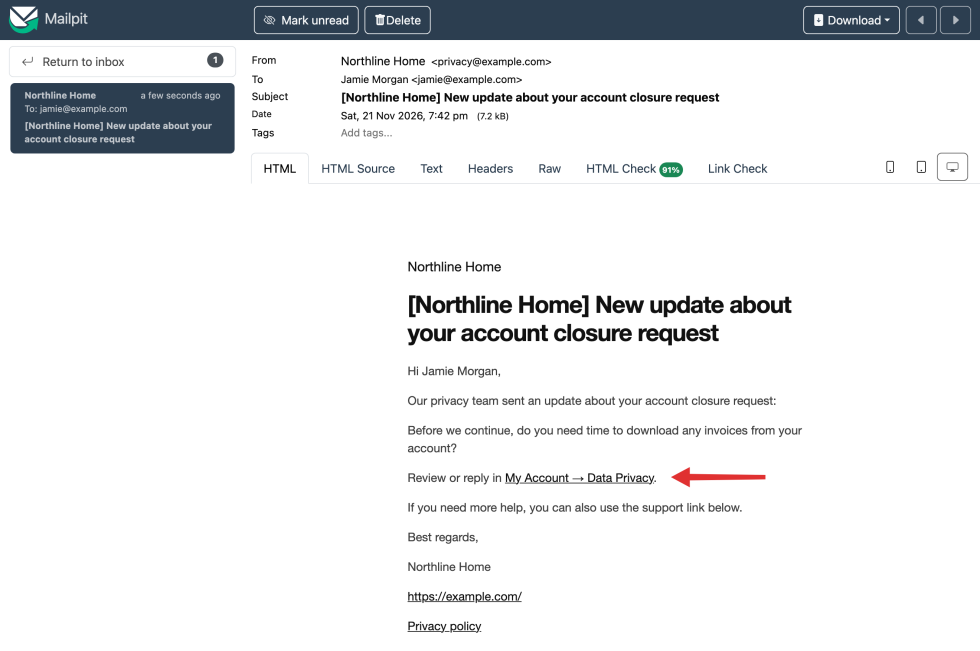
↑ Back to topThe customer receives an email titled New update about your account closure request. The email includes the message and a link to My Account → Data Privacy, where the customer can reply.
Customer Read the message and send a reply
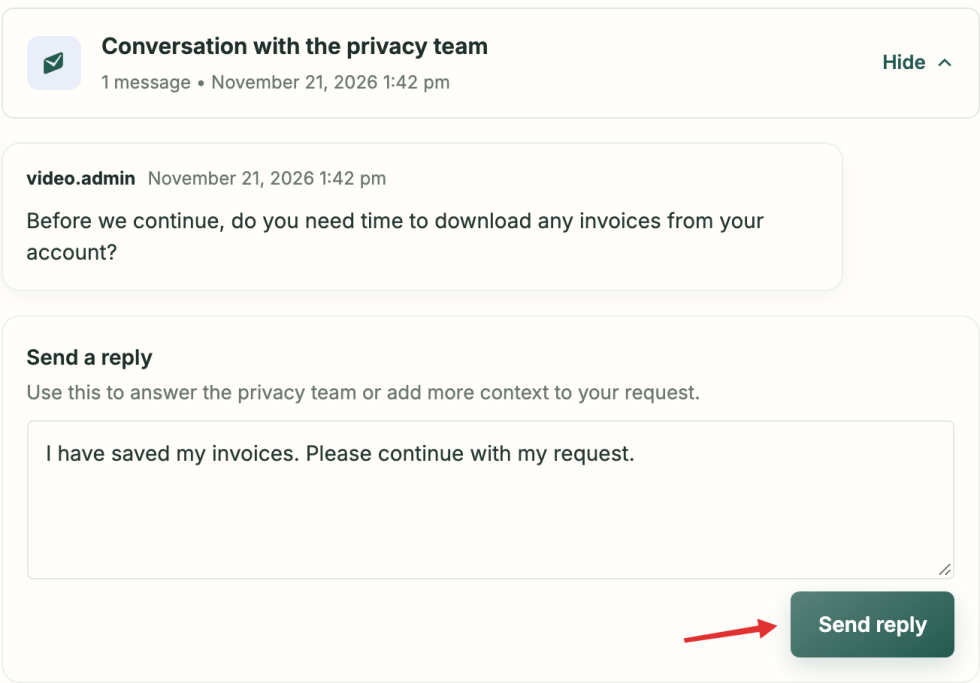
↑ Back to topFrom My Account → Data Privacy → Delete my account, the customer selects View under Conversation with the privacy team.

Shop managers with access can read the reply and respond from the same request. Messages do not pause the hold or change the request’s status; approval and cancellation are separate actions.
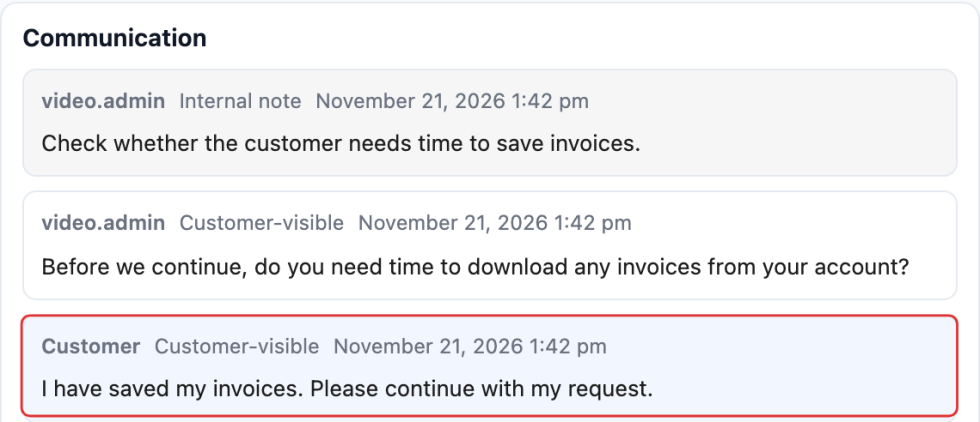
In this example, the shop manager acknowledges the reply and lets the customer know that the review will continue.
Revisit the conversation after cancellation
↑ Back to topAfter cancellation, the customer can select View on the request under Request history. The conversation remains available to read after the request closes. Canceled and completed requests no longer accept replies.
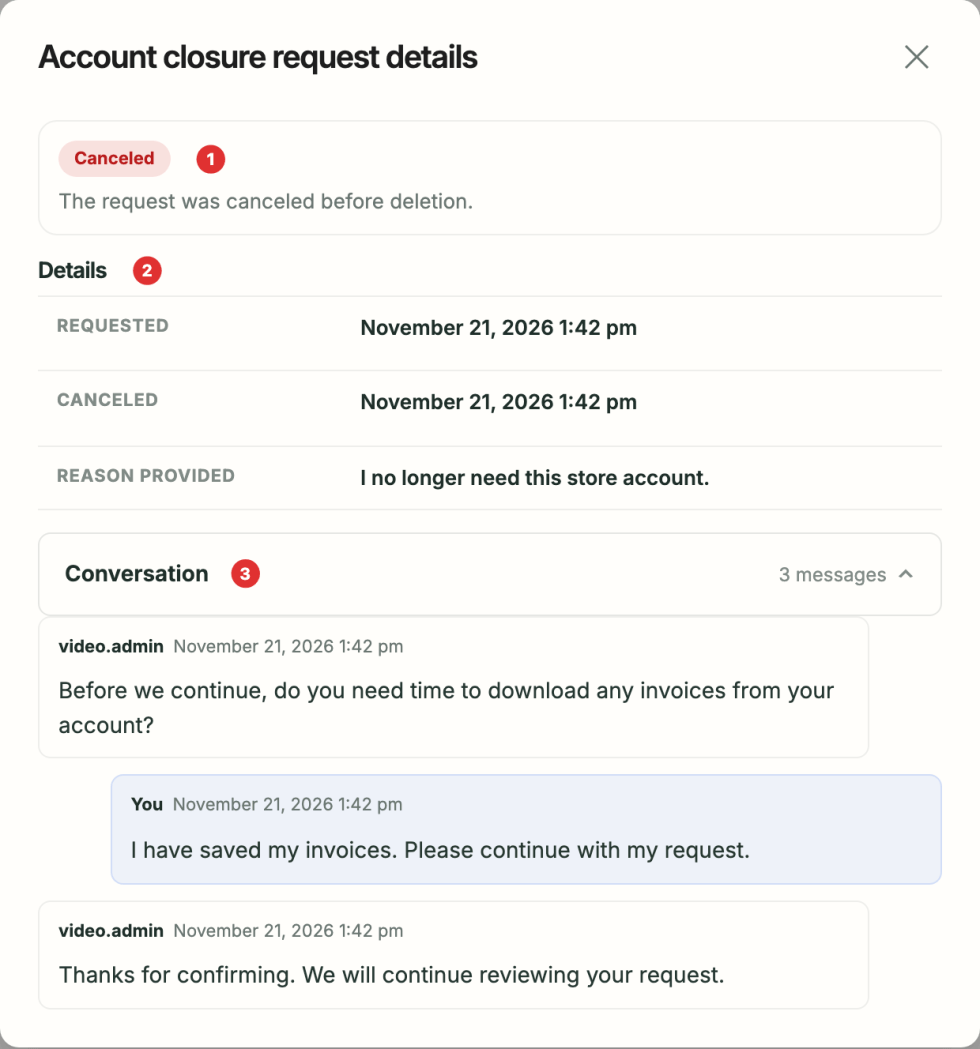
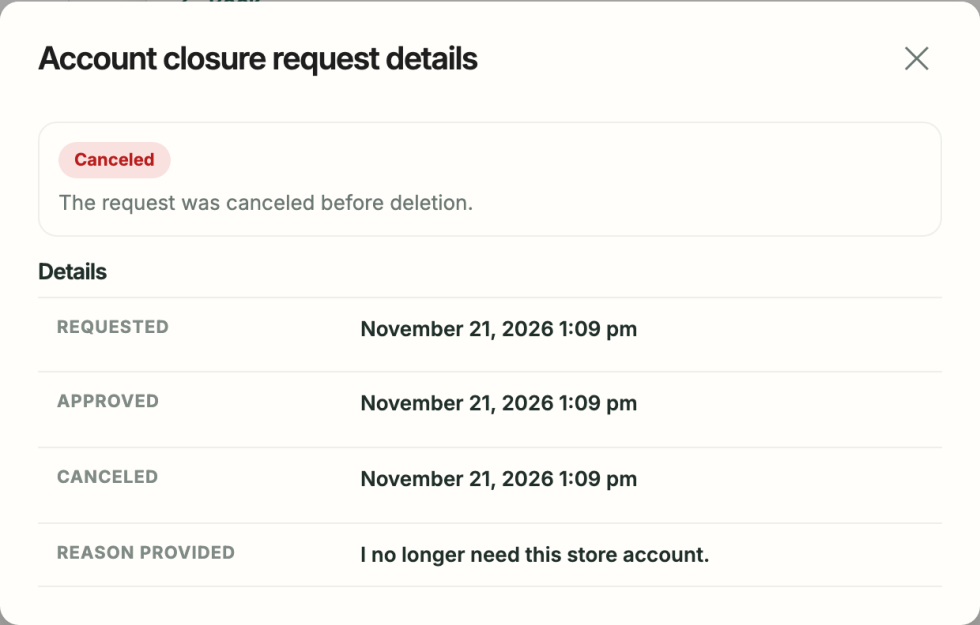
- Status shows that this request was canceled before deletion.
- Details shows when the request was submitted and canceled, along with the reason provided.
- Conversation opens the saved exchange with the privacy team.
Check the hold period
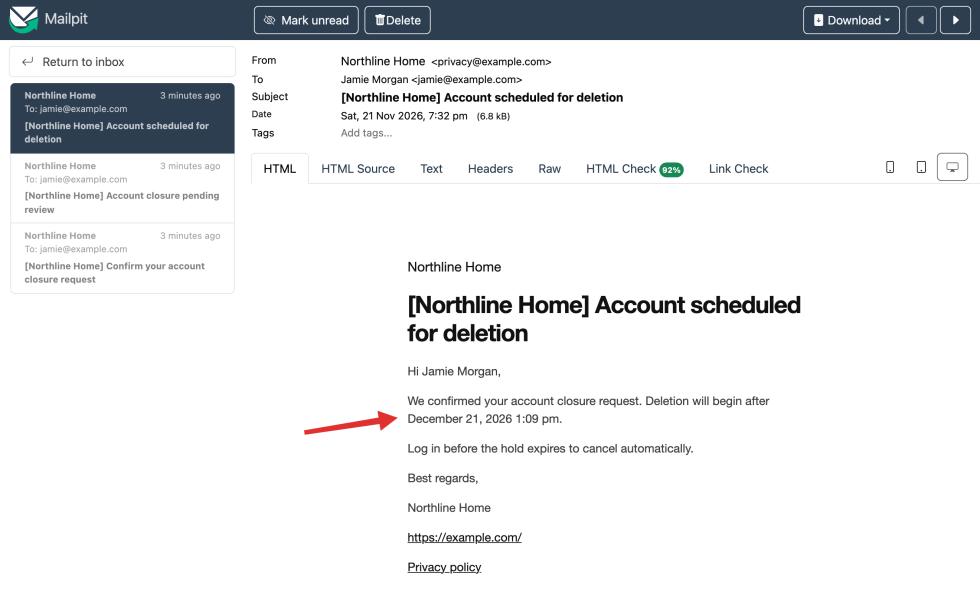
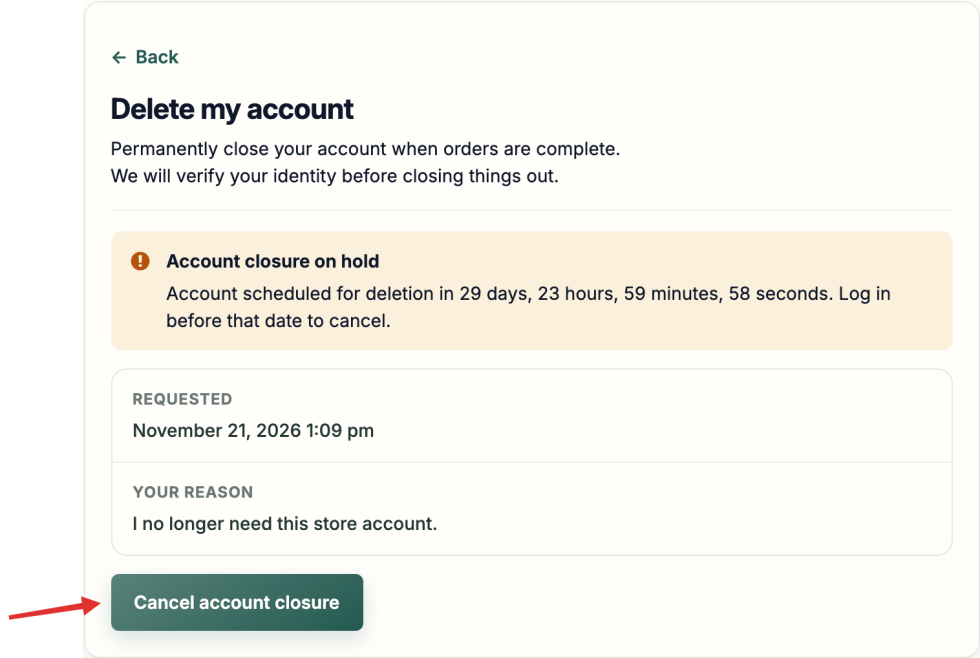
↑ Back to topWhen the hold begins, the customer receives an email titled Account scheduled for deletion. The email gives the scheduled date and instructions for canceling. Customers can also check how much time is left on the Delete my account page.
Cancel a request and view its history
↑ Back to topCustomers can cancel an active request by selecting Cancel request or Cancel account closure, depending on the stage. In Request history, the request shows Canceled. Customers can select View to open the record.
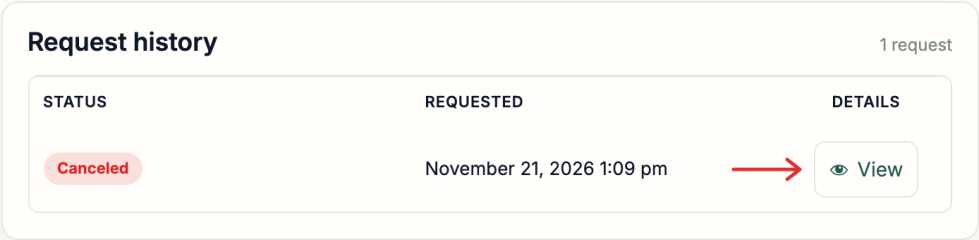
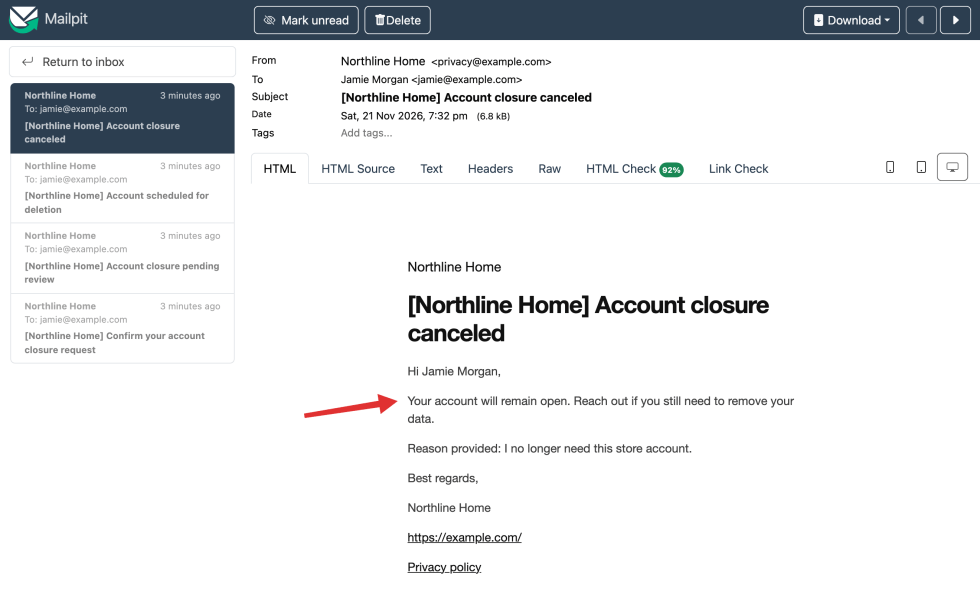
If your store enables automatic cancellation on sign-in, signing in again during staff review or the hold period cancels the request. Customers who are already signed in can view its status on the Delete my account page. After a new sign-in, they can check the outcome under Request history.
Account deletion and confirmation
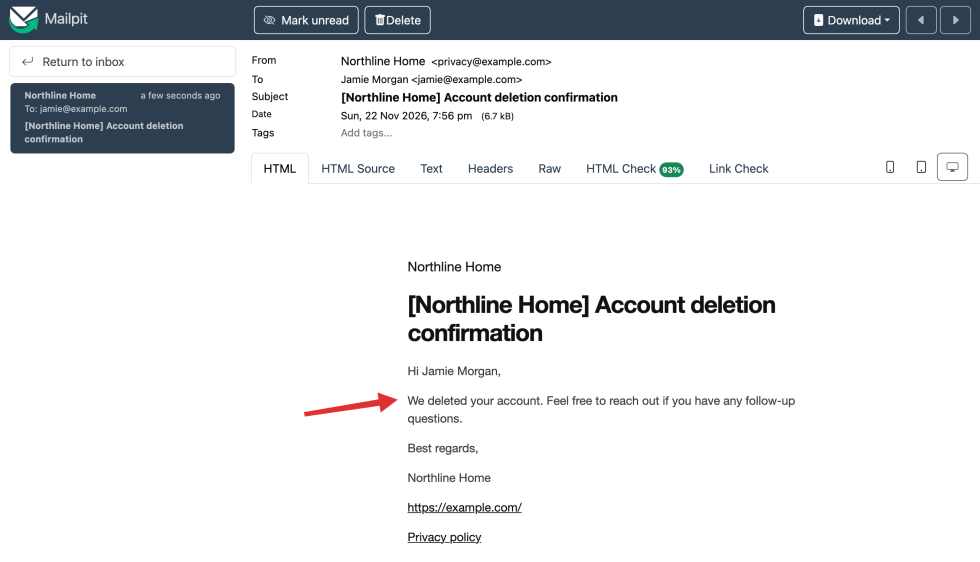
↑ Back to topBackground tasks process eligible requests that remain active after the saved hold deadline. The scheduled date is when processing becomes due; deletion may complete after that time. Once the account is deleted, the customer receives an Account deletion confirmation email at the address associated with the former account.
What the customer sees in My Account
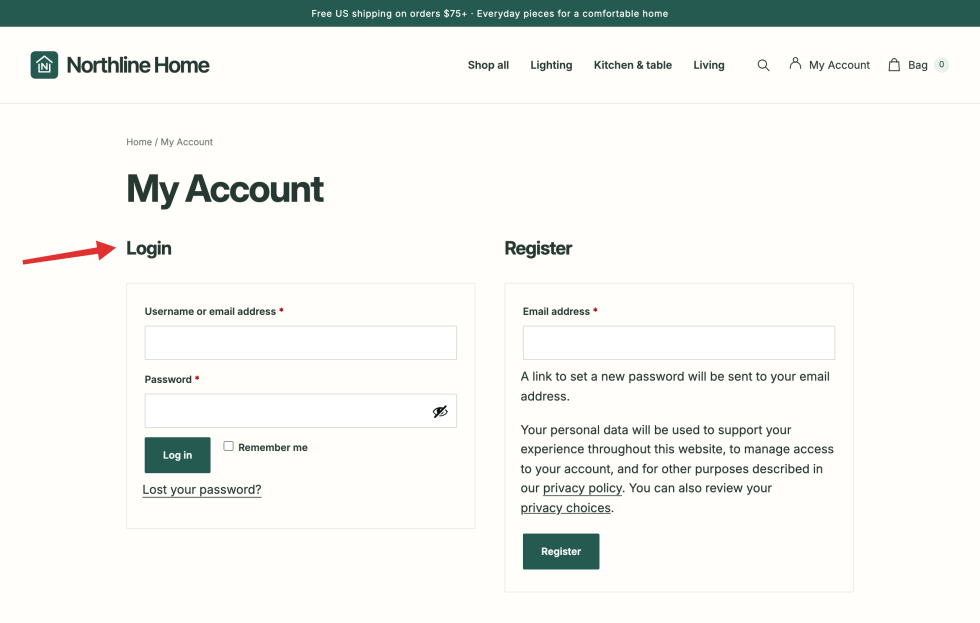
↑ Back to topIf the customer returns to My Account after deletion, the store displays the sign-in page. The customer can no longer sign in with the deleted account.
What shop managers see
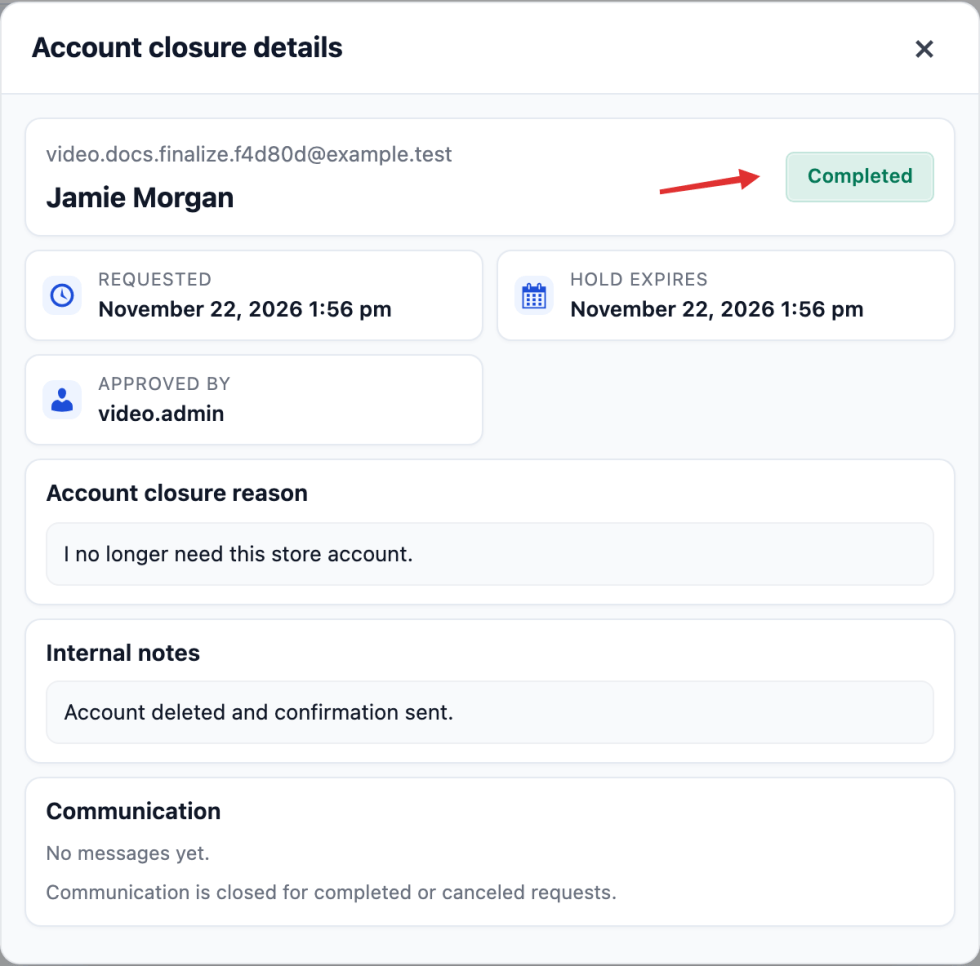
↑ Back to topShop managers can look up the request under Account closures. After deletion, the request shows Completed and the conversation is closed.
Deleting an account does not necessarily remove every personal record held by your store. WooCommerce orders and records held in other systems may follow their own retention rules. Customers with questions about retained records can contact your privacy team.
Troubleshooting
↑ Back to top- Invalid or expired code. Customers can check the most recent email or select Resend code when available. Multiple incorrect attempts may require a wait before trying again.
- An active request already exists. Customers can return to Delete my account to continue or cancel it.
- The request option is unavailable. If your store restricts staff accounts from requesting their own deletion, those users can contact a store administrator.
- No reply field appears. Staff may not have started a customer-visible conversation, or the request may already be closed. Customers reply in My Account rather than replying to the notification email.
- The hold has ended but the account remains open. Shop managers with access should check the request’s saved deadline and the store’s scheduled tasks. They do not need to approve an already approved request again.
Use Case
↑ Back to topA customer no longer uses their store account and wants it closed. They can use Delete my account to request closure. Your store may still need to keep some records, such as order information required by law.
If they also ask you to erase their personal data, closing the account can form part of your response under the right to erasure (‘right to be forgotten’) in GDPR Article 17.