
Customer Guard for WooCommerce helps store teams review customer history, risk signals, internal notes, and Cash on Delivery payment guardrails inside the WooCommerce admin.
Use it when your team needs more context before fulfillment, before accepting Cash on Delivery, or before reviewing repeat customer issues.
Requirements
↑ Back to topCustomer Guard requires:
- WordPress 6.2 or later
- PHP 7.4 or later
- WooCommerce 8.0 or later
- WooCommerce installed and active
- Administrator or shop manager access with Customer Guard permissions
Customer Guard is compatible with WooCommerce High-Performance Order Storage in supported WooCommerce versions.
Install Customer Guard
↑ Back to top- Download the extension from WooCommerce.com.
- Go to Plugins > Add New in your WordPress admin.
- Upload the plugin package.
- Activate Customer Guard for WooCommerce.
- Make sure WooCommerce is active.
- Go to WooCommerce > Customer Guard.
First setup
↑ Back to topAfter activating the extension, open WooCommerce > Customer Guard and review the Overview screen.
For most stores, the recommended setup flow is:
- Review the Overview checklist.
- Open Tools.
- Run Sync old orders if your store already has WooCommerce orders.
- Open Settings.
- Review the Customer Risk Rules thresholds.
- Review Payment Guardrails.
- Start with Monitor mode.
- Enable Enforce mode only after testing checkout behavior on a staging site.
Monitor mode lets you review guardrail decisions without changing checkout payment methods.
Sync historical orders
↑ Back to topHistorical sync imports existing WooCommerce order activity into Customer Guard profiles. It is a manual action and does not start automatically when the extension is installed.
To sync historical orders:
- Go to WooCommerce > Customer Guard > Tools.
- Open the First-time setup panel.
- Review the current sync status.
- Select Sync old orders.
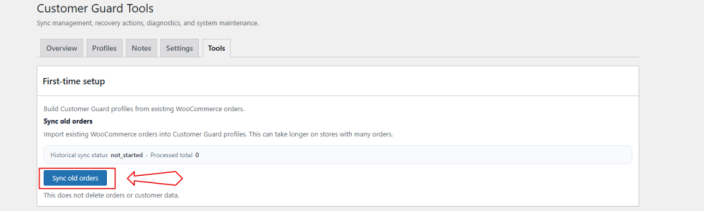
Resetting historical sync progress is available in advanced tools and requires typed confirmation. It does not delete WooCommerce orders, Customer Guard profiles, notes, or identities.
Configure automatic order sync
↑ Back to topAutomatic order sync keeps Customer Guard profiles updated when new WooCommerce order activity happens.
On new installs, automatic sync is enabled by default for:
- New orders
- Order status changes
- Refund events
- Automatic profile creation
- Automatic identity attachment
- Metrics rebuilds after sync
- Queue processing
Saved settings are not overwritten during upgrades. If a store has already saved different sync settings, Customer Guard respects those settings.
Automatic sync does not run full historical sync. Use Tools > Sync old orders when you need to import existing store history.
Review customer profiles
↑ Back to topCustomer Guard profiles are separate from WordPress users and are built from WooCommerce order data.
To review a profile:
- Go to WooCommerce > Customer Guard.
- Open the Profiles tab.
- Search by order ID, customer ID, or email.
- Open the matching profile.
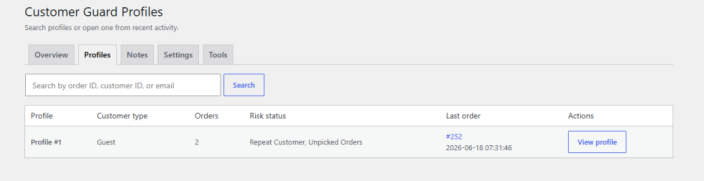
A Customer Guard profile can include customer value, order history, risk labels, payment context, manual flags, internal notes, identity signals, and recent linked orders.
Opening the profile screen without a valid profile ID does not create a profile.
Use Customer Guard in WooCommerce Orders
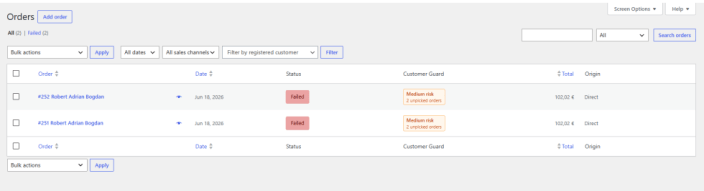
↑ Back to topCustomer Guard adds operational risk labels to supported WooCommerce order screens.
From WooCommerce > Orders, store staff can review risk badges when they are available. These badges are review signals for staff. They do not replace store policies or manual judgment.
Profile links open in a new browser tab so staff can review customer context without losing their place in the order workflow.
Use the single order snapshot
↑ Back to topThe single order screen includes a compact Customer Guard snapshot when a linked profile is available.
The snapshot can show:
- Risk status
- Main risk reason
- Customer profile link
- Order metrics
- Payment Guardrails mode
- Matched guardrail rule summary
- Review-only identity note
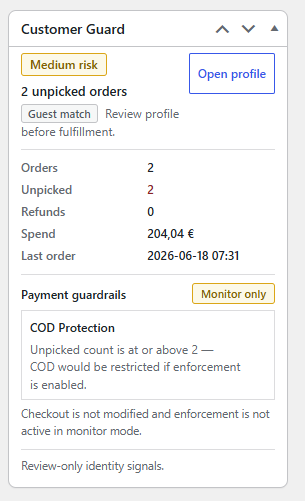
If no profile is linked, the metabox explains that no Customer Guard profile is attached and that no restrictions are applied from that state.
Configure risk labels
↑ Back to topRisk labels help staff identify operational customer signals.
To configure risk labels:
- Go to WooCommerce > Customer Guard > Settings.
- Open Customer Risk Rules.
- Adjust thresholds for repeat customers, VIP customers, refund signals, unpicked orders, and other available rules.
- Save your settings.
Risk labels are operational reference signals. They do not guarantee a fulfillment outcome.
Configure Payment Guardrails
↑ Back to topPayment Guardrails focus on Cash on Delivery in this release.
To configure Payment Guardrails:
- Go to WooCommerce > Customer Guard > Settings.
- Open Payment Guardrails.
- Choose a mode.
- Review the available COD restriction rules.
- Save your settings.
Payment Guardrails modes:
- Off: Guardrails do not affect checkout.
- Monitor: Customer Guard records and previews decisions without changing payment methods.
- Enforce: Customer Guard may hide Cash on Delivery when configured rules match verified customer history.
Manual flags can also affect guardrail evaluation depending on your settings. For example, Trusted, Watch, Payment restricted, and Ignore automatic restrictions can help your team manage special customer cases.
Payment decisions use verified customer history according to your configuration. Phone and email signals can help review customer identity, but Customer Guard does not merge customers automatically.
Use Monitor mode
↑ Back to topMonitor mode is the recommended starting point.
In Monitor mode, Customer Guard evaluates guardrail rules and shows what would happen, but it does not change checkout payment methods.
Use Monitor mode to review matched rules on customer profiles and order snapshots before you enable enforcement.
Use Enforce mode
↑ Back to topEnforce mode may hide Cash on Delivery at checkout when configured rules match verified customer history.
Before enabling Enforce mode on production:
- Confirm Cash on Delivery is enabled in WooCommerce.
- Test classic checkout on a staging site.
- Test Checkout Blocks on a staging site if your store uses block-based checkout.
- Review shopper-facing notices if enabled.
- Confirm your team knows how to return to Monitor or Off mode if needed.
Enforce mode focuses on Cash on Delivery in this release. It does not universally restrict every payment gateway.
Internal notes
↑ Back to topCustomer Guard includes internal notes for store teams.
To use notes:
- Open a Customer Guard profile.
- Go to the Internal Notes section.
- Add, edit, pin, or delete notes if your user role has permission.
Internal notes are not sent to customers and are not shown on the storefront.
The Notes screen under WooCommerce > Customer Guard provides a store-wide overview. Profile-level note management happens on the customer profile screen.
Identity signals
↑ Back to topCustomer Guard shows confirmed and review-only identity signals to help staff understand possible links between orders.
Identity signals can include email and phone matches. Confirmed signals can support verified customer history. Possible matches are shown as review signals only.
Customer Guard does not merge customer profiles automatically.
Tools and diagnostics
↑ Back to topThe Tools screen includes operational actions for setup, sync, diagnostics, and recovery.
Common tools include:
- Sync old orders for manual historical sync
- Sync single order for one order ID
- Queue single order sync for background processing
- Preview or rebuild metrics for profile metrics review
- Recovery tools for stalled sync-related work
- Diagnostics for schema, queue, and sync status
Danger zone actions are separated from daily tools and require typed confirmation.
Troubleshooting
↑ Back to topProfiles do not appear
↑ Back to topConfirm that WooCommerce has orders and that automatic sync is enabled. For existing stores, run Tools > Sync old orders to import historical order activity.
If profiles still do not appear, review the Diagnostics panel for schema or queue issues.
Orders are not syncing
↑ Back to topCheck that Enable automatic sync and Sync new orders are enabled in Settings.
You can also use Sync single order from Tools to test one order. If queue jobs are stalled, review Action Scheduler and the Recovery tools.
COD rules do not seem active
↑ Back to topConfirm that Payment Guardrails mode is set to Monitor or Enforce.
Monitor mode does not change checkout payment methods. Enforce mode can affect Cash on Delivery only when configured rules match verified customer history.
Payment methods are not changing
↑ Back to topMonitor mode never hides payment methods.
If you are using Enforce mode, confirm that Cash on Delivery is enabled in WooCommerce and that the test customer profile matches your configured rules.
Other payment gateways are not universally restricted in this release.
A customer profile is missing expected orders
↑ Back to topRun historical sync or single-order sync for the missing order.
If the order is still missing, confirm that the order is linked to the expected customer identity path and review Diagnostics for stale indexes.
Action Scheduler jobs are pending
↑ Back to topConfirm that queue processing is enabled.
If jobs remain pending, check your site cron or Action Scheduler runner. Use Recovery tools when diagnostics show stalled sync-related work.
Internal notes are not visible to some users
↑ Back to topConfirm that the user role has the required Customer Guard capabilities.
Notes are managed on customer profiles. The Notes screen provides a store-wide summary only.
Uninstall and data behavior
↑ Back to topDeactivating Customer Guard does not remove plugin data.
When the extension is uninstalled through WordPress, the uninstall routine removes plugin-owned database tables, options, transients, and capabilities created by Customer Guard.
Review your backup and privacy requirements before uninstalling the extension on a production site.
Support
↑ Back to topFor help with Customer Guard, contact support through your WooCommerce.com account.

