
Estimated delivery date shows the estimated order delivery date on your WooCommerce shop. Configure rules based on product, category, shipping country, shipping zone, and shipping method.
Installation
↑ Back to topTo start using a product from WooCommerce.com, you can use the “Add to store” functionality on the order confirmation page or the My subscriptions section in your account.
- Navigate to My subscriptions.
- Find the Add to store button next to the product you’re planning to install.
- Follow the instructions on the screen, and the product will be automatically added to your store.
Alternative options and more information at:
Managing WooCommerce.com subscriptions.

Setup and Configuration
↑ Back to top1. Getting started
↑ Back to topTo set up your store with Estimated Order Delivery and Pickup Date:
Go to: WooCommerce > Settings > Estimated Delivery Date. These settings apply globally across all delivery rules.
2. Display Pages
↑ Back to topEnable or disable the delivery message on each page of your store independently:
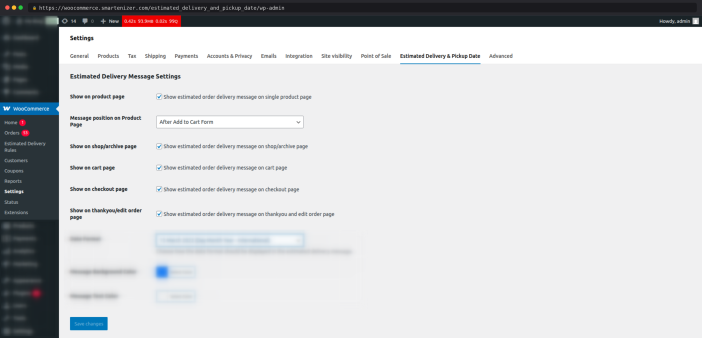
| Page | What It Controls |
| Single Product Page | Shows the delivery message on individual product pages. This is the primary display location. |
| Shop / Archive Page | Shows a delivery message on the main shop page and category/archive pages, below each product card. |
| Cart Page | Displays the estimated delivery message for each line item in the cart. |
| Checkout Page | Shows delivery estimates on the checkout page. Updates dynamically as customers change their shipping method. |
| Thank You / Edit Order Page | Shows the delivery message on the order confirmation page and the My Account order view. |
3. Message Position
↑ Back to topFor the Single Product Page, select where the delivery message appears relative to the product form. Currently available position:
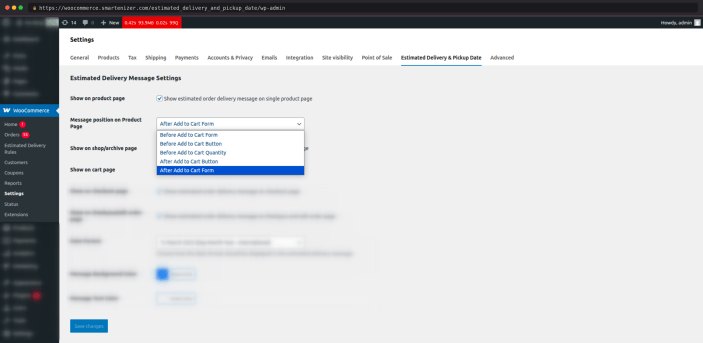
- Before the Add to Cart Form — message appears above the Add to Cart button and quantity selector
- Before the Add to Cart Button — message appears right above the Add to Cart button
- Before Add to Cart Quantity — message appears right before the Add to Cart quantity selector
- After the Add to Cart Button — message appears below the Add to Cart button
- After the Add to Cart Form — message appears below the Add to Cart button and quantity selector
4. Date Format
↑ Back to topSelect how estimated dates are displayed inside delivery messages:
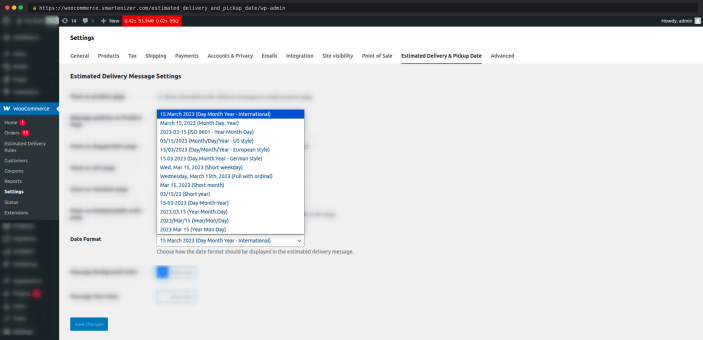
| Format Code | Example Output |
| d F Y | 24 March 2025 |
| d/m/Y | 24/03/2025 |
| m/d/Y | 03/24/2025 |
| Y-m-d | 2025-03-24 |
| l, d F Y | Monday, 24 March 2025 |
5. Message Styling
↑ Back to top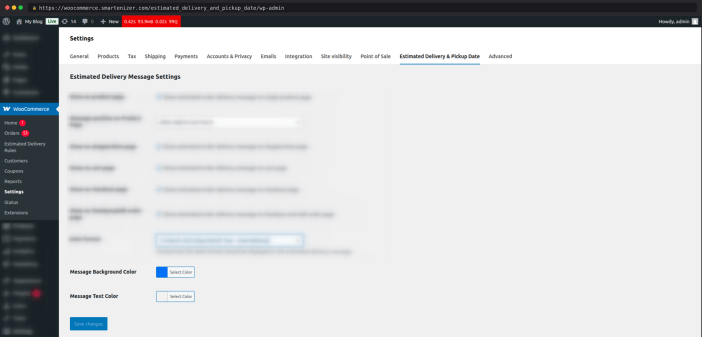
- Background Color — set the hex color for the delivery message box background (example: #e8f4ee for light green)
- Text Color — set the font color for the delivery message text (example: #1a6b3c for dark green)
Styling changes in General Settings affect all delivery messages across the store. All rules share the same globally defined message colors.
Creating Delivery Rules
↑ Back to topNavigate to WooCommerce > Estimated Delivery Rules > Add New Rule. Rules are the core of the plugin — each rule defines when and how a delivery message is shown.
How to Create a New Rule
↑ Back to top- Click Add New Rule on the Rules management page.
- Select the Show Message On condition type: Based on Products or Based on Shipping Details.
- Configure the rule conditions — select the specific products, categories, shipping method, zone, or country this rule targets.
- Set the delivery day parameters: minimum days, optional maximum days, optional cutoff time, and any excluded days or dates.
- Write your delivery message(s). Product-based rules require three messages (in stock, out of stock, backorder). Shipping-based rules require one message.
- Toggle the rule to Enabled and click Save Rule. The rule is now live.
Rule Priority: If multiple enabled rules match the same product or condition, the most recently created matching rule takes effect. Plan rules carefully to avoid unintended overlap.
Rule Conditions — Show Message On
↑ Back to topBased on Products
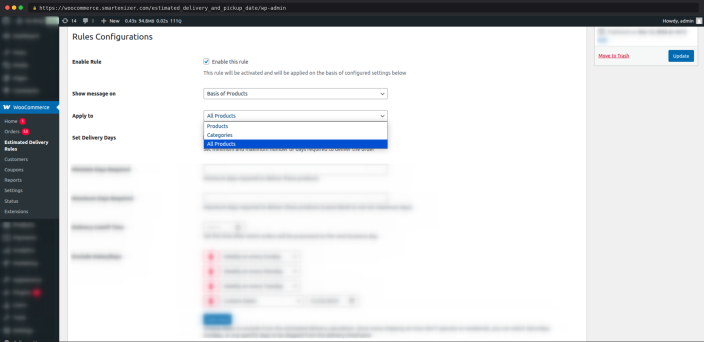
↑ Back to topChoose one scope for the product-based condition:
| Scope | Description |
| Specific Products | Select one or more individual products. The rule applies only when one of these products is being viewed or is in the cart. |
| Specific Categories | Select one or more product categories. The rule applies to any product belonging to those categories. |
| All Products | The rule applies to every product in the store. Use this as a default fallback rule. |
Based on Shipping Details
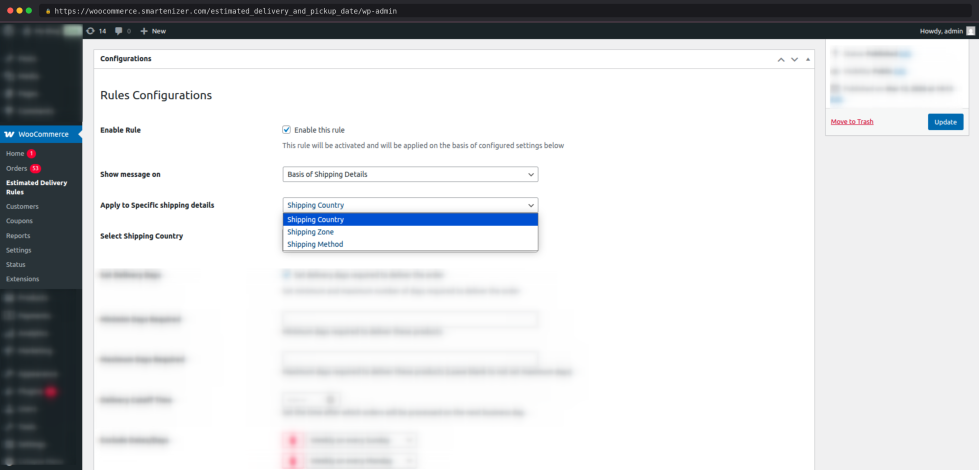
↑ Back to topChoose one of three shipping targeting options:
| Target | Description | Best For |
| Shipping Method | Triggers when the customer selects a specific shipping method at checkout. | Standard vs. express delivery |
| Shipping Zone | Triggers when the customer’s address falls within a WooCommerce Shipping Zone. | Domestic vs. international windows |
| Shipping Country | Triggers when the customer’s shipping country matches a selected country. | Per-country delivery windows |
Shipping-based rules require the customer to have selected a shipping method.
Delivery Day Settings
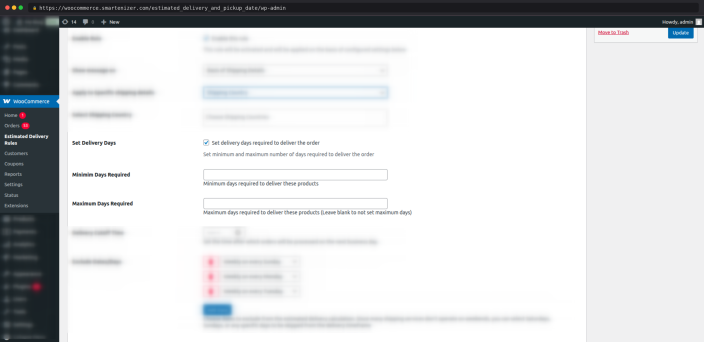
↑ Back to topEach rule has its own independent delivery day configuration. These settings determine the dates calculated by the shortcodes.
Minimum Delivery Days
↑ Back to topThe minimum number of days required after the order date before the earliest possible delivery. This value populates [delivery_minimum_date].
Example: Setting minimum days to 3 means delivery starts no earlier than 3 days from today, after excluding any excluded dates and days.
Maximum Delivery Days
↑ Back to topAn optional upper bound on the delivery window. When set, it generates a date range. This value populates [delivery_maximum_date]. Leave blank to show only a single estimated date.
Delivery Cutoff Time
↑ Back to topSet a time of day after which same-day processing is no longer available. The plugin uses this setting to determine day 1 of the delivery calculation:
| Scenario | Cutoff | Order Time | Day 1 Counted As |
| Before cutoff | 2:00 PM | 11:30 AM | Today |
| After cutoff | 2:00 PM | 4:45 PM | Tomorrow |
| No cutoff set | — | Any time | Today |
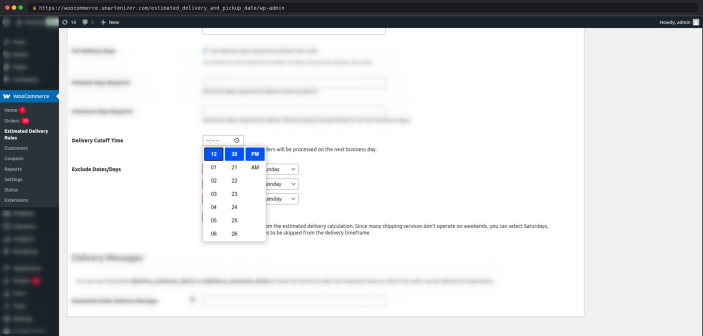
The cutoff time uses your WordPress site’s timezone. Verify your timezone is correctly set in WordPress Admin > Settings > General > Timezone.
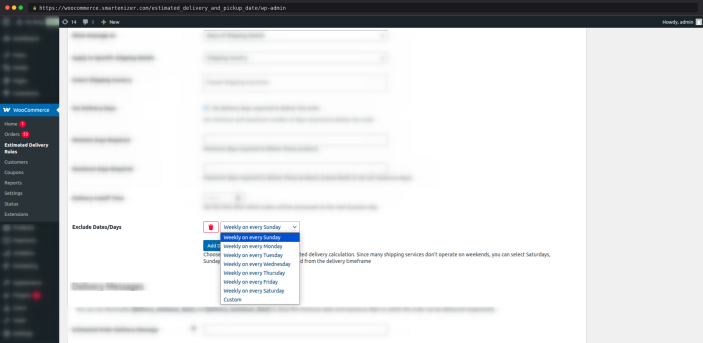
Exclude Specific Days of the Week
↑ Back to topSelect weekdays to skip in the delivery calculation. For example, if you do not ship on weekends, check Saturday and Sunday — those days will not be counted toward the delivery day total.
Exclude Specific Dates
↑ Back to topAdd individual calendar dates to exclude — typically public holidays or company closures. Multiple dates can be added per rule. To add an excluded date:
- In the rule configuration, click Add Date in the Exclude Specific Dates field.
- Select the date using the date picker (e.g., 25 December).
- Repeat for any additional dates to exclude.
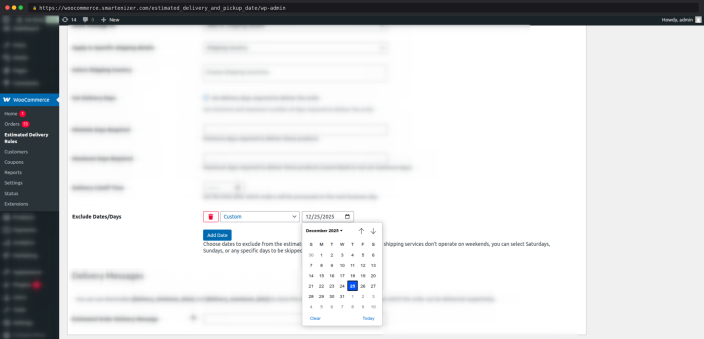
Excluded dates are configured per rule, so domestic and international rules can each have different holiday exclusions.
Message Configuration
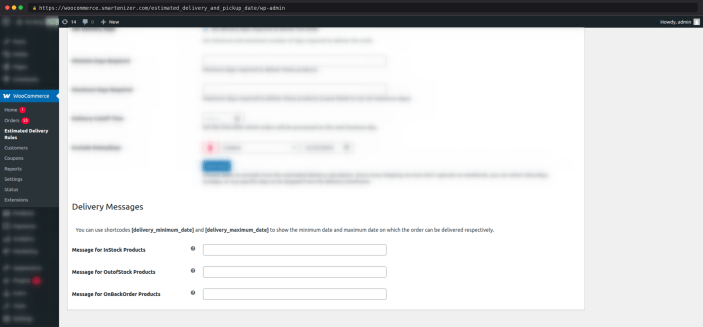
↑ Back to topDelivery messages are the text customers see in the delivery message box. The number of messages you configure depends on your rule’s condition type.
Product-Based Rules — Three Separate Messages
↑ Back to top| Message Field | When It Displays |
| In Stock Message | Displayed when the product’s stock status is In Stock in WooCommerce. |
| Out of Stock Message | Displayed when the product’s stock status is Out of Stock. |
| Backorder Message | Displayed when the product is set to allow backorders in WooCommerce. |
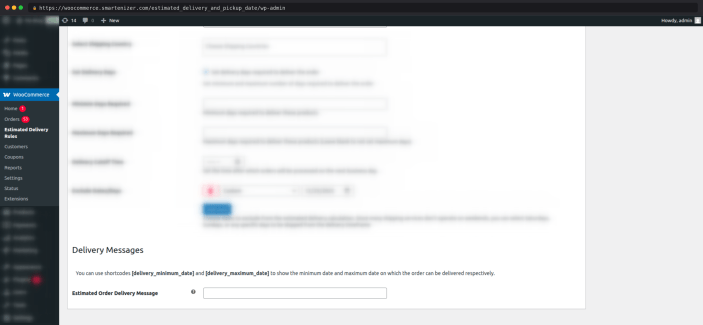
Shipping-Based Rules — One Unified Message
↑ Back to topWhen using shipping-based rules, a single message is used regardless of stock status. This message applies to all products matched by the shipping condition and displays on the cart and checkout pages.
Example Message Templates
↑ Back to top| Message Type | Example Template |
| In Stock | In stock — estimated delivery: [delivery_minimum_date] to [delivery_maximum_date] |
| Out of Stock | Currently out of stock. Restocking estimated by [delivery_minimum_date] |
| Backorder | Available for backorder — ships by [delivery_minimum_date] to [delivery_maximum_date] |
| Shipping-Based | Express delivery: [delivery_minimum_date] to [delivery_maximum_date] |
Shortcodes Reference
↑ Back to top| Shortcode | Output | Requires |
| [delivery_minimum_date] | Earliest estimated delivery date, calculated from today using minimum days, cutoff, and excluded dates. | Minimum Delivery Days to be set. |
| [delivery_maximum_date] | Latest estimated delivery date, calculated using maximum days, cutoff, and excluded dates. | Maximum Delivery Days to be set. Empty if not set. |
How Dates Are Calculated — Step by Step
↑ Back to top- Determine start date: if before cutoff, start date is today; if after cutoff, start date is tomorrow.
- Count forward by the minimum number of days from the start date.
- Skip any day that falls on an excluded weekday or an excluded specific date — those days do not count toward the total.
- Format the resulting date using the Date Format selected in General Settings.
- Repeat the same process using maximum days to produce [delivery_maximum_date].
Example Calculation
↑ Back to topRule settings: Minimum days = 3 | Maximum days = 5 | Cutoff = 2:00 PM | Excluded days = Saturday, Sunday | Excluded date = 18 April 2025 (Easter Friday)
Customer views product: Thursday, 17 April 2025 at 10:00 AM (before cutoff). Start date = today.
Calculation: Day 1 would be Friday 18th — skipped (excluded date). Day 1 becomes Monday 21st. Day 2 = Tuesday 22nd. Day 3 = Wednesday 23rd. This is [delivery_minimum_date]. Day 4 = Thursday 24th. Day 5 = Friday 25th. This is [delivery_maximum_date].
Message displayed: “Estimated delivery: 23 April 2025 – 25 April 2025”
Troubleshooting
↑ Back to topThe delivery message is not showing on the product page
↑ Back to top- Go to General Settings and confirm Single Product Page is enabled.
- Check that at least one rule is enabled, and its conditions match the product being tested.
- If using a product-based rule, confirm the rule targets the correct product, category, or is set to All Products.
- Clear any caching plugin (WP Rocket, W3TC, LiteSpeed Cache) and test in a private/incognito browser window.
Dates are calculating incorrectly
↑ Back to top- Check your WordPress timezone under Settings > General > Timezone. An incorrect timezone will cause cutoff time and date calculations to be wrong.
- Verify your excluded days and excluded dates are saved correctly in the rule.
- Confirm the server time matches your site’s timezone setting.
The [delivery_maximum_date] shortcode is empty
↑ Back to top- This shortcode only outputs a date if Maximum Delivery Days is set in the rule. Check that a value is entered in that field.
Delivery message not updating at checkout when the customer changes the shipping method
↑ Back to top- Ensure the Checkout Page toggle is enabled in General Settings.
- Confirm your shipping-based rule targets the correct shipping method or zone name exactly as it appears in WooCommerce Shipping settings.
- If the message still does not appear, contact our support team we will debug and resolve the issue for you.
The plugin settings menu is not visible
↑ Back to top- Ensure the plugin is activated under Plugins > Installed Plugins.
- Confirm WooCommerce is installed and active — the plugin menu only appears with WooCommerce running.
- Check that your WordPress user account has Administrator role permissions.
If you are still experiencing issues after following these steps, submit a support ticket via the WooCommerce Marketplace support tab.
FAQs
↑ Back to top
Which pages can show the estimated delivery date message?
The delivery message can be displayed on five pages: the single product page, the shop/archive page, the cart page, the checkout page, and the order thank you page. Each page can be independently enabled or disabled from the plugin’s General Settings.
Can I exclude weekends and public holidays from the delivery date calculation?
Yes. Each delivery rule lets you exclude specific days of the week — for example, every Saturday and Sunday — as well as individual calendar dates such as public holidays or seasonal closures. Excluded days are automatically skipped when calculating the estimated delivery date, so customers always see a realistic, business-day-accurate delivery window.
Can I show separate delivery messages for in-stock, out-of-stock, and backorder products?
Yes. Product-based delivery rules support three separate message fields — one for in-stock products, one for out-of-stock products, and one for products on backorder. This means customers always see a contextually accurate delivery message rather than a generic estimate, which is especially valuable for pre-order and backorder products.

