
EU Withdrawal Button & Form allows your WooCommerce store to provide customers with an easy way to submit withdrawal requests and enables administrators to manage them efficiently from the WooCommerce dashboard.
Installation
↑ Back to topTo start using a product from WooCommerce.com, you can use the “Add to store” functionality on the order confirmation page or the My subscriptions section in your account.
- Navigate to My subscriptions.
- Find the Add to store button next to the product you’re planning to install.
- Follow the instructions on the screen, and the product will be automatically added to your store.
Alternative options and more information at:
Managing WooCommerce.com subscriptions.

Setup and Configuration
↑ Back to top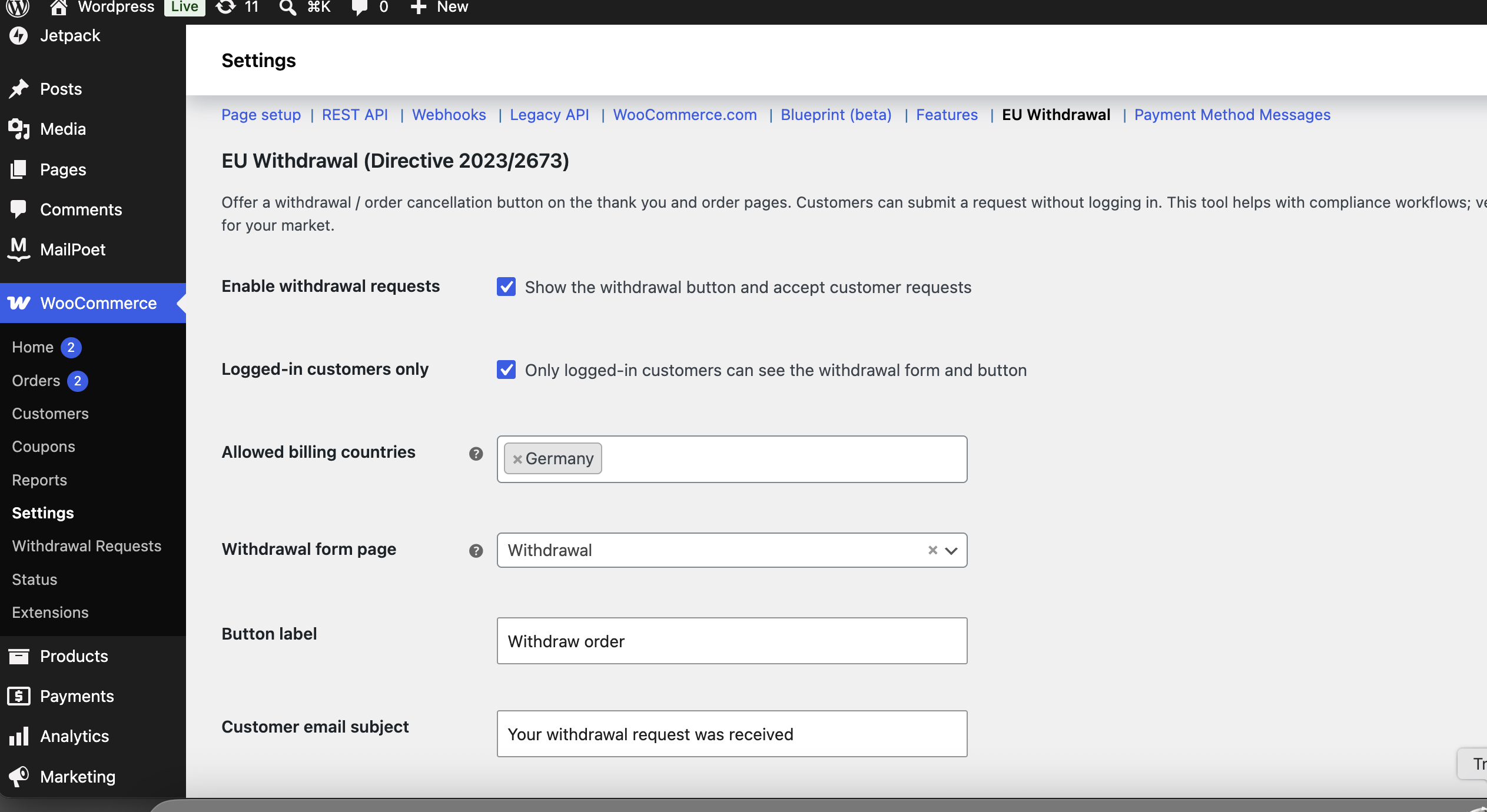
Getting started
↑ Back to topTo set up your store with EU Withdrawal :
- Go to: WooCommerce > Settings > Advanced> EU Withdrawal .
- Tick the checkbox to Enable withdrawal requests
- Configure the plugin settings, including the withdrawal form page, button label, allowed billing countries, and login restrictions.
- Save changes.
Advanced configuration
↑ Back to topLogged-in customers only
↑ Back to topRestrict withdrawal requests to authenticated customers only.
When enabled, only logged-in users can view the withdrawal button and access the withdrawal request form.
Allowed billing countries
↑ Back to topChoose the billing countries where the withdrawal feature is available.
Only customers whose billing country matches one of the selected countries will see the withdrawal button and be able to submit a withdrawal request. Leave this setting empty to make the feature available for all countries.
Withdrawal form page
↑ Back to topSelect the page that contains the withdrawal request form.
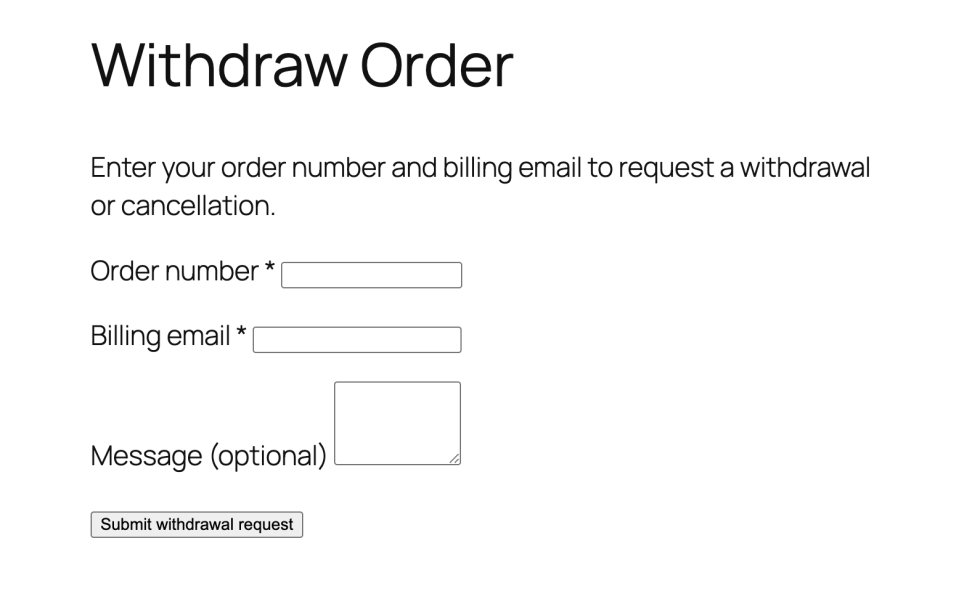
The plugin automatically creates a Withdrawal page during activation. You can also place the form on any page using the following shortcode:
[epmm_withdrawal_form]Button label
↑ Back to topCustomize the text displayed on the withdrawal button.
Default value:
Withdraw orderYou can change this text to match your store’s wording, for example:
- Cancel Order
- Request Withdrawal
- Submit Withdrawal Request
- Exercise Right of Withdrawal
Usage
↑ Back to topWhat customers see on the front end.
Troubleshooting
↑ Back to topKnown errors or issues and how to solve them.
The withdrawal button is not displayed.
Possible causes:
- The plugin is disabled.
- The customer’s billing country is not in the allowed countries list.
- The order is not eligible for withdrawal.
- The customer is not logged in while Logged-in customers only is enabled.
Solution:
- Log in with the customer account or disable the login restriction.
- Enable the plugin in the settings.
- Verify the allowed billing countries.
- Check that the order meets your withdrawal conditions.
FAQs
↑ Back to top
How do I enable withdrawal requests?
Go to WooCommerce → Settings → EU Withdrawal, enable “Enable withdrawal requests”, and save your changes. The withdrawal button will then appear on eligible order pages.
Can only logged-in customers submit requests?
Yes. Enable the “Logged-in customers only” option if you want to restrict withdrawal requests to authenticated customers.
How do I change the button text?
Use the Button label setting to customize the text displayed on the withdrawal button.

