Extra Fees and Charges for WooCommerce lets you add fixed, percentage-based, or dynamic fees to products, payment gateways, orders, and shipping methods. This documentation walks you through installing, configuring, and getting the most out of every feature the plugin offers.
Configuration and Installation
↑ Back to topFollow these steps to install the plugin on your WooCommerce store:
- Log in to your WordPress admin dashboard.
- Navigate to Plugins > Add New.
- Click the Upload Plugin button at the top of the page.
- Choose the plugin .zip file from your computer and click Install Now.
- Once the installation is complete, click Activate Plugin.
- After activation, the plugin settings will be available under the WooCommerce menu in the admin sidebar.
General Settings
↑ Back to topGo to WooCommerce > Settings > Extra Fees > Settings. Here you can configure the following settings:
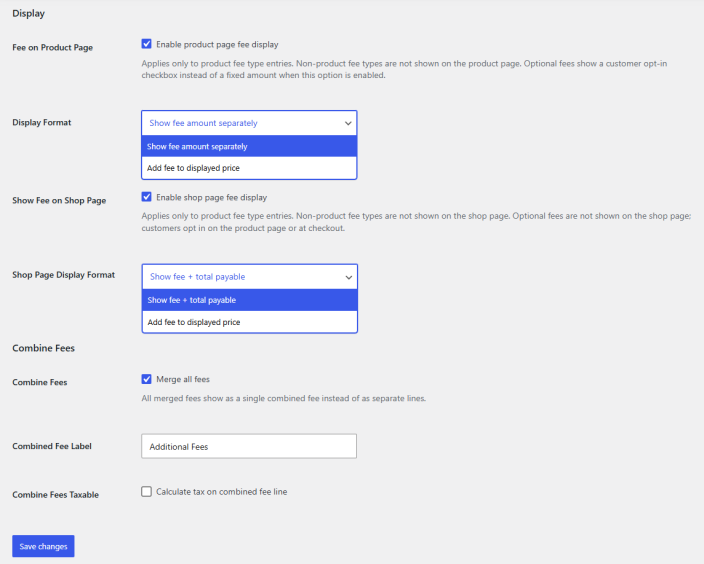
- Fee on Product Page: Click the checkbox to enable product page fee display. This applies only to product fee type entries. Non-product fee types are not shown on the product page, and the fee must not be optional for it to display here.
- Display Format: Select how the fee is presented on the product page. The following options are available:
- Show fee amount separately: Displays the fee as a separate line item alongside the product price.
- Add fee to displayed price: Adds the fee to the product price and shows a single combined amount.
- Show Product Fee on Shop Page: Click the checkbox to display product fees on the shop page. This applies only to product fee type entries. Non-product fee types are not shown on the shop page, and the fee must not be optional for it to display here.
- Shop Page Display Format: Choose how you want to display the fee on the shop page.
- Show fee + total payable
- Add fee to displayed price
- Combine Fees: Click the checkbox to merge all applicable fees into a single combined line item instead of displaying them as separate entries.
- Combined Fee Label: Add a label for the combined fee.
- Combine Fees Taxable: Click the checkbox to calculate tax on the combined fee line.
Waiver Bar Styling
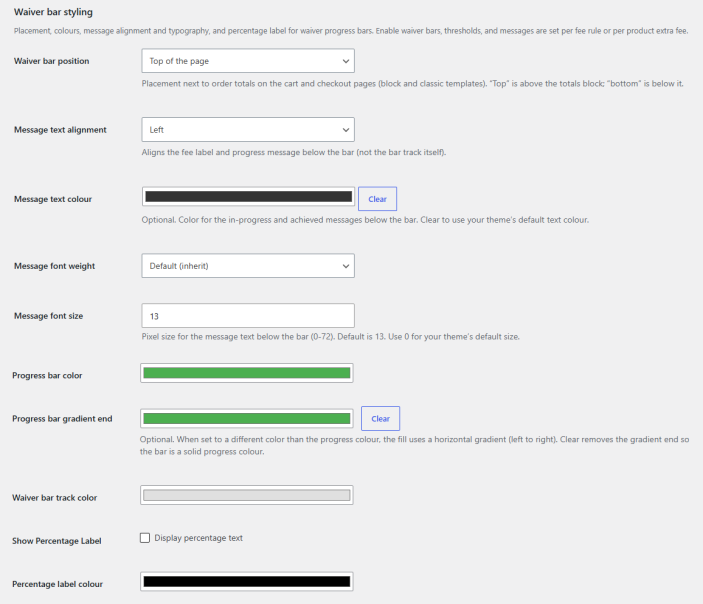
↑ Back to topGo to WooCommerce > Settings > Extra Fees > Waiver bar styling. Here you can configure the placement, colours, message alignment, typography, and percentage label for waiver progress bars. Enable waiver bars, thresholds, and messages that are set per fee rule or per product extra fee. The following settings are available:
- Waiver Bar Position: Select where the waiver bar appears next to the order totals on the cart and checkout pages (block and classic templates). The following options are available:
- Top of the page: Displays the waiver bar above the totals block.
- Bottom of the page: Displays the waiver bar below the totals block.
- Message Text Alignment: Select the alignment for the fee label and progress message below the bar. This does not affect the bar track itself. The following options are available:
- Left: Aligns the message to the left.
- Center: Aligns the message to the center.
- Right: Aligns the message to the right.
- Message Text Colour: Set an optional colour for the in-progress and achieved messages below the bar. Click Clear to use your theme’s default text colour.
- Message Font Weight: Select the font weight for the message text below the bar. The following options are available:
- Default (inherit): Uses the font weight inherited from the theme.
- Normal (400): Applies a normal font weight.
- Medium (500): Applies a medium font weight.
- Semibold (600): Applies a semibold font weight.
- Bold (700): Applies a bold font weight.
- Message Font Size: Enter the pixel size for the message text below the bar. The default is 13. Enter 0 to use your theme’s default size.
- Waiver Bar Progress Colour: Set the colour used to fill the progress portion of the waiver bar.
- Waiver Bar Progress Gradient End: Set an optional second colour for the progress fill. When set to a different colour than the progress colour, the fill uses a horizontal gradient from left to right. Click Clear to remove the gradient end so the bar displays a solid progress colour.
- Waiver Bar Track Colour: Set the background colour for the unfilled portion of the waiver bar track.
- Show Percentage Label: Click the checkbox to display percentage text on the waiver bar.
- Percentage Label Colour: Set the colour for the percentage text displayed on the waiver bar.
Fee Rules
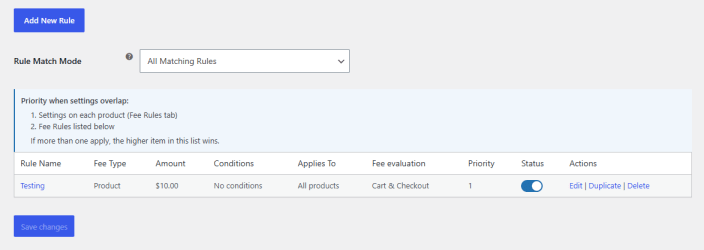
↑ Back to topGo to WooCommerce > Settings > Extra Fees > Fee Rules. This section displays all existing fee rules in a tabular view and allows you to create new rules, manage how overlapping rules are evaluated, and edit, duplicate, or delete existing rules. Click Add New Rule to create a new fee rule.
- Rule Match Mode: Select how the plugin handles situations where multiple fee rules match the same order. When two or more fee rules share the same priority, the rule that was created first applies.
The following table columns display details for each existing fee rule:
- Rule Name: The name assigned to the fee rule. Click the name to open the rule for editing.
- Fee Type: The type of fee applied by the rule, such as Shipping, Payment, or Order.
- Amount: The fee amount configured for the rule, shown as a fixed value, a percentage, or a combination of both.
- Conditions: The number of conditions assigned to the rule, or “No conditions” if the rule applies without restrictions.
- Applies To: The scope of the rule, such as a specific shipping method, payment gateway, or Global for all orders.
- Fee Evaluation: The stage of the purchase process where the fee is evaluated, such as Checkout only or Cart & Checkout.
- Priority: The numeric priority assigned to the rule. When settings overlap, the higher item in the priority list wins. The order is:
- Settings on each product (Fee Rules tab)
- Fee Rules listed in this section
- Status: Toggle to enable or disable the rule. When disabled, the rule does not apply to any orders.
- Actions: The available actions for each rule:
- Edit: Opens the rule for editing.
- Duplicate: Creates a copy of the rule with the same settings.
- Delete: Permanently removes the rule.
Adding or Editing a Fee Rule
Click Add New Rule to open the fee rule editor. When adding or editing a rule, you can configure the following:
- Title: Enter a name for the fee rule to identify it in the Fee Rules list and in the admin.
General
- Enable Rule: Click the Apply this rule checkbox to activate the rule. When unchecked, the rule is saved but does not apply to any orders.
- Priority: Enter a numeric priority for the rule. When multiple rules match the same order, the rule with the higher priority is applied first.
- Fee Type: Select the type of fee to apply. The section below this field changes based on the selected fee type. The following options are available:
- Product Fee: Applies the fee to specific products in the cart.
- Payment Gateway Fee: Applies the fee based on the selected payment method.
- Order Fee: Applies the fee to the order as a whole, with no gateway or shipping targeting.
- Shipping Method Fee: Applies the fee based on the selected shipping method.
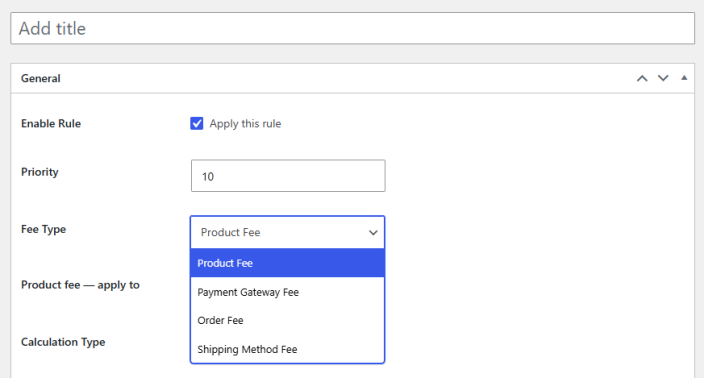
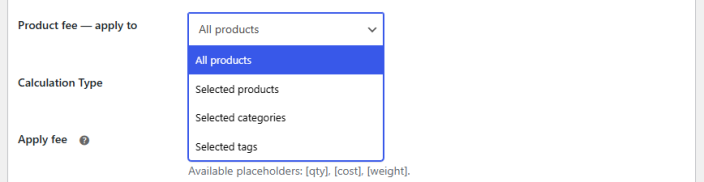
When Product Fee is selected as the fee type, the following settings appear:
- Product fee – apply to: Select which products the fee applies to. The following options are available:
- All products: Applies the fee to every product in the cart.
- Selected products: Applies the fee only to specific products you choose.
- Selected categories: Applies the fee to products in specific categories.
- Selected tags: Applies the fee to products with specific tags.
- Products/Categories/Tags: Select the specific product, category, or tags.
When Payment Gateway Fee is selected as the fee type, the following setting appears:
- Payment gateway fee — gateways: Select one or more payment methods for which the fee applies. The fee is charged only when the customer selects one of the chosen payment gateways at checkout.

When Order Fee is selected as the fee type, the following note appears:
- Order fee: No gateway or shipping targeting is applied. The fee applies to the order as a whole.

When Shipping Method Fee is selected as the fee type, the following setting appears:
- Shipping method fee — methods: Select one or more shipping methods for which the fee applies. The fee is charged only when the customer selects one of the chosen shipping methods at checkout.

- Calculation Type: Select how the fee amount is calculated. The following options are available:
- Fixed Amount: Charges a flat fee amount.
- Percentage: Charges a fee calculated as a percentage of the product price.
- Fixed + Percentage: Charges a combined fee using both a fixed amount and a percentage.
- Dynamic Formula: Charges a fee calculated using a custom formula.

If the calculation type is selected as “Fixed Amount.”
- Fixed Amount: Enter the fixed amount for charging.

If the calculation type is selected as “Percentage”.
- Percentage: Enter the percentage amount.
- Minimum Fee: Set minimum fee value.
- Maximum Fee: Set maximum fee value.
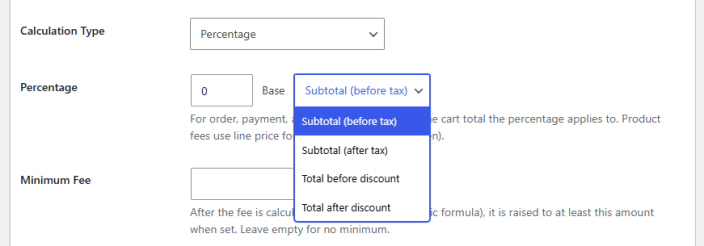
If the calculation type is selected as “Fixed + Percentage.”
- Fixed Amount: Enter the value for the fixed amount.
- Percentage: Enter the percentage amount.
- Minimum Fee: Set the minimum fee amount.
- Maximum Fee: Set the maximum fee amount.
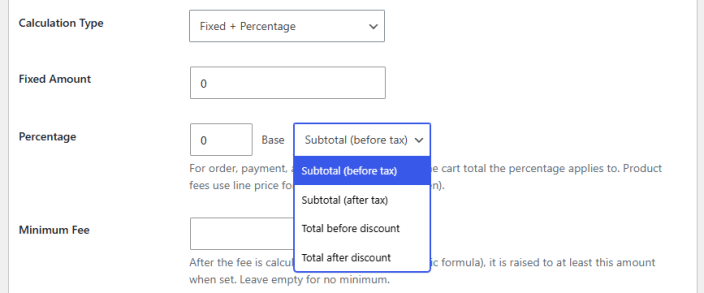
If the calculation type is selected as “Dynamic Formula.”
- Dynamic Formula: Set dynamic formula using placeholders [qty], [cost], [weight].

- Minimum Fee: Set the minimum fee amount.
- Maximum Fee: Set the maximum fee amount.
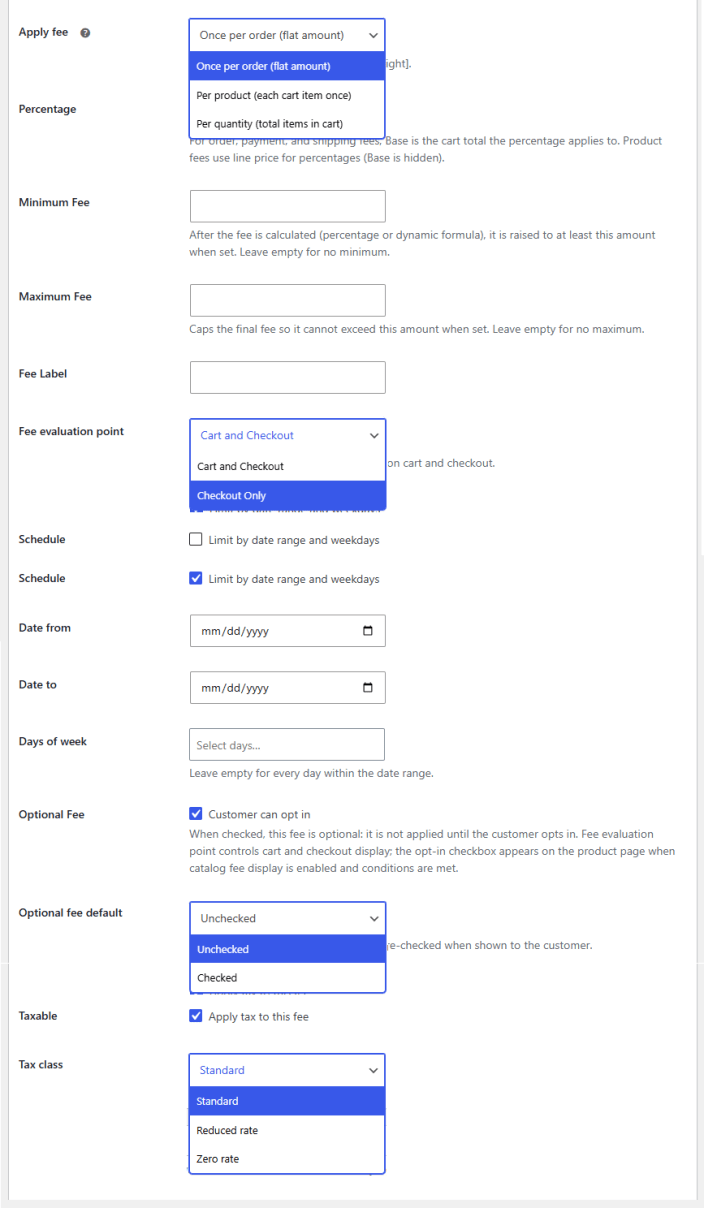
- Apply fee: Select how the fee is applied across cart items. The following options are available:
- Once per order (flat amount): Charges the fee a single time per order, regardless of quantity.
- Per product (each cart item once): Charges the fee once for each cart line item, regardless of quantity.
- Per quantity (total items in cart): Charges the fee for each individual unit in the cart.
- Fee Label: Enter the label shown to customers for this fee on the cart, checkout, and order confirmation pages.
- Fee evaluation point: Select where the fee is calculated and displayed. The following options are available:
- Cart and Checkout: Calculates and displays the fee on both the cart and checkout pages.
- Checkout Only: Calculates and displays the fee only on the checkout page.
- Schedule: Click the Limit by date range and weekdays checkbox to restrict when the fee applies based on specific dates or days of the week.
- Optional Fee: Click the Customer can opt in checkbox to make the fee optional. When checked, the fee is not applied until the customer opts in during checkout. The fee evaluation point controls which pages the opt-in is shown on.
- Taxable: Click the Apply tax to this fee checkbox to include the fee in tax calculations.
Fee Waiver Bar
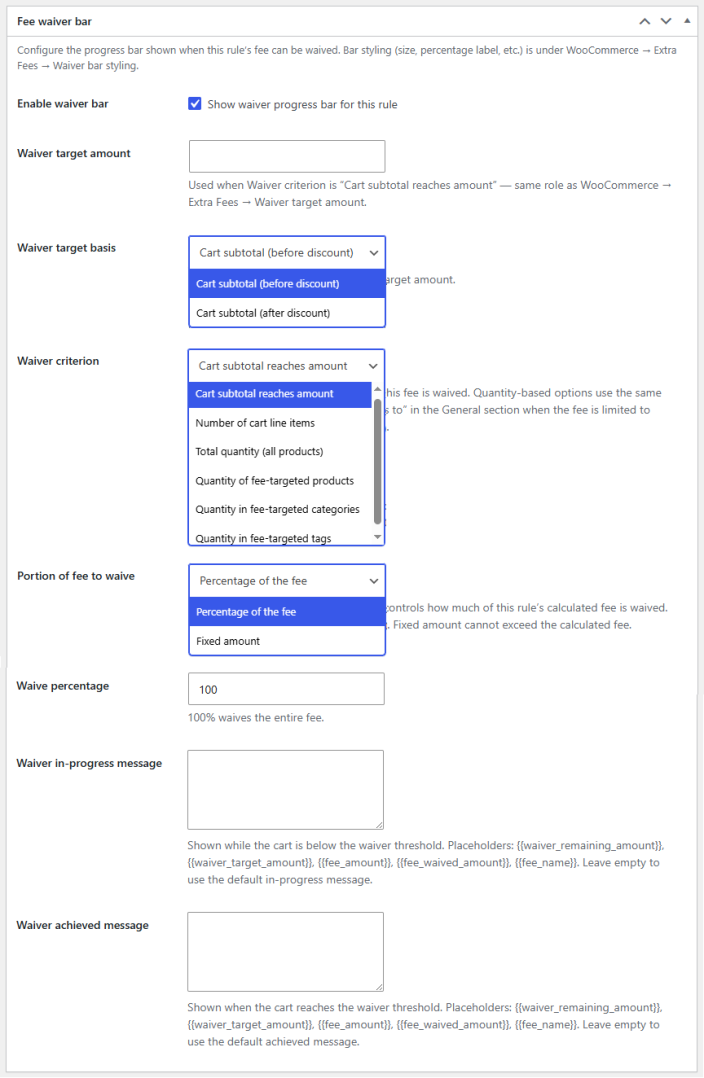
Enable waiver bar: Click the Show waiver progress bar for this rule checkbox to display a waiver progress bar for this fee rule.
Waiver target amount: Enter the target amount the customer must reach for the fee to be waived. This field is used when the Waiver criterion is set to the Cart subtotal reaches an amount.
Waiver target basis: Select which subtotal must reach the waiver target amount when the criterion is based on the cart subtotal. The following options are available:
- Cart subtotal (before discount): Uses the cart subtotal before any discounts are applied.
- Cart subtotal (after discount): Uses the cart subtotal after discounts are applied.
Waiver criterion: Select what the customer must reach before the fee is waived. Quantity-based options use the same products, categories, or tags configured under Applies to in the General section when the fee is limited to those. Empty lists count the whole cart. The following options are available:
- Cart subtotal reaches amount: Waives the fee when the cart subtotal reaches the target amount.
- Number of cart line items: Waives the fee when the cart contains a specified number of line items.
- Total quantity (all products): Waives the fee when the total quantity of all products in the cart reaches a specified number.
- Quantity of fee-targeted products: Waives the fee when the quantity of products targeted by this rule reaches a specified number.
- Quantity in fee-targeted categories: Waives the fee when the quantity of products in the targeted categories reaches a specified number.
- Quantity in fee-targeted tags: Waives the fee when the quantity of products with the targeted tags reaches a specified number.
Portion of fee to waive: Select how much of this rule’s calculated fee is waived when the waiver threshold is met. The following options are available:
- Percentage of the fee: Waives a percentage of the calculated fee. The percentage must be between 0 and 100.
- Fixed amount: Waives a fixed amount from the calculated fee. The amount cannot exceed the calculated fee.
Waive percentage: Enter the percentage of the fee to waive when the threshold is met. Enter 100 to waive the entire fee.
Waiver in-progress message: Enter the message shown to customers while the cart is below the waiver threshold. The following placeholders can be used: {{waiver_remaining_amount}}, {{waiver_target_amount}}, {{fee_amount}}, {{fee_waived_amount}}, {{fee_name}}. Leave empty to use the default in-progress message.
Waiver achieved message: Enter the message shown to customers when the cart reaches the waiver threshold. The following placeholders can be used: {{waiver_remaining_amount}}, {{waiver_target_amount}}, {{fee_amount}}, {{fee_waived_amount}}, {{fee_name}}. Leave empty to use the default achieved message.
Conditions
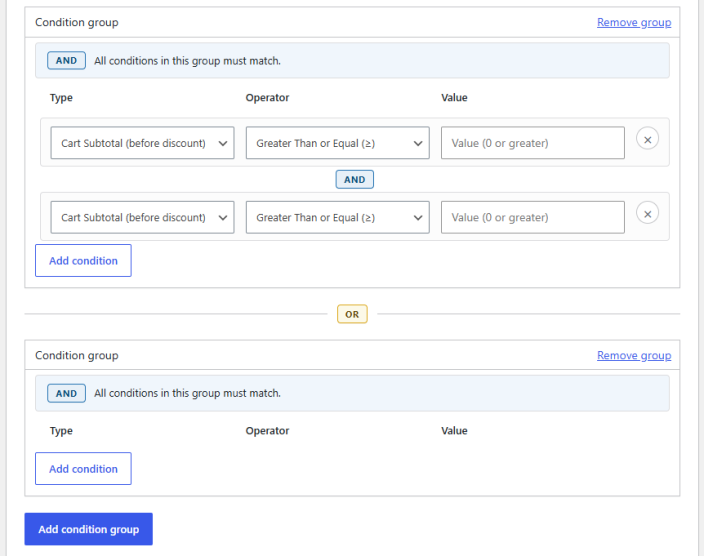
Define the conditions under which the fee rule applies. These conditions are evaluated only on the cart and checkout pages, based on the Fee evaluation point set in the General section. Conditions are organized into groups, where all conditions within a group must match (AND logic), and any matching group triggers the rule (OR logic between groups).
- Condition group: A set of conditions that must all be met together for the rule to apply. Multiple condition groups can be created, and the rule applies if any one group is fully matched. Click Remove group to delete a condition group.
- Add condition: Click this button within a condition group to add a new condition. Each condition consists of the following:
- Type: Select the condition type to evaluate, such as Cart Subtotal (before discount), cart contents, customer details, or other order attributes.
- Country: Evaluates the customer’s country.
- Continent: Evaluates the customer’s continent.
- State / Province: Evaluates the customer’s state or province.
- Postcode / ZIP: Evaluates the customer’s postcode or ZIP code.
- Shipping Zone: Evaluates the shipping zone assigned to the order.
- Cart contains product(s): Evaluates whether specific products are present in the cart.
- Product SKU: Evaluates the SKU of products in the cart.
- Product Category: Evaluates the category of products in the cart.
- Product Tag: Evaluates the tag assigned to products in the cart.
- Product Quantity: Evaluates the quantity of a specific product in the cart.
- Product Subtotal: Evaluates the subtotal of a specific product in the cart.
- Product Weight: Evaluates the weight of products in the cart.
- Product Attribute: Evaluates a specific product attribute in the cart.
- Cart Subtotal (before discount): Evaluates the cart subtotal before any discounts are applied.
- Cart Subtotal (after discount): Evaluates the cart subtotal after discounts are applied.
- Cart Total Weight: Evaluates the total weight of all items in the cart.
- Cart Item Count: Evaluates the number of line items in the cart.
- Cart Total Quantity: Evaluates the total quantity of all items in the cart.
- Coupon Applied: Evaluates whether a specific coupon has been applied to the cart.
- Shipping Class: Evaluates the shipping class of products in the cart.
- Specific User: Evaluates whether the customer is a specific user.
- User Role: Evaluates the user role of the customer.
- Category Quantity: Evaluates the total quantity of products from a specific category in the cart.
- Operator: Select the comparison operator used to evaluate the condition, such as Greater Than or Equal (≥), equals, not equals, or contains.
- Value: Enter the value the condition is checked against. The expected input depends on the selected type and operator.
- Type: Select the condition type to evaluate, such as Cart Subtotal (before discount), cart contents, customer details, or other order attributes.
- Click the X icon next to a condition to remove it from the group.
- Add condition group: Click this button to add a new condition group. Multiple groups are joined with OR logic, meaning the rule applies if any one group’s conditions are fully matched.
Analytics & Reports
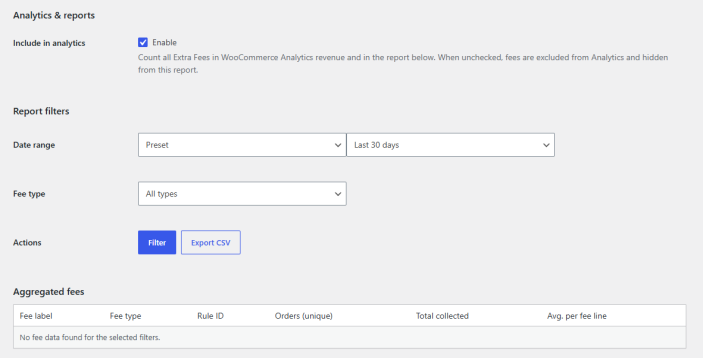
↑ Back to topThe Analytics & Reports tab lets you track how much revenue your extra fees are generating, directly within WooCommerce.
Include in Analytics
Check Enable to count all extra fees in WooCommerce Analytics revenue and in the report below. If left unchecked, fees are excluded from Analytics and hidden from this report.
Report Filters
- Date Range: Choose a preset range (e.g., Last 30 Days) or set a custom range to narrow the report to a specific period.
- Fee Type: Filter the report by a specific fee type, or leave it set to All Types to see every fee together.
Click Filter to apply your selections, or Export CSV to download the report data.
Aggregated Fees
The table below the filters summarizes fee performance with the following columns:
- Fee Label – The name of the fee as configured in your fee rule.
- Fee Type – The type of fee (product, payment gateway, order, or shipping).
- Rule ID – The identifier of the fee rule that generated the charge.
- Orders (Unique) – The number of distinct orders the fee was applied to.
- Total Collected – The total amount collected from this fee across all matching orders.
- Avg. per Fee Line – The average fee amount per order line.
If no fees match your selected filters, the table will display “No fee data found for the selected filters.”