
This documentation outlines the installation, configuration, and customization of Google reCAPTCHA integration for securing your WordPress and WooCommerce pages against bots and spam.
Installation
↑ Back to topTo start using a product from WooCommerce.com, you can use the “Add to store” functionality on the order confirmation page or the My subscriptions section in your account.
- Navigate to My subscriptions.
- Find the Add to store button next to the product you’re planning to install.
- Follow the instructions on the screen, and the product will be automatically added to your store.
Alternative options and more information at:
Managing WooCommerce.com subscriptions.

Configuration
↑ Back to topAfter you have installed and activated the Plugin, Go to WooCommerce > Settings > Google reCaptcha. Here you can find four tabs which are General Settings, WP Pages, WC Pages and Shortcode.
General Settings
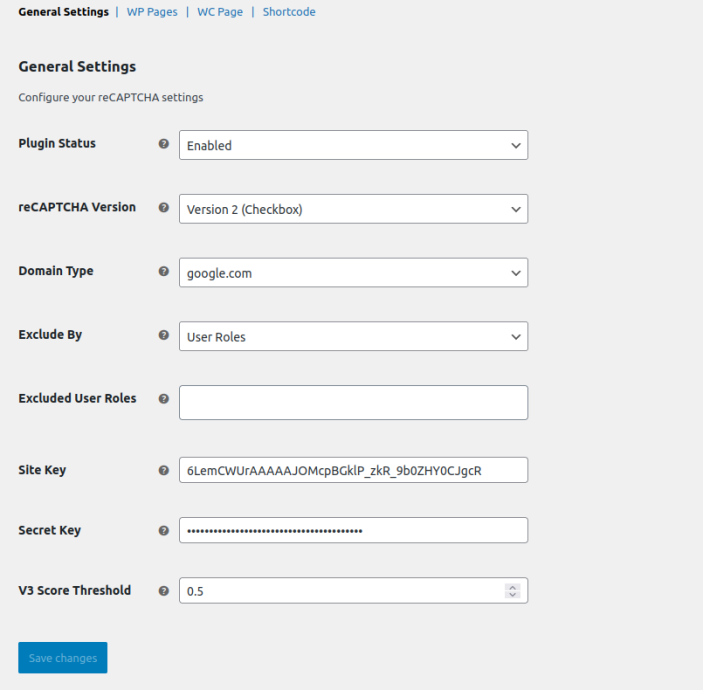
↑ Back to topConfigure global reCAPTCHA behavior and API credentials.
- reCAPTCHA Version
- Version 2 (Checkbox)
- Version 3 (Invisible)
- Domain Type
- google.com
- recaptcha.net
- Exclude By
- Countries – Enter ISO 2-letter country codes (e.g., US, IN)
- IP Addresses – List IP addresses to bypass reCAPTCHA
- User Roles – Select roles (e.g., Administrator, Editor) to exclude from reCAPTCHA
- Site Key – Add your reCAPTCHA Site Key from Google Admin Console
- Secret Key – Add your reCAPTCHA Secret Key from the same panel
- V3 Score Threshold – Set a threshold (e.g., 0.5) for reCAPTCHA v3 to determine acceptable user behavior score
WordPress Pages Settings
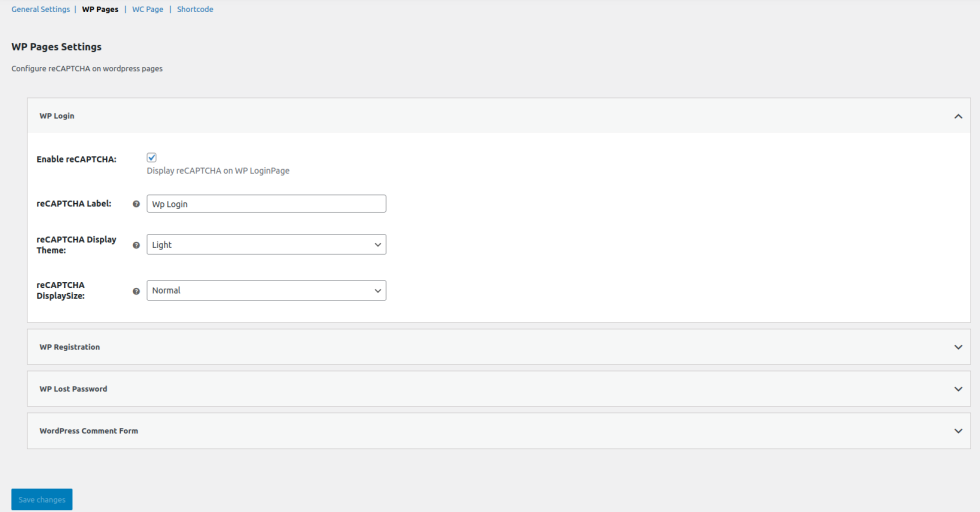
↑ Back to topEnable and configure reCAPTCHA protection on default WordPress pages:
WP Login Page
↑ Back to top- Enable reCAPTCHA
- Set reCAPTCHA Label
- Choose Display Theme: Light / Dark
- Choose Display Size: Normal / Compact
WP Registration Page
↑ Back to top- Enable reCAPTCHA
- Set reCAPTCHA Label
- Choose Display Theme: Light / Dark
- Choose Display Size: Normal / Compact
WP Lost Password Page
↑ Back to top- Enable reCAPTCHA
- Set reCAPTCHA Label
- Choose Display Theme: Light / Dark
- Choose Display Size: Normal / Compact
WordPress Comment Form
↑ Back to top- Enable reCAPTCHA
- Set reCAPTCHA Label
- Choose Display Theme: Light / Dark
- Choose Display Size: Normal / Compact
WooCommerce Pages Settings
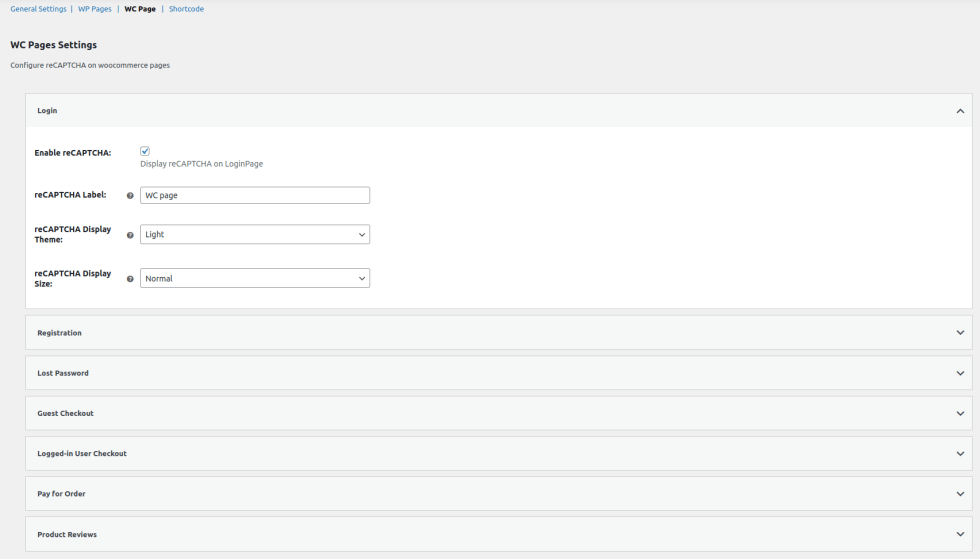
↑ Back to topProtect WooCommerce account, checkout, and review pages with reCAPTCHA:
WooCommerce Login Page
↑ Back to top- Enable reCAPTCHA
- Set reCAPTCHA Label
- Choose Display Theme: Light / Dark
- Choose Display Size: Normal / Compact
WooCommerce Registration Page
↑ Back to top- Enable reCAPTCHA
- Set reCAPTCHA Label
- Choose Display Theme: Light / Dark
- Choose Display Size: Normal / Compact
WooCommerce Lost Password Page
↑ Back to top- Enable reCAPTCHA
- Set reCAPTCHA Label
- Choose Display Theme: Light / Dark
- Choose Display Size: Normal / Compact
Guest Checkout Page
- Enable reCAPTCHA
- Set reCAPTCHA Label
- Display Position:
- After Payment Method
- After Additional Information
- Choose Display Theme: Light / Dark
- Choose Display Size: Normal / Compact
Logged-in User Checkout Page
- Enable reCAPTCHA
- Set reCAPTCHA Label
- Display Position:
- After Payment Method
- After Additional Information
- Choose Display Theme: Light / Dark
- Choose Display Size: Normal / Compact
Pay for Order Page
- Enable reCAPTCHA
- Set reCAPTCHA Label
- Choose Display Theme: Light / Dark
- Choose Display Size: Normal / Compact
Product Reviews Page
- Enable reCAPTCHA
- Set reCAPTCHA Label
- Choose Display Theme: Light / Dark
- Choose Display Size: Normal / Compact
Shortcode Settings
↑ Back to topAdd reCAPTCHA to custom forms via shortcode.
- Enable Shortcode: Enable reCAPTCHA shortcode functionality for custom forms
- Shortcode: [fme_recaptcha]
- Theme Options:
- Light
- Dark
- Size Options:
- Normal
- Compact
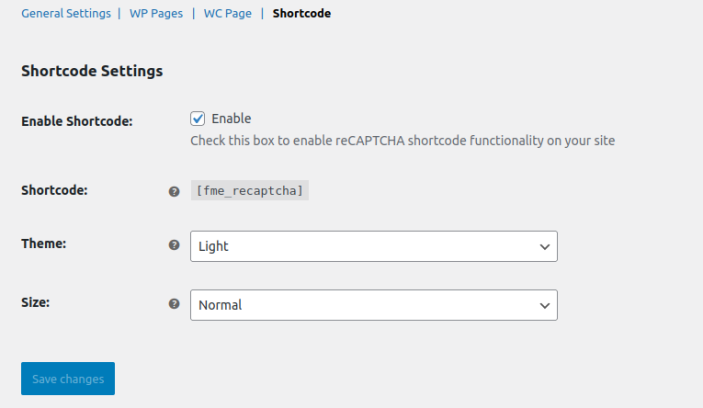
Note: Place the shortcode within any custom form to add reCAPTCHA verification and prevent bot submissions.

