
Help Scout Connector for WooCommerce links your store and your Help Scout account in both directions: your support team sees the customer’s orders inside Help Scout, and your customers open, read, and reply to support conversations from your store.
Overview
↑ Back to topThe plugin connects WooCommerce to Help Scout through the official Mailbox API. On the Help Scout side, a sidebar app shows the customer behind each conversation with their order history, lifetime value, and recent orders, and clicking an order number opens its full details in a Help Scout side panel. On the store side, customers get a Support area in My Account where they can open a request, read the whole exchange, and reply; agents can start a conversation straight from a WooCommerce order, and order notes can be mirrored into linked conversations. A Help Scout Beacon can also be embedded on the storefront.
Requirements
↑ Back to top- WordPress 6.5 or newer.
- PHP 7.4 or newer.
- WooCommerce 9.0 or newer (tested up to 11.0).
- A Help Scout account. Which features you can use depends on your Help Scout plan:
- The Beacon works on every Help Scout plan, including the free one.
- The API connection (conversations from orders, the My Account support area, note sync) requires the Standard plan or higher, because Help Scout only shows the My Apps menu, where API credentials are created, on paid plans.
- The sidebar app and its order side panel require the Plus plan or higher, because Help Scout gates custom apps to that plan.
The plugin is compatible with High-Performance Order Storage (HPOS) and with the block-based cart and checkout.
Installation
↑ Back to top- Install & Activate – Upload the extension and activate it in WordPress
- Connect the API – Create an app under Manage > Apps > My Apps in Help Scout, paste the App ID and secret into WooCommerce > Settings > Advanced > Help Scout, and pick the inbox with Test connection
- Add the Sidebar App – Copy the callback URL and signature key from the settings into a custom app in Help Scout; the settings screen walks you through every field
- Switch On The Customer Side – Enable the My Account support page, place the form block where you want it, and paste your Beacon ID if you use one
- Turn The Master Switch On – One toggle enables every surface at once, and disables them all just as cleanly
After activating the plugin, two connections are set up from WooCommerce > Settings > Advanced > Help Scout: the API connection (required for everything except the Beacon) and, optionally, the sidebar app inside Help Scout. Both are covered step by step in the Usage section.
Usage
↑ Back to topAll settings live under WooCommerce > Settings > Advanced > Help Scout. The page has four tabs: Connection, Sidebar app, Beacon, and Customer support.
Enabling the plugin
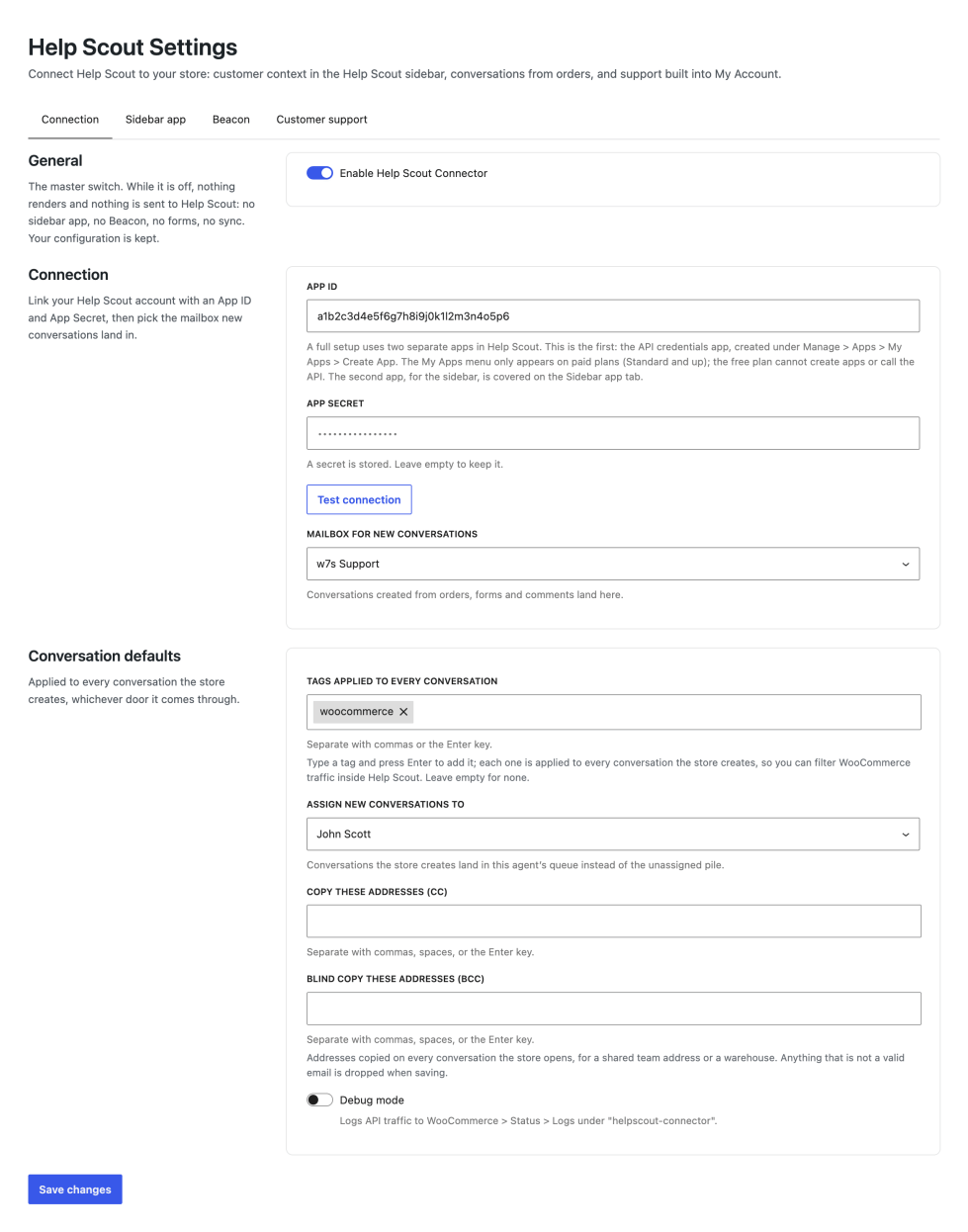
↑ Back to topAt the top of the Connection tab, the Enable Help Scout Connector toggle is the master switch. While it is off, nothing is added to your store or your Help Scout account: no menu entry in My Account, no Beacon, no sidebar responses, no API calls. Turn it on once your connection details are in place.
Connecting to the Help Scout API
↑ Back to topThe API connection lets the plugin create conversations, list a customer’s conversations, and post replies and notes.
A full setup uses two separate apps on the Help Scout side: this one, which holds the API credentials, and the sidebar app covered in the next section. They are created in different places and do different jobs, so expect two entries in your Help Scout account when everything is configured.
- In Help Scout, go to Manage > Apps > My Apps and select Create App. The My Apps menu only appears on paid Help Scout plans (Standard and up); on the free plan the menu is hidden entirely.
- Give the app a name (for example, the name of your store) and any redirect URL; the plugin does not use the redirect.
- Copy the App ID and App Secret into the matching fields on the Connection tab.
- Select Test connection. When the credentials are right, the Mailbox picker fills with your Help Scout inboxes; choose the one that should receive store conversations.
The remaining Connection settings:
- Mailbox: the Help Scout inbox where conversations created by the plugin are filed. The picker stays visible whenever a working connection is saved.
- Tags applied to every conversation: type a tag and press Enter to add it; every tag in the list is applied to each conversation the plugin creates, so you can filter store conversations in Help Scout. The default is
woocommerce. Conversations opened about a specific order also get anorder-{number}tag. - Assign new conversations to: pick an agent from your Help Scout account and every conversation the store creates lands in their queue instead of the unassigned pile. The list is filled from your account once the connection works; leave it on “Leave unassigned” to keep Help Scout’s own assignment rules.
- Copy these addresses (CC) and Blind copy these addresses (BCC): email addresses copied on every conversation the store opens, for a shared team address or a warehouse. Type an address and press Enter to add it; anything that is not a valid email is dropped when saving.
- Debug mode: writes each API call and its response code to the WooCommerce logs (see Developer documentation). Leave it off in day-to-day use.
Changing the App ID or App Secret clears the cached access token immediately, so a corrected credential takes effect on the next request without waiting for the old token to expire.
Coming from another Help Scout extension
↑ Back to topIf OPMC’s Help Scout Integration extension was configured on your site previously, a notice at the top of the Connection tab lists what can be carried over, and one button imports it: the App ID and App Secret (the same Help Scout app works for both extensions), the mailbox, the assignee, and the CC and BCC lists. Anything you have already filled in here is left alone, and nothing changes in your Help Scout account.
There is no conversation history to migrate, and none is lost. Conversations live in your Help Scout account, not in either plugin, so the My Account page lists a customer’s existing conversations by their email address as soon as the connection works. The previous extension never recorded which conversation belonged to which order, so those links are the one thing that cannot be brought over; new ones are created from the order screen as you go.
The import runs once. Select “No thanks” to dismiss the offer permanently without importing.
Setting up the sidebar app in Help Scout
↑ Back to topThe sidebar app shows your team, next to every conversation, who the customer is in your store: order count, lifetime value, customer since, and their most recent orders with status and total. Clicking an order number opens the full order in a Help Scout side panel: items, totals, addresses, customer note, and a link to the order in your WordPress admin.
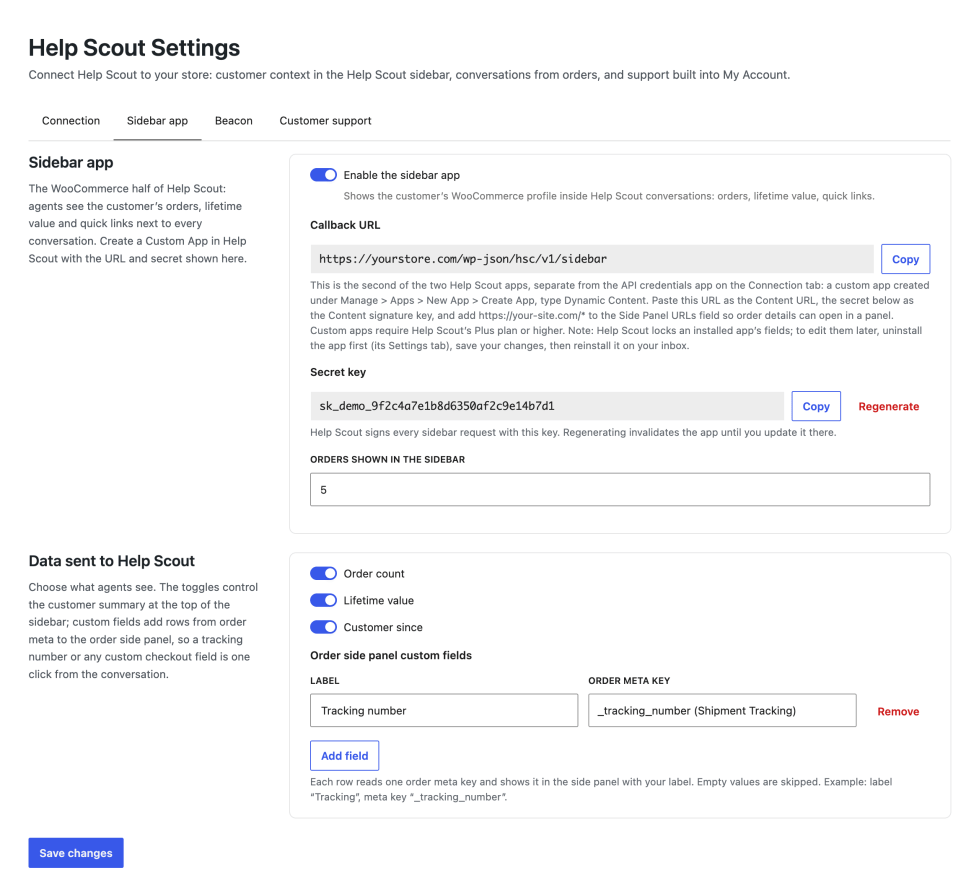
On the Sidebar app tab you will find everything the Help Scout side asks for:
- Enable sidebar app: answers Help Scout’s requests when on. Off, the callback URL returns nothing.
- Callback URL: copy this into the app form in Help Scout (see below).
- Content signature key: a shared secret the plugin uses to verify that requests really come from Help Scout. Copy it into the app form. Regenerate creates a new secret; after regenerating, update the app in Help Scout too, or the sidebar stops loading.
- Orders shown in the sidebar: how many recent orders appear per customer (default 5).
Then, in Help Scout. This is the second of the two apps, separate from the API credentials app you created for the Connection tab:
- Go to Manage > Apps > New App and select Create App, choosing the Dynamic Content type. Custom apps require the Plus plan or higher.
- Content URL: paste the Callback URL from the settings.
- Content signature key: paste the secret from the settings.
- Side Panel URLs: enter
https://your-site.com/*(one URL per line, wildcards allowed). This field is an allowlist: with it empty, clicking an order number shows Help Scout’s “Something went wrong” panel instead of the order details, because Help Scout refuses to load any side panel URL that is not listed. - Save, then on the app’s Settings tab choose which inboxes display the app.
The Data sent to Help Scout section on the same tab chooses what agents see:
- Three toggles control the customer summary rows at the top of the sidebar: order count, lifetime value, and customer since.
- Order side panel custom fields is a small list of label and order meta key pairs (up to ten). The meta key is picked from a searchable list of the keys found on your recent orders, each labeled with the plugin it comes from, so you never have to know a key by heart; a key that is not in the list can still be typed. Each row reads that meta key from the order and shows it in the side panel under your label; empty values are skipped. This is how a tracking number, a delivery date, or any custom checkout field ends up one click from the conversation, without code.
Two Help Scout behaviours worth knowing:
- An installed app cannot be edited. While the app is installed on an inbox, its App Information tab is locked. To change the Content URL, the signature key, or the Side Panel URLs, first uninstall the app from its Settings tab, make your changes, then reinstall it on your inbox. Settings on the WooCommerce side can be changed at any time.
- The signature key field may highlight in red in Help Scout’s form; it still saves. Check for the “Settings saved successfully” notice.
The sidebar only ever receives the conversation and mailbox identifiers from Help Scout; the customer is resolved through the API, and order details open through signed links that expire after six hours. A visitor who guesses the URL without a valid signature gets nothing.
Beacon
↑ Back to topThe Beacon is Help Scout’s chat and help widget for your storefront, and it works on every Help Scout plan.
- In Help Scout, create or open a Beacon under Manage > Beacons and copy its Beacon ID (a long identifier with dashes; if what you have is a short number, it is not the Beacon ID).
- Paste it into the Beacon ID field, turn on Enable Beacon, and save.
Identify logged-in customers pre-fills the Beacon with the customer’s name and email when they are signed in, so they do not have to type them and their conversations attach to the right Help Scout customer.
Customer support area
↑ Back to topThe Customer support tab controls what your customers see:
- My Account support page: adds a Support entry to the My Account menu (just before Log out). The page lists the customer’s conversations and offers a form to open a new request. The Menu label field renames the entry.
- Sync order notes: when a conversation is linked to an order, new order notes you add in WooCommerce are mirrored into the conversation as internal notes for your agents. Customer-facing pages never show internal notes.
- Let customers attach files: adds a file field to the request form and the reply box. Files go straight from the upload to Help Scout; nothing is written to your media library, so a support screenshot never becomes a public URL on your store. Maximum size per file sets the ceiling, up to three files per message; Help Scout refuses anything above 10 MB whatever you set. Accepted types are images, PDF and text files, and the real type is read from the file’s contents rather than trusted from the browser, so a renamed file is rejected. Files your agents attach in Help Scout appear in the conversation view as download links, served only to the customer the conversation belongs to.
- Conversation colors: two color pickers set the background of each side of the exchange in the conversation view, the customer’s messages and your team’s replies, so the thread matches your theme. Pick a preset, or select the large round swatch on the left of each palette to choose any custom color.
On the Support page, each conversation subject is a link. Opening one shows the full exchange as a thread, the customer’s messages on the right and your team’s replies on the left, with a reply box underneath. Replies are posted to Help Scout as the customer, so they reach your team like any other customer email. The reply box disappears once the conversation is closed. Customers can only ever open conversations that belong to their own email address.
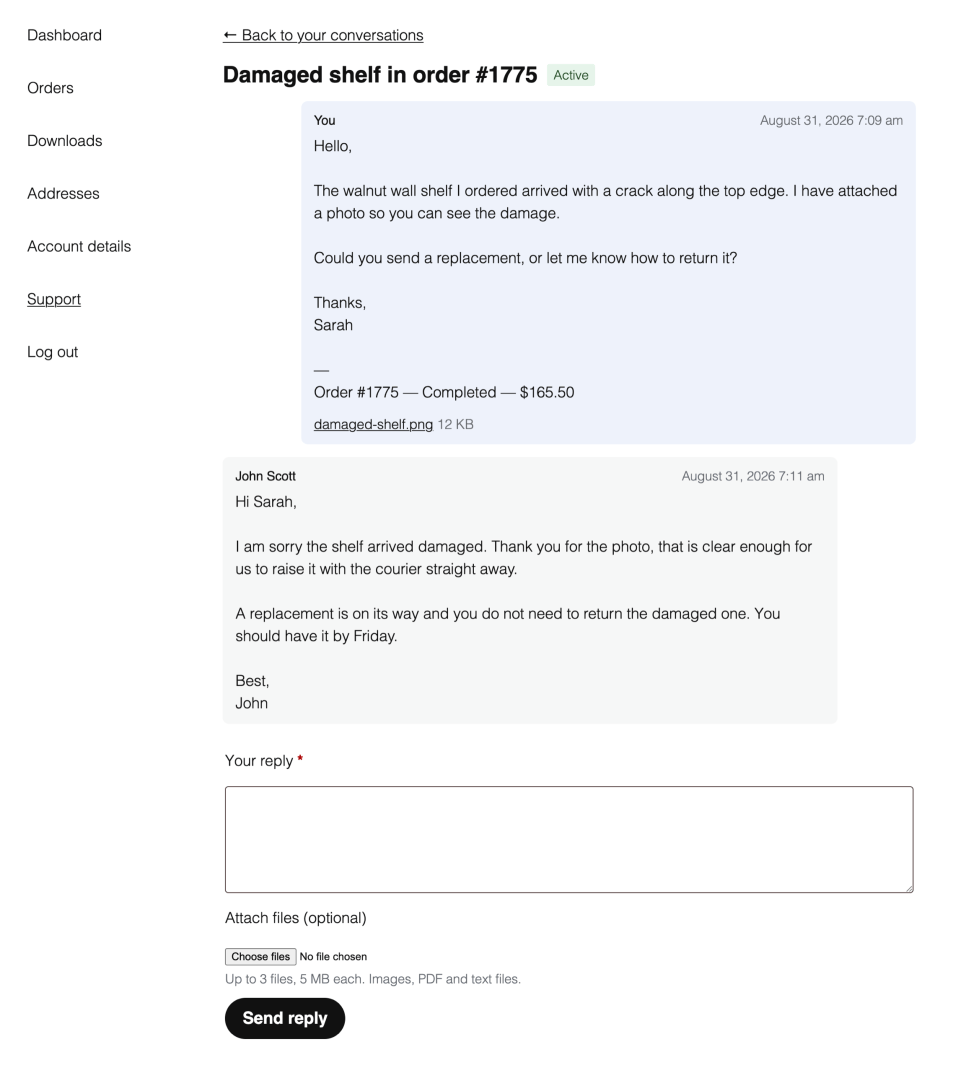
When a logged-in customer opens a request, they can attach one of their recent orders; the conversation then carries an order summary, an order-{number} tag, and is linked to the order in WooCommerce. A request submitted a moment ago always appears in the customer’s list right away, even though Help Scout’s own search index can lag by a few minutes.
The same form is available anywhere via the Support form block (search for “Support form” in the block inserter) or the [hsc_support_form] shortcode. For visitors who are not logged in, the form asks for their name and email.
Starting a conversation from an order
↑ Back to topEvery order screen gets a Help Scout box. Select Create conversation to open a Help Scout conversation carrying the order summary (status, total, items); the conversation is linked to the order, an order note records it, and, when note sync is on, later order notes follow into the conversation. Linked conversations are listed in the box with a link to each.
Use cases
↑ Back to topGive agents customer context without leaving Help Scout
↑ Back to topInstall the sidebar app on your support inbox. Every conversation now shows the customer’s order count, lifetime value, and recent orders; one click on an order number opens the full order in a side panel, and “Open in WordPress admin” is there for the cases that need editing. Configuration: Connection tab completed, Sidebar app enabled, app created in Help Scout with the Side Panel URLs field filled.
Run a customer portal from My Account
↑ Back to topEnable the My Account support page and note sync. Customers open requests, attach the order concerned, and come back to read and reply without digging through their inbox; your team works entirely in Help Scout. Configuration: Customer support tab, both toggles on.
Answer pre-sales questions on any landing page
↑ Back to topAdd the Support form block to a landing page or FAQ page. Visitors do not need an account: the form asks for their name and email and files the question into your Help Scout inbox with your default tag. Configuration: place the block or the [hsc_support_form] shortcode; no extra settings.
Follow up on a problem order
↑ Back to topFrom the order screen, create the conversation; the customer receives nothing yet, but your team has the order summary filed in Help Scout. As you work the order, your order notes mirror into the conversation, so whoever picks it up in Help Scout sees the history. Configuration: note sync on.
FAQ
↑ Back to topWhy do I not see the My Apps menu in Help Scout?
↑ Back to topHelp Scout hides Manage > Apps > My Apps on the free plan. API credentials require the Standard plan or higher, and custom apps (the sidebar) require Plus or higher. The Beacon works on all plans.
The sidebar shows, but clicking an order number says “Something went wrong.”
↑ Back to topThe Side Panel URLs field of your Help Scout app is empty or does not match your site. Uninstall the app (its fields are locked while installed), add https://your-site.com/* to Side Panel URLs, save, and reinstall the app on your inbox.
I changed the app in Help Scout but nothing saves. Why are the fields locked?
↑ Back to topHelp Scout locks an app’s fields while it is installed on an inbox. Uninstall the app from its Settings tab, edit, save, then reinstall it.
Why do conversations show my customer’s login name instead of their real name?
↑ Back to topThe plugin uses, in order: the WordPress profile first and last name, the WooCommerce billing name, and only then the account’s display name. A customer appears by their login name only when neither a profile name nor a billing name exists yet, which is rare once they have ordered.
Can customers see the internal notes my team writes?
↑ Back to topNo. Internal notes and status changes are filtered out on the server before anything reaches a customer page. Customers only see customer messages and agent replies.
A customer says their new request does not appear in their list.
↑ Back to topIt should appear immediately: the plugin keeps its own record of requests submitted on the store precisely because Help Scout’s search index can lag a few minutes behind. If a conversation created directly in Help Scout (not through the store) takes a moment to appear, that is the index catching up.
Does the plugin work with HPOS and the block checkout?
↑ Back to topYes. Order data is read through the WooCommerce CRUD layer, compatibility is declared for both, and the metabox appears on both the HPOS and legacy order screens.
I already use another Help Scout plugin. Can I switch?
↑ Back to topYes, and there is an importer for it. If the OPMC “Help Scout Integration” extension is configured on your site, a notice on the Connection tab offers to copy its settings across in one click. Conversations themselves live in your Help Scout account rather than in either plugin, so nothing is migrated and nothing is lost: the My Account page lists each customer’s existing conversations by their email address as soon as you connect. The only thing that cannot be carried over is which conversation belonged to which order, because the previous extension never recorded it.
What happens if I disable the master switch?
↑ Back to topAll surfaces disappear at once: the My Account entry, the Beacon, the sidebar responses, the order metabox actions, and note sync. Your settings are kept, and nothing is deleted in Help Scout.
I rotated the Content signature key. What must I update?
↑ Back to topTwo places: Regenerate in the Sidebar app tab, then the app in Help Scout (uninstall, paste the new key, reinstall). Until both match, the sidebar stops loading and order side panel links stop validating.
Developer documentation
↑ Back to topMCP tools (WordPress Abilities API)
↑ Back to topThe plugin registers eight abilities under the helpscout-connector category, discoverable by any MCP connector through wp_get_abilities(); it ships no MCP server of its own. All are gated by manage_woocommerce, degrade to a silent no-op when the Abilities API is absent, and call the same classes the screens use, so a tool answer cannot disagree with a screen.
| Tool | Purpose | Annotations |
|---|---|---|
get-settings | Configuration snapshot; secrets are reported as booleans, never returned | read |
get-customer-summary | Order count, lifetime value and recent orders for an email (store only) | read |
list-conversations | Help Scout conversations for a customer email | read |
get-conversation | One conversation with its customer-visible threads | read |
list-order-conversations | Conversation ids linked to an order (order meta only) | read |
create-conversation-from-order | Same path as the order screen button: create, tag, link, note | write |
add-conversation-note | Internal note into a conversation | write |
update-settings | Partial settings update; credentials excluded by design | write, idempotent |
Filters
↑ Back to topEvery surface that sends data to Help Scout is filterable, so store-specific context (subscription status, tracking numbers, loyalty points, custom meta) can travel with it:
hsc_sidebar_stats( array $stats, string $email, array $summary ): the label/value rows at the top of the sidebar app (Orders, Lifetime value, Customer since). Add or reorder rows; values are plain text.
add_filter( 'hsc_sidebar_stats', function ( $stats, $email ) {
    $stats['Support tier'] = my_store_support_tier( $email );
    return $stats;
}, 10, 2 );
hsc_order_panel_rows( array $rows, WC_Order $order ): the label/value rows at the top of the order side panel (Placed, Payment, Shipping). A tracking number added here is visible to the agent one click from the conversation.hsc_order_conversation_text( string $text, WC_Order $order ): the opening message of a conversation created from an order.hsc_support_form_text( string $text, int $order_id, string $email ): the message sent when a customer submits the support form;$order_idis 0 when no order is attached.hsc_allowed_attachment_types( array $types ): the file types customers may attach, inget_allowed_mime_types()shape (extension pattern => MIME type). Widen with care: everything accepted here is forwarded to your inbox.hsc_meta_key_source( string $source, string $key ): the plugin label shown next to a meta key in the custom fields picker, for keys the built-in prefix map does not recognize.hsc_panel_base_url( string $base, WP_REST_Request $request ): the scheme and host used to build signed order side panel URLs. Defaults to the host the sidebar request arrived on (honouringX-Forwarded-Host/X-Forwarded-Proto), falling back tohome_url(). Return a different base when the store sits behind a proxy that rewrites hosts.
REST routes
↑ Back to topAll routes live under the hsc/v1 namespace.
| Route | Method | Purpose | Auth |
|---|---|---|---|
/sidebar | GET, POST | Help Scout sidebar callback (GET for the current app platform, POST for legacy dynamic apps) | HMAC-SHA1 signature with the Content signature key |
/order-panel | GET | Order details page for the Help Scout side panel | Self-signed URL: HMAC over `order |
/settings | GET, POST | Read and save plugin settings | manage_woocommerce + nonce |
/mailboxes | GET | List Help Scout inboxes for the picker | manage_woocommerce + nonce |
/order-meta-keys | GET | Meta keys on recent orders, attributed to their plugin, for the custom fields picker | manage_woocommerce + nonce |
/users | GET | Help Scout users, for the assignee picker | manage_woocommerce + nonce |
/import | POST | Import the previous extension’s settings, or dismiss the offer | manage_woocommerce + nonce |
/test-connection | POST | Validate API credentials (clears the token cache first) | manage_woocommerce + nonce |
/regenerate-sidebar-secret | POST | Rotate the Content signature key | manage_woocommerce + nonce |
/orders/{id}/conversation | POST | Create a Help Scout conversation from an order | manage_woocommerce + nonce |
Both raw-HTML routes (/sidebar, /order-panel) bypass the JSON envelope via rest_pre_serve_request and carry their own inline stylesheet, because Help Scout renders them in unstyled iframes.
Data storage
↑ Back to top- Option
hsc_settings: every setting as a single array. The App Secret is write-only through the REST API (reads expose anapp_secret_setflag instead of the value). - Option
hsc_import_done: timestamp set once the legacy import has run or been dismissed, so the offer is made only once. - Transient
hsc_access_token: the OAuth2 access token, cached for its lifetime minus a five-minute margin. Cleared whenever credentials change or Test connection runs. - Order meta
_hsc_conversation_ids: array of Help Scout conversation IDs linked to the order (HPOS-compatible CRUD access). - User meta
_hsc_recent_conversations: requests submitted from the store that Help Scout’s search index has not returned yet; entries are pruned automatically once the index catches up, or after 24 hours.
Help Scout API usage
↑ Back to topThe plugin talks to the Mailbox API 2.0 with native wp_remote_* calls: OAuth2 client credentials at /v2/oauth2/token, conversation creation (the new conversation’s ID is read from the Resource-ID response header), thread listing, customer replies (POST /conversations/{id}/customer), and internal notes. Every call retries once on a 401 after refreshing the token.
Logging
↑ Back to topWith Debug mode on, the plugin logs to the WooCommerce logger under the source helpscout-connector (WooCommerce > Status > Logs). Requests log method, endpoint, and response code; sidebar signature rejections log parameter names only, never values.
Shortcode and block
↑ Back to top- Block:
hsc/support-form(dynamic, renders server-side). - Shortcode:
[hsc_support_form].

