
Need help migrating a high-volume store? We’ve got you. Whether you’re processing thousands of orders a day or expanding into new markets, see how Woo Enterprise can help you migrate and scale with confidence.
1. Introduction
↑ Back to topMigrating from Wix to WooCommerce represents a significant step toward greater control, flexibility, and cost-effectiveness for your online store. This comprehensive guide addresses the key challenges and benefits of making this transition, providing both manual CSV methods and automated solutions using the official Wix to Woo Migration extension.
Who this guide is for
– Wix store owners looking to migrate to a more flexible, well optimized & cost-effective platform.
– Developers and technical consultants who require fine-tuned control over data, design, and functionality will find this approach a good starting point.
– Digital agencies handling multiple store transitions.
– Business owners seeking greater control over their ecommerce operations.
Key benefits of WooCommerce
Switching from Wix to WooCommerce provides distinct advantages that cater to businesses of all sizes:
- Open-source flexibility
WooCommerce, built as an open-source plugin for WordPress, empowers you with limitless possibilities. Unlike Wix’s closed ecosystem, you can tweak every aspect of your store — code, design, and functionality — to align with your unique vision. - Complete control over hosting and data
With WooCommerce, you’re not locked into a hosted platform like Wix. You can choose a hosting provider that meets your business requirements with managed WordPress hosting optimized for WooCommerce for a seamless setup. You’ll also retain complete ownership of your store’s data and infrastructure. - Cost-effectiveness for scaling
Wix offers a subscription-based model with additional costs that may apply depending on your plan, apps, or premium features. WooCommerce, on the other hand, is open-source and free to start with, offering flexibility in choosing extensions and services as your store grows. - Advanced payment solutions: For payments, WooCommerce offers WooPayments, a fully integrated solution that simplifies transactions with competitive rates, support for recurring payments, over 100 currencies supported, and unified dashboard management. This helps store owners streamline operations as they grow.
- A wide range of customizations and added functionality
WooCommerce integrates seamlessly with WordPress’s robust content management system, combining ecommerce with advanced blogging, SEO tools (e.g., Jetpack Boost), and marketing features. With thousands of plugins, extensive themes, and direct code access, you can tailor your store to meet any need, far beyond Wix’s predefined templates and controlled app marketplace.
Wix: user-friendly but limited
Wix offers a user-friendly, drag-and-drop website builder with built-in ecommerce functionality, but its simplicity has trade-offs. Its subscription model and added fees can strain budgets as your store scales, while customization is restricted to what its ecosystem allows. Wix retains control over your store’s backend and data, limiting creativity and locking you into its ecosystem.
WooCommerce: A flexible alternative
By contrast, WooCommerce hands users the reins. Host it anywhere, customize it endlessly, and integrate it with WordPress’s powerful tools — all while avoiding Wix’s recurring costs and restrictions. The active WordPress community and extensive documentation further ensure users are supported every step of the way.
WooCommerce support and community
WooCommerce benefits from a large, passionate, and active global community. Whether you need troubleshooting help, development advice, or inspiration, resources are always within reach:
- Extensive official documentation and tutorials.
- A responsive support ticket system for premium extension users.
- A vast number of developers, freelancers, and agencies are experienced in WooCommerce.
- Community forums, Slack groups, and local WordCamps where you can connect with fellow store owners and WordPress experts.
This vibrant ecosystem ensures that you’re never alone, whether building your first store or scaling an existing one.
Migration overview
To migrate from Wix to WooCommerce, the process typically involves three main phases:
- Backing up your Wix data to ensure all information is preserved before making any changes.
- Setting up WordPress and WooCommerce as your new ecommerce platform.
- Transferring store data, including products, customers, and orders.
- We’ll start by walking you through a manual CSV export/import process for products — ideal for users who prefer full control or want to better understand what’s happening behind the scenes.
- For customers and orders, we’ll use WordPress plugins that simplify the process without requiring advanced technical knowledge.
- Finally, we’ll introduce a more streamlined, all-in-one solution using premium migration plugins — the most scalable and efficient way to handle the full migration in one place.
While the manual method offers transparency and flexibility, it has limitations in terms of time and complexity. That’s why we ultimately recommend the plugin route for most users, but we’ll cover both paths in detail so you can choose what works best for your needs.
- Setting up essential store functionality, such as a payment gateway like WooPayments, which supports major credit and debit cards, Apple Pay, Google Pay, and various local payment methods.
- Customizing your WooCommerce store using themes and plugins to match your brand’s look and feel.
- Testing and launching your new store with confidence.
Migration Challenges
While migrating to WooCommerce offers significant long-term benefits, it’s important to understand the challenges you may encounter. The good news is that each of these challenges has practical solutions, especially with the tools and methods covered in this guide:
- Data transfer complexity between different platform structures: Wix and WooCommerce use different data formats, which means product information, customer data, and order history need to be converted and mapped correctly. Solution: This guide provides detailed field mapping tables (see manual data migration process) and automated tools like the Wix to Woo Migration extension (covered in Section 5.2) that handle most of this conversion automatically. For non-technical users, the extension-based approach is highly recommended as it requires minimal manual work.
- Potential temporary SEO impact during transition: Search engine rankings may temporarily dip as search engines discover and re-index your new site structure. Solution: This guide includes comprehensive SEO preservation strategies in Section 4.5: SEO and URL migration and Section 9: Common pitfalls and solutions, including setting up 301 redirects, preserving meta data, and submitting updated sitemaps. With proper planning, most stores recover their rankings within 2-4 weeks.
- Learning curve for new platform interface: WordPress and WooCommerce have a different interface than Wix’s drag-and-drop editor, which may feel unfamiliar at first. Solution: WordPress offers extensive documentation, video tutorials, and a large community for support. Many hosting providers offer managed WordPress hosting with setup assistance. Additionally, page builders like Elementor or Beaver Builder can provide a Wix-like visual editing experience if you prefer that workflow. The WooCommerce dashboard is intuitive and becomes familiar with regular use.
- Initial setup time investment: A complete migration typically requires 1-3 weeks depending on store size and complexity. Solution: Break the process into manageable steps (as outlined in this guide), work in a staging environment to avoid disrupting your live store, and consider using the automated migration extension to significantly reduce manual work. For time-constrained store owners, professional migration services (see Section 5.3: Professional migration services) can handle the entire process.
- Need to recreate custom design elements: Your Wix store’s visual design won’t automatically transfer, requiring theme selection and customization. Solution: Section 6: Design and customization provides step-by-step guidance for replicating your Wix design, including theme selection, color schemes, typography, and layout customization. Many WooCommerce themes offer extensive customization options through the WordPress Customizer, requiring no coding knowledge. Taking screenshots of your current Wix design (as recommended in Section 2.4) will help you recreate the look and feel.
For Non-Technical Store Owners: If you’re not comfortable with technical tasks, consider using the Wix to Woo Migration extension for automated data transfer, hiring a WooCommerce expert for setup assistance, or using a managed WordPress hosting service that provides migration support. Many store owners successfully complete migrations by following this guide step-by-step, taking their time, and testing thoroughly in a staging environment before going live.
Prefer expert help? Codeable’s certified WooCommerce specialists can handle your full Wix-to-WooCommerce migration for you. Click here to view their available plans and receive a free estimate from their experts.
2. Pre-migration planning
↑ Back to top2.1 Current Wix setup assessment
Before beginning migration, conduct a thorough audit of your current Wix store. Ensure you have full access to your Wix admin dashboard. This is essential for managing your store, exporting necessary data, and generating credentials (like API keys) required for a smooth migration to WooCommerce. Without full access, you may face limitations when retrieving critical data or setting up integrations.
Product inventory assessment
Product Count and Complexity:
- Total number of products in your catalog
- Product variations (size, color, material options)
- Digital vs. physical products
- Product categories and subcategories
- Custom product fields or attributes
- Product images and media files
- Inventory tracking requirements
- Pricing structures (regular, sale, bulk pricing)
Content assessment
Website Content:
- Static pages (About, Contact, Privacy Policy, Terms)
- Blog posts and articles
- Media files (images, videos, documents)
- SEO metadata and descriptions
- Custom forms and contact information
- Testimonials and reviews
Customer data assessment
Customer Information:
- Total number of registered customers
- Customer account information and preferences
- Order history and purchase patterns
- Customer groups or segments
- Subscription or membership data
- Customer communication preferences
- Loyalty program participation
Technical integrations assessment
Current Integrations:
- Custom code or scripts
- Payment gateways and processors
- Shipping providers and calculators
- Email marketing platforms
- Analytics and tracking tools
- Social media integrations
- Third-party apps and widgets
2.2 Hosting provider selection
Before moving forward, review the WooCommerce hosting requirements to ensure compatibility. Choose a provider that offers scalability, regular backups, and WooCommerce-friendly support.
Minimum technical requirements
Server Requirements:
- PHP version 7.4 or higher (8.3+ recommended)
- MySQL version 5.6 or higher (8.0+ recommended)
- WordPress memory limit of 256MB or higher
- HTTPS support (SSL certificate)
- Reliable uptime (99.9% or better)
- Regular automated backups
- Staging environment capabilities
Performance Considerations:
- SSD storage for faster database queries
- Content Delivery Network (CDN) support
- Caching mechanisms (server-level and plugin-based)
- Scalable resources for traffic spikes
You can find WooCommerce-compatible hosting providers through the official hosting recommendations on WooCommerce.com.
2.3 Domain and SSL considerations
Decide whether you’ll transfer your domain or just update the DNS settings to point to the new WooCommerce site.
Next, an SSL certificate will need to be set up to enable HTTPS and secure customer data, protecting sensitive information during transactions and improving SEO.
Refer to the WooCommerce SSL Setup Guide for configuration steps.
Domain transfer options
- Transfer Domain: Move domain registration to new host
- DNS Update: Keep domain with current registrar, update DNS
- Use subdomain during development and testing
SSL certificate setup
- Update any hardcoded HTTP references in content
- Ensure SSL certificate is active before migration
- Test HTTPS functionality
2.4 Backup and export procedures
Before proceeding with any critical actions, make sure to follow these two essential best practices:
- Back up your WooCommerce database before starting any import process.
The backup process varies depending on your hosting platform—many hosts provide automated backup tools in their control panel (cPanel, Plesk, or custom dashboards), while others offer one-click backup plugins. If you’re unsure how to back up your database, contact your hosting provider’s support team; they can guide you through the process specific to their platform. Alternatively, you can use WordPress backup plugins, which work across most hosting environments. - Run a test import with a small file to verify everything works correctly before importing the full dataset.
Wix data export process
During this process, each part of your Wix store – products, order history and customers – will need to be exported separately and we explain how to do this below. Please also note that Wix doesn’t include media files in its exports, but we have covered how to handle migrating images further below as well.
1. Export products from Wix
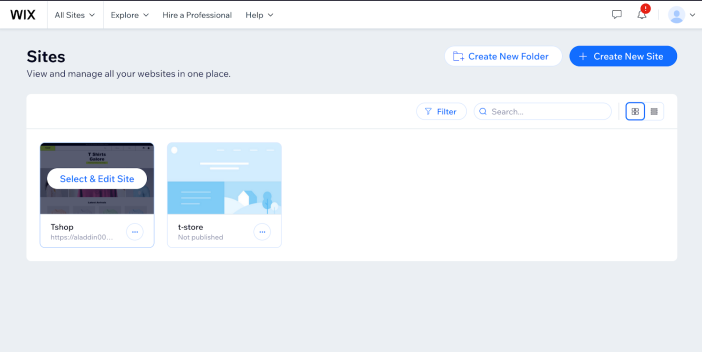
- Log into your Wix dashboard.
- Click on the site you want to edit, if you have more than one site in Wix.
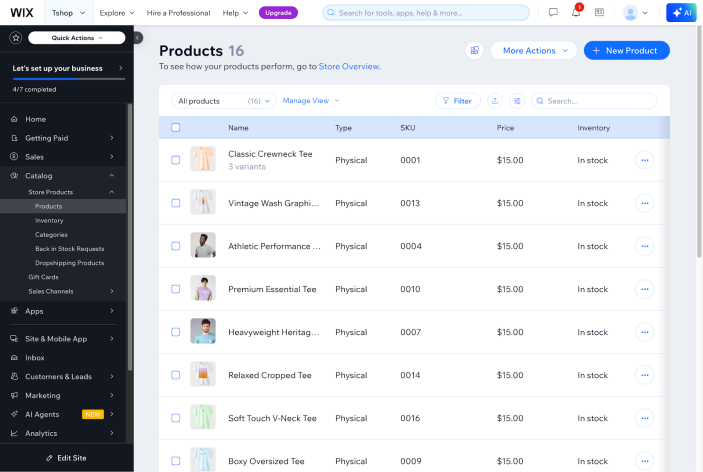
- Navigate to Catalog → Products
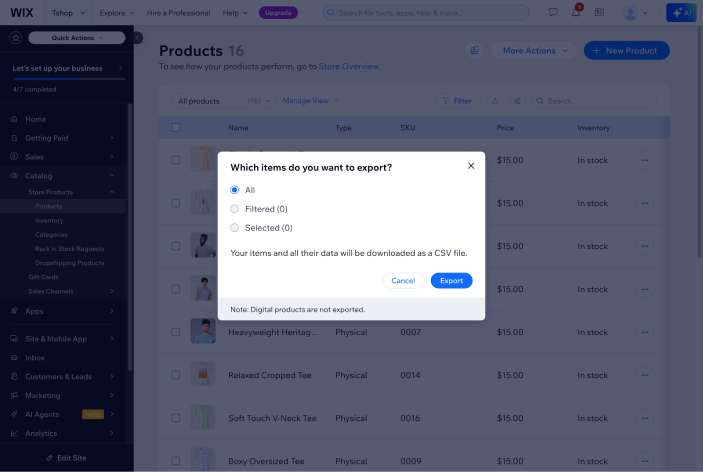
- Click More Actions → Export.
- Select CSV format compatible with spreadsheet editors like Excel or Google Sheets
- Download the exported file.
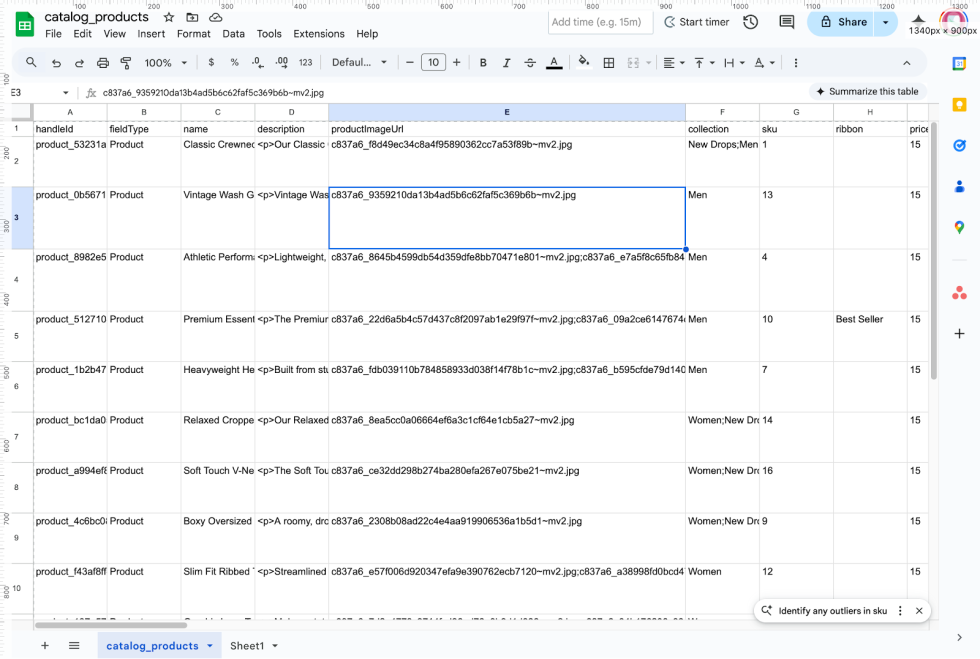
- Why It’s useful: This CSV backup contains product titles, descriptions, variants, prices, and inventory. It’s helpful if products are accidentally deleted when editing in bulk offline or importing them into another platform.
- Best practices: Since product images are not embedded in the CSV and are instead referenced by URL, ensure that these image URLs remain accessible online. Regularly save the CSV in UTF-8 format to preserve characters and store it on cloud storage with version history or encrypted local drives for security.
2. Export customer data
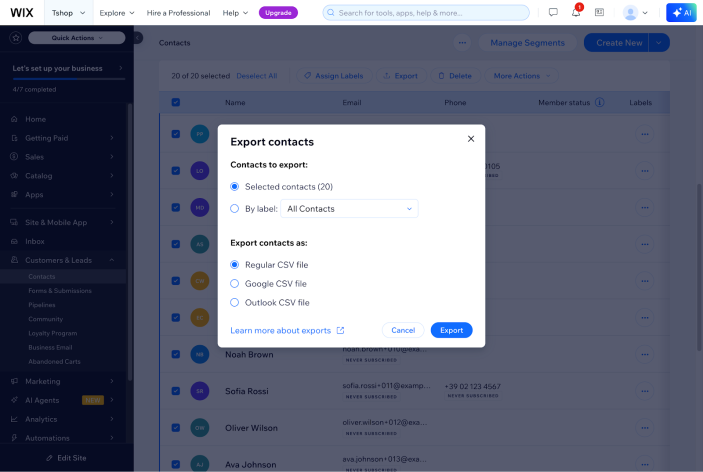
- Go to Customers & Leads → Contacts
- Select all contacts or filter as needed
- Click Export → Export to CSV
- Save the customer data file
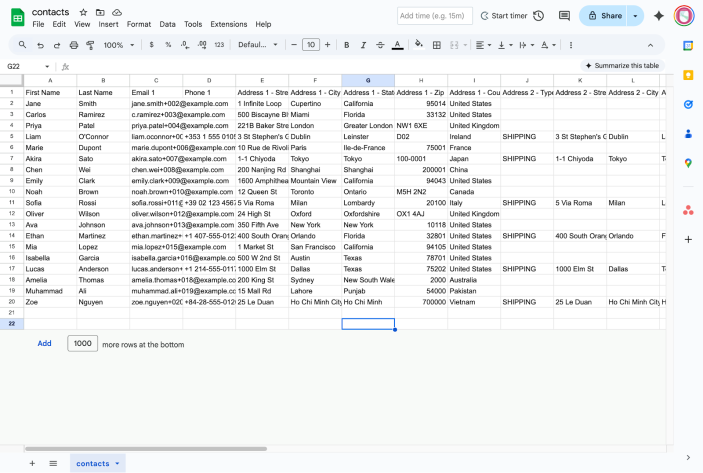
Important: Wix exports contact information but not customer passwords. Customers will need to reset their passwords on the new WooCommerce store.
- Why It’s Useful: These backups preserve your buyer history, which is helpful for sales analysis or importing into CRMs. However, due to security rules, passwords can’t be exported.
- Important Note on Order Linking: When migrating both customers and orders, it’s crucial to import customers first before importing orders. This ensures that orders in WooCommerce will be properly linked to customer accounts. If customers aren’t imported first, orders may not be associated with the correct customer accounts, which can affect order history visibility and customer account functionality. For detailed information on maintaining customer-order relationships during migration, see Section 4.3: Order migration, which covers order import requirements and limitations.
- Best Practices: Use the UTF-8 format to preserve special characters. Store these files on secure, access-controlled cloud drives. Update your backups regularly to reflect new orders and customers.

3. Export orders
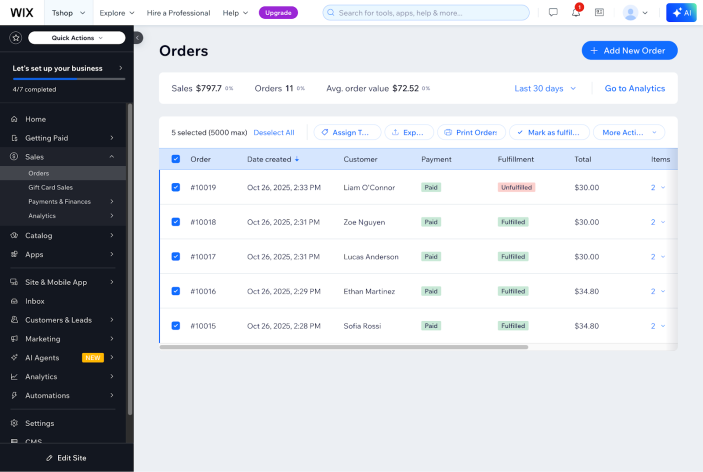
- Navigate to Sales → Orders
- Use date filters to export in batches if needed
- Click Export → Export to CSV
- Download order history
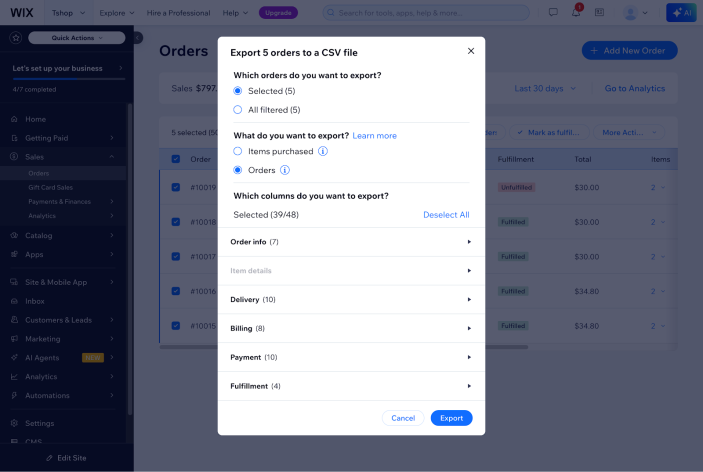
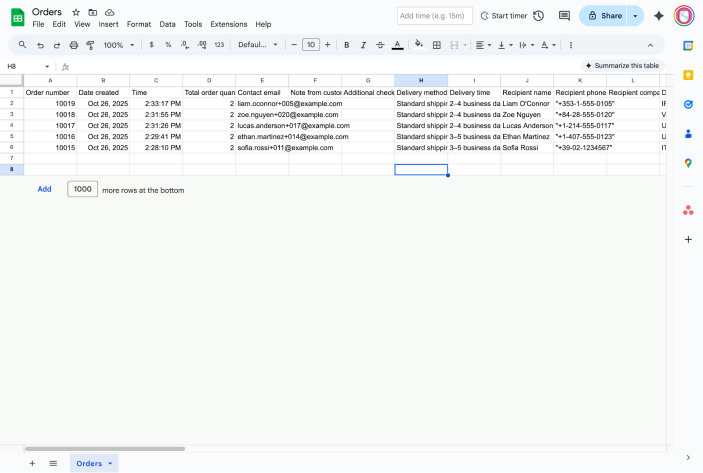
Note: Order export may be limited depending on your Wix plan and the volume of orders.
4. Content and media backup
- Manually copy all page content from each Wix page.
- If you are using Wix Collections, you can follow this guide to export the data.
- Navigation structure and menu organization.
- Document custom forms and their configurations.
- Design screenshots for reference during theme customization.
Media files backup:
Wix doesn’t bundle media (like product images, banners, or blog images) in its exports. You must:
- Manually download media from:
- Product pages (image URLs in the CSV)
- Media Manager section in the Wix admin
- Or use third-party tools or browser extensions to download image assets from URLs in batches
Why you should back up
These backups are essential for rebuilding your storefront, especially if files are corrupted or deleted during migration.
- Identify and securely store:
- Product images
- Banner images
- Logo and favicon
- Blog images
- Uploaded files and documents
- Storage tips:
- Organize backups into folders by type, such as orders, media, products, etc.
- Use cloud storage with access control (e.g., Google Drive, Dropbox Business)
- Optionally, keep a local encrypted copy on a secure external drive for redundancy
- Freeze window: schedule a short content freeze before launch to avoid divergent orders/customers.
3. Setting up WooCommerce
↑ Back to top3.1 WordPress and WooCommerce installation
WooCommerce is a plugin that extends WordPress into a fully featured ecommerce platform. Before you can use WooCommerce, you must install WordPress on your hosting server.
Step 1: Install WordPress
- Installation steps:
- Follow the Official WordPress Installation Guide.
- Access your hosting control panel
- Use one-click WordPress installer (if available through your host)
- Or manually upload WordPress files via FTP
- Complete the 5-minute WordPress installation
This setup gives you flexibility and control but requires more manual configuration compared to all-in-one platforms like Wix.
Step 2: Install WooCommerce plugin
- Log into WordPress Admin dashboard (WP Admin)
- Navigate to Plugins → Add New
- Search for “WooCommerce”
- Click Install Now → Activate
- After WordPress is installed, install the WooCommerce plugin from the WordPress plugin directory.
- Check out the WooCommerce Setup Guide for help configuring basic settings such as currency, shipping, and payment gateways.
Step 3: WooCommerce setup wizard configuration
Store details:
- Store address and location (Configuring settings)
- Currency and units (Configuring settings)
- Tax settings (Setting up taxes)
Payment methods:
- WooPayments (fully integrated payments)
- WooCommerce PayPal Payments (recommended for quick setup)
- Stripe (for credit card processing)
- Additional gateways as needed (Payment gateways catalog)
Shipping configuration:
- Shipping zones (Docs) and methods (Docs)
- Free shipping thresholds (Free Shipping method)
- Shipping classes (if needed) (Product shipping classes)
Additional features:
- Facebook for WooCommerce (optional)
- Jetpack integration (optional)
- WooCommerce Shipping (optional)
- Klaviyo for WooCommerce (optional)
3.2 Theme selection and customization
With the core setup complete, the next step is choosing a theme that dictates your store’s design and user experience.
How to choose a theme:
- Go to Appearance > Themes in WP Admin.
- Click Add Theme and search for a WooCommerce-ready theme.
- For a lightweight and highly compatible theme, check out Storefront , the free, official WooCommerce theme.
- For additional themes, check out our selection of themes on WooCommerce.com. Alternatively, browse the WordPress.org theme directory, which offers a wide variety of free and premium themes designed for WooCommerce.
- Preview themes to ensure they support your store’s needs (e.g., product grids, cart pages, variable product displays).
Recommended WooCommerce themes
- Storefront (Official WooCommerce theme – Free)
- Woocommerce.com Themes Store.
- WordPress.org Woocommerce ready themes.
Theme installation and customization process
- Install and activate your chosen theme.
- Customize to match your Wix store’s branding.
- Go to Appearance > Themes > Customize to open the WordPress Customizer, which is only available for classic themes.
- Adjust key elements to mirror your Wix store:
- Logo: Upload your existing logo under Site Identity.
- Colors: Set primary, secondary, and accent colors (e.g., via Colors or Additional CSS) to match your Wix palette.
- Typography: Choose fonts that align with your brand (e.g., via Typography settings or a plugin like Easy Google Fonts if needed).
- Layout: You can configure headers, footers, and product page layouts to replicate your Wix design, such as sidebar placement and button styles.
- Use the theme’s WooCommerce-specific options (if available) to tweak shop pages, product listings, and checkout design.
- Preview changes live and publish once satisfied.
- For more in-depth customization, edit CSS or template files via Appearance > Theme Editor (make a backup first) or use a child theme to preserve updates.
Note on block themes
Some newer WordPress themes use the block theme system, which replaces the Customizer with the Site Editor.
If your theme does not show Appearance > Themes > Customize, go to Appearance > Editor to open the Site Editor, where you can adjust templates, layouts, colors, typography, and other design settings.
3.3 Essential plugin installation
Plugins extend the functionality of your WooCommerce store. While the core plugin covers basic ecommerce needs, additional tools enhance customer experience, performance, visibility, and security.
Recommended categories:
- SEO (Search Engine Optimization): Helps search engines find and rank your products, driving organic traffic. Look for extensions that support meta tags, schema markup, and sitemaps.
- Security enhancements: Protects your store from unauthorized access, malware, and fraud. Standard features include firewall integration, login protection, and monitoring tools.
- Performance tools: Improve loading speed and optimize images for a better user experience.
- Backup solutions: Regularly back up your files and database to avoid data loss and ensure business continuity.
- Migration assistance: If you’re still transitioning from Wix, consider plugins that streamline the import of products, customers, and orders.
- Business services: Discover a handpicked selection of essential services to support and grow your business.
Core plugins for migration
Migration Tools:
- Import Export Suite for WooCommerce (for CSV imports)
- Wix to Woo Migration (official extension)
When selecting plugins:
- Review ratings, update history, and compatibility with your current WordPress version.
- Prioritize plugins from reputable developers or the official WordPress plugin repository.
Note: To keep your site lightweight and secure, only install plugins you need and from verified sources.
Resources and guides:
4. Manual data migration process
↑ Back to top4.1 Product migration
Manual migration provides complete control over the data transfer process and is essential when automated tools aren’t available or suitable for your specific needs.
Product migration: CSV conversion and field mapping
Understanding Wix product export format
Wix Product CSV Structure: Wix product exports typically include these fields:
Core Product Fields:
handleId: Unique product identifier (e.g., “product_53231adc-aa76-5e64-b7ab-5e9264344b63”)fieldType: Always “Product” for main product entriesname: Product name/titledescription: HTML-formatted product descriptionproductImageUrl: Main product image filename (e.g., “c837a6_f8d49ec34c8a4f95890362cc7a53f89b~mv2.jpg”)collection: Semicolon-separated categories (e.g., “New Drops;Men”)sku: Product SKU coderibbon: Product badge/label (e.g., “Best Seller”)price: Regular price as decimal (e.g., “15.0”)surcharge: Additional feesvisible: Boolean visibility status (true/false)discountMode: Discount type (“PERCENT” or “FIXED AMOUNT”)discountValue: Discount value (e.g., “0.0”)inventory: Stock status (“InStock”, “OutOfStock”)weight: Product weightcost: Cost of goodsbrand: Product brand
Product Options/Variations:
productOptionName1: First variation attribute (e.g., “Size”)productOptionType1: Attribute type (“DROP_DOWN”, “COLOR”, etc.)productOptionDescription1: Semicolon-separated values (e.g., “Small;Medium;Large”)productOptionName2 through productOptionName6: Additional variation attributesproductOptionType2 through productOptionType6: Additional attribute typesproductOptionDescription2 through productOptionDescription6: Additional attribute values
Additional Information:
additionalInfoTitle1 through additionalInfoTitle6: Info section titles (e.g., “PRODUCT INFO”)additionalInfoDescription1 through additionalInfoDescription6: Info section contentcustomTextField1, customTextField2: Custom field namescustomTextCharLimit1, customTextCharLimit2: Character limitscustomTextMandatory1, customTextMandatory2: Required field flags
WooCommerce product import format
WooCommerce Product CSV Structure: WooCommerce product imports typically expect these fields:
Essential Fields:
ID: Product ID (leave empty for new products)Type: Product type (“simple”, “variable”, “grouped”, “external”)SKU: Stock Keeping UnitName: Product namePublished: Publication status (1 for published, 0 for draft)Is featured?: Featured status (0 or 1)Visibility in catalog: Visibility setting (“visible”, “catalog”, “search”, “hidden”)Short description: Brief product summary (often empty)Description: Full HTML product descriptionTax status: Tax handling (“taxable”, “shipping”, “none”)Tax class: Tax classification (often empty)In stock?: Stock status (1 for in stock, 0 for out of stock)Stock: Stock quantity (empty for unlimited)Backorders allowed?: Backorder setting (0 or 1)Sold individually?: Individual sale restriction (0 or 1)Regular price: Standard selling priceSale price: Discounted price (if applicable)Categories: Comma-separated category namesTags: Product tags (often empty)Images: Full image URLs (comma-separated for multiple images)Position: Menu order (0 for default)
Physical Product Fields (column names depend on store unit settings):
Weight (unit): Product weightLength (unit): Product lengthWidth (unit): Product widthHeight (unit): Product heightAllow customer reviews?: Review settings (1 to allow)Purchase note: Note shown after purchase
Note: The exact column headers for weight and dimensions depend on the unit settings configured in WooCommerce (WooCommerce > Settings > Products).
For example, weight may appear as Weight (kg), Weight (g), Weight (oz), etc., and dimensions may appear as Length (cm), Length (in), etc.
Advanced Fields:
Date sale price starts: Sale start dateDate sale price ends: Sale end dateLow stock amount: Low stock thresholdShipping class: Shipping classificationDownload limit: For digital productsDownload expiry days: For digital productsParent: Parent product for variationsGrouped products: Related product IDsUpsells: Upsell product IDsCross-sells: Cross-sell product IDsExternal URL: For external productsButton text: External product button textBrands: Brand taxonomy (if using brand plugins)Meta: _wtw_product_id: Custom meta field for tracking original Wix ID
CSV Preparation Steps
- Open the Wix CSV file in Excel, Google Sheets, or similar
- Column headers matching WooCommerce format:
- Rename columns or add/remove columns according to the mapping tables below.
- Format data correctly:
- Make sure the data is formatted according to the data format tables below.
- Handle product variations, images and custom data (if applicable):
- Follow the guide below to handle advanced products configurations and images.
Core product fields
| Wix Field | WooCommerce Field | Transformation Notes |
|---|---|---|
| name | Name | Direct mapping |
| description | Description | Direct mapping (already HTML formatted) |
| sku | SKU | Direct mapping (use Wix SKU if available) |
| handleId | Meta: _wtw_product_id | Store original Wix ID for reference |
| price | Regular price | Direct mapping (decimal format) |
| discountValue + discountMode | Sale price | Calculate based on discount rules |
| inventory | In stock? | Convert: “InStock”→1, “OutOfStock”→0 |
| visible | Published | Convert: true→1, false→0 |
| weight | Weight (lbs) | Direct mapping if available |
| collection | Categories | Split semicolons, convert to comma-separated |
| ribbon | Tags | Convert product badges to tags |
| brand | Brands | Map to brand taxonomy if using brand plugins |
| cost | Custom meta field | Store as Meta: _cost if needed |
| surcharge | Custom meta field | Store as Meta: _surcharge if needed |
- Price and Discount Handling:
- Use Wix
pricefield as WooCommerceRegular price - Calculate sale price using
discountModeanddiscountValuefields - If
discountMode= “PERCENT”: Sale Price = Price × (1 – discountValue/100) - If
discountMode= “AMOUNT”: Sale Price = Price – discountValue
- Use Wix
- Stock Status Conversion:
- Convert Wix
inventoryvalues: “InStock” → 1, “OutOfStock” → 0 - Map to WooCommerce
In stock?field
- Convert Wix
- Visibility and Status:
- Convert Wix
visibleboolean to WooCommercePublished(true → 1, false → 0) - Set appropriate
Visibility in catalogbased on product status
- Convert Wix
Product images and media
| Wix Field | WooCommerce Field | Transformation Notes |
|---|---|---|
| productImageUrl | Images | Convert filename to full URL or download and re-upload |
Image Processing Steps:
- Handle Wix Image Filenames:
Option A: Keep Wix Media URLs (Quick Migration)
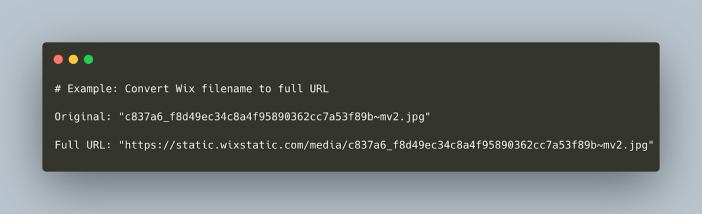
- Convert Wix image filenames to full URLs (e.g., “c837a6_f8d49ec34c8a4f95890362cc7a53f89b~mv2.jpg” → “
https://static.wixstatic.com/media/c837a6_f8d49ec34c8a4f95890362cc7a53f89b~mv2.jpg”) - Update CSV with complete Wix media URLs
- Pros: Fast migration, no additional storage needed
- Cons: Dependency on Wix servers, potential future broken links
Option B: Migrate to WordPress Media Library (Recommended)
- Convert Wix filenames to full URLs as above
- Download all images from Wix media URLs
- Upload images to WordPress media library via Media → Add New
- Update CSV with new WordPress media URLs (e.g., “
https://yoursite.com/wp-content/uploads/2024/01/product-image.jpg”) - Pros: Full control over images, better performance, SEO benefits
- Cons: Requires more time and storage space
Implementation Steps:
For Option A (Keep Wix URLs):
For Option B (WordPress Media Library):
- Create a list of all unique image URLs from your Wix CSV
- Use a bulk download tool or script to download all images
- Upload images to WordPress: Media → Add New → Drag and drop files
- Note the new WordPress URLs (format:
https://yoursite.com/wp-content/uploads/YYYY/MM/filename.jpg) - Create a mapping file: Wix URL → WordPress URL
- Use find/replace to update all image URLs in your CSV
- Optimize: Compress and optimize images for web performance
Product categories and tags
| Wix Field | WooCommerce Field | Transformation Notes |
|---|---|---|
| collection | Categories | Split “New Drops;Men” → “New Drops, Men” |
| ribbon | Tags | Convert “Best Seller” badges to product tags |
| brand | Brands or Tags | Depending on WooCommerce setup |
- Split semicolon-separated categories from Wix
collectionfield (e.g., “New Drops;Men” → “New Drops, Men”) - Map Wix collections to WooCommerce category structure
Product variations and attributes
Wix Variation Structure (Actual Fields):
productOptionName1throughproductOptionName6: Attribute names (e.g., “Size”, “Color”)productOptionType1throughproductOptionType6: Attribute types (“DROP_DOWN”, “COLOR”, etc.)productOptionDescription1throughproductOptionDescription6: Semicolon-separated values (e.g., “Small;Medium;Large”)
WooCommerce Variation Mapping: For products with variations, create:
- Parent Variable Product: Main product entry with
Type= “variable” - Child Variation Products: Individual variations with
Type= “variation” - Attribute Mapping: Convert Wix options to WooCommerce attributes
| Wix Field | WooCommerce Field | Transformation Notes |
|---|---|---|
| productOptionName1 | Attribute 1 name | Direct mapping (e.g., “Size”) |
| productOptionDescription1 | Attribute 1 value(s) | Convert “Small;Medium;Large” → “Small, Medium, Large” |
| productOptionType1 | Attribute configuration | Map to appropriate WooCommerce attribute type |
| Parent product | Parent | Reference parent product ID for variations |
Additional information and custom fields
| Wix Field | WooCommerce Field | Transformation Notes |
|---|---|---|
| additionalInfoTitle1-6 | Custom meta fields | Store as Meta: _info_title_1 etc. |
| additionalInfoDescription1-6 | Custom meta fields | Store as Meta: _info_desc_1 etc. |
| customTextField1-2 | Custom meta fields | Store custom field configurations |
| customTextCharLimit1-2 | Custom meta fields | Store character limit settings |
| customTextMandatory1-2 | Custom meta fields | Store required field flags |
| slug | Post name | URL slug |
Sample WooCommerce CSV structure
Step 3: Import Products into WooCommerce
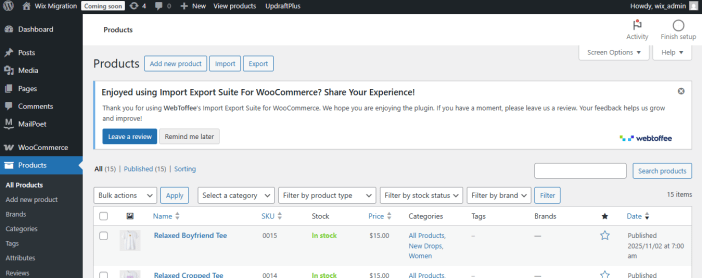
- In WooCommerce admin, go to Products → Import
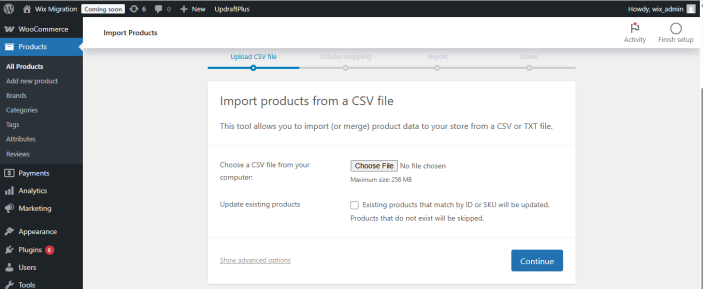
- Click Choose File and select your prepared CSV
- Click Continue
- Map CSV columns to WooCommerce fields:
- Ensure each column is mapped correctly
- Review the mapping preview
- Click Run the importer
- Review import results and fix any errors
Post-import verification
- Check product listings in Products → All Products
- Verify images are displaying correctly
- Confirm categories are assigned properly
- Test product variations (if applicable)
- Review stock levels and pricing
4.2 Customer migration
Export customers from Wix
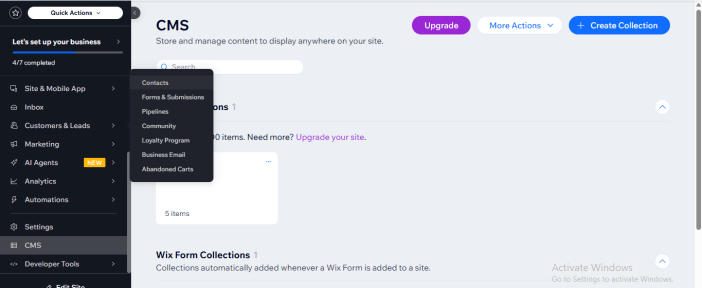
- In Wix dashboard, go to Contacts
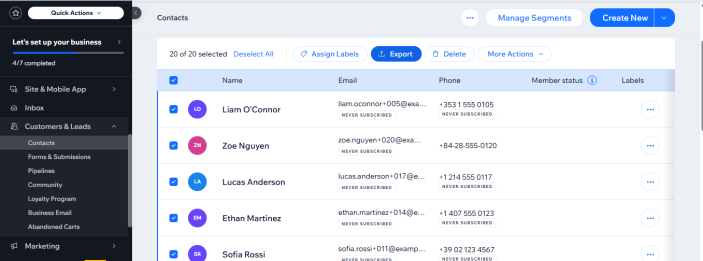
- Click Export → Export All Contacts
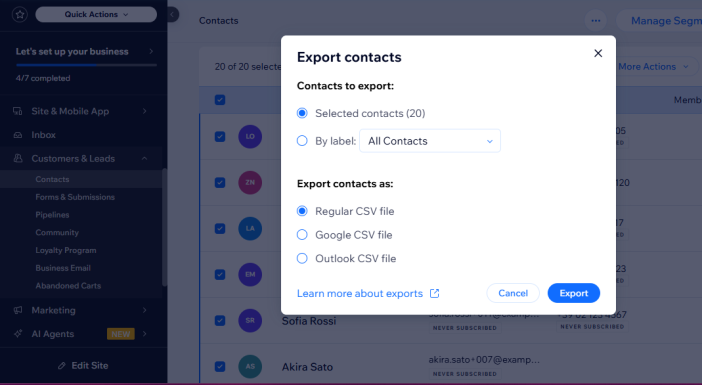
- Choose CSV format
- Download the customer data file
Understanding Wix customer export format
Actual Wix Customer CSV Structure: Based on analysis of Wix export data (contacts.csv), the CSV contains these key fields:
Core Customer Information:
First Name: Customer’s first nameLast Name: Customer’s last nameEmail 1: Primary email addressPhone 1: Primary phone numberCreated At (UTC+0): Account creation timestampEmail subscriber status: Newsletter subscription statusSMS subscriber status: SMS marketing subscription statusSource: How the customer was acquiredLanguage: Customer’s preferred language
Address Information (Multiple Addresses Supported):
Address 1 - Street: Primary street addressAddress 1 - City: Primary cityAddress 1 - State/Region: Primary state/provinceAddress 1 - Zip: Primary postal codeAddress 1 - Country: Primary countryAddress 2 - Street through Address 3 - Country: Additional addresses
Understanding WooCommerce customer import format
WooCommerce customer import supports multiple field types that correspond to different data storage locations within WordPress and WooCommerce. Understanding these categories is essential for proper data mapping during migration.
WooCommerce Customer Import Field Categories:
1. WordPress User Fields (Core): These are required WordPress user account fields stored in the wp_users table:
user_login: Username for login (required, must be unique)user_email: Email address (required, must be unique)user_registered: Account registration dateuser_pass: Password (auto-generated if not provided)
2. WordPress User Meta: Standard WordPress user metadata stored in wp_usermeta table:
first_name: User’s first namelast_name: User’s last namenickname: Display nicknamedescription: User biography/description
3. WooCommerce Customer Meta: WooCommerce-specific customer data stored as user meta:
billing_first_name, billing_last_name: Billing name informationbilling_company: Company namebilling_address_1, billing_address_2: Billing address linesbilling_city, billing_state, billing_postcode, billing_country: Billing locationbilling_phone, billing_email: Billing contact informationshipping_first_name, shipping_last_name: Shipping name informationshipping_company: Shipping company nameshipping_address_1, shipping_address_2: Shipping address linesshipping_city, shipping_state, shipping_postcode, shipping_country: Shipping location
4. Custom Meta Fields: Any additional data can be imported using the meta: prefix:
meta:custom_field_name: Custom field with any namemeta:newsletter_subscription: Newsletter subscription statusmeta:customer_source: Customer acquisition source
Required WordPress User Fields for Import:
| Field | Type | Required | Description |
|---|---|---|---|
| user_login | WordPress User | Yes | Username (must be unique) |
| user_email | WordPress User | Yes | Email address (must be unique) |
| user_registered | WordPress User | No | Registration date (auto-generated if empty) |
| first_name | WordPress User Meta | No | Customer’s first name |
| last_name | WordPress User Meta | No | Customer’s last name |
Core customer information
| Wix Field | WooCommerce Field | Field Type | Transformation Notes |
|---|---|---|---|
| First Name | first_name | WordPress User Meta | Direct mapping |
| Last Name | last_name | WordPress User Meta | Direct mapping |
| Email 1 | user_email | WordPress User (Required) | Direct mapping, must be unique |
| Phone 1 | billing_phone | WooCommerce Customer Meta | Direct mapping |
| Created At (UTC+0) | user_registered | WordPress User | Convert timestamp format |
| Email subscriber status | meta:newsletter_subscription | Custom Meta Field | Store subscription preferences |
| SMS subscriber status | meta:sms_subscription | Custom Meta Field | Store SMS preferences |
| Source | meta:customer_source | Custom Meta Field | Track acquisition source |
| Language | meta:preferred_language | Custom Meta Field | Store language preference |
Customer Import Considerations:
- Passwords cannot be migrated from Wix (security limitation): Due to security best practices, customer passwords cannot be exported from Wix or imported into WooCommerce. This means all customers will need to reset their passwords to access their accounts on the new store.
To help make this process easier for both yourself and your customers, we recommend following these steps:
- Send proactive communication before launch: Email all customers 1-2 weeks before the migration to inform them about the platform change and that they’ll need to reset their password. Explain the benefits of the new platform and provide reassurance about their account security.
- Prepare a welcome email for launch day: Create an automated welcome email (or send manually) that includes:
- A clear explanation of why password reset is required
- Direct link to the password reset page
- Step-by-step instructions for resetting their password
- Contact information for support if they encounter issues
- Create a dedicated FAQ page: Add a section to your website’s FAQ or help center that addresses common password reset questions, such as “I don’t remember which email I used” or “The reset link isn’t working.”
- Test the password reset process: Before going live, thoroughly test the password reset functionality to ensure emails are being sent correctly and the reset process works smoothly. Verify that your email delivery is configured properly (see Section 10: Troubleshooting migration issues for email configuration guidance).
- Monitor customer support requests: Be prepared for an increase in support tickets related to account access during the first few weeks after launch. Having clear documentation and trained support staff will help resolve issues quickly.
- Consider bulk password reset: For a smoother transition, you can use WordPress plugins or manual methods to send password reset emails to all customers at once after migration, rather than waiting for them to attempt login.
For more detailed guidance on customer communication strategies and support during migration, see Section 8: Launch and post-migration, specifically the “Customer support strategies” subsection.
- Preserve customer acquisition source for marketing analysis
- Maintain subscription preferences to comply with marketing regulations
Address mapping (primary address)
| Wix Field | WooCommerce Field | Field Type | Transformation Notes |
|---|---|---|---|
| Address 1 – Street | billing_address_1 | WooCommerce Customer Meta | Primary street address |
| Address 1 – City | billing_city | WooCommerce Customer Meta | Direct mapping |
| Address 1 – State/Region | billing_state | WooCommerce Customer Meta | May need state code conversion |
| Address 1 – Zip | billing_postcode | WooCommerce Customer Meta | Direct mapping |
| Address 1 – Country | billing_country | WooCommerce Customer Meta | Convert to ISO country codes |
| Address 1 – Type | meta:address_1_type | Custom Meta Field | Store address type (e.g., Home, Work) |
Address Processing Notes:
- Use Address 1 as primary billing address
- Store additional addresses (Address 2, Address 3) as custom meta fields
- Validate country codes against WooCommerce standards
- Convert state names to appropriate state codes where needed
- Preserve Wix-specific address type information using custom meta fields
Additional address storage
| Wix Field | WooCommerce Field | Field Type | Transformation Notes |
|---|---|---|---|
| Address 2 – Street | meta:address_2_street | Custom Meta Field | Store as custom meta field |
| Address 2 – City | meta:address_2_city | Custom Meta Field | Store as custom meta field |
| Address 2 – State/Region | meta:address_2_state | Custom Meta Field | Store as custom meta field |
| Address 2 – Zip | meta:address_2_zip | Custom Meta Field | Store as custom meta field |
| Address 2 – Country | meta:address_2_country | Custom Meta Field | Store as custom meta field |
| Address 2 – Type | meta:address_2_type | Custom Meta Field | Store address type (e.g., Home, Work) |
| Address 3 – Street | meta:address_3_street | Custom Meta Field | Store as custom meta field |
| Address 3 – City | meta:address_3_city | Custom Meta Field | Store as custom meta field |
| Address 3 – State/Region | meta:address_3_state | Custom Meta Field | Store as custom meta field |
| Address 3 – Zip | meta:address_3_zip | Custom Meta Field | Store as custom meta field |
| Address 3 – Country | meta:address_3_country | Custom Meta Field | Store as custom meta field |
| Address 3 – Type | meta:address_3_type | Custom Meta Field | Store address type (e.g., Home, Work) |
Multi-Address Handling:
- WooCommerce natively supports only billing and shipping addresses
- Store additional Wix addresses as custom meta fields
Customer import process
- Prepare the CSV file:
- Format dates as YYYY-MM-DD HH:MM:SS
- Ensure email addresses are unique
- Use proper country codes (US, CA, GB, etc.)
- Import using a plugin:
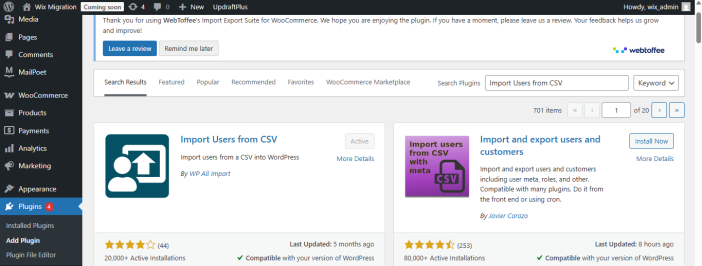
- Install a plugin like Import Users from CSV (available in the WordPress plugin directory).
- Go to Users → Import from CSV.
- Upload your prepared CSV file
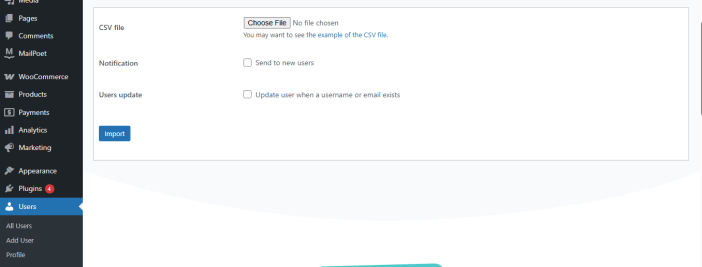
- Map fields correctly
- Run the import
Customer migration limitations
⚠️ Important Considerations:
- Passwords are not migrated – Customers will need to reset passwords
- Purchase history may not transfer completely
- User roles default to “Customer” unless specified
- Email addresses must be unique – duplicates will cause import failures
4.3 Order migration
Export orders from Wix
- In Wix dashboard, go to Orders
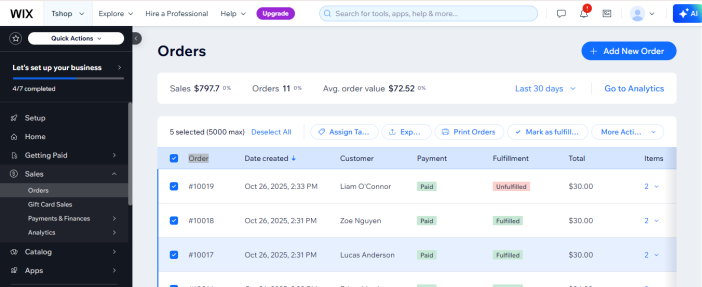
- Click Export Orders
- Export all orders
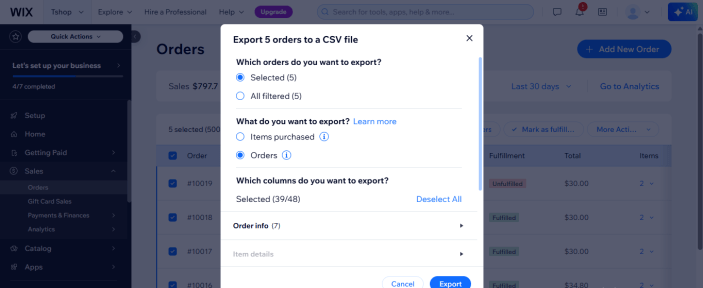
- Download the order data
Understanding Wix order export format
Actual Wix Order CSV Structure: Based on analysis of Wix export data (Orders.csv), the CSV contains these key fields:
Core Order Information:
Order number: Unique order identifierDate created: Order creation dateTime: Order creation timeTotal order quantity: Total items in orderContact email: Customer email addressPayment status: Payment processing statusPayment method: Payment method usedTotal: Total order amountCurrency: Order currencyRefunded amount: Amount refunded (if any)Net amount: Net order amount after refundsFulfillment status: Order fulfillment status
Delivery Information:
Delivery method: Shipping methodRecipient name: Delivery recipientRecipient phone: Delivery phone numberDelivery address - Street: Delivery street addressDelivery address - City: Delivery cityDelivery address - State/Region: Delivery state/provinceDelivery address - Zip: Delivery postal codeDelivery address - Country: Delivery country
Billing Information:
Billing address - Street: Billing street address- `Billing address – City` : Billing city
- `Billing address – State/Region` : Billing state/province
Billing address - Zip: Billing postal codeBilling address - Country: Billing country
Order migration limitations
⚠️ Important Limitations:
- Payment information cannot be transferred for security reasons
- Shipping methods may not map accurately
- Tax details might be lost or require manual adjustment
- Refund data typically doesn’t transfer
- Customer-order relationships may break if customer IDs don’t match
Import orders using Import Export Suite for WooCommerce
Step 1: Install and Set Up
- In WordPress, go to Plugins > Add New.
- Click upload plugin, then choose file.
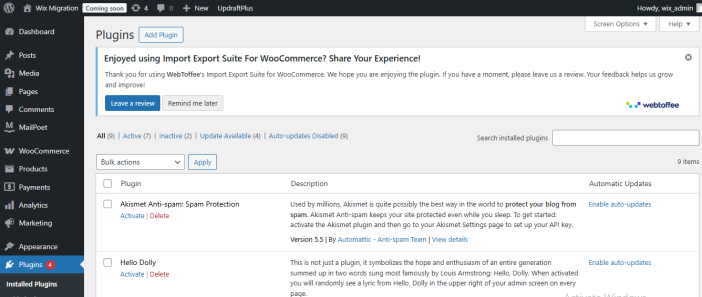
- Click Install Now, then Activate.
- Go to WooCommerce >Import Export Suite.
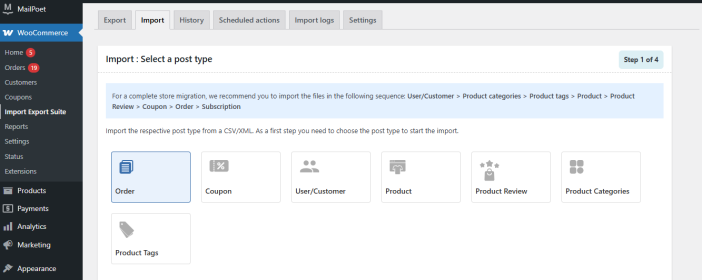
- Click on Orders then step 2: select an import method.
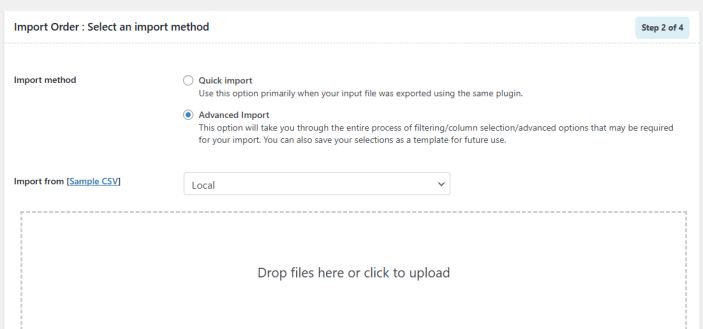
- Pick Advanced import and click on step 3: Map import columns.
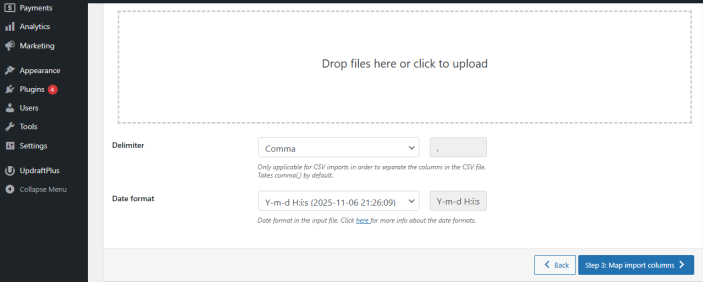
- Map each order field to its corresponding field in WooCommerce.
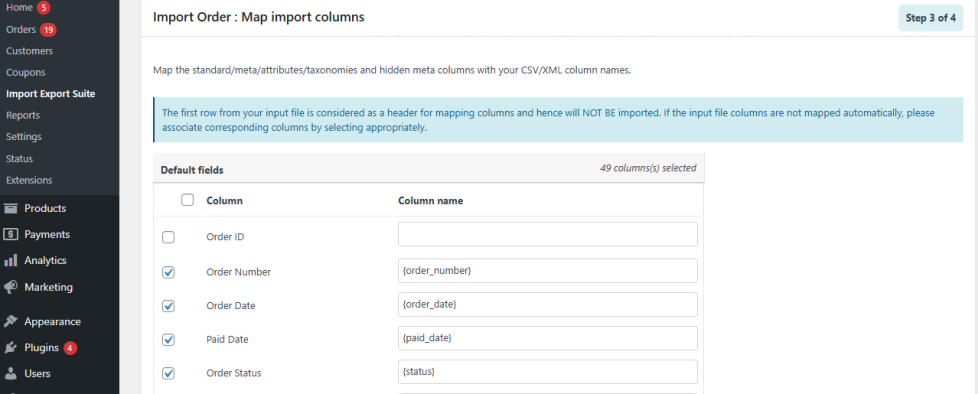
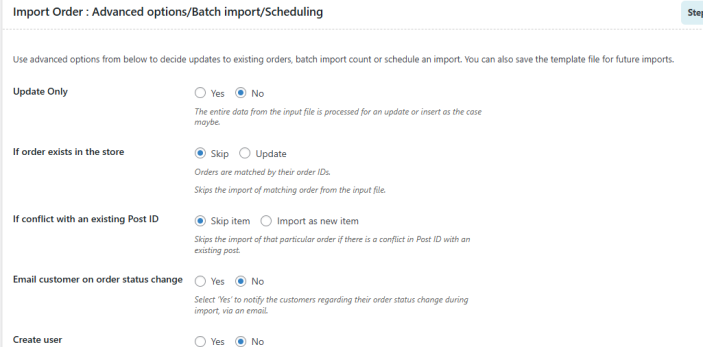
- Click on Step 4: Advanced options/Batch import/Scheduling.
- Configure the option you find suitable, then click import/schedule.
- Choose the option that suits you and click it.
4.4 Content migration (pages & blog posts)
Export content from Wix
Unfortunately, Wix doesn’t provide a direct export for pages and blog posts. You’ll need to:
- Manually copy content from each page
- Use web scraping tools (if legally permitted)
- Take screenshots for reference during recreation
Content recreation in WordPress
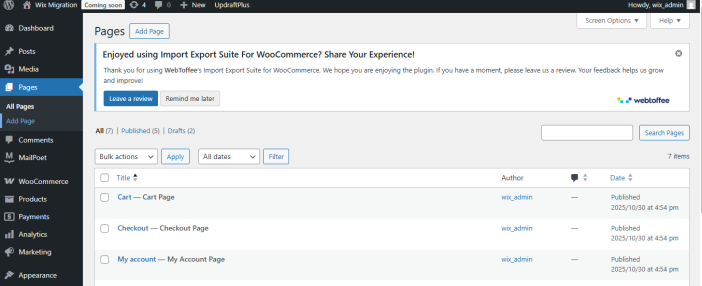
- Create pages in WP Admin:
- Go to Pages → Add New
- Copy content from Wix pages
- Recreate layouts using WordPress blocks or page builders
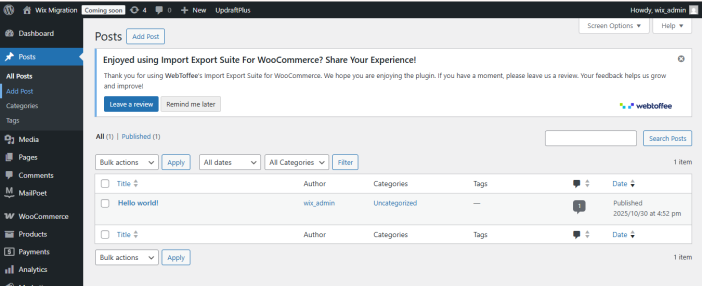
- Migrate blog posts:
- Go to Posts → Add New
- Copy blog content from Wix
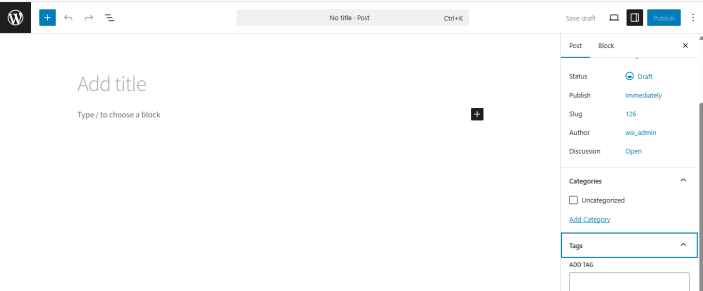
- Set proper categories and tags
- Update internal links
- Handle media files:
- Download images from Wix
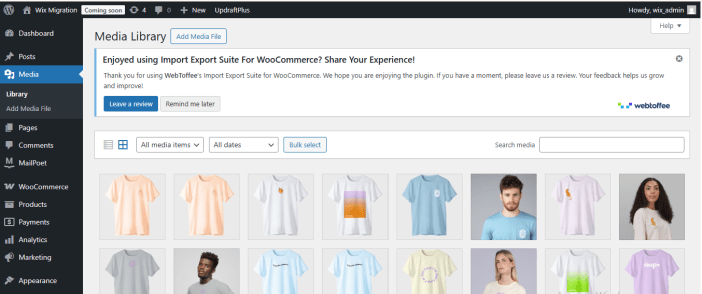
- Upload to WordPress Media Library
- Update image references in content
4.5 SEO and URL migration
Preserve SEO rankings
- Document current URLs from Wix site
- Plan URL structure for WooCommerce
- Set up 301 redirects using:
- Redirection plugin
- .htaccess file modifications
- Yoast SEO Premium redirect manager
SEO data transfer
- Meta titles and descriptions:
- Copy from Wix pages
- Input into Yoast SEO or similar plugin
- Schema markup:
- WooCommerce includes built-in schema
- Add custom schema if needed
- XML sitemaps:
- Generate new sitemaps with Yoast SEO
- Submit to Google Search Console
Import Troubleshooting
Common import errors
Product import issues
Error: “Duplicate SKU”
Problem: SKU already exists in database
Solution:
1. Check for duplicate SKUs in CSV
2. Update existing products instead of creating new
3. Use unique SKUs or leave blank for auto-generation
Error: “Invalid price format”
Problem: Price contains currency symbols or invalid characters
Solution:
1. Remove currency symbols ($, €, £)
2. Use decimal format: “29.99”
3. Ensure no thousands separators (commas)
Error: “Category not found”
Problem: Referenced category doesn’t exist
Solution:
1. Import categories before products
2. Check category slug spelling
3. Create categories manually if needed
Error: “Invalid image URL”
Problem: Image URLs are not accessible
Solution:
1. Verify image URLs are publicly accessible
2. Upload images to WordPress media library
3. Update URLs to WordPress media URLs
Customer import issues
Error: “Duplicate email address”
Problem: Customer email already exists
Solution:
1. Check for duplicates in CSV
2. Update existing customers instead of creating new
3. Use different import mode for updates
Error: “Invalid country code”
Problem: Country name instead of code provided
Solution:
1. Convert country names to ISO codes
2. Use “US” instead of “United States”
3. Refer to WooCommerce country code list
Order import issues
Error: “Customer not found”
Problem: Order references non-existent customer
Solution:
1. Import customers before orders
2. Verify customer email spelling
3. Create customer account manually
Error: “Product not found”
Problem: Order line item references non-existent product
Solution:
1. Import products before orders
2. Verify product SKU spelling
3. Create missing products manually
Import performance optimization
Large dataset handling
Batch Processing:
- Process 100-500 products per batch
- Use staging environment for large imports
- Monitor server resources during import
- Schedule imports during low-traffic periods
Memory Optimization:
- Increase PHP memory limit (512MB+)
- Increase max_execution_time (300+ seconds)
- Use WP-CLI for command-line imports
- Clear caches between batches
Import speed improvements
Database Optimization:
- Disable unnecessary plugins during import
- Temporarily disable email notifications
- Use database optimization plugins
- Clear transients and cache before import
Server Configuration:
- Ensure adequate server resources
- Use SSD storage for better performance
- Optimize database configuration
- Consider dedicated import server
5. Extension-based migration options
↑ Back to topFor a more comprehensive and automated migration, consider using specialized migration extensions. This section covers two primary tools:
- Import Export Suite for WooCommerce – Advanced CSV import/export solution
- Wix to WooCommerce Migration Extension – Official automated migration tool
5.1 Import Export Suite for WooCommerce
The Import Export Suite for WooCommerce is ideal for manual CSV-based migrations, especially for importing customers and orders that the WooCommerce core importer doesn’t handle.
Key Features:
- Comprehensive CSV import/export for products, customers, and orders
- Advanced field mapping capabilities
- Batch processing for large datasets
- Detailed import logs and error reporting
- Compatible with Wix CSV exports after field mapping
Installation and Setup
Step 1: Install the Extension
- Purchase from WooCommerce.com
- Download the plugin file
- Install via Plugins → Add New → Upload Plugin
- Activate and enter your license key
Step 2: Access the Import Tool
- Navigate to WooCommerce → Import/Export in WP Admin
- Select the data type: Products, Customers, or Orders
- Choose “Import” from the available options
Importing customers
CSV Requirements:
Required fields: username, email, first_name, last_name
Optional fields: billing_*, shipping_*, phone, date_registered
Import Steps:
- Prepare your Wix contacts CSV (exported from Section 2.4)
- Map Wix fields to WooCommerce customer fields
- Upload CSV file to the import tool
- Review field mapping and adjust as needed
- Run import in staging environment first
- Validate customer counts and data accuracy
Importing orders
CSV Requirements:
Required fields: order_number, date_created, status, customer_email, billing_email
Important fields: line_items (products, quantities, totals), payment/shipping methods
Import Steps:
- Prepare your Wix orders CSV (exported from Section 2.4)
- Map order fields carefully – follow the extension’s documentation for line_items format
- Upload CSV and review mapping
- Test with a small batch first (10-20 orders)
- Validate order totals, tax calculations, and customer associations
- Import remaining orders in batches
Important Notes:
- Some formats allow JSON-like values for line items; follow the extension’s documentation closely
- Orders require existing customer emails and product SKUs in your WooCommerce database
- Test thoroughly in staging before importing to production
Field mapping examples
Customer Field Mapping: Refer to the Import Export Suite documentation for detailed customer field requirements.
Order Field Mapping: Refer to the Import Export Suite documentation for detailed order field requirements and line item formatting.
Best practices
- Always test imports in staging environment first
- Import in batches for large datasets (500-1000 records at a time)
- Validate data after each batch
- Keep backup of original CSV files
- Check error logs after each import for any issues
- Verify relationships between orders, customers, and products
5.2 Wix to WooCommerce Migration Extension
The official Wix to WooCommerce Migration Extension provides an automated approach to migrating your entire store with minimal manual work.
Official Resources:
- Extension Product Page: Wix to Woo Migration
- Complete Documentation: Official Migration Guide
Key Features:
- Official WooCommerce extension
- Automated data transfer for products, customers, and orders.
- Preserves relationships between data
- Handles complex product variations
- Direct API integration with Wix
- Comprehensive filtering and import options
Extension installation and configuration
Step 1: Purchase and Download
- Purchase the extension from WooCommerce.com
- Download the plugin file (.zip format)
- Access WP Admin
Step 2: Plugin Installation
- Navigate to Plugins → Add New
- Click “Upload Plugin”
- Select the downloaded .zip file
- Install and activate the plugin
Step 3: Initial Configuration
- Access WooCommerce → Settings → Wix to Woo for configuration
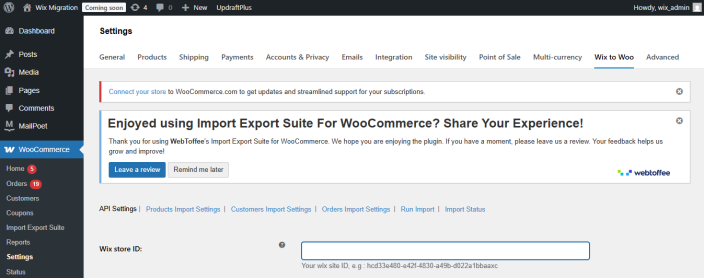
- Configure the six main tabs: API Settings, Product Import Settings, Customers Import Settings, Orders Import Settings, Run Import, and Import Status
- Enter your license key for activation
- Review migration options and settings
API Setup Instructions and Authentication
Wix API Access Configuration
Step 1: Wix API Credentials Setup
- Log into your Wix account
- Obtain your Wix credentials (watch the official video tutorial for detailed steps):
- Wix Store ID: Your Wix site ID (e.g., hcd33e480-e42f-4830-a49b-d022a1bbaaxc)
- Wix Account ID: Your Wix account ID (e.g., ad4d83d2-4d0e-4fff-9ac2-3b94fdb0eb77)
- Wix API Key: Generate the Wix store API key
- Configure API permissions for data access
Step 2: API Configuration in WooCommerce
- Navigate to WooCommerce → Settings → Wix to Woo → API Settings
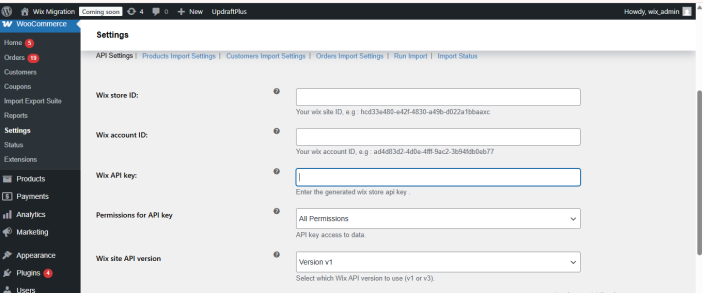
- Enter your Wix credentials:
- Wix Store ID
- Wix Account ID
- Wix API Key
- Configure notification settings:
- Enable email notification checkbox
- Set import completion notice email
- Test connection status to verify API access
Step 3: Required API Permissions Configure the following permissions for your Wix app:
- Store/Products – Read access to product catalog
- Store/Orders – Read access to order history
- Store/Customers – Read access to customer database
- Store/Collections – Read access to product categories
Automated data transfer workflow
Migration Process Overview
Step 1: Product Import Configuration
- Navigate to Product Import Settings tab
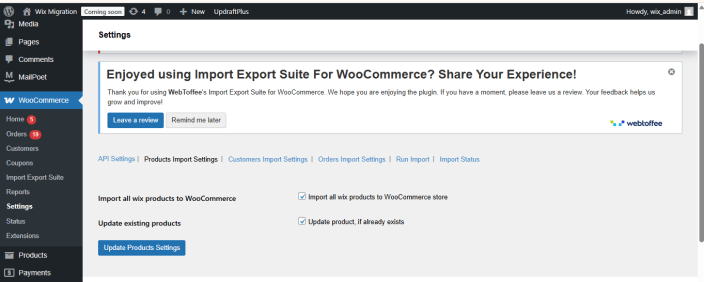
2. Configure import options:
- Import all Wix products to WooCommerce
- Update existing products (checkbox option)
- Set product status for newly imported products: Published, Draft, or Same as Wix
Step 2: Customer Import Configuration
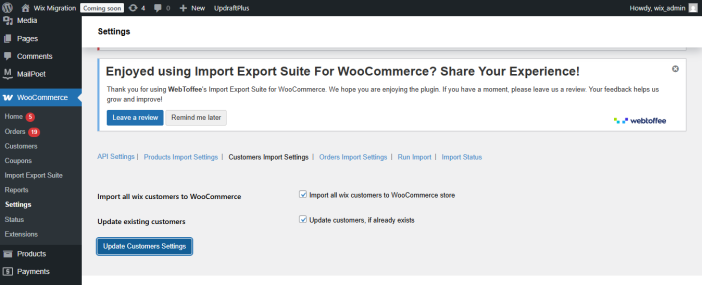
- Navigate to Customers Import Settings tab
- Configure customer import options:
- Import all Wix customers to WooCommerce
- Update existing customers
Step 3: Order Import Configuration
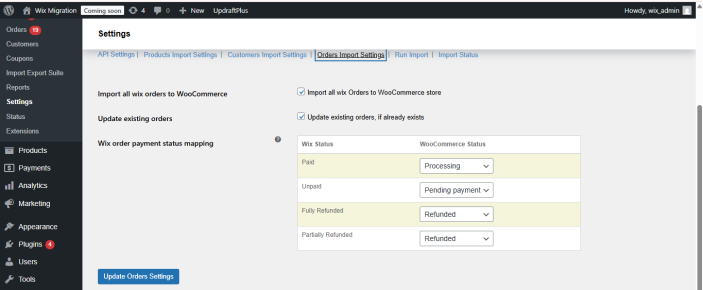
- Navigate to Orders Import Settings tab
- Configure order import options:
- Import all Wix orders to WooCommerce
- Update existing orders
- Configure order status mapping:
- Pending Payment
- Processing
- On Hold
- Completed
- Canceled
- Refunded
- Failed
Step 4: Execute Migration
- Navigate to Run Import tab
- Choose import options:
- Import All Data to WooCommerce (products, orders, customers)
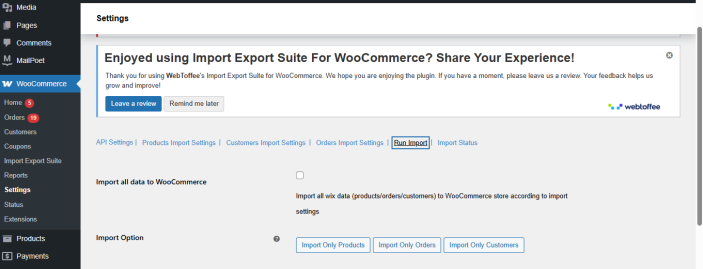
3. Monitor import progress in Import Status tab 4. Validate migrated data completeness
Data validation and quality assurance
For more data validation guidelines related to products and customers, see data validation and quality control.
Benefits of using the Wix to WooCommerce Migration Extension
- Automated process reduces manual work
- Direct API connection eliminates CSV export/import steps
- Data integrity is better preserved through automated mapping
- Relationships maintained between customers, orders, and products
- Reduced risk of data loss or corruption
- Time-saving for complex migrations with large datasets
5.3 Professional migration services
For large or complex stores, consider hiring professional migration services:
- WooCommerce Experts on WooCommerce.com
- Freelance developers with migration experience
- Agency services specializing in ecommerce migrations
6. Design and customization
↑ Back to topReplicating your Wix store’s appearance and functionality in WooCommerce requires careful attention to design elements, user experience, and brand consistency.
Theme customization to replicate Wix appearance
6.1 Visual design analysis
Step 1: Document Current Design
- Take screenshots of all key pages (homepage, product pages, checkout)
- Note color schemes and brand elements
- Document typography choices and hierarchy
- Identify layout patterns and content organization
- Record interactive elements and animations
Step 2: WooCommerce Theme Selection
Factors to Consider:
- Design flexibility and customization options
- WooCommerce compatibility and optimization
- Performance optimization and loading speed
- Mobile responsiveness and cross-device compatibility
- SEO-friendly structure and markup
Recommended Theme Categories:
- Multi-purpose themes with ecommerce focus
- WooCommerce-specific themes designed for online stores
- Page builder compatible themes for advanced customization
Find suitable themes on WooCommerce.com or explore options in the WordPress.org theme directory.
6.2 Color scheme and branding
Step 1: Brand Color Implementation
- Access WordPress Customizer (Appearance → Customize)
- Navigate to Colors section
- Set primary brand colors for headers, buttons, links
- Configure secondary colors for backgrounds and accents
- Test color contrast for accessibility compliance
Step 2: Logo and Brand Elements
- Upload brand logo in appropriate formats (PNG, SVG)
- Set logo dimensions and positioning
- Configure favicon for browser tabs
- Add brand elements to headers and footers
6.3 Typography and Content Styling
Font Selection and Implementation:
- Choose web fonts that match your brand (Google Fonts, Adobe Fonts)
- Configure font pairings for headings and body text
- Set font sizes and line heights for readability
- Implement responsive typography for mobile devices
Content Styling:
- Heading hierarchy (H1, H2, H3) styling
- Paragraph formatting and spacing
- List styling for product features and benefits
- Button design and hover effects
6.4 Checkout and cart page optimization
Cart functionality enhancement
Essential Cart Features:
- Product quantity adjustment with instant updates
- Remove items functionality with confirmation
- Shipping calculator with real-time rates
- Coupon code application and discount display
- Cross-sell recommendations for additional products
Cart Page Customization:
- Review default cart layout and functionality
- Customize cart table columns and information display
- Add promotional elements (free shipping thresholds, upsells)
- Implement cart abandonment prevention features
- Optimize for mobile cart experience
Checkout process optimization
Checkout Flow Improvements:
- Single-page checkout for reduced friction
- Guest checkout option without forced registration
- Multiple payment methods prominently displayed
- Trust badges and security indicators
- Progress indicators for multi-step checkout
Form Optimization:
- Minimize required fields to essential information only
- Implement address autocomplete for faster entry
- Add field validation with clear error messages
- Enable address book for returning customers
- Optimize mobile checkout experience
Recommended Checkout Customization Extensions:
To enhance your checkout experience beyond the default WooCommerce options, consider these extensions from the WooCommerce marketplace:
- Checkout Field Editor – Customize checkout fields, add conditional fields, and create a streamlined checkout form tailored to your business needs
- One Page Checkout – Simplify the checkout process with a single-page layout that reduces friction and improves conversion rates
- Checkout Add-Ons – Add optional products, services, or donations directly on the checkout page to increase average order value
6.5 Third-party tool integration
Payment gateway configuration
Popular Payment Options: Research payment solutions on WooCommerce.com including:
- Recommended: WooPayments – The only payment solution fully integrated with WooCommerce. Accept credit/debit cards and local payment options with no setup or monthly fees. Supports Apple Pay, Google Pay, and over 100 currencies. Perfect for store owners migrating from Wix who want a seamless, all-in-one payment solution.
- Credit card processing solutions
- Digital wallet integrations (PayPal, Apple Pay, Google Pay)
- Buy now, pay later services
- Cryptocurrency payment options
- Local payment methods for international customers
Payment Gateway Setup Process:
- Install payment gateway plugin
- If needed, Configure API credentials and connection settings
- Set up payment methods and accepted cards
- Configure transaction settings (test/live mode)
- Test payment processing with small transactions
Email marketing integration
Email Platform Connections: Find email marketing integrations on WordPress.org or WooCommerce.com:
- Newsletter signup forms
- Abandoned cart email sequences
- Customer segmentation tools
- Purchase follow-up campaigns
- Product recommendation emails
Recommended Email Marketing Solutions:
- MailPoet – The official email marketing solution for WooCommerce. Create beautiful newsletters, automated email sequences, and abandoned cart campaigns directly from your WordPress dashboard. Perfect for store owners who want an all-in-one email marketing solution without leaving their WooCommerce admin.
- AutomateWoo – Powerful marketing automation for WooCommerce. Automate abandoned cart emails, welcome series, win-back campaigns, and customer lifecycle emails. Ideal for stores looking to scale their email marketing with sophisticated automation workflows.
Integration Setup:
- Install email marketing plugin
- Connect to your email service provider
- Configure signup forms and opt-in processes
- Set up automated campaigns for customer lifecycle
- Test email delivery and formatting
Analytics and tracking implementation
Analytics Tools Setup:
- Google Analytics 4 for comprehensive tracking
- Google Tag Manager for advanced event tracking
- Facebook Pixel for social media advertising
- Conversion tracking for advertising platforms
Ecommerce Tracking Configuration:
- Enable enhanced ecommerce tracking in Google Analytics
- Configure conversion goals and funnels
- Set up custom events for key user actions
- Implement cross-domain tracking if applicable
- Test tracking accuracy with Google Analytics Debugger
7. Testing and quality assurance
↑ Back to topComprehensive testing ensures your migrated store functions correctly and provides an optimal user experience before launch.
Functional testing procedures
Follow these steps to test your WooCommerce store’s functionality confidently:
7.1 Ecommerce core functionality testing
Product Browsing and Search:
- Category navigation works correctly
- Product search returns accurate results
- Product filtering (price, attributes, categories) functions properly
- Product sorting options work as expected
- Product pagination displays correctly
Product Page Testing:
- Product information displays accurately
- Product images load and gallery functions work
- Product variations (size, color) selection works
- Add to cart functionality operates correctly
- Stock status updates appropriately
Shopping Cart Testing:
- Cart persistence maintains items across sessions
- Add/remove products functions properly
- Quantity adjustments update totals correctly
- Shipping calculations display accurate rates
- Coupon codes apply discounts appropriately
7.2 Checkout process testing
Checkout Flow Validation:
- Guest checkout process works without issues
- Customer registration during checkout functions
- Address validation and formatting works correctly
- Shipping method selection updates totals appropriately
- Payment method selection displays all options
Payment Processing Testing:
- Test transactions process successfully (WooPayments test mode, Stripe testing)
- Payment confirmations display correctly
- Order confirmation emails send appropriately
- Failed payment handling works as expected (WooPayments testing & troubleshooting)
- Refund processing functions correctly (if applicable) (Managing orders)
Order Management Testing:
- Customer notifications send appropriately (Email settings)
- Order status updates work correctly (Orders overview & bulk actions)
- Customer order history displays accurately (View/edit single order)
- Order tracking information updates properly
- Invoice generation functions as expected
7.3 Data accuracy verification
Product data verification
Product Information Accuracy:
- Product titles and descriptions display correctly
- Pricing information matches original Wix data
- Product SKUs are accurate and unique
- Inventory levels reflect current stock
- Product categories and tags are properly assigned
Product Image Verification:
- Primary product images display correctly
- Product galleries show all images
- Image quality and resolution are acceptable
- Alt text is present for accessibility
- Image loading speed is optimized
Customer data verification
Customer Account Testing:
- Customer login credentials work correctly
- Password reset functionality operates properly
- Customer profile information displays accurately
- Order history shows complete purchase records
- Address book contains correct information
Customer Communication Testing:
- Registration emails send successfully (Email troubleshooting)
- Order confirmation emails arrive promptly (Email settings)
- Shipping notifications contain accurate information
- Marketing emails respect subscription preferences
- Customer service contact methods work properly
7.4 SEO and performance audit
Technical SEO verification
URL Structure and Redirects:
- Product URLs are SEO-friendly and consistent
- Category URLs follow logical hierarchy
- 301 redirects from old Wix URLs work correctly
- Canonical URLs are properly configured
- XML sitemap includes all important pages
Meta Data and Schema Markup:
- Page titles are unique and descriptive
- Meta descriptions are compelling and accurate
- Product schema markup is properly implemented
- Breadcrumb navigation functions correctly
- Social media meta tags display properly
Performance optimization testing
Page Speed Analysis: Use tools like Google PageSpeed Insights, GTmetrix, or Pingdom to test:
- Homepage loading speed and optimization opportunities
- Product page performance and image optimization
- Category page speed and database query efficiency
- Checkout process performance and form optimization
- Mobile page speed and responsive design efficiency
Performance Optimization Checklist:
- Image compression and format optimization (WebP, AVIF)
- Caching implementation (page caching, object caching)
- CSS and JavaScript minification
- Database optimization and cleanup
- CDN implementation for global content delivery
Diagnostics and Tools
- System Status report: review environment and logs (Status report)
- System tools: clear caches, regenerate tables (Status > Tools)
- Self-service troubleshooting: conflict testing, health checks (Troubleshooting hub)
Analytics verification
- Google Analytics integration (basic eCommerce events): Docs
- Google Analytics Pro (advanced events, GA4 support): Docs
Cross-device and browser testing
Device Compatibility Testing:
- Desktop browsers (Chrome, Firefox, Safari, Edge)
- Mobile browsers (iOS Safari, Chrome Mobile, Samsung Internet)
- Tablet devices (iPad, Android tablets)
- Various screen sizes and resolutions
- Touch interface functionality on mobile devices
Functionality Testing Across Devices:
- Payment processing functions on all devices
- Navigation menus work on all devices
- Product search functions properly on mobile
- Checkout process is mobile-optimized
- Form submissions work across all browsers
8. Launching your WooCommerce store
↑ Back to topThe launch phase requires careful coordination to minimize downtime and ensure a smooth transition for customers.
Pre-launch preparation
↑ Back to top8.1 Final pre-launch checklist
Technical Preparations:
- Complete backup of both Wix and WooCommerce stores
- SSL certificate installed and configured
- Domain DNS records updated and propagated
- Email configurations tested and working
- Payment gateways in live mode and tested
- Shipping methods configured and rates verified
- Tax settings configured for applicable regions
- Analytics tracking installed and verified
Content and Data Verification:
- All products imported and displaying correctly
- Product images loading properly
- Pricing accuracy verified across all products
- Inventory levels updated and accurate
- Customer accounts accessible and functional
- Order history (if migrated) displaying correctly
- Content pages formatted and linked properly
- Navigation menus complete and functional
Communication Preparations:
- Customer notification email drafted and ready
- Social media announcements prepared
- Website maintenance page ready for deployment
- Customer service team briefed on changes
- FAQ document created for common migration questions
8.2 Wix store deactivation strategy
Gradual Transition Approach:
- Redirect Wix traffic to WooCommerce store (Page redirects, Domain-to-domain redirects, Group redirects)
- Display migration notice on Wix store (Add announcement banner/popup)
- Maintain Wix access for reference during transition period (Revamp with landing page, Unpublish site temporarily)
- Monitor both platforms for any issues
- Complete Wix deactivation after successful transition (Transfer domain away, .co.uk transfer, Connect Wix domain to external site, Remove domain to close account)
Customer Communication Strategy:
- Share new website features and improvements
- Send advance notice email to customers (1-2 weeks prior)
- Explain benefits of the new platform
- Provide clear instructions for account access
- Offer customer support during transition
8.3 DNS Configuration and Domain Transfer
DNS Update Process
Option 1: DNS Pointing (Recommended for minimal downtime)
- Update A records to point to new hosting server
- Update CNAME records for subdomains
- Verify MX records for email functionality
- Monitor DNS propagation (24-48 hours)
- Test website accessibility from multiple locations
Option 2: Domain Transfer
- Unlock domain at current registrar
- Obtain authorization code (EPP code)
- Initiate transfer at new registrar
- Approve transfer via email confirmation
- Update DNS settings at new registrar
Minimizing downtime
Preparation Strategies:
- Schedule launch during low-traffic periods
- Prepare maintenance page with expected timeline
- Set up monitoring for uptime verification
- Have rollback plan ready in case of issues
- Coordinate with hosting provider for support
Launch Day Execution:
- Deploy maintenance page on Wix store
- Update DNS records to point to WooCommerce
- Monitor DNS propagation across different regions
- Test website functionality immediately after propagation
- Remove maintenance page once everything is verified
Post-launch monitoring and support
↑ Back to top8.4 Immediate post-launch monitoring (first 24-48 hours)
Technical Monitoring:
- Website uptime and accessibility
- Page loading speeds and performance
- Checkout process functionality
- Payment processing success rates
- Email delivery and notifications
- Search functionality and results accuracy
Customer Experience Monitoring:
- Customer login success rates
- Order completion rates
- Shopping cart abandonment rates
- Customer support inquiry volume
- Social media mentions and feedback
8.5 Customer support strategies
Proactive Support Measures:
- FAQ page addressing common migration questions
- Live chat support for immediate assistance
- Extended support hours during transition period
- Video tutorials for new website navigation
- Email support with dedicated migration assistance
Common Customer Issues and Solutions:
Account Access Problems:
- Password reset instructions and assistance
- Account recovery for customers with changed emails
- Order history explanation and access guidance
- Loyalty program status and points transfer
Navigation and Functionality Questions:
- Website navigation tutorials and guides
- New feature explanations and benefits
- Mobile app alternatives or recommendations
- Checkout process guidance and support
8.6 Long-term success monitoring (first 30-90 days)
Performance Metrics to Track:
- Conversion rates compared to Wix store
- Average order value trends
- Customer retention rates
- Search engine rankings and organic traffic
- Page load times and technical performance
Business Impact Assessment:
- Sales volume comparison with pre-migration data
- Customer satisfaction surveys and feedback
- Return customer rates and engagement
- Marketing campaign performance and ROI
- Operational efficiency improvements
Optimization Opportunities:
- A/B testing for checkout process improvements
- Product page optimization based on user behavior
- Email marketing campaign refinement
- SEO optimization based on search performance
- Conversion rate optimization for key pages
9. Common pitfalls and how to avoid them
↑ Back to topUnderstanding and avoiding common migration pitfalls can save significant time, money, and customer relationships during your transition to WooCommerce.
Note: For specific troubleshooting solutions to common migration issues (import errors, performance problems, functionality issues), see Section 10: Troubleshooting migration issues.
9.1 Data loss prevention
Comprehensive backup strategies
Pre-Migration Backup Checklist:
- Complete Wix data export (products, customers, orders)
- Manual content backup (pages, blog posts, custom code)
- Media file downloads (product images, documents, videos)
- SEO data export (meta titles, descriptions, URL structures)
- Third-party integration settings and configurations
- Analytics data export and historical reports
- Email subscriber lists and segmentation data
WooCommerce Backup Procedures:
- Database backups before any major imports
- File system backups including themes and plugins
- Staging environment setup for testing
- Version control for custom code and configurations
- Automated backup scheduling for ongoing protection
Backup Verification Process:
- Test backup restoration in development environment
- Verify data integrity and completeness
- Document backup procedures for team members
- Store backups in multiple locations (local, cloud, offsite)
- Regular backup testing and validation
Data validation and quality control
Product Data Validation:
- Cross-reference product counts between platforms
- Verify pricing accuracy and currency formatting
- Check product descriptions for formatting issues
- Validate product categories and hierarchical structures
- Confirm inventory levels and stock status accuracy
- Test product variations and attribute assignments
Customer Data Integrity:
- Email address validation and format checking
- Address information completeness and accuracy
- Customer segmentation and group assignments
- Purchase history accuracy and completeness
- Account status and permission levels
9.2 SEO Traffic Protection
301 Redirect Implementation
URL Mapping Strategy: Create a comprehensive URL mapping document:
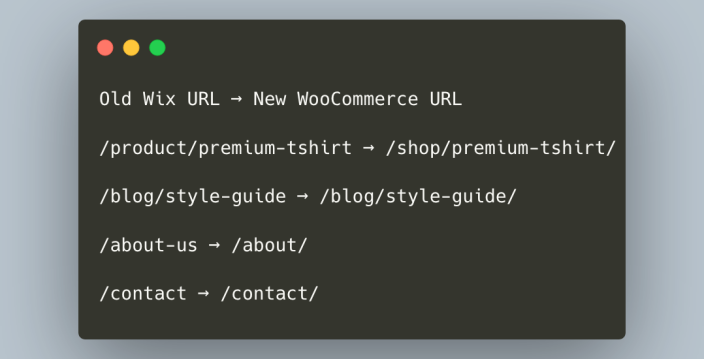
Redirect Implementation Methods:
Method 1: .htaccess Redirects (Apache Servers)
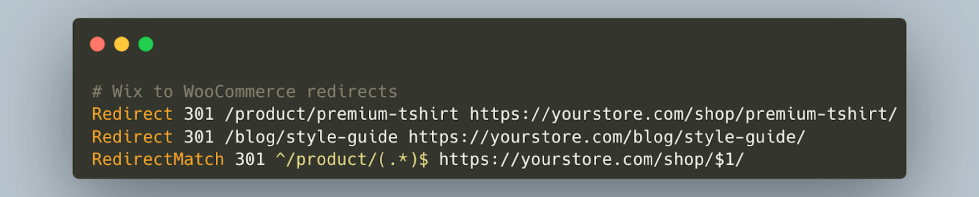
Method 2: WordPress Redirect Plugins Search for redirect management plugins on WordPress.org that offer:
- Bulk redirect import capabilities
- 404 error monitoring and redirect suggestions
- Redirect performance tracking
- Regular expression support for pattern matching
Method 3: Server-Level Redirects Configure redirects through your hosting provider’s control panel or contact support for assistance with server-level redirect implementation.
SEO Element Migration
Meta Data Transfer:
- Page titles optimization for target keywords
- Meta descriptions rewriting for improved click-through rates
- Header tags (H1, H2, H3) structure optimization
- Alt text for images and accessibility compliance
- Schema markup implementation for rich snippets
Technical SEO Considerations:
- XML sitemap generation and submission to search engines
- Robots.txt configuration for proper crawling
- Canonical URLs setup to prevent duplicate content
- Internal linking structure optimization
- Page speed optimization for ranking factors
Search engine communication
Google Search Console Setup:
- Verify new domain ownership in Google Search Console
- Submit XML sitemap for indexing
- Monitor crawl errors and fix issues promptly
- Set up alerts for critical SEO issues
- Track search performance and ranking changes
Search Engine Notification:
- Submit change of address in Google Search Console (if applicable)
- Update business listings with new website URL
- Notify link partners of URL changes
- Update social media profiles with new website links
- Monitor search rankings for target keywords
9.3 Plugin conflict resolution
Staging environment testing
Staging Setup Best Practices:
- Create exact replica of production environment
- Use same hosting configuration and server settings
- Install identical plugins and theme versions
- Import production data for realistic testing
- Test all functionality before deploying to live site
Plugin Compatibility Testing:
Phase 1: Essential Plugin Testing
- WooCommerce core functionality verification
- Payment gateway plugins testing
- Security plugin compatibility checking
- SEO plugin functionality verification
- Backup plugin operation testing
Phase 2: Enhancement Plugin Testing
- Page builder compatibility (if used)
- Email marketing integration testing
- Analytics and tracking plugin verification
- Performance optimization plugin testing
- Customer support tool integration
Conflict identification and resolution
Common Plugin Conflicts:
Theme and Plugin Conflicts:
- CSS styling conflicts between theme and plugins
- JavaScript errors causing functionality issues
- PHP version compatibility problems
- Database conflicts between similar plugins
- Performance impacts from plugin interactions
Conflict Resolution Process:
- Identify conflicting plugins through systematic deactivation
- Check plugin compatibility requirements and versions
- Update plugins to latest compatible versions
- Configure plugin settings to avoid conflicts
- Replace incompatible plugins with alternatives
Plugin Alternative Research: When conflicts cannot be resolved, search for alternatives on:
- WordPress.org Plugin Directory for free options
- WooCommerce.com Extensions for premium solutions
- Plugin developer websites for specific functionality needs
Performance optimization
Plugin Performance Impact:
- Monitor page load times with different plugin combinations
- Use performance testing tools to identify bottlenecks
- Optimize plugin configurations for better performance
- Remove unnecessary plugins that don’t add value
- Implement caching solutions to improve overall performance
Performance Monitoring Tools:
- Google PageSpeed Insights for performance analysis
- GTmetrix for detailed performance reports
- Query Monitor plugin for database query analysis
10. Troubleshooting migration issues
↑ Back to topMigration-related problems
This section provides specific troubleshooting solutions for common issues encountered during the migration process. For strategic guidance on preventing pitfalls, see Section 9: Common pitfalls and solutions.
10.1 Data import issues
Product Import Problems
- Issue: Products not importing correctly
- Solutions:
- Check CSV file encoding (use UTF-8)
- Verify column headers match WooCommerce format
- Ensure required fields are populated
- Check for special characters in product names
- Validate image URLs are accessible
Customer Import Problems
- Issue: Customer data not importing
- Solutions:
- Ensure email addresses are unique
- Check date format (YYYY-MM-DD HH:MM:SS)
- Verify country codes are correct
- Remove duplicate entries
- Check user role assignments
Order Import Problems
- Issue: Orders not importing properly
- Solutions:
- Verify customer IDs exist
- Check product SKUs match imported products
- Ensure order status mapping is correct
- Validate date formats
- Check for missing required fields
10.2 Image and media issues
Missing Images
- Issue: Product images not displaying
- Solutions:
- Verify image URLs are accessible
- Check image file formats (JPG, PNG, WebP)
- Ensure proper file permissions
- Re-upload images to WordPress Media Library
- Update image references in products
Broken Image Links
- Issue: Images showing as broken links
- Solutions:
- Update image URLs in database
- Use search and replace tools
- Re-import images with correct paths
- Check .htaccess file for redirect issues
10.3 Performance issues
Slow loading times
Common Causes and Solutions
- Large Images: Optimize and compress images
- Too Many Plugins: Deactivate unnecessary plugins
- Poor Hosting: Upgrade to better hosting plan
- No Caching: Install and configure caching plugin
- Unoptimized Database: Clean and optimize database
Performance Optimization Steps
- Install caching plugin (WP Rocket, W3 Total Cache)
- Optimize images (Smush, ShortPixel)
- Minify CSS and JavaScript
- Use Content Delivery Network (CDN)
- Optimize database queries
- Enable GZIP compression
Server resource issues
High CPU Usage
- Causes: Inefficient plugins, large traffic spikes
- Solutions: Optimize plugins, upgrade hosting, implement caching
Memory Limit Errors
- Causes: Insufficient PHP memory limit
- Solutions: Increase memory limit in wp-config.php or hosting settings
10.4 Functionality problems
Checkout issues
Payment Gateway Problems
- Issue: Payment processing failures
- Solutions:
- Verify API credentials are correct
- Check SSL certificate is valid
- Test in sandbox mode first
- Enable logging to view specific error logs if payment gateway has that feature
- Ensure currency settings match
- Check for plugin conflicts
Shipping Calculation Errors
- Issue: Incorrect shipping costs
- Solutions:
- Verify shipping zones are configured
- Check shipping class assignments
- Validate weight and dimension settings
- Test shipping calculator with various scenarios
- Enable debug logs to see what shipping rates are being calculated on the checkout
Email delivery issues
Order Confirmation Emails Not Sending
- Solutions:
- Configure SMTP settings
- Install email delivery plugin (WP Mail SMTP)
- Check spam folders
- Verify email templates are correct
- Test with different email providers
- Review https://woocommerce.com/document/email-faq/
10.5 SEO and redirect issues
Broken redirects
404 Errors After Migration
- Solutions:
- Set up proper 301 redirects
- Update internal links
- Submit new sitemap to search engines
- Use redirect plugins (Redirection, Yoast SEO)
SEO Rankings Drop
- Solutions:
- Ensure meta titles and descriptions are preserved
- Maintain URL structure where possible
- Set up proper redirects for changed URLs
- Submit updated sitemap to Google Search Console
10.6 User account issues
Customer login problems
Password Reset Issues
- Solutions:
- Configure email delivery properly
- Check password reset page settings
- Verify user roles are correct
- Test password reset process
Account Data Missing
- Solutions:
- Re-import customer data with correct mapping
- Check user meta data in database
- Verify customer ID relationships
- Update user profiles manually if needed
10.7 Getting help and support
Support resources
Official Documentation
Community Support
Professional Help
- WooCommerce Experts
- Codeable (WordPress/WooCommerce developers)
10.8 When to seek professional help
Consider hiring a professional if you encounter:
- Complex custom functionality requirements
- Large-scale data migration issues
- Performance optimization needs
- Custom theme or plugin development
- Advanced integrations with third-party systems
11. Post-migration optimization
↑ Back to topOngoing performance monitoring
11.1 Regular performance checks
Performance Monitoring Schedule:
- Monitor site speed weekly using Google PageSpeed Insights
- Check Core Web Vitals in Google Search Console
- Review server resource usage monthly
- Analyze user behavior with Google Analytics
- Monitor uptime and response times
Performance Maintenance Tasks
- Update plugins and themes regularly
- Optimize database monthly
- Clean up unused media files
- Review and optimize slow-loading pages
- Monitor and optimize largest pages
11.2 Advanced performance techniques
Caching Strategies
- Implement page caching
- Use object caching for database queries
- Enable browser caching
- Consider server-level caching (Varnish, Redis)
- Use CDN for global content delivery
Database Optimization
- Regular database cleanup
- Remove spam comments and revisions
- Optimize database tables
- Use database caching
- Monitor slow queries
11.3 SEO optimization
Post-migration SEO tasks
Search Engine Resubmission
- Submit updated XML sitemap to Google Search Console
- Request reindexing of important pages
- Monitor crawl errors and fix issues
- Update robots.txt if needed
- Check for duplicate content issues
Ongoing SEO Monitoring
- Track keyword rankings
- Monitor organic traffic changes
- Analyze search console data
- Update meta descriptions and titles
- Optimize for new keywords
11.4 Conversion rate optimization
A/B testing opportunities
Elements to Test
- Product page layouts
- Checkout process flow
- Call-to-action buttons
- Product descriptions
- Pricing displays
- Trust signals and reviews
Testing Tools
- Optimizely
- VWO (Visual Website Optimizer)
- Convert.com
11.5 User experience improvements
Analytics-Driven Optimizations
- Analyze user behavior with heatmaps
- Review cart abandonment data
- Optimize high-exit pages
- Improve site search functionality
- Enhance mobile user experience
11.6 Security maintenance
Ongoing security tasks
Regular Security Checks
- Update WordPress core, themes, and plugins
- Run security scans monthly
- Monitor for malware
- Review user access and permissions
- Check for suspicious activity
Security Best Practices
- Use strong passwords and 2FA
- Limit login attempts
- Hide WordPress version information
- Disable file editing in admin
- Regular security backups
11.7 Business growth strategies
Leveraging WooCommerce features
Advanced Ecommerce Features
- Implement product recommendations
- Set up email marketing automation
- Create customer loyalty programs
- Use advanced reporting and analytics
- Implement inventory management systems
Marketing Integrations
- Connect with email marketing platforms
- Set up social media integrations
- Implement affiliate marketing programs
- Use advanced SEO tools
- Create content marketing strategies
12. Conclusion
↑ Back to topMigrating from Wix to WooCommerce represents a significant investment in your business’s future growth and flexibility. This comprehensive guide has covered the essential steps, considerations, and best practices for executing a successful migration.
12.1 Migration benefits recap
Successfully migrating from Wix to WooCommerce provides:
- Complete Control: Full ownership of your store and data
- Cost Savings: Elimination of monthly platform fees
- Access to thousands of free and premium plugins
- Unlimited Customization: Access to thousands of themes and plugins
- Better SEO: Enhanced search engine optimization capabilities
- Scalability: Ability to handle unlimited growth
- Community Support: Large ecosystem of developers and users
- Professional ecommerce features without platform restrictions
12.2 Long-term advantages
Business Growth:
- No transaction fees on most payment gateways
- Unlimited product listings
- Advanced inventory management
- Multi-store capabilities
- Future-proofing with open-source technology that won’t become obsolete
- Reduced operational costs over time
- Improved conversion rates through optimized checkout processes
- Enhanced customer experience with faster loading times
- Better marketing capabilities with advanced segmentation and automation
- Increased revenue potential through unlimited product and traffic capacity
Technical Benefits:
- Regular security updates
- Performance optimization options
- Custom functionality development
- Integration possibilities
12.3 Moving forward
Your migration to WooCommerce opens up new possibilities for business growth and customer engagement. Take advantage of the platform’s flexibility to:
- Implement advanced marketing automation and customer segmentation
- Optimize conversion rates through A/B testing and user experience improvements
- Expand internationally with multi-currency and multi-language capabilities
- Integrate with business tools for streamlined operations and reporting
- Build customer loyalty through personalized experiences and rewards programs
The investment in migration will continue to pay dividends as your business grows and evolves. WooCommerce’s open-source nature ensures that your store can adapt to changing market conditions and customer expectations without platform limitations.
Remember that migration is not just a technical process—it’s a strategic business decision that positions your company for long-term success in the competitive ecommerce landscape.
Expert assistance recommendations
For complex migrations or if you encounter difficulties:
- Consider hiring WooCommerce experts
- Consult with WordPress developers
- Use professional migration services
- Join WooCommerce community forums
13. Glossary
↑ Back to top- API Key: A unique code allowing applications (like WooCommerce) to securely access and interact with your Wix store data; only authorized apps can retrieve or modify information.
- Domain: The web address where your store is accessible (e.g., yourstore.com). During migration, point the domain to your new WooCommerce host.
- SSL Certificate (Secure Sockets Layer Certificate): Encrypts data between your site and users to protect sensitive information during transactions; install and activate before going live.
- DNS (Domain Name System): Translates human-friendly domain names into IP addresses and routes traffic to the correct server during and after migration.
- CSV (comma-separated values): A tabular file format for export/import where each line is a record and commas separate values.
- UTF-8 Format: A character encoding standard ensuring text renders correctly across platforms; use for exports to prevent garbled characters.
- Staging Environment: A non-production copy of your site used to safely test changes, imports, and updates before going live.
- CDN (Content Delivery Network): A distributed network of servers that delivers cached static assets (images, CSS, JS) from locations closer to users to improve page speed.
- SKU (Stock Keeping Unit): A merchant-defined product identifier used to uniquely track inventory and orders.
- 301 Redirect: A permanent redirect from one URL to another that preserves search ranking signals and sends visitors to the new location.
- XML Sitemap: A machine-readable list of site URLs submitted to search engines to help discovery and indexing.
- Canonical URL: The preferred URL for a page to avoid duplicate content issues and consolidate ranking signals.
- EPP Code (Authorization Code): A transfer code used to authorize moving a domain from one registrar to another.
- GA4 (Google Analytics 4): The latest generation of Google Analytics used to measure events and conversions across web and apps.
- Test Mode: A payment gateway setting that simulates transactions without charging real funds, used for safe checkout testing.
14. Additional resources
↑ Back to topMigrating from Wix to WooCommerce is a rewarding process, and having the right resources at your fingertips can make the transition even smoother. This section provides recommendations for plugins, hosting providers, migration tools to enhance your setup, and links to essential documentation from WooCommerce and Wix.
Whether you’re a store owner, developer, or technical team, these resources will help you succeed at every stage of your transition and post-migration.
WooCommerce documentation and Wix export guides
These official resources provide step-by-step instructions and technical details
- WooCommerce documentation
- WooCommerce Documentation – Comprehensive guides for all WooCommerce features
- WordPress Codex – Comprehensive WordPress developer documentation
- WooCommerce Developer Resources – Technical documentation for customization
- Plugin and extension discovery
- WooCommerce Extensions Official plugin marketplace
- WordPress Plugin Directory – Free plugin repository
- Themes and designs discovery
- WooCommerce Themes – Professional theme collection
- WordPress Theme Directory – Free theme collection
- Hosting recommendations
- Migration tools and services
Search for migration tools on: - Recommended Migration Extensions:
- Wix to Woo Migration – Official Wix migration tool
- Import Export Suite for WooCommerce – Comprehensive import/export solution
- Learning and development resources
- Developer Resources:
- WooCommerce GitHub Repository – Source code and development
- WooCommerce Developer Blog
- WordPress Developer Handbook
- Community Slack channels and forums
- Developer Resources:
- Community support
- Official Support Channels:
- WooCommerce Support – Official support portal
- WordPress.org Support Forums – Community support
- WooCommerce Facebook groups and communities
- Local WordPress meetups and WordCamps
- Professional Services:
- Codeable – Assisted Store Migration by WooCommerce Experts
- WooCommerce Experts – Certified professionals
- Freelancer platforms with WooCommerce specialists
- Digital agencies specializing in ecommerce migrations
- Sample CSVs (for reference)
- products.csv — minimal WooCommerce product import example
- customers.csv — example column set for customer import via extension
- orders.csv — simplified example; follow your importer’s exact format for line items
- Official Support Channels:
- Wix platform limitations (official links)
- Hosting and external export: https://support.wix.com/en/article/exporting-or-embedding-your-wix-site-elsewhere
- No FTP access: https://support.wix.com/en/article/wix-media-request-ftp-service
- No direct HTML editing in Editor: https://support.wix.com/en/article/wix-editor-about-embeds-and-codes-on-your-site
- CSS access (Editor not supported; Studio supports CSS): https://support.wix.com/en/article/wix-editor-request-accessing-the-css-code-style-sheet-of-your-site and https://support.wix.com/en/article/studio-editor-about-css-editing
- Contacts and members passwords are not exported; members reset passwords: https://support.wix.com/en/article/site-members-resetting-your-members-passwords and https://support.wix.com/en/article/wix-contacts-exporting-your-contacts
- Products export limits (5,000 rows) and digital products not supported: https://support.wix.com/en/article/wix-stores-exporting-your-product-list and https://support.wix.com/en/article/wix-stores-request-importing-or-exporting-digital-products
- Orders export to CSV: https://support.wix.com/en/article/exporting-orders-3126323
- Media Manager downloads: https://support.wix.com/en/article/wix-media-downloading-files-from-the-media-manager
- Wix Payments service fees: https://support.wix.com/en/article/wix-payments-service-fees
- Other Sources
Questions and support
↑ Back to topDo you still have questions and need assistance?
This documentation is about the free, core WooCommerce plugin, for which support is provided in our community forums on WordPress.org. By searching this forum, you’ll often find that your question has been asked and answered before.
If you haven’t created a WordPress.org account to use the forums, here’s how.
- If you’re looking to extend the core functionality shown here, we recommend reviewing available extensions in the WooCommerce Marketplace.
- Need ongoing advanced support or a customization built for WooCommerce? Hire a Woo Agency Partner.
- Are you a developer building your own WooCommerce integration or extension? Check our Developer Resources.
If you weren’t able to find the information you need, please use the feedback thumbs below to let us know.