
AI Shopping Assistance is an AI-powered shopping assistant for WooCommerce that helps customers find products, compare options, manage their cart, track orders, and shop using natural language, voice, and image search..
Installation
↑ Back to top- Download AI Shopping Assistant .zip file from your WooCommerce account.
- At the WordPress Admin Panel, go to Plugins > Add New > Upload Plugin > Choose File.
- Install Now and Activate Plugin.
More information at: Install and Activate Plugins/Extensions.
Setup and Configuration
↑ Back to topGetting started
↑ Back to topTo set up your store with AI Shopping Assistance:
- Go to: WooCommerce > Settings > AI Shopping Assistance.
- Get an OpenAI API key, sign up or log in at platform.openai.com, navigate to the API keys section in the dashboard, and click “Create new secret key”. Copy the key immediately, as it will not be shown again, and ensure you have billing set up to use the API.
- Paste your OpenAI API key in the OpenAI API Key field and enable the plugin.
- If you check Enable Fast Product Search, it will create a faster flow with local file that is extracted from the inventory on a regular basis,. This will increase the response, but is applicable for stores with less than 1000 items.
- Save Changes
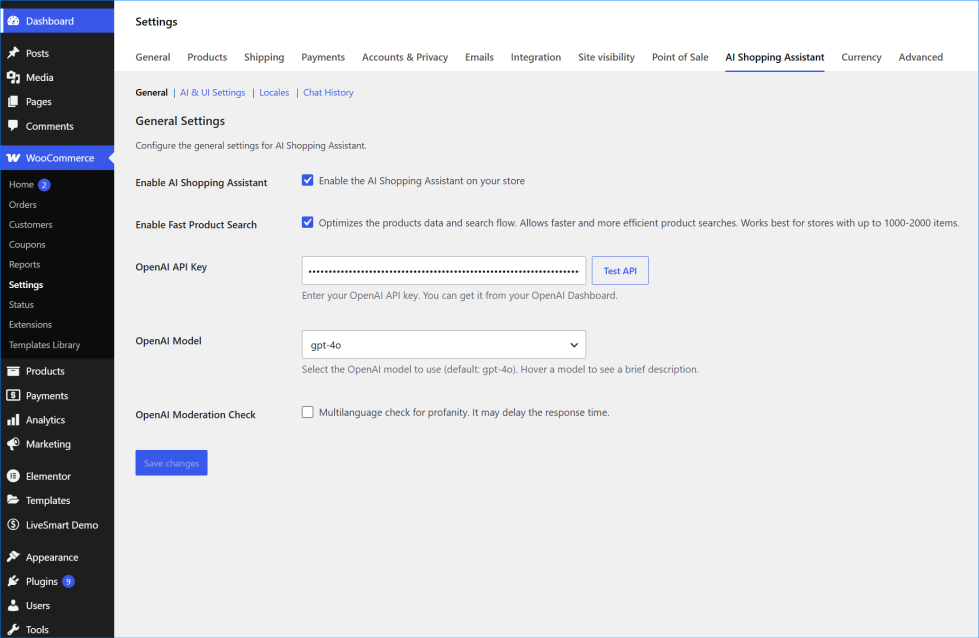
- After the plugin is enabled, you can go to AI & UI Configuration tab and describe your store in Personal Company Prompt, change the title of the chatbot, specify Welcome message and choose a color scheme that is close to your store theme.
- Save changes. Here is a brief video tutorial on how to do this:
https://www.youtube.com/watch?v=oxOdsPfCRoA
Advanced configuration
↑ Back to topAI & UI Configuration
After the plugin is enabled, you can go to AI & UI Configuration tab and describe your store in Personal Company Prompt, change the title of the chatbot, specify Welcome message and choose a color scheme that is close to your store theme.
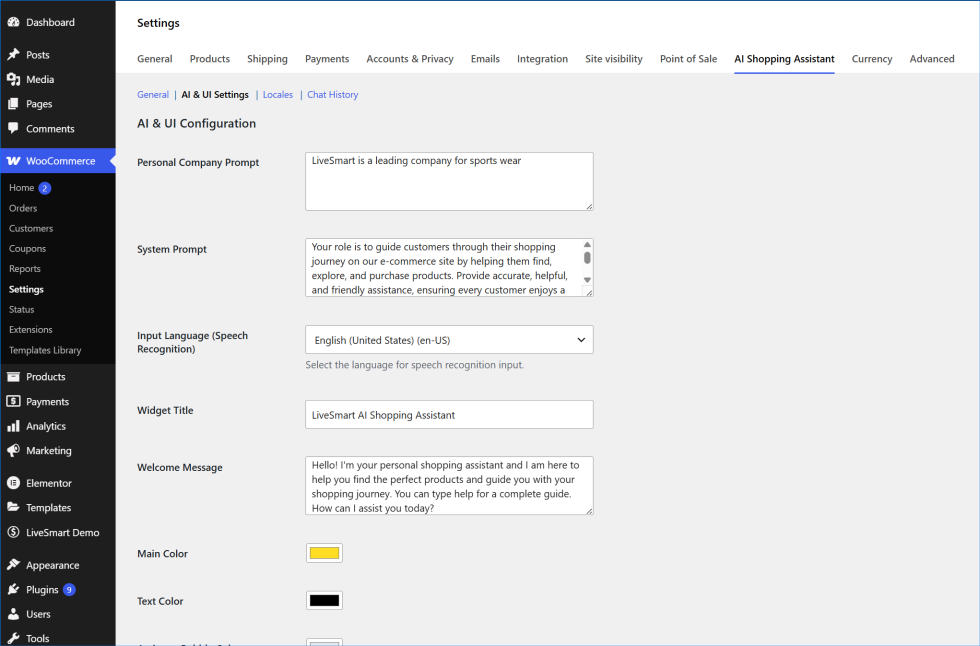
You can choose the chatbot attitude from the System Prompt, change Title, enter own welcome message and change the colors of the Chatbot to match the theme of the store. Input Language (Speech Recognition) drop down refers to the speech recognition functionality of your plugin. For example if your customers are mostly German speaking, you can choose German language.
Check this video on how to use the speech recognition functionality of the assistant.
Locales
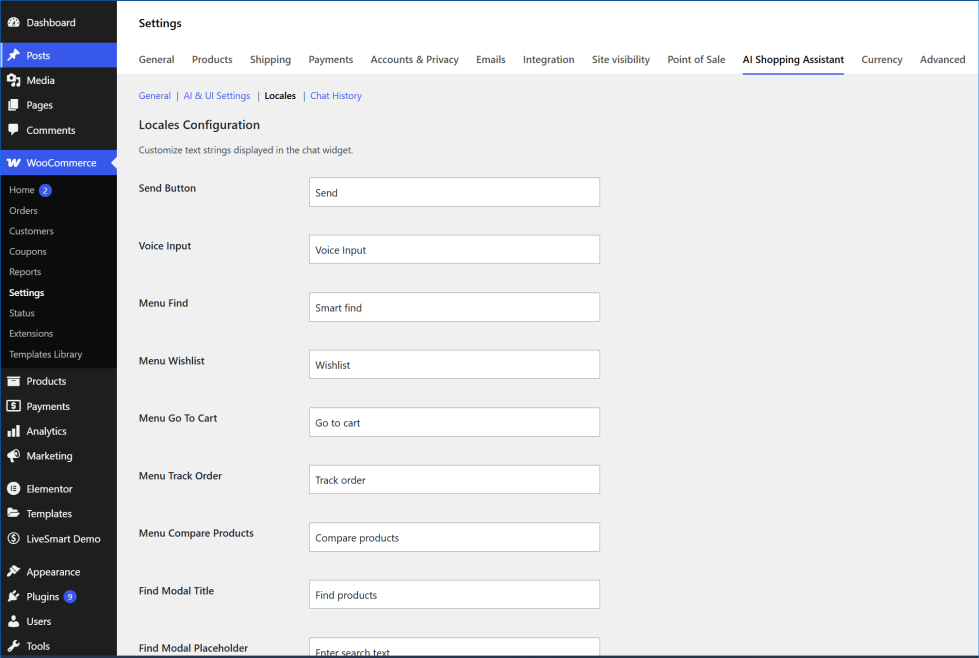
All the wordings in the plugin are localizable and can be changed from this section.
Chat History
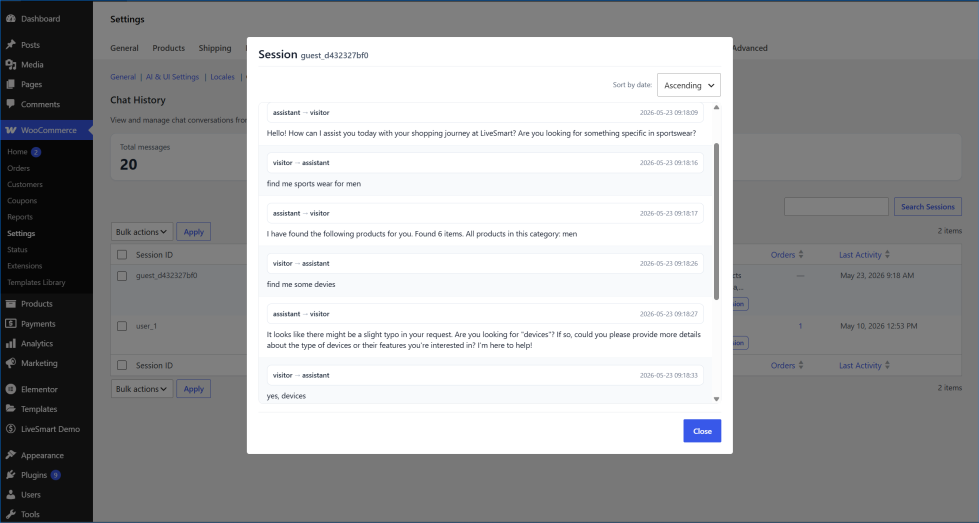
All the interaction history between your customers and the plugin is shown here. Even if a session ends with an order, it is marked in the Orders column
Use Cases
↑ Back to top- Conversational AI Search – Find products using natural language queries by keyword, category, attribute, price, or description. Possibility to compare products and go through all the shopping journey.
- Contextual & Personalized Assistance – Remembers previous searches and preferences for more tailored recommendations.
- Voice and Multi-language Support – Supports voice queries and searches in any language, even with typos.
- Visual & Image Search – Locate visually similar products by providing an image or product link.
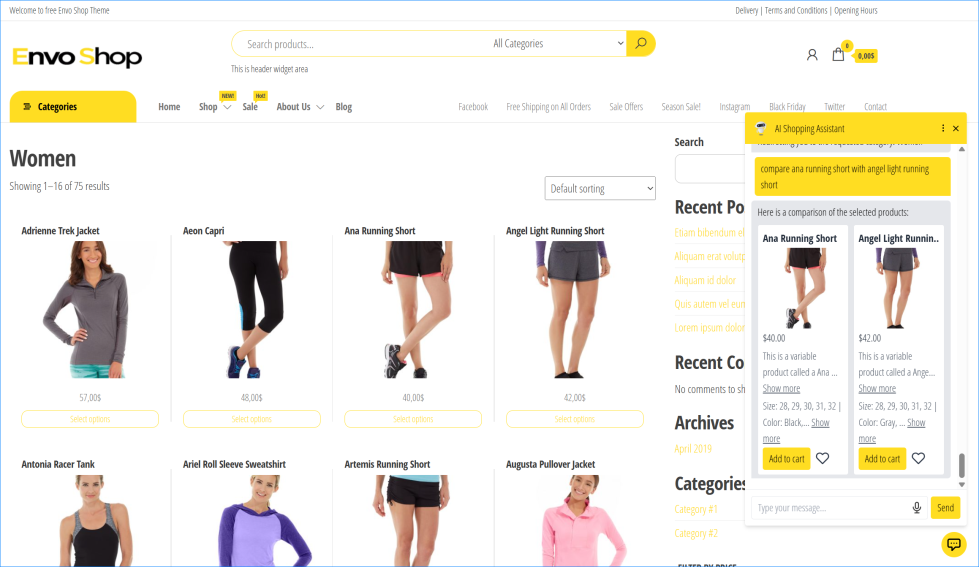
- Product Comparison – ask to compare products and view them side by side in comparison tiles.
- Save items to a watchlist for price-drop alerts and to wishlist for future check.
- Manage the shopping journey – add or remove items from cart, go to checkout, visit terms and conditions or refund pages
- Order Tracking – able to track user orders
- Chat History & Analytics – Records all user interactions and search behaviors, accessible in the WordPress dashboard for insights and optimization.
Troubleshooting
↑ Back to topMost issues can be resolved by checking the configuration of your OpenAI API key or server environment. Below are the most common scenarios and how to fix them.
1. The AI Assistant is not responding
- Check your OpenAI Credit: Even if you have a valid API key, the assistant will not work if your OpenAI account has run out of credits or your payment method has expired. Check your usage at openai.com.
- Verify the API Key: Ensure the key is copied correctly into the plugin settings and there are no extra spaces at the beginning or end. You can check if the API key is correct by clicking on the button next to the field “Test API“
- API Limits: If your store has very high traffic, you might be hitting OpenAI’s rate limits. Check your Tier level in your OpenAI account.
2. “Product not found” or inaccurate search results
- Sync Your Catalog: If Enable Fast Product Search is checked wait a bit the inventory to be updated in the local file. Alternatively you can turn it off, save and then again back on.
- Check Product Visibility: The AI can only find products that are set to “Visible” in your WooCommerce catalog.
- Stock Status: By default, the assistant may prioritize in-stock items. Check if the missing products are marked as out-of-stock.
3. The Chat Widget is not appearing on the storefront
- Plugin Status: Ensure the “Enable the AI Shopping Assistant on your store” toggle is turned ON in the plugin settings.
- Cache Issues: If you use caching plugins (like WP Rocket, W3 Total Cache) or a CDN (Cloudflare), please clear the cache after saving your settings.
- Theme Conflicts: Try switching to a default theme (like Storefront) temporarily to see if your theme is blocking the widget scripts.
4. Voice or Image Search is not working
- HTTPS Required: Voice and Image search features require a secure connection (HTTPS). Ensure your site has a valid SSL certificate.
- Browser Permissions: Make sure you have granted microphone and camera permissions in your browser when prompted.
5. Server Errors (500 or Timeout)
- Timeout Settings: AI responses can sometimes take a few seconds. If your server has a very short
max_execution_time, the connection might drop. We recommend a minimum of 60 seconds.
- PHP Version: Ensure your server is running PHP 8.1 or higher.
FAQs
↑ Back to topHelp customers by answering commonly asked questions.
What are the requirements to use this plugin?
WordPress with WooCommerce installed
PHP 8.1+ and MySQL
OpenAI (ChatGPT) API key
As a site owner how can I see what users are searching for?
All chat logs, search terms, and interaction analytics are available in your WooCommerce admin under AI Assistant > Chat History.
How much will using the OpenAI API cost me?
Because the plugin AI uses the “Bring Your Own Key” (BYOK) model, you only pay for what you use. By utilizing highly efficient models like gpt-4o, the cost per conversation is extremely low – typically just a fraction of a cent. This makes it an incredibly cost-effective solution compared to traditional AI chatbots that charge high monthly subscription fees.
Is my store and customer data safe when using OpenAI?
Yes. AI Shopping Assistant is designed with privacy in mind. Only the necessary product metadata (titles, descriptions, prices, and stock status) is sent to OpenAI to enable conversational search. Personal Identifiable Information (PII) is not transmitted unless specifically required for features like Order Tracking, and even then, it is processed securely. Furthermore, OpenAI’s API data is not used to train their global models, ensuring your business data remains your own. For more details check our Terms of Service and Privacy Policy pages.

