
Minimum and Maximum Order Amount Restriction allows your WooCommerce store to lets WooCommerce store owners create rule-based minimum and maximum order value limits. Rules can apply storewide or be precisely targeted using shipping method, payment method, and a full conditional logic engine (cart contents, user role, location, coupons, stock, and more).
Installation
↑ Back to topTo start using a product from WooCommerce.com, you can use the “Add to store” functionality on the order confirmation page or the My subscriptions section in your account.
- Navigate to My subscriptions.
- Find the Add to store button next to the product you’re planning to install.
- Follow the instructions on the screen, and the product will be automatically added to your store.
Alternative options and more information at:
Managing WooCommerce.com subscriptions.

Plugin Setup and Configuration
↑ Back to topAccess rules via WooCommerce → Min/Max Rules → Add New Rule.
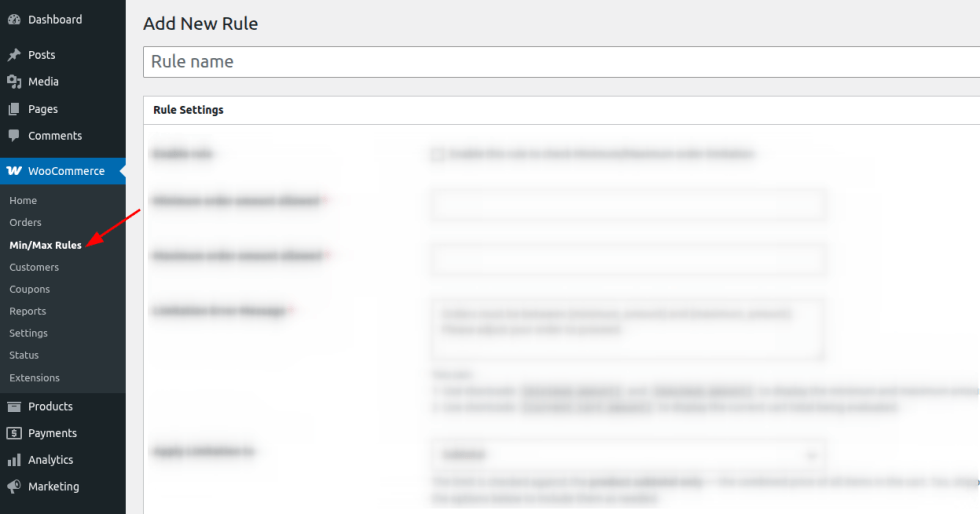
Each rule includes the following settings:
| Settings | What It Does | When to Use | Example |
|---|---|---|---|
| Rule Title | Internal name for the rule (not shown to customers) | Always — for organization | “Free Shipping Minimum” |
| Enable Rule | Turns the rule on/off without deleting it | Temporarily disable a rule for testing or promotions | Uncheck during a holiday sale |
| Minimum Order Amount Allowed | Lowest cart value permitted at checkout | Prevent unprofitable small orders | 10 |
| Maximum Order Amount Allowed | Highest cart value permitted at checkout | Cap risk on manual payment methods | 50 |
| Limitation Error Message | Customer-facing message when the rule fails | Always — customize with shortcodes | “Orders must be between {minimum_amount} and {maximum_amount}. Your current cart amount is {current_cart_amount}.” |
| Apply Limitation To | Whether the limit checks Subtotal or Cart Total | Choose based on whether tax/shipping should count | “Cart Total” to include tax and shipping |
| Include Tax | Adds tax to the amount being checked | When using Subtotal scope and tax should count | Enable for tax-inclusive minimums |
| Include Shipping Cost | Adds shipping cost to the amount being checked | When shipping cost should count toward the limit | Enable for a $50 minimum that includes shipping |
| Apply Coupon Discounts | Deducts coupon discounts before comparing against limits | When discounted totals — not pre-discount totals — should be checked | Enable so a discounted cart under $10 is blocked |
| Shipping Method Restriction | Allow all / only specific / exclude specific shipping methods | Target a rule to one shipping method only | “Allow only Free Shipping” |
| Payment Method Restriction | Allow all / only specific / exclude specific payment methods | Target a rule to one payment gateway only | “Exclude Cash on Delivery” |
| Conditional Logic | Build AND/OR condition groups to control exactly when the rule fires | Advanced targeting by cart, user, or location | See Section (Conditional Logic Builder) |
Feature-by-Feature Guide
↑ Back to top1. Basic Min/Max Setup
What it does: Enforces a minimum and/or maximum order value.
How to enable: Check Enable Rule, then fill in Minimum and/or Maximum Order Amount Allowed. At least one value is required.
Configuration steps:
- Enter a value in Minimum Order Amount Allowed, Maximum Order Amount Allowed, or both.
- Write your Limitation Error Message using the available shortcodes.
- Save the rule.
Example scenario: A store requires all orders to be between $10–$50. If a customer’s cart totals $60, checkout is blocked and the configured message is displayed with the live amounts filled in.
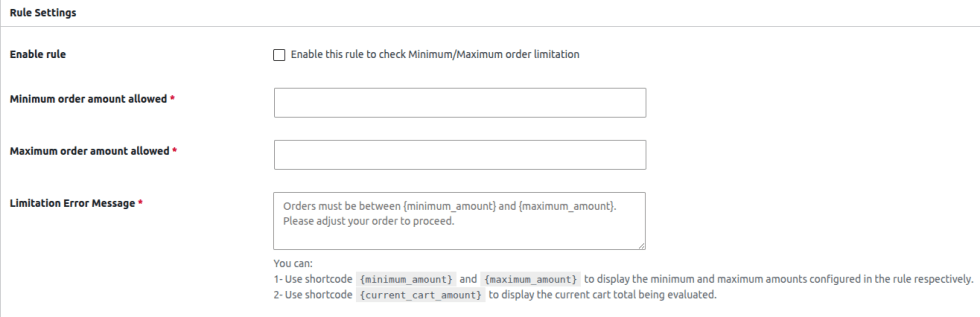
2. Apply Limitation To (Subtotal vs. Cart Total)
What it does: Determines what number is compared against your min/max values.
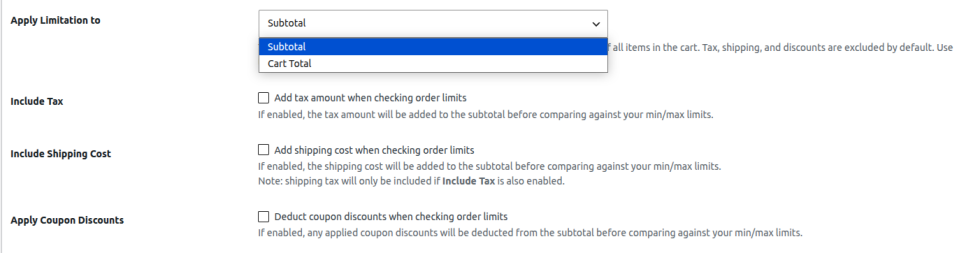
How to enable: Select from the Apply Limitation To dropdown. Configuration steps: Choose “Subtotal” for product-value-based rules (e.g., free shipping thresholds) or “Cart Total” for checkout-accuracy-based rules (e.g., COD payment caps).
- Subtotal: Product prices only, excluding tax, shipping, and discounts by default.
- Cart Total: The final amount the customer pays, including tax, shipping, fees, and discounts.
Example scenario: A $200 free-shipping minimum should typically use Subtotal, since shipping cost isn’t part of the qualifying amount.
3. Tax, Shipping & Coupon Inclusion
What it does: Fine-tunes the Subtotal calculation by optionally folding in tax, shipping cost, and coupon discounts.
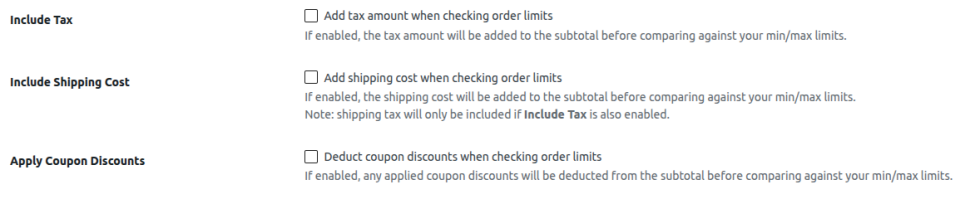
How to enable: Check the relevant boxes: Include Tax, Include Shipping Cost, Apply Coupon Discounts.
Configuration steps:
- Enable Include Tax if tax should count toward the limit.
- Enable Include Shipping Cost if shipping should count (note: shipping tax is only included if Include Tax is also enabled).
- Enable Apply Coupon Discounts to deduct discounts before comparison.
Example scenario: A store wants its $10 minimum to reflect what the customer actually pays after a coupon, so Apply Coupon Discounts is enabled.
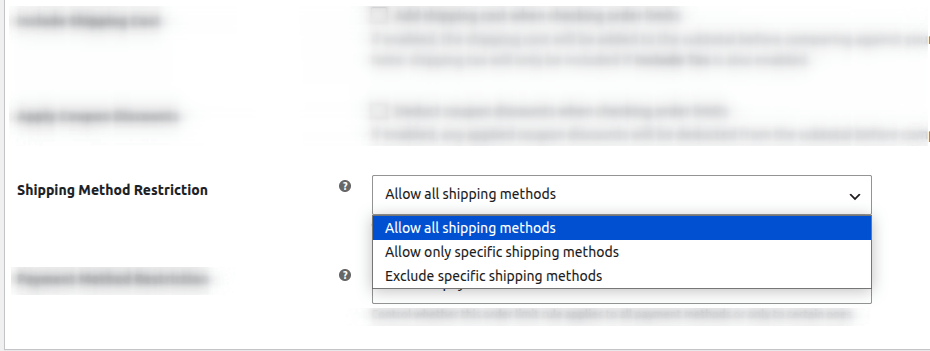
4. Shipping Method Restriction
What it does: Limits the rule’s enforcement to specific shipping methods.
How to enable: Select an option from Shipping Method Restriction: Allow all shipping methods, Allow only specific shipping methods, or Exclude specific shipping methods.
Configuration steps:
- Choose “Allow only specific shipping methods.”
- In the Include shipping methods field that appears, specify the target method(s).
- Save the rule.
Example scenario: A $200 minimum is enforced only when the customer selects Free Shipping; Flat Rate and Local Pickup are unaffected.
5. Payment Method Restriction
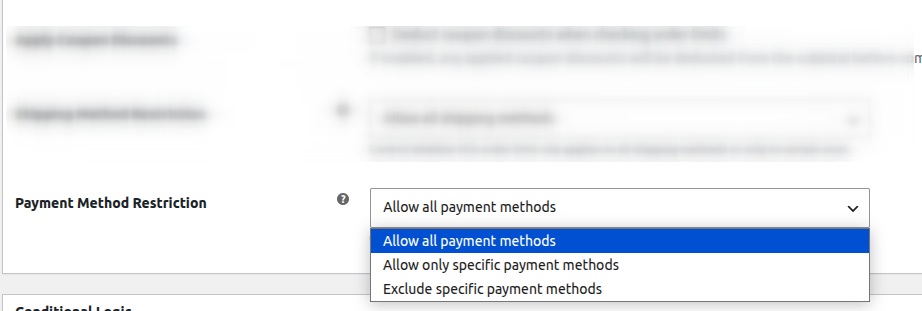
What it does: Limits the rule’s enforcement to specific payment gateways.
How to enable: Select an option from Payment Method Restriction, mirroring the shipping method logic.
Configuration steps:
- Choose “Allow only specific payment methods” or “Exclude specific payment methods.”
- Specify the target gateway(s), e.g., Cash on Delivery.
- Save the rule.
Example scenario: A $300 maximum is enforced only for Cash on Delivery, leaving card and bank transfer payments unrestricted.
6. Conditional Logic Builder
What it does: Adds precise, rule-level targeting using cart, customer, and product-based conditions.
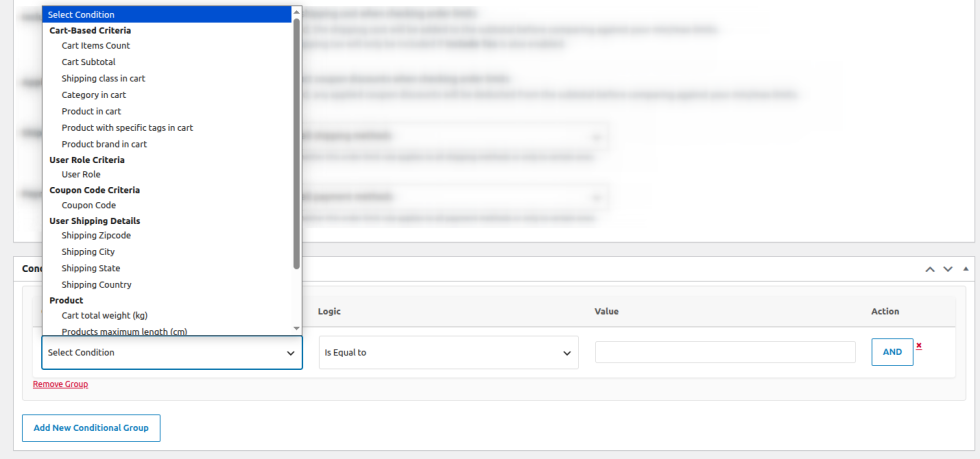
How to enable: Scroll to the Conditional Logic panel and click Add New Conditional Group.
Configuration steps:
- Within a group, click Select Condition and choose a condition type (see full list below).
- Choose a Logic operator (e.g., Is Equal to, Greater Than).
- Enter the Value to compare against.
- Click AND to add another condition to the same group (all conditions in a group must be true).
- Click Add New Conditional Group to create an OR relationship — the rule fires if any group’s conditions are fully met.
- Save the rule.
Available Condition Types:
- Cart-Based: Cart Items Count, Cart Subtotal, Shipping Class in Cart, Category in Cart, Product in Cart, Product with Specific Tags in Cart, Product Brand in Cart
- User Role-Based: User Role
- Coupon-Based: Coupon Code (applied/not applied)
- Shipping Details: Shipping Zipcode, Shipping City, Shipping State, Shipping Country
- Product-Based: Cart Total Weight (kg), Product Maximum Length/Width/Height (cm), Minimum Product Stock, Product Stock Status
Example scenario: A rule should apply only to Wholesale customers buying more than 10 items. Configure one group: User Role Is Equal to “Wholesale” AND Cart Items Count Greater Than “10”.
Use Case Walkthroughs
↑ Back to topWalkthrough 1: Free Shipping Minimum Spend
↑ Back to top- Create a new rule titled “Free Shipping Minimum.”
- Enable the rule.
- Set Minimum Order Amount Allowed to
200. Leave Maximum blank. - Set Apply Limitation To = Subtotal.
- Set Shipping Method Restriction = Allow only specific shipping methods → select “Free Shipping.”
- Save. Customers selecting Free Shipping under $200 will now see your custom error message and be blocked from checkout.
Walkthrough 2: Cash on Delivery Cap
↑ Back to top- Create a new rule titled “COD Maximum Limit.”
- Enable the rule.
- Set Maximum Order Amount Allowed to
300. Leave Minimum blank. - Set Apply Limitation To = Cart Total (to include tax/fees).
- Set Payment Method Restriction = Allow only specific payment methods → select “Cash on Delivery.”
- Save. Orders over $300 paid via COD are blocked; other payment methods remain unaffected.
Walkthrough 3: Wholesale Role-Based Minimum
↑ Back to top- Create a new rule titled “Wholesale Minimum Order.”
- Enable the rule.
- Set Minimum Order Amount Allowed to
500. - Under Conditional Logic, add a group with condition: User Role → Is Equal to → “Wholesale.”
- Save. Only customers with the Wholesale role are subject to the $500 minimum; retail customers are unaffected.
Troubleshooting
↑ Back to topIssue: The rule isn’t blocking checkout as expected.
- Confirm Enable Rule is checked.
- Verify the Apply Limitation To scope matches your intent (Subtotal vs. Cart Total).
- If using Conditional Logic, double-check that all conditions within a group are actually true for the test cart — a single failed AND condition prevents the whole group from matching.
Issue: Shipping or payment restriction isn’t applying.
- Ensure the correct method is selected in the “Include shipping/payment methods” field and that it matches your store’s actual configured method labels.
Issue: Tax or shipping isn’t being included in the calculation.
- Confirm Include Tax and/or Include Shipping Cost are checked, and note that shipping tax requires Include Tax to also be enabled.
Issue: Multiple rules conflict with each other.
- Rules are evaluated independently. If two rules apply to the same cart with conflicting limits, the more restrictive outcome will block checkout. Review overlapping rules and refine your conditional logic to avoid unintended overlap.
Questions & Support
↑ Back to topOur dedicated support team is available 24/7 and is always happy to help. We typically respond within 1–2 hours, so you won’t have to wait long for assistance.
Before contacting us, we recommend checking the FAQs below, as it may answer your question right away. If you still need help, simply open a support ticket by going to WooCommerce.com → My Account → My Subscriptions → Get Support.
We’re committed to providing fast, reliable support whenever you need it.
FAQs
↑ Back to top
Can I set both a minimum and maximum order amount restriction in the same rule?
Yes. Each rule supports minimum, maximum, or both simultaneously.
Will this affect all customers or can I target specific ones?
You can restrict rules by user role, coupon code, location, and more — or apply them storewide.
Does the minimum, maximum order amount limit include tax and shipping?
You control this. Choose subtotal-only, or include tax, shipping, and/or coupon discounts individually.
Does the minimum, maximum order amount limit include tax and shipping?
You control this. Choose subtotal-only, or include tax, shipping, and/or coupon discounts individually.
Can I require a minimum order amount only for Free Shipping customers?
Yes — use the Shipping Method Restriction to target Free Shipping exclusively.
Do I need coding knowledge to use conditional logic?
No. The condition builder is fully visual — dropdowns and simple logic operators only.
Can I run multiple rules at once?
Yes, there’s no limit to the number of active rules.
Is this compatible with WooCommerce HPOS and block based cart and checkout pages?
Yes, minimum, maximum order amount restriction plugin is fully compatible with HPOS and Block based cart and checkout pages?

