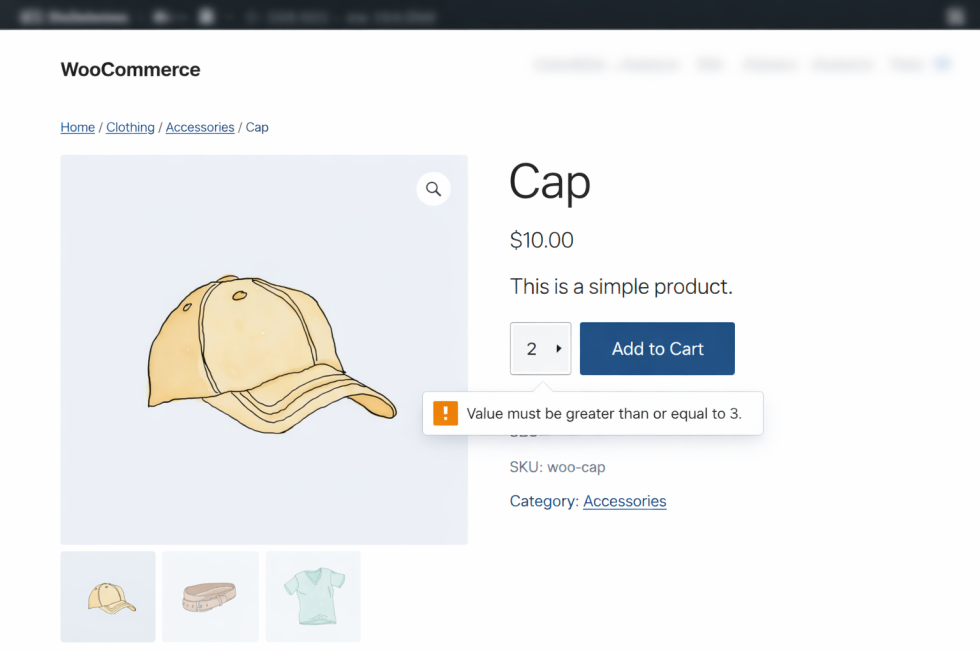
Minimum / Maximum Quantity per Product is a WooCommerce extension that allows store owners to enforce minimum and maximum purchase quantities using a powerful rule-based system.
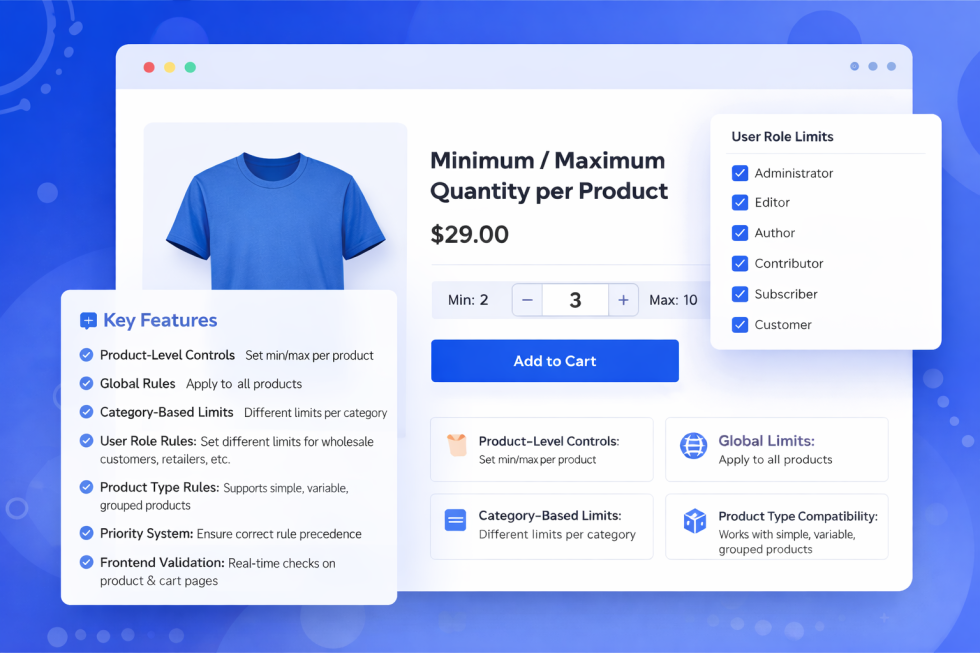
It supports:
- Product-level quantity limits
- Global quantity rules
- Category-based rules
- User role-based rules
- Product type rules
- Priority-based rule evaluation
This plugin is ideal for wholesale stores, bulk sellers, B2B websites, and inventory-controlled shops.
System Requirements
↑ Back to topBefore installing, ensure your website meets the following requirements:
| Requirement | Minimum Version |
|---|---|
| WordPress | 5.8+ |
| WooCommerce | 6.0+ |
| PHP | 7.4+ |
Installation
↑ Back to topTo start using a product from WooCommerce.com, you can use the “Add to store” functionality on the order confirmation page or the My subscriptions section in your account.
- Navigate to My subscriptions.
- Find the Add to store button next to the product you’re planning to install.
- Follow the instructions on the screen, and the product will be automatically added to your store.
Alternative options and more information at:
Managing WooCommerce.com subscriptions.

Plugin Location (Admin Menu)
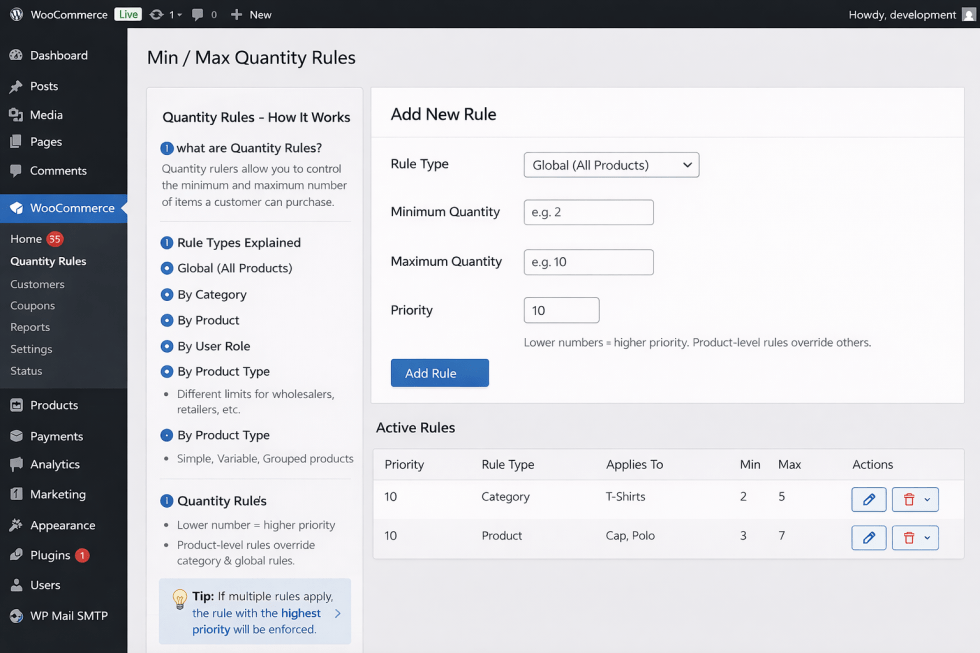
↑ Back to topAfter activation, the plugin settings are available at:
WooCommerce → Quantity Rules
This is the main control panel for creating and managing quantity rules.
Rule Types Explained
↑ Back to top1. Global Rule
↑ Back to topLocation: WooCommerce → Quantity Rules
Applies To: All products
Example Use Case:
Default store limit for all products
2. Category Rule
↑ Back to topLocation: WooCommerce → Quantity Rules
Applies To: Selected product categories
Example Use Case:
- Electronics → Max 2
- Accessories → Max 10
3. User Role Rule
↑ Back to topLocation: WooCommerce → Quantity Rules
Applies To: Selected user roles
Example Use Case:
- Wholesale customers → Min 25, Max 500
4. Product Type Rule
↑ Back to topLocation: WooCommerce → Quantity Rules
Applies To:
- Simple products
- Variable products
- Grouped products
Rule Priority System
↑ Back to topEach rule has a Priority value.
- Lower number = higher priority
- Rules are evaluated from lowest number to highest
- First matching rule is applied
Priority Order
↑ Back to top- Product-level quantity settings
- Rule-based limits (by priority)
- Global fallback rules
Product-Level Quantity Settings
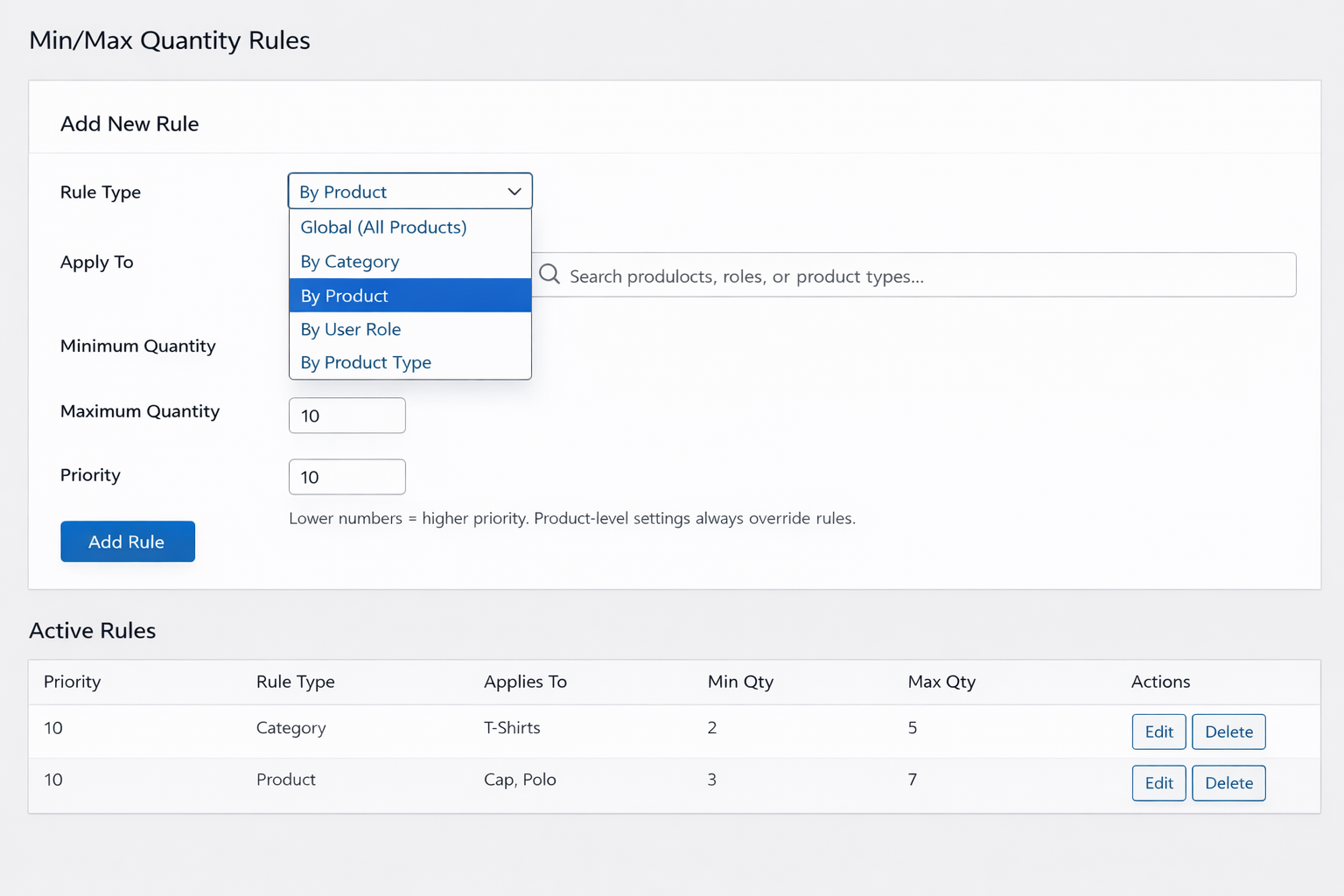
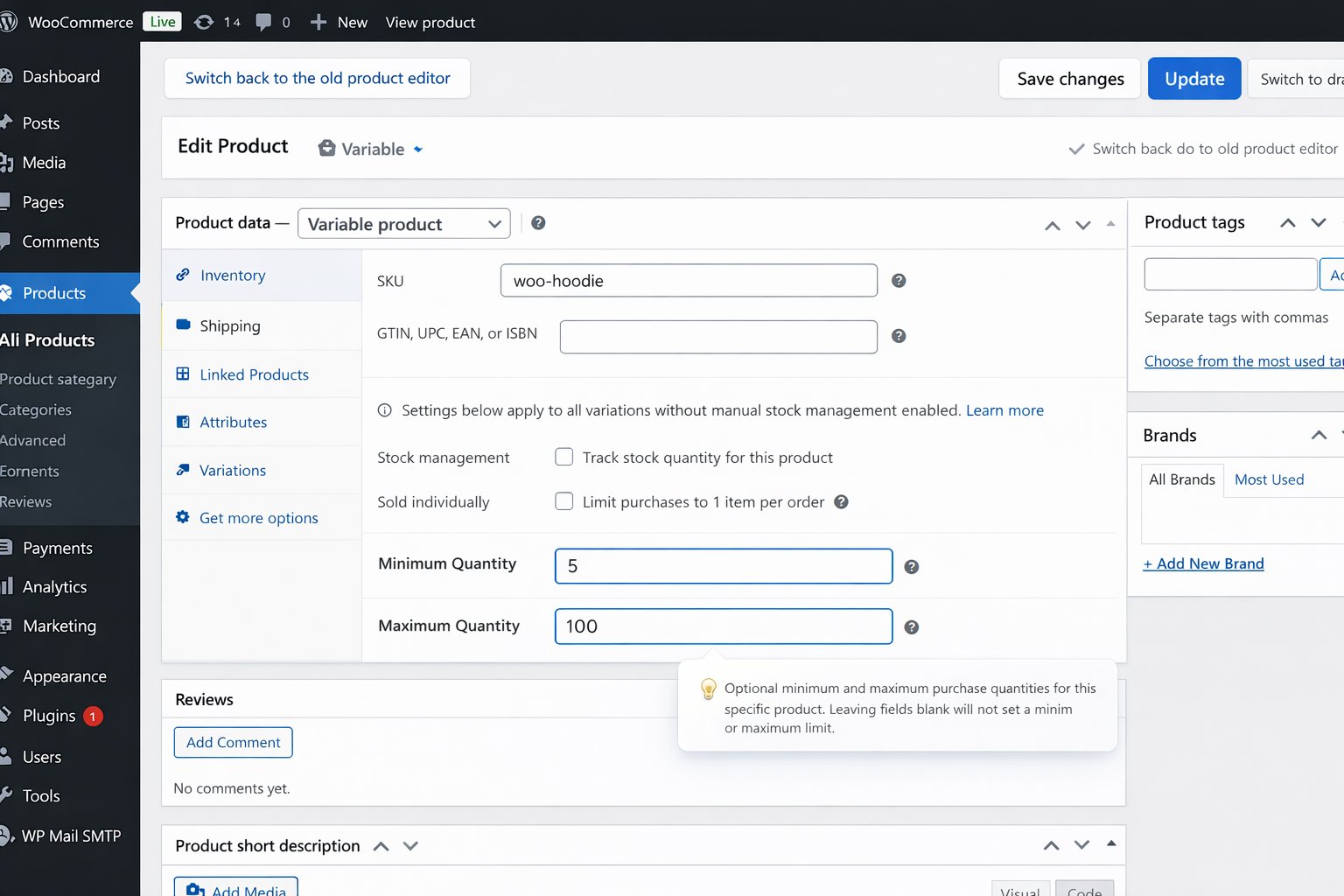
↑ Back to topProduct-level settings override all rules.
How to Set Product-Level Limits
↑ Back to topUpdate the product
Go to WooCommerce → Products
Edit a product: Open Product Data → Inventory
Set: Minimum Quantity | Maximum Quantity
Frontend Behavior
↑ Back to topProduct Page
↑ Back to top- Quantity input respects min/max limits
- Users cannot select invalid values
- Limits are visible immediately