
Xero Sync allows your WooCommerce store to sync orders, customers, products, inventory and more with your Xero company, keeping your bookkeeping in sync and automating your accounting.
Installation
↑ Back to topTo start using a product from WooCommerce.com, you can use the “Add to store” functionality on the order confirmation page or the My subscriptions section in your account.
- Navigate to My subscriptions.
- Find the Add to store button next to the product you’re planning to install.
- Follow the instructions on the screen, and the product will be automatically added to your store.
Alternative options and more information at:
Managing WooCommerce.com subscriptions.

Setup and Configuration
↑ Back to top1. Connect to Xero
In your MyWorks Account, visit your Xero Sync plan where you can connect to your Xero company by following the steps below:
- Click “Connect to Xero” to sign in and connect to your Xero company
- Copy the Connection Key on this page, for Step 2 below
2. Add MyWorks to your site
Next, easily add the MyWorks helper plugin to your WooCommerce store. If you haven’t installed it yet, it’s easy to find in Plugins > Add New in your store admin – by searching for “MyWorks”.
Once activated, visit MyWorks Sync > Connection on your store to add your Connection Key from step 1.
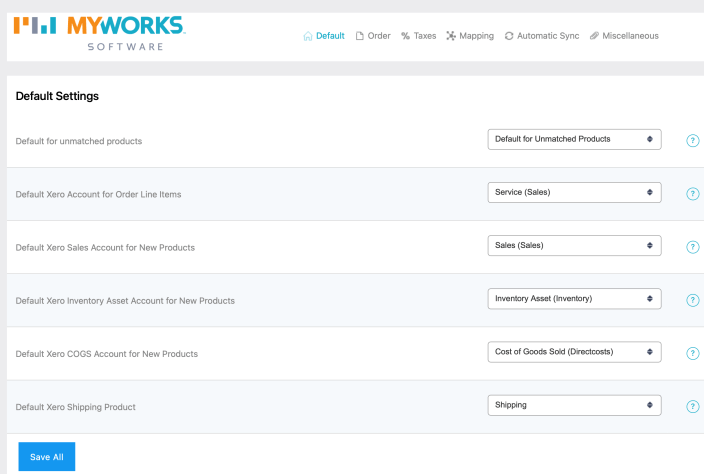
3. Set Default Settings
Now that MyWorks is active, it’s time to review your settings! Visit MyWorks Sync > Settings to review. Some settings will be automatically set for you!
4. Map existing data
Now that your settings are confirmed, the last step is to review your mappings, which can be found in MyWorks Sync > Map in your WooCommerce admin.
Customers
↑ Back to topNormally, you don’t need to map your customers together, even if they exist in both WooCommerce and Xero. MyWorks automatically will check Xero for an existing customer each time an order is synced. The only time to map a customer is if you would like that to act as an override – linking a WooCommerce customer to a Xero customer with a different name or email.
Products & Variations
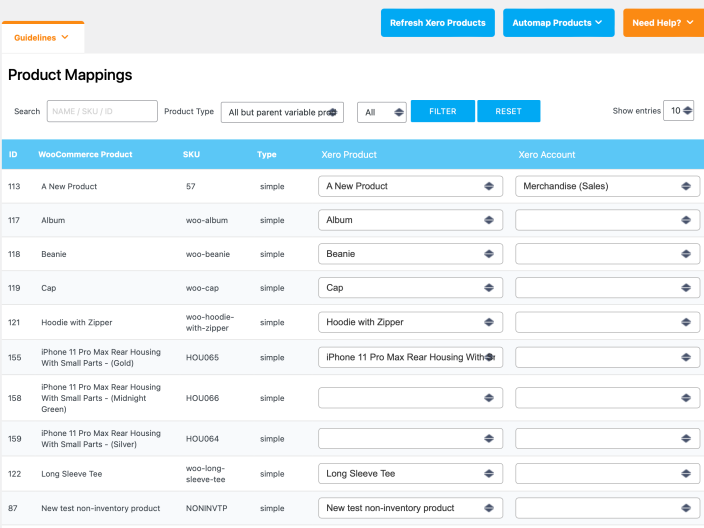
You can map your WooCommerce products, variations, or categories to corresponding Xero Products and/or Accounts. This ensures that when MyWorks is syncing orders from WooCommerce > Xero, that the desired Xero products and accounts are used in the line items of each order in Xero. This also then enables MyWorks to sync inventory / prices from Xero > WooCommerce for any product that’s mapped – if enabled in our settings.
Products and variations can be mapped in two ways:
- Automatically, by using the Automap tool (if names/SKUs match) – or,
- Manually, by selecting a Xero product in the dropdown for the desired product.
Once a product/variation is mapped, it will remain mapped until/unless deleted in WooCommerce or Xero – or unmapped on this page.
Payment Methods
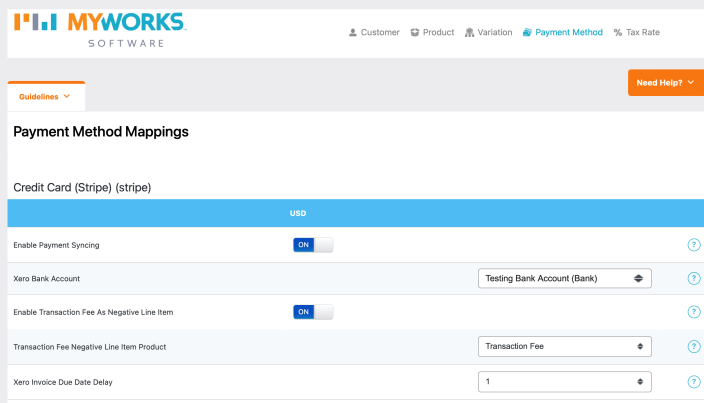
Mapping your WooCommerce payment methods ensures that as orders sync from WooCommerce to Xero, the payments are sent to the desired bank account in Xero. Additionally, you can enable the option to sync transaction fees as a negative line item; and set a specific due date for the Xero Invoice here as well.
On this page, there will be a section for each payment method that’s currently active on your WooCommerce store.
Tax Rates
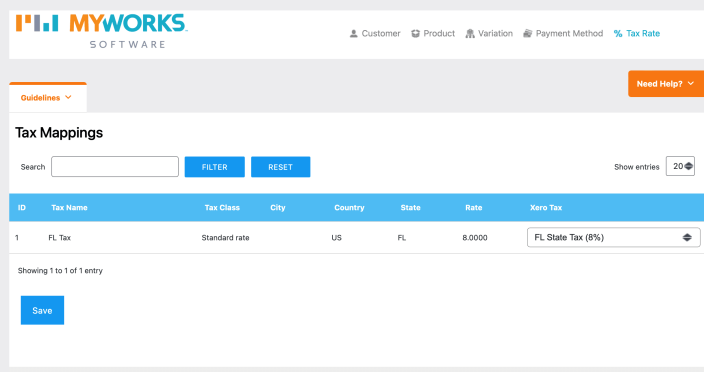
If you’re charging tax in WooCommerce, you’ll be able to map each WooCommerce tax rate to a corresponding Xero rate on this page. This ensures taxed orders are correctly syncing to Xero using the corresponding Xero tax rate.
If you’re using an automated sales tax tool in WooCommerce – like Avalara or TaxJar, you can instead sync tax as a line item. This can be enabled in MyWorks Sync > Settings > Tax.
How does syncing work?
↑ Back to topOnce MyWorks Sync is activated and setup is complete – no existing data will be immediately forced to sync. Unlike other solutions, MyWorks Sync does not automatically push random data into Xero or pull random data into WooCommerce when you activate it, creating a confusing mess of duplicate and inaccurate data.
Once MyWorks Sync is activated, and you have completed setup – only any new data moving forward (like customers, orders, payments, etc.) will be automatically synced – based on the settings you have enabled in Settings > Automatic Sync. It’s as easy as that! 🙂
Automatic Syncing
Once MyWorks Sync is activated, and setup is completed, as mentioned above, automatic “event-driven” syncing will take effect for any new data from that point forward. This happens automatically in the background, as frequently as every 5 minutes.
You can configure what new data will automatically sync, and how often in MyWorks Sync > Settings > Automatic Sync.
Manual Syncing
In addition to how MyWorks automatically syncs new data above; it’s also quite easy to manually push or pull existing data. This can be helpful if you need to sync past orders to get up to date, or sync products from one system to be created in the other.
Push
Using the Push section in MyWorks Sync > Push, you can manually select and push any/all historical data in WooCommerce to Xero. This includes customers, orders, payments, products/variations & inventory. If an instance of this data already exists in Xero and is mapped correctly in MyWorks Sync > Map, it will be updated in Xero, and never duplicated.
Pull
Using the Pull section in MyWorks Sync > Pull, you can manually select and pull products from Xero into WooCommerce. Currently, it’s not recommended/common use to pull customers or orders from Xero to WooCommerce, as this isn’t a common use case and has technical shortcomings.
What can be synced?
Customers
When a customer is created or updated in WooCommerce, it will be automatically created or updated in Xero. If it already exists in Xero, it will not be duplicated, as we use enhanced data-matching methods to ensure duplication does not occur. When an order is synced to Xero, if the customer doesn’t exist, we’ll automatically create it.
Products/Variations
When a product/variation is created or updated in WooCommerce, it will be automatically created or updated in Xero. If it already exists in Xero, it will not be duplicated, as we use enhanced data-matching methods to ensure duplication does not occur. When an order is synced to Xero, we do not automatically sync a product in the order if it doesn’t exist in Xero, so all necessary products should be mapped first.
Inventory
When a product’s inventory is updated for any reason in Xero, its inventory will be automatically updated in WooCommerce. This also automatically occurs when orders are synced from WooCommerce > Xero: inventory for the items in these orders would be affected in Xero as soon as the invoice is created in Xero.
Orders / Payments
When an order is created or updated in WooCommerce, it will be automatically created in Xero / its corresponding invoice or quote will be updated in Xero If an invoice or quote for this order already exists in Xero, it will not be duplicated, as we use enhanced data-matching methods to ensure duplication does not occur.
Troubleshooting
↑ Back to topIf any activity fails to sync with Xero – the best place to see this is in MyWorks Sync > Log in our plugin on your store. In addition to successful activity being logged here, any errors from Xero explaining why a sync didn’t occur will also be present here.
FAQs
↑ Back to top
What is the difference between mapping and pushing data?
When to map data?
If data like customers and products exist already in WooCommerce and Xero, they should be mapped in MyWorks Sync > Map. This helps match the WooCommerce record with the corresponding Xero record. This should be done before any orders are synced to ensure accurate syncing.
When to push data?
If you have customers and products that only exist in WooCommerce, and you would like them to also be in Xero, you may push them in MyWorks Sync > Push. When pushing customers or products, they will be automatically mapped to the resulting Xero customer/product in MyWorks Sync > Map, so there is no need to map them after pushing. Note: it is not generally necessary to push customers, as we will always automatically sync over a customer if necessary when a related order is being pushed or synced.

