
Custom Product Variants allows your WooCommerce store to group individual products and display them as variations in multiple preferred layouts.
Installation
↑ Back to topTo start using a product from WooCommerce.com, you can use the “Add to store” functionality on the order confirmation page or the My subscriptions section in your account.
- Navigate to My subscriptions.
- Find the Add to store button next to the product you’re planning to install.
- Follow the instructions on the screen, and the product will be automatically added to your store.
Alternative options and more information at:
Managing WooCommerce.com subscriptions.

Setup and configuration
↑ Back to top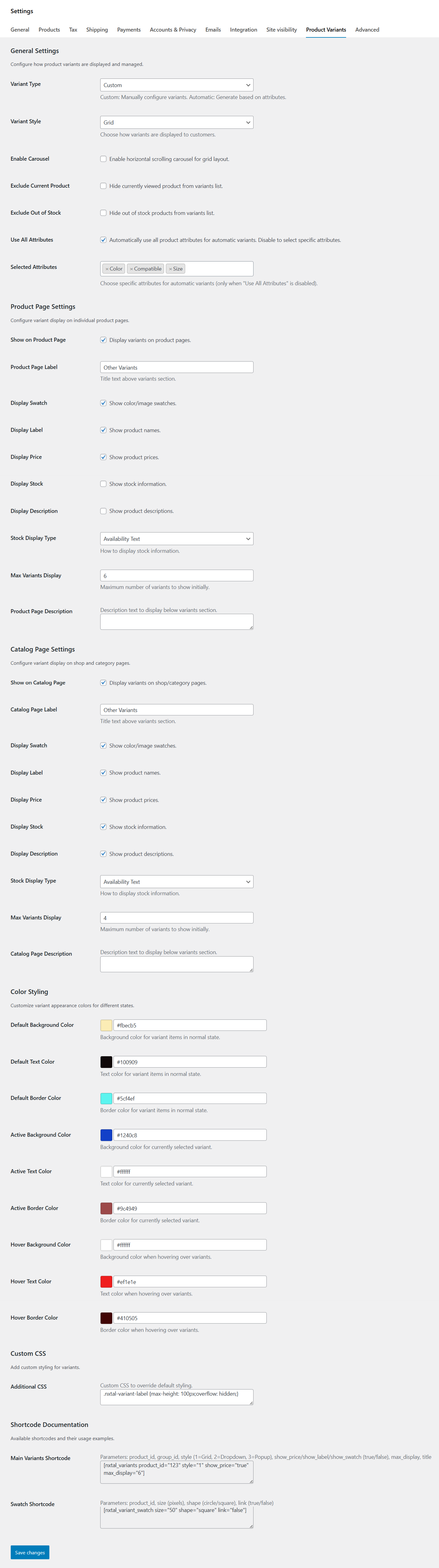
Getting started
↑ Back to topTo set up your store with Custom Product Variants:
- Navigate to WooCommerce > Settings > Product Variants in your store’s WP Admin dashboard.
- Configure the settings option as a preference.
- Save changes.
1. Global settings overview
↑ Back to top1.1 Variant type
- Custom: You manually add variant groups and products
- Automatic: Plugin auto-detects variants using selected attributes
1.2 Variant style
Choose your front-end variant display:
- Grid
- Drop-down
- Popup
1.3 Enable Carousel
Enables horizontal scroll navigation for grid items.
1.4 Exclude Current Product
Hides the currently viewed product from the variant list.
1.5 Exclude Out of Stock
Hide out-of-stock (OOS) products.
1.6 Use All Attributes
Automatically use all product attributes for automatic grouping.
1.7 Selected Attributes
If “Use All Attributes” is disabled, choose specific attributes to use.
2. Product Page Settings
↑ Back to top2.1 Show on Product Page
Enable or disable variants display on product pages.
2.2 Custom Group Label
Set group title such as Colors, Style Options, Other Variants, etc.
2.3 Display Toggles
Enable/disable:
- Swatch (color/image)
- Product name
- Price
- Stock info
- Description
2.4 Stock Display Types
Choose between:
- Availability Text (“In stock”)
- Stock Quantity (e.g. “10 In stock”)
2.5 Max Variants Display
Limit visible variants (useful for large groups)
3. Catalog Page Settings
↑ Back to topVariants can also appear under products on:
- Shop page
- Category page
Controls are the same as product page settings.
4. Color Styling
↑ Back to topCustomize UI appearance:
- Default background + text
- Active background + text
- Hover styles
- Border colors
5. Product-Level Configuration (Metabox)
↑ Back to topOpen any product → Product Data → Product Variants
You will see:
5.1 Variant Information
↑ Back to top- Variant Label
- Variant Color (color picker)
- Variant Image
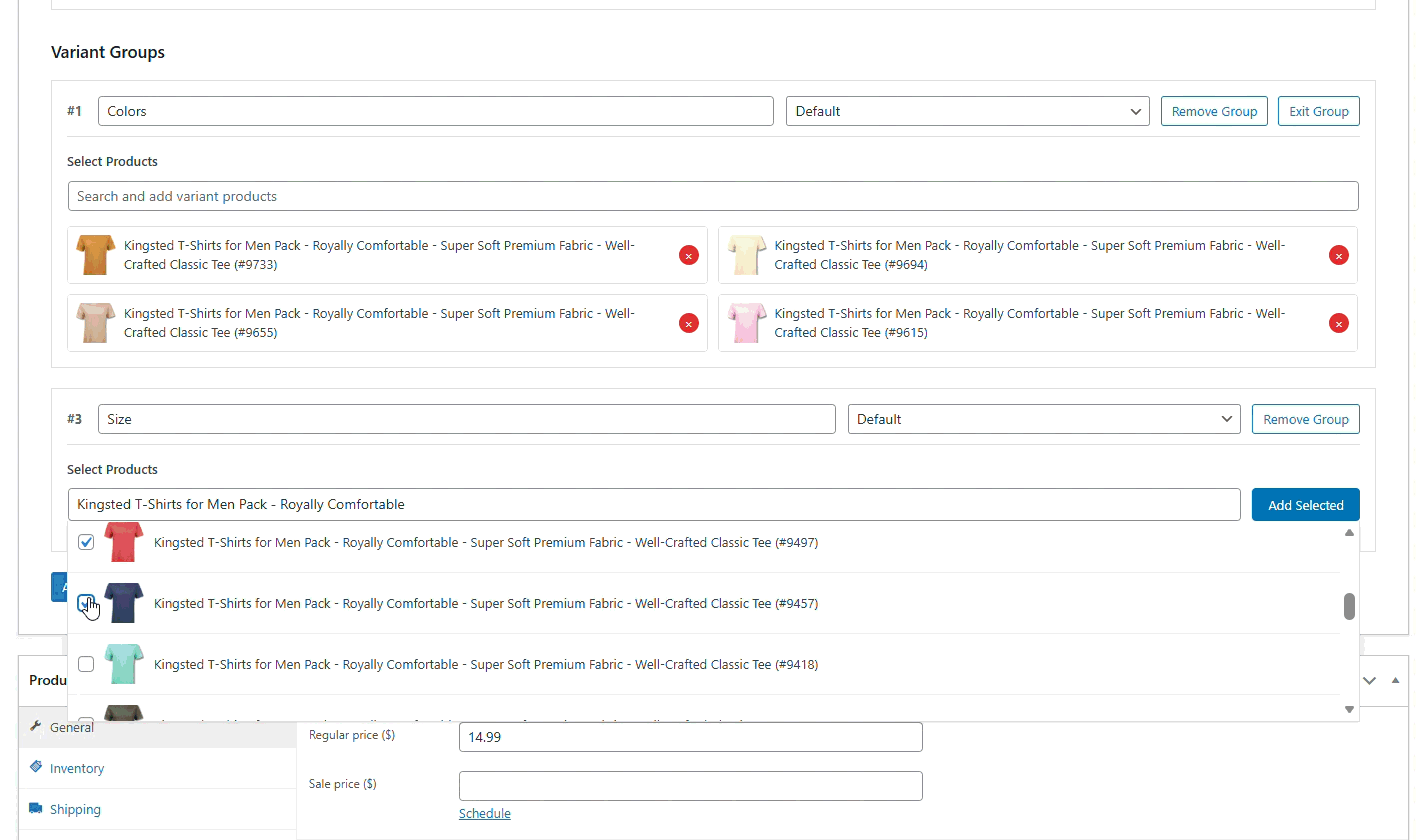
5.2 Variant Groups
↑ Back to topEach group contains:
- Group Name (example: Colors, Size, Style)
- Group Layout (Default/Grid/Carousel/Dropdown/Popup)
- Product Search Box to add group items
- Remove / Exit Group options
You can add unlimited variant groups.
6. How Variants Work (Logic)
↑ Back to topManual Variant Mode
You manually add products to groups.
Each product becomes a variant on each other’s page.
Automatic Variant Mode
Plugin checks selected attributes and groups products automatically.
Example:
Products with attribute Color = Red are grouped under a “Color” group.
7. Popup Variant Selector
↑ Back to topIf you choose popup mode:
- A “View X Variants” button appears
- Clicking opens a large modal with all variants
- Works well for large variant sets (20+ products)
8. Dropdown Variant Selector
↑ Back to topA minimal clean selector:
- Shows preview image + label + price inside dropdown
- Best for mobile and simple stores
9. Shortcodes
↑ Back to top9.1 Main Variant Shortcode
↑ Back to top[nxtal_variants product_id="123" style="1" show_price="true" max_display="6"]Parameters:
product_id= Requiredstyle= 1=Grid, 2=Dropdown, 3=Popupshow_price= true/falseshow_label= true/falsemax_display= limit variants
9.2 Swatch Shortcode
↑ Back to top[nxtal_variant_swatch size="50" shape="circle"]10. Custom CSS
↑ Back to topAdd global overrides in the Additional CSS text box.
Usage
↑ Back to topWhat customers see on the front-end.
1. Product Page View
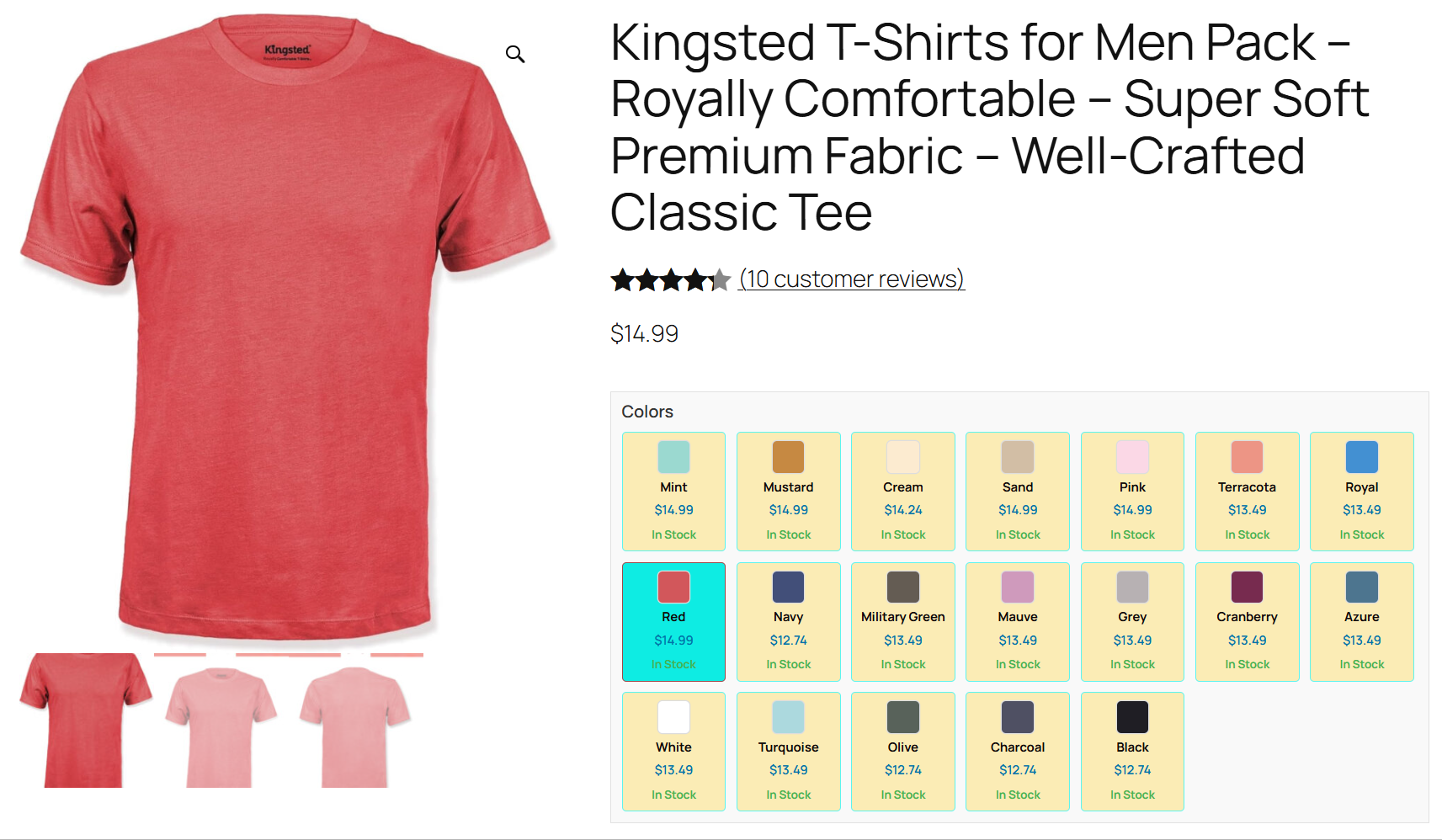
↑ Back to top1.1 Grid and color
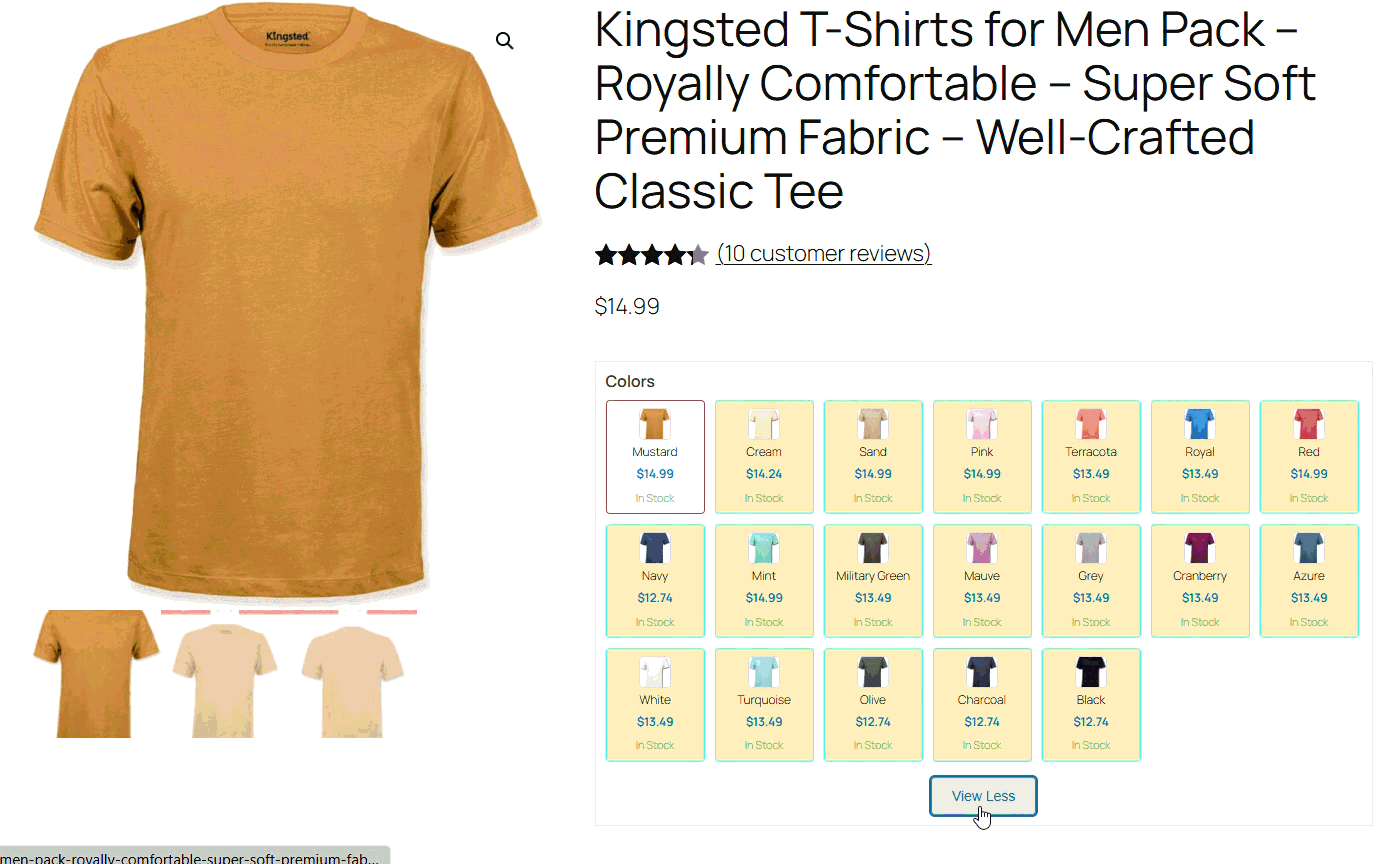
1.2. Grid and Max Limit
1.3. Carousel
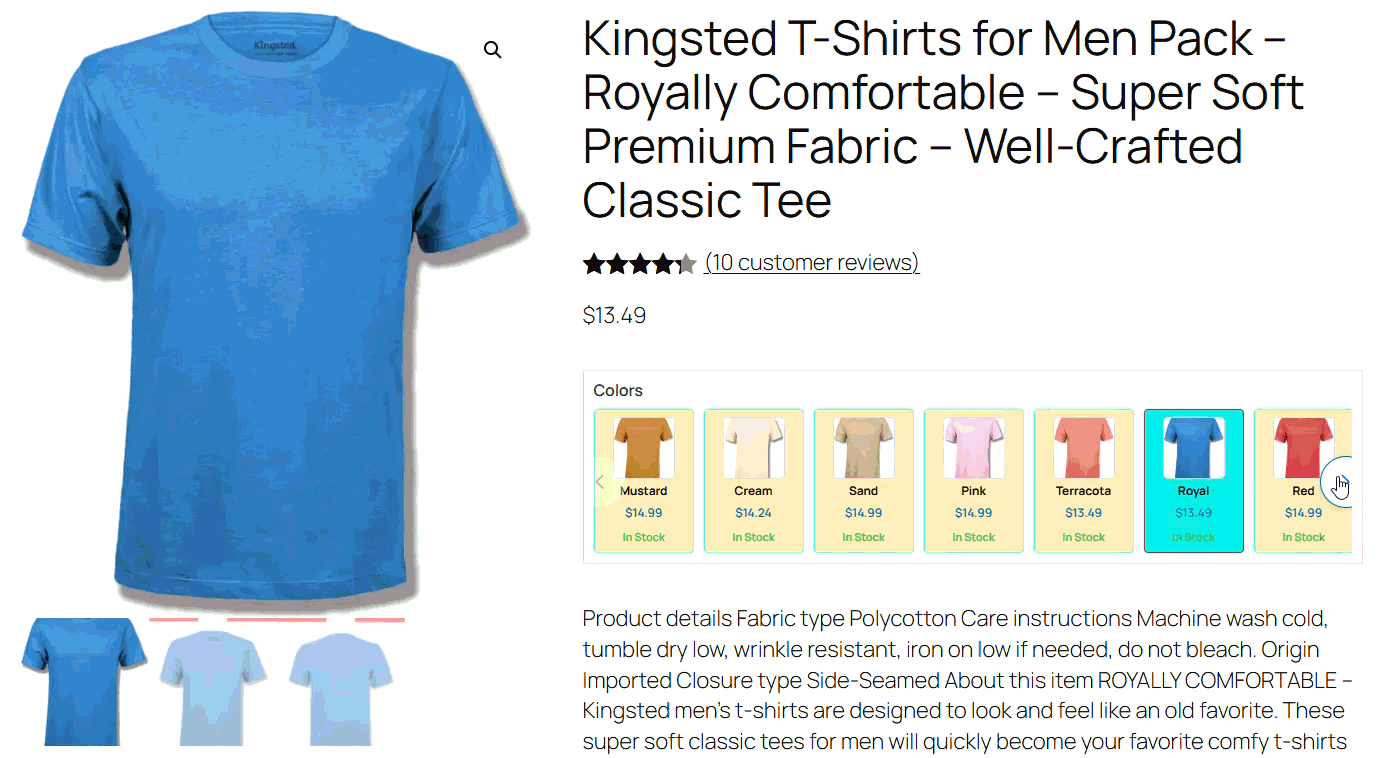
1.4. Drop Down
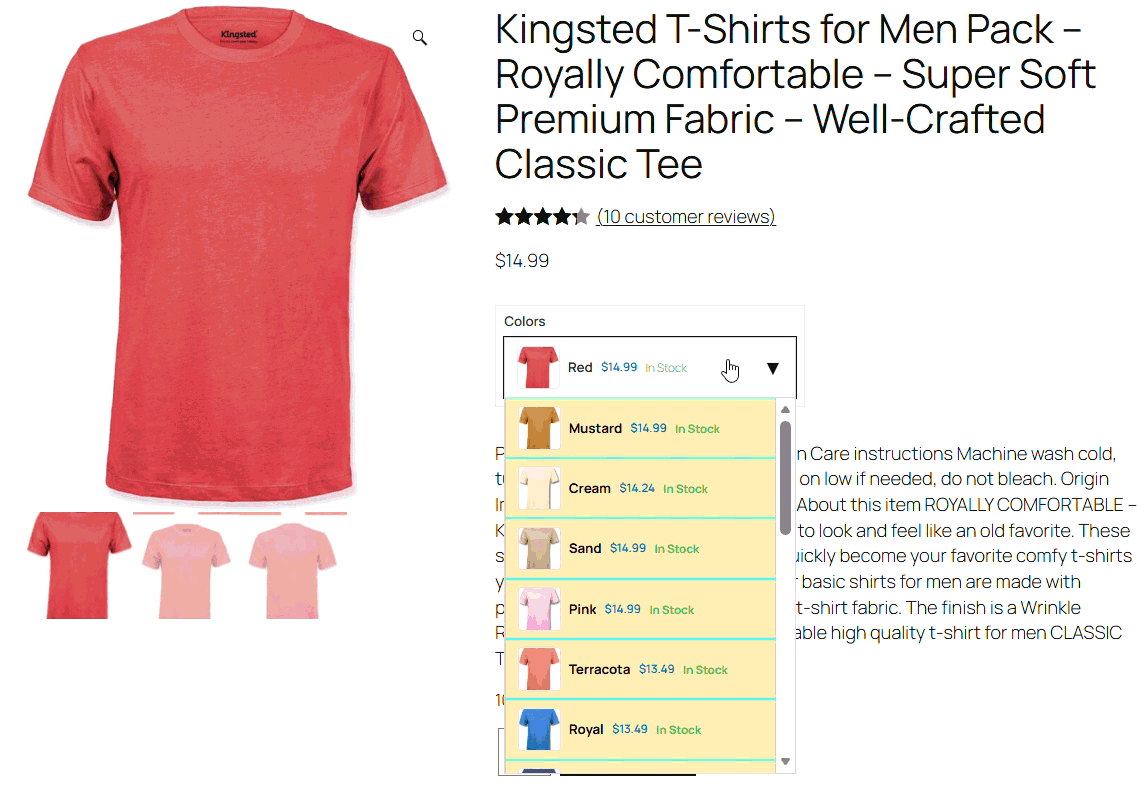
1.5. PopUp
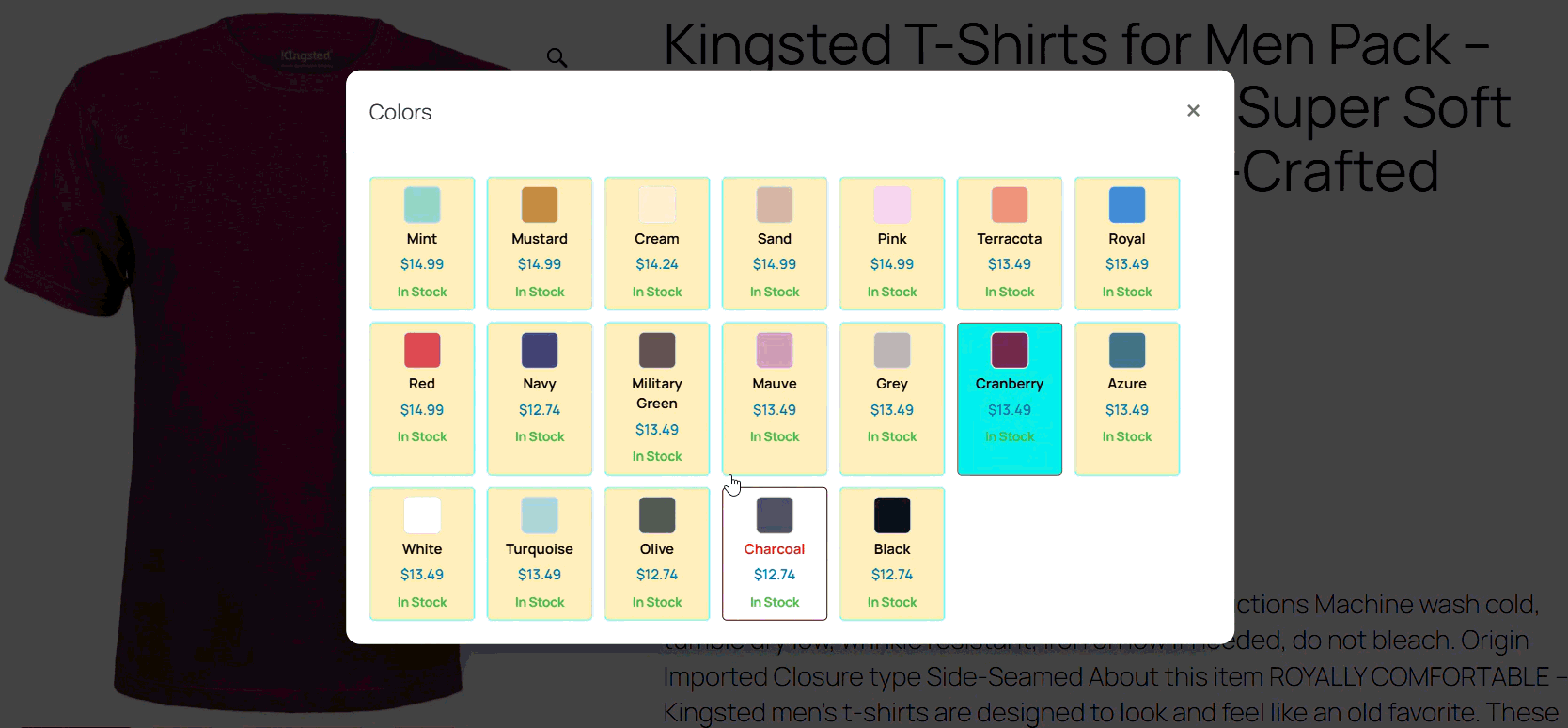
2. Listing Page View
↑ Back to top2.1. Grid
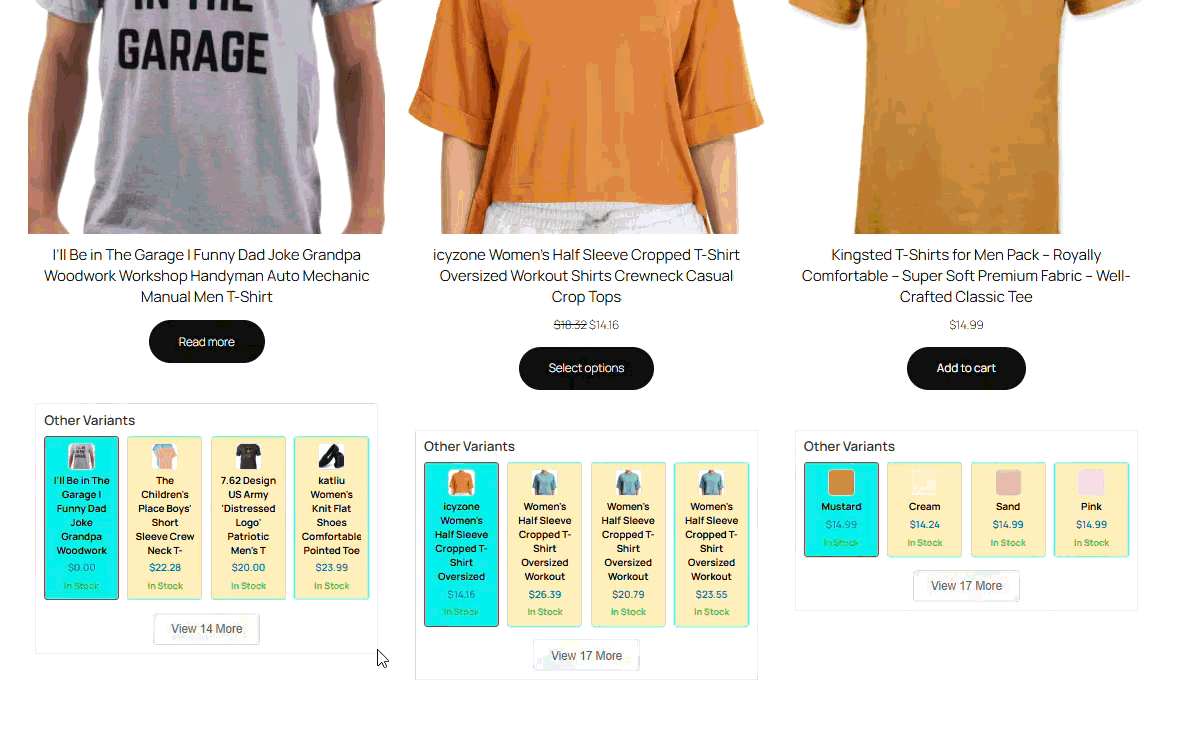
2.2. Carousel
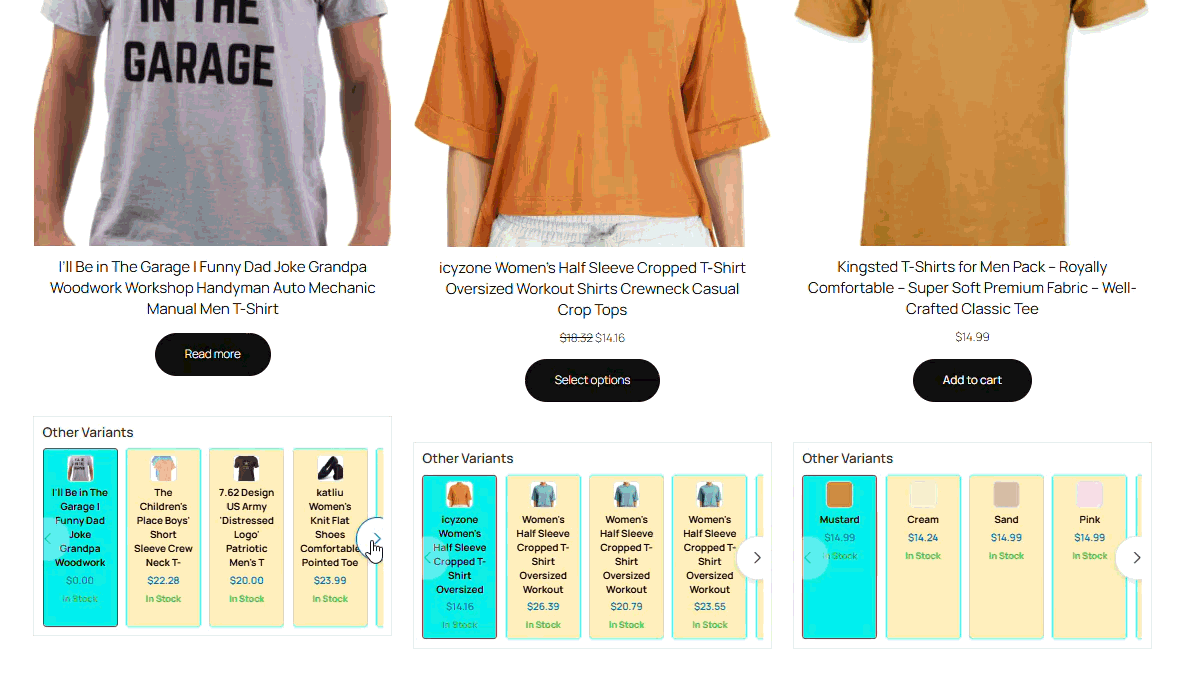
2.3. Drop Down
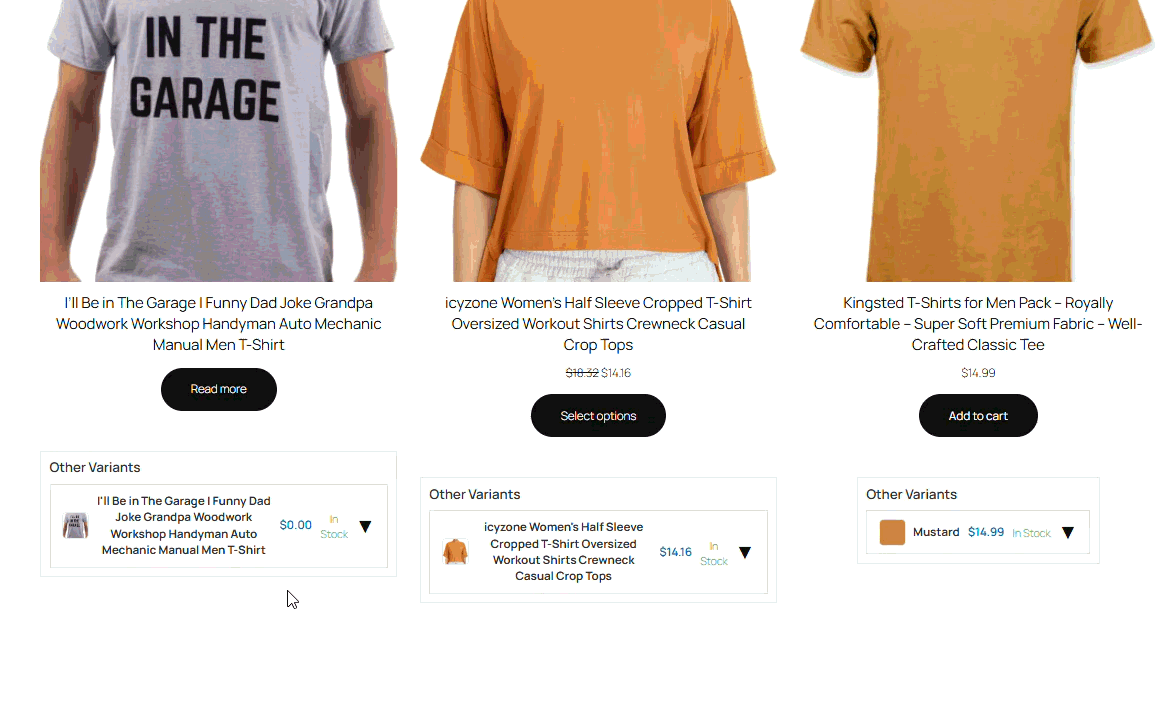
2.4. Popup
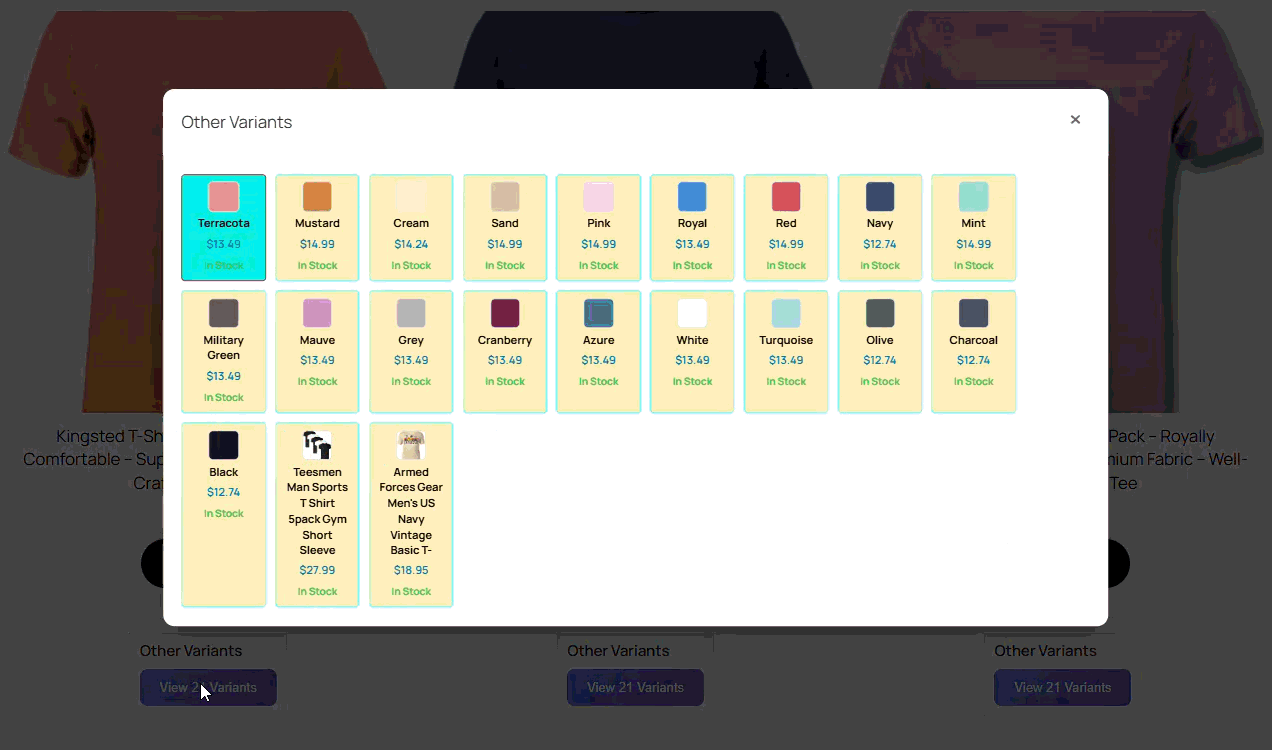
Ideal Use Cases
↑ Back to top- 15 colors of a T-shirt imported individually
- Shoes in many sizes imported from external vendors
- Electronics with multiple compatible models
- Different designs/styles of the same item
- Affiliate catalogs where each URL is unique
FAQs
↑ Back to top
Does this replace WooCommerce variable products?
No. It works with simple products, grouped products, affiliate products, imported products. Each variation is an individual WooCommerce product.
Does it affect product SEO URLs?
No. Each product keeps its own page URL.
Can one product belong to multiple variant groups?
Yes. Unlimited groups are supported.

