
Order Edit Logger records every order edit made in your WooCommerce admin: who edited it, when, and exactly which fields changed — status, billing, shipping, totals, customer note, and line items — with old and new values side by side. Once activated, tracking starts immediately with no setup required.
Installation
↑ Back to topTo start using a product from WooCommerce.com, you can use the “Add to store” functionality on the order confirmation page or the My subscriptions section in your account.
- Navigate to My subscriptions.
- Find the Add to store button next to the product you’re planning to install.
- Follow the instructions on the screen, and the product will be automatically added to your store.
Alternative options and more information at:
Managing WooCommerce.com subscriptions.

What you’ll see after activation
↑ Back to top- Tracking starts immediately — no further action needed for the plugin to begin recording edits.
- A new Order Edit Logger tab appears under WooCommerce → Settings.
- A new Edit History menu item appears under WooCommerce.
- A Last Edited column is added to WooCommerce → Orders.
- A Recent Order Edits widget is added to your WordPress dashboard.
- A Settings link is added under the plugin name on Plugins → Installed Plugins.
Requirements
↑ Back to top- WordPress 6.0 or higher
- WooCommerce 8.0 or higher
- PHP 7.4 or higher
- Works with both HPOS and legacy order storage (auto-detected)
Setup and Configuration
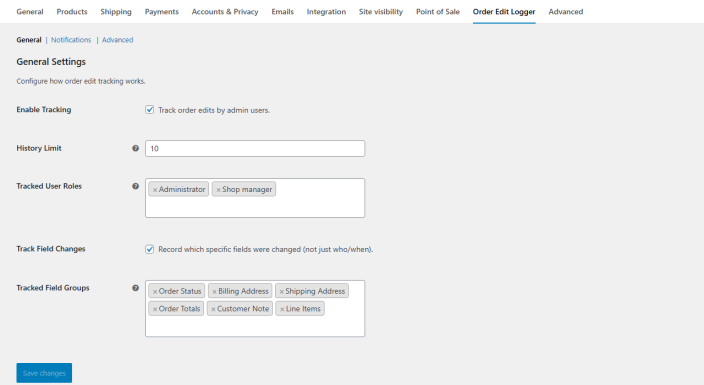
↑ Back to topAfter activation the plugin works with safe defaults — administrators and shop managers are tracked, all field groups are recorded, history is capped at 10 entries per order, and email notifications are off. To customise this, go to WooCommerce → Settings → Order Edit Logger. The settings are split across three tabs.
General tab
↑ Back to topControls what gets tracked.
- Enable Tracking — master on/off switch. Leave enabled to record edits.
- History Limit — how many edit entries to keep per order. Older entries are pruned automatically. Default
10, range1–100. - Tracked User Roles — multi-select. Only edits made by users with these roles are recorded. Defaults to Administrator and Shop Manager.
- Track Field Changes — leave on to capture which specific fields changed (with old → new values). Turn off to record only “who edited and when”.
- Tracked Field Groups — multi-select: Order Status, Billing Address, Shipping Address, Order Totals, Customer Note, Line Items. All tracked by default.
Notifications tab
↑ Back to topSend an email each time an order is edited.
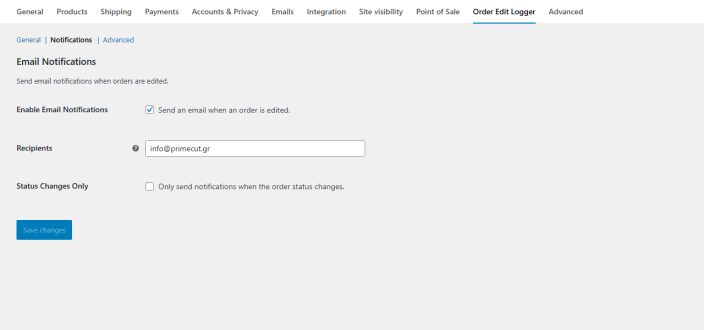
- Enable Email Notifications — turn on to start sending emails.
- Recipients — comma-separated list of email addresses. Leave blank to use the site admin email.
- Status Changes Only — turn on to receive emails only when an order’s status changes (e.g. processing → completed).
Notifications are throttled to a maximum of one email per order per ~60 seconds, so bulk-editing won’t flood your inbox.
Advanced tab
↑ Back to topOptional tracking sources and uninstall behaviour.
- Track REST API Changes — turn on to also record edits made via the WooCommerce REST API. Off by default.
- Track Cron Changes — turn on to also record edits made by scheduled tasks. Off by default.
- Remove Data on Uninstall — when enabled, deleting the plugin from Plugins → Installed Plugins also removes all stored edit history and settings. Enabled by default.
Usage
↑ Back to topThis section walks through every task you can perform with Order Edit Logger after it’s installed and configured.
View the edit history of a single order
↑ Back to top- Go to WooCommerce → Orders and open any order.
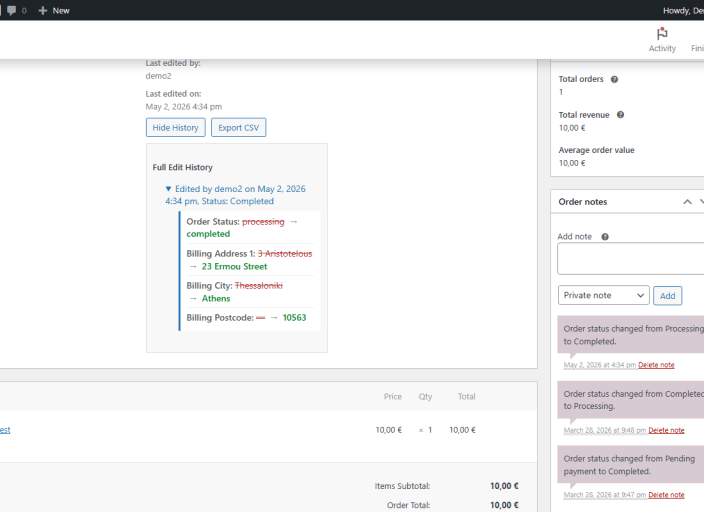
- Scroll to the Order Edit History section under the billing address. It always shows Last edited by and Last edited on.
- Click View Edit History to expand the full list of recorded edits, newest first.
- Click any entry that has field changes to expand its old → new diff.
- Click the entry again to collapse, or click Hide History to collapse the whole list.
See who last edited each order from the orders list
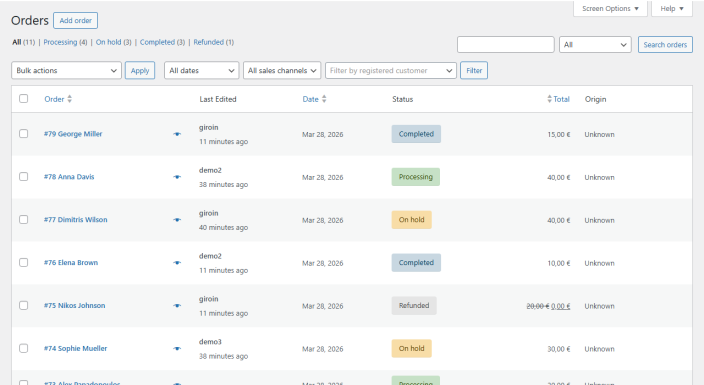
↑ Back to topOn WooCommerce → Orders, the Last Edited column shows the user’s login (in bold) on top and how long ago the edit happened below. Hover the time for the exact date and time. Orders that have never been edited show a dash.
Browse all recent edits across all orders
↑ Back to top- Go to WooCommerce → Edit History.
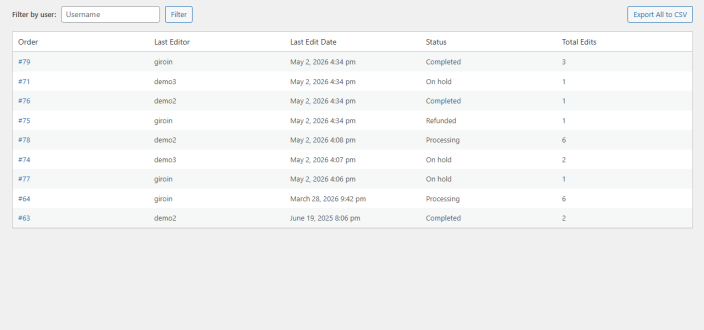
- The page lists every order that has been edited, newest edit first. Each row shows the order number, last editor, last edit date, current status, and total number of edits recorded.
- Type a username in the Filter by user field and click Filter to narrow results. Click Clear to remove the filter.
- Click an order number to open the order and view its full edit history.
Use the dashboard widget
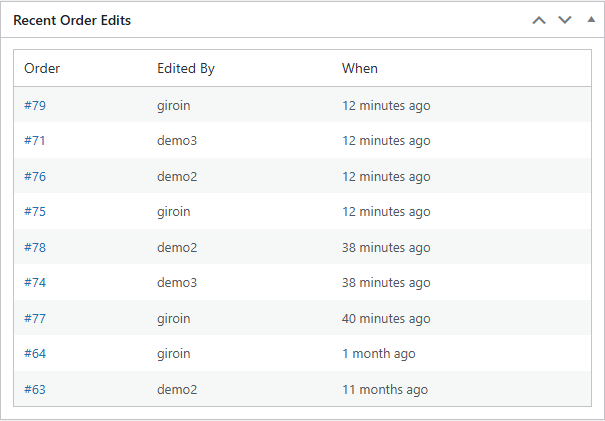
↑ Back to topOn your WordPress dashboard, the Recent Order Edits widget shows the 10 most recent edits site-wide. Click any entry to open the related order. Hide the widget via Screen Options at the top right of the dashboard.
Export the edit history to CSV
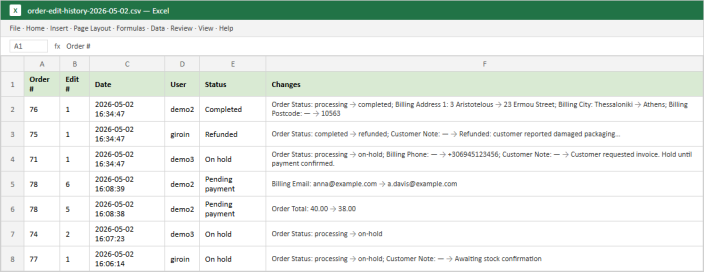
↑ Back to top- Per-order: open the order → Order Edit History section → Export CSV. Downloads
order-{ID}-edit-history.csvwith columns: Edit #, Date, User, Status, Changes. - Bulk: WooCommerce → Edit History → Export All to CSV. Downloads
order-edit-history-{date}.csvwith an extra Order # column.
Receive email notifications when an order is edited
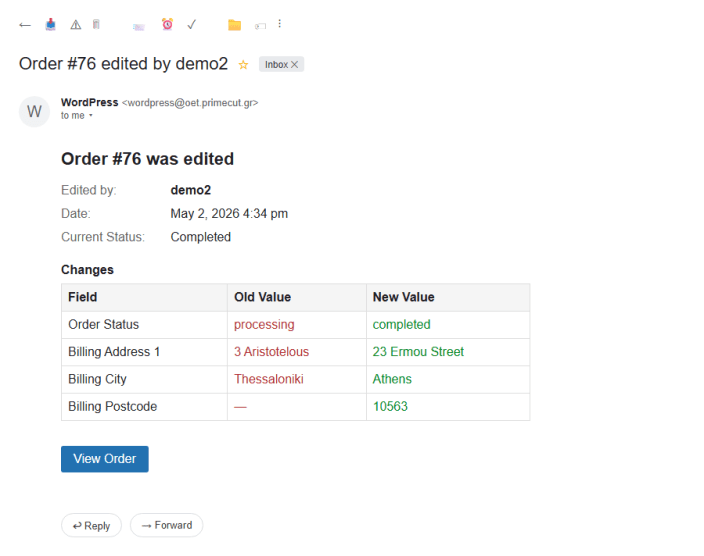
↑ Back to topOnce enabled in the Notifications tab, each tracked edit triggers an email to the configured recipients with the order number, the user who edited it, a summary of the changed fields with old and new values, and the timestamp. Use Status Changes Only to filter to status transitions only. Throttled to one per order per minute.
Restrict tracking to specific user roles
↑ Back to topIn Settings → Order Edit Logger → General → Tracked User Roles, select only the roles you want to track. Edits by other roles are then ignored.
Capture edits made by external integrations
↑ Back to topIf your store uses a mobile app, ERP integration, or external script that updates orders via the REST API, enable Track REST API Changes in Settings → Advanced. The same applies to Track Cron Changes for scheduled tasks.
Troubleshooting
↑ Back to topIf something doesn’t behave the way you expect, check the items below before contacting support.
No edit history appears on the order page
↑ Back to top- Go to WooCommerce → Settings → Order Edit Logger → General and confirm Enable Tracking is on.
- Confirm the user making the edit has a role listed in Tracked User Roles. By default only Administrator and Shop Manager are tracked.
- Confirm an actual change was saved. If you click Update without changing any field, nothing is recorded.
- The block appears in the order data panel below the billing address. If you only see Last edited by and Last edited on with no View Edit History button, no edit has been recorded yet for that order.
“Last Edited” column is missing from the orders list
↑ Back to topOn WooCommerce → Orders, click Screen Options at the top right and ensure Last Edited is checked.
Email notifications aren’t arriving
↑ Back to top- Confirm Enable Email Notifications is on in Settings → Notifications.
- Check Recipients — if blank, emails go to the site admin email.
- If Status Changes Only is on, you’ll only get emails when the order status changes.
- Notifications are throttled to one per order per ~60 seconds.
- Confirm WordPress mail itself is working — try a tool like WP Mail Logging.
- Check spam/junk folders.
Field-level details are missing on older entries
↑ Back to topField-level diffs were added in v2.0.0. Edits recorded by earlier versions don’t have stored old/new values, so they display as plain text without expandable details.
Changes via REST API or cron are not being tracked
↑ Back to topBy default only edits made through the admin UI are tracked. Enable Track REST API Changes or Track Cron Changes in Settings → Advanced.
How to view the debug log
↑ Back to top- Add
define('WP_DEBUG', true);anddefine('WP_DEBUG_LOG', true);towp-config.php. - Reproduce the issue.
- Go to WooCommerce → Status → Logs.
- In the Source dropdown, choose
order-edit-logger. - View or download the latest log file.
FAQs
↑ Back to topCommon questions about Order Edit Logger.
Does it work with HPOS (High-Performance Order Storage)?
Yes — fully compatible with both HPOS and the legacy post-based storage. The plugin auto-detects which is in use; no configuration needed.
Will it slow down my store?
No. Tracking only runs when an order is updated (not on page loads), uses WooCommerce’s metadata API instead of custom database tables, and includes recursion protection to avoid duplicate logging.
What fields are tracked?
Order status, billing address (all fields), shipping address (all fields), order totals, customer note, and line item changes (added, removed, quantity/price changes). Choose which groups to track in Settings → Order Edit Logger → General.
Can I limit how many history entries are kept per order?
Yes — set History Limit in the General settings (default 10, range 1–100). Older entries are pruned automatically. Can also be controlled via the wc_order_edit_history_limit filter.
Can I export the edit history?
Yes — per-order from each order’s Edit History section, or in bulk from WooCommerce → Edit History → Export All to CSV.
Does it track REST API changes?
Not by default. Enable Track REST API Changes in Settings → Advanced to capture API edits.
Will my history disappear if I deactivate the plugin?
No — history is stored in order metadata. Deactivating keeps everything intact. If you delete the plugin and have Remove Data on Uninstall enabled, the metadata is removed cleanly.
Does it support multisite?
Yes — activate per-site like a regular plugin.
Is it translation ready?
Yes — fully internationalised. A Greek translation is included; the .pot file is in /languages/ for translators.
Does it create custom database tables?
No. Edit history is stored as standard order metadata, so it’s portable and works with any backup or migration tool.
Where can I see the debug log?
At WooCommerce → Status → Logs, source order-edit-logger. Make sure WP_DEBUG and WP_DEBUG_LOG are enabled in wp-config.php.
Can different roles see different things?
Anyone with permission to view an order in WooCommerce can also see its edit history — access is gated by standard WooCommerce capabilities (edit_shop_orders, manage_woocommerce).

