
Order Subscriptions for WooCommerce allows your customers to turn any WooCommerce order or product into a subscription. Nothing to rebuild, no plans to maintain, every renewal reduces real stock, full customer self-service.
Installation
↑ Back to topTo start using a product from WooCommerce.com, you can use the “Add to store” functionality on the order confirmation page or the My subscriptions section in your account.
- Navigate to My subscriptions.
- Find the Add to store button next to the product you’re planning to install.
- Follow the instructions on the screen, and the product will be automatically added to your store.
Alternative options and more information at:
Managing WooCommerce.com subscriptions.

Upgrading from 1.0.x
↑ Back to topNothing needs to be done to upgrade, and no live storefront changes price because of it. Four things behave differently afterwards, and all four are deliberate.
Existing subscriptions keep renewing at their current price
↑ Back to topBefore this version the Subscribe & Save discount only ever applied to the first order. Subscriptions created then have no percentage stored on them, and keep renewing at full price until you set one on the subscription itself. Discounting them automatically would change what those customers are charged without them having agreed to it, so it does not happen on its own.
“Discount the first order” is set to match what your store already did
↑ Back to topOn upgrade this setting is switched on for a store that already has subscriptions, and off for a store that has none. An existing store therefore keeps charging exactly what it charged yesterday, while a new store starts with the discount on renewals only, which is the arrangement that gives customers a reason to stay.
The product page widget is on
↑ Back to topIt appears wherever a subscription could already be offered, so it does not widen what is eligible, it only moves the choice earlier. Turn it off under Front-end settings if you would rather customers decided at checkout.
Widget colours
↑ Back to topStores that have never saved the Front-end settings tab pick up the new green highlight. Stores that have saved it keep the colours they stored, because a saved settings page stores every field on it, not only the ones that were edited. The Reset appearance to defaults button on that tab clears them if you want the new defaults.
Upgrading to 1.2.x
↑ Back to topNothing needs to be done, and no live storefront changes price because of it. Three things behave differently afterwards.
The product widget’s side-by-side layout is gone
↑ Back to topEvery widget stacks. A store that had chosen side by side sees stacked after updating. The layout was already falling back to stacked at most real widths once the card carried a badge, a benefits list and a pack shot.
Subscription history starts empty
↑ Back to topHistory is recorded from 1.2.0 onward. Anything that happened before that was written to the log and cannot be recovered, so an existing subscription shows nothing until its next status change or renewal.
Customers cannot add or remove products until you allow it
↑ Back to topA store that already has subscriptions gets this switched off on upgrade: its customers could not change what was in the box yesterday, and an update is not the moment to hand them that. A store with no subscriptions yet gets it on, because nobody’s expectations are being changed and the feature is worth finding. Either way it is under General, What customers can change themselves.
Upgrading to 1.2.4
↑ Back to topNothing needs to be done, and no subscription is repriced on the day you update. Five things behave differently afterwards.
Renewals are priced through your store’s cart
↑ Back to topA renewal used to be built from catalogue prices with nothing else applied. From 1.2.4 it is priced the way your checkout would price the same order for the same customer: as the subscriber, through your store’s own cart, so role and B2B prices, cart discount rules, current shipping rates and their VAT status all apply. The customer’s own cart is never touched. If a renewal cannot be priced that way, it is built the old way and the order says why.
Copy fees to recurring orders now leaves out a fee your store’s cart already charges again under the same name, so a fee your cart rules add is not charged twice.
Renewals keep their day
↑ Back to topA payment no longer moves the schedule. A subscription that renews on the 1st keeps renewing on the 1st, even when a payment settles a few days late, a retry goes through, or a payment link is paid late. For a subscription from before 1.2.4, its first payment after the update sets the day it keeps.
Some payment methods may leave the subscription checkout
↑ Back to topWhich methods can renew automatically is now read from the payment plugin itself: what your Mollie account supports for recurring payments, and the methods Stripe and WooPayments save for later use. A method that cannot renew automatically is no longer offered when the basket contains a subscription. To offer it anyway, with each renewal paid by link, switch it on under Gateway compatibility. Subscriptions already running on such a method keep running and renew by payment link.
For Stripe this depends on settings in Stripe’s own screen: Enable saved card payment methods, for every Stripe method, and for iDEAL and Bancontact also the setting that saves them for repeat payments. While one is off, a notice in your dashboard names it.
A chargeback pauses the subscription
↑ Back to topWhen a payment provider reports a chargeback on an order that paid for a subscription, the subscription is paused, with a note on the order and on the subscription, so the next renewal does not charge the same card again. Resume it once the dispute is settled.
New minimum versions
↑ Back to topWooCommerce 6.9 and WordPress 5.8 are now the minimum, up from 4.0.1 and 5.6. Pricing renewals through the cart needs what WooCommerce 6.9 added.
Setup
↑ Back to topThe configuration lives under WooCommerce › Settings › Order Subscriptions, across eight tabs. Only the first is needed to go live; the rest are there when you want them. They run in the order a store is set up: the three that decide whether you can sell a subscription at all, then the four ways of giving something away, then the plumbing. Each gift tab opens with a comparison of all four, under “Which gift type do I need? Compare all four”.
Step 1: General settings
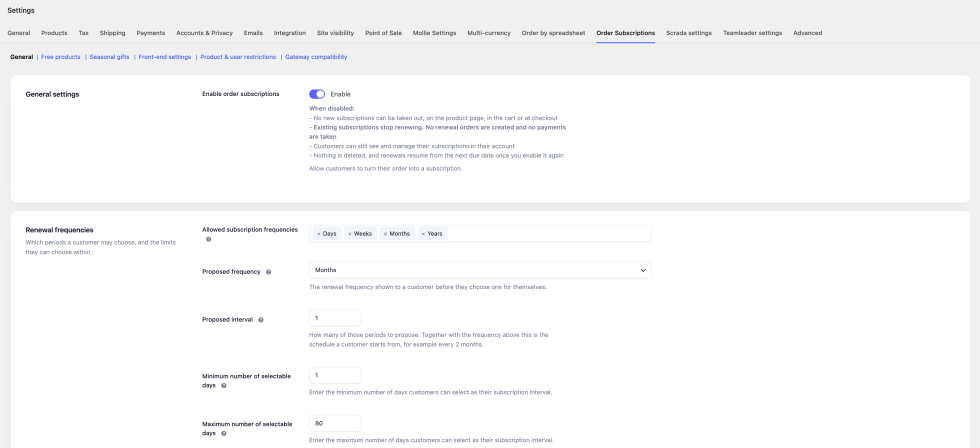
↑ Back to topThe tab is grouped into panels, each named for what it controls.
- General settings: the master switch, off by default. Off means no new subscriptions can be taken out and existing ones stop renewing. Nothing is deleted, and renewals resume from the next due date when you switch it back on.
- Renewal frequencies: which periods a customer may choose (days, weeks, months, years) and the minimum and maximum they may pick within each.
- Renewal frequencies also sets the Proposed frequency and Proposed interval: the schedule a customer is offered before they choose one for themselves. It must be one of the frequencies you allow. A product can propose a different one on its Subscriptions tab.
- What customers can change themselves: six switches: change the schedule, skip a renewal, pause and resume, cancel, change their free product, and add or remove products. Each one off means the customer contacts you instead.
- Reminders: whether to warn a customer before a renewal and how many days ahead, plus the two windows that govern unpaid payment-link renewals.
- Order settings: what a renewal order carries over from the original: fees, shipping pricing, and any extra order meta you want copied.
- Subscribe & Save: the percentage off for subscribing, whether the first order carries it, and how many orders keep it. Covered in full under Subscribe & Save below.
- Other settings: logging, and whether to delete the plugin’s settings when it is uninstalled.
Step 2: Front-end settings
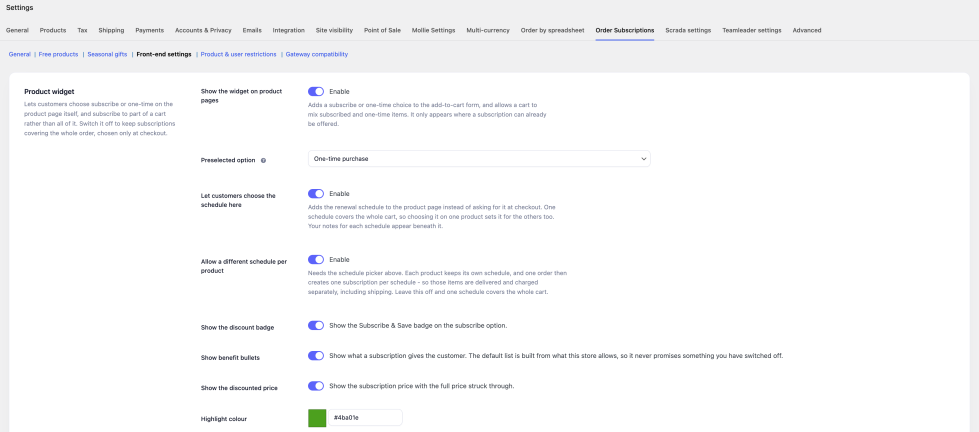
↑ Back to topEvery word a customer reads, and how the subscribe widget looks. Wording is stored per language. Covered in full under Front-end wording and appearance below.
Step 3: Product & user restrictions
↑ Back to topControls which products may be subscribed to and which customers may subscribe.
- Include or exclude by product category, tag or brand
- Include or exclude by user role
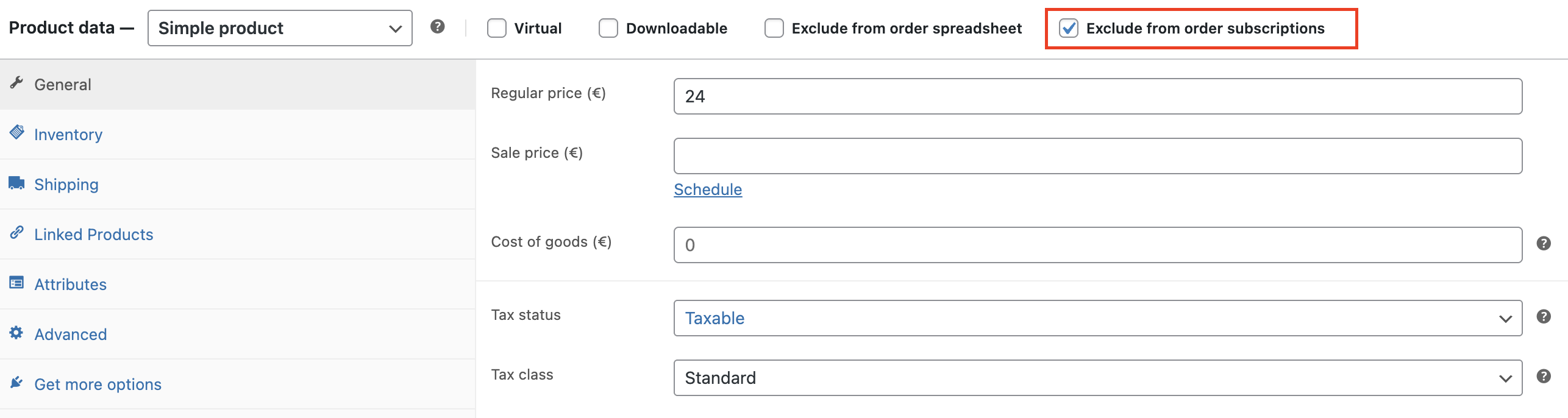
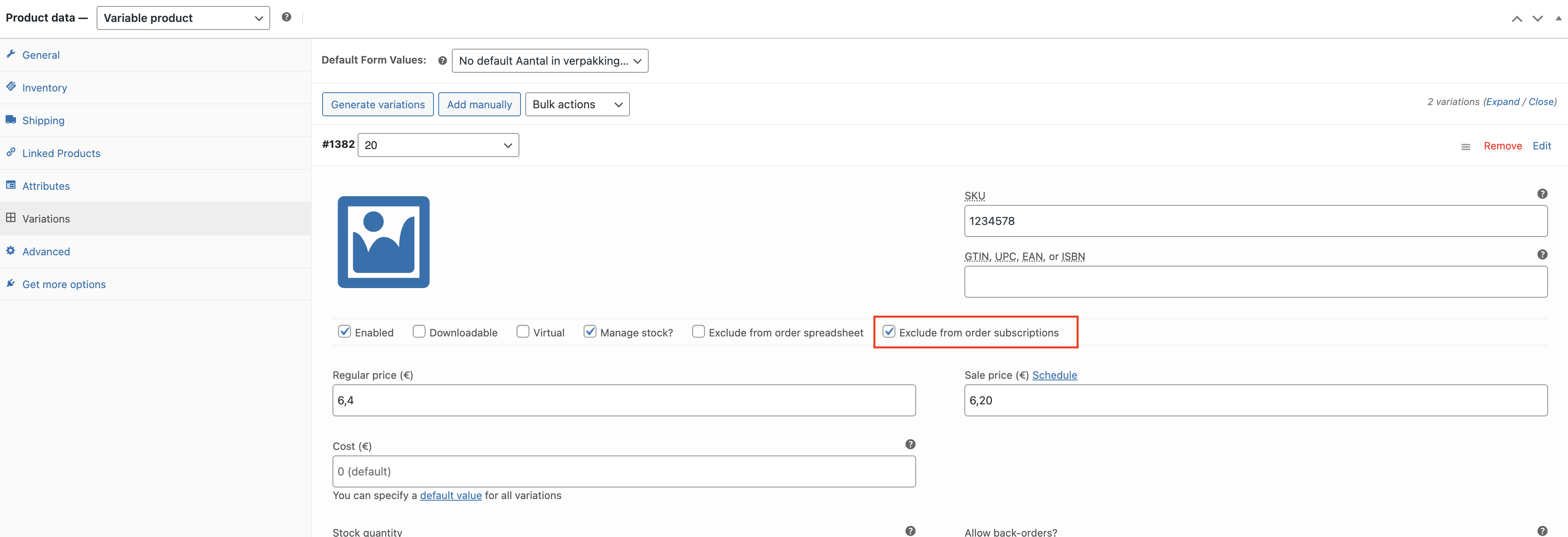
- Exclude an individual product or variation with a checkbox on its edit screen
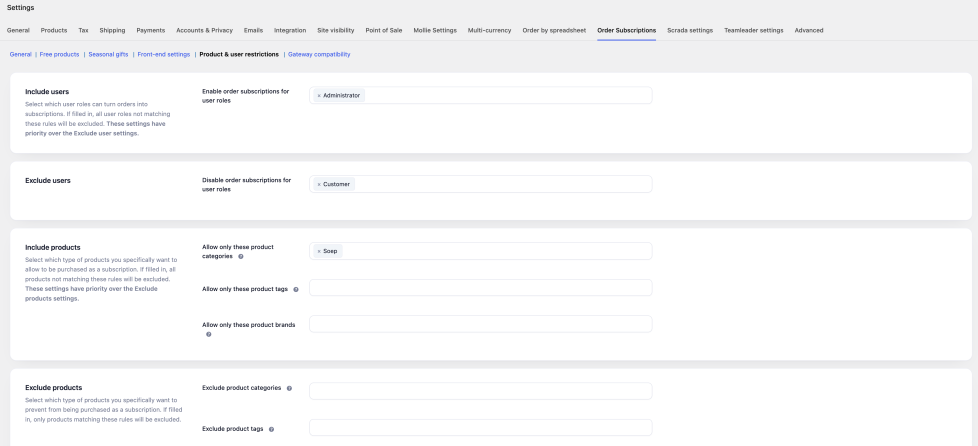
Include users (whitelist – has priority)
- Enable order subscriptions for user roles: Select one or more user roles. Only users with these roles will see the subscription widget. If left empty, all logged-in users can access subscriptions (subject to the exclusion rules below).
Exclude users
- Disable order subscriptions for user roles: Select one or more user roles to prevent from using subscriptions. Only applies when the Include users field is empty.
Note: Include rules always take priority over Exclude rules. If you set both, only the Include rules are evaluated.
Include products (whitelist – has priority)
- Allow only these product categories: Only products in these categories will be eligible.
- Allow only these product tags: Only products with these tags will be eligible.
- Allow only these product brands: Only products with these brands will be eligible. Brands are read from WooCommerce Brands, Perfect Brands or YITH Brands, whichever has brands in it, and the free product and surprise rules use the same. A store keeping its brands in a product attribute names it with the
osfwc_brand_taxonomyfilter.
Exclude products
- Exclude product categories: Products in these categories cannot be purchased as subscriptions.
- Exclude product tags: Products with these tags cannot be purchased as subscriptions.
- Exclude product brands: Products with these brands cannot be purchased as subscriptions.
Product-level exclusion
- Enable exclusion at product level: When enabled, a checkbox appears on the product edit screen (for simple products) and on each variation (for variable products) that lets you individually exclude a product or variation from order subscriptions. The meta key is
_osfwc_exclude_from_order_subscriptionswith valuesyesorno.
Step 4: Free products
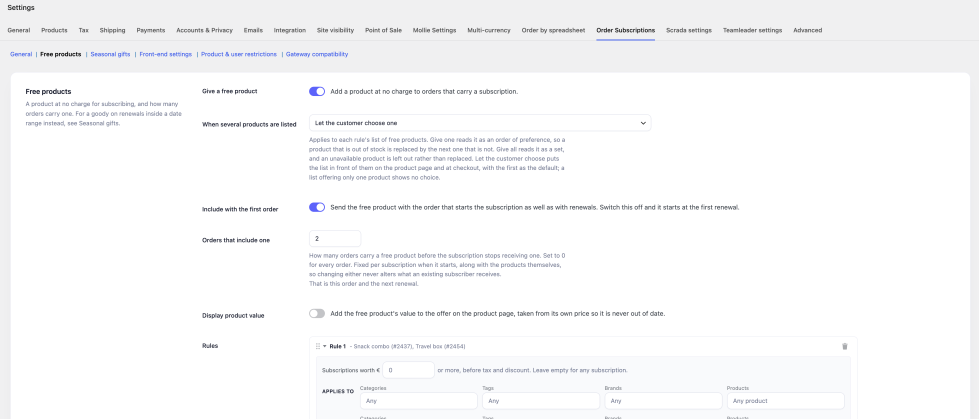
↑ Back to topSets the rules for giving a product away with a subscription: what earns one, how many orders carry it, and what happens when a rule offers several.
Step 5: Surprise gifts
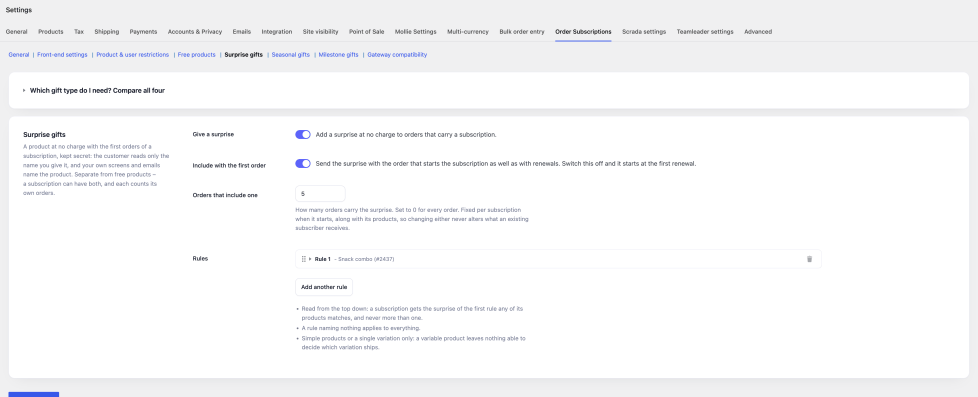
↑ Back to topSets a product given free with a subscription’s first orders and kept secret: the customer sees only the name you give it. Covered in full under Surprise gifts below.
Step 6: Seasonal gifts
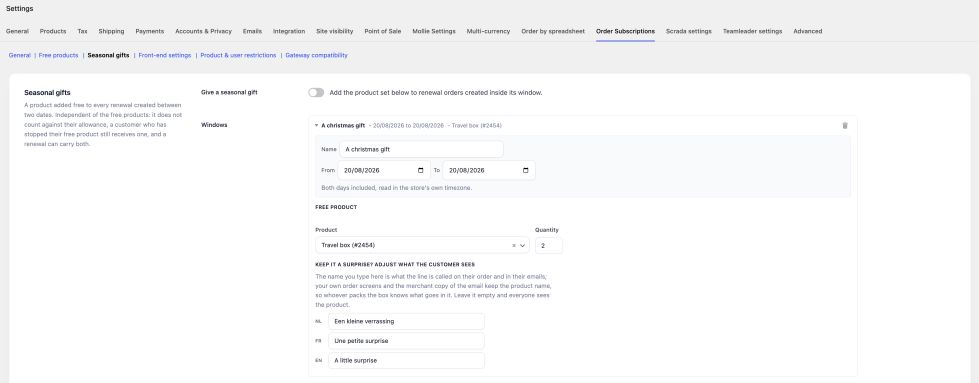
↑ Back to topSets date windows, each giving a product on renewals created between two dates.
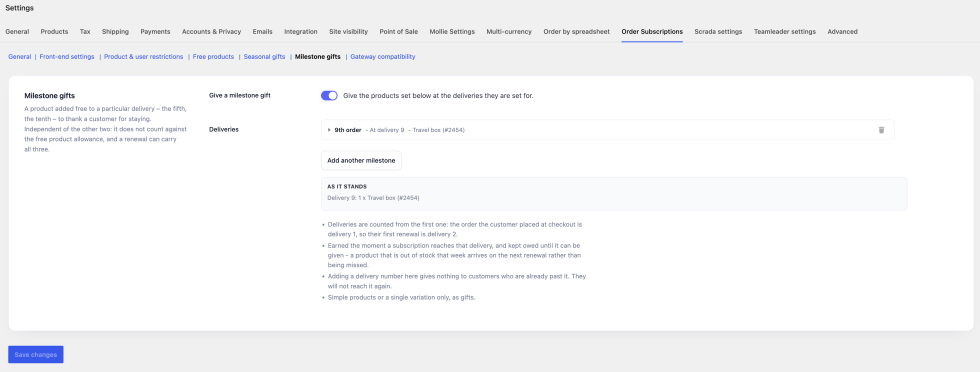
Step 7: Milestone gifts
↑ Back to topSets a free product at a delivery number you choose – the fifth, the tenth – for customers who are still subscribed when they reach it. Covered in full under Milestone gifts below.
Step 8: Gateway compatibility
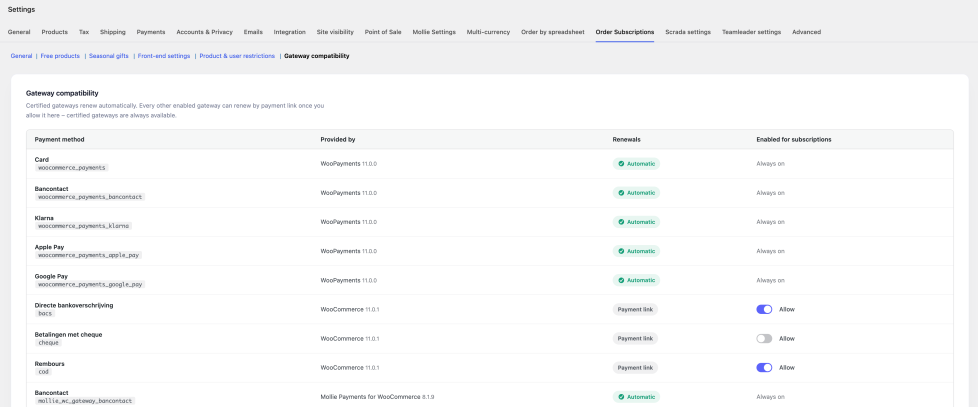
↑ Back to topWhich of your payment methods may be used for subscriptions, and how each one renews. Covered in full under The Gateway compatibility screen below.
Front-end wording and appearance
↑ Back to topUnder WooCommerce → Settings → Order Subscriptions → Front-end settings. Everything on this tab is optional; leave a field empty and the plugin’s own wording is used.
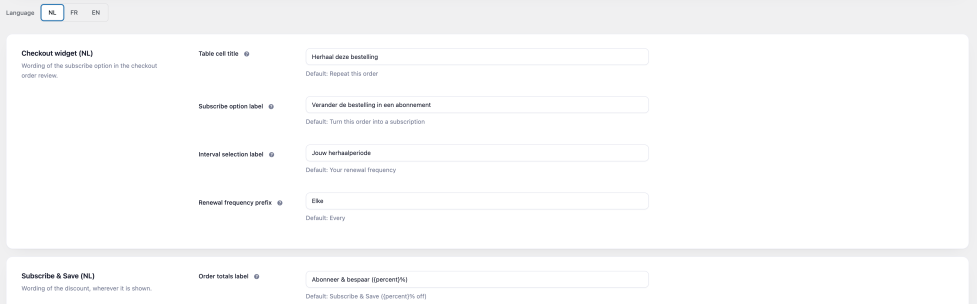
Wording, per language
↑ Back to topIf your store runs more than one language, the tab shows a language switcher and every string is stored separately for each one. Switching language changes which set you are editing; one Save writes them all.
The strings cover the checkout widget (the table cell title, the subscribe label, the interval label, the frequency prefix), the Subscribe & Save wording (the label on the totals line and the badge text, both of which accept {percent}), the message shown to logged-out customers, and every label on the product widget including its list of benefits.
The product widget’s appearance
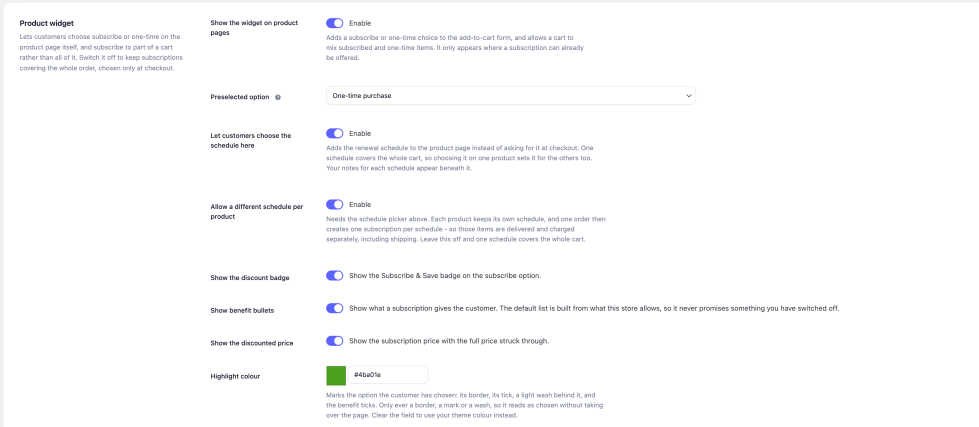
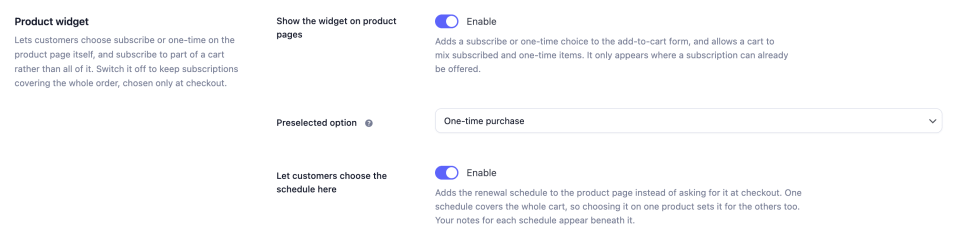
↑ Back to top- Show the widget on product pages: off returns you to the pre-1.1.0 behaviour, where the choice is only made at checkout.
- Pre-selected option: whether the page opens on one-time purchase or on subscribe. One-time is the default.
- Show the discount badge, Show benefits, Show the discounted price: three independent switches.
- Let customers choose the schedule here puts the renewal schedule on the widget itself, so it is chosen before the item reaches the cart rather than at checkout.
- Allow a different schedule per product lets each product carry its own schedule, which is what makes one order able to create more than one subscription.
- Highlight colour: marks the option the customer has chosen: its border, its tick, and the ticks beside the benefits. Leave it empty to use your theme’s own colour.
- Saving colour: used only for the “Save X%” badge, drawn as dark text on a pale tint of the colour you pick so it stays readable whatever you choose.
Resetting the appearance
↑ Back to topReset appearance to defaults clears the stored badge, benefit, price and colour settings so they follow the plugin again. It is there because saving a settings page stores every field on it, not only the ones you edited, so a value saved on an older version keeps that version’s default until it is cleared. Your wording and the widget’s on/off switch are not affected.
Subscribe & Save
↑ Back to topA percentage off every order the subscription places. Configured under General → Subscribe & Save.
The settings
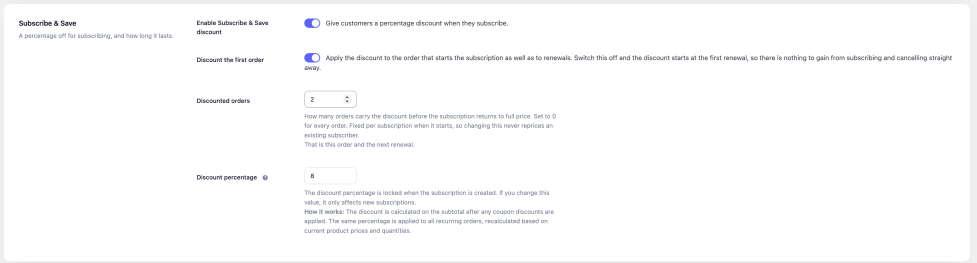
↑ Back to top- Enable Subscribe & Save discount: the master switch for the feature.
- Discount percentage: between 1 and 50. Calculated on the subtotal after any coupons.
- Discount the first order: whether the order that starts the subscription carries the discount too. Switch it off and the discount begins at the first renewal, so there is nothing to gain from subscribing and cancelling immediately.
- Discounted orders: how many orders carry the discount before the subscription returns to full price. Zero means every order, forever.
How the cap counts
↑ Back to topThe cap counts orders that have actually been paid, not renewals attempted. Whether the first order is one of them depends on the setting above: with Discount the first order on, the order that started the subscription uses one of the capped orders; with it off, it does not, and the count begins at the first renewal.
So a cap of 3 with first-order discounting on means the signup order and two renewals. The same cap with it off means three renewals.
Terms are fixed when the customer subscribes
↑ Back to topThe percentage, the first-order rule and the cap are all written onto the subscription at signup. Changing any of them afterwards affects new subscriptions only. Nobody who has already subscribed is ever repriced, in either direction.
This is also why a subscription created before 1.1.0 renews at full price: it has no percentage written on it. Set one on the subscription itself if you want it discounted.
Free products
↑ Back to topUnder WooCommerce › Settings › Order Subscriptions › Free products. A product given at no charge with a subscription.
Rules
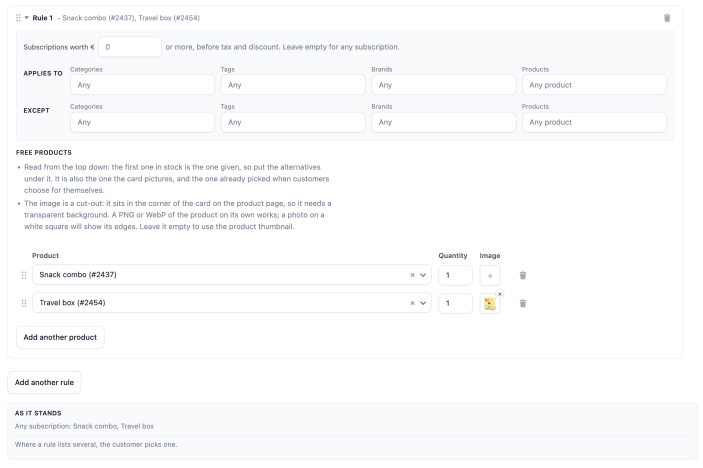
↑ Back to topA rule is a list of free products plus the conditions a subscribed product has to meet to earn them. Match by category, tag, brand or product, and optionally by what the cart is worth. Rules are read from the top down: a product earns the first rule it matches, so put the narrow rules above the general ones. A rule naming nothing applies to everything.
Rules asking the same of a product but at different cart values are read as a ladder rather than a list, so they are ordered by amount for you and can be written in any order.
When a rule offers several products
- Give one, the first that is available reads the list as an order of preference: a product that is out of stock is replaced by the next one that is not.
- Give all of them reads it as a set: an unavailable product is left out rather than replaced.
- Let the customer choose one puts the list in front of them on the product page and at checkout, with the first as the default. Their choice is locked to the subscription, and the rest of the list stays behind it as fallbacks, so a product that sells out later falls through to the next rather than leaving them with nothing.
How many orders carry one
↑ Back to topSet a number of orders, and choose whether the order that starts the subscription counts. With the first order included and a cap of one, the free product goes out once and no renewal carries one.
A turn is spent by the order rather than by the product: a renewal whose free product was out of stock has still used one.
What is locked, and when
↑ Back to topThe products, the cap and the mode are locked to a subscription when it is created. Changing a setting afterwards governs subscriptions taken out from then on, and leaves existing ones exactly as their customer agreed to them. This is why a new rule does not reach a subscription that already exists.
Customers can decline
↑ Back to topA customer can stop receiving the free product from My Account and keep their subscription. That cannot be undone: reinstating would have to promise whatever the store lists today, which is not what they agreed to.
Customers can switch it
↑ Back to topWhere the customer chose their free product at checkout, they can choose again from My Account, among the products the subscription was promised that can be given now. The change applies from the next renewal. Switch this off under General, What customers can change themselves. From the subscription screen you can switch it too, also where your order decided which one is given, and add any product free to the next delivery only.
On the product page
↑ Back to topThe subscribe option names the free product, or uses the rule’s own name for it if you gave one, and can show a cut-out image of it in the corner of the card. The image needs a transparent background; leave it empty and the card carries no picture.
Per product
↑ Back to topA product can carry its own list on its Subscriptions tab, which is used instead of the rules for that product.
A name in the offer
↑ Back to topEach rule can carry its own wording for its free products, per language: “a gift of your choice”, for instance, instead of the product’s name. It is used in the offer on the product page, in the cart and at checkout. Orders and emails always name the product itself.
Variations
↑ Back to topA rule can name a single variation, in its conditions or as its free product. Naming the product covers every variation of it; naming one variation covers that one only.
Surprise gifts
↑ Back to topUnder WooCommerce › Settings › Order Subscriptions › Surprise gifts. A free product with a subscription’s first orders, kept secret: the customer reads only the name you give it.
Independent of the free products: a subscription can have both, each counts its own orders, and a customer who stops their free product still gets the surprise.
Rules
↑ Back to topThe same cards as the free product rules: match by category, tag, brand or product, and optionally by what the subscription is worth, read from the top down. A subscription gets the surprise of the first rule any of its products matches, and never more than one.
How many orders carry one
↑ Back to topSet a number of orders, 0 for every order, and whether the order that starts the subscription counts. These terms and the surprise’s name are locked to the subscription when it starts, as the free products’ are, and a turn is spent by the order rather than by the product.
One product or several
↑ Back to topOne product is the same surprise every time. Several take turns, from the top of the list down, and one that is out of stock gives way to the next.
Changing the products
↑ Back to topThe products are not locked. A subscription takes turns with its rule’s products as they are at each renewal, so adding, removing or reordering a rule’s products changes them for every subscription on that rule. Turns go by position, so a change can alter which product comes next, and a customer can receive one they have had before. Delete a rule and its subscriptions keep the products they started with.
What the customer sees
↑ Back to topOnly the name you give the rule, in their language, or “A surprise” when you leave it empty: on the product page (“A surprise with your first 5 orders”), in the cart and at checkout, on their orders, in their emails and in My Account. When the first order counts, the surprise is already in the cart, at 0, with the store’s placeholder image, no link to the product, and no way to remove it.
Your own order screens and the merchant copy of every email name the product, so whoever packs the box knows what goes in it. The subscription screen has a Surprise gift box: the products in the order they take turns, which one the next renewal carries, the name the customer sees, and how many orders have had one.
Stock
↑ Back to topSimple products or a single variation only, as with the other gifts: a variable parent leaves nothing able to decide which variation ships.
Seasonal gifts
↑ Back to topUnder WooCommerce › Settings › Order Subscriptions › Seasonal gifts. A product added free to every renewal created between two dates.
Independent of the free products: it does not count against their allowance, a customer who has stopped their free product still receives one, and a renewal can carry both.
Windows
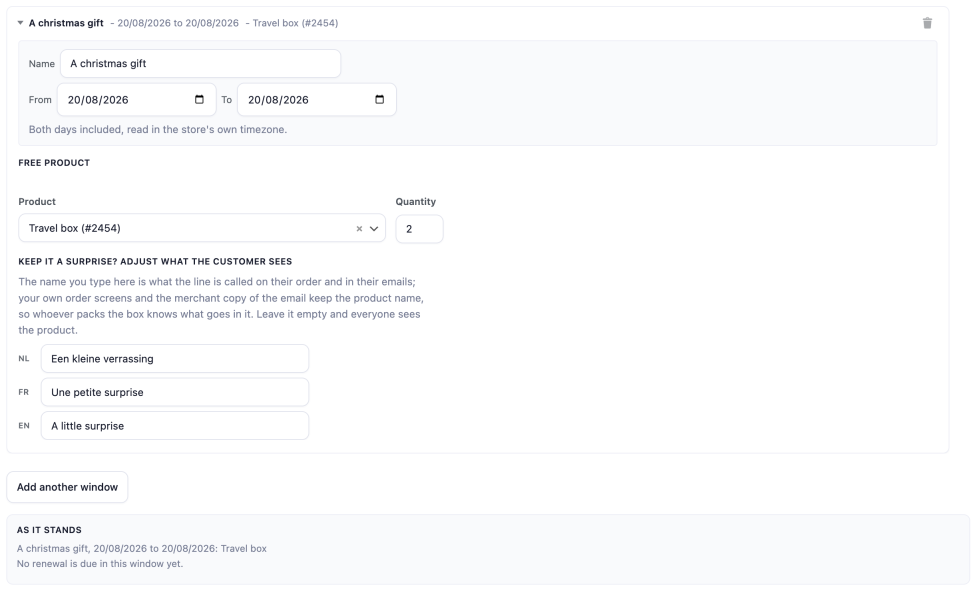
↑ Back to topEach window has a start date, an end date, a product and a quantity. Both days are included, read in the store’s own timezone. Give a window a name and the card and the read-back use it instead of a number.
Renewal orders only: a subscription bought during a window does not carry one on its first order, because the order the customer pays for is not the one that arrives on its own.
Windows do not repeat. A window that has passed stays where it is until you change its dates.
Two windows covering the same day both apply, and a renewal created then carries both products. The screen says so, naming the pair and the days they share.
Keeping it a surprise
↑ Back to topEach window can carry a name for the customer, set per language. That name is what the line is called on their order and in their emails, and their emails show the store’s placeholder image instead of the product’s picture. Your own order screens and the merchant copy of the email keep the product name and picture, so whoever packs the box knows what goes in it. Leave it empty and everyone sees the product.
Stock
↑ Back to topThe screen estimates what a window will cost in stock, by walking the renewals due inside it. Simple products or a single variation only, as gifts: a variable product leaves nothing able to decide which variation ships.
Milestone gifts
↑ Back to topUnder WooCommerce › Settings › Order Subscriptions › Milestone gifts. A free product at a delivery you choose – the fifth, the tenth, the twenty-fifth – for customers who are still subscribed when they get there.
Where free products reward buying and seasonal gifts reward timing, this one rewards staying. It is counted separately from both, so a renewal can carry a free product, a seasonal gift and a milestone gift at once.
Milestones
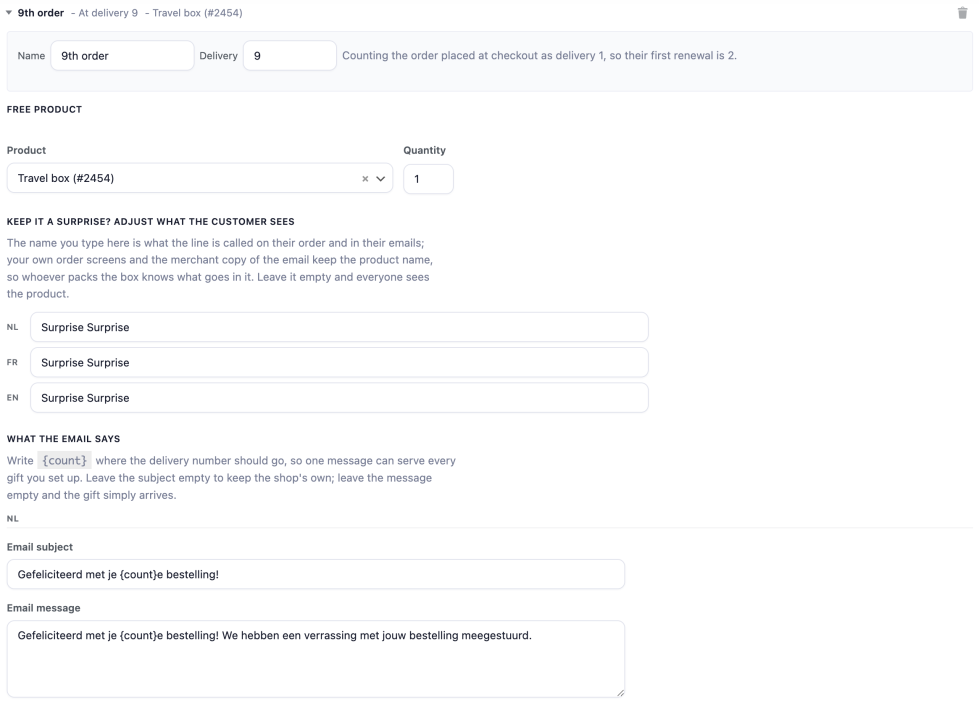
↑ Back to topEach milestone is a delivery number, a product, a quantity and the wording the customer sees. The first order counts as delivery one. Set 5 and the gift arrives with the fifth order the subscription has placed, that order included.
A milestone is earned by reaching that delivery, not by passing it. Add a milestone at 5 today and a subscription already on its eighth delivery does not suddenly owe one, because it did not stay for a promise that did not exist. It will reach any milestone you set above 8.
Owed until it can be given
↑ Back to topIf the product cannot be given on the delivery it was promised for – out of stock, or no longer purchasable – the milestone stays owed rather than being missed, and the gift goes out with the next renewal that can carry it. A cancelled renewal hands its milestone back the same way, so the customer does not lose it because a payment was reversed.
What the customer is told
↑ Back to topEach milestone carries its own line for the customer, set per language, shown on the order and in the email for that renewal. Leave it empty and the gift simply arrives. Their account page counts down to the next milestone they have not reached, so it is something to stay for rather than a surprise nobody knew about.
A milestone with a name for the customer stays a surprise in the details too: their emails show the store’s placeholder image instead of the product’s, and the next renewal in My Account shows the name.
Stock
↑ Back to topSimple products or a single variation only, the same as the other two gift types: a variable parent leaves nothing able to decide which variation ships, so the product search will not offer one.
The product page widget
↑ Back to topOn any product that could be subscribed to, the customer is offered a choice before adding to the basket: buy once, or subscribe. It renders above the add-to-cart button.
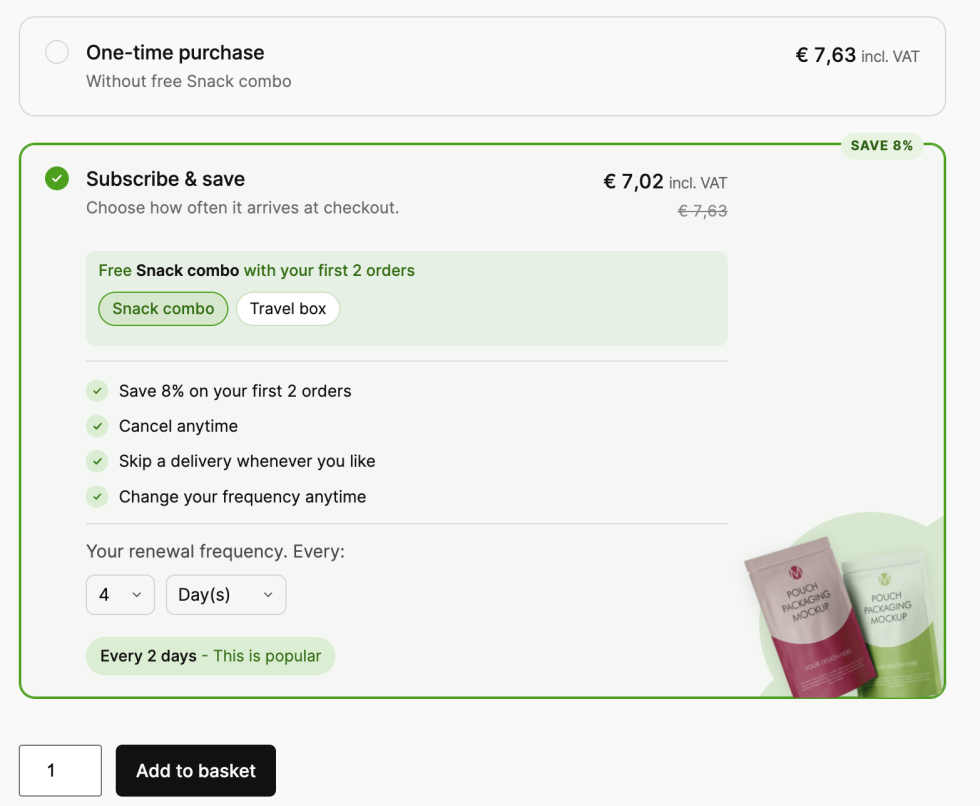
Where it appears
↑ Back to topOn simple and variable products that pass your product and user restrictions. On a variable product the choice resolves per variation, so a product where only some variations are eligible offers the choice on those and not on the others.
It does not widen what may be subscribed to. A product that could not be subscribed to at checkout does not gain a widget.
What the customer sees
↑ Back to top- Two options, one pre-selected according to your setting
- The subscribed price, with the one-time price struck through, when a discount applies
- A “Save X%” badge, if you have one configured and have left it switched on
- A short list of what subscribing gets them, built from what your settings actually allow so it never promises an action you have switched off
- The free product it earns, if any, named in a sentence of its own and optionally pictured as a cut-out in the corner of the card
- The surprise it earns, if any, by the name you gave it: “A surprise with your first 5 orders”
- Where a rule offers several free products and you have chosen to let the customer pick, the choice itself
- The renewal schedule: either a note that it is chosen at checkout, or, when Let customers choose the schedule here is on, the schedule itself with the suggested ones offered as pills
If the customer is already subscribing
↑ Back to topWhen the basket already contains a subscription, the widget says so and offers to add the product to that subscription rather than starting a second one.
Turning it off
↑ Back to topUnder Front-end settings, switch off Show the widget on product pages. Subscriptions still work exactly as before; the choice is simply made at checkout instead.
Per-product schedules
↑ Back to topBy default every subscribed item in an order renews together on one schedule. Switch on per-product intervals under Front end settings > Product widget and each product can carry its own.
Where the schedule comes from
↑ Back to topThe store’s own default is set under General › Renewal frequencies, as Proposed frequency and Proposed interval. That is what a customer is offered first anywhere a schedule is shown.
A product can override it on its Subscriptions tab. If Let customers choose the schedule here is on under Front-end settings, the customer can pick a different one on the product page before the item is in the cart, and change it afterwards from the cart.
One order, several subscriptions
↑ Back to topA cart holding products on different schedules creates one subscription per schedule when the order is placed, each with its own renewal date, its own total and its own entry in My Account. The customer is told about it once rather than once per subscription.
The checkout shows one recurring total per schedule, on both the classic and the block checkout.
The product subscriptions tab
↑ Back to topEvery simple and variable product has a Subscriptions tab in its product data panel. Everything on it is optional: left alone, the product follows the store settings.
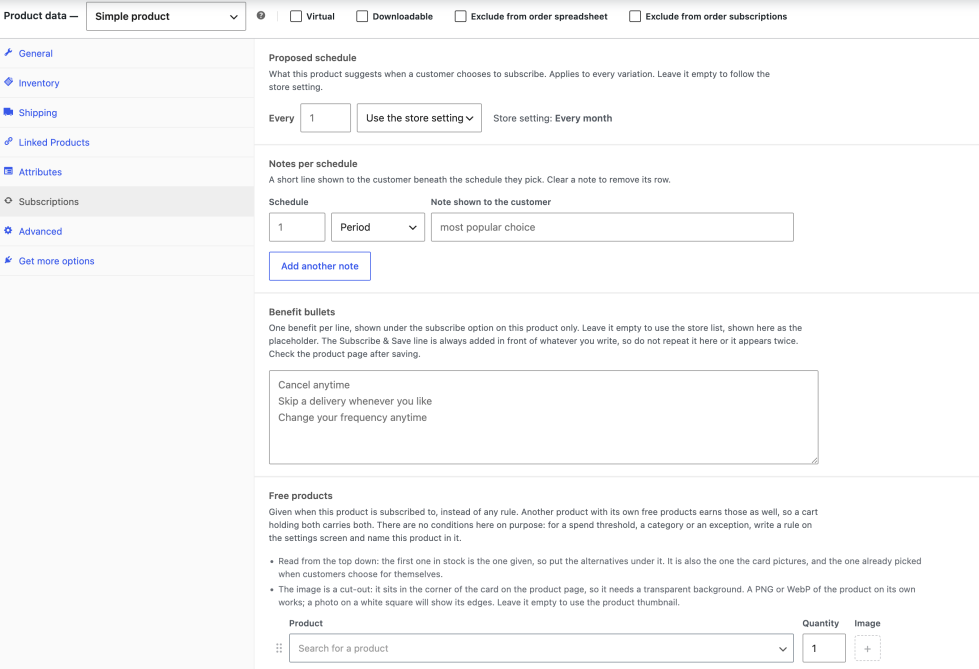
Proposed schedule
↑ Back to topThe renewal schedule this product is offered on, overriding the store’s Proposed frequency and Proposed interval. Choose Use the store setting to follow the store, which is what a new product does.
Which option starts selected
↑ Back to topWhether this product’s widget opens on One-time purchase or on Subscribe, overriding the store setting under Front-end settings. Use the store setting is what a new product does, and the option names what following the store currently gives you.
Notes per schedule
↑ Back to topA short line shown to the customer beside a particular schedule, so a monthly option can say “most popular choice” and a yearly one can say something else. One note per schedule, and only the schedules you write a note for carry one.
Benefit bullets
↑ Back to topThe list of what subscribing gets them, for this product only. Left empty, the product uses the store’s bullets, which are themselves built from what your settings allow. Write {auto_usps} on a line of its own to keep that inherited list and add your own lines around it, rather than replacing all of them: at store level it stands for the generated list, and on a product it stands for whatever that product would have shown without an override. It never stands for the Subscribe & Save line or the free product line, which are added in front of whatever you write and would otherwise appear twice. Written twice it expands both times and then removes the duplicates; expanding to nothing leaves no empty bullet.
Free products
↑ Back to topA list of free products for this product alone. When it has one, it is used instead of the rules on the Free products tab, so a product can promise something the rules would not have given it.
Checkout experience
↑ Back to topIn the cart
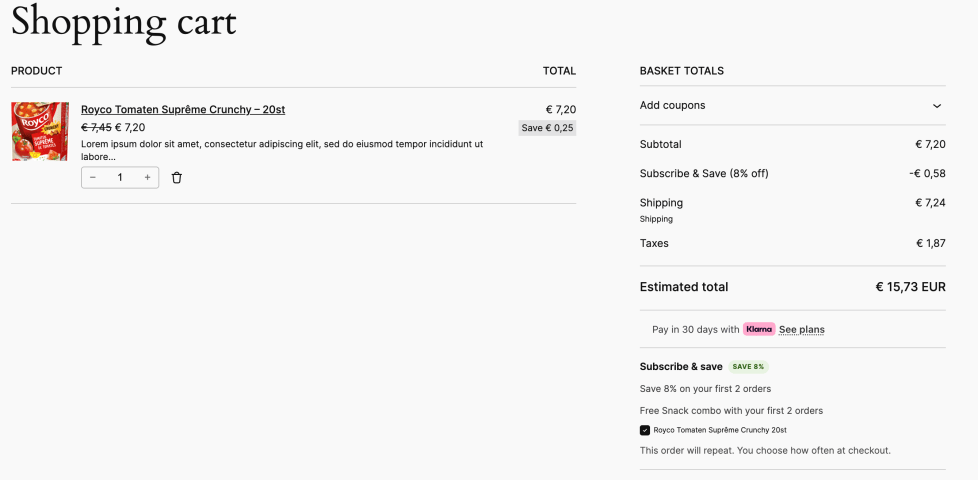
↑ Back to topEach eligible line offers a tick to subscribe to that item. Ticking one shows what it costs subscribed against what it costs once, with the one-time price struck through, and a Subscribe & Save line appears in the cart totals showing the saving on the items ticked.
A customer does not have to subscribe to everything. Subscribe to the coffee and buy the grinder once, in the same order: the ticked items renew on the customer’s schedule and the rest is an ordinary one-time purchase.
Under the subscription, the cart says what it earns: the free product and how many orders carry it, the next rule within reach, and a surprise. A surprise that comes with the first order is already in the cart, at 0, under its secret name.
At checkout
↑ Back to topA logged-in customer sees the subscription widget above the order totals:
- The subscribe option, with your wording
- A frequency and interval picker, limited to the periods and the minimum and maximum you allow
- The Subscribe & Save saving, if one applies
- What the next renewal will cost, shown whenever it differs from the order being placed, a mixed basket, a first order that carries no discount, or shipping that will be recalculated
- When the order makes more than one subscription, each one as a block of its own: its schedule, its products, its free products and surprise, and its renewal total. Classic and block checkout alike.
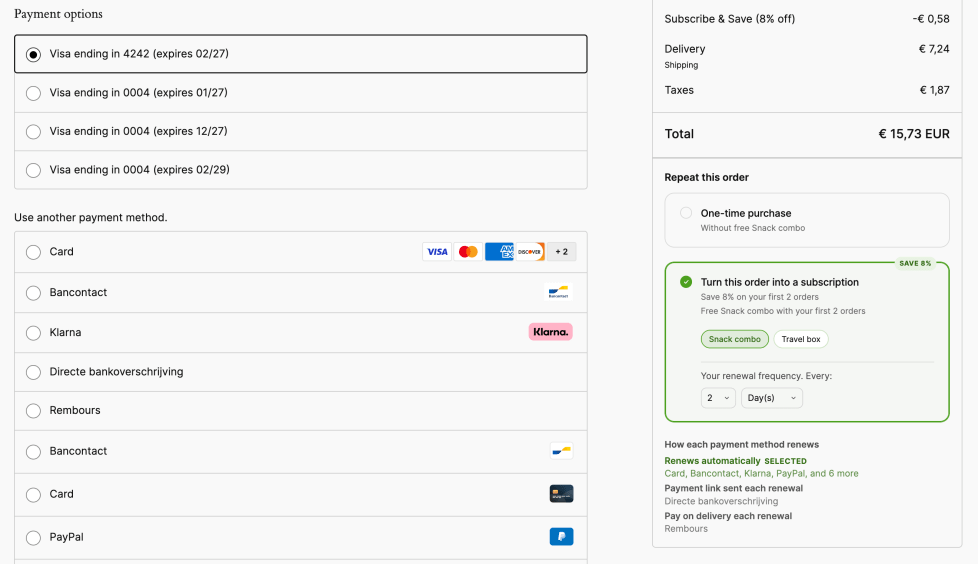
Payment methods
↑ Back to topEach payment method carries a short line saying how it will renew, so a customer knows before choosing whether renewals arrive automatically or as an email to pay. Any method you have disallowed for subscriptions disappears from checkout while the basket contains one.
Customers who are not logged in
↑ Back to topSubscriptions need an account, so a logged-out customer sees a message inviting them to log in or register instead of the subscribe option. The wording is yours, on the Front-end settings tab.
After the order is placed
↑ Back to topThe order confirmation page shows a summary of the subscription that was created: what renews, how often, and when the next payment is due.
Customer self-service (My Account)
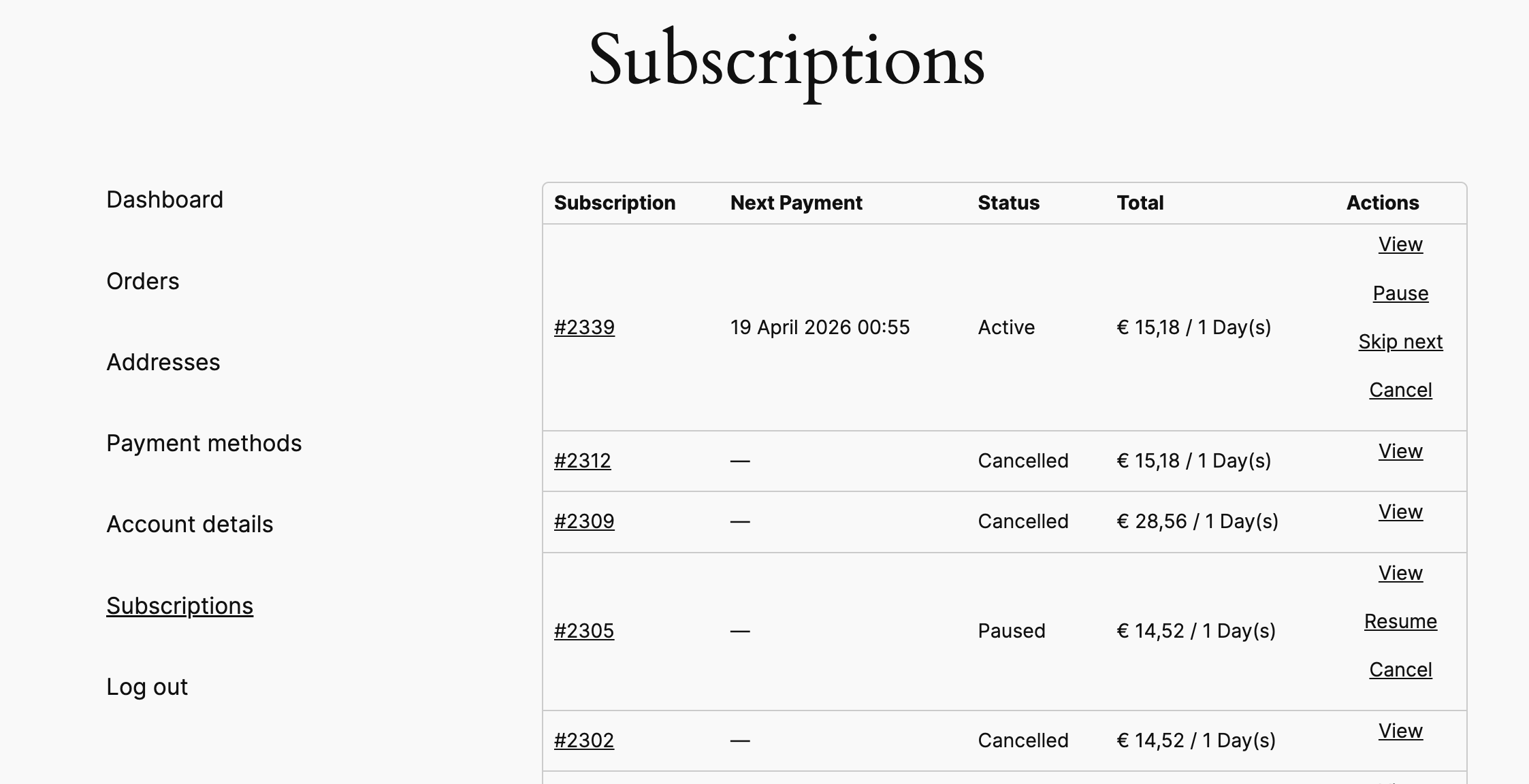
↑ Back to topCustomers get a Subscriptions section in My Account. Everything there is optional: each action can be switched off under General → What customers can change themselves, and off means the customer contacts you instead.
The list
↑ Back to topEvery subscription the customer has, with its status, what it contains, how often it renews and when the next payment is due.
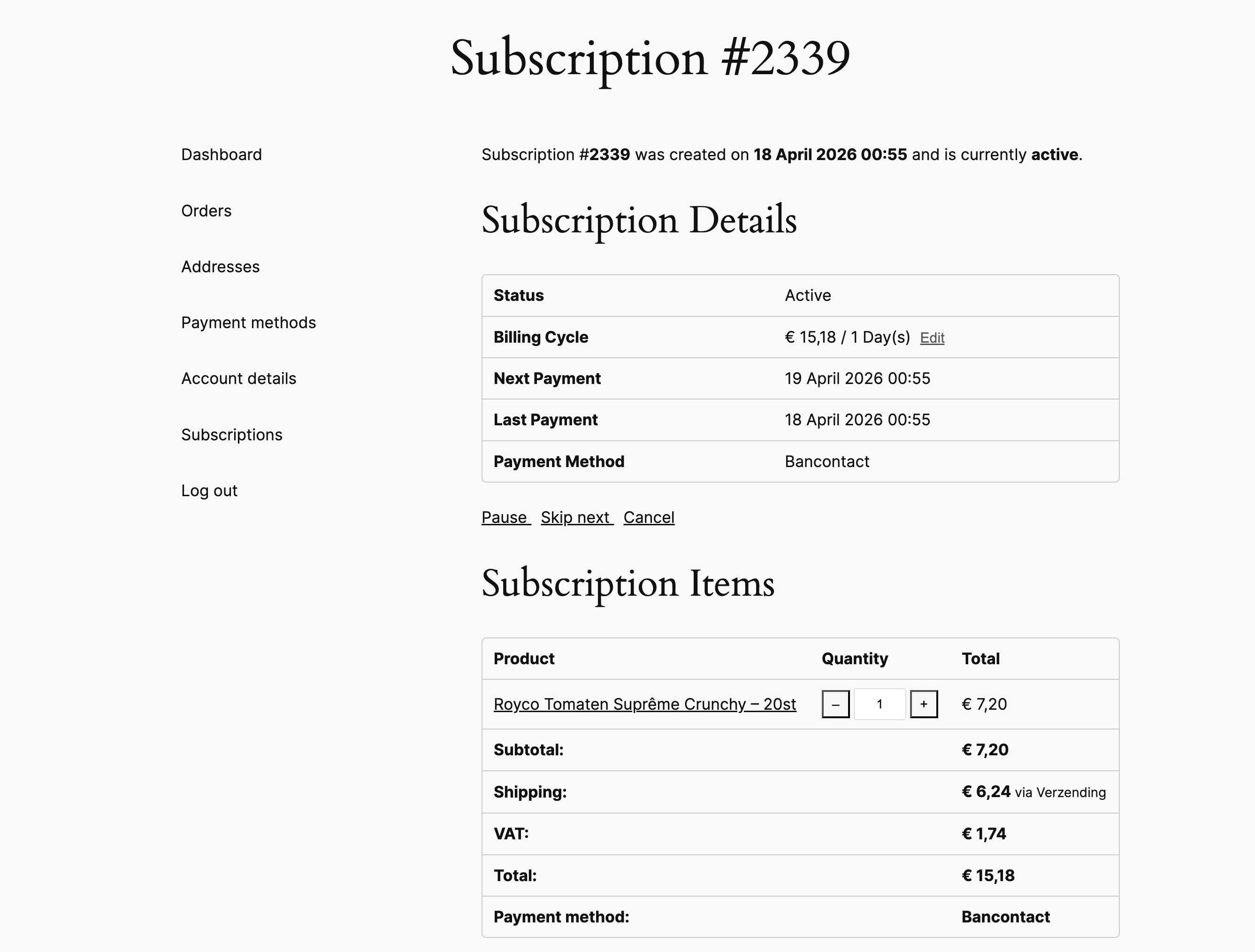
A single subscription
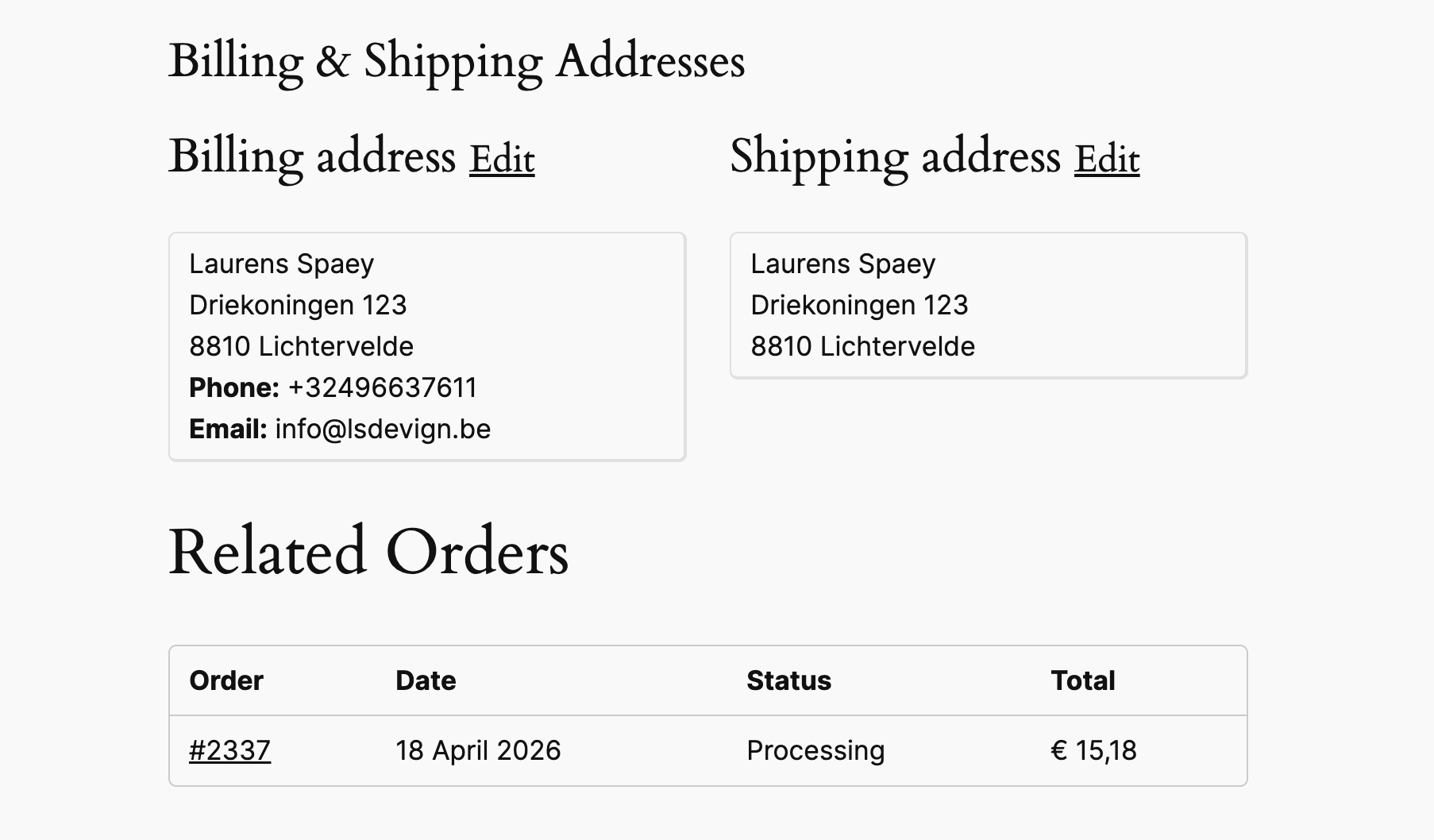
↑ Back to topOpening one shows its details; the items on it, priced the way the next renewal will be, with the coupons, Subscribe & Save, shipping, tax and total underneath; the billing and delivery addresses; and the orders it has placed, the first one included. From here the customer can:
- Pause and resume: useful when they are overstocked
- Skip the next renewal, instead of cancelling
- Cancel
- Change the schedule: within the frequencies and limits you allow
- Update quantities
- Add a product to the next delivery only: anything in the shop, forgotten again once that renewal is paid
- Add a product to every delivery from now on, or remove one: only products you sell on subscription can join every delivery. Removing the last product cancels the subscription, and is refused where customers may not cancel
- Edit the billing and delivery addresses: before the next shipment goes out
- Stop the free product, keeping the subscription. It is offered only while a free product is actually coming, and it cannot be undone
- Switch the free product for another of the ones the subscription was promised, from the next renewal
Every action is confirmed by email to the customer and to you.
When a renewal payment fails, the customer’s email has a button to pay it straight away, and WooCommerce’s own Orders page in My Account offers the same. Paying it with a card or another method that can renew automatically makes that the subscription’s payment method from then on, which is how a customer replaces a card that expired.
Available actions by status
↑ Back to top| Status | Available actions |
|---|---|
| Active | Pause, Skip Next, Cancel, Add or remove products, Switch or stop the free product (if one is still coming) |
| Paused | Resume, Cancel |
| Cancelled | None (final state) |
My Account endpoint configuration
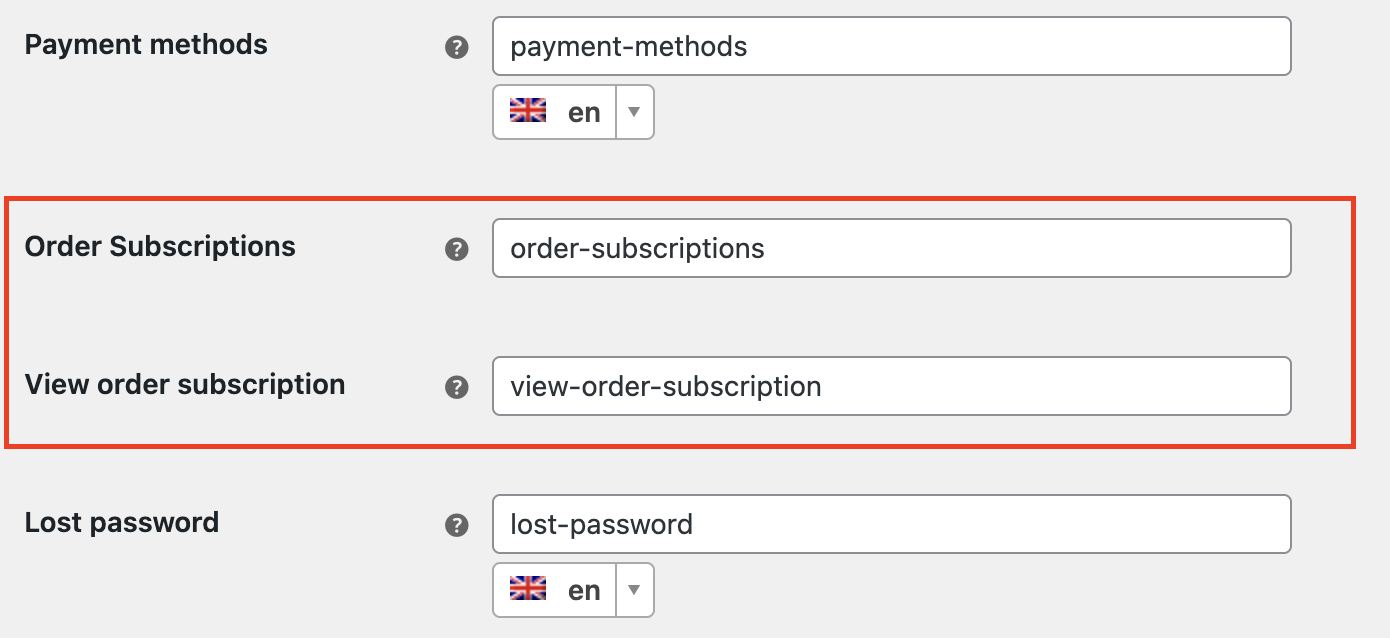
↑ Back to topThe endpoint slugs for the subscriptions pages can be customized in WooCommerce → Settings → Advanced → Account endpoints:
- Order Subscriptions: The endpoint for the subscriptions list page (default:
order-subscriptions). - View order subscription: The endpoint for the single subscription detail page (default:
view-order-subscription).
These endpoints are also registered with WPML and Polylang for translation.
Admin subscription management
↑ Back to topSubscriptions list
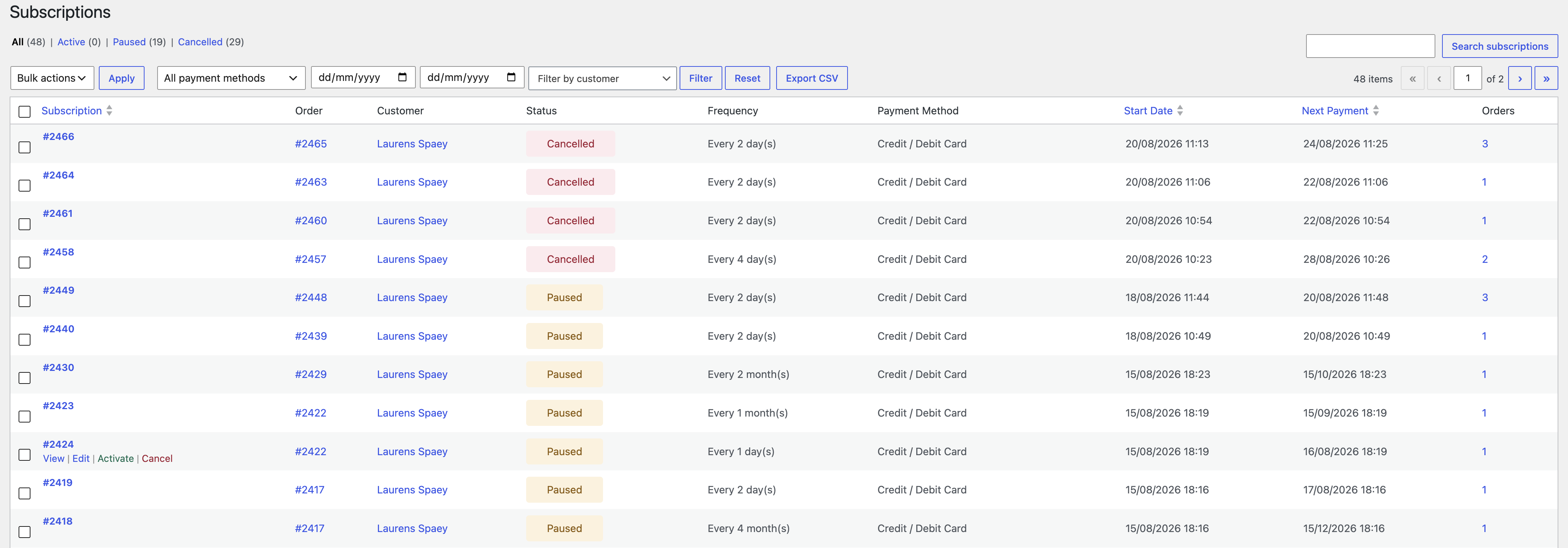
↑ Back to topNavigate to WooCommerce → Subscriptions (or WooCommerce → Order Subscriptions when WooCommerce Subscriptions is also active).
The subscriptions list shows all subscriptions in a sortable, filterable table with columns for:
- Subscription ID
- Customer name
- Status (Active / Paused / Cancelled)
- Frequency (e.g., “Every 2 Weeks”)
- Next payment date
- Order count
- Created date
- Payment method, with “Paid by payment link at each renewal” under it for a subscription you set to renew by link
Bulk actions are available: Activate, Pause, Cancel, and Delete.
Filters: Filter by status (Active, Paused, Cancelled, All).
Search: Search subscriptions by ID, customer name, or email.
Subscription detail / edit view
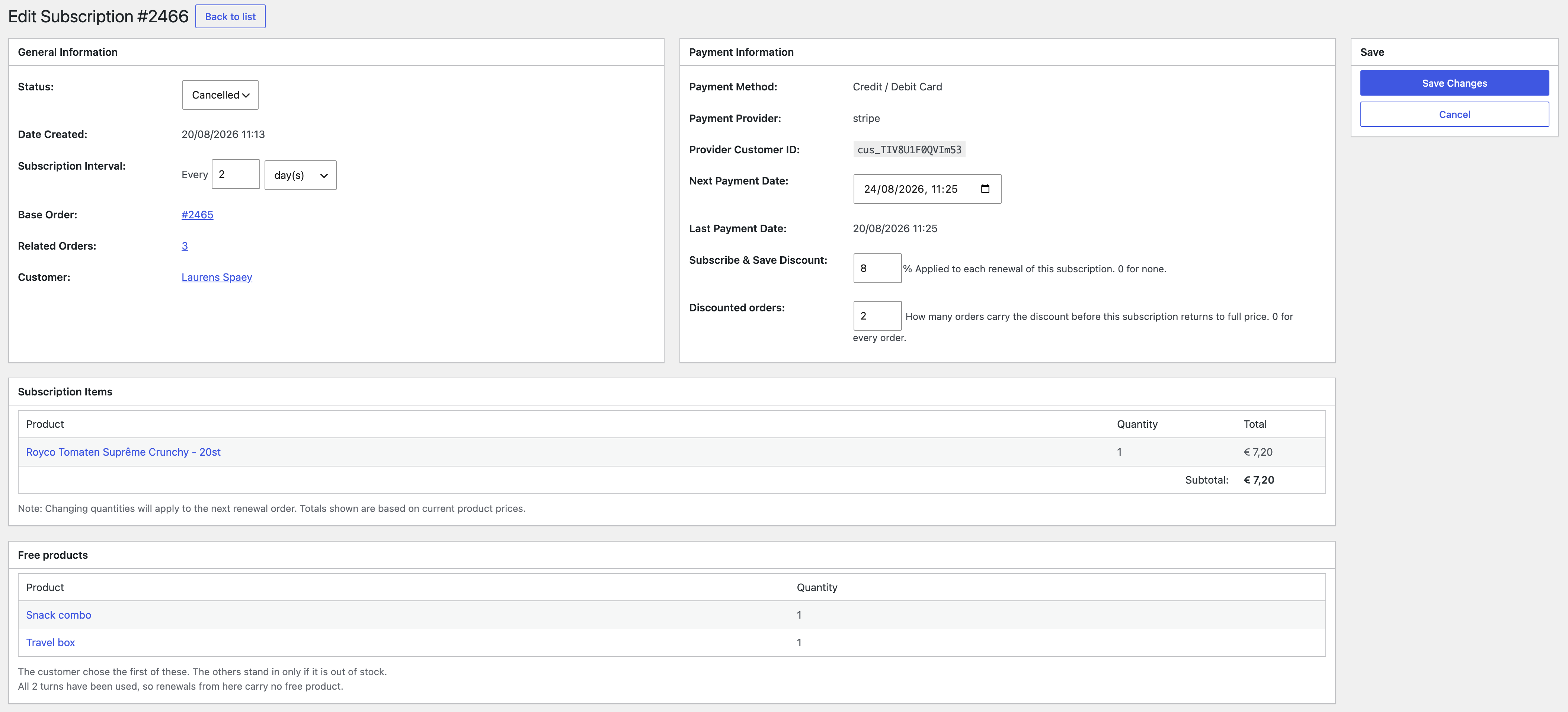
↑ Back to topClick on a subscription ID or the View action to open the subscription detail page. Click Edit to enter edit mode.
The detail page shows:
- Subscription details: Status, subscription ID, base order link, customer, created date.
- Schedule: Current interval and frequency (editable in edit mode), next payment date (editable via date picker in edit mode), last payment date.
- Payment info: Payment gateway, gateway title, provider name, provider customer ID, failed payment retry count, and, for a method that renews automatically, Renews: Automatically, or By payment link, paid by the customer each time. Switching it records an entry in the history and sends the customer nothing.
- Subscribe & Save: Discount percentage locked at subscription creation (if applicable).
- Items: Products from the base order with quantities, each priced the way the next renewal will be, with its subtotal, coupons, Subscribe & Save, shipping, tax and total underneath, worked out through the store’s cart as the subscriber. In edit mode, quantities can be changed, and products can be added or removed with a product search – to the next delivery only, or to every delivery from now on – or added free to the next delivery only. Every change is recorded in the history against whoever made it.
- Addresses: Billing and shipping addresses stored on the subscription.
- Related orders: All orders linked to this subscription, with links to each order.
- Free products: What this subscription was promised, which of them is given when a rule offers several, and how many of its turns are used, with a choice to give another of the promised products instead. It also says why there is none when there is none: never promised one, stopped by the customer, or the allowance spent. Those are three different answers and the box gives the right one.
- Surprise gift: The products this subscription’s surprise takes turns with, which one the next renewal carries, the name the customer sees, and how many orders have had one.
- Seasonal gifts: Every seasonal gift this subscription has received, newest first, with the window it came from, the order it arrived on and the date.
- Milestone gifts: Every milestone this subscription has reached, with the delivery number it was earned at, the product given and the order it arrived on. Milestones still owed are listed too, with why they have not been given yet.
- History: Status changes, renewal orders created, failed payments, skipped deliveries, free product changes and payment method changes, newest first, each with who did it and when. Kept from version 1.2.0 onward: anything that happened before that was written to the log and is not recoverable, so an older subscription starts with an empty history and fills as it goes.
Order metabox
↑ Back to topOn any WooCommerce order that is linked to a subscription (either the base order or a renewal order), an Order Subscriptions metabox appears in the order edit screen.
The metabox shows:
- Whether the order is the initial subscription order or a recurring renewal order
- Subscription ID (linked)
- Status
- Frequency
- Next payment date
- Failed payment count (if any)
- Total order count
- A “Related Orders” table showing the most recent orders linked to this subscription (up to 5, with a “View all” link)
- A Manage subscription button linking to the subscription detail page

Orders table – subscription icon column
↑ Back to topA subscription icon column is added to the WooCommerce orders list table (both HPOS and legacy). Orders linked to a subscription show a colored icon indicating the subscription status:
- Green = Active subscription
- Purple = Paused subscription
- Red = Cancelled subscription
Clicking the icon opens the subscription detail page. You can also filter the orders list by subscription ID using the ?osfwc_subscription_id= URL parameter.

Subscription stats
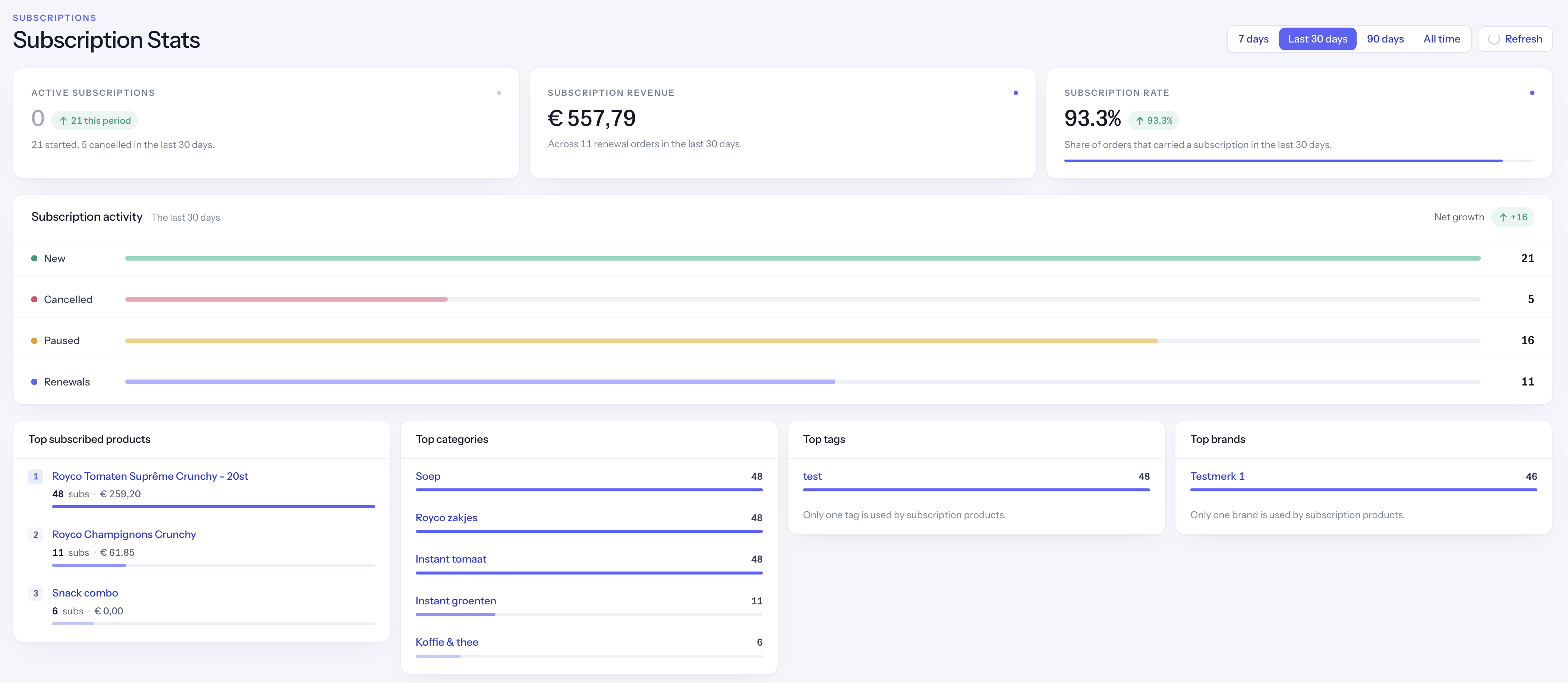
↑ Back to topUnder WooCommerce › Subscription Stats. Revenue, signups, renewals and cancellations for a period you choose, each compared against the period immediately before it, so a number arrives with the context that makes it mean something.
Below that, the same period broken down by product, category, tag and brand, and the customers behind it. Export buttons take any of it to CSV.
On the WordPress dashboard
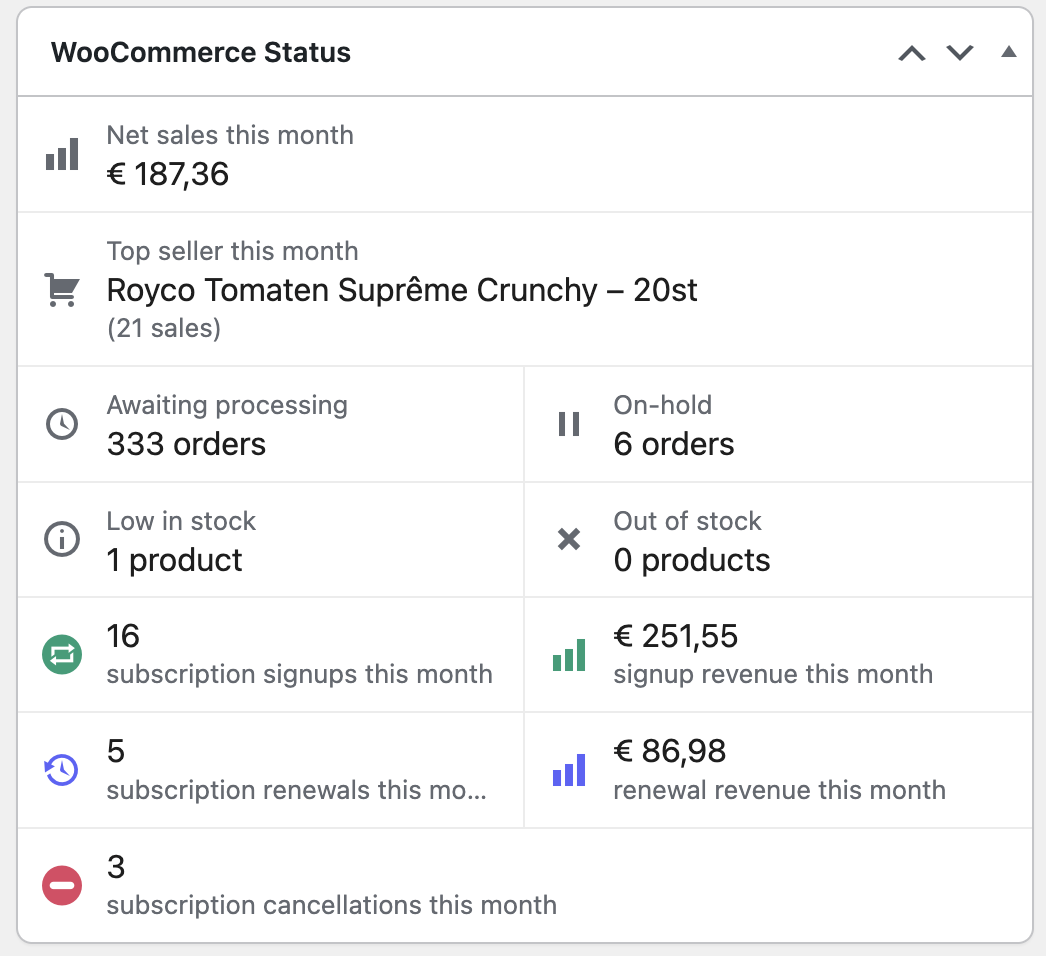
↑ Back to topWooCommerce’s own Status widget carries five more rows: subscription signups and what they were worth, renewals and what they were worth, and cancellations, all for the month in progress. Each links through to this screen. The rows are absent on a store that has never had a subscription.
CSV export
↑ Back to topFrom the subscriptions list page, click the Export CSV button to download a spreadsheet of your subscriptions. The export includes all subscription data: ID, status, customer info, schedule, payment details, next payment date, order count, and created date.

Email notifications
↑ Back to topEighteen templates in total: seven to you, eleven to the customer. All of them are managed under WooCommerce → Settings → Emails like any other WooCommerce email, and all of them can be overridden from your theme.
| Sent when | To you | To the customer |
|---|---|---|
| A subscription is created | yes | yes |
| A subscription becomes active | yes | yes |
| A subscription is paused | yes | yes |
| A subscription is cancelled | yes | yes |
| A subscription is cancelled automatically after repeated failures | yes | yes |
| A subscription is changed | yes | yes |
| A renewal payment fails | yes | yes |
| A renewal is skipped | — | yes |
| A renewal is coming up | — | yes |
| A renewal needs paying by link | — | yes |
| A payment-link renewal is still unpaid | — | yes |
Each one comes in HTML and plain text. The last two are new in 1.1.0 and are only ever sent for a payment method that cannot charge on its own; the timing of both is under General → Reminders, and setting either window to zero switches that email off.
The payment-failed email to the customer carries a button to pay the renewal straight away. The upcoming renewal reminder lists what the next delivery contains and states what it is expected to come to, at today’s prices with shipping and tax.
Template overrides
↑ Back to topAll email templates can be overridden by copying them from plugins/order-subscriptions/templates/emails/ to your theme at yourtheme/woocommerce/emails/. Both HTML and plain text templates are provided.
Automatic recurring payments
↑ Back to topA background check runs once an hour, looks for subscriptions whose next payment date has arrived, and processes them. It is scheduled through Action Scheduler, so you can watch it under WooCommerce → Status → Scheduled Actions.
What a renewal order contains
↑ Back to topEach renewal is a new WooCommerce order built from the subscription’s current items, not a copy of the original order:
- The products and quantities currently on the subscription, priced through your store’s cart as the subscriber: today’s prices, role and B2B prices and cart discount rules, as checkout would charge them
- Stock reduced, exactly as a normal sale reduces it
- The billing and delivery addresses currently on the subscription, with the extra address fields your checkout asks for, such as a VAT number
- Coupons and fees, if you have chosen to carry them over
- Shipping, priced according to your recurring shipping setting
- The Subscribe & Save discount, if the subscription has one
Because it is built fresh each time, an edit the customer makes: a quantity, an address, the schedule, is reflected in the next renewal without anything else being touched.
Renewals keep their day
↑ Back to topA subscription keeps the day it renews on. Every renewal date is counted from it, a month at a time, so one that renews on the 31st falls on the last day of a shorter month and comes back to the 31st after it. A payment never moves the schedule: one that settles a few days late, a retry, or a payment link paid late keeps the next date where it was. Only you or the customer move it, on purpose, by changing the date, the schedule, or by skipping.
Shipping on renewals
↑ Back to topUnder General → Order settings, Recurring shipping cost has two options:
- Keep the cost from the original order. The renewal ships at the rate the customer agreed to at signup, whatever your rates do afterwards. Stores that already had subscriptions when this setting arrived start on this one.
- Recalculate at current rates on every renewal. Shipping is priced fresh each time, so rate changes reach subscribers. This is the recommended choice, and new stores start on it: a renewal is priced like an order placed that day, and this charges that order’s shipping too.
One exception applies whichever you choose: a subscription renewing only part of its original order always recalculates, because the stored cost covered items it no longer ships.
Changing the setting applies to subscriptions taken out from then on, and each existing subscription keeps the choice it was created with. To move the existing ones too, tick Also apply to existing subscriptions under the setting before you save: every subscription, active, paused or cancelled, then uses the choice you saved. For a selection, use the bulk actions Shipping: recalculate on every renewal and Shipping: keep the original cost on the subscriptions list. A single subscription can be changed on its own screen, under Renewal shipping cost.
When shipping is recalculated and the method the subscription was set up with is no longer offered, the renewal ships with the method checkout would choose for that customer, never local pickup for a subscription that is shipped, and the order says so.
Subscribe & Save on renewals
↑ Back to topThe discount applies to every order the subscription places, including renewals, at the percentage locked to that subscription when it was created. Changing the setting later never reprices anyone who has already subscribed.
When the gateway charges automatically
↑ Back to topThe order is created, the customer’s saved payment method is charged, and the order completes. They receive your usual order emails. Nothing else happens.
When the gateway renews by payment link
↑ Back to top- The renewal order is created on hold, waiting for payment.
- The customer is emailed a link to pay that order.
- If it is still unpaid after the number of days set in Manual renewal reminder (days), a reminder goes out.
- If it is still unpaid after Manual renewal escalation (days), the renewal is treated as failed and the subscription follows the retry behaviour below.
Both windows are under General → Reminders. Set either to zero to switch that step off.
The escalation window applies to payment-link renewals only. A renewal on an automatic gateway is given a fixed fourteen days before being treated as abandoned, because some methods confirm slowly by design a SEPA Direct Debit can legitimately take a week to settle. Shortening the setting will not make those fail sooner, and it is not meant to.
When a payment fails
↑ Back to topFailed renewals are retried twice: 12 hours after the failure, then 24 hours after that, and the third failure cancels the subscription. You and the customer are told at every step, and the customer’s email has a button to pay the renewal straight away, with the same or another payment method. Paid with a method that can renew automatically, that becomes the subscription’s payment method from then on. Both halves of that are filterable from 1.2.2 – osfwc_payment_retry_limit for how many attempts, osfwc_payment_retry_date for how long to wait – so a store that would rather chase a customer for a week than for two days can. A failed renewal can no longer be paid once the subscription has been paid since, so a retry and a payment link cannot both pay for the same delivery.
Some failures are not worth retrying a deleted product, a deleted customer, an order that can no longer be built. Those cancel the subscription immediately rather than spending three attempts arriving at the same answer.
Protections you do not have to configure
↑ Back to top- A subscription cannot be charged twice for the same cycle, even if two scheduler runs overlap.
- A charge request that gets no answer from Mollie, Stripe or WooPayments is checked with the provider before it is tried again, so a timeout cannot become a second charge.
- A renewal whose payment went through, failed or expired without the store hearing about it is picked up by an hourly check instead of waiting.
- A chargeback pauses the subscription it paid for, so the next renewal does not charge the same card again.
- A renewal left pending or on hold for an unusually long time is escalated rather than left open indefinitely.
- If the subscription’s original order has been deleted, the subscription is cancelled and logged instead of retrying every hour.
Supported payment gateways
↑ Back to topEvery payment method you have enabled in WooCommerce can take a subscription. What differs is how the renewal is collected, and there are only two answers.
Renewed automatically
↑ Back to topWhen the renewal falls due, the plugin charges the payment method the subscription was set up with, and only that one, and creates the order. Nobody is asked to do anything. This applies to the methods each built-in integration can charge again:
- Mollie (iDEAL, Bancontact, credit cards, SEPA Direct Debit, and the other methods Mollie offers)
- Stripe (via WooCommerce Stripe Gateway)
- WooPayments
The payment method is saved during the first checkout, so nothing extra is asked of the customer at signup either.
Which methods qualify is read from the payment plugin itself: Mollie from what your account supports for recurring payments, Stripe and WooPayments from the methods they save for later use. For Stripe, every method needs Enable saved card payment methods on in Stripe’s settings, and iDEAL and Bancontact also need the setting that saves them for repeat payments; until then they renew by payment link. A renewal charges only the method its subscription was set up with: if the subscription holds none, the renewal is sent to the customer as a payment link instead of failing.
Renewed by payment link
↑ Back to topEvery other enabled method, including Cash on Delivery and Bank Transfer, renews by email. The renewal order is created on hold and the customer is emailed a link to pay it, with a reminder if it goes unpaid. You can also set a single subscription on an automatic method to renew this way, from its Payment information box.
Nothing is lost by using a payment-link gateway. The subscription behaves identically; the customer just clicks once per renewal.
What the customer is told at checkout
↑ Back to topEach payment method carries a short line saying how it will renew, so a customer choosing Bank Transfer knows an email is coming and a customer choosing Mollie knows one is not. The wording is filterable: see osfwc_renewal_method_label, osfwc_renewal_expectation_message and osfwc_renewal_method_description in the developer reference.
If a gateway stops being available
↑ Back to topA gateway is only treated as automatic while its own plugin is properly configured. If the integration is present but the gateway reports itself unavailable, a missing API key, credentials changed mid-configuration, the method drops to renewing by payment link instead of the renewal failing. Subscriptions keep running; they just collect differently until the gateway is working again.
Changing the payment method
↑ Back to topA subscription is charged to the method its first order was paid with. It changes when the customer pays a renewal themselves – from the payment-failed email, or the Pay button on their Orders page – with a method that can renew automatically: that payment saves the method, and the renewals after it are charged to it. The order notes the change and the subscription’s history records it. A customer whose card expired fixes it this way, and nothing else is asked of them.
On the subscription screen, Renews sets a single subscription to By payment link: every renewal is emailed to the customer to pay, and paying it does not change how the next one is paid. Set it back to Automatically to charge the stored method again.
The Gateway compatibility screen
↑ Back to topGo to WooCommerce → Settings → Order Subscriptions → Gateway compatibility. The table lists every payment method you currently have enabled and how each one will behave.
| Column | What it tells you |
|---|---|
| Payment method | The method as your customers see it, with its gateway ID underneath. |
| Provided by | Which plugin supplies it, and that plugin’s version. |
| Renewals | Automatic or Payment link. This is the only distinction that affects your customers. |
| Enabled for subscriptions | Whether the method may be used for a subscription at all. Automatic methods read Always on; everything else has a switch. |
Choosing which methods may be used
↑ Back to topSwitch off any method you do not want used for subscriptions. It stays available for ordinary orders and disappears from checkout only when the basket contains a subscription.
The automatic gateways cannot be switched off here. They are the methods that renew without troubling the customer, so disallowing them would leave subscribers worse off. If you do not want one of them at all, disable the gateway in WooCommerce itself.
“Supports recurring natively”
↑ Back to topSome payment-link methods carry this note. It means the gateway plugin tells WooCommerce it can store payment tokens, but there is no integration for it here yet, so this plugin does not attempt to charge it without the customer present.
The reason is deliberate. A stored token is not the same thing as permission to charge off-session, under strong customer authentication rules those are separate permissions, and charging on a token that was never authorised for it produces declines and chargebacks rather than payments. Until an integration exists that asks for the right permission at signup, the safe behaviour is a payment link. The note tells you an integration is plausible for that gateway, not that you should expect one today.
Verified against
↑ Back to topEach built-in integration records the version of the gateway plugin it was last checked against. If you are running a much newer version of Mollie, Stripe or WooPayments than the one listed, renewals may well be fine, but it is the first place to look if automatic renewals start failing after a gateway update.
Request implementation
↑ Back to topEvery payment-link method carries a Request implementation link, which opens a short form asking which gateway you use. That is how the list of automatic gateways grows, and it is the most useful thing you can do if you want your own gateway renewing automatically.
Multilingual support
↑ Back to topCompatible with WPML, Polylang, Weglot and GTranslate.
Every customer-facing string on the Front-end settings tab is stored per language, so the subscribe wording, the discount labels and the product widget’s benefits can differ between languages rather than being translated once for the whole store. See Front-end wording and appearance above.
Renewals processed in the background respect the customer’s language, so a renewal email arrives in the language they bought in rather than the site default.
Translations are bundled complete across 15 locales: Dutch (NL, BE) with a formal form, French (FR, BE, LU), and German (DE, AT, CH, BE, LU) with a formal form. Nothing is left half-translated.
HPOS compatibility
↑ Back to topFully compatible with High-Performance Order Storage. Every order query runs dual-path logic, so the plugin works whether your store uses HPOS or the legacy post-based storage, and keeps working if you switch between them.
WooCommerce Cart and Checkout blocks
↑ Back to topBoth blocks carry the full experience: the subscribe option, the per-item choice for mixed baskets, the frequency picker, the Subscribe & Save saving and the renewal total.
The integration is built on WooCommerce’s own extension points, the official slot fills and the Store API, rather than on the block markup, so it does not break when the blocks change internally.
Developer reference
↑ Back to topActions & hooks
↑ Back to topA hundred and twenty-two documented hooks: 52 actions and 70 filters. Every one carries the version it arrived in and what it is passed.
Free products, seasonal and milestone gifts 15
Product widget, cart and checkout 13
My Account and customer actions 15
Emails 7
Subscription lifecycle
↑ Back to topStatus, schedule and the dates a subscription runs on. 22 hooks: 16 actions, 6 filters.
osfwc_next_payment_date filter · since 1.0.0
Filter the next payment date before saving.
Parameters
$next_payment_date The next payment date (MySQL format).
$subscription_id The subscription ID.
$interval The subscription interval.
$frequency The subscription frequency code.
osfwc_next_payment_date_updated action · since 1.2.2
Fires after the next payment date has been written. The only place the date is ever stored, so this covers every way it moves: a schedule edit, a skip, a retry after a failed payment, and the advance that follows a renewal. osfwc_subscription_changed carries a date only when a schedule was edited, which is why anything syncing deliveries into another system wants this instead. Fires on every write, including one that stores the date it already held. Compare the two dates if that matters to you.
Parameters
$subscription_id The subscription ID.
$next_payment_date The date now stored, MySQL format, UTC.
$previous The date it replaced, empty on the first write.
osfwc_quiet_subscription_changes filter · since 1.2.2
Filter which kinds of change never raise a notification email. They are still recorded in the subscription’s history and still reach osfwc_subscription_changed; this only decides what is worth a message. Empty the list to have every change mailed again.
Parameters
$quiet Keys of $changes that do not warrant an email.
$changes The full change set.
osfwc_renewal_allowed filter · since 1.2.4
Filter whether a subscription renews on its coming date. Return false to skip this one cycle: the subscription stays active, its next payment date moves one interval on, exactly as when the customer skips, and the customer gets the skipped email. The next cycle asks again. Use it for a holiday closure, or an account on hold. Asked a few days ahead as well, for the reminder (‘reminder’): a renewal that will be skipped gets no “will renew” reminder – so answer from the date, not from the day it is asked. Asked again before each new attempt at a failed payment (‘retry’), where the date is the attempt’s.
Parameters
$allowed Whether it renews. Default true.
$subscription_id The subscription.
$next_payment_date The date it is due, UTC ‘Y-m-d H:i:s’.
$context ‘renewal’, ‘retry’ after a failed payment, or ‘reminder’ ahead of it.
osfwc_subscription_auto_cancelled action · since 1.0.0
Fires when a subscription is cancelled by the plugin rather than by a person. The status is already cancelled by this point. The reason is one of ‘invalid_base_order_id’, ‘payment_failures’, or an unrecoverable validation failure such as a deleted product.
Parameters
$subscription_id The subscription ID.
$reason Why the subscription was cancelled.
osfwc_subscription_billing_address_updated action · since 1.0.0
Fires when the billing address stored on a subscription changed. Applies to future renewals only. The address is stored per field as _osfwc_billing_* meta and the search index has been refreshed.
Parameters
$subscription_id The subscription ID.
$address The submitted address, keyed without the billing_ prefix.
$changed_by Who made the change: ‘admin’, ‘customer’ or ‘system’.
osfwc_subscription_cancelled action · since 1.0.0
Fires when a subscription has been cancelled. Scheduled renewals are already unscheduled. Cancellation is final; there is no reactivation from this status.
Parameters
$subscription_id The subscription ID.
osfwc_subscription_change_notice action · since 1.2.2
Collect a change, and arrange for one email about all of them. A customer editing their subscription changes a quantity, adds something and takes something else off – three clicks, one intention, and three emails saying one line each is worse than one saying three. The changes accumulate against the subscription and a single scheduled action describes them together. Nothing is lost if the queue is slow: the changes sit in meta until the action runs, so a late notice is late rather than missing.
Parameters
$subscription_id The subscription.
$changes What changed.
$changed_by ‘admin’, ‘customer’ or ‘system’.
osfwc_subscription_changed action · since 1.0.0
Fires when something about a subscription other than its status changed. The change notification emails are hooked to this, and each tells the side that did not make the change: a customer edit reaches the shop, an admin edit reaches the customer, and anything the site did on its own reaches both. Keys present in $changes depend on what moved: ‘interval’, ‘frequency’, ‘next_payment_date’ and the address fields each carry an ‘old’ and a ‘new’. Three are lists of per-product entries instead – ‘quantity_changes’, ‘products_added’ and ‘products_removed’. One save of the admin edit screen fires this once, describing everything it changed. The account page and the AJAX controls fire it per action, so three changes in a row are three notifications.
Parameters
$subscription_id The subscription ID.
$changes What changed, keyed by field.
$changed_by Who made the change: ‘admin’, ‘customer’ or ‘system’.
osfwc_subscription_cpt_args filter · since 1.0.0
Filter the arguments the osfwc_subscription post type is registered with. The post type is deliberately private; the plugin renders its own admin screens. Making it public exposes subscriptions on the front end.
Parameters
$args Arguments passed to register_post_type().
osfwc_subscription_created action · since 1.0.0
Fires once a subscription has been created from a paid order. Fired once for an order carrying several schedules, against the first of them, so anything listening – the customer’s email above all – treats one checkout as one event.
Parameters
$subscription_id The new subscription ID.
$order The order it was created from.
osfwc_subscription_event_retention_days filter · since 1.2.0
Filter how long subscription history is kept.
Parameters
$days Days to keep. 0, the default, keeps everything.
osfwc_subscription_item_removed action · since 1.2.2
Fires when a product has been taken out of a subscription. The subscription may have been cancelled immediately afterwards, if that was the last product in it.
Parameters
$subscription_id The subscription ID.
$product_id Product or variation ID.
$changed_by ‘customer’ or ‘admin’.
osfwc_subscription_paused action · since 1.0.0
Fires when a subscription has been paused. Scheduled renewals are already unscheduled. The next payment date is left as it was and revalidated on reactivation.
Parameters
$subscription_id The subscription ID.
osfwc_subscription_payment_skipped action · since 1.0.0
Fires when a renewal cycle was skipped – by the customer, an admin, or the store through osfwc_renewal_allowed. The new date is already stored and any renewal queued for the skipped cycle has been unscheduled.
Parameters
$subscription_id The subscription ID.
$current_next_payment The date that was skipped, UTC ‘Y-m-d H:i:s’.
$new_next_payment The date it moved to, UTC ‘Y-m-d H:i:s’.
$skipped_by ‘customer’, ‘admin’, or ‘store’ when osfwc_renewal_allowed skipped it. Since 1.2.4.
osfwc_subscription_quantity_updated action · since 1.0.0
Fires when the quantity of one product in a subscription changed. The override is stored against the subscription; the base order is untouched. Renewals from here on use the new quantity.
Parameters
$subscription_id The subscription ID.
$product_id Product or variation ID.
$quantity The new quantity.
osfwc_subscription_reactivated action · since 1.0.0
Fires when a subscription becomes active again after being paused. The next payment date has been revalidated and moved forward if it had fallen into the past while paused.
Parameters
$subscription_id The subscription ID.
osfwc_subscription_renewed action · since 1.0.0
Fires after a renewal has been paid and the subscription rolled forward. The order count is incremented and the next payment date stored before this runs.
Parameters
$subscription_id The subscription ID.
$order_id The renewal order that was paid.
$next_payment_date Next payment date, UTC ‘Y-m-d H:i:s’.
osfwc_subscription_shipping_address_updated action · since 1.0.0
Fires when the shipping address stored on a subscription changed. Applies to future renewals only. The address is stored per field as _osfwc_shipping_* meta.
Parameters
$subscription_id The subscription ID.
$address The submitted address, keyed without the shipping_ prefix.
$changed_by Who made the change: ‘admin’, ‘customer’ or ‘system’.
osfwc_subscription_shipping_method_updated action · since 1.0.0
Fires when the shipping method stored on a subscription changed. Applies to future renewals only; orders already placed keep the method they were created with. Nothing in the plugin changes a stored method after checkout, so this fires only for code calling the deprecated update_shipping_method() itself.
Parameters
$subscription_id The subscription ID.
$shipping_data The new method, with method_id, method_title and total.
$old_data The previous method, or null if none was stored.
$changed_by Who made the change: ‘admin’, ‘customer’ or ‘system’.
osfwc_subscription_status_changed action · since 1.0.0
Fires after a subscription status change has been saved. Side effects (unscheduling, rescheduling) have already run. Statuses are the full slugs: osfwc_sub_active, osfwc_sub_paused, osfwc_sub_cancelled.
Parameters
$subscription_id The subscription ID.
$old_status Status before the change.
$new_status Status after the change.
$note Reason recorded with the change, may be empty.
osfwc_subscription_status_transition filter · since 1.2.4
Filter a subscription status change before it is saved. Return the status asked for to let it through, another status to change to instead – paused rather than cancelled, say – or a WP_Error to refuse it: its message is shown to the customer or the admin who asked. Returning the current status refuses it with a general message. Statuses are full slugs: osfwc_sub_active, osfwc_sub_paused, osfwc_sub_cancelled. A change the plugin makes itself (‘system’: the last failed payment, a chargeback, a subscription that can no longer renew) can be redirected but not refused. Refusing it would keep a subscription running that cannot be charged, so a refusal there is ignored and logged.
Parameters
$new_status The status to change to.
$old_status The status now.
$subscription_id The subscription.
$changed_by ‘customer’, ‘admin’ or ‘system’.
$note The reason given with the change.
Scheduling
↑ Back to topHow much work each scheduled run takes on. 3 hooks: 1 actions, 2 filters.
osfwc_due_batch_size filter · since 1.2.2
Filter how many due subscriptions one hourly check may queue. The check runs every hour and each subscription is queued only once, so anything not reached this hour is reached on the next. Raise it on a store large enough to need it.
Parameters
$limit Maximum subscriptions queued per run.
osfwc_reminder_batch_size filter · since 1.2.2
Filter how many upcoming-renewal reminders one daily run may queue. A subscription stays inside the reminder window for as many days as the window is wide, so anything beyond this is picked up by a later run rather than lost.
Parameters
$limit Maximum reminders queued per run.
osfwc_upcoming_renewal_reminder action · since 1.0.0
Fires ahead of a renewal, to warn the customer it is coming. Runs inside the customer’s language context, which is restored afterwards. Fires at most once per renewal.
Parameters
$subscription_id The subscription about to renew.
Renewal orders
↑ Back to topWhat a renewal order is built from, and what it carries. 15 hooks: 4 actions, 11 filters.
osfwc_custom_recurring_order_meta filter · since 1.0.0
Filter the extra order meta keys copied onto each renewal order. Starts from the merchant’s comma-separated setting. Payment meta is handled separately by osfwc_payment_meta_from_order.
Parameters
$order_meta_keys Order meta keys to copy from the base order.
osfwc_payment_meta_copied action · since 1.0.0
Fires after payment meta has been copied between two orders. The target order is not saved yet, so meta added here is written with the rest.
Parameters
$source_order The order the meta came from.
$target_order The order the meta was copied to.
$payment_meta The meta keys and values copied.
osfwc_recurring_order_coupons filter · since 1.0.0
Filter coupons applied to recurring order. From 1.2.4 also asked a few days early, for the amount the reminder expects: RecurringOrder::is_quoting() is true then, and the order is a stand-in that is never saved. Do nothing here you would not do twice.
Parameters
$coupon_codes Array of coupon codes from base order.
$base_order The base order object.
$recurring_order The recurring order object.
osfwc_recurring_order_created action · since 1.0.0
Fires once a renewal order has been built and saved. The order is still pending; payment has not been attempted. Call save() yourself if you change the order here.
Parameters
$recurring_order_id The new renewal order ID.
$recurring_order The renewal order object.
$subscription The subscription data it was built from.
osfwc_recurring_order_fees filter · since 1.0.0
Filter the fees copied from the base order onto a renewal order. The Subscribe & Save fee is deliberately absent when the subscription calculates its own discount, so adding it back here charges it twice. From 1.2.4 a renewal priced through the store’s cart skips a fee the cart already charged under the same name. From 1.2.4 also asked a few days early, for the amount the reminder expects: RecurringOrder::is_quoting() is true then. Do nothing here you would not do twice.
Parameters
$fees Fee lines, each with name, amount and total, and from 1.2.4 taxable and tax_class.
$base_order_id The order the fees were read from.
$subscription_id The subscription being renewed. Added in 1.2.2.
osfwc_recurring_order_products filter · since 1.0.0
Filter the line items placed on a renewal order. Already narrowed to the items that renew, with any per-subscription quantity overrides applied. Removing every item leaves an empty order. From 1.2.4 also asked a few days early, for the amount the reminder expects: RecurringOrder::is_quoting() is true then. Do nothing here you would not do twice.
Parameters
$products Line item data for the renewal order.
$base_order_id The order the subscription was created from.
$subscription_id The subscription being renewed. Added in 1.2.2.
osfwc_recurring_order_shipping filter · since 1.0.0
Filter the shipping line placed on a renewal order. The cost is the stored one, or the recalculated one when the merchant chose current rates. Setting ‘cancel’ to true cancels the renewal order, and cancels the subscription too unless ‘keep_subscription_active’ is also true – then this cycle is skipped, as osfwc_renewal_allowed skips one: the date moves one interval on and the customer gets the skipped email (since 1.2.4). Neither is counted as a failed payment. This decides the shipping line; it is not the place to act on the renewal. From 1.2.4 a renewal is priced through the store’s cart and this runs while the cart is calculated, before the renewal is saved: the order has its lines, addresses and meta, but no ID, no totals, and a note added to it is dropped. WC()->cart is the renewal’s own cart then, with its totals. A renewal the cart could not price runs this on the saved order, as before. For notes, or anything needing the saved order, use osfwc_recurring_order_created. From 1.2.4 also asked a few days early, for the amount the reminder expects: RecurringOrder::is_quoting() is true then, and the order is a stand-in that is never saved. Do nothing here you would not do twice. }
Parameters
$shipping_data { The shipping line.
$recurring_order The renewal order being built.
$base_order The order the subscription came from.
$subscription_id The subscription ID.
osfwc_recurring_order_validation_failed action · since 1.0.0
Fires when a renewal order could not be built from the base order. The reason decides what happens next: an unrecoverable one such as a deleted product cancels the subscription, anything else is retried. The reason is already stored as _osfwc_last_validation_failure.
Parameters
$subscription_id The subscription that failed to renew.
$reason Why validation failed.
osfwc_recurring_shipping_recalculate filter · since 1.1.0
Filter whether a renewal recalculates its shipping cost. From 1.2.4 also asked a few days early, for the amount the reminder expects: RecurringOrder::is_quoting() is true then. Do nothing here you would not do twice.
Parameters
$recalculate Whether to recalculate.
$subscription_id The subscription ID.
$partial Whether the renewal ships less than the base order.
$extras Whether the renewal carries added products. @since 1.2.2
osfwc_renewal_address_fields filter · since 1.2.10
Filter the extra address fields a renewal carries, as the order meta they are written as. Every field of the address WooCommerce has no setter for: a classic field a store adds through woocommerce_billing_fields (‘_billing_vat_number’), and the block checkout’s own fields (‘_wc_billing/acme/po-number’), with the billing address its contact fields too (‘_wc_other/acme/vat-number’). Empty classic fields are already left out. Remove a field a renewal should not repeat, or add one the subscription did not keep, such as a field added only through woocommerce_checkout_fields, read from $base_order. Also runs when the next renewal is estimated, for the reminder email and My Account: RecurringOrder::is_quoting() is true then.
Parameters
$fields Values keyed by order meta key.
$type ‘billing’ or ‘shipping’.
$subscription_id The subscription being renewed.
$base_order The order the subscription started from.
osfwc_renewal_is_vat_exempt filter · since 1.2.4
Filter whether a renewal is exempt from VAT. By default the first order’s exemption, unless the country tax is charged on has changed since. A VAT plugin that can check a number again can decide here. Also asked a few days early, for the amount the reminder expects: RecurringOrder::is_quoting() is true then, and the order is a stand-in that is never saved. Do nothing here you would not do twice.
Parameters
$exempt Whether the renewal is exempt.
$subscription_id The subscription being renewed.
$base_order The order the subscription started from.
$recurring_order The renewal, addresses set.
osfwc_renewal_line_item_added action · since 1.2.4
Fires for each line of a renewal once it is saved and priced. Store your own line data here: it is saved with the line. For a line the subscription renews, $original_item is the first order’s line; for a product added later, a gift, or a line a store rule put in the cart, it is null. Save nothing on the order itself here – osfwc_recurring_order_created follows for that.
Parameters
$item The renewal line.
$order The renewal.
$subscription_id The subscription being renewed.
$original_item The first order’s line, if any.
osfwc_renewal_use_cart filter · since 1.2.4
Filter whether a renewal is priced through the store’s cart. On from 1.2.4: the renewal is priced as the subscriber’s own order would be at checkout, with every price, fee, coupon, shipping and tax rule the store applies. Return false to price it the way renewals were priced before – catalogue prices, no cart rules – for instance while an extension that cannot run outside a visitor’s request is sorted out. Also asked a few days early, for the amount the reminder expects: RecurringOrder::is_quoting() is true then, and the order is a stand-in that is never saved. Do nothing here you would not do twice.
Parameters
$use_cart Whether to price through the cart.
$subscription_id The subscription being renewed.
$recurring_order The draft renewal.
osfwc_subscribe_save_applies_to_item filter · since 1.2.4
Filter whether Subscribe & Save covers a product. Return false to keep a product out of the discount. Asked wherever the discount is stated or charged, so the answer must not depend on where it is asked unless that is the point: on the product page and cart row (‘display’), for the checkout fee and the recurring total shown at checkout (‘checkout’), and on each renewal (‘renewal’). The discount is worked out on the lines it covers, after coupons. Also asked a few days early, for the amount the reminder expects: RecurringOrder::is_quoting() is true then. Do nothing here you would not do twice.
Parameters
$applies Whether the discount covers it.
$product The product; a variation where the line is one – read its parent for categories.
$item The cart line (an array) or renewal line, null on the product page.
$subscription_id The subscription, 0 at checkout.
$context ‘display’, ‘checkout’ or ‘renewal’.
osfwc_subscribe_save_discount filter · since 1.0.0
Filter the Subscribe & Save discount percentage. A percentage, read once per renewal before it is priced: the order has its lines, addresses and meta, but not yet its coupons, fees or totals (until 1.2.4 it had its coupons and fees). The amount is worked out afterwards, on the lines the discount covers after coupons – see osfwc_subscribe_save_applies_to_item to keep products out. From 1.2.4 also asked a few days early, for the amount the reminder expects: RecurringOrder::is_quoting() is true then, and the order is a stand-in that is never saved. Do nothing here you would not do twice.
Parameters
$discount_percent The discount percentage (0-100).
$subscription_id The subscription ID.
$order The recurring order object.
Payments and gateways
↑ Back to topTaking the money, and what happens when it does not arrive. 25 hooks: 7 actions, 18 filters.
osfwc_after_renewal_payment action · since 1.0.0
Fires after a renewal payment attempt.
Parameters
$subscription_id The subscription ID.
$renewal_order The renewal order object.
$success Whether payment was successful.
$gateway_id The payment gateway ID.
osfwc_allowed_subscription_gateways filter · since 1.0.0
Filter the gateway IDs offered at checkout when a subscription is selected. This is the allow-list the checkout filters against. Removing an ID hides that method from subscription orders only.
Parameters
$allowed Gateway IDs allowed for subscriptions.
osfwc_before_renewal_payment action · since 1.0.0
Fires before a renewal payment is processed.
Parameters
$subscription_id The subscription ID.
$renewal_order The renewal order object.
$gateway_id The payment gateway ID.
osfwc_certification_request_url filter · since 1.1.0
Filter the certification request form URL. Returning an empty string hides the request button entirely.
Parameters
$base The hosted form URL, before gateway details are appended.
osfwc_customer_id_from_order filter · since 1.0.0
Filter the provider customer or token ID for an order. Fires only when no known meta key held one, so the incoming value is always an empty string. Use it to supply the ID for a gateway the plugin does not map.
Parameters
$customer_id Provider-side customer ID, empty at this point.
$order The order being inspected.
$provider_name The resolved provider name.
osfwc_gateway_tier filter · since 1.1.0
Filter the resolved subscription tier for a gateway.
Parameters
$tier One of ‘certified’, ‘tokenized’, ‘manual’.
$gateway_id The gateway ID.
osfwc_manual_payment_gateways filter · since 1.0.0
Filter which gateway IDs count as manual payment methods. A manual method is one the customer settles themselves, so its renewals are raised as an unpaid order rather than charged.
Parameters
$manual_gateways Gateway IDs treated as manual.
osfwc_manual_renewal_created action · since 1.0.0
Fires when a renewal order has been raised for the customer to pay. The order is on-hold and carries a pay-by-link. Used for gateways that cannot be charged off-session; COD renewals do not fire this. Since 1.2.4 it also fires for an automatic renewal whose payment the gateway reported cancelled, which may be pending rather than on-hold.
Parameters
$renewal_order_id The renewal order awaiting payment.
$subscription_id The subscription ID.
osfwc_manual_renewal_reminder action · since 1.1.0
Fires when an unpaid renewal order is due a reminder. The reminder email is hooked to this. Only fires while the subscription is active and the order is still unpaid.
Parameters
$renewal_order_id The unpaid renewal order.
$subscription_id The subscription ID.
osfwc_mollie_payment_data filter · since 1.0.0
Filter the Mollie payment data before creating the payment.
Parameters
$payment_data The payment data.
$order The order object.
osfwc_pause_on_chargeback filter · since 1.2.4
Filter whether a chargeback pauses the subscription it hit. True by default: the next charge on a mandate the customer has just reversed is the one most likely to be reversed again. Return false to let the subscription carry on; the order note and the gateway’s own email to the store are unchanged.
Parameters
$pause Whether to pause the subscription.
$subscription_id The subscription.
$order The order whose payment was charged back.
osfwc_payment_failed action · since 1.0.0
Fires when a renewal payment failed and a retry has been scheduled. Only fires while retries remain; the final failure fires osfwc_subscription_auto_cancelled instead. The retry date is already stored on the subscription.
Parameters
$subscription_id The subscription ID.
$order_id The renewal order that failed.
$retries How many attempts have now failed.
osfwc_payment_meta_from_order filter · since 1.0.0
Filter the payment meta copied onto a renewal order and the subscription. Holds only what the gateway’s integration charges with – see GatewayIntegration::get_renewal_meta_keys() – and, since 1.2.4, nothing for a gateway without one. Add a key here for a gateway this plugin does not integrate; removing one can stop that gateway renewing.
Parameters
$payment_meta Meta keys and values to carry over.
$order The source order.
$gateway_id The gateway ID.
osfwc_payment_provider_info filter · since 1.0.0
Filter the payment provider details resolved from an order. Provider details. }
Parameters
$info
$order The order the details came from.
osfwc_payment_retry_date filter · since 1.2.2
Filter when the next payment attempt is made. The built-in schedule doubles the wait each time and stops at two days, which suits a card that will clear on its own. A shop chasing a customer who has to act – a new card, a topped-up balance – may want days rather than hours, and a longer tail than the default gives – a wait of 12 hours, then 24, and the third failure cancels. Pair it with osfwc_payment_retry_limit. Returned dates are MySQL format in UTC. A date in the past is retried on the next scheduler run.
Parameters
$retry_date When to try again, MySQL format, UTC.
$attempt Which attempt has just failed, from 1.
$subscription_id The subscription being retried.
osfwc_payment_retry_limit filter · since 1.2.2
Filter how many payment attempts a subscription gets. Counted against attempts already made, so lowering it below the count a subscription has reached cancels it at the next failure rather than retroactively.
Parameters
$limit Attempts allowed before auto-cancellation.
$subscription_id The subscription whose payment failed.
osfwc_provider_display_name filter · since 1.0.0
Filter the human-readable name shown for a payment provider. the internal name when it is not a known one.
Parameters
$display_name Provider name for display, title-cased from
$provider_name The internal provider name.
osfwc_provider_from_gateway_id filter · since 1.0.0
Filter the provider resolved from a gateway ID. Fires only when no built-in pattern matched, so the incoming value is the unrecognised gateway ID itself.
Parameters
$provider Resolved provider name, defaulting to the gateway ID.
$gateway_id The gateway ID being resolved.
osfwc_register_gateway_integrations action · since 1.0.0
Fires so third-party plugins can register their own gateway integrations. The IntegrationManager class name is passed as a string (not an instance), because registration happens through the static register_integration(). A listener extends the abstract GatewayIntegration base and registers an instance of it: add_action( ‘osfwc_register_gateway_integrations’, function ( $manager ) { // $manager === ‘OSFWC\Gateways\Integrations\IntegrationManager’ $manager::register_integration( new My_Gateway_Integration() ); } ); $manager::register_integration( $integration ) on it.
Parameters
$manager Fully-qualified IntegrationManager class name; call
osfwc_renewal_expectation_message filter · since 1.1.0
Filter the customer-facing renewal expectation message for a gateway.
Parameters
$message The message, or ” for none.
$gateway_id The gateway ID.
$tier The resolved gateway tier.
osfwc_renewal_method_description filter · since 1.2.4
Filter the sentence explaining a gateway’s renewals at checkout. Shown under the payment method the customer has selected.
Parameters
$description The sentence, or ” for none.
$gateway_id The gateway ID.
$tier The resolved gateway tier.
osfwc_renewal_method_label filter · since 1.1.0
Filter the short renewal-method label shown under a gateway at checkout.
Parameters
$label The label, or ” for none.
$gateway_id The gateway ID.
$tier The resolved gateway tier.
osfwc_stripe_payment_intent_request filter · since 1.0.0
Filter the Stripe payment intent request before creating the payment.
Parameters
$request The payment intent request.
$order The order object.
osfwc_subscription_capable_gateways filter · since 1.0.0
Filter the gateways considered capable of taking a renewal payment. Only gateways with a direct integration are added here. Adding one without an integration makes it selectable but unable to auto-renew.
Parameters
$capable_gateways Gateway objects keyed by gateway ID.
osfwc_subscription_payment_method_updated action · since 1.2.4
Fires when a subscription takes on the payment method a renewal was paid with.
Parameters
$subscription_id The subscription.
$order_id The renewal the customer paid.
$gateway_id The method it renews with now.
$old_gateway_id The method it renewed with before.
Free products, seasonal and milestone gifts
↑ Back to topEverything given away, and how it is chosen. 15 hooks: 5 actions, 10 filters.
osfwc_cart_free_products filter · since 1.2.4
Filter the free products the subscription’s gift rules have put in the cart. What CartGifts::get_cart_free_products() answers. Add a free line another extension gives, so a theme asking this one question hears about both, or take one out.
Parameters
$rows One row per free line: product_id, variation_id, quantity, cart_item_key.
$cart The cart they were read from, null without one.
osfwc_free_gift_added action · since 1.2.0
Fires when a free product has been put on an order. The line is on the order and marked; the order has not been saved or had its totals worked out yet, so this is the place to add meta of your own to the line rather than to react to a finished order. A gift is worth nothing, so nothing watching an order’s value will ever see it – which is why a fulfilment or stock integration needs telling. The seasonal gift fires osfwc_seasonal_gift_added at the same point in its own path.
Parameters
$item_id The line item that was added.
$row The gift row it came from.
$order The order it went on.
osfwc_free_gift_available filter · since 1.2.0
Filter whether a free product can be given.
Parameters
$available Whether this plugin thinks it can be given.
$row The gift row, product and quantity.
$product The product, null when there is none.
osfwc_free_gift_groups filter · since 1.2.0
Filter the free products a cart has earned. The counterpart to osfwc_free_gifts, and the earlier of the two. This is what was earned; that one is what is given, once stock and the mode have had their say. Change it here to earn a gift on something the rules cannot express – a customer’s role, an order they placed last month, anything the settings screen has no field for. Change it there to alter what a promise resolves to. A group is a list of rows, each row [‘product’ => int, ‘quantity’ => int, ‘image’ => int]. One group is one promise: what is in it resolves to a single gift or to all of them, depending on the store’s mode. Two groups are two promises. What comes back is locked to the subscription at creation, so a gift added here is one that subscription keeps – and a later change to this filter does not reach subscriptions that already exist, for the same reason changing the store setting does not.
Parameters
$groups The groups earned, a list of row-lists.
$product_ids The subscribed products considered: a variation’s own ID where the item is one, since 1.2.4.
$subtotal What they are worth, for tiered rules.
osfwc_free_gifts filter · since 1.2.0
Filter the gifts about to be placed on an order.
Parameters
$available The rows to give.
$rows Every row considered.
$mode The resolution mode in force.
osfwc_gift_choice_pill_limit filter · since 1.2.2
Above how many options the choice pills become a select. Pills win while you can take them in at a glance: the choice and what is chosen are both visible without opening anything. Past a few they wrap into a block of buttons taller than the card, and product names are long. A select is one line whatever the count, and it is the control a customer already knows for picking one of many. Changed in 1.2.3: the default dropped from 4 to 3, and the product page, the classic checkout and the blocks checkout now read it from one place, so a single filter changes all three.
Parameters
$max The most options still shown as pills. Default 3; it was 4 before 1.2.3.
osfwc_gift_names_shown filter · since 1.2.2
Filter how many free products the offer sentence names before it starts counting the rest. Comma-joining seven names produces a bullet longer than the card it sits on, so one is named and the rest are counted. Changed in 1.2.3: the default dropped from 2 to 1, and the filter now also receives the names on offer and whether the rule gives all of them or lets the customer pick one. A callback registered for a single argument keeps working unchanged.
Parameters
$shown How many to name. Default 1; it was 2 before 1.2.3.
$names Every name the rule offers. Added in 1.2.3.
$mode The resolution mode in force. Added in 1.2.3.
osfwc_gift_product_search_results filter · since 1.2.2
Filter the products offered as free products, seasonal or milestone gifts.
Parameters
$found Map of product or variation ID to label.
$term What was typed.
osfwc_milestone_gift_added action · since 1.2.2
Fires when a milestone gift has been put on an order. The line is on the order and marked; the order has not been saved or had its totals worked out yet.
Parameters
$order_id The order.
$item_id The line item.
$number The delivery it was earned at.
$subscription_id The subscription.
osfwc_milestone_reached action · since 1.2.2
Fires when a subscription reaches a delivery a gift was promised at and did not receive it. Not every milestone: the gift normally ships on the delivery it was promised for, and that one never reaches here. This is the one that could not be given – an unavailable product – and is owed until it can be.
Parameters
$subscription_id The subscription.
$milestones The delivery numbers newly owed.
$count The delivery just reached.
osfwc_milestone_returned action · since 1.2.2
Fires when a cancelled renewal hands its milestone gifts back.
Parameters
$subscription_id The subscription.
$numbers The delivery numbers owed again.
$order_id The cancelled order.
osfwc_milestone_subject_emails filter · since 1.2.2
Filter which emails a milestone subject may replace.
Parameters
$ids WooCommerce email IDs.
osfwc_milestones filter · since 1.2.2
Filter the milestones before they are read. The same shape the settings screen saves: keyed by delivery number, each with a product, a quantity and the customer-facing wording. A filtered list goes through the same cleaning as a stored one, so a milestone that names a product that no longer exists, or a delivery number of zero, is dropped rather than trusted. Answered without a subscription in hand – it is the store’s list, not one customer’s. What has been given, and what is still owed, are MilestoneGifts::given() and ::owed().
Parameters
$milestones Whatever is stored, before cleaning.
osfwc_seasonal_gift_added action · since 1.2.0
Fires when a seasonal gift has been put on an order. The line is on the order and marked; the order has not been saved or had its totals worked out yet, so this is the place to add meta of your own to the line rather than to react to a finished order. A gift is worth nothing, so nothing that watches an order’s value will ever see it – which is exactly why a fulfilment or stock integration needs telling.
Parameters
$item_id The line item that was added.
$window The window that gave it.
$order The order it went on.
osfwc_seasonal_windows filter · since 1.2.0
Filter the seasonal windows before they are read. Filtered raw and cleaned afterwards, so a window added here is held to the same rules as one typed on the settings screen: dates put in order, a product resolved to the default language, a quantity of at least one, and a window naming no product dropped. A filter cannot put a shape through here that the rest of this class would not recognise. Everything reads windows through this, so a window added here is given on renewals, counted in the stock estimate, and named in the read-back like any other.
Parameters
$windows The stored windows, before cleaning.
Product widget, cart and checkout
↑ Back to topWhat the customer is offered before they buy. 13 hooks: 0 actions, 13 filters.
osfwc_allowed_frequencies filter · since 1.2.3
Filter the frequencies a store offers. Read by every surface that builds a frequency picker and by every one that validates a posted frequency, so a code dropped here is one the checkout will also refuse rather than one the picker merely stops showing. Codes outside D, W, M and Y are dropped, duplicates removed, and an empty result falls back to monthly. A running subscription keeps the frequency it was sold at: both schedule forms carry their own alongside the store’s.
Parameters
$allowed Frequency codes, any of D, W, M and Y.
osfwc_brand_taxonomy filter · since 1.2.6
Filter the taxonomy that holds a product’s brand. Recognised without help: WooCommerce Brands (product_brand), Perfect Brands (pwb-brand) and YITH Brands (yith_product_brand), the first that has brands in it. A store keeping its brands in a global attribute returns that attribute’s taxonomy – pa_brand, say. Asked by the brand conditions of the gift rules, the brand restrictions and the stats page alike. Brand conditions already saved hold term IDs of the taxonomy they were saved under, so changing the answer means picking the brands again.
Parameters
$taxonomy The taxonomy found, product_brand when none has brands.
osfwc_catalog_price filter · since 1.2.10
The price of a product as the plugin reads it for display or a threshold check, before tax is added or taken off for display. For stores that price per customer, such as pricelists or role discounts, where the cart charges something other than $product->get_price(). Used for the product card’s prices and its free product threshold, the free product’s value, and the price in My Account’s product search. Not for the cart, the checkout or renewals: those use the cart’s line prices.
Parameters
$price $product->get_price(), on the store’s tax basis, as prices are entered. Return the price on the same basis.
$product The product or variation being priced, never a variable product.
$context ‘card’, ‘card_threshold’, ‘gift_value’ or ‘account_search’.
osfwc_checkout_guest_cta_enabled filter · since 1.0.0
Filter whether the checkout guest CTA should be displayed.
Parameters
$display Whether to display the guest CTA. Default true.
osfwc_checkout_widget_enabled filter · since 1.0.0
Filter whether the checkout subscription widget should be displayed.
Parameters
$display Whether to display the widget. Default true.
osfwc_frequency_interval_range filter · since 1.2.3
Filter the intervals a store offers for one frequency. Honoured by the pickers and by validation alike, so a value dropped here is one the checkout will also refuse rather than one the picker merely stops showing. Returning a set rather than a run is the point: array(2, 4, 6, 8) offers those four and nothing between them. This never reaches a subscription that is already running – a cadence withdrawn here goes on renewing on the rhythm it was sold at.
Parameters
$intervals The intervals, ascending.
$frequency D, W, M or Y.
osfwc_product_is_subscription_eligible filter · since 1.1.0
Filter whether a product may be part of a subscription.
Parameters
$eligible Whether the product qualifies.
$product_id Parent product ID.
$variation_id Variation ID, or 0 when there is none.
$product The product, or null if it could not be loaded.
osfwc_product_widget_benefits filter · since 1.1.0
Filter the benefit bullets shown under the subscribe option. The whole list, after the overrides and after the saving line is put in front of them – so this remains the way to remove a line the plugin insists on.
Parameters
$benefits The bullet lines.
$product_id The product on screen, 0 for the store list.
osfwc_product_widget_enabled filter · since 1.1.0
Filter whether the product widget is displayed.
Parameters
$display Whether to display the widget.
$product The product being viewed.
osfwc_product_widget_hook filter · since 1.1.0
Filter where the product widget is rendered. Any action that fires inside the add-to-cart form works; the choice has to be submitted with the form for it to reach the cart.
Parameters
$hook The action the widget renders on.
osfwc_product_widget_preselect filter · since 1.2.2
Filter which card the product widget starts on. The product is passed, so a rule by category, brand or anything else a store keys off is a few lines here rather than a settings screen for one boolean.
Parameters
$choice ‘one_time’ or ‘subscribe’.
$product_id The product being rendered.
$store What the store setting says on its own.
osfwc_show_currency_symbol filter · since 1.2.9
Filter whether the prices this plugin shows customers carry the currency symbol. False shows the amount alone, “7,07” rather than “€ 7,07”, and drops the space between them. Only the plugin’s own prices: the product card, its cart and checkout lines, the account pages and its emails. WooCommerce’s own prices follow WooCommerce’s settings.
Parameters
$show Whether to show the symbol. Default true.
$context Where the price is shown: ‘product’, ‘cart’, ‘checkout’, ‘account’ or ‘email’.
osfwc_show_recurring_totals filter · since 1.1.0
Filter whether the recurring total is shown at checkout. Shown by default only when it differs from the order total, so a customer subscribing to their whole cart is not told the same number twice – and always when the order makes more than one subscription. Return true to always show it.
Parameters
$show Whether to show the recurring total.
$recurring_total The recurring total; the first subscription’s when there are several.
$renewals Every renewal, each with ‘total’, ‘shipping’ and ‘cadence’. Since 1.2.4.
My Account and customer actions
↑ Back to topThe customer’s own screens, and what they are allowed to do there. 15 hooks: 11 actions, 4 filters.
osfwc_addable_product_types filter · since 1.2.2
Filter which product types may be added to a subscription. Add a type here only if a renewal order can carry it as an ordinary line item and it will be fulfilled correctly with nothing else set up.
Parameters
$types Product type slugs.
osfwc_admin_product_search_results filter · since 1.2.2
Filter the products offered in the subscription “add a product” box.
Parameters
$found Map of product or variation ID to label.
$term What was typed.
$scope Which list is being added to.
osfwc_after_account_subscription action · since 1.0.0
Fires at the very end of the single subscription page.
Parameters
$subscription_id The subscription being viewed.
osfwc_after_account_subscriptions action · since 1.0.0
Fires after the subscriptions list in My Account.
Parameters
$subscriptions The customer’s subscriptions, possibly empty.
osfwc_before_account_subscription action · since 1.0.0
Fires at the top of the single subscription page, before the summary line.
Parameters
$subscription_id The subscription being viewed.
osfwc_before_account_subscriptions action · since 1.0.0
Fires before the subscriptions list in My Account. Also fires when the customer has none, so the empty state can be replaced.
Parameters
$subscriptions The customer’s subscriptions, possibly empty.
osfwc_customer_can filter · since 1.2.2
Filter whether a customer may take an action on their subscription. Asked where the buttons are built and again where the action runs, so returning false both hides the control and refuses the request. The settings have already been applied to $allowed; return it untouched for anything you do not mean to decide. Nothing here is a substitute for the ownership and nonce checks, which run regardless.
Parameters
$allowed What the settings say.
$action pause, activate, cancel, skip, schedule, decline_gift or change_gift (since 1.2.4).
$subscription_id The subscription being acted on.
$user_id The customer acting.
osfwc_extra_item_added action · since 1.2.2
Fires when a product has been added to a subscription.
Parameters
$subscription_id The subscription.
$row The stored row.
$scope ‘once’ for the next delivery, ‘ongoing’ for every one.
$changed_by ‘customer’ or ‘admin’.
osfwc_extra_item_quantity_updated action · since 1.2.2
Fires when the quantity of an added product changed.
Parameters
$subscription_id The subscription.
$row The stored row, with its new quantity.
$scope Which list it is on.
$changed_by ‘customer’ or ‘admin’.
osfwc_extra_item_removed action · since 1.2.2
Fires when a product has been taken off a subscription.
Parameters
$subscription_id The subscription.
$row The row that was removed.
$scope ‘once’ for the next delivery, ‘ongoing’ for every one.
$changed_by ‘customer’ or ‘admin’.
osfwc_extra_items_delivered action · since 1.2.2
Fires when the next-delivery list has been sent and cleared.
Parameters
$subscription_id The subscription.
$rows What went out.
$order_id The renewal order that carried them.
osfwc_subscription_actions filter · since 1.0.0
Filter the actions a customer is offered on a subscription. Display only. An action added here still has to be handled, and the nonce and ownership checks in handle_subscription_actions() reject anything the plugin does not know. Actions keyed by slug: pause, activate, cancel, skip. }
Parameters
$actions
$subscription The subscription data.
osfwc_subscription_details_after_order_table action · since 1.0.0
Fires after the subscription items table, before the addresses.
Parameters
$subscription_id The subscription being viewed.
osfwc_subscription_details_after_subscription_table action · since 1.0.0
Fires after the subscription details table, before the items table.
Parameters
$subscription_id The subscription being viewed.
osfwc_subscription_details_before_subscription_table action · since 1.0.0
Fires before the subscription details table on the single subscription page.
Parameters
$subscription_id The subscription being viewed.
Emails
↑ Back to topWhat each email contains, and when the customer gets one. 7 hooks: 4 actions, 3 filters.
osfwc_change_notice_delay filter · since 1.2.2
Filter how long to collect changes before emailing the customer. Return 0 to send one email per change, as before 1.2.2.
Parameters
$seconds Seconds to wait.
osfwc_email_after_next_delivery action · since 1.2.2
Fires after the next-delivery table in an email.
Parameters
$subscription_id The subscription being described.
$items The rows that were printed.
$plain_text Whether this is the plain-text part.
osfwc_email_next_delivery action · since 1.2.2
Fires where the next-delivery table is rendered in a subscription email. Deliberately not woocommerce_email_order_details: that prints the order the subscription started from, which still lists a free product whose allowance is spent and knows nothing of a quantity changed, a product removed or one added since. This block is built from the subscription as it stands.
Parameters
$order The base order.
$sent_to_admin Whether this email goes to the admin.
$plain_text Whether this is the plain text email.
$email The email object.
$heading The table heading, which differs by email.
osfwc_email_subscription_addresses action · since 1.2.2
Fires where the addresses are rendered in a subscription email. Deliberately not woocommerce_email_customer_details: that prints the addresses on the order it is handed, and these emails are handed the order the subscription was created from, so a customer who has changed address since would read the old one here while the renewal shipped to the new one.
Parameters
$order The base order.
$sent_to_admin Whether this email goes to the admin.
$plain_text Whether this is the plain text email.
$email The email object.
osfwc_email_subscription_details action · since 1.0.0
Fires where the subscription details table is rendered in a subscription email. Fired by every subscription email template, HTML and plain text alike. Most pass the base WC_Order; the “subscription changed” emails pass the subscription WP_Post instead, so a callback must accept both. The default callback normalises them.
Parameters
$order The base order, or the subscription post.
$sent_to_admin Whether this email goes to the admin.
$plain_text Whether this is the plain text email.
$email The email object, null when sent outside one.
osfwc_next_delivery_items filter · since 1.2.2
Filter what the customer is told the next delivery contains. Rows carry ‘name’, ‘quantity’ and ‘once’. Add to this to describe something the plugin does not know about; the list is used by the reminder email and by nothing else, so it is safe to reshape.
Parameters
$lines The rows, subscription products first.
$subscription_id The subscription.
osfwc_next_delivery_show_images filter · since 1.2.2
Filter whether the next-delivery table shows product images.
Parameters
$show Whether to show them.
Admin screens
↑ Back to topThe subscriptions list in wp-admin: its columns and the links under each row, and the support report. 4 hooks: 1 actions, 3 filters.
osfwc_admin_subscription_column action · since 1.2.4
Print the content of a column added to the admin subscriptions list. For a column added through osfwc_admin_subscription_columns. Echo the cell’s content, escaped; it is printed as given.
Parameters
$column_name The column’s key.
$subscription_id The subscription on this row.
$item The row’s data.
osfwc_admin_subscription_columns filter · since 1.2.4
Filter the columns of the admin subscriptions list. Add a column by key and heading, and print its cells on osfwc_admin_subscription_column; remove or reorder ours.
Parameters
$columns Headings, keyed.
osfwc_admin_subscription_row_actions filter · since 1.2.4
Filter the links under a subscription in the admin subscriptions list. Keyed links, as WordPress’s row actions are: add your own – “Send to fulfilment” – or remove one of ours (view, pause, activate, cancel). Each value is a complete, escaped link.
Parameters
$actions Link HTML, keyed.
$subscription_id The subscription on this row.
$item The row’s data.
osfwc_support_report filter · since 1.2.9
Filter the support report before it is shown, on the Support tab and in WooCommerce’s system status report. Section title => rows of label => value. Add a section, or take out something a store would rather not paste into a ticket.
Parameters
$report The report.
Plugin lifecycle
↑ Back to topActivation, deactivation and uninstall. 3 hooks: 3 actions, 0 filters.
osfwc_plugin_activated action · since 1.0.0
Fires at the end of plugin activation. Runs after the post type is registered, defaults are seeded and the recurring checks are scheduled.
No parameters.
osfwc_plugin_deactivated action · since 1.0.0
Fires at the end of plugin deactivation. Scheduled actions are already unscheduled; subscription data is left intact.
No parameters.
osfwc_plugin_uninstalled action · since 1.0.0
Fires at the end of plugin uninstall. Settings have been removed if the merchant opted into that; use this to clear data the plugin does not own.
No parameters.
Template overrides
↑ Back to topFront-end and email templates can be overridden by copying them from the plugin’s templates/ directory into your theme. There are two override locations, depending on the template.
Front-end templates
↑ Back to topOverride directory: yourtheme/osfwc/
| Template | Override path |
|---|---|
| Product page widget | yourtheme/osfwc/frontend/product/subscription-widget.php |
| Cart item subscribe row | yourtheme/osfwc/frontend/cart/item-subscribe.php |
| Cart repeat note | yourtheme/osfwc/frontend/cart/repeat-note.php |
| Checkout recurring totals | yourtheme/osfwc/frontend/checkout/recurring-totals.php |
| Thank you page subscription summary | yourtheme/osfwc/frontend/checkout/thankyou-subscription.php |
| My Account subscriptions list | yourtheme/osfwc/frontend/myaccount/subscriptions.php |
| My Account subscription detail | yourtheme/osfwc/frontend/myaccount/view-subscription.php |
| Product page free product choice | yourtheme/osfwc/frontend/product/gift-choices.php |
| Checkout free product choice | yourtheme/osfwc/frontend/checkout/gift-choices.php |
| My Account next renewal totals | yourtheme/osfwc/frontend/myaccount/subscription-totals.php |
Note the frontend/ segment, it is part of the path inside your theme, not just inside the plugin.
Email templates
↑ Back to topOverride directory: yourtheme/woocommerce/, the same place WooCommerce’s own emails are overridden.
- HTML emails:
yourtheme/woocommerce/emails/osfwc-subscription-*.php - Plain text emails:
yourtheme/woocommerce/emails/plain/osfwc-subscription-*.php
Not overridable
↑ Back to topThe checkout widget and the guest call-to-action are loaded directly rather than through the template system, so they cannot be replaced from a theme. Use the Front-end settings tab to change their wording, and the osfwc_* filters for anything further. The admin templates: subscription details, the gateway compatibility table and the analytics dashboard are not overridable either.
Adding your own gateway integration
↑ Back to topA gateway renews automatically when an integration exists that can charge it without the customer present. Three ship with the plugin. You can add your own.
Extend the base integration class and register it on osfwc_register_gateway_integrations:
add_action( 'osfwc_register_gateway_integrations', function ( $manager ) {
    $manager::register_integration( new My_Gateway_Integration() );
} );
The manager is passed as a class name, not an instance, because registration happens through a static method.
Your class extends OSFWC\Gateways\Integrations\GatewayIntegration and tells the plugin which gateway it handles, whether it is currently able to charge, and how to take a payment for a renewal order. Set $verified_against to the version of the gateway plugin you tested against; it is shown on the Gateway compatibility screen so drift is visible rather than discovered by a failed renewal.
If your integration reports itself unavailable, missing credentials, for instance, the gateway falls back to renewing by payment link rather than the renewal failing.
Three optional methods let an integration take part in more of the renewal. get_renewal_meta_keys() names the order meta its charge reads, so a renewal carries that and nothing else. get_payment_outcome() answers what became of a payment the store never heard back about, for the hourly check. get_adoptable_meta() says what a payment the customer made themselves leaves to charge next time, so the subscription can take on a new payment method. Each one does nothing until you implement it, and get_mandate_id() is no longer required.
Internal tiers
↑ Back to topThe osfwc_gateway_tier filter reports one of three values. certified means an integration is present and able to charge. tokenized means the gateway stores payment tokens but has no integration here; it renews by payment link, because a stored token is not permission to charge off-session. manual is everything else. Only the first behaves differently from the customer’s point of view.
Logging and troubleshooting
↑ Back to topWhen logging is enabled, the plugin writes to WooCommerce’s built-in log system. Navigate to WooCommerce → Status → Logs to view log files.
Log files are organized by category:
| Log file | Contents |
|---|---|
osfwc-subscriptions | Subscription creation, status changes, schedule updates |
osfwc-orders | Recurring order creation, validation, shipping |
osfwc-gateways | General gateway processing |
osfwc-gateway-mollie | Mollie-specific API calls and responses |
osfwc-gateway-stripe | Stripe-specific API calls and responses |
osfwc-gateway-woocommerce_payments | WooPayments-specific API calls and responses |
osfwc-general | Plugin activation, scheduler, and general events |
Common questions
↑ Back to topA customer received an email asking them to pay for a renewal. Their payment method renews by payment link rather than automatically. Check the Gateway compatibility screen to see which of your methods do which.
A payment method has disappeared from checkout. Either it is disallowed for subscriptions, or it cannot renew automatically and you have not allowed it as a payment-link method, and the basket contains a subscription. Switch it on under Gateway compatibility, or leave it off if that was deliberate; it still appears for ordinary orders.
An existing subscriber is not getting the discount. Subscriptions created before 1.1.0 have no percentage stored on them. Set one on the subscription itself.
The widget looks wrong after an update. A saved settings page stores every field on it, so colours saved on an older version keep that version’s defaults. Use Reset appearance to defaults on the Front-end settings tab.
Renewals are not running at all. Check WooCommerce → Status → Scheduled Actions for the hourly check, and confirm the master switch under General settings is on.
A subscription is not getting its free product. Open the subscription and read the Free products box. It says which of three things is true: nothing was promised when the subscription was created, the customer stopped it, or the allowance is spent. Changing the store setting does not reach a subscription that already exists.
The history is empty on an older subscription. History is recorded from 1.2.0 onward. Anything before that was written to the log and cannot be recovered. It fills from the next status change or renewal.
The product widget looks different after updating to 1.2.x. The side-by-side layout was removed and every widget now stacks. If you had chosen side by side, this is why.
A renewal charged a different amount than the first order. Renewals are priced at today’s prices, through your store’s cart as the subscriber, so a price change, a role price or a cart rule reaches them, as does current shipping. The Subscribe & Save terms stay the ones the customer signed up to, and the reminder email states the expected amount in advance.
A customer’s card expired. Their next renewal fails and they are emailed a button to pay it. Paying it with a new card makes that card the subscription’s payment method from then on. Nothing needs doing on your side.
Minimum requirements
↑ Back to top- WordPress 5.8 or greater
- WooCommerce 6.9 or greater
- PHP 7.4 or greater

