
Outlet Pro allows your WooCommerce store to have a dedicated outlet page for listing overstocked and discontinued products.
Installation
↑ Back to topTo start using a product from WooCommerce.com, you can use the “Add to store” functionality on the order confirmation page or the My subscriptions section in your account.
- Navigate to My subscriptions.
- Find the Add to store button next to the product you’re planning to install.
- Follow the instructions on the screen, and the product will be automatically added to your store.
Alternative options and more information at:
Managing WooCommerce.com subscriptions.

Setup and Configuration
↑ Back to topGetting started
↑ Back to topTo set up your store with Outlet Pro, first tag your outlet products and then publish the outlet page.
Tagging outlet products
Products can be included in the store’s outlet in two ways:
- Using the product editor to include a single product
- Using bulk edit to include multiple products at a time
Tag a single product with the product editor
- In Products, edit an existing product or create a new one.
- Scroll to the Product data section.
- Click the Inventory tab.
- Check Include in outlet.
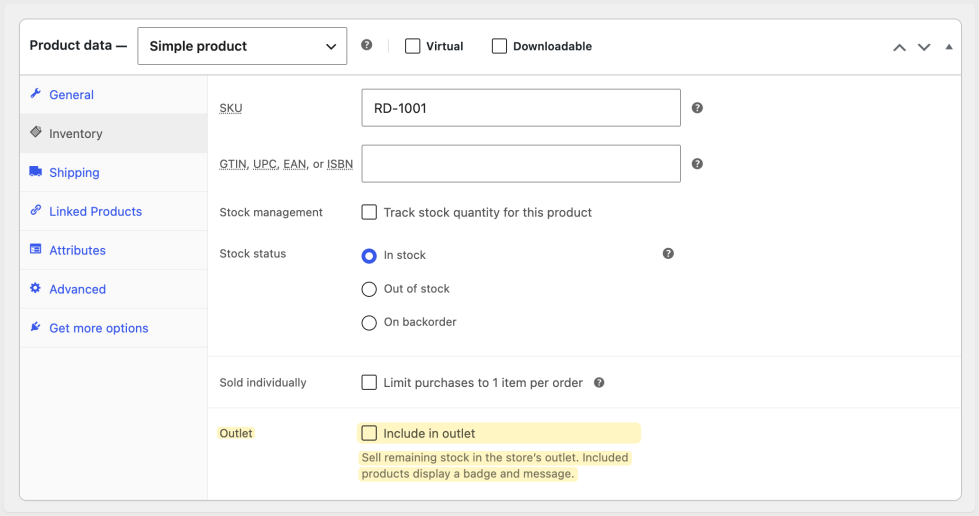
Tag multiple products in the store’s outlet with bulk edit
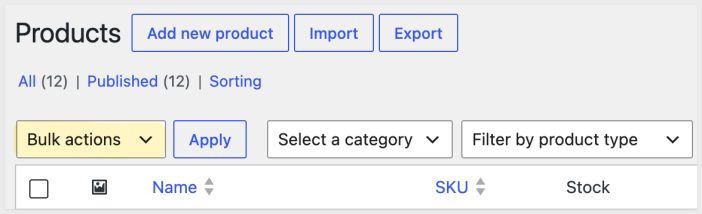
- In Products, use the checkboxes to select each of the products to be tagged.
- Select Bulk Actions → Bulk edit → Apply
- In the Bulk Edit panel, change the Outlet dropdown to Include.
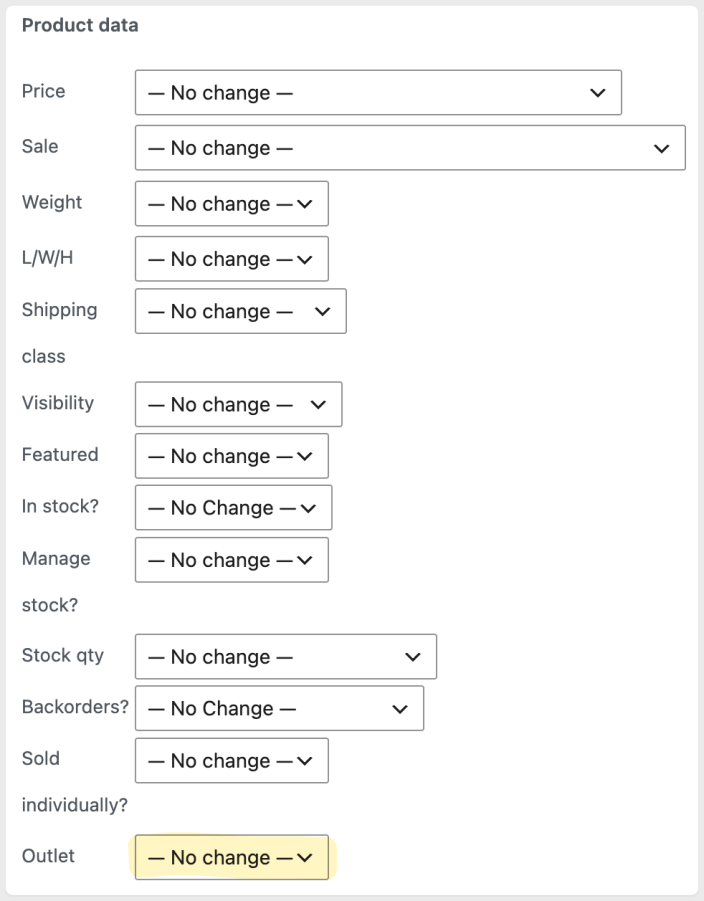
- Press Update
Publishing the Outlet Page
- In Pages, locate the page labelled “Outlet page” and click to edit it.
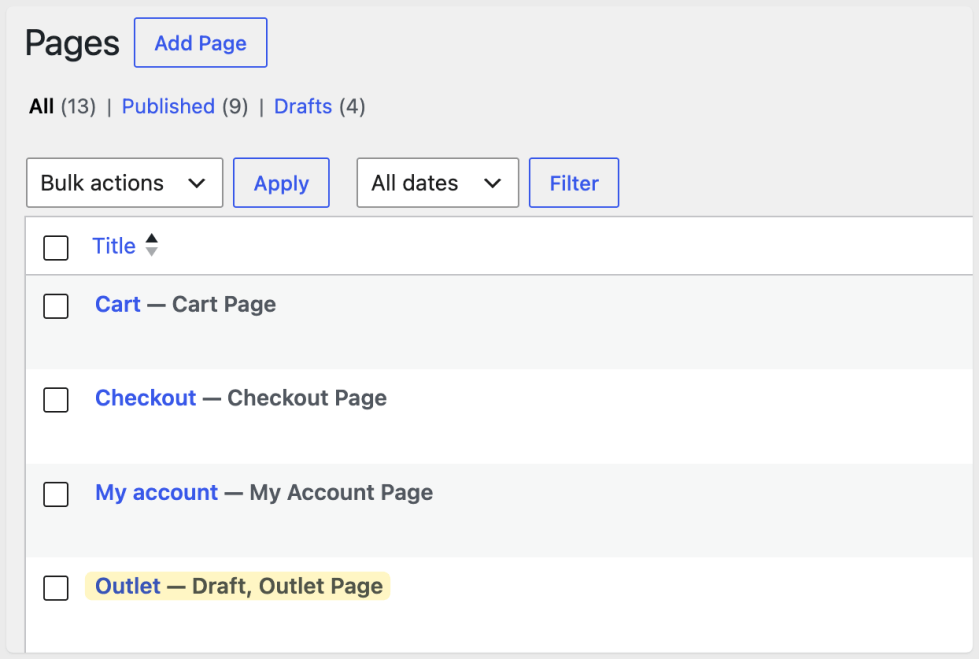
- If needed, change the name of the outlet by changing the page title and slug
- The page can be modified in any way supported by the WordPress page editor – add images, text, or anything else needed.
- Click Publish and follow the steps to publish the page.
Advanced configuration
↑ Back to topCustomizing the badge
The configuration method depends on whether the site has a block or classic theme active.
Block theme
- Open the site editor via Appearance → Editor
- Choose Templates → WooCommerce and select a template the badge appears on, such as:
- Page: Cart
- Page: Checkout
- Single Product
- From the 3-dots at the top-right corner, choose Outlet settings
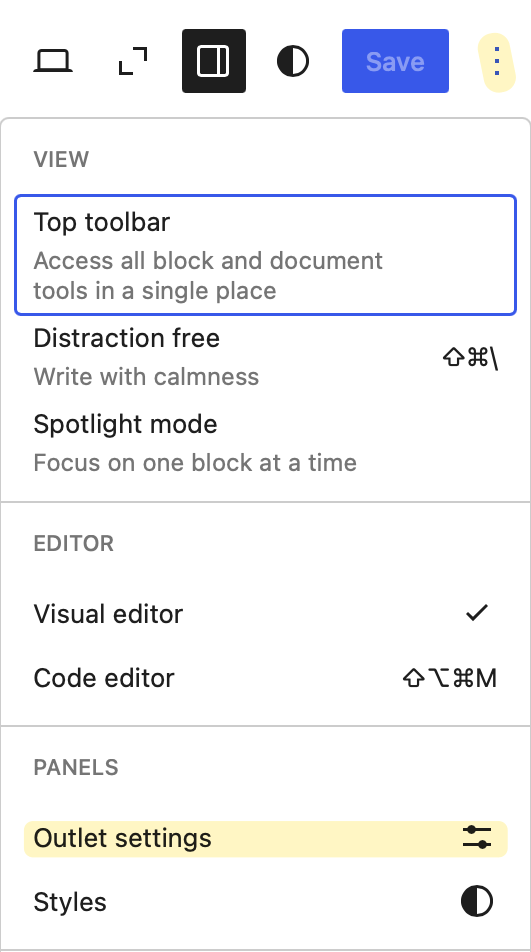
- Use the controls to change label text, colors, typography, dimensions, or border.
- The settings apply the badge across the site. Switch to another template in step 2 to preview the change elsewhere on the site.
- Press Save and follow the on-screen steps.
Classic theme
- Open the customizer via Appearance → Customize
- Choose WooCommerce → Outlet
- Change badge label, colours and scale
- Press Publish
Customizing the message
Like the badge, the method depends on whether the site has a block or classic theme installed.
Block theme
- Open the Outlet settings panel (see Customizing the badge) , and change the tab to Message.
- Change the message text.
- Press Save and follow the on-screen steps.
Classic theme
- Open the customizer via Appearance → Customize
- Choose WooCommerce → Outlet
- Change message text
- Press Publish
Usage
↑ Back to topOutlet Pro creates an outlet page with a badge and message on outlet products.
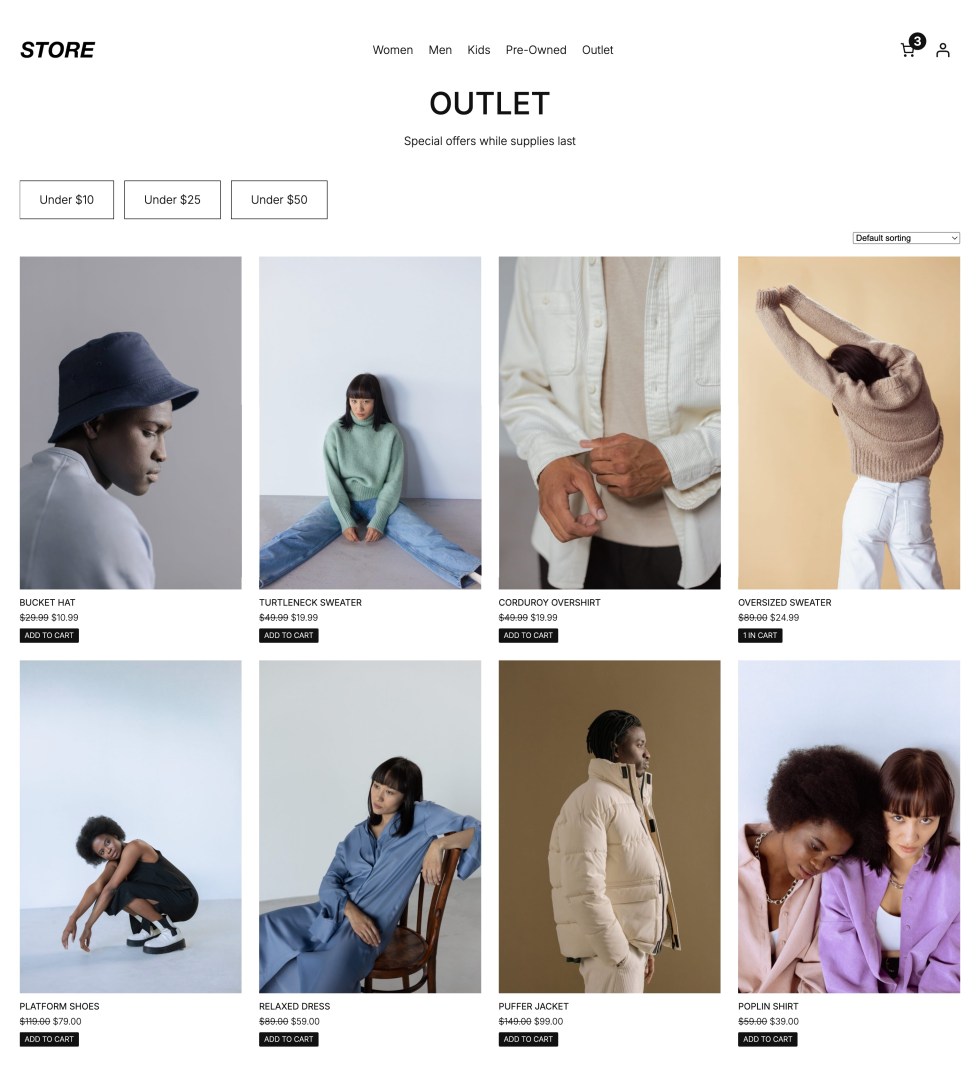
The outlet page displaying filters and all outlet products.
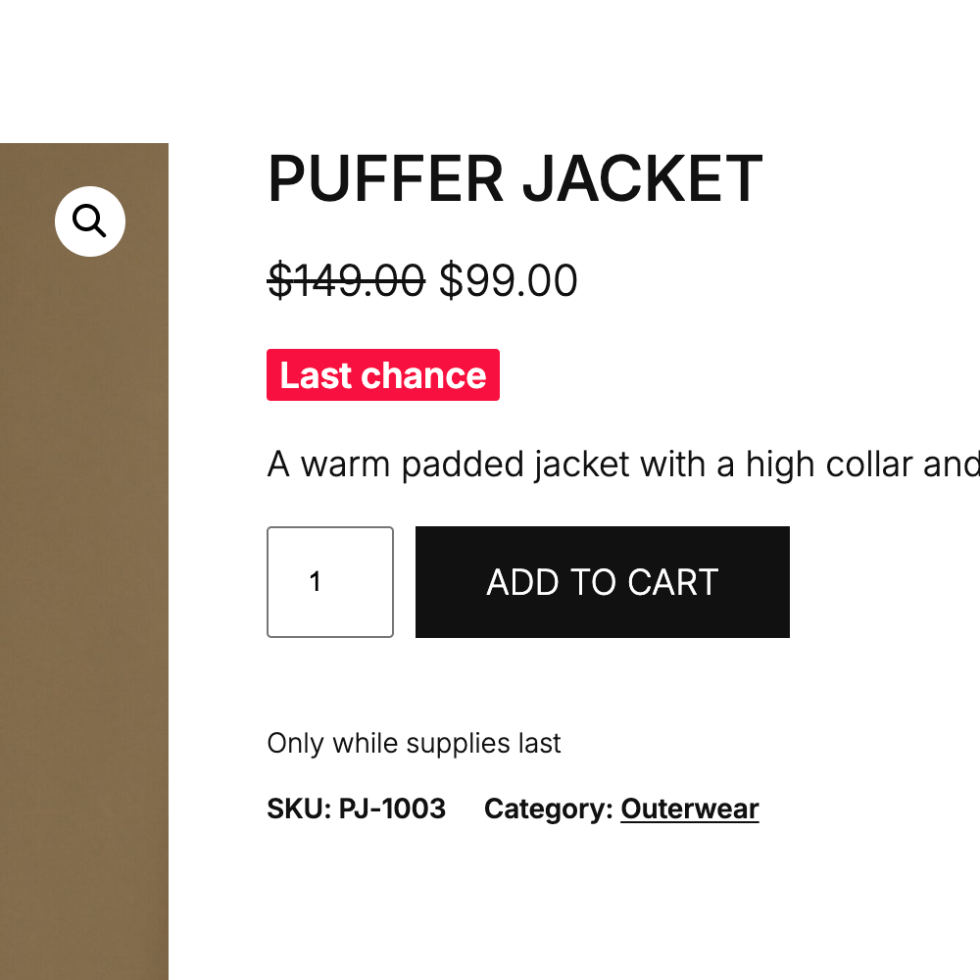
The badge (“Last chance“) and the message (“Only while supplies last”) shown in their default appearance.
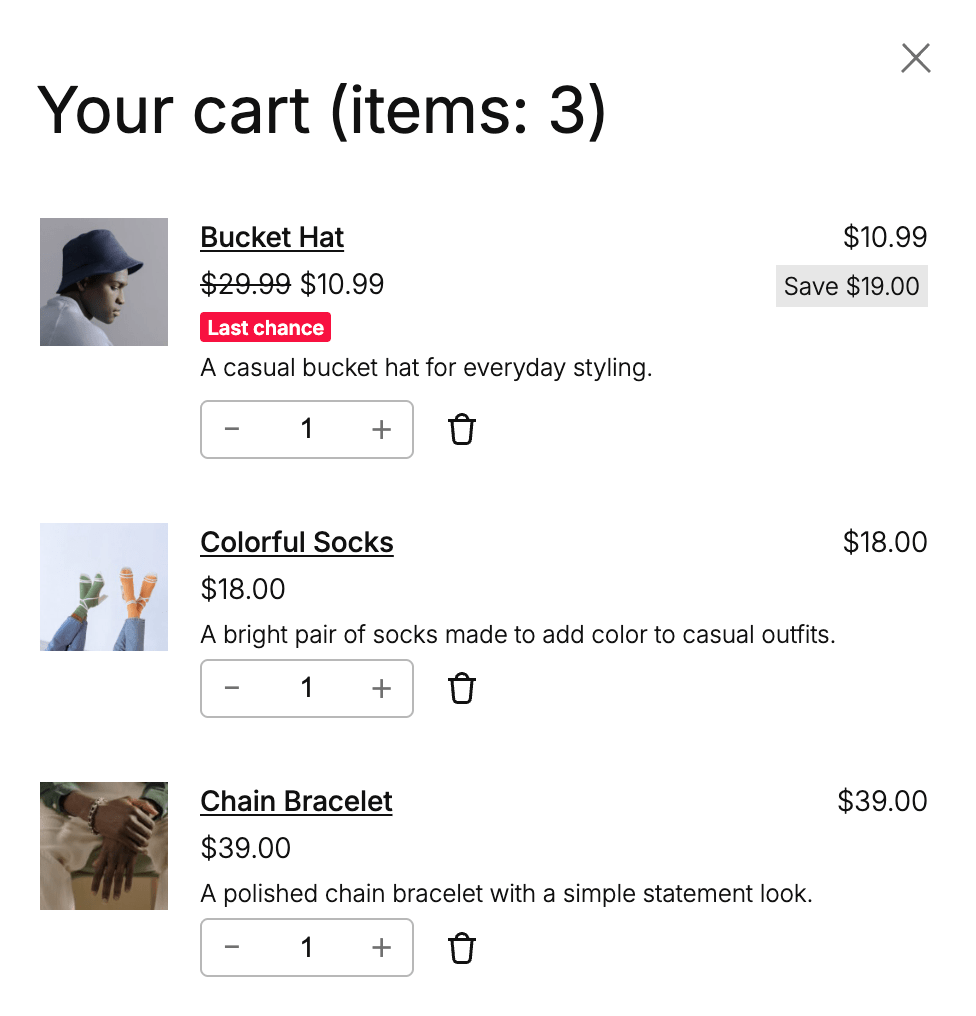
The badge also displays on the cart and checkout.
Troubleshooting
↑ Back to topRe-creating the outlet page
↑ Back to topThe outlet page can be re-created using the “Create outlet page” tool in WooCommerce > Status > Tools.
This can be helpful if the page was not created automatically, or no longer exists.
FAQs
↑ Back to topHelp customers by answering commonly asked questions.
What’s the difference between a sale and an outlet?
Outlet products are often discounted, but usually for a different reason. Outlets are a permanent destination for discontinued, end-of-season, or excess products until they sell out. Sales campaigns such as Black Friday often offer discounts across large sections of the store for a limited period of time. An outlet enables you to offer discounts all year round alongside your major sales campaigns.
Can I change the grid size on the outlet page?
Yes:
If a block theme is active, choose the Product Collection block and in the sidebar change the Products per page and Columns settings.
If a classic theme is active, change the limit and columns parameters for the [products] shortcode. answer goes here.
Can I regenerate the outlet page?
Yes:
If a block theme is active, choose the Product Collection block and in the sidebar change the Products per page and Columns settings.
If a classic theme is active, change the limit and columns parameters for the [products] shortcode. answer goes here.
Can I change the default sort order?
Yes:
Yes, delete the outlet page from Pages. Then navigate to Woocommerce → Status → Tools, and run the “Create outlet page” tool.

