
payabl. WooCommerce plugin lets you integrate your WordPress site in few easy clicks.
Pre-requisites:
↑ Back to top- You must have a WordPress site with WooCommerce plugin installed.
- You must have access to Admin account on the WordPress site.
Installation
↑ Back to topTo start using a product from WooCommerce.com, you can use the “Add to store” functionality on the order confirmation page or the My subscriptions section in your account.
- Navigate to My subscriptions.
- Find the Add to store button next to the product you’re planning to install.
- Follow the instructions on the screen, and the product will be automatically added to your store.
Alternative options and more information at:
Managing WooCommerce.com subscriptions.

Configuration
↑ Back to top- Navigate to WooCommerce Settings page
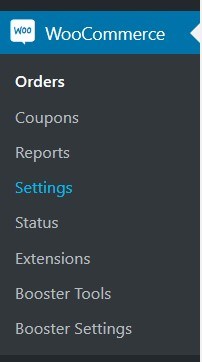
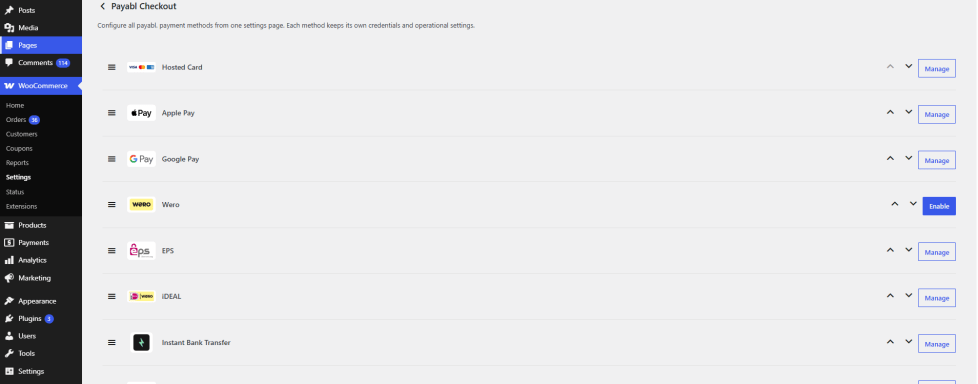
2. From Payments Tab choose all the payment channels from payabl. that you want to activate
3. Click on Manage on the individual payment channels and either enable Test Mode to test the payment channel or remove the checkbox and enter the live credentials that you received from our tech support team for Live transactions
Please note: You Production Merchant id is the 40-symbols long string which was provided in the account details PDF file sent to you by Technical support upon integration completion.
Our plugin also works well with Booster Tools like “Gateways by Country, State or Postcode” that can further improve customer payment experience by only showing payment channels relevant to their area.
FAQs
↑ Back to topHelp customers by answering commonly asked questions.
3DS notifications not showing up.
If your site is trying to detect language, then might be trying to do a 302 redirect to the detected language. This can result in POST request to your site to fail. We can take the default language of your site to tweak the notification URL on our side when this is detected.
From:https://<shop.hostname>/wc-api/WC_Gateway_powercash21/
To:https://<shop.hostname>/en/wc-api/WC_Gateway_powercash21/
Where do I find Merchant ID or Live credentials
Your Production Merchant ID (a 40-character string) and live credentials are provided in the account details PDF sent to you by our Technical Support team once your integration is completed. If you haven’t received this file, or can’t locate it, please contact Technical Support and they’ll resend your account details.
How do I process a refund directly from WooCommerce?
The payabl. WooCommerce plugin supports refunds directly from your WooCommerce dashboard — you no longer need to log into a separate portal to process them. Simply locate the relevant order in WooCommerce and issue the refund from there; it will be processed through payabl. automatically.

