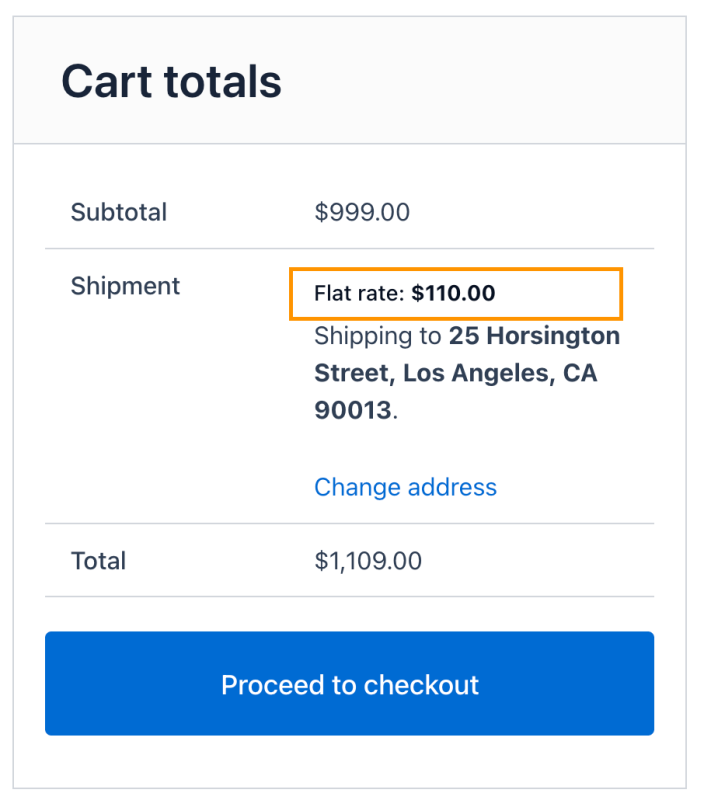
PH Hide Shipping Methods & Rate Adjustment for WooCommerce plugin lets you conditionally show/hide shipping methods and adjust the shipping cost using different control options. This plugin conditionally hides the shipping method and adjusts the shipping cost with respect to the fixed value or percentage value. Multiple options can be provided as a parameter to set rules for hiding/showing shipping methods and adjust the cost of shipment.
Installation
↑ Back to topTo start using a product from WooCommerce.com, you can use the “Add to store” functionality on the order confirmation page or the My subscriptions section in your account.
- Navigate to My subscriptions.
- Find the Add to store button next to the product you’re planning to install.
- Follow the instructions on the screen, and the product will be automatically added to your store.
Alternative options and more information at:
Managing WooCommerce.com subscriptions.
Setup and Configuration
↑ Back to topLet’s get into the specifics of how the plugin lets you use multiple parameters to create rules.
Access to Plugin Settings
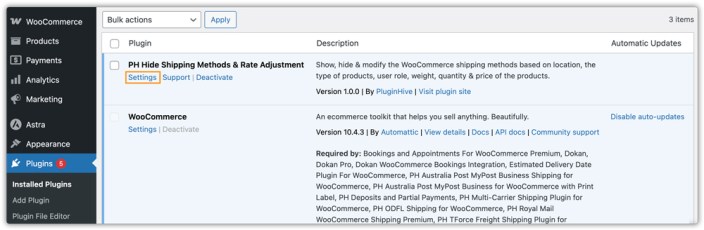
↑ Back to topAfter the installation and activation of the plugin, visit the plugin settings by going to Plugins> Installed Plugins> PH Hide Shipping Methods & Rate Adjustment > Settings
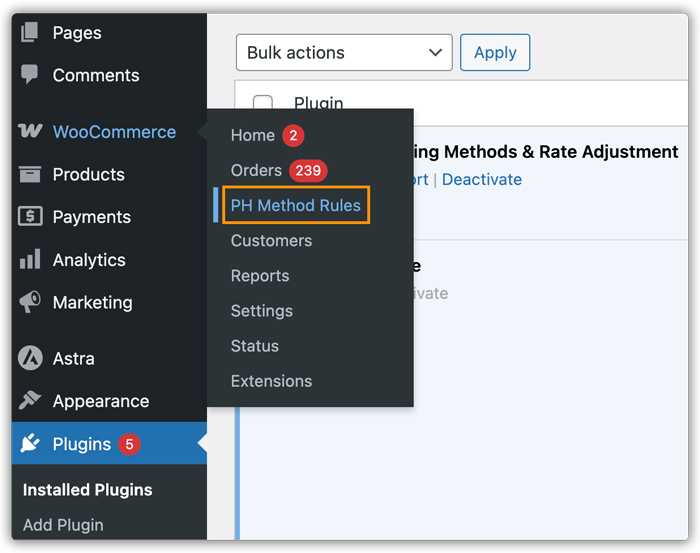
Or, go to WooCommerce > Settings > PH Method Rules
The PH Hide Shipping Methods & Rate Adjustment for WooCommerce plugin functionality can be divided into two sections,
- Displaying and Hiding the WooCommerce Shipping Methods based on certain parameters
- Modifying the Shipping Rates based on certain parameters
General Plugin Settings
↑ Back to topThe plugin’s General settings include the following options.
- Enable: Tick the checkbox to enable hiding shipping rules.
- Debug Mode: If you are not getting proper rates (lesser or higher than expected), all the available shipping options, or no rates at all, enable the Debug option to find the error(s). You can also see the warning(s) from the plugin.
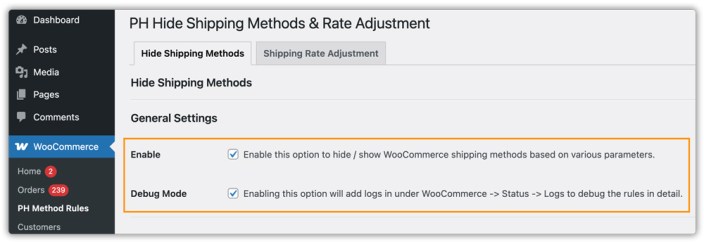
By enabling debug mode, you can trace issues using the log. See information about debugging at the top of the Cart and Checkout page. After enabling debug mode, add a product to the cart. Go to the cart or checkout page to see the debugging information.
Hide WooCommerce Shipping Methods
↑ Back to topPH Hide WooCommerce Shipping Methods & Rate Adjustment allows you to hide/show WooCommerce default shipping methods, as well as third-party shipping plugins, in your WooCommerce store. This plugin conditionally hides shipping methods on the cart page and specific shipping options. The plugin offers some useful parameters, using which you can hide/show shipping methods on the cart page. Based on the parameters configured, the shipping methods will be hidden/shown on the cart and checkout pages.
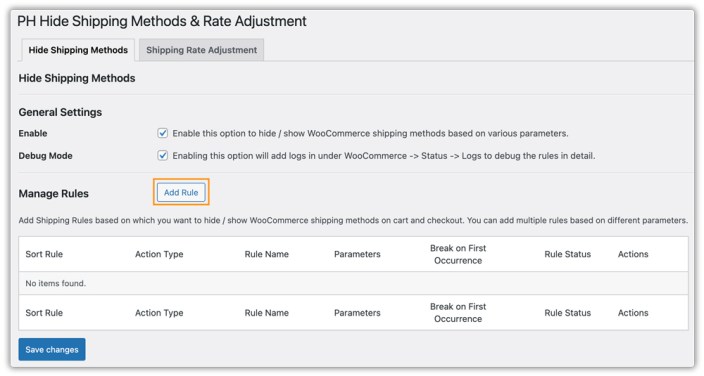
To set up a rule, go to the Hide Shipping Method Tab, click on the Add Rule button on the settings page.
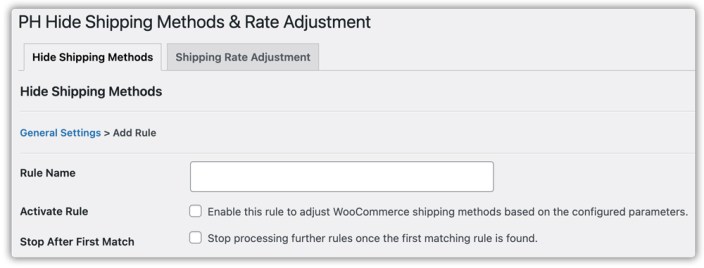
In the Add Rule page, set the following options,
- Rule name: You can set the name for the shipping rule in this option. It is completely optional.
- Activate rule: Enable this option to hide/show WooCommerce shipping methods based on various parameters.
- Stop After First Match: Suppose you have created multiple rules in the plugin. Now, if the first rule is satisfied, then the plugin will no longer check the other rules. So if you have framed 3 rules that hide shipping methods “FedEx Ground”, ” FedEx 2 Day”, “FedEx Express”, then in this case, only “FedEx Ground” will be hidden as this rule is satisfied first.
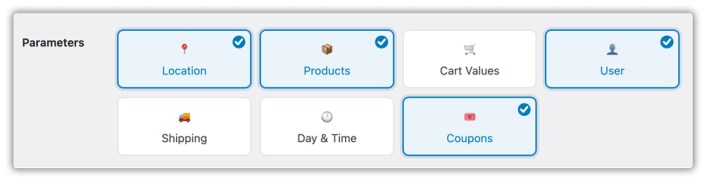
Enable the parameters you want to set up under the option ‘Parameters.’
After enabling the filters, you can add Conditions to hide/show the shipping method. The parameter settings are as shown below.
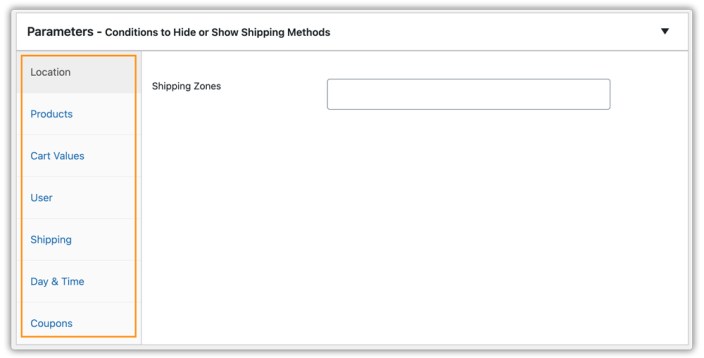
The plugin supports the following parameters, based on which you can display or hide the shipping methods on the WooCommerce cart and checkout page.
- Locations: Based on the shipping zone created in WooCommerce, you can hide/show the shipping services on the checkout page
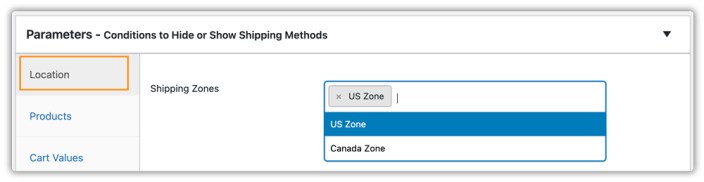
- Products: Based on the shipping class and product categories, you can hide or show the shipping method on the cart page
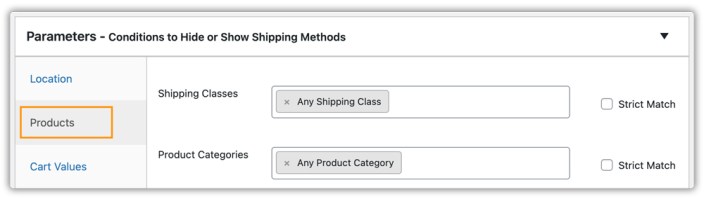
- Cart value: You can create a rule to hide/show the shipping method on the checkout page based on the subtotal, total quantity, and total weight of the product on the cart page
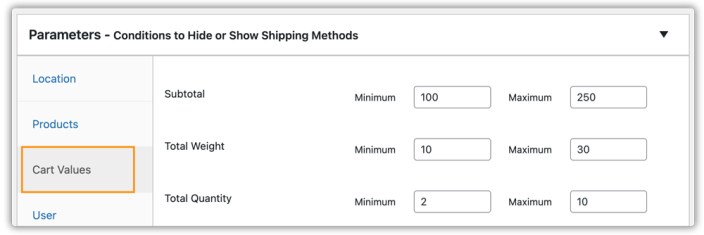
- User: Select the desired WordPress User Roles for whom you want to hide shipping methods. You can select one or more user roles
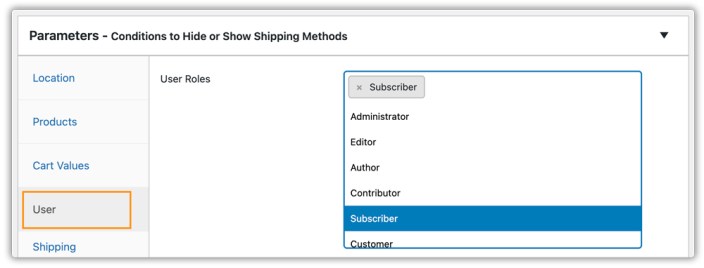
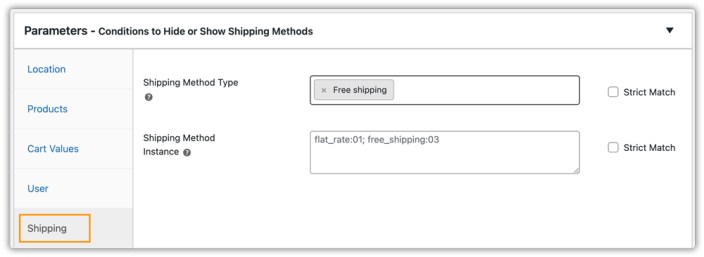
- Shipping: This option allows you to hide shipping methods based on different shipping methods.
- Shipping method: If you want to filter a specific shipping method from your premium shipping method(s), you can add the HTML value of the desired shipping method. You can add multiple methods by separating them with semicolons (;).
- Shipping Service: Here, you can add specific shipping carrier / free shipping,/Local pickup as a parameter.
- Strict Match: After enabling this option, the shipping rule with one or more shipping services/ shipping methods can be created. And the rule gets applied only when both shipping services/shipping methods are available on the cart page.
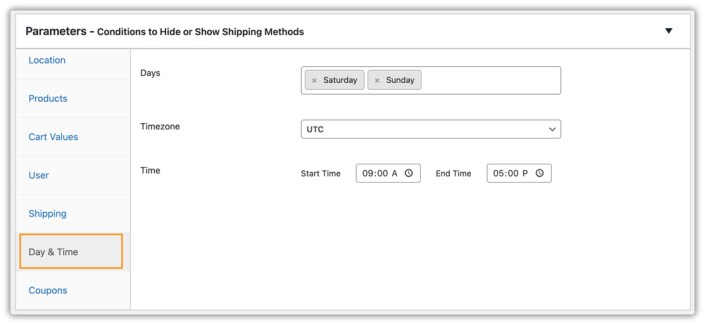
- Day & Time: This option allows you to hide shipping methods based on different time measures, like
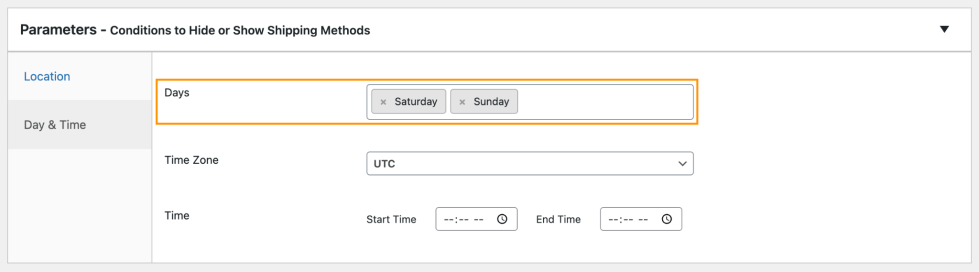
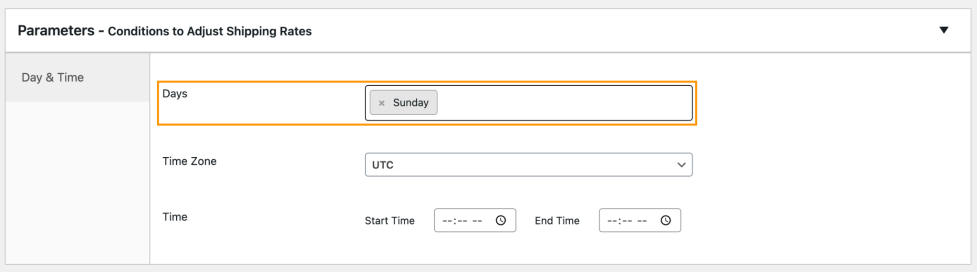
- Days: Here, you can select a specific day or multiple days
- Time zone: Here you can choose between UTC or WordPress time zone
- Time: Here you can set the start time and the end time
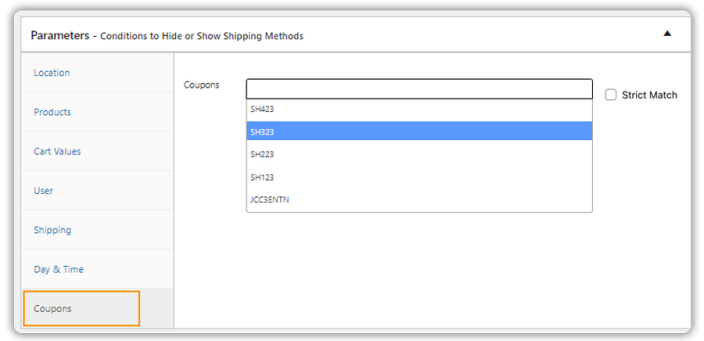
- Coupons: Using this option, you can hide/ show shipping methods based on a coupon code. You can select a coupon code from the drop-down list.
After setting up the parameters, you can add the action to be taken based on the parameters. This option includes,
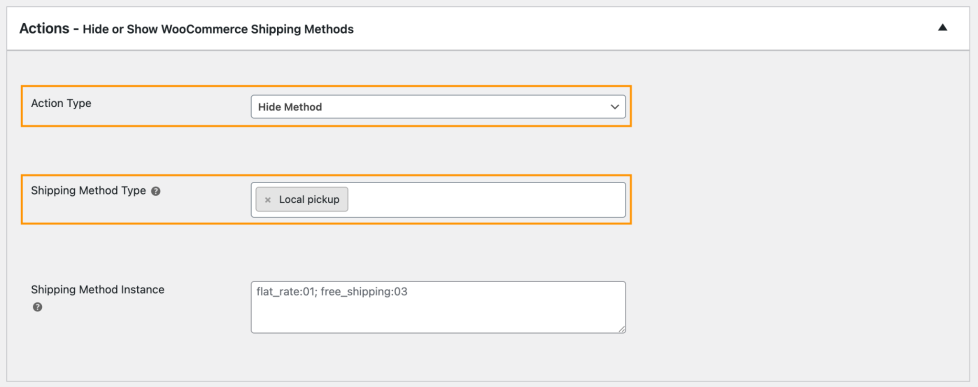
- Action Type: You can select the Hide Method or the Show Method as the action type
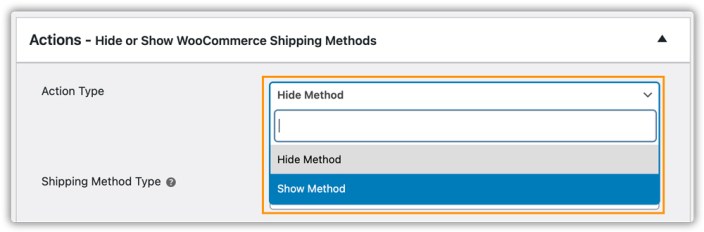
- Shipping Method Type: You can select shipping services from the drop-down list here.
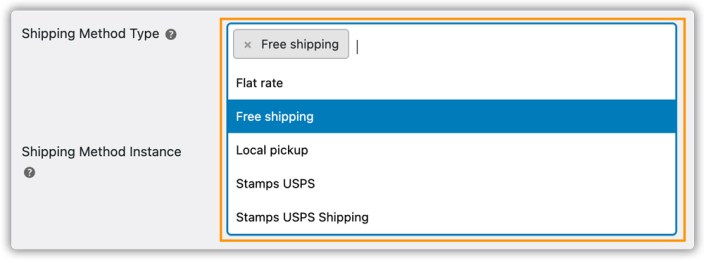
- Shipping Method Instance: If you want to set rules for a specific shipping method, you can add an HTML value of that shipping method here

Rate Adjustment for WooCommerce Shipping Methods
↑ Back to topThe PH Hide Shipping Methods & Rate Adjustment for WooCommerce offers some useful parameters, using which you can adjust the shipping cost. Based on the parameters configured, shipping costs can be adjusted with a fixed or a percentage value.
To set up a rule, go to the Shipping Rate Adjustment tab, click on the Add Rule button on the settings page.
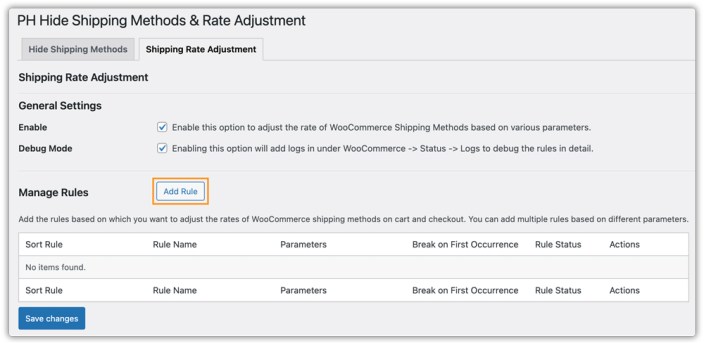
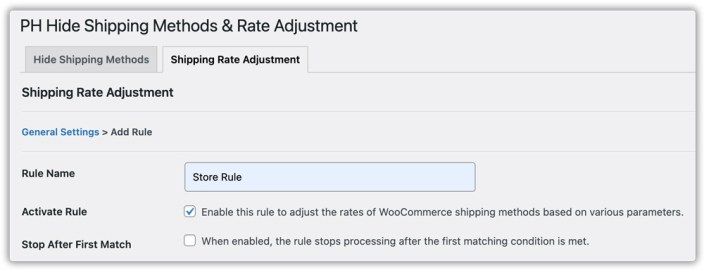
In the ‘Add Rule’ page, set the following options,
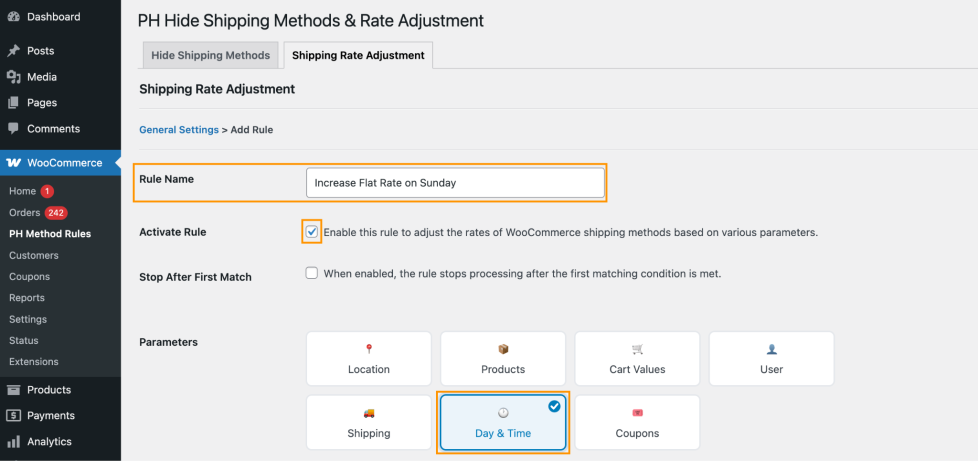
- Rule name: You can set the name for the rate adjustment rule using this option. It is completely optional.
- Activate rule: Enable this option to adjust the rates of WooCommerce shipping methods based on various parameters.
- Stop After First Match: Suppose you have created multiple rules in the plugin and enabled this option. Then, if the first rule is satisfied, the plugin will no longer check the other rules.
Enable the parameters you want to set up under the option ‘Parameters’.
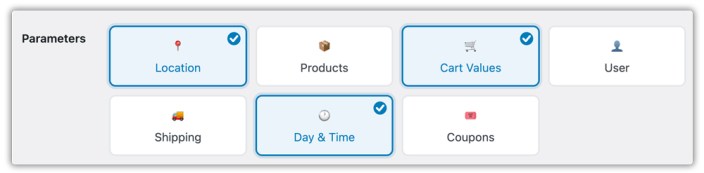
After enabling the filters, you can add Conditions to adjust rates. The parameter settings are as shown below.
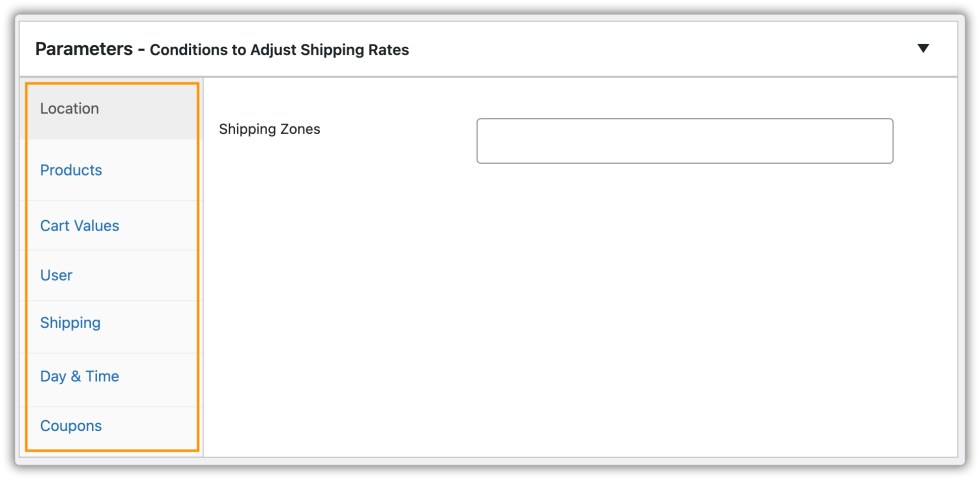
The plugin supports the following parameters, based on which you can adjust the shipping methods and either increase the cost or decrease it on the WooCommerce cart and checkout page.
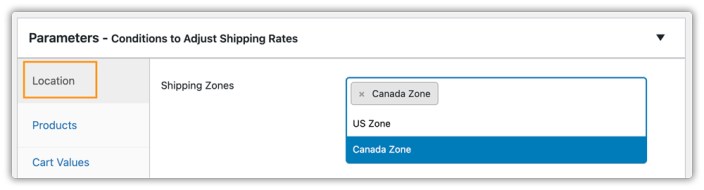
- Locations: Based on the shipping zone created in the WooCommerce shipping settings, you can adjust the shipping cost shown on the checkout.
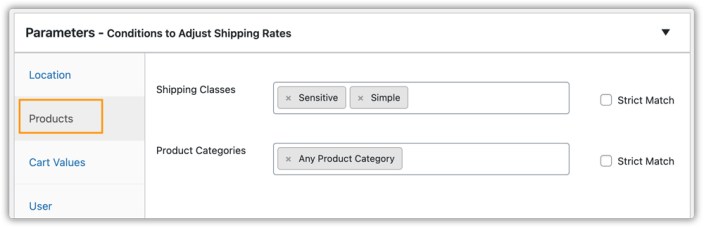
- Products: Based on the shipping class and product categories, you can adjust the shipping cost shown on the checkout.
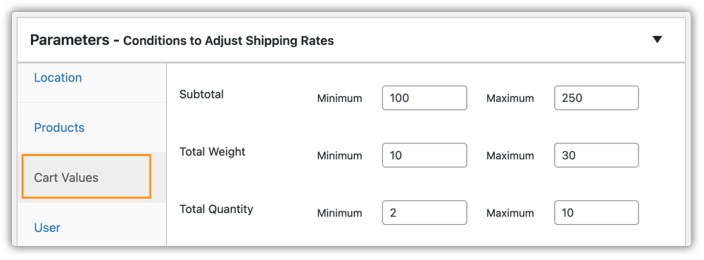
- Cart Value: You can create a rule to adjust the shipping cost shown on the checkout page based on the subtotal, total quantity, and total weight of the product on the cart page
- User: Select the desired WordPress User Roles for whom you want to set rules to adjust the shipping rate. You can select one or more user roles.
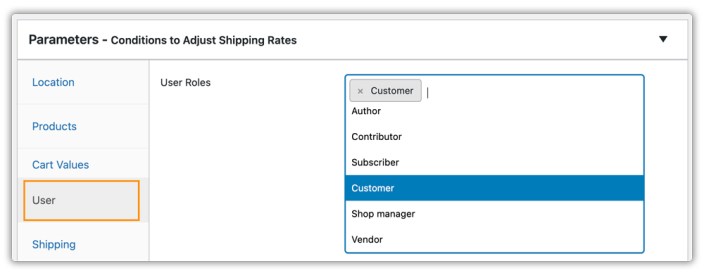
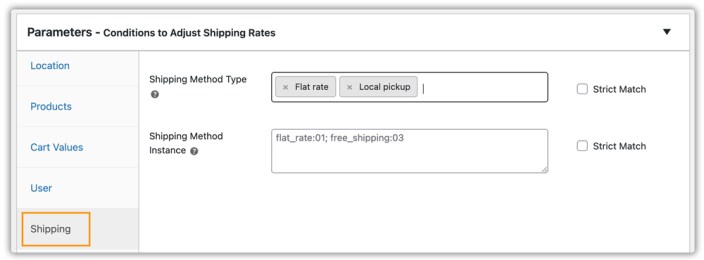
- Shipping: This option allows you to adjust shipping rates based on different shipping methods.
- Shipping method: If you want to filter a specific shipping method from your premium shipping method(s), you can add the HTML value of the desired shipping method. You can add multiple methods by separating them with semicolons (;).
- Shipping Service: Here, you can add a specific shipping carrier / free shipping/local pickup as a parameter.
- Strict Match: After enabling this option, the shipping rule with one or more shipping services/ shipping methods can be created. And the rate adjustment rule gets applied only when both shipping services/shipping methods are available on the cart page.
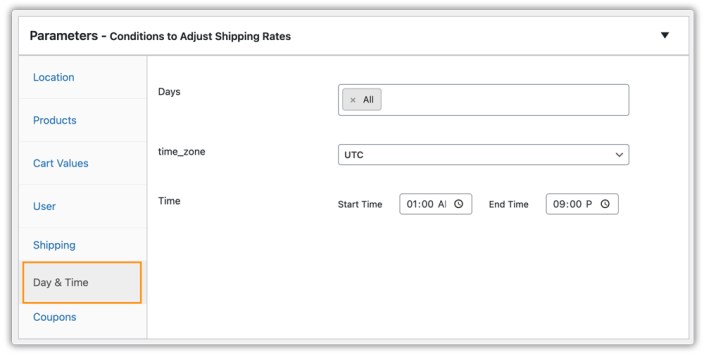
- Day & Time: This method allows you to adjust shipping costs based on different time measures.
- Days: Here, you can select a specific day or multiple days
- Time zone: Here you can choose between UTC or WordPress time zone
- Time: Here you can set the start time and the end time
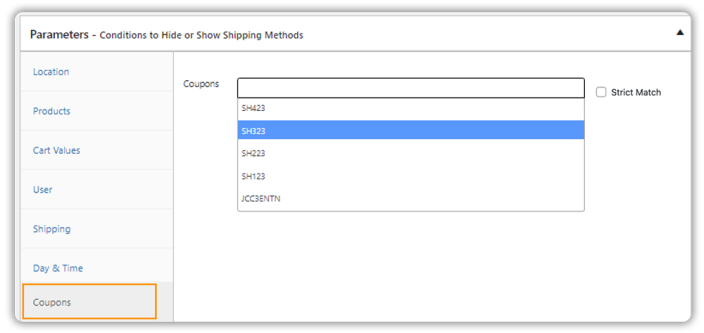
- Coupons: Using this option, you can adjust shipping costs based on a coupon code. You can select a coupon code from the drop-down list.
After setting up the parameters, you can add the action to be taken based on the parameters. This option includes,
Shipping Method Type:
- You can select shipping services from the drop-down list here.
- Then you can adjust the shipping cost with respect to the percentage value or a fixed value.
- If you want to decrease the shipping cost, add the ‘-’ sign along with the value you are given to adjust.

Shipping Method Instance:
- If you want to set rules for a specific shipping method, you can add an HTML value of that shipping method here.
- Then adjust the shipping cost with respect to the percentage value or fixed value.
- If you want to decrease the shipping cost, add the ‘-’ sign along with the value you are given to adjust.

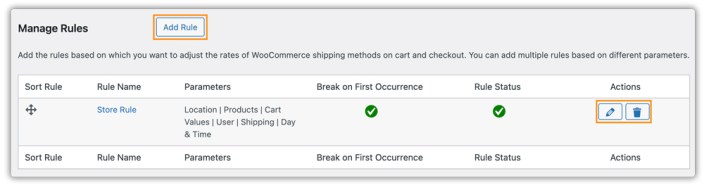
After you set up all the details for a rule, you can view all your rules under the Manage Rules section in General Settings.
From there:
- To add a new rule, click Add Rule.
- To edit or modify an existing rule, click the Edit icon in the corresponding rule row, as shown in the image.
- To delete a rule, simply click the Delete icon.
Usage
↑ Back to topBusiness Case 1: Hide Local Pickup Based on Location and Day
WooCommerce shipping zones let you assign methods to regions, but they can’t conditionally hide methods based on the day of the week. If your store offers Local Pickup only on weekdays, you don’t want customers selecting it over the weekend and showing up to collect an order that isn’t ready.
Example: Customers in the US Zone ordering on Saturday or Sunday → Hide Local Pickup
To configure this:
Go to WooCommerce → Settings → PH Method Rules → Hide Shipping Method Tab and click Add Rule.
- Rule Name: Hide Local Pickup on Weekends for US Customers
- Activate Rule: Enable
- Parameters: Locations and Day & Time
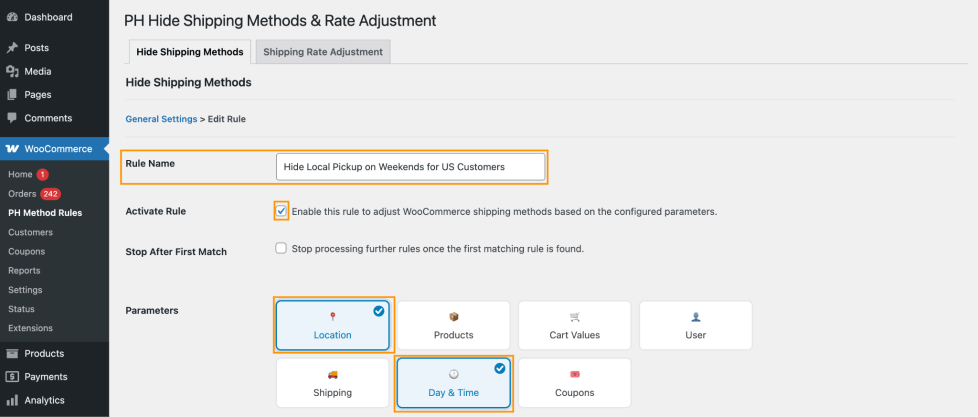
- Locations → Select US Zone (make sure you have already created with assigned shipping methods)

- Days → Select Saturday, Sunday
- Action Type: Hide Method
- Shipping Method Type: Local Pickup
Result: US customers placing orders on weekdays see Local Pickup as usual. But on weekends, Local Pickup is automatically hidden and only Flat Rate or Free Shipping is available at checkout.
Below is the order placed on Saturday.
Business Case 2: Hide Free Shipping for Fragile or Sensitive Products (Product)
↑ Back to topSensitive or fragile items often need special packaging and handling, which adds extra cost. Offering Free Shipping for such products can lead to losses, so it’s better to restrict it.
Example: Cart contains a product from the “Sensitive” shipping class → Hide Free Shipping
To configure this, go to WooCommerce → Settings → PH Method Rules → Hide Shipping Method Tab → Add Rule
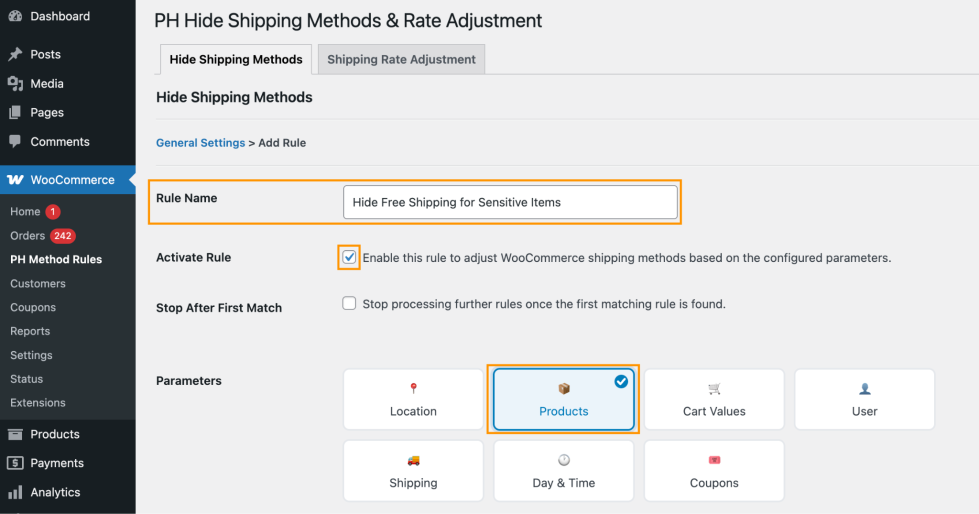
- Rule Name: Hide Free Shipping for Sensitive Items
- Activate Rule: Enable
- Parameter: Products
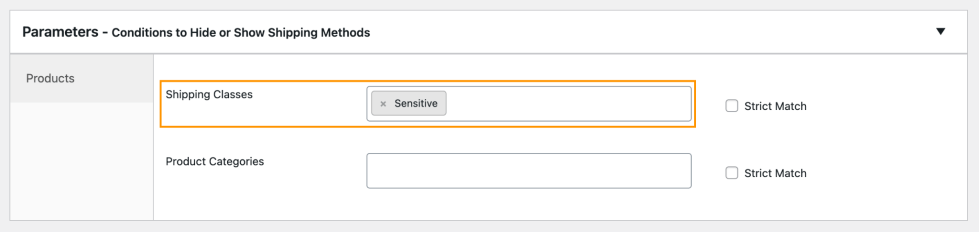
- Shipping Class → Sensitive
- You can choose from a product category if your products are grouped as fragile or sensitive, and simple
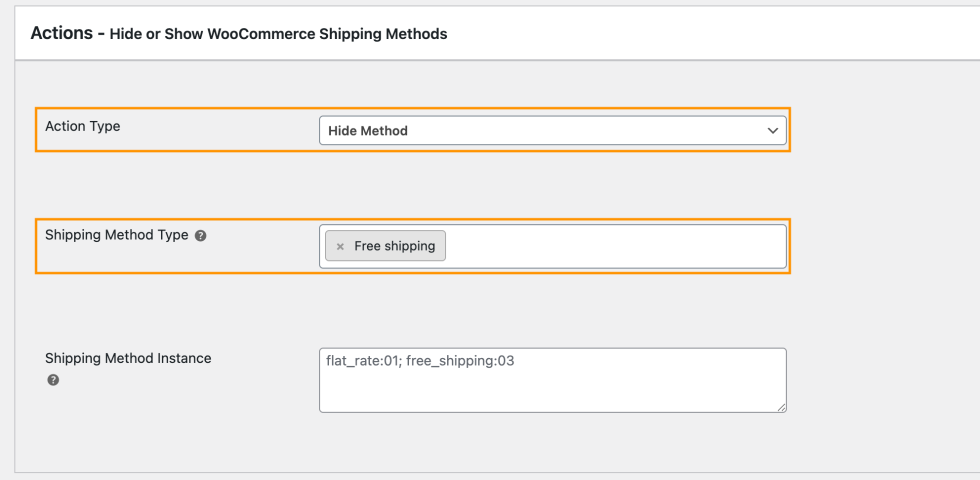
- Action Type: Hide Method
- Shipping Method Type: Free Shipping
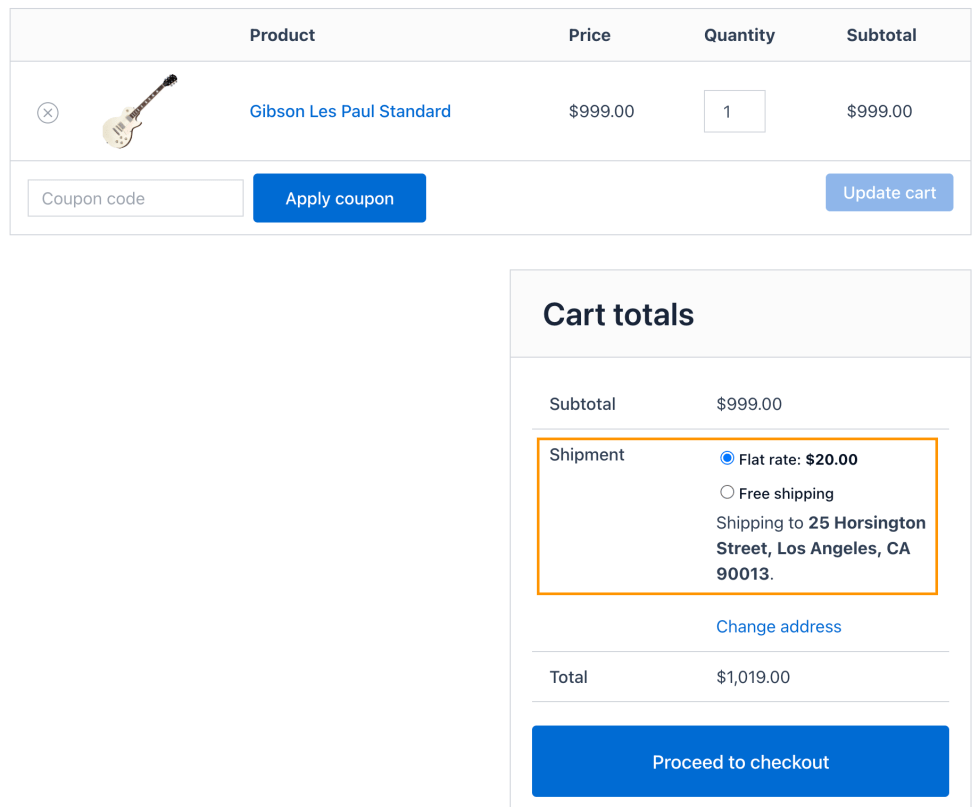
Result: When a sensitive product is added to the cart, Free Shipping is removed from the checkout page. Customers will only see paid shipping options (like Flat Rate or others), ensuring the extra handling cost is covered.
Business Case 3: Hide Free Shipping for Low Value Orders (Cart Value)
↑ Back to topFree Shipping is a great incentive, but offering it on every order regardless of cart value affects your margins. Hiding it below a certain subtotal encourages customers to add more items to qualify.
Example: Cart subtotal below $1000 → Hide Free Shipping
To configure this, go to WooCommerce → Settings → PH Method Rules → Hide Shipping Method Tab and click Add Rule.
- Rule Name: Hide Free Shipping Below $1000
- Activate Rule: Enable
- Parameter: Cart Value
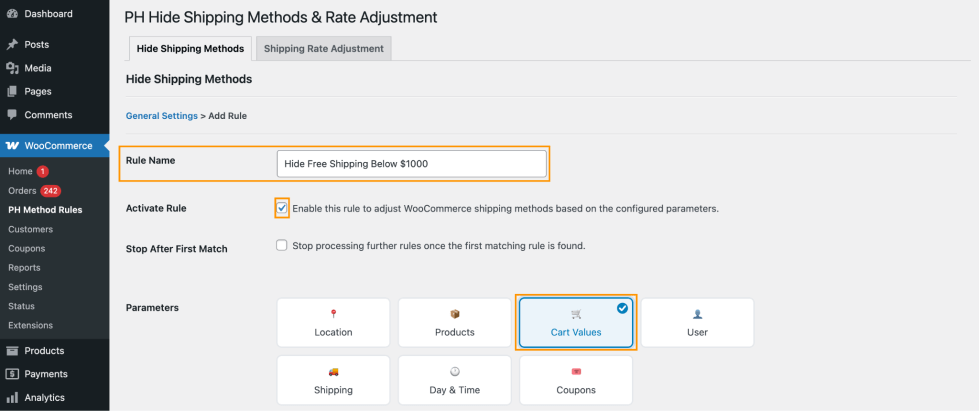
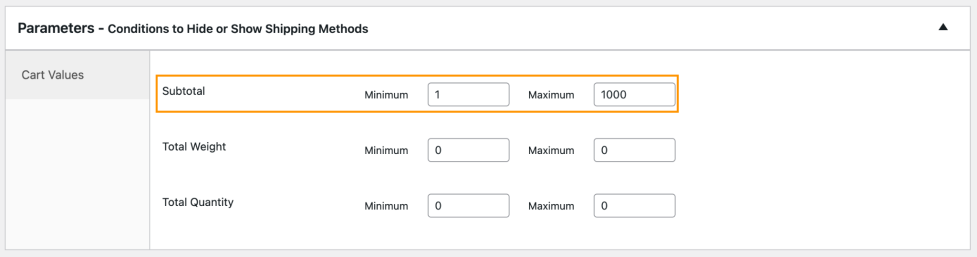
- Subtotal → Minimum 1 and Maximum 1000
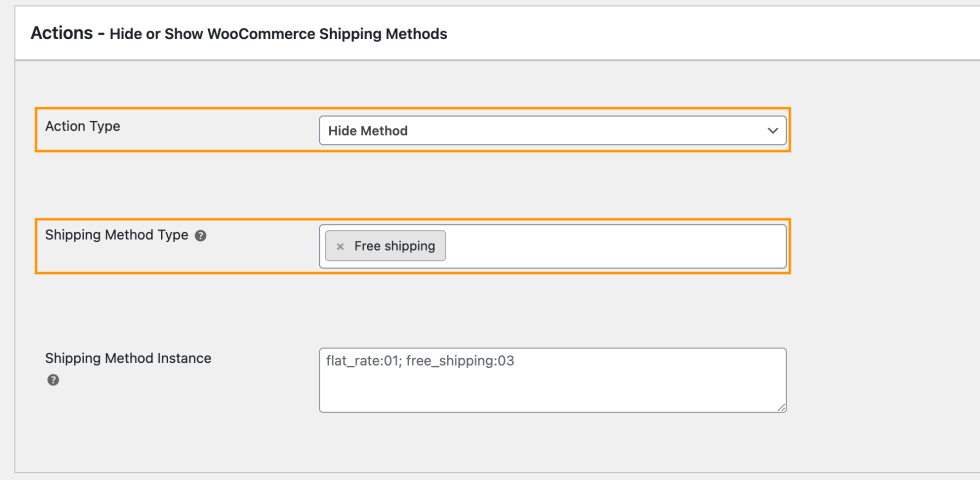
- Action Type: Hide Method
- Shipping Method Type: Free Shipping
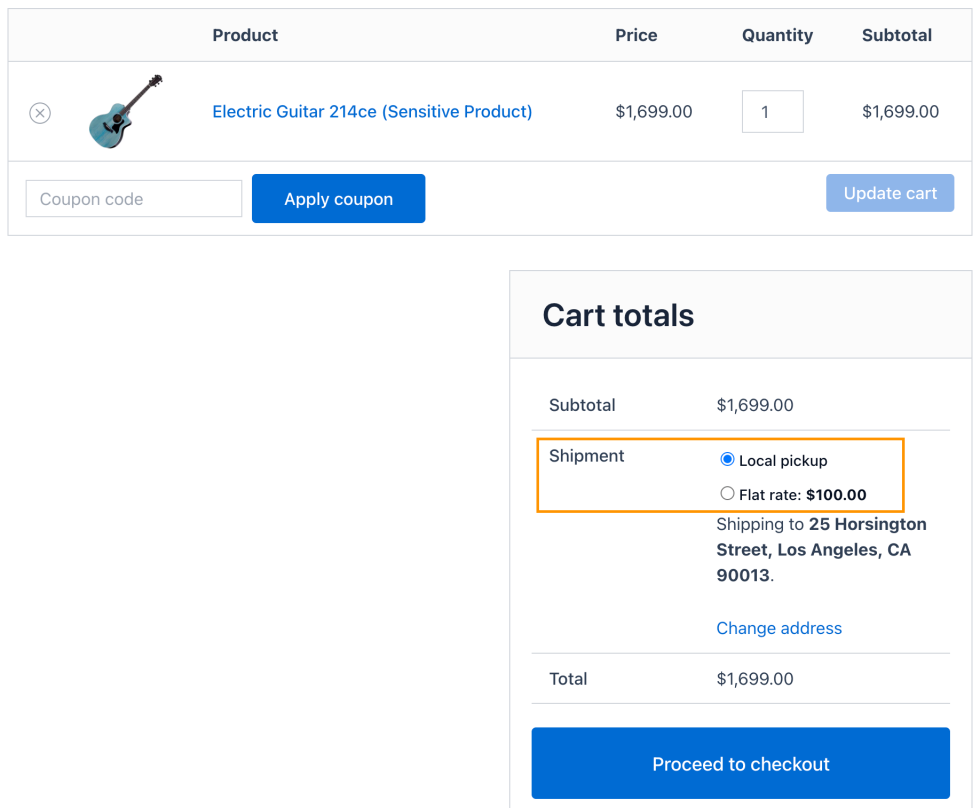
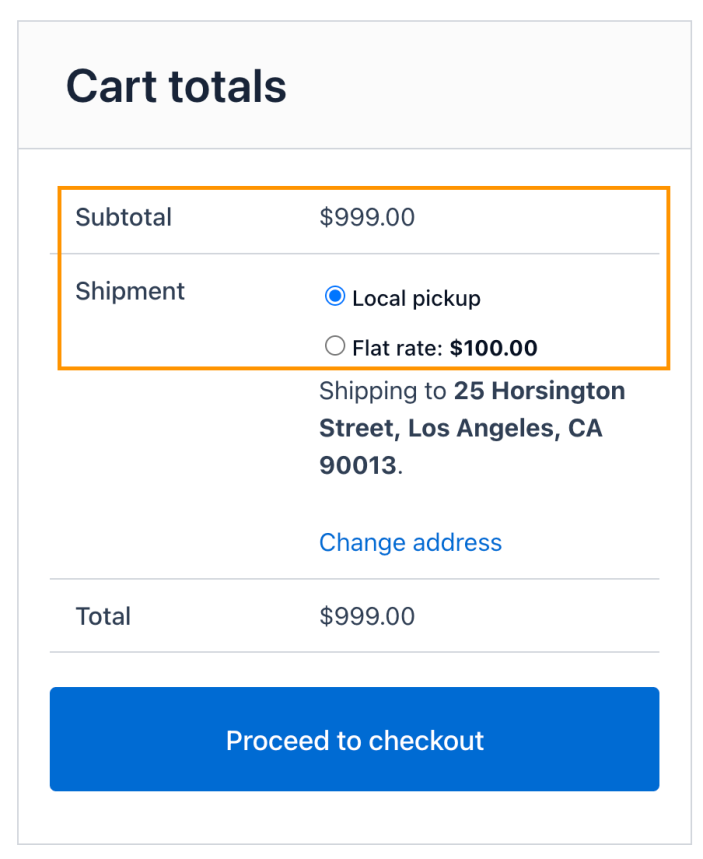
Result: Customers with a cart below $1000 only see Flat Rate and Local Pickup at checkout.
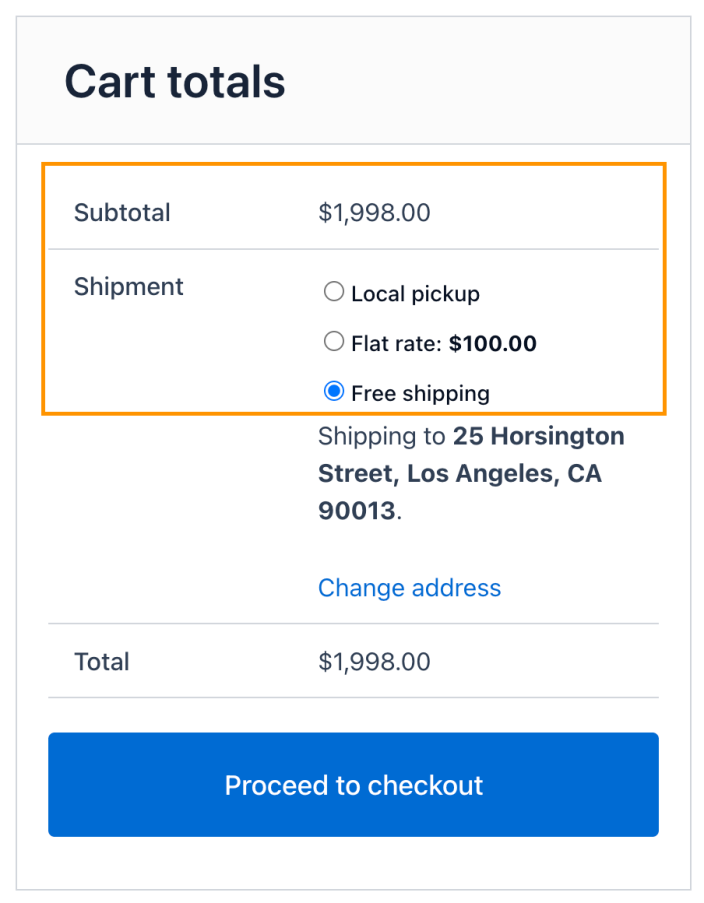
Once the cart value exceeds $1000, they get to see free shipping options.
Business Case 4: Hide Free Shipping When Flat Rate is Available (Shipping)
↑ Back to topIn some setups, you may want to prioritize Flat Rate over Free Shipping, especially if Free Shipping is conditionally triggered but not ideal for all orders. Hiding it when Flat Rate is available keeps the checkout controlled and avoids revenue loss.
Example: Flat Rate is available at checkout → Hide Free Shipping
To configure this:
Go to WooCommerce → Settings → PH Method Rules → Hide Shipping Method → Add Rule
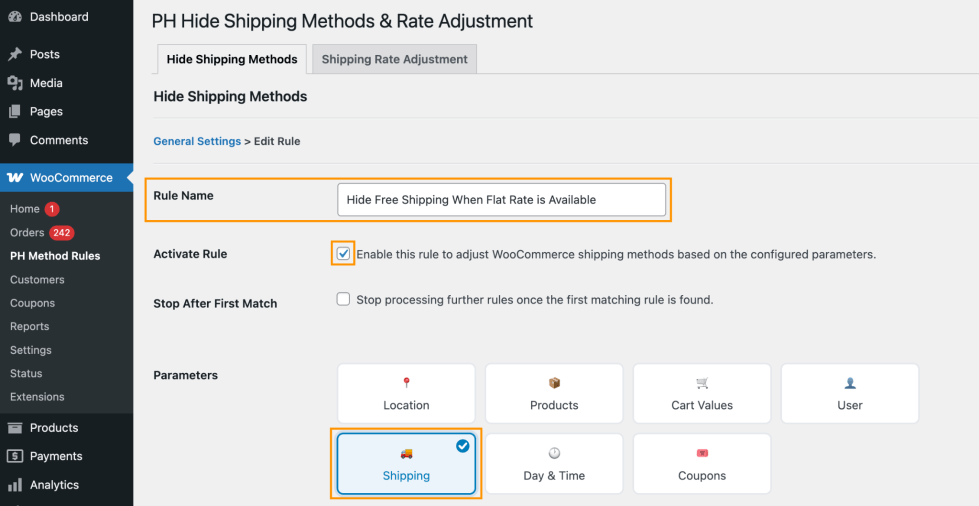
- Rule Name: Hide Free Shipping When Flat Rate is Available
- Activate Rule: Enable
- Parameter: Shipping
- Shipping Service → Flat Rate
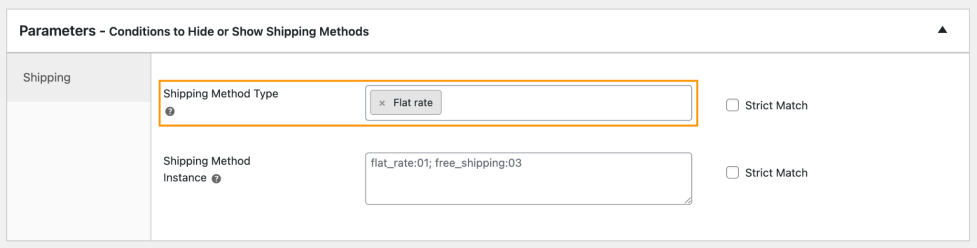
- Action Type: Hide Method
- Shipping Method Type: Free Shipping
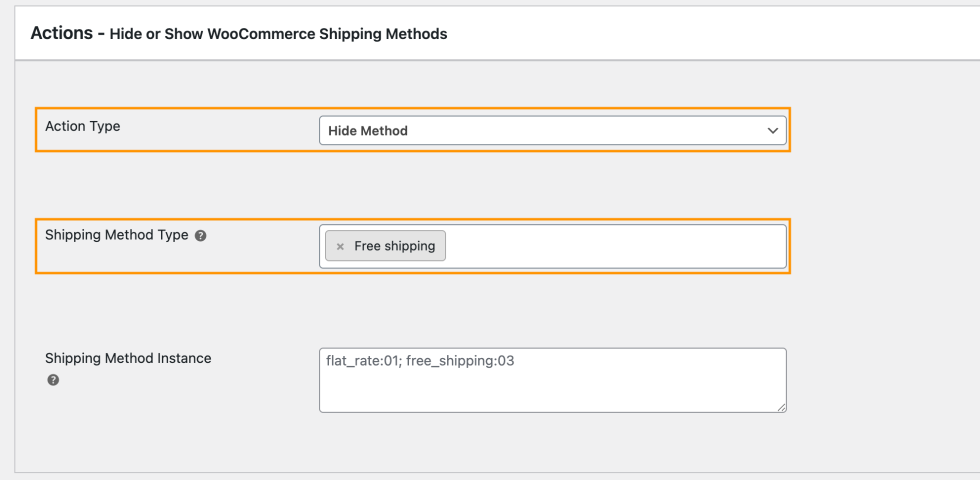
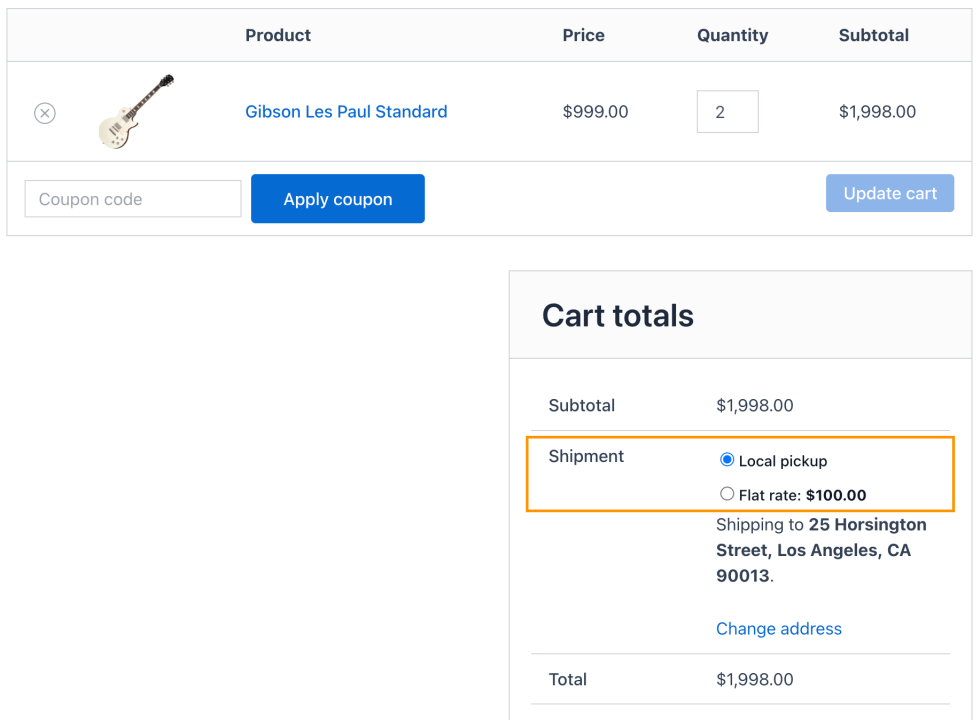
Result: Whenever Flat Rate is available at checkout, Free Shipping is automatically hidden. Customers will only see Flat Rate (and other applicable methods like Local Pickup), ensuring your preferred shipping option is prioritized.
Business Case 5: Increase Shipping Cost During Peak Days
↑ Back to topDuring weekends, especially on Sunday, delivery demand is higher, and shipping costs go up. Instead of manually updating your shipping rates every week, you can automatically increase the Flat Rate shipping cost on Sunday using the Rate Adjustment feature.
Example: Orders placed on Sunday → Increase Flat Rate by $10
To configure this:
Go to WooCommerce → Settings → PH Method Rules → Shipping Rate Adjustment Tab and click Add Rule.
- Rule Name: Increase Flat Rate on Weekends
- Activate Rule: Enable
- Parameter: Day & Time
- Days → Select Sunday
- Shipping Method Type: Flat Rate
- Adjustment: Fixed Value → +$10
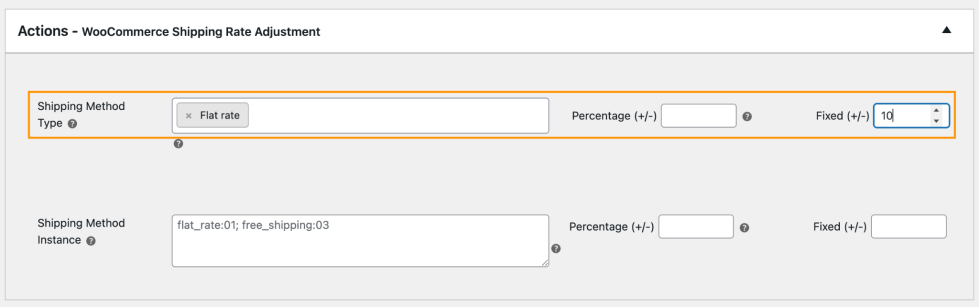
Result: Customers placing orders on weekdays are charged the standard Flat Rate. But on weekends, an additional $10 is automatically added to the Flat Rate at checkout, reflecting the higher delivery cost.
Order placed on weekdays:
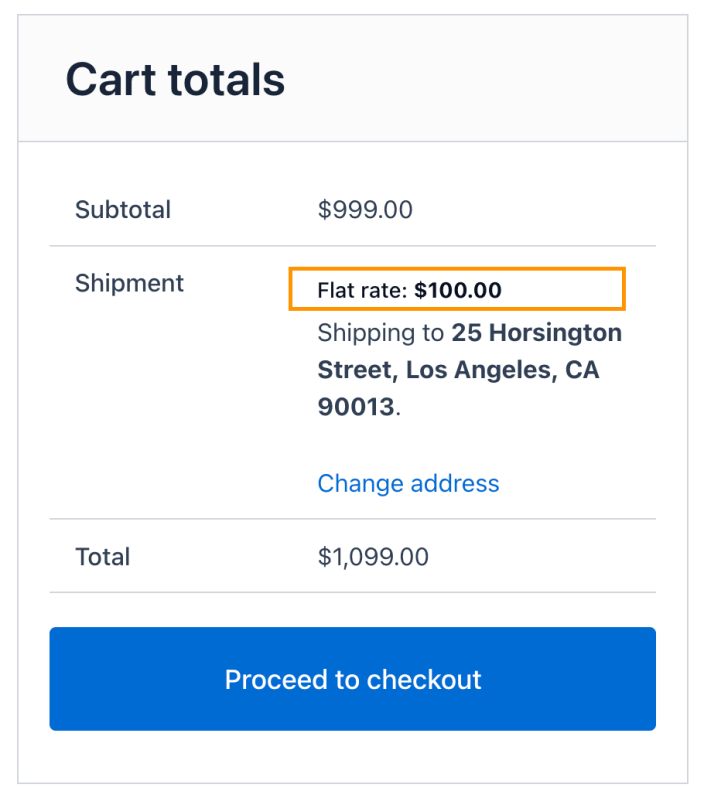
Order placed on Sunday: