
The PH Royal Mail and Parcelforce Worldwide Shipping plugin helps WooCommerce merchants offer accurate Royal Mail and Parcelforce Worldwide shipping options at checkout. The plugin automatically calculates shipping costs using official carrier pricing, supports domestic and international deliveries, and enables shipment tracking notifications for customers. With flexible packaging configurations and support for multiple shipping services, the plugin simplifies shipping management for UK-based online stores.
Now, let us take you through a step-by-step setup of the PH Royal Mail and Parcelforce Worldwide Shipping plugin on your WooCommerce store.
Installation
↑ Back to topTo start using a product from WooCommerce.com, you can use the “Add to store” functionality on the order confirmation page or the My subscriptions section in your account.
- Navigate to My subscriptions.
- Find the Add to store button next to the product you’re planning to install.
- Follow the instructions on the screen, and the product will be automatically added to your store.
Alternative options and more information at:
Managing WooCommerce.com subscriptions.

Setup and Configuration
↑ Back to topAccess The Plugin Settings
↑ Back to topAfter installing and activating the plugin, access the settings by navigating to:
Plugins > Installed Plugins > Settings under the PH Royal Mail and Parcelforce Worldwide Shipping plugin.
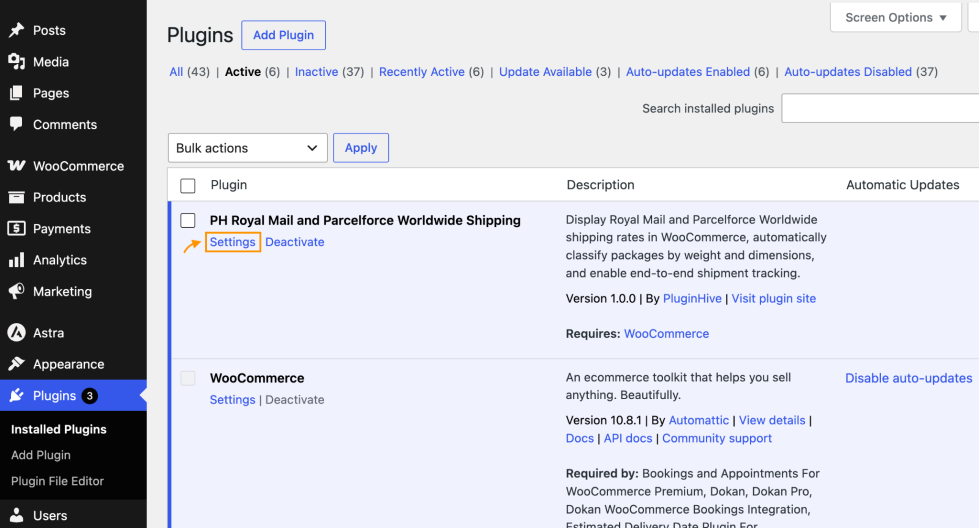
Alternatively, you can go to WooCommerce > Settings > Shipping > Royal Mail & Parcelforce Worldwide
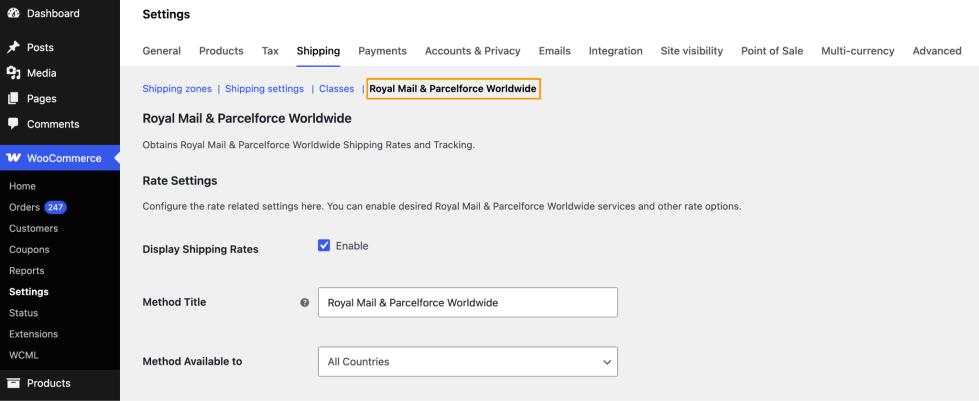
Now you can configure the plugin settings here as per your business requirements.
Real Time Rate Settings
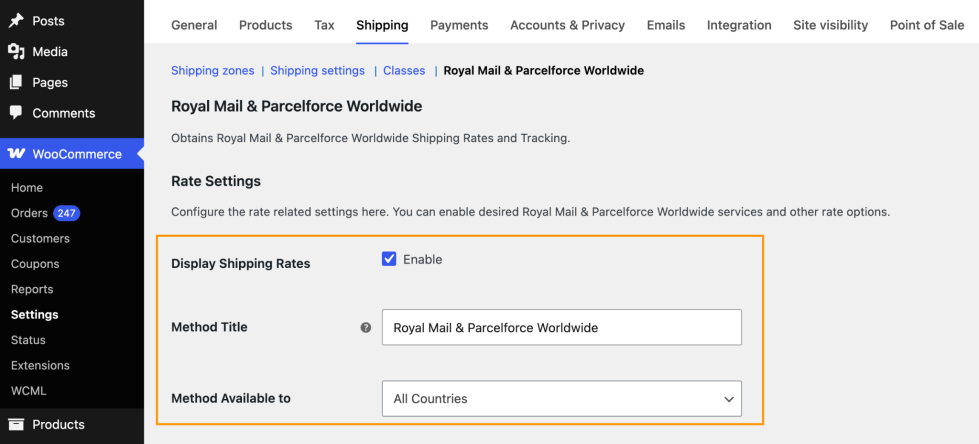
↑ Back to topThe Rate Settings section controls how shipping rates are fetched and displayed on the Cart and Checkout pages.
- Display Shipping Rates
Tick the Enable checkbox to activate Royal Mail and Parcelforce shipping rates on your Cart and Checkout pages. This is the most important setting; without it, no shipping options will appear to your customers.
| Note: Disabling this option only hides rates on the Cart/Checkout page. The Shipment Tracking functionality remains fully available regardless of this setting. |
- Method Title
This is the label your customers see during checkout under the shipping options section. The default value is “Royal Mail & Parcelforce Worldwide”. You can customise this to suit your store branding.
- Method Available to
This setting controls which customers can see Royal Mail and Parcelforce shipping options. You have two choices:
- All Countries — The shipping method is made available to customers from every country. This is the default.
- Specific Countries — Restrict the shipping method to a defined list of countries. Once selected, an additional Specific Countries field appears where you can choose the permitted destinations.
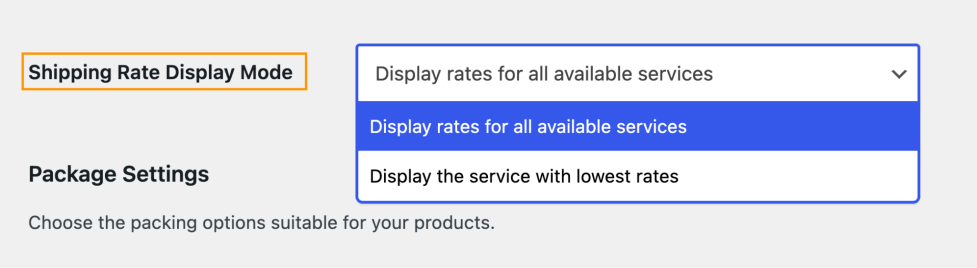
Choose Shipping Rate Display Mode
↑ Back to topThis setting controls how many services are presented to the customer at checkout. Two options are available:
- Display rates for all available services — All eligible Royal Mail and Parcelforce services are shown, each with its own rate. Customers can choose the service that suits them best.
- Display the service with lowest rates — Only the cheapest available service is displayed, shown under your method title. Useful when you want to offer a single, streamlined shipping option.
Currency Conversion Rate
↑ Back to topIf your WooCommerce store is configured with a currency other than GBP, enter the conversion rate here. The plugin multiplies this value by the Royal Mail/Parcelforce GBP rates to produce the shipping cost in your store currency.
Leave this field empty if your store currency is already GBP.

| Note: If your store currency is not GBP and this field is left blank, you will see an admin notice reminding you to set a conversion rate. |
Minimum Order Amount
↑ Back to topSet a minimum cart value that must be met before Royal Mail and Parcelforce shipping options are displayed at checkout. If a customer’s order falls below this amount, no shipping options from this plugin will appear. Leave the value as 0 to show rates for all order amounts.

Package Settings
The Package Settings section determines how cart items are packed into parcels before rates are calculated. Choosing the right packing method ensures accurate shipping costs for your products.
There are three parcel packing methods available:
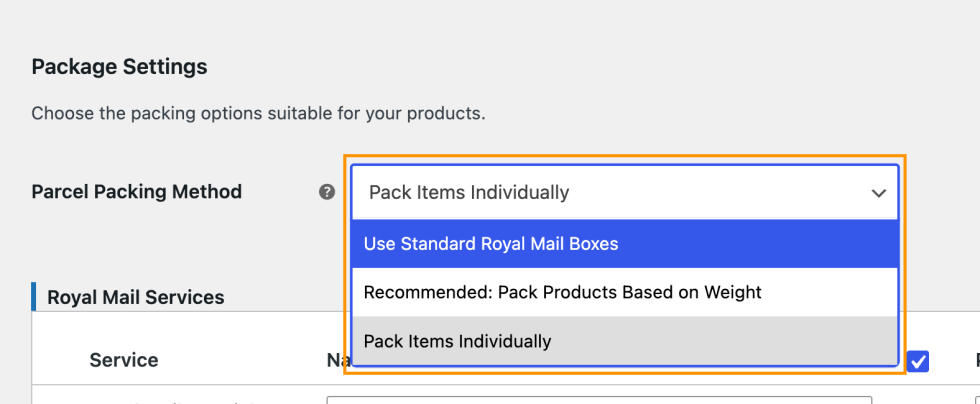
1. Use Standard Royal Mail Boxes
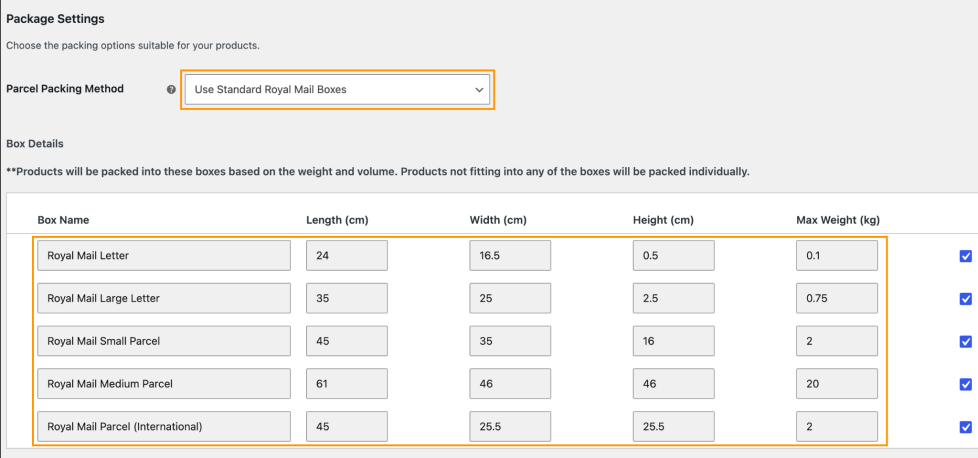
When this option is selected, the plugin uses the official Royal Mail box format definitions to classify your products. The predefined box types are:
- Royal Mail Letter
- Royal Mail Large Letter
- Royal Mail Small Parcel
- Royal Mail Medium Parcel
- Royal Mail Parcel (International)
Each box type has fixed dimensions and maximum weight values. You can enable or disable individual box types in the Box Details table that appears below the packing method selector. Products are automatically matched to the best-fitting enabled box based on their weight and dimensions. Any product that does not fit within an enabled box is packed individually.
| Note: Ensure your products have accurate dimensions and weights set in WooCommerce for this method to work correctly. |
2. Pack Products Based on Weight (Recommended)
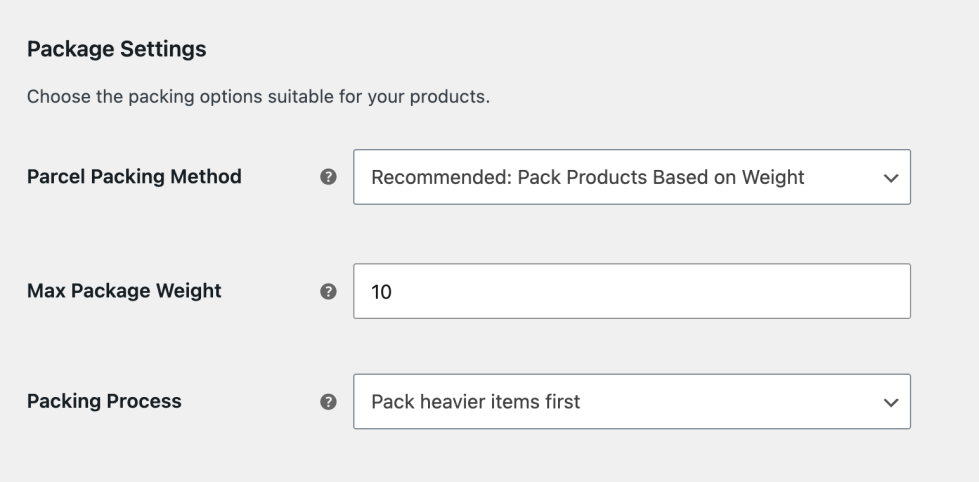
This is the recommended packing method. Items are grouped into packages according to their total weight, up to the maximum package weight you define.
When this method is selected, two additional settings appear:
- Max Package Weight: Enter the maximum weight (in your configured weight unit) allowed for a single package. Items are distributed across as many packages as needed to stay within this limit.
- Packing Process: Controls the order in which items are placed into packages:
- Pack heavier items first- Heavier products are packed first, then lighter ones fill the remaining space.
- Pack lighter items first- Lighter products are packed first.
- Pack purely divided by weight- Items are split evenly across packages by weight without any ordering preference.
| Note: Make sure all your products have accurate weights set on the product page. Incorrect or missing weights will produce inaccurate shipping rates. |
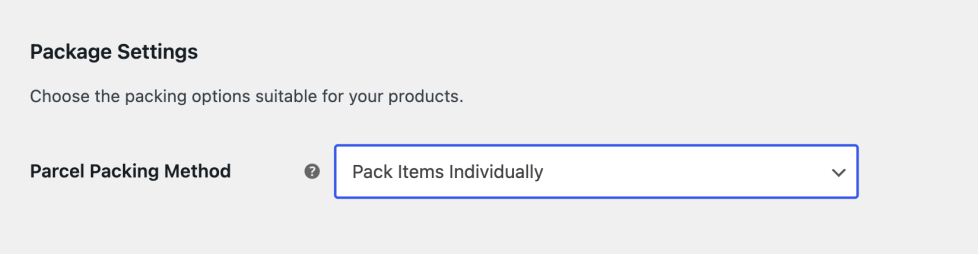
3. Pack Items Individually
Each item in the cart is packed into its own separate package. The total shipping cost is the sum of shipping costs for every individual item.
For example, if Royal Mail Tracked 48 costs £4.45 for a small parcel, and a customer orders 3 of that item, the total shipping cost will be £4.45 × 3 = £13.35.
Enable/Disable Royal Mail and Parcelforce shipping services
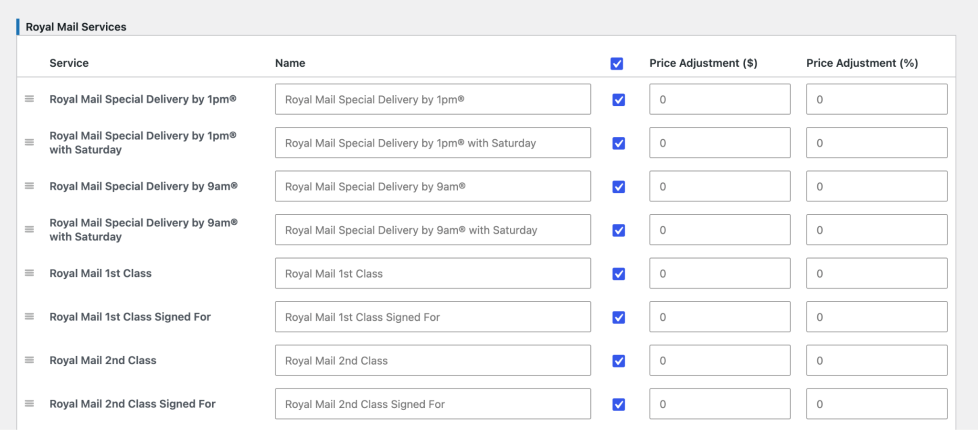
↑ Back to topIn the service settings, you can enable or disable individual services and apply price adjustments to each one. By default, all services are enabled. Customers will only see the services you have enabled and that are valid for their destination. Non-enabled services are never displayed at checkout, even if they would otherwise be available for that region.
Royal Mail Services
Royal Mail services supported by the plugin are:
Special Delivery Services
- Royal Mail Special Delivery by 1 pm
- Royal Mail Special Delivery by 1 pm with Saturday
- Royal Mail Special Delivery by 9 am
- Royal Mail Special Delivery by 9 am with Saturday
Standard & Signed Services
- Royal Mail 1st Class
- Royal Mail 1st Class Signed For
- Royal Mail 2nd Class
- Royal Mail 2nd Class Signed For
UK Tracked Services
- Royal Mail Tracked 24®
- Royal Mail Tracked 24® with Signature
- Royal Mail Tracked 24® with Age Verification
- Royal Mail Tracked 48®
- Royal Mail Tracked 48® with Signature
- Royal Mail Tracked 48® with Age Verification
International Services
- Royal Mail International Standard
- Royal Mail International Tracked
- Royal Mail International Tracked and Signed
- Royal Mail International Tracked and Signed Heavier
- Royal Mail International Signed
- Royal Mail International Economy
Parcelforce Services
Parcelforce services supported by the plugin are:
UK Domestic
- Parcelforce express9
- Parcelforce express10
- Parcelforce expressAM
- Parcelforce express24
- Parcelforce express48
- Parcelforce express48 large
International
- Parcelforce Global Express
- Parcelforce Ireland Express
- Parcelforce Global Priority
- Parcelforce Global Value
Royal Mail Shipping Service for WooCommerce Shipping Zones
↑ Back to topIn addition to the global shipping method, the plugin registers Royal Mail & Parcelforce Worldwide as zone-based shipping methods.
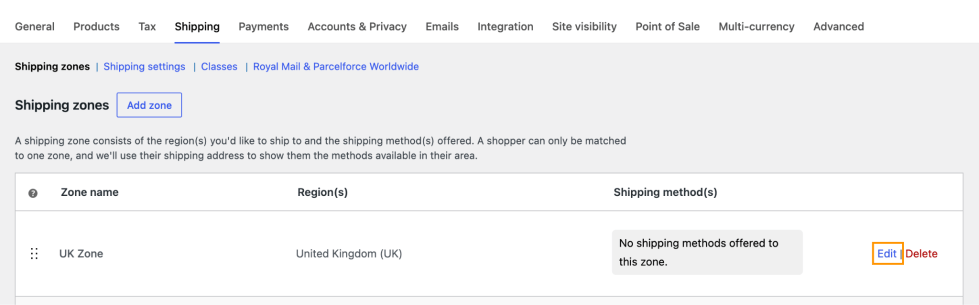
To add the method to a shipping zone, navigate to WooCommerce > Settings > Shipping > Shipping Zones and edit the desired shipping zone. If you haven’t created a shipping zone yet, create one first.
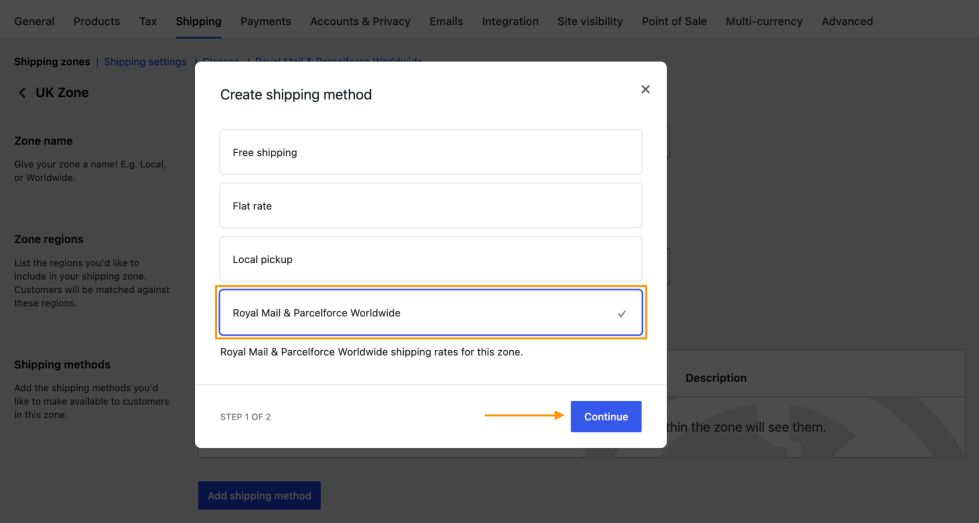
Next, click Add Shipping Method and select Royal Mail & Parcelforce Worldwide from the list of available shipping methods.
Once added, you can edit and enable only the Royal Mail services you want to offer for that specific shipping zone.
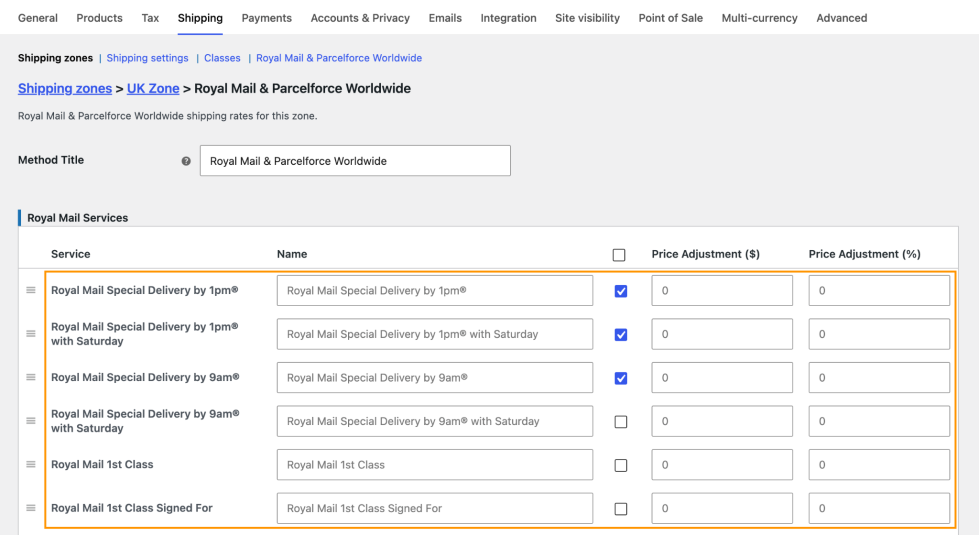
Note: If you enable Royal Mail services within a Shipping Zone, make sure the same services are disabled in the plugin’s global settings. Otherwise, the same shipping services may be returned from both configurations, resulting in duplicate shipping rates at checkout.
Royal Mail and Parcelforce Service Name Customisation
↑ Back to topFor each service, you can enter a custom name in the Name column. This is the label that will be displayed to customers on the Cart and Checkout pages instead of the default service name. Leave the field blank to use the default name.
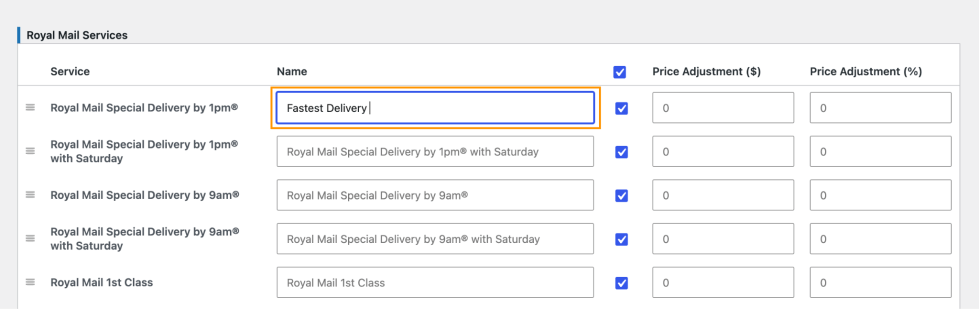
Services can also be reordered by dragging rows within each table, allowing you to control the order in which they appear at checkout.
Shipping Rate Price Adjustment
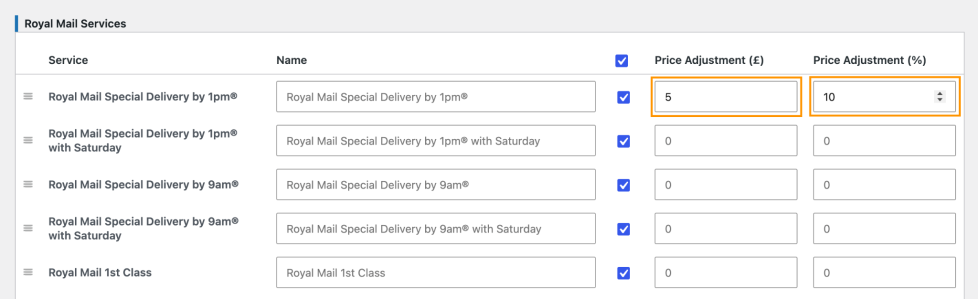
↑ Back to topYou can increase or decrease the calculated shipping rate for any individual service. Two adjustment types are available and can be used independently or in combination:
| Adjustment Type | How It Works |
| Price Adjustment (£) | A fixed amount added to or subtracted from the base rate. For example, entering 5 adds £5.00 to the service rate. |
| Price Adjustment (%) | A percentage of the base rate is added to or subtracted from it. For example, entering 10 adds 10% of the base rate. |
| Both combined | If you set both a fixed and a percentage adjustment, the fixed amount is applied first, and then the percentage is calculated on the resulting value. |
To subtract from the rate (discount), prefix the value with a minus sign. For example, entering -2 in the £ field reduces the shipping cost by £2.00.
Example: Base rate is £5.00:
- £ adjustment of 5 → displayed rate: £10.00
- % adjustment of 10 → displayed rate: £5.50
- £ adjustment of 5 and % adjustment of 10 → displayed rate: £10.50 (10% of £5+£5 = £10, then +£0.50)
Customize Shipment Tracking Tracking Messages
↑ Back to topDefine a custom tracking message that will be displayed to customers in the order completion email.
You can use the following placeholders in the message:
- [DATE] – Replaced with the shipment date entered for the order.
- [SERVICE] – Replaced with the selected shipping service name.
- [ID] – Replaced with the tracking ID(s). Each tracking ID will automatically appear as a clickable tracking link.
If you leave the Tracking Message field empty, the plugin will use the default tracking message: Your order was shipped on [DATE] via [SERVICE]. To track your shipment, please follow the link(s) for shipment ID(s) [ID].

Enable Insurance
↑ Back to topTick the Enable checkbox to add an insurance surcharge to the shipping cost for services that support it (such as Royal Mail Special Delivery and Royal Mail International Tracked and Signed Heavier).

When enabled, the insurance surcharge is calculated automatically and added to the displayed shipping rate.
Royal Mail and Parcelforce Shipping Rates at Cart and Checkout
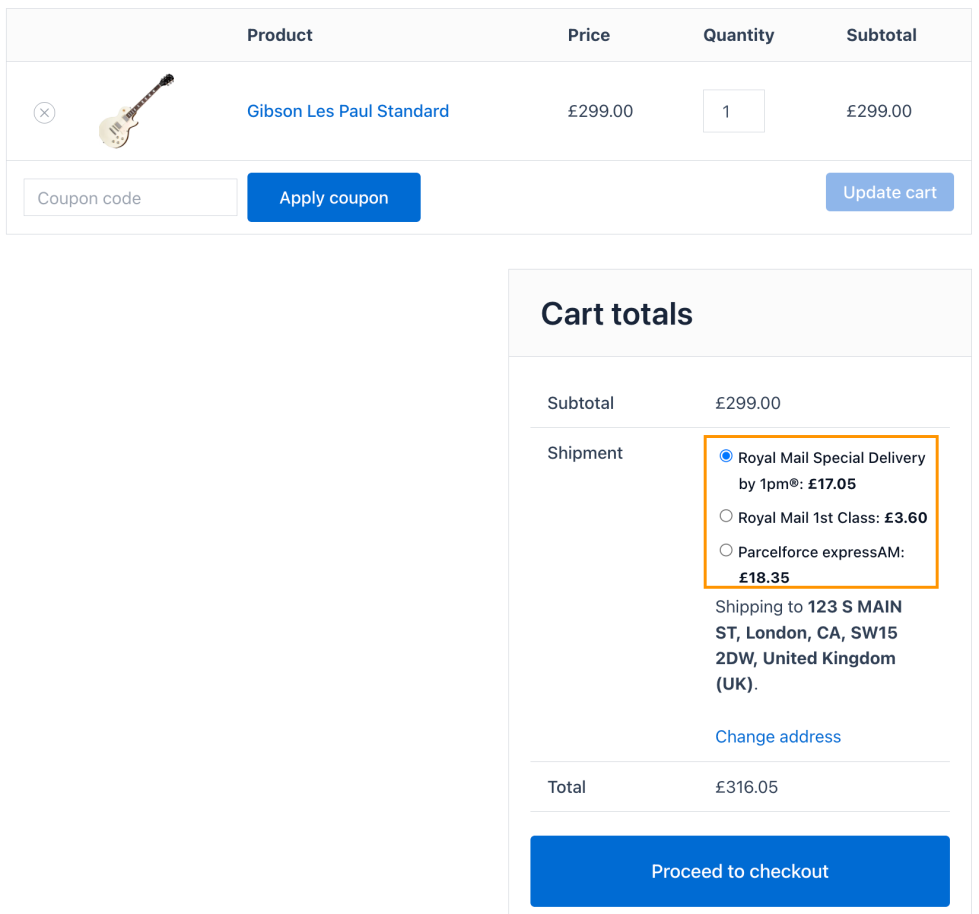
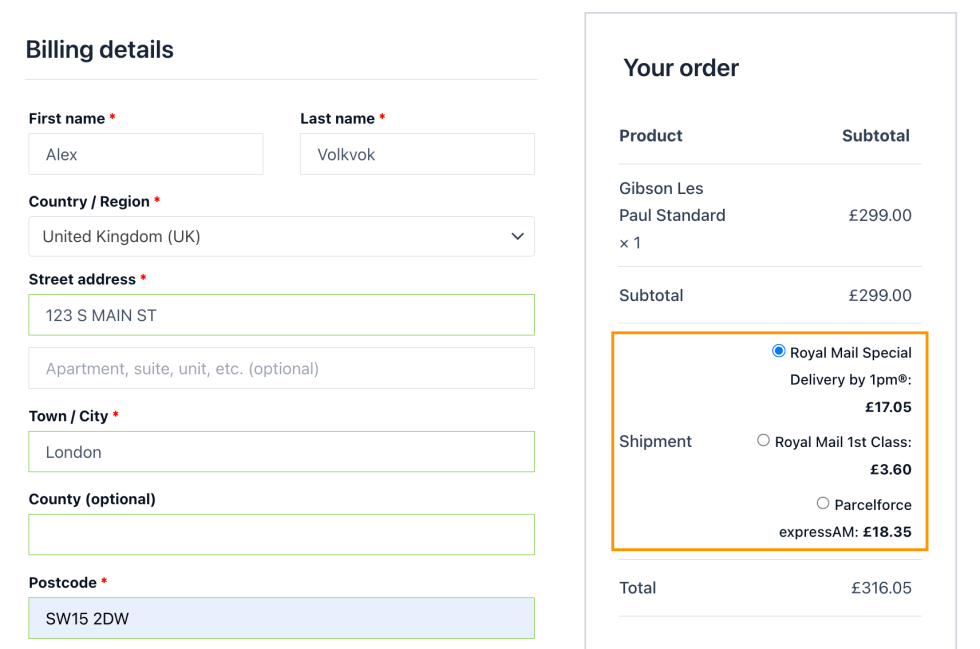
↑ Back to topOnce the plugin is configured and real-time rates are enabled, shipping options will appear on the Cart and Checkout pages automatically when a valid shipping address is provided.
Rates on the Cart page:
Rates on the Checkout page:
| Note: If no rates are displayed, enable Debug Mode under Rate Settings and review the diagnostic output on the Cart/Checkout page to identify the issue. |
Royal Mail and Parcelforce Shipment Tracking
The plugin includes a built-in shipment-tracking feature that lets you record and share tracking information with customers.
To add tracking details to an order:
- Go to WooCommerce > Orders and open the relevant order.
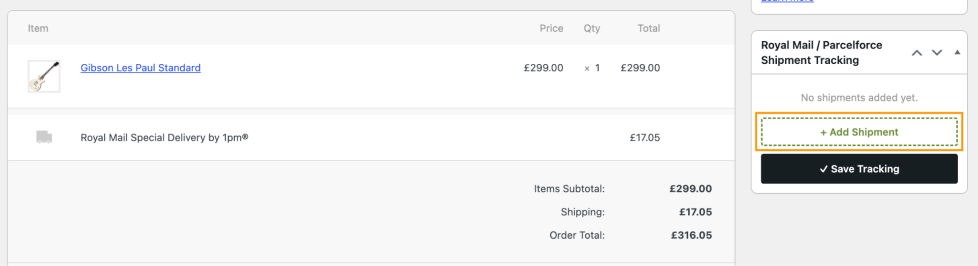
- Find the Royal Mail and Parcelforce Shipment Tracking metabox on the Order Edit page.
- Click + Add Shipment.
- Select the Carrier, either Royal Mail or Parcelforce.
- Enter the Tracking ID for the shipment.
- Optionally set the Shipment Date.
- Click on Save Tracking
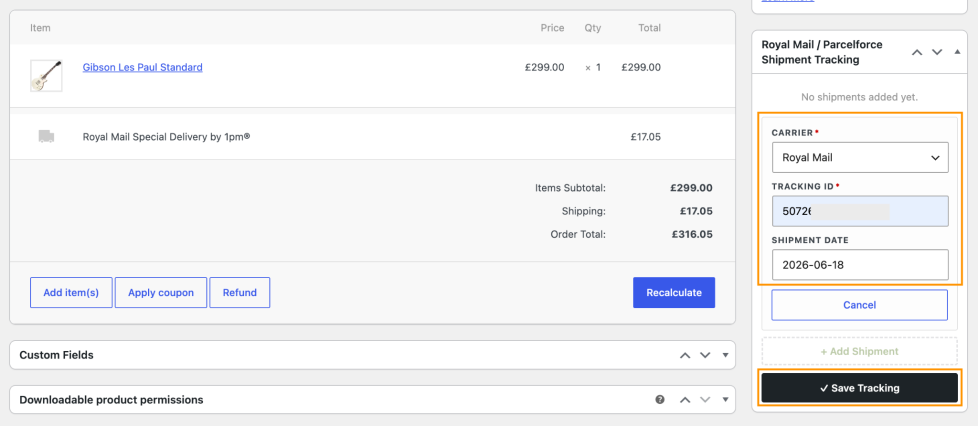
You can add multiple shipments to a single order by clicking + Add Shipment again.
Tracking in Order Completion Email
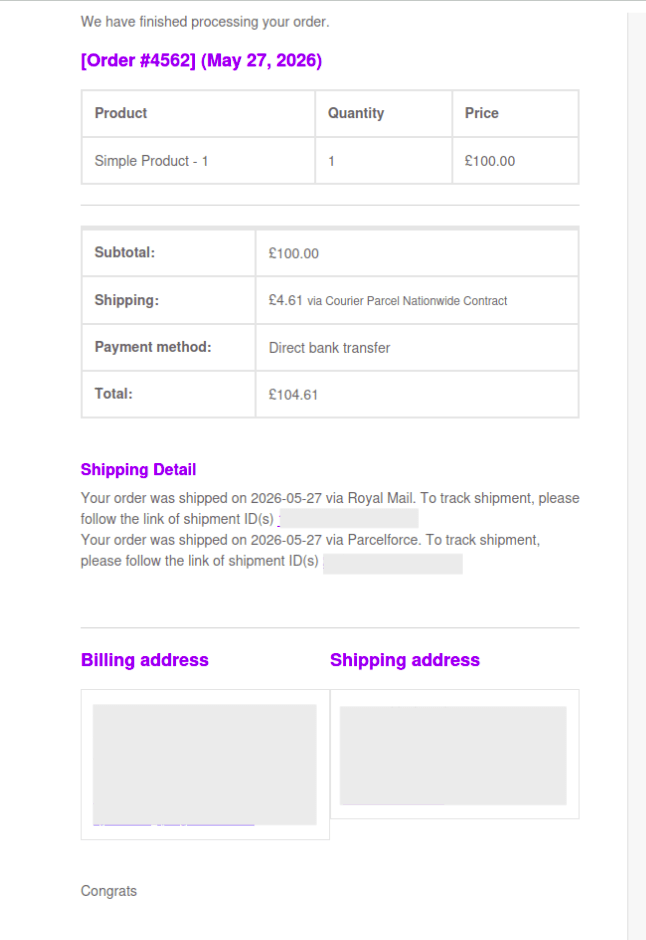
↑ Back to topWhen an order is marked as Completed, the plugin automatically includes the shipment tracking information in the order completion email sent to the customer. The email shows a Shipping Detail section containing the tracking message with clickable tracking ID links. Customers can click the link to go directly to the carrier’s tracking page with their shipment ID.
Tracking on the Customer Order Page
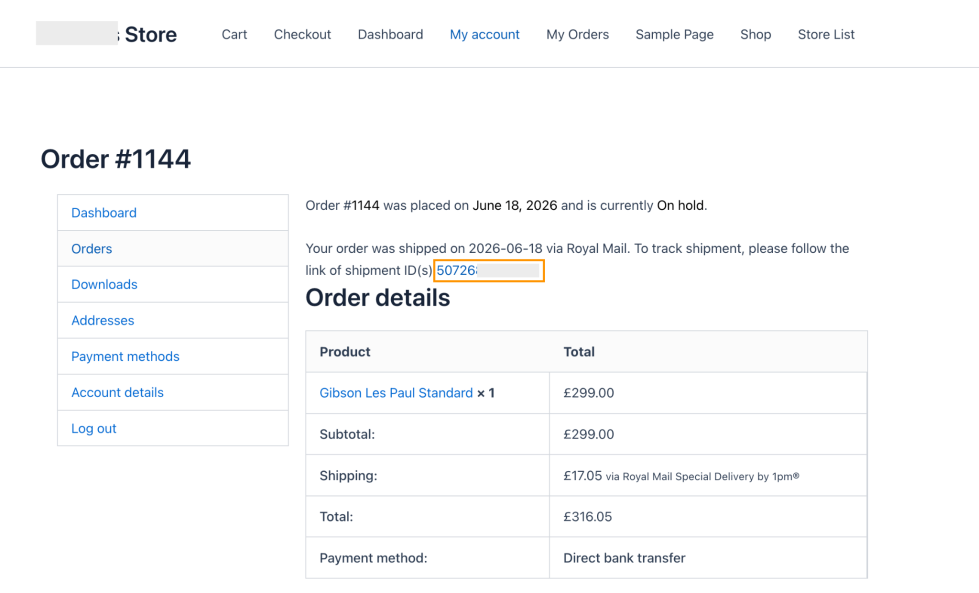
↑ Back to topTracking information is also displayed on the customer-facing My Account > Orders > View Order page. The plugin shows the shipment details section with tracking links as soon as tracking IDs are added to the order.
Debug Mode
↑ Back to topEnable Debug Mode if you are experiencing issues such as missing rates, incorrect rates, or no rates appearing at all. When enabled, detailed debugging information is displayed at the top of the Cart and Checkout pages.
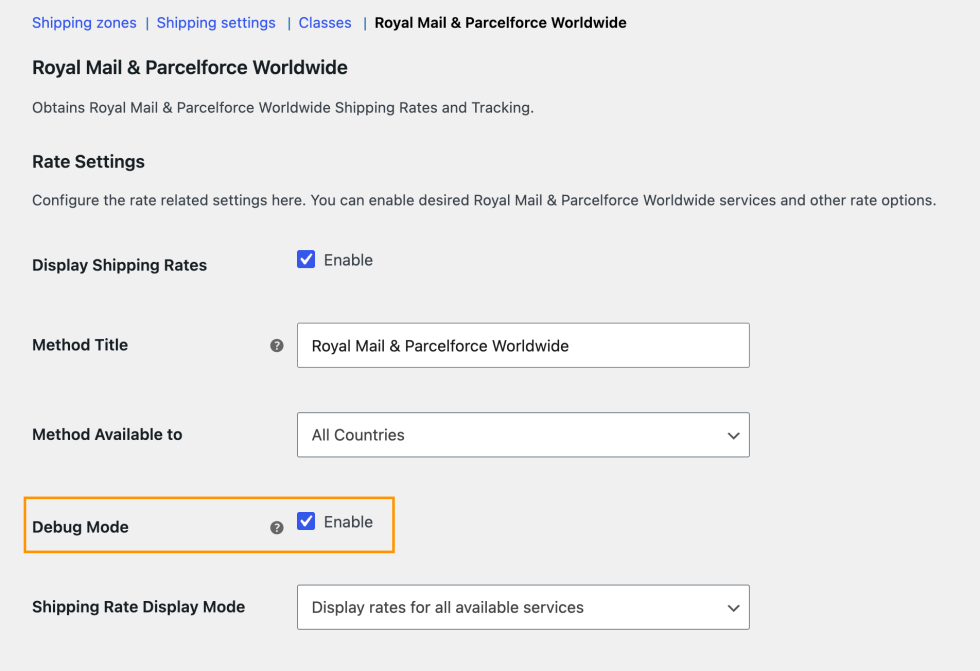
To use debug mode: enable it in settings, add a product to the cart, and then visit the Cart or Checkout page to review the diagnostic output. Disable it again once you have identified and resolved the issue.

