
Pro reCaptcha allows your WooCommerce store to protect agains spam and bots.
It makes adding Google reCAPTCHA v2 or v3 to your site super simple, protecting all your forms, checkout page, shop page, cart page, login screens, and all other custom forms from spam and bots.
You get full support for the classic “I’m not a robot” checkbox and the completely silent reCAPTCHA v3 that works in the background with zero user interaction.
You can pick whichever version you prefer and turn it on only where you actually need it.
Installation
↑ Back to topTo start using a product from WooCommerce.com, you can use the “Add to store” functionality on the order confirmation page or the My subscriptions section in your account.
- Navigate to My subscriptions.
- Find the Add to store button next to the product you’re planning to install.
- Follow the instructions on the screen, and the product will be automatically added to your store.
Alternative options and more information at:
Managing WooCommerce.com subscriptions.

Setup and Configuration
↑ Back to topGetting started
↑ Back to topAfter activation, you will find a new Captcha tab inside WooCommerce → Settings. This tab contains six sub-sections:
- General
- WooCommerce Pages.
- WordPress Pages.
- Custom Form.
- Captcha Styling V2.
- Restrict Captcha.
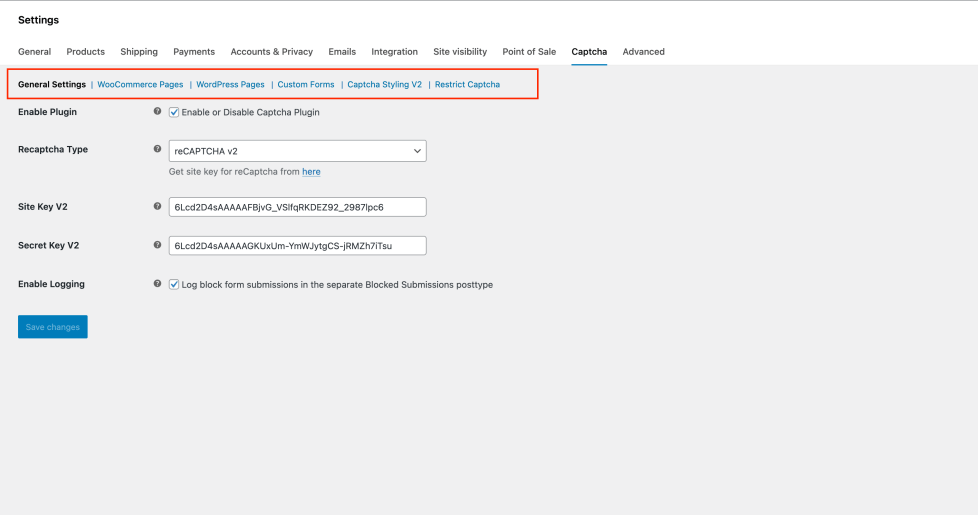
1. General Settings
↑ Back to topThe General tab controls the global plugin setup.
- Enable Plugin: Checkbox to activate or deactivate RiseX Captcha.
- Captcha Type: Select between Google reCAPTCHA v2 or v3.
- Site Key & Secret Key: Required credentials from Google reCAPTCHA. The fields displayed will depend on the selected version.
- Enable Logging: Instantly view every blocked submission attempt under a dedicated “Blocked Submissions” dashboard.
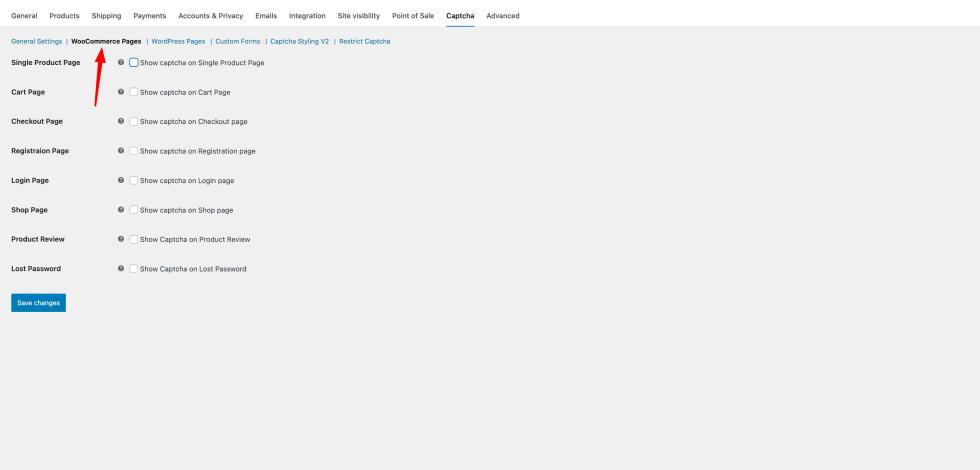
2. WooCommerce Pages
↑ Back to topThis section allows you to enable captcha on specific WooCommerce pages:
- Single Product Page
- Cart Page
- Checkout Page
- Registration Page
- Login Page
- Shop Page (work only with ajax)
- Product Review Page
- Lost Password Page
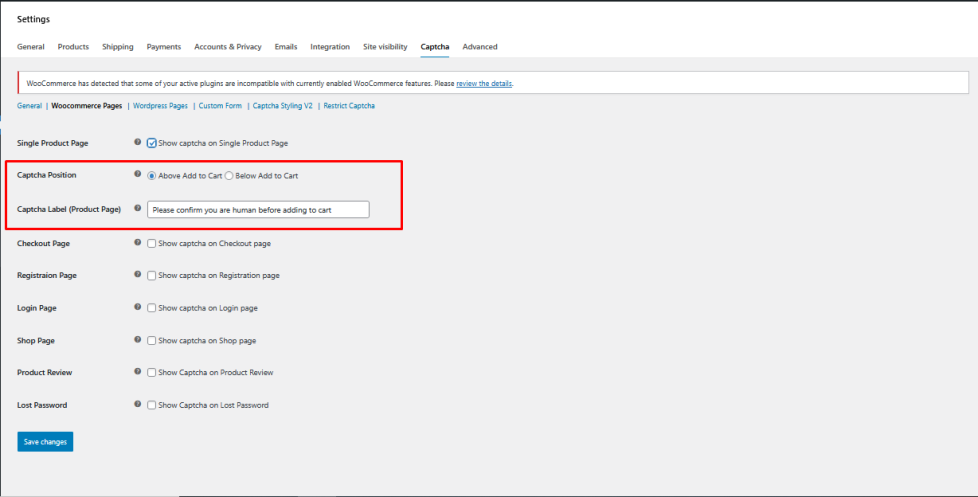
reCAPTCHA v2 Options
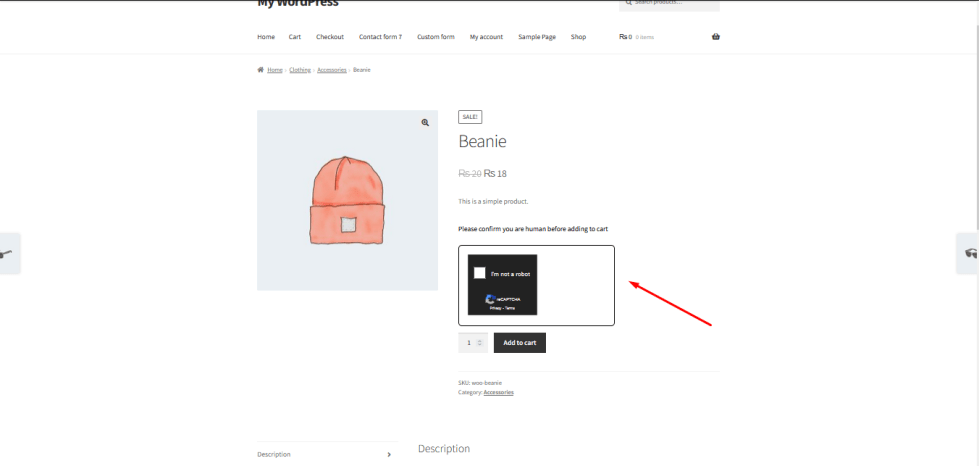
- Captcha Label: Add a text label above the captcha.
- Captcha Position (for Shop & Product Pages):
- Above Add to Cart
- Below Add to Cart
reCAPTCHA v3 Options
- Invisible captcha, no label or position options available..
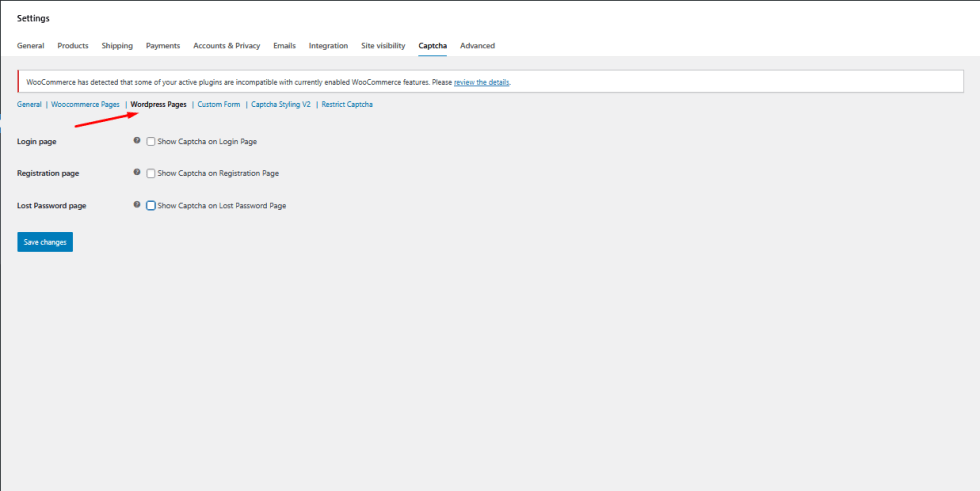
3. WordPress Pages
↑ Back to topSettings are identical to WooCommerce Pages, but applied to WordPress default authentication pages:
- Login Page
- Registration Page
- Lost Password Page
4. Custom Forms
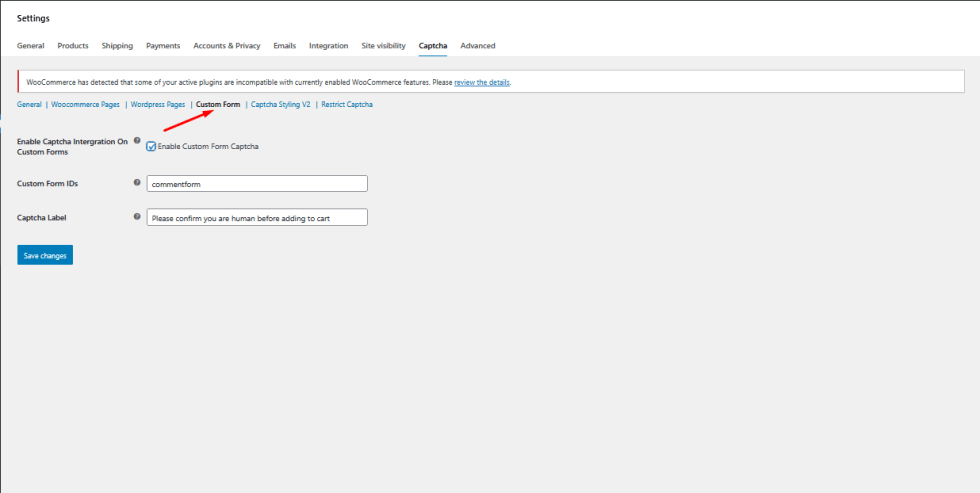
↑ Back to topThis feature allows captcha integration into custom forms.
- Enable Captcha Integration on Custom Forms (checkbox).
- Custom Form IDs: Add comma-separated IDs (e.g., form-1, contact-form-2).
- Captcha Label (v2 only): Add a label text above captcha.
Note: For v3, labels are not available due to its invisible nature.
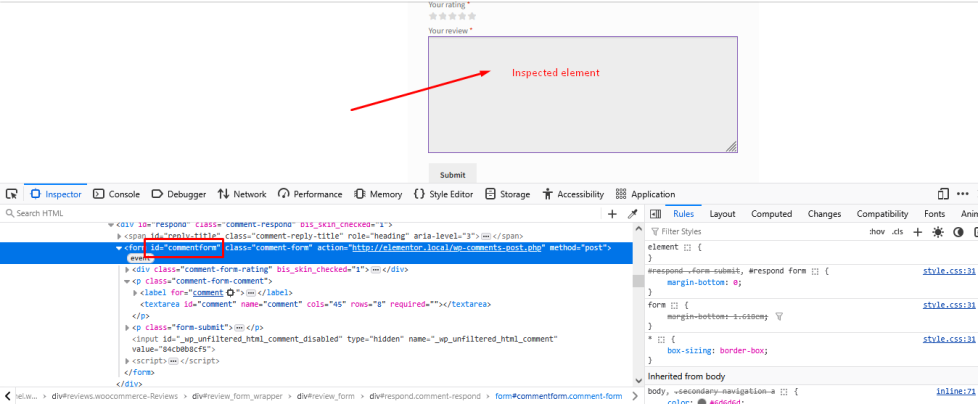
How to find the form ID?
- Inspect the form by right-clicking on the form or a form field.
- Locate the corresponding <form> tag in the HTML, where you will find the form’s ID attribute. Copy that ID
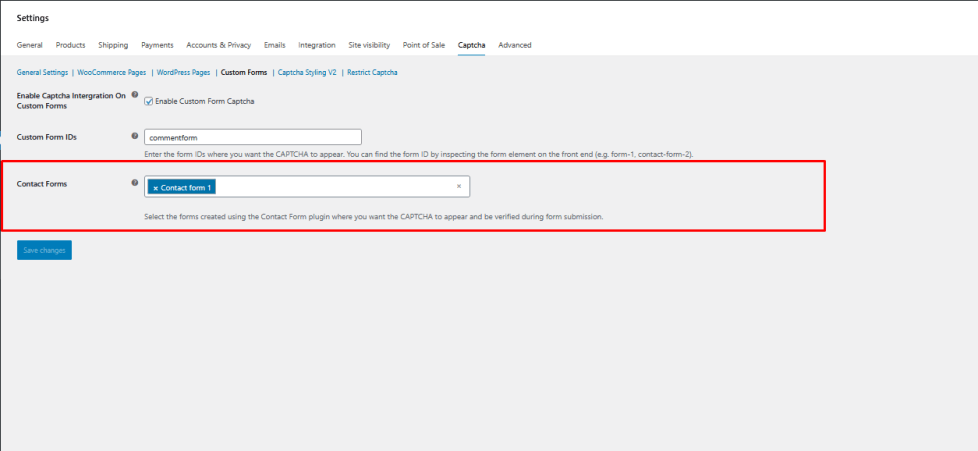
Contact Form 7
- The form field will automatically list all the forms created using the Contact Form 7 plugin.
- Select the forms on which you want the reCaptcha to appear.
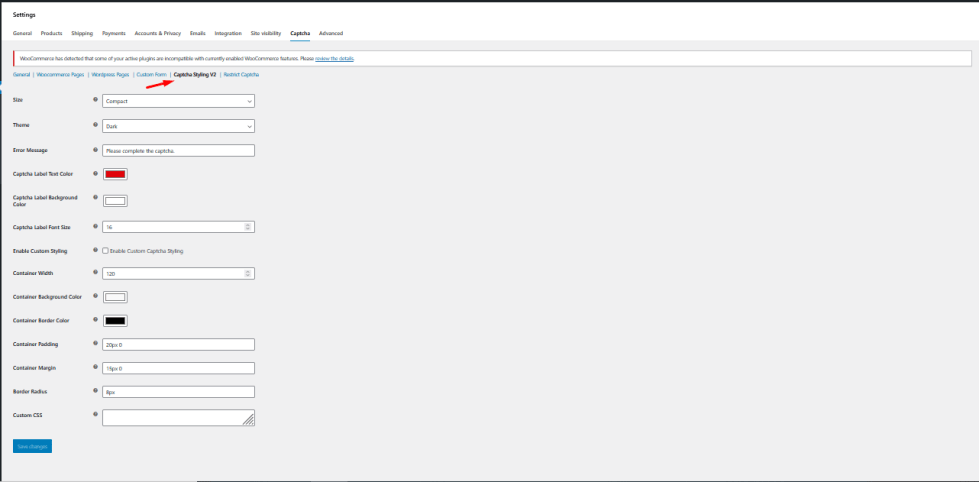
5. Captcha Styling V2
↑ Back to topRiseX Captcha offers detailed styling controls for reCAPTCHA v2.
Available Options:
- Size: Normal / Compact
- Theme: Light / Dark
- Error Message: Custom error when captcha is not completed.
- Captcha Label Text Color
- Captcha Label Background Color
- Captcha Label Font Size
- Enable Custom Styling: Toggle to apply custom styles.
- Container Width (numeric value).
- Container Background Color.
- Container Border Color.
- Container Padding (e.g., 20px).
- Container Margin (e.g., 15px 0).
- Border Radius (e.g., 8px for rounded corners).
- Custom CSS: Add your own CSS for advanced customization.
6. Restrict Captcha
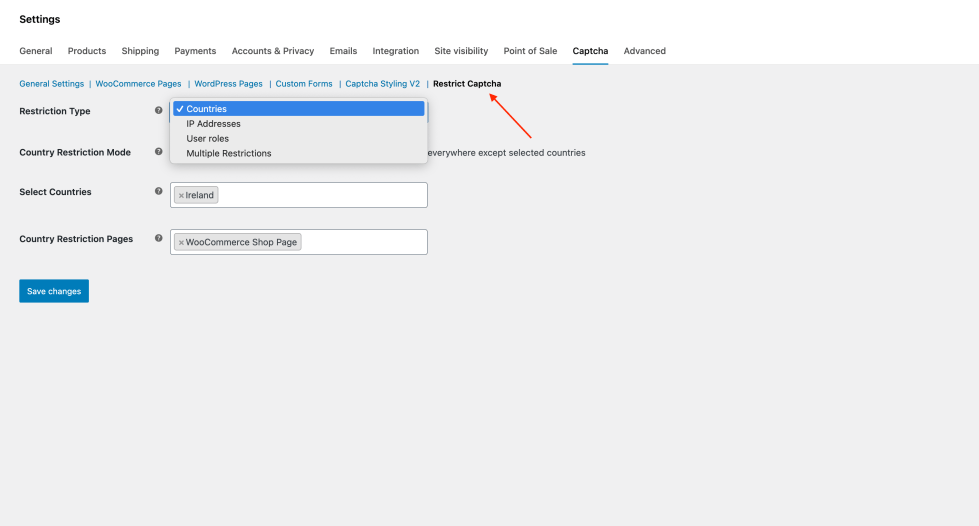
↑ Back to topRestrict CAPTCHA display based on Country, IP, User Roles, or multi-criteria combinations.
Restriction Type Options:
- Countries
- Mode: Include / Exclude
- Select Countries: Choose countries where captcha will appear.
- IP Addresses
- Mode: Include / Exclude
- Allowed IPs: Enter comma-separated IPs (leave empty to apply everywhere).
- User Roles
- Mode: Include / Exclude
- Allowed Roles: Choose roles (e.g., Guest Users, Logged-in Users, Admin, Editor, etc.).
- Multi-Criteria Advanced Logic (AND/OR Modes): Chain multiple security filters together. Enable highly custom combinations such as:
Restrict reCAPTCHA only if the visitor is from a specific country AND belongs to a certain IP range.
Exempt specific User Roles (like Store Administrators or Shop Managers) so their experience is completely friction-free.
Frontend
↑ Back to topWooCommerce Pages
↑ Back to top1-Shop
2-Single Product Page
3-Cart Page
4-Checkout Page
5-Custom Form
6-Custom Styling
WordPress
↑ Back to top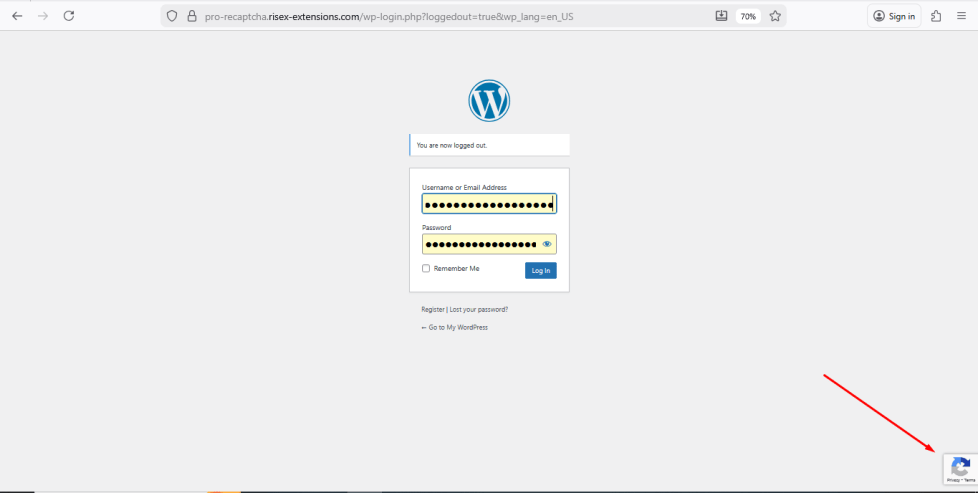
FAQs
↑ Back to topHelp customers by answering commonly asked questions.
Which pages and forms does Pro reCaptcha support?
Product Page
Checkout Page
Login Page
Registration Page
Product Review Page
Lost Password Page
Shop Page
Login Page
Registration Page
Lost Password Page
Any form by adding its Form ID (e.g., form-1, contact-form-2)
What’s the difference between reCAPTCHA v2 and v3 in this plugin?
reCAPTCHA v2 shows a visible widget and supports labels, size/theme styling, and position control.
reCAPTCHA v3 is invisible, does not use labels, and has no position or styling options because it works in the background.
Where do I enter my Google reCAPTCHA Site Key and Secret Key?
Go to WooCommerce → Settings → Captcha → General. The fields will appear based on the chosen version (v2 or v3).

