
Product Duplicate Finder & Remover for WooCommerce helps store owners find and delete duplicate product entries in your store. It scans products based on multiple criteria; including titles, SKUs, Barcode, sales history and provides safe options to delete, archive, or export duplicates. This tool helps maintain a clean, accurate product catalog without much effort.
Installation
↑ Back to topTo start using a product from WooCommerce.com, you can use the “Add to store” functionality on the order confirmation page or the My subscriptions section in your account.
- Navigate to My subscriptions.
- Find the Add to store button next to the product you’re planning to install.
- Follow the instructions on the screen, and the product will be automatically added to your store.
Alternative options and more information at:
Managing WooCommerce.com subscriptions.

Setup and Configuration
↑ Back to top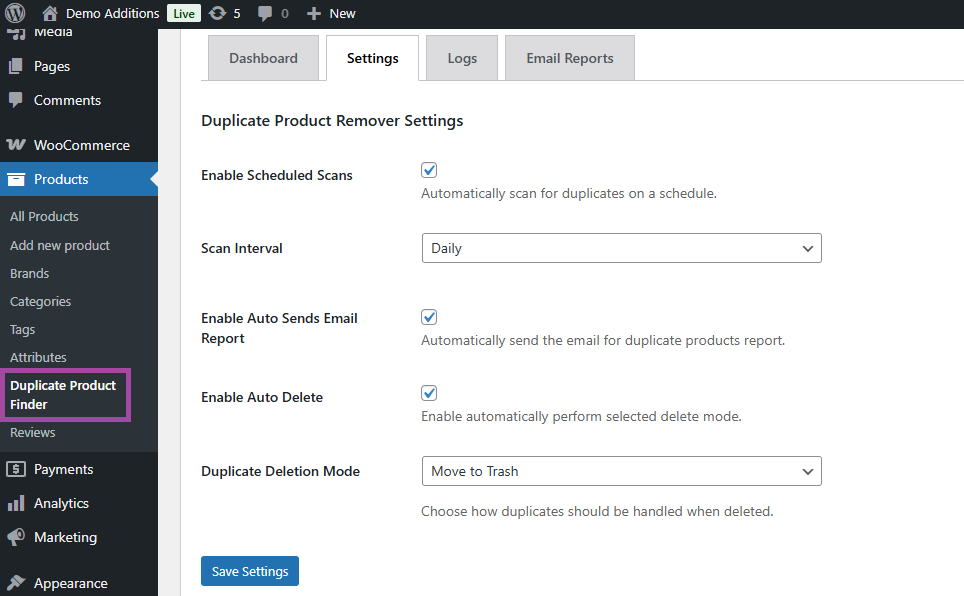
Getting started
↑ Back to topStep 1: Configuration
↑ Back to top- Go to Products > Duplicate Product Remover > Settings.
- Enable auto scanning, Set scanning interval
- Select which duplicate deletion mode you prefer
- Click to Save Settings
Step 2: Scan for Duplicates
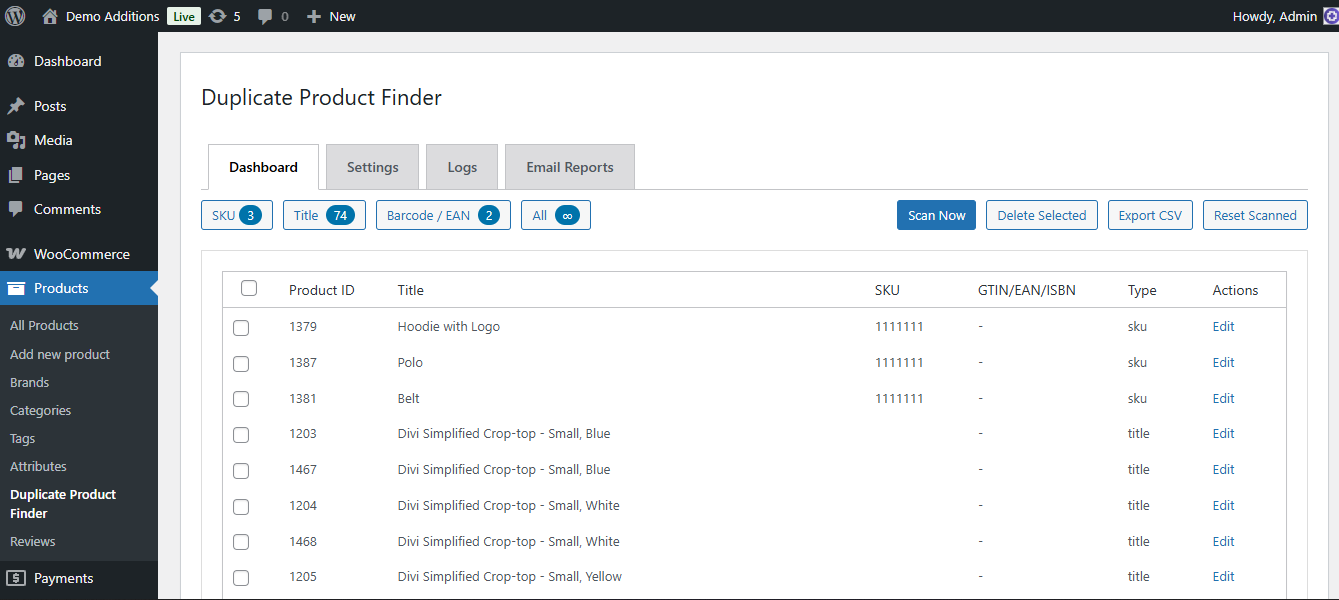
↑ Back to top- Go to Products > Duplicate Product remover > Dashboard.
- Click Start Scan to begin analyzing your product catalog.
- You may see duplicates by title, SKU, barcode.
- The plugin will list all detected duplicates grouped together.
Step 3: Review Results
↑ Back to top- Carefully review each group of potential duplicates.
- Use this information to verify matches before taking action.
Step 4: Select Action
↑ Back to topYou can choose to:
- Delete Duplicates: Remove all except one product per group.
- Ignore: Skip selected groups from deletion.
Step 6: Backup (Recommended)
↑ Back to topBefore performing bulk deletion:
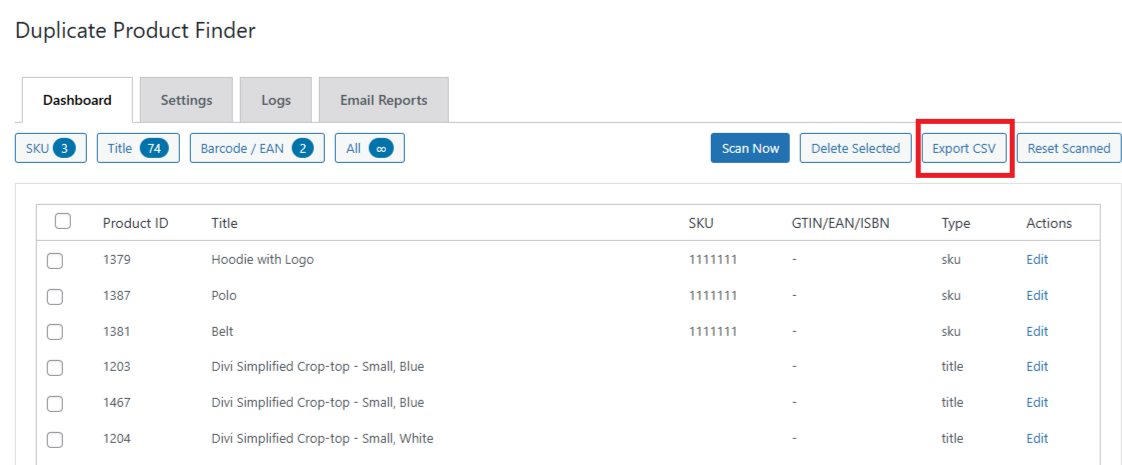
- Download a CSV backup of your current product list.
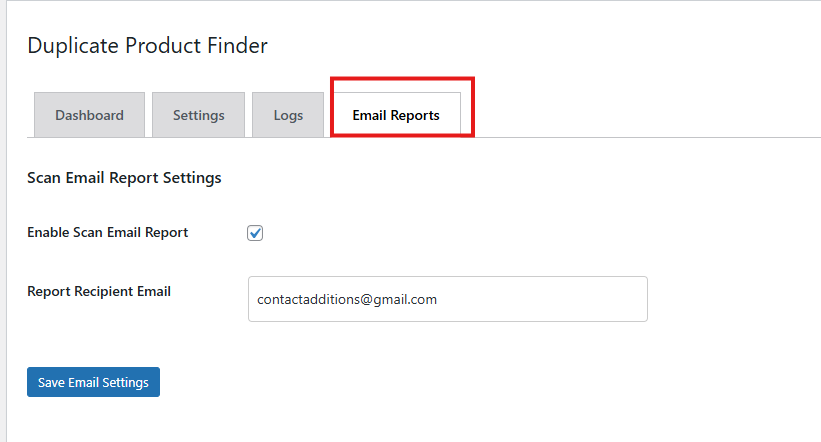
- Get scan reports on email by going to ‘Email Reports ‘
- Enable Scan email report and enter the recipient email
- Click to ‘Save Email Settings’
NEW:
↑ Back to topThe Smart Duplicate Resolver adds a decision layer to the existing duplicate finder and remover.
Where to Find It
Go to Products → Duplicate Product → Smart Resolver.
Run a fresh duplicate scan first, so the resolver builds its groups from current data rather than an outdated scan.
How It Works
Scan WooCommerce products for duplicates
→ Group matching products
→ Analyze each product
→ Calculate a resolver score
→ Recommend a canonical product
→ Review or override the recommendation
→ Select duplicates to resolve
→ Process them using the configured removal method
How the Resolver Score Is Calculated
The resolver evaluates:
| Factor | What it looks at |
|---|---|
| Sales history | How many sales the product has recorded |
| Customer reviews | Number and quality of reviews |
| Product age | How long the product has existed |
| Published status | Whether the product is published |
| Stock | Current stock availability |
| Images | Presence and quality of images |
| SKU | Whether a SKU is set |
| Global identifier | GTIN, UPC, EAN, or ISBN |
| Descriptions | Presence of product descriptions |
| Categories | Assigned categories |
| Tags | Assigned tags |
| Attributes | Assigned product attributes |
| Data completeness | How fully the product record is filled in overall |
The highest-scoring product in each group is shown as the Recommended Master Product.
Reviewing the Recommendation
The resolver states why a product was recommended, for example: highest sales, most reviews, oldest product record, more complete data, or better imagery. Compare duplicates side by side before taking any action.
Example. Two duplicate listings of the same T-shirt exist. Product A has 40 sales and 12 reviews but a low-resolution image. Product B has 3 sales, no reviews, but a complete gallery and full attribute set. The resolver recommends Product A, citing “Highest sales, most reviews” as the reason, even though Product B’s data is more complete, sales and reviews carry more weight.
Choosing a Different Canonical Product
The recommendation is optional. Override it whenever a different product should be kept for reasons the resolver can’t see; SEO history, a specific product URL, a preferred product ID, or integration requirements. Just select that product instead.
Protecting the Canonical Product
Once a canonical product is selected, it can be protected from supported duplicate-removal actions using the plugin’s existing protection system. This prevents it from being accidentally caught by the same cleanup rules it’s meant to survive.
Resolving Selected Duplicates
Select the duplicate products you want to process and click Resolve Selected Duplicates. The plugin applies your configured removal mode:
- Moved to Trash
- Changed to Draft
- Disabled and marked as duplicate
- Permanently deleted
You don’t need to resolve an entire group at once, leave any duplicate unselected to review it later.
FAQs
↑ Back to top
Can I undo a deletion?
If you export a backup before deletion, you can restore products manually or via an import plugin.
Does it support variable products?
Yes. Both simple and variable products are supported.
Does scanning run automatically on a schedule?
Yes. You can enable scheduled scans in the plugin settings and choose the scan interval.

