Quick Edit and View Orders streamlines WooCommerce order management with built-in quick view, quick edit, and print features. Access and modify orders from a popup on the Orders page without switching pages.
Installation
↑ Back to topTo start using a product from WooCommerce.com, you can use the “Add to store” functionality on the order confirmation page or the My subscriptions section in your account.
- Navigate to My subscriptions.
- Find the Add to store button next to the product you’re planning to install.
- Follow the instructions on the screen, and the product will be automatically added to your store.
Alternative options and more information at:
Managing WooCommerce.com subscriptions.

Setup and Configuration
↑ Back to topGetting started
↑ Back to topTo set up your store with Quick Edit and View Orders:
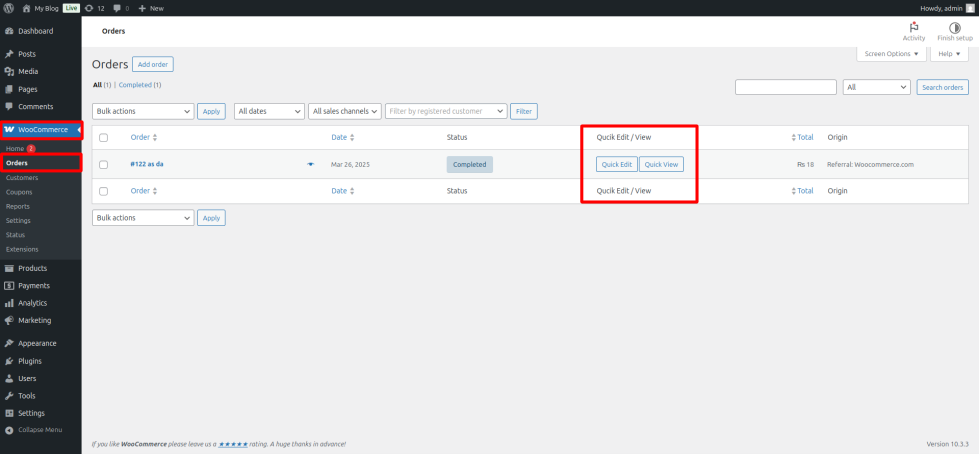
- Go to: WooCommerce > Orders. You’ll see new Quick View and Quick Edit buttons added to each order row.
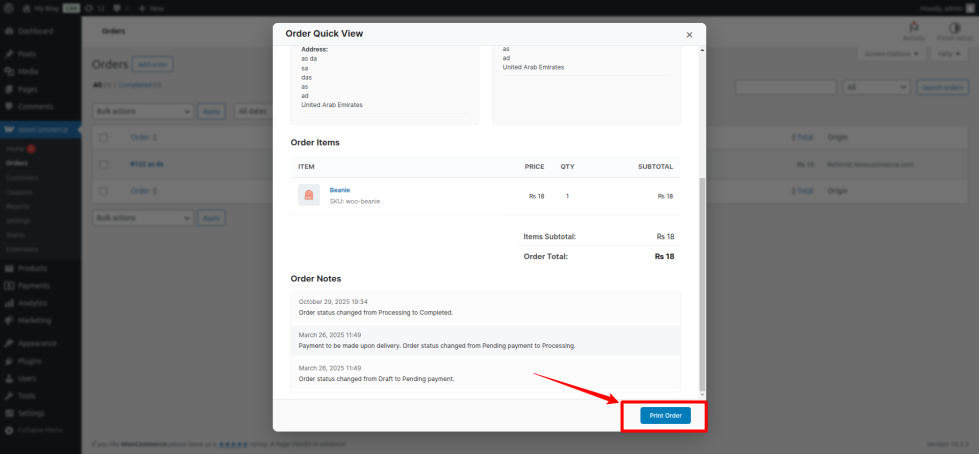
- Click Quick View to open order details in a pop-up — it also includes a Print Order button inside.
- Click Quick Edit to edit the order directly in the pop-up without leaving the Orders page.
- That’s it! Simple, fast, and ready to use — no extra configuration needed.
To print orders, a Print Order button will be available at the bottom of the Quick View popup. Simply click it, and the order will open in a downloadable format.