
Overview
↑ Back to topQuixWP Address Autocomplete for WooCommerce displays address suggestions as customers type during checkout. After a customer selects a suggestion, the extension fills the available street, city, state, or province, postcode, and country fields.
The extension supports classic checkout and the WooCommerce Checkout block. It works with the standard WooCommerce billing and shipping fields, and customers can always enter an address manually.
QuixWP provides eight provider options across seven address services:
- Google Places New
- Google Places Legacy
- Mapbox Search
- HERE Geocoding and Search
- TomTom
- Loqate
- LocationIQ
- Geoapify
Only one provider is active at a time.
Requirements
↑ Back to topBefore configuring the extension, confirm that the store meets these requirements:
| Requirement | Minimum |
|---|---|
| PHP | 7.4 |
| WordPress | 6.0 |
| WooCommerce | 7.0 |
QuixWP Address Autocomplete has been tested with WordPress 7.1.3 and WooCommerce 11.2.1.
You also need:
- HTTPS enabled on the store
- An API key from one supported address provider
- An active provider account with sufficient quota or credit
- At least one selling or shipping country configured in WooCommerce
Provider pricing, coverage, quotas, data retention, and permitted uses are controlled by each provider.
Installation
↑ Back to topAfter installation and activation:
- Go to WooCommerce → Settings.
- Open the Address Autocomplete tab.
- Configure the extension before testing checkout.
Quick start
↑ Back to topTo configure QuixWP Address Autocomplete:
- Go to WooCommerce → Settings → Address Autocomplete.
- Turn on Enable Plugin.
- Select an address provider.
- Enter the API key for that provider.
- Review the general settings.
- Select Save changes.
- Go to WooCommerce → Settings → General.
- Ensure Enable predictive address search is enabled.
- If WooCommerce displays a provider selector, select the QuixWP provider.
- Test billing and shipping addresses at checkout.
QuixWP respects WooCommerce’s predictive address search setting and selected provider. Disabling predictive address search in WooCommerce disables autocomplete at checkout.
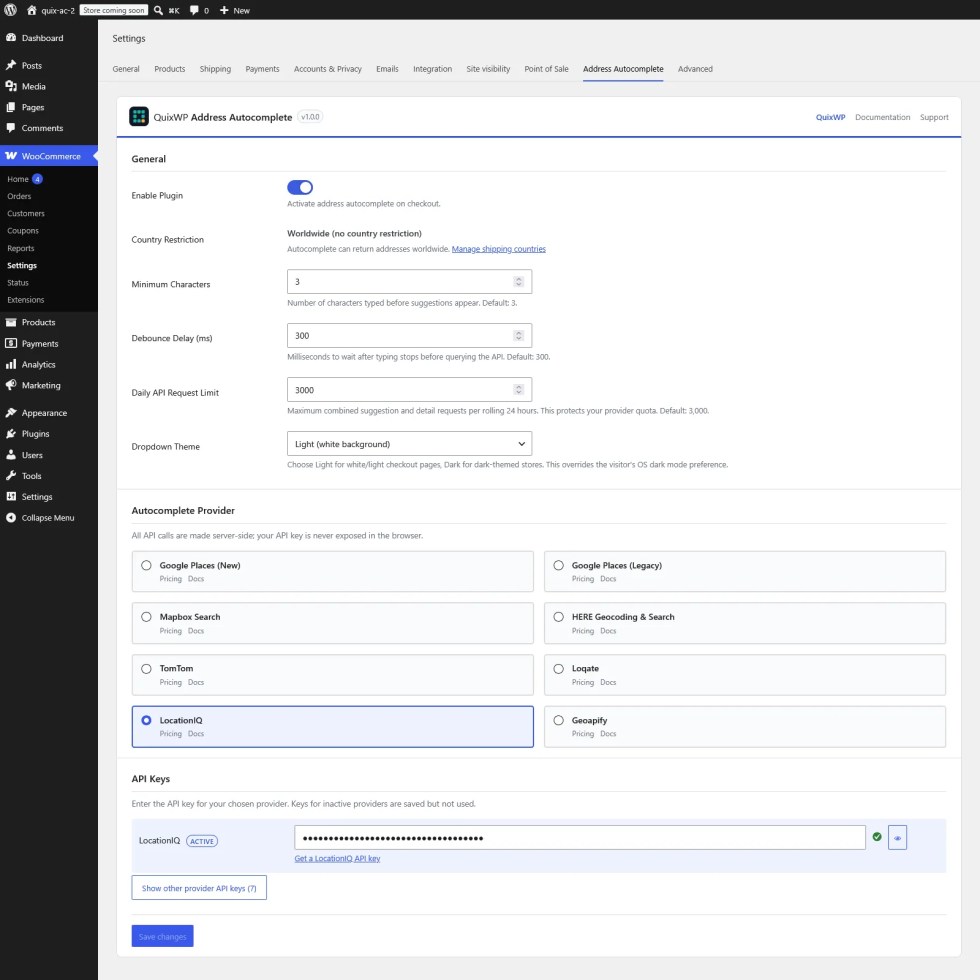
Configure the general settings
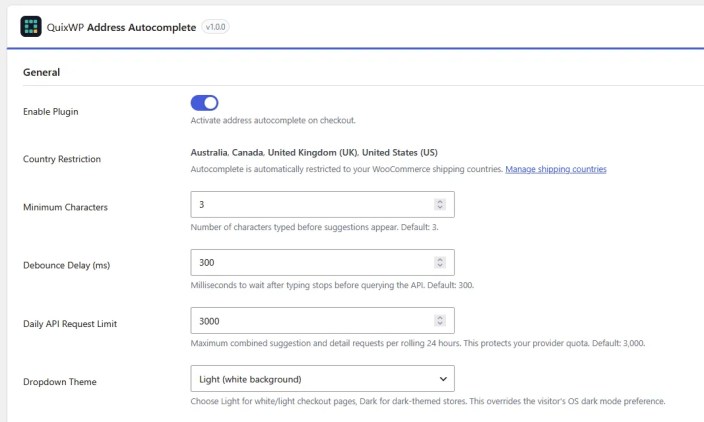
↑ Back to topOpen WooCommerce → Settings → Address Autocomplete to configure the following options.
Enable plugin
↑ Back to topTurns QuixWP Address Autocomplete on or off.
Turning the extension off stops QuixWP address suggestions but preserves its saved configuration and API keys.
Country restriction
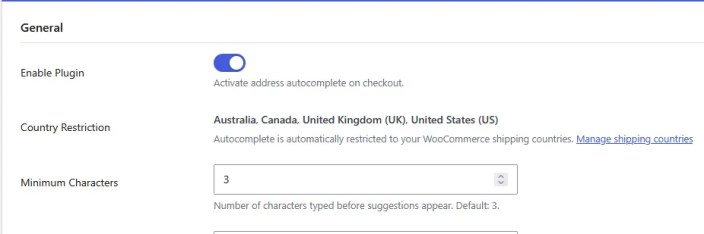
↑ Back to topDisplays the countries derived from the store’s WooCommerce selling and shipping settings.
This is a read-only setting. To change the countries, use WooCommerce → Settings → General.
Minimum characters
↑ Back to topControls how many characters a customer must type before QuixWP requests address suggestions.
The default value is three.
A higher value can reduce provider requests, but customers must type more characters before suggestions appear.
Debounce delay
↑ Back to topControls how long QuixWP waits after the customer stops typing before requesting suggestions.
The default value is 300 milliseconds.
Increasing the delay can reduce the number of requests generated while customers type.
Daily API request limit
↑ Back to topSets the maximum combined number of suggestion and address-detail requests allowed during a rolling 24-hour period.
The default value is 3,000.
The store-wide limit protects the provider quota. QuixWP also applies automatic per-client limits so one visitor cannot consume the complete store allowance.
Dropdown theme
↑ Back to topControls the appearance of the address-suggestion dropdown.
Choose:
- Light for white or light checkout pages
- Dark for dark checkout pages
The selected theme does not depend on the customer’s operating-system preference.
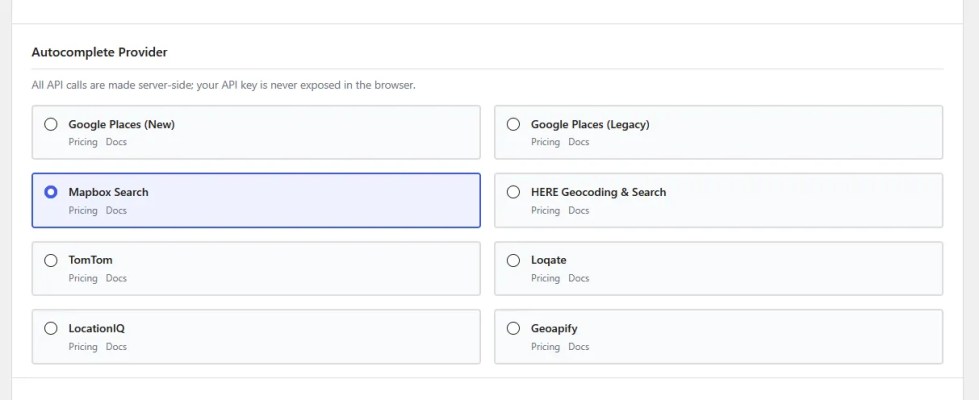
Choose an address provider
↑ Back to topQuixWP includes eight provider options. Only the selected provider is used at checkout.
API keys for inactive providers can remain saved, but QuixWP does not use them until the corresponding provider is selected.
Google Places new
↑ Back to topRecommended for new Google Cloud projects. Enable Places API New for the API key used by QuixWP.
Google Places legacy
↑ Back to topIntended for existing Google Cloud projects that still have access to Places API Legacy. New Google Cloud projects should use Google Places New.
Google Places New and Legacy have separate API-key fields.
Mapbox search
↑ Back to topUses Mapbox Search Box. Before enabling it on a live store, confirm that the Mapbox account terms permit the intended storage and use of checkout address data.
HERE geocoding and search
↑ Back to topRequires a HERE project and an API key with access to the Geocoding and Search service.
TomTom
↑ Back to topRequires a TomTom API key with Search API access.
Some TomTom results may contain only a partial postcode. QuixWP does not fill an incomplete Canadian postal prefix that WooCommerce would reject.
Loqate
↑ Back to topUses Loqate Address Capture, including container results used to locate a final address.
This integration does not use the separate Loqate Address Verify service.
LocationIQ
↑ Back to topRequires a LocationIQ access token. Test representative addresses in every country served by the store.
LocationIQ place identifiers contain the latitude and longitude of the selected address.
Geoapify
↑ Back to topRequires a Geoapify project and API key. Review the account’s current quota and permitted use before enabling it on a live store.
Add an API key
↑ Back to topTo configure an API key:
- Select the provider under Autocomplete Provider.
- Find that provider under API Keys.
- Use the displayed setup link if you need to create a provider account or key.
- Enter the key in the corresponding field.
- Select Save changes.
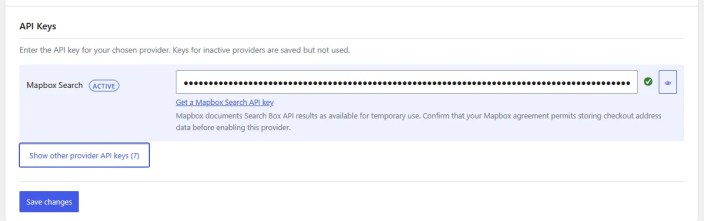
The active provider is highlighted. Select Show other provider API keys to view the saved fields for inactive providers.
Provider requests pass through the WordPress server. The API key is not included in the checkout page or frontend JavaScript.
Never include an API key in screenshots, documentation, or support requests.
Configure supported countries
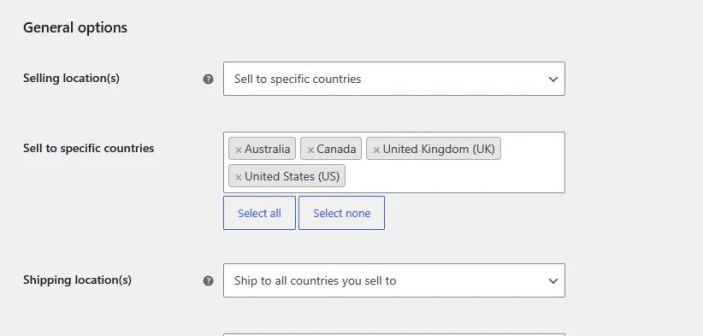
↑ Back to topQuixWP automatically follows the selling and shipping destinations configured in WooCommerce.
To change the supported countries:
- Go to WooCommerce → Settings → General.
- Review Selling location(s).
- Review Shipping location(s).
- If the store uses specific countries, update the selected country list.
- Select Save changes.
- Return to WooCommerce → Settings → Address Autocomplete.
- Confirm that Country Restriction displays the expected countries.
Test the active provider with addresses from every country the store serves.
Test address autocomplete
↑ Back to topTest the extension before opening checkout to customers.
- Add a product to the cart.
- Open checkout in a private browser window.
- Select a destination country.
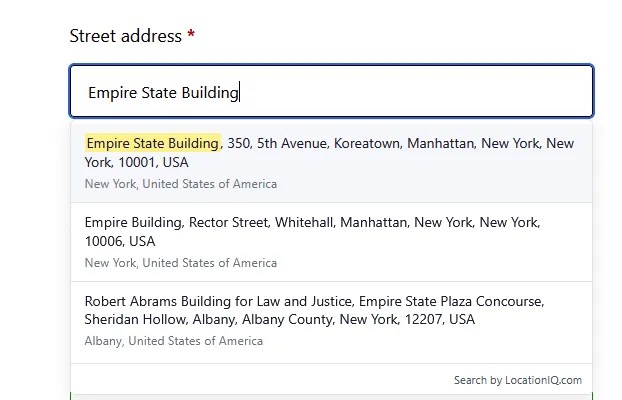
- Begin typing a street address.
- Confirm that suggestions appear.
- Select a suggestion.
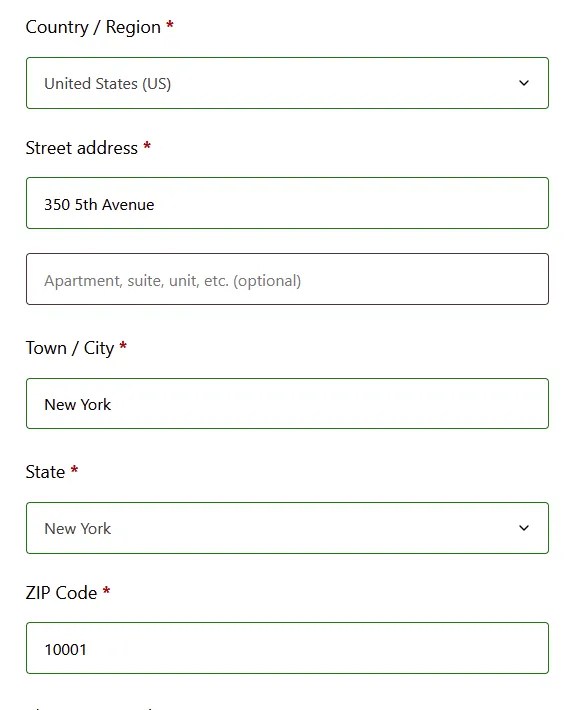
- Confirm that the available address fields are filled correctly.
- Repeat the test for the billing address.
- Repeat the test for the shipping address.
- Test both classic and block checkout if the store uses both.
Check the following fields:
- Street address
- City
- State or province
- Postcode
- Country
Also confirm that customers can type an address manually without selecting a suggestion.
Country-aware address formatting
↑ Back to topQuixWP formats the street name and house number according to the selected address’s country when the provider supplies sufficient structured information.
For example:
- Germany: Unter den Linden 77
- United States: 350 Fifth Avenue
QuixWP also attempts to match state and province values to the codes recognized by WooCommerce.
Providers do not always return every address component. QuixWP fills the structured information supplied by the selected provider, but it does not invent a missing city, state, province, or postcode.
Customer checkout experience
↑ Back to topCustomers type into the standard WooCommerce street-address field. Suggestions appear after the configured number of characters and request delay.
After a customer selects a suggestion, QuixWP fills the available standard WooCommerce address fields.
QuixWP does not:
- Replace the normal WooCommerce address fields
- Require a customer to select a suggestion
- Add map-based location selection
- Provide a separate postal-address verification service
- Prevent manual address entry
If the provider is unavailable, the customer can continue entering an address manually.
Request limits and provider quotas
↑ Back to topQuixWP uses multiple request controls to protect the provider account:
- A short per-minute limit
- A rolling per-client daily limit
- An IP-derived daily limit
- A configurable store-wide rolling 24-hour limit
- Validation of recently returned suggestions
If a limit is reached, external address suggestions temporarily stop. Checkout remains available, and customers can enter their addresses manually.
Customers on shared networks
↑ Back to topCustomers who share a public IP address can share the IP-derived daily allowance. This may affect offices, mobile networks, public Wi-Fi networks, or hosting configurations that hide the original visitor IP address.
When a WooCommerce session is available, QuixWP also uses a pseudonymous session-derived identifier to distinguish visitors.
Sites behind a trusted reverse proxy can use the qwp_ac_rate_limit_client_ip filter to supply a validated visitor IP address. A developer or hosting provider should configure this because forwarded-IP headers must not be trusted without validation.
Privacy and data processing
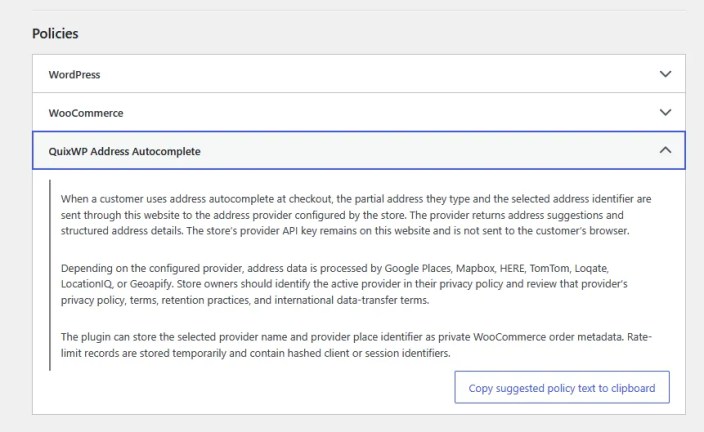
↑ Back to topAddress autocomplete uses an external service.
As a customer types:
- The partial address query travels from the customer’s browser to the WordPress site.
- The WordPress site sends the query to the selected address provider.
- The provider returns address suggestions.
- Selecting a suggestion may send its identifier to the provider to retrieve structured address details.
The provider API key remains on the WordPress server.
QuixWP can save the selected provider name and provider place identifier as private WooCommerce order metadata.
For LocationIQ, the provider place identifier contains the selected address’s exact latitude and longitude.
Rate-limit data
↑ Back to topTo protect provider quotas and prevent abuse, QuixWP temporarily processes:
- The visitor’s IP address
- A WooCommerce session identifier, when available
- A WordPress user identifier, when available
QuixWP converts these values into salted pseudonymous identifiers. The raw IP address and raw session identifier are not stored in QuixWP rate-limit records.
The retention periods are:
- Per-minute rate-limit records: one minute
- Recent-suggestion validation records: 10 minutes
- Daily client and IP-derived records: no more than 24 hours
Privacy policy guidance
↑ Back to topWordPress displays suggested disclosure text for QuixWP under Settings → Privacy.
Review and adapt this text for the selected provider, the store’s legal basis, and the countries in which the store operates.
Store owners remain responsible for reviewing the selected provider’s:
- Privacy policy
- Data-processing terms
- Retention practices
- International data transfers
- Permitted uses
The extension does not by itself guarantee compliance with GDPR or any other privacy law.
Troubleshooting
↑ Back to topAddress suggestions do not appear
↑ Back to topCheck the following:
- QuixWP is enabled.
- The settings were saved.
- WooCommerce predictive address search is enabled.
- The intended provider is selected.
- The provider has an API key in its own field.
- The required service is enabled in the provider account.
- The provider account has sufficient quota or credit.
- The selected country is allowed by the WooCommerce store settings.
- The entered text meets the Minimum Characters setting.
- The store-wide or per-client request limit has not been reached.
- The checkout page is not using an outdated cached script.
If the store uses JavaScript optimization or script combining, temporarily disable it and test checkout again.
Google Places new returns no suggestions
↑ Back to topConfirm that the Google Cloud project has Places API New enabled.
Google Places New and Google Places Legacy are separate provider modes. Enter the key in the field that matches the enabled Google service.
A provider error appears
↑ Back to topCustomers can continue typing their addresses manually.
Check:
- API key
- Enabled provider service
- Account status
- Billing status
- Available quota or credit
- Country coverage
- API-key restrictions
Logged-in administrators may see additional provider diagnostics on the frontend. Customers do not see detailed API credentials or provider error information.
Some fields remain empty
↑ Back to topProviders do not always return every structured address component for landmarks, rural addresses, or partial records.
Try:
- Selecting another suggestion
- Searching with a more complete street address
- Testing another real-world address
- Comparing the result with another provider
QuixWP does not invent missing address data.
The state or province remains empty
↑ Back to topConfirm that:
- The provider returned a state or province.
- The selected country is correct.
- WooCommerce recognizes the returned state or province.
- The result contains enough structured data for QuixWP to match it to a WooCommerce code.
The postcode is incomplete
↑ Back to topSome providers return regional or partial postal codes.
For example, TomTom may return only the first three characters of a Canadian postcode. QuixWP leaves this value empty rather than filling a postcode that WooCommerce would reject.
The request limit was reached
↑ Back to topWait for the applicable rolling limit to reset.
If the store regularly reaches the store-wide limit:
- Go to WooCommerce → Settings → Address Autocomplete.
- Review Daily API Request Limit.
- Confirm the provider account has sufficient quota.
- Increase the limit only when the provider allowance supports the additional requests.
- Save the settings and test again.
Suggestions work for one country but not another
↑ Back to topConfirm that:
- The country is included in the WooCommerce selling or shipping destinations.
- The selected provider covers that country.
- The provider account permits requests for that region.
- The address is available in the provider’s dataset.
Test several representative addresses before treating one missing result as an extension error.
Deactivation and deletion
↑ Back to topDeactivating QuixWP stops its address autocomplete functionality but preserves the extension settings.
After deactivation, review WooCommerce → Settings → General and confirm that predictive address search and the selected provider match the store’s intended configuration.
Deleting QuixWP through the WordPress Plugins screen runs the extension’s uninstall cleanup.
Get support
↑ Back to topUse the Get support link on the QuixWP Address Autocomplete product page in the WooCommerce Marketplace.
Include the following information:
- WordPress version
- WooCommerce version
- QuixWP version
- Selected provider
- Classic or block checkout
- Destination country
- Steps needed to reproduce the issue
- A redacted screenshot or error message
Never include an API key in a support request.