Let your customers easily reorder products they’ve purchased before with the WooCommerce Repeat Order and Buy Again plugin.
Installation
↑ Back to topTo start using a product from WooCommerce.com, you can use the “Add to store” functionality on the order confirmation page or the My subscriptions section in your account.
- Navigate to My subscriptions.
- Find the Add to store button next to the product you’re planning to install.
- Follow the instructions on the screen, and the product will be automatically added to your store.
Alternative options and more information at: Managing WooCommerce.com subscriptions.
Configuration
↑ Back to topAfter you have installed and activated the Plugin, go to WooCommerce > Settings > Buy Again. Here you will find the following sections to configure:
General Settings
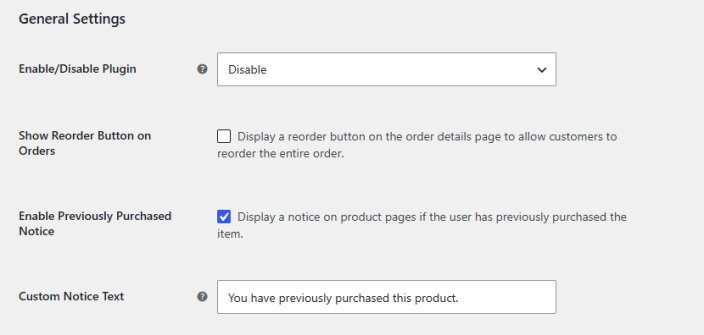
↑ Back to topTo configure the general settings, go to WooCommerce > Settings > Buy Again > General Settings and do the following:
- Enable/Disable Plugin: Enable or disable the repeat order and buy again plugin.
- Show Reorder Button on Orders: Click the checkbox to display a reorder button on the order details page to allow customers to reorder the entire order.
- Enable Previously Purchased Notice: Enable the checkbox to display a notice on product pages if the user has previously purchased the item.
- Custom Notice Text: Enter custom text to display as the previously purchased notice on the product page.
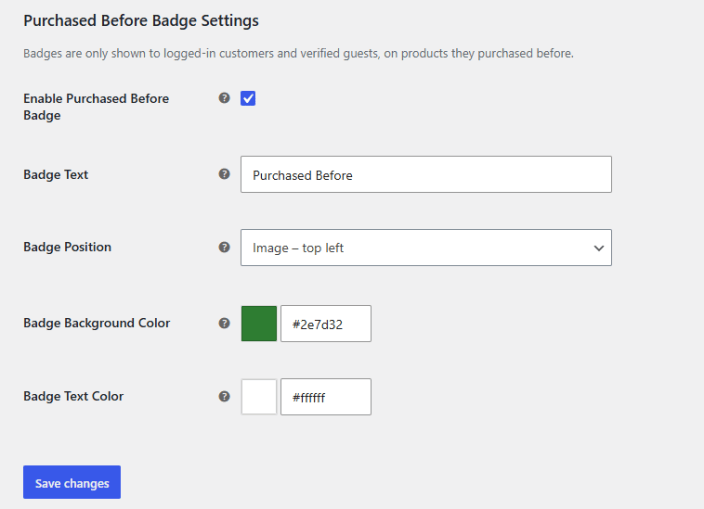
Purchased Before Badge Settings
↑ Back to topBadges are only shown to logged-in customers and verified guests on products they purchased before.
- Enable Purchased Before Badge: Check the box to display a purchased before badge on the product, shop, and archive pages.
- Badge Text: Add text for the badge.
- Badge Position: Select the position for the badge:
- Image – Top Left
- Image – Top Right
- Before Product Title
- After Price
- Badge Background Color: Choose the background color for the badge.
- Badge Text Color: Select the color for the text on the badge.
Buy Again Settings
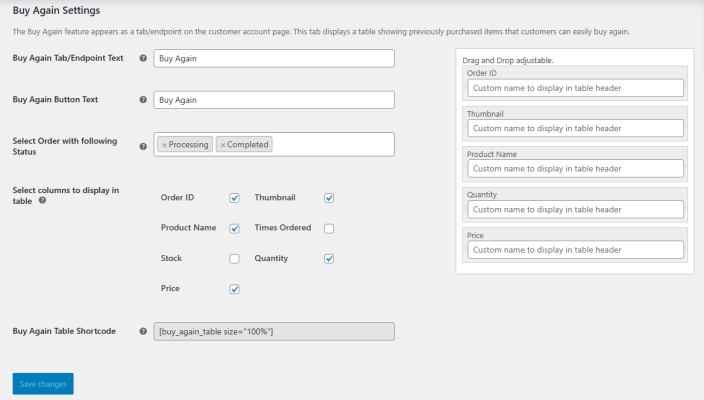
↑ Back to topThe Buy Again feature appears as a tab/endpoint on the customer account page. In this section, you can configure the buy again settings. Go to WooCommerce > Settings > Buy Again > Buy Again Settings and manage the following:
- Buy Again Tab/Endpoint Text: Enter the text for the buy again tab/endpoint.
- Buy Again Button Text: Add text for the buy again button.
- Select Order With The Following Status: Choose the order status for which you want to display products in the buy again table. Only the products with the selected order statuses will be displayed in the table.
- Select Columns To Display In The Table: Select the columns that you want to display in the buy again table. Use drag-and-drop to change the sequence of the columns. You can select the following to include:
- Order ID
- Thumbnail
- Product Name
- Times Ordered
- Stock
- Quantity
- Price
- Buy Again Table Shortcode: Use the shortcode ([buy_again_table size=”100%”]) to display the buy again table anywhere on your website. You can also customize the size of the table by adjusting the value in teh shortcode.
Guest Buy Again
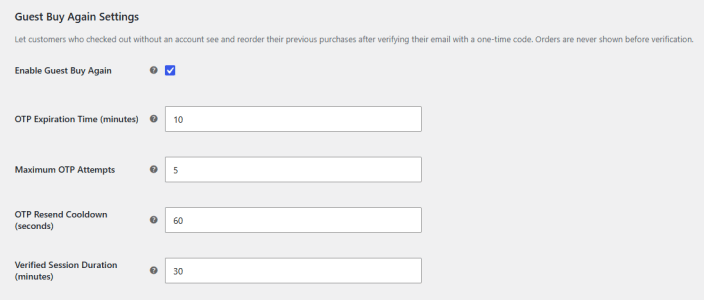
↑ Back to topLet customers who checked out without an account see and reorder their previous purchases after verifying their email with a one-time code. Orders are never shown before verification. Go to WooCommerce > Settings > Buy Again > Guest Buy Again and configure the following:
- Enable Guest Buy Again: Check the box to enable the buy again feature for guest users.
- OTP Expiration Time (minutes): Set the time for OTP expiration in minutes.
- Maximum OTP Attempts: Set the maximum number of OTP attempts allowed.
- OTP Resend Cooldown (seconds): Minimum wait time before a guest user can request OTP again.
- Verified Session Duration (minutes): Set how long the duration will be for a verified guest user.
Restrictions
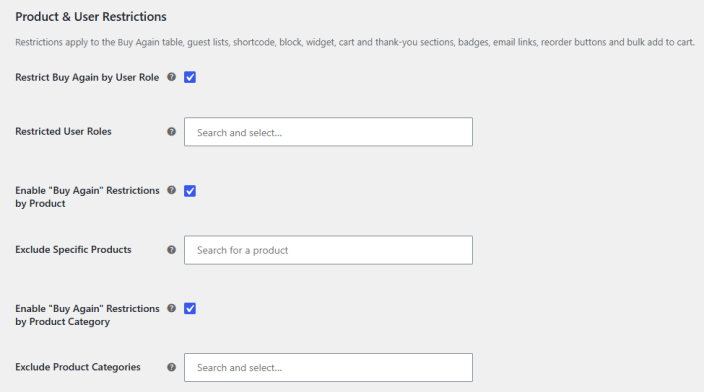
↑ Back to topApply restrictions to the Buy Again table, guest lists, shortcode, block, widget, cart and thank-you sections, badges, email links, reorder buttons and bulk add to cart. Go to WooCommerce > Settings > Buy Again > Restrictions and configure:
- Restrict Buy Again by User Role: Check to restrict the Buy Again feature based on user role.
- Restricted User Roles: Select the user roles for which the Buy Again feature will be restricted.
- Enable “Buy Again” Restrictions by Product: Restrict Buy Again based on products.
- Exclude Specific Products: Select the specific products that you want to exclude from restriction.
- Enable “Buy Again” Restrictions by Product Category: Restrict the Buy Again feature based on product categories.
- Exclude Product Categories: Select teh specific categories that you want to exclude from the restriction.
Display and Placement Settings
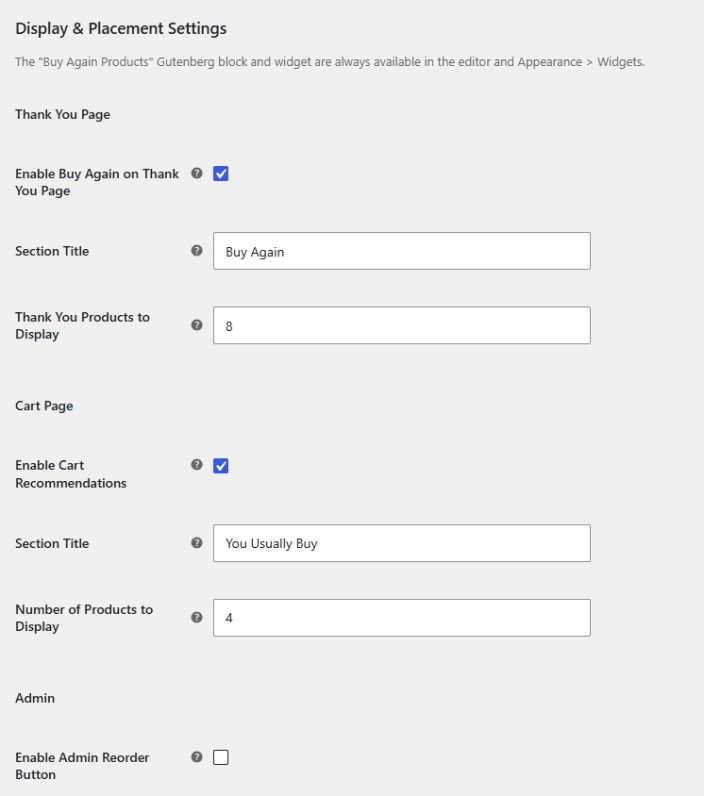
↑ Back to topConfigure the display and placement settings for the Buy Again feature. Go to WooCommerce > Settings > Buy Again > Display and Placement and configure:
Thank You Page
↑ Back to top- Enable Buy Again on Thank You Page: Check to display previously purchased products on the thank you page.
- Section Title: Add a title for the section on the thank you page.
- Thank You Products to Display: Select the product to be displayed on the thank you page.
Cart Page
↑ Back to top- Enable Cart Recommendations: Enable to display the previously purchased products on the cart page.
- Section Title: Set a title for the section.
- Number of Products to Display: Choose the number of products to be displayed.
Admin
↑ Back to top- Enable Admin Reorder Button: Check to add a reorder action to the admin order screen that creates a new pending order after confirmation.
Email Buy Again
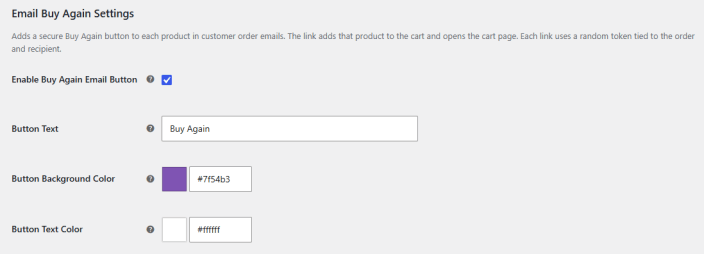
↑ Back to topAdd Buy Again buttons to customer order emails. Go to WooCommerce > Settings > Buy Again > Email Buy Again and configure the following:
- Enable Buy Again Email Button: Check the box to include a buy again button in the order emails.
- Button Text: Add text for the button.
- Button Background Color: Select teh background color for the button.
- Button Text Color: Set the color for the text.
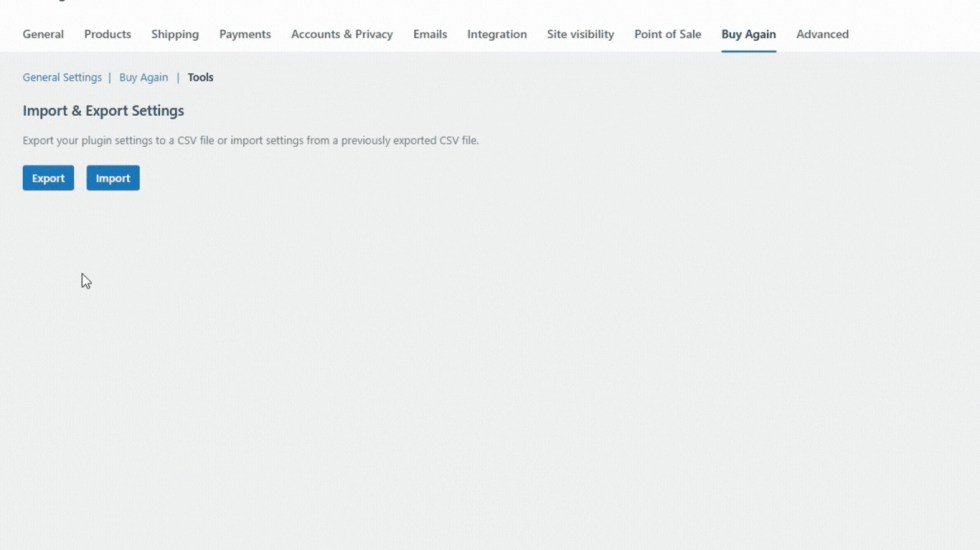
Tools – Import/Export Settings
↑ Back to topGo to WooCommerce > Settings > Buy Again > Tools, and here you can manage the import/export of the plugin settings. Export your plugin settings to a CSV file or import settings from a previously exported CSV file.