
Introduction
↑ Back to topRevenue Guard for WooCommerce is an intelligent revenue optimization plugin built for WooCommerce store owners who want to protect profits and unlock growth without increasing traffic.
Unlike traditional analytics tools that only show reports, Revenue Guard analyzes your store data automatically and provides clear, actionable insights. It identifies where you are losing money and highlights easy opportunities to increase revenue using your existing customers.
The plugin works as a financial advisor for your WooCommerce store. It runs automated nightly analysis, calculates potential revenue gain and money at risk, and displays everything in a centralized dashboard with direct action buttons.
Revenue Guard focuses on two core objectives:
- Protect lost revenue (Money at Risk)
- Generate new revenue (Easy Wins)
Plugin Requirements
↑ Back to topBefore installing Revenue Guard, confirm that your website meets the following requirements to ensure smooth performance and compatibility.
System Requirements
↑ Back to top- WordPress version 5.8 or higher
- WooCommerce version 6.0 or higher
- PHP version 7.4 or higher
Recommended Setup
↑ Back to top- At least 30 days of order history for best insights
- Minimum 10 orders for meaningful analysis
- WP Cron enabled for automated nightly insights
- HTTPS enabled for secure data processing
Installation Process
↑ Back to topStep 1: Install the Plugin
↑ Back to top- Log in to your WordPress admin dashboard
- Go to Plugins → Add Plugin → Upload Plugin.
- Click ‘Choose File’ and upload the plugin’s ZIP file.
- Click Install Now.
- Click Activate.
After activation, Revenue Guard appears in your WordPress admin menu.
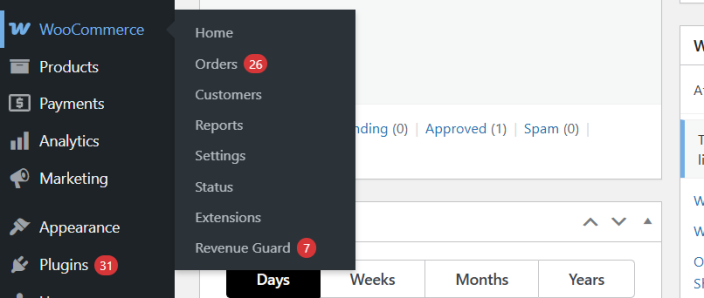
Step 2: Seed WooCommerce Data
↑ Back to top- After activation, navigate to Revenue Guard in your WordPress admin menu
- Click the “Seed WooCommerce data” button in the top right corner
- Wait for the initial data analysis to complete
- Review your first insights immediately on the Overview dashboard
Step 3: Configure Settings (Optional)
↑ Back to top- Go to Revenue Guard → Settings
- Adjust threshold values based on your store’s specific needs
- Enable weekly email reports and add recipient email addresses
- Click Save Changes
After setup, Revenue Guard will automatically run nightly analysis at 2:00 AM (your store time) without slowing down your site.
Plugin Menu Overview
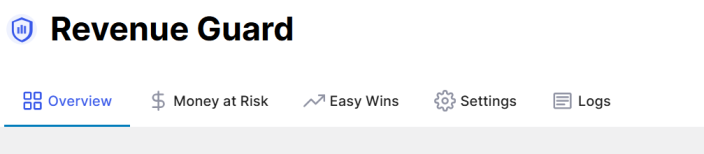
↑ Back to topOnce activated, Revenue Guard adds a dedicated menu with the following navigation tabs:
- Overview – Central dashboard showing revenue health summary
- Money at Risk – Revenue protection alerts and issues
- Easy Wins – Revenue growth opportunities
- Settings – Customizable thresholds and email configuration
- Logs – Activity history and scheduled task tracking
Each section provides specific insights and actions to protect and grow your WooCommerce revenue.
Overview Dashboard
↑ Back to topNavigation: Revenue Guard → Overview
The Overview dashboard provides a real-time store health check with actionable insights at a glance.
Summary Section
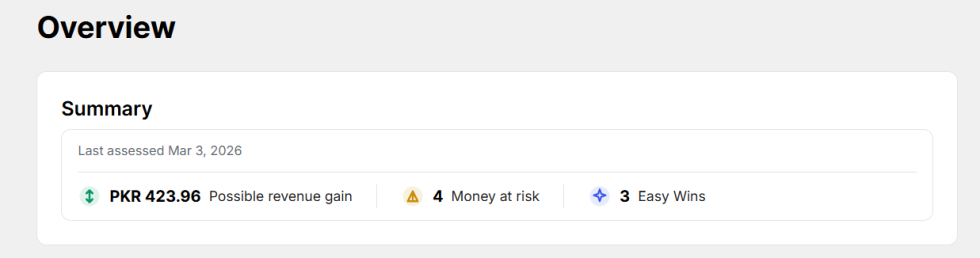
↑ Back to topThe Summary card displays:
- Last assessed date – When insights were last computed
- Possible revenue gain – Total potential revenue from Easy Wins
- Money at risk count – Number of active revenue threats
- Easy Wins count – Number of growth opportunities available
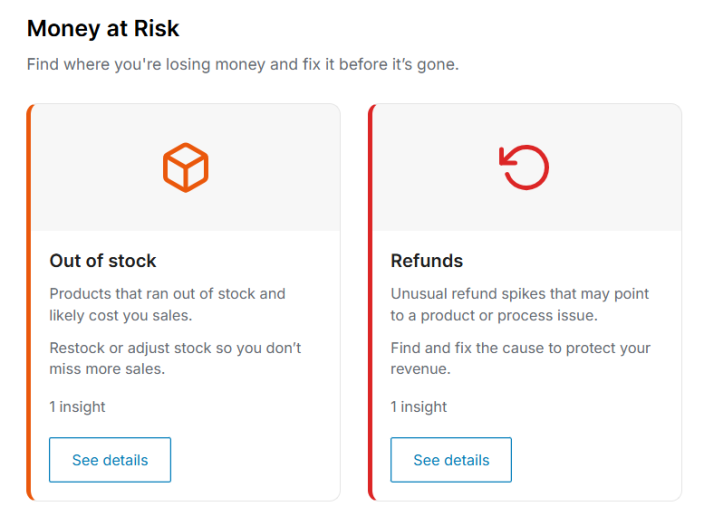
Money at Risk Section
↑ Back to topThis section shows four categories of revenue threats:
Out of Stock
- Products that ran out of stock and likely cost you sales
- Shows the number of insights detected
- Click “See details” to view specific products and lost revenue amounts
- Action: Restock or adjust inventory to prevent missed sales
Refunds
- Unusual refund spikes that may point to product or process issues
- Identifies products with higher-than-average refund rates
- Click “See details” to investigate problem products
- Action: Fix quality or description issues to protect revenue
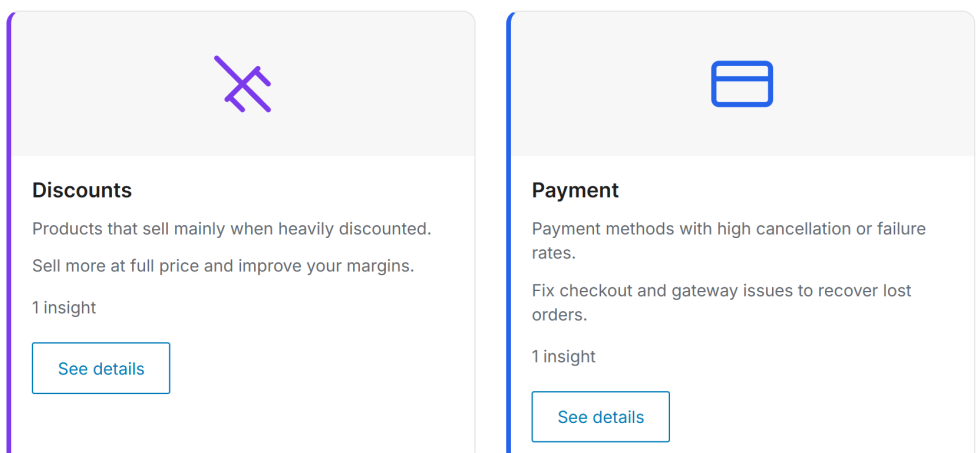
Discounts
- Products that sell mainly when heavily discounted
- Identifies discount dependency eroding your margins
- Click “See details” to see which products rely on coupons
- Action: Sell more at full price to improve profitability
Payment
- Payment methods with high cancellation or failure rates
- Detects checkout issues causing lost orders
- Click “See details” to identify problematic gateways
- Action: Fix checkout and gateway issues to recover lost orders
Easy Wins Section
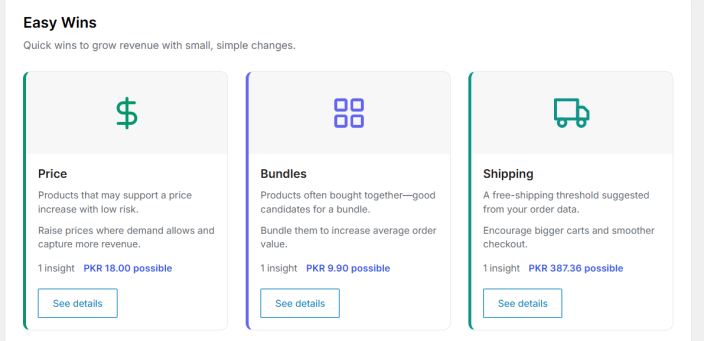
↑ Back to topThis section shows three categories of revenue growth opportunities:
Price
- Products that may support a price increase with low risk
- Shows the potential revenue gain amount
- Based on strong sales, low refunds, and minimal coupon usage
- Click “See details” to view specific price increase suggestions
Bundles
- Products frequently bought together
- Good candidates for product bundles
- Shows potential revenue increase from bundling
- Click “See details” to see bundle recommendations
Shipping
- Free-shipping threshold suggestions based on order data
- Encourages bigger carts and smoother checkout
- Shows potential revenue increase from optimized threshold
- Click “See details” to view the recommended shipping limit
Money at Risk Tab
↑ Back to topNavigation: Revenue Guard → Money at Risk
This page provides detailed insights into revenue threats with specific action steps.
Out of Stock Alerts
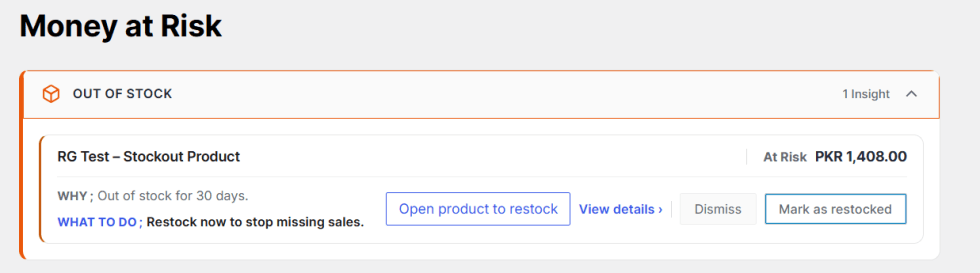
↑ Back to topWhen expanded, each stockout alert shows:
- Product name – The specific product that’s out of stock
- At Risk amount – Calculated lost revenue (e.g., PKR 1,518.00)
- WHY – Explanation (e.g., “Out of stock for 30 days”)
- WHAT TO DO – Clear action step (e.g., “Restock now to stop missing sales”)
Action Buttons:
- Open product to restock – Direct link to edit product inventory
- View details – See detailed analysis and calculations
- Dismiss – Hide this alert if not applicable
- Mark as restocked – Mark the issue as resolved
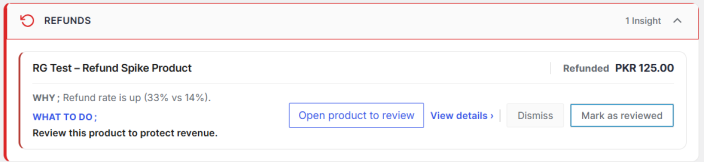
Refunds Monitoring
↑ Back to topWhen expanded, each refund alert shows:
- Product name – The specific product with unusual refund activity (e.g., “RG Test – Refund Spike Product”)
- Refunded amount – Total revenue lost to refunds (e.g., PKR 125.00)
- WHY – Explanation comparing current refund rate to store average (e.g., “Refund rate is up (33% vs 14%)”)
- WHAT TO DO – Clear action step (e.g., “Review this product to protect revenue”)
Action Buttons:
- Open product to review – Direct link to examine product details, descriptions, and settings
- View details – See detailed refund analysis and trends
- Dismiss – Hide this alert if not applicable
- Mark as reviewed – Mark the issue as reviewed after investigation
Discounts Analysis
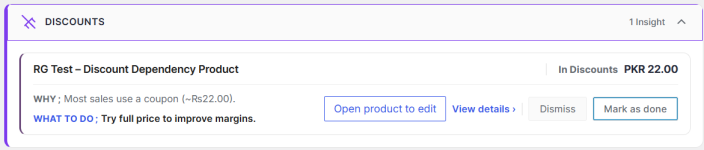
↑ Back to topWhen expanded, each discount dependency alert shows:
- Product name – The specific product relying heavily on coupons (e.g., “RG Test – Discount Dependency Product”)
- In Discounts amount – Revenue lost to coupon discounts (e.g., PKR 22.00)
- WHY – Explanation showing coupon usage patterns (e.g., “Most sales use a coupon (~Rs22.00)”)
- WHAT TO DO – Clear action step (e.g., “Try full price to improve margins”)
Action Buttons:
- Open product to edit – Direct link to modify product pricing or coupon restrictions
- View details – See detailed discount usage statistics and sales patterns
- Dismiss – Hide this alert if not applicable
- Mark as done – Mark the issue as addressed after taking action
Payment Failure Tracking
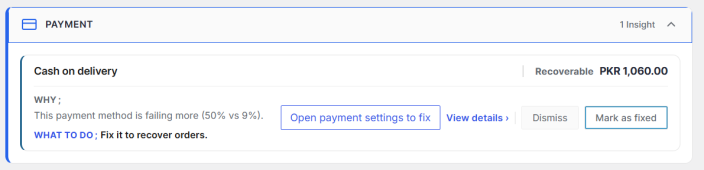
↑ Back to topWhen expanded, each payment failure alert shows:
- Payment method name – The specific gateway experiencing issues (e.g., “Cash on delivery”)
- Recoverable amount – Estimated revenue that could be recovered (e.g., PKR 1,060.00)
- WHY – Explanation comparing failure rate to store average (e.g., “This payment method is failing more (50% vs 9%)”)
- WHAT TO DO – Clear action step (e.g., “Fix it to recover orders”)
Action Buttons:
- Open payment settings to fix – Direct link to WooCommerce payment gateway configuration
- View details – See detailed payment failure statistics and patterns
- Dismiss – Hide this alert if not applicable
- Mark as fixed – Mark the issue as resolved after correcting payment settings
Easy Wins Tab
↑ Back to topNavigation: Revenue Guard → Easy Wins
This page provides detailed revenue growth opportunities with implementation guidance.
Price Optimization Suggestions
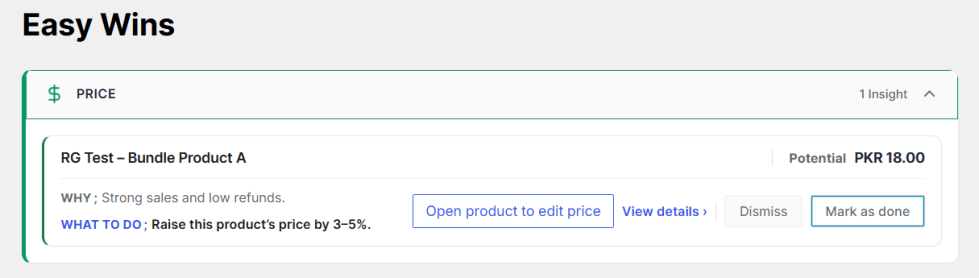
↑ Back to topWhen expanded, each price suggestion shows:
- Product name – The candidate for price increase (e.g., “RG Test – Price Increase Candidate”)
- Potential revenue – Estimated gain (e.g., PKR 168.86)
- WHY – Justification (e.g., “Strong sales and low refunds”)
- WHAT TO DO – Specific recommendation (e.g., “Raise this product’s price by 3-5%”)
Action Buttons:
- Open product to edit price – Direct link to modify product pricing
- View details – See detailed analysis and data backing the suggestion
- Dismiss – Hide this suggestion if not suitable
- Mark as done – Mark after implementing the price change
Bundle Recommendations
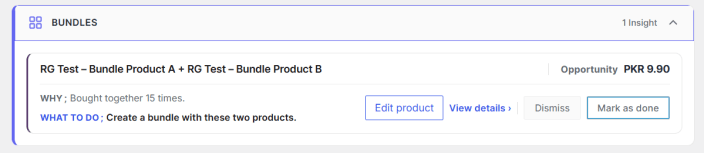
↑ Back to topWhen expanded, each bundle suggestion shows:
- Product combination – The products frequently bought together (e.g., “RG Test – Bundle Product A + RG Test – Bundle Product B”)
- Opportunity amount – Estimated revenue increase from bundling (e.g., PKR 9.90)
- WHY – Explanation showing purchase correlation (e.g., “Bought together 15 times”)
- WHAT TO DO – Specific recommendation (e.g., “Create a bundle with these two products”)
Action Buttons:
- Edit product – Direct link to create or modify product bundle
- View details – See detailed bundle strength metrics and co-purchase frequency
- Dismiss – Hide this suggestion if not suitable
- Mark as done – Mark after creating the product bundle
Shipping Threshold Suggestions
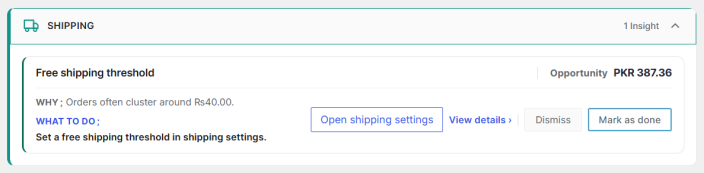
↑ Back to topWhen expanded, each shipping suggestion shows:
- Threshold type – The optimization opportunity (e.g., “Free shipping threshold”)
- Opportunity amount – Estimated revenue increase from optimized threshold (e.g., PKR 387.36)
- WHY – Explanation based on order data patterns (e.g., “Orders often cluster around Rs40.00”)
- WHAT TO DO – Specific recommendation (e.g., “Set a free shipping threshold in shipping settings”)
Action Buttons:
- Open shipping settings – Direct link to WooCommerce shipping configuration
- View details – See detailed order clustering analysis and threshold recommendations
- Dismiss – Hide this suggestion if not suitable
- Mark as done – Mark after implementing the shipping threshold
Settings Configuration
↑ Back to topNavigation: Revenue Guard → Settings
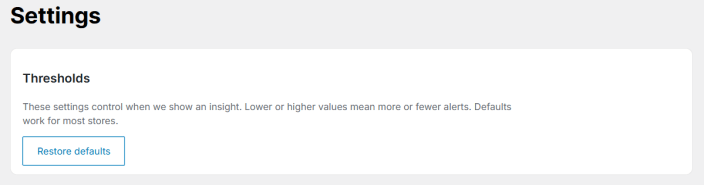
The Settings page allows you to customize when alerts trigger and how insights are calculated. Every store is different, so you can fine-tune thresholds for your specific business model.
Thresholds Section
↑ Back to topRestore defaults button – Reset all thresholds to recommended values
Out of Stock Settings
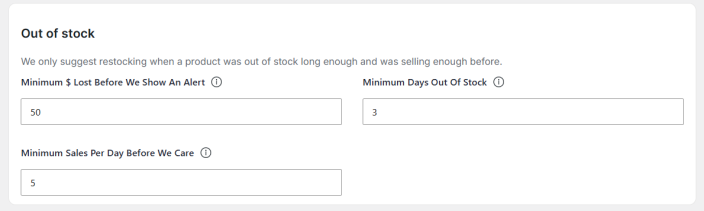
↑ Back to topThese settings control when stockout alerts appear:
Minimum $ Lost Before We Show An Alert
- Default: 50
- Only shows alerts when lost revenue exceeds this amount
- Lower values = more alerts, higher values = fewer alerts
Minimum Days Out Of Stock
- Default: 3
- The product must be out of stock for this many days before alerting
- Prevents alerts for brief stockouts
Minimum Sales Per Day Before We Care
- Default: 5
- The product must have this sales velocity to trigger alerts
- Focuses on products that actually matter
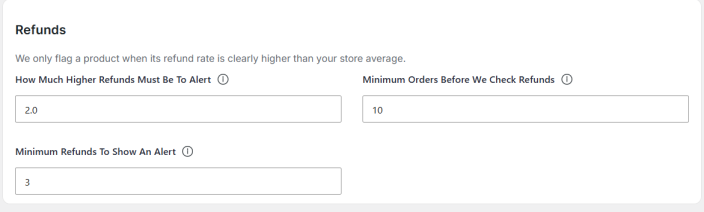
Refunds Settings
↑ Back to topThese settings control refund rate monitoring:
How Much Higher Refunds Must Be To Alert
- Default: 2 (2x higher than store average)
- Product refund rate must exceed the store average by this multiplier
- Identifies truly problematic products
Minimum Orders Before We Check Refunds
- Default: 10
- The product must have this many orders before the refund analysis
- Ensures statistical significance
Minimum Refunds To Show An Alert
- Default: 3
- Product must have at least this many refunds to trigger the alert
- Prevents alerts for isolated incidents
Discounts Settings
↑ Back to topThese settings control discount dependency detection:
Sales-With-Coupon Threshold
- Default: 0.7 (70%)
- The product is flagged if this percentage or more of sales used coupons
- Identifies products overly reliant on discounts

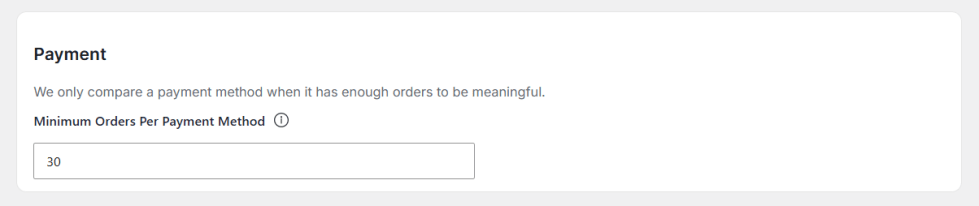
Payment Settings
↑ Back to topThese settings control payment gateway analysis:
Minimum Orders Per Payment Method
- Default: 30
- The payment method must have this many orders to be analyzed
- Ensures meaningful comparison data
Price Settings
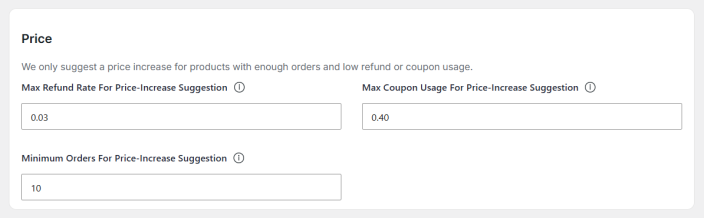
↑ Back to topThese settings control price increase suggestions:
Max Refund Rate For Price-Increase Suggestion
- Default: 0.03 (3%)
- Only suggests price increases for products with refund rates below this
- Ensures product quality is good before raising the price
Max Coupon Usage For Price-Increase Suggestion
- Default: 0.4 (40%)
- Only suggests price increases if coupon usage is below this threshold
- Ensures product can sell at full price
Minimum Orders For Price-Increase Suggestion
- Default: 10
- Product must have this many orders before price suggestions
- Ensures sufficient sales data
Bundles Settings
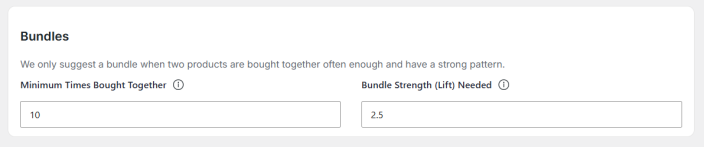
↑ Back to topThese settings control bundle recommendations:
Minimum Times Bought Together
- Default: 10
- Products must be purchased together this many times
- Ensures the pattern is statistically significant
Bundle Strength (Lift) Needed
- Default: 2.5
- Measures how much more likely products are to be bought together vs. randomly
- Higher values = stronger correlation required
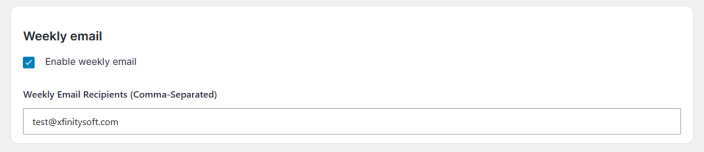
Weekly Email Settings
↑ Back to topConfigure automated email reports:
Enable weekly email
- Checkbox to turn email reports on/off
- When enabled, reports are sent every Monday at 9:00 AM
Weekly Email Recipients (Comma-Separated)
- Enter email addresses to receive reports
- Example: owner@store.com, manager@store.com
- Multiple recipients supported
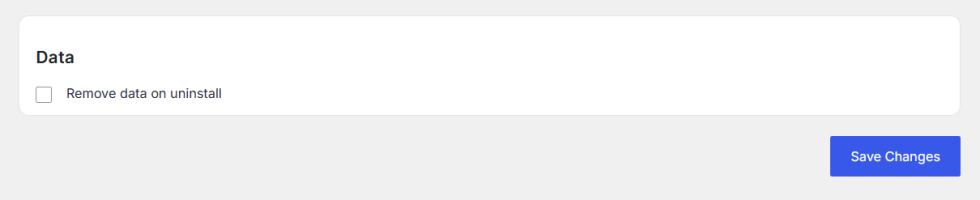
Data Settings
↑ Back to topControl data retention:
Remove data on uninstall
- Checkbox to delete all Revenue Guard data when the plugin is deleted
- Unchecked by default (data retained)
- Check for complete cleanup
Save Changes button – Apply all setting modifications
Logs and Activity Tracking
↑ Back to topNavigation: Revenue Guard → Logs
The Logs page shows when automated tasks run and provides transparency into plugin operations.
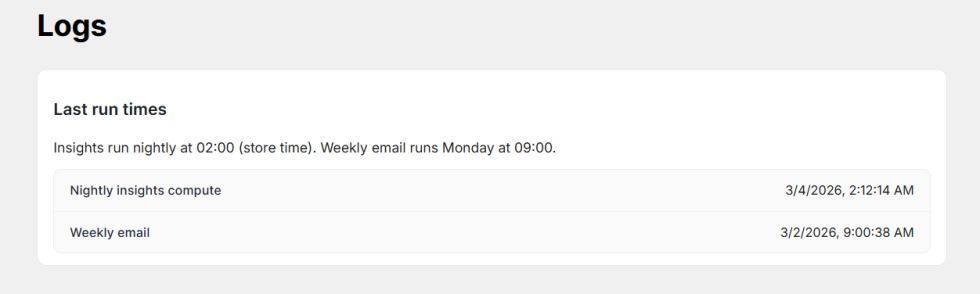
Last Run Times Section
↑ Back to topDisplays scheduled task execution history:
Insights run nightly at 02:00 (store time)
- Automated analysis schedule
- Runs during off-peak hours to avoid performance impact
- Pre-computes all insights for instant dashboard loading
Weekly email runs on Monday at 09:00
- Email report delivery schedule
- Sent to configured recipients
- Summarizes Money at Risk and Easy Wins
Nightly insights compute
- Shows the last execution timestamp
- Example: 2/25/2026, 2:24:23 AM
- Confirms automated analysis is running
Weekly email
- Shows the last email sent timestamp
- Dash (—) indicates no email sent yet
- Updates after first weekly report delivery
Manual Analysis Trigger
↑ Back to top“Run insights now” button (top right)
- Manually trigger immediate analysis
- Useful after making store changes
- Bypasses scheduled timing
“Seed WooCommerce data” button (top right)
- Initial data import and analysis
- Run after installation
- Generates first set of insights
How Revenue Guard Works
↑ Back to topAutomated Nightly Analysis
↑ Back to topEvery night at 2:00 AM (your store time), Revenue Guard automatically:
- Analyzes your WooCommerce order data
- Calculates product performance metrics
- Compares against thresholds and stores averages
- Identifies revenue threats and opportunities
- Pre-computes insights for instant dashboard loading
This off-peak scheduling ensures zero impact on customer experience or store performance.
Intelligent Insight Generation
↑ Back to topAdvanced algorithms analyze patterns specific to YOUR store:
- Stockout detection – Calculates lost revenue based on historical sales velocity
- Refund analysis – Compares product refund rates to store averages
- Discount dependency – Identifies products requiring coupons to sell
- Payment failures – Tracks gateway performance and cancellation rates
- Price optimization – Finds products with strong demand and low risk
- Bundle opportunities – Discovers products frequently bought together
- Shipping thresholds – Analyzes cart data to suggest optimal limits
Actionable Recommendations
↑ Back to topEvery insight includes:
- WHY – Clear explanation of why this matters to your revenue
- WHAT TO DO – Specific action steps to fix or capitalize
- Direct links – One-click access to edit products, adjust prices, or restock
- Revenue impact – Dollar amounts showing potential gain or loss
Weekly Email Reports
↑ Back to topAutomated summaries delivered every Monday at 9:00 AM:
- Total possible revenue gain
- Money at risk count and categories
- Easy wins count and opportunities
- Keeps you informed without daily logins
- Perfect for store owners, managers, and agencies
Best Practices
↑ Back to topMaximize Revenue Recovery
↑ Back to top- Review insights daily – Check the Overview dashboard each morning
- Prioritize high-impact alerts – Address the largest “At Risk” amounts first
- Implement price increases gradually – Test 3-5% increases and monitor
- Restock popular products quickly – Minimize stockout duration
- Investigate refund spikes immediately – Fix quality issues before they escalate
Optimize Settings for Your Store
↑ Back to top- Start with defaults – Recommended thresholds work for most stores
- Adjust after 30 days – Fine-tune based on alert volume and relevance
- Consider your industry – Different products have different refund norms
- Set realistic thresholds – Balance alert frequency with actionability
Use Weekly Reports Effectively
↑ Back to top- Add multiple recipients – Include store owners and managers
- Review every Monday – Make it part of your weekly routine
- Track trends over time – Monitor if revenue protection improves
- Share with team – Keep everyone aligned on revenue goals
Maintain Data Quality
↑ Back to top- Keep WooCommerce updated – Ensure accurate order data
- Maintain product records – Accurate inventory and pricing
- Process refunds properly – Use the WooCommerce refund system
- Monitor payment gateways – Track failure rates regularly
Frequently Asked Questions
↑ Back to topDo you have any pre-sale questions? Contact us now →