
Easily migrate your store from Shopify to WooCommerce by importing products, categories, customers, orders, coupons, blogs, pages, and reviews in a few clicks. Shopify Data Migrator also creates SEO 301 redirects and can keep catalogs in sync during cutover.
Installation
↑ Back to top- Download Shopify Data Migrator and have your .zip file.
- At the WordPress admin panel, go to the Plugins section, and click Add New to upload and install the plugin.
- Upload the .zip file to proceed with the installation.
- Wait until the plugin installs. After successful installation, activate the plugin (WooCommerce must already be active), and move on to configuration settings.
Configuration
↑ Back to topAt the WooCommerce admin panel go to WooCommerce > Settings > Shopify Data Migrator for configuration. Here you will find the tabs Connection (API Settings), Rules (Import Settings), Import (Run Import), Progress (Import Status), SEO, Live Sync, and Tools.
API Settings
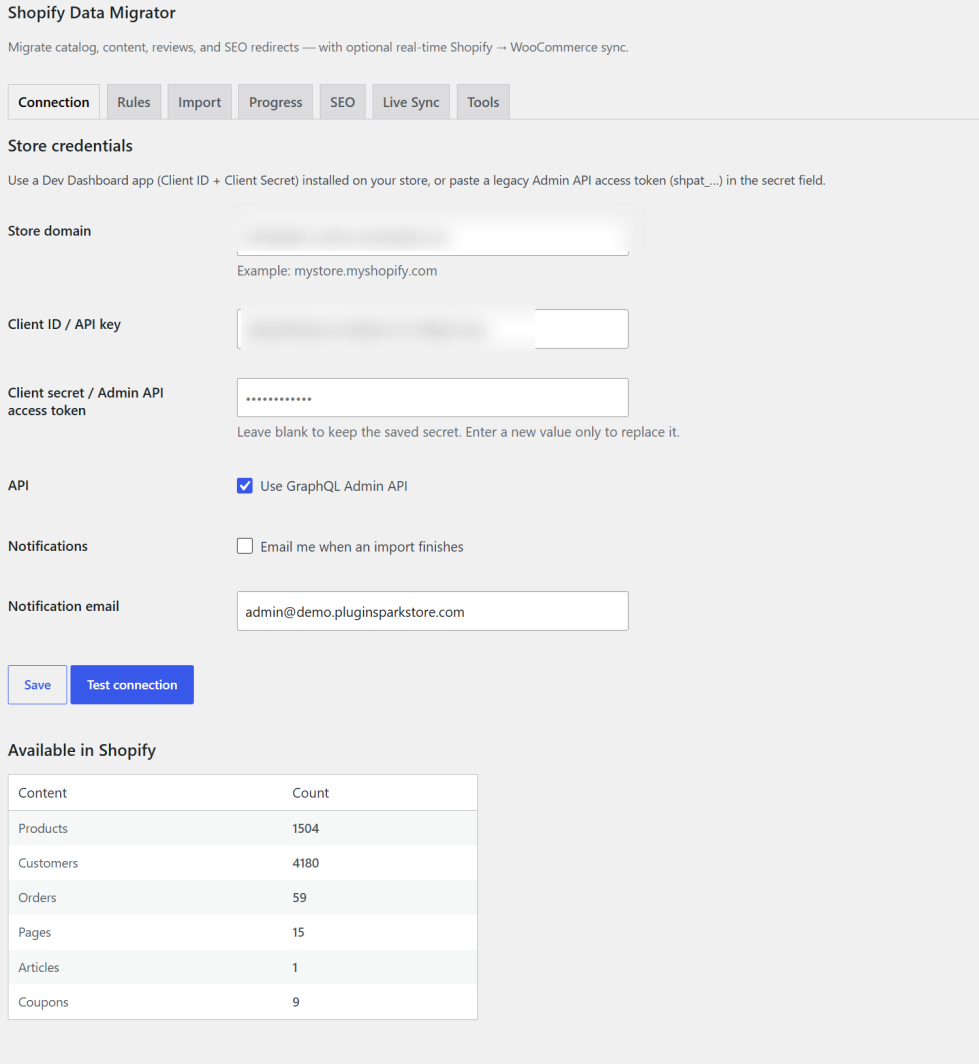
↑ Back to topIn API settings (Connection), you can provide your Shopify store URL, API key (Client ID), and API Secret Key (Client Secret or Admin API access token). You can get these details after creating the custom app in your Shopify store.
- For Apps in Dev Dashboard (recommended — GraphQL Admin API)
- For Legacy Custom App (Admin API access token such as
shpat_…, or REST fallback)
You can specify an email address to get a notification when the import is completed. Check connection status if your Shopify store is successfully connected to WooCommerce. Use Test connection to confirm and load Available in Shopify counts.
Leave the secret blank after the first save to keep the stored value (it is never re-displayed). Secrets are encrypted at rest when OpenSSL is available.
Import Settings
↑ Back to topIn import settings (Rules), you will find the tabs that include Products, Customers, Orders, Pages, Blogs (Articles), Coupons, and Reviews.
Products Settings
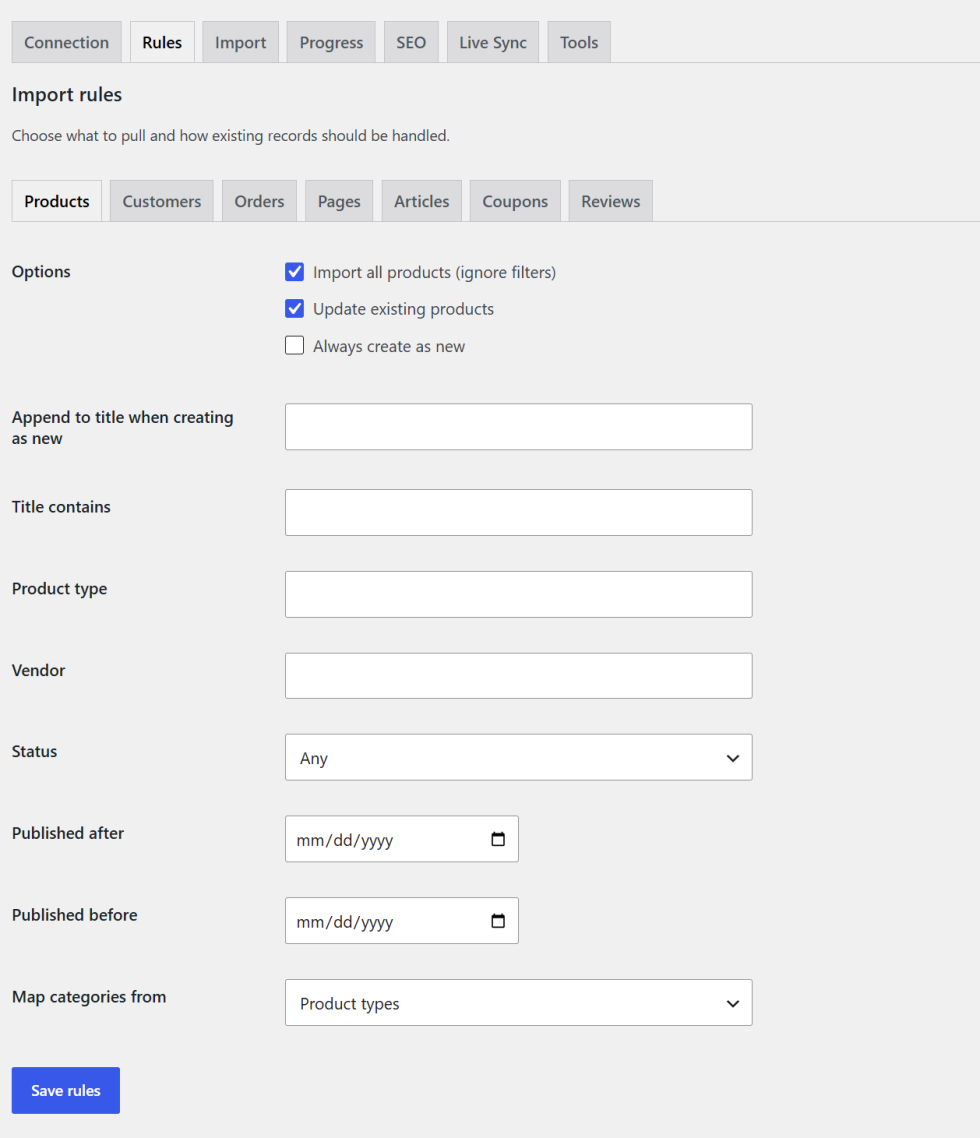
You can import all products once by clicking the checkbox whereas if you want to import specific products then you can use various filters such as Product Title, Type, Vendor, publish Before or After Date, and product Status. You can update existing products, always create as new, append text to the title, and map WooCommerce categories from product types, tags, or collections.
Variable products are imported with images, title, stock, and SKU.
Customers Settings
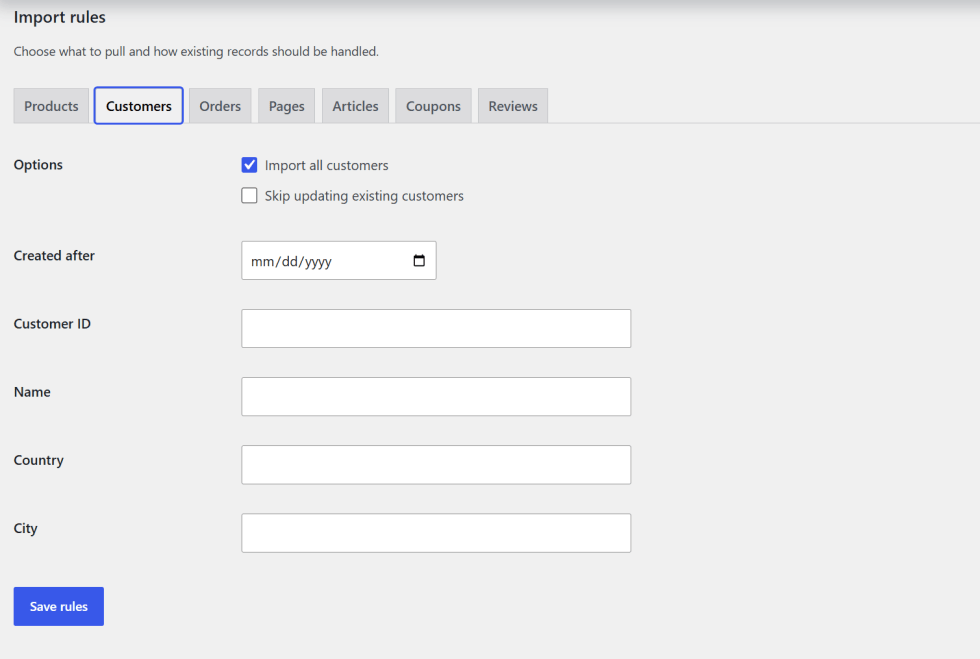
You can import all customers once by clicking the checkbox whereas if you want to import specific customers then you can use various filters such as customer Specific ID, Specific Name, Specific Country, and Specific City.
Note: User passwords will not be imported as Shopify APIs do not provide password data for security reasons. Customers should use WordPress password reset to sign in.
Orders Settings
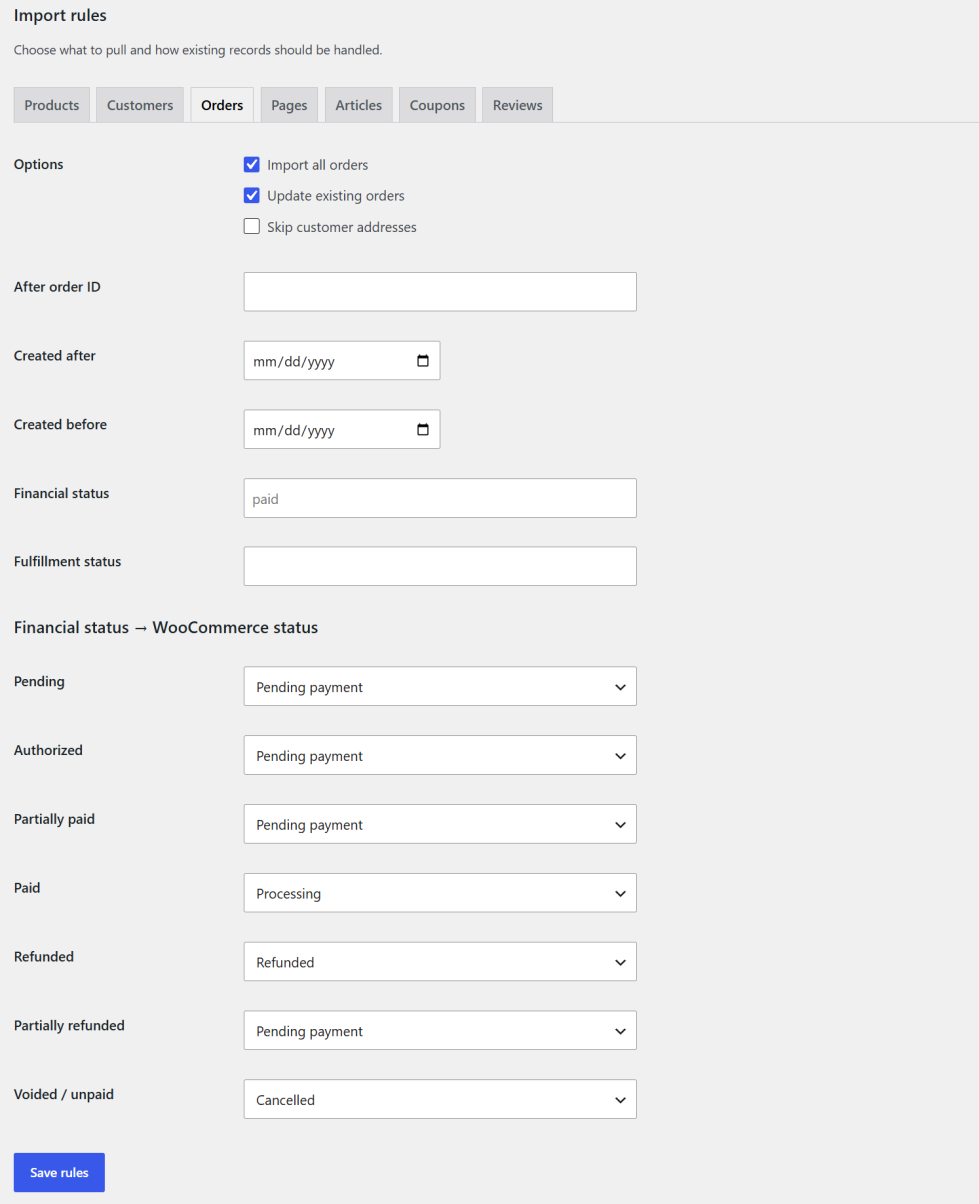
You can import all orders or specific orders by using filters such as orders Specific ID, Before & After created date, Financial Status, or Fulfilment Status. You can map the order with status selection of your choice for importing (pending, authorized, partially paid, paid, refunded, partially refunded, voided).
Imported orders include line items, shipping, taxes, and a Shopify # column on the WooCommerce orders list.
Pages Settings
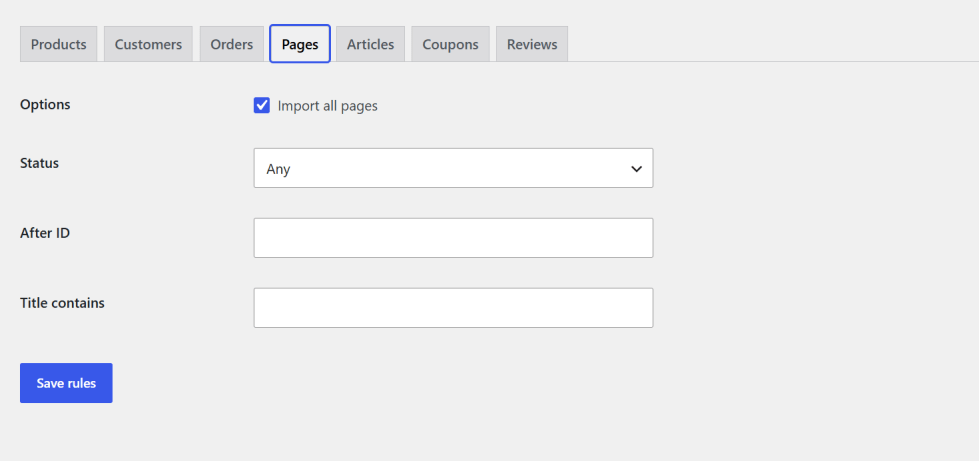
You can import all pages or you can import pages of specific status by page Specific ID, and Specific Name.
Blogs Settings
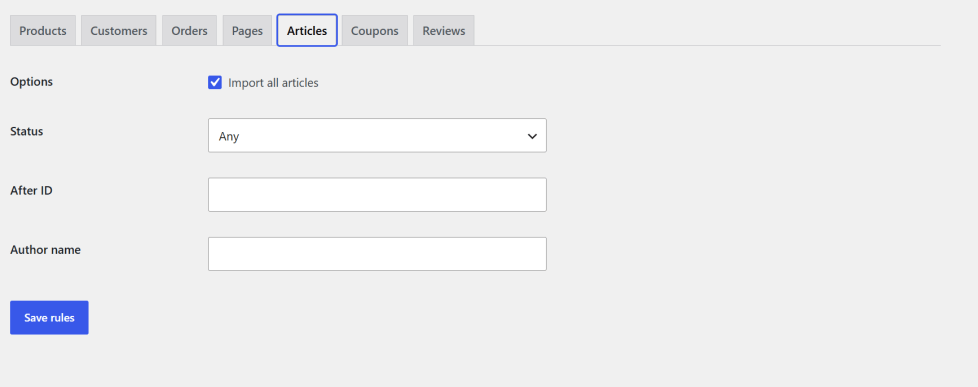
You can import all blog posts once or you can import blogs of specific status by using blog Specific ID, and Author Name. In the plugin UI this tab is labeled Articles. Shopify blogs become standard WordPress posts.
Coupons Settings
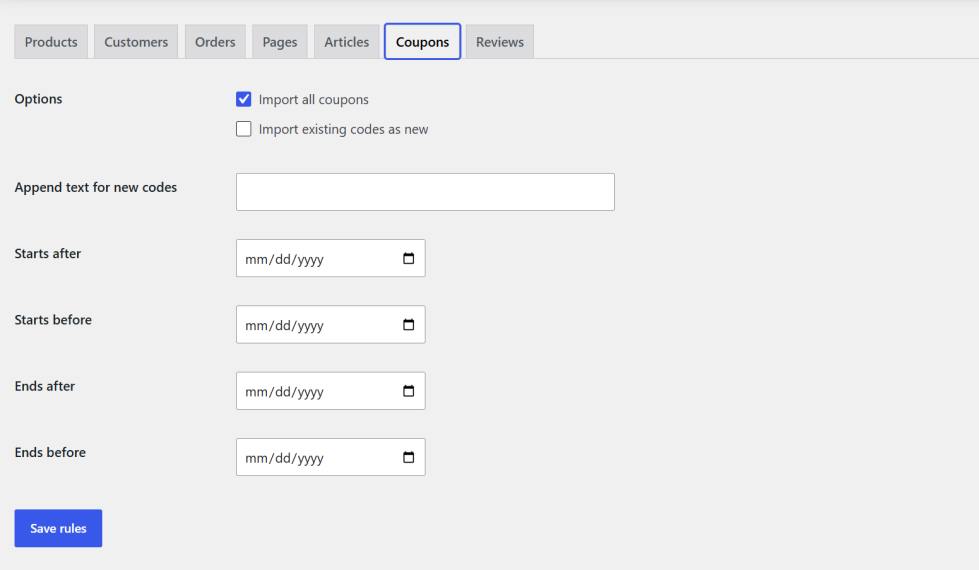
Import all coupons or use filters to import specific coupons such as Starting After or Before Date, and Ending After or Before Date. Discount codes become WooCommerce coupons (percent or fixed cart amounts, usage limits, and expiry when available).
Reviews Settings
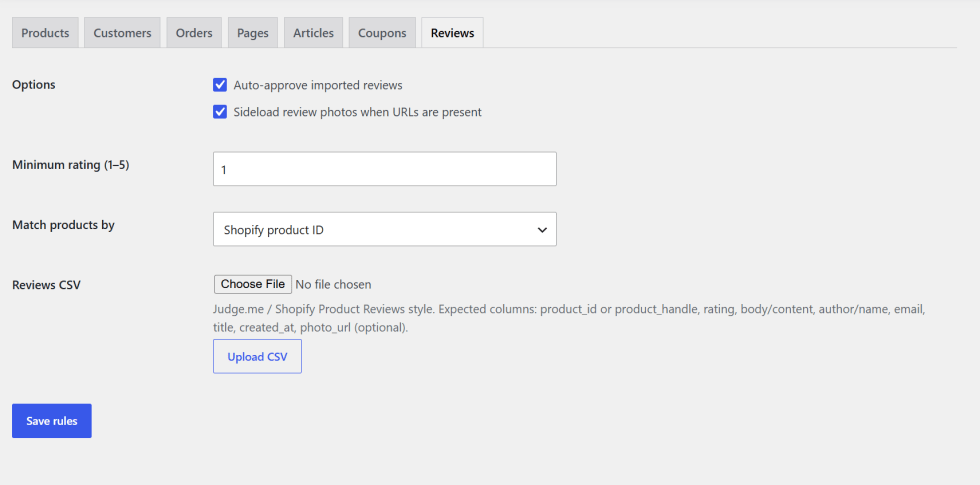
Import product reviews from a CSV file (Judge.me / Shopify Product Reviews style). Set auto-approve, minimum rating, photo sideload, and match products by Shopify ID, handle, or SKU. Expected columns include product_id or product_handle, rating, body/content, author/name, email, title, created_at, and optional photo_url.
Reviews are included in a full migration only after a CSV is uploaded here.
Run Import
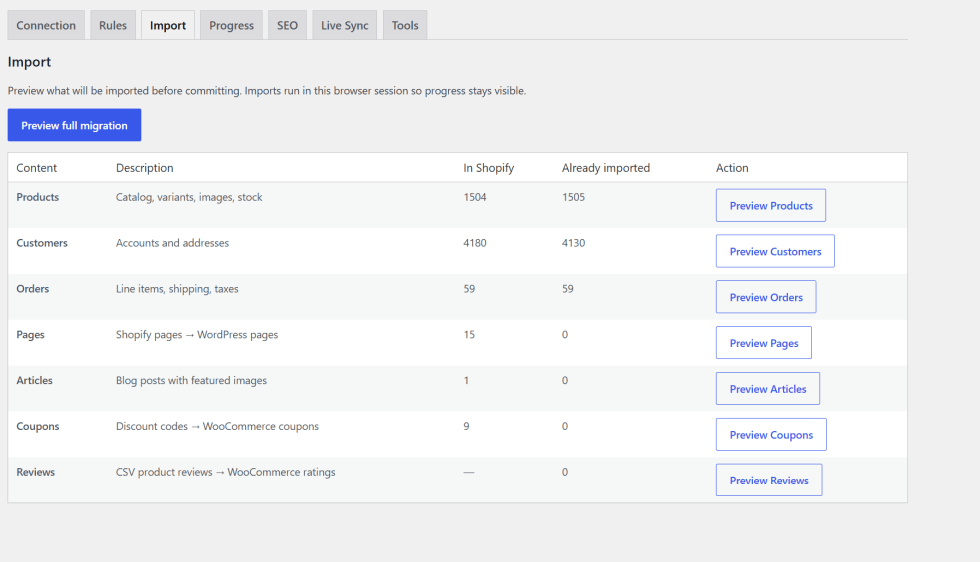
↑ Back to topCheck Start full migration if you want to import all the data to WooCommerce based on your import settings.
You can also import data by choosing import options such as Import Products, Import Customers, Import Orders, Import Pages, Import Blogs (Articles), Import Coupons, and Import Reviews. When you click on any button in Import Options, the import process will start right away based on the button you have clicked.
Use a dry-run preview first to compare Shopify counts with records already in WooCommerce. Suggested order: Products → Customers → Orders → Pages / Articles / Coupons → Reviews.
Import Status
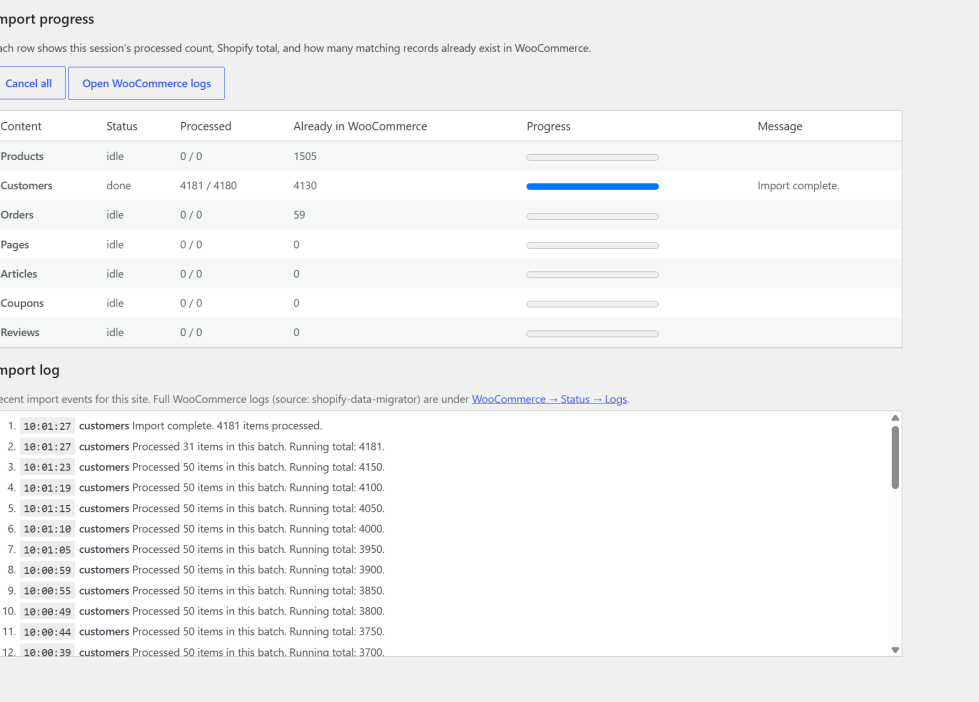
↑ Back to topYou can see import status of last import progress in a progress bar in the Progress tab. Here you can see the status of any data type you are importing from Shopify such as Product Status, Order Status, Customer’s Status, Pages Status, Blogs Status, Coupons Status, and Reviews Status.
Keep the Progress page open while an import runs. Use Cancel all to stop jobs. Full logs are also written to WooCommerce → Status → Logs (source: shopify-data-migrator).
SEO Redirects
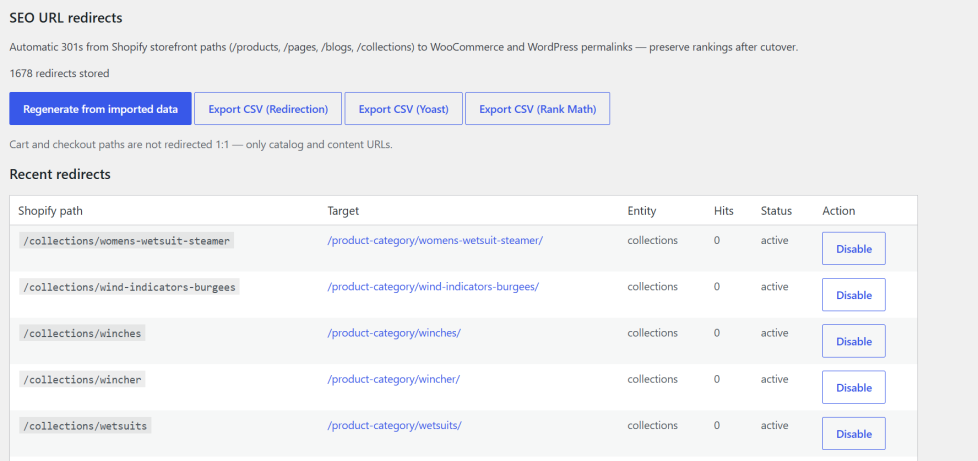
↑ Back to topDuring product, page, and article imports the plugin stores 301 redirects from Shopify storefront paths to WooCommerce and WordPress permalinks:
/products/{handle}→ product permalink/pages/{handle}→ page permalink/blogs/{blog}/{handle}→ post permalink/collections/{handle}→ product category link
Cart and checkout paths are not redirected 1:1. On the SEO tab you can view recent redirects, enable or disable rules, regenerate from imported data, or export CSV for Redirection, Yoast, or Rank Math.
Live Sync
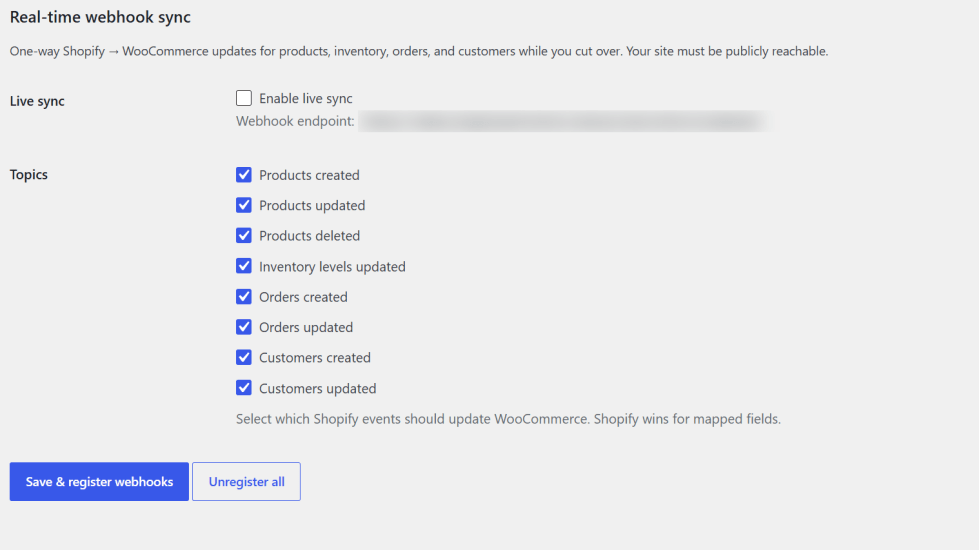
↑ Back to topLive Sync registers one-way Shopify → WooCommerce webhooks for products, inventory, orders, and customers while you cut over. Your site must be publicly reachable over HTTPS. Enable live sync, choose topics, then Save & register webhooks. Unregister all when cutover is finished.
FAQs
↑ Back to topHelp customers by answering commonly asked questions.
Does it import variations from Shopify?
Yes. It imports variable products with images, title, stock, and SKU as well.
Are customer passwords imported?
No. Shopify APIs do not provide password data for security reasons. New WordPress customer accounts receive a random password; customers should use password reset to sign in.
Can I cancel a running import?
Yes. Open the Progress tab and click Cancel all.
How do SEO redirects work?
Product, page, and article imports store 301 mappings from Shopify paths (
/products,/pages,/blogs,/collections) to WooCommerce/WordPress permalinks. Manage them under the SEO tab.

