
The Smart Loyalty Discounts plugin helps you reward returning customers automatically, based on how many orders they’ve completed — and goes further with a full points, referral, and loyalty-tier system built in. Set up discount rules for specific products or categories, define order ranges and quantity conditions, then layer on points, referrals, reward tiers, and points expiry to keep customers coming back.
How It Works
↑ Back to top- The plugin checks each customer’s order history (you choose which order statuses count).
- When a customer meets the required order range and quantity, a discount is applied automatically.
- Customers also earn points on completed orders and approved reviews, which they can redeem for store credit.
- Customers can refer friends for bonus points, and new customers get a welcome discount — all tracked and applied automatically, with no manual work on your end.
How to Configure the Plugin
↑ Back to topInstallation
↑ Back to top- Download the plugin ZIP file from the WooCommerce store or your account.
- Go to WordPress Dashboard > Plugins > Add New.
- Click Upload Plugin, select the ZIP file, and click Install Now.
- After installation, click Activate.
Access Settings
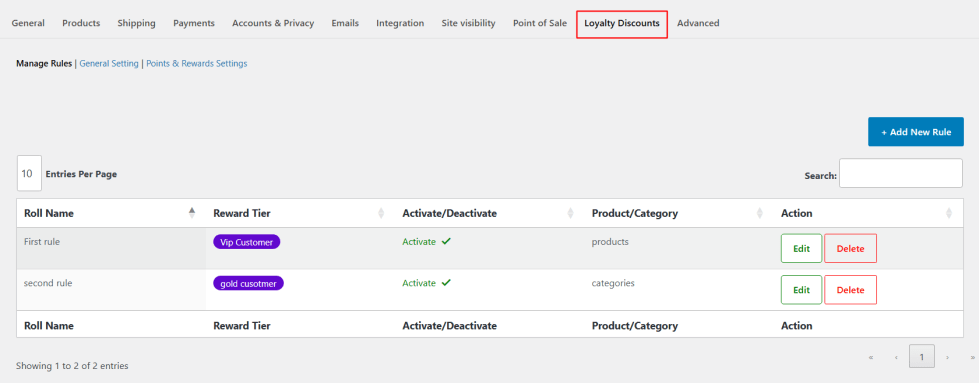
↑ Back to topGo to WooCommerce > Settings > Loyalty Discounts tab. You’ll see three sections: Manage Rules, General Setting, and Points & Rewards Settings.
Create Discount Rules
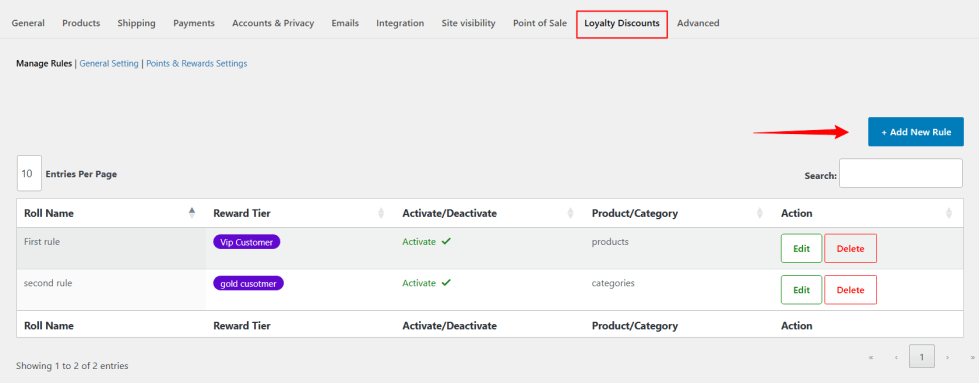
↑ Back to topThis is your main control panel — every discount rule you’ve created is listed here, showing its name, reward tier (if set), active/inactive status, and which products or categories it applies to. From here you can activate/deactivate, edit, or delete any rule, or click “+ Add New Rule” to create a new one.
Add New Rule
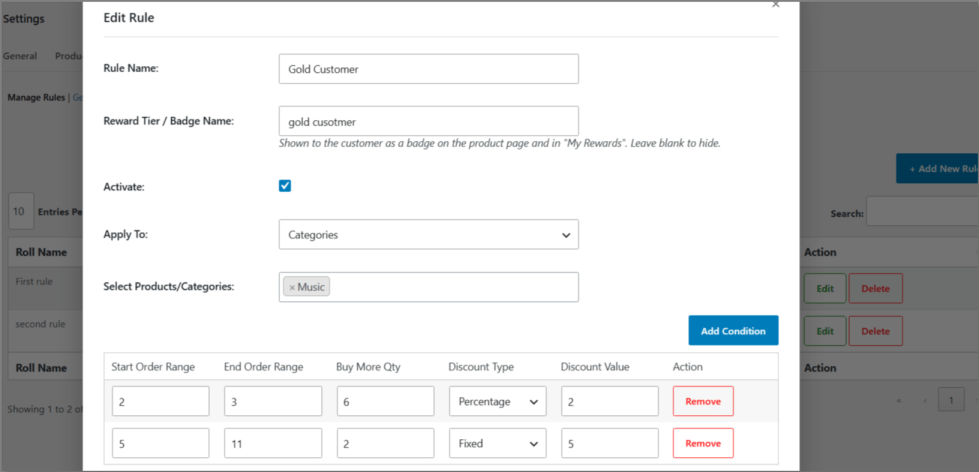
↑ Back to topClicking “+ Add New Rule” opens a popup right on the same screen — no separate page to load. Here you set:
- Rule Name — an internal label to identify the rule.
- Reward Tier / Badge Name (optional) — e.g. “Gold” or “VIP”, shown to the customer on the product page and in My Rewards.
- Apply To — Products or Categories.
- Conditions — one or more order-range rows, each with a Start/End order range, a Buy More Qty, a Discount Type (Percentage or Fixed), and a Discount Value. Click Add Condition to add more tiers to the same rule.
General Setting
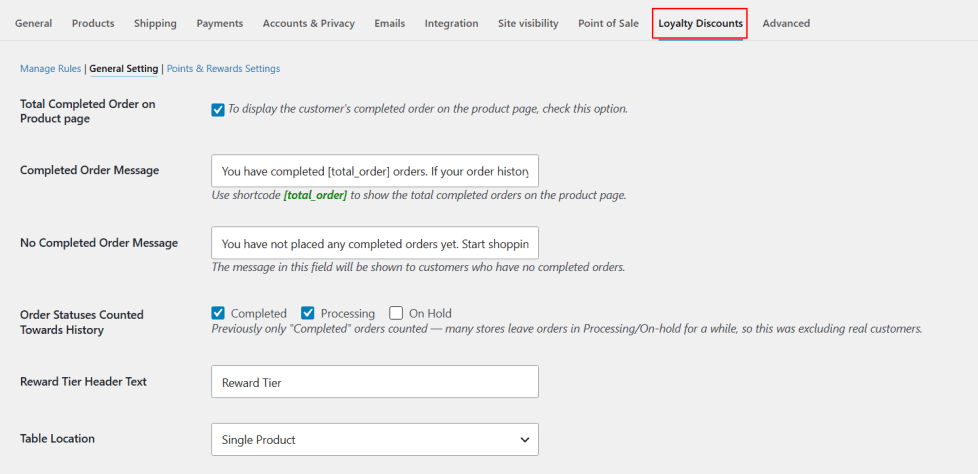
↑ Back to topControls how the discount table looks and behaves on the frontend, plus one important rule-wide setting:
- Order Statuses Counted Towards History — choose whether Completed, Processing, and/or On Hold orders count toward a customer’s order history. Useful if your store leaves orders in Processing for a while.
- Display text fields — customize the wording shown to customers (e.g. the intro text above the discount table, the guest message, column headers, and colors).
- Table Location — where the discount table appears on the product page.
Points & Rewards Settings
↑ Back to topA dedicated tab covering every reward-program setting:
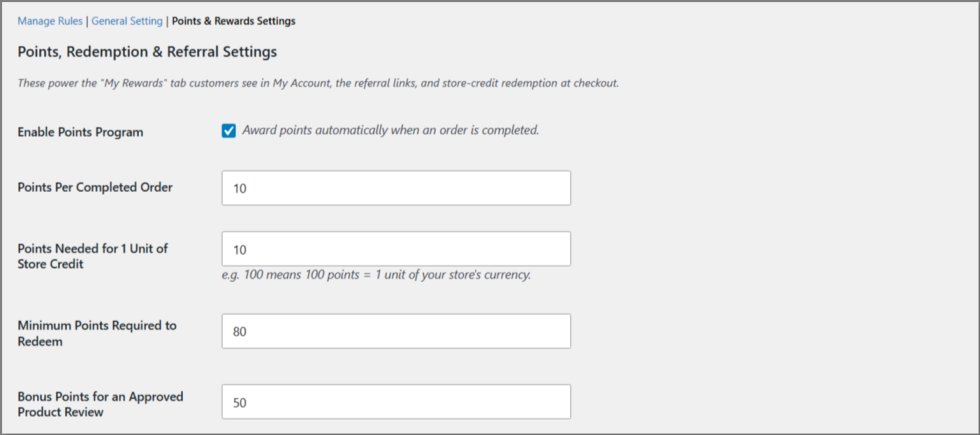
Points Program — enable/disable, points earned per completed order, points needed per unit of store credit, minimum points required to redeem, and bonus points for an approved product review.
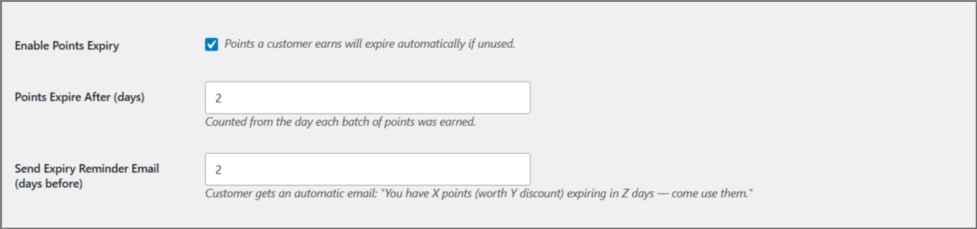
Points Expiry — enable/disable, how many days until points expire, and how many days before expiry to send the reminder email.
First-Order Welcome Bonus — enable/disable and set the welcome discount percentage for new, non-referred customers.

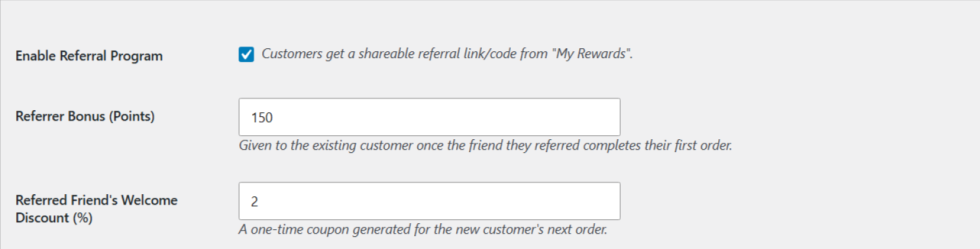
Referral Program — enable/disable, referrer’s bonus points, and the referred friend’s welcome discount percentage.
Product Page Discount Table
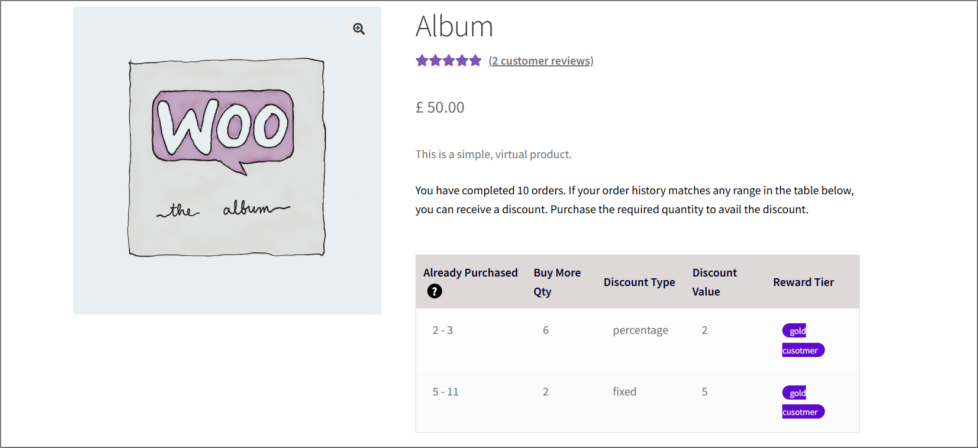
↑ Back to topEligible product pages display a table showing the order-range conditions, minimum purchase quantity, discount details, and — if a tier name was set — a colored badge (e.g. “Gold”) so the customer can see their reward status at a glance.
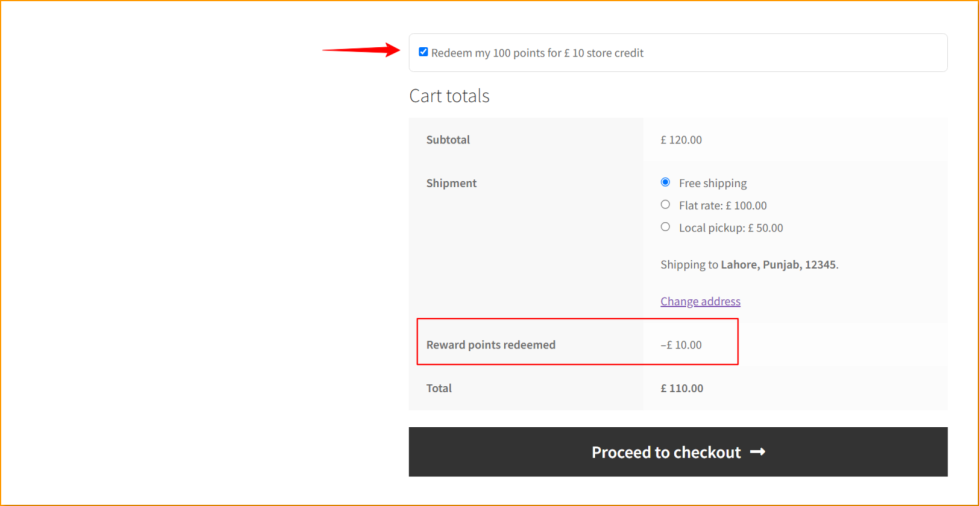
Cart Page — Redeem Points for Store Credit
↑ Back to topCustomers with enough points see a checkbox on the cart page showing exactly how many points they have and what it’s worth. Ticking it applies the store credit instantly as a line item in Cart Totals.
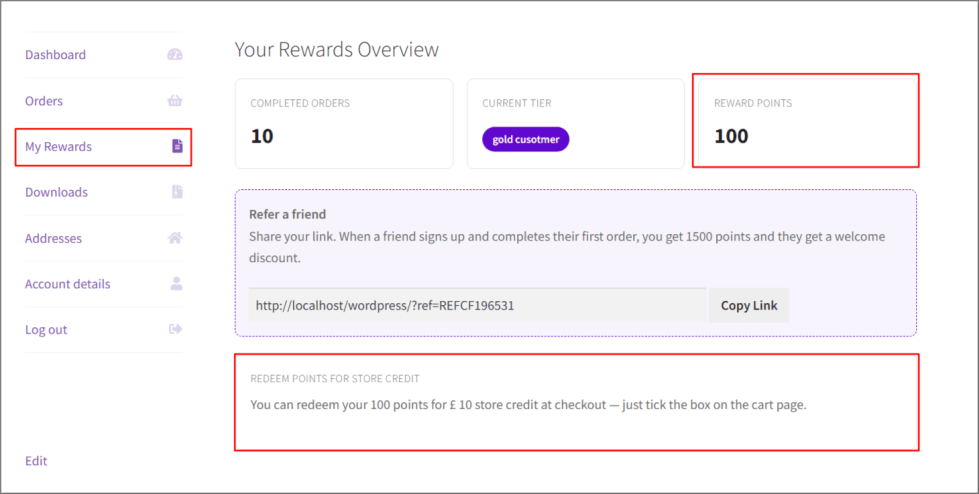
My Rewards (My Account)
↑ Back to topA dedicated tab where customers can check their completed order count, current reward tier, points balance, and copy their personal referral link — all in one place.
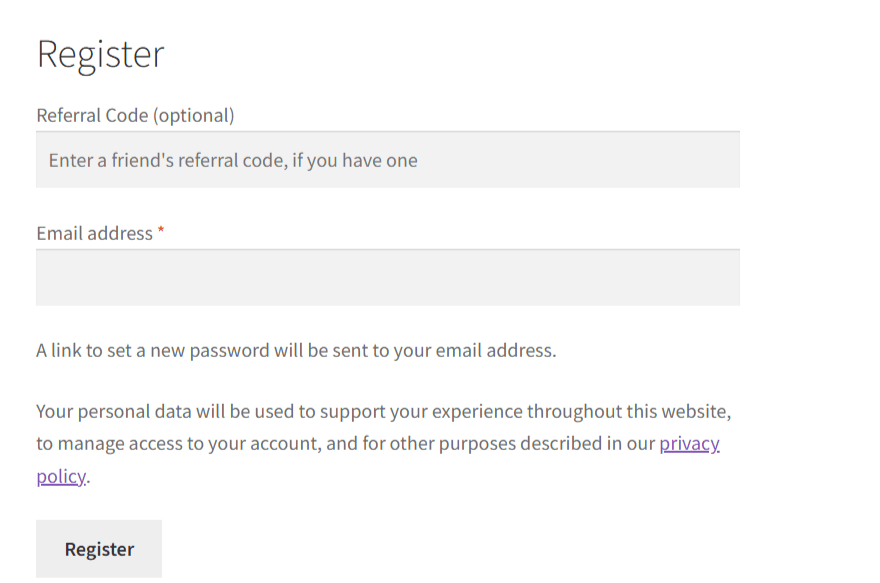
Referral Code Field (Signup)
↑ Back to topNew customers see an optional “Referral Code” field on the registration form and at checkout, where they can enter a friend’s code (it’s also auto-filled if they arrived via a referral link). A short banner confirms when a referral has been detected.
Points Expiry Reminder Email
↑ Back to topSent automatically when a customer’s points are approaching their expiry date, telling them how many points they have, what it’s worth in store credit, and how many days are left to use it.
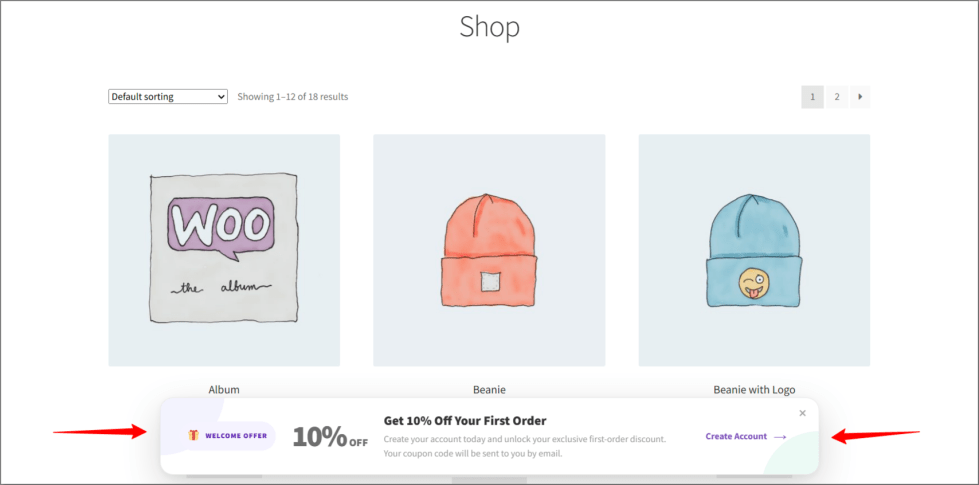
Welcome Bonus
↑ Back to topSent automatically to new customers — either a referral welcome coupon (if they signed up via a referral) or the standard first-order welcome discount (if not), so they always receive their code even if they don’t check the site.
Benefits
↑ Back to top- Increase repeat purchases by rewarding returning customers automatically.
- Turn customers into a referral channel without a separate plugin.
- Convert first-time visitors with a welcome discount, not just repeat buyers.
- Give customers a reason to come back before their points expire.
- Save time — order counting, points, tiers, and coupon generation all happen automatically.
- Stay flexible — configurable order statuses and rolling time windows adapt to how your store actually fulfills orders.
Use Cases
↑ Back to top- Offer loyalty rewards and store credit to repeat customers.
- Run a two-sided referral program without extra tools.
- Convert new visitors with a first-order welcome discount.
- Create exclusive tiers/badges for your most loyal customers.
- Run automated loyalty and points programs without manual tracking.
Support & Updates
↑ Back to topWe provide regular updates to keep the plugin compatible with the latest WooCommerce versions. For assistance, contact our support team via your account, and we’ll be happy to help.

