
Installation
↑ Back to topTo start using a product from WooCommerce.com, you can use the “Add to store” functionality on the order confirmation page or the My subscriptions section in your account.
- Navigate to My subscriptions.
- Find the Add to store button next to the product you are planning to install.
- Follow the instructions on the screen, and the product will be automatically added to your store.
Smart Reels requires WooCommerce to be installed and active. WordPress will not allow it to be activated without WooCommerce, and it will not let WooCommerce be deactivated while Smart Reels is running.
Features
↑ Back to top- Shoppable video layouts: show your reels as a carousel, a grid, a peeking carousel, story highlights or a floating Reel Pop.
- Full screen player: tapping a video opens it full screen with the product beside it, including price, variations, and add to cart.
- Quick add to cart: simple products can be added straight from the card, using WooCommerce’s own validation.
- Display rules per layout: show a layout on all products, on products you pick, or anywhere at all with a shortcode.
- Four card designs: Modern, Classic, Overlay, and Title Only, each with its own play button, colour, and autoplay settings.
- Layout analytics: views, clicks, and conversions recorded per gallery.
- Your own media library: videos are served from your site. No external service, no API key, no account.
Getting started
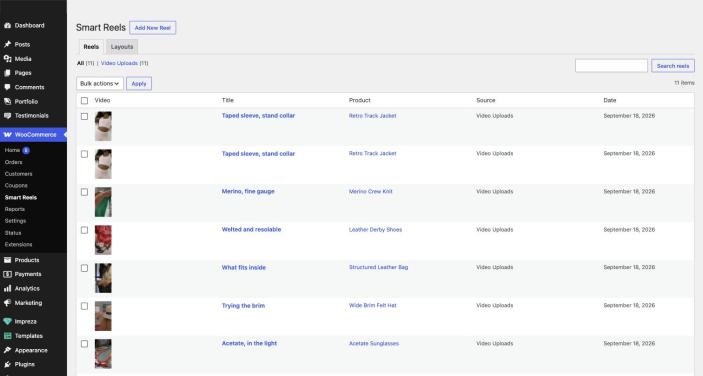
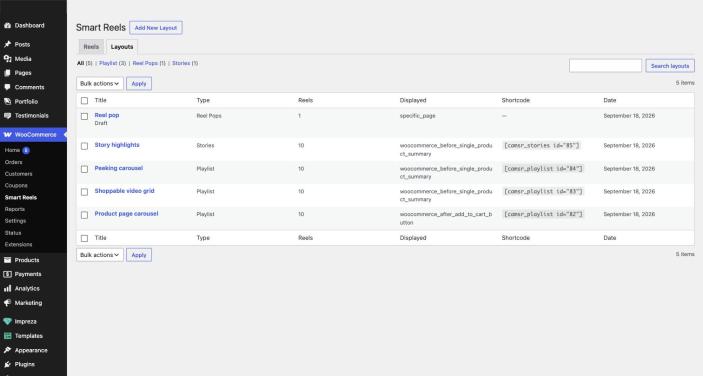
↑ Back to topOnce Smart Reels is active, you will find it at WooCommerce > Smart Reels. The screen has two tabs:
- Reels lists every video you have added, with the product it is attached to and where the video came from.
- Layouts lists the galleries you built from those reels, including the type, how many reels each holds, where it displays, and its shortcode.
The order of work is always the same: add reels first, then build a layout from them, then tell the layout where to appear.
Adding a reel
↑ Back to topGo to WooCommerce > Smart Reels and choose Add New Reel.
- Give the reel a title. This is used as the accessible label for the video and is shown on the Title Only card design.
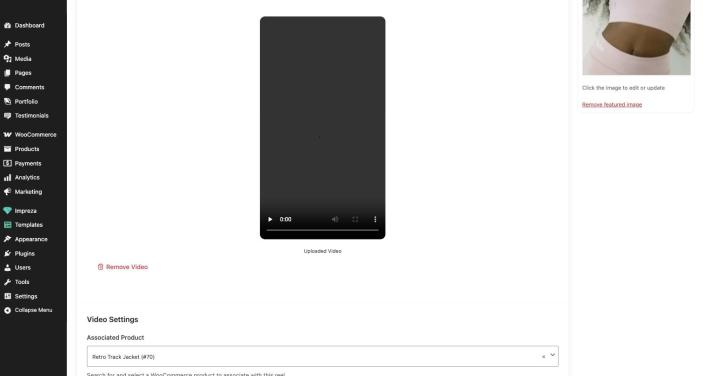
- Upload a video, or pick one already in your media library. Reels accept MP4, MOV, and WebM, the formats browsers can play.
- Under Video Settings, choose the Associated Product. This is the product whose price, variations, and add to cart button appear beside the video in the player.
- Publish the reel.
A still frame is captured from the video automatically and set as the reel’s featured image, so the card has something to show before the video loads. If the capture fails, set a featured image by hand.
NOTE: Vertical video works best. A 9:16 clip fills the card and the full-screen player without letterboxing.
Creating a layout
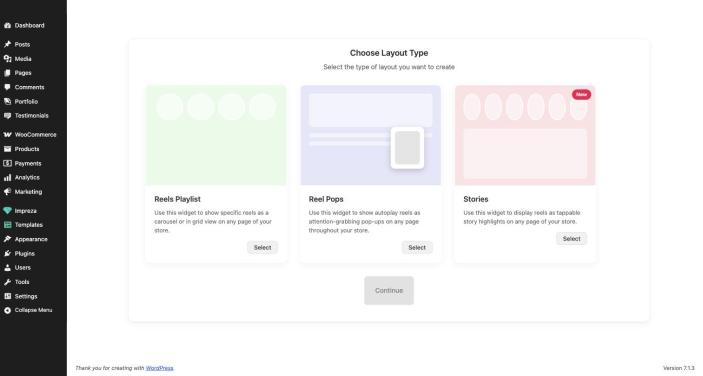
↑ Back to topA layout is a group of reels plus the rules for how and where they are shown. Go to WooCommerce > Smart Reels, open the Layouts tab and choose Add New Layout, then pick a type.
Reels playlist
↑ Back to topShows specific reels as a carousel or in grid view on any page of your store. This is the type to use for a product page gallery, a lookbook, or a campaign page.
Stories
↑ Back to topShows reels as tappable story highlights, in the format shoppers know from Instagram. Reels are grouped into highlights, each with its own cover image and title.
Reel pops
↑ Back to topShows an autoplaying reel as a floating pop-up that follows the shopper around the store, minimized until they open it.
Once you pick a type, choose Continue and the layout’s own settings appear.
Attaching reels
↑ Back to topUnder Attach reels to this playlist, choose Attach Reel and select the reels you want. They appear under Attached Reels, where you can drag the rows to change the order they play in.
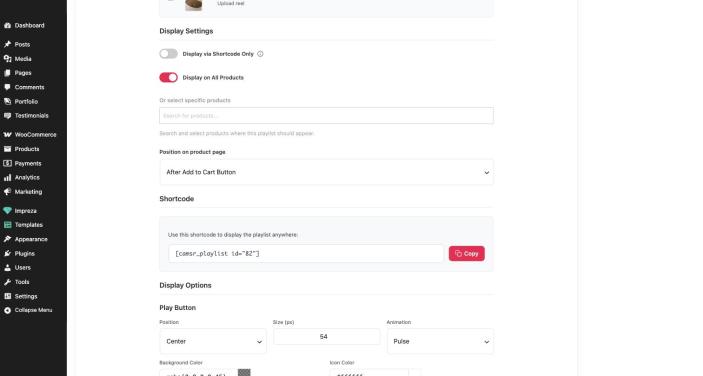
Display settings
↑ Back to topThis panel decides where the layout appears on your store.
- Display via Shortcode Only: the layout appears nowhere automatically. Use this when you want to place it by hand with the shortcode.
- Load assets on specific pages: select the pages where the plugin’s CSS and JavaScript should load so the shortcode can render.
- Display on All Products: show the layout on every product page.
- Or select specific products: search for and choose the products the layout should appear on. This is ignored when Display on All Products is ticked.
- Position on product page: which WooCommerce hook the layout attaches to, from Before Product (Top of Page) through Before and After Add to Cart to After Product (Bottom of Page).
Shortcode
↑ Back to topEvery playlist layout has its own shortcode, shown on the layout screen once the layout is saved:
[camsr_playlist id="123"]
Paste it into any page or post. The id is the layout’s ID, filled in for you. Use the Copy button rather than typing it by hand.
NOTE: If a shortcode renders as plain text, the layout is not published. A draft layout has no shortcode output.
Display options
↑ Back to topPlay button
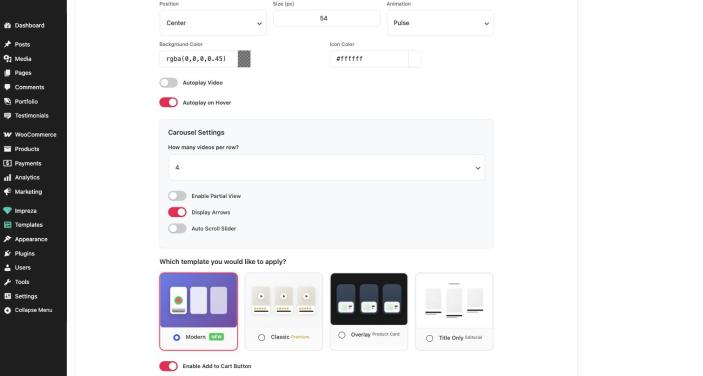
↑ Back to top- Position: Center, Bottom Left, Bottom Right, Top Left, or Top Right.
- Size (px): Button diameter.
- Animation: None, Pulse, Bounce, or Glow.
- Background Color and Icon Color: both accept any colour, including transparency, through the colour picker.
Autoplay
↑ Back to top- Autoplay Video: plays the card’s video as soon as it is on screen, muted.
- Autoplay on Hover: plays only while the shopper hovers over the card.
Grid settings and carousel settings
↑ Back to top- How many videos per row: set separately for grid and carousel. The layout steps down on smaller screens.
- Enable Partial View: lets the next video peek in at the edge, so the row reads as scrollable.
- Display Arrows: shows the previous and next controls.
- Auto Scroll Slider and Interval (seconds): advances the carousel on its own, pausing while the shopper hovers it.
Templates
↑ Back to topUnder Which template you would like to apply? choose the card design: Modern, Classic, Overlay or Title Only.
Color options
↑ Back to top- Accent Color: applied to the navigation dots and arrows.
- Secondary Color: applied to the Add to Cart button.
Add to Cart and the product panel
↑ Back to top- Enable Add to Cart Button: adds a quick add to cart control to each card.
- Show “More Info” Button: links from the player to the full product page.
- Show Related Products: shows WooCommerce’s related products inside the player.
- Show Product Rating: shows the product’s star rating.
The full screen player
↑ Back to topTapping any card opens the player over the current page. The video plays on one side, and the product sits on the other, with its price, any sale price and discount, its variation pickers, and an add to cart button. Shoppers can swipe between the reels in the layout without closing the player, and closing it returns them to exactly where they were.
Add to cart from the player and from the card both run WooCommerce’s own validation, so required product options and stock rules are respected in the same way they would be on the product page.
Analytics
↑ Back to topSmart Reels records views, clicks, and conversions for each layout, so you can compare two placements of the same reels.
Uninstalling
↑ Back to topDeactivating Smart Reels leaves everything in place. Reels and layouts are standard WordPress content, so they remain when you reactivate it.
Deleting the plugin from the Plugins screen removes its reels, layouts, settings, and scheduled tasks. Your videos themselves stay in the media library, because they are your own media, not the plugin’s.
Frequently asked questions
↑ Back to topWhere do the videos come from?
↑ Back to topYou upload them to your own WordPress media library. Smart Reels does not fetch video from TikTok, Instagram, or any other platform, and it makes no external requests.
What video formats can I use?
↑ Back to topMP4, MOV, and WebM. Other formats are refused at upload because a browser cannot play them and no still frame can be captured from them.
Does it work with variable products?
↑ Back to topYes. The player shows the variation pickers next to the video, so a shopper can choose size or colour and add to cart without opening the product page.
Why is my shortcode showing as plain text?
↑ Back to topThe layout is still a draft. Publish it, and the shortcode will render.
Why does my layout not appear on product pages?
↑ Back to topCheck Display Settings. Either Display on All Products needs to be ticked, or the product needs to be chosen under Or select specific products.
Will it slow my store down?
↑ Back to topThe plugin’s scripts and styles load only on pages that actually show a layout, and nothing runs at checkout.
Who can create reels and layouts?
↑ Back to topAnyone who can edit products, which means administrators and shop managers. Authors and contributors cannot create or publish them.
Is it translation ready?
↑ Back to topYes. Every string in the plugin is translatable.