
In this guide, we’ll walk you through the steps to schedule vacation time for your online store. Discover how to close your store during specific periods, providing your customers a smooth shopping experience. When your shop is in vacation mode, it won’t accept new orders, and the checkout process will be temporarily disabled.
Installation
↑ Back to topTo start using a product from WooCommerce.com, you can use the “Add to store” functionality on the order confirmation page or the My subscriptions section in your account.
- Navigate to My subscriptions.
- Find the Add to store button next to the product you’re planning to install.
- Follow the instructions on the screen, and the product will be automatically added to your store.
Alternative options and more information at:
Managing WooCommerce.com subscriptions.

Schedule vacations
↑ Back to topYou can schedule unlimited vacation date times, and your online shop will automatically close whenever any of these schedules match your site’s date and time settings. Here’s how to set up a vacation schedule for temporarily closing your shop:
- Go to WooCommerce > Settings > Store Vacation.
- In the current tab, find the Schedule section.
- Click on the Add new button.
- Provide a friendly Name for your schedule plan.
- Use the From field to select the date and time you want the vacation mode to start. Your shop will close at this selected date and time.
- In the To field, select the date and time you want the vacation mode to end, and your shop to reopen.
- The No Notice to Display option is selected for the Notice field by default. If you wish to display a custom announcement during the vacation mode, select a notice. Learn more about vacation notices.
- By including Conditions and rules, you can selectively exempt specific products from vacation mode, enabling customers to purchase even when your shop is temporarily closed for vacation.
- Click on the Save changes button.
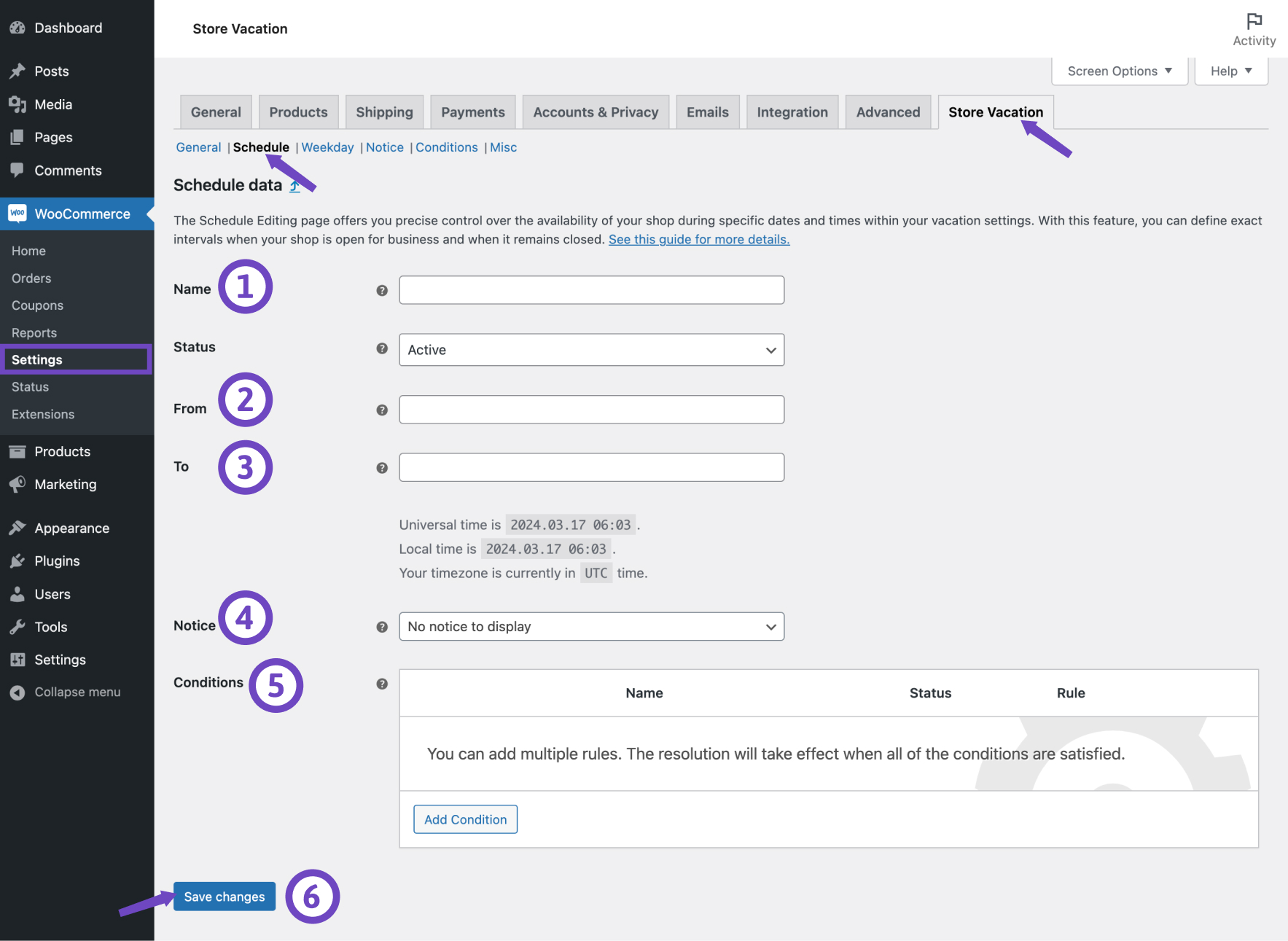
Store Vacation will use your current timezone setting for scheduling. If needed, you can adjust your timezone in your WordPress settings.
Schedule table
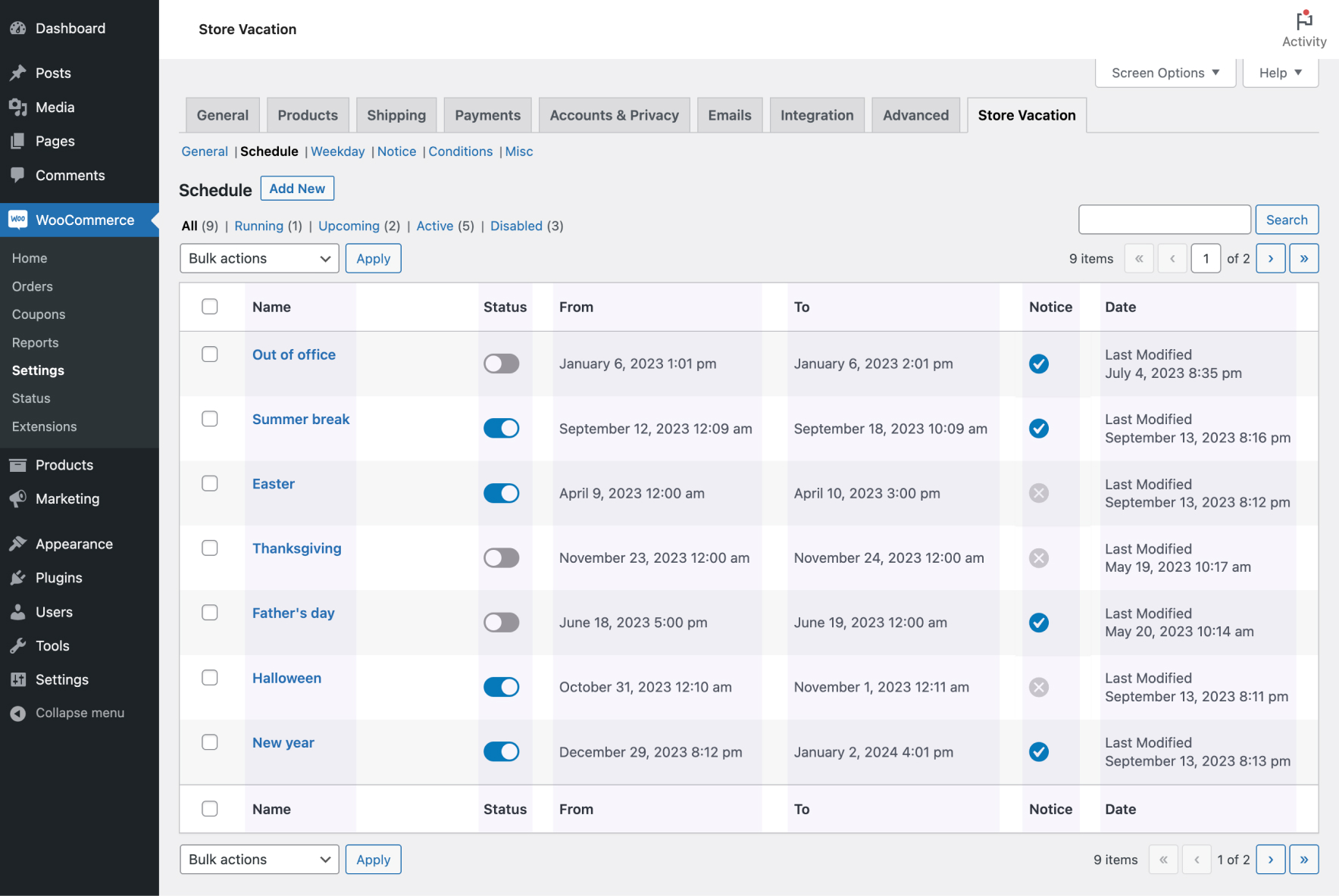
↑ Back to topOnce you’ve added a new schedule, your schedule table will populate with valuable information. On the schedule page, you can review the list of your planned vacations through this table. Here’s what you can find in the schedule table:
- Name: This column displays the name of your schedule. If you didn’t specify a name when creating the schedule, the creation date uses as the schedule name.
- Status: This column conveniently shows the status of your vacation schedule. Activating or disabling the schedule is easy—simply click the toggle switch to make your desired adjustments.
- From: This column shows the start date and time of your vacation. Your shop will close at the time indicated here.
- To: In this column, you’ll see your vacation’s end date and time. Your shop will reopen at the time specified here.
- Notice: This column informs whether you’ve assigned a notice to announce your vacation to your visitors. A checkmark icon indicates that you’ve selected a notice to display during the vacation, while a cross icon signifies that you’ve not chosen any notice to display.
- Date: This column displays the last date the schedule was modified.
Weekday schedule
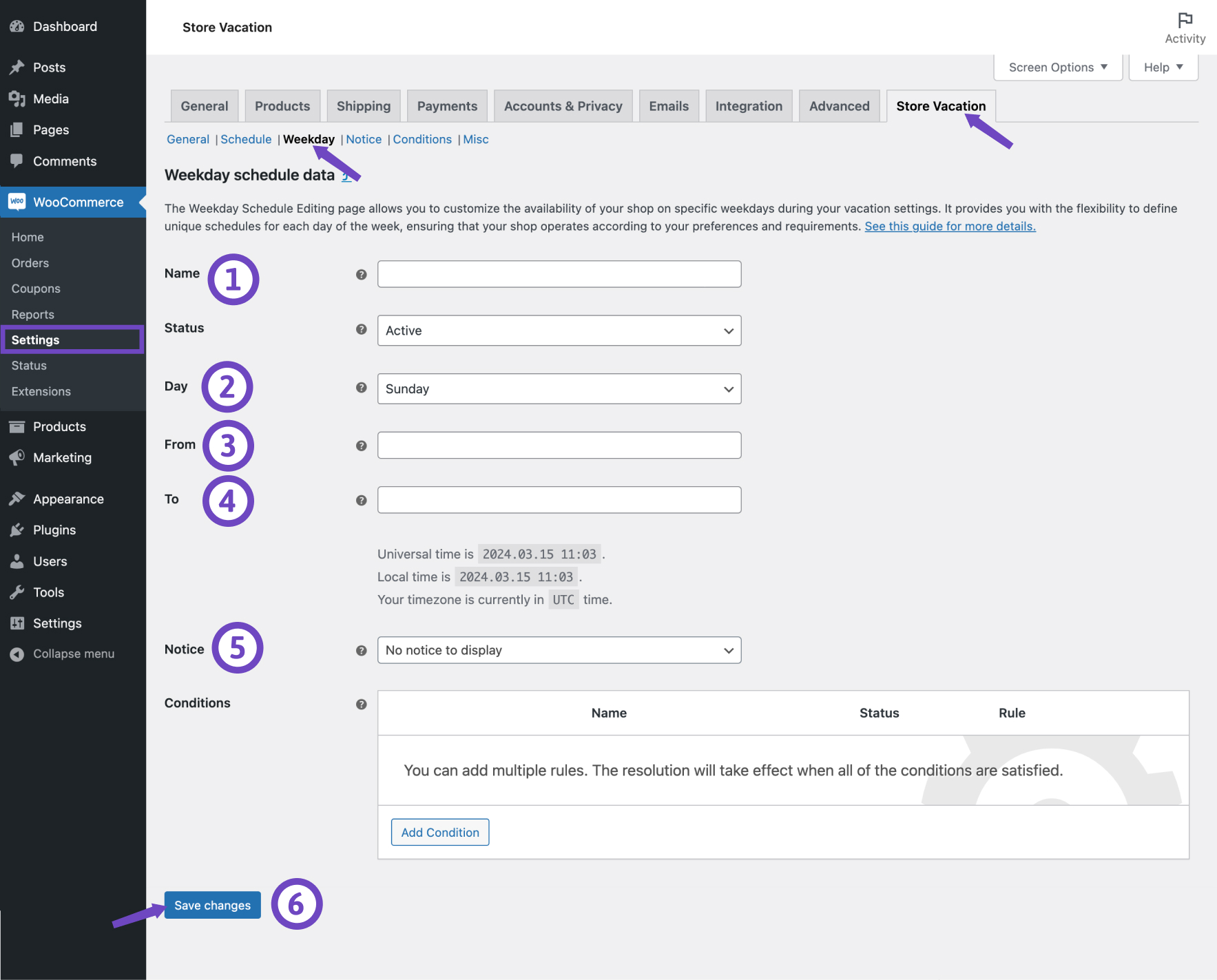
↑ Back to topTo manage your shop’s operating hours, you can create weekday schedules to close your shop during non-business hours and weekends. Follow these steps to create a weekday schedule:
- Navigate to WooCommerce > Settings > Store Vacation.
- In the current tab, find the Weekday section.
- Click on the Add new button.
- Enter a friendly Name for your weekday schedule.
- Select the Day of the week you want to define its closing time.
- Define the start time using the From field. Your store will close weekly at the time you specify here.
- Define the end time using the To field. Your store will reopen on the selected day at the specified time in this field.
- By default, the Notice field is set to No notice to display. If you want to display a notification during the closing time in your store, select a notice. Learn more about vacation notices.
- By applying Conditions, you can selectively exclude specific products from vacation mode, ensuring they remain purchasable even when your shop is closed during a weekly closing time.
- Click the Save changes button.
Weekday table
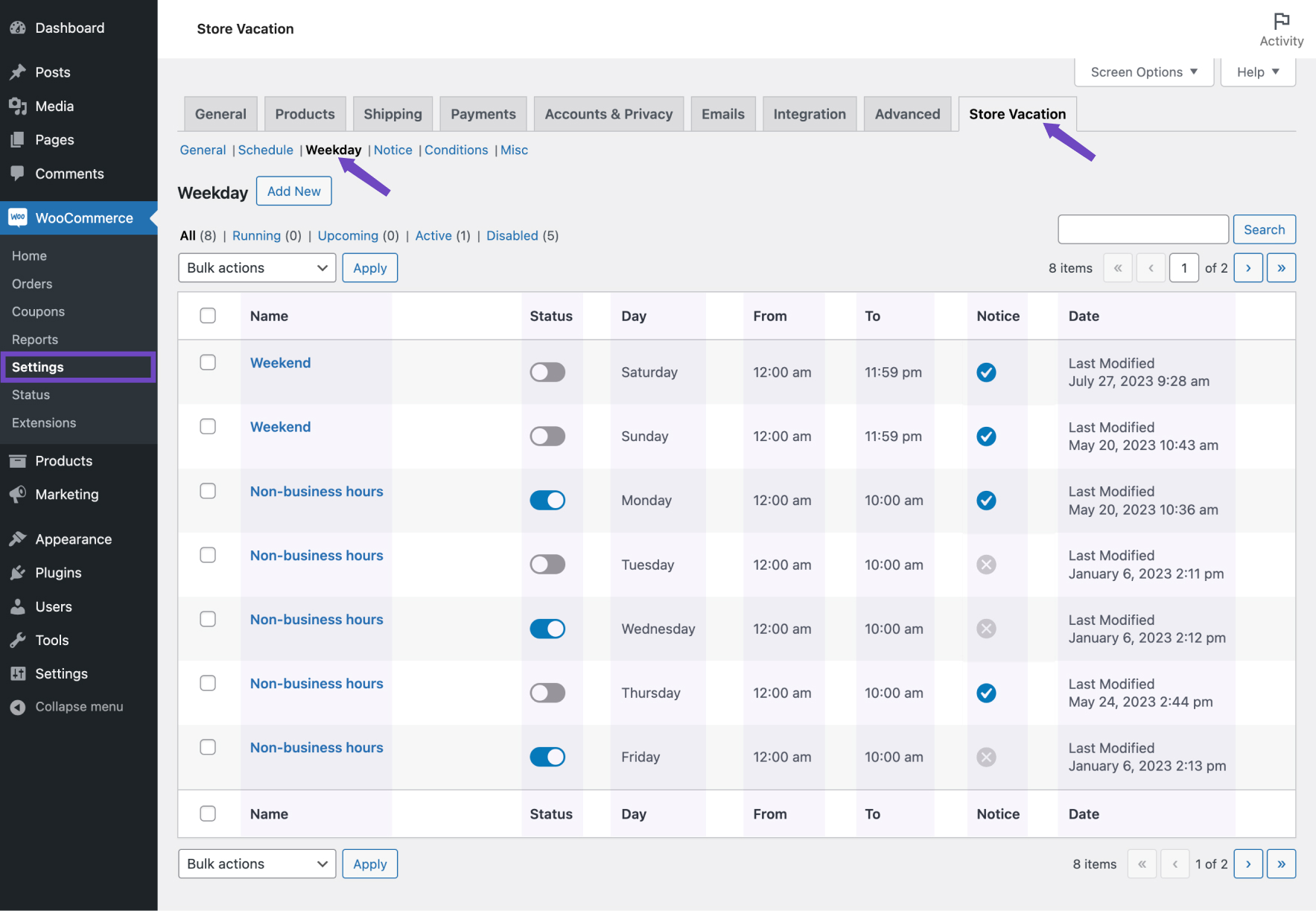
↑ Back to topAfter you add a new weekday, your weekday table will fill up. You can overview the list of your defined weekly closing times in a table on the weekday page.
The weekday table displays some information about your shop closing times based on the schedules defined.
- Name: Displays the name of your weekday schedule. If you haven’t entered a custom name when creating the schedule, the timestamp when you created the entry will be used as a placeholder for naming.
- Day: Displays the day you configured your non-working hours.
- From: Displays the start time of shop closing.
- To: Displays the end time of shop closing. Your shop reopens to accept orders at this time.
- Notice: This column lets you know whether you have assigned a notice to announce your closing time to your visitors. A checkmark icon indicates that you’ve selected a notice to display during the vacation, while a cross icon signifies that you’ve not chosen any notice to display during the vacation.
- Date: Displays the last date that the weekday is modified.
Setting a pre-notice
↑ Back to topWhen creating or editing a schedule or weekday plan for your store vacation, you can set a pre-notice to inform customers in advance before vacation mode begins.
This feature lets you choose when the advance notice will start appearing on your shop pages, or anywhere you’ve placed the Store Vacation shortcode or block. This helps your customers plan their purchases before you close or wait until you return.
Follow these steps to set up a pre-notice:
- Navigate to WooCommerce > Settings >Schedule or Weekday.
- Locate the schedule you want to edit, then hover over it and select Edit.
- Below the Notice dropdown menu, click the link that says Set Pre-Notice.
- A modal window titled Notification Lead Time will appear. Here, you’ll configure the pre-notice settings.
- Select the Reminder Time for when you want the pre-notice to start displaying. This ensures customers receive a heads-up before your store goes on vacation.
- Choose the Notice you want to display from the dropdown menu. (For information on how to create a custom notice, refer to Creating a notice).
- Click the Save Changes button in the modal to save your advance notice configurations.
- After setting the pre-notice, click the Save Changes button to update your schedule or weekday plan.
By following these steps, your customers will be notified ahead of your scheduled store closure, ensuring they can plan their purchases accordingly.

Vacation notices
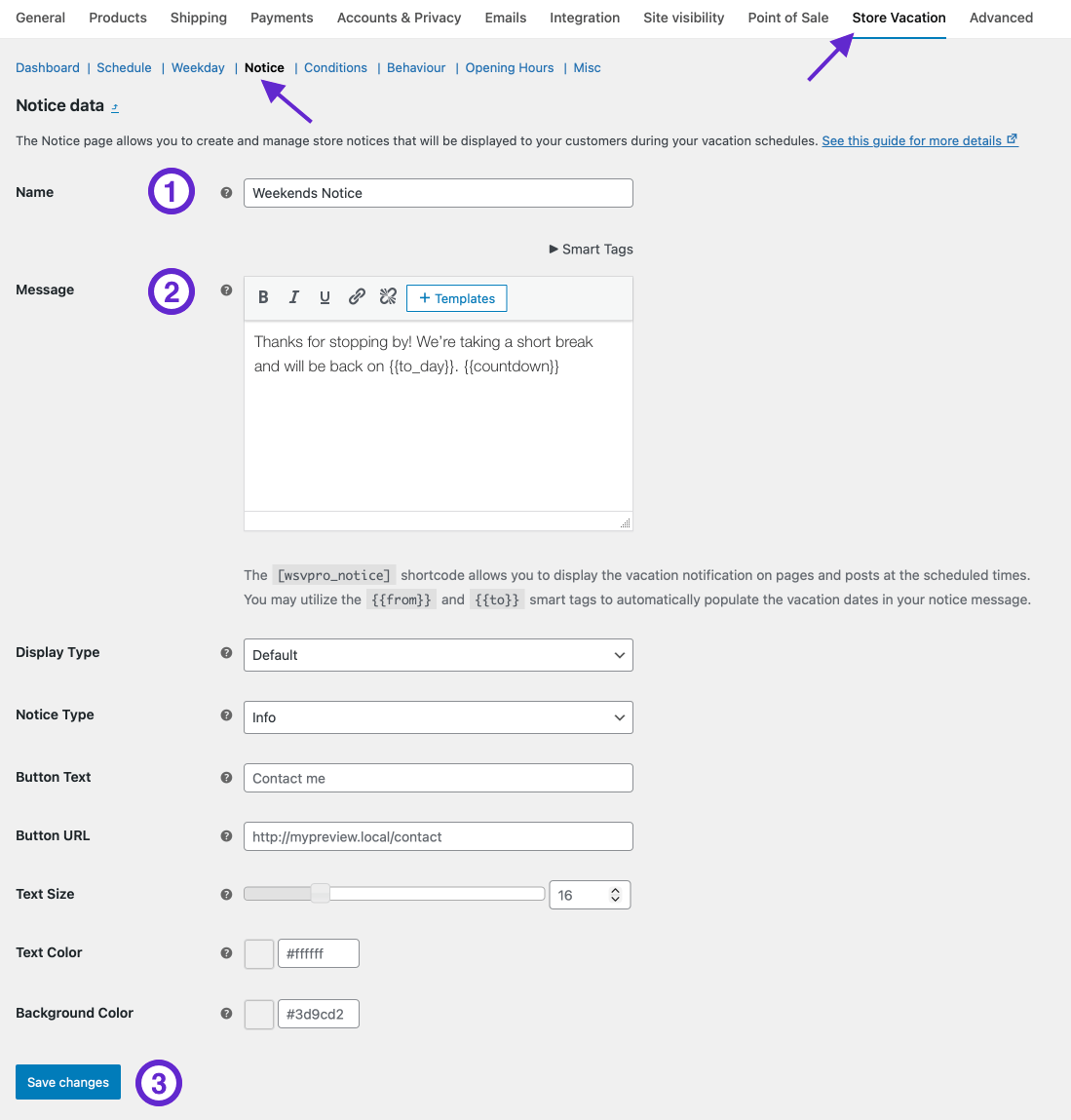
↑ Back to topYou have the flexibility to create customized notices, each with a unique announcement that can be assigned to specific vacation schedules or weekday closings. Here’s how to do it:
- Navigate to WooCommerce > Settings > Store Vacation.
- Go to the Notice section in the current tab.
- Click the Add New button to create a new notice.
- Enter a Name for your notice.
- This helps you identify the notice later when assigning it to schedules or weekdays.
- Enter your Message in the text editor.
- This message will be displayed to customers during the vacation period or specified closing days.
- Click the Save Changes button.
Your notice is now saved and ready to be assigned to vacation schedules or weekday closings.
Using Templates
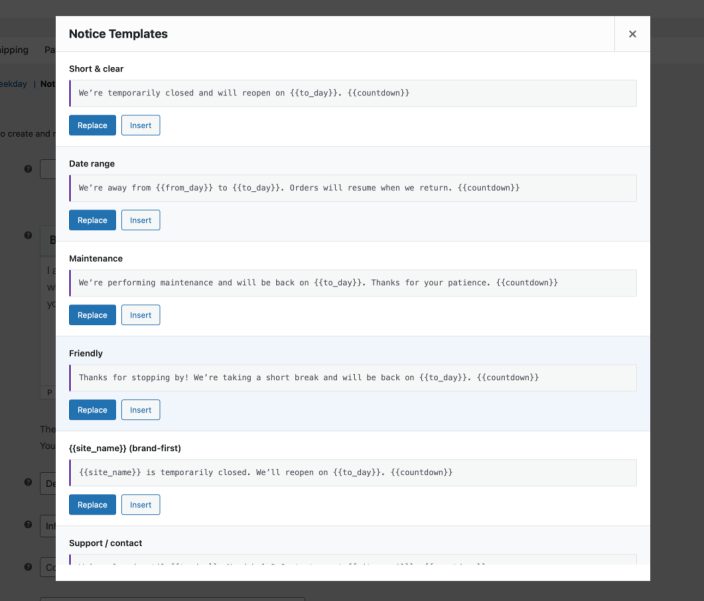
↑ Back to topThe text editor includes a Templates button that allows you to insert ready-made notices:
- Click the Templates button in the editor.
- A modal window will appear displaying available notice templates.
- Select a template and choose either:
- Insert – to add the template content to your current message.
- Replace – to replace your current message with the selected template.
Templates make it faster to create professional-looking vacation announcements while maintaining consistency.
Notice table
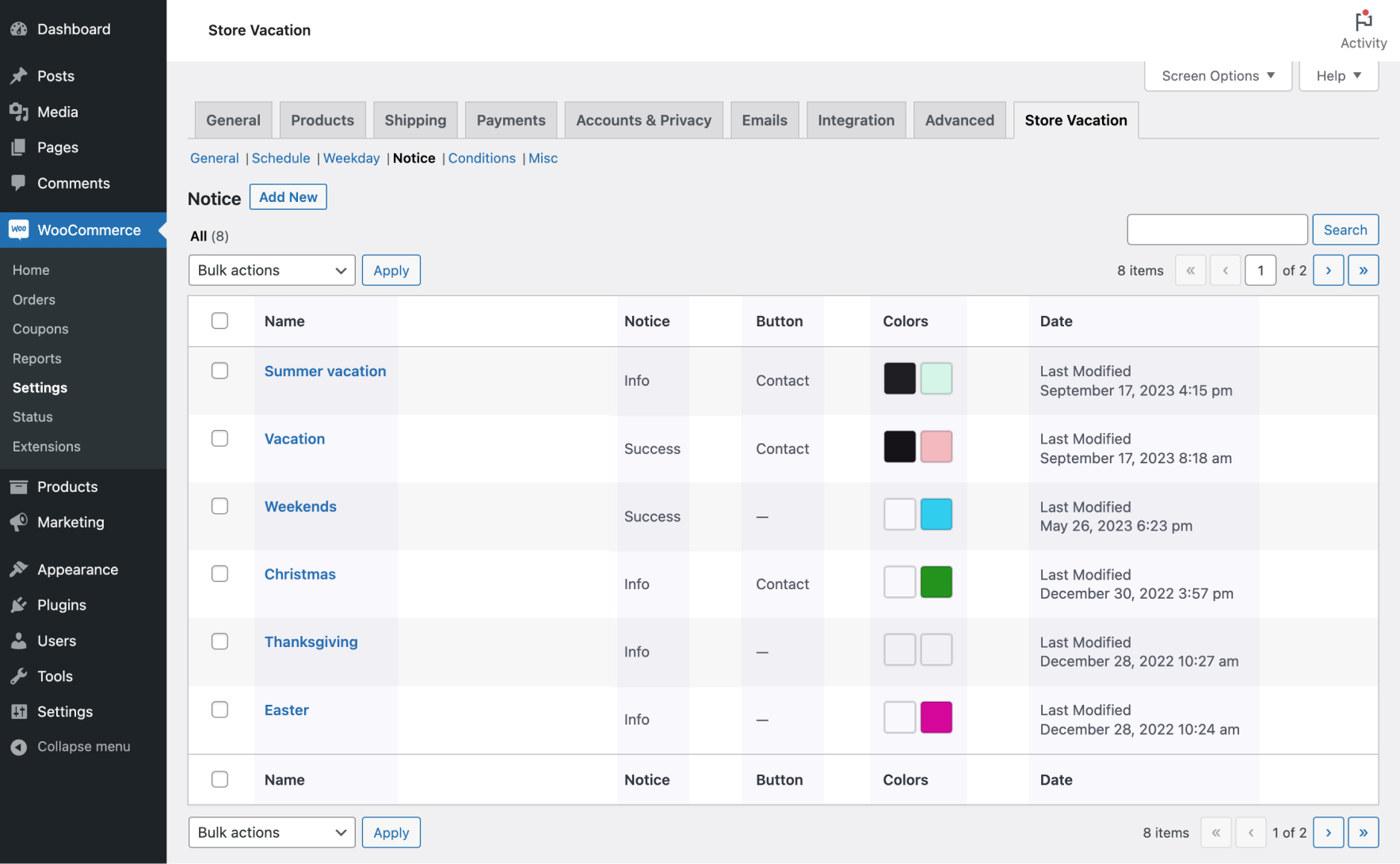
↑ Back to topThe notice table allows you to review some essential information quickly. Here’s what details you can find in the notice table:
- Name: This column displays the name of your notice. If you didn’t specify a name when creating the notice, the creation date will be used as the notice name.
- Notice: In this column, you can see the type of notice assigned to each vacation notice.
- Button: This column shows the Button Text. A horizontal line (—) will be shown as a placeholder if you didn’t enter any button text.
- Colors: In this column, you’ll find the Text and Background colors you have selected for each notice, helping you identify their visual styling.
- Date: This column displays the last date the notice was modified, allowing you to track when changes were made to your notices.
Smart tags
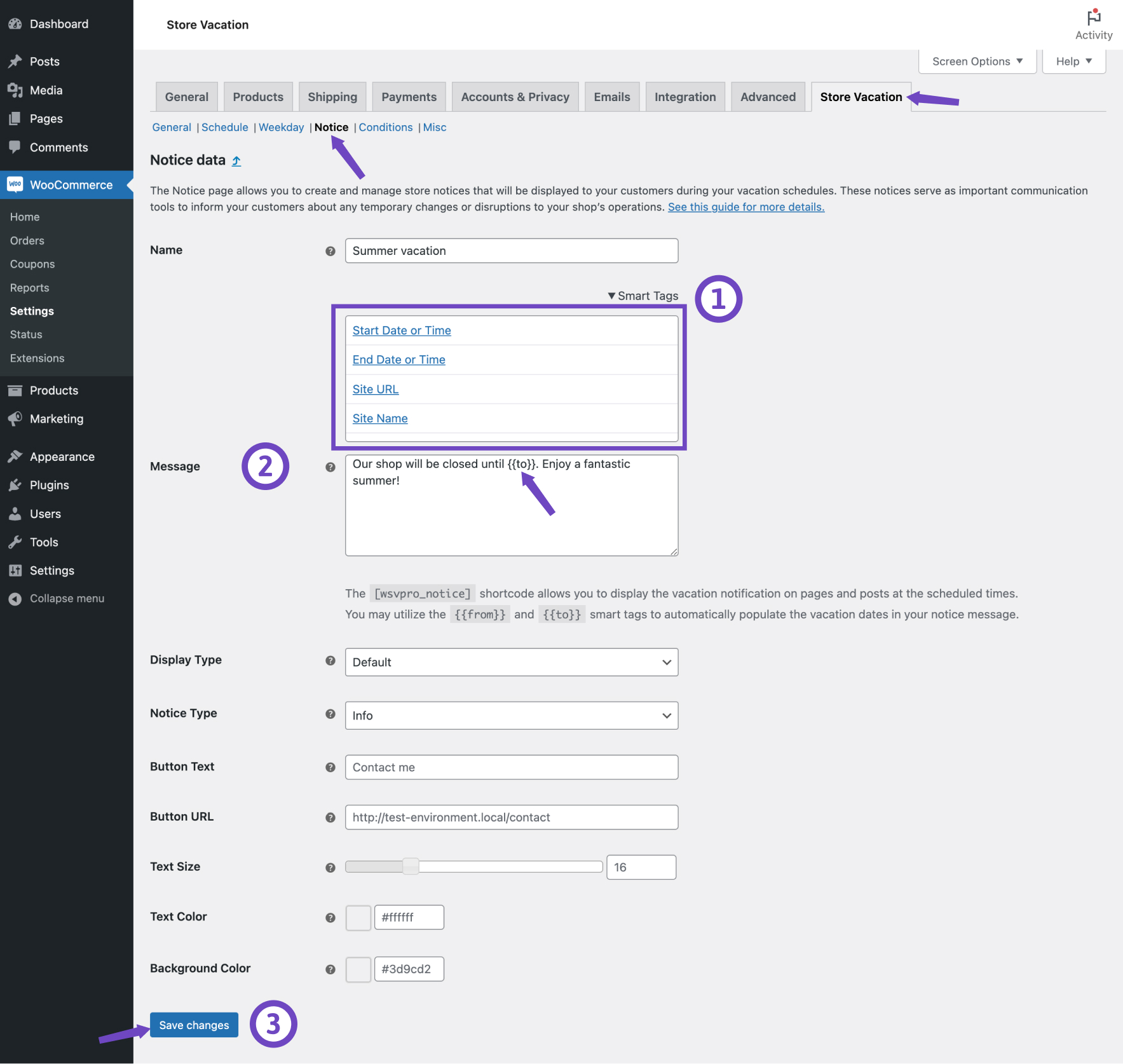
↑ Back to topUse smart tags to automatically insert helpful, personalized, and time-sensitive information into your vacation notices. These tags update dynamically based on your store’s settings and the customer viewing the page.
- Click on the Smart Tags located above the Message field.
- Choose the options you want to include in your message.
- The smart tags will be automatically inserted at the end of your message. You can reposition them within your notice message as needed.
- Click on the Save changes button.
Store timing tags
- Start Date or Time
{{from}}
Automatically inserts the date and time when your store will begin vacation mode or close temporarily. - End Date or Time
{{to}}
Displays the date and time your store is scheduled to reopen or become available again. - Start Day
{{from_day}}
Shows the day of the week when vacation mode begins (e.g., “Monday”). - End Day
{{to_day}}
Displays the day of the week when your shop will reopen (e.g., “Friday”).
Site information tags
- Site URL
{{site_url}}
Inserts your website’s homepage URL directly into the message. - Site Name
{{site_name}}
Displays your site’s name or title exactly as set in your WordPress settings. - Admin Email
{{site_email}}
Shows the site administrator’s email address, useful for directing customer inquiries.
Customer personalization tags
- Customer Name
{{customer_name}}
Automatically inserts the full display name of the logged-in customer, helping you personalize messages. - Username
{{username}}
Displays the customer’s WordPress username. Ideal for admin-friendly notices or internal message styles.
Countdown timer tag
- Countdown
{{countdown}}
Shows a real-time countdown timer based on your vacation schedule. It dynamically counts down to:- The start of your vacation (when using pre-notice)
- The end of your vacation (when your shop reopens)

Tip: drive engagement with the countdown timer
Use the {{countdown}} tag in your notice banners to create urgency and clarity. When customers see time ticking down, they’re more likely to take action. Such as placing an order before closing or planning a return visit when you reopen.
Recommended use cases:
- Pre-Notice: “
Hurry! We’ll close in {{countdown}}. Place your order now!” - Reopening Teaser: “
We’ll be back in {{countdown}}. Get ready!”
Pro tip: Combine {{countdown}} with {{customer_name}} for highly engaging, personalized messages like:
Hi {{customer_name}}, our store will reopen in {{countdown}}. See you soon!Adding a button to your notice
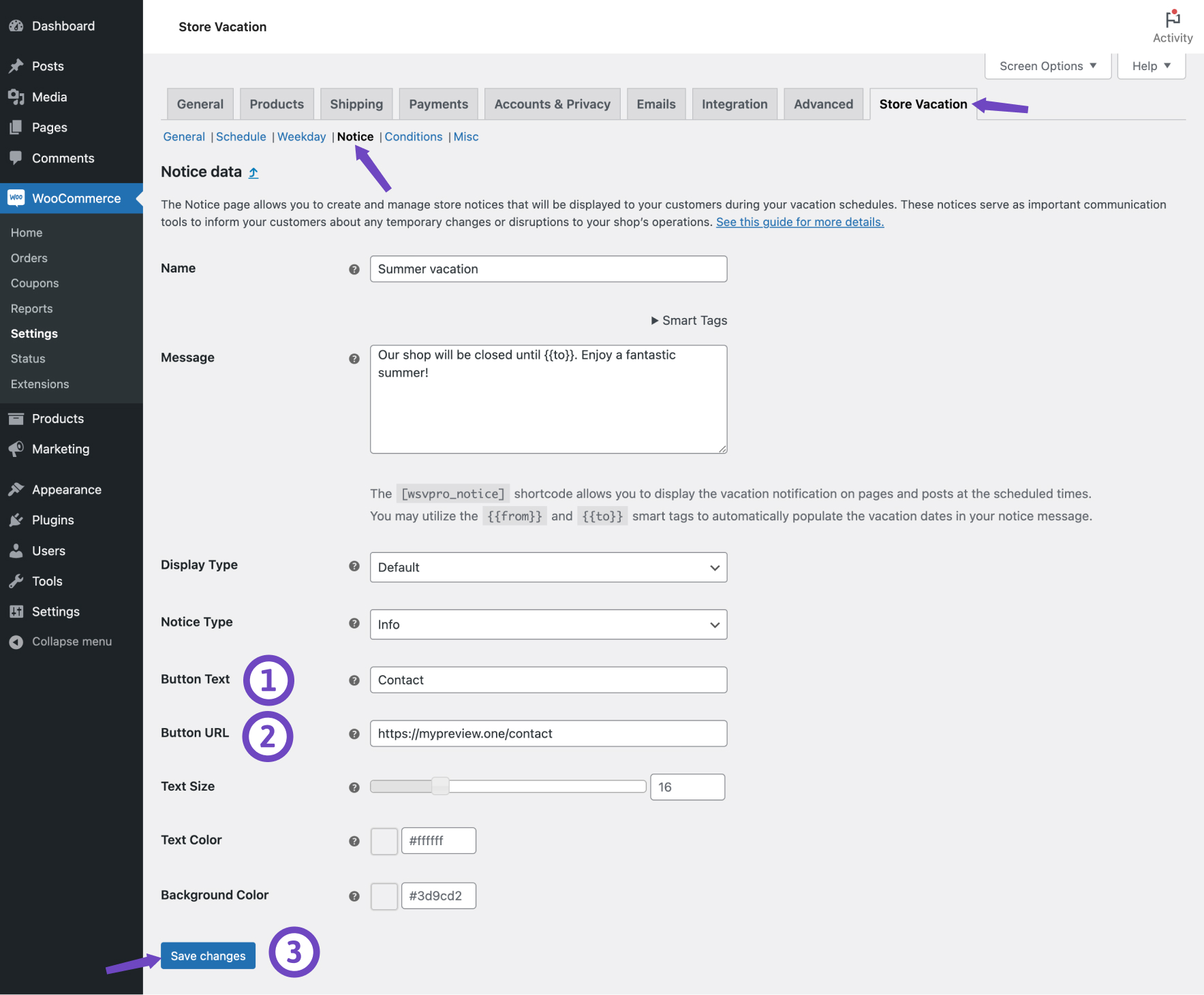
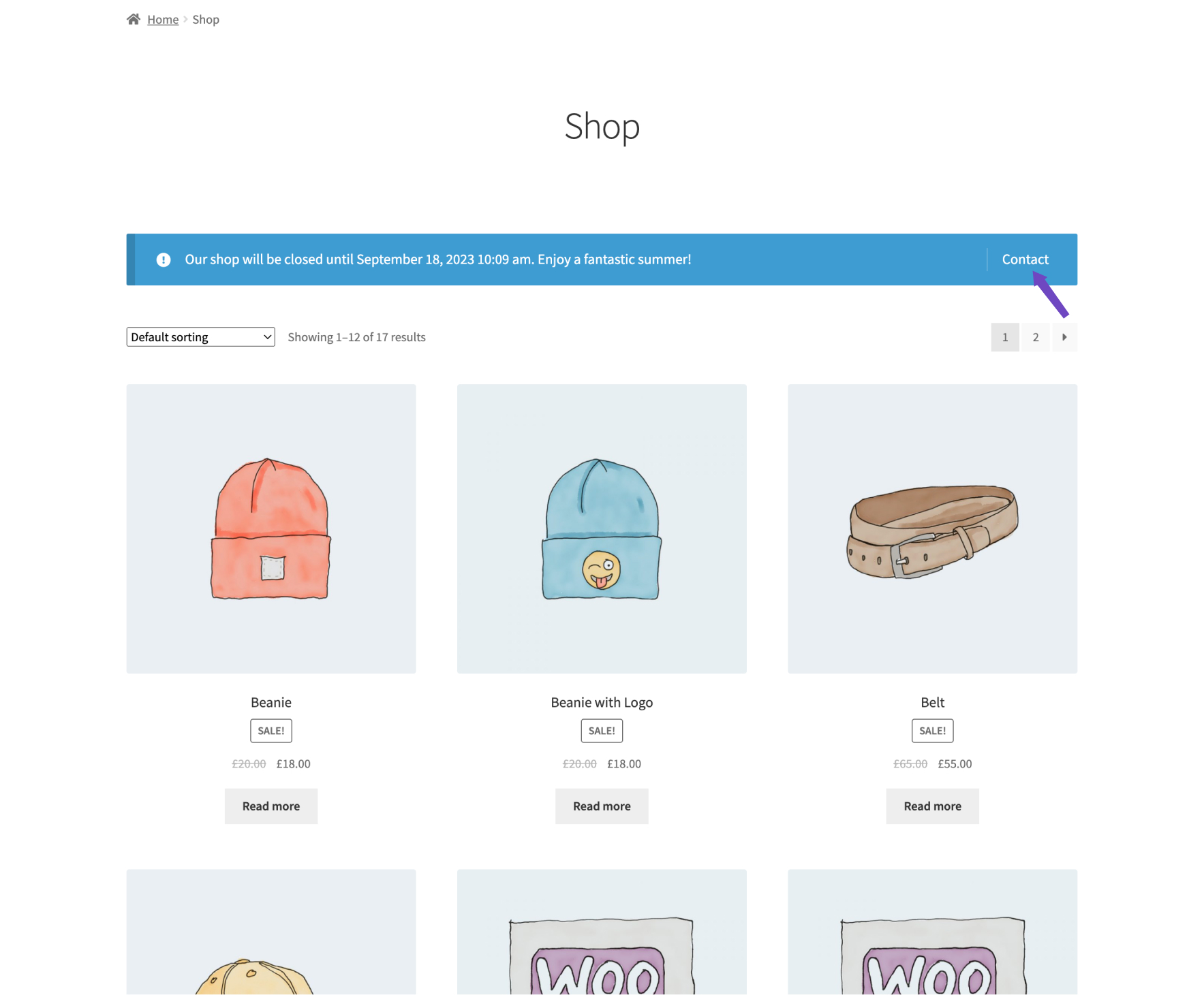
↑ Back to topEnhance your vacation notice with a clear call to action button, guiding your customers to take specific actions, such as visiting your contact page. Here’s how to do it:
- Enter the text you want to display on the button in the Button text field.
- Specify the URL to which the button should direct your customers in the Button URL field.
- Click on the Save changes button.
Customize notice
↑ Back to topIn most cases, themes will apply their own unique styles to WooCommerce notice variations to ensure they align with their visual design. Here, we’ll explore the customization options available within the extension to tailor your vacation notices to your liking.
Display type
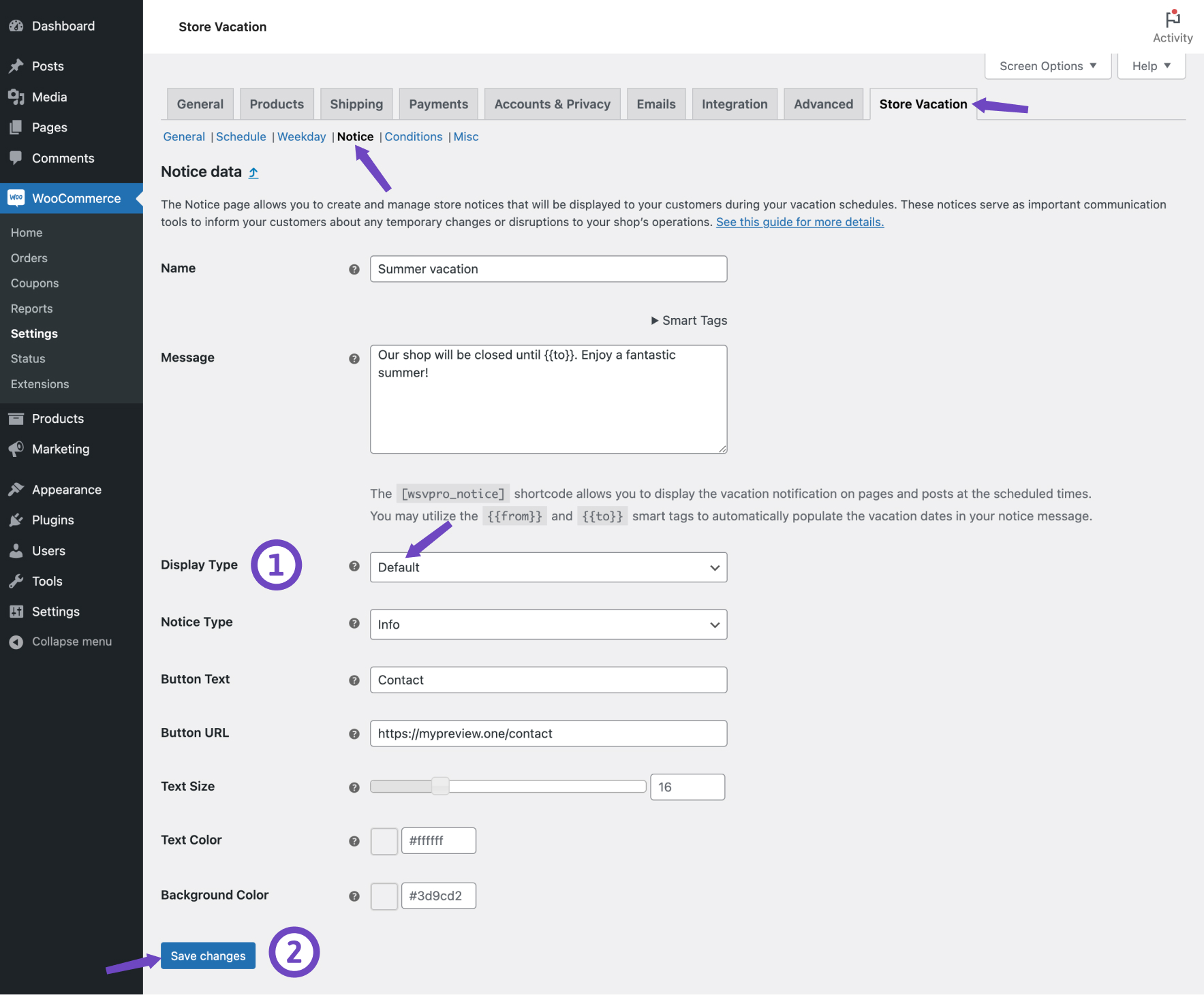
↑ Back to topYou can change the appearance of your vacation notice by adjusting the Display Type option. Here’s how:
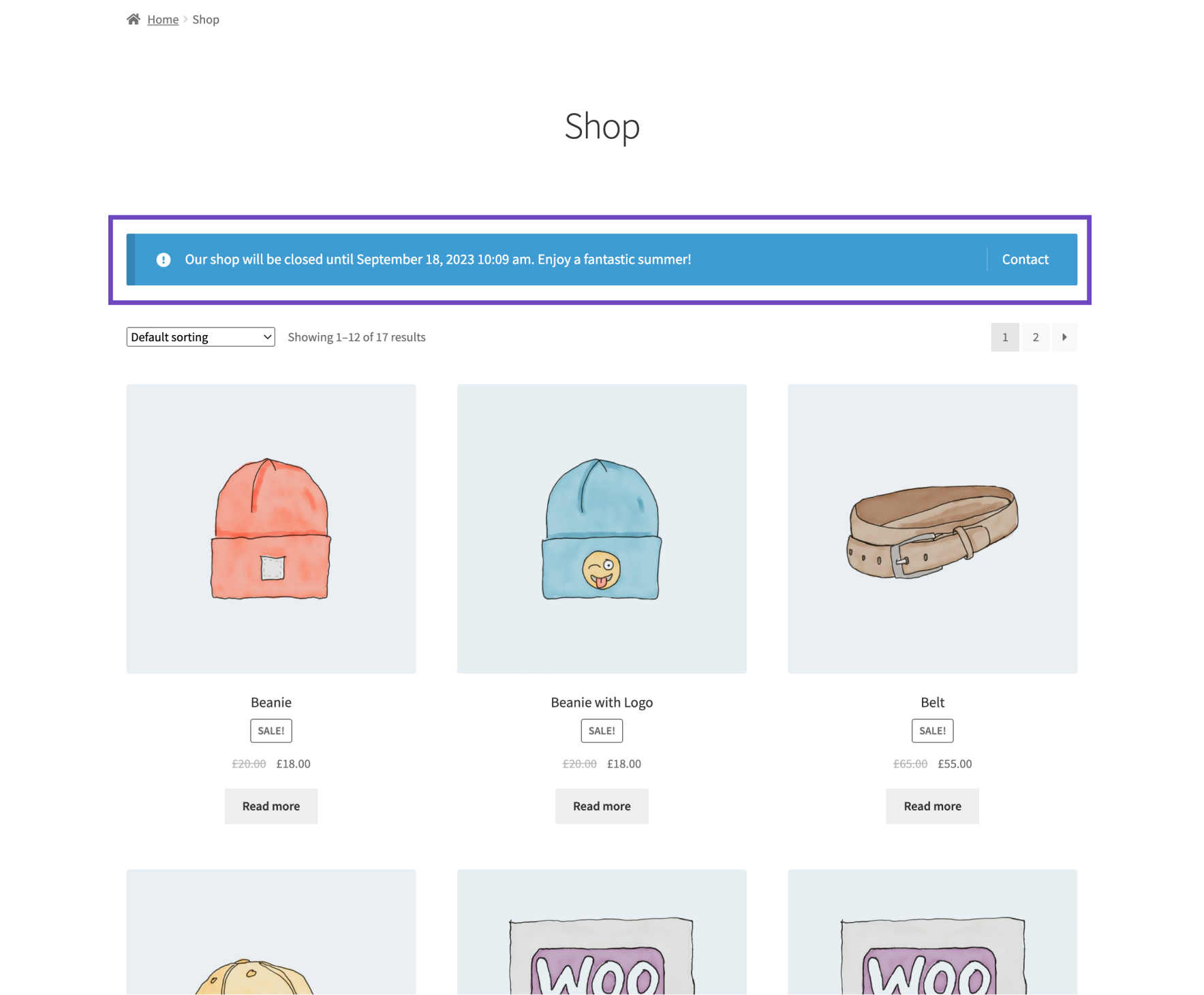
1. Default display
This is the default option, already selected for the Display Type field. It inherits the notice’s appearance from the WooCommerce notice, presenting it in a boxed view block.
2. Announcement bar
Alternatively, you have the option to showcase your vacation notice in an Announcement bar. To use the announcement bar:
- Choose the Announcement bar option for Display Type.
- Click on the Save changes button.
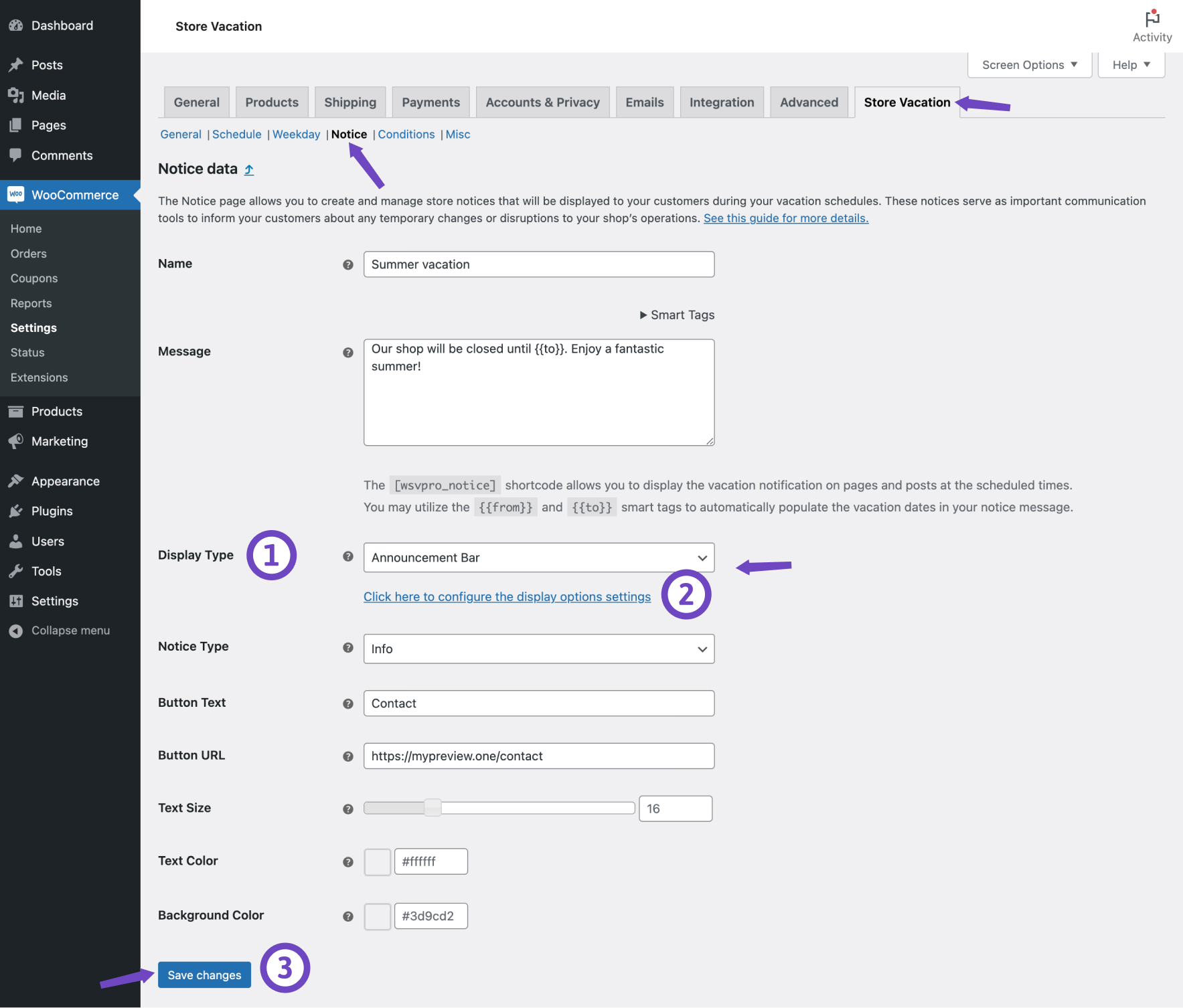
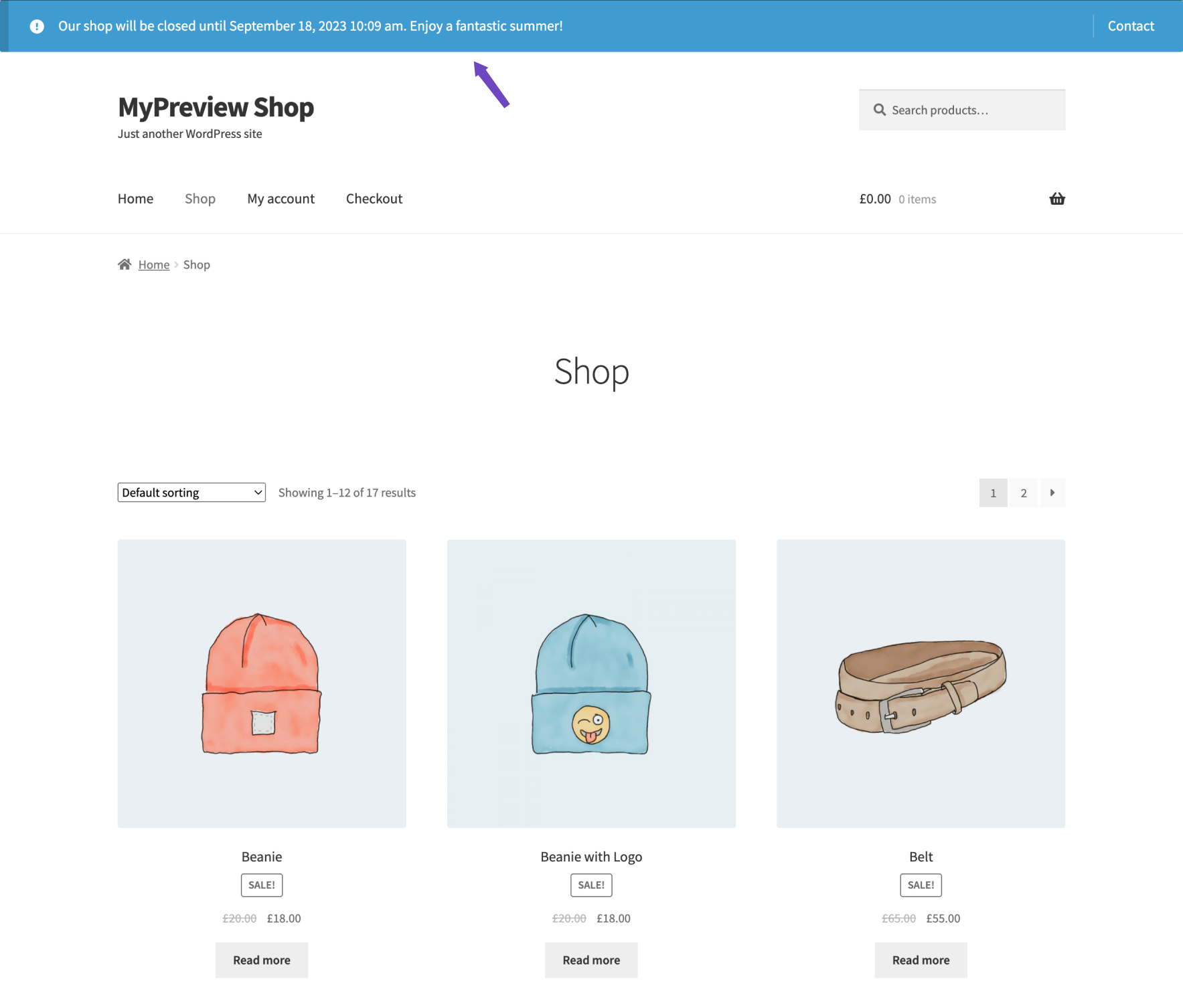
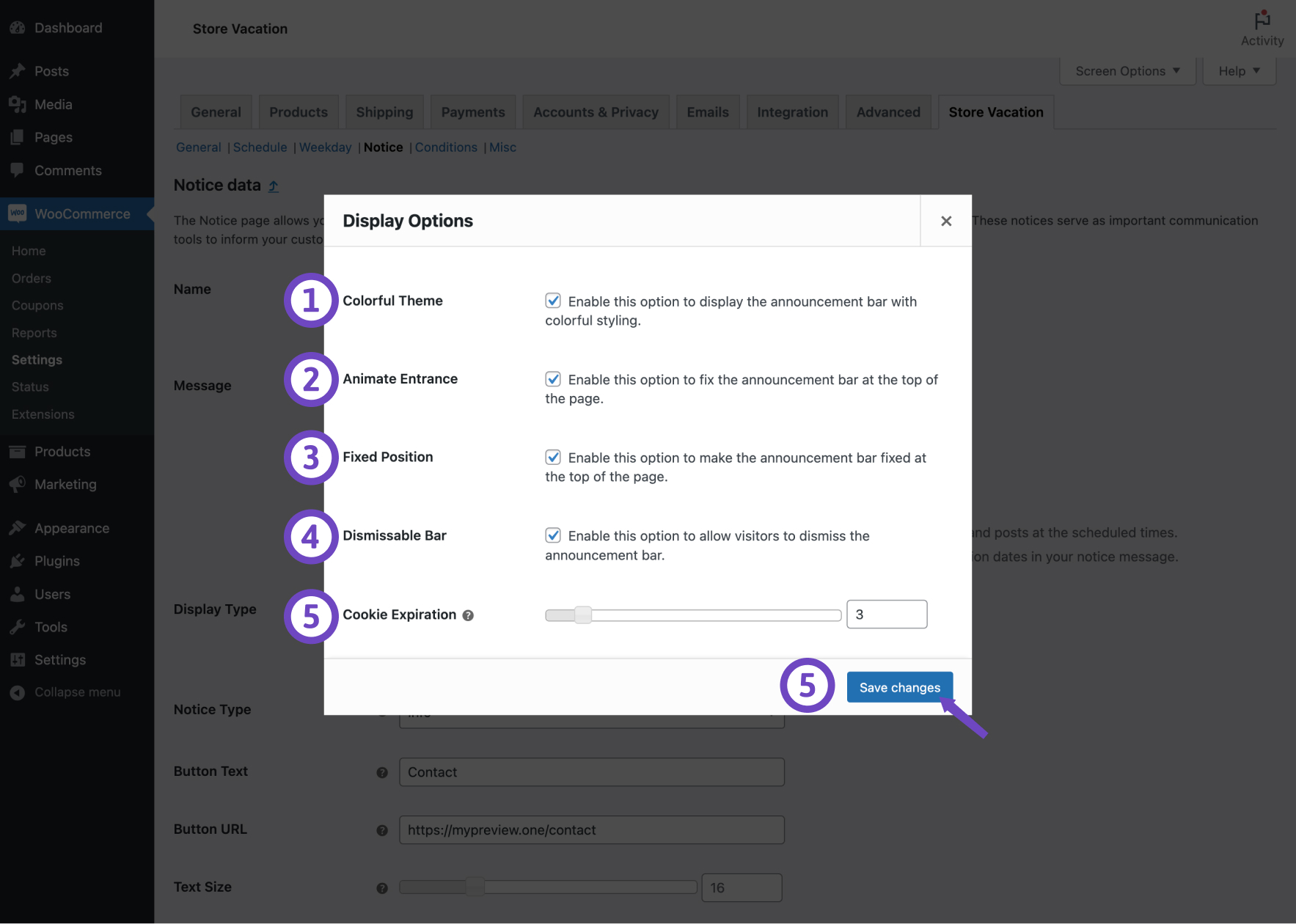
Now, here are some customization options for your Announcement Bar:
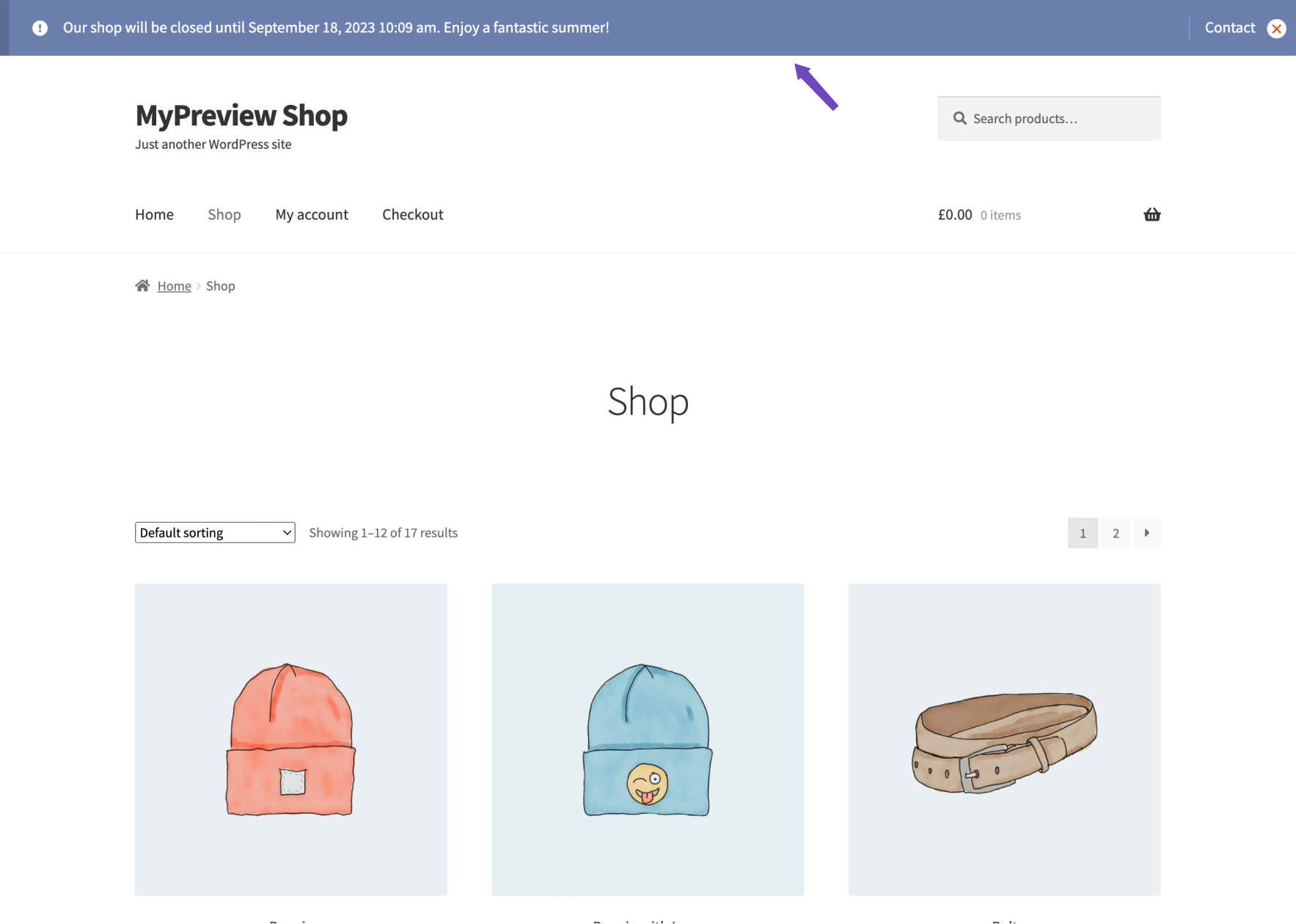
- Colorful Theme: Opting for this setting will introduce an eye-catching background animation with a variety of colors to your announcement bar, enhancing its visual appeal.
- Animate Entrance: When activated, this option will include a lively bounce animation as your notice bar appears upon page load, adding an engaging touch to your website.
- Fixed Position: Selecting this feature will affix the announcement bar firmly to the top of your webpage, ensuring it remains in view even as visitors scroll down, providing consistent visibility.
- Dismissable Bar: This option adds a close (x) button to the notice bar, allowing visitors to dismiss it. You can adjust how long the notice remains hidden for a user who clicks the close button using the Cookie Expiration field. However, without setting the Cookie Expiration, the message will reappear if the user refreshes the page.
- Cookie Expiration: This range slider permits you to set a cookie for the announcement bar, measured in hours. For instance, if you select a duration of 3 hours for this option while also enabling the Dismissable Bar checkbox, the bar will remain hidden for the respective user for a period of 3 hours after they click on the close (x) button.
Notice type
↑ Back to topYou can update the notice type within WooCommerce’s built-in notice types. To choose the suitable notice type, it’s helpful to understand the definitions of each type in WooCommerce:
- Info: This is a general notice type commonly used for informational purposes, such as announcements or user guides.
- Success: This notice type commonly indicates a successful action. For example, it is used in WooCommerce when adding an item to the cart or receiving a shipping quote.
- Error: An error notice is triggered when something goes wrong. This message will typically appear on shop pages due to user error or code issues.
To update the notice type:
- Select a Notice Type from the options provided.
- Click on the Save changes button.
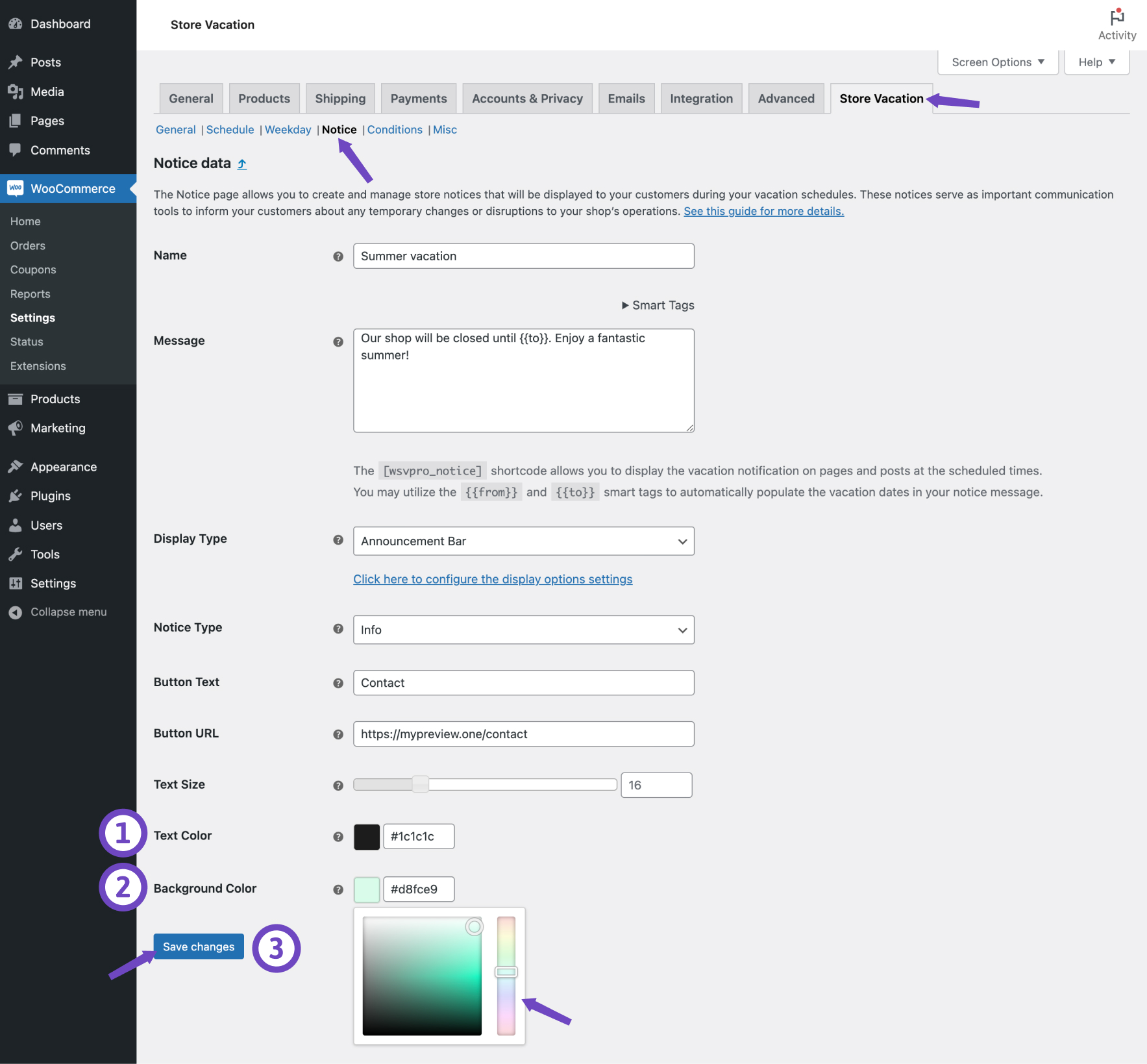
Notice color
↑ Back to topYou can override the color scheme of your vacation notices using the color picker controls provided by the plugin. This allows you to ensure that the notice’s color matches your store’s branding.
- Define a Text color using the color picker.
- Define a Background color using the color picker.
- Click on the Save changes button.
Notice text size
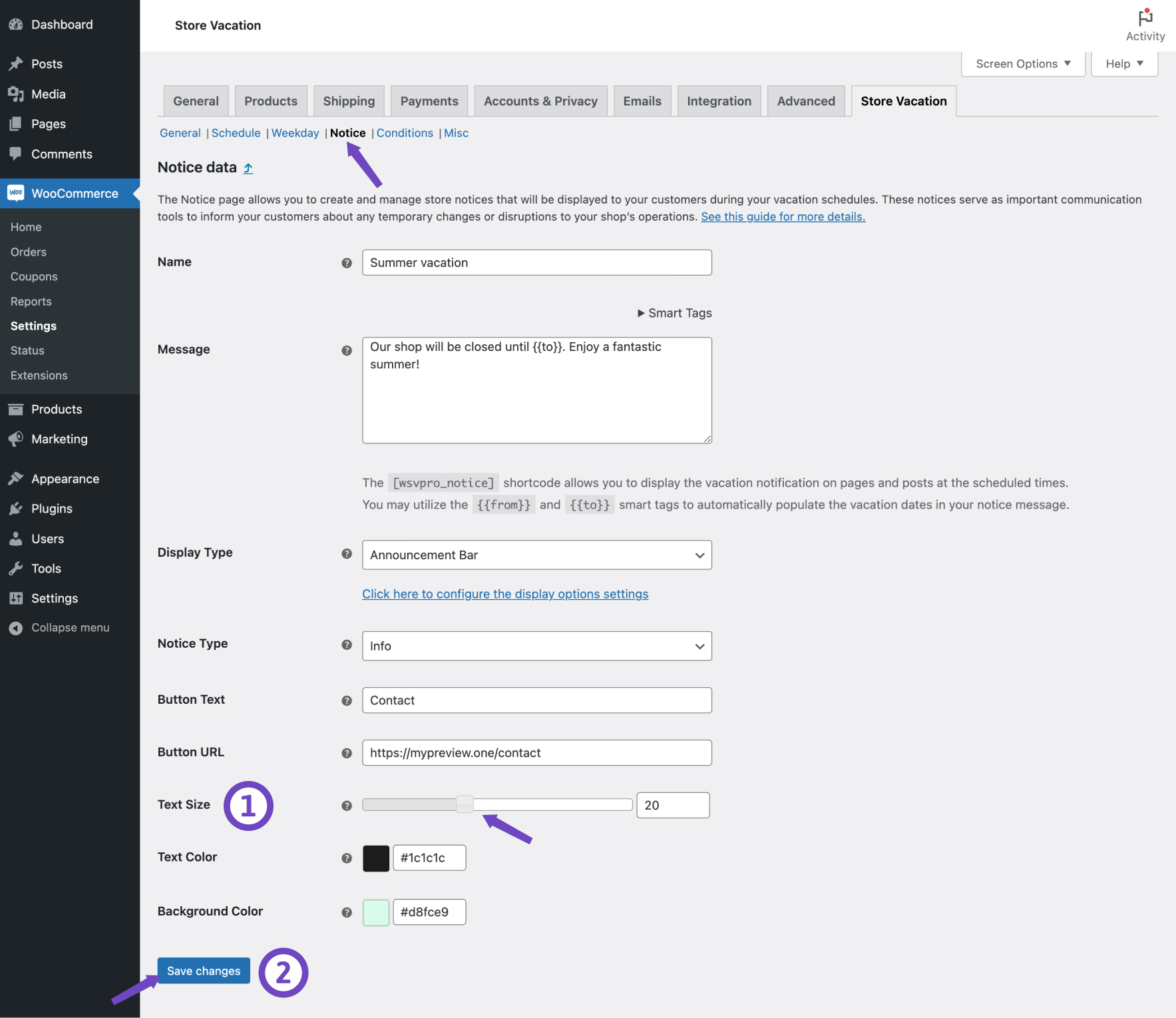
↑ Back to topAdjusting the font size of your vacation notices is also possible using the range slider controls provided by the extension. This way, you can ensure that the notice text is readable and aligns with your overall design.
- Use the range slider to adjust the Text Size as desired.
- Click on the Save changes button.
Vacation notice display
↑ Back to topThe vacation notice that the plugin generates is meant to be displayed on WooCommerce pages, such as the shop and product pages, during the period of your vacation. However, we understand that you may want to extend the visibility of your message to other pages on your website.
You can opt to add your message to other pages through the Store Vacation Notice block, Elementor widget, or the shortcode.
Notice block
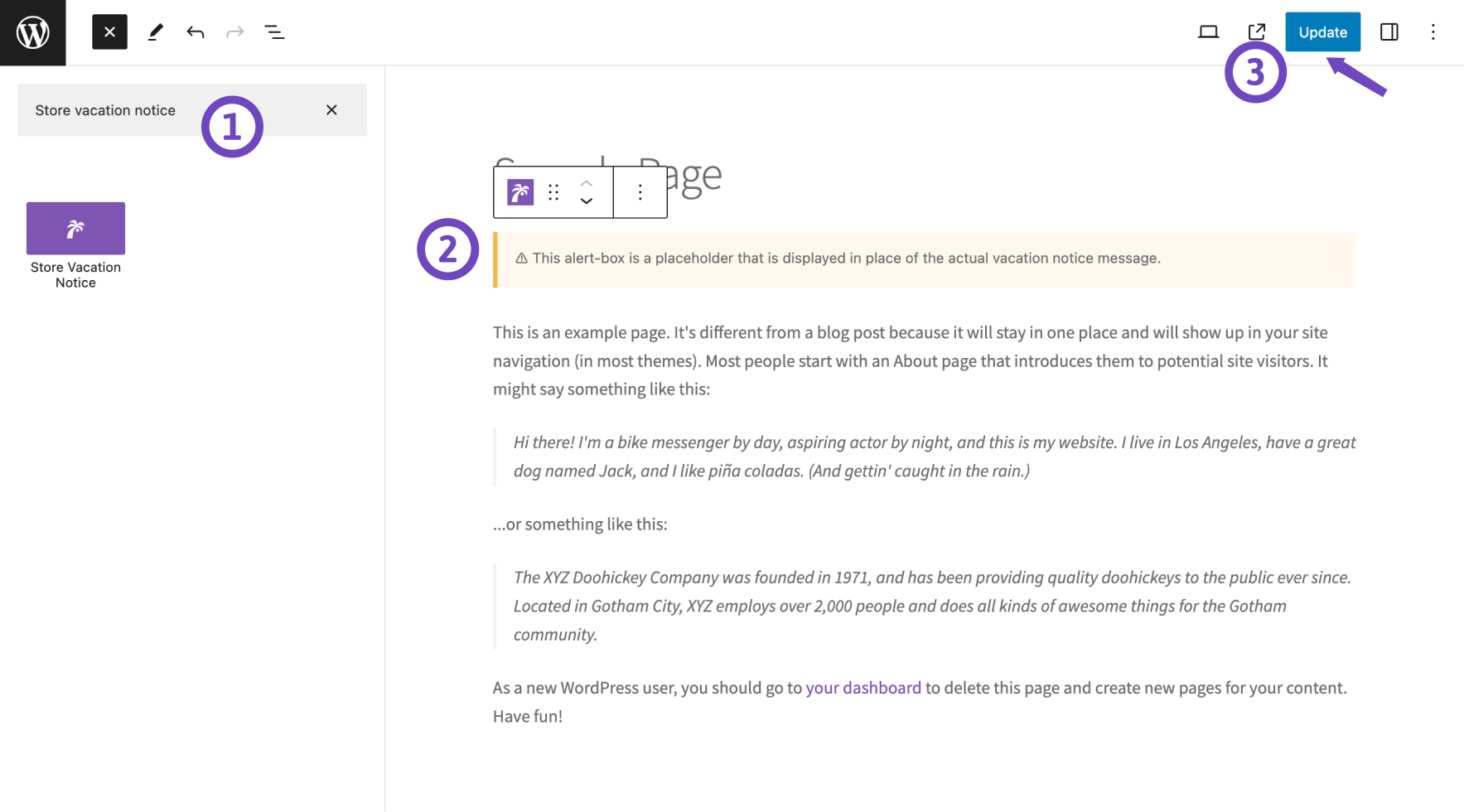
↑ Back to topIf you have pages on your website where you want to display your vacation notice, you can use the Store Vacation Notice block to achieve this. In addition to the default WooCommerce pages, you can add this block to the editor of your desired page. Follow these simple steps to display your vacation notice on a specific page:
- Edit the page or post where you want to add the vacation notice block.
- Click on the (+) button to add a new block in the editor.
- Search for the Store Vacation Notice block and select it from the available block options.
- Click on the Update button to make the changes live on your page.
Elementor widget
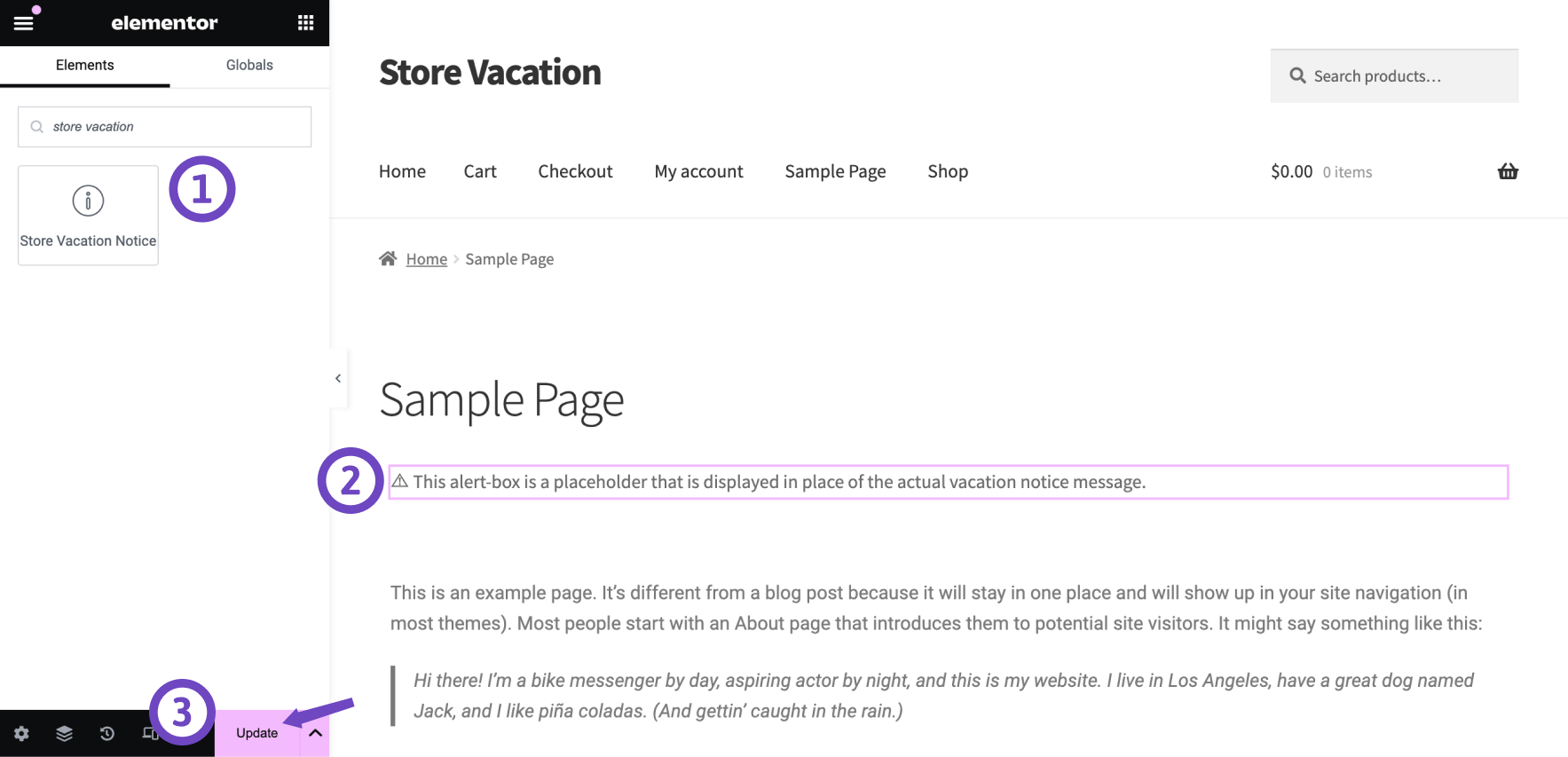
↑ Back to topIf you use the Elementor page builder to design your website, you can integrate the Store Vacation Notice widget into your pages. To add the vacation notice widget to your page or post, follow these steps:
- Edit the page or post where you want to add the vacation notice block.
- In the Elementor editor, search for the Store Vacation Notice widget.
- Drag and drop the widget into the desired section of your page.
- Click on the Update button to make the changes live on your page.
Shortcode
↑ Back to topIf you are using a page builder plugin without specific integrations for Store Vacation plugin, you can add the vacation notice to your pages using the [wsvpro_notice] shortcode.
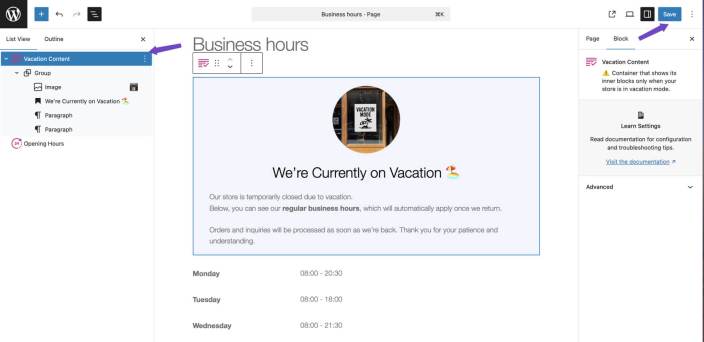
Vacation Content Block
↑ Back to topThe Vacation Content Block is a conditional wrapper block for WooCommerce that allows store owners to display custom content only during scheduled vacation periods. Any block placed inside the Vacation Content Block will automatically appear when the store is in vacation mode, and will remain hidden outside these periods. This feature provides flexibility to manage store communications while your store is temporarily closed.
Key Features
- Conditional display for vacation mode: Show content exclusively during active vacation schedules.
- Flexible block placement: Use on any page, post, or template part including header, footer, sidebar, or custom templates.
- Custom layouts using blocks: Insert core or third-party blocks inside the wrapper to create professional, tailored layouts.
- Targeted customer messaging: Display vacation notices, temporary instructions, or special information without affecting normal store pages.
How to use the vacation content block
- Go to the page, post, or template part where you want vacation-specific content.
- Add a Vacation Content Block from the block inserter.
- Insert any Gutenberg blocks (text, images, buttons, or third-party blocks) inside the Vacation Content Block.
- Save or update your content. The inserted blocks will display only during scheduled vacation periods.
Best Practices
- Global placement: Use template parts (header, footer, sidebar) to show vacation content across the site.
- Complex layouts: Combine multiple blocks inside the wrapper to create structured messages.
- Professional messaging: Keep vacation content concise and informative to maintain a professional storefront.
Behaviour settings
↑ Back to topThe Behaviour Settings page allows you to configure how your storefront behaves while vacation mode is active in WooCommerce.
From this page you can:
- Track orders placed during vacation mode
- Control how shop pages behave when the store is closed
- Replace shop pages with custom content
- Password-protect shop pages during vacation
These settings give you full control over the customer experience while your store is temporarily unavailable.
Where to Find Behaviour Settings
↑ Back to topTo access Behaviour Settings:
- Go to WooCommerce > Settings
- Click the Store Vacation tab
- Open the Behaviour section
Here you can configure how the storefront behaves during vacation mode.
Track Vacation Orders
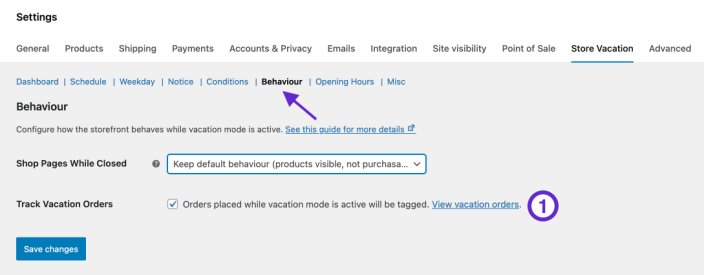
↑ Back to topThe Track Vacation Orders option allows you to identify and filter orders that were placed while vacation mode was active.
This is useful if some products remain purchasable due to conditions or exclusions configured in the plugin.
How to Enable
- Navigate to WooCommerce > Settings > Store Vacation > Behaviour
- Enable the Track Vacation Orders checkbox
- Click Save Changes
Once enabled, orders placed during vacation mode will be marked so they can be filtered later.
How to View Vacation Orders
To see orders placed during vacation mode:
- Go to WooCommerce > Orders
- Open the order filters
- Select Vacation: Yes
- Apply the filter
You will then see a list of orders placed while vacation mode was active.
Important Notes
Orders are only tracked if Track Vacation Orders is enabled.
Tracking works when products are purchasable due to exclusion conditions, behavior settings and bypass access.
Shop Pages While Closed
↑ Back to topThe Shop Pages While Closed setting controls what customers see on shop pages when vacation mode is active.
You can choose one of several behaviors depending on how you want your store to appear during vacation.
The default option is Keep Default Behaviour.
With this option:
- Products remain visible on the storefront
- Customers can browse products
- Products are not purchasable
However, products excluded through Conditions settings may still be purchasable.
This option is useful when you want customers to continue browsing your catalog while checkout is restricted.
Replace Shop Pages with Custom Content
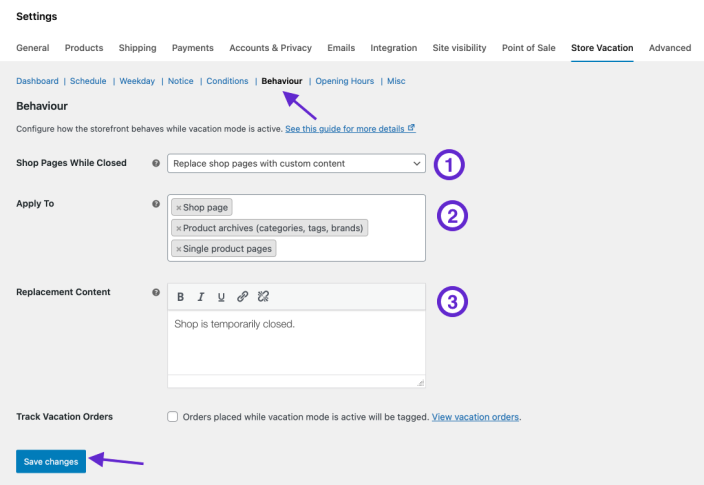
he Replace shop pages with custom content option allows you to display custom messages or content instead of product listings during vacation mode.
How to Configure
- Go to WooCommerce > Settings > Store Vacation > Behaviour
- In Shop Pages While Closed, select Replace shop pages with custom content
- Select which pages should display the replacement content using Apply To filed:
- Shop Page
- Product Archives (categories, tags, brands)
- Single Product Pages
- Use the Replacement Content editor to add your custom content. The content you enter will replace the normal page content while vacation mode is active.
- Click Save Changes
Once saved, the selected pages will display the replacement content during vacation mode.
Password-Protect Shop Pages
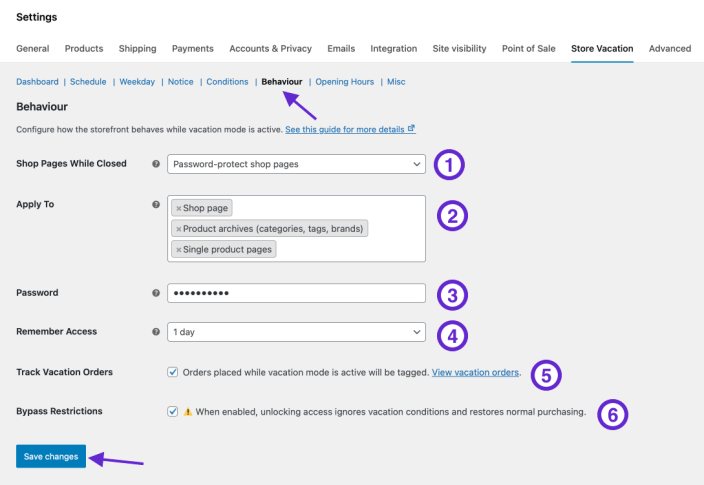
The Password-protect shop pages option allows you to restrict access to shop pages during vacation mode. Visitors must enter a password before they can view products.
How to Configure Password Protection
- Go to WooCommerce > Settings > Store Vacation > Behaviour
- In Shop Pages While Closed, select Password-protect shop pages.
- Choose which pages should be password protected via Apply To:
- Shop Page
- Product Archives (categories, tags, brands)
- Single Product Pages
- Enter a Password that customers must use to access the shop pages.
If you leave this field empty, the existing password will remain unchanged. - Choose how long the password unlock should be remembered after the user enters the correct password using Remember Access. This prevents customers from needing to re-enter the password repeatedly during the selected period.
- If you want to track orders placed while vacation mode is active, make sure to enable Track Vacation Orders. This ensures orders placed by password-authorized users can still be identified as vacation orders.
- The Bypass Restrictions option allows users who enter the correct password to ignore vacation restrictions. When enabled:
- Password-verified users regain normal store functionality
- Products become fully purchasable
- Vacation restrictions are ignored for that user
- Save changes
Make shop pages accessible via a private link
The Private Link Access feature allows you to keep your store closed to the public during vacation mode, while still granting access to selected visitors via a secret URL.
Visitors who use the private link can view the store and, optionally, purchase products even when vacation mode is active.
How to Enable
- Navigate to WooCommerce > Settings > Store Vacation > Behaviour.
- In the Shop Pages While Closed filed, select: Make shop pages accessible via a private link.
- Select which pages the private link should unlock using the Apply To filed. This allows you to control exactly which areas of your store can be accessed through the private link.
- Shop Page
- Product Archives (categories, tags, brands)
- Single Product Pages
- Insert a Private Link Token, which will be included in the URL to unlock access.
- Configure how long the private link access should be remembered for returning visitors via Remember Access.
- Check Track Vacation Orders to mark any orders placed while vacation mode is active. Orders placed via private link access will be included, allowing easy filtering and management in WooCommerce > Orders.
- If you want visitors with the private link to ignore vacation restrictions and restore normal purchasing, enable Bypass Restrictions. When enabled, all products become fully purchasable for visitors using the private link.
- After configuring all options, click Save Changes to activate private link access during vacation mode.
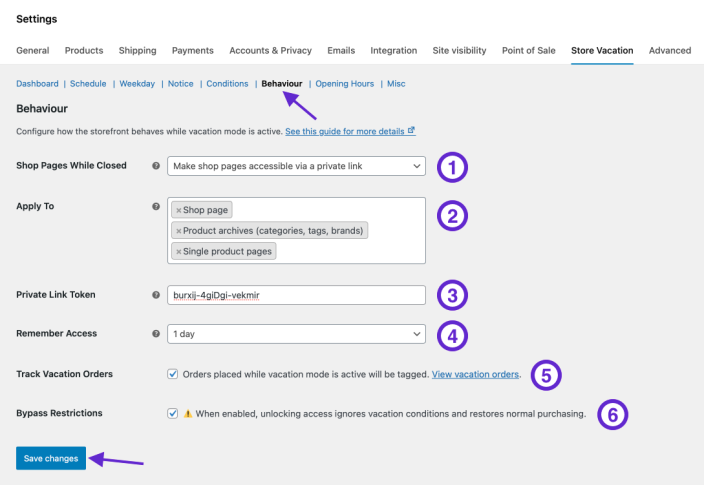
How visitors use the private link once enabled:
- Copy your private link URL with the token, for example:
https://yourstore.com/shop/?sv_token=your-token - Share it with your selected visitors.
- The link will unlock the shop pages included in Apply To, optionally allowing purchases if Bypass Restrictions is active.
- Access will be remembered based on the Remember Access settings.
Store Opening Hours
↑ Back to topThe Opening Hours feature in your Store Vacation settings allows you to define and display your WooCommerce store’s business hours. You can also configure your store to automatically close during off-hours and display a notice to inform your customers when your store is not operating.
Follow these steps to configure your store’s business hours and manage store operations during off-hours:
- Go to WooCommerce > Settings > Store Vacation in your store’s WP Admin dashboard.
- In the current tab, find the Opening Hours section.
- Check the Show Opening Hours option to enable the ability to display your store hours on the front end using a block, widget, or shortcode.
- If you want your store to automatically close during non-operational hours, check the Close During Off-Hours option.
- If you wish to show a notice to customers when your store is closed, select a notice from the Closed Notice Message dropdown. This notice will appear on your shop pages during off-hours.
- Set business hours for each day:
- For each day that your store is open:
- Toggle the option to Open.
- Select the opening and closing times for the day.
- For days when your store is closed:
- Toggle the option to Closed.
- For each day that your store is open:
- Once you’ve configured your store hours, click the Save changes button to apply the settings.
These steps ensure that your store operates smoothly during business hours and provides clear communication to customers during off-hours.

Displaying store opening hours on your website
↑ Back to topThere are several ways to display your store’s opening hours on your website. However, before you proceed, ensure that you’ve checked the Show Opening Hours checkbox in the Opening Hours settings.
Using the Opening Hours block
If you are using the WordPress Block Editor (Gutenberg), you can display your store hours by inserting the Opening Hours block on the desired page.
- Edit the page where you want the hours displayed.
- Insert the Opening Hours block by clicking the “+” button and searching for the block.
- Once added, update the page to save the changes.

Using the Opening Hours widget
If your theme supports widgets, you can add the Opening Hours widget to any widget area, such as the shop sidebar or footer.
To add the widget:
- Go to Appearance > Widgets.
- Find the Opening Hours widget and add it to your desired widget area.
- Save the widget settings.

Using the Opening Hours shortcode
You can also display your store hours using the shortcode [wsvpro_opening_hours]. This method is particularly useful if you are using the Classic Editor or a page builder such as Divi or Elementor.
You can place the shortcode wherever you want the opening hours to appear, and the hours will automatically be displayed based on your frontend page.
General settings
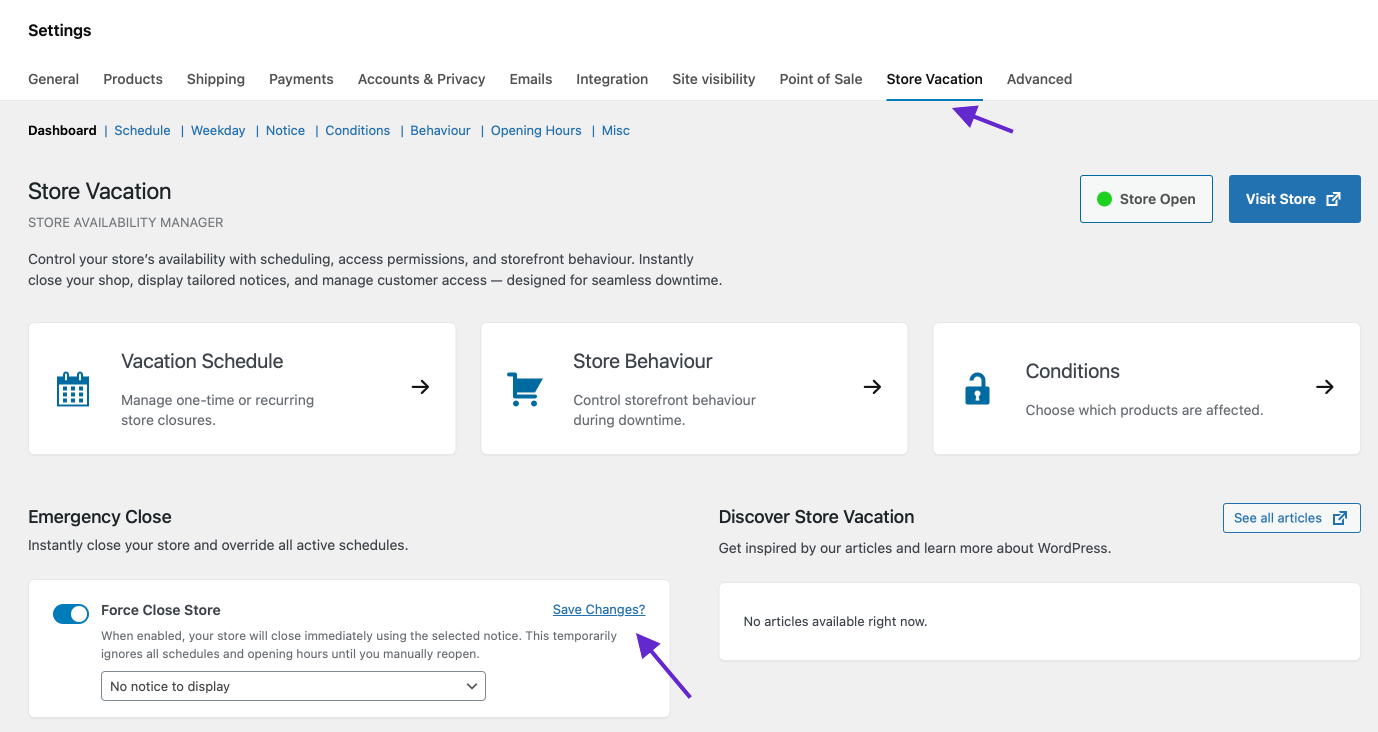
↑ Back to topOn the General page, you can access the Force Close and User Role options.
Force close
↑ Back to topThis option allows you to activate vacation mode without a predefined schedule or end time. During this time, your shop won’t accept any new orders until you disable the Force Close manually. Here’s how you can activate the Force Close option:
- Go to WooCommerce > Settings > Store Vacation > General.
- Choose whether to activate Force Close.
- Select the Notice you want to display during the vacation mode. See how to create and manage vacation notices.
- Click the Save changes button.
Misc settings
↑ Back to topThe miscellaneous (misc) settings section allows you to customize some global settings related to your store’s vacation management, ensuring consistency and control over key features.
Manual placement only
↑ Back to topBy default, the plugin automatically displays the vacation notice on your WooCommerce pages (such as the Shop page and single product pages) during vacation mode. The notice appears above the default WooCommerce notices area defined by your theme.
In most cases, this placement works well. However, if you are using a page builder (such as Elementor, Divi, or WPBakery) or a custom layout, the default location may not be ideal. In these situations, you can manually place the notice wherever you prefer using:
- Vacation Notice Block – insert it into pages or template parts.
- Elementor Widget – add the notice directly into your page builder layout.
- Shortcode – place the notice in any content area that supports shortcodes.
How to enable manual placement only
- Go to WooCommerce → Settings → Store Vacation → Misc.
- Locate the Manual Placement Only option.
- Tick the checkbox to enable it.
- Save your settings.
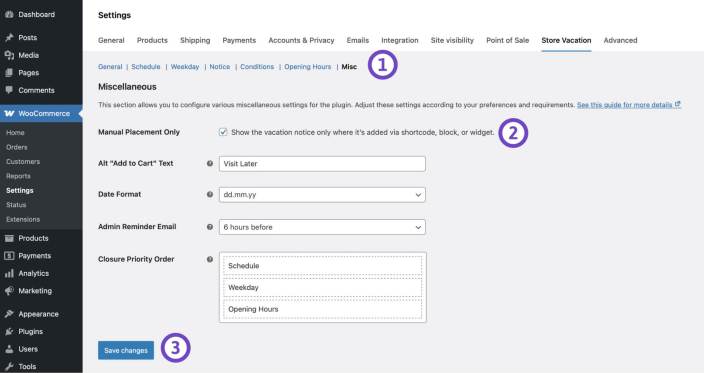
Once enabled:
- The default notice will no longer be displayed automatically.
- Only notices you manually add via block, widget, or shortcode will appear on your store.
Important
Make sure you have added the notice in the desired locations. If no manual placement is made, customers will not see any vacation message.
Hide vacation notice
↑ Back to topIf you have assigned a notice to your scheduled vacation or weekday closing plan, it will be displayed on WooCommerce pages such as the shop and single product pages. However, you can exclude certain products from being unavailable during these scheduled times by using the provided Conditions options.
This allows these products to remain purchasable during specified vacation schedules or weekday closing times. You can hide the vacation notice from single product pages that remain available for purchase using conditional logic.
Steps to Hide Vacation Notice for Purchasable Products:
- Navigate to WooCommerce > Settings > Store Vacation > Misc.
- Check the Hide Vacation Notice checkbox to prevent the notice from being displayed for purchasable products.
- Click on the Save changes button.

Cache refresh & reminder
↑ Back to topThe Cache Refresh & Reminder feature automatically refreshes cache when vacation schedules are updated in WooCommerce.
Caching systems can sometimes delay the display of vacation notices, store closures, or product availability changes. This feature ensures that the most recent vacation settings appear immediately on the storefront.
When enabled, the plugin will:
- Automatically refresh supported cache systems when vacation schedules change.
- Display an admin reminder notice after schedule updates.
- Provide a one-click manual cache clearing button in the admin notice.
This helps prevent situations where visitors see outdated store availability information due to caching.
How to enable cache refresh & reminder
Follow these steps to enable the feature:
- Go to WooCommerce > Settings > Store Vacation > Misc.
- Locate Cache Refresh & Reminder. Enable the checkbox.
- Click Save Changes.
Once enabled, the plugin will automatically handle cache refresh events when vacation schedules are created or updated.
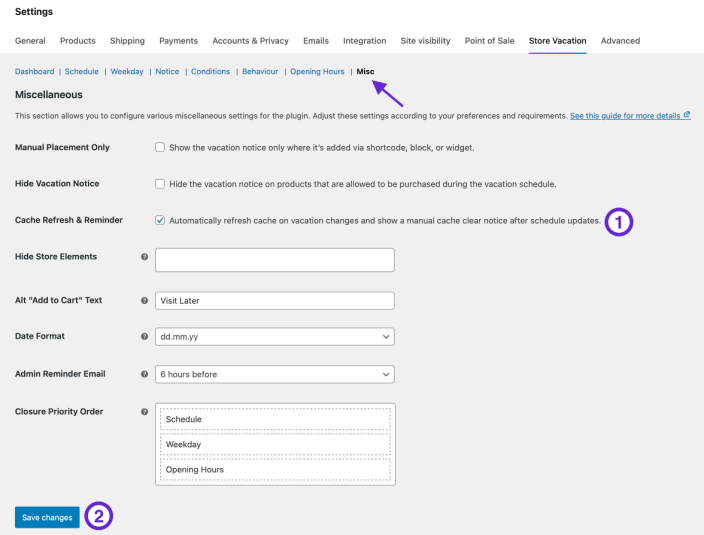
What happens when the feature is enabled
- Cache is automatically refreshed when:
- A vacation schedule is created
- A schedule is edited
- A schedule is removed
- An admin notice appears reminding you to clear cache manually if needed.
- The notice includes a one-click cache clear button.
This ensures your storefront immediately reflects changes to:
- Store availability
- Checkout behavior
- Vacation notices
- Product purchasing restrictions
Supported cache systems
The Cache Refresh feature is compatible with many popular caching plugins and built-in systems.
Supported caches include:
WooCommerce & WordPress
- WooCommerce transients
- WordPress object cache
Popular cache plugins
- W3 Total Cache
- WP Super Cache
- LiteSpeed Cache
- WP Rocket
- Autoptimize
- Breeze (Cloudways)
- WP Fastest Cache
- SiteGround Optimizer
- WP Engine caching
If your website uses one of these systems, cache refresh will happen automatically when vacation settings change.
When should you use this feature?
Enable Cache Refresh & Reminder if:
- Your website uses a caching plugin.
- Vacation notices or store closures appear late.
- Product purchase restrictions are not updating immediately.
- Your hosting platform uses server-level caching.
This feature helps ensure visitors always see the correct store status.
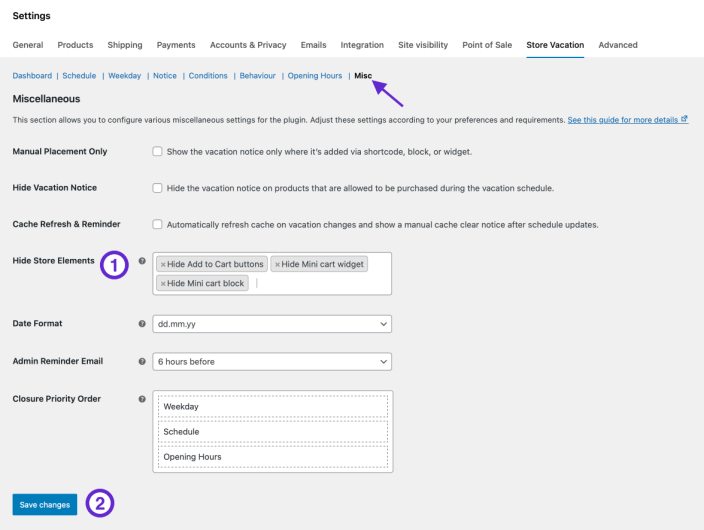
Hide store elements
↑ Back to topThe Hide Store Elements option allows you to hide specific storefront components while vacation mode is active.
This feature is useful when your store remains visible for browsing but purchasing elements should be temporarily hidden.
You can hide:
- Product price
- Add to cart button
- Mini cart widget
- Mini cart block
These elements automatically disappear during the scheduled vacation period and return when the store reopens.
How to enable hide store elements
Follow these steps:
- Go to WooCommerce > Settings > Store Vacation > Misc.
- Find Hide Store Elements and select the elements you want to hide during vacation mode.
- Click Save Changes.
Available elements you can hide
- Product Price: Removes product price from product pages and shop listings.
- Add to Cart Button: Disables and hides the purchase button so customers cannot start checkout.
- Mini Cart Widget: Hides the classic mini cart widget commonly used in headers or sidebars.
- Mini Cart Block: Hides the modern mini cart block used in block-based themes.
How it works during vacation mode
- When vacation mode becomes active:
- Selected elements are hidden automatically.
- Customers can still browse products (unless checkout is disabled separately).
- The storefront layout remains clean and consistent.
- When the vacation period ends:
- All hidden elements automatically reappear.
- Store functionality returns to normal.
- No manual action is required.
Does this feature delete my prices?
No. Prices are only hidden visually during vacation mode. Product data remains unchanged.
Will the elements return automatically?
Yes. All elements reappear automatically after the vacation schedule ends.
Does this work with block themes?
Yes. Both Mini Cart Widget and Mini Cart Block are supported.
Do I need to clear cache manually?
In most cases no. If you enabled Cache Refresh & Reminder, the plugin will refresh supported caches automatically.
Update date format
↑ Back to topYou can customize the date format used throughout various date fields within the settings pages. This ensures the date format aligns with regional standards or personal preferences.
- Go to WooCommerce > Settings > Store Vacation > Misc.
- Choose a format from the Date Format dropdown that aligns with your country’s date conventions or your personal preference.
- Click the Save changes button to apply the selected date format.

Alt “Add to Cart” text
↑ Back to topYou have the option to display custom text for the Add to Cart button during vacation mode. By default, the button text will change to “Read more” when your shop is in vacation mode. However, you can customize it to a new text such as “Visit later” to better communicate with your customers.
Steps to Customize Add to Cart Button Text:
- Navigate to WooCommerce > Settings > Store Vacation > Misc.
- Enter your custom button text in the Alt “Add to Cart” Text field.
- Click on the Save changes button.

Closure priority order
↑ Back to topThis setting allows you to define the priority order for closure notices when conflicts arise between your Opening Hours, Weekdays, and Schedules. By adjusting the closure priority, you can ensure the appropriate notice displays at the right time on your shop pages.
To customize the closure priority order:
- Click and drag the items (Opening Hours, Weekdays, Schedules) in the list to move them up or down, depending on which should take precedence.
- Place the most important closure setting at the top of the list.
Once you’ve arranged the priorities, click the Save changes button to apply your updates.

Conditional logic
↑ Back to topConditional logic provides you the ability to establish dynamic rules for product availability when your store is in vacation mode. By customizing which products can be purchased, you can maintain control over your shop’s operations even when you’re away.
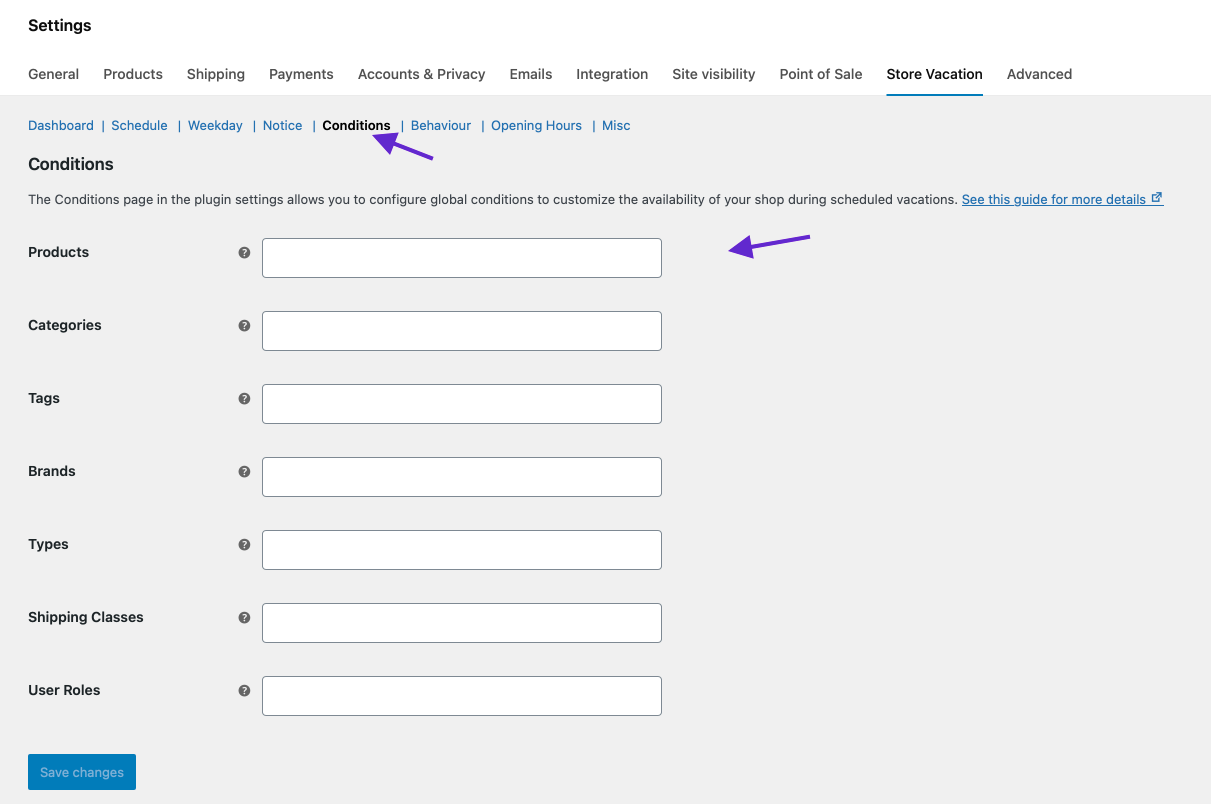
Setting global conditions
↑ Back to topGlobal rules apply universally to all schedules and weekdays. Here’s how to define them:
- Go to WooCommerce > Settings > Store Vacation.
- In the current tab, find the Conditions section.
- Choose the products you want to exclude from vacation mode. Customers can purchase these selected products during vacation mode.
- Click on the Save changes button.
Setting individual conditions
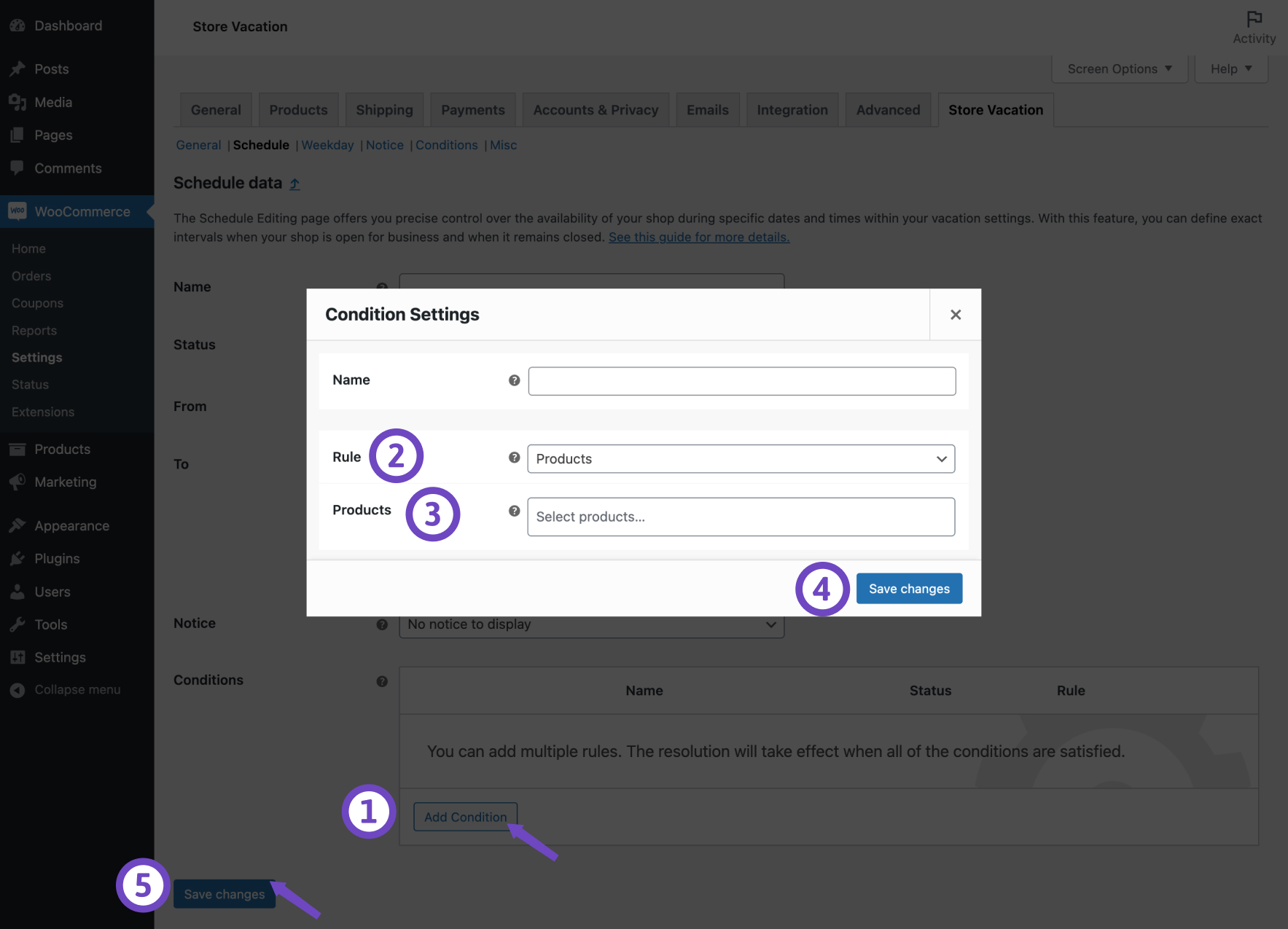
↑ Back to topIn addition to global settings, you can apply conditions for each schedule or weekday separately.
- Edit the desired Schedule or Weekday plan.
- Within the Conditions table, click on Add Condition button.
- Optionally, provide a descriptive Name for the condition.
- Use the drop-down field to specify a Rule for your vacation mode
- Depending on the selected rule, choose from the available options.
- Click on the Save changes button.
Examples of rules
↑ Back to topHere are some common scenarios where you might apply conditional logic:
- Products: Select individual products to keep available during vacation mode.
- Categories: Allow the purchase of items within certain categories.
- Tags: Allow the purchase of products that are tagged with specific labels.
- Types: Set rules to make certain types of products available during closing times.
- Shipping Classes: Allow products assigned to particular shipping classes to be purchasable.
- Brands: You have the option to permit the purchase of products from specific brands.
- User Roles: You can exclude specific user roles, like administrators or shop managers, from the vacation mode. This means that your shop will remain open for these user roles even during vacation mode.
Admin reminder’s email
↑ Back to topThe Admin Reminder Email feature helps WooCommerce store owners avoid surprises by sending a reminder email before the store automatically enters vacation mode. This ensures you (and your team) are notified in advance and have time to review settings, announcements, or last‑minute orders.
What This Feature Does
When enabled, Store Vacation will:
- Send an automated reminder email to the site admin (and other recipients)
- Deliver the email before the store enters Vacation Mode
- Allow full customization using WooCommerce’s native email system
This reminder is especially useful when vacation mode is scheduled days or hours ahead and you want an extra safety check before the store closes.
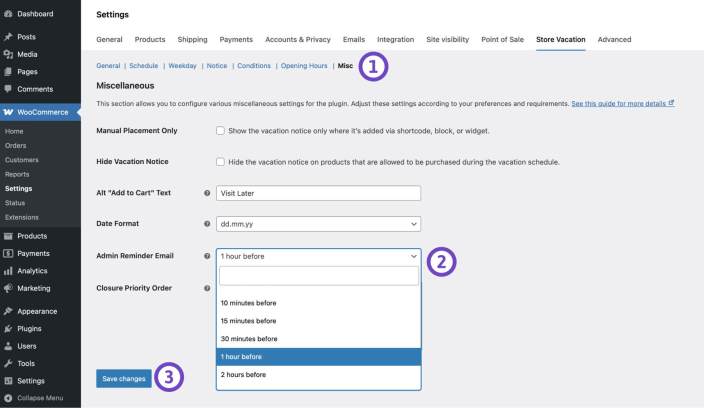
How to enable admin reminder email
↑ Back to top- Go to WooCommerce > Settings > Store Vacation > Misc
- Find the Admin Reminder Email option
- Choose when the reminder should be sent:
- Disabled (default)
- 5 minutes before
- 10 minutes before
- 15 minutes before
- 30 minutes before
- 1 hour before
- 2 hours before
- 6 hours before
- 12 hours before
- 24 hours before
- Save changes
Once enabled, Store Vacation will automatically schedule and send the reminder email at the selected time before Vacation Mode begins.
Customizing the reminder email
↑ Back to topThe Admin Reminder Email fully integrates with WooCommerce → Settings → Emails, so it follows the same design and structure as your other WooCommerce emails.
Accessing the email settings
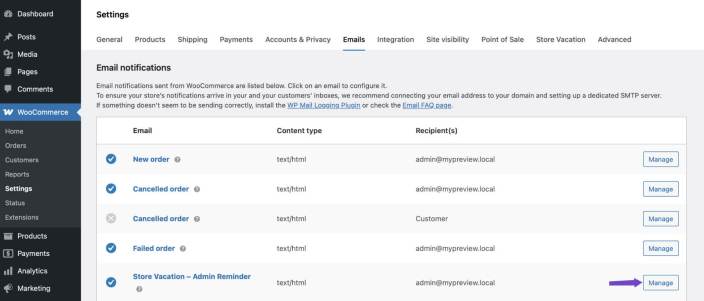
- Go to WooCommerce > Settings > Emails
- Locate Store Vacation – Admin Reminder in the Email notifications table
- Click Manage
Available email customization options
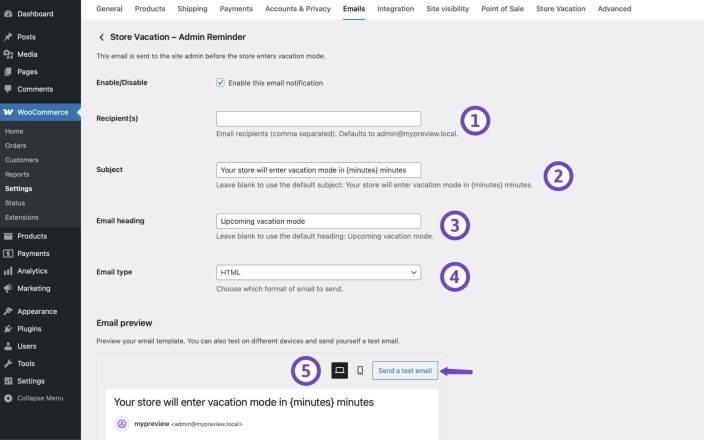
↑ Back to topFrom the email management screen, you can:
1. Recipients
- By default, the email is sent to the site admin email address
- You can add multiple recipients
- Common use cases:
- Shop Manager email
- Operations team
- Support team
Separate multiple email addresses with commas.
2. Email subject
Default subject:
- Your store will enter vacation mode in {minutes} minutes
- You may customize the subject
- Important: Use the {minutes} smart tag to display the remaining time correctly
Example:

Reminder: Store closing in {minutes} minutes
3. Email heading
Default heading:
- Upcoming vacation mode
- You can replace this with your own heading text
4. Email format
Choose how the email is sent:
- HTML
- Plain text
- Multipart
This works the same way as standard WooCommerce emails.
5. Preview & test email
From the Manage screen, you can:
- Preview the reminder email
- Send a test email to yourself
This helps you verify:
- Subject text
- Layout and branding
Email design & branding
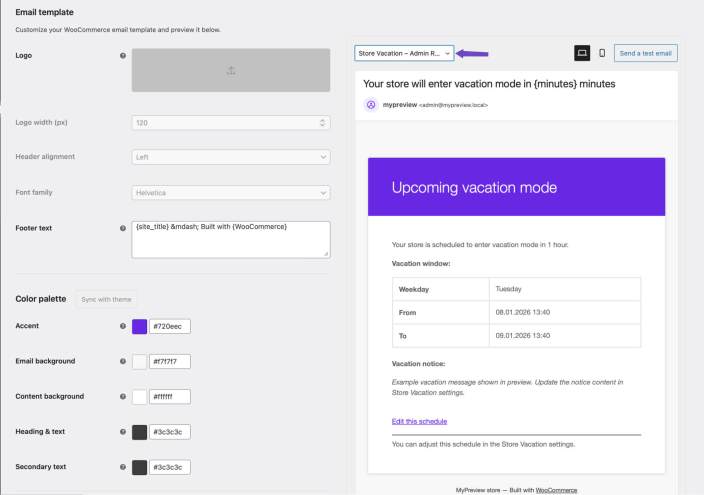
↑ Back to topThe Admin Reminder Email automatically uses WooCommerce Email Sender settings, including:
- Header image / site logo
- Email color scheme
- Footer text
- From name and from email address
You can adjust these globally from:
WooCommerce > Settings > Emails > Email sender options
No extra configuration is required.
Advanced: custom email template
↑ Back to topIf you need full control over the email layout:
- Open WooCommerce > Settings > Emails > Store Vacation – Admin Reminder
- Copy the HTML email template
- Paste it into your theme:
yourtheme/woocommerce/emails/ - Modify the template as needed
This allows complete customization while keeping compatibility with WooCommerce updates.
Notes & Best Practices
– The reminder email is sent once per scheduled vacation and is not repeated.
– It is triggered based on your selected reminder time
– Make sure your site’s timezone is correctly configured in WordPress
– Always test the email after customization
Does the Admin Reminder Email send more than once?
No. The reminder email is sent once per scheduled vacation, based on the selected reminder time.
Does this email go to customers?
No. This email is sent only to store administrators or configured internal recipients.
Does it replace WooCommerce emails?
No. It uses WooCommerce’s email system and follows the same design and sender settings.
Customize overview tables
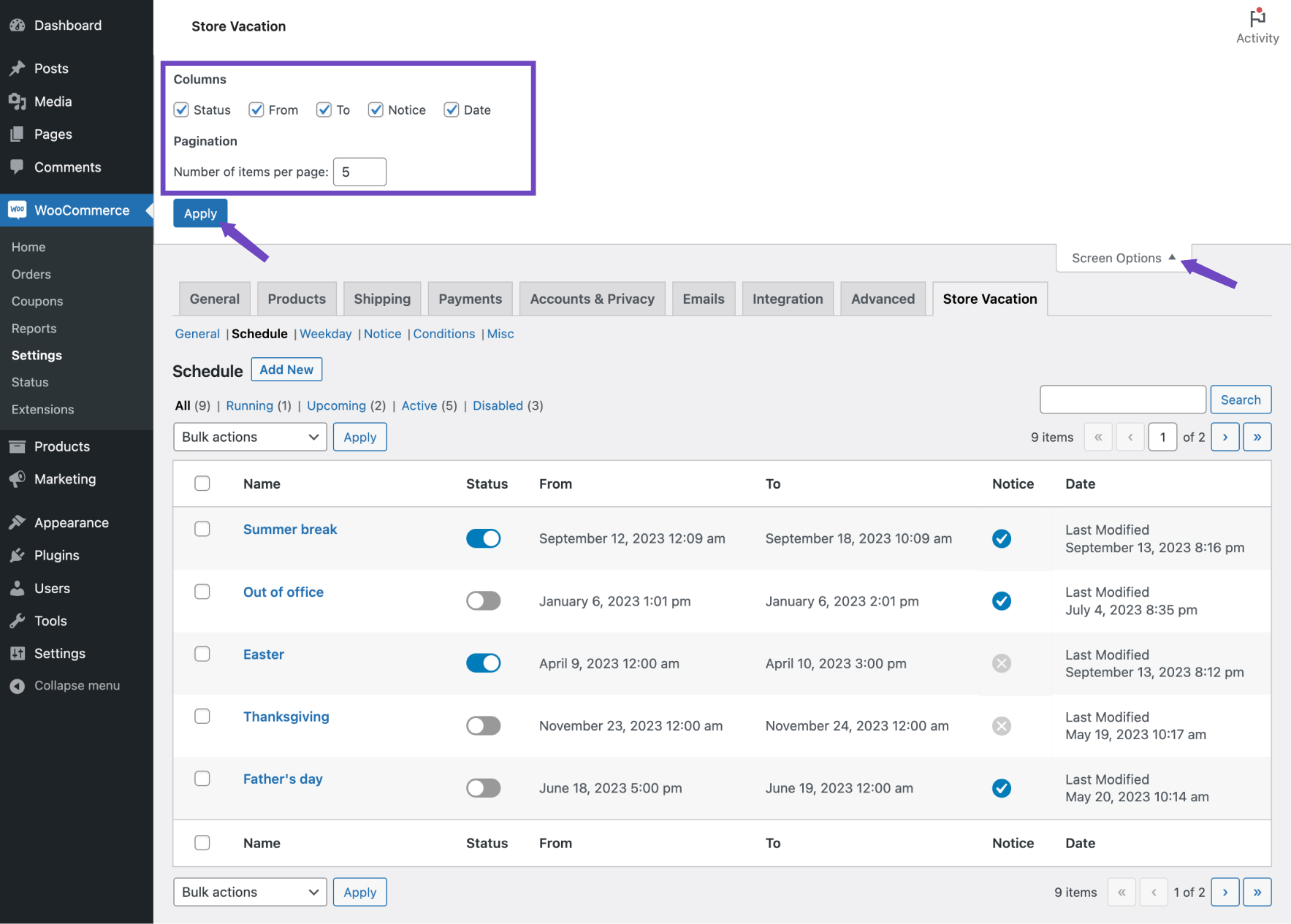
↑ Back to topYou can customize the overview table to fit your unique needs and preferences. Here’s how you can personalize your schedule, weekday, or notice tables:
- Click on the Screen Options located at the top right corner of your screen.
- Inside this menu, you can toggle the visibility of columns and change the number of items displayed per page.
Updating your timezone
↑ Back to topIf you need to adjust your site’s time and date settings to align with a different timezone, follow these steps:
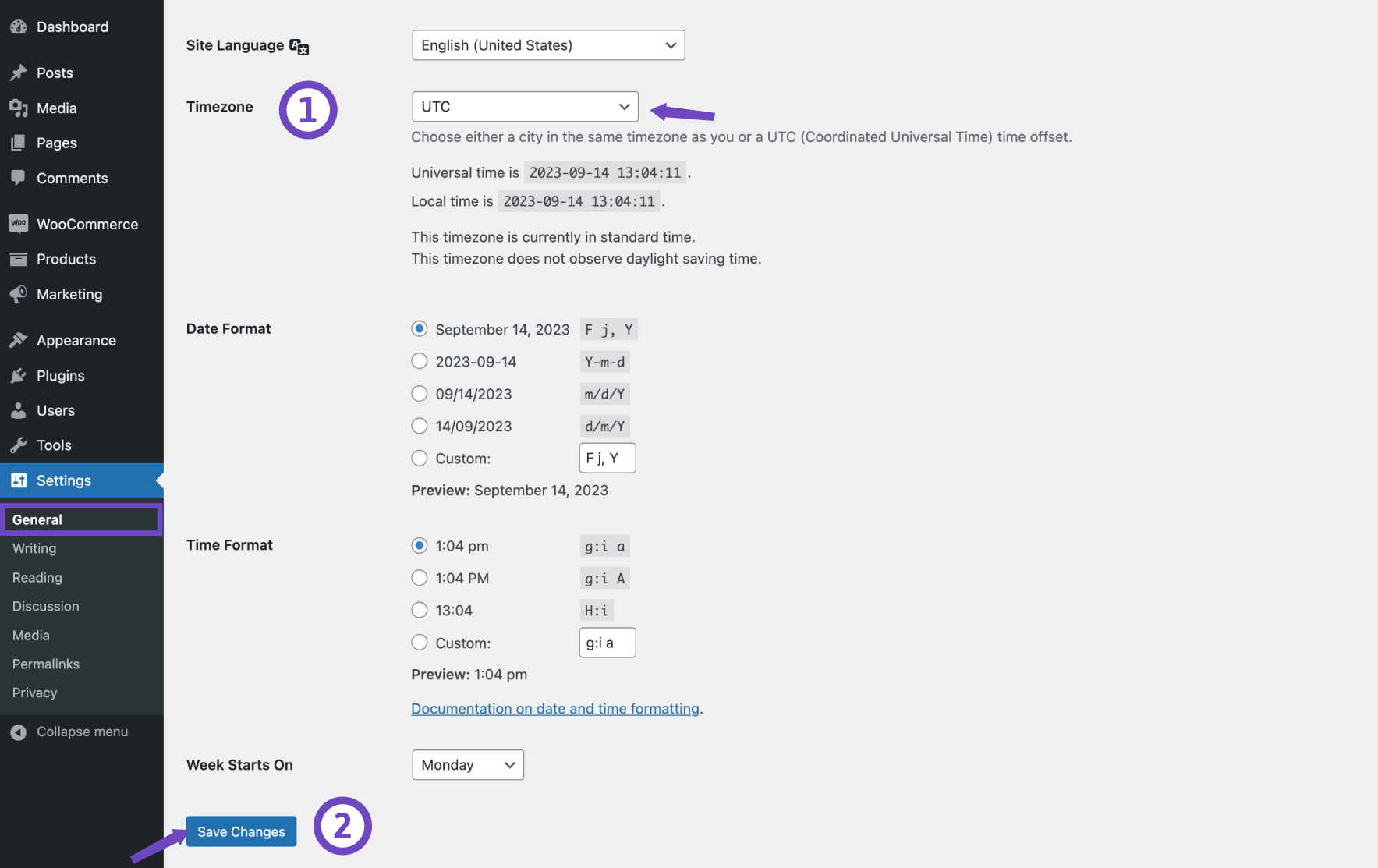
- Navigate to Settings > General.
- Choose your desired Timezone from the available options.
- Click on the Save changes button.
Import and export
↑ Back to topImport and export features enable you to transfer your extension settings to a different website. Your data will be stored in a JSON file, which can be imported into another WooCommerce store. Since shop managers have the ability to delete notices or schedules, we suggest regularly exporting your data manually as a backup.
Export
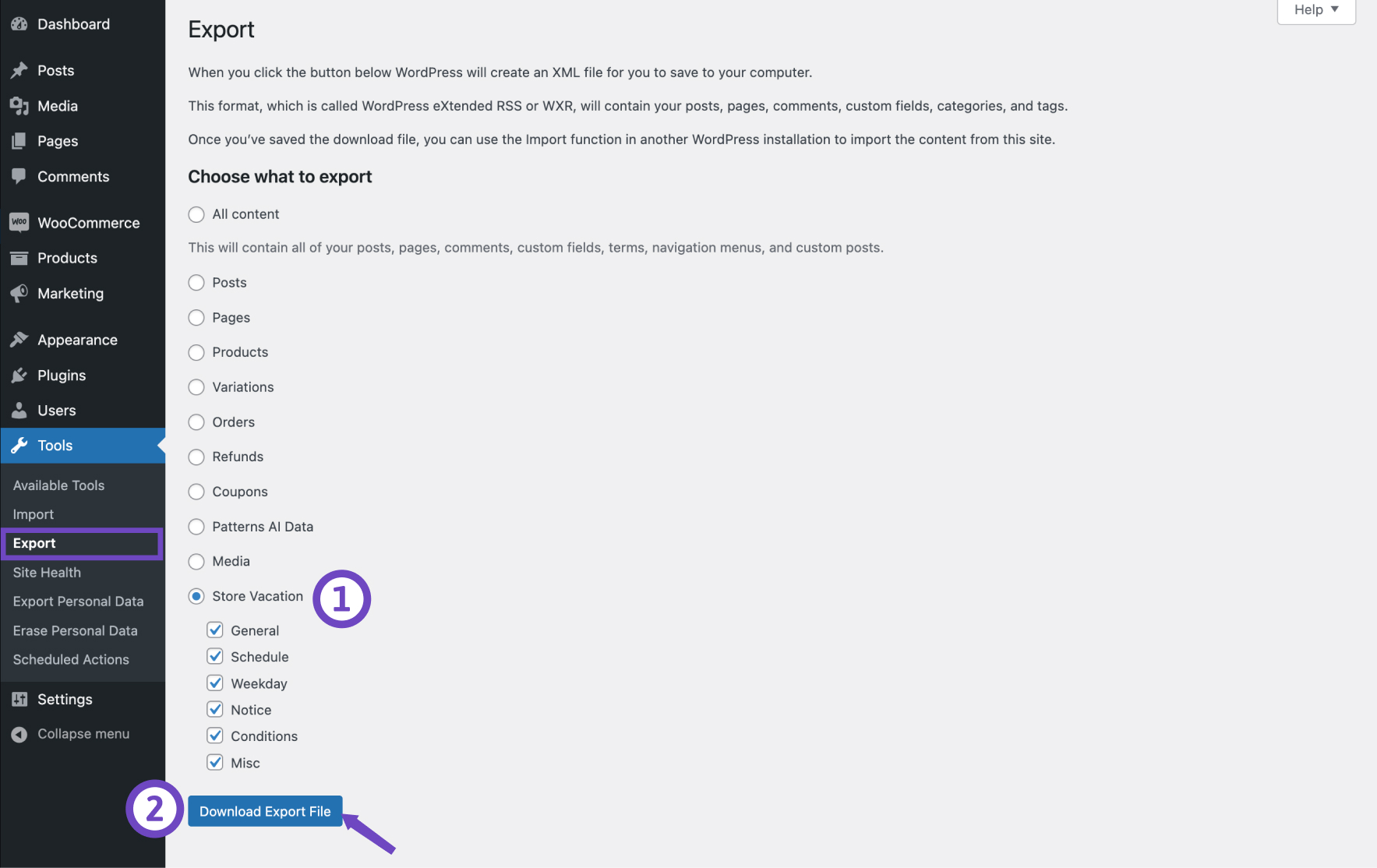
↑ Back to topBefore exporting your content, make sure your website is accessible to the public and not under maintenance or password protected. It’s also a good idea to tidy things up by removing unnecessary schedules and deleting unused notices to keep the export file small.
- Go to Tools > Export.
- Choose Store Vacation.
- Select the settings you want to export by ticking the checkboxes.
- Click on the Download Export File button.
- Wait for WordPress to process the export. Once done, you’ll get a JSON file to save on your computer.
Only settings from the General and Conditions tabs will be overwritten during import. If you already have schedules on your store, they’ll stay as they are, and the plugin will match new notices to the appropriate schedules automatically.
Import
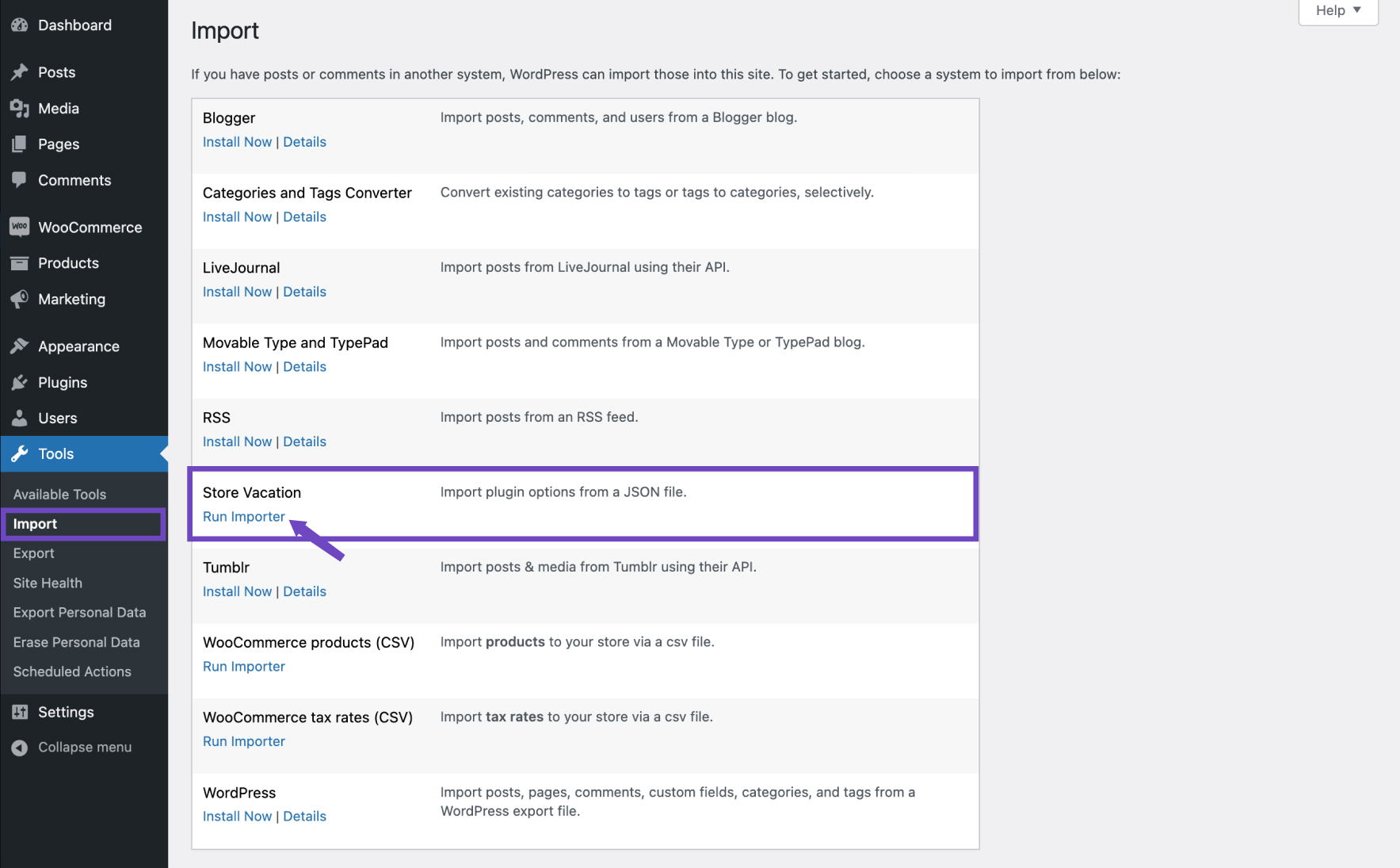
↑ Back to topBefore importing, make sure the exported file isn’t too big for your server to handle, as this might cause memory issues. If you encounter an error like Fatal error: Allowed memory size of 8388608 bytes exhausted, you may need to increase your server’s memory limit or split the settings into smaller files.
- Go to Tools > Import.
- Choose Store Vacation and click on Run Importer.
- Select the settings you want to import by ticking the checkboxes.
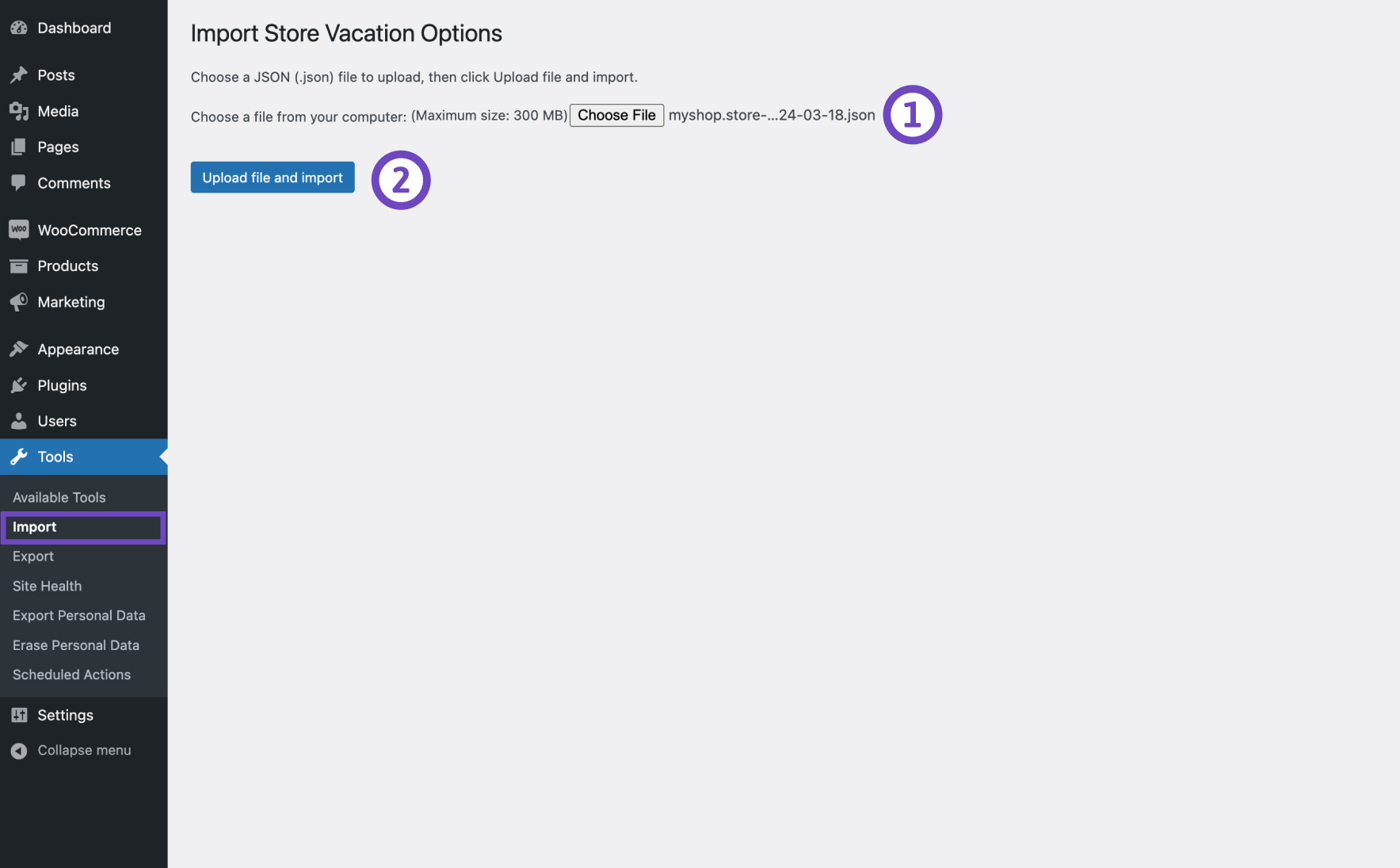
- Click on the Choose File and select the JSON file you exported before.
- Click on the Upload file and import button.
- Once the import is finished, you’ll see a success message.
If the import fails, it might still create some content. Be careful of duplicate data if you try importing again after fixing the error. Check the extension’s settings page to remove any extra records if needed.
Upcoming Vacations dashboard widget
↑ Back to topThe Upcoming Vacations widget is available on your WordPress dashboard and provides a quick overview of your upcoming vacation schedules and weekday plans. This widget helps you stay informed about your scheduled store closures and ensures you can make any necessary preparations before taking a break.
How to enable the Upcoming Vacations widget:
- Navigate to your WordPress Dashboard.
- In the top-right corner, click on Screen Options.
- Check the box for the Upcoming Vacations to display it on your admin dashboard.
This widget is a useful tool to ensure you’re always aware of upcoming store closures and can plan accordingly.

Translating Store Vacation
↑ Back to topStore Vacation can be translated into multiple languages using popular multilingual plugins like WPML or Polylang. Here’s how to translate the plugin using each tool:
Using WPML
↑ Back to topTo translate Store Vacation Pro with the WPML Multilingual plugin, follow these steps:
- Go to WPML > String Translation in your WordPress dashboard.
- In the search bar, type admin_text__wsvpro_settings. This will help you find store vacation notices and other relevant strings to translate.
- From the list of strings, find the specific notice or setting that you want to translate.
- Click the Edit icon beneath the flag of the language you want to translate into, and enter the translation for that string.
For more detailed instructions, refer to the WPML documentation on translating strings.
Using Polylang
↑ Back to topTo translate strings with the Polylang plugin, follow these steps:
- Go to Languages > Translation in your WordPress dashboard.
- Use the dropdown menu to filter by plugins/store-vacation. This will display all the relevant strings for the Store Vacation plugin.
- In the Translations column, enter the translated strings for each language.
For more detailed instructions, refer to the Polylang documentation.
Developer resources
↑ Back to topREST API
↑ Back to topStore Vacation is fully integrated with the WordPress REST API. This allows vacation schedules, weekdays, and notices data to be read using requests in JSON format and using WordPress REST API Authentication methods and standard HTTP verbs which are understood by most HTTP clients. The current WP REST API integration version is v1 which takes a first-order position in endpoints.
WARNING: Programming code ahead
The following sections may use programming terms without offering detailed explanations for non-programmers.
The following section is written for WooCommerce developers looking to extend or customize Store Vacation schedules. It requires an advanced understanding of PHP and WordPress development. If you are unfamiliar with code and resolving potential conflicts, select a Woo Agency Partner for assistance.
Below is a comprehensive guide on how to use the available REST API routes to get store vacation options.
Schedule REST API routes
↑ Back to topThese endpoints allow you to manage the store’s vacation schedules.
- Get Active Schedules
- Endpoint:
GET /wp-json/store-vacation/v1/schedule/active - Description: Retrieves all active vacation schedules.
- Example:
GET https://your-domain.com/wp-json/store-vacation/v1/schedule/active
- Endpoint:
- Get Disabled Schedules
- Endpoint:
GET /wp-json/store-vacation/v1/schedule/disabled - Description: Retrieves all disabled vacation schedules.
- Example:
GET https://your-domain.com/wp-json/store-vacation/v1/schedule/disabled
- Endpoint:
- Get Currently Running Schedules
- Endpoint:
GET /wp-json/store-vacation/v1/schedule/running - Description: Retrieves all currently running vacation schedules.
- Example:
GET https://your-domain.com/wp-json/store-vacation/v1/schedule/running
- Endpoint:
- Get Upcoming Schedules
- Endpoint:
GET /wp-json/store-vacation/v1/schedule/upcoming - Description: Retrieves all upcoming vacation schedules.
- Example:
GET https://your-domain.com/wp-json/store-vacation/v1/schedule/upcoming
- Endpoint:
- Get a Single Schedule
- Endpoint:
GET /wp-json/store-vacation/v1/schedule/{id} - Description: Retrieves a single vacation schedule by its ID.
- Example:
GET https://your-domain.com/wp-json/store-vacation/v1/schedule/123
- Endpoint:
Weekday REST API routes
↑ Back to topThese endpoints allow you to manage the store’s weekday schedules.
- Get Active Weekday Schedules
- Endpoint:
GET /wp-json/store-vacation/v1/weekday/active - Description: Retrieves all active weekday schedules.
- Example:
GET https://your-domain.com/wp-json/store-vacation/v1/weekday/active
- Endpoint:
- Get Disabled Weekday Schedules
- Endpoint:
GET /wp-json/store-vacation/v1/weekday/disabled - Description: Retrieves all disabled weekday schedules.
- Example:
GET https://your-domain.com/wp-json/store-vacation/v1/weekday/disabled
- Endpoint:
- Get Currently Running Weekday Schedules
- Endpoint:
GET /wp-json/store-vacation/v1/weekday/running - Description: Retrieves all currently running weekday schedules.
- Example:
GET https://your-domain.com/wp-json/store-vacation/v1/weekday/running
- Endpoint:
- Get Upcoming Weekday Schedules
- Endpoint:
GET /wp-json/store-vacation/v1/weekday/upcoming - Description: Retrieves all upcoming weekday schedules.
- Example:
GET https://your-domain.com/wp-json/store-vacation/v1/weekday/upcoming
- Endpoint:
- Get a Single Weekday Schedule
- Endpoint:
GET /wp-json/store-vacation/v1/weekday/{id} - Description: Retrieves a single weekday schedule by its ID.
- Example:
GET https://your-domain.com/wp-json/store-vacation/v1/weekday/123
- Endpoint:
Notice REST API routes
↑ Back to topThese endpoints allow you to manage notices related to the store’s vacation schedules.
- Get All Notices
- Endpoint:
GET /wp-json/store-vacation/v1/notice - Description: Retrieves all notices.
- Example:
GET https://your-domain.com/wp-json/store-vacation/v1/notice
- Endpoint:
- Get a Single Notice
- Endpoint:
GET /wp-json/store-vacation/v1/notice/{id} - Description: Retrieves a single notice by its ID.
- Example:
GET https://your-domain.com/wp-json/store-vacation/v1/notice/123
- Endpoint:
Snippet examples
↑ Back to topJavaScript example
Here’s an example of how to fetch WooCommerce vacation schedules using JavaScript and the @wordpress/api-fetch package:
import apiFetch from '@wordpress/api-fetch';

// Define your WooCommerce consumer key and secret
const consumerKey = 'your_consumer_key';
const consumerSecret = 'your_consumer_secret';
const storeUrl = 'https://your-domain.com/wp-json/store-vacation/v1';

// Function to fetch WooCommerce vacation schedules.
const fetchVacationSchedules = async () => {
  try {
    const schedules = await apiFetch({
      path: `${storeUrl}/schedule`,
      method: 'GET',
      headers: {
        Authorization: `Basic ${btoa(`${consumerKey}:${consumerSecret}`)}`,
      },
    });

    console.log(schedules);
  } catch (error) {
    console.error(error);
  }
};

// Call the function to fetch vacation schedules
fetchVacationSchedules();
PHP example
Here’s an example of how to fetch WooCommerce vacation schedules using PHP:
add_action( 'init', function() {

    $consumer_key = 'your_consumer_key';
    $consumer_secret = 'your_consumer_secret';
    $store_url = 'https://your-domain.com/wp-json/store-vacation/v1';

    // Set up the request headers
    $headers = array(
        'Authorization' => 'Basic ' . base64_encode( $consumer_key . ':' . $consumer_secret ),
        'Content-Type'  => 'application/json',
    );

    // Send the GET request
    $response = wp_remote_get( $store_url . '/schedule', array( 'headers' => $headers ) );

    // Check if the request was successful
    if ( is_wp_error( $response ) ) {
        $error_message = $response->get_error_message();
        echo 'Error: ' . $error_message;
    } else {
        // Get the response body
        $response_body = wp_remote_retrieve_body( $response );

        // Convert the response to an array of schedules
        $schedules = json_decode( $response_body, true );

        // Process the schedules as needed
        // ...
        // var_dump($schedules);
    }
} );
Usage notes
↑ Back to top- All endpoints are prefixed with
/wp-json/store-vacation/v1/. - Replace
{id}with the actual schedule or notice ID you wish to retrieve. - Ensure your requests are authenticated if required by your WooCommerce settings.
The Store Vacation WooCommerce extension provides a comprehensive set of REST API routes to manage your store’s vacation schedules efficiently. Use these endpoints to keep your store’s operational timings well-organized and transparent to your customers.

