
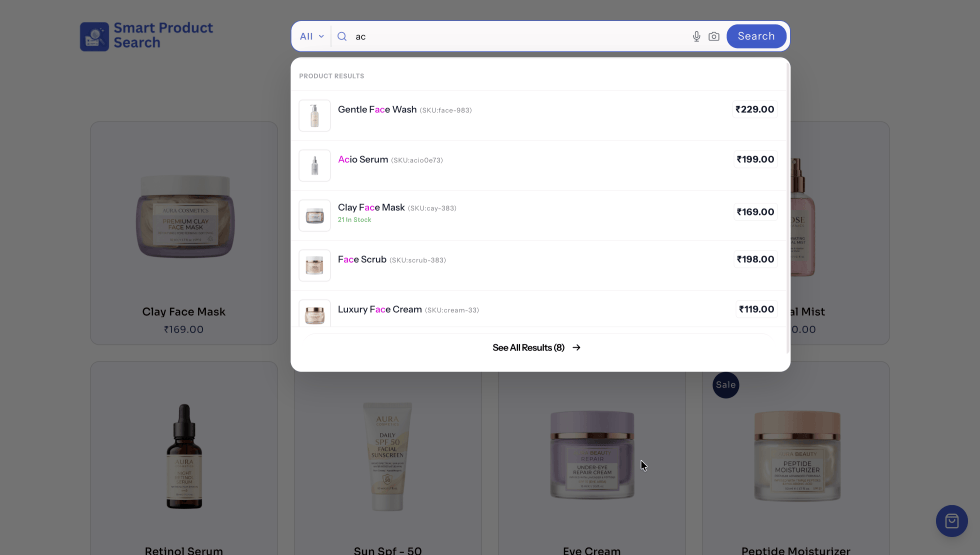
The TH Smart Product Search gives customers instant, accurate product search results as they type, with voice search, image search, typo tolerance, synonyms, and relevance ranking you control.
The extension also helps customers find products when they misspell words, use different terms, speak their search, or search with a photo. You control which results rank first, and the built-in Search Queries report shows what customers search for.
Documentation sections
↑ Back to top- Installation and Setup: Install the extension and get your first search bar running.
- Adding the Search Bar: Use the shortcodes and PHP template tag.
- Basic Settings: Character threshold, width, button, placeholder, loader, and overlay.
- Advanced Settings: Search sources, voice, and image search, categories, no-results content, search scope, exclusions, and result details.
- Trending Searches: Show suggested searches in the dropdown.
- Search Ranking: Control the order of search results.
- Style: Choose a layout and customize colors and shapes.
- Search Index: Build and rebuild the product search index.
- Fuzzy Search and Synonyms: Handle typos and alternative terms.
- Search Queries Report: See what customers search for.
- Google Analytics Integration: Send search events to Google Analytics.
- Reset All Settings: Restore default settings.
- Troubleshooting
- Frequently Asked Questions
Installation
↑ Back to topTo start using a product from WooCommerce.com, you can use the “Add to store” functionality on the order confirmation page or the Downloads section in your account.
- Navigate to Downloads, then download the TH Smart Product Search Plugin .zip file.
- In your WordPress dashboard, go to Plugins > Add New and click Upload Plugin
- Click Choose File, select the .zip file you downloaded, and click Install Now.
- Click Activate.
For more information, see Install and Activate Plugins/Extensions.
Opening the settings
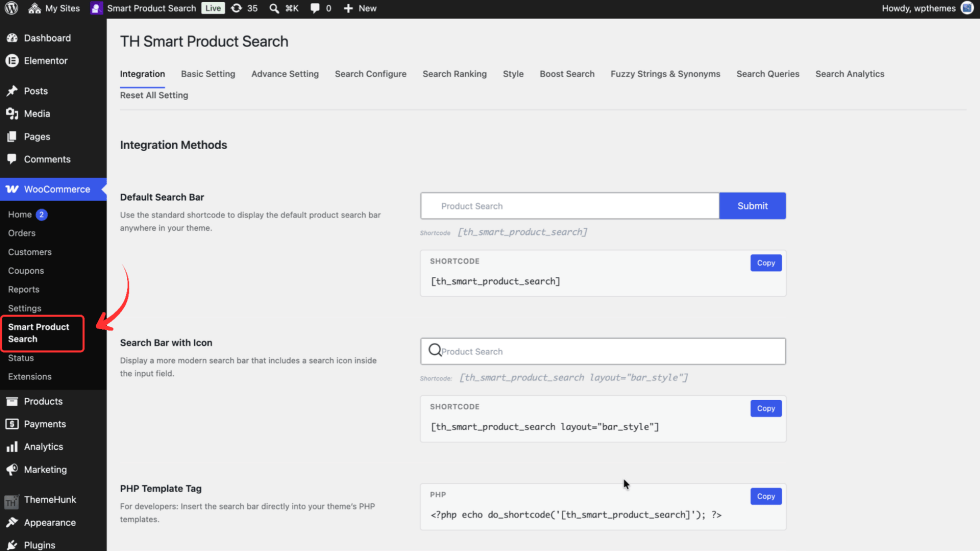
↑ Back to topAfter activation, go to WooCommerce > Smart Product Search.
The settings page is organised into these tabs:
- Integration
- Basic Setting
- Advance Setting
- Search Configure
- Search Ranking
- Style
- Boost Search
- Fuzzy Strings and Synonyms
- Search Queries
- Search Analytics
- Reset All Settings
Quick start
↑ Back to topFollow these steps to get a working search bar in a few minutes:
- Go to WooCommerce > Smart Product Search > Boost Search and click Build Search Index. Wait for indexing to finish.
- Go to the Integration tab and copy the shortcode
[th_smart_product_search]. - Paste the shortcode into a page, post, or widget area where you want the search bar to appear. For more placement options, see Adding the Search Bar.
- Open that page on the front end and start typing a product name. Results appear in a dropdown.
- Optional: adjust what is searched in Advance Setting, the layout in Style, and result order in Search Ranking.
Note: Rebuild the search index after enabling Enable Custom Ranking (Search Ranking tab) or Enable Image Search (Advance Setting tab). Both features depend on data that is added during indexing.
Adding the Search bar
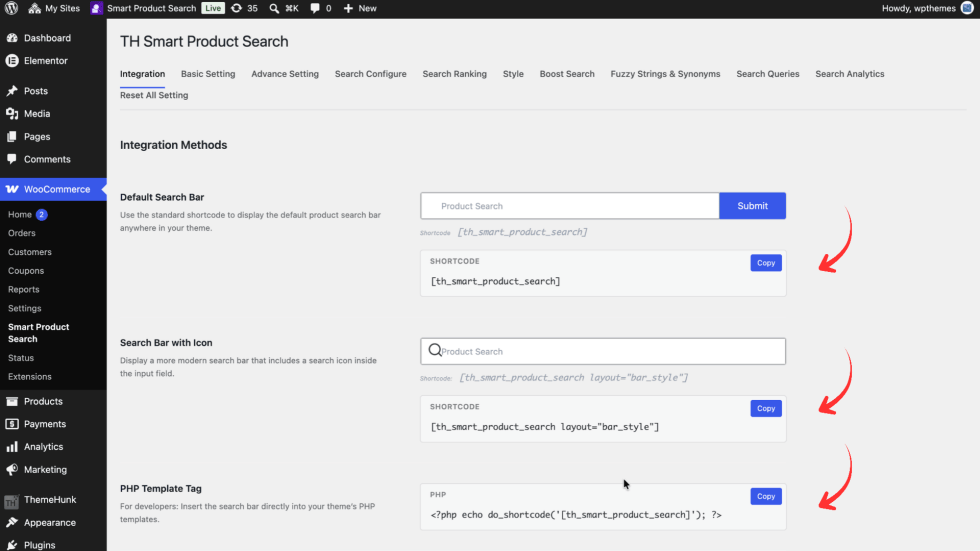
↑ Back to topGo to WooCommerce > Smart Product Search > Integration. This tab lists the available ways to place the search bar on your store. Each method has a preview and a Copy button.
Default Search bar
↑ Back to topDisplays the standard product search bar with a submit button.
[th_smart_product_search]Search bar with icon
↑ Back to topDisplays a search bar with a search icon inside the input field.
[th_smart_product_search layout="bar_style"]PHP template tag
↑ Back to topFor developers who want to add the search bar directly to a theme template file, such as header.php
<?php echo do_shortcode('[th_smart_product_search]'); ?>Tip: Add template changes to a child theme, so theme updates do not overwrite them.
Where to add a shortcode
↑ Back to topYou can paste a shortcode into:
- A page or post, using the Shortcode block in the block editor.
- A widget area, using a Shortcode block in Appearance > Widgets.
- Your page builder’s shortcode element.
Basic settings
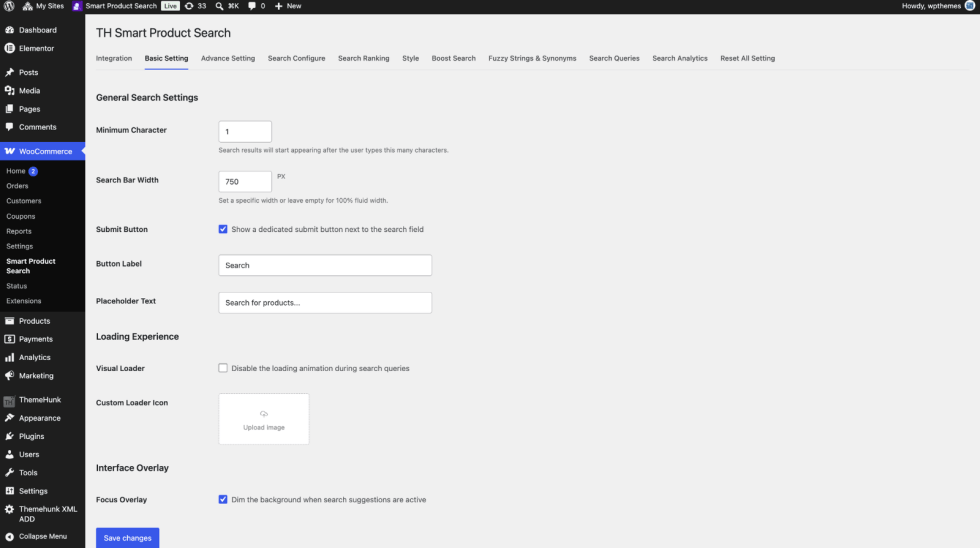
↑ Back to topGo to WooCommerce > Smart Product Search > Basic Settings.
General Search settings
↑ Back to top- Minimum Characters: The number of characters a customer must type before results appear. For example,
1shows results after the first letter. Use a higher value, such as3, to reduce searches on very large catalogues. - Search Bar Width: The width of the search bar in pixels. Leave empty to use 100 percent fluid width, which fills the space available in its container.
- Submit Button: When checked, a submit button appears next to the search field.
- Button Label: The text on the submit button. Default:
Search - Placeholder Text: The hint text shown inside the empty search field. Default:
Search for products...
Loading experience
↑ Back to top- Visual Loader: Check Disable the loading animation during search queries to hide the loading animation while results load.
- Custom Loader Icon: Click Upload image to replace the default loading animation with your own image.
Interface overlay
↑ Back to topFocus Overlay: When checked, the rest of the page is dimmed while search suggestions are open. This keeps the customer’s focus on the results.
Click Save changes.
Advanced settings
↑ Back to topGo to WooCommerce > Smart Product Search > Advance Setting. This tab controls what is searched, what appears in the dropdown, and what customers see when there are no results.
Search autocomplete settings
↑ Back to top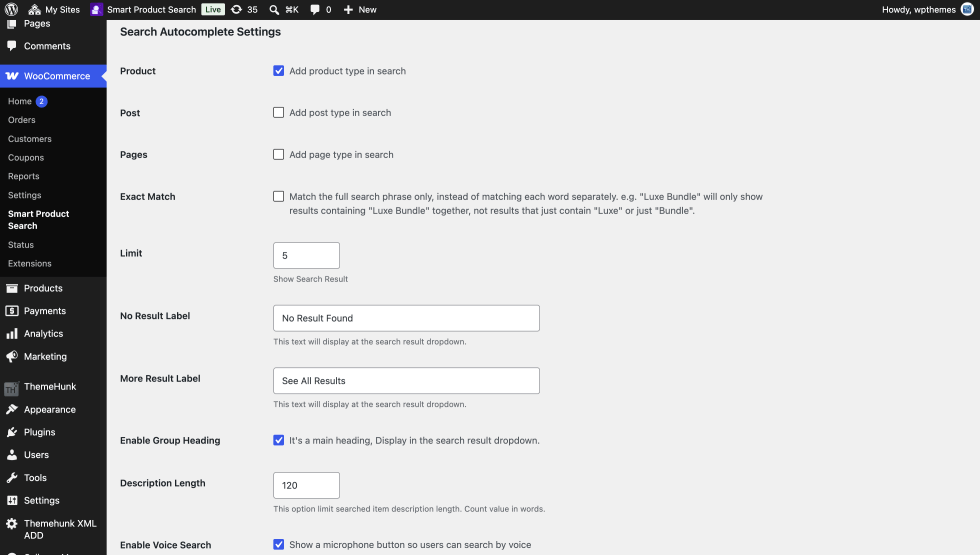
Choose which types of content appear in search results:
- Product: Include products in search results.
- Post: Include blog posts in search results.
- Pages: Include pages in search results.
Matching and results
- Exact Match: When checked, only results containing the full search phrase are shown. For example, a search for “Luxe Bundle” only returns results that contain “Luxe Bundle” together, not results that contain just “Luxe” or just “Bundle”. When unchecked, each word is matched separately.
- Limit: The maximum number of results shown in the dropdown. Default:
5. - No Result Label: The message shown in the dropdown when nothing matches. Default:
No Result Found. - More Result Label: The text of the link to the full results page. Default:
See All Results. - Enable Group Heading: When checked, results are grouped under headings in the dropdown, such as Category and Product.
- Description Length: The maximum length of the description shown for each result, counted in words. Default:
120. This applies only when descriptions are enabled. See Enable Product Description in the Style tab, and Enable Post Description and Enable Page Description below.
Voice Search
- Enable Voice Search: When checked, a microphone button appears in the search bar. Customers tap or click it and speak their search.
Image Search
- Enable Image Search: When checked, a camera button appears in the search bar. Customers upload a photo, and the extension finds matching products by visual similarity.
Keep these points in mind:
- Matching accuracy is around 60 to 70 percent.
- Image matching runs on your site. No external API is used.
- After enabling this option, rebuild the index in the Boost Search tab so your product images are processed for matching.
Search category
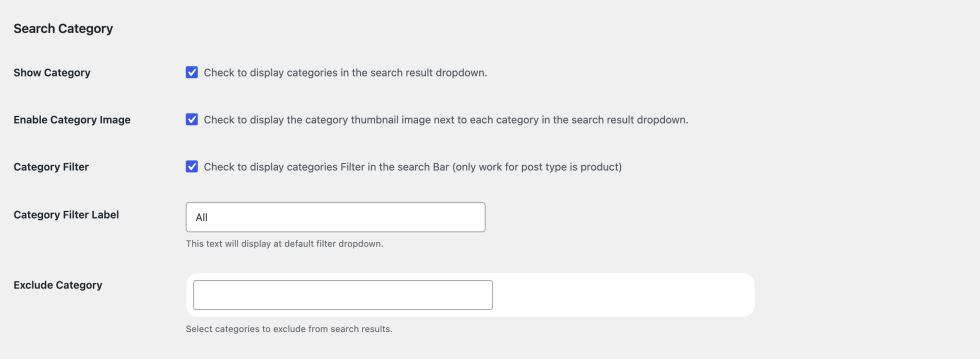
- Show Category: Display matching categories in the dropdown.
- Enable Category Image: Show each category’s thumbnail image next to its name in the dropdown.
- Category Filter: Add a category dropdown to the search bar, so customers can limit results to one category. This option only works when the content type is set to Product.
- Category Filter Label: The default label of the category dropdown. Default:
All. - Exclude Category: Select categories to exclude from search results.
No results experience
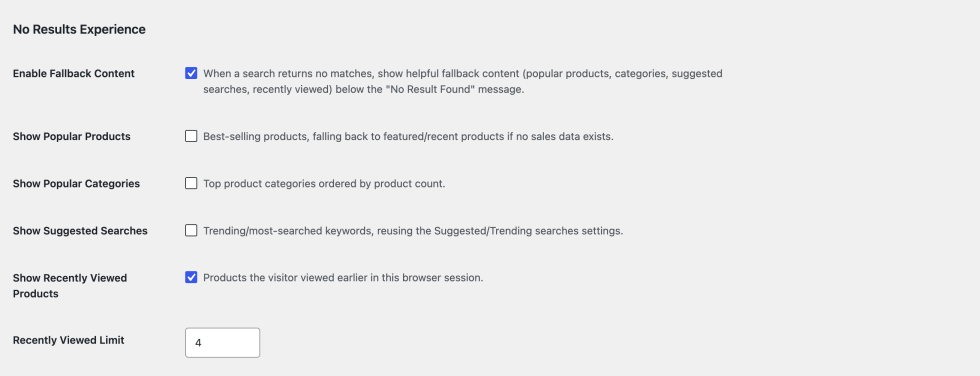
When a search returns no matches, you can show helpful content below the No Result Label message instead of an empty dropdown.
- Enable Fallback Content: Turns fallback content on. Then choose which content to show:
- Show Popular Products: Shows best-selling products. If there is no sales data yet, featured, or recent products are shown instead.
- Show Popular Categories: Shows the top product categories, ordered by product count.
- Show Suggested Searches: Shows trending or most-searched keywords. This uses the settings in the Search Configure tab.
- Show Recently Viewed Products: Shows products the visitor viewed earlier in the same browser session.
- Recently Viewed Limit: The maximum number of recently viewed products to show. Default:
4
Search scope in Product
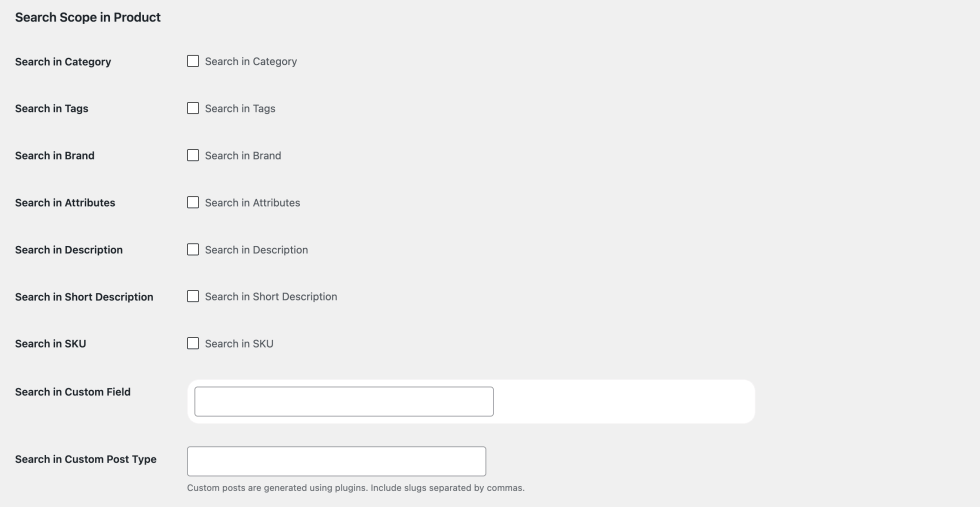
Check any of the options below to search additional product data:
- Search in Category: Match product category names.
- Search in Tags: Match product tags.
- Search in Brand: Match product brands.
- Search in Attributes: Match product attribute values, such as color or size.
- Search in Description: Match the full product description.
- Search in Short Description: Match the product short description.
- Search in SKU: Match product SKUs. Enable this if customers search by part number or model code.
- Search in Custom Field: Select custom fields to include in search.
- Search in Custom Post Type: Enter custom post type slugs, separated by commas, to include content created by other plugins. For example:
portfolio, recipe.
Tip: Enable only the sources your customers actually use. Searching more fields can return more loosely related results.
Product
- Exclude Product: Enter the SKUs of products to hide from search results, separated by commas. For example:
SKU-101, SKU-102
Visuals in Product
Choose which product labels appear in search results:
- Sale: Show a sale label on products that are on sale.
- Featured: Show a label on featured products.
- Stock Availability: Show the stock status, such as the number of items in stock.
Label colors are set in the Style tab, under Product.
Post
These options apply when Post is enabled as a content type.
- Enable Post Image: Show the featured image next to post results.
- Enable Post Description: Show a short description for post results.
Pages
These options apply when Pages is enabled as a content type.
- Enable Page Image: Show the featured image next to page results.
- Enable Page Description: Show a short description for page results.
Click Save changes.
Trending searches
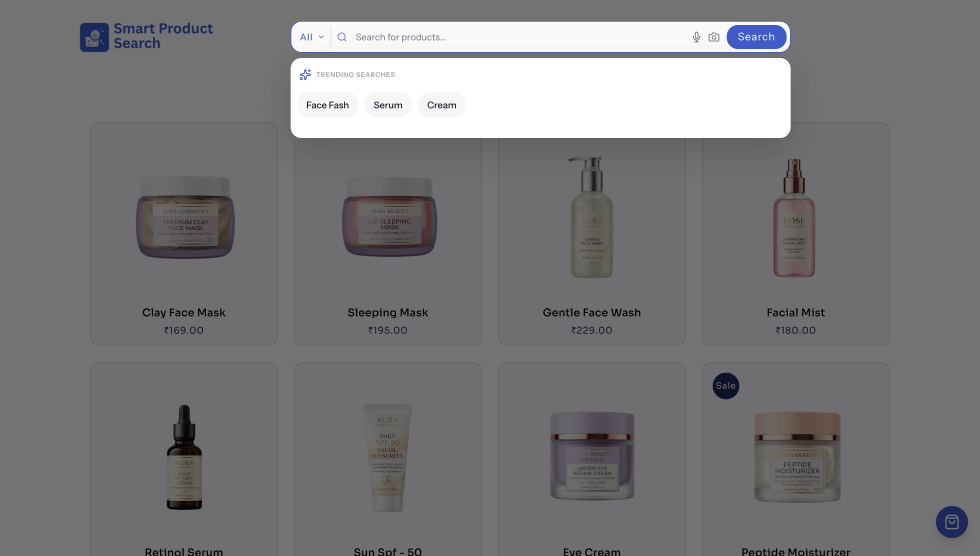
↑ Back to topTrending searches appear as clickable suggestions in the dropdown, helping customers discover popular products before or while they type.
Go to WooCommerce > Smart Product Search > Search Configure.
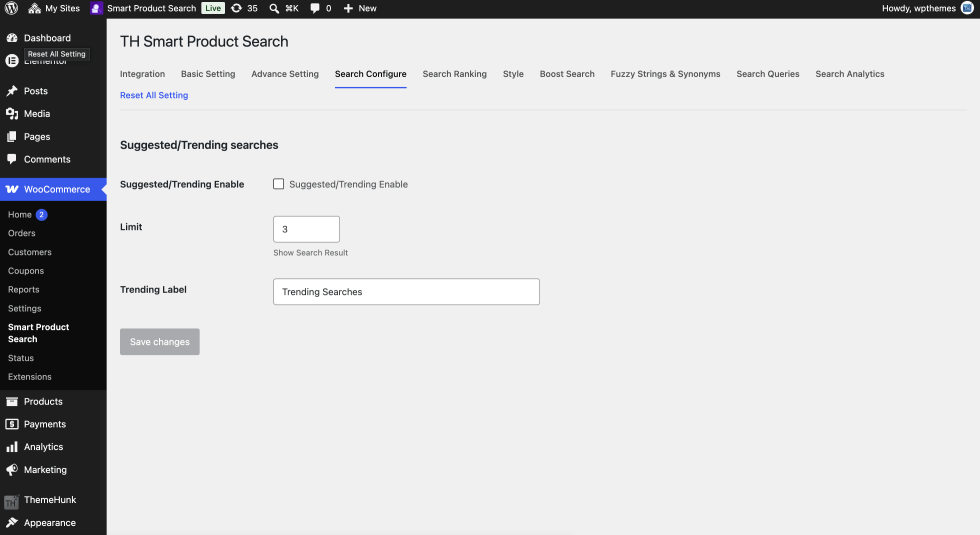
- Suggested/Trending Enable: Turn trending searches on.
- Limit: The number of trending searches to show. Default:
3 - Trending Label: The heading shown above the trending searches. Default:
Trending Searches.
Click Save changes.
These settings are also used by Show Suggested Searches in the No Results Experience section of the Advance Setting tab.
Search ranking
↑ Back to topSearch Ranking lets you decide which results appear first. Each type of match receives a weight, and products with a higher total score rank higher.
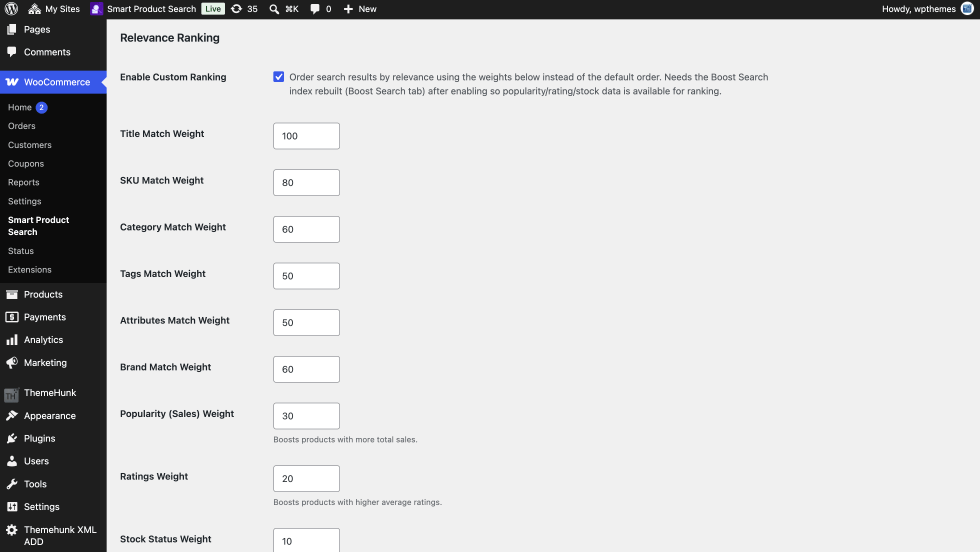
Go to WooCommerce > Smart Product Search > Search Ranking.
Enable custom ranking
Check Enable Custom Ranking to order search results by relevance, using the weights on this tab, instead of the default order.
Important: After enabling custom ranking, rebuild the search index in the Boost Search tab. Popularity, rating, and stock data become available for ranking only after indexing.
Match weights
Match weights control how much each type of match adds to a product’s score. A higher number means that type of match counts more.
| Setting | Default | What it rewards |
|---|---|---|
| Title Match Weight | 100 | Search term found in the product title |
| SKU Match Weight | 80 | Search term found in the SKU |
| Category Match Weight | 60 | Search term found in a product category |
| Tags Match Weight | 50 | Search term found in a product tag |
| Attributes Match Weight | 50 | Search term found in a product attribute |
| Brand Match Weight | 60 | Search term found in the product brand |
Product boosts
Product boosts raise products based on store data, regardless of where the match was found.
| Setting | Default | What it does |
|---|---|---|
| Popularity (Sales) Weight | 30 | Boosts products with more total sales |
| Ratings Weight | 20 | Boosts products with higher average ratings |
| Stock Status Weight | 10 | Boosts in-stock products above backordered and out-of-stock products |
Example
↑ Back to topWith the defaults, a search for “lip mask” ranks a product with “lip mask” in its title above a product that only has “lip mask” in its tags, because Title Match Weight (100) is higher than Tags Match Weight (50).
If both products match in the same way, the one with more sales or better ratings ranks higher, because of the product boosts.
Tips
↑ Back to top- Weights are relative. What matters is how they compare to each other, not their absolute values.
- For stores where customers search by part number, raise SKU Match Weight close to or above Title Match Weight.
- To promote best sellers, increase Popularity (Sales) Weight.
- To keep unavailable products lower in results, increase Stock Status Weight.
Click Save changes, then rebuild the index if this is the first time you enabled custom ranking.
Style
↑ Back to topGo to WooCommerce > Smart Product Search > Style. This tab controls the search layout, what each product result shows, and the colors and shapes of every part of the search bar and dropdown.
The Live Search Preview panel on the right shows how your settings look. Use the Default, Traditional and Modern buttons at the top of the panel to preview each layout.
Product style settings
↑ Back to top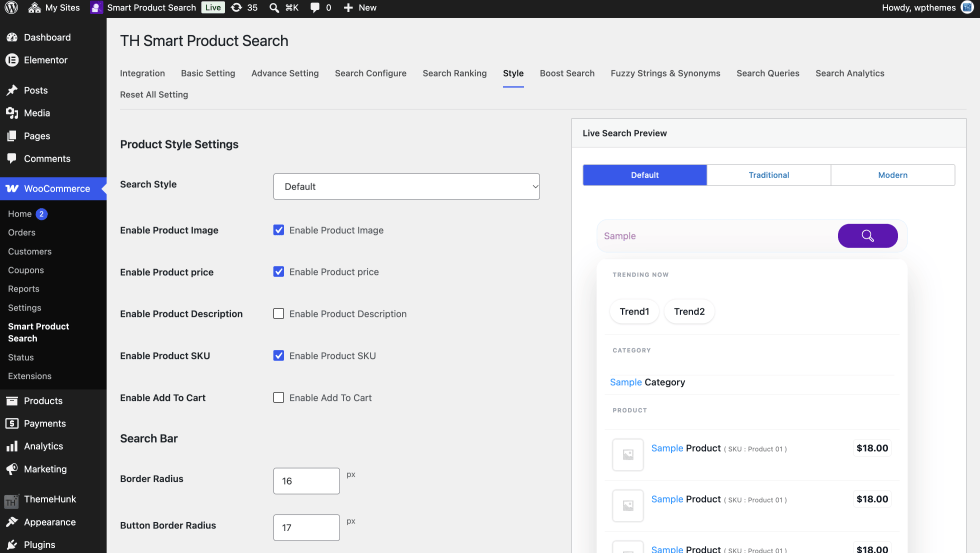
- Search Style: Choose the layout of the search bar and dropdown: Default, Traditional or Modern.
- Enable Product Image: Show the product thumbnail in results.
- Enable Product Price: Show the product price in results.
- Enable Product Description: Show a short description in results. Set its length with Description Length in the Advance Setting tab.
- Enable Product SKU: Show the SKU next to the product name in results.
- Enable Add To Cart: Show an add to cart button in results.
Note: Enable Product SKU only controls whether the SKU is displayed. To let customers search by SKU, enable Search in SKU in the Advance Setting tab.
Color fields
↑ Back to topMost color fields have a color picker, a text field for a hex value such as#5c17af, and a button:
- Default restores the field’s original color.
- Clear removes the value, so the theme’s styling or the layout’s built-in style is used.
Search bar
↑ Back to top- Border Radius: Roundness of the search bar corners, in pixels.
- Button Border Radius: Roundness of the submit button corners, in pixels.
- Bar Background Color: Background color of the search field.
- Placeholder Color: Color of the placeholder text.
- Icon Color: Color of the search icon.
- Icon Hover Color: Color of the search icon on hover.
- Submit Button BG Color: Background color of the submit button.
- Submit Button Text Color: Text color of the submit button.
- Submit Button BG Hover Color: Background color of the submit button on hover.
- Submit Button Text Hover Color: Text color of the submit button on hover.
Trending
↑ Back to topThese colors apply to the trending search chips.
- Background Color: Chip background.
- Color: Chip text.
- Background Hover Color: Chip background on hover.
- Hover Color: Chip text on hover.
Suggestion box
↑ Back to topThe suggestion box is the dropdown that shows search results.
- Background Color: Dropdown background.
- Highlight Color: Color of the letters that match the search term.
- Selected Color: Background of the result currently selected with the mouse or keyboard.
- Border Color: Color of the dropdown border and dividers.
- Group Title Color: Color of group headings, such as Category and Product.
- Title Color: Color of result titles.
- Text Color: Color of other result text.
Product
↑ Back to top- Feature Icon Color: Color of the featured product label.
- Sale BG Color: Background color of the sale label.
- Sale Text Color: Text color of the sale label.
- Add to Cart Color: Color of the add to cart button.
Click Save changes.
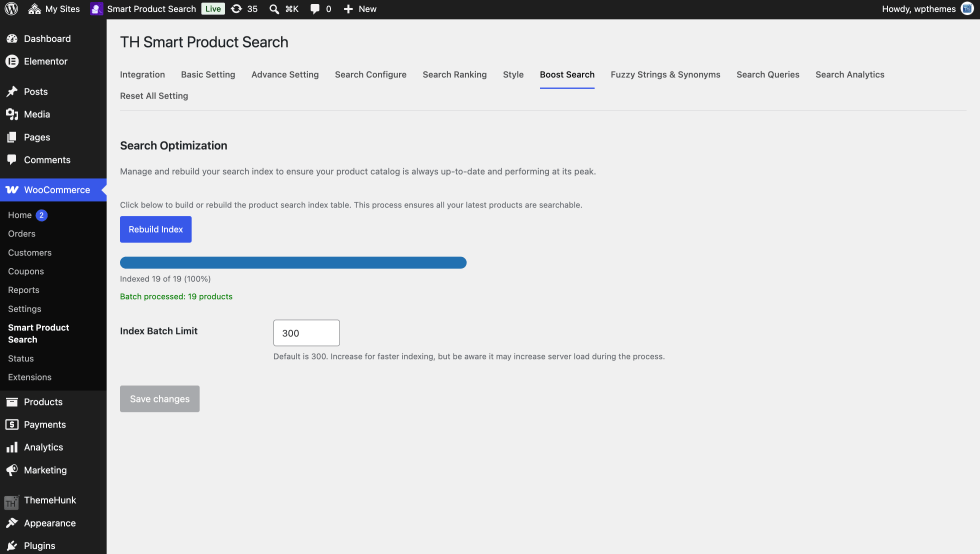
Search index (boost Search)
↑ Back to topTH Smart Product Search uses a dedicated search index table to return results quickly. The index stores the product data used for searching and ranking.
Go to WooCommerce > Smart Product Search > Boost Search.
Building the index
↑ Back to top- Click Build Search Index.
- Wait for indexing to finish.
When to rebuild the index
↑ Back to topRebuild the index:
- After installing the extension for the first time.
- After enabling Enable Custom Ranking in the Search Ranking tab.
- After enabling Enable Image Search in the Advance Setting tab.
- After importing or bulk-editing many products.
- If new or changed products do not appear in search results.
Index batch limit
↑ Back to topThe number of products processed in each indexing step. Default: 300.
- Increase the value for faster indexing.
- Decrease it if indexing fails or times out on shared hosting.
A higher value uses more server resources while indexing runs.
Click Save changes after changing the batch limit.
Fuzzy Search and synonyms
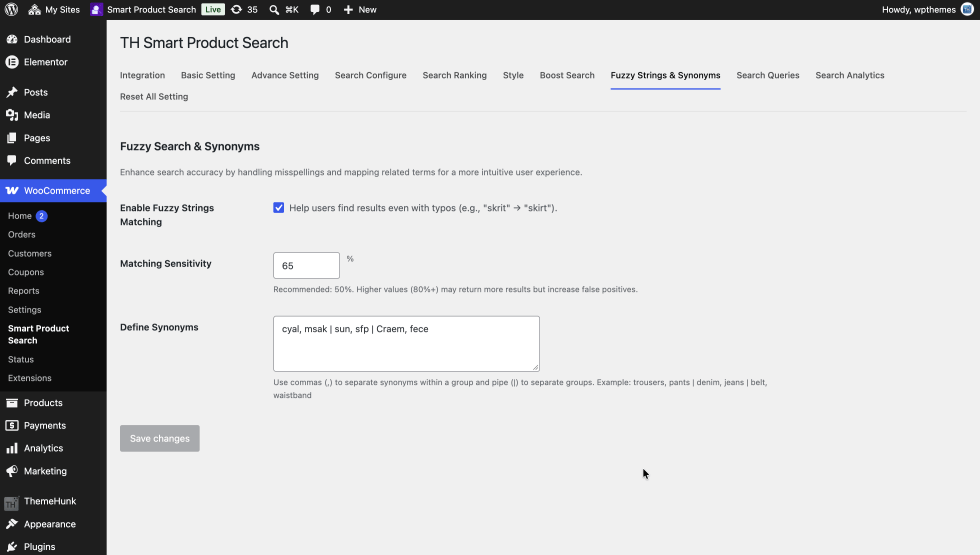
↑ Back to topGo to WooCommerce > Smart Product Search > Fuzzy Strings and Synonyms.
Fuzzy search
↑ Back to topFuzzy search finds products even when the search contains a typo. For example, a search for “skrit” still returns products matching “skirt”.
- Enable Fuzzy Strings Matching: Turn typo-tolerant matching on.
- Matching Sensitivity: How forgiving the matching is, as a percentage. The recommended value is
50. Higher values, such as 80 percent or more, may return more results but also more unrelated results.
Tip: Start at 50 percent. If customers still miss products because of typos, raise the value in small steps. If unrelated products start appearing, lower it.
Synonyms
↑ Back to topSynonyms let different words return the same products. For example, a customer searching “pants” also finds products titled “trousers”.
Define Synonyms uses this format:
- Separate words within a group with a comma
, - Separate groups with a pipe
|
Example:
trousers, pants | denim, jeans | belt, waistbandThis creates three groups. A search for any word in a group also matches the other words in that group.
Click Save changes.
Search queries report
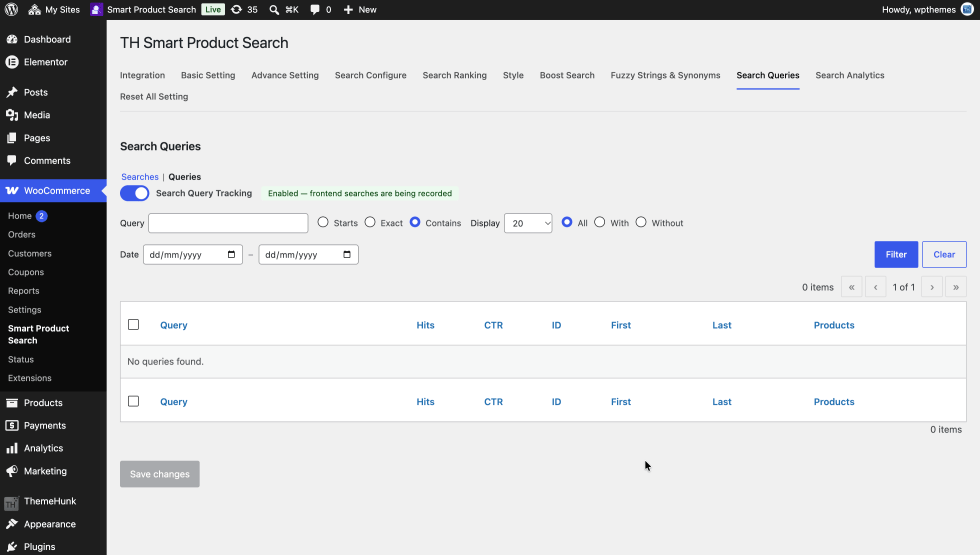
↑ Back to topThe Search Queries report records searches made on your store’s front end. Use it to find popular searches, low-performing searches, and searches that return no products.
Go to WooCommerce > Smart Product Search > Search Queries.
Turning on tracking
↑ Back to topTurn on the Search Query Tracking toggle. A status message confirms when front-end searches are being recorded. Click Save changes.
Report views
↑ Back to topThe links at the top switch between two views:
- Searches
- Queries: A list of unique search terms with statistics.
Filtering the report
↑ Back to top- Query: Enter a search term, then choose how to match it:
- Starts: Queries that start with the term.
- Exact: Queries that exactly match the term.
- Contains: Queries that contain the term anywhere.
- Display: The number of rows per page. Default:
20. - All / With / Without: Show all queries, only queries that returned results, or only queries that returned no results.
- Date: Limit the report to a date range.
Click Filter to apply the filters, or Clear to reset them.
Google analytics integration
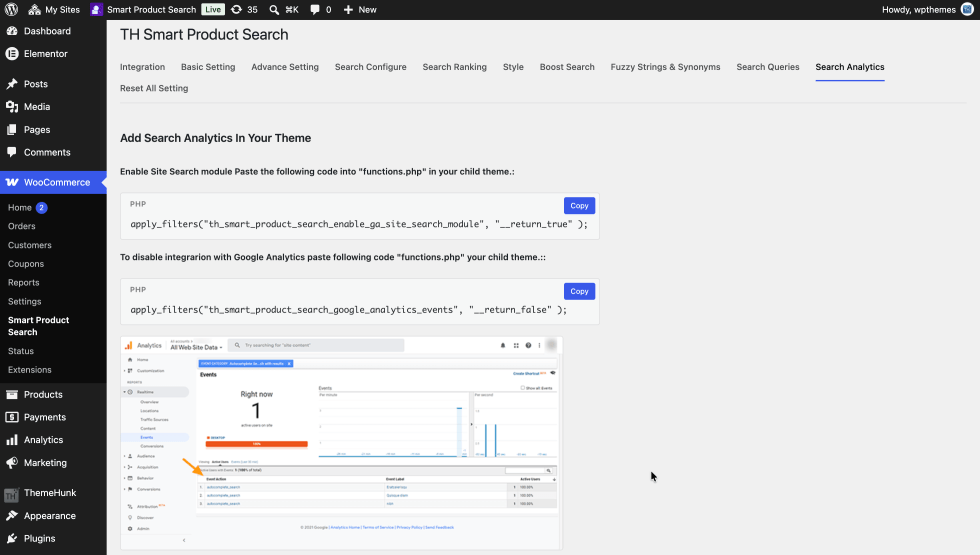
↑ Back to topTH Smart Product Search can send search events to Google Analytics, so you can analyze search behavior alongside your other store data.
Go to WooCommerce > Smart Product Search > Search Analytics.
Before you start
↑ Back to top- Google Analytics must already be installed on your site.
- Add code to your child theme’s
functions.phpfile, or use a code snippets plugin, so theme updates do not remove it.
Enable the site search module
↑ Back to topAdd this PHP code:
add_filter( 'th_smart_product_search_enable_ga_site_search_module', '__return_true' );Disable Google Analytics events
↑ Back to topTo stop sending search events to Google Analytics, add this PHP code:
add_filter( 'th_smart_product_search_google_analytics_events', '__return_false' );Reset all settings
↑ Back to topGo to WooCommerce > Smart Product Search > Reset All Settings.
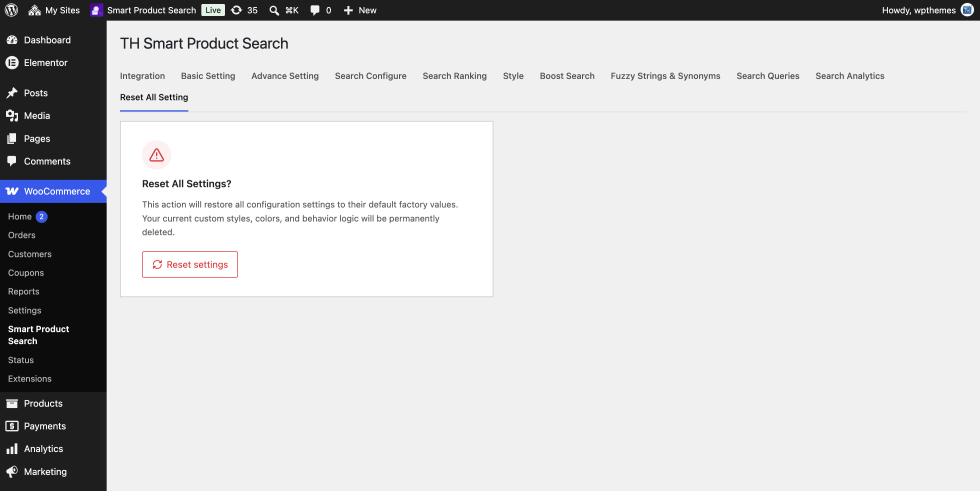
Click Reset settings to restore every setting to its factory default.
Warning: This permanently deletes your custom styles, colors, and behavior settings. It cannot be undone. Note your important settings before resetting.
Troubleshooting
↑ Back to topNo results appear in the dropdown
↑ Back to top- Go to Boost Search and click Build Search Index.
- In Advance Setting, make sure Product is checked under content types.
- Check that the search term has at least as many characters as Minimum Character in Basic Setting.
- Check that the products are published and not listed in Exclude Category or Exclude Product.
- If Exact Match is enabled, try disabling it.
New or updated products do not appear
↑ Back to topRebuild the index from the Boost Search tab.
Customers cannot find products by SKU
↑ Back to topEnable Search in SKU in the Advance Setting tab, then rebuild the index.
Ranking does not seem to change
↑ Back to top- Make sure Enable Custom Ranking is checked in Search Ranking.
- Rebuild the index in Boost Search.
- Make sure the matching field is enabled in Search Scope in Product. For example, Brand Match Weight needs Search in Brand enabled.
Image search returns poor matches
↑ Back to top- Rebuild the index after enabling Enable Image Search.
- Use clear product images with plain backgrounds.
- Expect around 60 to 70 percent accuracy. Image search works best as a discovery tool alongside text search.
The microphone button does not work
↑ Back to topVoice search depends on browser support for speech recognition, and the customer must allow microphone access.
Too many unrelated results
↑ Back to top- Lower Matching Sensitivity in Fuzzy Strings and Synonyms.
- Disable search sources you don’t need in Search Scope in Product.
- Enable Exact Match for phrase searches.
Indexing fails or times out
↑ Back to topLower Index Batch Limit in the Boost Search tab, for example from 300 to 100, then click Build Search Index again.
The search bar looks different from my theme
↑ Back to top- Choose another Search Style in the Style tab.
- Adjust colors and border radius in the Style tab.
- Set Search Bar Width, or leave it empty for full width.
The Search Queries report is empty
↑ Back to topTurn on Search Query Tracking and click Save changes. Only searches made after tracking is turned on are recorded.
Still need help?
↑ Back to topContact the developer through the Help Desk.
FAQs
↑ Back to top
Where are the settings?
Go to WooCommerce > Smart Product Search.
Can customers search by SKU?
Yes. Enable Search in SKU in the Advance Setting tab. To show the SKU in results, enable Enable Product SKU in the Style tab.
Can I include posts and pages in search results?
Yes. Check Post and Pages under Content Types in the Advance Setting tab.
Can I search custom post types?
Yes. Enter the post type slugs, separated by commas, in Search in Custom Post Type.
Does it handle spelling mistakes?
Yes. Enable Fuzzy Strings Matching in the Fuzzy Strings & Synonyms tab.
Is search data sent to an external service?
Search, indexing and image matching run on your own site. Image search does not use an external API. Search events are sent to Google Analytics only if you enable the integration.
Can I undo a settings reset?
No. Resetting restores factory defaults permanently.