
Overview
↑ Back to topUSA ePay for WooCommerce by Kestrel allows you to process payments directly on your site at checkout via USA ePay’s payment processing services. A USA ePay merchant account is required to use this plugin — USA ePay is a payment gateway (an NMI company), not a payment processor on its own.
Requirements
↑ Back to top- An active USA ePay merchant account (with an API Key and PIN generated in the Merchant Console)
- PHP 7.4 or higher
- WordPress 5.6 or higher
- WooCommerce 7.0 or higher
- SSL/TLS 1.2 enabled on your server
Installation
↑ Back to top- Download the extension from your WooCommerce dashboard.
- Go to Plugins > Add New > Upload and select the ZIP file you just downloaded.
- Click Install Now, then Activate.
- Go to WooCommerce > Settings > Payments > USA ePay Credit Card and follow the next section to configure the plugin.
Setup and Configuration
↑ Back to topIn order to process payments via USA ePay in your WooCommerce store, you need an active USA ePay merchant account. Log in to your account and follow these steps to generate the credentials the plugin needs.
- Log in to your USA ePay Merchant Console.
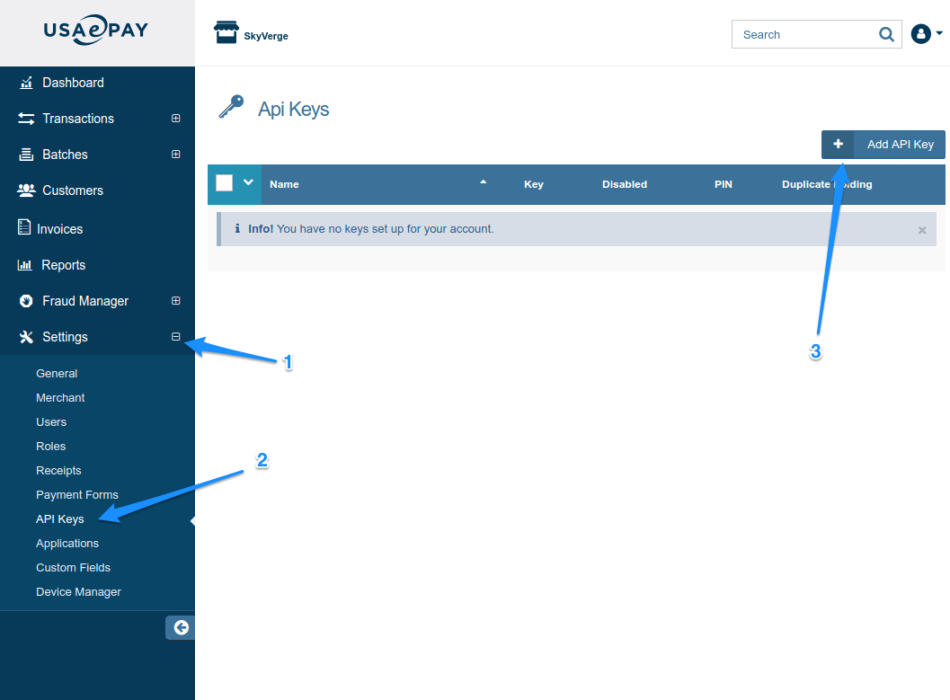
- From your home page, click on Settings in the menu. In the sub-menu, click API Keys.
- Click the Add API key button.
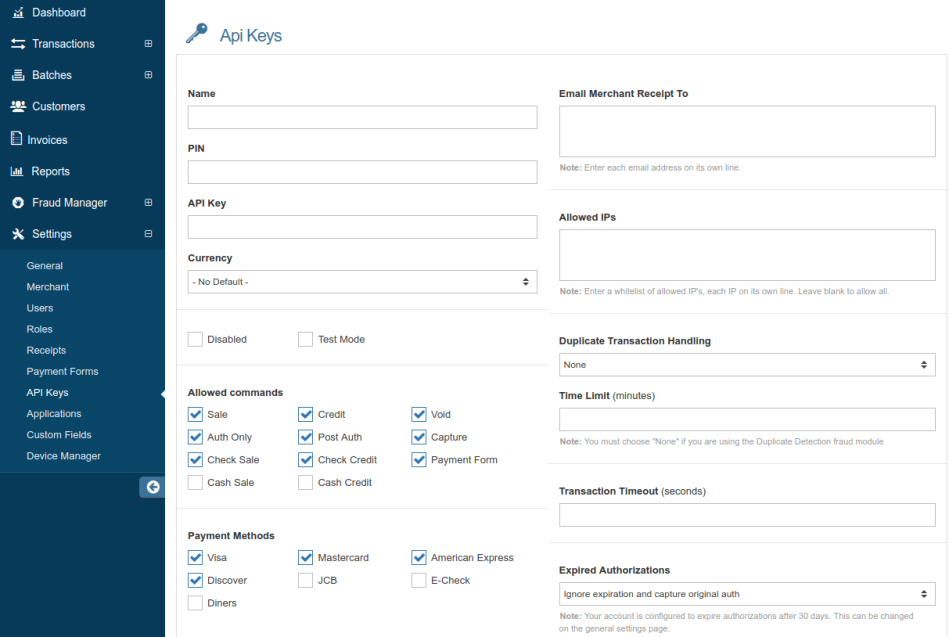
- On the API Keys Editor page:
- Add a Name for your website (e.g., the store domain).
- Set a PIN. A PIN is required by this plugin’s implementation, even though USA ePay’s interface states it’s optional.
- Under Allowed Commands, enable everything except Cash Sale and Cash Credit. The plugin uses
cc:sale,cc:auth,cc:capture,cc:refund,cc:void, andcc:save. - Under Payment Methods, do not enable E-Check — eCheck/ACH is not supported by this plugin.
- Add your store’s email address to the Email Merchant Receipt To field.
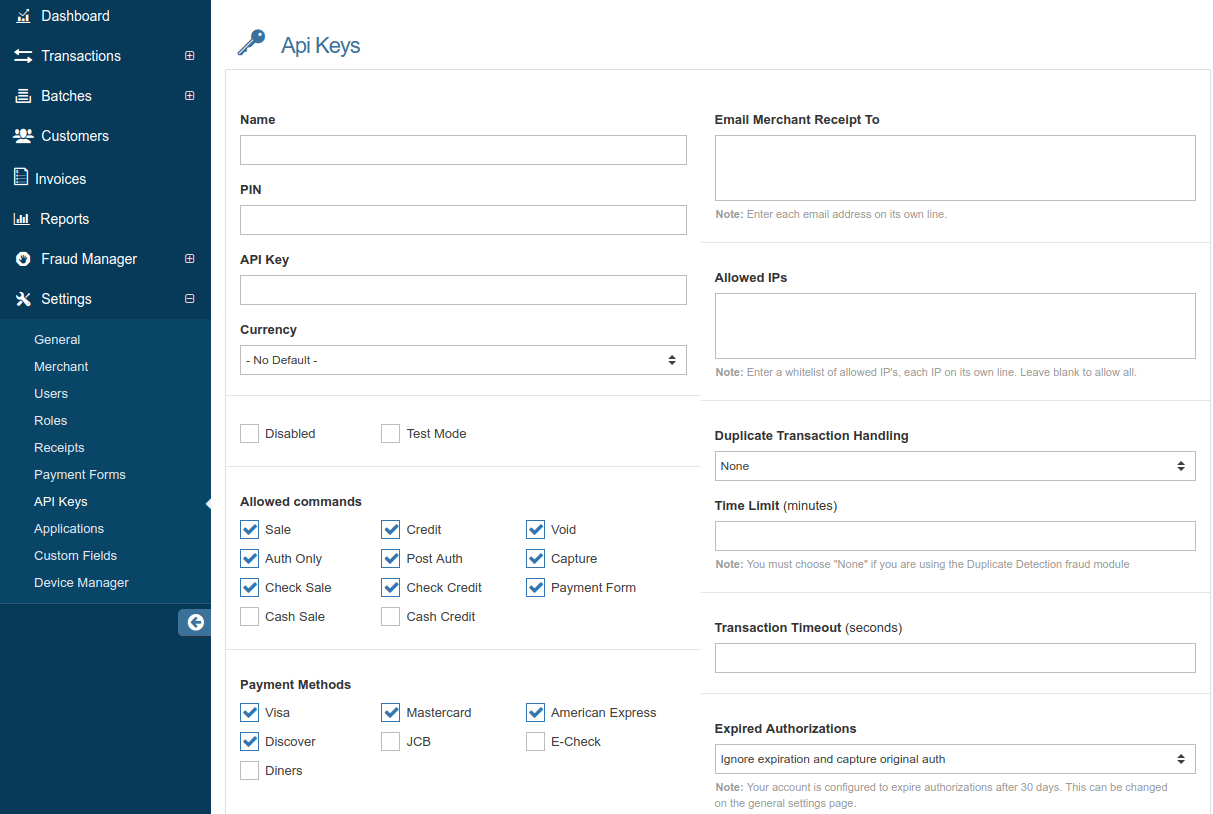
- Click Apply to save the settings and stay on the editor page — your API Key will be displayed.
- Copy and paste the API Key and PIN into the plugin’s settings page in WooCommerce.

Extension Settings
↑ Back to topThe settings for the plugin are located under WooCommerce > Settings > Payments > USA ePay Credit Card:
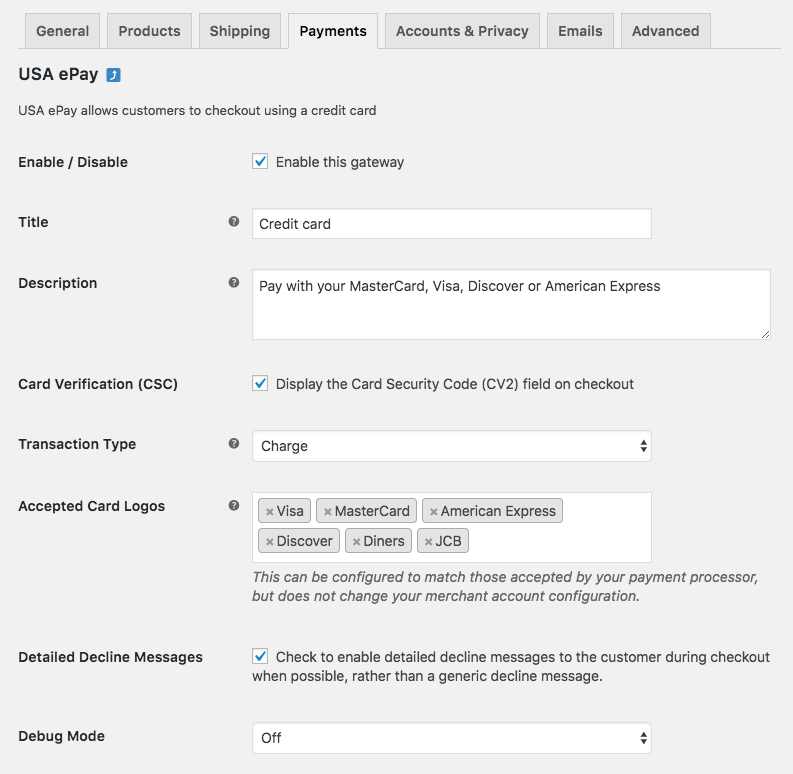
- Enable / Disable — turns the gateway on for customers at checkout.
- Title — the text shown for the payment method during checkout and on the Order Received page.
- Description — the text shown under the title during checkout. Limited HTML is allowed. If you enable Sandbox mode, this section also displays a notice with test credit card numbers.
- Card Verification (CSC) — requires customers to enter their CVV/CV2 (Card Security Code) at checkout. Useful if your USA ePay account requires CV2 verification.
- Transaction Type — controls how transactions are submitted to USA ePay. Choose either Charge (authorize and capture in one step) or Authorization (hold funds, capture later). If you select Authorization, you must capture each transaction manually from the WooCommerce Edit Order screen or from your USA ePay control panel. Defaults to Charge.
- Charge Virtual-Only Orders — (shown when Transaction Type is Authorization) forces immediate capture on orders that contain only virtual items, so downloads can be granted right away instead of waiting for a manual capture.

- Capture Paid Orders — (shown when Transaction Type is Authorization) automatically attempts to capture transactions when an order’s status changes to a paid status.
- Accepted Card Logos — controls the card brand logos shown at checkout. This is purely cosmetic and does not affect which cards your merchant account actually accepts. Supports Visa, MasterCard, American Express, Discover, Diners Club, and JCB.
- Tokenization — enable to let customers save credit cards to their account for faster repeat checkout. See Saved Cards below for details on how this works.
- Detailed Decline Messages — when enabled, shows the specific reason for a card decline (e.g., “Card expired,” “AVS mismatch”) instead of a generic error. This typically reduces support tickets because customers can self-correct.
- Debug Mode — logs API requests and responses for troubleshooting. You can log to the checkout/thank-you page, to WooCommerce > Status > Logs, or both. All debug output is scrubbed of sensitive card data, but as a best practice, do not enable this unless you’re actively troubleshooting.

Connection settings
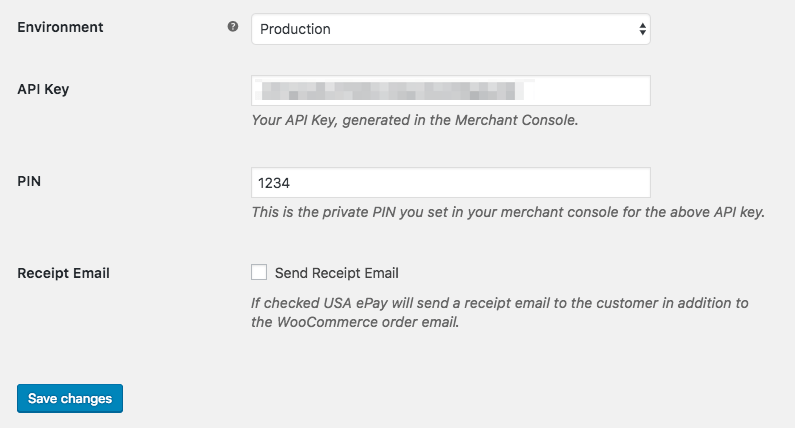
- Environment — switch between Sandbox and Production. Sandbox routes transactions to
sandbox.usaepay.com. Note: Sandbox is an entirely separate environment that requires its own login. You can request a sandbox account by creating a developer account, then enter a separate API Key and PIN for Sandbox. - API Key — your USA ePay account API Key for the selected environment.
- PIN — your USA ePay account PIN for the selected environment. A PIN is required by this plugin.
- Receipt Email — enable to send USA ePay’s receipt emails to customers in addition to WooCommerce’s order emails.
Features and Usage
↑ Back to topCapture charges from the WooCommerce Edit Order screen
↑ Back to topWhen the gateway is set to Authorization, charges are held but not captured until you choose to. Captures can be performed from the WooCommerce Edit Order screen — open the order, choose Capture Charge from the order actions menu, and the charge will be captured through USA ePay without leaving WooCommerce.
You can read more about capturing charges.
Automatic refunds
↑ Back to topRefunds are processed directly in WooCommerce — no need to log in to your USA ePay account. From the Edit Order screen, click Refund, enter a full or partial amount, and click Refund via Credit Card. The transaction will be sent to USA ePay automatically.
You can read more about performing refunds.
Void support
↑ Back to topTransactions can be voided through the same workflow as refunds. A void will be performed automatically (instead of a refund) if the transaction has been authorized but not captured, or has been captured but not yet settled — funds haven’t moved yet, so a true refund isn’t possible.
You can read more about voiding transactions.
Saved cards (tokenization)
↑ Back to topCustomers can securely save credit cards to their WooCommerce account and reuse them for faster repeat checkout. Tokens are stored by USA ePay; full card data is not retained on your server beyond the transaction.
What customers can do:
- Save a card at checkout by ticking the “Save to my account” option on the payment form.
- Add a card from My Account → Payment Methods without making a purchase.
- Set a default saved card, switch between saved cards at checkout, and delete saved cards.
One limitation to be aware of: the USA ePay API doesn’t expose an endpoint to update an existing token (for example, changing the expiry date on a card already on file). To update card details, a customer simply deletes the old card and adds a new one.
Subscriptions, Constellation Memberships, and Pre-Orders
↑ Back to topTokenization powers recurring billing. USA ePay for WooCommerce works with:
- WooCommerce Subscriptions — full support for subscription products, renewal date changes, payment date changes, customer-initiated changes, and failed-payment retries.
- Constellation Memberships by Kestrel — Constellation’s embedded subscription engine uses the same WooCommerce Subscriptions framework, so any membership plan with recurring billing works through USA ePay automatically.
- WooCommerce Pre-Orders — collect payment information upfront and automatically charge the customer’s saved payment method when the pre-order is released.
AVS fraud filter handling
↑ Back to topUSA ePay’s AVS (Address Verification System) fraud filter can be configured at the account level to block, block-and-void, or just flag suspicious transactions. In Block mode (not Block-and-Void), USA ePay can return an error response to the integration while still retaining the captured charge on its side — which would otherwise leave an orphan charge on the customer’s card.
As of v3.3.0, the plugin defensively voids any transaction that USA ePay flags as an AVS block but still assigns a transaction ID to. This prevents orphan charges automatically, regardless of how your AVS filter is configured in the Merchant Console.
Detailed decline messages
↑ Back to topWhen enabled, the gateway shows the customer the specific reason for a decline (e.g., “Card expired,” “AVS mismatch,” “Insufficient funds”) instead of a generic error. Customers can usually self-correct without contacting support.
You can read more about detailed decline messages.
Customer Experience
↑ Back to topCheckout
↑ Back to topAt checkout, customers enter card details directly on your WooCommerce checkout — they aren’t redirected to a hosted page. The payment form is optimized for both desktop and mobile, with numeric inputs and smart formatting on phones.

You can read about the enhanced payment form.
Managing saved cards
↑ Back to topCustomers manage their saved cards from My Account → Payment Methods — they can add new cards, set a default, and delete cards they no longer want stored.
Testing
↑ Back to topUSA ePay provides test cards for use with a sandbox account. After switching the gateway to Sandbox in the connection settings and entering your sandbox API credentials, you can run test transactions without using real cards.
Refer to USA ePay’s testing documentation for the full list of test card numbers and their expected responses (approved, declined, AVS mismatch, etc.).
Troubleshooting
↑ Back to top“Oops, you cannot partially void this order”
↑ Back to topThis error appears when you try to perform a partial refund on a transaction that hasn’t settled yet (typically within the first day after purchase). Because funds haven’t moved, the plugin attempts a void instead of a refund — but USA ePay doesn’t allow partial voids.
Resolution: wait until the charge has settled (about one day after the original transaction), then process the partial refund normally.
Payments not appearing in USA ePay
↑ Back to top- Confirm that the Environment setting matches the API Key/PIN you’ve entered — Sandbox credentials in Production mode (or vice versa) will fail silently.
- Verify that the Allowed Commands on your API Key include everything except Cash Sale and Cash Credit.
- Make sure SSL/TLS is properly configured on your store and your server supports TLS 1.2.
General troubleshooting
↑ Back to top- Check that your API Key and PIN are entered correctly.
- Double-check that your API Key and PIN are entered correctly. 😉
- Enable Debug Mode and review the response messages USA ePay returns. Cross-reference any error codes against the USA ePay Response Code Reference. In some cases — transactions held for review, account-level declines, fraud-filter blocks — the issue must be resolved in your USA ePay account rather than the plugin.
- Submit a help request and include the debug log for further troubleshooting.
Frequently Asked Questions
↑ Back to topQ: Do I need a USA ePay merchant account?
A: Yes. This plugin connects an existing USA ePay merchant account to your WooCommerce store — it isn’t a payment processor itself. USA ePay accounts are typically opened through an ISO or payment processor that recommends USA ePay (now an NMI company) as their gateway.
Q: Does checkout stay on my site?
A: Yes. Customers enter their card details directly on your WooCommerce checkout and are never redirected to a hosted payment page. You keep full control over the checkout design.
Q: Can my customers save cards for repeat purchases?
A: Yes. Customers can save cards at checkout or from My Account → Payment Methods, then reuse them for one-click repeat purchases, subscriptions, and pre-orders. Cards can be viewed, set as default, and deleted. The USA ePay API doesn’t support editing an existing token (for example, updating the expiry date), so a customer updating a card simply deletes the old one and adds a new card.
Q: Does this work with WooCommerce Subscriptions and Constellation Memberships?
A: Yes. USA ePay supports recurring billing through WooCommerce Subscriptions, Constellation Memberships by Kestrel, and any extension built on the WooCommerce Subscriptions framework — including subscription date changes, payment date changes, and customer-initiated plan changes.
Q: Does it support WooCommerce Pre-Orders?
A: Yes. Take payment information upfront, then automatically charge the customer’s saved payment method when the pre-order is released.
Q: Can I authorize a payment and capture it later?
A: Yes. Set Transaction Type to Authorization in the gateway settings, then capture charges from the WooCommerce Edit Order screen or your USA ePay control panel when you’re ready.
Q: Which card brands are supported?
A: Visa, MasterCard, American Express, Discover, Diners Club, and JCB — subject to which brands your USA ePay merchant account is configured to accept.
Q: Is there a sandbox / test mode?
A: Yes. The gateway has separate Production and Sandbox environments, each with its own API Key and PIN. Sandbox connects to sandbox.usaepay.com so you can test the full checkout, subscription, and refund flows without touching live cards.
Q: Does this support Apple Pay, Google Pay, or other digital wallets?
A: No. This plugin handles credit and debit card transactions through USA ePay’s REST API only. Wallet buttons would require a separate integration that USA ePay’s API doesn’t currently expose.
Q: Does it support 3D Secure (SCA / EMV 3DS)?
A: No. USA ePay’s API doesn’t currently expose 3D Secure authentication, so this plugin doesn’t perform 3DS challenges. USA ePay is primarily a US gateway and most US transactions don’t require 3DS; merchants selling into the UK or EU should evaluate carefully.
Q: What about PCI compliance?
A: This integration is server-side — card details are submitted through your site before being sent to USA ePay’s API — which places merchants at PCI SAQ-D compliance level. Confirm your specific compliance scope with your QSA, and make sure SSL/TLS is properly configured on your store.
Q: Does it work with High-Performance Order Storage (HPOS)?
A: Yes. HPOS compatibility was added in v3.1.0 and is fully tested against current WooCommerce releases.
Q: Does it handle USA ePay’s AVS fraud filter properly?
A: Yes. As of v3.3.0, the plugin defensively voids any transaction that USA ePay’s AVS fraud filter flags but retains as a captured charge — preventing orphan charges when your account is configured with “Block by AVS” in Block-only mode (not Block-and-Void).
Q: Does it support multi-currency?
A: USA ePay processes transactions in USD against your US merchant account, so the plugin doesn’t natively switch currencies. For multi-account or per-region setups, the plugin exposes filters that let you swap API credentials per-order.
Questions & Support
↑ Back to topHave a question before you buy? Get in touch with Kestrel support.
Already purchased and need a hand? Please review the troubleshooting steps first, then contact support with your debug log.