
Top Features
↑ Back to topWhatsApp order notifications: Send customers a message for new orders and supported WooCommerce status changes, including guest orders with usable billing phone details.
Customer conversations: Read incoming WhatsApp messages and reply with text or supported media from WordPress admin.
Abandoned-cart reminders: Send one reminder for an eligible cart belonging to a logged-in customer with stored billing phone details. Add an optional personal coupon.
Selected customer broadcasts: Choose a customer role or saved campaign group. Queue a broadcast now or schedule one future send.
Keyword replies: Create Exact Match or Contains rules for responses you write.
Message templates: Create, preview and select approved templates with supported variable examples.
Recent message statuses: Review campaign queue progress and available recent outcomes returned by Meta.
Order notifications reflect WooCommerce status changes, not carrier tracking or confirmation of physical delivery. Cart-record cleanup removes old plugin records, not WooCommerce orders.
Setup and Installation
↑ Back to topBefore you begin
You need active WooCommerce, a Meta business portfolio with a WhatsApp Business Account, a registered sending number and a Meta app with appropriate access. Prepare the account and phone-number IDs, App ID, App Secret and access token requested by the connection screen. A personal WhatsApp account alone is insufficient.
Configure the webhook URL and generated verify token in your Meta app. Incoming messages, keyword replies and status callbacks also require the App Secret in the plugin. A connected sending account does not by itself confirm webhook readiness.
Store-initiated messages require approved templates. Supply the documented variable examples for each workflow. Order and coupon templates without the required example metadata are not fully supported in version 1.5.0.
The extension subscription does not include Meta messaging charges. Costs depend on the recipient market and message category, with exceptions for eligible messages. Check the current rates in your Meta business account before estimating messaging costs.
Download the .zip file.
Go to: WordPress Admin > Plugins > Add New to upload the file you downloaded.
Activate the extension.
Go to: WordPress Admin > WP & WC WhatsApp Integration > Configure WhatsApp Api.
Go to: Templates submenu from our main menu and set templates for each event.
Go to: Setting for WooCommerce submenu and enable notification for WhatsApp.
Setting Up the WhatsApp Business API via Facebook Business Manager – Configuration
↑ Back to topApp Creation
↑ Back to top1. Visit Facebook for Developers:
Go to the Facebook for Developers website at developers.facebook.com.
2. Log In:
If you already have a personal Facebook account, you can sign in using your credentials.
If you don’t have a personal account, you may need to create one first.
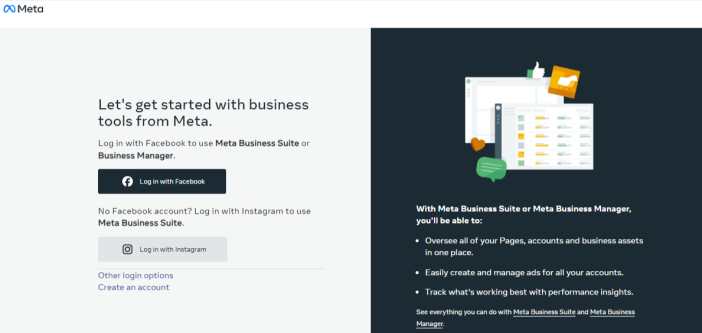
3. Create a Business Profile:
Set up your business profile with relevant information, including a profile picture, business description, and other details.
4. Phone Number Verification:
Verify your business phone number to ensure that it can receive SMS or phone calls.
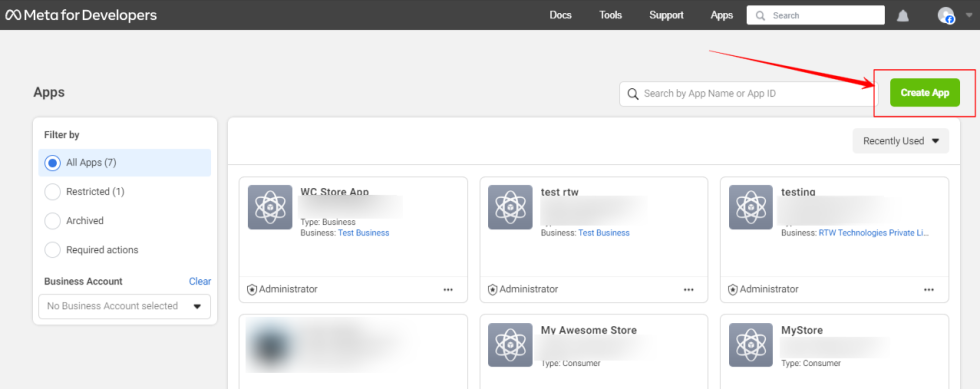
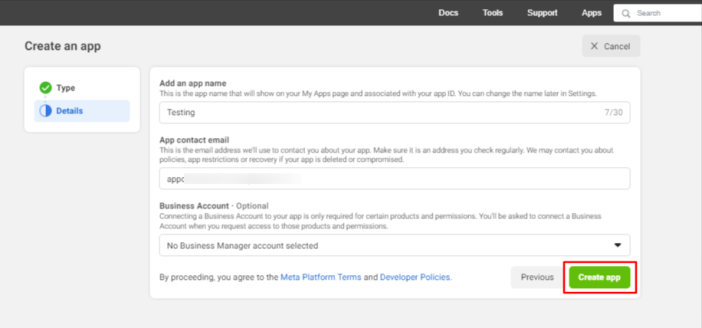
5. Create a New App:
Click on “Create App” or a similar button to start the app creation process.
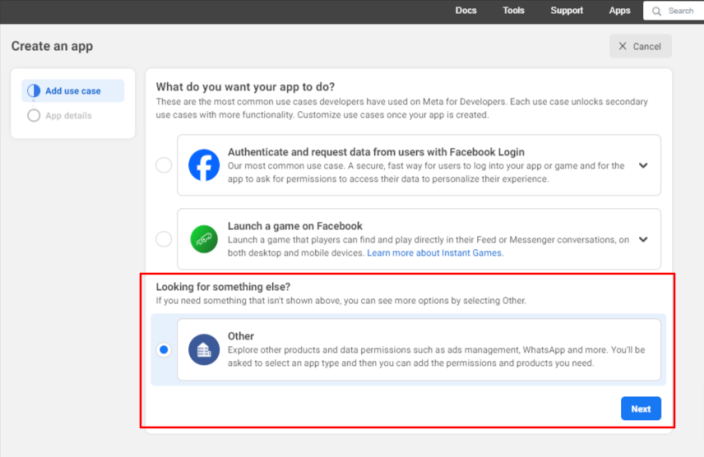
6. Select App Type:
Choose the “For Everything Else” or a relevant category that fits your business needs.
Select the app type of ” Business “.
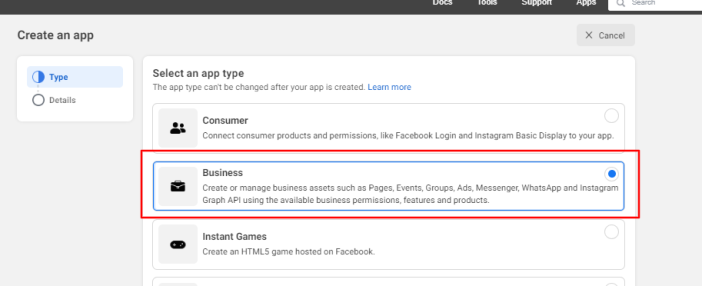
7. Complete App Setup:
Provide the necessary details for your app, such as the app name, contact email, and select business account.
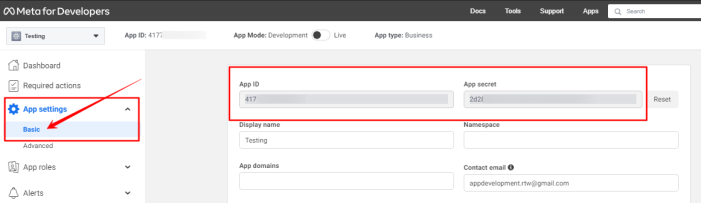
8. Create App ID and Secret:
After setting up the app, you’ll receive an App ID and App Secret. Keep these credentials secure.
9. Add WhatsApp Business API Product:
In the app dashboard, navigate to the “Add a Product” section.
Find and select the “WhatsApp” product.
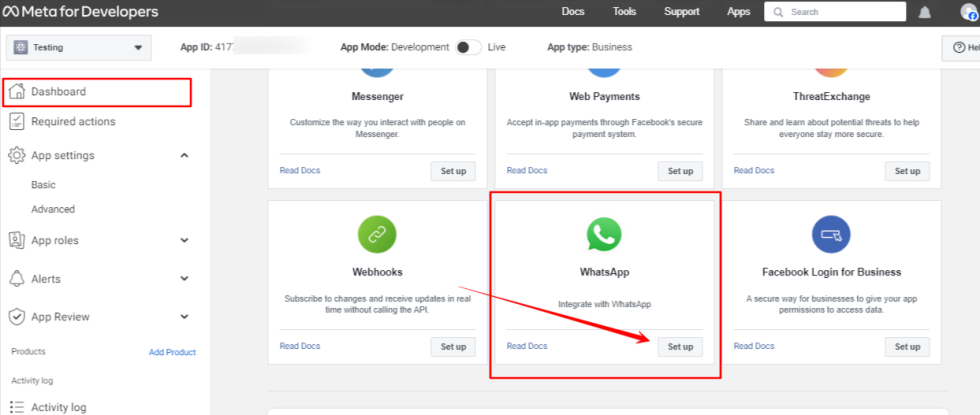
After this click on “Start using the API”.
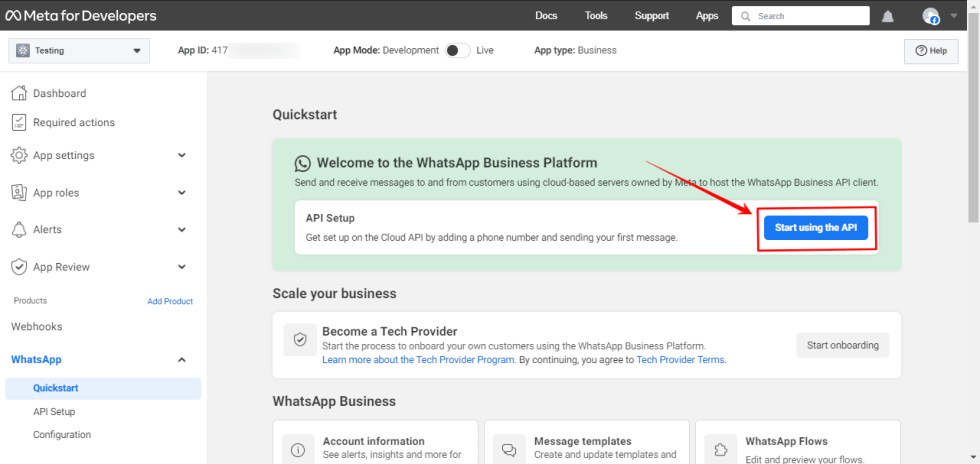
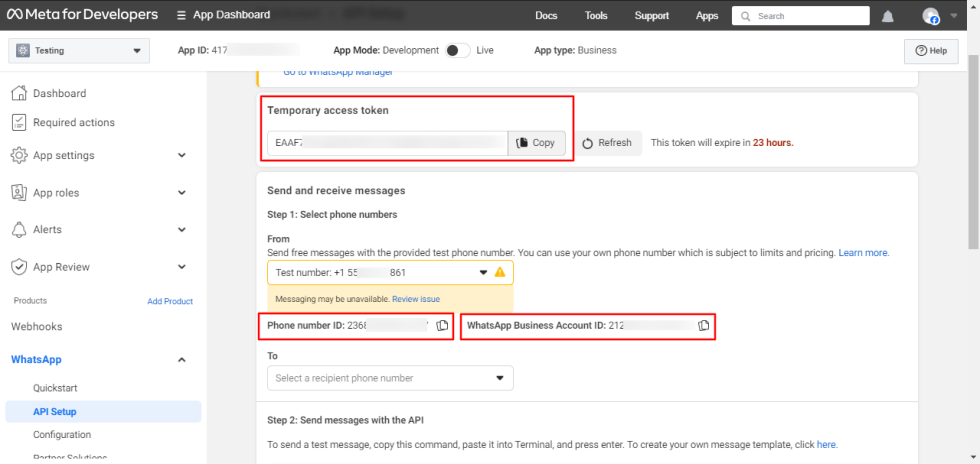
Here you get the “Temporary access token”, ” Phone number ID ” and ” WhatsApp Business Account ID ” which are used to Authenticate the plugin as mentioned below in the image
Authentication
↑ Back to top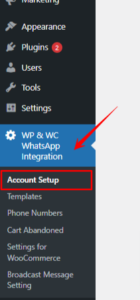
After authentication, review the connection details and configure the webhook. Access tokens remain subject to Meta’s expiration and permission rules. Default template definitions still need Meta approval. Select an approved template for each workflow; adding a new definition does not overwrite an existing selection.
For a longer-lasting connection, learn how to generate and connect a Meta System User access token. Use the Meta System User Access Token field for this direct validation workflow; it remains separate from Temporary Access Token.
To connect with the WhatsApp Business API plugin, retrieve the following details:
- WhatsApp Business Account ID:
Obtain this identifier associated with your business account on WhatsApp. - Phone Number ID:
Collect the unique identifier for your business phone number registered with WhatsApp. - App ID:
Find this unique identifier for your existing Facebook App in the Facebook Developers portal. - App Secret Key:
Generate this confidential key in the “Settings” tab of your Facebook App on the Developers portal. - Access token: Use a token with the permissions required by Meta’s Cloud API. Temporary test tokens expire quickly. Follow the current access-token instructions in your Meta app for ongoing use.
These details, comprising WhatsApp Business Account ID, Phone Number ID, App ID, App Secret Key, and Temporary Access Token, are vital for establishing a successful connection with the WhatsApp Business API plugin. You would typically need to input the collected details into the relevant fields in the plugin configuration. Before Authentication, the Authentication setting looks like this.
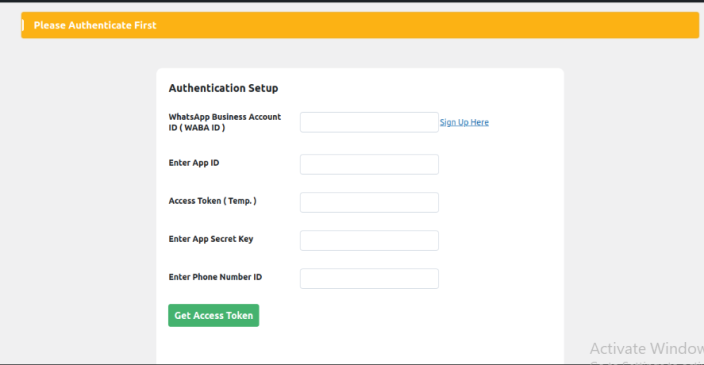
After successfully Authentication the appearance of the above yellow indicator turns to green.

Related authentication guide
↑ Back to topUse the dedicated guide to generate a permanent WhatsApp access token, validate it in Account Setup and manage replacement or local disconnection securely.
Meta business verification and account badges
↑ Back to topFollow the verification steps shown for your business in Meta’s account tools. Business verification and Official Business Account status are separate processes. This extension does not promise a particular badge or approval time. Check the current eligibility and document requirements shown in your Meta account.
Guide to Setup & Settings
↑ Back to topAfter authentication, review the connection details and configure the webhook. Access tokens remain subject to Meta’s expiration and permission rules. Default template definitions still need Meta approval. Select an approved template for each workflow; adding a new definition does not overwrite an existing selection.
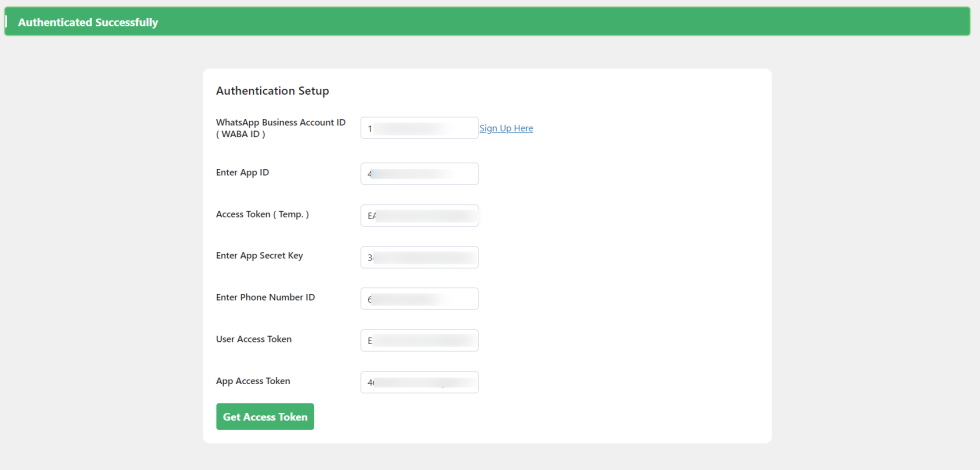
Create Template
↑ Back to topTo create a WhatsApp template, access the “Template” section and choose “Create Template.” Fill in details for header, body, footer, and buttons, keeping in mind character limits. Categorize templates as Authentication, Marketing, or Utility.
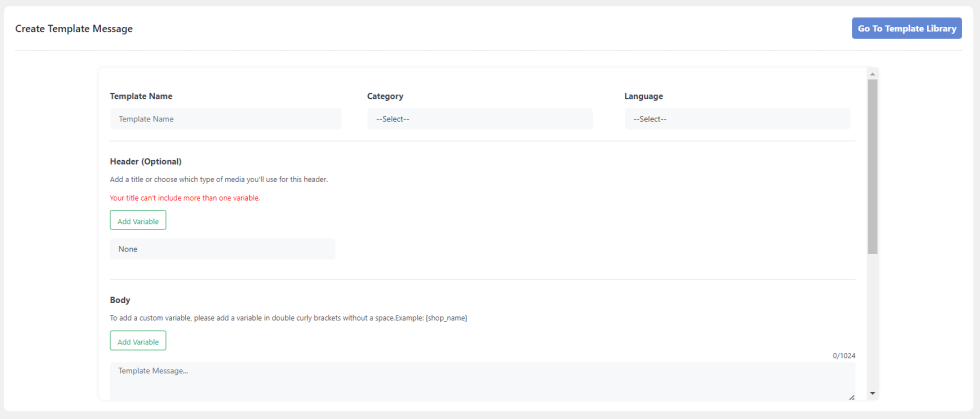
- Input Details: Enter header, body, footer, and button information for your template.
- Components Overview: Templates consist of header, body, footer, and buttons – tailor them based on business needs.
- Naming Constraints: No spaces, limited characters, and use only alphanumeric characters or underscores in template names.
- Categories: Categorize templates as Authentication, Marketing, or Utility, impacting pricing and validation.
- Language: Choose the template’s language code when creating it. The language belongs to the template definition, not its message header. The extension does not automatically translate the text or choose a language from customer preferences.
- Variable Usage: Use only one variable in the header, and strike a balance in the body to avoid rejection.
- Character Limits: Stay within the 1024-character limit for the body, keeping it concise and focused.
- Optional Footer: Keep it brief and relevant; no variables are allowed in the footer section.
- Buttons: Supported template buttons depend on the workflow. Version 1.5.0 cart reminders do not supply a functional cart-restoration URL button or persist an unsubscribe action. Do not configure these as though the extension handles them.
- Submission Process: Click submit after ensuring compliance with WhatsApp API guidelines for approval.
- Approval: Submit the template to Meta for review. Meta controls the decision and timing. Refresh the template list to retrieve its current status, and select an approved template for sending.
- WhatsApp imposes certain limitations on template names to ensure consistency and adherence to their guidelines.
- Template names: Use lowercase letters, numbers and underscores in template names.
- Length Limit: There’s a maximum character limit for template names. Ensure that your template name does not exceed this limit.
- Alphanumeric Characters and Underscores Only: Template names should only consist of alphanumeric characters (letters and numbers) and underscores (_). Special characters, symbols, or emojis are not allowed.
- Descriptive and Relevant: While not a strict limitation, it’s recommended to keep template names descriptive and relevant to the message content they represent. This helps in organizing and managing templates effectively.
- Templates must be categorized as one of the following categories. Categories factor into pricing and the category you designate will be validated at the time of template creation.
- Authentication
- Marketing
- Utility
When you send a template creation request, Meta immediately validates its category using our template categorization guidelines. - Language: Choose the template’s language code when creating it. The language belongs to the template definition, not its message header. The extension does not automatically translate the text or choose a language from customer preferences.
- In the header section, you have the option to include text, video, PDF, or image content. If you choose to use text, you can incorporate only one variable in the header. This flexibility allows you to customize the header according to your preferences and needs, whether you want to convey information, showcase multimedia content, or enhance visual appeal.
- Ensure that when using multiple variables in your WhatsApp template message body, your content sufficiently fills the space without being too sparse. Facebook may reject templates with excessive variables and minimal content. Strike a balance to avoid rejection. Make sure your WhatsApp template message body doesn’t surpass the 1024-character limit, especially when using variables for personalization. Keep it brief and focused to stay within the boundaries.
- The footer section of a WhatsApp template is optional. If you choose to include text, remember that variables are not allowed in this section. Keep it concise and relevant to your message.
Submit the template to Meta for review. Meta controls the decision and timing. Refresh the template list to retrieve its current status, and select an approved template for sending.

Variable examples: Supply the supported variable descriptions in each template slot’s example metadata. Broadcasts support mapped variables. If a value cannot be resolved for a recipient, that recipient is skipped instead of receiving a raw variable name. Order and coupon templates lacking example metadata are not fully supported in version 1.5.0.
Manage Phone Number
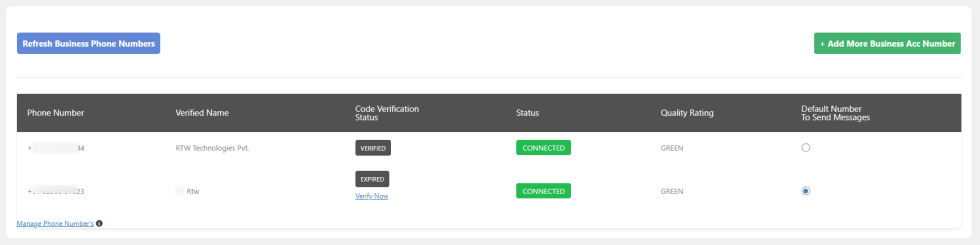
↑ Back to topWhatsApp Business supports managing customer interactions across multiple phone numbers, making it easier for businesses to handle communication efficiently. Additionally, phone numbers can be verified directly from the admin panel, streamlining the onboarding and setup process to manage all lines in one place seamlessly.
- Add more business account numbers: Expand your communication channels by adding additional phone numbers to your business.
- Refresh phone numbers: Update the information associated with your existing phone numbers.
- Verify phone numbers: Ensure that your phone numbers are connected to your WhatsApp Business account.
- Manage phone number status: Monitor the connection status and quality rating of each phone number.
- Set default number: Choose the primary phone number that will be used for sending messages.
Webhook Details
↑ Back to topCopy the webhook URL and generated verify token from the plugin into Meta’s webhook configuration. The URL must be publicly reachable. The verify token handles the subscription verification challenge. Incoming webhook POSTs are separately authenticated with the Meta App Secret; configure it in the plugin so incoming messages, keyword replies and statuses can be processed.
A successful verification challenge does not demonstrate message delivery. Keep credentials and tokens out of public screenshots.
Abandoned-cart reminders
↑ Back to topCapture applies to logged-in customers with stored billing phone details that identify a usable WhatsApp recipient. Guest carts are not captured; guest order notifications are a separate supported workflow.
- Enable reminders: Enabling the workflow starts a new eligibility window. Carts collected while it was off are excluded.
- Choose an approved template: Select a template with supported cart variables and preview its wording.
- Set the cutoff: Choose how long an unfinished cart must remain before it becomes eligible. The workflow sends one reminder per eligible abandonment.
- Optionally add a coupon: Generate a personal percentage or fixed-amount coupon, with available expiry, minimum-spend and free-shipping options. Use a template that can include the supported coupon values.
- Set retention: Prune old captured-cart records after the selected number of days. The historical “delete abandoned orders” label refers to plugin cart records; it does not delete WooCommerce orders.
The professional default definition, abandoned_cart_reminder_rtwwwbi_v2, contains:
Hi {{1}}, you left items in your cart at {{2}}. Your cart is still available if you would like to complete your purchase.
Its variables are User Name and Store Name. It uses the Marketing category, has no buttons and requires Meta approval. It does not replace a template already selected by the merchant. This wording is not evidence of a delivered message or restored cart.
Order and account notifications
↑ Back to topChoose a usable approved template for each event you enable. Preview its wording and required variables. Refresh the list if an approved template is missing; archived or otherwise unusable templates are not eligible.
The settings cover new coupon, new order, cancelled, failed, on hold, processing, completed, refunded and password reset. Order messages go to the order customer using the billing phone and country, including guest buyers. Coupon announcements use the selected user role; reset messages relate to the matching customer account.
The readiness indicator shows whether an event is configured to send. It is not an acceptance or delivery result. If a supported mapped value cannot be resolved, the recipient is skipped instead of receiving the raw variable name. Supply the required example metadata for order and coupon templates in version 1.5.0.
WhatsApp broadcasts and one-off scheduling
↑ Back to topChoose a customer role, all users or a saved campaign group. Select an approved template with supported mapped variables. Obtain customer permission, honor opt-outs and manually exclude those customers before sending; version 1.5.0 does not automatically save unsubscribe preferences.
Send now queues a broadcast for background processing. Schedule queues one send for a future date and time. It does not create an hourly, daily or recurring series. Editing the schedule changes that broadcast’s planned time. Processing depends on your site’s scheduling and Meta; the chosen time is not a delivery guarantee.
To prepare a selected audience, open the Contact List, search contacts, filter by role and choose recipients. You can select all contacts matching the current filter, exclude individuals and save the selection as a campaign group.
Saved campaign groups
↑ Back to topA campaign group stores a selected customer audience for broadcasts. It does not create a WhatsApp group chat. Review the group’s contacts before using it and remove anyone who should not receive the campaign. Group membership does not establish consent, and a group’s percentage of contacts is not a campaign-performance metric.
Campaign progress and recent WhatsApp statuses
↑ Back to topThe broadcast list shows the planned send and queue progress. Its sent counter means Meta accepted the message requests, not that those messages reached customers.
With a configured webhook and App Secret, the extension can show available sent, delivered, read and failed outcomes returned by Meta. These outcomes are separate from queue progress. The latest 200 outbound template-message records are retained across the site, shared by all workflows. Larger or older campaigns can therefore show incomplete status counts; do not treat them as a full historical delivery or open-rate report.
WhatsApp Chats
↑ Back to topOpen a conversation, read incoming WhatsApp messages and reply from WordPress admin. Text, images, audio, video and supported documents can be exchanged. File types and sizes must meet the plugin’s and Meta’s requirements.
The refresh interval controls how often the screen fetches updates. Free-form replies follow Meta’s 24-hour customer-service window after a customer’s message; approved templates are needed outside that window. The extension does not include a floating storefront widget or agent-assignment system.
Keyword replies
↑ Back to topDefine a keyword, choose Exact Match or Contains and write the reply you want to send. An opening-hours rule, for example, can answer routine questions with your prepared text. The rules match words; they do not understand intent or generate AI responses.
Supported reply shortcodes include [name], [phone], [order], [coupon] and [reset password]. Account-related replies need the required uniquely matching customer number. An ambiguous or unmatched number does not identify a customer account.

