
Wondershop is a massive visual editor for WooCommerce that lets you manage products and categories faster through an intuitive interface, bulk editing, and drag and drop functions — all from one centralized screen.
Installation
↑ Back to topTo start using a product from WooCommerce.com, you can use the “Add to store” functionality on the order confirmation page or the My subscriptions section in your account.
- Navigate to My subscriptions.
- Find the Add to store button next to the product you’re planning to install.
- Follow the instructions on the screen, and the product will be automatically added to your store.
Alternative options and more information at:
Managing WooCommerce.com subscriptions.

Catalog Interface
↑ Back to topWonderShop provides a visual product catalog interface designed to simplify WooCommerce product management.
The main workspace is accessible via:
WooCommerce menu → WonderShop
This screen allows you to browse, filter, and manage products in a structured visual layout.
Main Layout Structure
↑ Back to top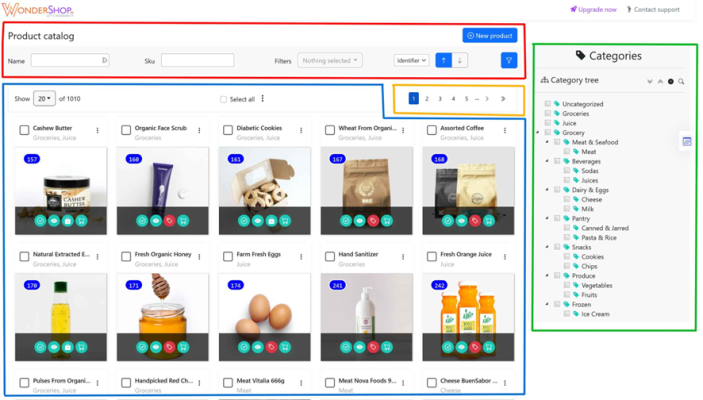
The Catalog screen is divided into four main areas:
🔴 Red → Top toolbar
🔵 Blue → Product grid
🟢 Green → Categories panel
🟠 Orange → Pagination area
Top Toolbar
↑ Back to topThe top section provides quick access to product search and filtering tools.
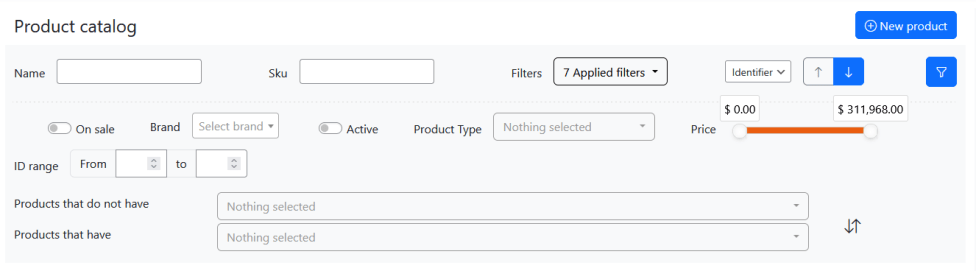
Available fields:
- Name – Search products by name
- SKU – Search by SKU
- Filters dropdown – Apply predefined filters
- Identifier selector – Choose the product identifier field
- Filter button – Apply selected filters
- New product button – Create a new product
These controls allow fast product location, especially in large catalogs.
Product Grid
↑ Back to topThe main area displays products in a visual card layout.
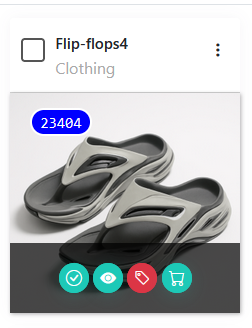
Each product card includes:
- Product image
- Product name
- Assigned categories
- Product ID badge
- Selection checkbox
- Action icons
Action Icons
Each product card includes quick action buttons:
- View product
- Edit product
- Duplicate product
- Delete product
- Other context actions (depending on configuration)
These shortcuts allow fast product operations without leaving the catalog view.
Bulk Selection
↑ Back to topAt the top of the grid, you will find:

- “Show X of Y” selector (control number of products displayed per page)
- “Select all” option
This enables multi-product operations when used with bulk actions.
Categories Panel (Right Side)
↑ Back to topThe right column displays the Category Tree.
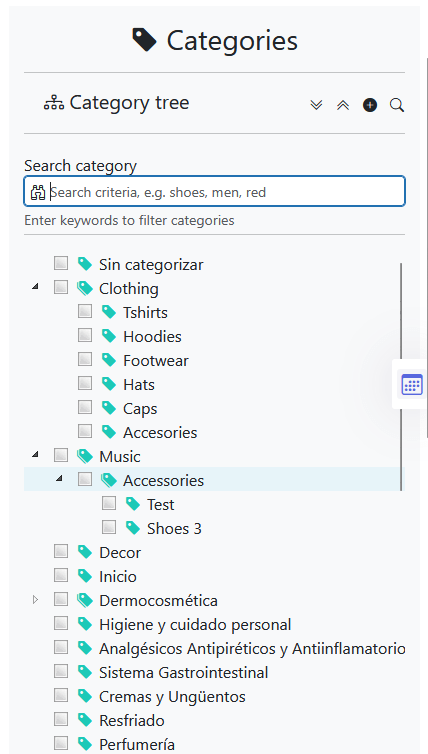
From here you can:
- View product categories
- Expand or collapse category groups
- Quickly identify category structure
- Add & edit categories
This panel provides contextual navigation for catalog organization.
Pagination
↑ Back to topAt the bottom of the screen:

- Page number navigation
- Previous / Next controls
This allows browsing large product catalogs efficiently.
7. New Product Creation
The New product button (top-right) opens the product creation interface within WonderShop.
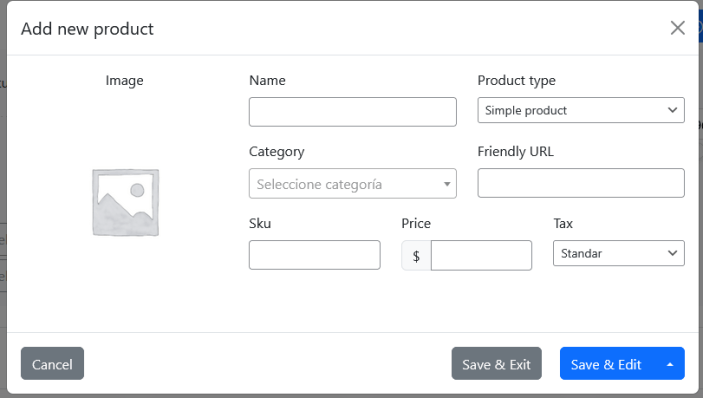
Interface Purpose
↑ Back to topThe WonderShop Catalog interface is designed to:
- Provide a visual overview of WooCommerce products
- Reduce navigation between multiple WordPress screens
- Allow faster product access
- Support efficient management of large catalogs
All changes made through WonderShop remain fully compatible with WooCommerce data.
Product Editing
↑ Back to topThis section explains how to edit products using the WonderShop product editing interface.
The product editor allows you to modify general information, pricing, inventory, images, shipping settings, categories, attributes, and associated data directly from the catalog view.
To edit a product:
- WooCommerce menu → WonderShop
- Select a product and apply any of the options.
- Click on the product image
- Right click to open the contextual menu and choose Edit
- Click the three dots and choose “Edit”
- The Edit Product panel will open
Header: Edit in WooCommerce | View in Store
↑ Back to top
With these two buttons, you can jump to the WooCommerce editing interface or directly view the product on the store front-end.
Product Editing Interface Overview
↑ Back to top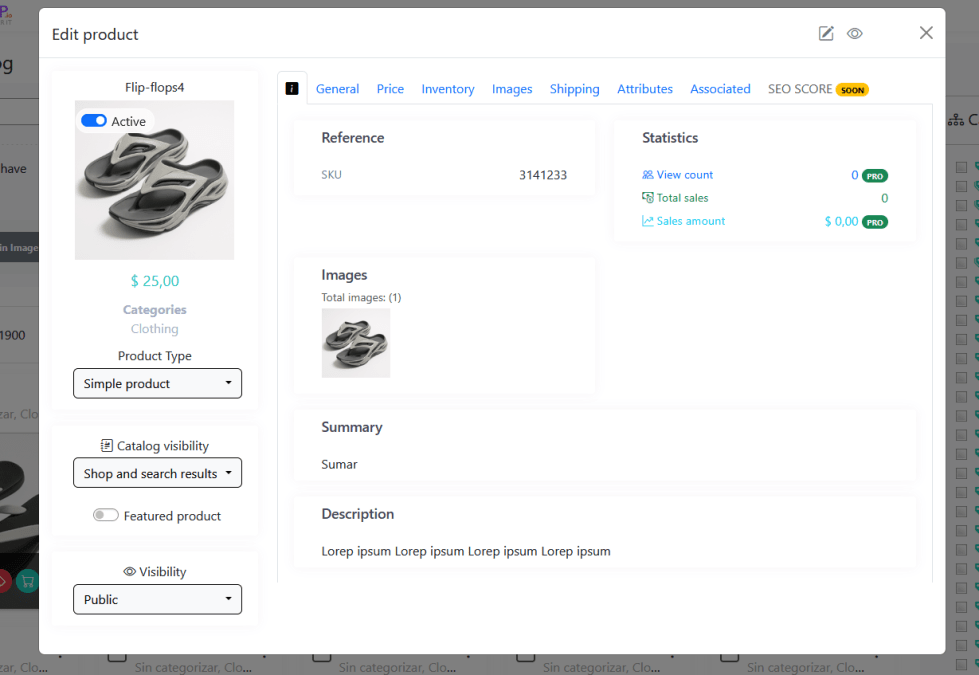
The product editor is organized into:
- Left column – Product overview and quick controls
- Top navigation tabs – Structured editing sections
- Main content area – Fields for the selected tab
This layout allows efficient product management without leaving the panel.
Left Column Quick Controls (Visible in All Tabs)
↑ Back to top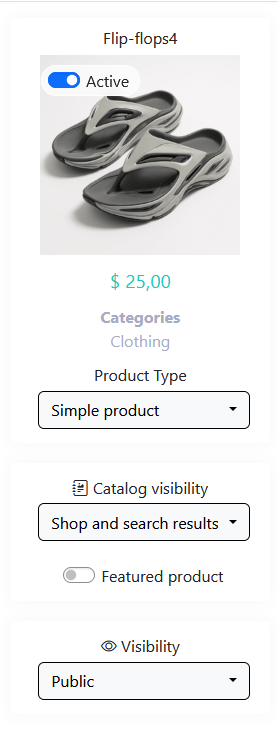
The left panel remains accessible while navigating tabs and includes:
- Active / Inactive toggle
- Product image preview
- Assigned categories
- Product type selector:
- Simple product
- Grouped product
- External/Affiliate product
- Variable product
- Catalog visibility:
- Shop and search results
- Shop only
- Search results only
- Hidden
- Publication visibility:
- Public
- Private
- Password protected
These settings control how the product appears and behaves in the store as WooCommerce does
General Tab
↑ Back to top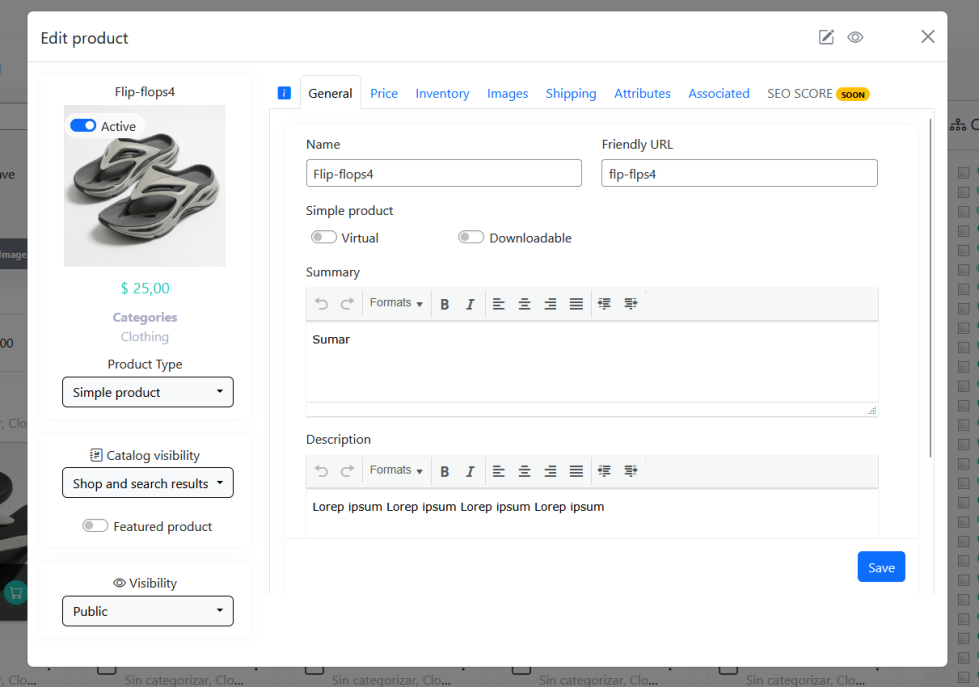
The General tab contains the main product information.
Fields available:
- Product Name
- Friendly URL (slug)
- Virtual toggle
- Downloadable toggle
- Summary (short description)
- Description (full description with formatting tools)
This tab defines the primary content shown on the product page.
Click Save after editing.
Price Tab
↑ Back to top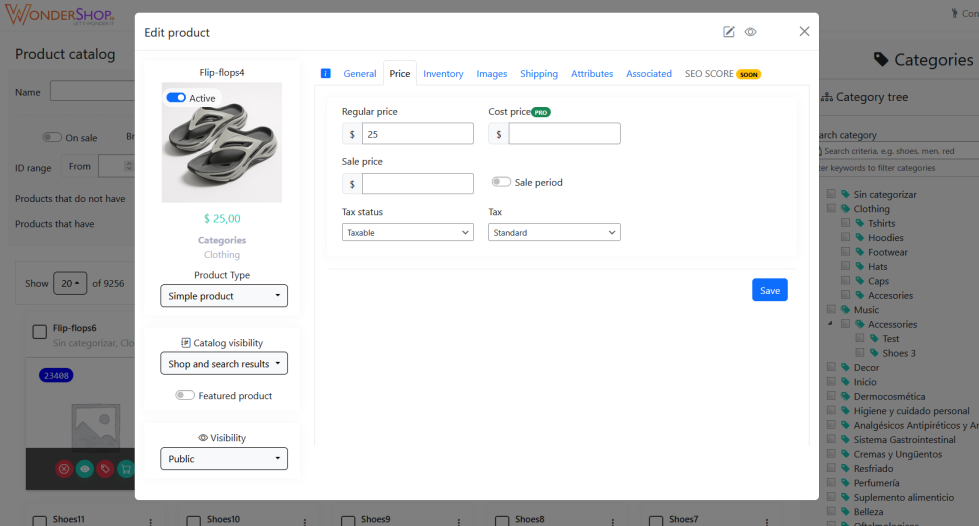
The Price tab manages pricing configuration.
Fields available:
- Regular price
- Sale price
- Optional sale period
- Tax status
- Tax class
Pro feature:
- Cost price
Click Save to apply changes.
Inventory Tab
↑ Back to top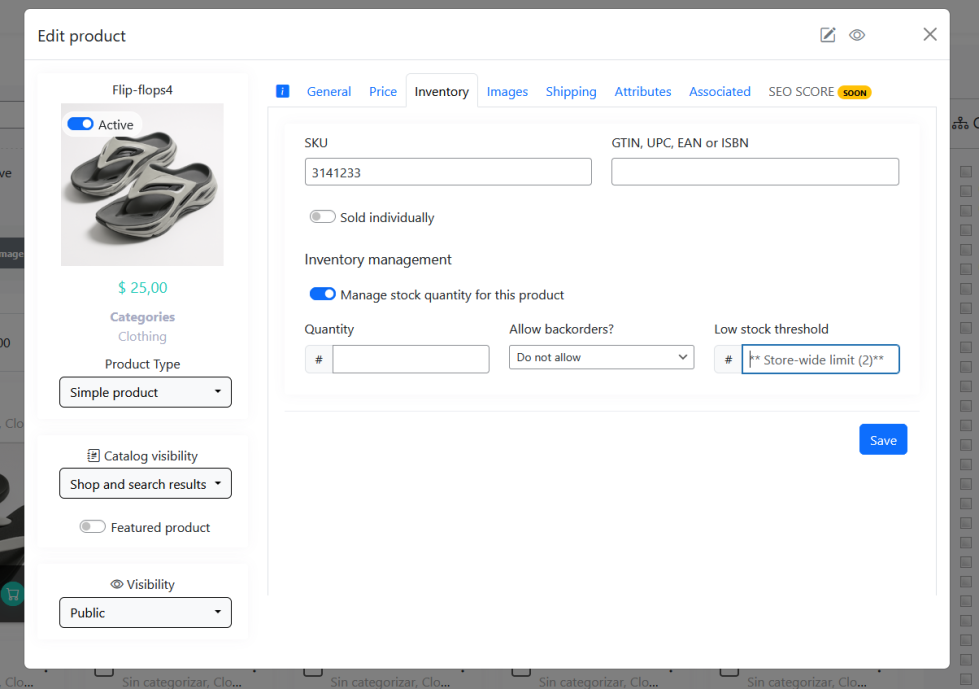
The Inventory tab controls stock and identifiers.
Fields available:
- SKU
- GTIN / UPC / EAN / ISBN
- Sold individually toggle
- Manage stock quantity toggle
- Stock status (e.g., In stock)
This section ensures proper stock tracking.
Images Tab
↑ Back to top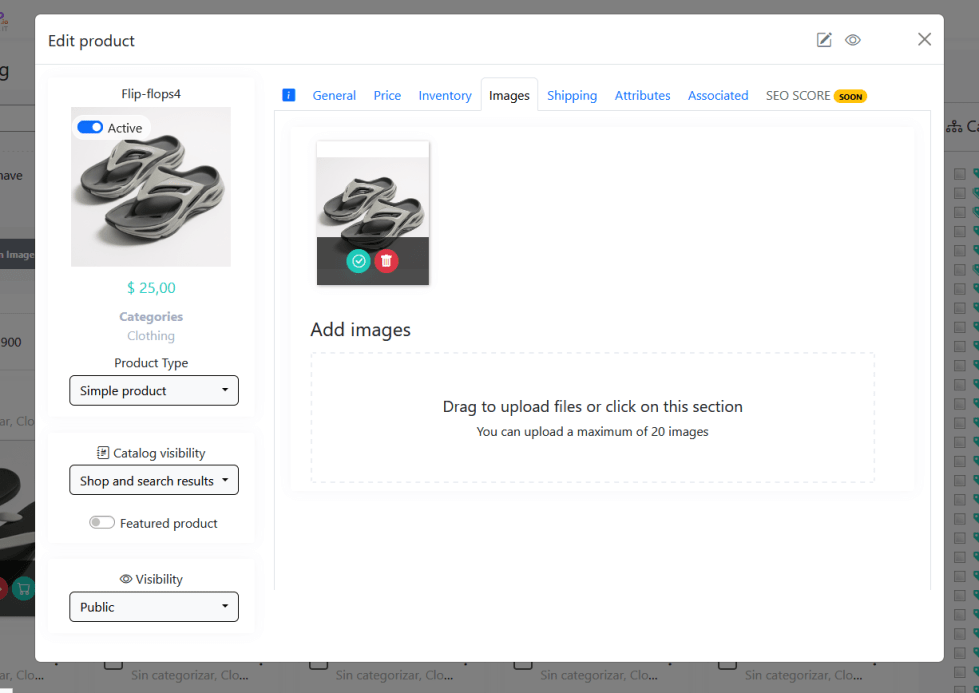
The Images tab manages the product gallery.
Features:
- View existing images
- Remove images
- Upload via drag & drop
- Click to select files
- Maximum of 20 images per product
This controls how the product appears visually.
Shipping Tab
↑ Back to top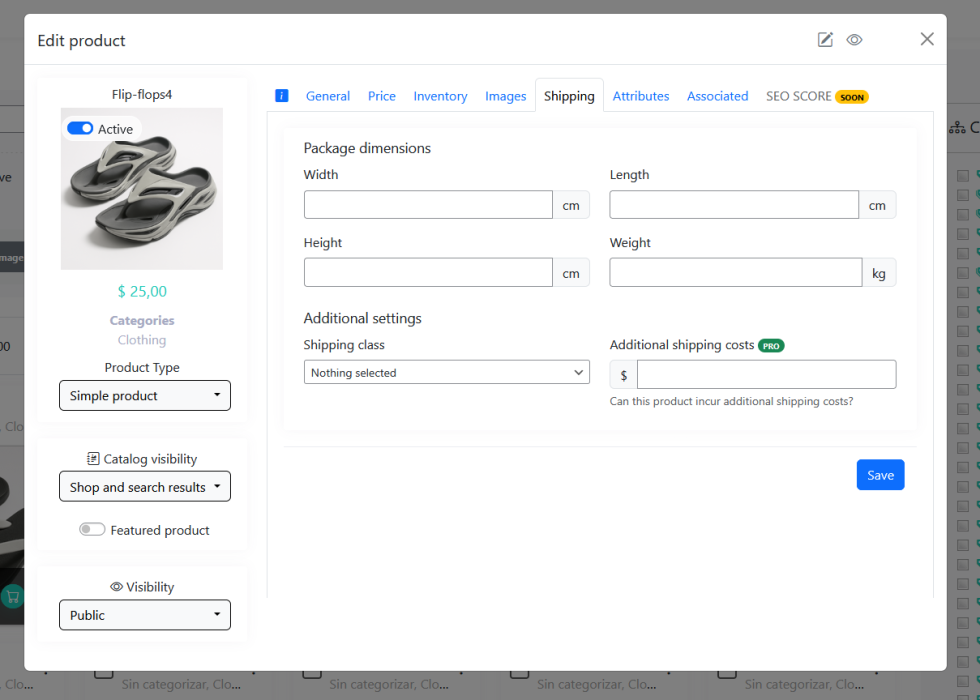
The Shipping tab defines shipping-related parameters.
Fields available:
- Width
- Length
- Height
- Weight
- Shipping class
Pro feature:
- Additional shipping costs
These settings integrate with WooCommerce shipping configuration.
Attributes Tab
↑ Back to top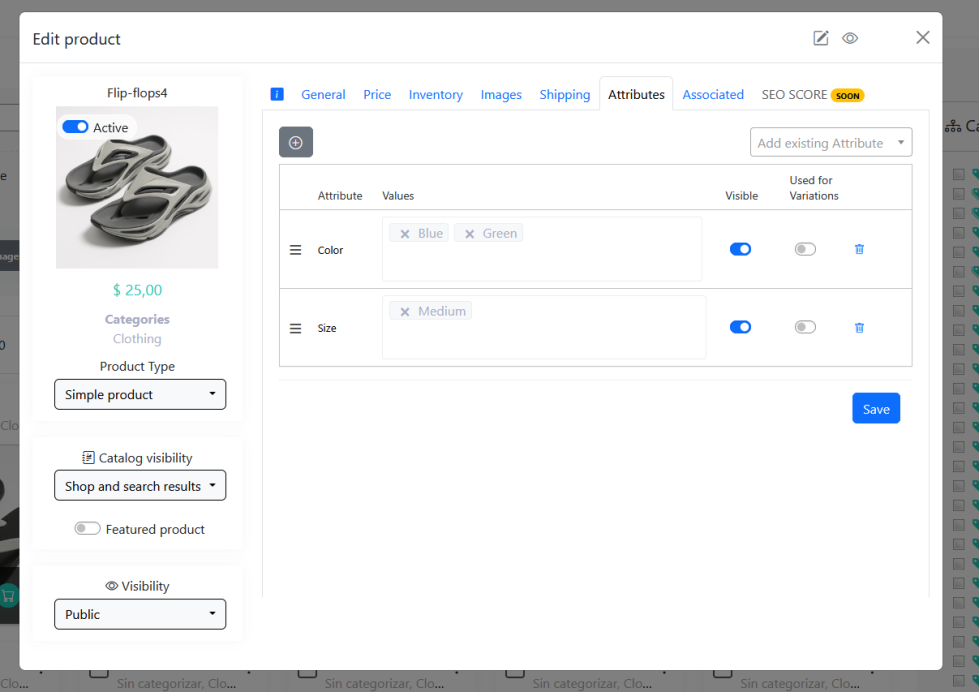
The Attributes tab allows you to:
- Add existing attributes
- Define attribute values
- Set attributes as visible
- Enable attributes for variations
This tab is especially relevant for Variable products.
Associated Tab – Categories and Tags
↑ Back to top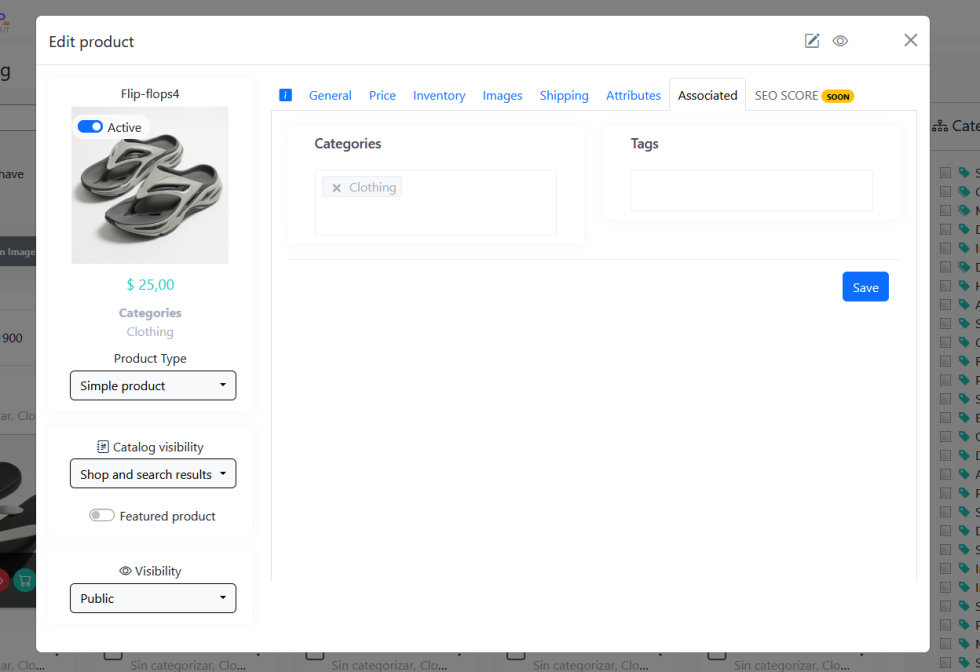
In this tab, you can associate products with tags and categories. Soon, you will also be able to create cross-selling associations and more.
Bulk Edition and Multi-Action Box (MAB)
↑ Back to topThis section explains how to use the Multi-Action Box (MAB) available in the Product Catalog interface.
The MAB allows you to manage multiple selected products simultaneously, execute bulk operations, assign categories via drag-and-drop, and create reusable product lists for structured workflows.
What is the MAB?
↑ Back to top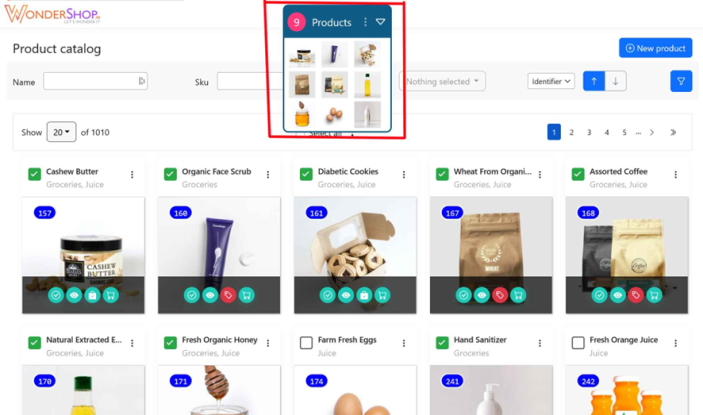
The Multi-Action Box (MAB) appears automatically when one or more products are selected in the catalog.
It centralizes bulk operations into a floating, draggable control panel that allows you to manage multiple products without leaving the catalog view.
The MAB displays:
- Number of selected products
- Visual preview of selected items
- Access to bulk actions
- List management tools (PRO)
Draggable Interface
↑ Back to topThe MAB can be freely moved across the screen.
You can:
- Drag it to any position
- Place it where it does not block filters or product cards
- Continue working without losing visibility
This ensures flexibility while managing large selections.
Drag & Drop Category Assignment
↑ Back to top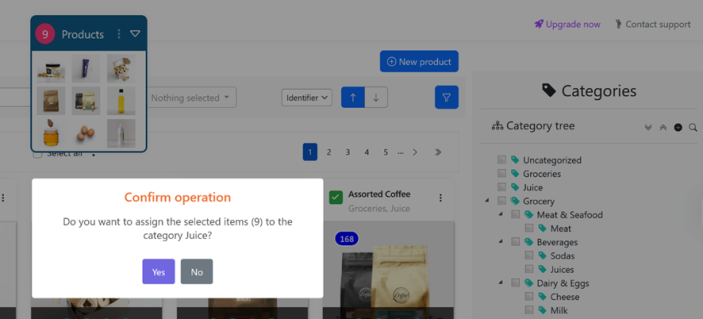
The MAB supports direct interaction with the Category Tree.
To assign selected products to a category:
- Drag the MAC panel
- Drop it onto a category or subcategory in the Categories panel
- Confirm the operation
All products inside the MAC will be assigned to that category.
This enables fast bulk categorization without editing products individually.
Minimize & Restore
↑ Back to top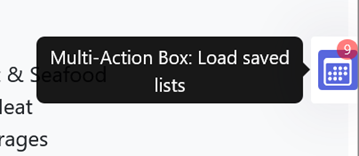
A persistent control button on the right side allows you to:
- Minimize the MAB
- Restore it at any time
When minimized, the MAB collapses into a compact icon while preserving the selection counter.

Saving Product Lists (PRO)
↑ Back to topThe MAB allows you to save selected products as reusable lists.
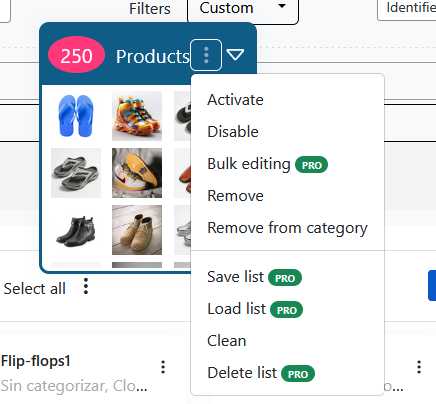
You can:
- Select hundreds or thousands of products
- Save the selection under a custom name
- Reopen the list later
- Continue editing that group
- Add or remove products from the saved list
- Delete the list when it is no longer needed
This feature is especially useful for:
- Seasonal product groups (e.g., Halloween, Christmas)
- Promotional collections
- Thematic campaigns
- Recurring product workflows
Saved lists allow you to maintain structured working groups without needing to reapply filters each time.
Available MAB Bulk Actions
↑ Back to topStandard actions:
- Activate products
- Disable products
- Delete products
- Remove products from category
- Clean (clear selection)
PRO actions:
- Bulk editing
- Save list
- Load list
- Delete list
Workflow Advantages
↑ Back to topThe MAB transforms the catalog into a dynamic workspace by allowing:
- Large-scale bulk operations
- Drag-and-drop categorization
- Persistent, reusable product groups
- Continuous editing sessions across time
It reduces repetitive filtering and improves catalog management efficiency.
Bulk Editing
↑ Back to topYou can access the bulk product editor from the MAB or from the three-dot bulk actions menu.
In the left column, you can choose which products the bulk edit will apply to — either the products selected in the MAB or the filtered products.
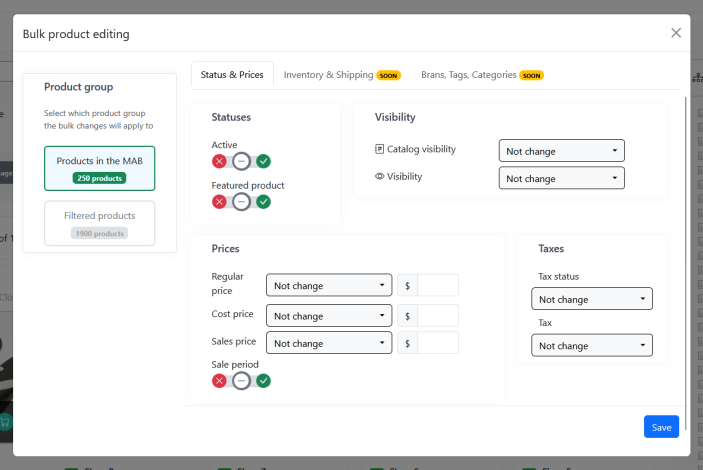
In the tabs on the right, you can configure the different bulk modifications you want to apply.

