
Products and Orders Sync for WooCommerce connects multiple independent WooCommerce stores and keeps their data consistent. From a source store, it synchronizes products, variations, stock, orders, customers, categories, tags, brands, attributes, images, and metadata to one or more destination stores.
Use it when you run several WooCommerce websites and want to stop entering the same product, price, stock, and order information on each one.
Version 2.1.0 rebuilds the synchronization engine around Action Scheduler queues. It adds customer sync, automatic product and order updates, advanced filtering, retry handling, queue monitoring, HPOS-compatible order handling, and automatic migration from version 2.0.6.
Installation
↑ Back to top- Download the extension from your WooCommerce account.
- Go to: WordPress Admin > Plugins > Add New > Upload Plugin and select the `.zip` file you just downloaded.
- Click Install Now, and then Activate.
For more information, please visit Install and Activate Extensions/Themes.
Requirements
↑ Back to topBefore configuring synchronization, make sure:
- WordPress and WooCommerce are installed and active.
- The source and destination stores are accessible over HTTPS.
- WooCommerce REST API access is available on the destination store.
- The destination REST API key has Read/Write permissions.
- The source store can make outgoing HTTPS requests to the destination store.
- WooCommerce Action Scheduler is operating normally.
- The source and destination WooCommerce stores are running compatible versions of WooCommerce.
For the complete version 2.1.0 order synchronization experience, including preservation of original WooCommerce order dates, use the same current version of Products and Orders Sync on the destination store where applicable.
After Installation & Activation
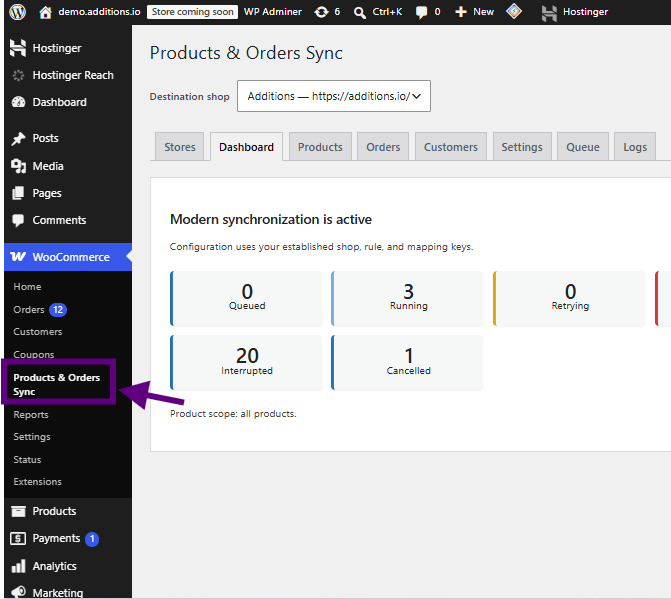
After activation, you can access the extension from:
WooCommerce > Products & Orders Sync
A Stores action link is also available from the WordPress Plugins screen.
On a normal new activation, the extension can redirect the administrator to the Stores tab so destination stores can be configured immediately.
Upgrading from Version 2.0.6 to 2.1.0
Version 2.1.0 is a major internal upgrade, but the migration runs automatically. You should not need to recreate destination stores, re-enter REST API credentials, or rebuild your sync rules.
The migration preserves:
- Destination stores, store URLs, Consumer Keys, and Consumer Secrets
- Product sync rules, selected products, categories, tags, and brands
- Order sync rules, selected orders, and new-order rules
- Customer sync rules and selected customers
- Product variation settings
- Existing mappings for products, variations, orders, customers, categories, tags, and product attributes
Because mappings are kept, items that were already synchronized are recognized as existing instead of being recreated.
Multiple Legacy Rules for the Same Destination
↑ Back to topIf several 2.0.6 rules point to the same destination, 2.1.0 groups them by destination and merges compatible scopes into one connection
Example
| Legacy rule | Destination | Scope |
|---|---|---|
| Rule 1 | Store A | Products 10 and 20 |
| Rule 2 | Store A | Category: Clothing |
After migration, Store A is one destination whose product scope covers Products 10 and 20 and the Clothing category. No duplicate Store A connection is created.
Legacy Automatic Update and Delete Behavior
↑ Back to topFor migrated 2.0.6 configurations, the relevant update and delete options are initialized so existing behavior continues after the upgrade. This covers product updates, product trash/delete events, category/tag/brand updates, and category/tag/brand deletion.
New installations use safer defaults, and you enable these options manually.
Understanding Source and Destination Stores
The source store is the WooCommerce site where products, orders, or customers originate.
A destination store is a WooCommerce site that receives the synchronized data.
For example:
Source Store:
Destination Store:
Products and Orders Sync uses the WooCommerce REST API to communicate securely with destination stores.
One source store can be configured with multiple destination stores.
How WooCommerce Multi-Store Sync Works
↑ Back to topEvery sync request becomes a queue job, which Action Scheduler processes in the background. This is more reliable than one long request for large catalogs or busy stores.
A typical product synchronization flow is:
→ A queue job is created for the source product.
→ Validate Destination
→ Synchronize Dependencies
→ Find or Create Destination Product
→ Save Destination Mapping
→ Complete Job
A typical order synchronization flow is:
→ A queue job is created for the source order.
→ Resolve Customer
→ Resolve Products and Variations
→ Map Order Items
→ Create or Update Destination Order
→ Save Mapping
→ Complete Job
Step 1: Create REST API Credentials on the Destination
↑ Back to topProducts and Orders Sync requires WooCommerce REST API credentials for each destination store.
On the destination store:
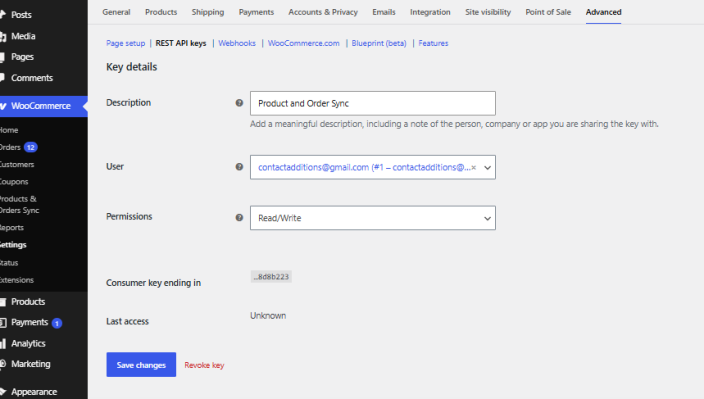
- Go to WooCommerce > Settings > Advanced > REST API.
- Click Add Key
- Enter a description, such as:
- Products and Orders Sync
- Select an administrator or appropriate API user.
- Set Permissions to:
- Read/Write
- Click Generate API Key.
- Copy the:
- Consumer Key
- Consumer Secret
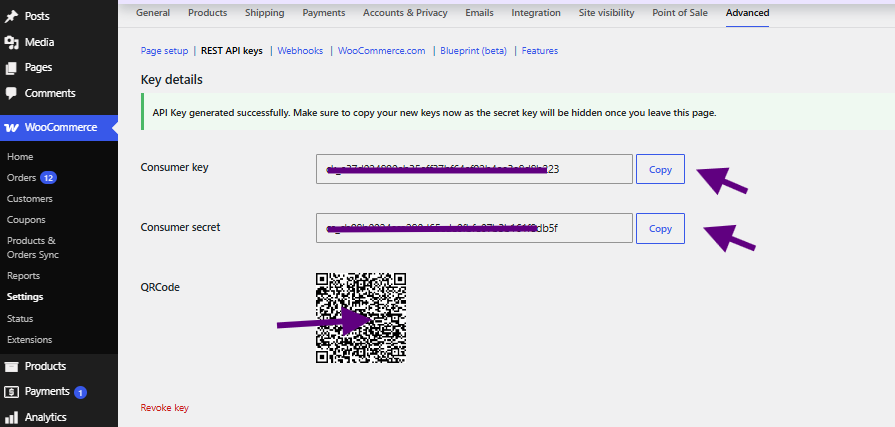
WooCommerce only displays the complete Consumer Secret when the key is generated, so store it securely.
Return to the source store and add the credentials under the Stores tab.
Step 2: Add the Destination Store
↑ Back to topGo to WooCommerce > Products & Orders Sync > Stores, then add the destination with:
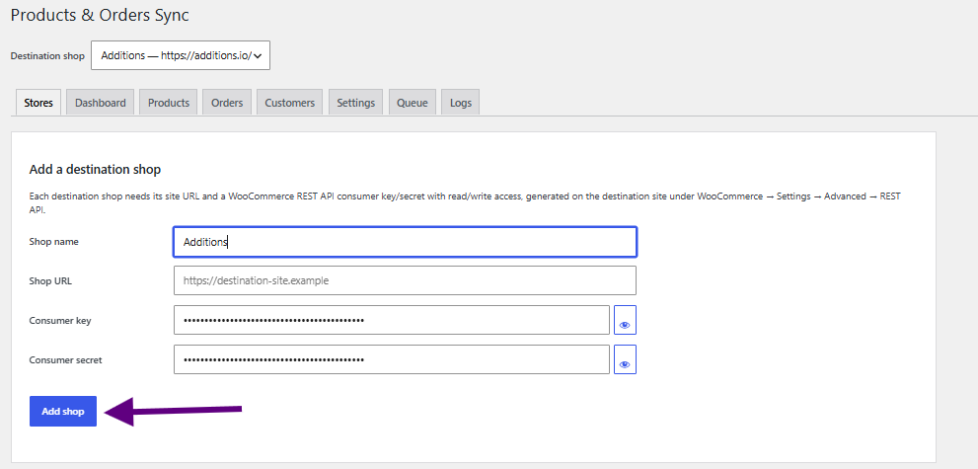
- Store name — use something descriptive, since it appears on the Products, Orders, Customers, Queue, and Logs screens.
- Store URL — the full destination URL.
- Consumer Key and Consumer Secret from Step 1.
Use a descriptive store name so the destination is easy to identify throughout the Products, Orders, Customers, Queue, and Logs screens.
Shop URL
↑ Back to topEnter the full destination WooCommerce URL.
Example:
Use the canonical site URL and avoid creating multiple store records using variations such as:
https://shop.example.comhttps://shop.example.com/shop.example.com
Version 2.1.0 normalizes destination identity where applicable to reduce duplicate store configuration during migration.
Testing a Destination
↑ Back to topIf destination will not connect
Check that:
- The destination URL is reachable.
- REST API credentials are correct.
- Credentials have Read/Write permission.
- WooCommerce REST API endpoints are not blocked by security plugins.
- A firewall or CDN is not blocking REST API requests.
Dashboard
↑ Back to topGo to:
WooCommerce > Products & Orders Sync > Dashboard
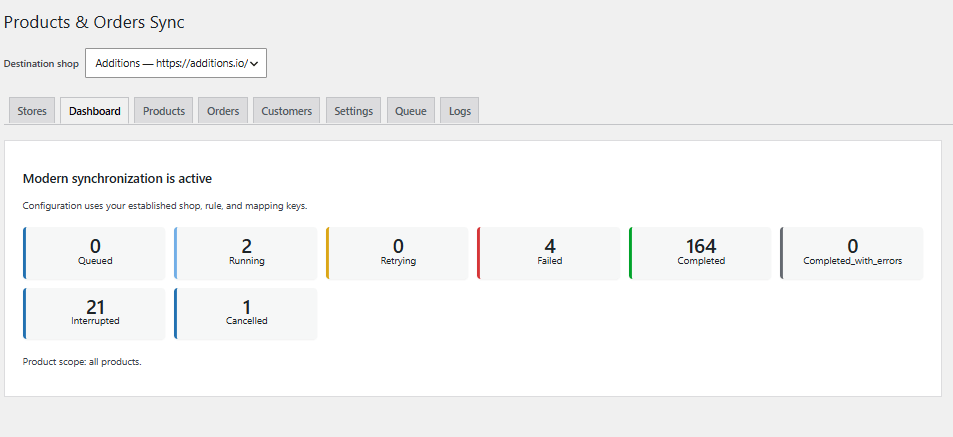
Go to WooCommerce > Products & Orders Sync > Dashboard.
The Dashboard summarizes synchronization activity and your configured destinations. Use it for a quick status check before opening Products, Orders, Queue, or Logs for detail.
Products
↑ Back to topGo to:
WooCommerce > Products & Orders Sync > Products
The Products tab controls which WooCommerce products should be synchronized to the selected destination store.
Products can be selected using multiple sync scopes.
Sync All Products
↑ Back to topEnable Sync All Products when the destination should receive all supported WooCommerce products within the configured rules.
When this option is enabled, newly created eligible products can also be automatically synchronized to the destination store.
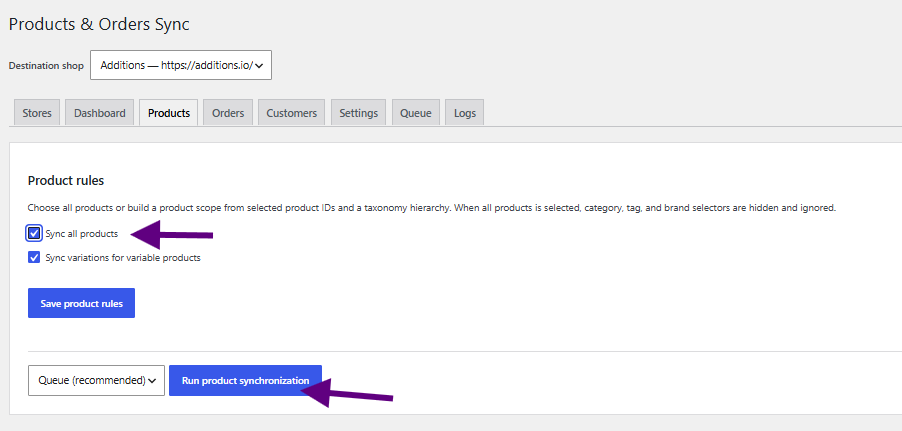
This is useful when maintaining a complete WooCommerce product catalog across multiple stores.
Specific Products
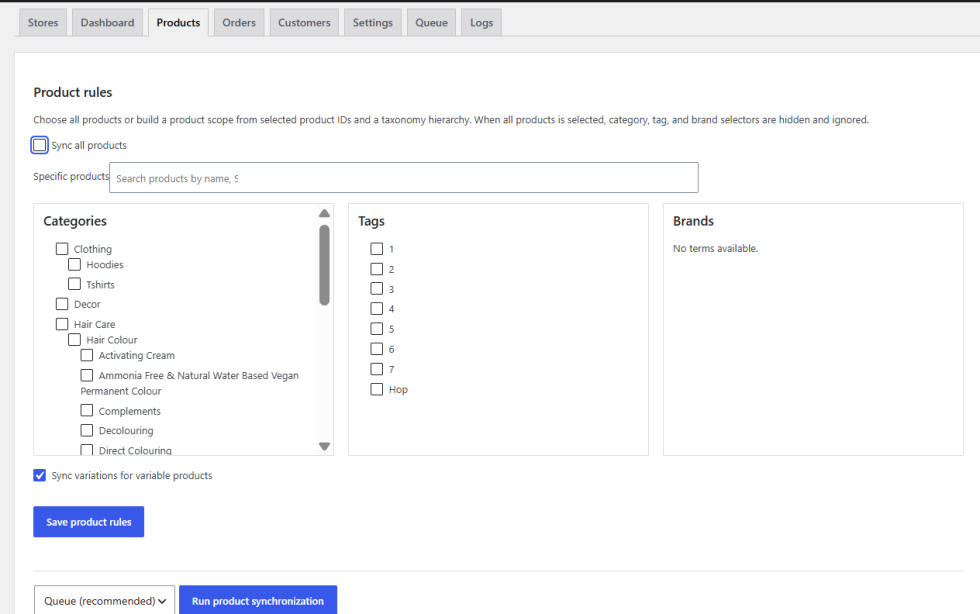
↑ Back to topUse the searchable product selector to synchronize only selected products.
Products can be searched by available product information such as product name or ID.
Categories
↑ Back to topSelect one or more WooCommerce product categories.
Products assigned to the selected categories are included in the synchronization scope.
Child categories are handled where appropriate.
Tags
↑ Back to topSelect product tags to include products associated with those tags.
Brands
↑ Back to topIf a supported WooCommerce product brand taxonomy is available, products can also be selected by brand. Currently only GET/Reading the brands endpoint is supported from WooCommerce REST API.
Combining Product Rules
↑ Back to topVersion 2.1.0 combines compatible product scopes.
A product does not need to match every rule; matching any one is enough.
Example. You select Product A, the category Clothing, and the tag Featured. The destination receives Product A, plus every product in Clothing, plus every product tagged Featured.
Run Product Synchronization
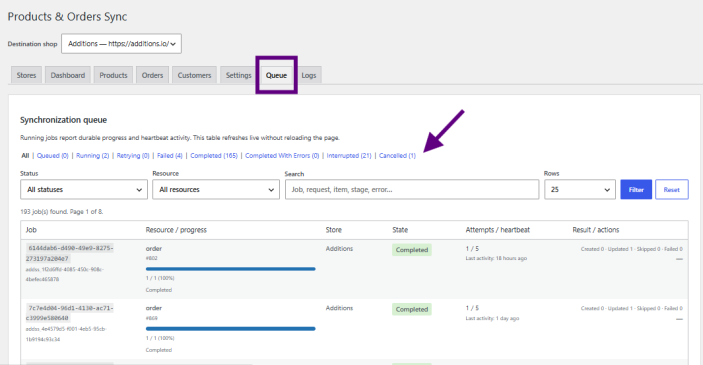
↑ Back to topAfter setting your rules, click Run Product Synchronization. The plugin collects matching products and creates queue jobs. Track progress on the Queue tab.
If nothing matches, the plugin shows: No records match the current rules. If that happens unexpectedly, check that:
- The correct destination is selected.
- The selected categories and tags actually contain products.
- Selected product IDs still exist.
- Product statuses and types are supported.
- The Logs tab shows no errors.
Supported WooCommerce Product Types
↑ Back to topProducts and Orders Sync supports standard WooCommerce product synchronization workflows including:
- Simple products.
- Variable products.
- Variations.
- Grouped products.
- External/Affiliate products.
- Virtual products.
- Downloadable products.
Product-type support may depend on WooCommerce itself and data provided by third-party product-type extensions.
Product Data Synchronization
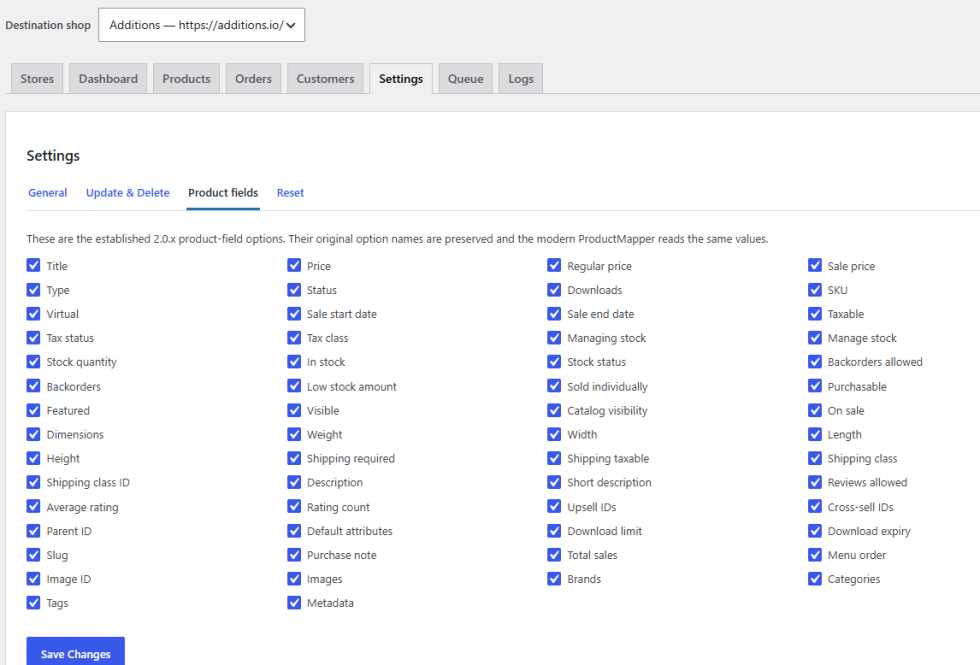
↑ Back to topDepending on enabled product-field settings, synchronized products can include data such as:
- Product name.
- Product status.
- SKU.
- Global Unique ID where available.
- Regular price.
- Sale price.
- Stock status.
- Stock quantity.
- Stock management settings.
- Backorders.
- Description.
- Short description.
- Product images.
- Product gallery.
- Categories.
- Tags.
- Brands.
- Global attributes.
- Local product attributes.
- Attribute terms.
- Default variation attributes.
- Product variations.
- Dimensions.
- Weight.
- Shipping information.
- Tax settings.
- Downloads.
- Product metadata.
Product Matching and Duplicate Protection
↑ Back to topBefore creating a new destination product, version 2.1.0 attempts to identify an existing deBefore creating a destination product, the plugin tries to find an existing one, in this order:
- An existing, verified destination mapping
- Global Unique ID, where available
- Exact SKU
- Exact normalized title, as a fallback
- A new product is created only if none of the above match
Mappings are verified before they are trusted, so an outdated mapping cannot point to an unrelated destination product.
Example. Your destination already has a product with SKU TSHIRT-BLU-M from an earlier manual import. On the first sync, the plugin matches by SKU and updates that product instead of creating a second one.
Product Variations
↑ Back to topVariable products and their variations are synchronized using parent-product relationships.
The extension maps:
- Parent variable product.
- Global attributes.
- Attribute terms.
- Variation attributes.
- Variation SKU.
- Prices.
- Stock values.
- Images.
- Other supported variation information.
Variations use the mapped destination parent product and destination attribute IDs.
This helps prevent variations from being attached to the wrong global attribute or destination product.
Product Categories, Tags, and Brands
↑ Back to topProducts and Orders Sync can synchronize product taxonomy dependencies required by synchronized products.
This includes:
- Product categories.
- Product tags.
- Product brands where supported.
Existing destination terms are reused when a valid match is found.
Missing terms can be created as required by normal product synchronization.
Version 2.1.0 also provides controls for automatically updating or deleting taxonomy data when corresponding source data changes.
Global Product Attributes and Attribute Terms
↑ Back to topGlobal attributes (Color, Size, Material) sync along with their terms.
Example. The attribute Color has the terms Blue, Green, and Red. Size has Small, Medium, and Large. Each term is created under the correct destination attribute.
Version 2.1.0 validates destination attribute identity to reduce incorrect matches and duplicates. On stores with large attribute catalogs, it uses cached, indexed lookups instead of downloading the whole attribute list for every term.
Automatic Product Creation
↑ Back to topAutomatic product creation
↑ Back to topIf a new source product matches a destination’s rules, it is queued automatically.
Example A. Sync All Products is on:
New product created
→ Product qualifies for the destination
→ Queue job created
→ Product synchronized
Example B. The destination is scoped to the category Clothing:
New product assigned to Clothing
→ Product qualifies
→ Queue job created
→ Product synchronized automatically
Automatic Product Updates
↑ Back to topThe update products on destination option controls whether source changes propagate. Covered changes include title, price, sale price, stock, description, metadata, and variation information.
Example. You change a price from $30 to $25 on the source:
Source product updated
→ Queue job created
→ Existing destination mapping verified
→ Destination product updated
The same destination product is updated. No second copy is created.
Product Trash and Delete Synchronization
↑ Back to topAn optional setting controls whether trashing or deleting a source product does the same on the destination. Enable it only if the destination should mirror destructive actions. The plugin records the destination identity before a source product is permanently deleted, so the queued job can still find the right destination product.
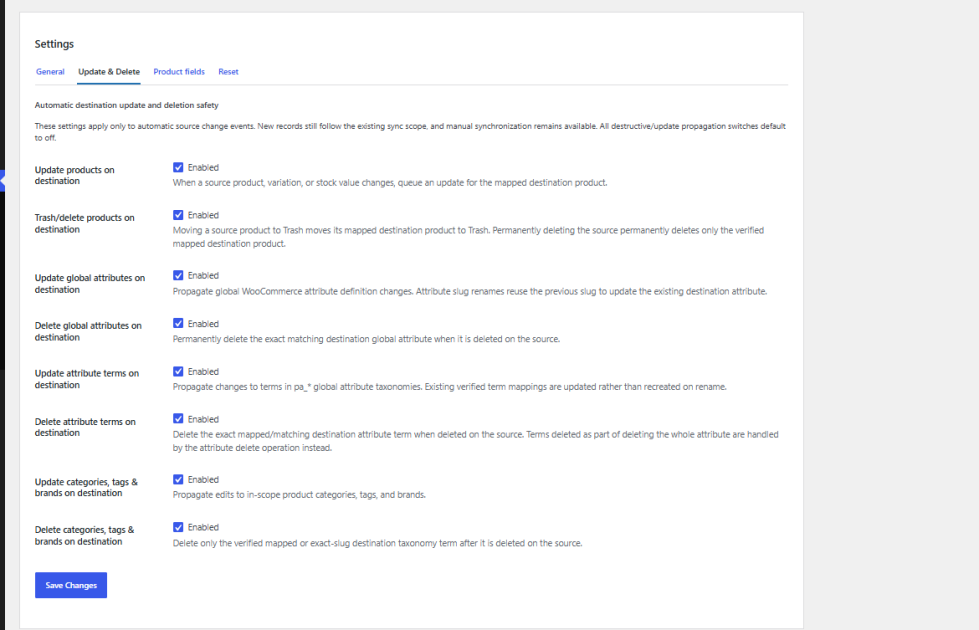
Update and Delete Controls
↑ Back to topThe Settings tab has independent switches for:
- Update products on destination
- Trash/delete products on destination
- Update global attributes on destination
- Delete global attributes on destination
- Update attribute terms on destination
- Delete attribute terms on destination
- Update categories, tags, and brands on destination
- Delete categories, tags, and brands on destination
This lets you allow creation and updates while keeping destructive actions off. New installs default to conservative values, and migrated 2.0.6 stores keep their legacy behavior.
Orders
↑ Back to topGo to WooCommerce > Products & Orders Sync > Orders
This tab controls order sync for the selected destination.
Order data that can be transferred:
- Order status
- Billing and shipping details
- Customer association
- Product line items, variations, quantities, and item totals
- Coupons, fees, shipping lines, and tax totals
- Order metadata
- Refund information, where supported
Sync All Orders
↑ Back to topUse Sync All Orders when all orders that meet the current order filters should be synchronized.
For live stores, consider using date and status filters to prevent unnecessary historical synchronization.
Specific Orders
↑ Back to topUse the searchable order selector to sync chosen orders. This is handy for testing a connection, re-syncing one order, migrating selected historical orders, or troubleshooting.
Order date filters
↑ Back to top- Created on or after
- Created on or before
Example. Set Created on or after to July 26, 2026. Orders created before that date are excluded. Orders created afterward qualify for automatic sync if they meet the other rules.
This is the cleanest way to start using the plugin on an established store when you only want future orders to sync.
Order Status Filters
↑ Back to topUse order status controls to determine which WooCommerce order statuses are eligible or excluded from synchronization.
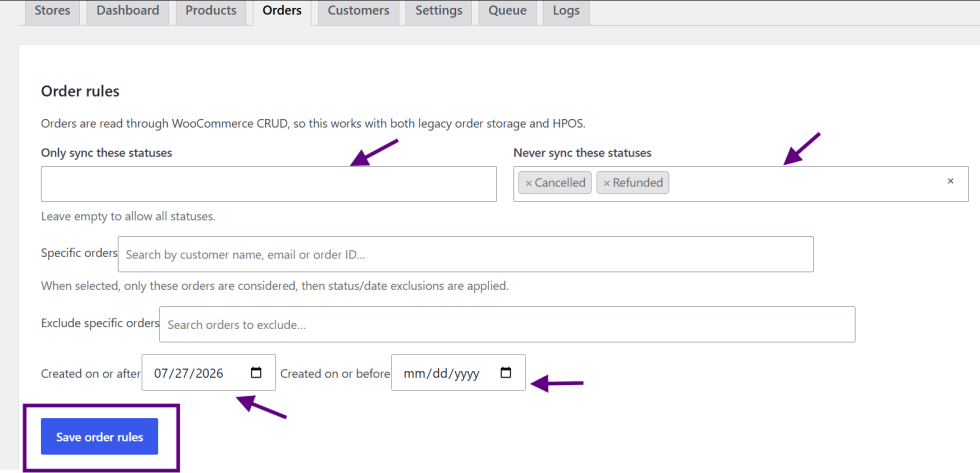
This can help prevent unnecessary synchronization of orders such as:
- Failed.
- Cancelled.
- Draft orders.
Use the available status controls according to your store workflow.
Automatic New Order Synchronization
↑ Back to topWhen a new WooCommerce order meets the configured order rules, it can automatically enter the synchronization queue.
Example:
Created on or after: July 26, 2026
New order created today
→ Date rule passes
→ Status rule checked
→ Queue job created
→ Order synchronized
You do not need to repeatedly run a manual full-order synchronization for every new eligible order.
Updating Existing Orders
↑ Back to topWhen an already-synchronized source order changes, the extension can update the mapped destination order.
Examples include:
- Order status changed.
- Billing information changed.
- Shipping information changed.
- Items edited.
- Quantities changed.
- Coupon changes.
- Fee changes.
- Shipping changes.
The existing destination order mapping is verified and the destination order is updated instead of deliberately creating another order.
Preventing Duplicate Order Items
↑ Back to topVersion 2.1.0 uses persistent source-order-item identity to reconcile destination line items.
This prevents repeated order synchronization from continuously appending the same products.
The reconciliation system covers supported order item collections including:
- Product line items.
- Shipping lines.
- Fee lines.
- Coupon lines.
- Tax lines where applicable.
Existing destination order items are updated using their destination item IDs when possible.
Create Missing Order Products on Destination
↑ Back to topThe Orders tab includes:
Create missing order products on destination
This option controls what happens when an order contains a product that has not yet been synchronized to the destination store.
Disabled
↑ Back to topWhen disabled, the extension uses fail-safe behavior.
Example:
Order contains Product 18614
→ No destination product mapping exists
→ Order synchronization stops
→ Error is recorded
This prevents an order from being created with incorrect or missing product relationships.
Enabled
↑ Back to topWhen enabled:
Order contains an unsynchronized product
→ Existing Product Synchronizer runs
→ Product dependencies are synchronized
→ Product is created or matched on destination
→ Destination mapping is saved
→ Order synchronization resumes
This uses the normal WooCommerce product synchronization workflow rather than creating a simplified placeholder product.
The synchronized product can therefore include its normal:
- Images.
- Categories.
- Tags.
- Brands.
- Attributes.
- Variations.
- Metadata.
- Pricing.
- Stock settings.
Order Customer Synchronization
↑ Back to topThe extension includes a Sync order customer setting.
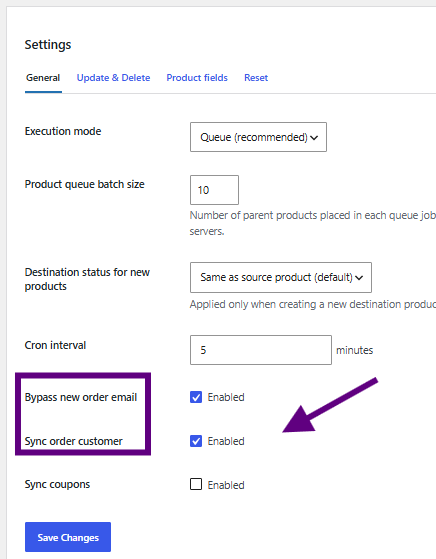
When enabled, the source order’s registered customer can be synchronized or matched on the destination store.
Customer resolution uses existing mappings and exact email identity checks.
The extension attempts to:
- Verify an existing destination customer mapping.
- Find an existing destination account by exact email.
- Adopt the existing destination customer when appropriate.
- Create a new destination customer only when no valid account exists.
This prevents a known WooCommerce error where an account creation request fails because the customer’s email address already exists on the destination.
When Sync order customer is disabled, the order can still be synchronized using its billing and shipping data without requiring destination customer-account synchronization.
Original Order Dates
↑ Back to topVersion 2.1.0 preserves the source order’s creation date, payment date, and completed date. An order created on July 27 does not appear as created on the day you synced it. Use the current plugin version on the destination for full date preservation
Source Order Tracking
↑ Back to topDestination orders include synchronization metadata that makes it possible to trace an order back to its source.
Important information includes:
- Source order ID.
- Source site.
This helps differentiate orders when several source stores synchronize into the same WooCommerce destination.
For example:
Source Store A — Order #77
is distinguishable from:
Source Store B — Order #77
because source identity includes the originating site.
Order Taxes
↑ Back to topProducts and Orders Sync preserves source order tax amounts while avoiding unwanted changes to the destination store’s WooCommerce tax configuration.
Destination Tax Rates Are Read Only
↑ Back to topThe plugin preserves the source order’s tax amounts without changing the destination’s tax configuration.
- It does not create, update, or delete destination tax rates.
- It may read destination tax rates and reuse an equivalent existing rate.
- If no matching rate exists, it does not create one.
Source tax totals are kept for synchronization and audit purposes.
Customers
↑ Back to topGo to:
WooCommerce > Products & Orders Sync > Customers
The Customers tab provides standalone WooCommerce customer synchronization. This feature is separate from the Sync order customer setting.
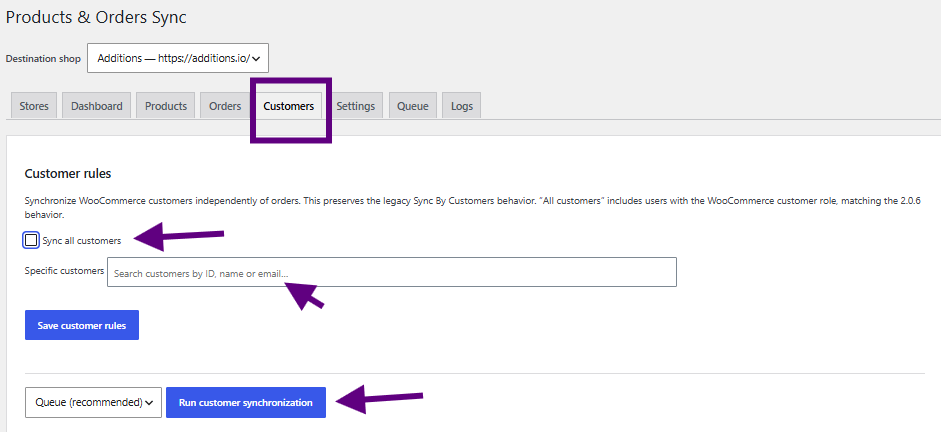
Sync All Customers — syncs the customer population covered by your rules. Existing 2.0.6 customer settings are migrated automatically.
Specific Customers — search by customer ID, name, or email and select who to sync.
After choosing a scope, run customer synchronization. Customer jobs use the same queue as products and orders. Synced data includes first name, last name, email, billing details, shipping details, and supported metadata.
Existing Customer Matching
↑ Back to topBefore creating a destination customer, the extension checks for an existing account.
The identity flow uses:
Existing verified destination customer mapping
→ Exact destination email lookup
→ Existing account adoption
→ New account creation only if required
If WooCommerce reports a duplicate-email race condition during creation, the extension can perform another exact lookup and adopt the existing destination account instead of immediately failing the entire order/customer synchronization.
Settings
↑ Back to topGo to WooCommerce > Products & Orders Sync > Settings.
General setting include:
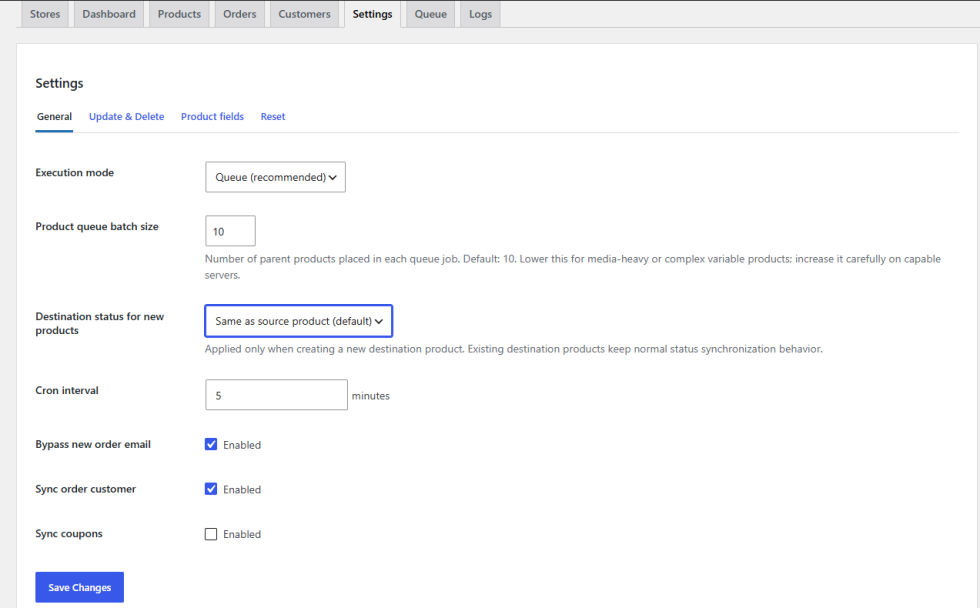
Product Queue Batch Size
↑ Back to topHow many product IDs are grouped into one visible queue job. The default balances progress visibility and reliability. Large catalogs are still processed in smaller internal slices to avoid timeouts.
Destination Status for New Products
↑ Back to topControls the product status used when creating a new destination product.
Available behavior may include:
- Same as source.
- Published.
- Draft.
- Pending.
- Private.
This setting applies primarily to newly created destination products.
It does not intentionally force an existing mapped destination product to a different status on every update.
Sync Order Customer
↑ Back to topControls whether registered source customers should also be synchronized/associated when orders are transferred.
Create Variations
↑ Back to topControls whether variations should be created/synchronized for variable products where applicable.
Product Fields setting
↑ Back to topChoose which supported product fields should be transferred to destination stores.
This provides finer control when you do not want every source product property overwritten remotely.
Automatic Update and Delete Settings
↑ Back to topConfigure whether supported product and taxonomy changes should automatically propagate to destination stores.
Because update/delete actions can modify live destination data, review these options carefully.
Queue
↑ Back to topGo to:
WooCommerce > Products & Orders Sync > Queue
The Queue tab provides visibility into queued synchronization jobs.
Version 2.1.0 uses WooCommerce Action Scheduler for background job processing.
The Queue can display information such as:
- Job ID.
- Request ID.
- Resource type.
- Source IDs.
- Destination store.
- Current state.
- Progress.
- Current item.
- Current synchronization stage.
- Attempts.
- Heartbeat.
- Created count.
- Updated count.
- Skipped count.
- Failed count.
- Error information.
Queue Statuses
↑ Back to topPossible queue statuses include:
Queued
↑ Back to topThe synchronization job is waiting to be processed.
Running
↑ Back to topA worker is actively processing the job.
Retrying
↑ Back to topThe job encountered a retryable problem and is scheduled to run again.
Completed
↑ Back to topAll requested work completed successfully.
Completed With Errors
↑ Back to topThe batch reached completion but one or more individual items encountered errors.
Failed
↑ Back to topThe job encountered a terminal error.
Interrupted
↑ Back to topThe worker stopped before reaching the expected terminal state.
This can occur because of:
- PHP process termination.
- Server resource limits.
- Long-running requests.
- Action Scheduler timeout.
- Fatal errors.
- Hosting-level interruption.
Cancelled
↑ Back to topThe administrator cancelled the job.
Queue Pagination and Filters
↑ Back to topThe Queue table supports pagination and filtering to help manage larger synchronization histories.
Available filters can include:
- Status.
- Resource.
- Store.
- Search.
- Rows per page.
Resource filters can include synchronization types such as:
- Product.
- Order.
- Customer.
- Category.
- Tag.
- Brand.
- Attribute.
The Queue layout is responsive and adapts for narrower WordPress admin screens.
Queue Heartbeat and Progress
↑ Back to topRunning jobs store durable progress information.
This can include:
- Total items.
- Processed items.
- Current item ID.
- Current item label.
- Current stage.
- Last heartbeat.
- Result counters.
This helps distinguish active work from a worker that has stopped unexpectedly.
Action Scheduler
↑ Back to topProducts and Orders Sync uses WooCommerce Action Scheduler for queued synchronization.
You can inspect scheduled actions from:
WooCommerce > Status > Scheduled Actions
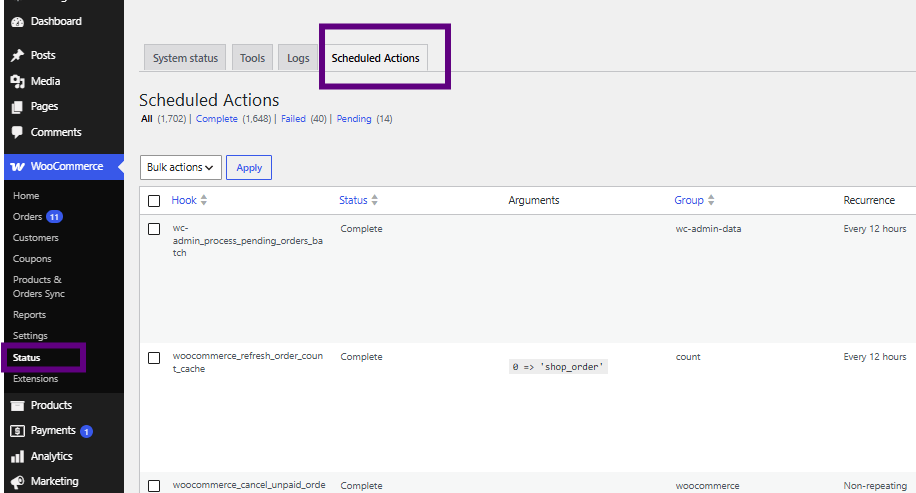
Search for synchronization jobs or the relevant job ID if troubleshooting queue processing.
The synchronization hook may appear as:
add_ss_process_sync_job
If an action remains in progress for an unusually long time or fails because it exceeded the Action Scheduler processing window, review the extension logs and server/PHP logs.
Logs
↑ Back to topGo to:
WooCommerce > Products & Orders Sync > Logs
You can also review WooCommerce logs from:
WooCommerce > Status > Logs
Logs can contain synchronization information such as:
- REST API requests.
- Destination REST responses.
- Product identity decisions.
- Queue failures.
- Missing product mappings.
- Customer identity failures.
- HTTP errors.
- Authentication errors.
- Timeout errors.
Logs are especially useful when contacting support.
Automatic Synchronization
↑ Back to topVersion 2.1.0 supports automatic synchronization based on source-side WooCommerce events and destination rules.
Examples include:
New Product
↑ Back to topNew product created
→ Destination rule checked
→ Eligible product queued
→ Product created remotely
Existing Product Updated
↑ Back to topSource product updated
→ Update option checked
→ Product queued
→ Existing mapped product updated
Stock Updated
↑ Back to topSource stock changes
→ Product/variation synchronization triggered where applicable
→ Destination product updated
New Order
↑ Back to topNew order created
→ Date/status rules checked
→ Eligible order queued
→ Destination order created
Existing Order Updated
↑ Back to topOrder status/details changed
→ Existing destination order found
→ Destination order updated
Automatic synchronization always remains subject to the configured destination rules.
Manual Synchronization
↑ Back to topAdministrators can also run synchronization manually from the relevant tabs.
Manual synchronization is useful when:
- Initially configuring a destination.
- Testing a store connection.
- Synchronizing historical data.
- Re-running failed records.
- Forcing synchronization after changing rules.
Manual product synchronization uses the same core synchronizer as automatic product synchronization.
Large Catalogs
↑ Back to topVersion 2.1.0 is designed to handle larger WooCommerce catalogs more safely by using:
- Queue batching.
- Action Scheduler.
- Small internal worker slices.
- Persistent progress.
- REST request timeouts.
- Retry logic.
- Cached destination identity resolution.
- Paginated destination attribute discovery.
- Exact destination mapping verification.
Actual synchronization performance depends on:
- Source hosting.
- Destination hosting.
- PHP limits.
- WooCommerce REST API performance.
- Catalog complexity.
- Product media.
- Number of variations.
- Number of attributes and terms.
- Network latency.
Large Global Attribute Catalogs
↑ Back to topStores may contain hundreds or thousands of global WooCommerce attributes and terms.
Version 2.1.0 avoids assuming that the first REST API page represents the complete destination attribute collection.
Attribute definitions can be retrieved using paginated discovery and indexed by normalized slug.
Once a global attribute is resolved to its destination ID, its terms reuse that destination attribute ID instead of repeatedly rediscovering the attribute.
This improves synchronization efficiency and helps prevent duplicate or incorrectly assigned product attributes.
WooCommerce HPOS Compatibility
↑ Back to topProducts and Orders Sync uses WooCommerce order CRUD APIs for modern order handling.
This supports WooCommerce High-Performance Order Storage (HPOS) architecture and avoids relying solely on direct legacy order-post database operations.
Always keep WooCommerce and Products and Orders Sync updated when using HPOS.
REST API Security
↑ Back to topWooCommerce Consumer Keys and Consumer Secrets provide access to destination store data.
Follow these practices:
- Use HTTPS.
- Generate dedicated API credentials.
- Use Read/Write permission only when synchronization requires it.
- Never publish API secrets.
- Revoke credentials when a destination connection is permanently removed.
- Restrict WordPress administrator access.
Troubleshooting
↑ Back to topProducts Are Not Synchronizing
↑ Back to topCheck:
- The destination store is configured.
- REST API credentials are valid.
- Product synchronization rules match the product.
- The product status/type is supported.
- Queue jobs are being created.
- Action Scheduler is running.
- Logs do not contain REST API errors.
“No records match the current rules”
↑ Back to topThis means no eligible records were found for the current destination configuration.
For products:
- Confirm Sync All Products if appropriate.
- Confirm specific products still exist.
- Confirm selected categories contain products.
- Confirm selected tags contain products.
- Confirm selected brands contain products.
- Verify the intended destination store is selected.
Migrated version 2.0.6 rules are automatically converted for the modern synchronization scope.
“Product X has not been synchronized to store Y”
↑ Back to topThe order references a product without a valid destination mapping.
You can either:
- Synchronize the product first.
or:
- Enable Create missing order products on destination.
When enabled, the extension runs normal product synchronization before continuing with the order.
Orders Are Not Synchronizing
↑ Back to topCheck:
- Order date range.
- Included/excluded statuses.
- Specific-order selection.
- Destination credentials.
- Product mappings.
- Missing product setting.
- Customer synchronization errors.
- Queue status.
- Logs.
Existing Customer Email Error
↑ Back to topIf WooCommerce reports that an account is already registered with the customer’s email address, version 2.1.0 attempts to discover and adopt an existing destination customer using exact email matching.
If the problem persists:
- Verify REST API permissions.
- Check whether a security or membership plugin restricts customer visibility.
- Review
/customersREST responses in the logs. - Check destination user roles.
Action Scheduler Job Interrupted
↑ Back to topIf a queue job becomes Interrupted:
- Open the Queue tab.
- Note the current item and current stage.
- Go to WooCommerce > Status > Scheduled Actions.
- Search the job ID.
- Review the Products and Orders Sync log.
- Review PHP/server logs.
Common causes include:
- Slow destination REST requests.
- PHP-FPM termination.
- Hosting execution limits.
- Firewall/network problems.
- Destination plugin conflicts.
REST API 401 or 403 Errors
↑ Back to topA 401 or 403 response normally indicates an authentication or permission issue.
Check:
- Consumer Key.
- Consumer Secret.
- Read/Write permission.
- REST API access.
- Security plugin restrictions.
- Web application firewall rules.
- Basic Authentication/server configuration.
REST API Timeout Errors
↑ Back to topTimeouts may occur when the destination store responds slowly.
Check:
- Destination server load.
- WooCommerce REST API performance.
- Security plugins.
- DNS.
- Firewalls.
- PHP worker availability.
- Database performance.
Products and Orders Sync uses bounded REST request timeouts so a single remote request should not intentionally consume the complete Action Scheduler worker lifetime.
Product Images Are Missing
↑ Back to topIf product images fail to synchronize:
- Confirm source images are publicly accessible.
- Confirm the destination can download the source URLs.
- Check WordPress upload permissions.
- Review PHP upload/memory limits.
- Check logs for media-related errors.
Frequently Asked Questions
↑ Back to topWhat is WooCommerce product sync?
↑ Back to topWooCommerce product sync is the process of keeping product information consistent between two or more WooCommerce stores.
Products and Orders Sync can synchronize WooCommerce products from a source store to configured destination stores, including supported prices, stock information, categories, tags, brands, attributes, variations, images, and metadata.
Can I sync products between multiple WooCommerce stores?
↑ Back to topYes.
You can configure multiple destination WooCommerce stores and define synchronization rules for each destination.
Each destination can have its own product, order, and customer rules.
Can I sync all WooCommerce products?
↑ Back to topYes.
Enable Sync All Products for the destination store.
New eligible products can also be automatically synchronized according to the configured automatic synchronization behavior.
Can I sync only selected products?
↑ Back to topYes.
Products can be selected individually or included using categories, tags, and supported brands.
Can I sync WooCommerce products by category?
↑ Back to topYes.
Select one or more product categories from the Products tab.
Products assigned to those categories are included in the destination synchronization scope.
Does the plugin sync WooCommerce variable products?
↑ Back to topYes.
Variable products and their variations can be synchronized, including supported attributes, variation options, prices, stock, images, and metadata.
Does it sync product stock?
↑ Back to topSupported WooCommerce stock fields are included in product synchronization according to the enabled product fields and automatic update settings.
Product and variation stock changes can trigger synchronization where applicable.
Can it sync product images and galleries?
↑ Back to topYes.
Product featured images and gallery images are supported by the product synchronization flow.
Can it sync product attributes?
↑ Back to topYes.
Products and Orders Sync supports WooCommerce global and local product attributes.
Global attributes and their terms are resolved against the destination store to avoid unnecessary duplicate attributes.
Can it sync WooCommerce categories and tags?
↑ Back to topYes.
Required product categories and tags can be synchronized to destination stores.
Supported product brands can also be synchronized when the relevant brand taxonomy exists.
Can I automatically update destination products?
↑ Back to topYes.
Enable the corresponding Update products on destination setting.
When a qualifying source product changes, a queue job is created and the existing mapped destination product is updated.
Can I delete destination products when they are deleted from the source?
↑ Back to topYes, when the corresponding delete/trash synchronization option is enabled.
Because this is a destructive operation, review the setting carefully before enabling it.
Can I sync WooCommerce orders between stores?
↑ Back to topYes.
Products and Orders Sync can create and update WooCommerce orders on destination stores according to configured order rules.
Supported order data includes customer/billing/shipping information, product items, coupons, fees, shipping lines, taxes, metadata, and other supported WooCommerce order data.
Can I sync only new orders?
↑ Back to topYes.
Use the order date filter such as Created on or after to establish the beginning of the synchronization period.
New eligible orders created after that date can be synchronized automatically.
Can I sync only specific orders?
↑ Back to topYes.
Use the searchable specific-order field in the Orders tab.
What happens if an order product does not exist on the destination?
↑ Back to topYou control this behavior.
With Create missing order products on destination disabled, the order fails safely and reports the missing product.
With the option enabled, Products and Orders Sync runs the normal product synchronization workflow first and then continues creating the order.
Will order synchronization duplicate products inside an existing order?
↑ Back to topVersion 2.1.0 reconciles source and destination order item identities so subsequent order updates can update existing line items instead of intentionally appending another copy.
Does it preserve the original order date?
↑ Back to topYes, version 2.1.0 includes support for preserving source order creation, payment, and completion timestamps.
Use the current plugin version on the relevant destination where required for complete timestamp restoration.
Does the plugin create tax rates on the destination?
↑ Back to topNo.
Order synchronization does not create, update, or delete the destination store’s WooCommerce tax rates.
If a corresponding destination tax rate already exists, it may be reused for order tax association.
Otherwise, the extension avoids altering the destination tax configuration.
Can I sync WooCommerce customers?
↑ Back to topYes.
The Customers tab supports:
- All customers.
- Specific customers.
- Customer search by available ID/name/email information.
Customers can also be synchronized as part of order synchronization when Sync order customer is enabled.
What happens if the customer’s email already exists on the destination?
↑ Back to topProducts and Orders Sync attempts to find and adopt the existing destination customer using exact email identity instead of automatically creating another account.
Does Products and Orders Sync work with WooCommerce HPOS?
↑ Back to topVersion 2.1.0 uses WooCommerce order CRUD architecture and is designed for modern WooCommerce HPOS-compatible order synchronization.
Is WordPress Multisite required?
↑ Back to topNo.
Products and Orders Sync is intended to connect separate WooCommerce websites through the WooCommerce REST API.
WordPress Multisite is not required simply to connect multiple independent WooCommerce stores.
Do existing version 2.0.6 customers need to configure their shops again?
↑ Back to topNormally, no.
Version 2.1.0 automatically migrates supported legacy destination stores, credentials, rules, and synchronization mappings.
Existing Consumer Keys and Consumer Secrets should not normally need to be entered again.
Do I need to manually import my old shops after upgrading?
↑ Back to topNormally, no.
The version 2.0.6 to 2.1.0 migration is designed to run automatically.
Does the plugin synchronize in real time?
↑ Back to topAutomatic source events can create queue jobs immediately, but actual synchronization is processed through the queue and WooCommerce Action Scheduler.
The exact processing time depends on Action Scheduler, hosting resources, destination response time, and queue activity.
Where can I monitor synchronization?
↑ Back to topGo to:
WooCommerce > Products & Orders Sync > Queue
For detailed logs, use:
WooCommerce > Products & Orders Sync > Logs
or:
WooCommerce > Status > Logs
For Action Scheduler details:
WooCommerce > Status > Scheduled Actions
Recommended Setup for a New Store
↑ Back to topA typical configuration is:
- Install and activate Products and Orders Sync.
- Generate Read/Write REST API credentials on the destination WooCommerce store.
- Open WooCommerce > Products & Orders Sync > Stores.
- Add the destination store and API credentials.
- Open Products.
- Choose:
- All products, or
- Specific products/categories/tags/brands.
- Configure automatic product update/delete behavior under Settings.
- Open Orders.
- Configure order date/status rules.
- Decide whether missing order products should be automatically synchronized.
- Configure customer synchronization.
- Run an initial small synchronization test.
- Review the Queue and Logs.
- Expand the synchronization scope after confirming the destination results.
Recommended Testing Before a Large Sync
↑ Back to topBefore synchronizing a large catalog:
- Synchronize one simple product.
- Confirm the destination product.
- Update its price on the source.
- Confirm automatic update behavior.
- Synchronize one variable product.
- Confirm variations and attributes.
- Synchronize one test order.
- Confirm line items, customer, dates, and totals.
- Review Queue and Logs.
- Start the larger synchronization.
This helps identify REST API, hosting, or destination configuration issues before processing thousands of records.
Getting Support
↑ Back to topIf synchronization does not behave as expected, collect the following before contacting support:
- Products and Orders Sync version.
- WordPress version.
- WooCommerce version.
- Source store PHP version.
- Destination store WooCommerce version.
- Queue job ID.
- Request ID.
- Source product/order/customer ID.
- Destination store name.
- Relevant Products and Orders Sync log entries.
- Relevant Action Scheduler log.
- PHP/server error log if a worker was interrupted.
Do not include Consumer Secrets, passwords, or other private credentials in support messages unless a secure support process specifically requests them.
Detailed queue and log information helps support identify synchronization problems significantly faster.

