
Give new customers an incentive to convert — and returning customers a reason to come back — with Order Boost for WooCommerce. Automatically apply first and second order discounts at checkout, control how and when discounts are applied, and reward eligible customers without coupon codes or manual intervention.
Installation
↑ Back to topTo start using a product from WooCommerce.com, you can use the “Add to store” functionality on the order confirmation page or the My subscriptions section in your account.
- Navigate to My subscriptions.
- Find the Add to store button next to the product you’re planning to install.
- Follow the instructions on the screen, and the product will be automatically added to your store.
Alternative options and more information at:
Managing WooCommerce.com subscriptions.

Setup and Configuration
↑ Back to topOrder Boost for WooCommerce automatically applies discounts to eligible first and second orders at checkout, based on a customer’s completed order history. Once enabled, the plugin works with both the Classic and Block-based checkout without requiring any additional configuration for different checkout types.
All global settings are managed from WooCommerce → Marketing → Order Boost Pro. From here, you control how discounts are applied, who is eligible, and how the discount behaves alongside other WooCommerce pricing features such as coupons, taxes, and sale items.
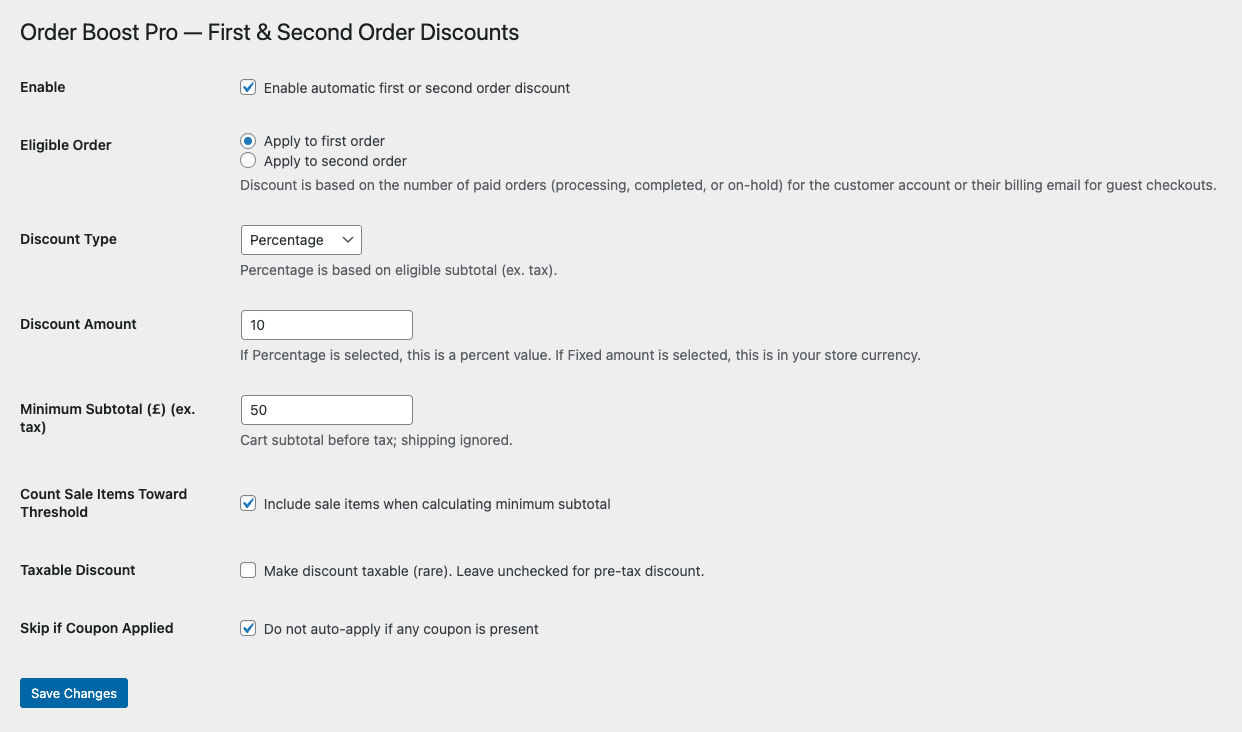
Configuring First and Second Order Discounts
↑ Back to topWithin the Order Boost settings, you can enable automatic discounts for first orders and, optionally, second orders. Each discount can be configured independently, allowing you to tailor incentives for new and returning customers.
For each discount, you can choose whether the discount is a percentage of the cart subtotal or a fixed amount. You can also define a minimum cart subtotal that must be met before the discount applies. This ensures discounts are only triggered when orders reach a value that makes sense for your store.
Sale Items, Coupons, and Tax Behaviour
↑ Back to topOrder Boost gives you fine-grained control over how discounts interact with existing WooCommerce pricing rules.
You can choose whether sale items are included when calculating eligibility for a discount. This allows you to avoid double-discounting products that are already on sale, or to include them if that better suits your pricing strategy.
You can also prevent discounts from stacking with coupons. When this option is enabled, Order Boost will not apply its automatic discount if a coupon is present in the cart.
The plugin also allows you to control whether the discount affects taxable amounts or is applied after tax, ensuring compatibility with your store’s tax configuration.
Discount Visibility at Checkout
↑ Back to topAt checkout, eligible customers will see the discount applied automatically in the order totals. No coupon fields, codes, or additional steps are required. You can control how the discount is labelled and displayed to ensure it fits cleanly with your theme and checkout layout.
If a customer does not meet the eligibility criteria — for example, if they have already placed more than the allowed number of orders or have not met the minimum spend — no discount is applied, and checkout proceeds as normal.
How Eligibility Is Determined
↑ Back to topOrder Boost determines eligibility by checking the customer’s completed order history in WooCommerce. Only completed orders are counted; cancelled, failed, or pending orders are ignored.
For guest checkouts, the plugin uses the available order data (such as billing email) to determine eligibility where possible. For the most reliable results, customer accounts are recommended but not required.
Order Processing and Storage
↑ Back to topOnce a discount is applied, it becomes part of the order totals and is stored with the order in WooCommerce. The discount is visible in the admin order screen and reflected consistently in customer and admin emails.
All discount logic is handled automatically during checkout, ensuring that every eligible order receives the correct discount without manual intervention or post-order adjustments.
Settings Explained
↑ Back to topAll Order Boost settings can be found under WooCommerce → Marketing → Order Boost Pro.
- Enable: This setting enables automatic discounts for customers placing their first or second completed order. When enabled, Order Boost checks the customer’s order history during checkout and applies the configured discount if no completed orders exist, or if just one exists, depending on your selection of the below settings. If disabled, no first-order or second-order discount will be applied, even if other settings are configured.
- Eligible Order: Here is where you select the order to which you would like to apply this discount. You can toggle either the first order or second order, depending on your preference. For either one, the discount is based on the number of paid orders (processing, completed or on-hold) for the customer account or their billing email for guest checkouts.
- Discount Type: This setting controls how the discount is calculated. You can choose a percentage discount, which applies a percentage reduction to the cart subtotal, or a fixed discount, which subtracts a set monetary amount from the order total. The appropriate option depends on whether you want discounts to scale with order value or remain consistent across all qualifying orders.
- Discount Amount: The discount value defines how much savings the customer receives when the discount is applied. For percentage discounts, this represents the percentage of the cart subtotal that will be discounted. For fixed discounts, this is the exact monetary amount that will be deducted from the order total when eligibility conditions are met.
- Minimum Subtotal (£) (ex. tax): This setting defines the minimum cart subtotal required before the discount is applied. If the customer’s cart does not meet this threshold, no discount is applied. This allows you to encourage higher order values while still offering an incentive to new customers.
- Count Sale Items Toward Threshold: This setting controls whether products that are already on sale are included when calculating discount eligibility and discount amounts. When enabled, sale items contribute to the cart subtotal used to determine whether the discount applies. When disabled, sale items are excluded to prevent double-discounting.
- Taxable Discount: This setting controls how the discount interacts with your store’s tax configuration. Depending on your selection, the discount can be applied before tax is calculated or after tax has been applied. If enabled, the discount will be taxable, which is the rarer configuration. If disabled, the discount will be applied pre-tax, which is the more common configuration. This ensures compatibility with different tax rules and accounting requirements.
- Skip if Coupon Applied: When enabled, Order Boost will not apply its automatic discount if a coupon is present in the cart. This prevents customers from combining automatic discounts with coupon codes, helping you avoid stacking promotions unintentionally.
Usage & Display
↑ Back to topWith Order Boost, eligible customers automatically receive a discount at checkout based on the discount mode you have configured. You can choose to reward either first orders or second orders, and only one discount type can be active at any given time. This ensures discounts are applied predictably and avoids overlapping promotions.
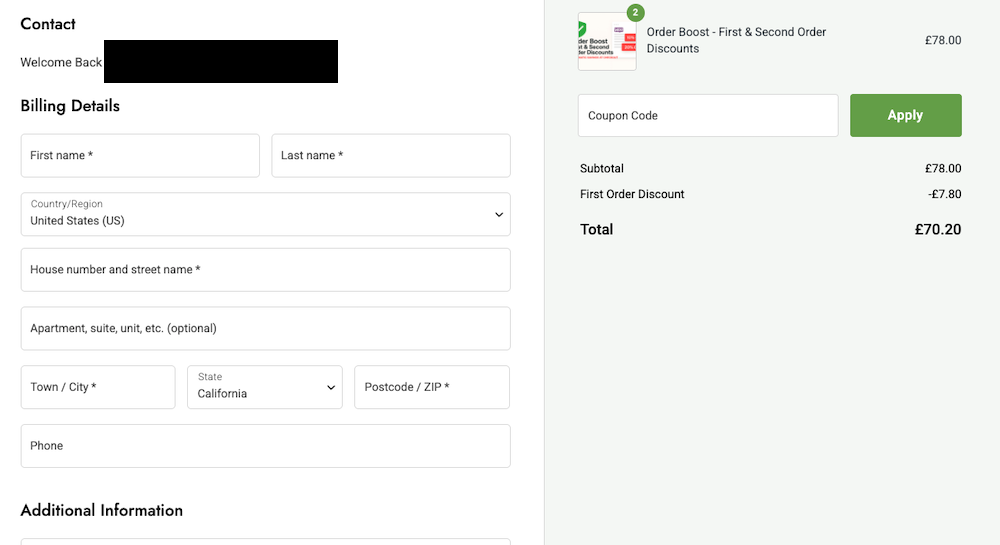
The plugin works seamlessly with both the Classic checkout and the WooCommerce Block-based checkout. No additional configuration is required for different checkout types, and the same eligibility rules apply regardless of which checkout experience your store uses.
At checkout, the discount is applied automatically once the customer meets the configured conditions, such as minimum cart subtotal and eligibility requirements. The discount appears directly in the cart and order totals, with no coupon codes, extra fields, or pop-ups required.
By default, Order Boost evaluates eligibility as soon as sufficient customer information is available. For logged-in customers, this is based on their account and completed order history. For guest customers, the plugin uses the billing email address entered at checkout to determine eligibility. If the required information is not yet available, the discount will be applied as soon as it can be reliably calculated.
Order Boost also accounts for changes during checkout. If the cart contents or subtotal change, the plugin automatically recalculates eligibility and updates the discount accordingly. If the customer no longer meets the criteria — for example, if the cart falls below the minimum spend — the discount is removed automatically.
This approach ensures a smooth, transparent checkout experience for customers, while giving you confidence that discounts are applied consistently and only when the correct conditions are met.
Troubleshooting
↑ Back to topThe discount is not showing at checkout
↑ Back to topFirst, confirm that Order Boost is enabled and that either the first order discount or the second order discount is active. Only one discount mode can be enabled at a time.
Next, check that the cart meets the configured minimum subtotal. If the cart total is below this value, the discount will not be applied.
Also ensure that the customer meets the eligibility criteria:
- For first order discounts, the customer must have no completed orders.
- For second order discounts, the customer must have exactly one completed order.
Cancelled, failed, and pending orders are not counted.
The discount appears briefly and then disappears
↑ Back to topThis usually occurs when required customer information is not yet available. For logged-in customers, eligibility can be calculated immediately. For guest customers, the billing email address must be entered before eligibility can be determined.
Once the email address is provided, the discount will be applied automatically if the customer qualifies.
The discount does not apply when a coupon is used
↑ Back to topIf the Disable discount when coupons are applied option is enabled, Order Boost will not apply its discount when any coupon is present in the cart. Remove the coupon or disable this setting if you want both to apply.
The discount is not applied to sale items
↑ Back to topCheck the Include sale items setting. If this option is disabled, products that are already on sale are excluded from discount calculations. Enable this setting if you want sale items to be eligible.
The discount amount is smaller than expected
↑ Back to topIf a percentage discount is being used, the discount is calculated based on the eligible cart subtotal only. Excluded items (such as sale items, if disabled) are not included in this calculation.
Also check whether tax behaviour settings are affecting how the discount is applied before or after tax.
The discount does not apply for guest customers
↑ Back to topGuest customers must enter a valid billing email address before eligibility can be determined. Until the email field is completed, the discount cannot be reliably applied.
For the most consistent behaviour, customer accounts are recommended, but not required.
The discount does not apply for returning customers
↑ Back to topConfirm that the correct discount mode is enabled. If the plugin is set to apply a first order discount, returning customers will not be eligible. If it is set to apply a second order discount, only customers with exactly one completed order will qualify.
Customers with two or more completed orders will not receive a discount.
The discount does not appear in order emails
↑ Back to topOrder Boost adds the discount as part of the WooCommerce order totals. If the discount appears in the admin order screen but not in emails, check that your email template displays order totals correctly. Custom email templates may hide or override standard totals output.
Theme or plugin conflicts
↑ Back to topOrder Boost follows WooCommerce best practices and is compatible with both Classic and Block-based checkout. However, conflicts can occur with themes or plugins that heavily customise pricing, cart totals, or checkout behaviour.
If you suspect a conflict, temporarily disable other checkout or pricing-related plugins and switch to a default WooCommerce theme to isolate the issue.
Still not working?
↑ Back to topIf the issue persists, enable WooCommerce debug logging and contact support with:
- Your WooCommerce version
- Your theme name
- A list of active plugins
- A description of the behaviour you’re seeing
This will help diagnose the issue quickly and accurately.
FAQs
↑ Back to topHelp customers by answering commonly asked questions.
How does Order Boost determine whether a customer is placing their first or second order?
Order Boost checks the customer’s completed order history in WooCommerce. If no completed orders exist, the customer is treated as a first-time buyer. If exactly one completed order exists, the customer may be eligible for a second-order discount, depending on your settings.
Cancelled, failed, and pending orders are ignored.
Do customers need to enter a coupon code?
No. Discounts are applied automatically at checkout when the eligibility conditions are met. There are no coupon fields, pop-ups, or manual steps required.
Can I choose between percentage and fixed discounts?
Yes. You can configure the discount as either a percentage of the cart subtotal or a fixed monetary amount.
Can I set a minimum spend before the discount applies?
Yes. You can define a minimum cart subtotal that must be reached before the discount is applied. This helps protect margins and encourage higher order values.
Will the discount apply to sale items?
This is fully configurable. You can choose whether sale items are included or excluded when calculating discount eligibility.
What happens if a customer uses a coupon?
You can prevent discounts from stacking with coupons. When this option is enabled, Order Boost will not apply its discount if a coupon is already present in the cart.
Is the discount taxable?
You can choose whether the discount affects taxable amounts or is applied after tax, depending on your store’s requirements.
Is Order Boost compatible with the Block-based checkout?
Yes. Order Boost is fully compatible with both the Classic checkout and the WooCommerce Block-based checkout.
Does this work for guest checkouts?
Yes. Guest customers are supported. Order Boost uses the available order data (such as billing email) to determine eligibility where possible. For best accuracy, customer accounts are recommended but not required.
Will this affect existing customers?
Existing customers who do not meet the first or second order criteria will not receive a discount. The plugin only applies discounts when the configured eligibility conditions are met.
Does this plugin slow down checkout?
No. Order Boost is designed to be lightweight and only runs minimal checks during checkout. It does not add additional database queries beyond what is required to determine eligibility.
Can I hide the discount from customers?
Yes. You can control how the discount is displayed in the cart and checkout totals to match your store’s preferred presentation.
Is this plugin compatible with other WooCommerce extensions?
Order Boost follows WooCommerce best practices and is compatible with the vast majority of themes and extensions. As with any checkout-related plugin, conflicts are rare but can occur with heavily customised discount or pricing extensions.
Will this work with subscriptions or renewals?
Order Boost is designed for standard WooCommerce orders. Subscription renewals are typically excluded, as they are not treated as new orders in the same way. Compatibility may depend on your subscription setup.
Do you offer support and updates?
Yes. The plugin is actively maintained and supported, with updates provided to ensure ongoing compatibility with WooCommerce releases.

