
Pro Shopify Migrator allows your WooCommerce store to safely migrate thousands of products, images, pages, coupons, blogs, and orders from Shopify without the risk of data duplication.
Installation
↑ Back to topTo start using a product from WooCommerce.com, you can use the “Add to store” functionality on the order confirmation page or the My subscriptions section in your account.
- Navigate to My subscriptions.
- Find the Add to store button next to the product you’re planning to install.
- Follow the instructions on the screen, and the product will be automatically added to your store.
Alternative options and more information at:
Managing WooCommerce.com subscriptions.

Setup and Configuration
↑ Back to topAfter activation, you will find a new Settings link. Click on this link, and you will be redirected to the “Shopify to WooCommerce” tab located under WooCommerce → Settings.. This tab contains four sub-sections:
1-API Settings.
2-Sync Store.
3-Auto Import.
4-Import Logs.
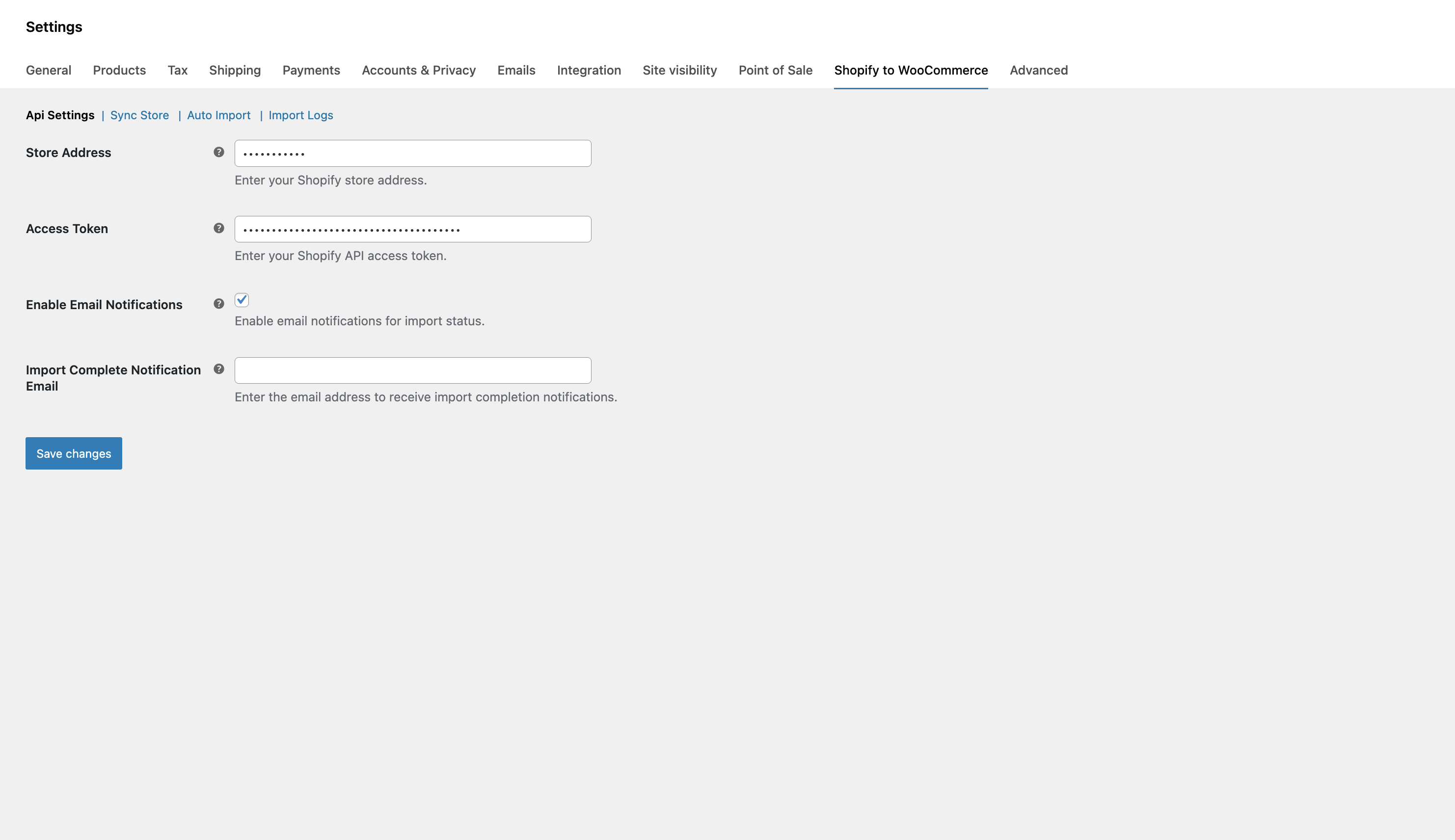
1. API Settings
↑ Back to topThe API Settings tab is where the magic starts. Think of this as the “bridge” between your Shopify store and WooCommerce. You only need to set this up once to establish a secure connection.
- Store Address: Enter your Shopify store URL (e.g., `your-store.myshopify.com`).
- Access Token: This is your private key from Shopify. It allows our plugin to safely “read” your data so it can be copied over.
- Email Notifications: Want to know when a large migration is finished? Turn this on, and we’ll send you an update the moment your data is safely landed in WooCommerce.
2. Sync Store
↑ Back to topThis is your primary dashboard for manual migrations. If you want to move your existing Shopify catalog right now, this is where you do it.
The Sync Store tab provides a clear overview of what’s ready to be moved. You can choose to import everything at once or focus on specific sections like just your products or just your customer list. It handles the heavy lifting in the background, making sure that your variant images and categories stay perfectly organized during the move.
Selective Import with Advanced Filtering
3. Auto Import
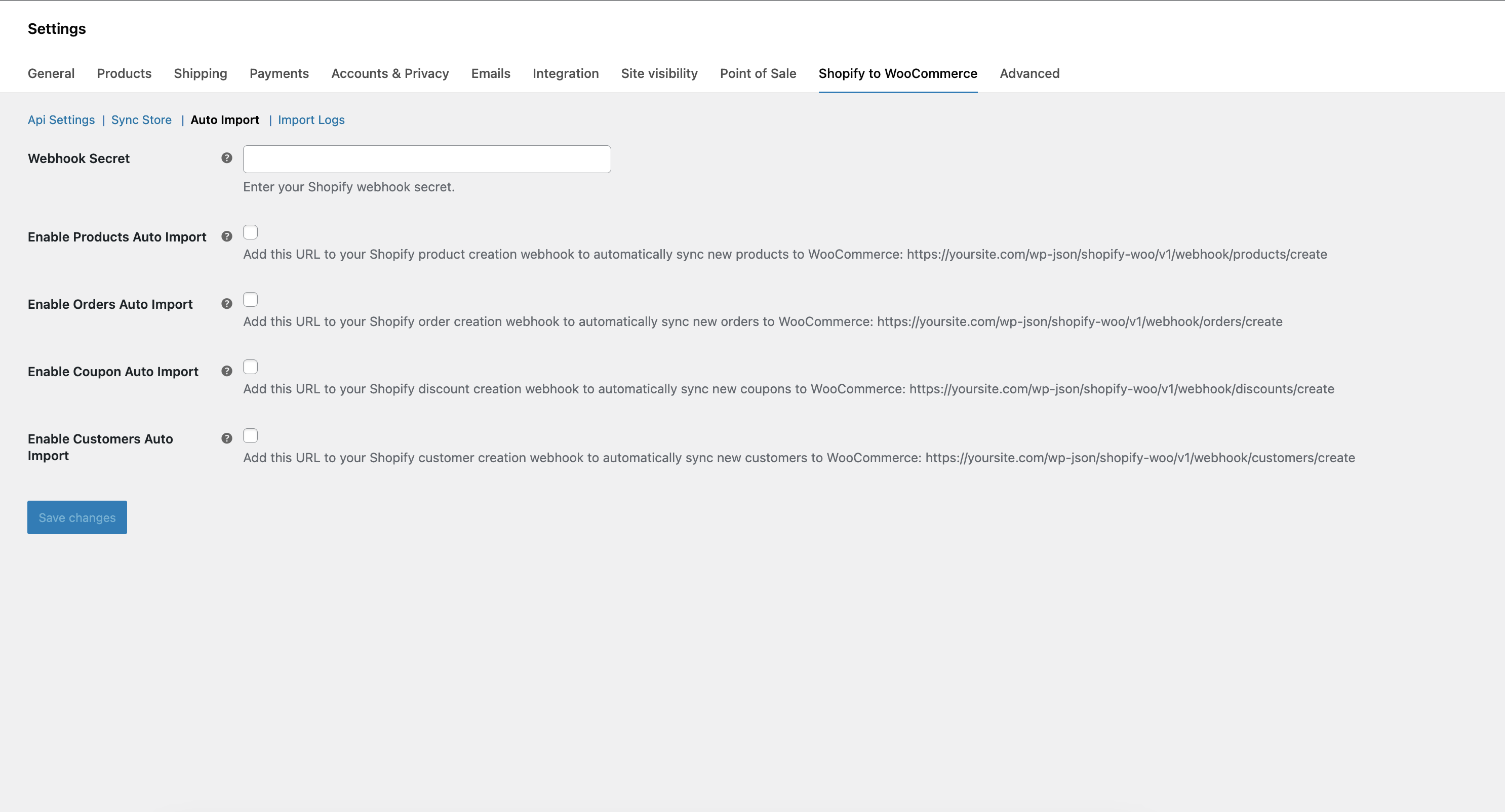
↑ Back to topThe Auto Import tab is for store owners who want to “set it and forget it.” Using Shopify Webhooks, this feature listens for updates on your Shopify store and automatically mirrors them to your WooCommerce store in real-time.
- How it works: We provide you with unique URLs for Products, Orders, and Customers.
- The Benefit: If you add a new product or receive a new order on Shopify, our plugin will automatically create that same data in WooCommerce without you lifting a finger. It’s perfect for running both stores in parallel during a transition period.
4. Import Logs
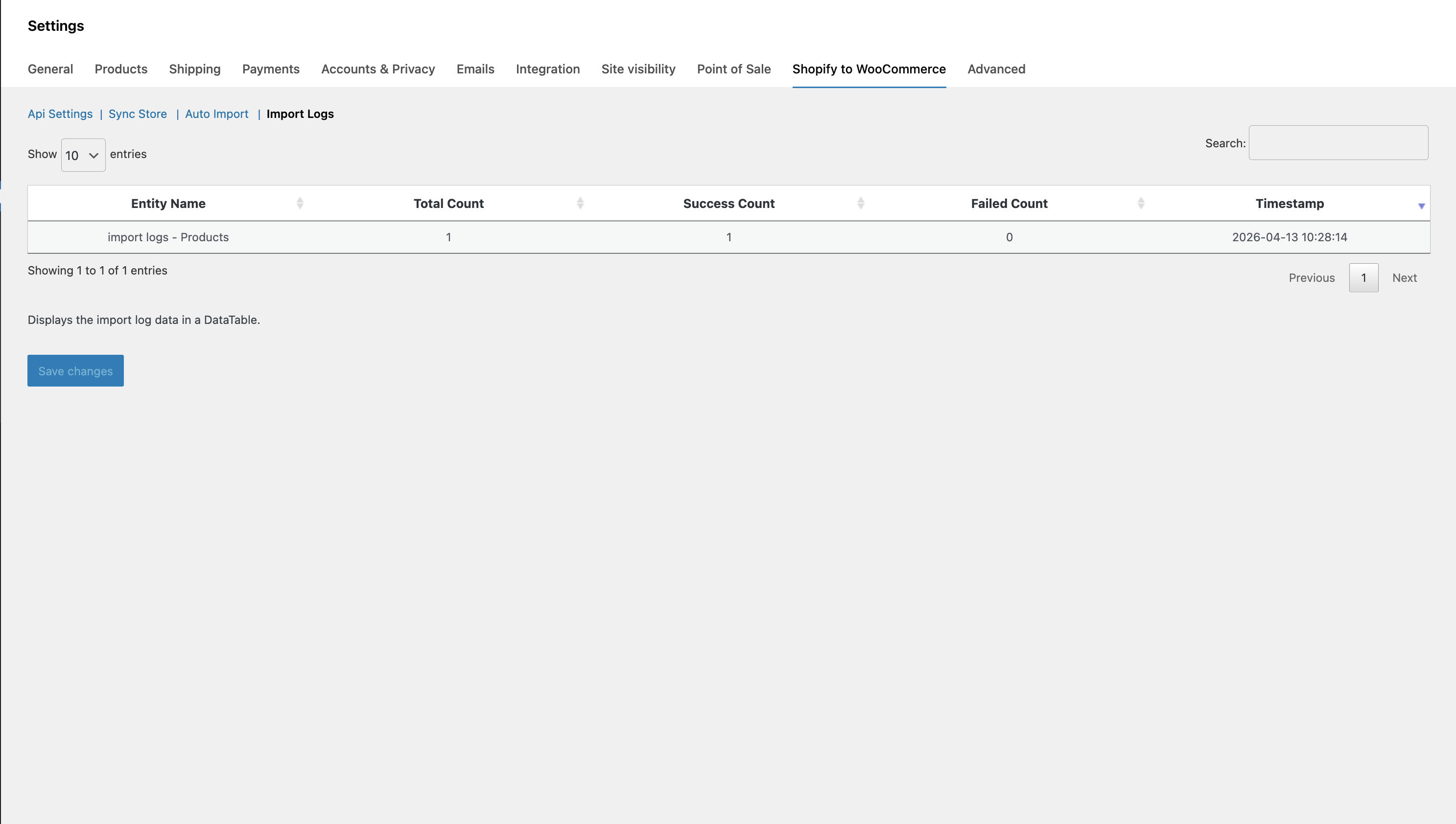
↑ Back to topSafety and transparency are key when moving data. The Import Logs tab is your “history book.” It records every single migration attempt so you can verify exactly what happened.
- Check Your Progress: See a breakdown of how many items were successfully moved and if any failed.
- Troubleshooting: If an item didn’t import (perhaps due to a missing image or server timeout), the logs will tell you exactly which entity had the issue and when it happened. It’s the best way to ensure that 100% of your data made it across the finish line.
FAQs
↑ Back to topHelp customers by answering commonly asked questions.
Can I migrate a catalog with thousands of products and images?
Absolutely. The Pro Shopify Migrator is built to handle high-volume stores. Instead of trying to move everything in one “risky” burst, the plugin processes data in managed chunks. This prevents server timeouts and ensures that even the largest catalogs with multiple variants and high-res images are imported safely.
What happens if the migration is interrupted or my internet drops?
Don’t worry. Our plugin features a smart “Resume” capability. If the connection is lost or the process is accidentally stopped, the migrator remembers exactly where it left off. Simply restart the process, and it will pick up from the last successfully imported item without creating any duplicate data.
Can I keep both stores synced while I prepare for the final launch?
Yes! Using our Auto Import feature, you can set up a real-time link between Shopify and WooCommerce. By adding our Webhook URLs to your Shopify admin, any new products, customers, or orders created on Shopify will instantly appear in WooCommerce. This allows you to keep your new store perfectly updated while you finalize your design and testing.

